Scene Object User Guide
After checking the function option Collision Detection, a new Task configuration ------Scene Object is added, which is used to configure the material frame (including various material frames of unfixed size) for collision detection with the fixture. When using one-click connection to train a Visual Model or binocular imaging model, you need to upload the grid file of the material frame to generate material frame data.
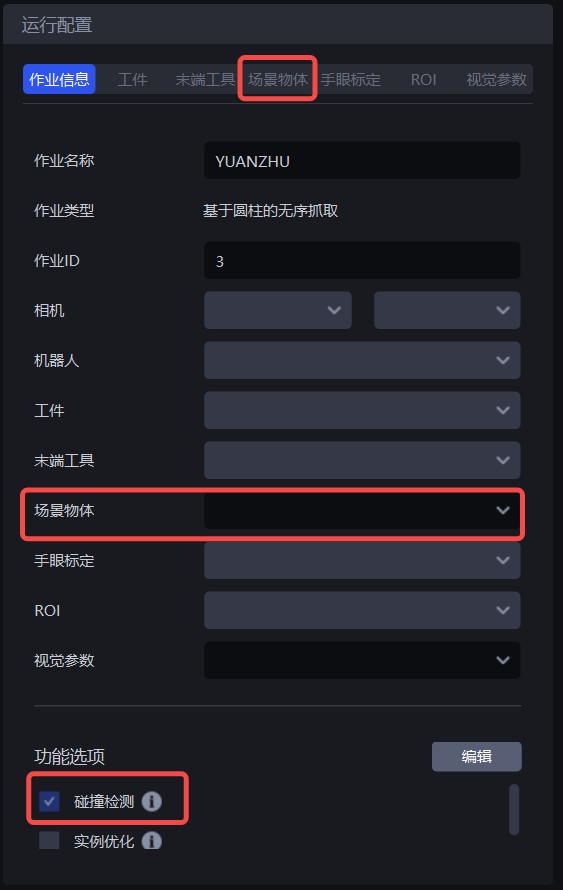
1. Add, modify and delete Scene Object
Click on the Scene Object column, as shown below.
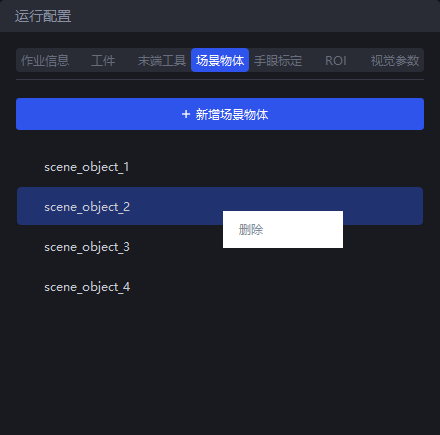
Left-click
+Add Scene Objectto create a new Scene Object;Left-click on a specific Scene Object to open the Scene Object interface to modify information;
Right-click on a specific Scene Object to choose to delete the corresponding Scene Object.
2. Configure Scene Object
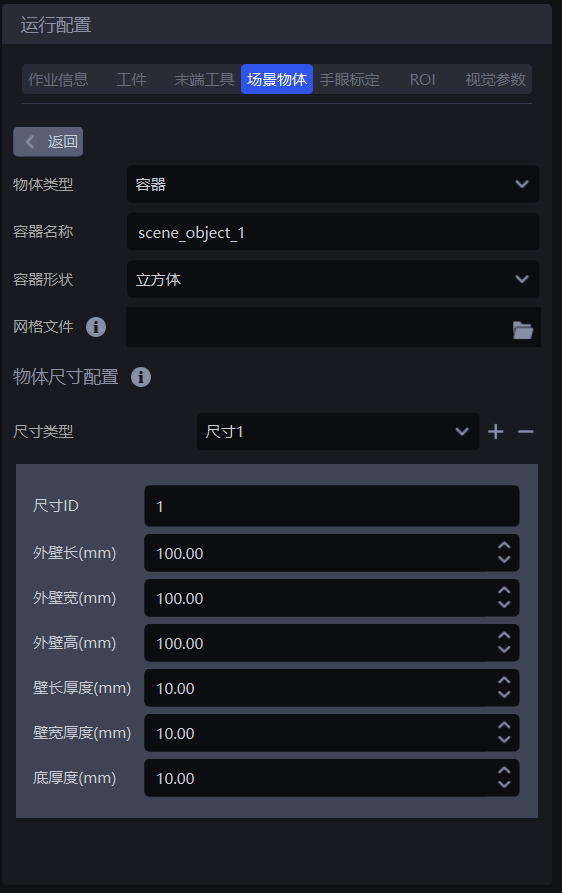
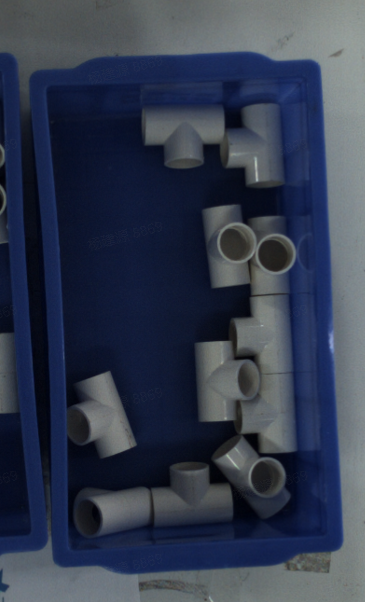
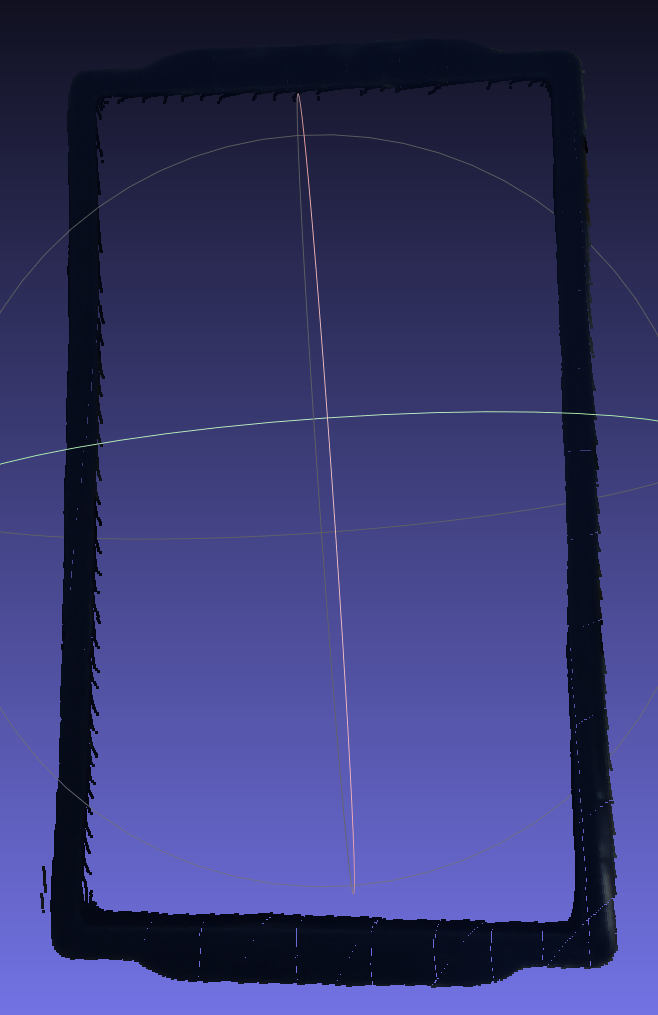
Object type: Scene Object type, currently there is only one typeContainerContainer name: used to identify the current containerContainer Shape: Currently there is only one shape: cubegrid file: optional. When the incoming materials exist in the material frame, the grid file of the material frame can be uploaded. When using one-click connection to train the Visual Model or the binocular imaging model, the material frame data is generated in the simulation environment to simulate the incoming material method, which can enhance the identification of the material frame and the target in the material frame.
Only out-of-order capture of Scene requires uploading grid files
Object size configuration: Configure the size prior of the material frame. When detecting the material frame, fit the quadrilateral according to the size prior to obtain the template Point Cloud of the material frame, and perform Fine matching with the ScenePoint Cloud of the material frame to obtain the final posture. If there are material frames of multiple sizes in the Scene, you can set different size priors for the same Scene Object. Click "+""-" to add or delete size priors, as shown in the figure below.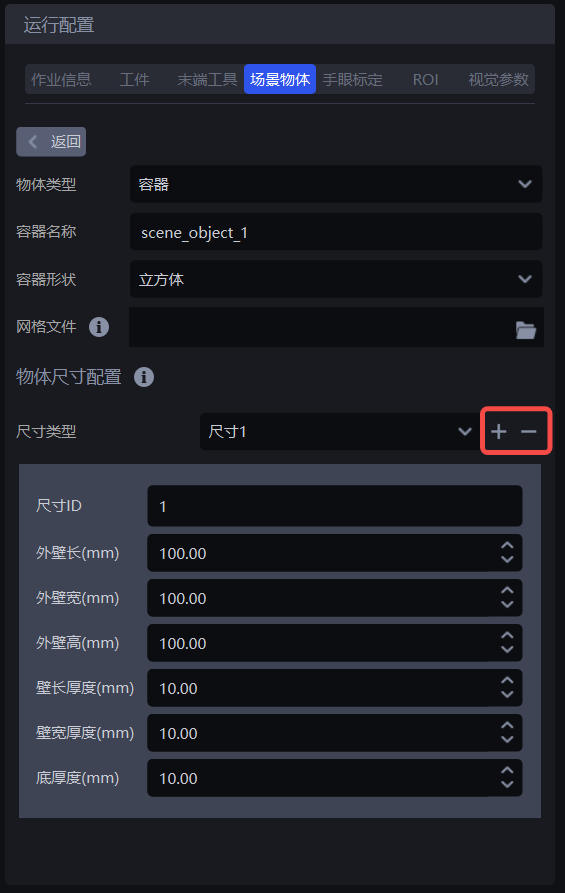
Size ID: used to identify the current size a priori configuration, Robot outputs the material frame size ID The current size id will be used whenOuter wall length: The length of the outer wall of the container, unit mm, Robot output Material frame size (length, width, height, long side thickness, wide side thickness, bottom thickness) This configuration will be used as the firstOuter wall width: container outer wall width, unit mm, Robot output Material frame size (length, width, height, long side thickness, wide side thickness, bottom thickness) This configuration will be used as the secondOuter wall height: height of the outer wall of the container, unit mm, Robot output Material frame size (length, width, height, long side thickness, wide side thickness, bottom thickness) This configuration will be used as the thirdWall length and thickness: The thickness of the long side wall of the container, unit mm, Robot output Material frame size (length, width, height, long side thickness, wide side thickness, bottom thickness) This configuration will be used as the fourth bit whenWall width and thickness: container width and wall thickness, unit mm, Robot output Material frame size (length, width, height, long side thickness, wide side thickness, bottom thickness) This configuration will be used as the fifth bit whenBottom thickness: The thickness of the bottom wall of the container, unit mm, Robot output Material frame size (length, width, height, long side thickness, wide side thickness, bottom thickness) This configuration will be used as the sixth bit when
3. Select Scene Object
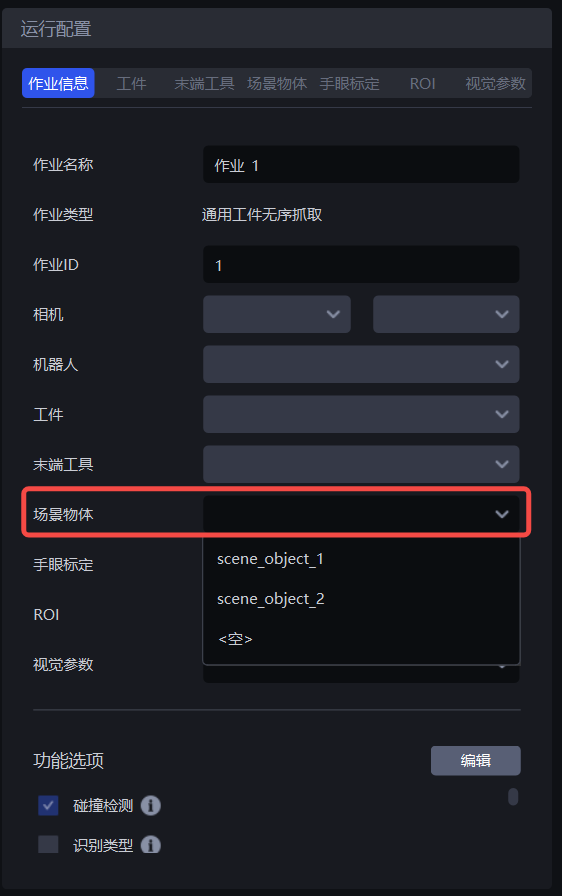
After configuring the Scene Object, select the Scene Object bound to the current Task in the Scene Object drop-down box of the Task information.
4. Robot related instructions
In the PickWiz sends to Robot command, you can configure to obtain the material frame matching information when the match is successful and no exceptions are detected.
| information | placeholder | Function |
|---|---|---|
| Scene Object sizeID | so_size_id | The a priori ID of the material frame size matched by(consistent with the configuration content), the length is 1, and the unmatched value is -1 |
| Scene Object size | so_size | matching material frame size a priori (consistent with configuration content), length is 6 [Outer wall length, outer wall width, outer wall height, wall length thickness, wall width thickness, bottom thickness], the unmatched value is [0,0,0,0,0,0] |
| Scene Object pose | so_pose | The Scene Object pose matched by has a length of 6[x,y,z,a,b,c], and the unmatched value is [0,0,0,0,0,0] |