KINGFISHER Series Camera Hardware Installation Manual
Welcome to DexForce products!
This manual guides you through unpacking, inspection, installation, and use of the product. Illustrations are for reference only; the actual product shall prevail.
1. Unpacking inspection
After receiving the package, confirm that it is intact and undamaged.
Check the product and accessories against the packing list included in the package, and promptly confirm that no items are missing or damaged.
1.1 Accessories
Important
The following list is for reference only. Accessories may vary slightly by camera model. Refer to the packing list included with the actual product.
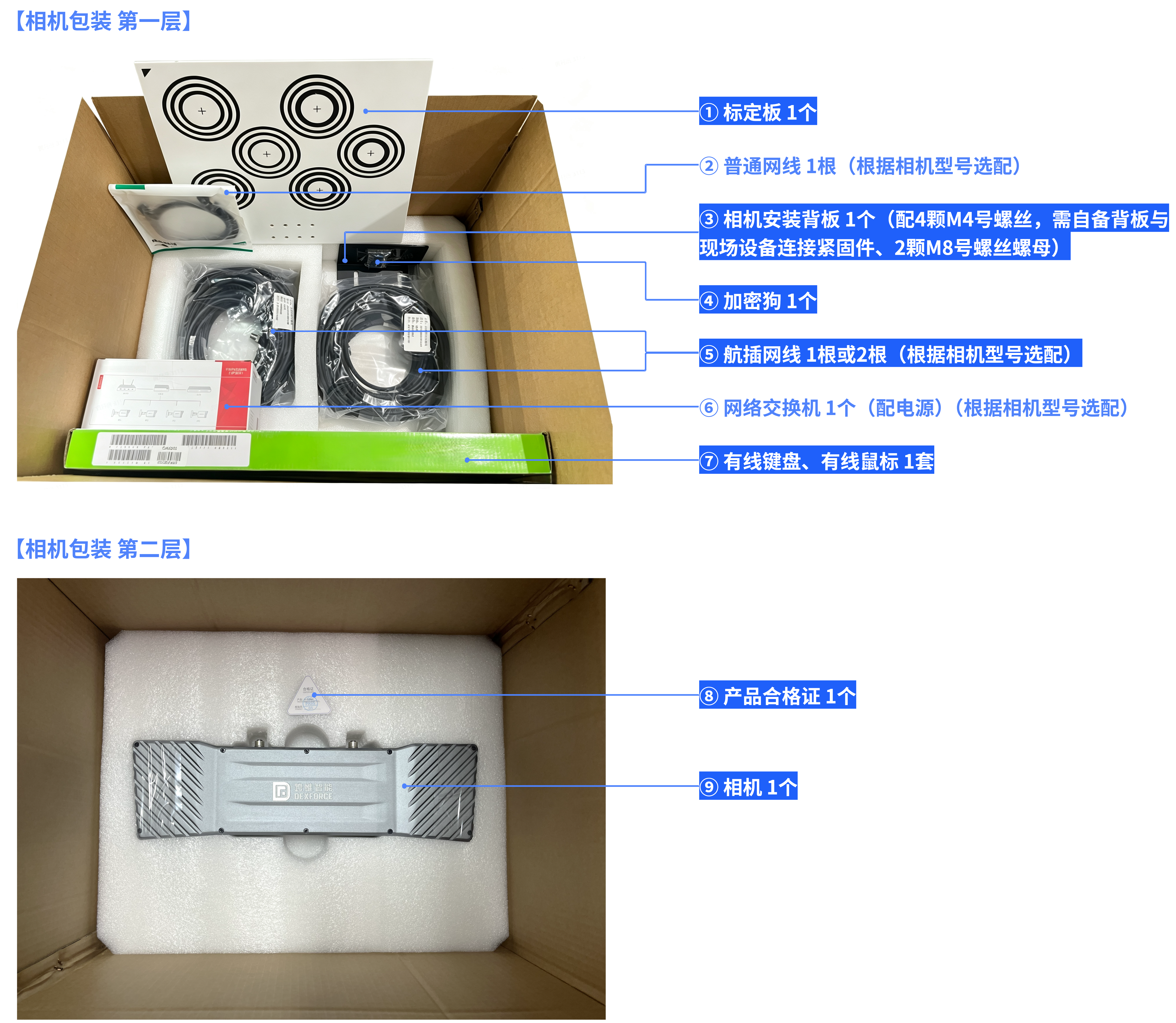
| No. | Item | Quantity | Notes |
|---|---|---|---|
| 1 | Calibration board | 1 | — |
| 2 | Standard Ethernet cable | 1 | Optional depending on the camera model |
| 3 | Camera mounting backplate | 1 | Includes four M4 screws. Provide the fasteners used to connect the backplate to the on-site equipment, plus two M8 bolts and nuts. |
| 4 | USB dongle | 1 | — |
| 5 | Industrial circular-connector Ethernet cable | 1 or 2 | Optional depending on the camera model |
| 6 | Network switch | 1 | Includes a power cable; optional depending on the camera model |
| 7 | Wired keyboard and wired mouse | 1 set | — |
| 8 | Product certificate | 1 | — |
| 9 | Camera | 1 | — |
| 10 | Industrial PC | 1 | Includes a power cable, mounting screws, product certificate, network antennas, and other accessories |
| 11 | Monitor | 1 | Includes a power cable and HDMI cable |
2. Hardware installation preparation
2.1 Tools and equipment to provide
| M4 hex key | M8 bolts, nuts, and matching tools | Ladder, safety rope, safety helmet, and other protective equipment |
|---|---|---|
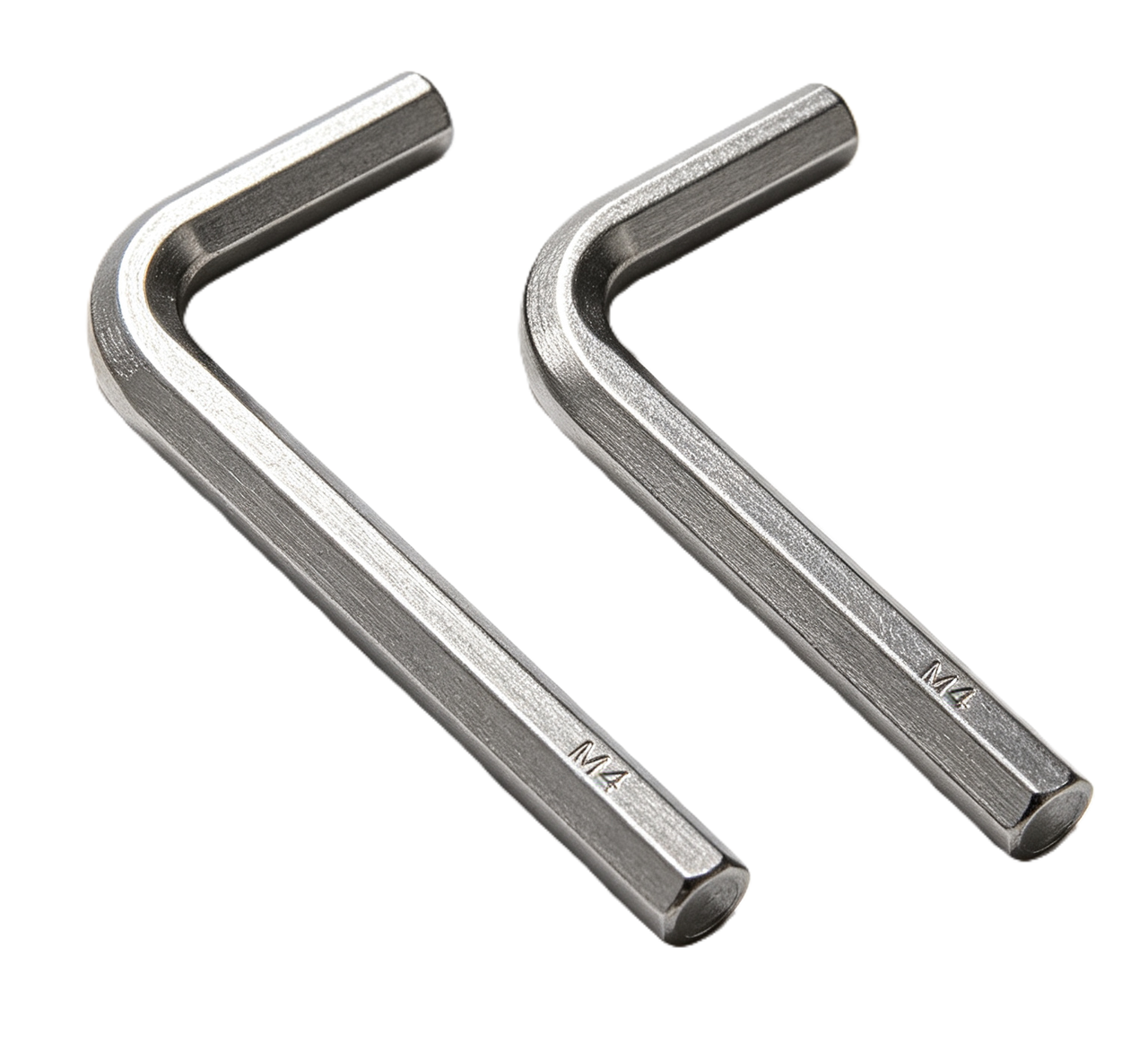 | 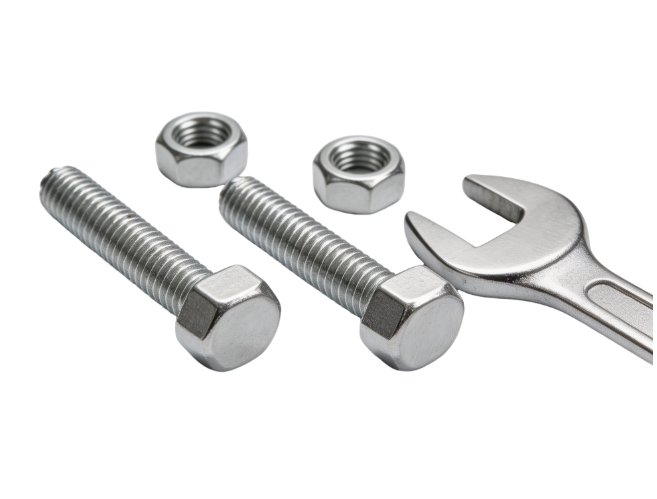 |  |
| 1 | 2 | 1 set |
2.2 Precautions
Make sure the camera operating environment meets the following conditions:
- Power is available and a Gigabit Ethernet network is provided.
- Temperature, humidity, impact, and other environmental conditions comply with the camera specifications.
- Ventilation and heat dissipation are adequate. Do not use the camera in a completely enclosed space, such as a sealed protective enclosure.
- The distance from the camera to the target surface is within the recommended working-distance range.
- Plan the robot path and take other appropriate measures to prevent collisions between the camera and surrounding equipment.
3. Hardware overview
| Device | Ports and indicators |
|---|---|
KINGFISHER-S-602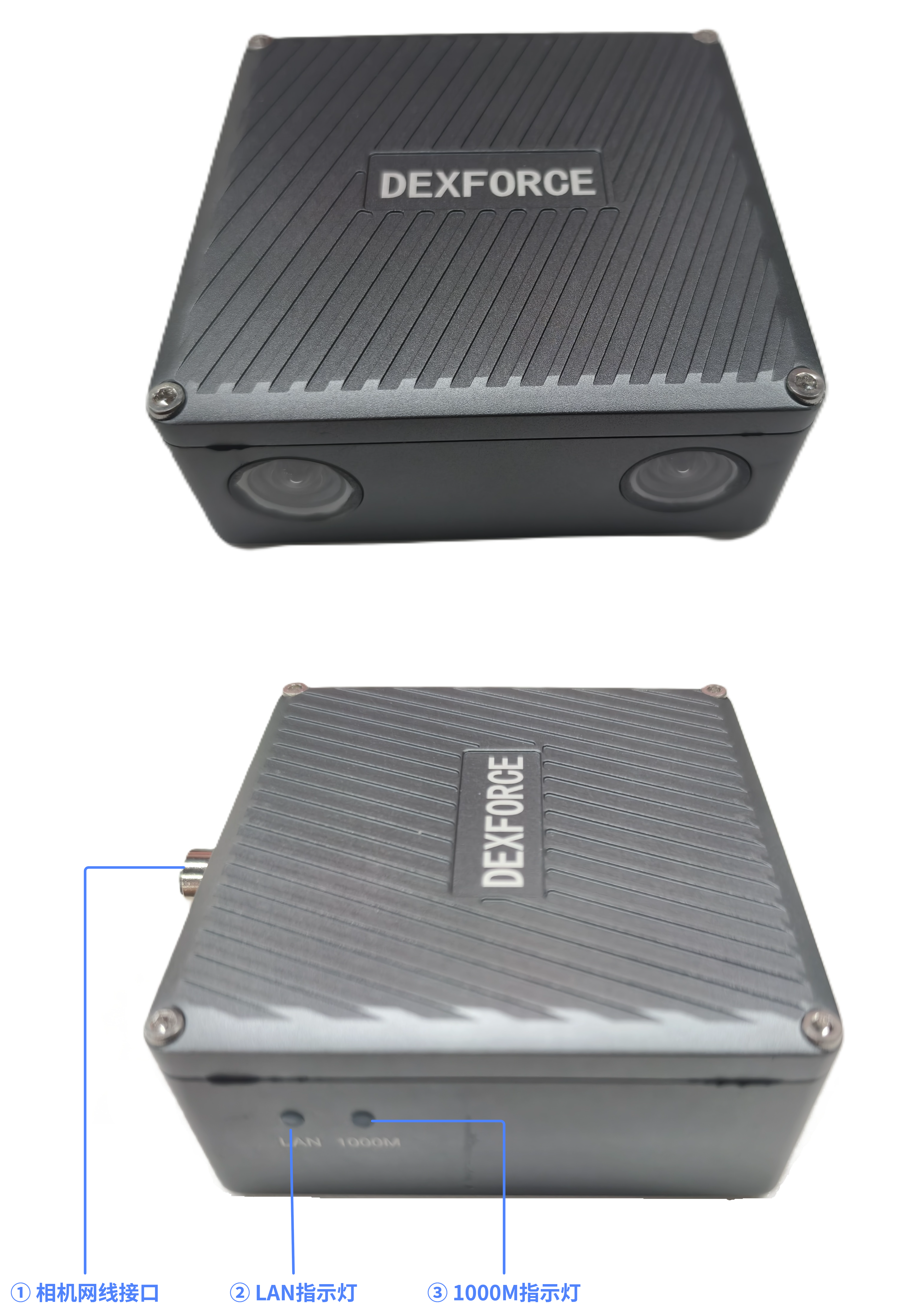 | ① Camera Ethernet port: Connect to the industrial PC using the industrial circular-connector Ethernet cable. ② LAN indicator
|
KINGFISHER-W-3003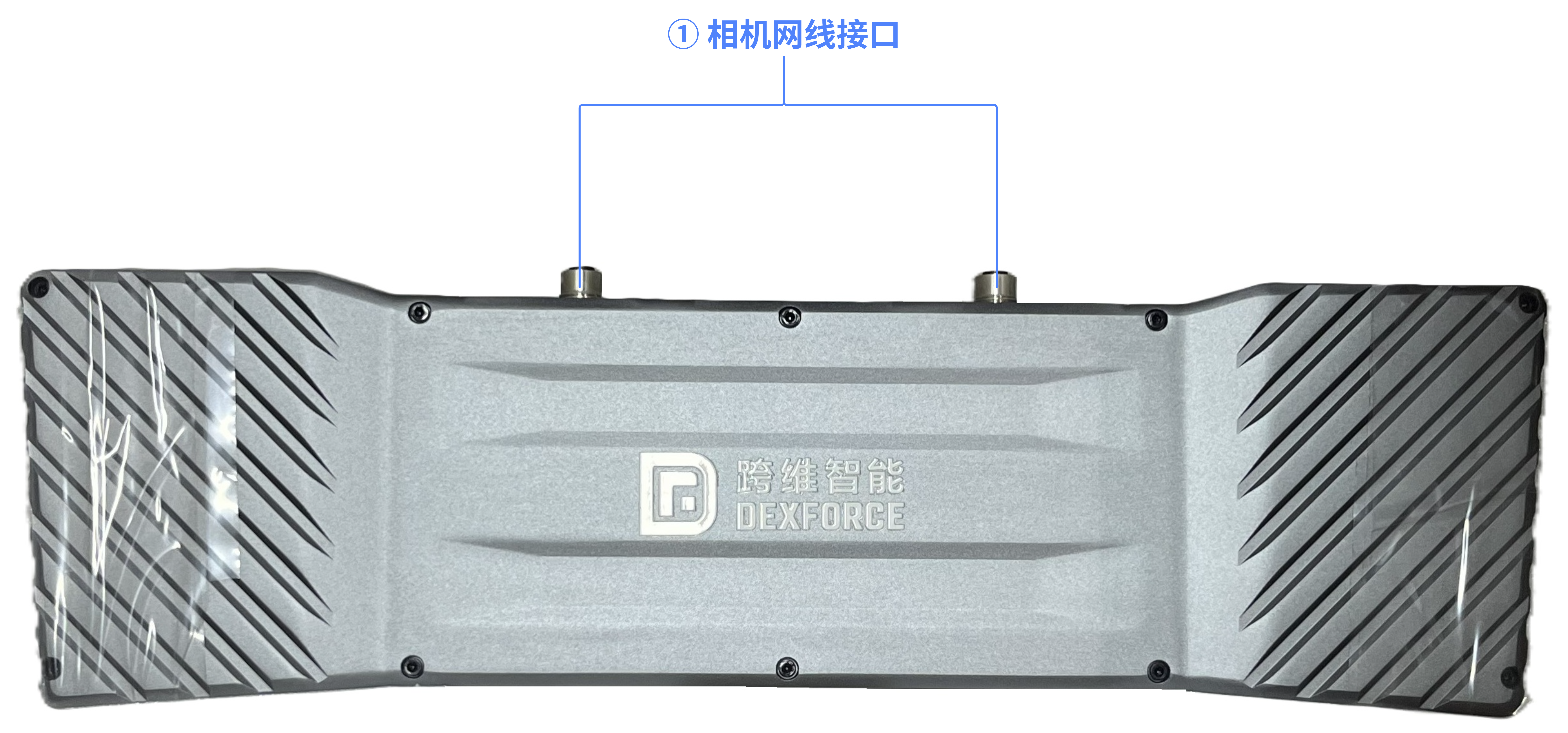 | ① Camera Ethernet port: Connect to the switch using the industrial circular-connector Ethernet cable. |
KINGFISHER-S-1001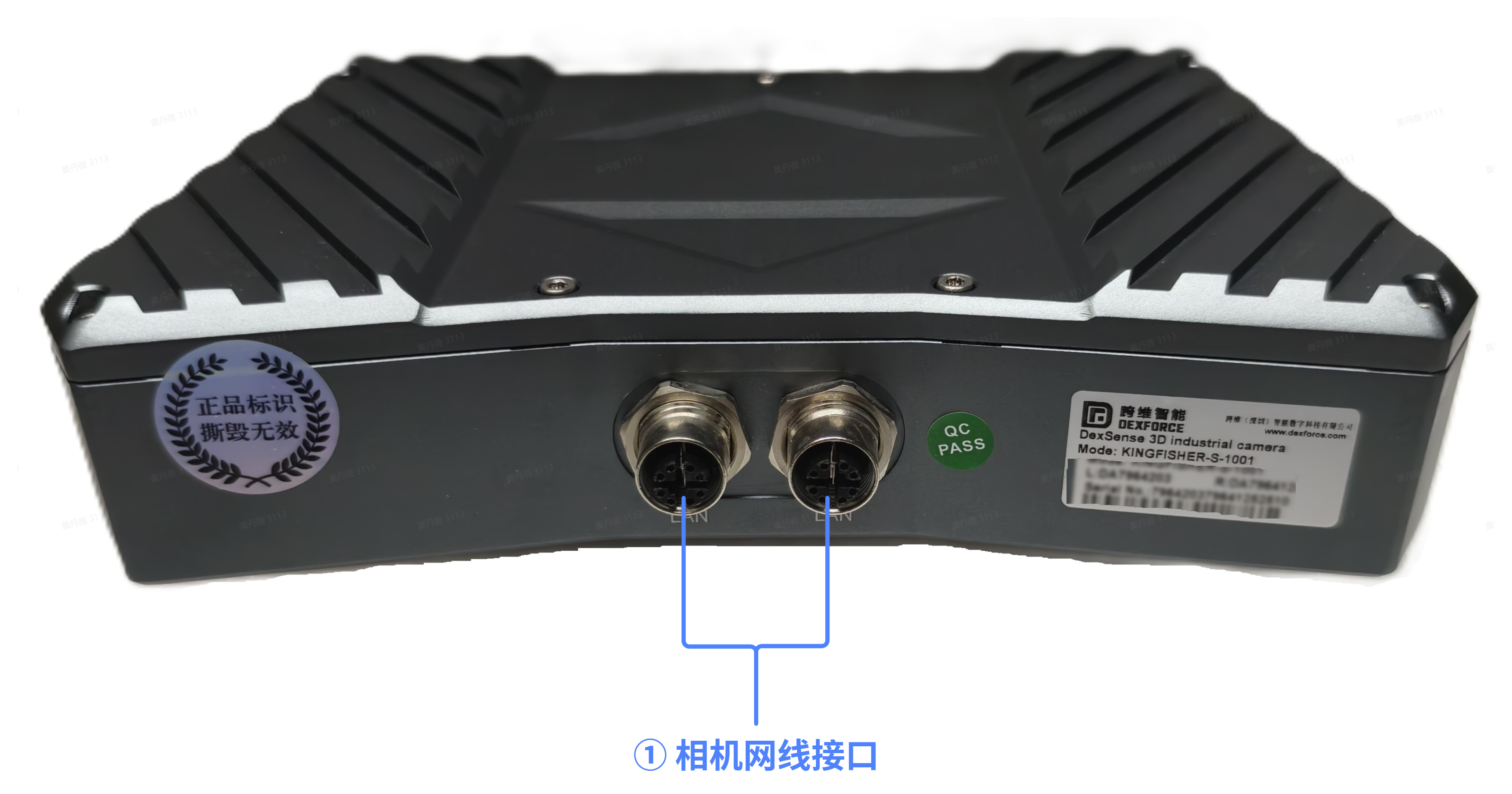 | ① Camera Ethernet port: Connect to the switch using the industrial circular-connector Ethernet cable. |
Industrial PC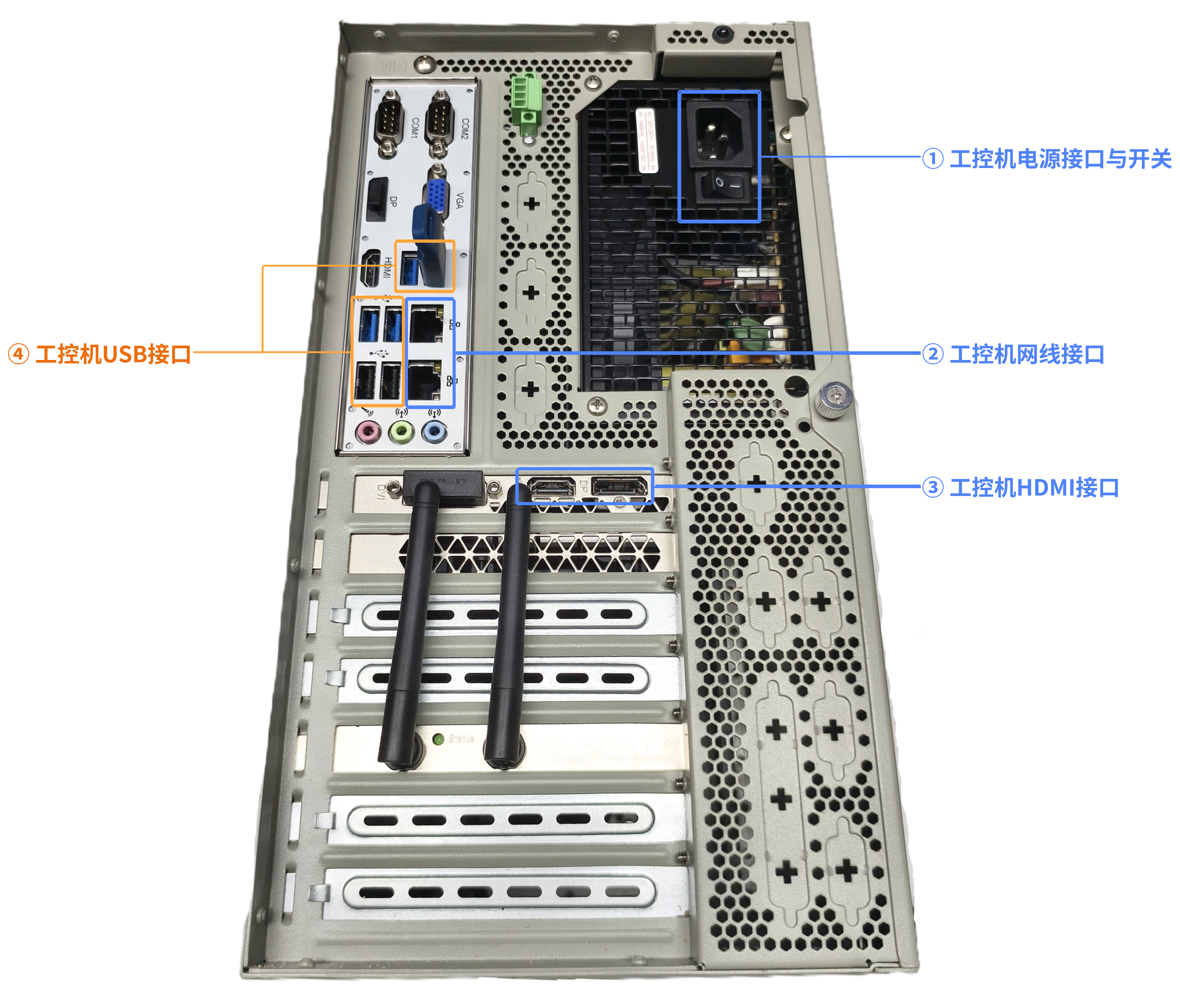 | ① Power connector and switch: Connect the industrial PC power cable and use the switch to turn the PC on or off. ② Ethernet ports: Use a standard Ethernet cable to connect to the local Gigabit Ethernet network, an industrial circular-connector Ethernet cable to connect directly to the camera, or a standard Ethernet cable to connect to the switch. ③ HDMI port: Connect the monitor using an HDMI cable. ④ USB ports: Connect the USB dongle, mouse, keyboard, and other peripherals. |
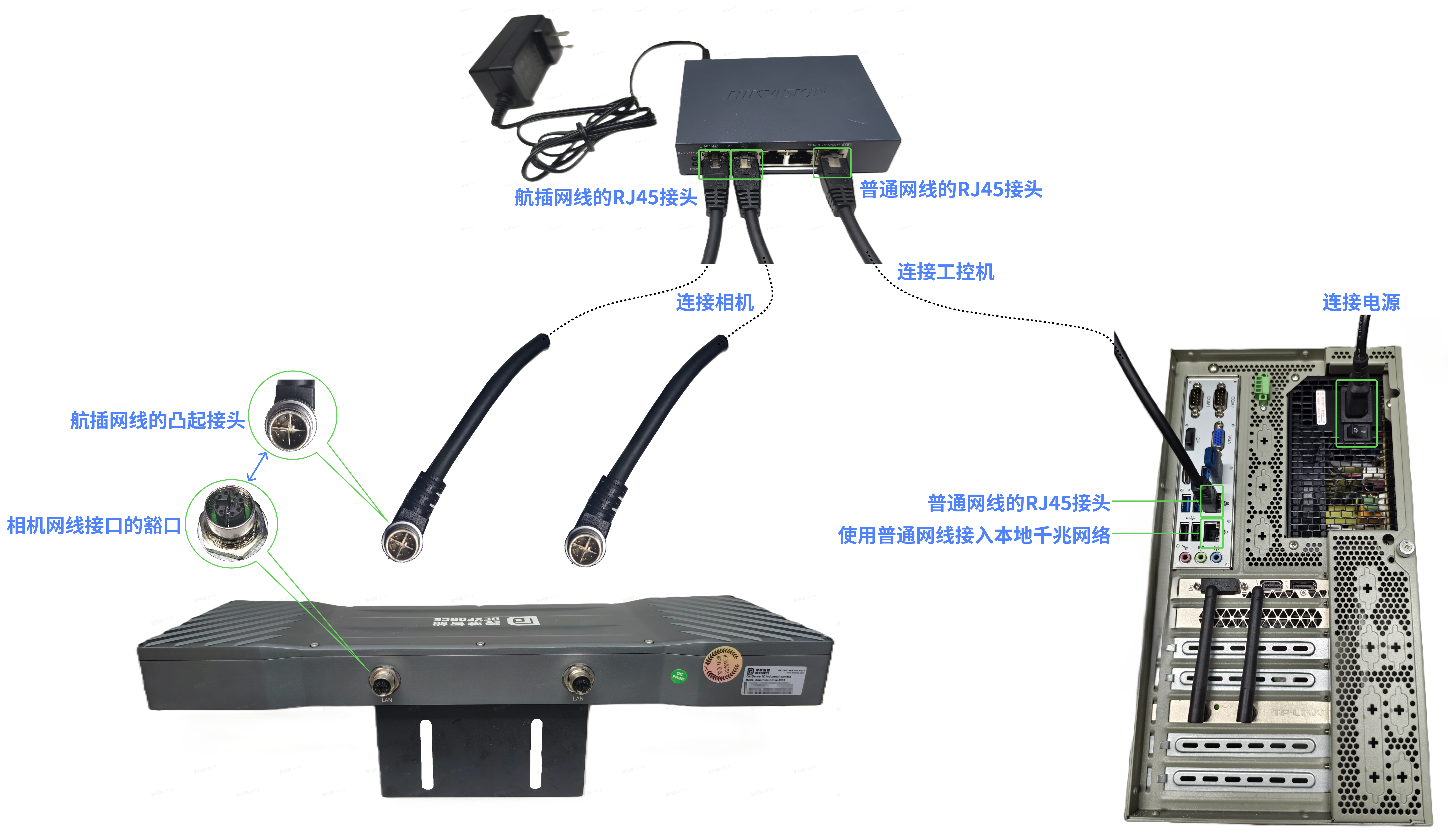
PoE switch (if supplied)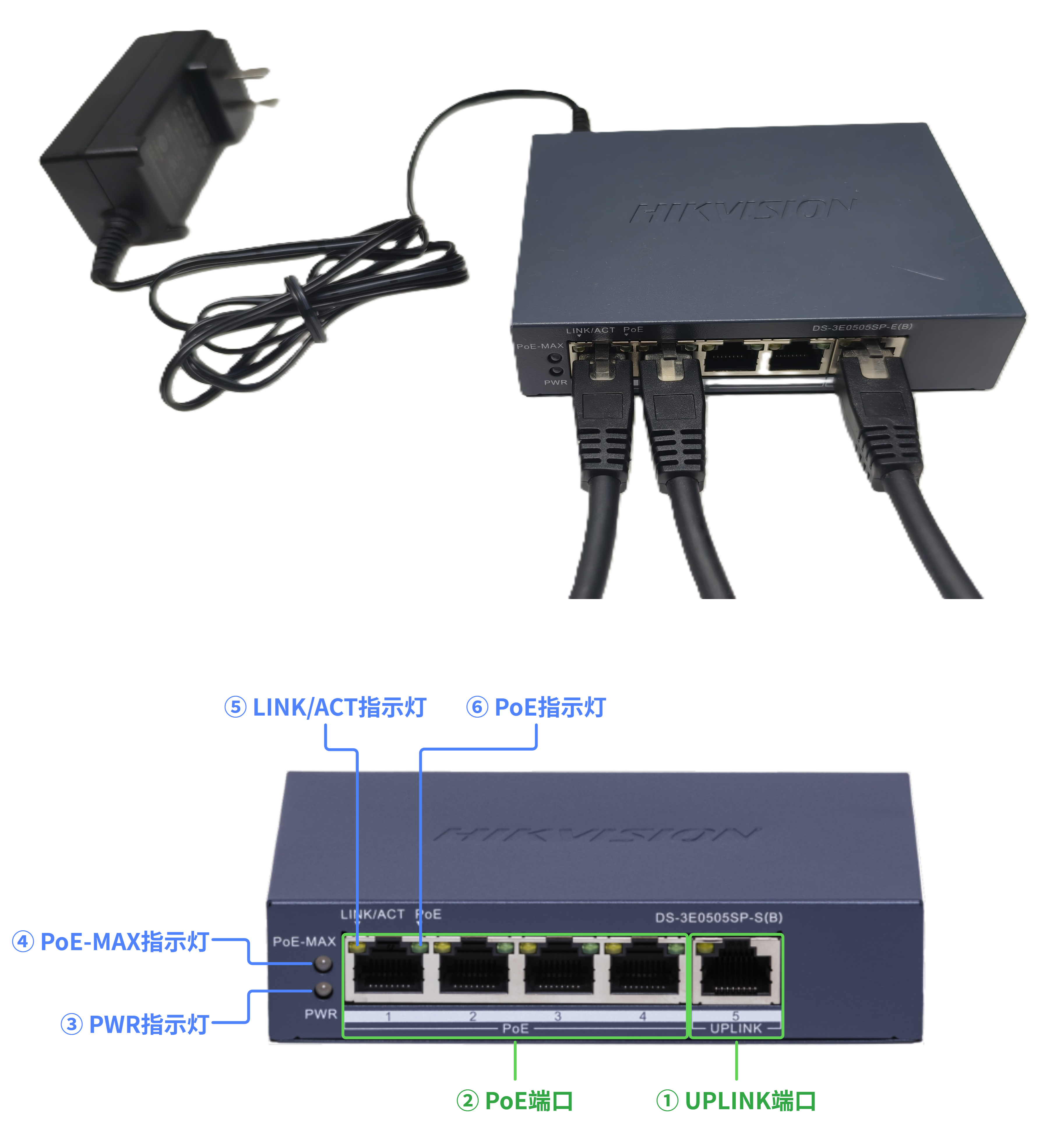 | ① UPLINK port: Connect to the industrial PC using a standard Ethernet cable. ② PoE ports: Connect one or two industrial circular-connector Ethernet cables to the camera Ethernet ports. ③ PWR indicator
|
4. Hardware installation
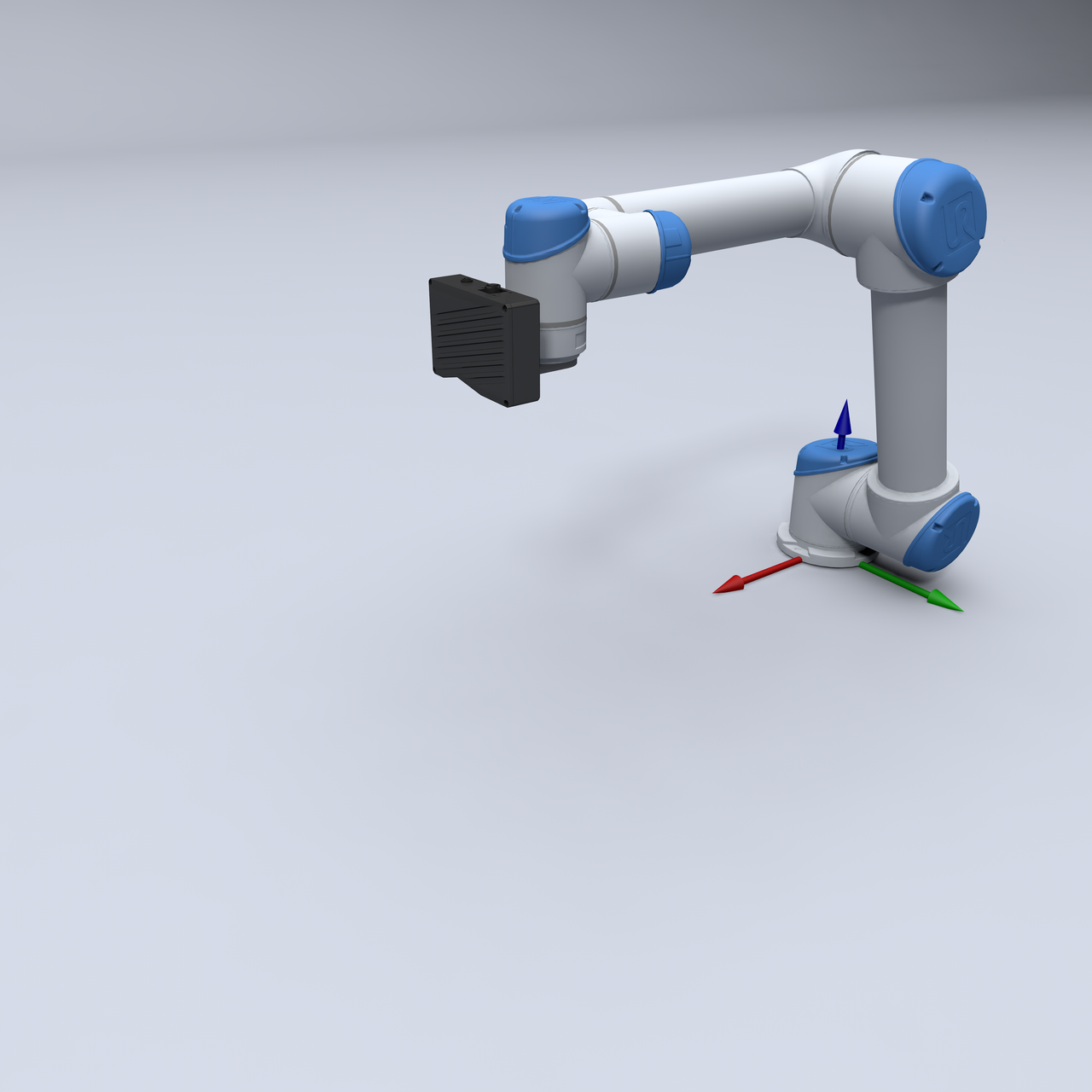 | 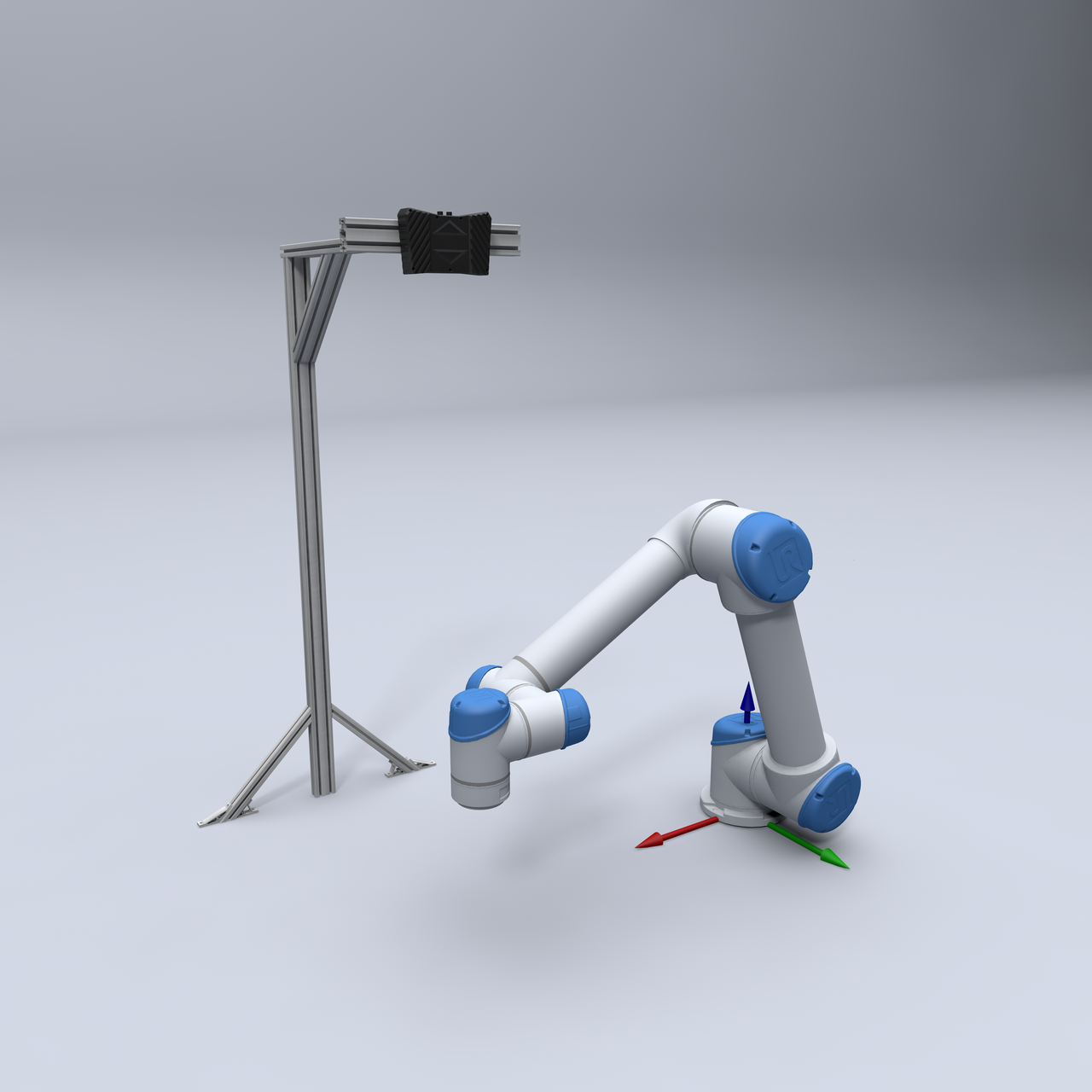 |
|---|---|
| The camera is mounted on the robot end flange and moves with the robot. | The camera is mounted on a fixed bracket and does not move with the robot. |
Warning
When the camera is mounted on a robot arm or another moving device, securely fasten the power and Ethernet cables connected to the camera. This prevents pulling forces from damaging the cables or connectors.
When the camera is mounted on a bracket, make sure the long edge of the camera field of view is parallel to the long edge of the pallet or bin. This keeps the top layer of the stack within the effective field of view.
4.1 Attach the camera mounting backplate
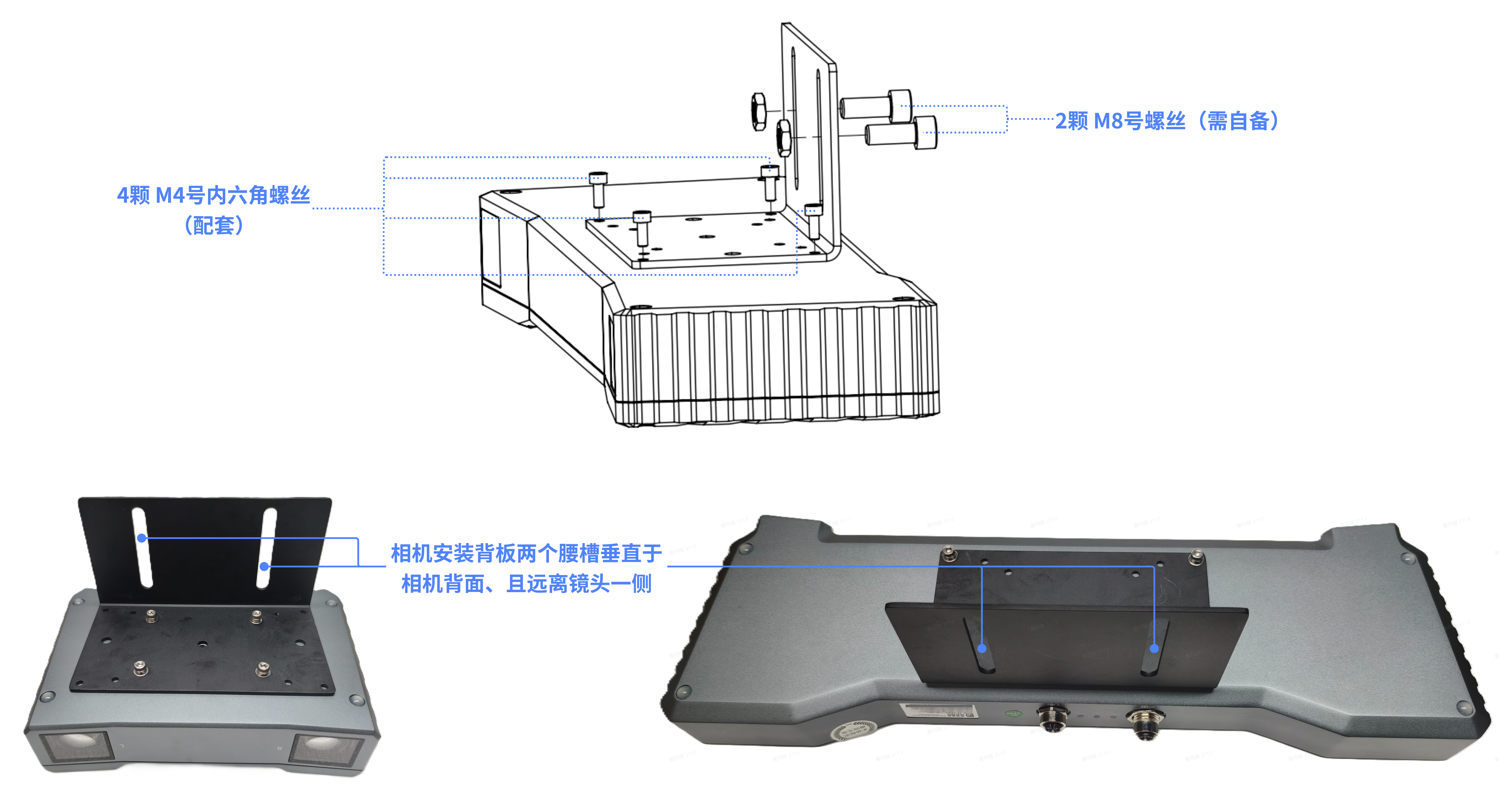
As shown below, use four M4 hex-socket screws to attach the mounting backplate to the rear of the camera. The two elongated slots in the backplate must be vertical relative to the camera rear panel. After securing the backplate, use two M8 bolts (not supplied) to mount the camera and backplate assembly on the robot end flange or camera mounting bracket.
4.2 Connect the camera
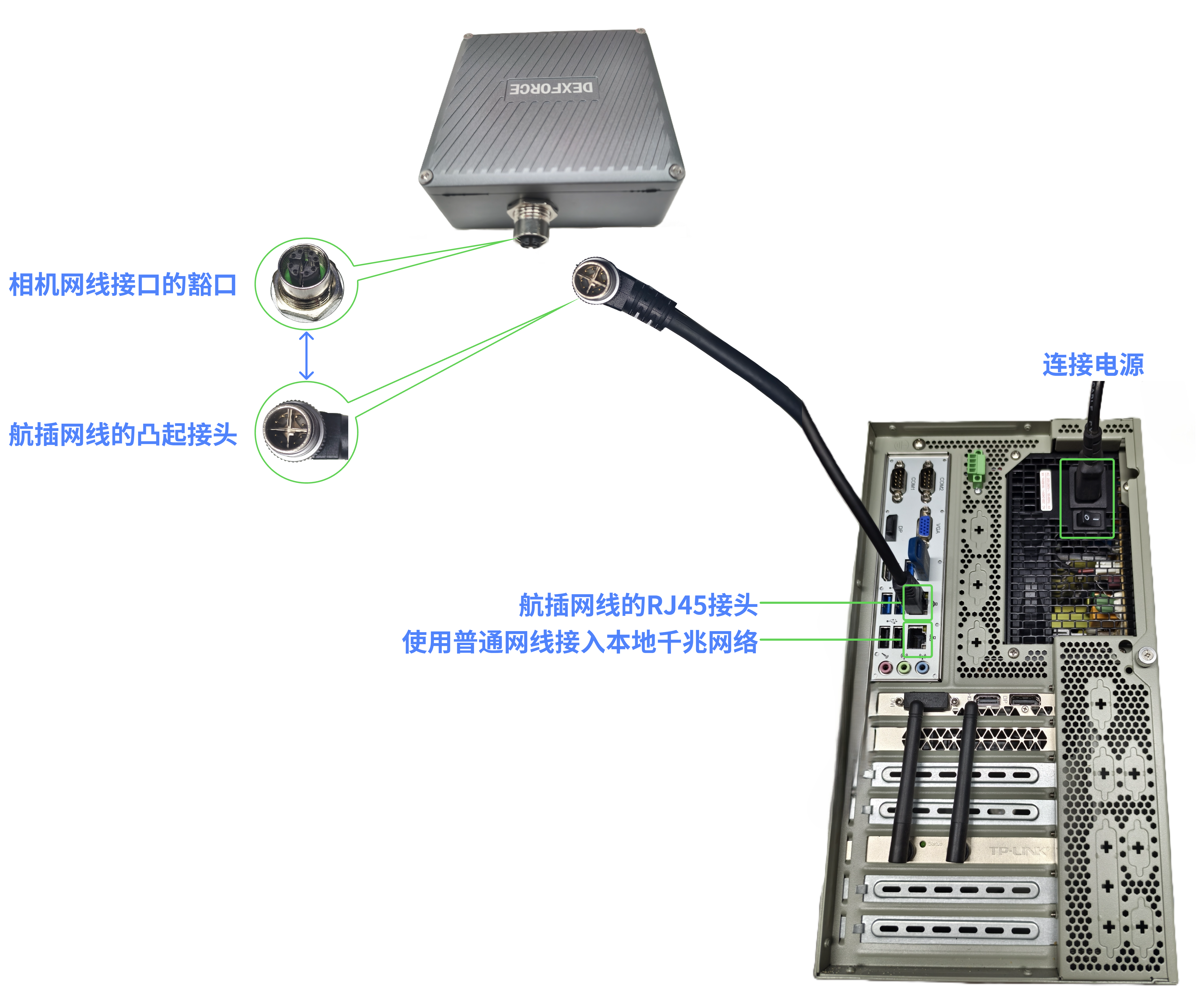
4.2.1 Camera with one Ethernet port, such as KINGFISHER-S-602
Use one industrial circular-connector Ethernet cable to connect the camera Ethernet port to the industrial PC Ethernet port. Insert the keyed circular connector into the matching notch on the camera Ethernet port, and insert the RJ45 connector into the industrial PC Ethernet port.
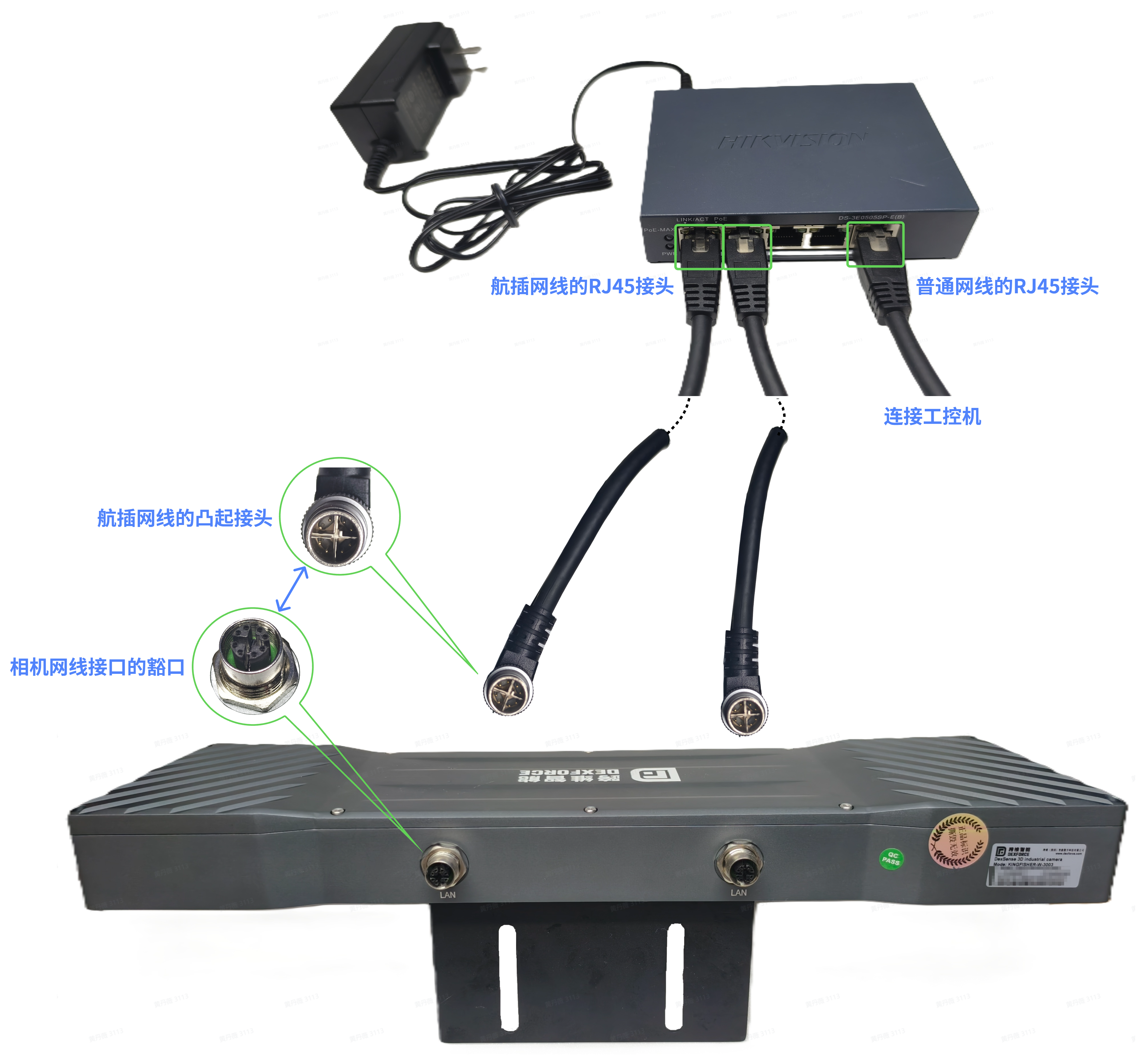
4.2.2 Camera with two Ethernet ports, such as KINGFISHER-W-3003 or KINGFISHER-S-1001
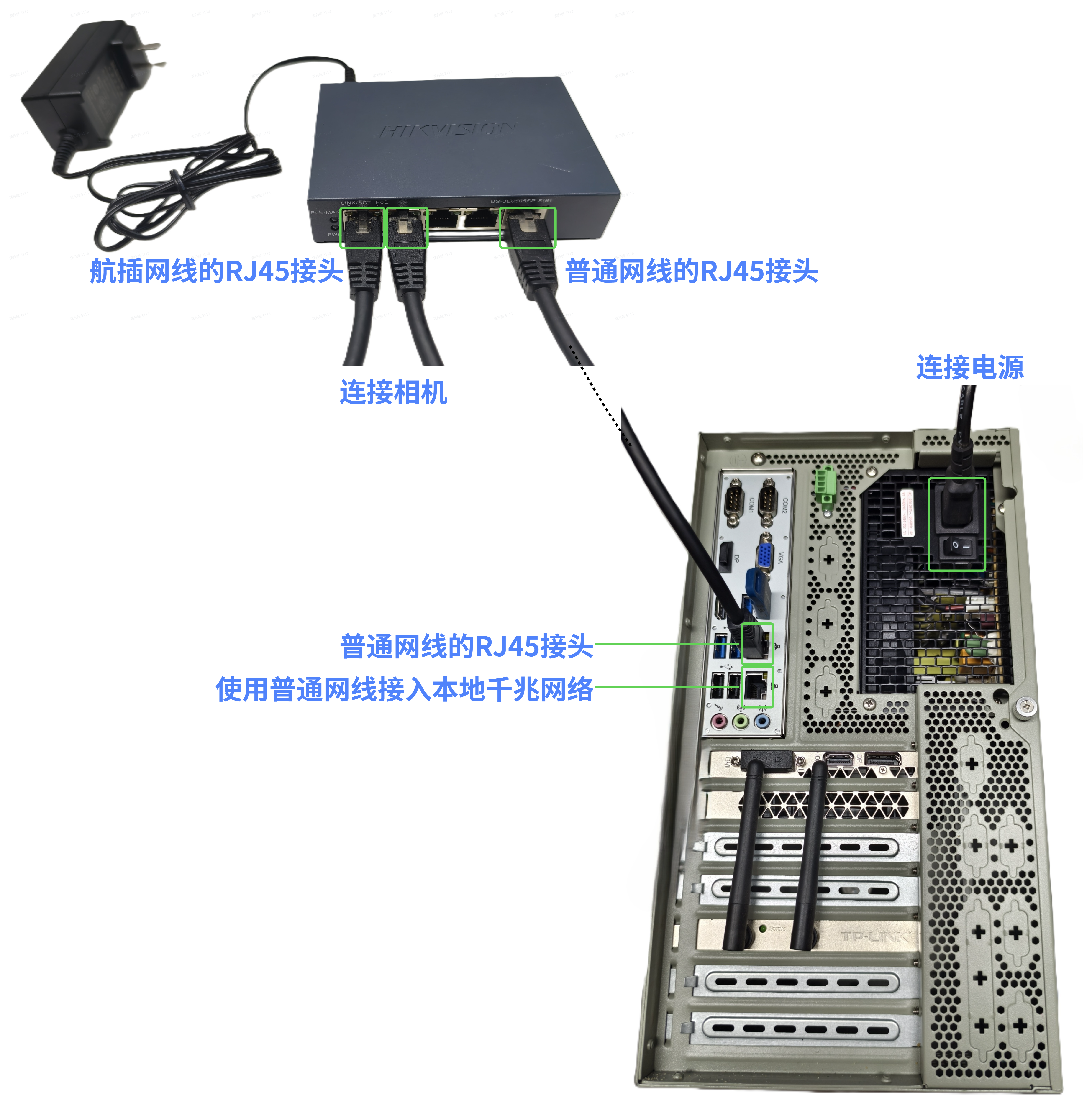
- First, use two industrial circular-connector Ethernet cables to connect the two camera Ethernet ports to PoE ports on the switch. Insert each keyed circular connector into the matching notch on the camera Ethernet port, and insert each RJ45 connector into a PoE port on the switch.
- Then use one standard Ethernet cable to connect the switch to the industrial PC. Connect one end to the switch UPLINK port and the other end to an Ethernet port on the industrial PC.
4.3 Check the connections
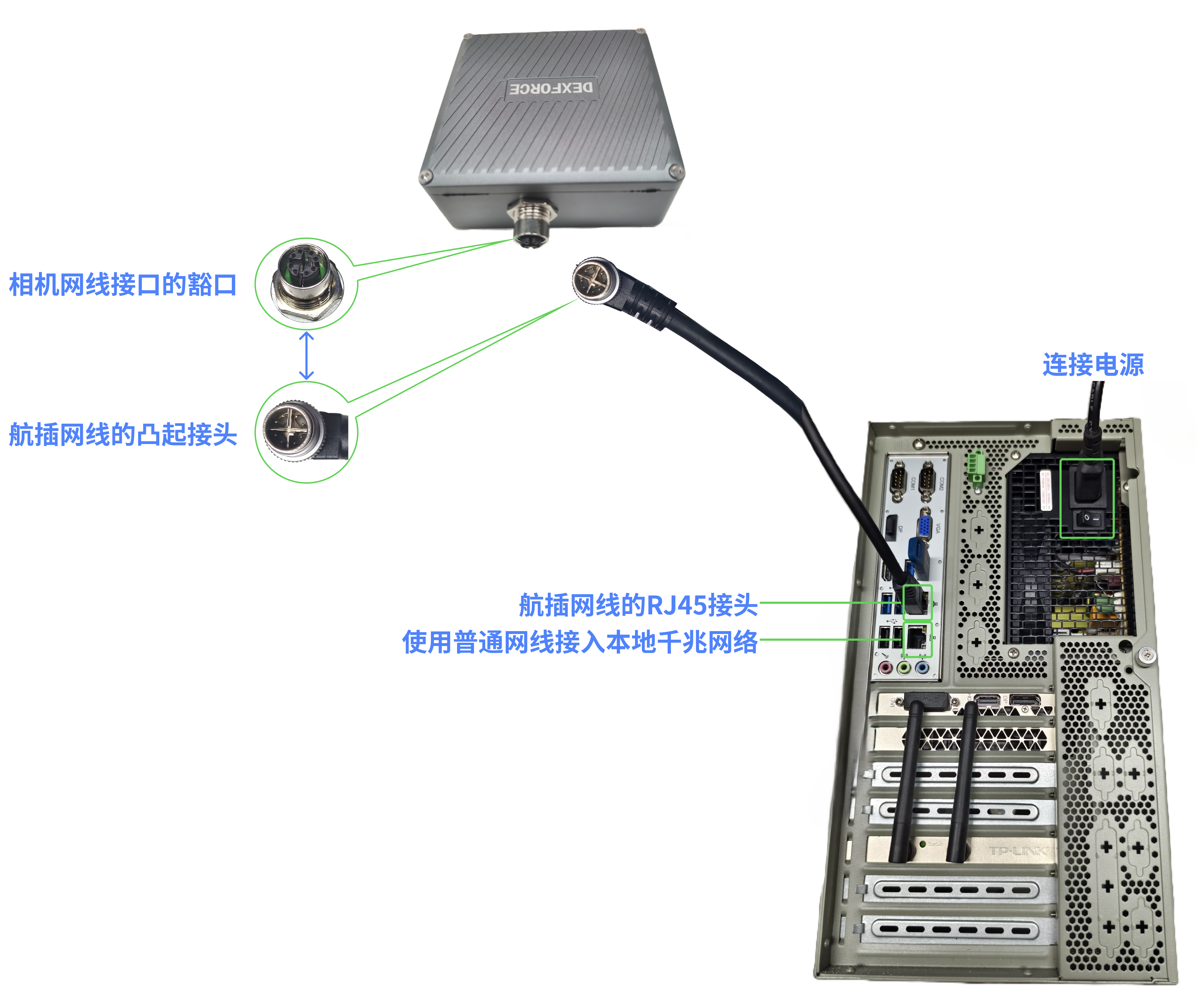
Verify that all devices are connected correctly and that all cables are securely fastened without being pulled or strained.
After confirming the connections, turn on the power.
Caution
After power-on, the camera LAN indicator, if present, should remain steadily lit in green without flashing.
4.3.1 Camera with one Ethernet port, such as KINGFISHER-S-602
4.3.2 Camera with two Ethernet ports, such as KINGFISHER-W-3003 or KINGFISHER-S-1001