Cancel calibration sample similarity check
If the sample collected by PickWiz Eye-hand calibration has a high similarity and an error "consistent with the original sample" is reported, the calibration sample similarity verification function can be canceled through the frozen_config configuration file.
Notice:
After canceling the calibration sample similarity check and completing the calibration calculation, you need to pay attention to and verify the calibration accuracy at different locations in the entire field of view/working area to avoid partial areas not being covered/low accuracy.
1. Close PickWiz
2. Cancel the calibration sample similarity check
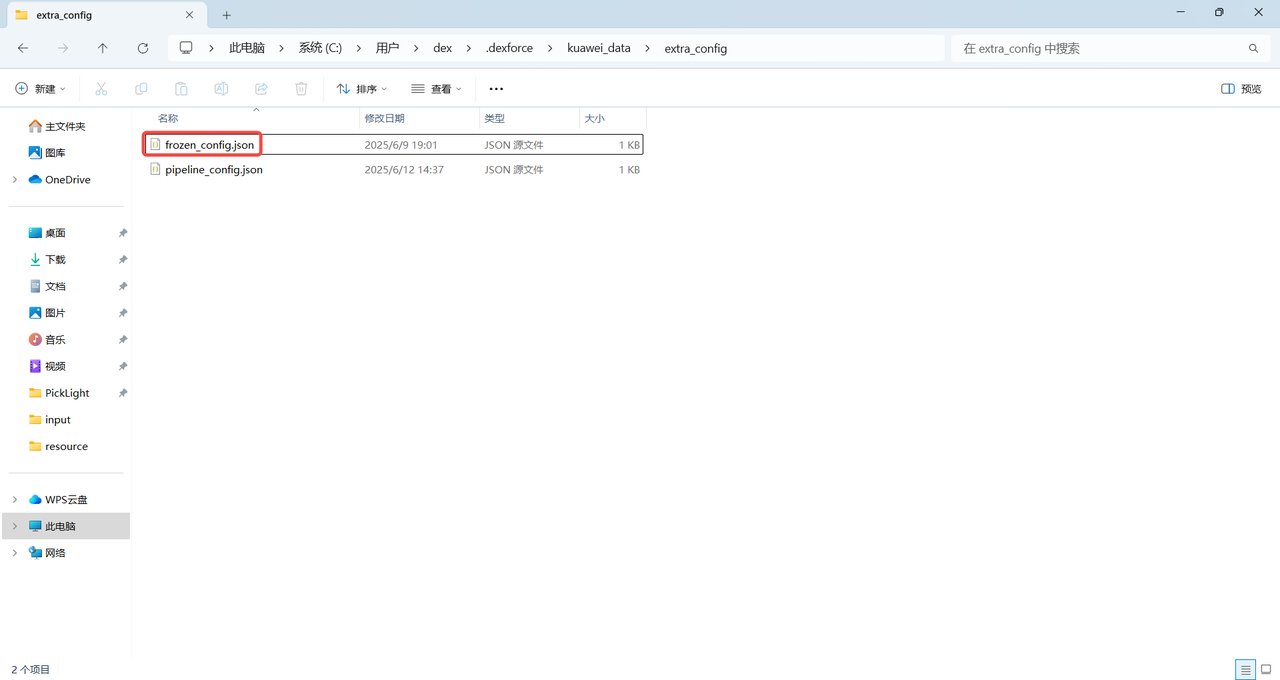
Open the frozen_config.json configuration file according to the path {user}/.dexforce/kuawei_data/extra_config, as shown in the figure below.
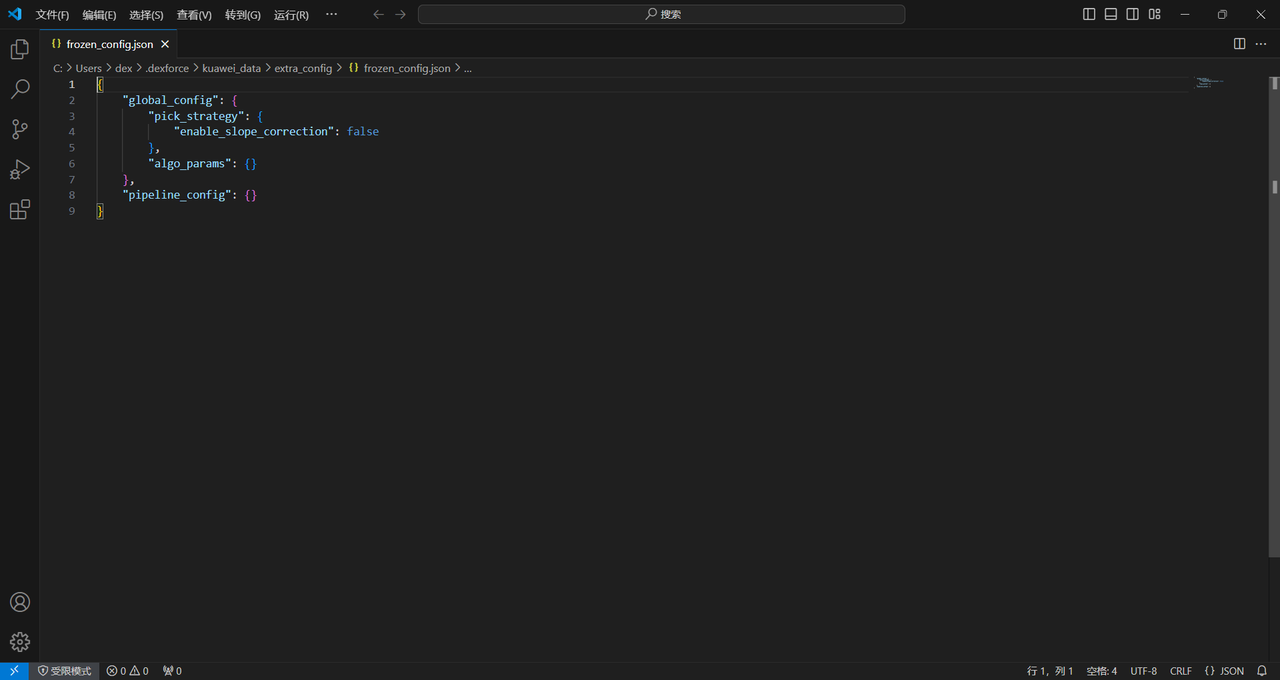
Add "calibration-check_sample": {"min_angle_diff":0.0} under algo_params, as shown in the figure below.
{
    "global_config": {//全局配置
        "algo_params": {//全局算法参数配置
        "calibration-check_sample": {"min_angle_diff":0.0}//标定样本相似度校验值为0
        }
    }
}
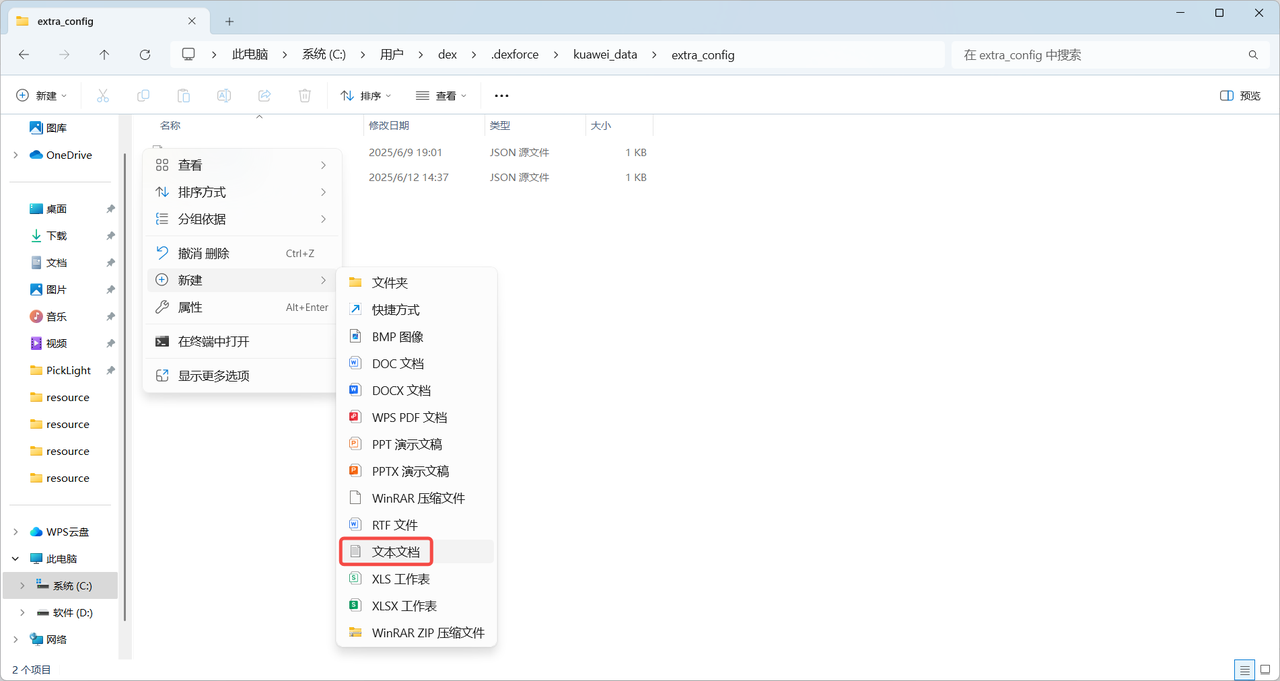
The frozen_config configuration file is online in PickWiz 1.7.3. If the configuration file cannot be found in PickWiz 1.7.3 and later versions, you should manually create a new configuration file under the {user}/.dexforce/kuawei_data/extra_config path, as shown in the figure below.
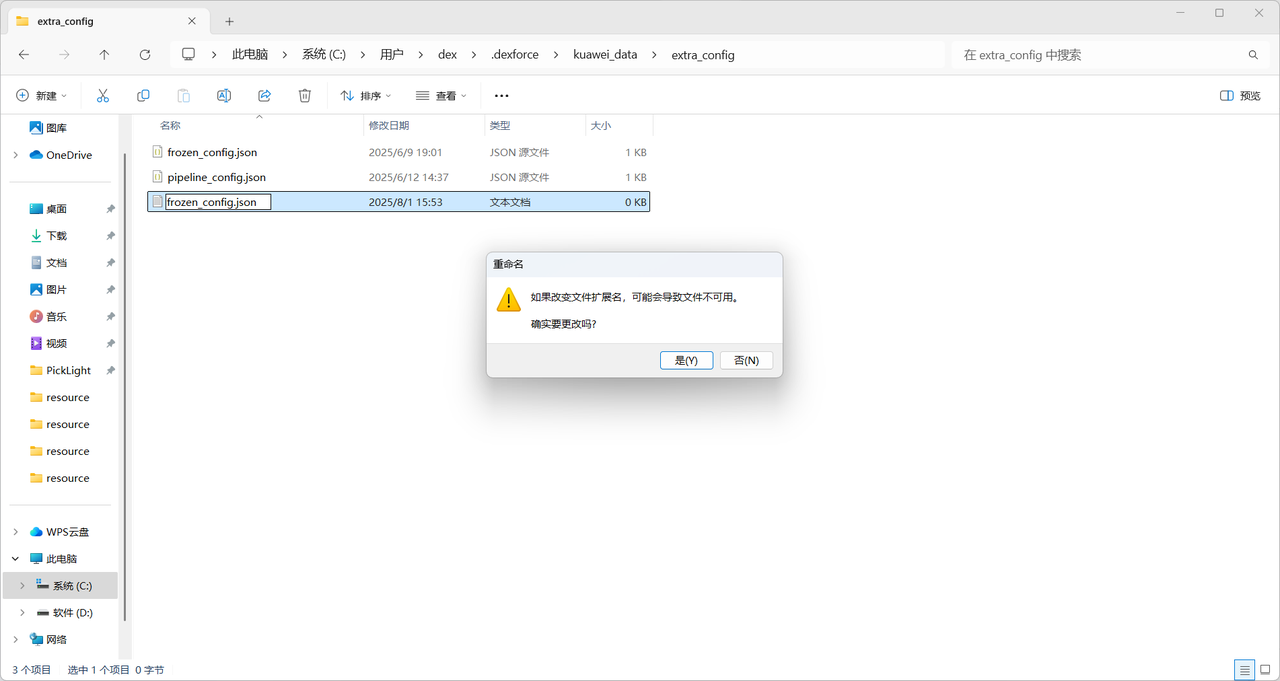
After creating a new frozen_config configuration file, copy the following code to the file.
{
    "global_config": {//全局配置
        "algo_params": {//全局算法参数配置
        "calibration-check_sample": {"min_angle_diff":0.0}//标定样本相似度校验值为0
        }
    }
}
3. Restart PickWiz
After restarting PickWiz, the calibration sample similarity check can only take effect after canceling it.