Frequently Asked Questions about Software Functions
1. Software startup/shutdown/restart/run
1.1 white screen
Problem: A white screen appears when opening the software
**Affected versions:**All versions
Solution: Need to connect to the monitor to display normally.
1.2 black screen
**Problem:**After clicking Run, the computer screen goes black and the power is turned off and restarted.
**Affected versions:**All versions
Solution: It may be that the power supply is insufficient. You need to check the power supply. It is recommended to be greater than 250W.
1.3 Abnormal power outage causes the software to fail to start
Problem: After an abnormal power outage, the software cannot be started, and the error "Please restart the software" is always reported.
**Affected versions:**All versions
Solution:
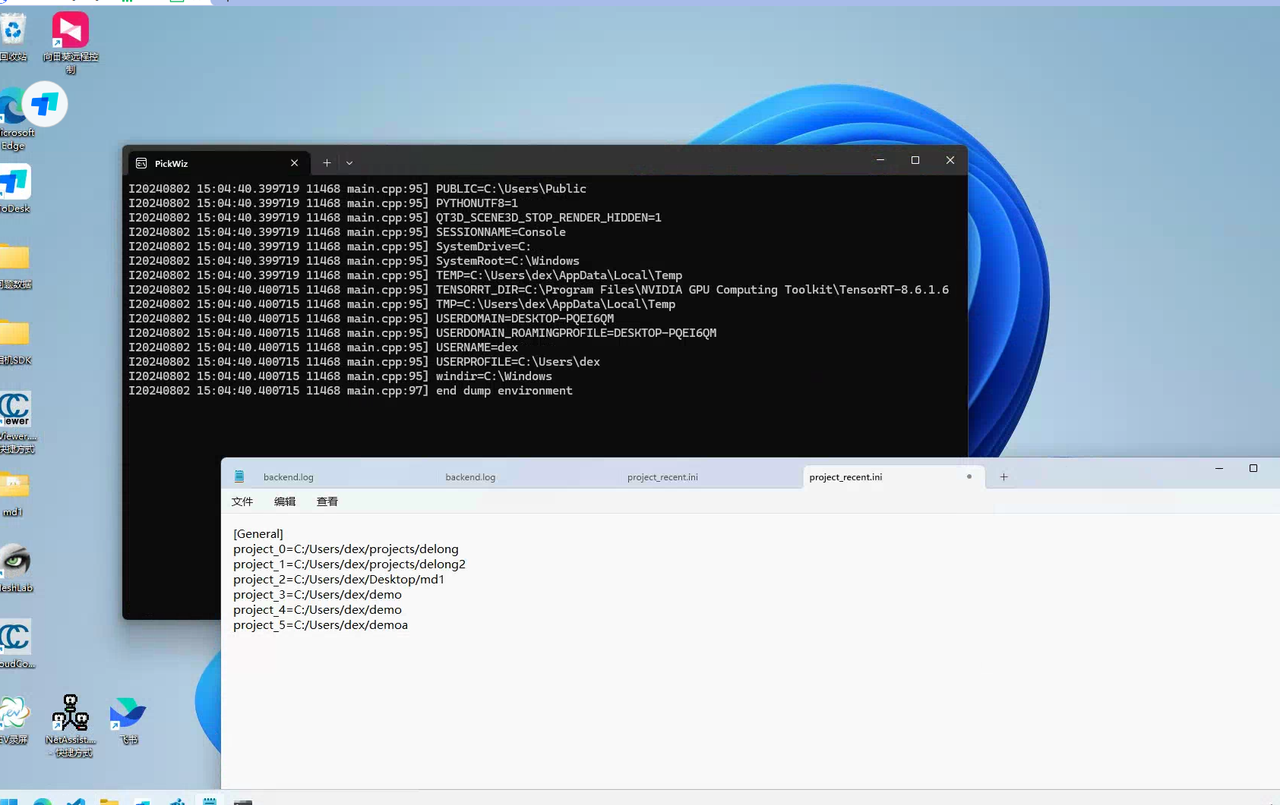
View the .dexforce/project/project_recent.ini file in the user directory
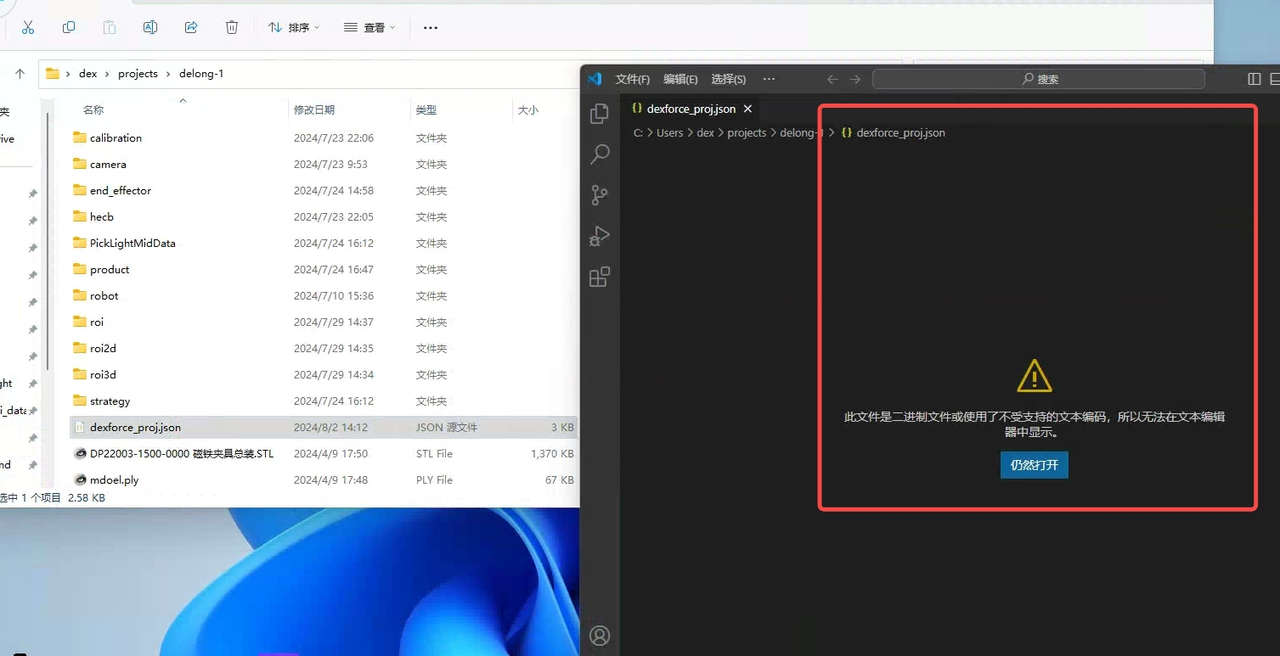
Open the folder of the first path and go to dexforce_proj.json to see if the file is damaged.
If the file is damaged, rename the folder and PickWiz will reopen the next project and then open PickWiz normally (if you need to use the current project file, you can use the backup to overwrite it)
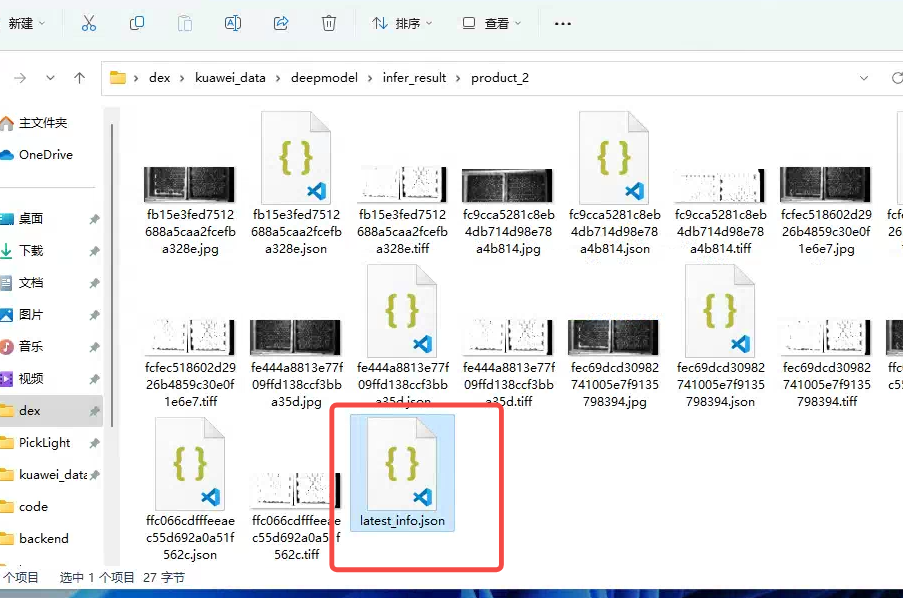
Use shadow mode and check whether the latest_info.json file is damaged
1.4 video memory abnormality
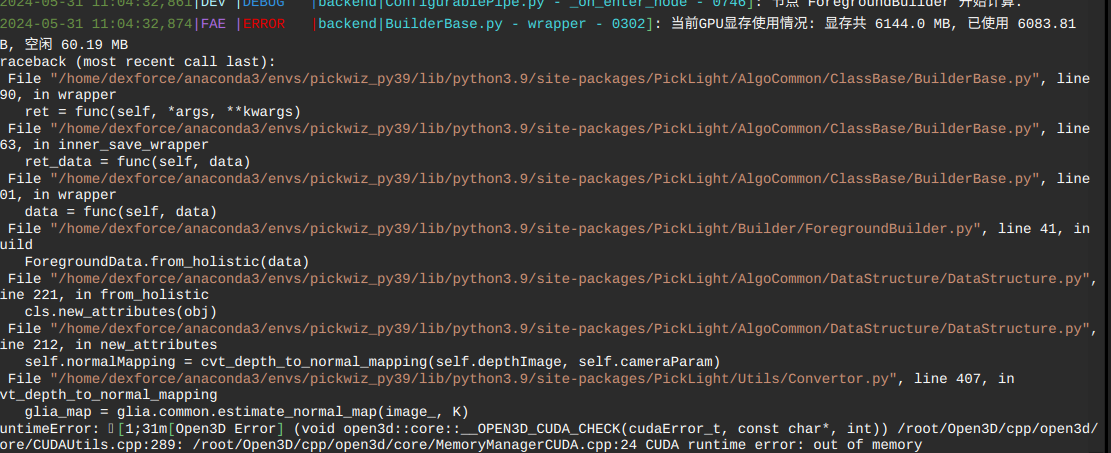
Problem: The software keeps reporting a video memory error when running.
**Affected versions:**All versions
Possible reasons:
After loading two models, the remaining video memory is not enough to support Inference.
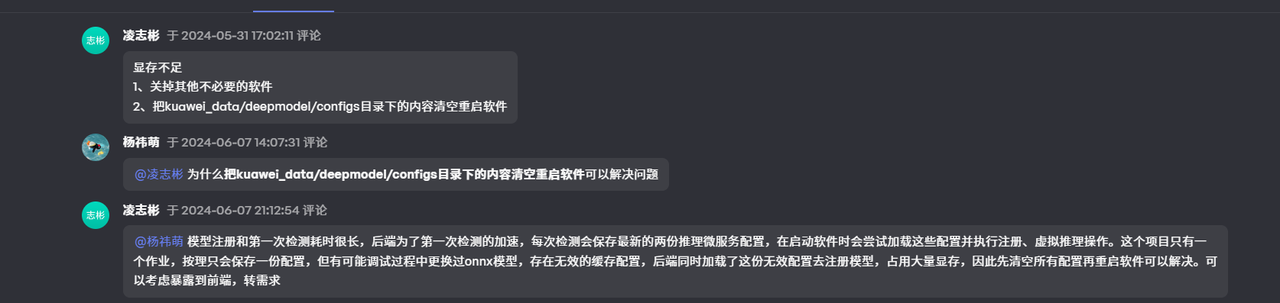
Solution:
1.5 memory abnormality
Problem: During the running of the software, the memory usage continues to increase.
**Affected versions:**All versions
Possible reasons: The file manager is opened while the software is running, and Visual Studio Code views a specific folder. Since files are written to this folder during the running of the software, the number of files increases, causing the memory usage to continue to increase when viewing this folder.
**Solution:**Close file managers, Visual Studio Code, and other memory-intensive software
1.6 error glia_error when running for the first time
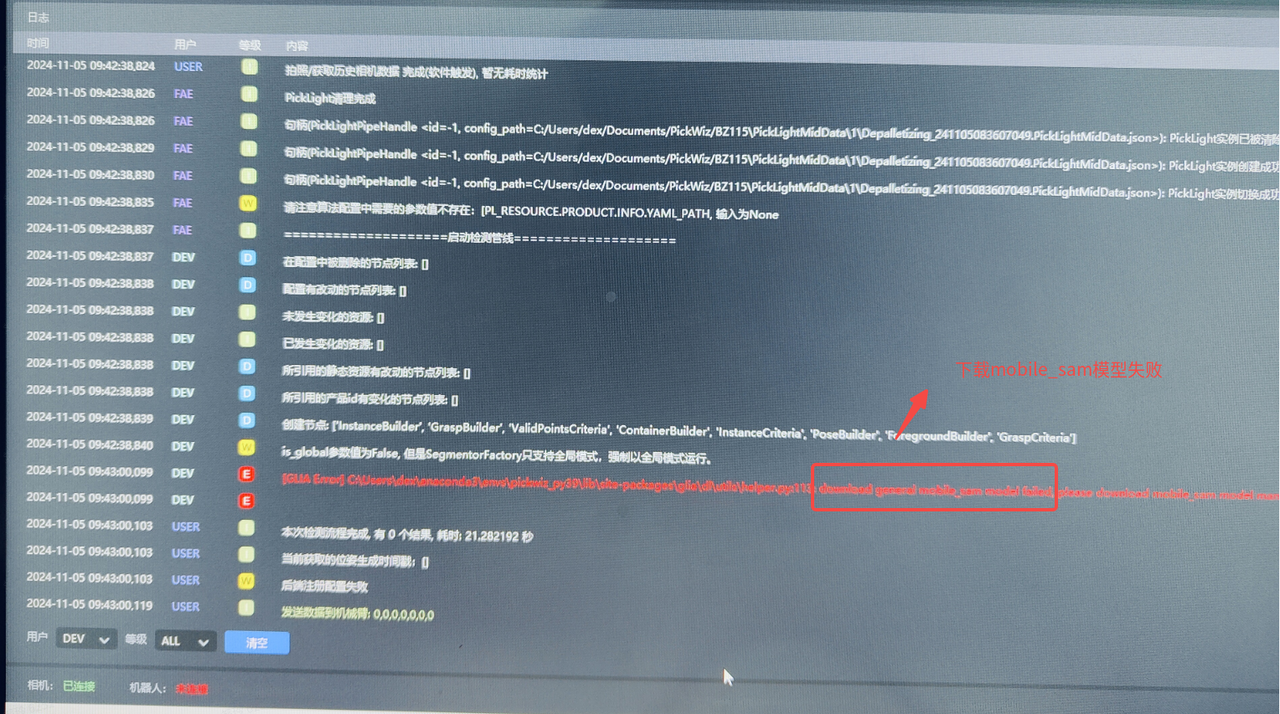
Problem: A glia_error error is reported during the first run and the required general model cannot be downloaded.
**Affected versions:**All versions
Solution: Download the corresponding model in the document according to the error content and place it in the corresponding path

1.7 Start PickWiz automatically at boot
Problem: After turning off auto-start and restarting in pickwiz, a copy of pickwiz will still be started.
**Affected versions:**All versions
Possible reasons: The user added a custom task to start PickWiz at startup in the task scheduler, which conflicts with PickWiz's own automatic startup at startup.
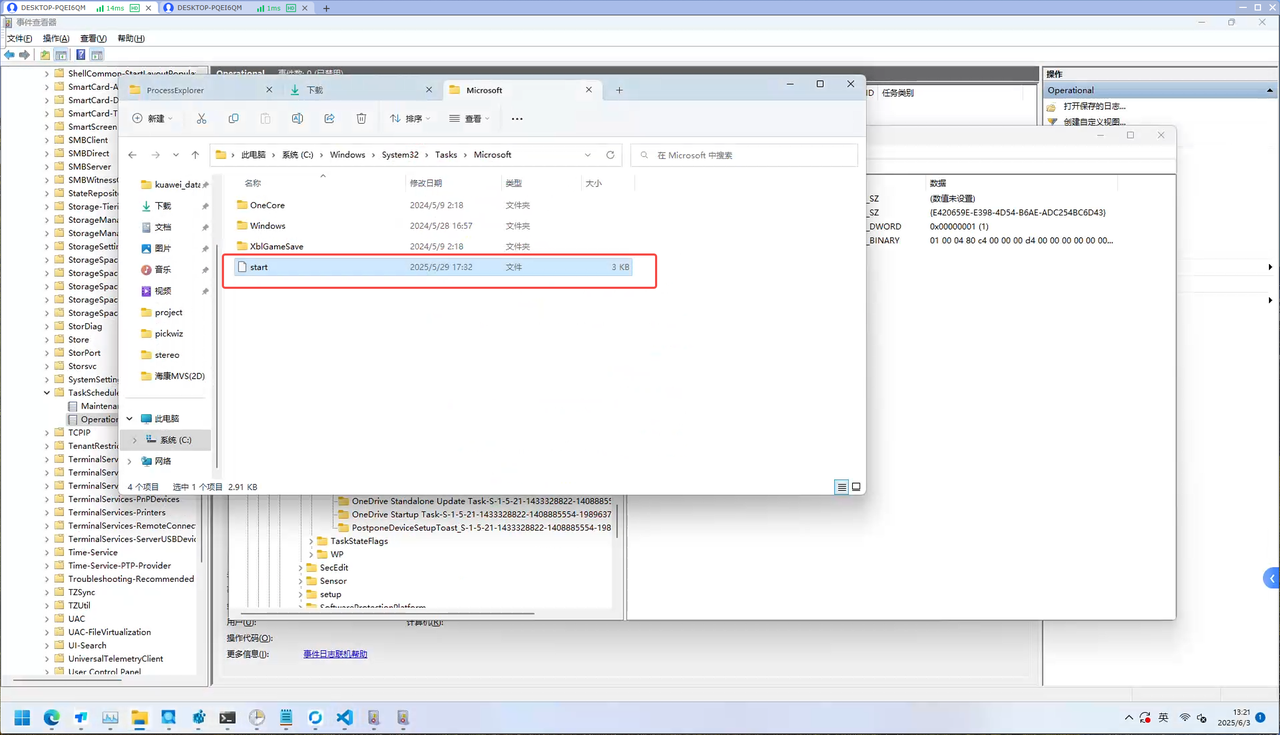
Solution: After deleting the customized startup program, PickWiz can start up normally.
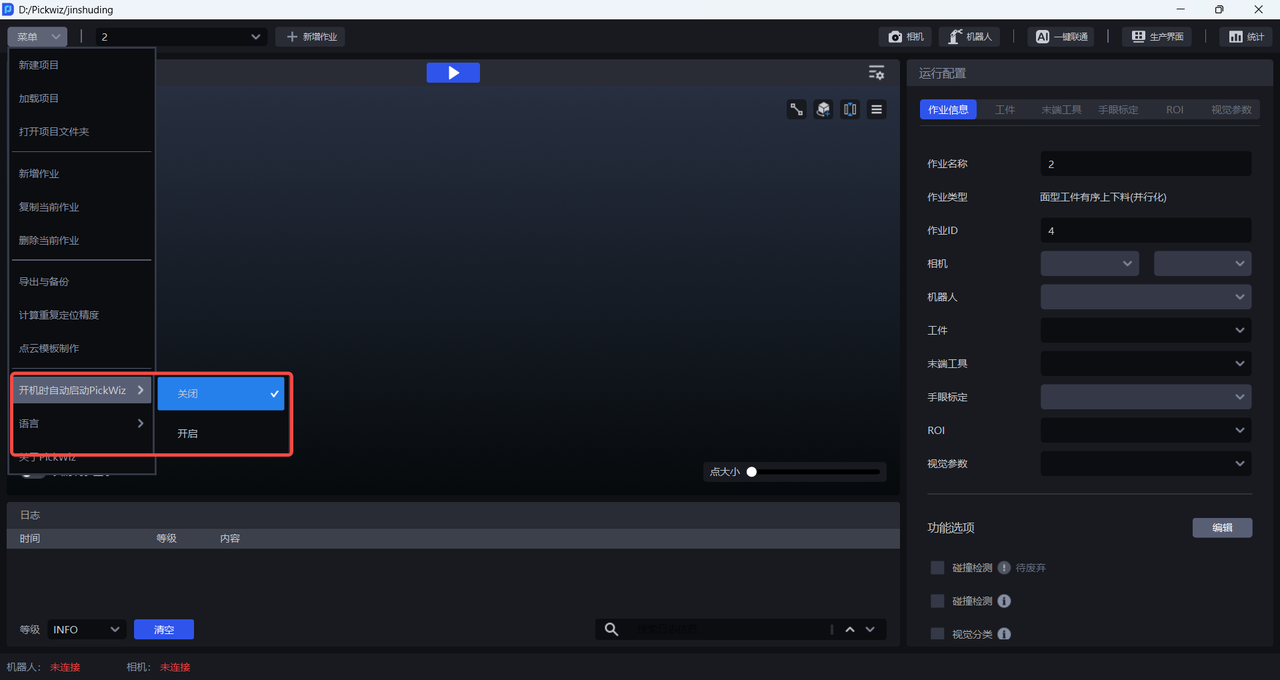
If you need to set PickWiz to start automatically at boot, you can click Menu on the main interface > Automatically start PickWiz at boot > Enable
2. Interaction
2.1 displays abnormally
Problem: Due to resolution issues in the user interface, some controls cannot be clicked.
Affected versions:
Possible reasons:
**Solution: **The current software is not compatible with different resolutions (1920×). Use the middle mouse button or pull to adjust the size of the selection box.
3. User information injection
3.1 TargetPoint Cloud information replacement failed
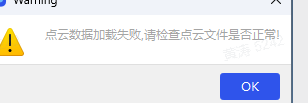
Problem: When replacing PCD (Point Cloud Data), the software reports an error and the template to be imported will be automatically cleared.
Affected versions:
Possible reasons: The imported PCD (Point Cloud Data) cannot be placed in the product/product_1/resource directory under the project directory and needs to be imported from other directories.

**Solution:**Move the imported PCD (Point Cloud Data) from product/product_1/resource in the project directory to another location.
3.2 End-effector model parsing failed
Problem: Configuration file parsing failed when importing fixture model
**Possible reasons:**Currently, the software does not support Chinese characters in the project path.
**Solution:**Currently, the software does not support Chinese characters in the project path. Please use the full English path.
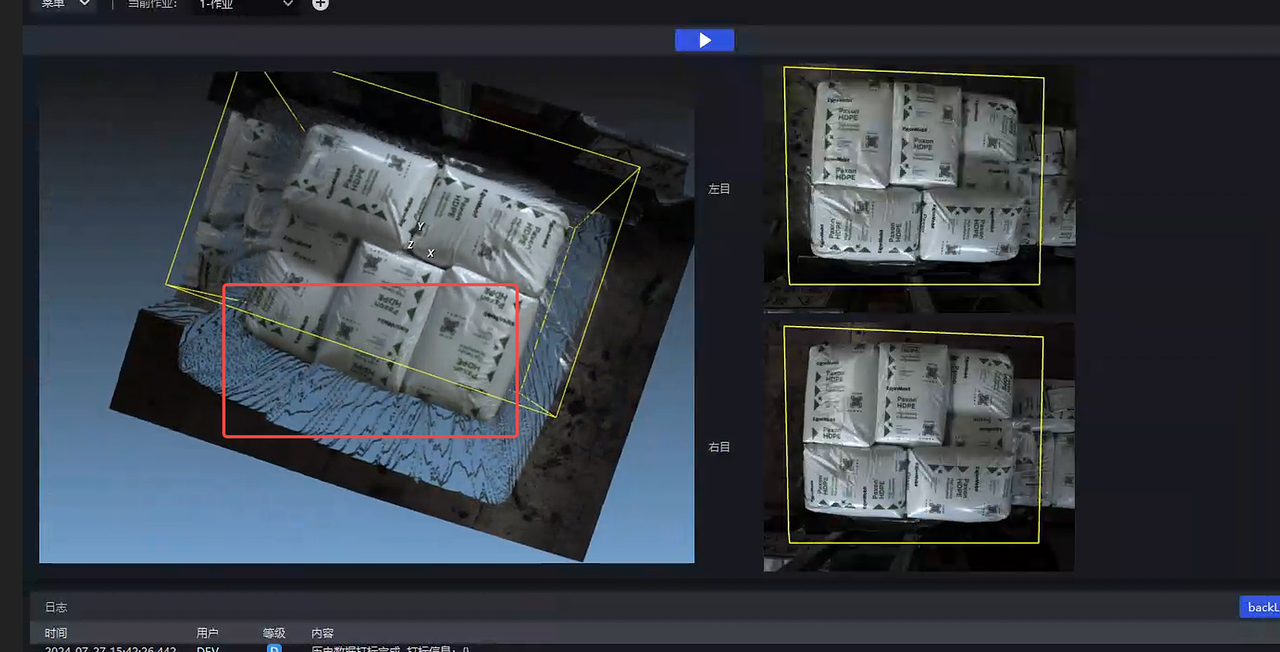
3.3 2D recognition segmentation is incomplete
Problem: Incomplete segmentation of 2D recognition
**Possible reasons:**ROI does not enclose the entire target area
**Solution:**ROI is not fully framed, so all Targets should be framed.
4. Historical data
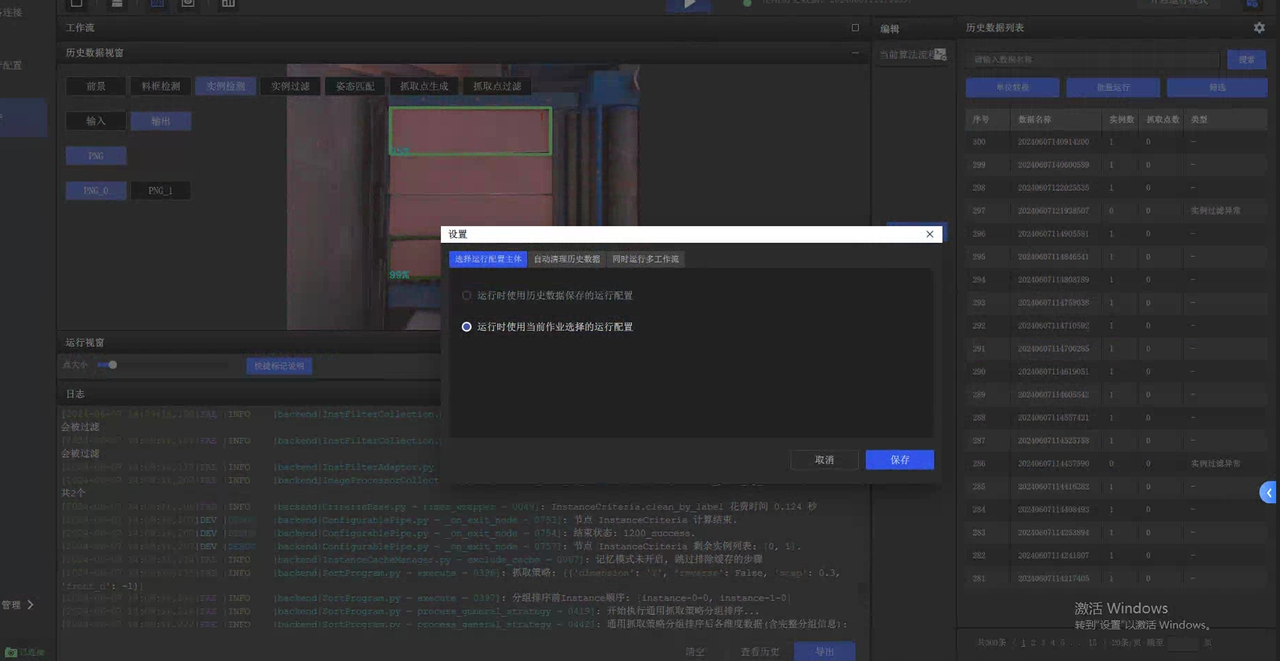
4.1 Historical data capture strategy/visual parameter does not take effect
Problem: After running historical data, the crawling strategy/visual parameter does not take effect
Possible reasons: The running configuration of historical data is used, so the crawling strategy/visual parameter of the current Task does not take effect.
Solution: After modifying it to use the current Task configuration, it works normally.
4.2 Normal historical data exception error
Problem: After the historical data of the results was output normally before the test was run, an error was reported that the full check function was abnormal.
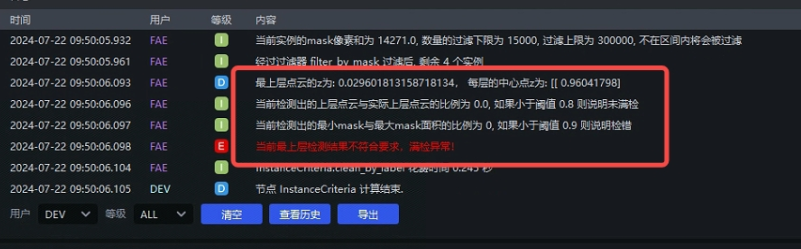
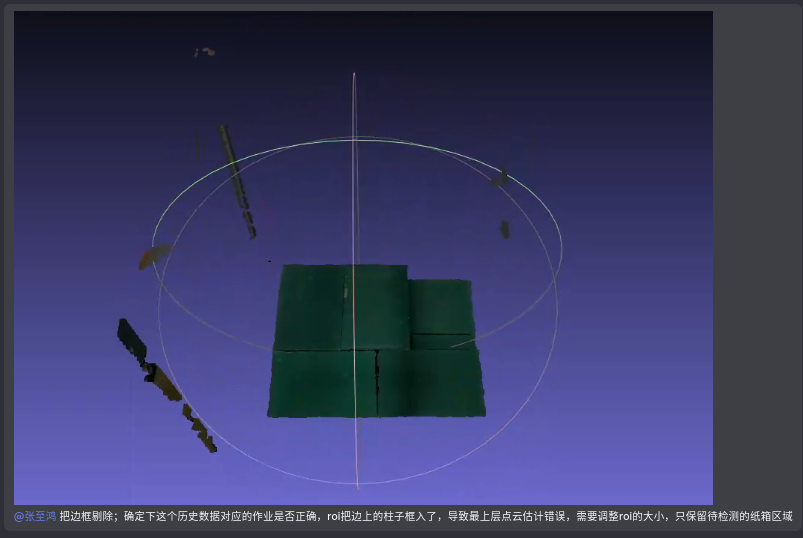
Possible reasons: Most of this kind of situation occurs when different Task/ROI3d is used. Since the Point Cloud of the current historical data is inconsistent with the current ROI, a lot of noise may be added to the top of the instance Point Cloud, thus throwing a full detection exception.
**Solution:**Need to make sure the Task is consistent or adjust the roi.
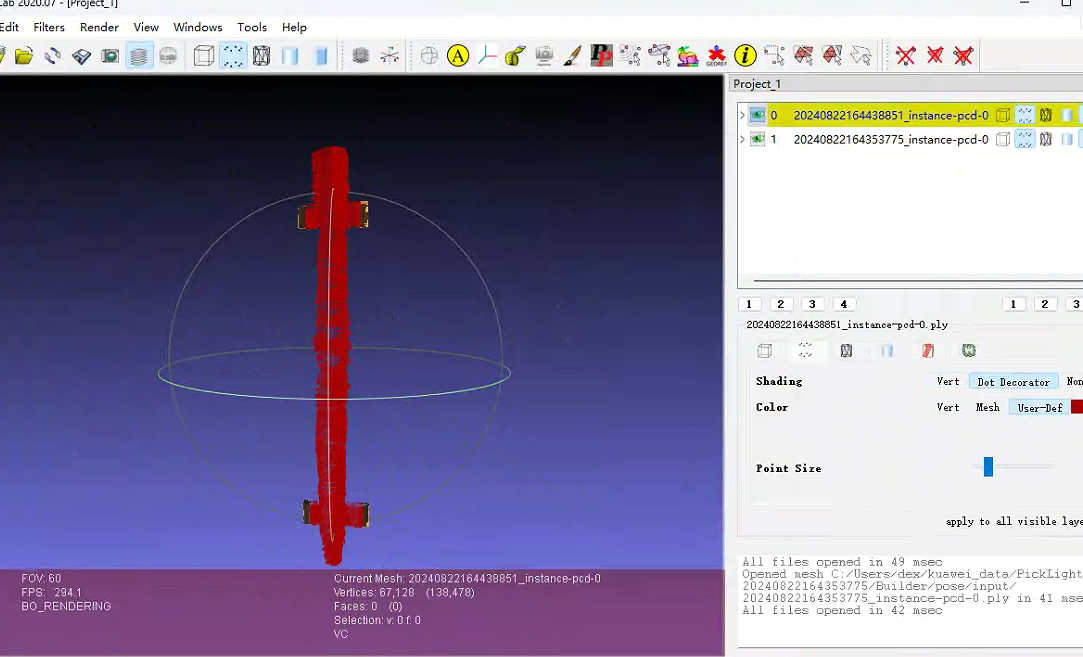
Is the scaleParameter of 4.3 generate_pcds_by_bboxes effective?
**Problem: **There is no effective comparison before and after the scaleParameter setting of generate_pcds_by_bboxes
Affected versions:
Possible reasons: The function generate_pcds_by_bbox is used in the instance filter node to generate Point Cloud. To adjust the effect of this function, you need to see the effect in the PCD (Point Cloud Data) of historical data, which will not be visualized in the front-end interface.
**Solution:**The specific method is as follows
4.4 Camera data cannot be used after batch running of historical data
**Problem:**Camera data cannot be used after batch running of historical data
Affected versions:
Possible reasons: When the input data is in "Camera data", executing "batch run historical data" will cause the input mode to be confused.
**Solution:**The correct steps are as follows:
5. Robot
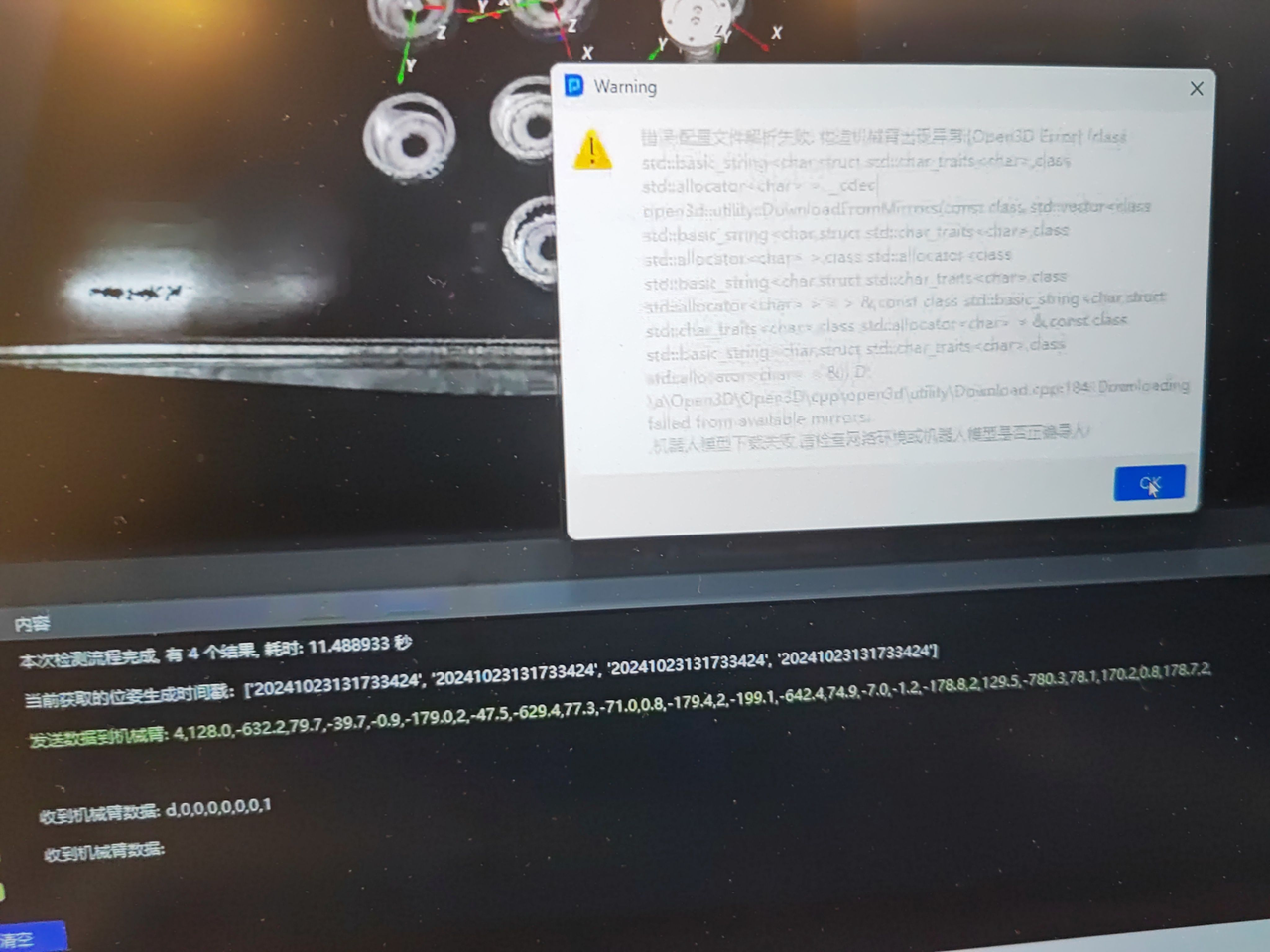
5.1 Failed to load robot arm model alarm
Problem: The previous robot arm configuration cannot be seen in the copied Task after upgrading 1.4.1 to 1.4.5.
Affected versions:
Possible reasons:
Solution:
5.2 communication docking
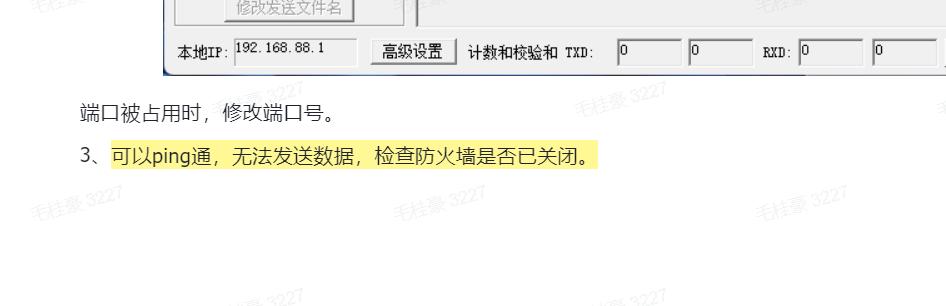
Problem: When the communication protocol is connected, the communication data transmission between Robot and the communication assistant is normal, and the data transmission between the communication assistant and PickWiz is normal. The PickWiz software cannot receive the photography instructions sent by the Robot.
**Affected versions:**All versions
Possible reasons: This problem is often encountered in communication and is caused by the firewall not being turned off in the Windows system.
Solution: Just go to the site and configure it.
6. Dongle
6.1 dongle detection error (27)
Issue: Dongle detection error (27)
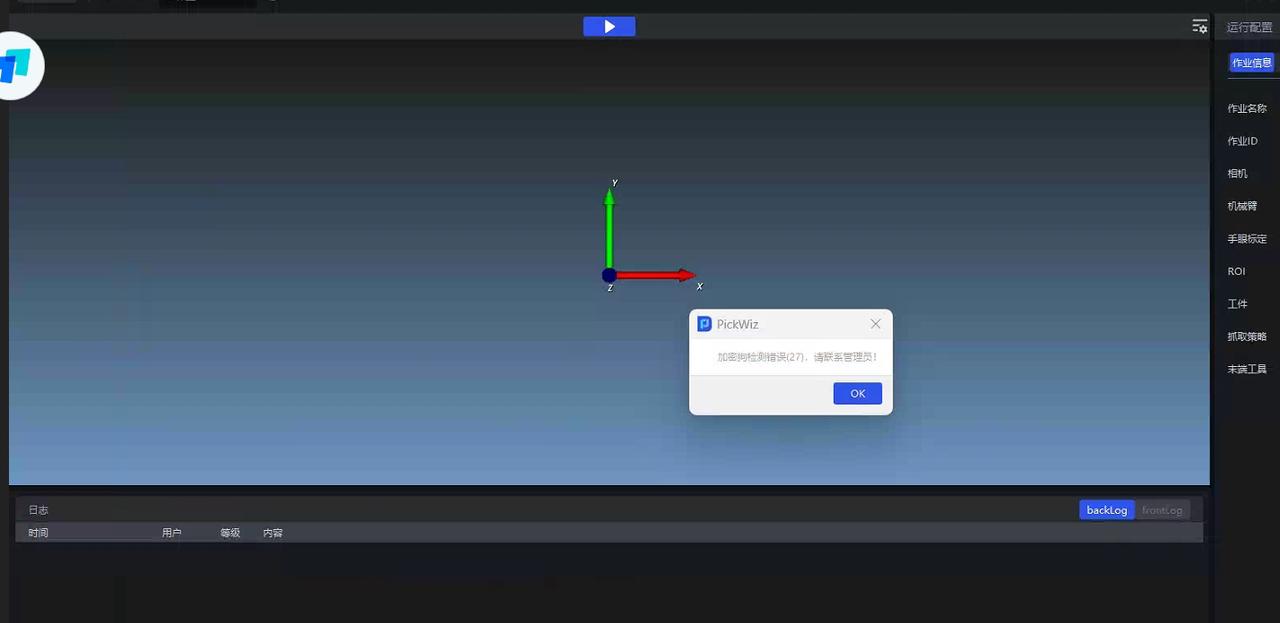
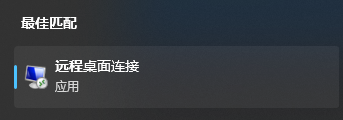
**Possible reasons: **Using the remote desktop connection that comes with Windows
**Solution:**You cannot use the remote desktop connection that comes with Windows (there is a risk of leakage), you must use the monitor/todesk/sunflower:
6.2 dongle detection error (31)
Issue: Dongle detection error (31)
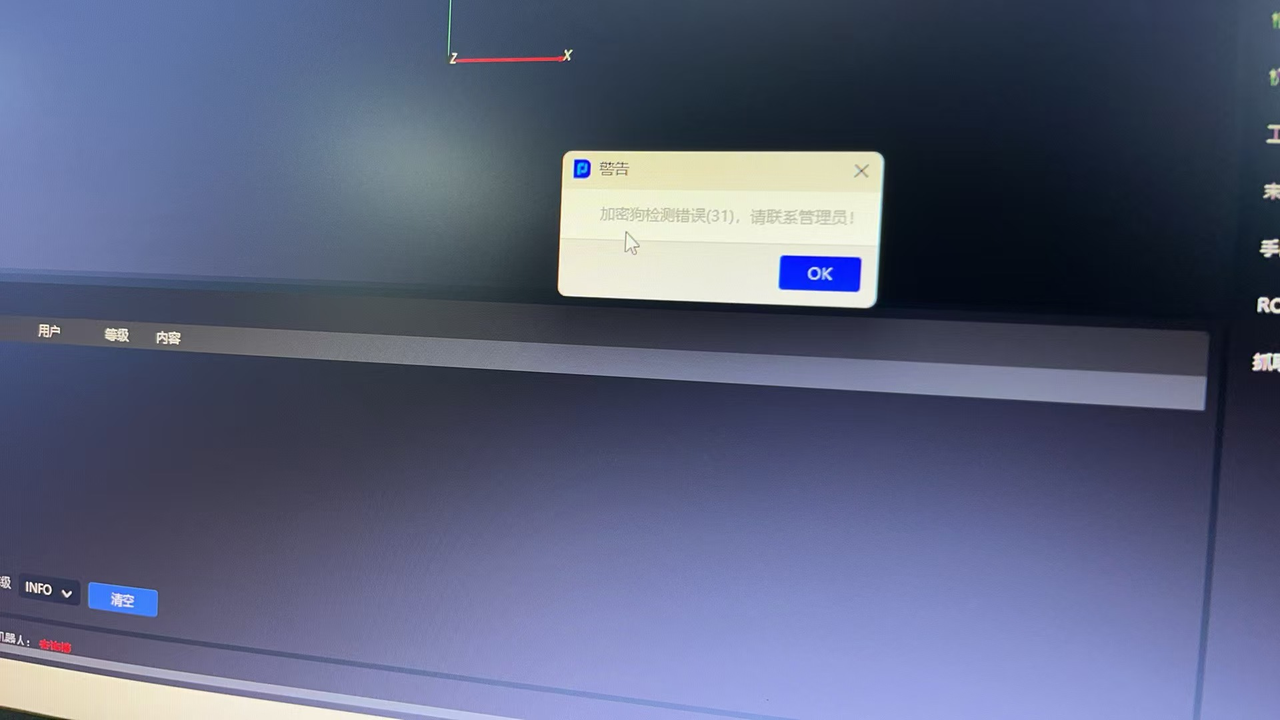
**Possible reasons: ** means unauthorized
Solution: Contact the company administrator for authorization
7. Cycle time
[Binocular photography time-consuming record]
A: Binocular Camera image capture time (only photo taking, model inference, and overall time) is recorded in the path: C:\Users\dex\.dexforce\log\pickwiz,找到时间最近的INFO日志,用记事本打开
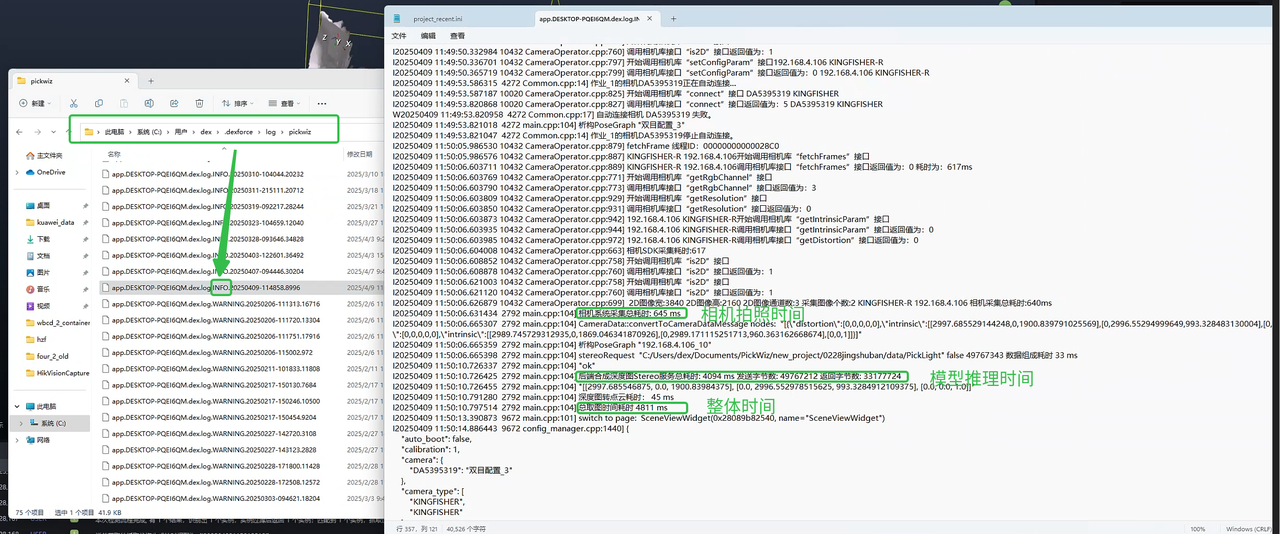
[Long time-consuming: caused by too many instances] When the number of instances is very large, Point Cloud generation takes a long time.
GliaRcnn's mask_onParameter is set to false, which means the mask is not transmitted;
1.4.2 In the following versions, Point Cloud generates and selects the processing function: generate_pcds_by_masks
1.4.3+, Point Cloud generation selection uses the processing function: generate_pcds_by_bboxes
[Log meaning] The meaning of each time-consuming event in the back-end log
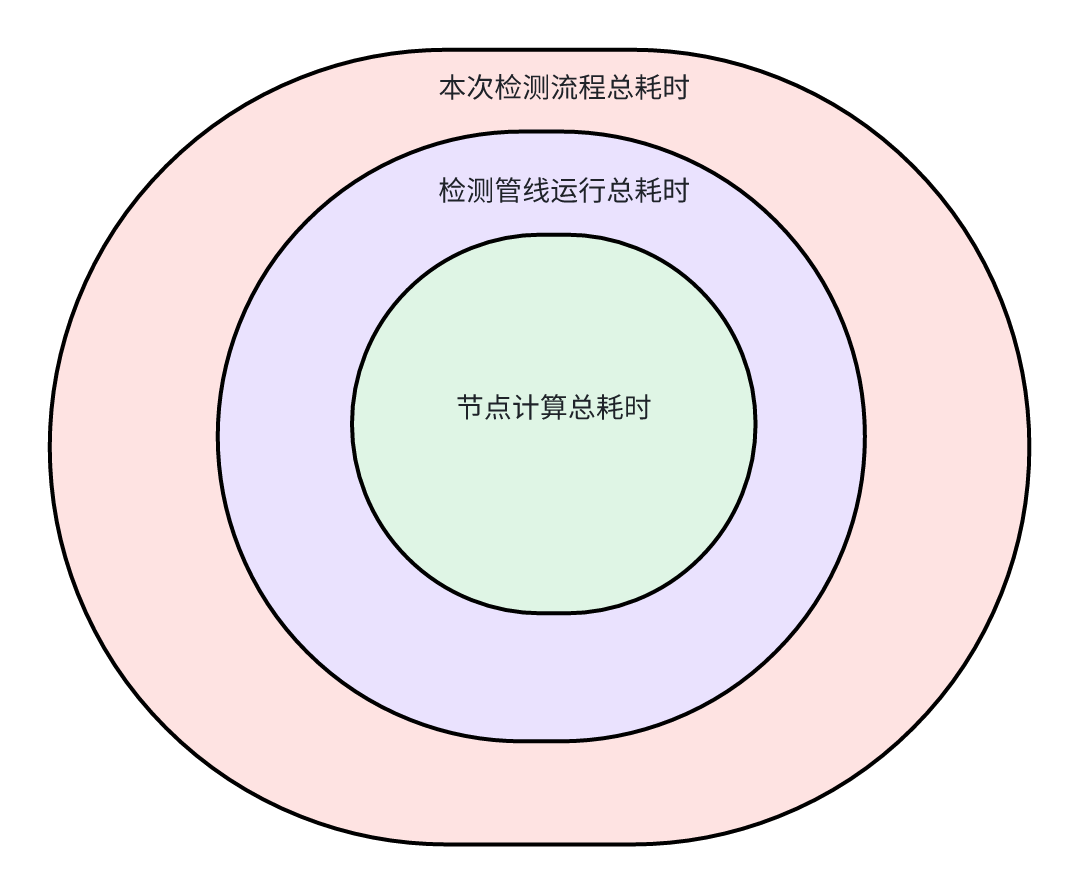
Total node calculation time: The total time from entering the first node to exiting the last node, including the total time for each node algorithm to run and the processing function to run.
Total time spent on detection pipeline: The total time taken from the beginning to the end of triggering the detection interface of PickLight, including: configuration comparison, node update, algorithm registration, and the above Total time spent on node calculation
Total time spent on this detection process: from receiving the Camera data to calculating the Pick The total time of Point includes: Task configuration parsing, resource registration, node generation, and the total time of the above detection pipeline. This time represents the real time of a calculation in the back-end part. The registration time will be longer during the first run. For each subsequent calculation, if the configuration remains unchanged, there will be additional memory recycling time, which is currently about 0.1-0.2s, so it always seems to be slightly longer than the total time of the detection pipeline.
[Turn on multi-workflow cache] The meaning of workflow cache
Disabled: Backend single instance mode, every time switching tasks will trigger the reloading of the backend instance, including resource registration/node generation, etc.
After turning on: Backend multi-instance mode, when hardware resources allow, maximize the cache of multiple instances. Each time you switch a task, only the first time it is run, the instance will be loaded and then cached. Every subsequent run will no longer require registration operations.
When there are multiple Tasks and these Tasks are frequently switched, turning on the multi-workflow cache function can avoid frequent instance creation/registration operations and improve Cycle time.