Visual Computing Configuration Operation Guide
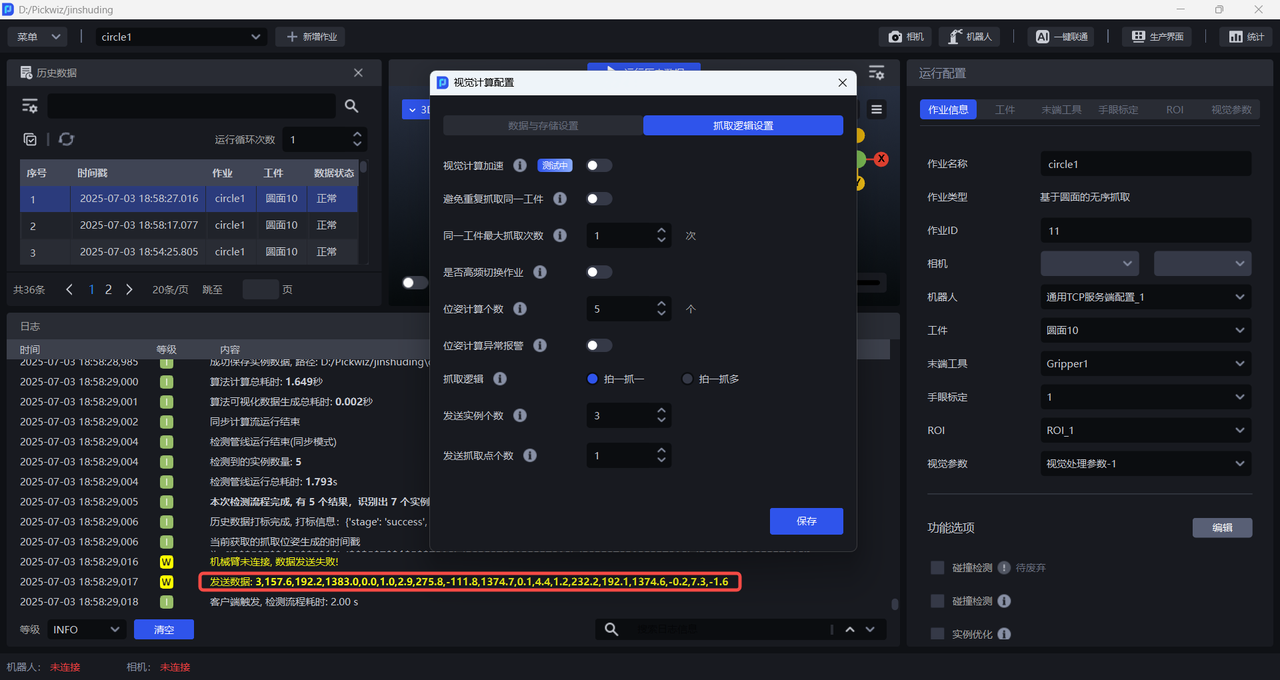
Visual computing configuration is a customized system configuration for the entire process of PickWiz visual computing. Users can customize system behavior according to specific Scene requirements. By configuring "data and storage settings" and "crawling logic settings", it ensures that PickWiz achieves the best balance between crawling accuracy, crawling cycle time and crawling stability, and guides Robot to achieve accurate and efficient crawling.
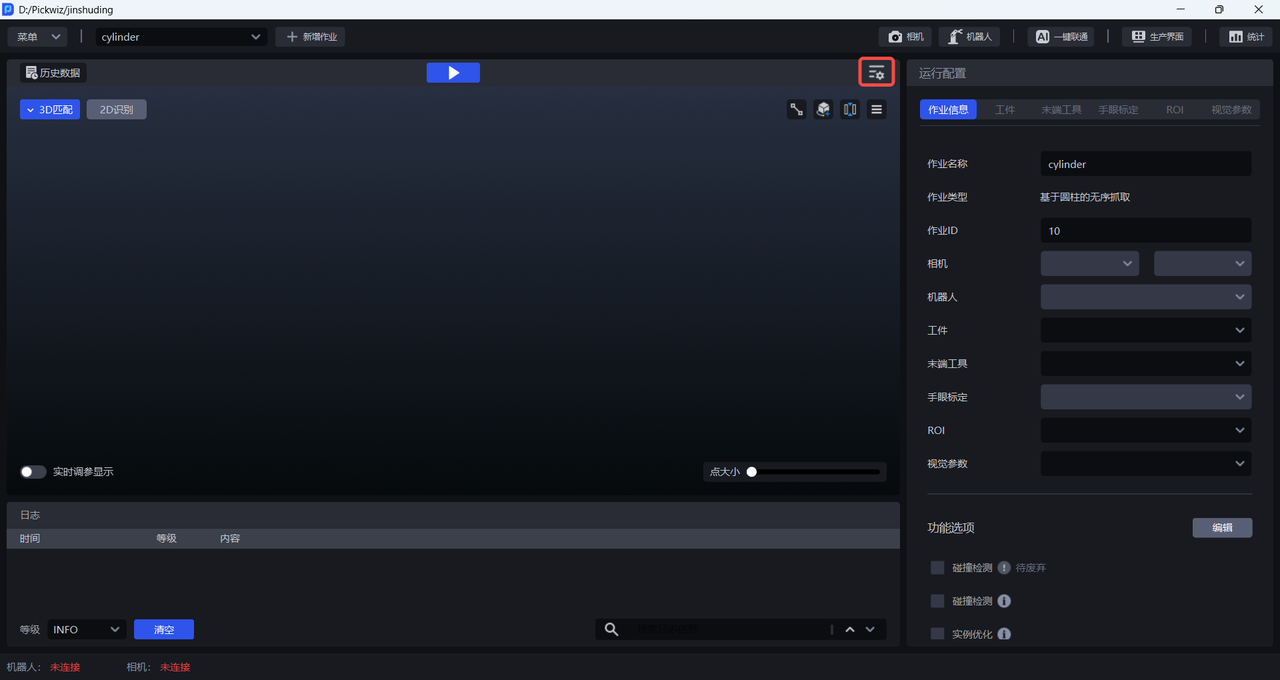
Click on the PickWiz main interface

Enter the visual computing configuration interface, as shown in the figure below.
1. Data and storage settings
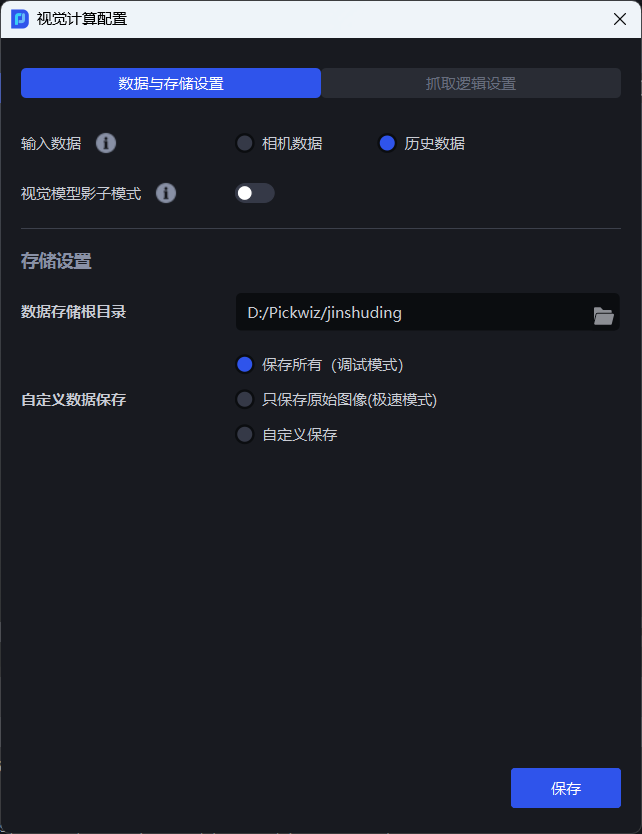
1.1 input data
When performing visual calculations, input Camera data or historical data into the workflow corresponding to the Scene. After the workflow performs 2D recognition, 3D calculation, and Pick Point processing on the input data, the Pick Point is output on the Target.
1.1.1 Camera data
Camera data is Scene data collected by Camera in real time, including 2D images, Depth images, and Point Cloud images, as shown in the figure below.
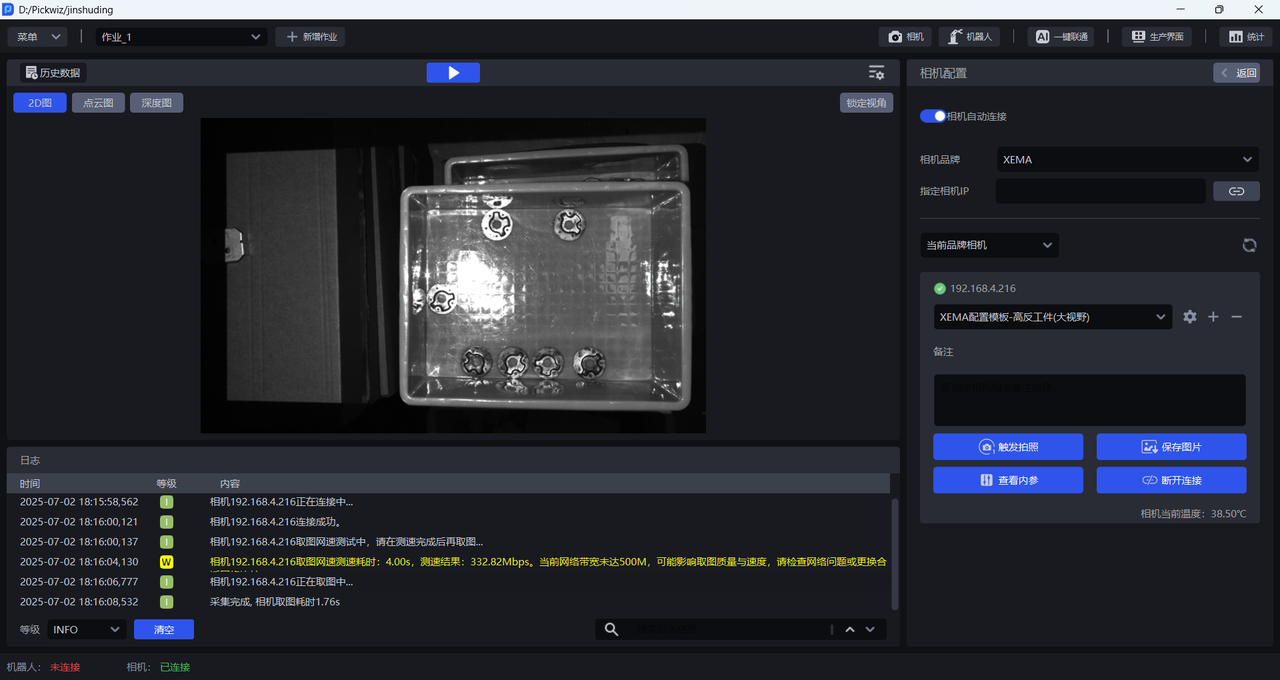
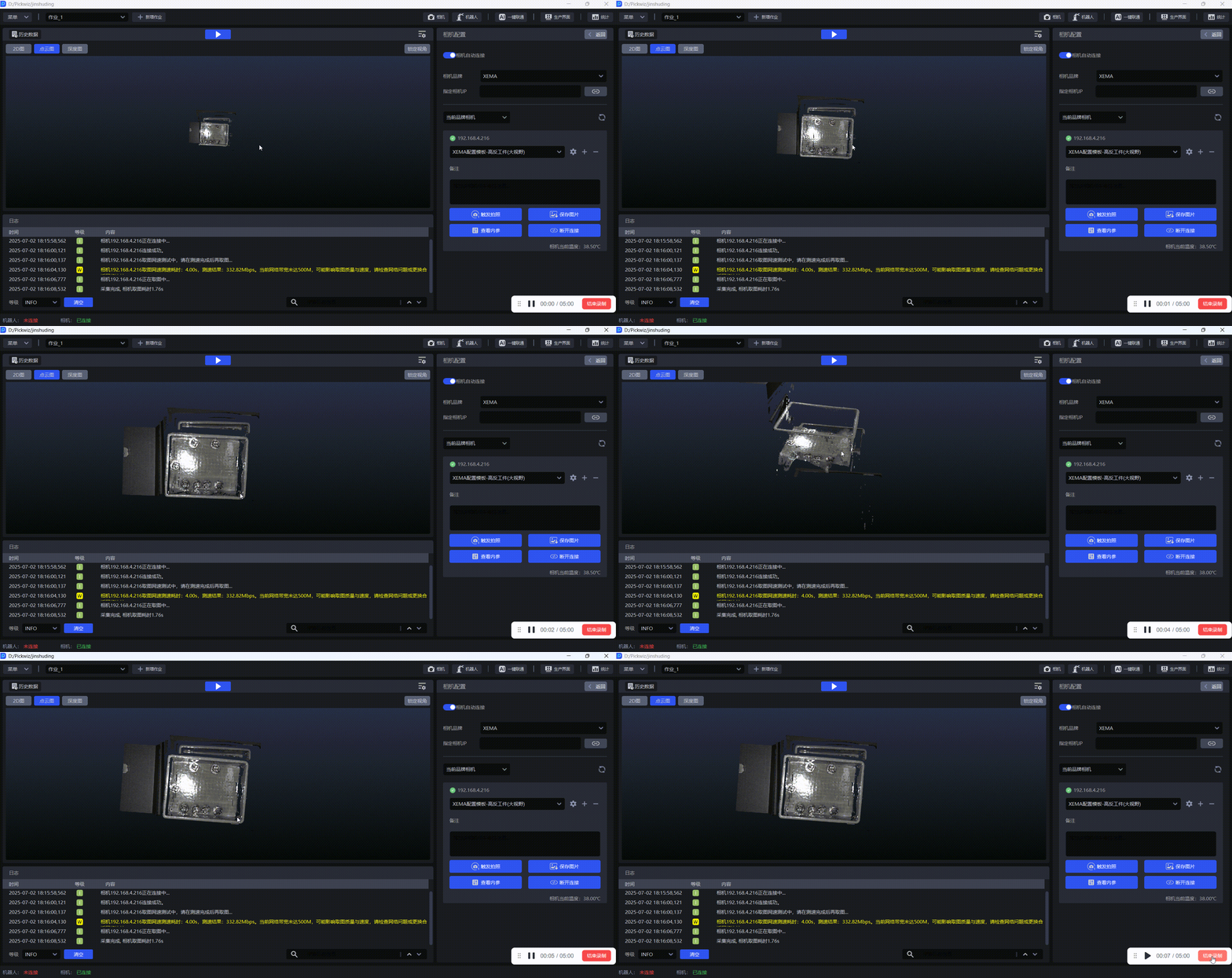
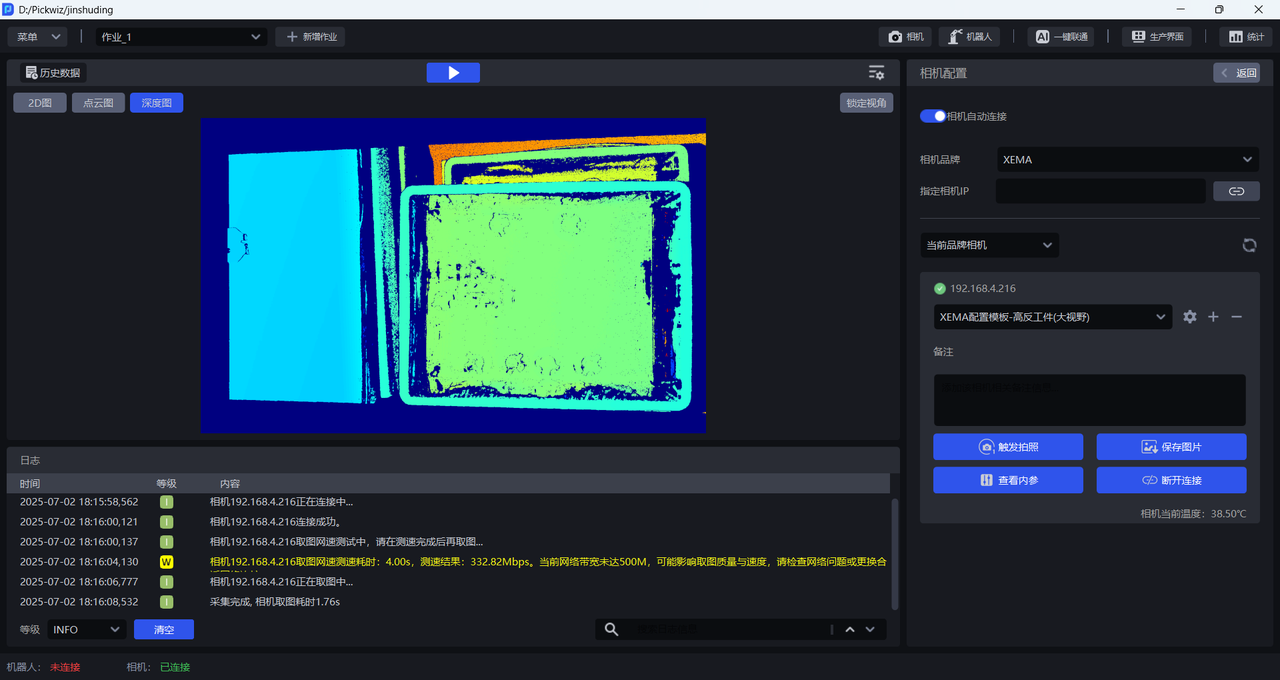
The process of inputting Camera data for visual calculation is as follows:
(1) Create a new project and Task, connect the Camera and Robot and configure the Task information. For specific operations, please refer to [Project Operation Guide] (项目操作指南.md), [Task Operation Guide] (作业操作指南.md), [Camera Connection and Parameter Adjustment Guide] (相机连接与调参指南.md), [Robot Configuration and Communication Operation Guide] (机器人配置与通信操作指南.md).
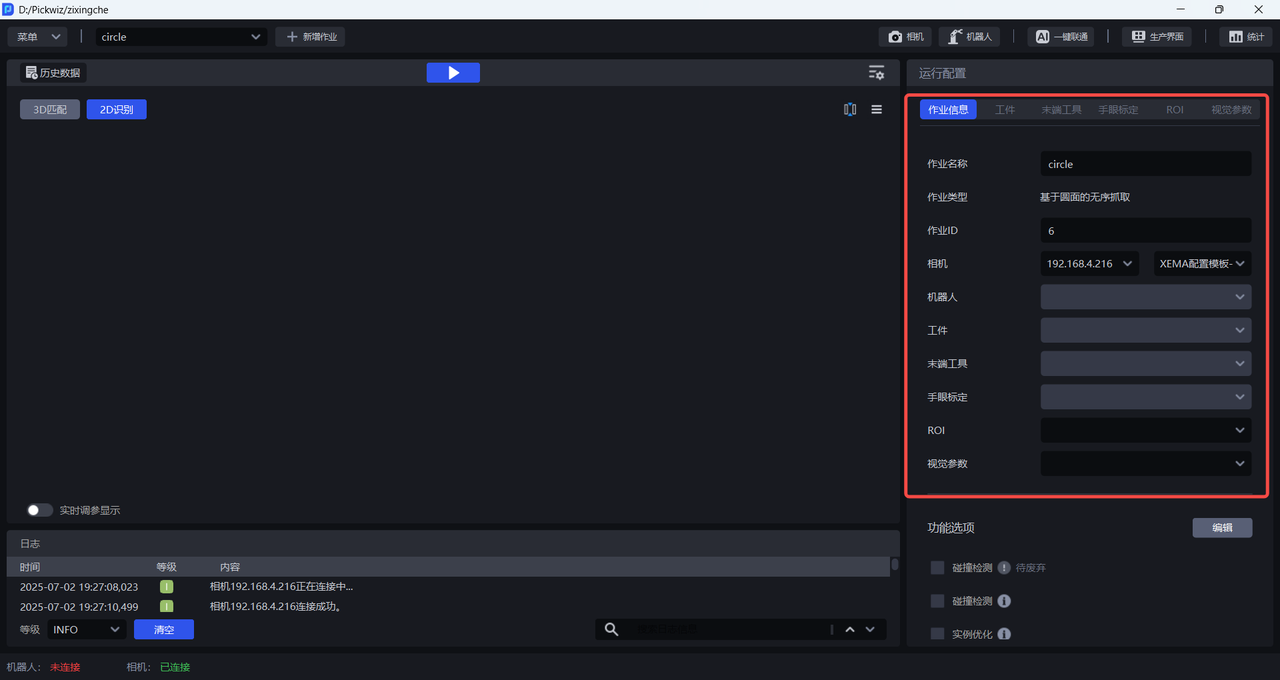
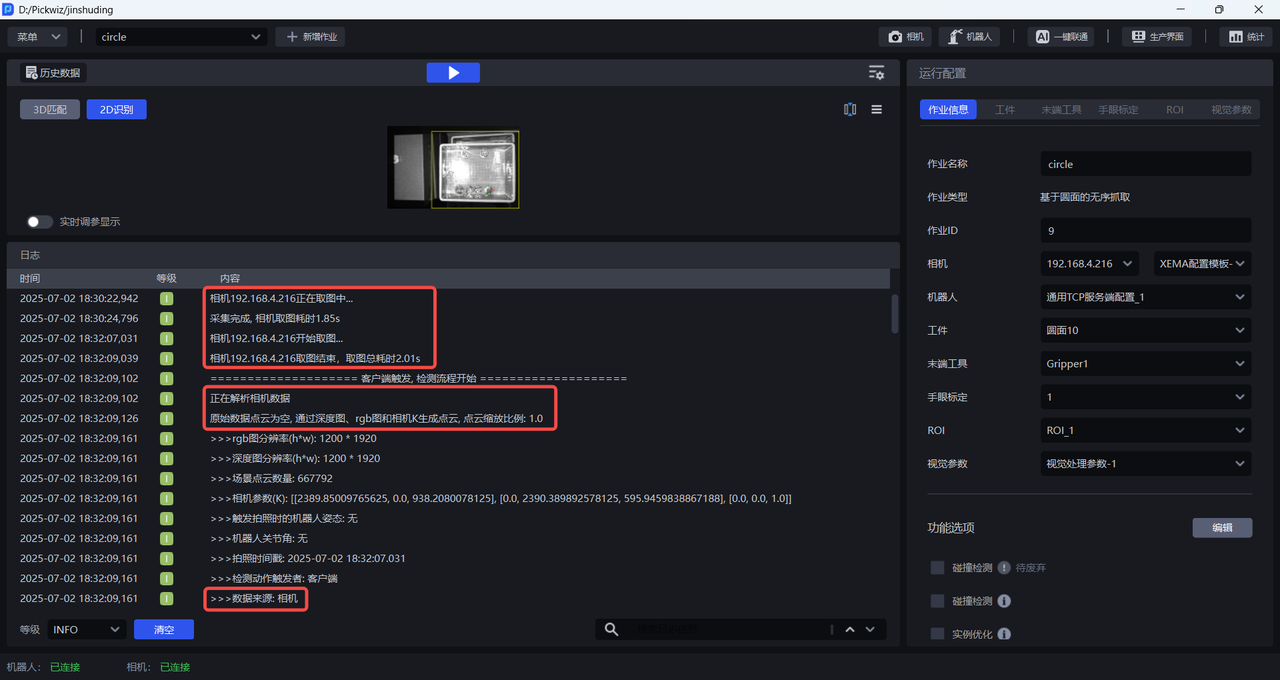
(2) After clicking Run, the Camera data is input into the workflow for visual calculation, and the Pick Point is finally output. The beginning of the log will show that the data source is Camera data, as shown in the figure below.
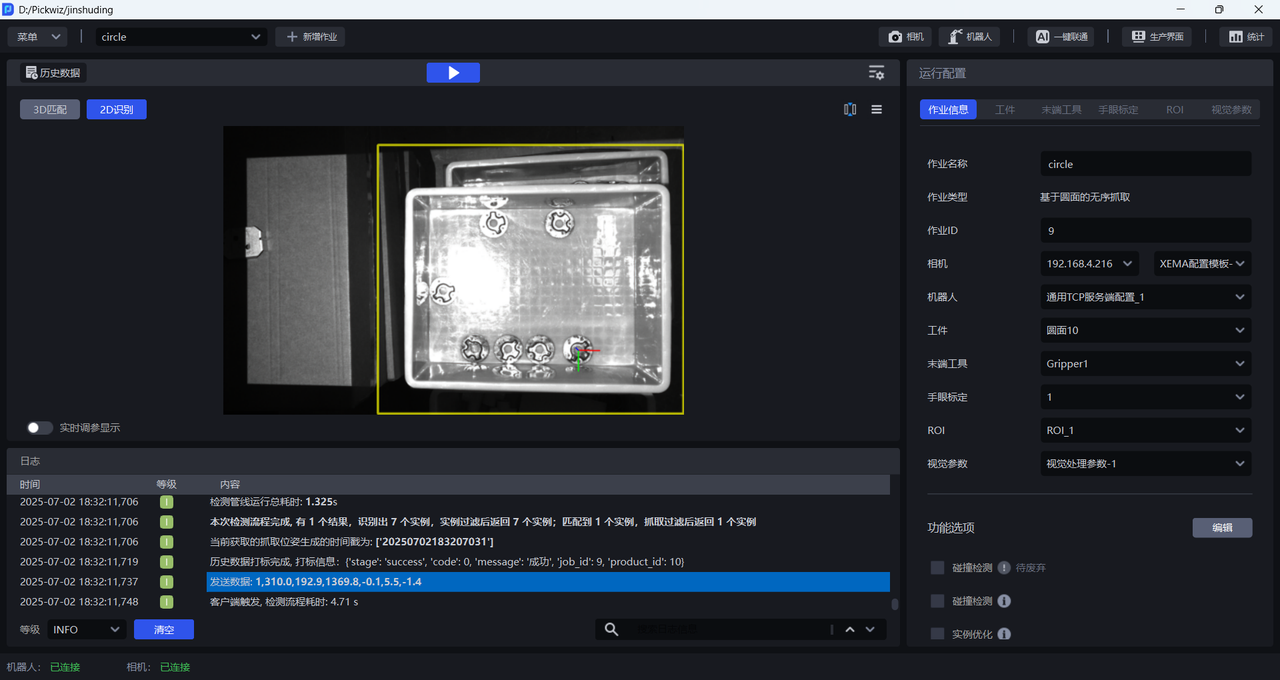
1.1.2 historical data
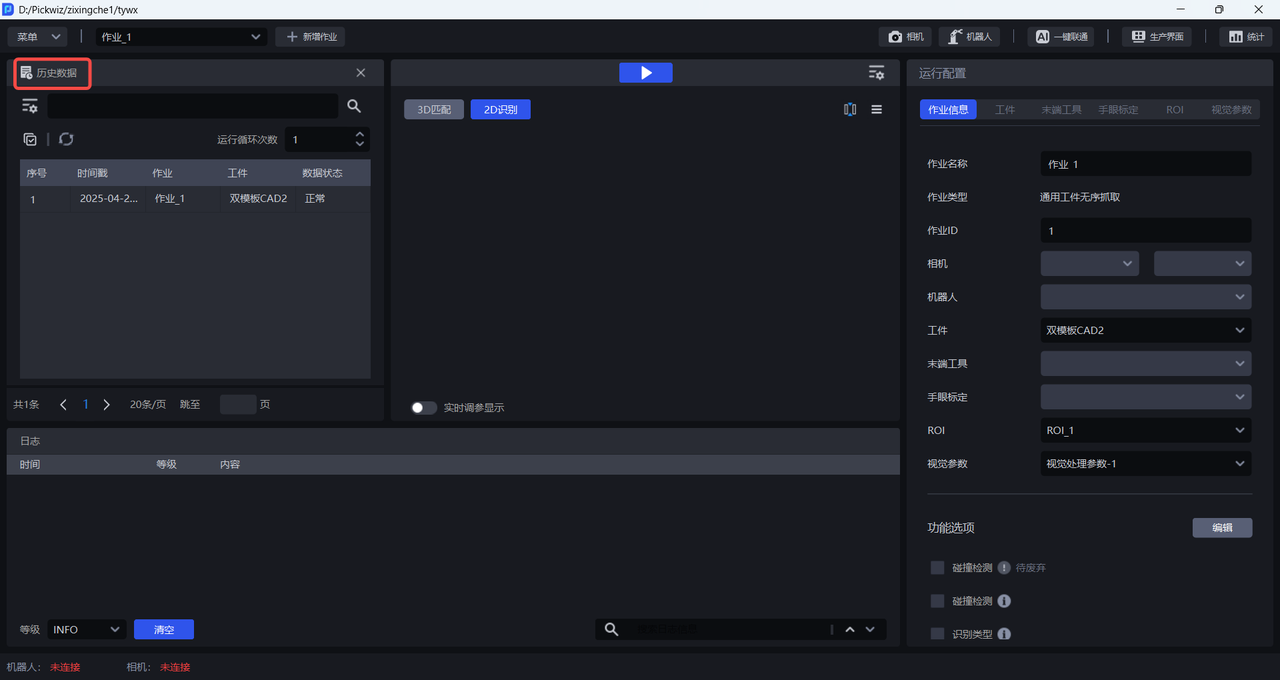
Historical data is the running record of Pickwiz in the past period. It saves the input data and output results of each process of visual computing and is used to troubleshoot the cause of the failure, as shown in the figure below. For specific instructions, please refer to the [Historical Data Usage Guide] (历史数据使用指南.md).
The process of inputting historical data for visual calculation is as follows:
(1) Click Historical Data to open the historical data pop-up window
(2) Open the Visual Computing Configuration pop-up window, switch Input data to Historical data, input historical data optionally Run complete visual results and Run only 2D recognition results.
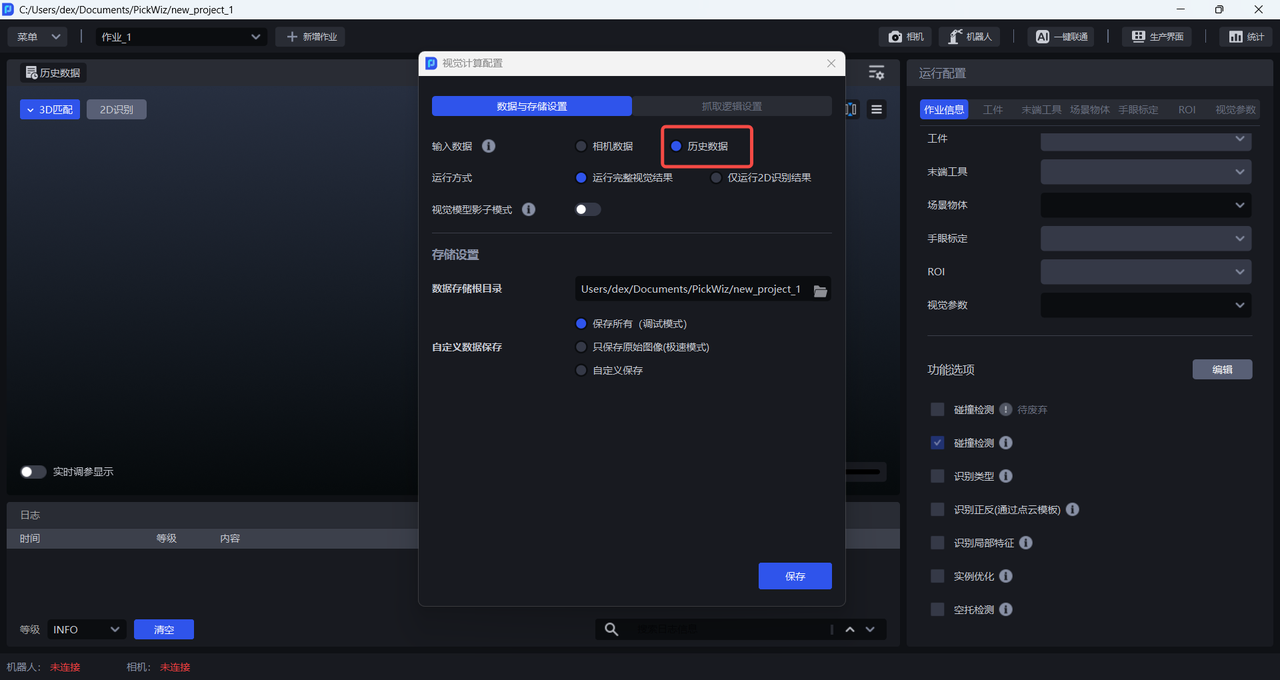
Selecting Run full visual results will save a complete record of the historical data rerun, as shown in the image below.
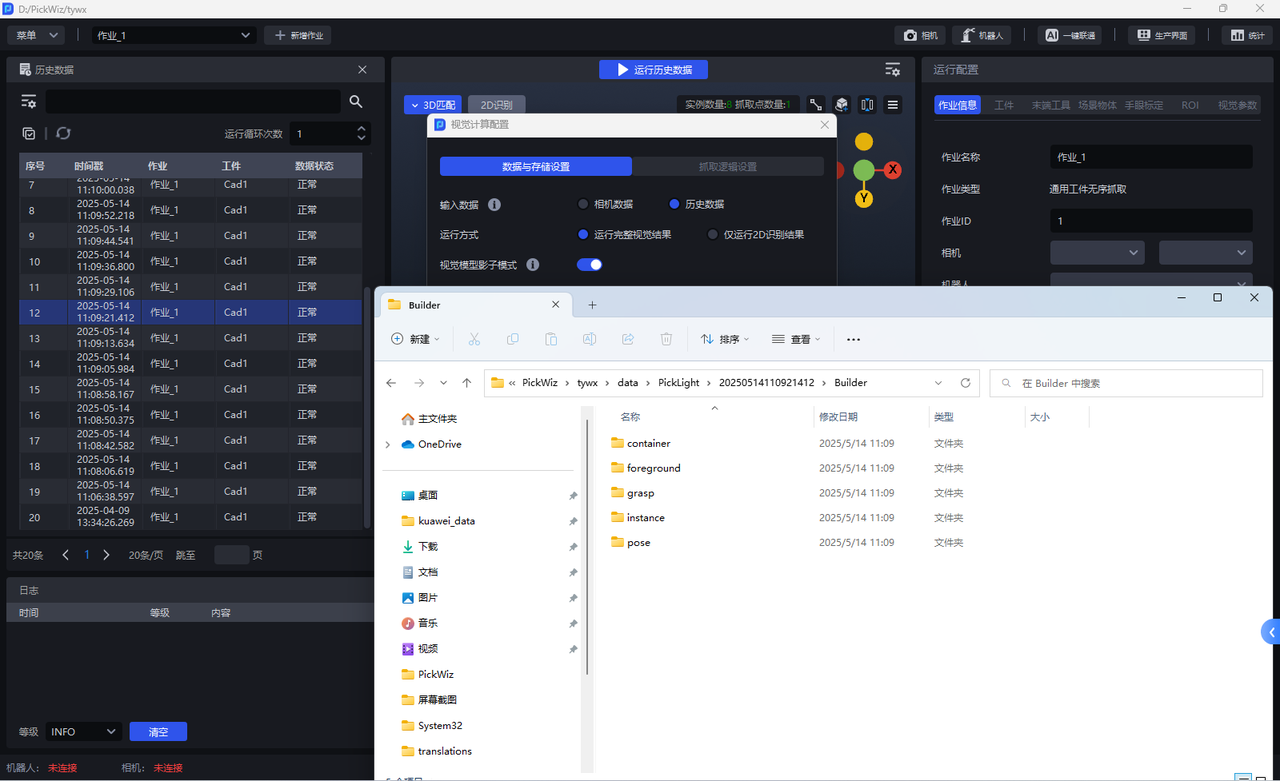
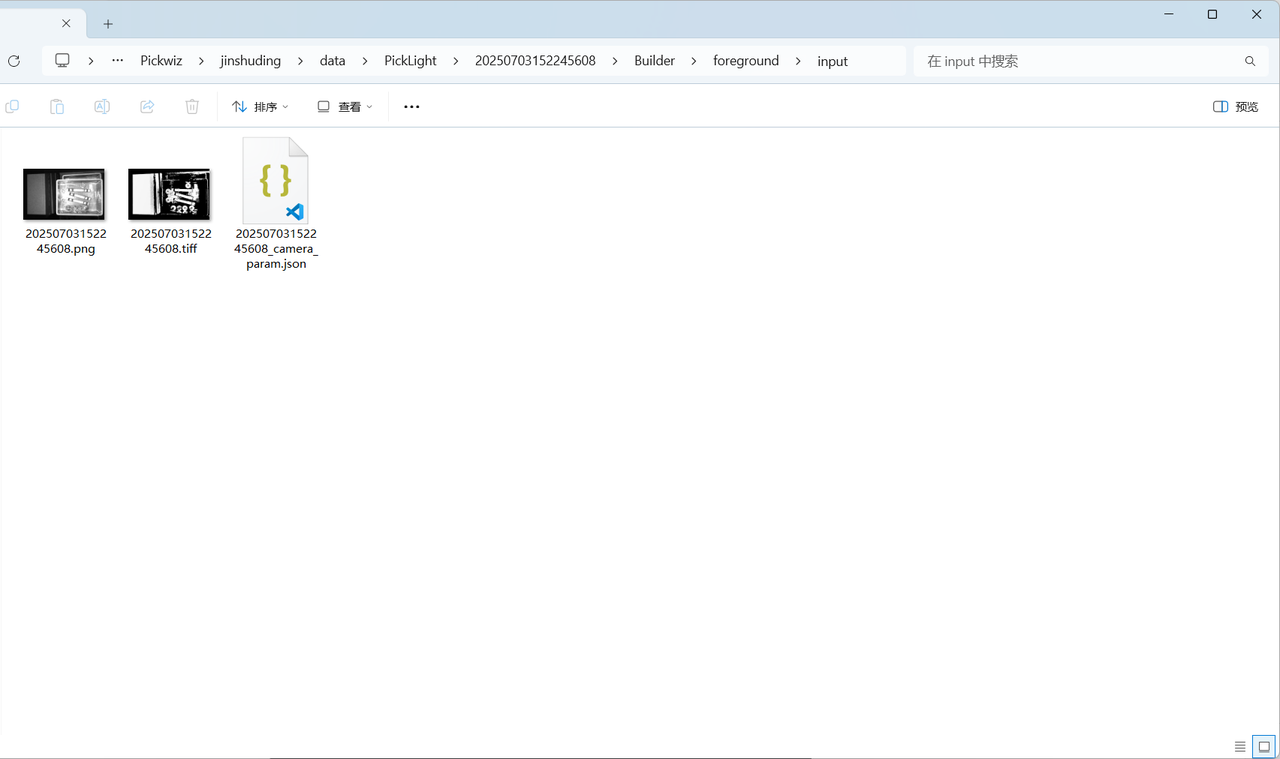
Select Only run 2D recognition results, and only the 2D recognition results of the re-run of this historical data will be saved (the Builder folder only saves the foreground node foreground, material frame detection container, and instance detection instance, and does not save the pose estimation node pose and the Pick Point generation node grasp), as shown in the figure below.
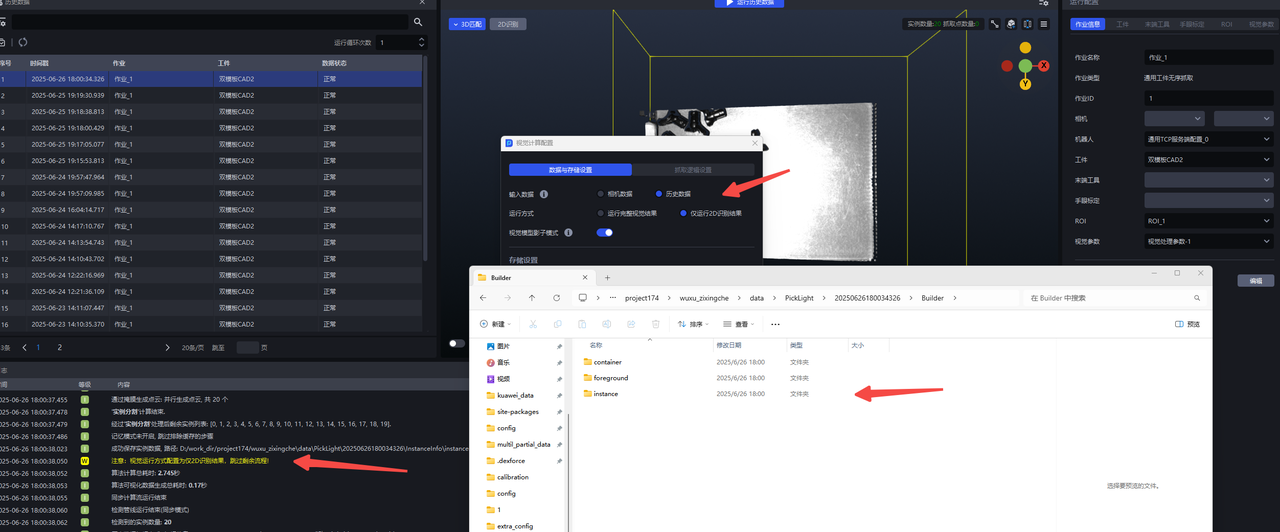
(3) After switching, the run button becomes the Run historical data button, as shown in the figure below.
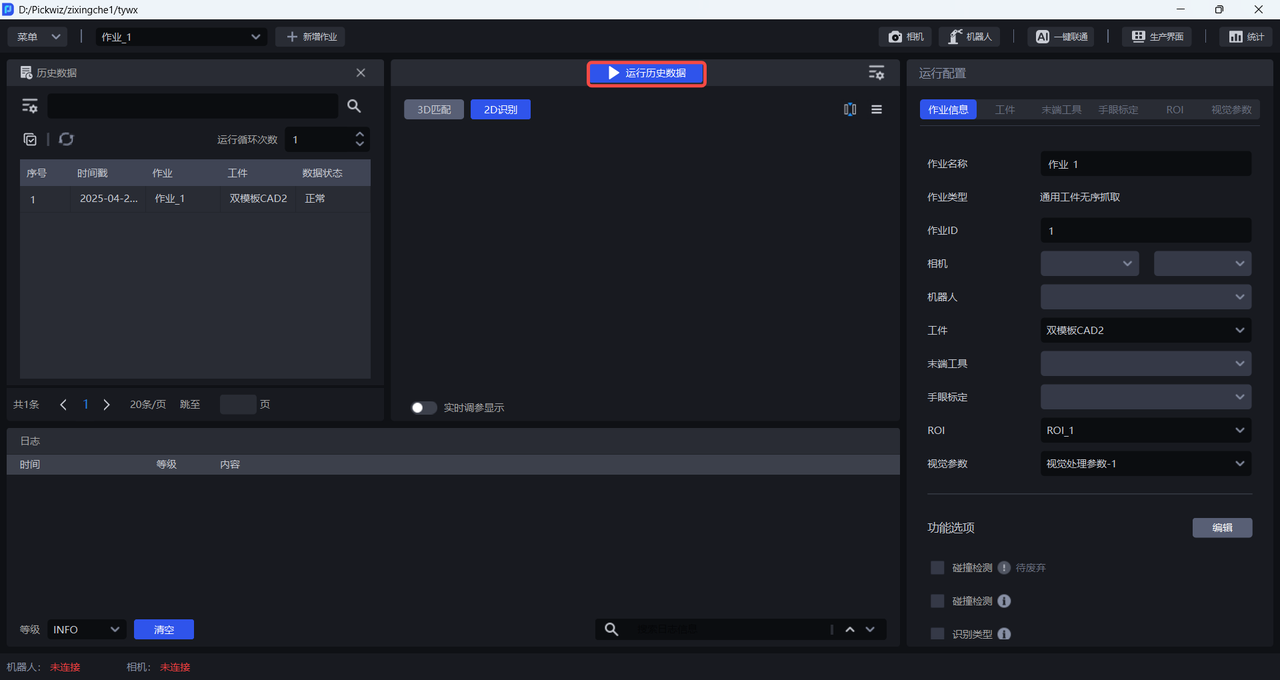
(4) Select a piece of historical data, and then click the Run Historical Data button to input the historical data into the workflow for visual calculation, and finally output the Pick Point. The data source will be displayed as historical data at the beginning of Log, as shown in the figure below.
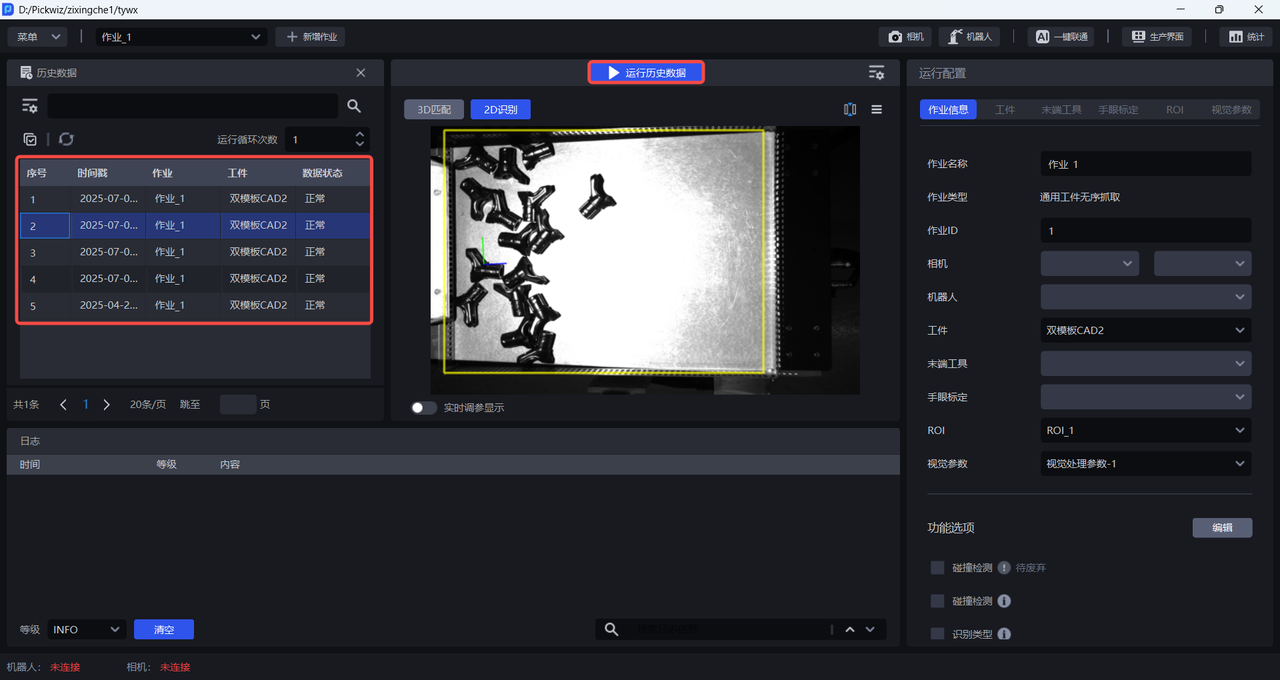
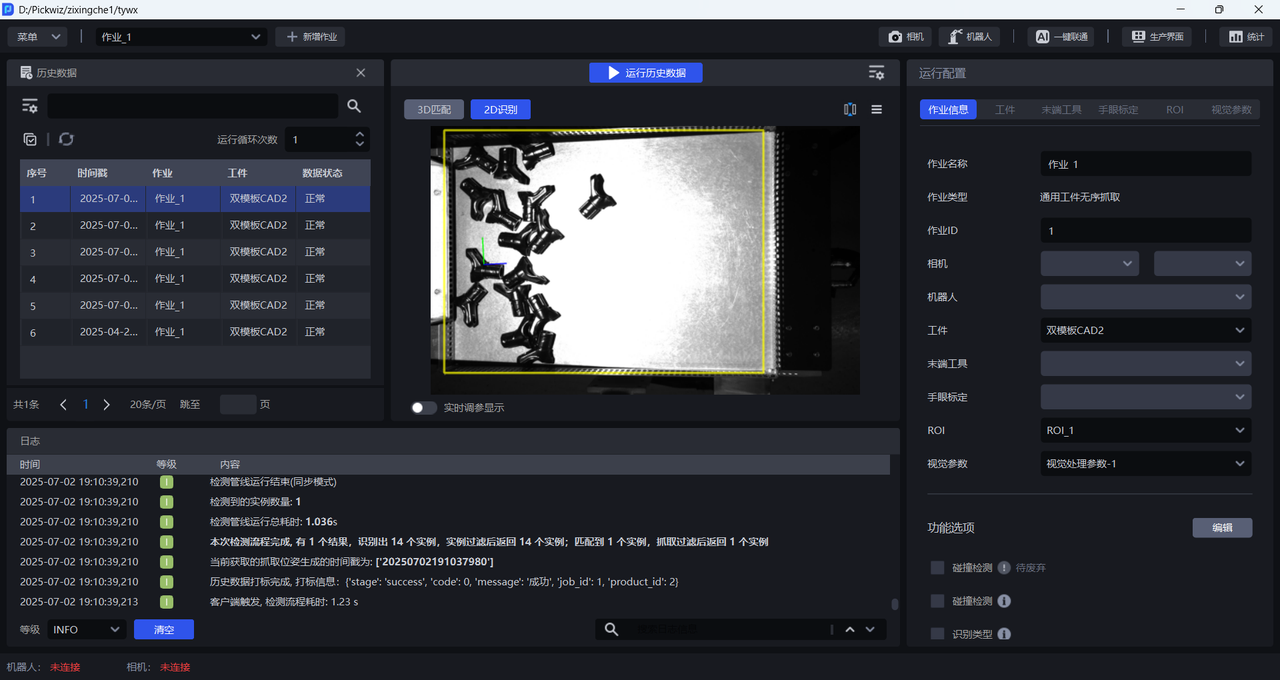
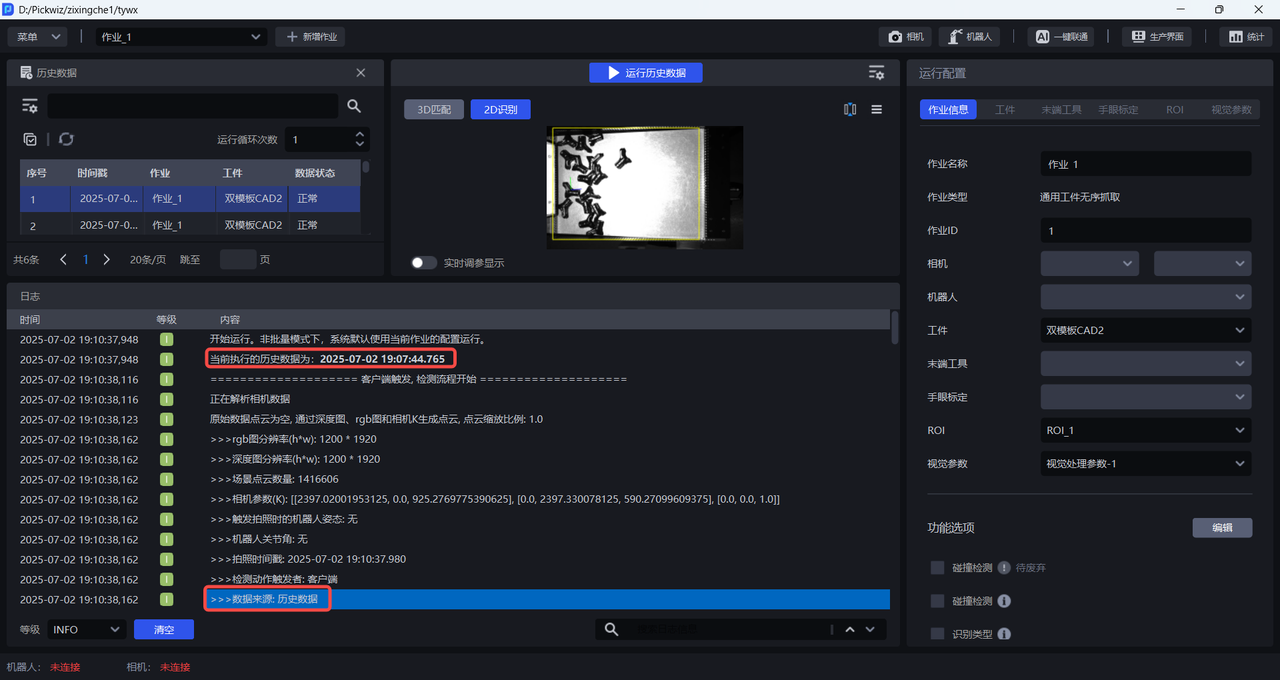
Before inputting historical data for visual calculation, there is no need to connect Camera and Robot, and there is no need to configure Task information. The workflow will use the current Task configuration to perform visual calculation on historical data.
1.2 Storage Settings
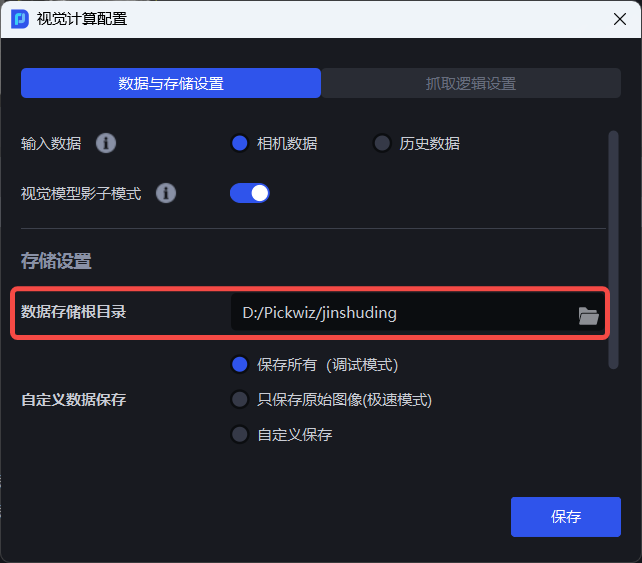
1.2.1 data storage root directory
The data storage root directory is the storage path of the project, which is consistent with the project path selected when creating a new project and cannot be modified.
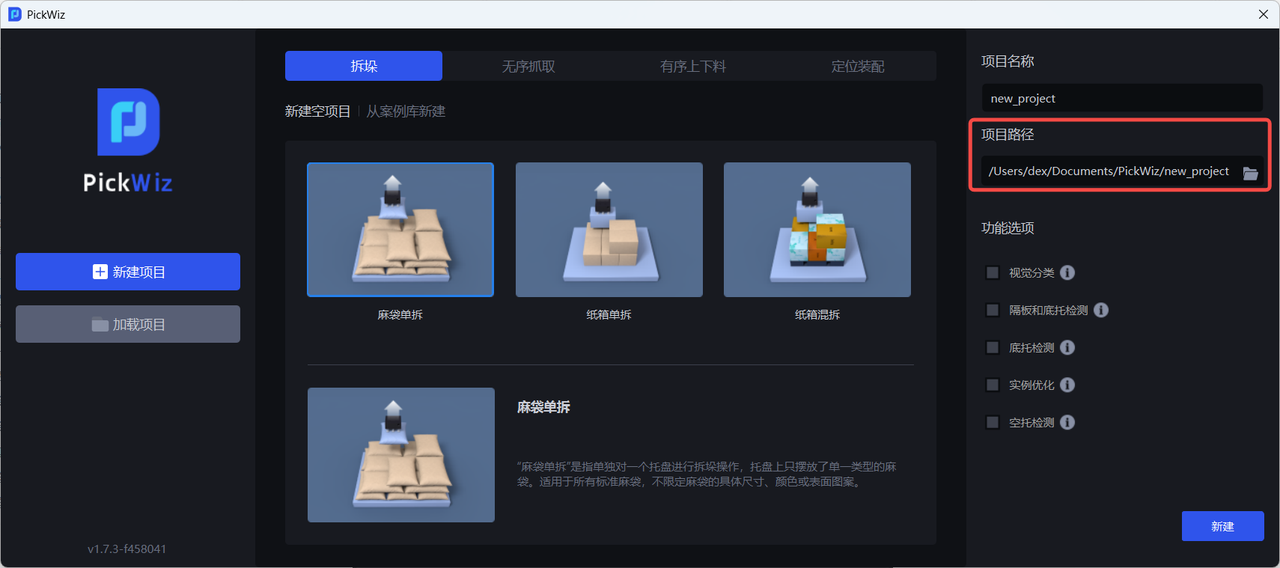
1.2.2 Custom data saving
Custom data saving means saving the content in the visual calculation process. You can choose to save all (debug mode), save only the original image (speed mode), or customize the save.
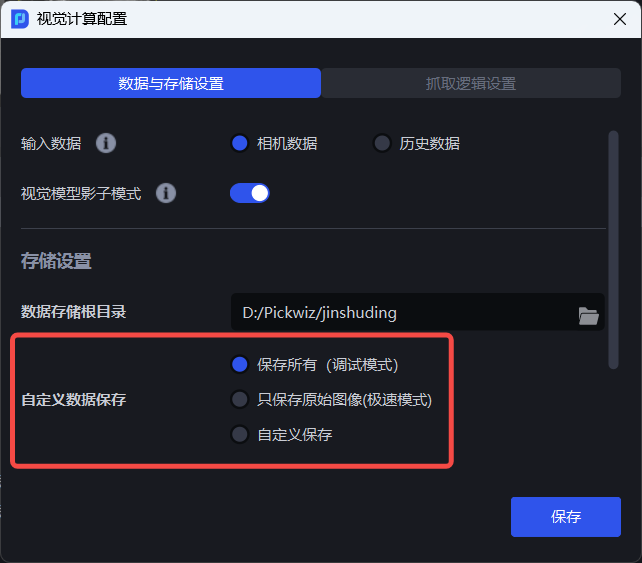
- Save all (debug mode), that is, save the input data and output results of the entire visual computing process, as shown in the figure below
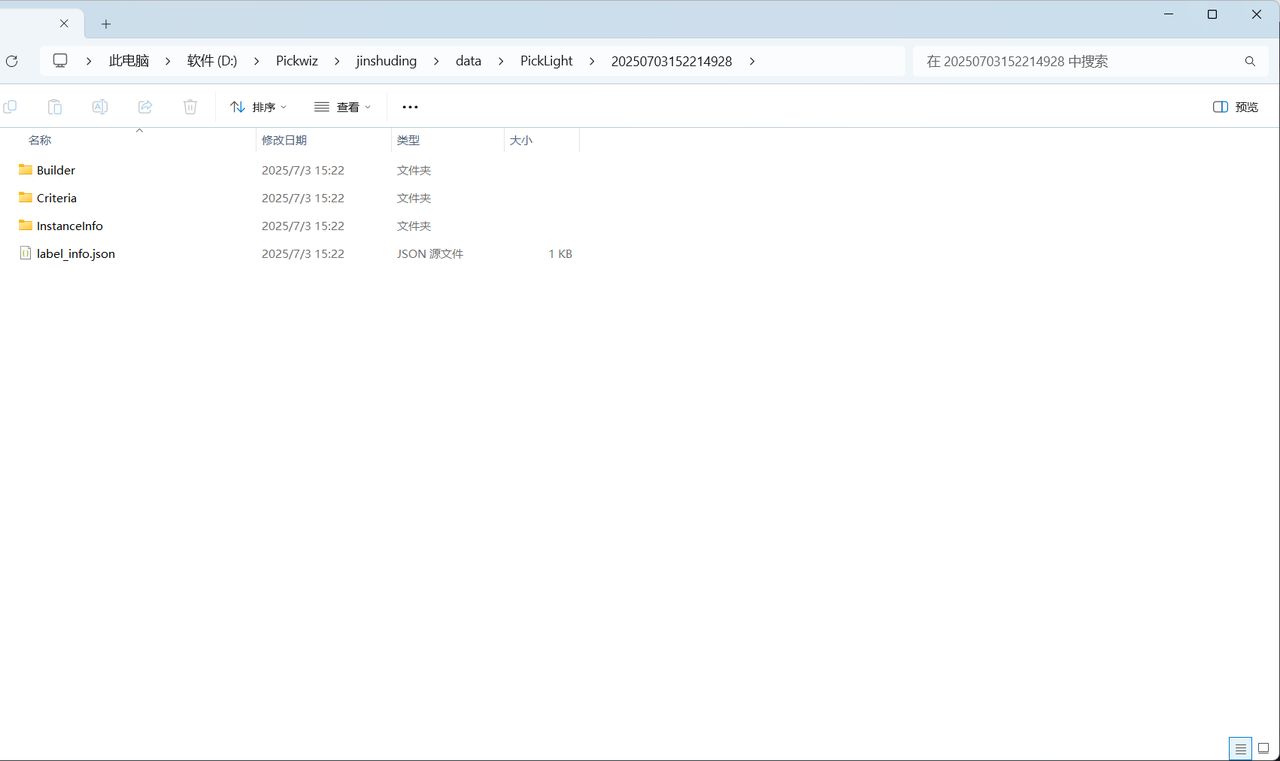
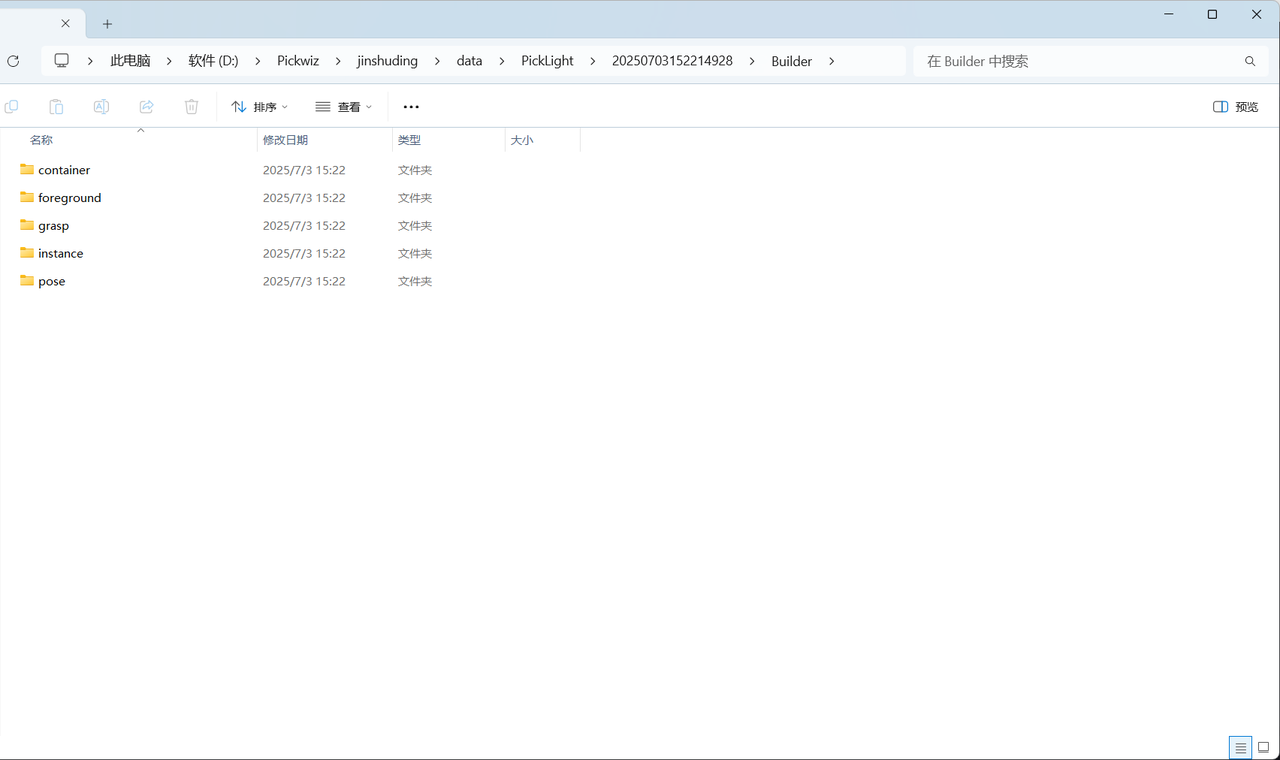
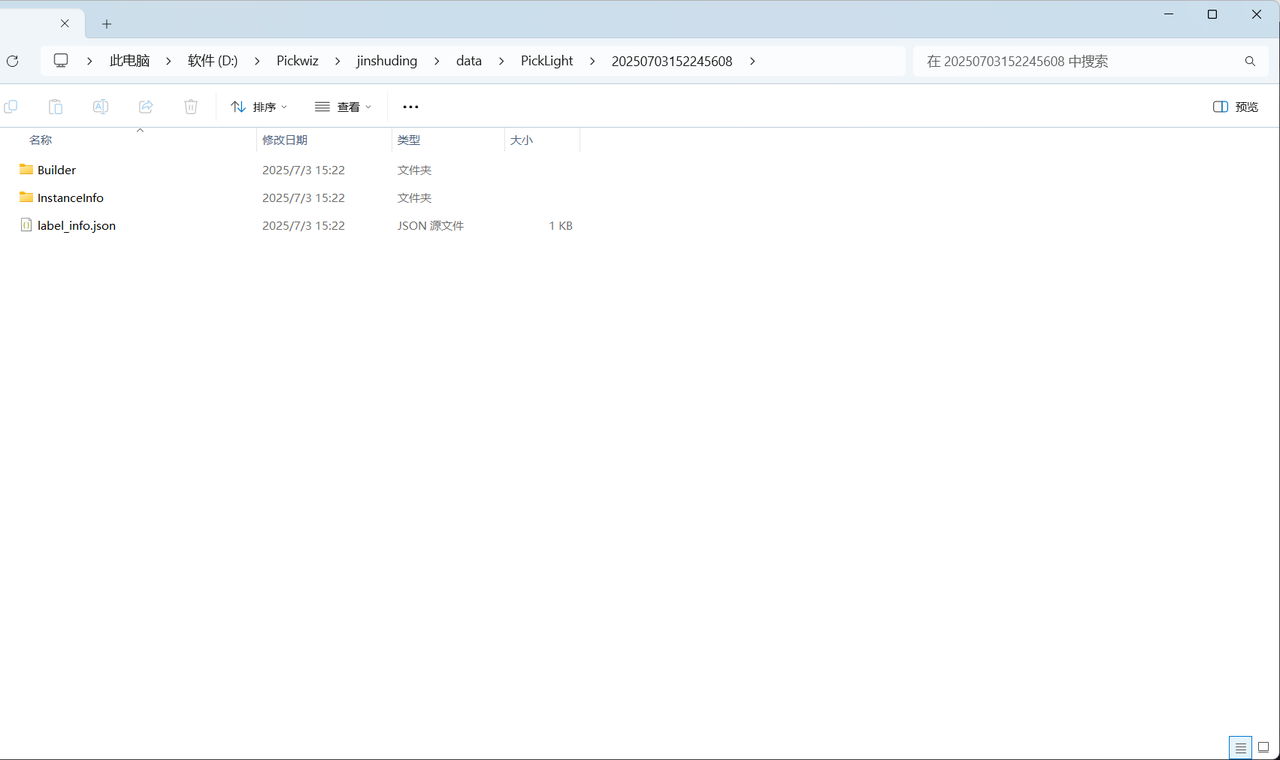
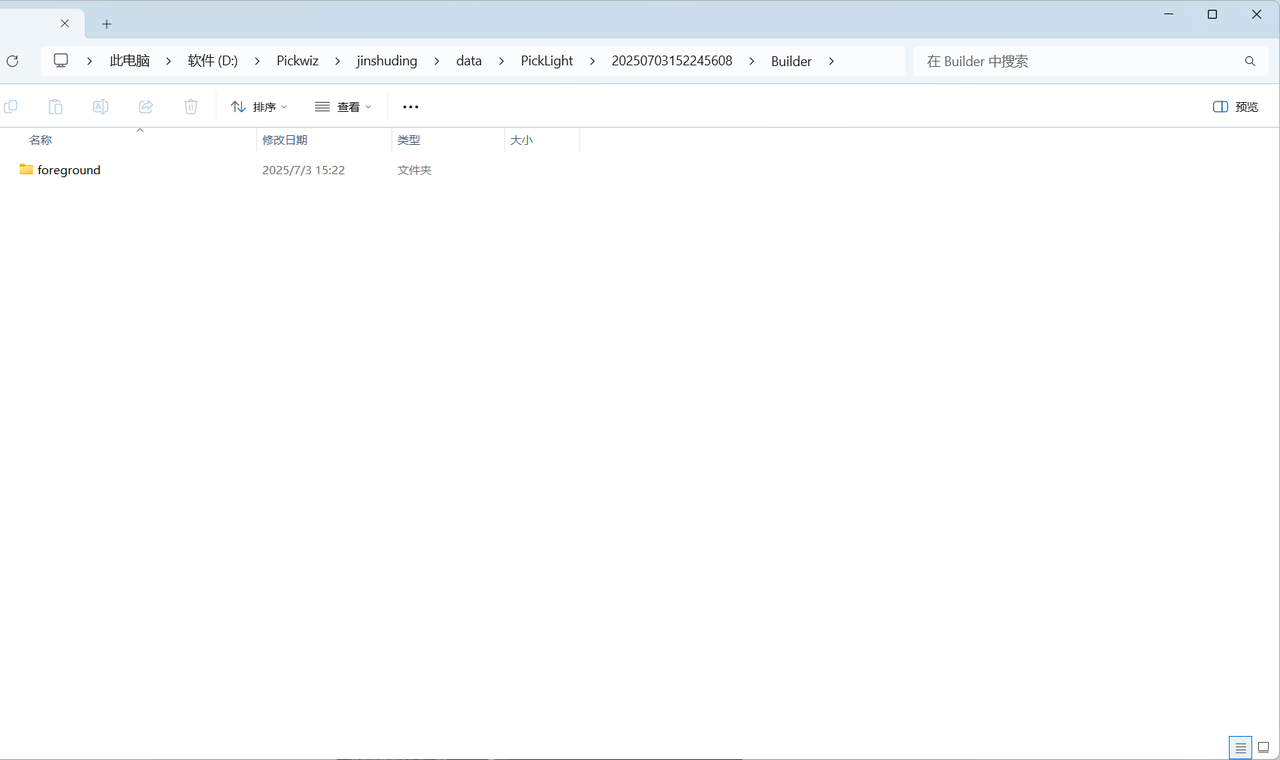
- Only the original image (extreme speed mode) is saved, that is, only the original 2D image and Depth image are saved, as shown in the figure below.
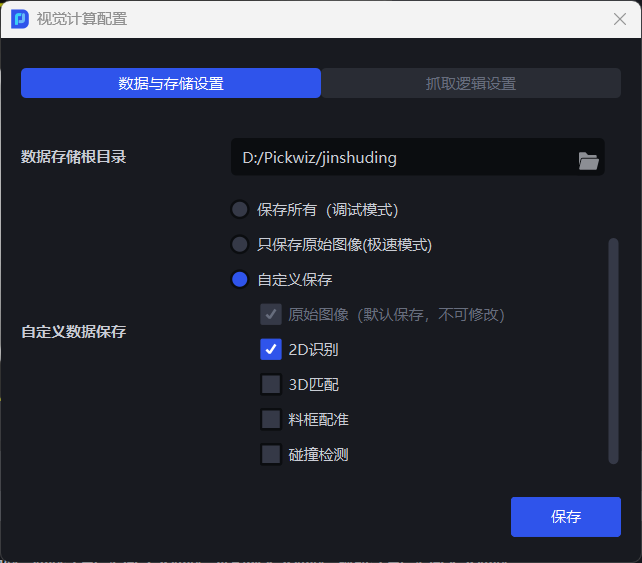
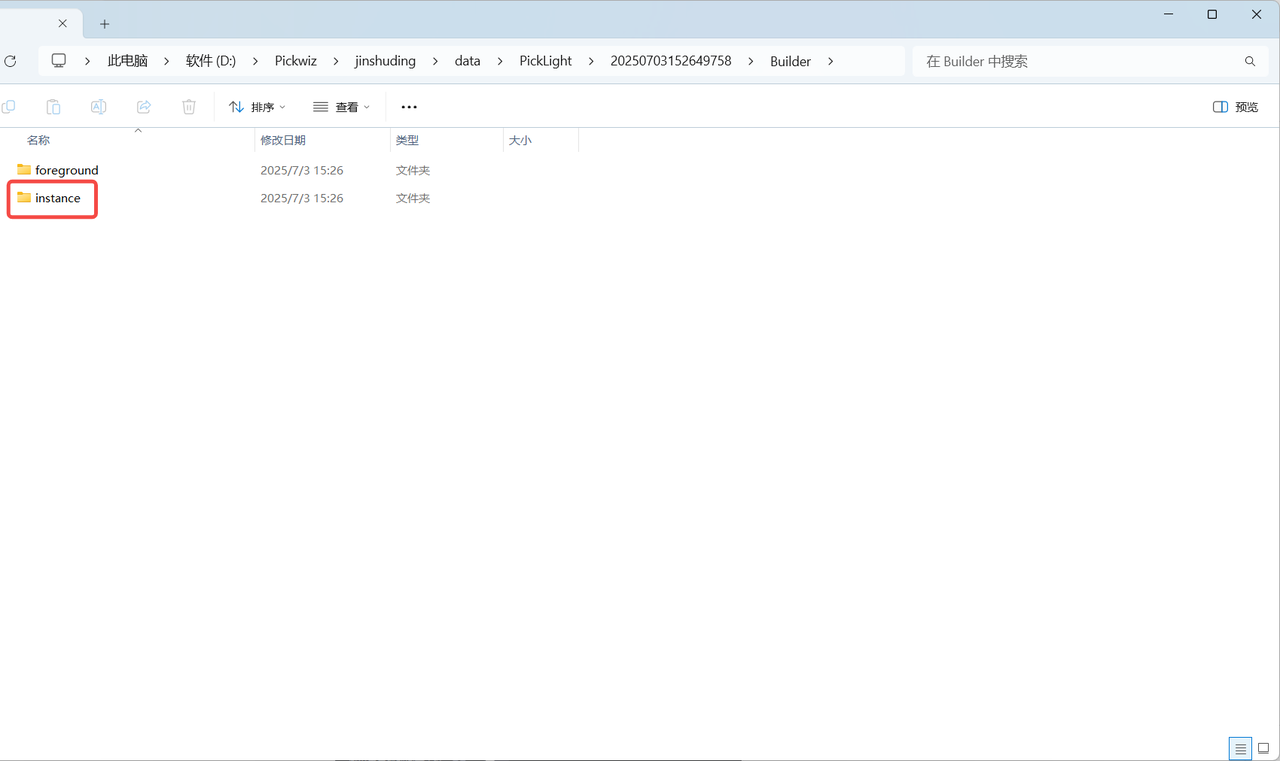
- Customized saving can selectively save the content of the visual calculation process, which is suitable for on-site production when specific data needs to be saved to facilitate subsequent search. As shown in the figure below, check 2D recognition and save the instance folder in the historical data folder.
2. Capture logic settings
2.1 visual computing acceleration
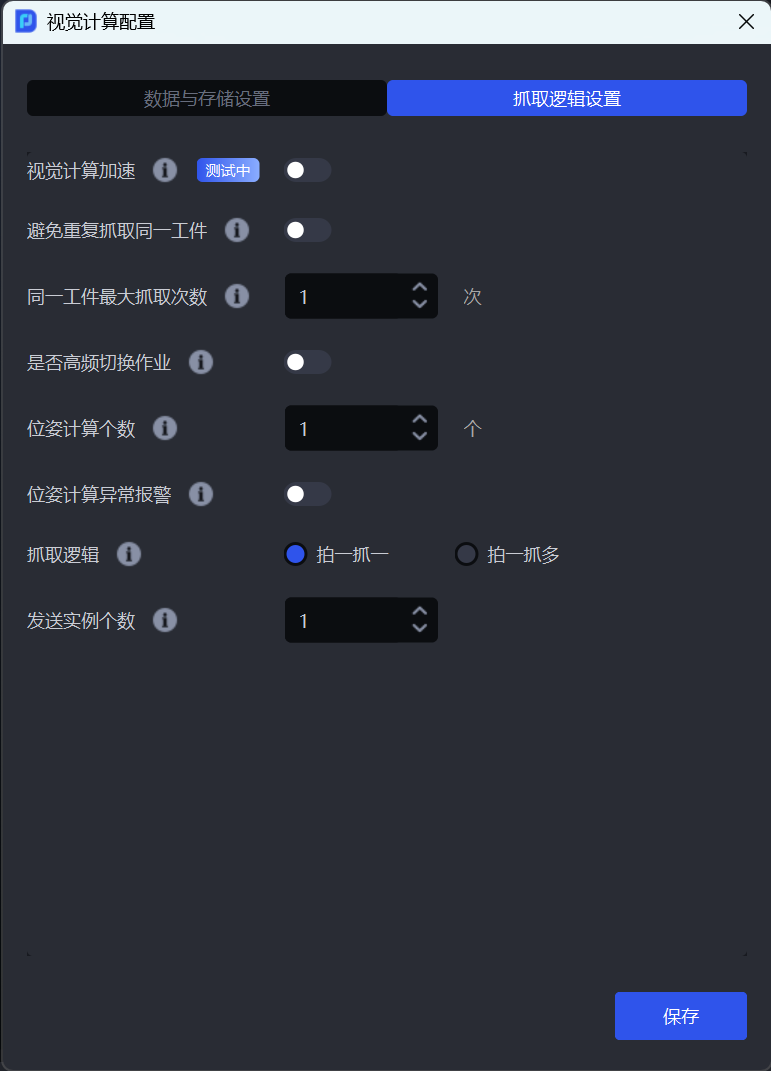
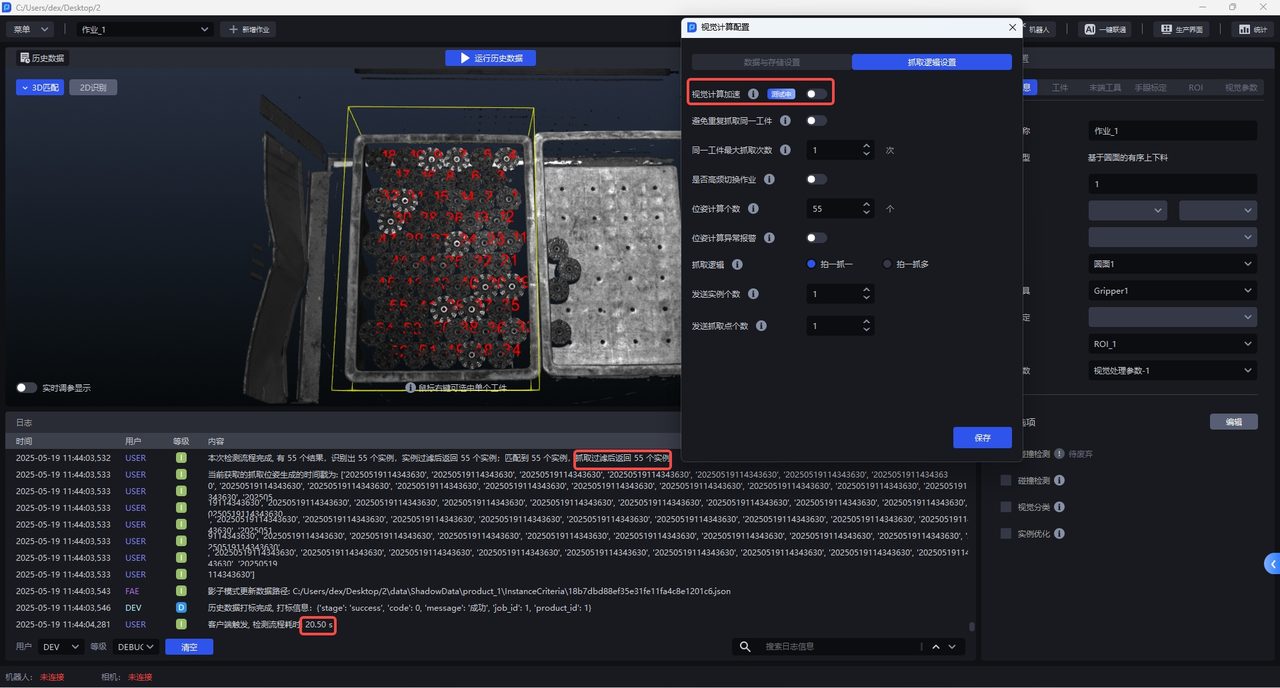
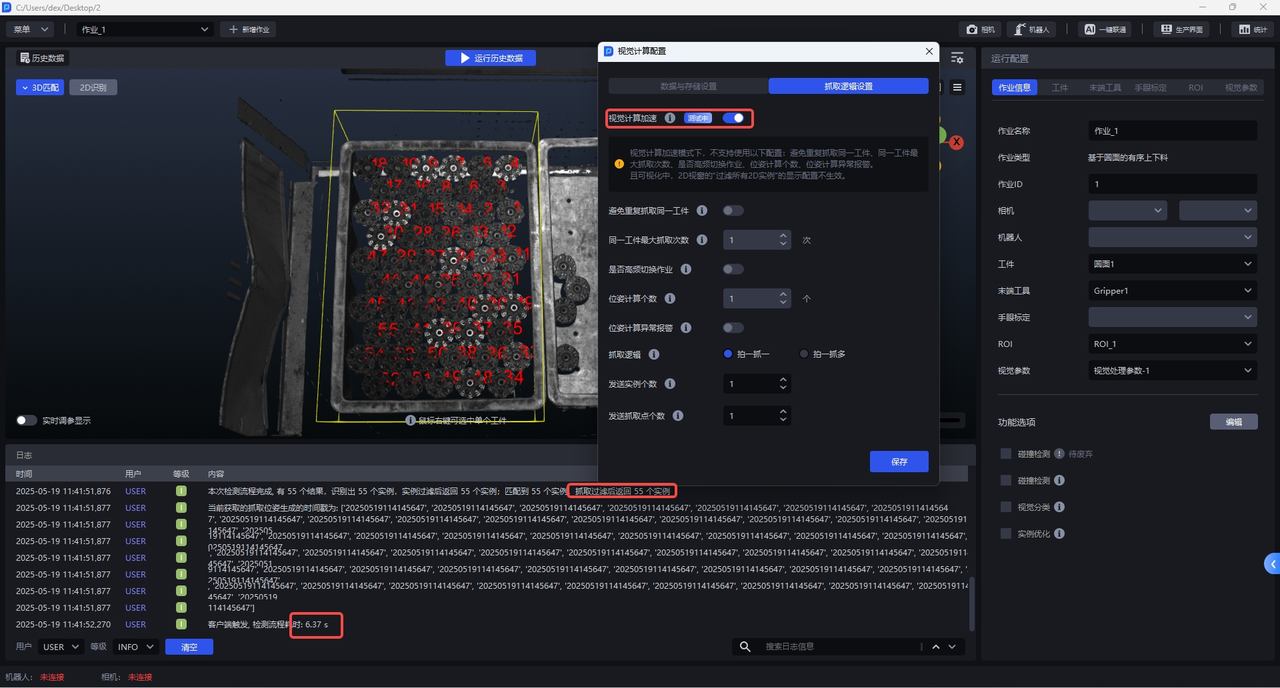
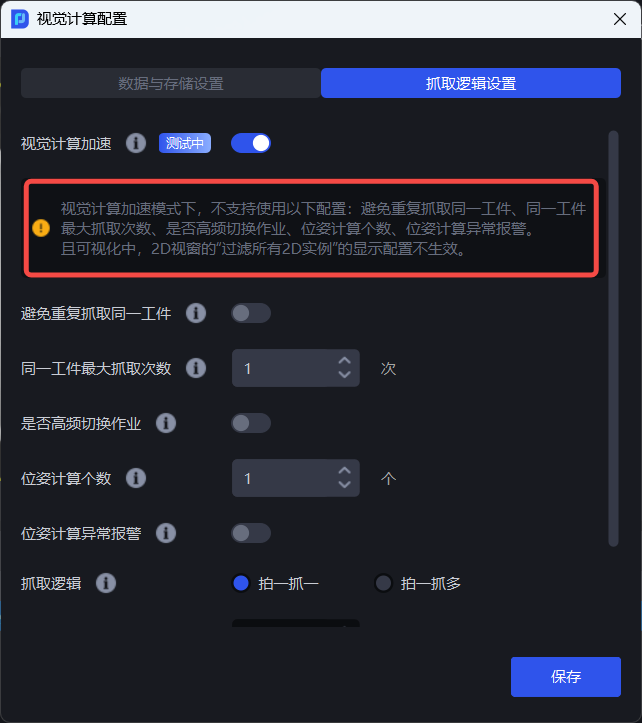
When turned on, visual calculations take less time and all Target instances in the field of view are identified by default. It is suitable for scenes with a large number of Target instances and high cycle time requirements.
PickWiz 1.8.2 support
**Single dismantling of cartons, ordered and disordered loading and unloading of universal Target, ordered and disordered loading and unloading of universal circles/cylinders, ordered loading and unloading of universal quadrilaterals, ordered loading and unloading of surfaces (parallelization) **Scene can use this function.
Single disassembly of sacks, ordered and disordered loading and unloading of face shapes, loading and unloading of target targets (materials are isolated from each other), ordered loading and unloading of face shapes (Image matching), and positioning assembly Scene are not supported at the moment.
Function option scenes (such as Type Identification/Local Identification/Front-Back Identification), Point Cloud noise filtering, Pallet Detection, and Partition and Pallet Detection are not currently supported. They will be gradually integrated with other Scenes and function option scenes in the future.
Notice:
When the "Visual Computing Acceleration" mode is turned on, "Avoid grabbing the same target repeatedly", "Maximum number of grabs for the same target", "Whether to switch tasks frequently", "Number of pose calculations", and "Alarm for abnormal pose calculations" cannot take effect.
2.2 avoids crawling the same Target repeatedly
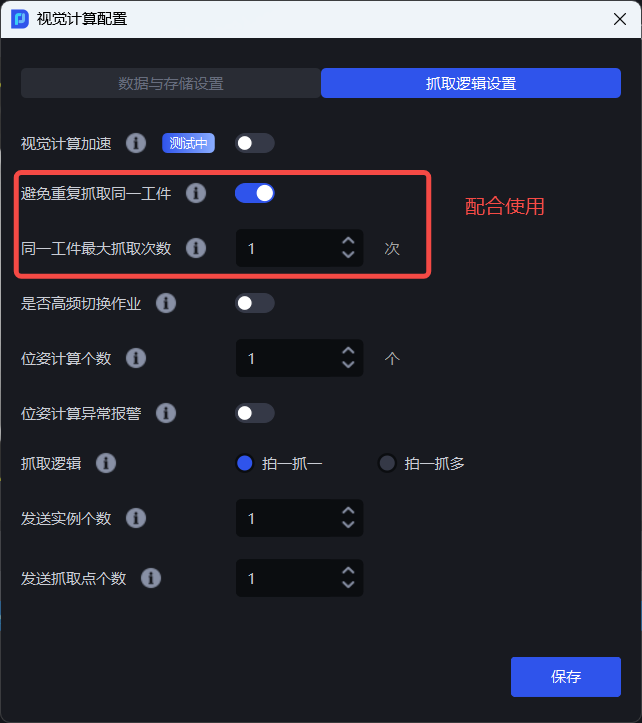
After it is turned on, if the same target cannot be fetched successfully within the maximum number of fetch times, it will no longer try to fetch the target, but will skip the target and grab the next target.
Notice:
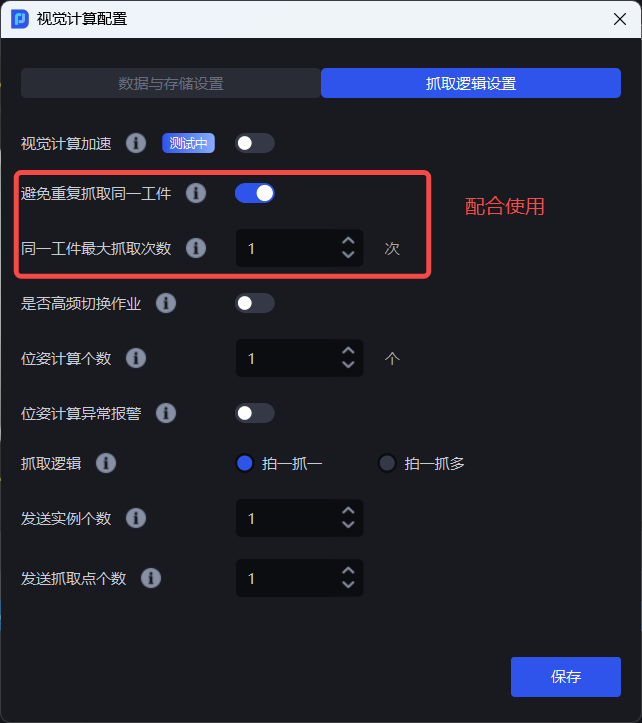
If you need to enable "Avoid crawling the same target repeatedly", you should also enable "Maximum crawl times for the same target" and set the maximum number of crawl attempts for the same target.
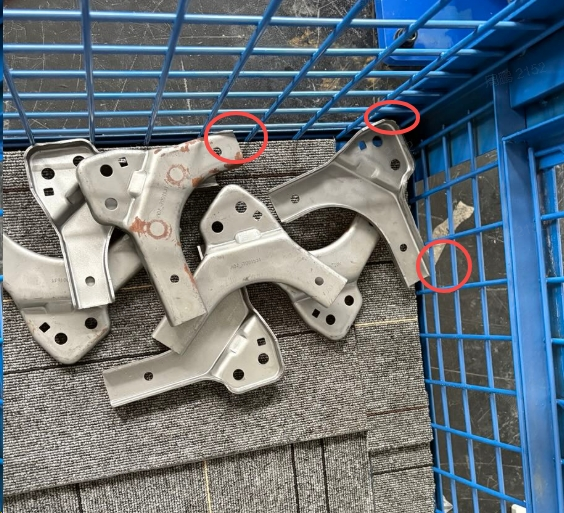
Commonly seen in disordered scenes, some materials are suppressed by other materials and cannot be grasped, or objects such as material frames restrict their grasping. For such targets, it is necessary to avoid repeated grabbing, which is a waste of time.
Example
Notice:
When "Visual Computing Acceleration" mode is turned on, "Avoid repeatedly grabbing the same Target" will not take effect after it is turned on. If you need to avoid repeated grabbing at this time, you can use the "Filter Pick Points that are similar to the last visual result" function in Pick Point filtering (filtering Pick Points that are similar to the last visual result: calculate the change in pose between this and the last visual result, determine whether it is the same Target and filter it).
2.3 Maximum number of crawls for the same Target
Indicates the maximum number of crawls for the same Target. The value range is 1~5. Used together with "Avoid crawling the same Target repeatedly". For the same Target, if the crawl cannot be successful within the maximum number of crawls, PickWiz will no longer try to crawl the Target, but will skip the Target and grab the next Target.
2.4 Whether to switch tasks at high frequency
When the actual production scene requires frequent task switching, it can be turned on, which can improve the cycle time.
2.5 pose calculation number
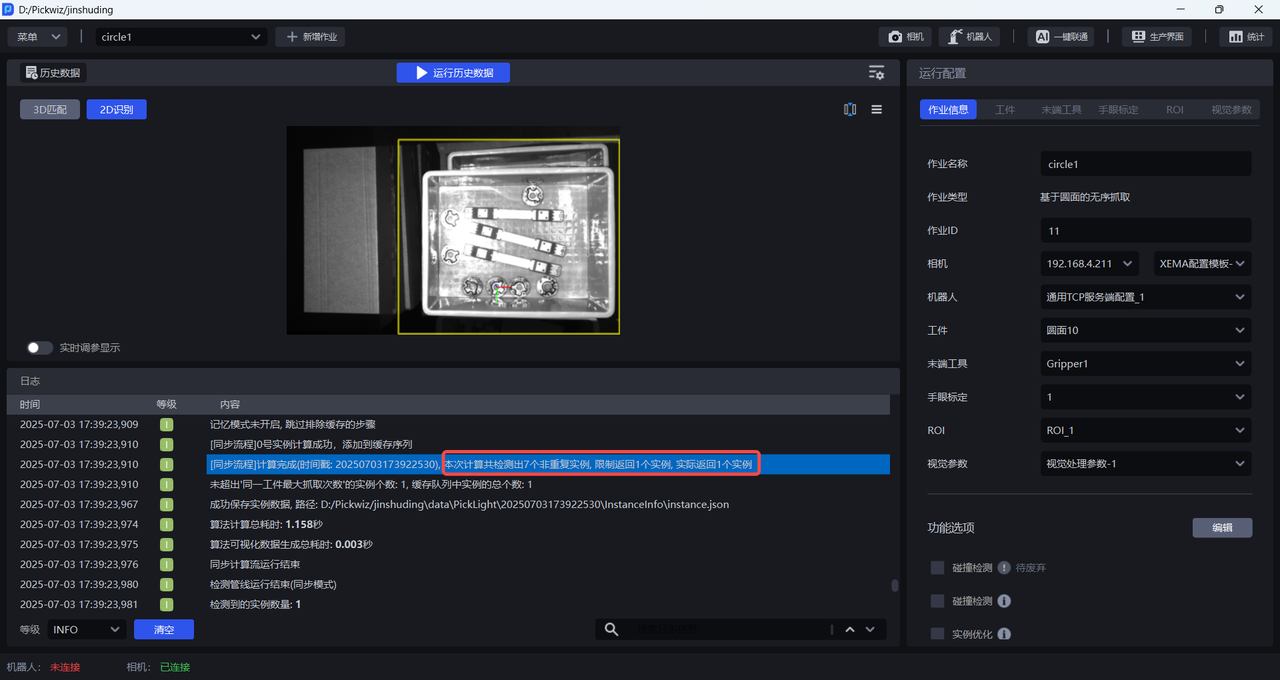
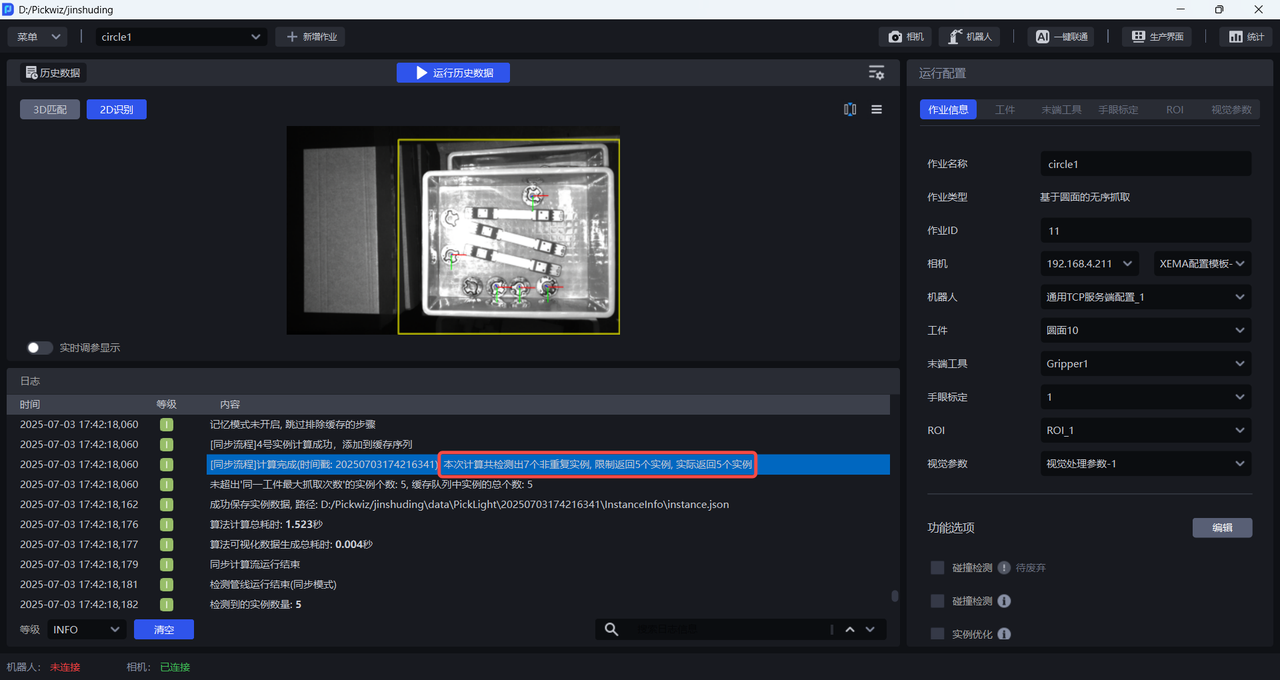
Set the maximum number of Target poses that the vision system can calculate.
As shown in the figure below, 7 instances were detected. Because the number of pose calculations is set to 1, the visual system will only calculate the pose of 1 instance and generate a Pick Point.
If the number of pose calculations is set to 5, the visual system will calculate the poses of 5 Targets and generate Pick Points.
2.6 pose calculation abnormality alarm
After being turned on, the Target pose is calculated in the order of instance sorting. If the 3D pose estimation calculation fails, an alarm will be issued;
(Default is off) When turned off, if the 3D calculation fails, the current Target will be skipped, the next Target pose will be calculated, and alarms and visual process interruptions will not be performed.
It is suitable for situations where in an ordered scene, an alarm is required when materials are jumped after being identified when grabbing in a sorted manner.
2.7 crawling logic
2.7.1 Take one shot and one shot
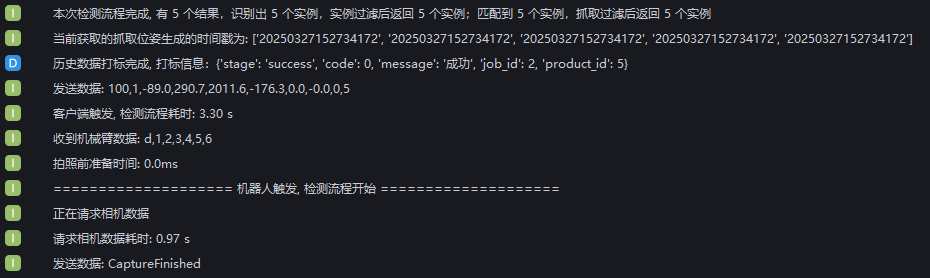
Taking a picture and grabbing a means to visually take a picture once and calculate it once. After the calculation, the result is sent to the Robot, and the redundant results are discarded. The Robot performs the relevant grabbing action and then repeats.
As shown in the figure below, if you do not check the option "Snap once, grab multiple times", every time Robot triggers the detection process, PickWiz will recalculate the photo.
2.7.2 Take one shot and catch many
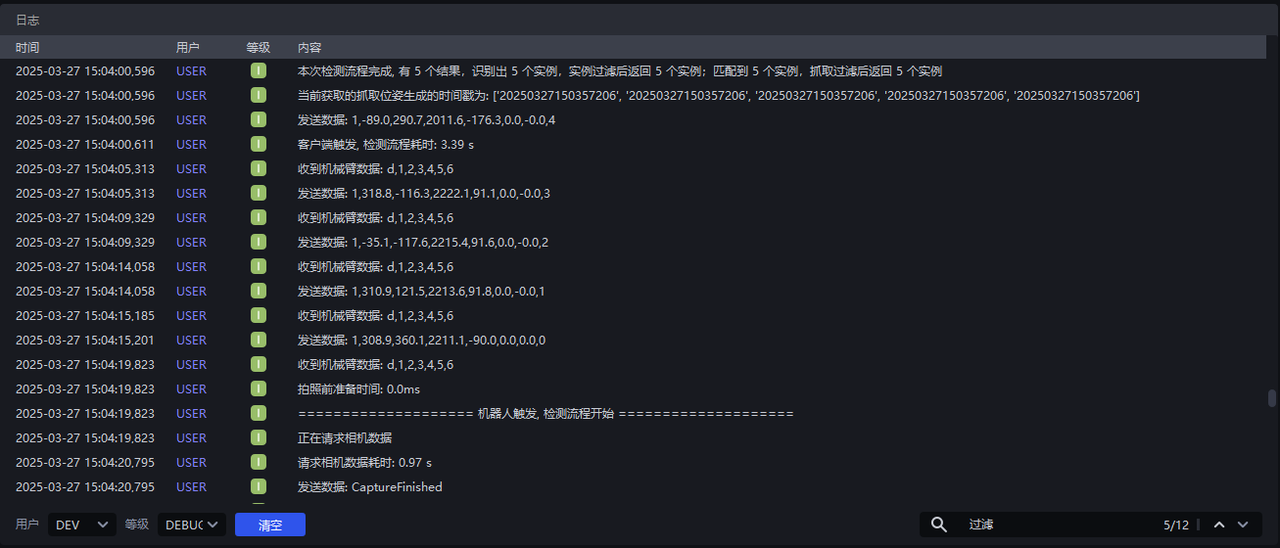
Shooting once, grabbing multiple means visually taking a picture once, calculating once, and sending the result to Robot after calculation, and saving the redundant visual results. The next time Robot sends a photo calculation instruction, if the saved visual results meet the requirements, the results will be returned directly to Robot.
As shown in the figure below, when Shoot one, grab multiple is checked, PickWiz can realize photo calculation and capture multiple times. As shown in the figure below, 5 instances are detected. The first capture is triggered by PickWiz, and the next 4 captures are triggered by Robot. During the last 4 captures, Robot sends pose information to PickWiz to trigger the detection process. PickWiz will not re-calculate the photos, but directly returns to the capture pose.
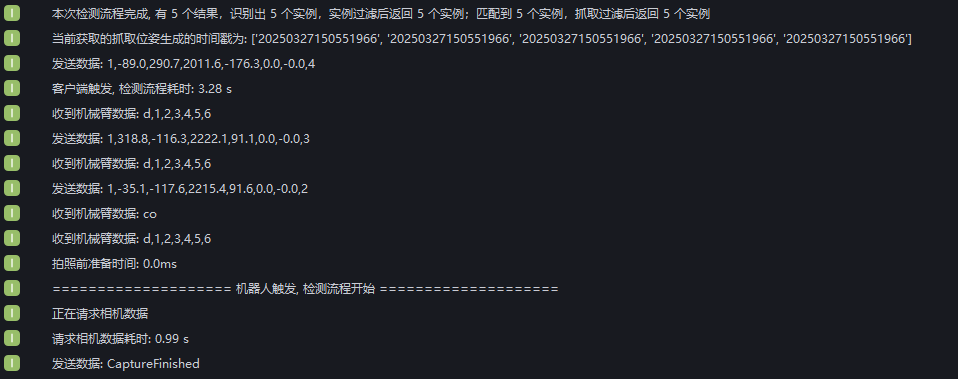
If after grabbing the 3rd instance, Robot enters the co command to clear PickWiz's cache, the visual result cache of the 4th and 5th instances will be cleared. When Robot triggers the 4th crawl, PickWiz will re-calculate the photo.
2.8 Number of instances sent
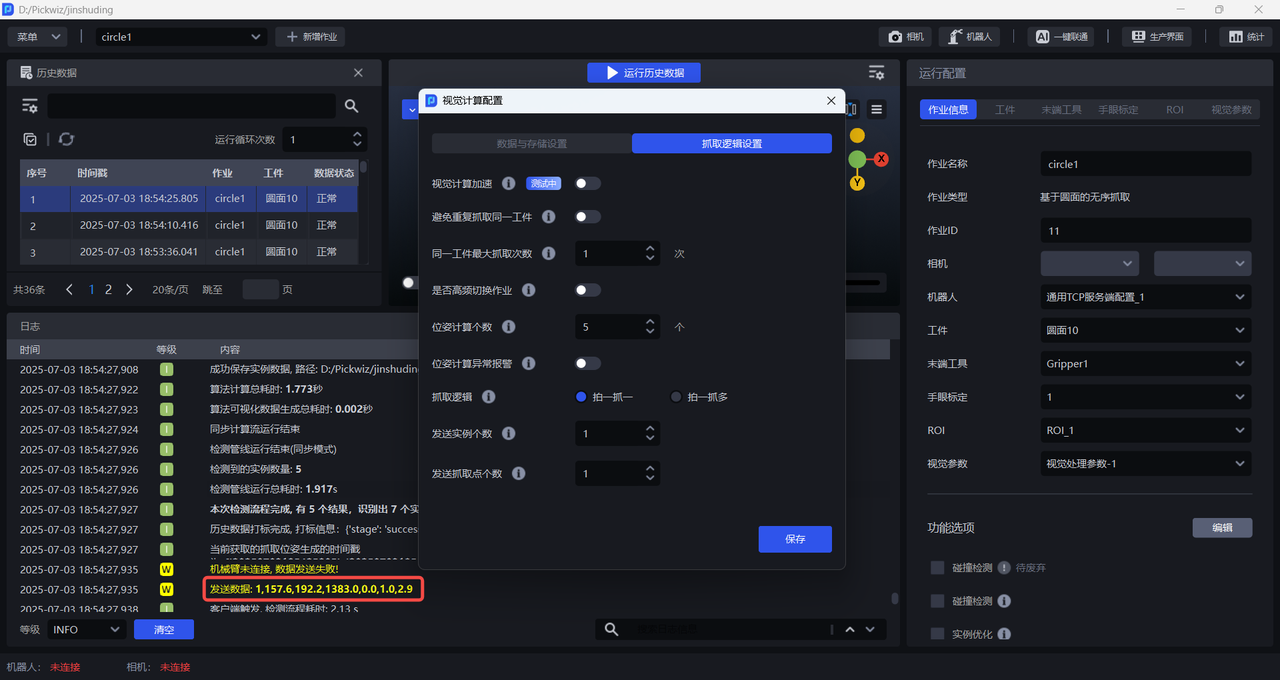
Indicates how many instances of visual results PickWiz sends to Robot each time. The value is ≥-1, and the default is 1. -1 indicates that PickWiz sends the visual results of all instances to Robot each time.
As shown in the figure below, when the number of sent instances is set to 1, PickWiz sends the visual results of one instance to Robot each time.
When the number of sent instances is set to 3, PickWiz sends the visual results of 3 instances to Robot each time, as shown in the figure below.