Repeat Positioning Accuracy Operation Guide
In PickWiz, repetitive positioning accuracy refers to the consistency error calculation of the results when the visual recognition system identifies the same object position multiple times. It can be used to check the stability of visual system recognition. The influencing factors include Camera accuracy, visual recognition accuracy, etc.
1. Use Camera data to calculate repeated positioning accuracy
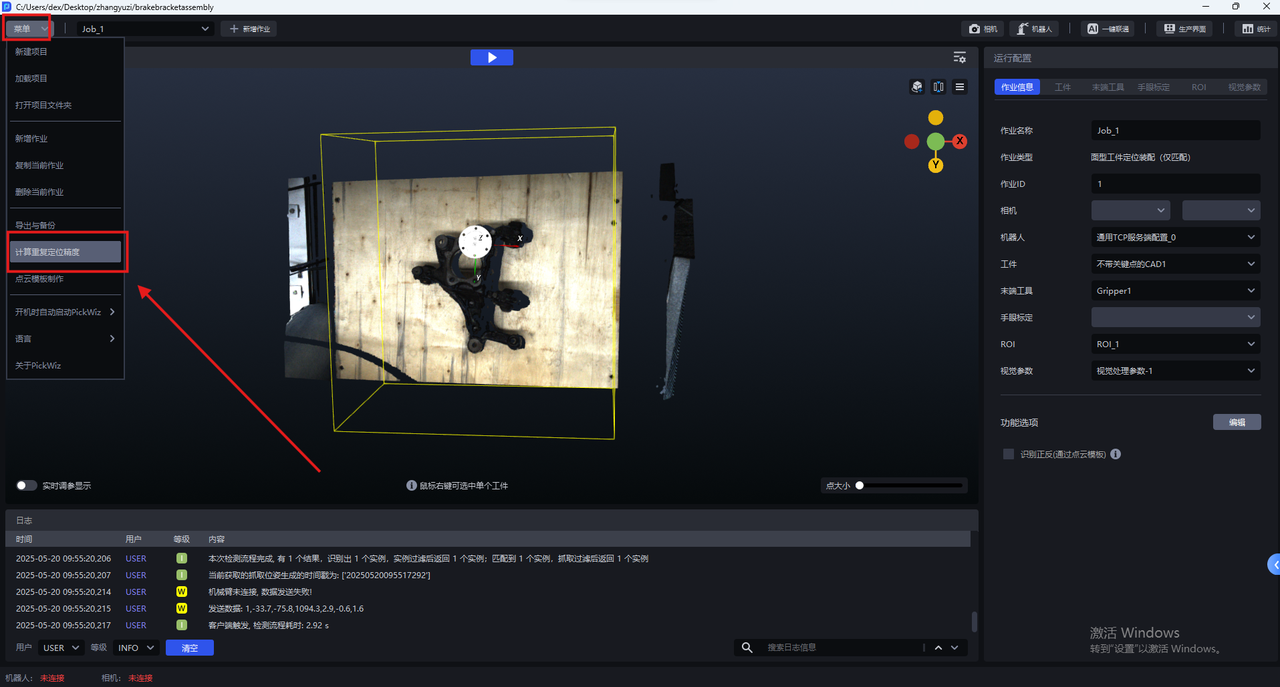
After entering the PickWiz main page, connect the Camera and Robot, place a single Target within the Camera's field of view, and configure the Task according to the actual Scene (see [Task Operation Guide] (作业操作指南.md)). Click Menu and click Calculate Repeat Positioning Accuracy.
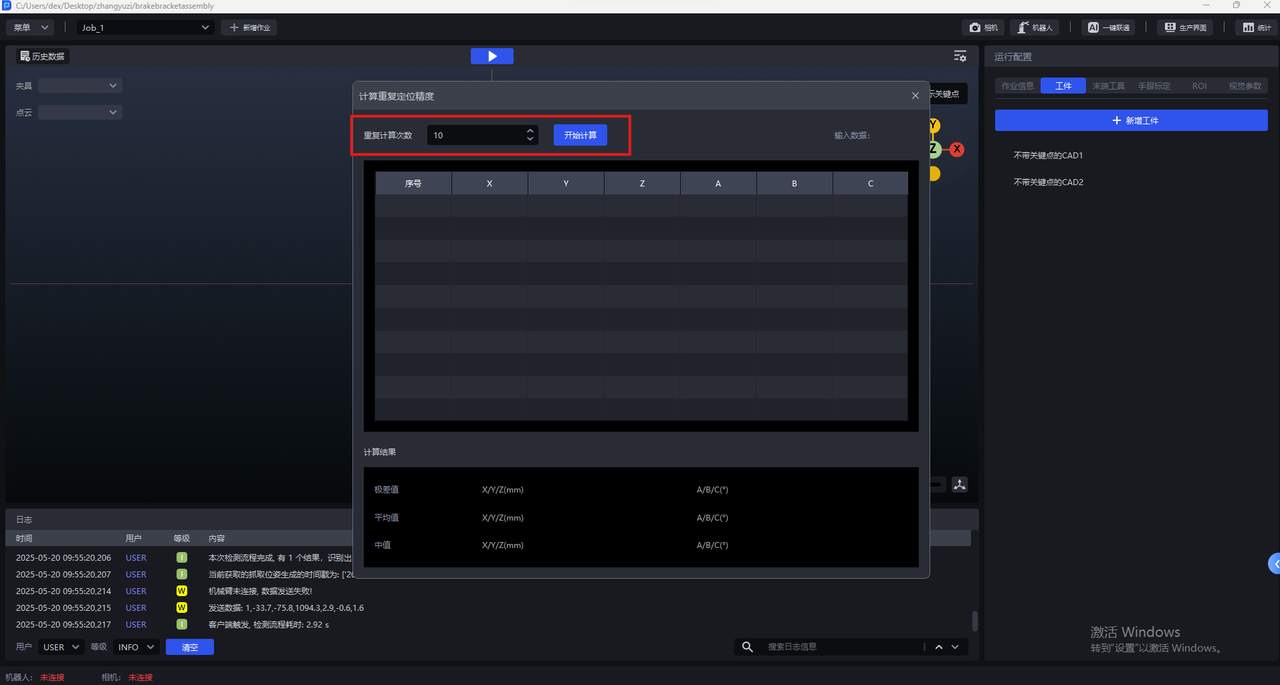
Enter the Calculate Repeat Positioning Accuracy panel and set the number of repeated calculations. The default number of times is 10. The more times, the more accurate the calculation results will be. After the settings are completed, click Start Calculation.
Notice
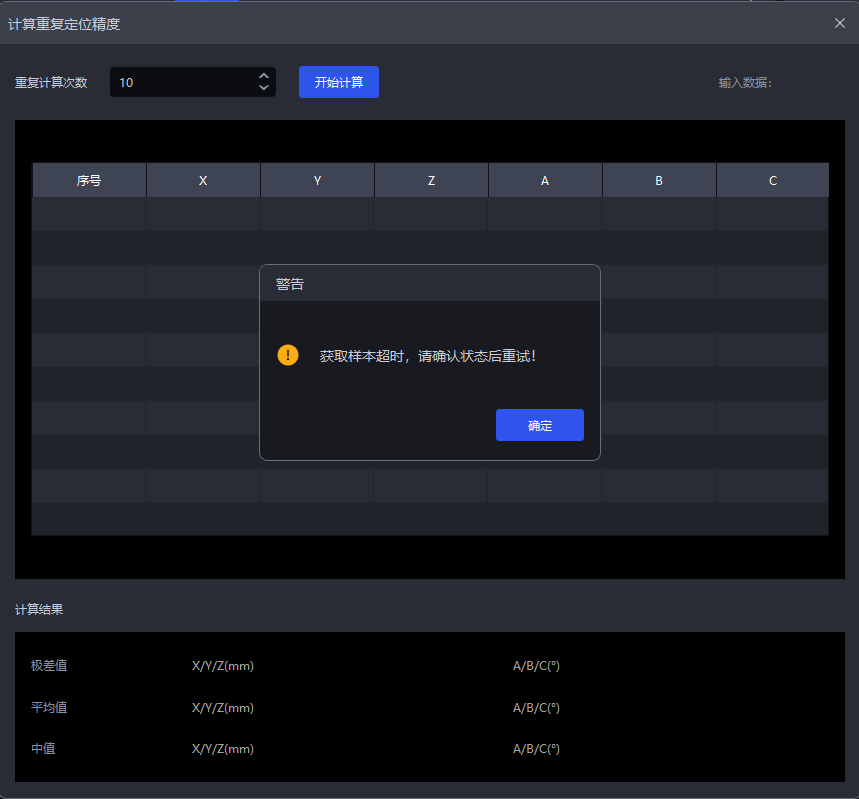
If after clicking
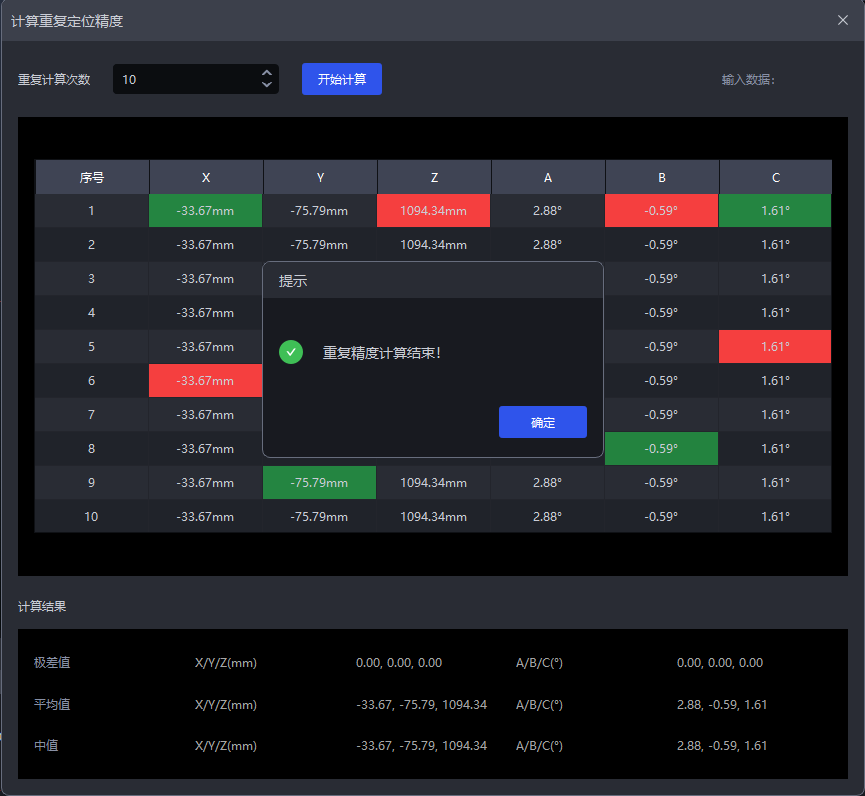
Start Calculation, pose data and running progress are not generated for a long time, and then a timeout pop-up window appears (as shown in the figure below), abnormal operation will occur. Please click OK, close the repeatability calculation interface, and go to the main page log to troubleshoot the cause of the exception.
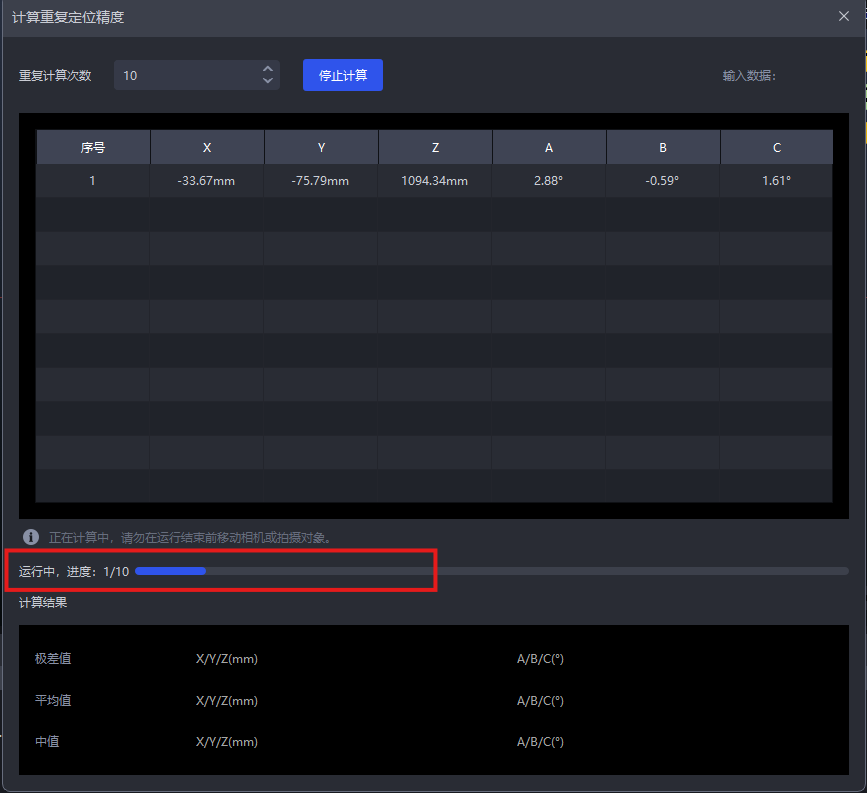
The accuracy calculation runs automatically, and the pose information obtained during operation will be automatically counted on the page, and the range, average, and median values of the pose will be calculated. The progress of the run can be viewed above the calculation results.
After the set number of repeated calculations is completed, a prompt pop-up window will automatically appear, click OK.
As shown in the figure below, after the repeated accuracy calculation is completed, each Target pose information and accuracy calculation results can be viewed on the interface.
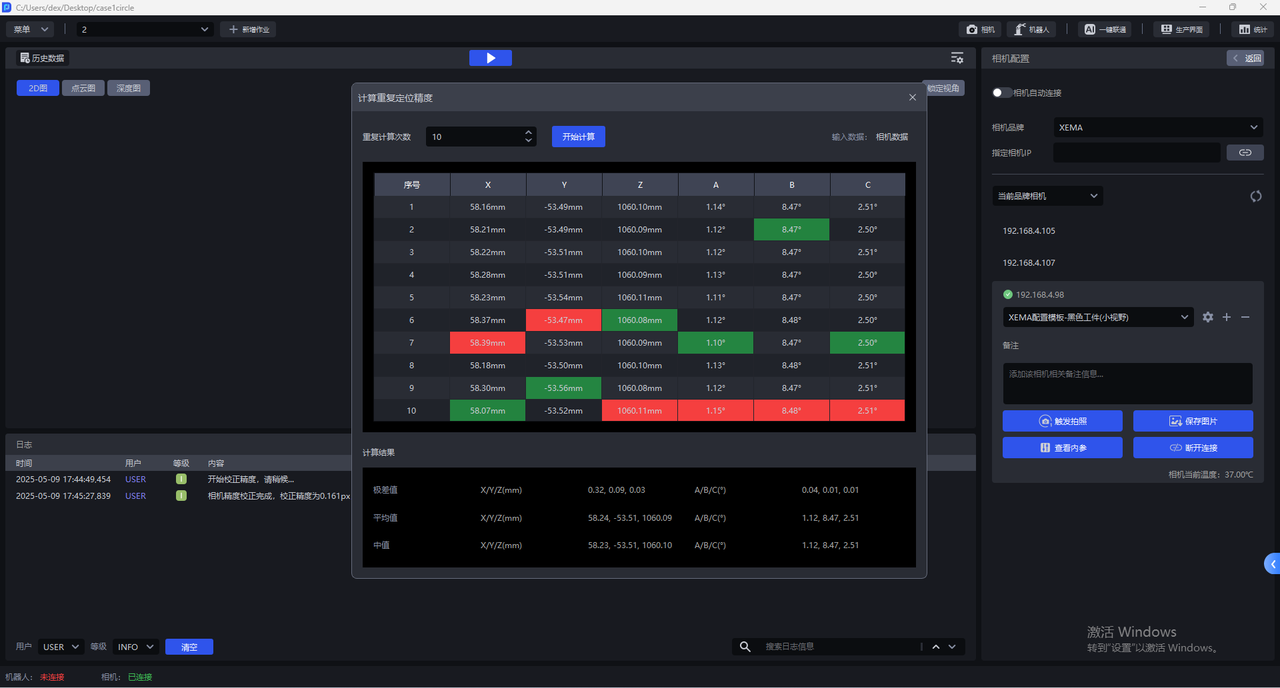
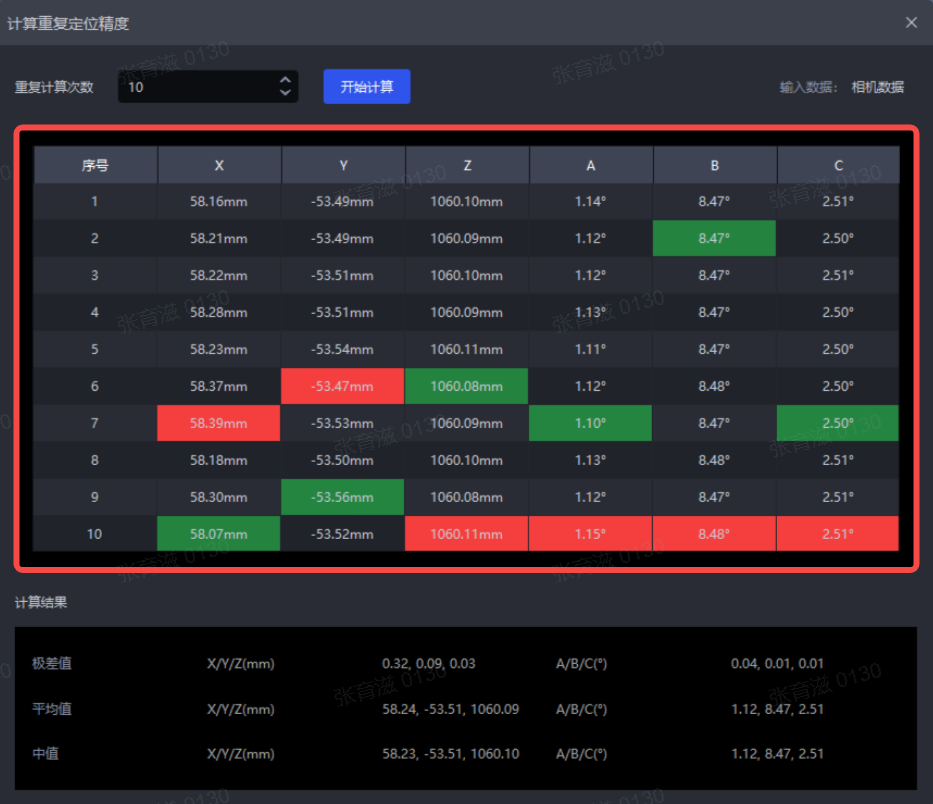
(1)Target pose information
As shown in the figure below, the Target6D pose information (X, Y, Z, A, B, C) obtained in each calculation can be viewed in the middle of the interface. The red value is the maximum value of each degree of freedom data in N calculations, and the green value is the minimum value of each degree of freedom data in N calculations.
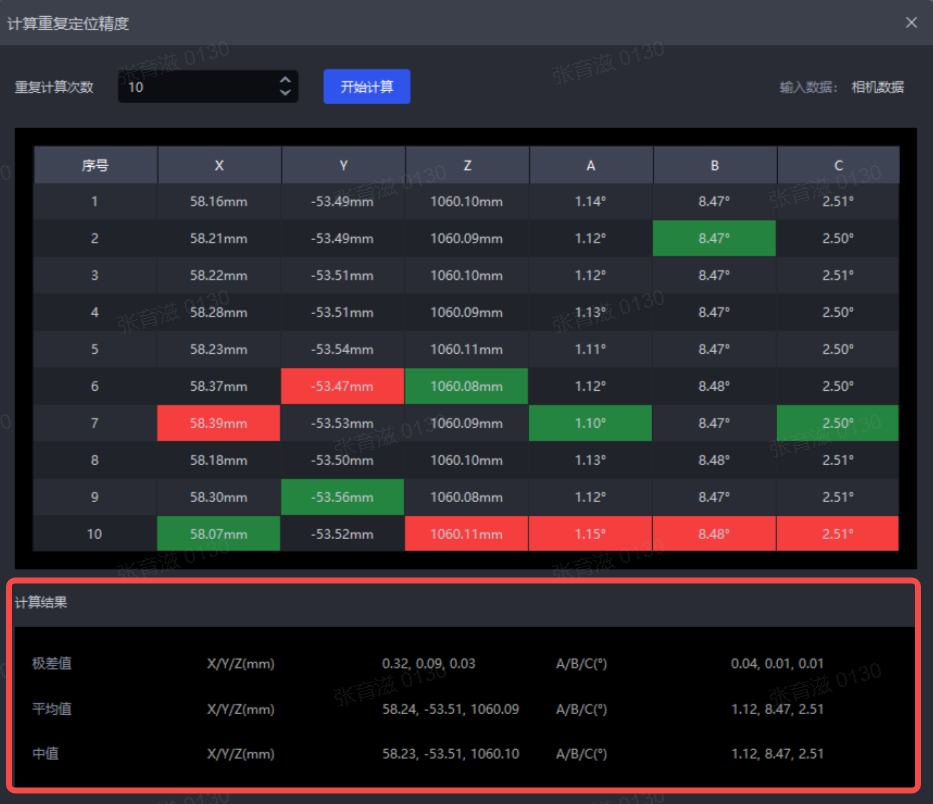
(2) Accuracy calculation results
You can view the range, average, and median values of each Parameter in N runs in the lower part of the interface.
| Parameter | Calculation method |
|---|---|
| Range value | The difference between the maximum value and the minimum value of each degree of freedom data in N calculation results |
| Average | Sum of data for each degree of freedom in N calculation results / N |
| Median | The median of each degree of freedom data sorted by size in the N calculation results |
In most cases, the range value of the X/Y/Z axis coordinates is less than 0.5 mm to meet the accuracy requirements of general Scene. If the actual scene requires higher accuracy, the range value of the X/Y/Z axis coordinates should be smaller, such as ±0.1 mm. If the range value is too large, you can improve the accuracy by checking the following aspects: whether the Robot and Camera are firmly installed, Robot absolute accuracy, CameraPoint Cloud quality, CameraIntrinsic Parameter, recognition accuracy, etc.
2. Use historical data to calculate repeated positioning accuracy
- Check multiple historical data
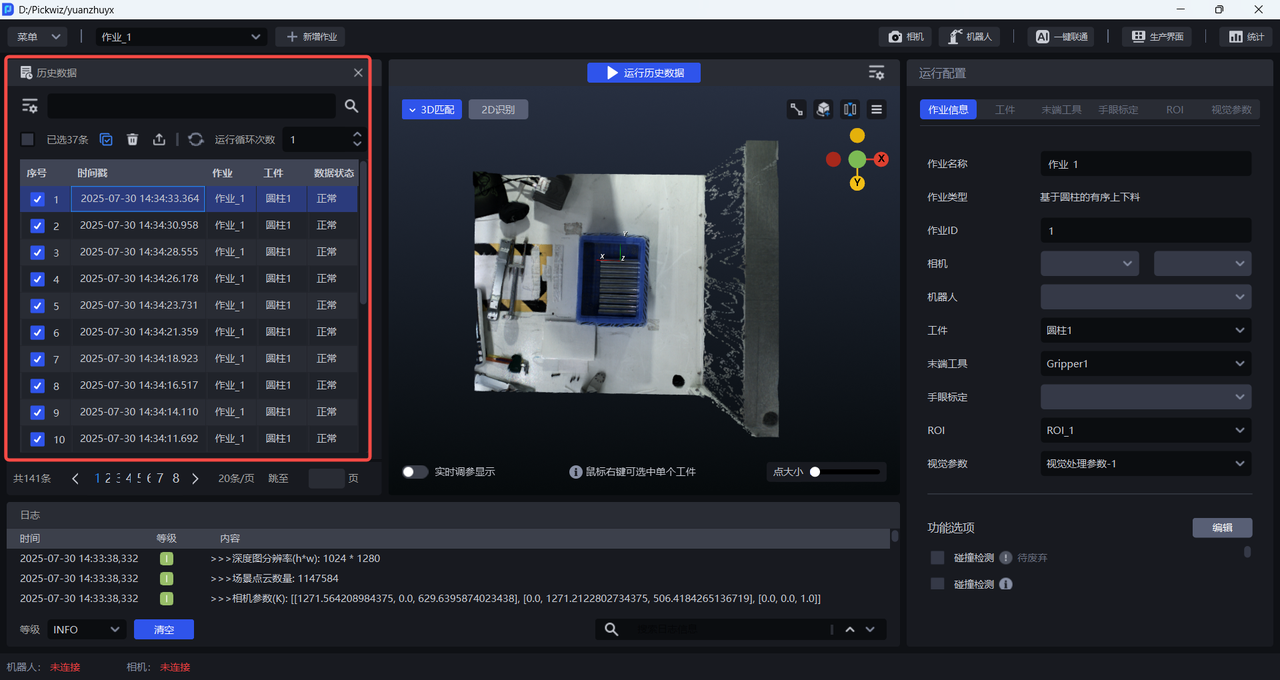
- In the
visual computing configurationinterface, switchinput datatohistorical dataand save it
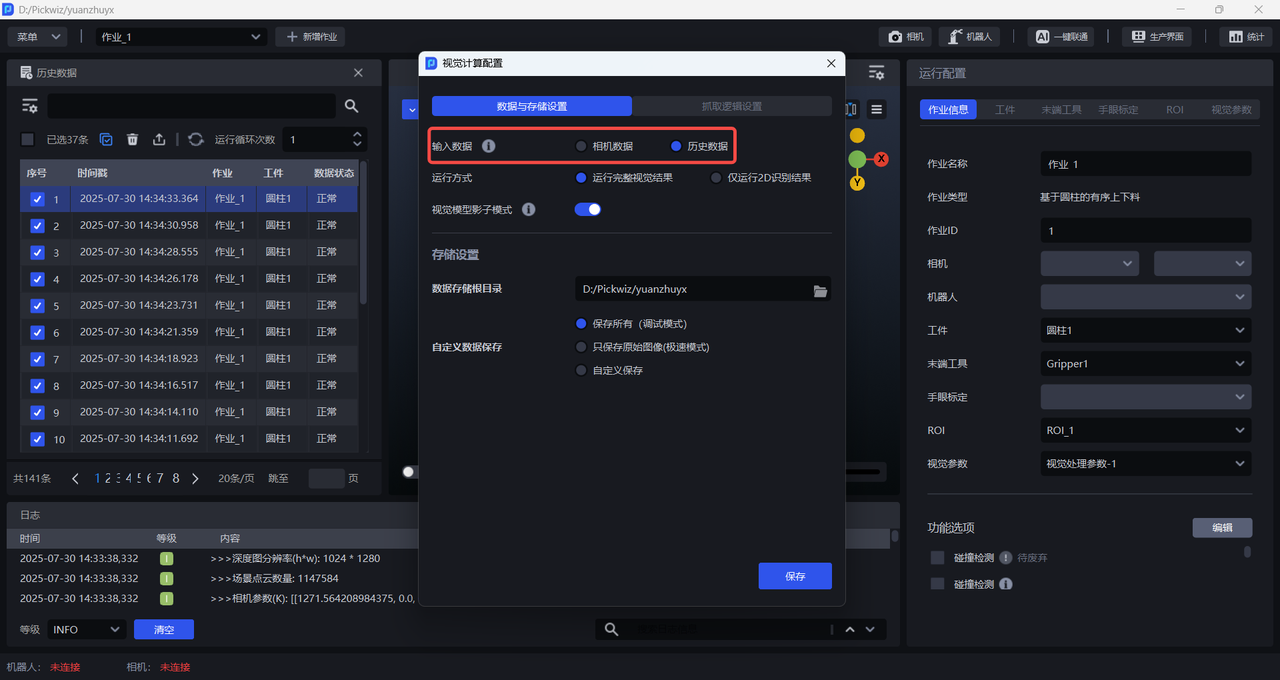
- Then click
Calculate Repeat Positioning Accuracyin theMenu, open theCalculate Repeat Positioning Accuracyinterface and clickStart Calculation
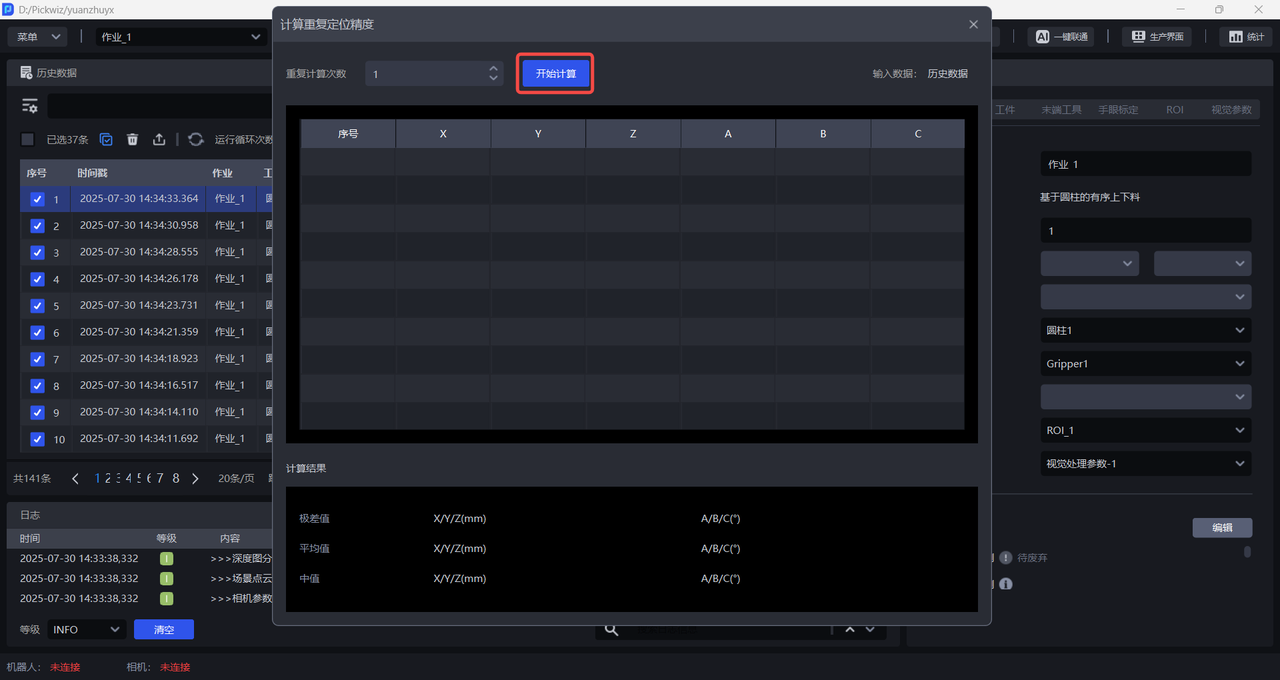
- After the calculation is completed, each Target pose information and accuracy calculation result can be viewed on the interface.