Guide to real-time correction of visual temperature drift
1. Create a new calibration ball Task
Create a new [Positioning Assembly] Scene calibration ball Task and configure the Task
Run the Calibration Ball Task to obtain the detected grasping pose as the reference pose for visual temperature drift correction, which will be used to record the following steps.
2. Configure the visual drift correction Parameter
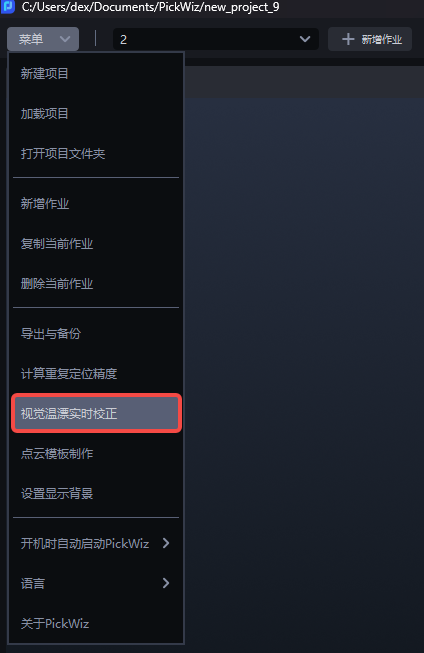
- Select [Visual Temperature Drift Real-time Correction] from the software menu bar.
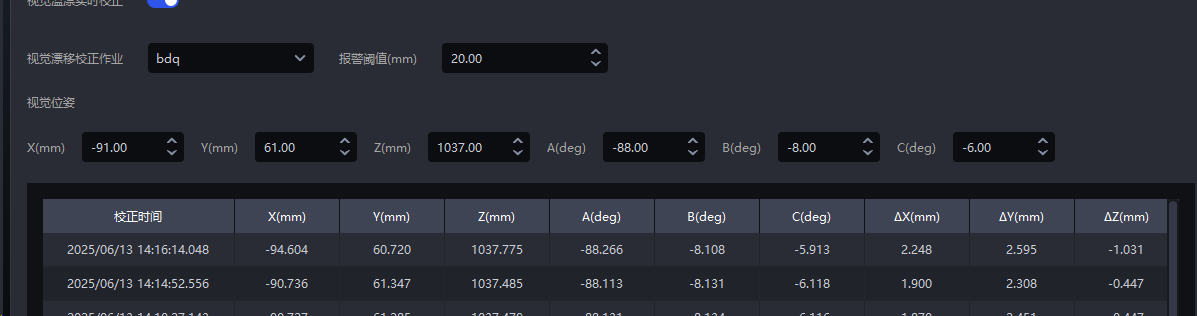
- Turn on the [Visual Temperature Drift Real-time Correction] switch in the pop-up window, and configure [Visual Temperature Drift Task], [Alarm Threshold] and [Visual Pose], where the value is the grabbing pose obtained by running the ball calibration task in step 1.
3. Calibrate the actual Task
- The correction operation can only be triggered by Robot. The [Visual Detection Send Instruction] in the Robot configuration of the task to be corrected is as follows. co=4 means triggering the calibration ball to run, and a drift amount will be calculated.
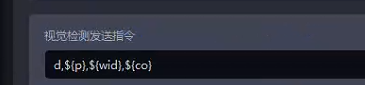
The field
in_dtcan be configured in thePickWiz sent to Robot commandto indicate whether the drift correction Threshold verification is met. For example,in_dt=1 when it is within the Threshold verification range or the visual drift real-time correction is not turned on, otherwisein_dt=0Test the correction effect
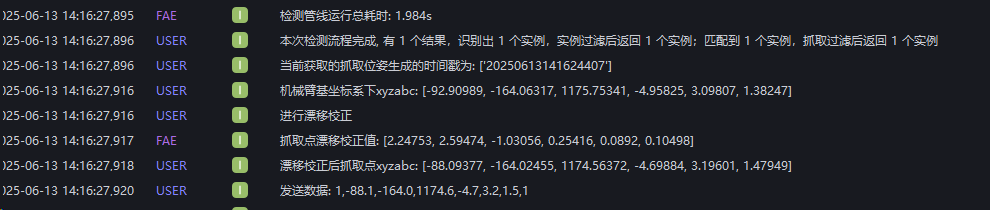
First turn off the visual temperature drift correction switch, manually trigger the Task run, and record the current pose [representing the pose before offset]
Then turn on the visual temperature drift correction switch, trigger the actual TargetTask operation through Robot, and obtain the drift-corrected pose [there is an error range within 5mm range]
Coordinates without compensation
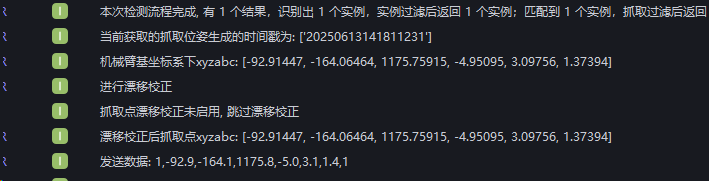
Coordinate value after compensation
4. Turn off the calibration function
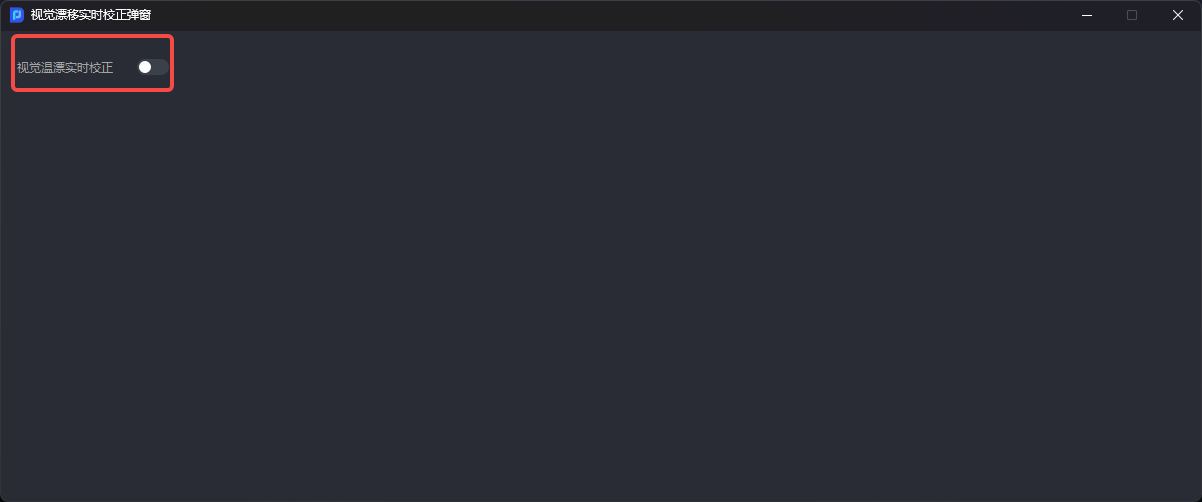
Just turn off the [Visual temperature drift real-time correction] switch in the [Visual temperature drift real-time correction pop-up window]
Notice:
Manually clicking on the interface to run to trigger the calibration ball task will not compensate. It will only be compensated if triggered by Robot and configured to run the corresponding sending command;
When the Calibration Ball Task is executed and the Threshold is exceeded, all other ordinary Tasks will continue to alarm and send abnormal signals to the Robot.
On-site customized implementation logic, Threshold exceeds signal output '0,0,0,0,0,0,0'