software interface
1. Welcome page
When you open PickWiz for the first time after installing PickWiz, you will enter the welcome page.
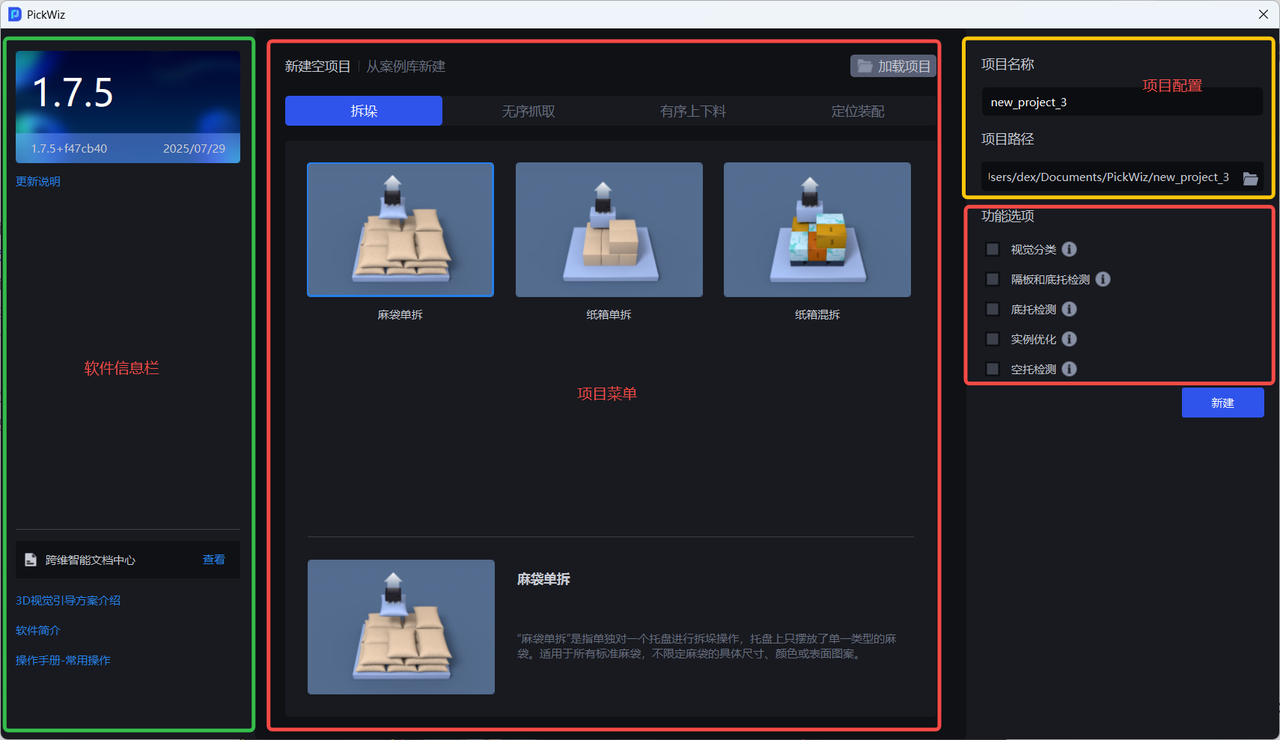
| interface | Description |
|---|---|
| software information bar | The version content is displayed in the upper left corner of, and the Dexforce Document Center and document links such as solution introduction, software introduction, and operation manual are displayed in the lower left corner. |
| Project Menu | displays all optional TaskScene, Task type, and function options. |
| project configuration | Fill in the project name and project path when creating a new project. The project name defaults to "new project" + Project serial number, the default project path is C: |
The welcome page supports users to create new Scene projects, load projects from disk, and load a project from the case library.
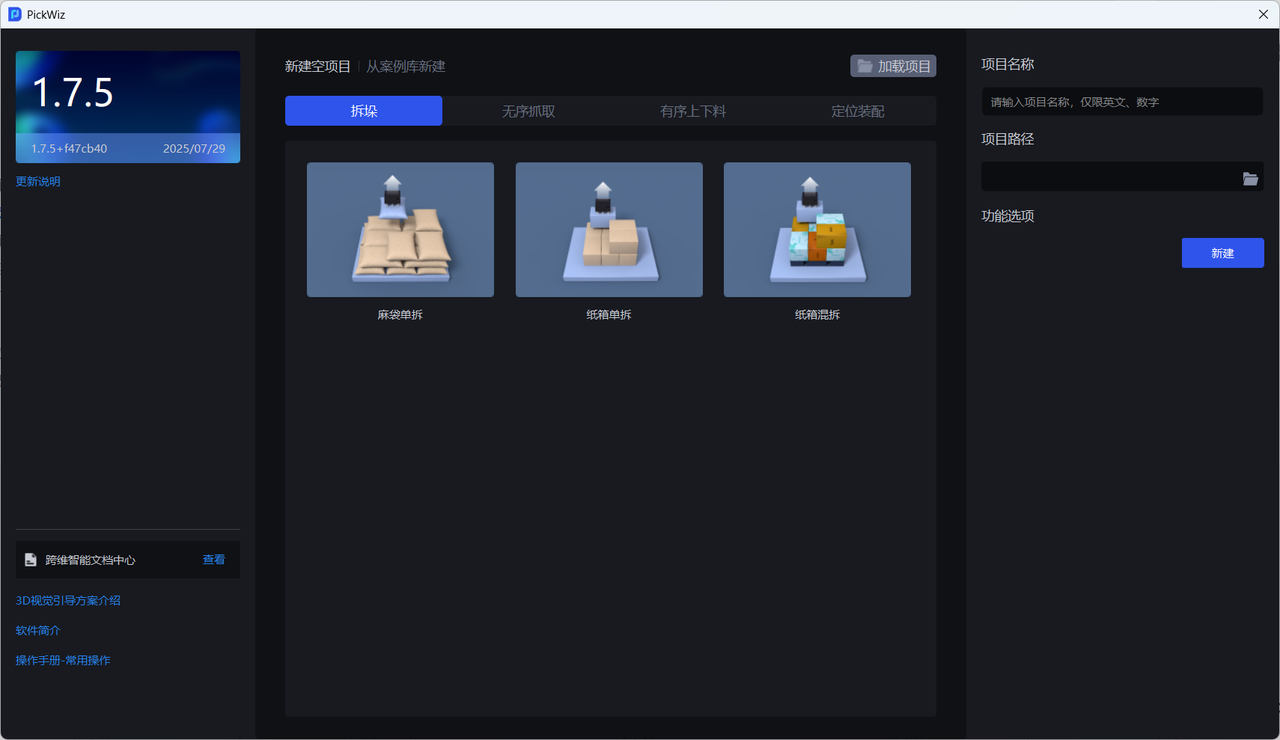
| Function | Description |
|---|---|
| New empty project | Create a new Scene project and select TaskScene in the new empty project. A new project name will be automatically generated. The default project path is C:. |
| Create | from the case libraryMultiple project cases for different Targets in different Scenes. You can download a project file containing historical data and visual plans from the case library. |
| Load project | loads an existing project in the disk. |
2. Main interface
After creating a new project, you will enter the main interface
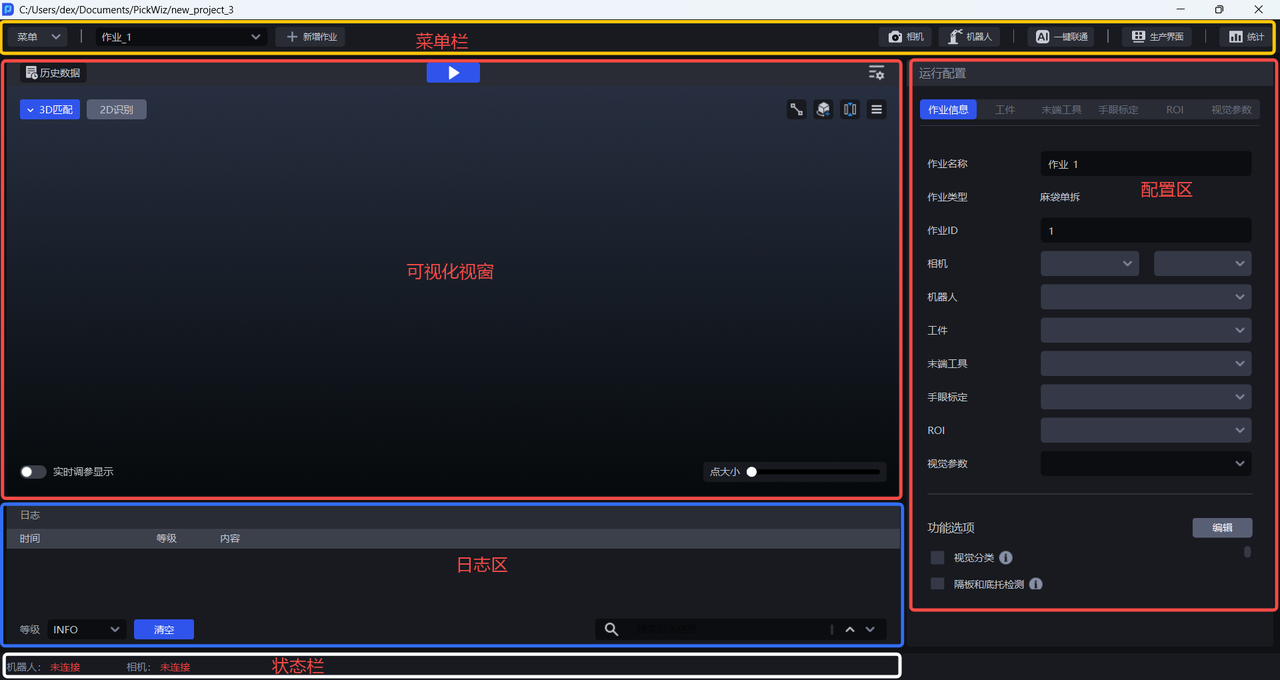
| module | Description |
|---|---|
| Menu bar | provides basic functions related to projects, tasks, etc., as well as functions including menu, camera, robot, one-click connection, production interface, statistics, etc. |
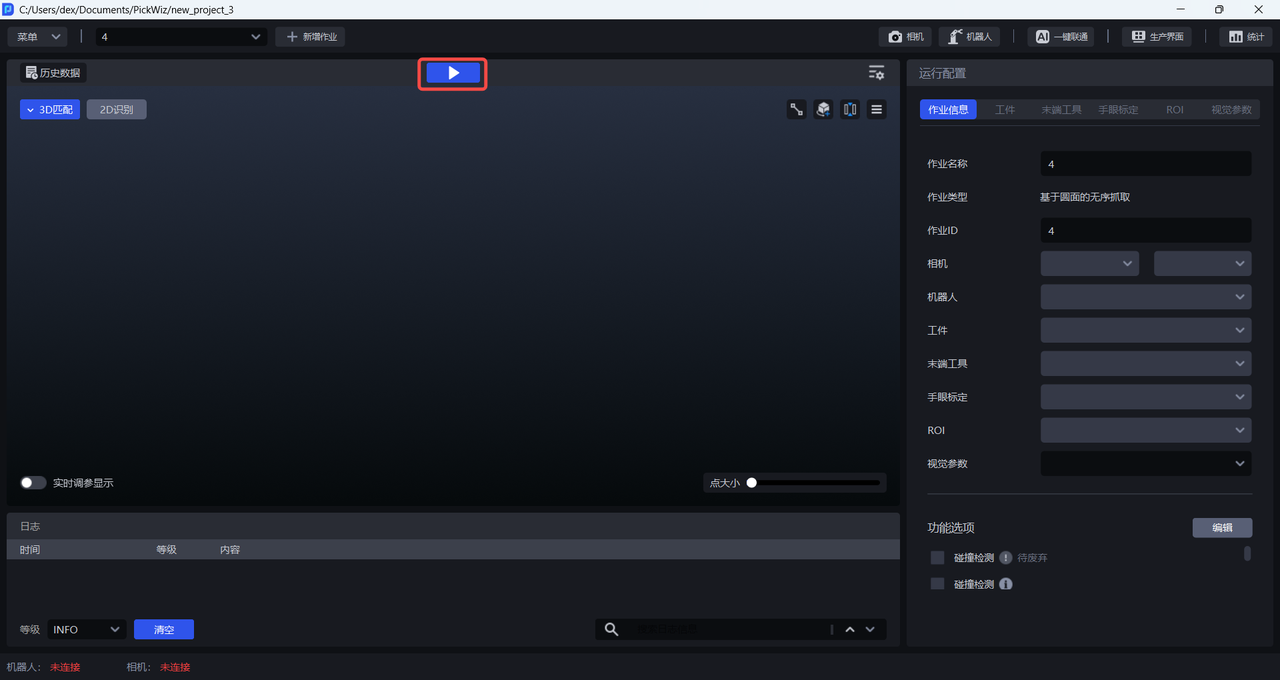
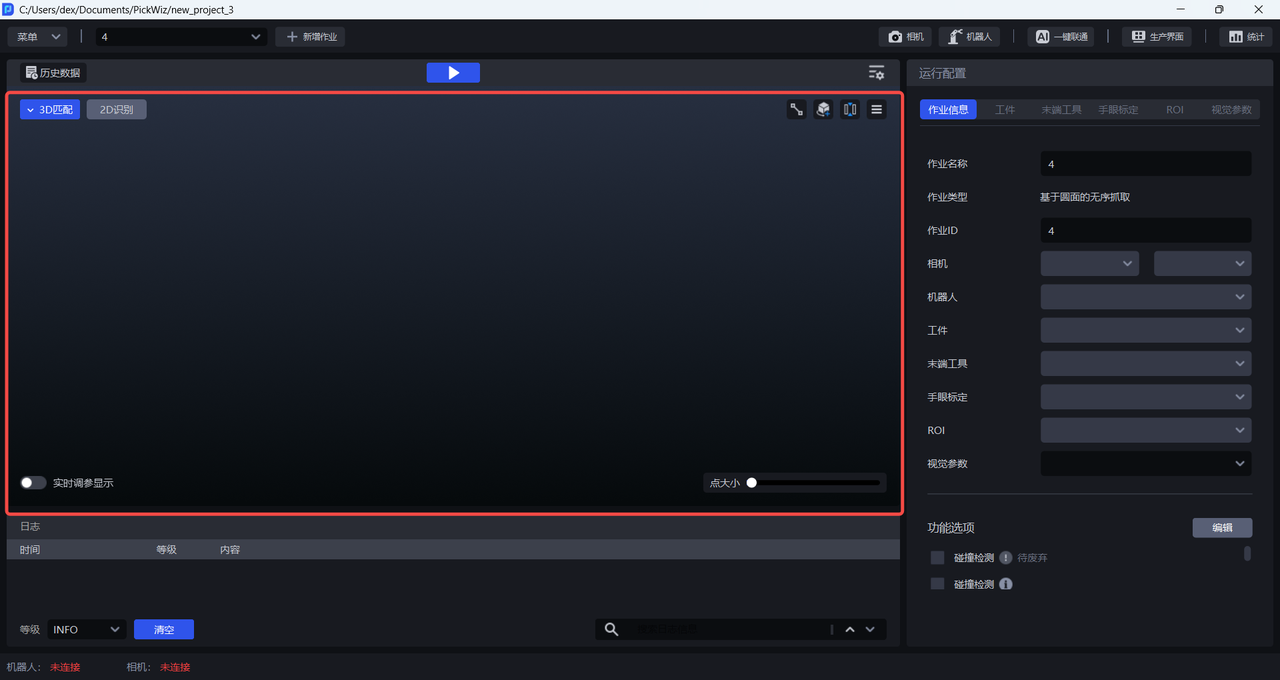
| Visualization window | The visualization result area displays 3D vision running results in real time and provides functions such as run, vision computing configuration, and historical data. |
| log area | log area is used to display log information in real time. You can view operation-related data information for easy debugging, and includes functions such as clearing and filtering. |
| status bar | status area, used to check in real time whether Camera and Robot have been successfully connected. |
| configuration area | Task related configuration area, including Task information, Target, End-effector, Eye-hand calibration, Scene Object, ROI, and Visual Parameter. |
2.1 menu bar
The menu bar contains basic functions related to project and task management, as well as functions such as menu, Camera, Robot, one-click connection, statistics, and historical data.

- menu
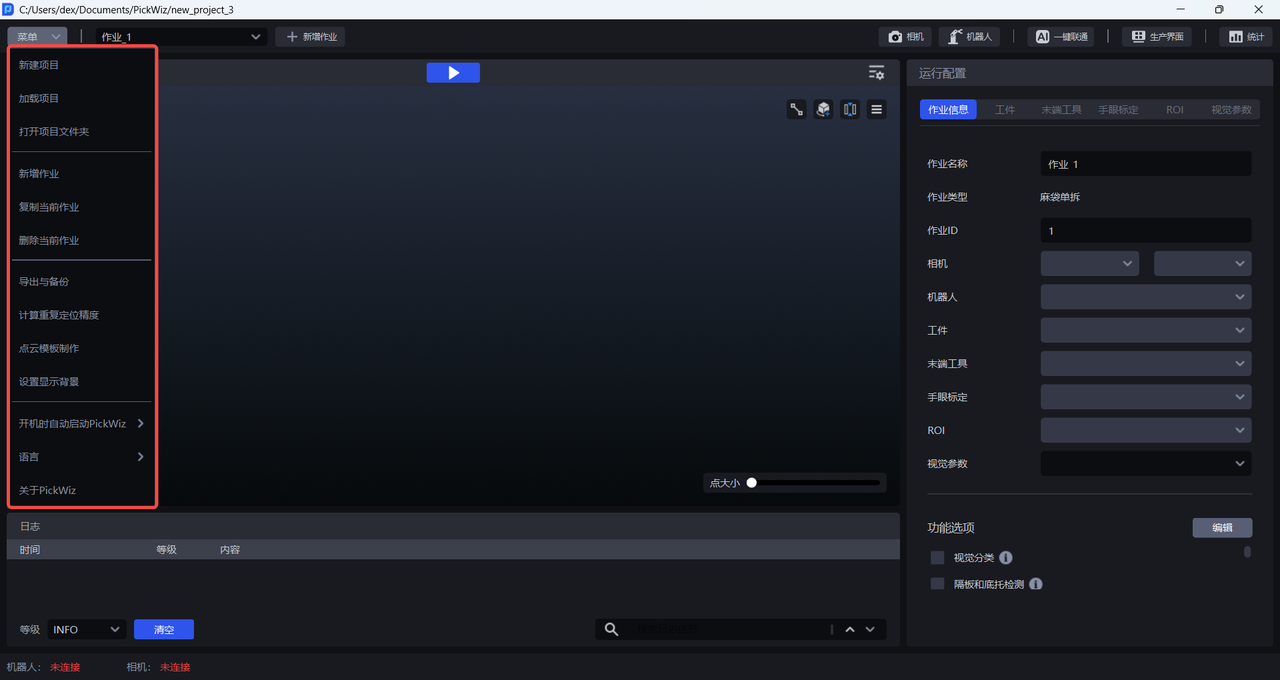
| Function | Description |
|---|---|
| New project | jumps to the welcome page, where you can create a new empty project, create a new project from the case library, or load an existing project on the disk. |
| Load project | already has a project file in the loading disk. |
| Open the project folder | opens the current project storage path. |
| New Task | adds a new TaskScene. You need to select the Scene and set the Task name on the new Task page. |
| Copy the current Task | copies the currently selected Task. |
| Delete the current Task | Deletes the currently selected Task. |
| Export and Backup | supports custom export of Task configuration, historical data, shadow mode data, and supports automatic backup of project configuration |
| Calculate repeat positioning accuracy | visual recognition system calculates the consistency error of the results when the same object position is recognized multiple times. It can be used to check the stability of visual system recognition. The influencing factors include Camera accuracy, visual recognition accuracy, etc. |
| Point Cloud template production | includes four functions: standardized grid file, Point Cloud template production, key point production, and Point Cloud aligned grid. It supports two Point Cloud template production methods: grid generation template and Camera image generation template. |
| Set display background | can set the background color of the 3D matching visualization window to facilitate observation of Target's ScenePoint Cloud. |
| Automatically starts PickWiz | when you turn on the computer Afteris turned on, PickWiz | will automatically start when the computer is turned on.
| Language | switches the software language, currently supports Chinese and English bilingual; after switching the language, you need to restart to activate the settings. |
| About PickWiz | View product version information, including PickWiz version number, release date, dongle validity period, PickLight /RLIA/GLIA version number. |
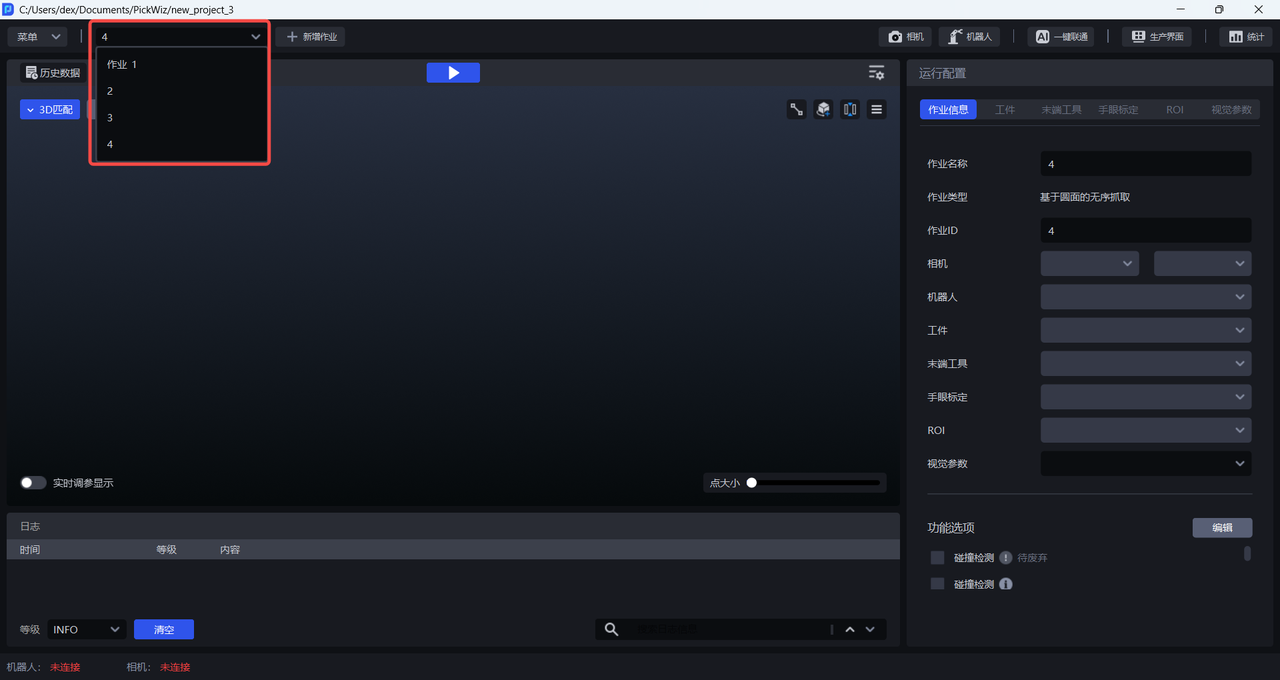
- Task
Click to switch Tasks
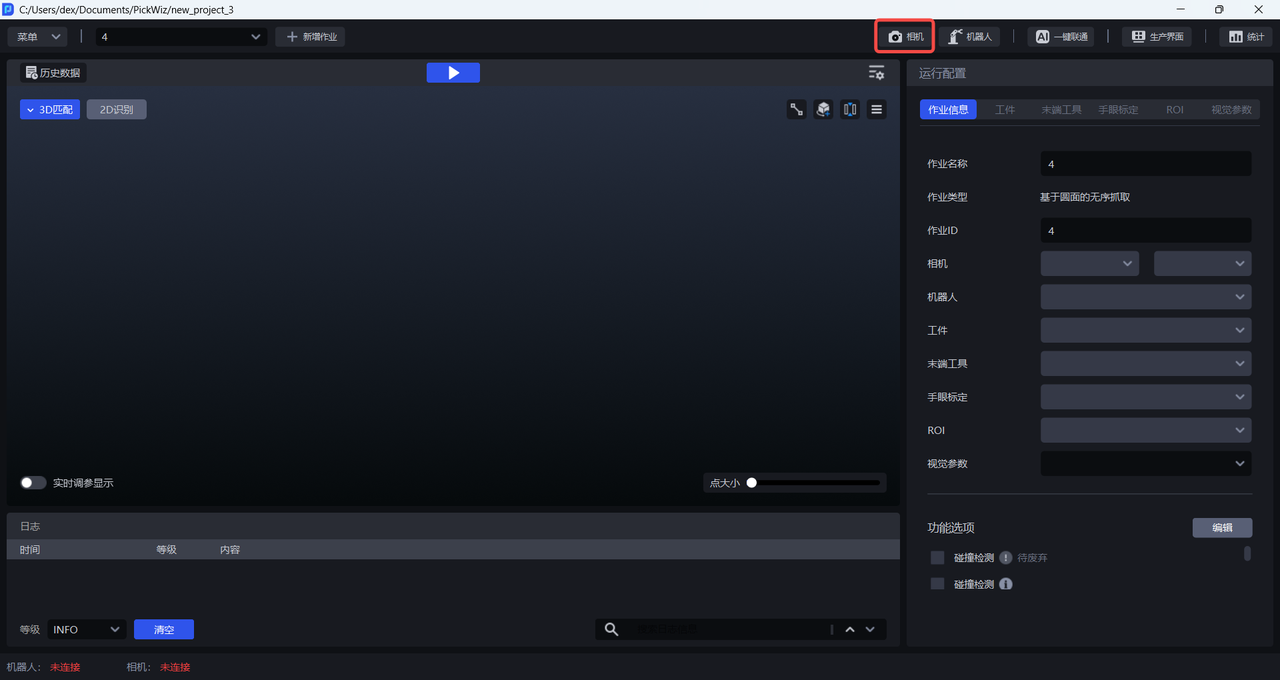
- Camera
Click to enter the Camera interface to perform Camera connection and parameter adjustment to ensure imaging quality.
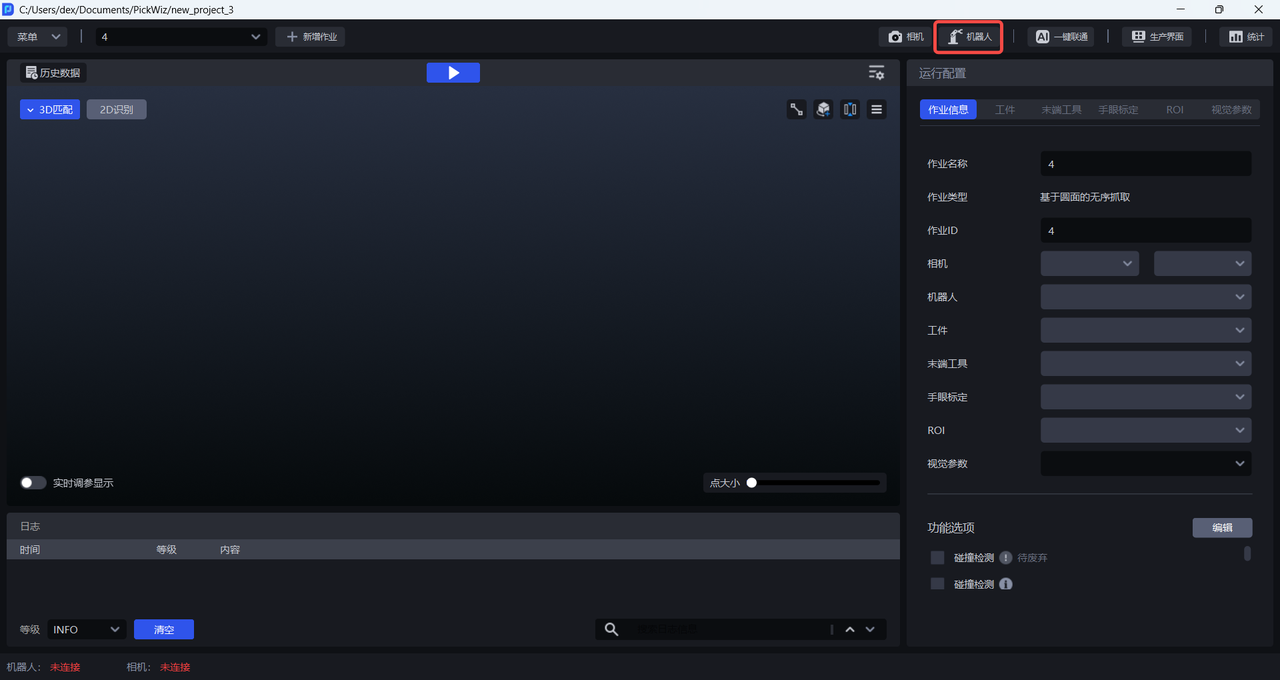
- Robot
Click to enter the Robot configuration interface to perform Robot configuration and communication operations.
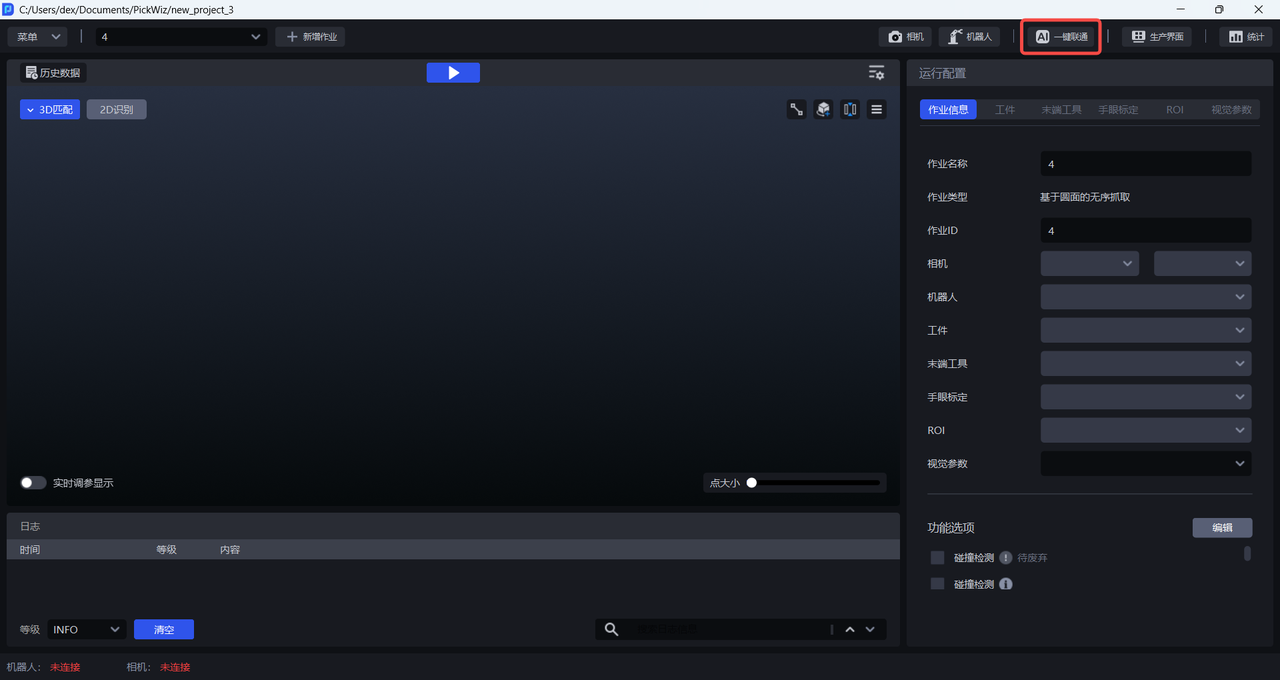
- One-click connection
Click to enter the one-click connection interface, and automatically call the Dexverse backend interface to create a new training task for training the model.
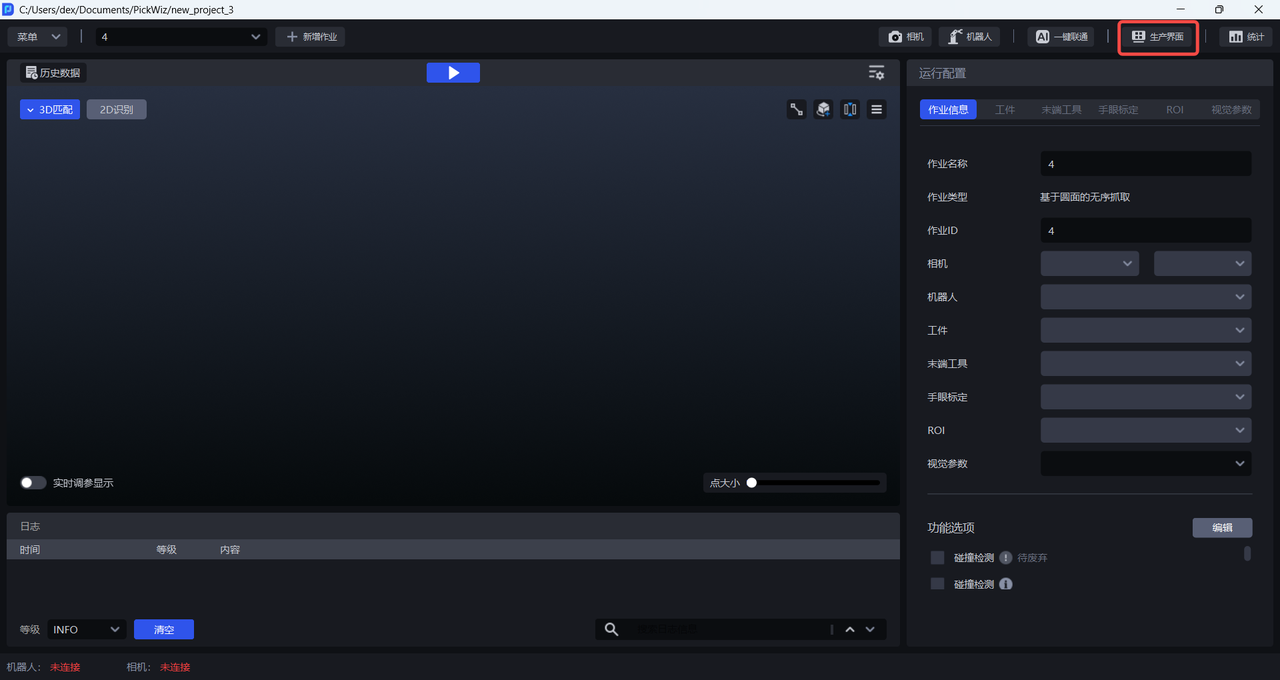
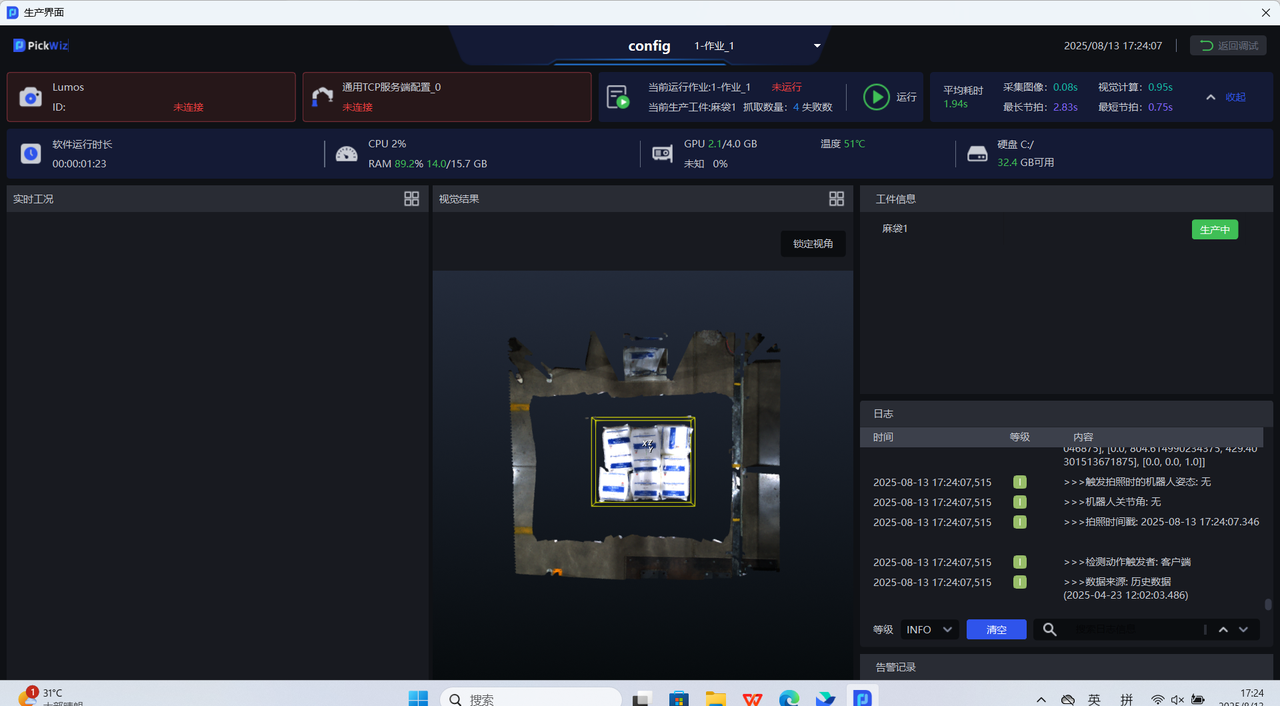
- Production interface
Click to enter the production interface, including real-time display of key information such as equipment operating status, production progress, equipment failures, etc.
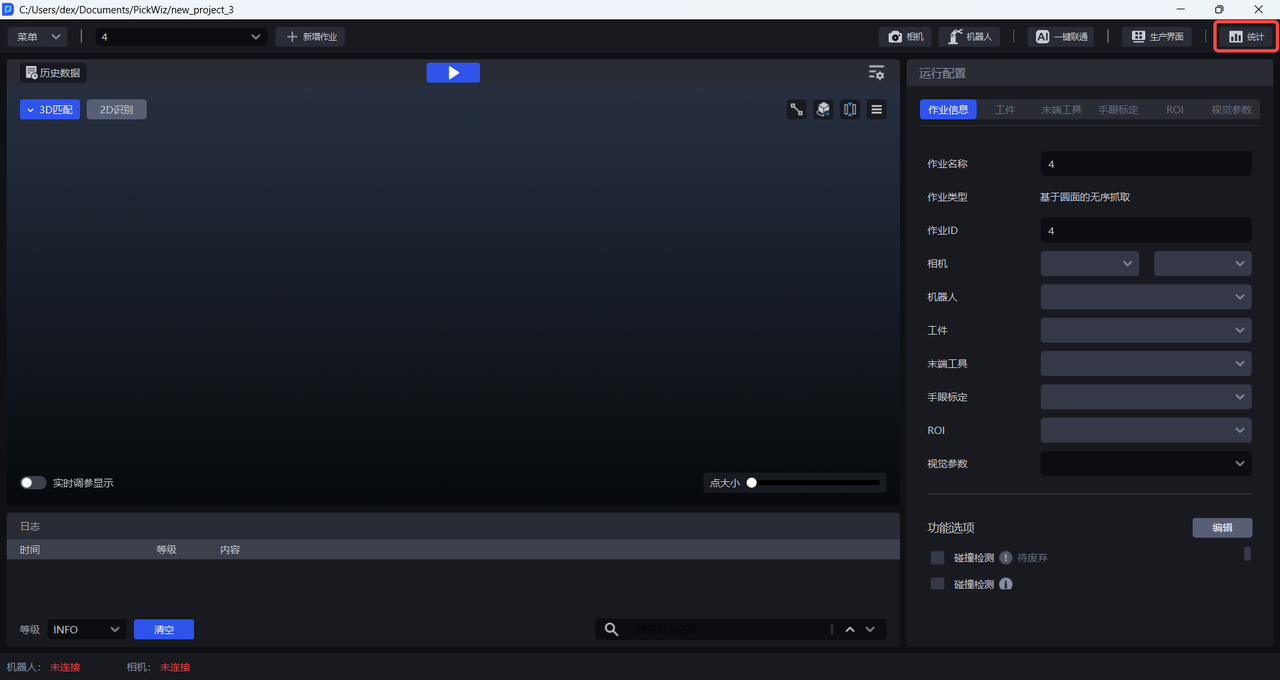
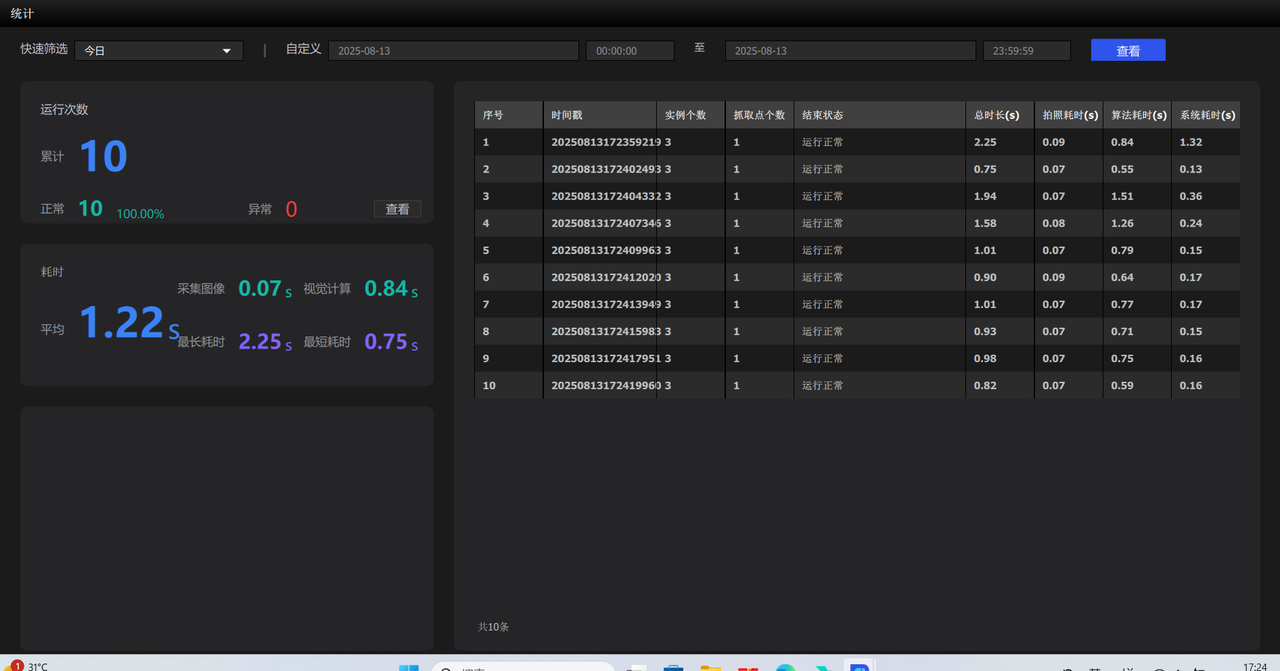
- statistics
The statistics interface mainly has functions such as date filtering and data display.
2.2 Visualization Window
- Click the "Run" button in the middle of the run bar to run a complete visual inspection.
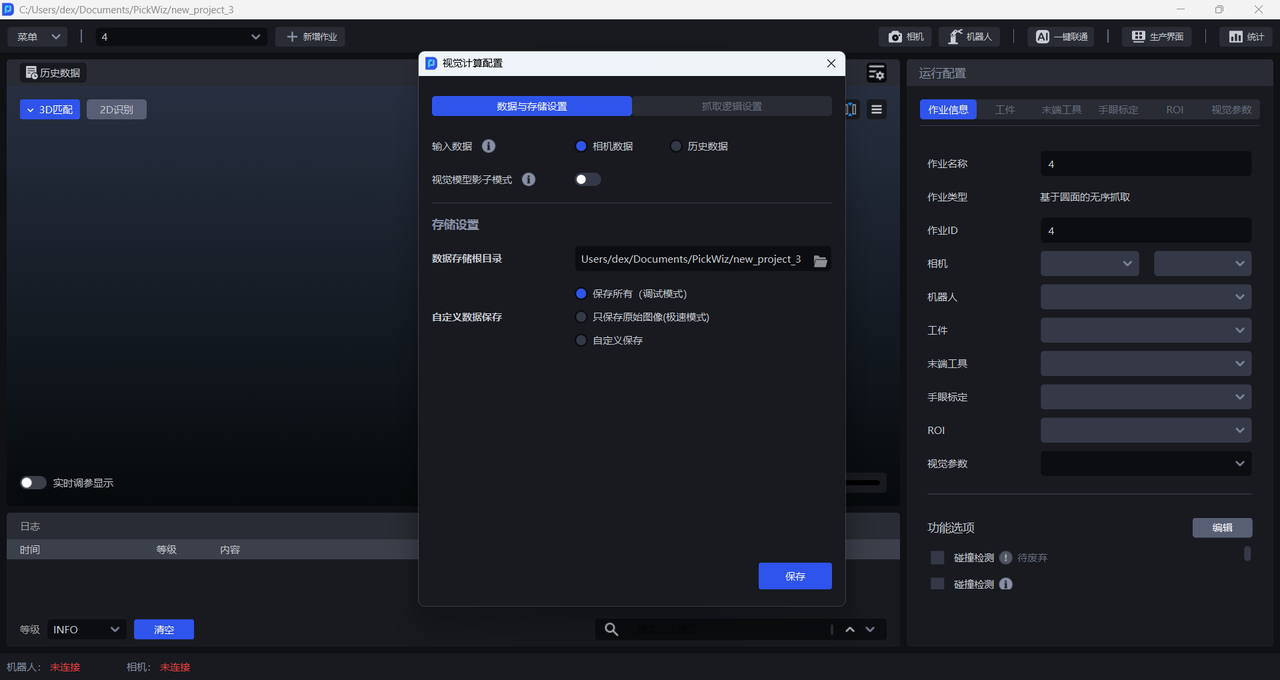
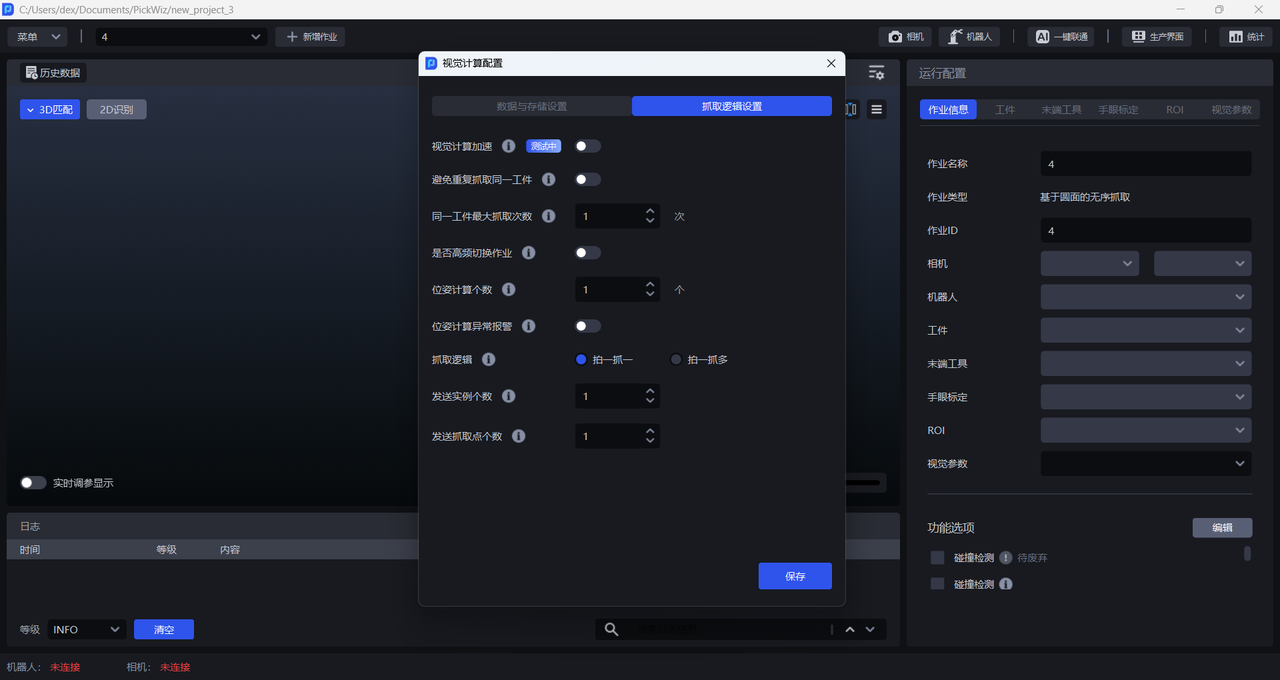
- The configuration used by the visual algorithm for calculation is divided into "data and storage configuration" and "grabbing logic settings", which can be customized according to the needs of the Scene project.
- Visualization area: Real-time display of 2D recognition results and 3D matching Pick Point results
2.3 log area
Including time, level, content, classifying log records according to level, and including clearing, filtering and other functions

2.4 status bar
Display the connection status of Robot and Camera

2.5 configuration area
The configuration area mainly contains configuration items related to Task operation, including Target, End-effector, Eye-hand calibration, Scene Object, ROI, Visual Parameter, etc.
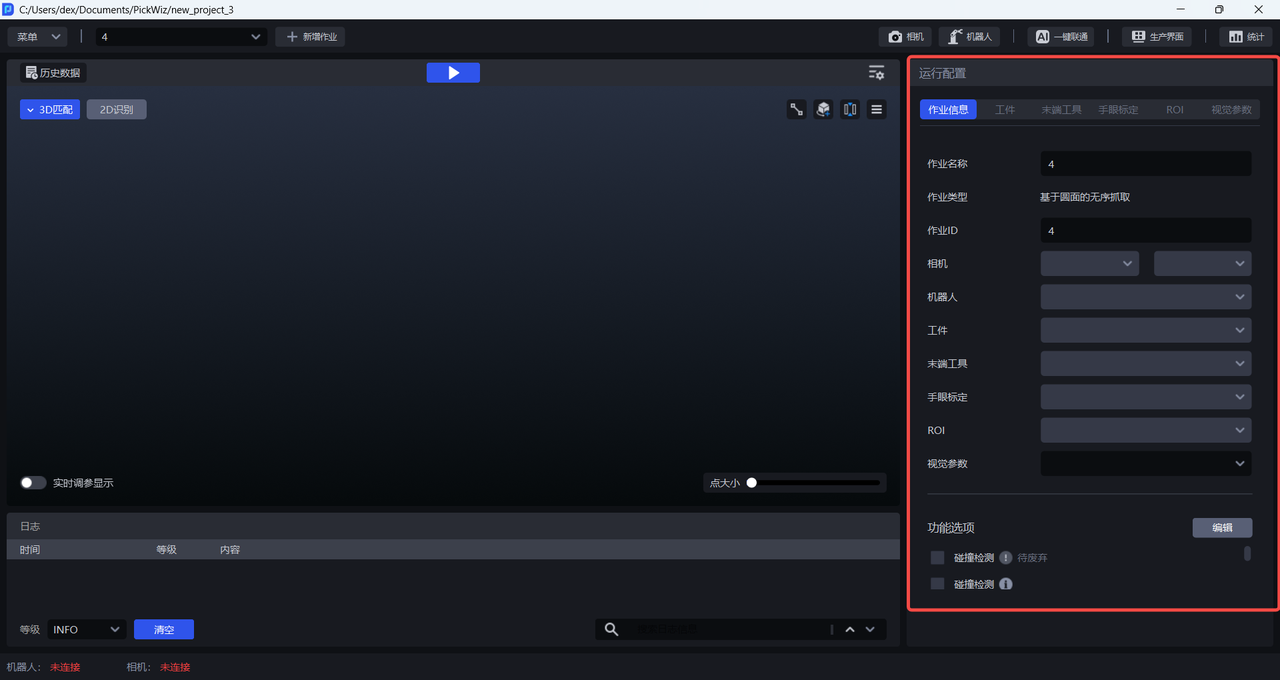
| configuration item | Description |
|---|---|
| Task information | Related configurations of the current Task, including Task name, Task type, TaskID, Camera, Robot, Target, End-effector, Scene Object, Eye-hand calibration, ROI, visual Parameter, and function options. |
| Target | Target configuration of the current Task |
| End-effector | End-effector configuration of the current Task |
| Scene Object | Various objects in the actual Scene of the current Task, including material frames, bottom brackets, etc. |
| Eye-hand calibration | Eye-hand calibration configuration of the current Task |
| ROI | Current Task’s ROI configuration |
| Visual Parameter | Visual Parameter configuration when the current Task is running |
| Function options | Optional functions corresponding to working conditions such as "Collision Detection", "Type Identification", "Local Identification", and "Pallet Detection" |