How to use Target shadow mode
1. Function introduction
In deep learning models, shadow mode is a data enhancement method that reuses the real data accumulated by the model running in the actual scene to train the model, increasing the diversity of data and improving the generalization ability of the model.
2. Applicable Scene
The scene has achieved a detection success rate of more than 95% for the same object. When it is expected to reach 99.9%, the shadow mode can be used to train the model.
PickWiz version ≥1.8.2.1, supports shadow mode of universal Target with key points
3. Use operations
Ensure that the total data volume in shadow mode meets the requirements, at least 100 copies of shadow data
Click **Target on the main interface, **click a specific Target to enter the Target configuration interface, slide down the scroll bar to Shadow Mode, and click Enable Shadow Mode.
Save strategy:
Set the storage strategy of shadow mode training data and the maximum amount of data saved/number of data copies according to the actual situation. When the set maximum value is exceeded, the data with the earliest writing time will be automatically deleted.
- Choose to save in a fixed size: the unit is GB, [0.01,5], the default value is 1GB, when the maximum value is exceeded, the data with the earliest writing time will be automatically deleted.
- Choose to save by a fixed number: the unit is copies, [100,1000], the default value is 150 copies, when the set maximum number of copies is exceeded, the data with the earliest writing time will be automatically deleted.
Whether to edit the Task environment
When there is a risk of missed detections in the model, it is necessary to add bottom support/tray/ground data in the Task environment to enhance training and help the model clarify the identification objects.
Click
Edit Task Environmentto support viewing and editing shadow data samples without Target instance information. You need to delete the sample data that does not contain any Target in the Task environment data as the Task environment (with a very small probability, the sample may have Target If it is not recognized, this kind of sample will mislead the model and needs to be deleted (refer to the picture on the lower right). Ensure that the Task environment data does not contain Target, only the bottom bracket/tray/ground, which is used for subsequent shadow training to avoid the model from misidentifying non-Target objects such as the bottom bracket/tray/ground.
The sample requirements are completely undetectable 2D recognition error samples. 2D error or 3D error samples filtered by the function will not be displayed in the editing task.
Select the model to be trained
Number of iterations: The default value is 50. The higher the number of iterations, the longer the model training time. It is usually recommended to set it to 50 times. The specific number of iterations can be adjusted according to the actual situation.
Training data source:
After instance filtering: selected by default.
Applicable to Scene: Use the data output by "instance filtering" for training, which is suitable for situations where there is incorrect segmentation and filtering is required.
Before instance filtering
Applicable to Scene: Use the data output by "before instance filtering" for training, suitable for Scene with good Target segmentation effect
Set model name
Set notes (optional)
Optional offline processing
Click
Start trainingAfter training, you can directly choose to use the model under Visual Model.
4. FAQ
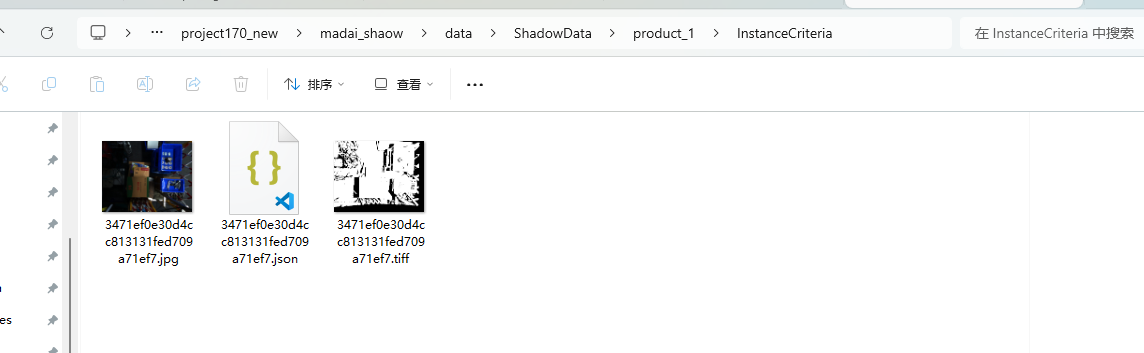
Shadow data saving path
Storage path after instance filtering: \project folder\data\ShadowDate\product_{Targetid}\InstanceCriteria
Storage path before instance filtering: \project folder\data\ShadowDate\product_{Targetid}\InstanceBuilder

The trained model does not perform well, what should I do?
Whether the detected material and the material during shadow mode training are of the same category
In the Target interface, check whether the Target model has been replaced with the latest trained deep learning model
In the Visual Parameter interface, try to adjust the scaling ratio in 2D recognition
When a single scaling ratio cannot satisfy the actual Scene (for example, the optimal scaling ratios of the top and bottom objects in the destacking Scene may be different), check the Auto Enhance function on the Visual Parameter interface and set multiple Auto Enhance-Scaling Ratios. For details, see [Destacking Visual Parameter Adjustment Guide] (../视觉参数/拆垛视觉参数调整指南.md)