Visual Classification User Guide
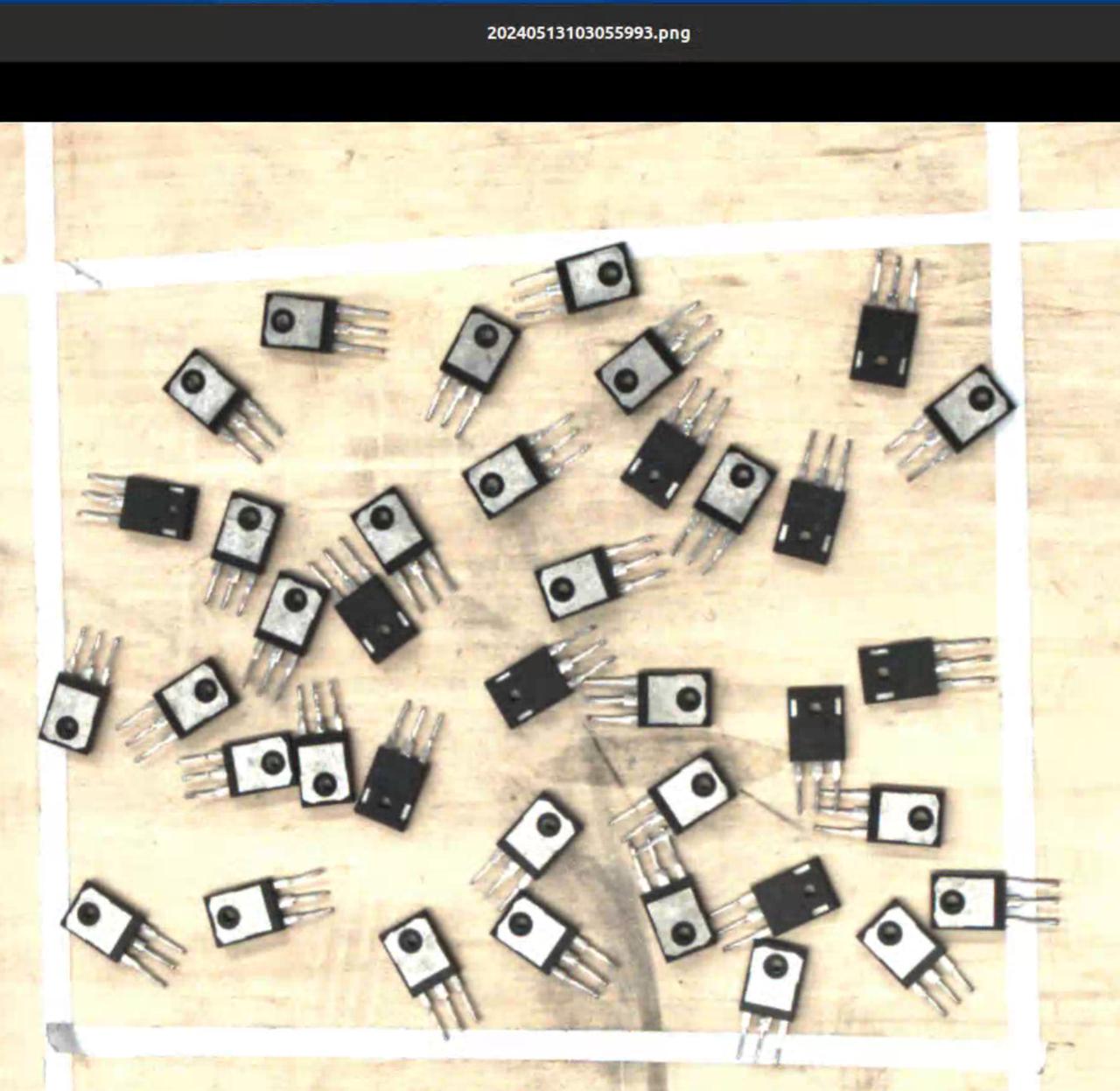
The visual classification function is used to identify different textures, different orientations and other features of the same Target. This article mainly introduces how to adjust the relevant visual parameters after turning on visual classification.

1. Operation Guide
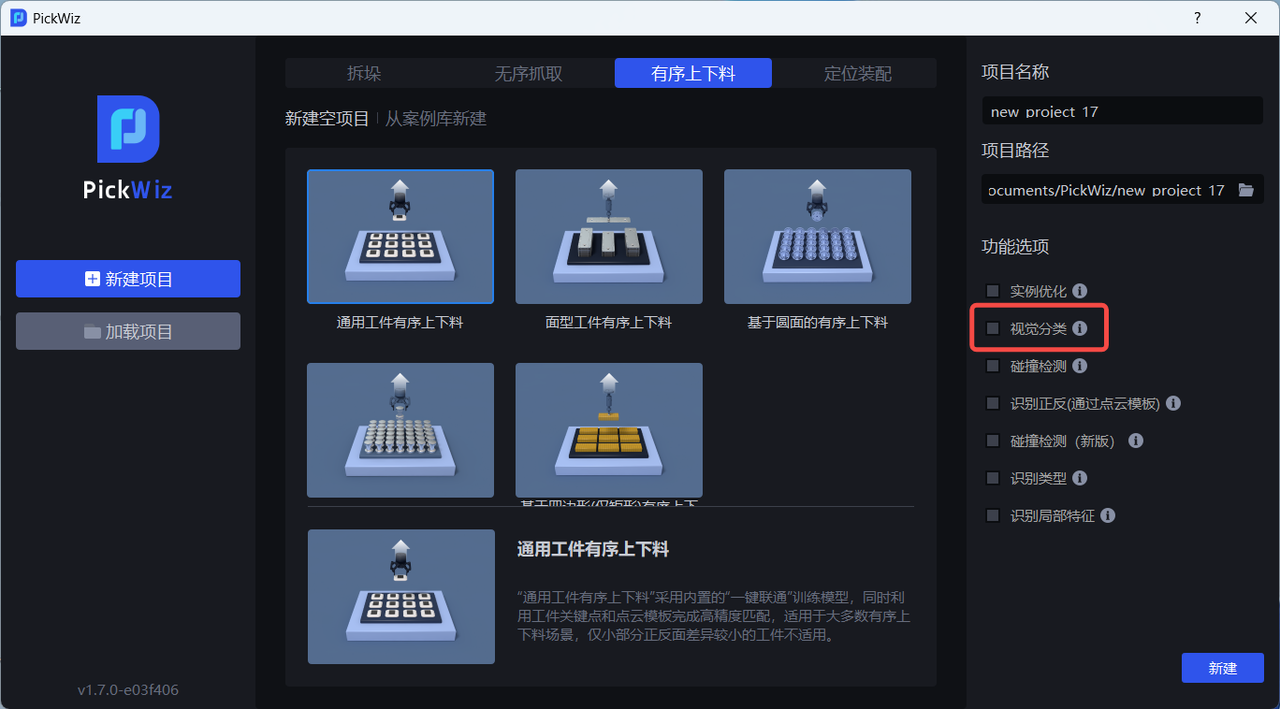
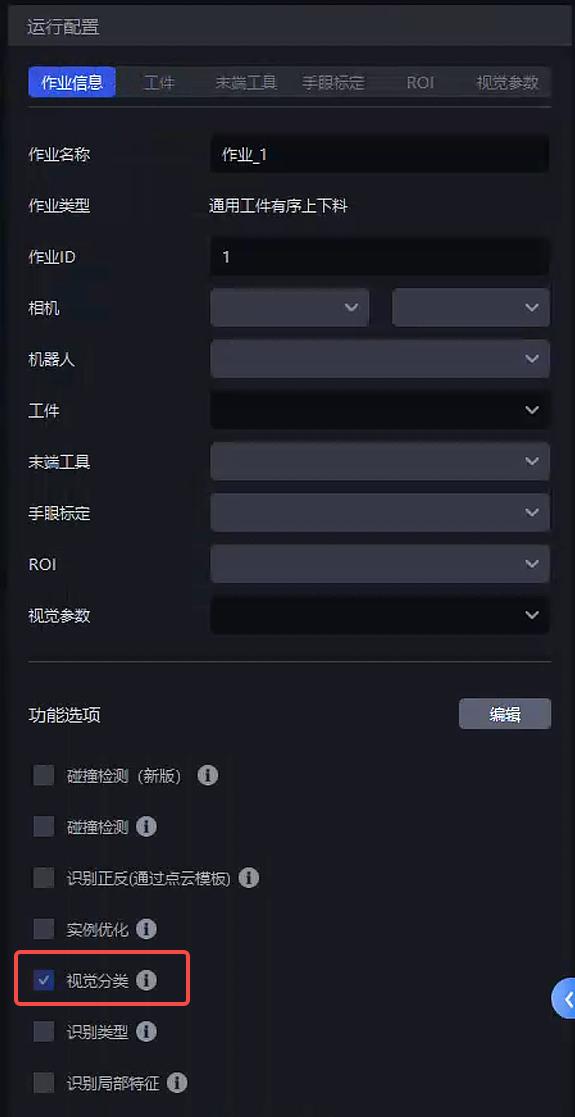
When the same Target in the actual Scene has different textures, different orientations or other characteristics, when creating a new project, check the Visual Classification function; if it is not checked when creating a new project, in the Task Information Interface, click Edit on the lower right, and then check Visual Classification
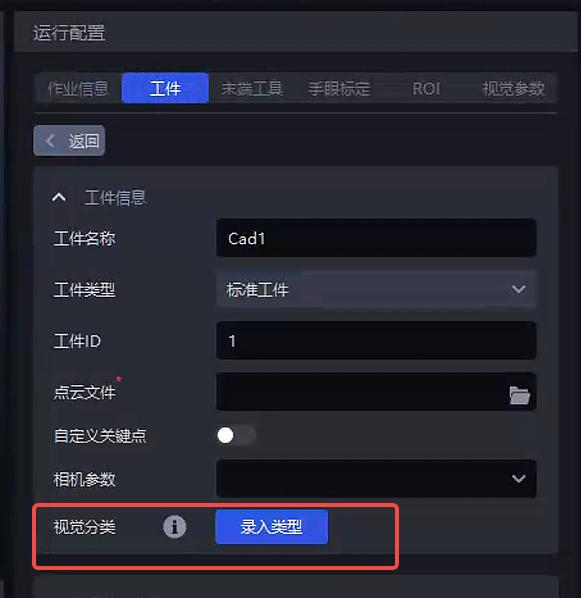
In the Target interface - Visual Category, click Enter Type to open the Type Inputter
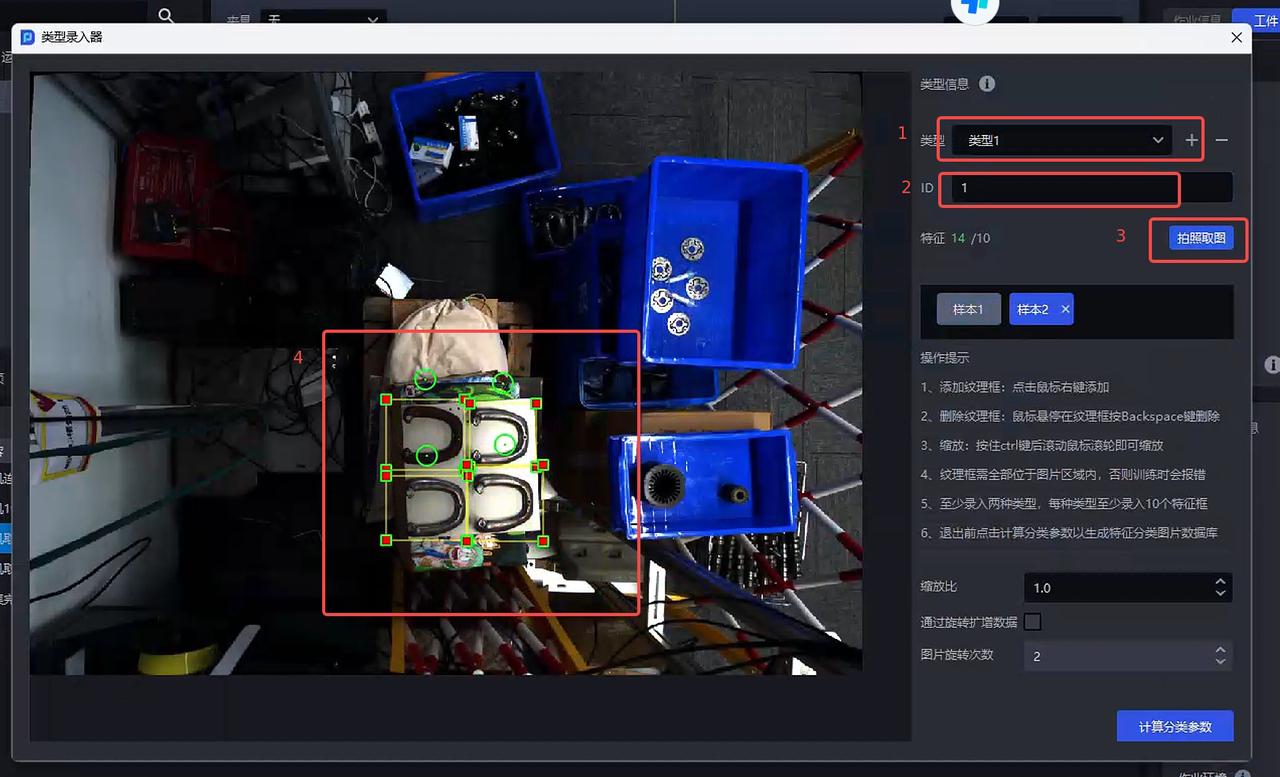
Entry type
Click + Add Type
Fill in the type id
Take pictures
Select the corresponding picture area in the picture and enter at least 10 samples of each type.
Adjust Parameter
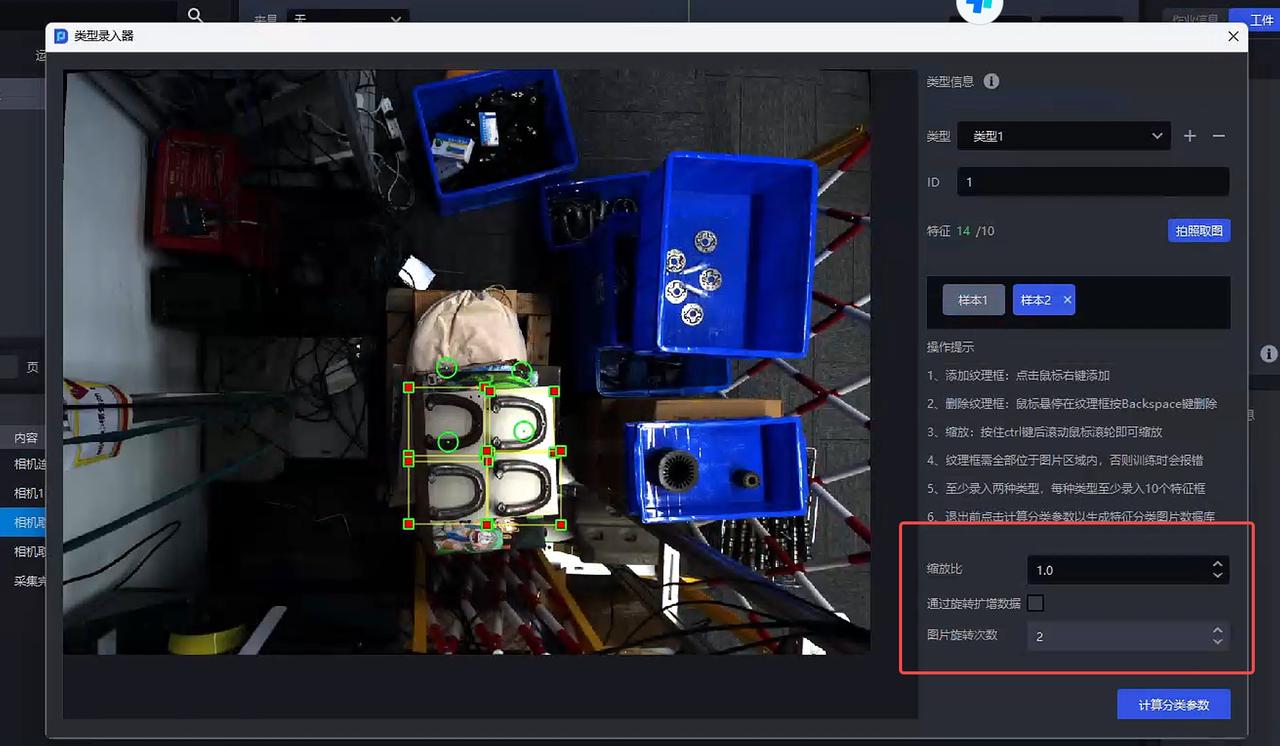
| Parameter | Description | Default value | value range | Parameter adjustment recommendation |
|---|---|---|---|---|
| scaling ratio | scales the entered type database images and extracts image features. The smaller the scaling ratio, the faster the category information is calculated. | 1.0 | 0.1 - 2.0 | 1.0 |
| Amplified data by rotation | Rotate the entered type pictures to expand the number of pictures in the type database | Check | / | / |
| Number of image rotations | After checking to amplify the data by rotation, the number of pictures in the database 4, then the picture is rotated 90° counterclockwise each time (360°) | 2 | [1,360] | The larger the value, the more angles of the amplified image |
The scaling ratio affects the Cycle time of visual classification. The smaller the scaling ratio, the faster the Cycle time. Normal visual classification cycle time is within 0.5s
Finally click Calculate Classification Parameter and close the Type Entry
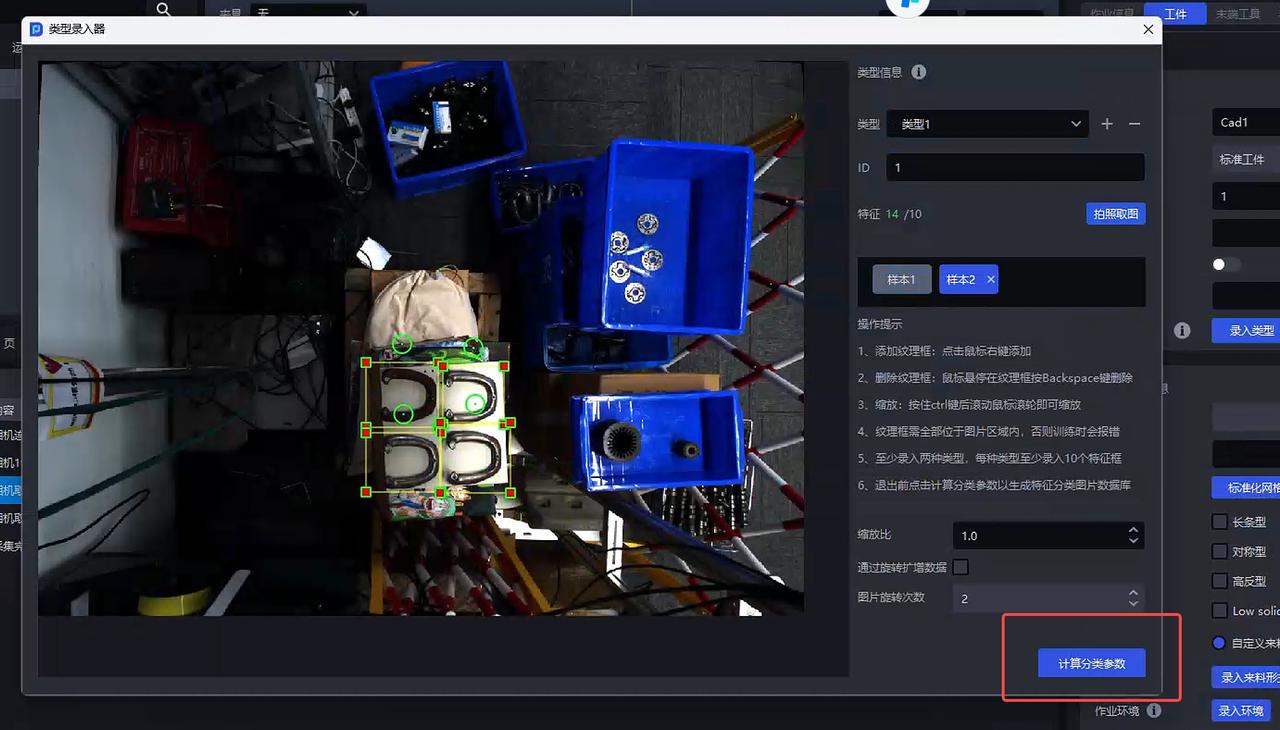
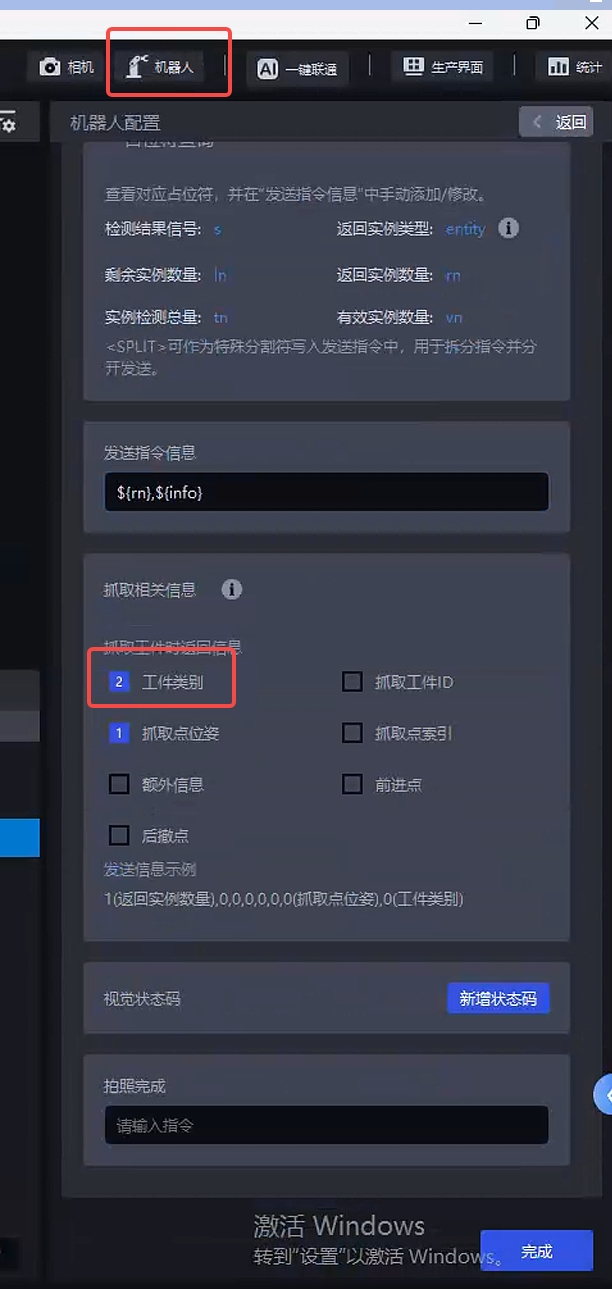
Return category information
Click the Robot panel to open the Robot configuration. In grabbing relevant information, check Target Category. Robot can obtain relevant category information.
2. Parameter Adjustment Guide
After selecting each configuration item in the Task information, adjust the Parameter in Visual Parameter-2D Recognition-Visual Classification
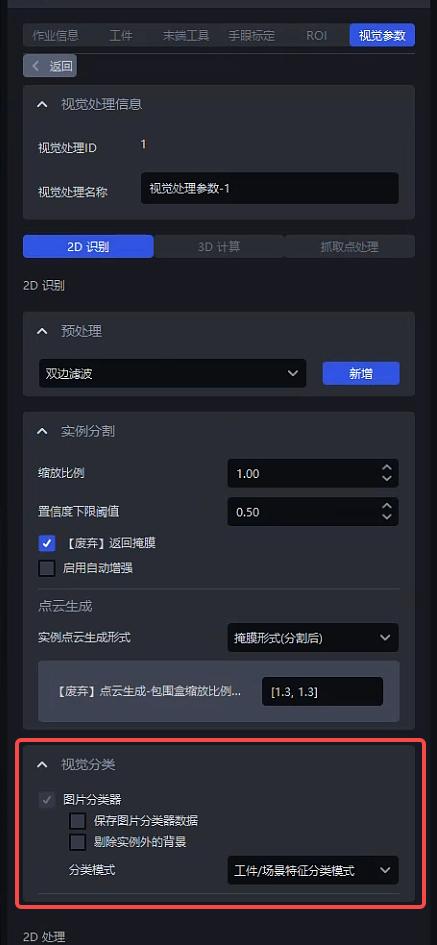
| Parameter | Description | Default value | value range | Parameter adjustment recommendation |
|---|---|---|---|---|
| Save image classifier data | If checked, the information entered by the type input device will be saved | Check | / | usually does not require adjustment |
| Cull out the background outside the instance | If checked, the image for visual classification detection will only retain the mask area and remove the image background, which can reduce the impact of the image background on category judgment. | Uncheck | / | usually does not require adjustment |
| classification mode |
| Target/Scene feature classification mode |
| When Target and Scene are similar and only differ in color, please use color classification mode . In other cases, the default is Target/Scene feature classification mode |
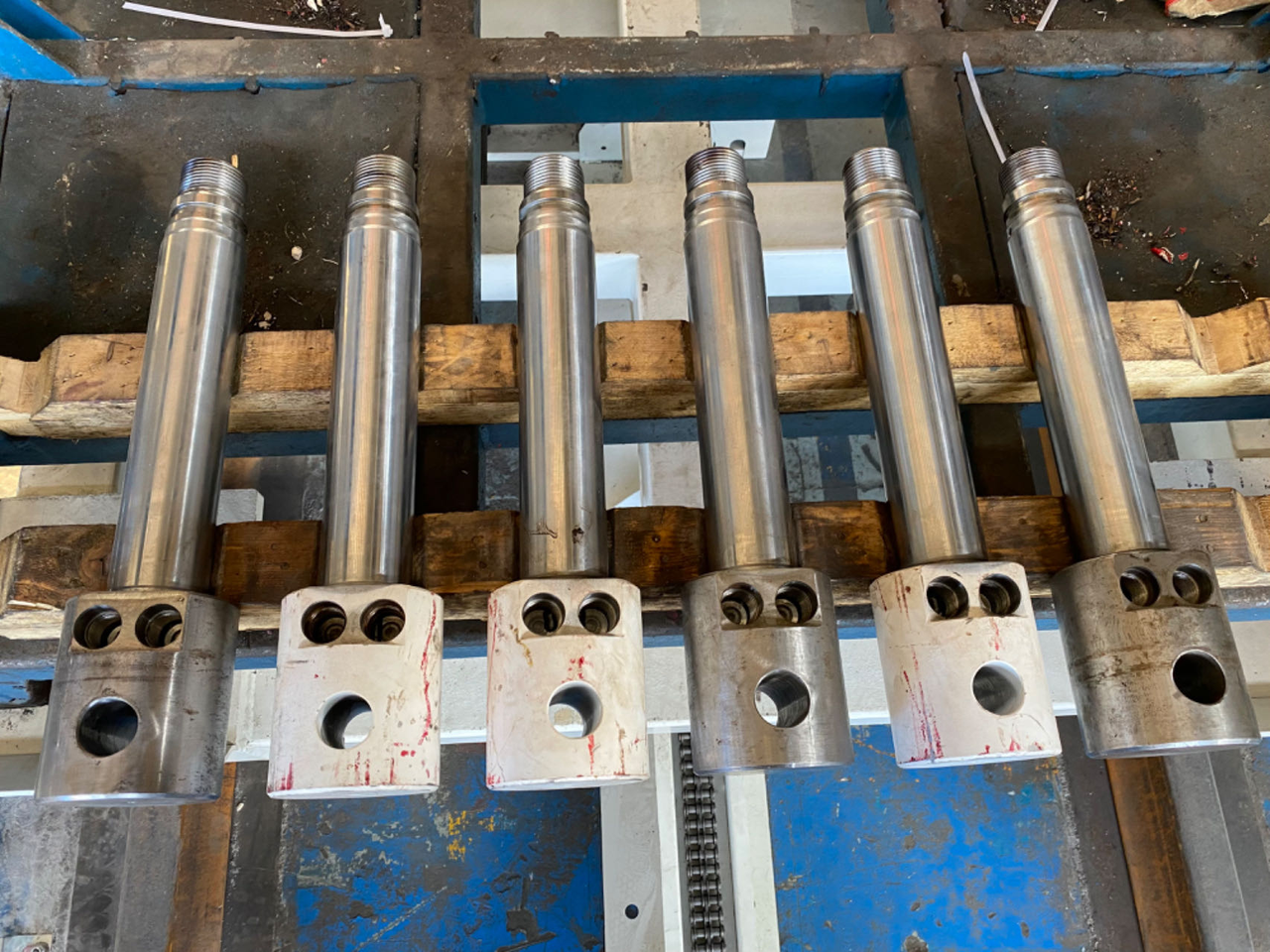
Example: Target/Scene features are obvious, use Target/Scene feature classification mode for classification.

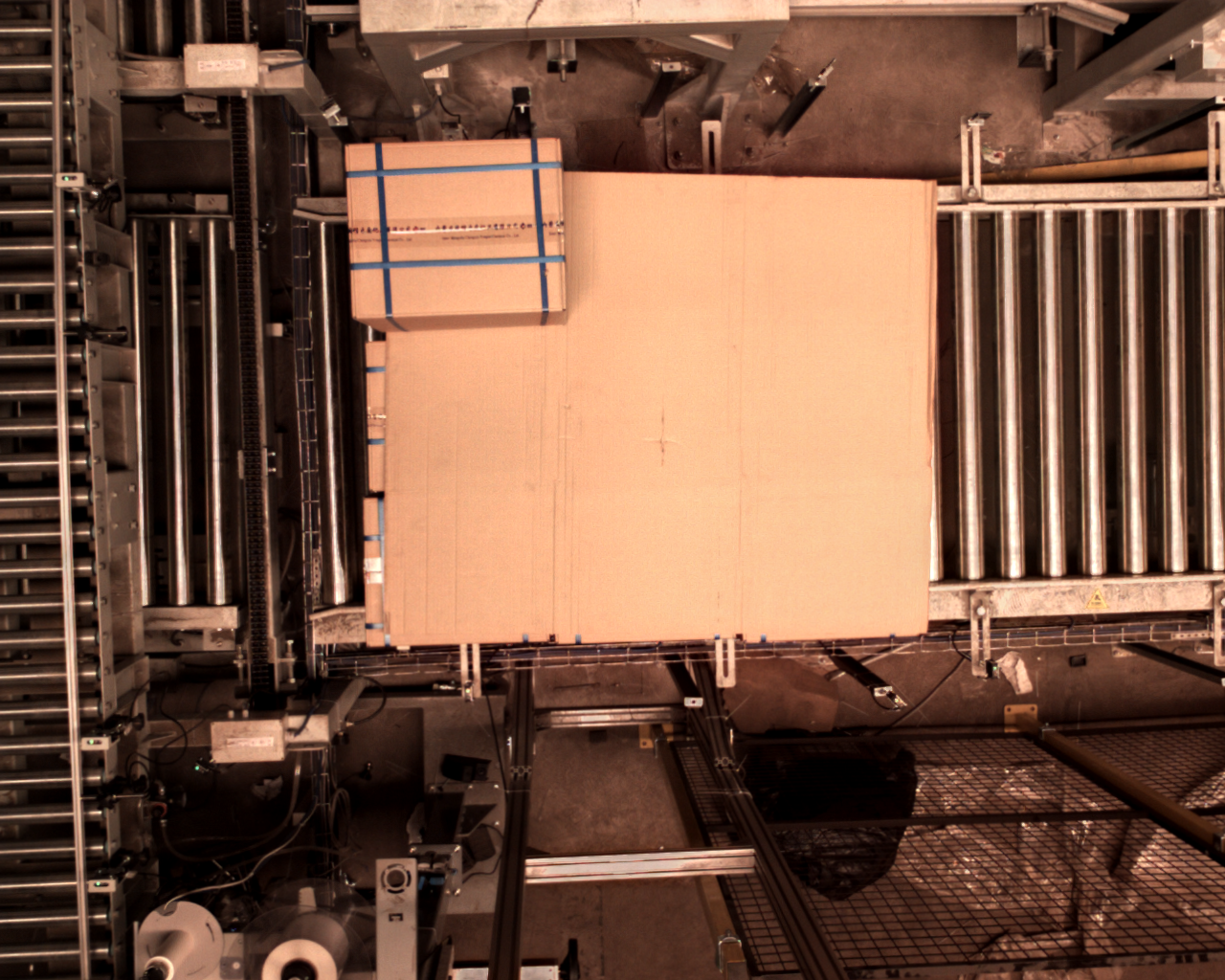
Example: The color features are obvious, and the color classification mode is used for classification.