Type Identification User Guide
The Type Identification function is used to identify multiple types of Targets. This article mainly introduces how to configure multiple types of Targets in the actual Scene and use one-click connection to train the model.
1. Operation Guide
The Type Identification function is applicable to Picking randomly arranged general type target objectsScene, Loading and unloading of neatly arranged general type target objectsScene, and surface-type Target ordered loading and unloading Scene.
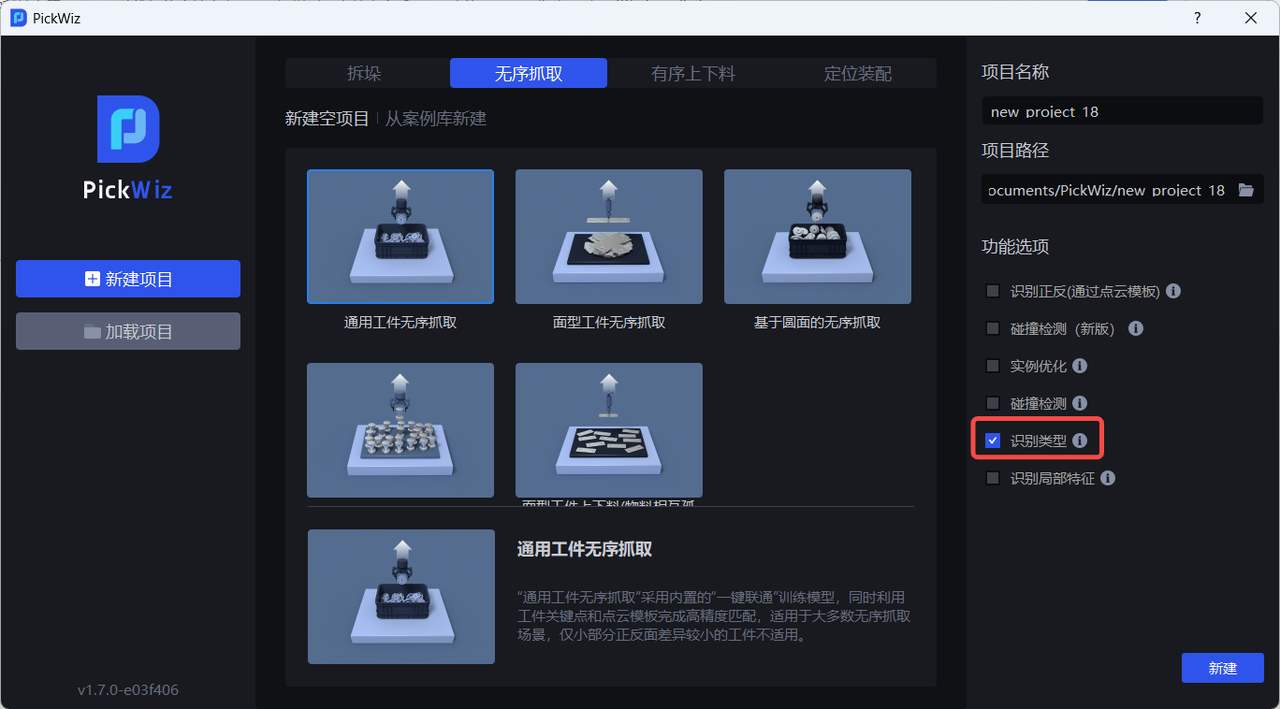
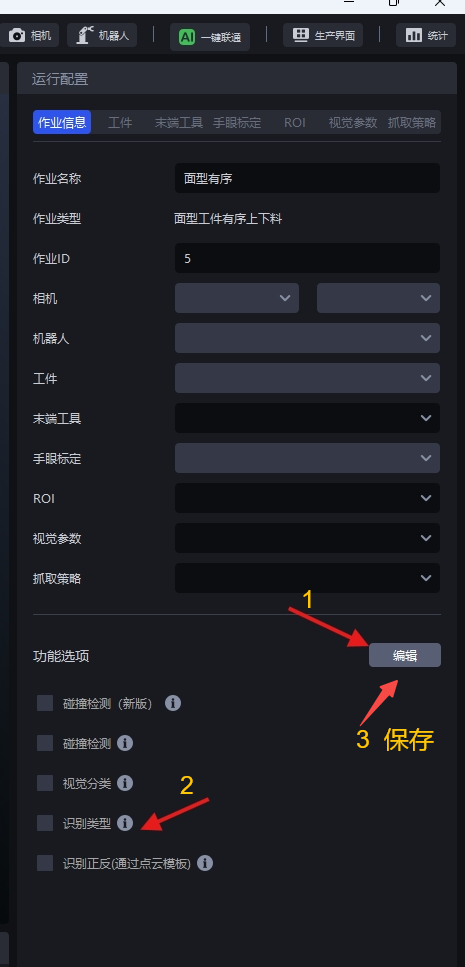
- When there are multiple types of Targets in the actual Scene, when creating a new project, check the Type Identification function; if it is not checked when creating a new project, in the Task Information Interface, click Edit on the lower right, then check Type Identification and save it.
- Configure multiple types of Targets on the Target interface
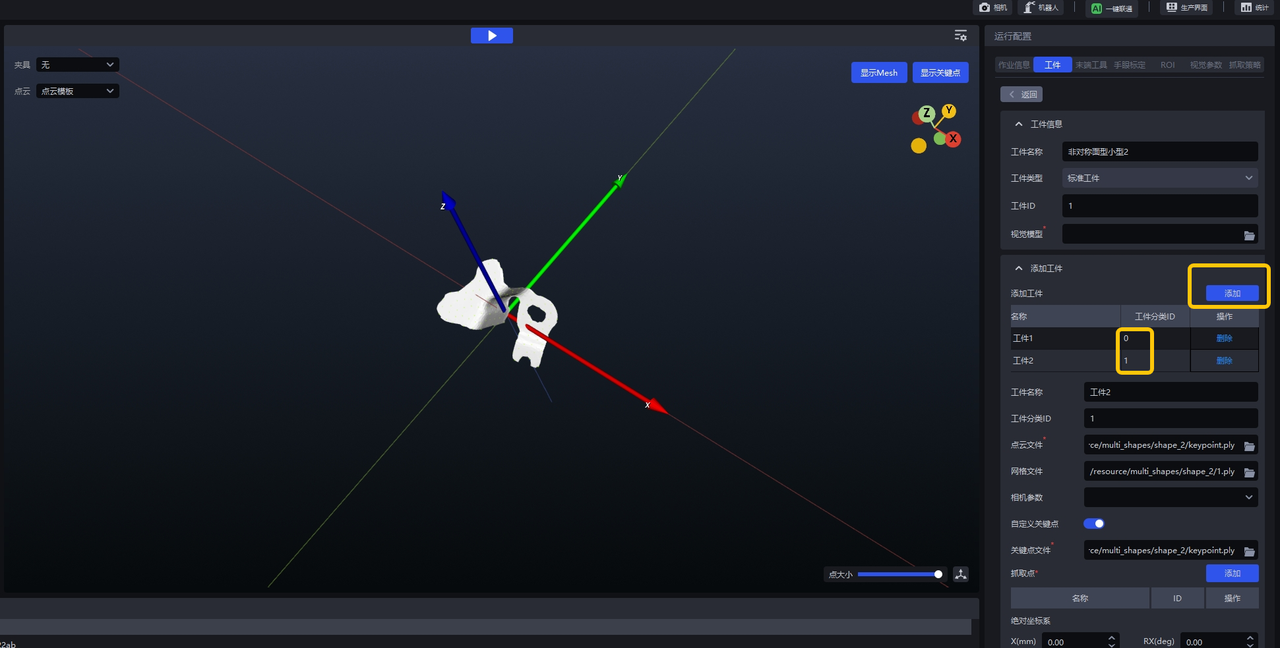
Click Add to add the Target type. Targetid can distinguish the Target type. Upload the Point Cloud, key points (optional), and grid files of each type of Target.
2. One-click training Guide
After configuring multiple types of Targets and setting ROI on the Target interface, return to the main interface, select the corresponding Target and ROI in Task Information, and then click on the One-click Connect panel, and the "Export Successful Tips" pop-up window will appear.
Click the export path to enter the training configuration folder and check whether the training configuration is correct.
After the check is completed, click "Create Task"
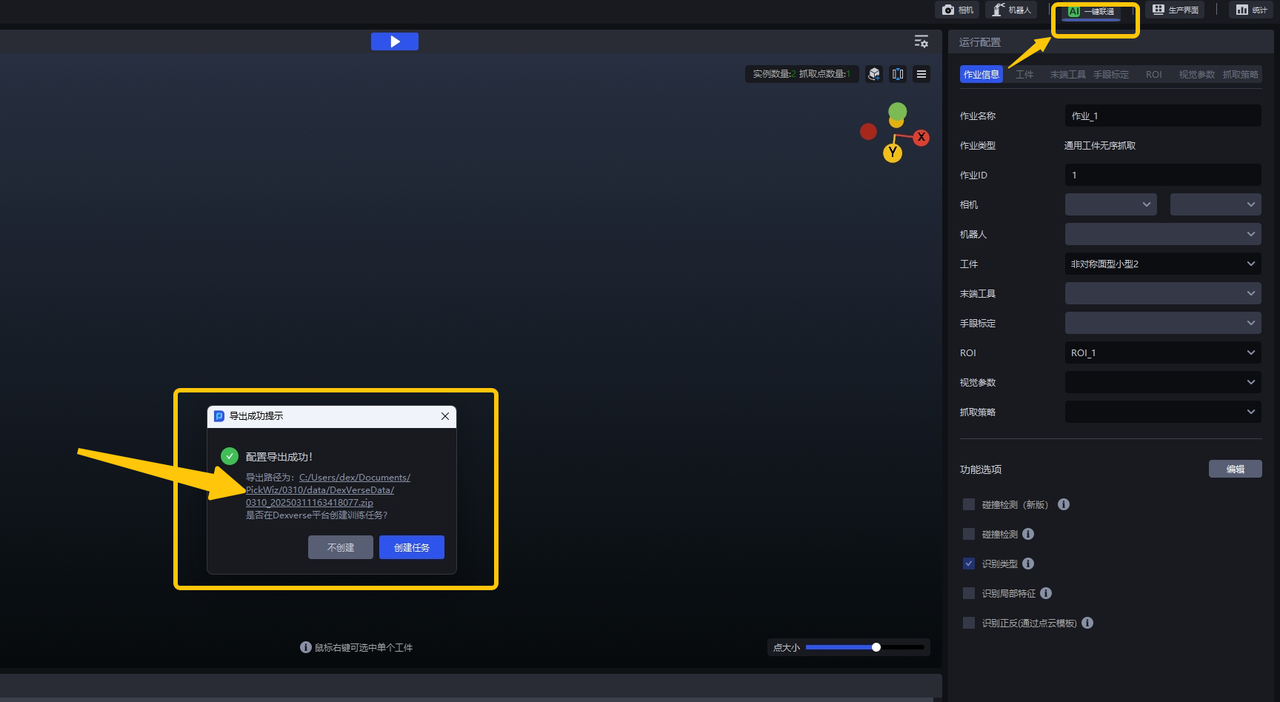
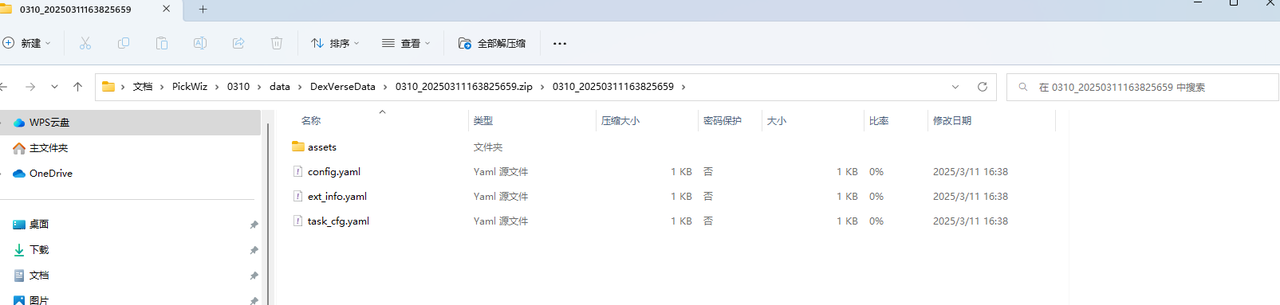
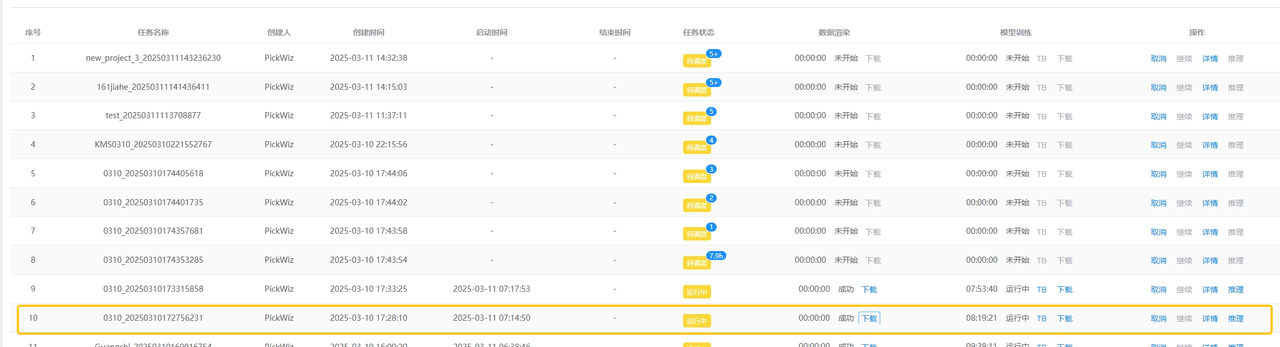
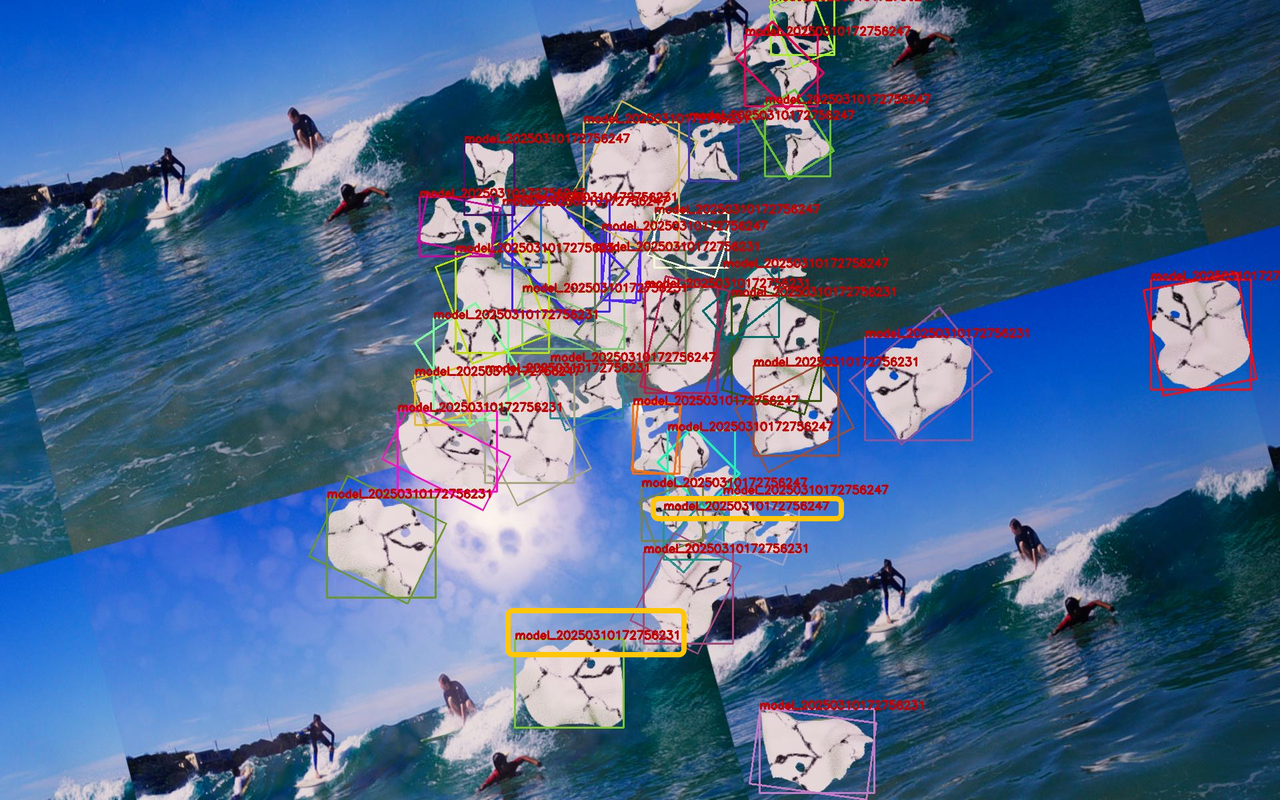
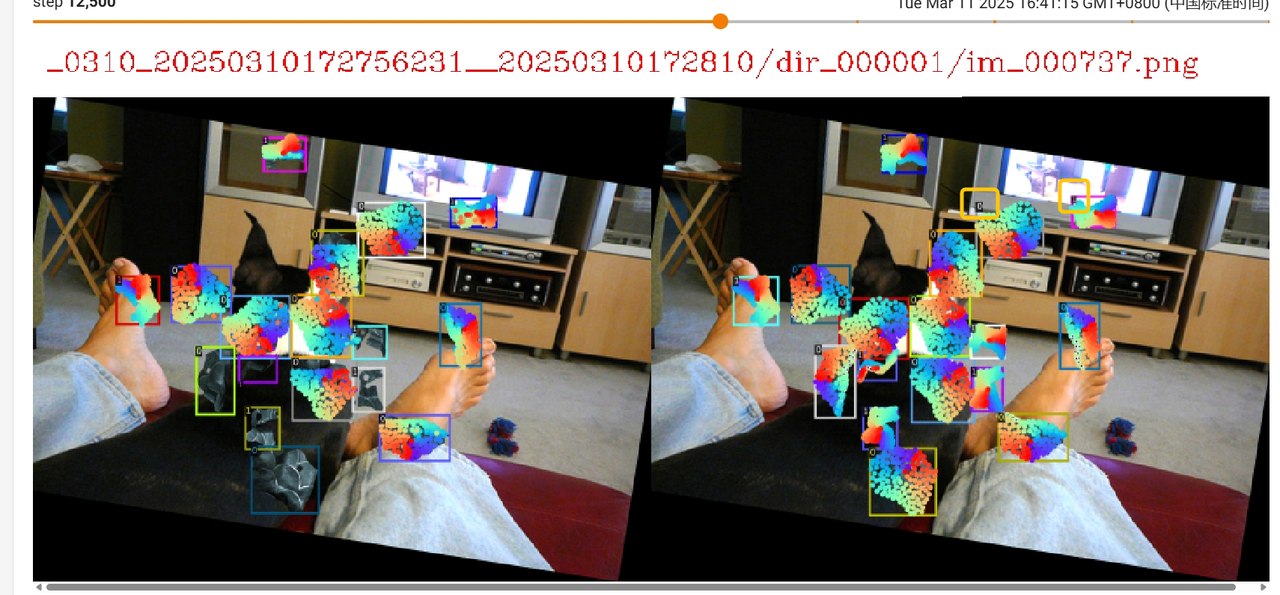
- You can view the task on the dexverse platform (address: http://192.168.4.135:8081/tasklist),下载对应任务的 "data rendering" file to see if there are multiple Targets; click TB to see if there are multiple Targets and IDs.
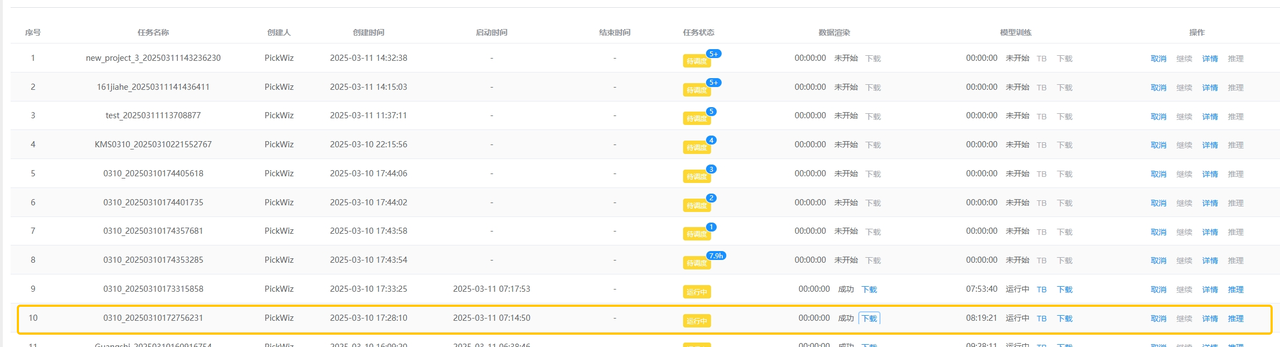
- After the model training is completed, download the model, upload the model on the Target interface of PickWiz, and then run it to verify the model effect.
3. Example: Picking randomly arranged general type target objects/Loading and unloading of neatly arranged general type target objectsScene
Universal Unordered Scene:
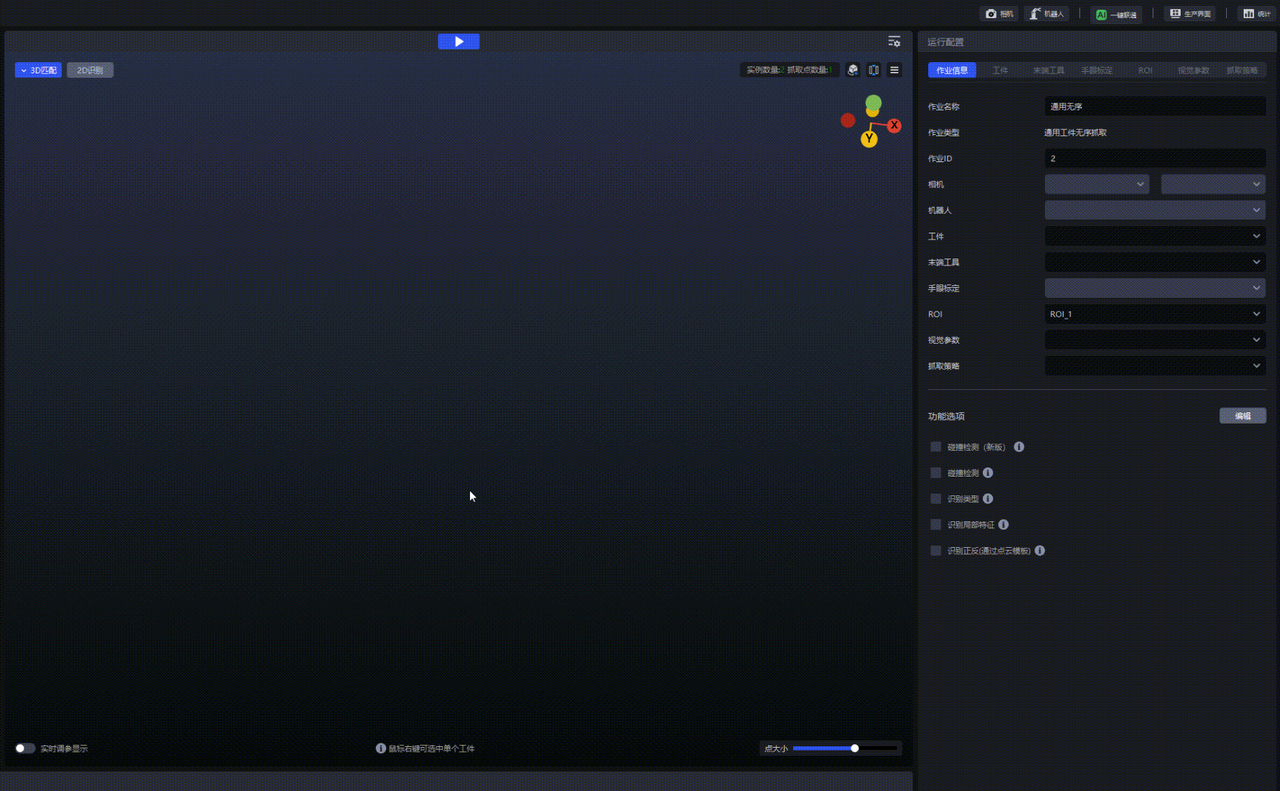
After creating the task in PickWiz, you can view the task on the dexverse platform (Address: http://192.168.4.135:8081/tasklist)
Download "Data Rendering" to see if there are multiple Targets
Click TB to see if there are two Targets and two IDs
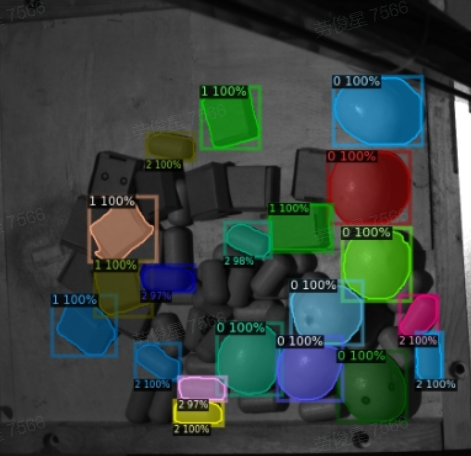
After the model training is completed, download the model and verify it in pickwiz