Installation Guide
1. Machine configuration requirements
| Operating System | Windows 11 Pro |
|---|---|
| CPU | Intel i7-8700 + |
| Memory | 16G and above |
| GPU | NVIDIA RTX 3050/3060 (driver version 525 and above) |
| Hard Disk | 128 GB SSD and above (remaining space on drive C) |
2. Download the installation package
2.1 download method
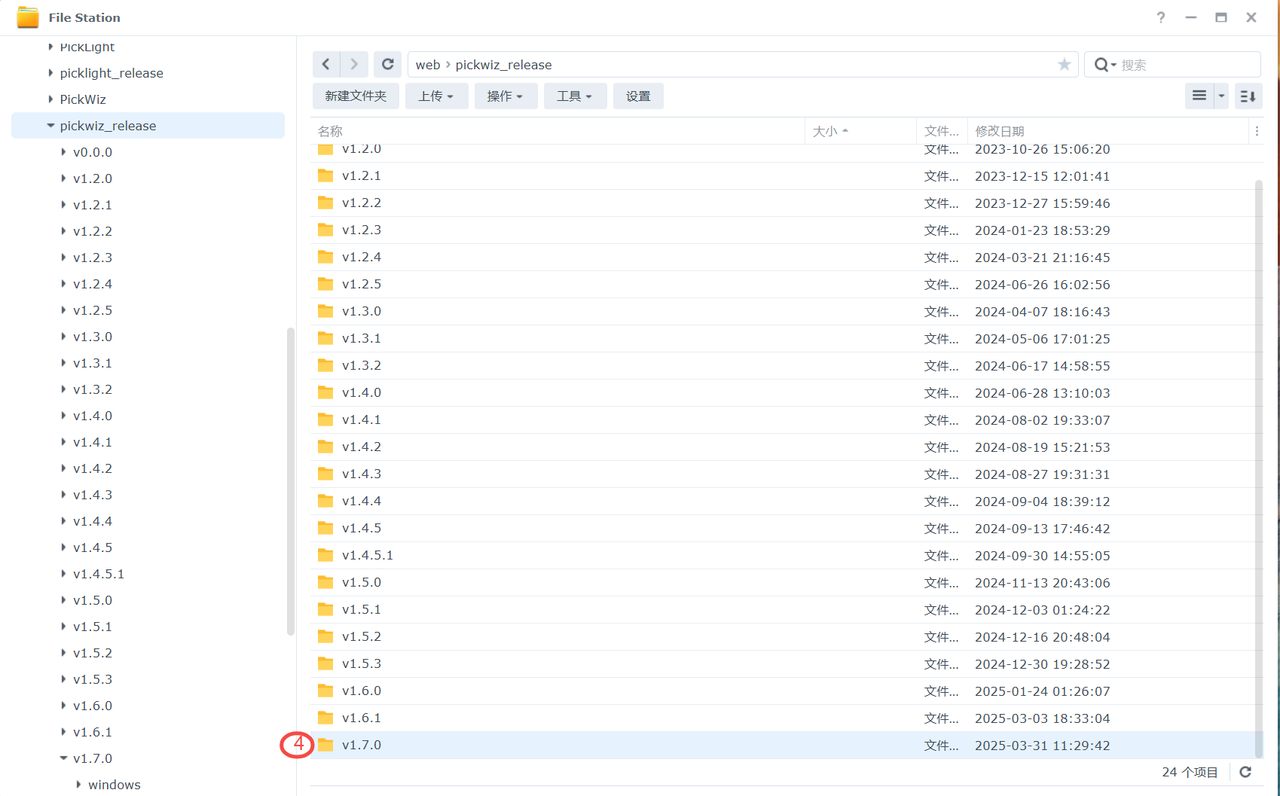
After logging in to the NAS, navigate to the directory where the PickWiz installation package is stored:
Find the required software version in the pickwiz_release folder.
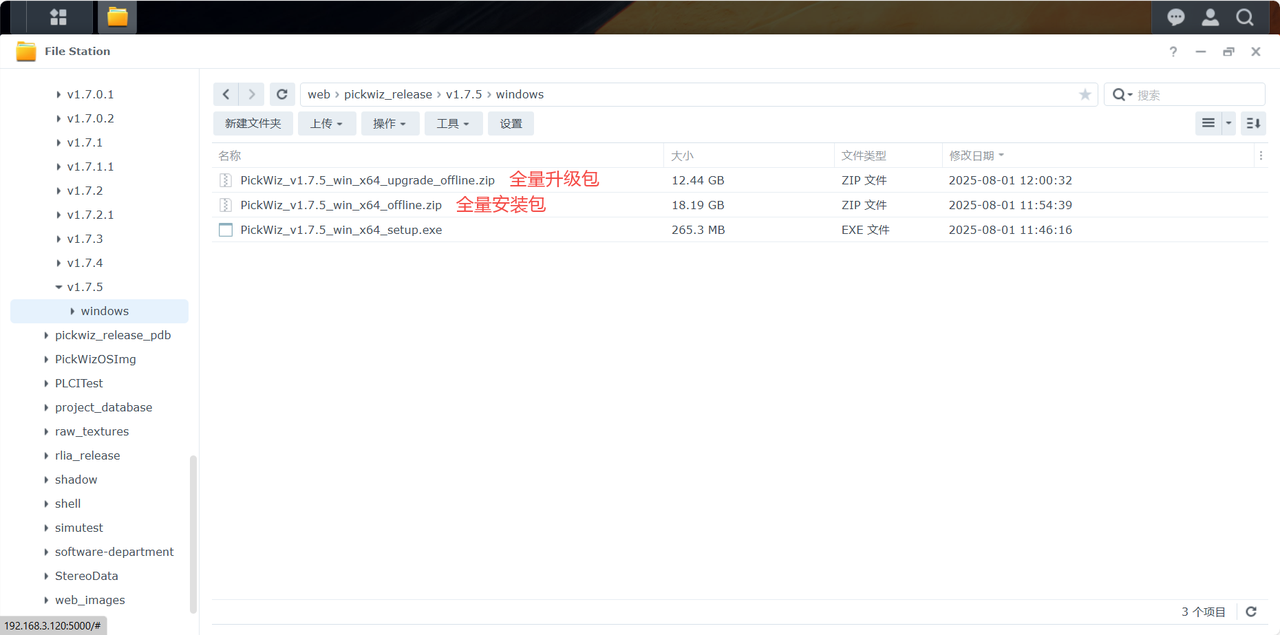
After opening the windows directory, you can see the following file list:

2.2 installation package type description
Full installation package & full upgrade package
The name of the full installation package is
PickWiz_v{X.Y.Z}_win_x64_offline.zip, which contains PickWiz ontology, deep learning basic environment, and general model, as shown in the figure below.The name of the full upgrade package is
PickWiz_v{X.Y.Z}_win_x64_upgrade_offline.zip, which contains the PickWiz ontology and general model, and removes basic environment-related resources. If you have used the full offline package to package the basic environment, you can use the offline upgrade package (which is smaller in size) when you want to upgrade later.
Full installation package & full upgrade package supports complete offline installation
3. Install software
3.1 New machine installation
Full installation package & full upgrade package supports complete offline installation
Things to check before installation:
When installing and updating PickWiz using the full installation package, there is no need to install Anaconda;
If anaconda has been installed but is installed in a folder that requires administrator rights (such as the Windows folder on the C drive, Program Files, Program Files (x86), ProgramData, etc.), or the environment variables are configured incorrectly, please uninstall the installed anaconda first and delete the corresponding environment variables, and ensure that the PickWiz installation directory (such as C:\Users\dex)下没有安装anaconda;
If you have 360 anti-virus software before installation, please turn off the anti-virus software first, otherwise the installation program may be blocked.
(1) Unzip the full installation package
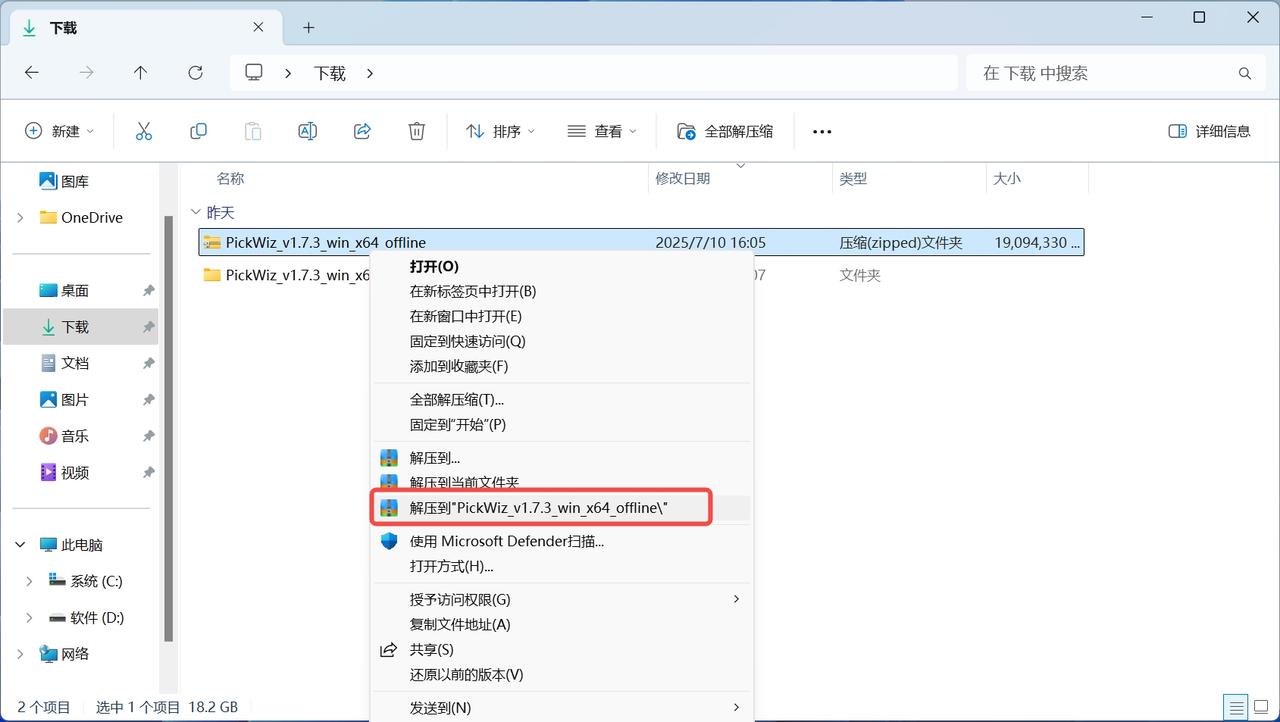
(2) Install PickWiz
- Open the decompressed file and double-click the exe application file, as shown in the figure below;
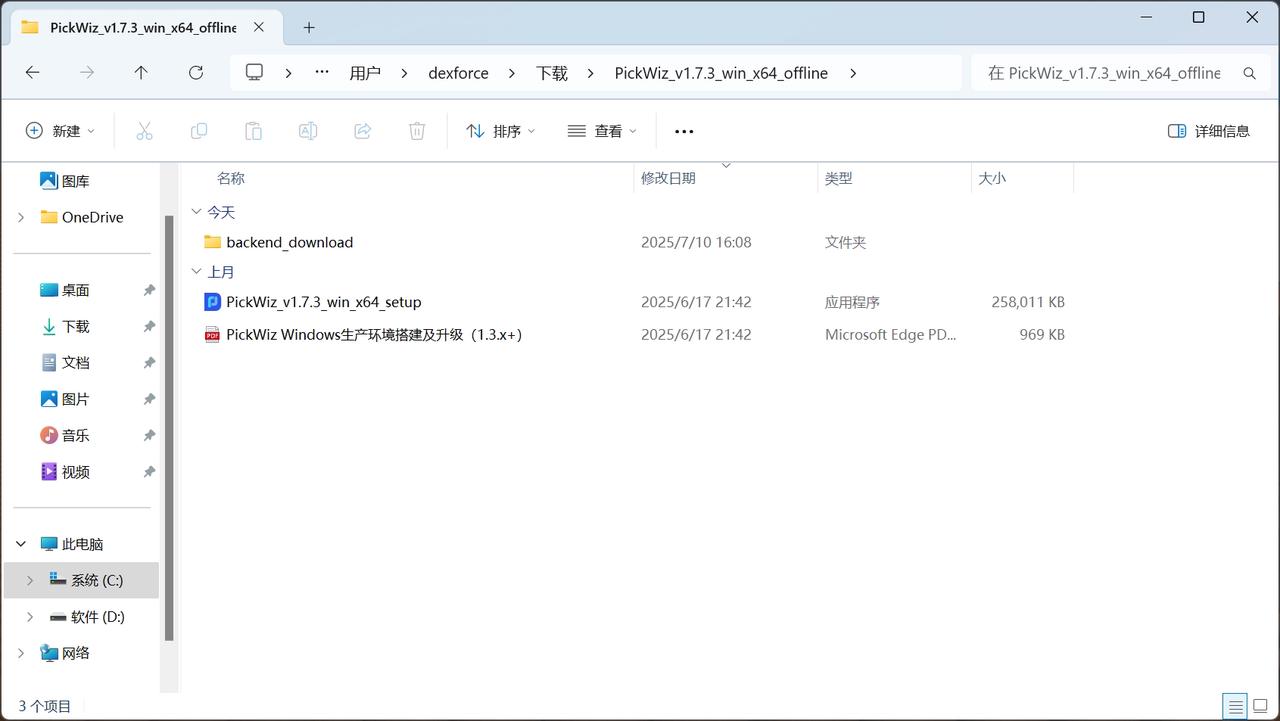
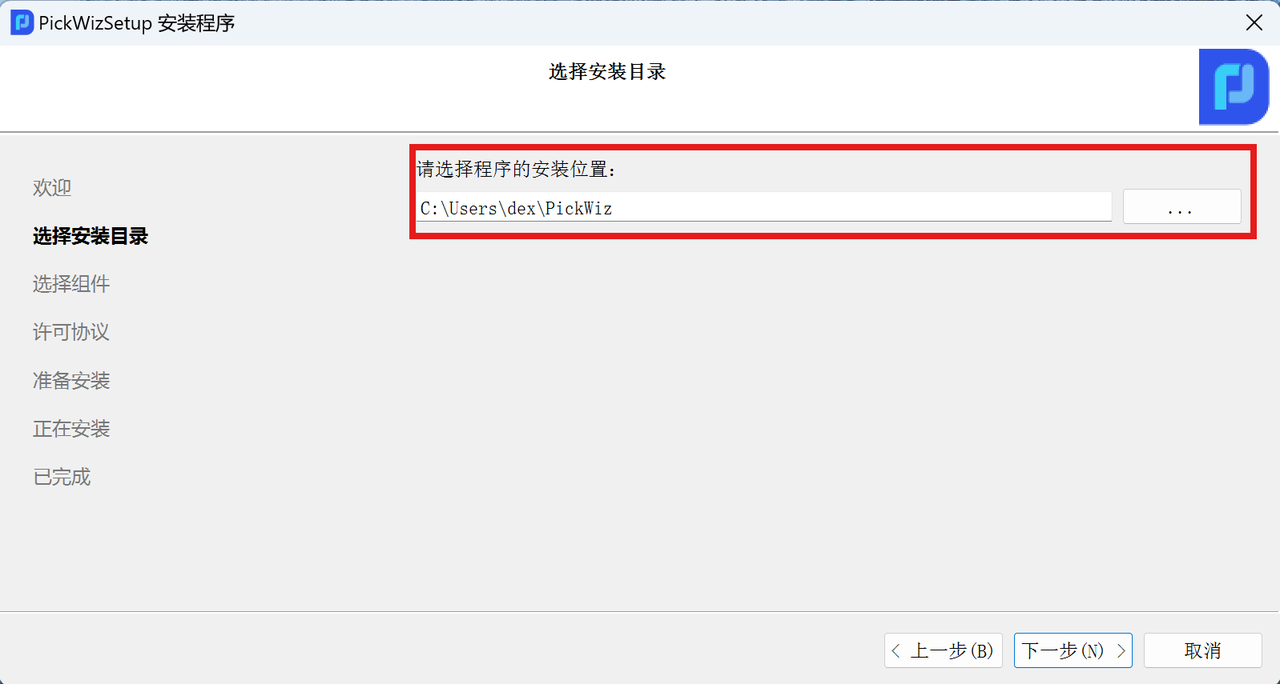
Select installation directory
It is recommended to install in the default directory and cannot be installed on other hard drives.
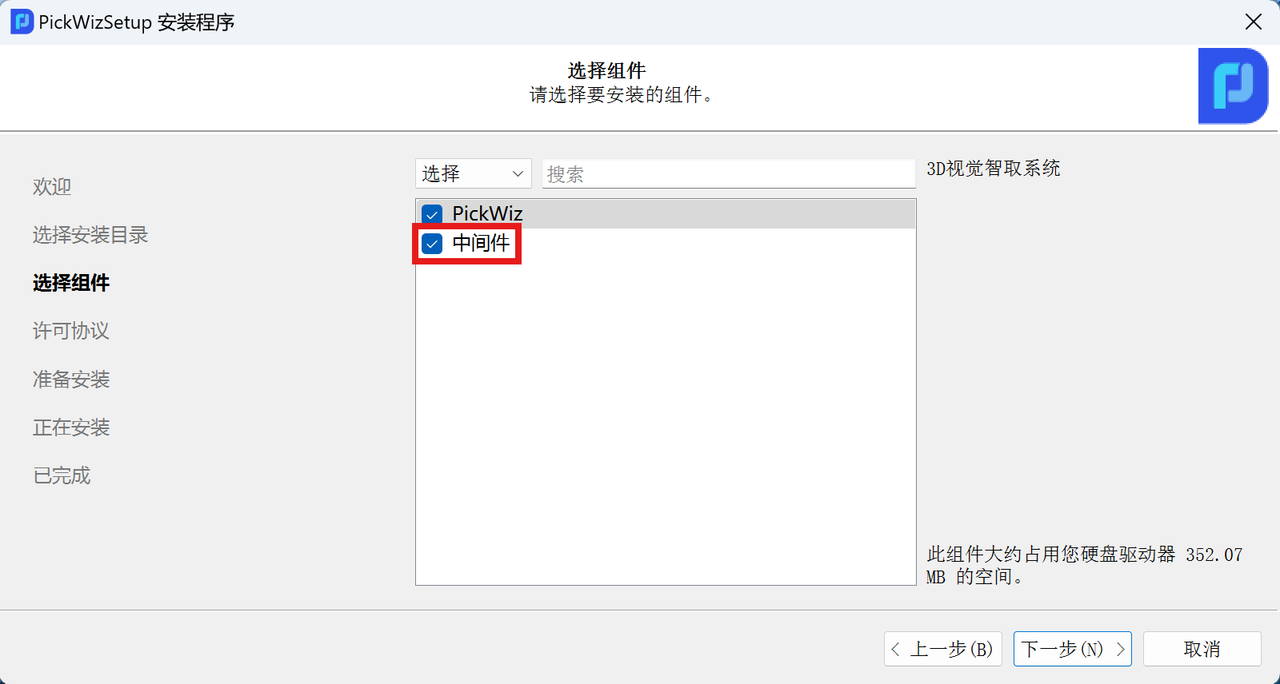
Follow the prompts to "Select Components"
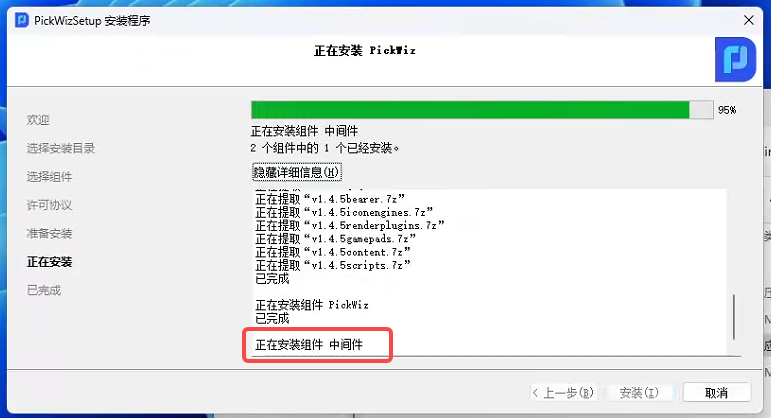
When the installation progress reaches 95%, it will prompt "Installing component middleware"
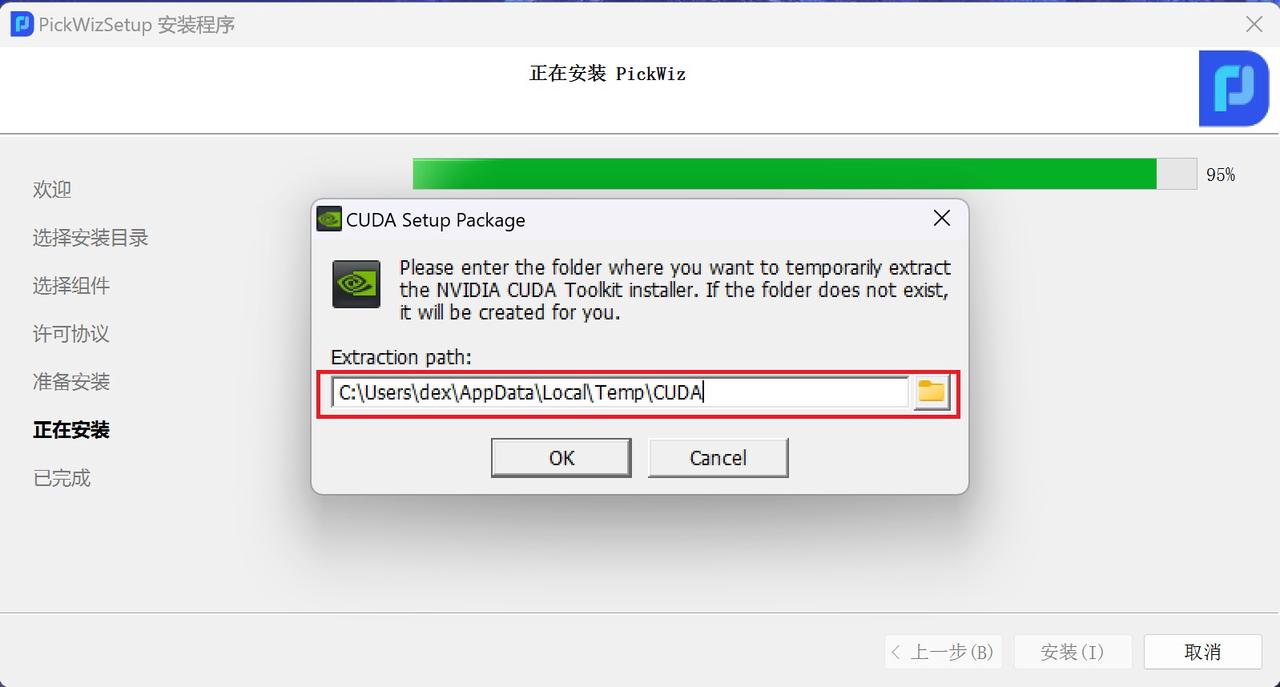
When installing PickWiz for the first time on a new machine, a CUDA installation window will pop up. The following figure shows the temporary decompression directory of CUDA. It is recommended to select the default folder. The folder will be automatically deleted after the installation is completed.
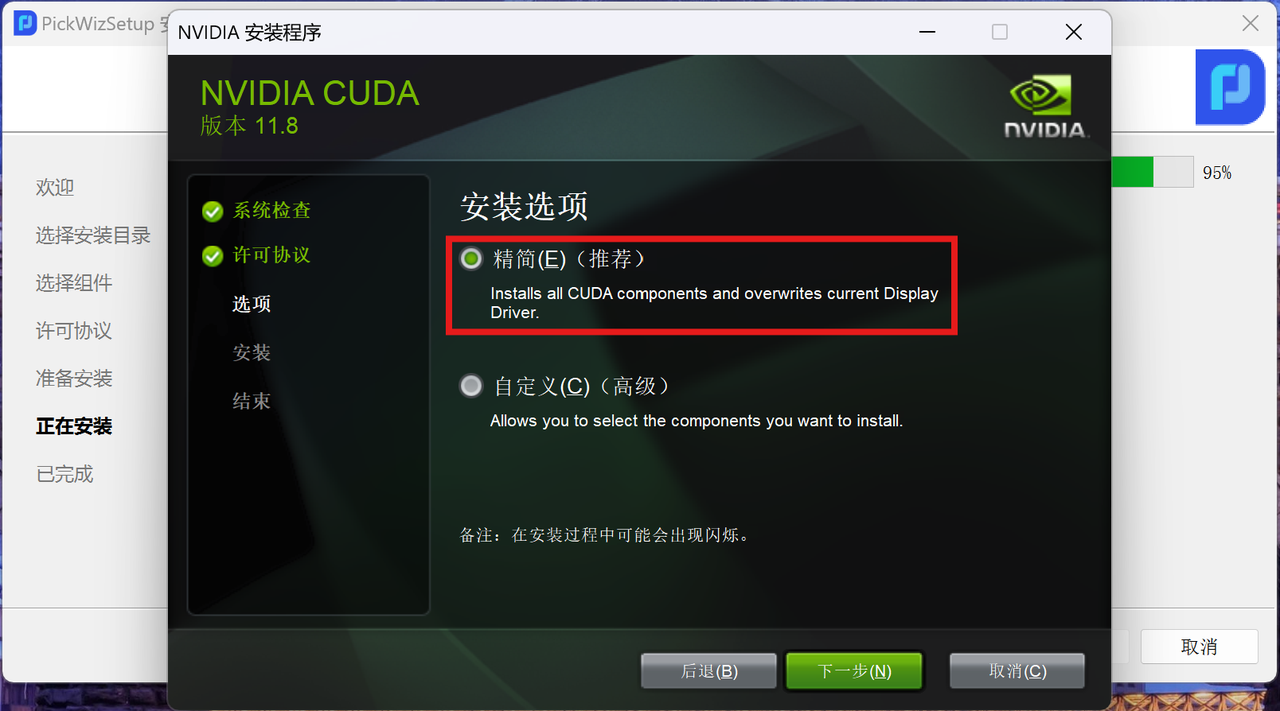
It is recommended to select "Simplified" for "Installation Options"
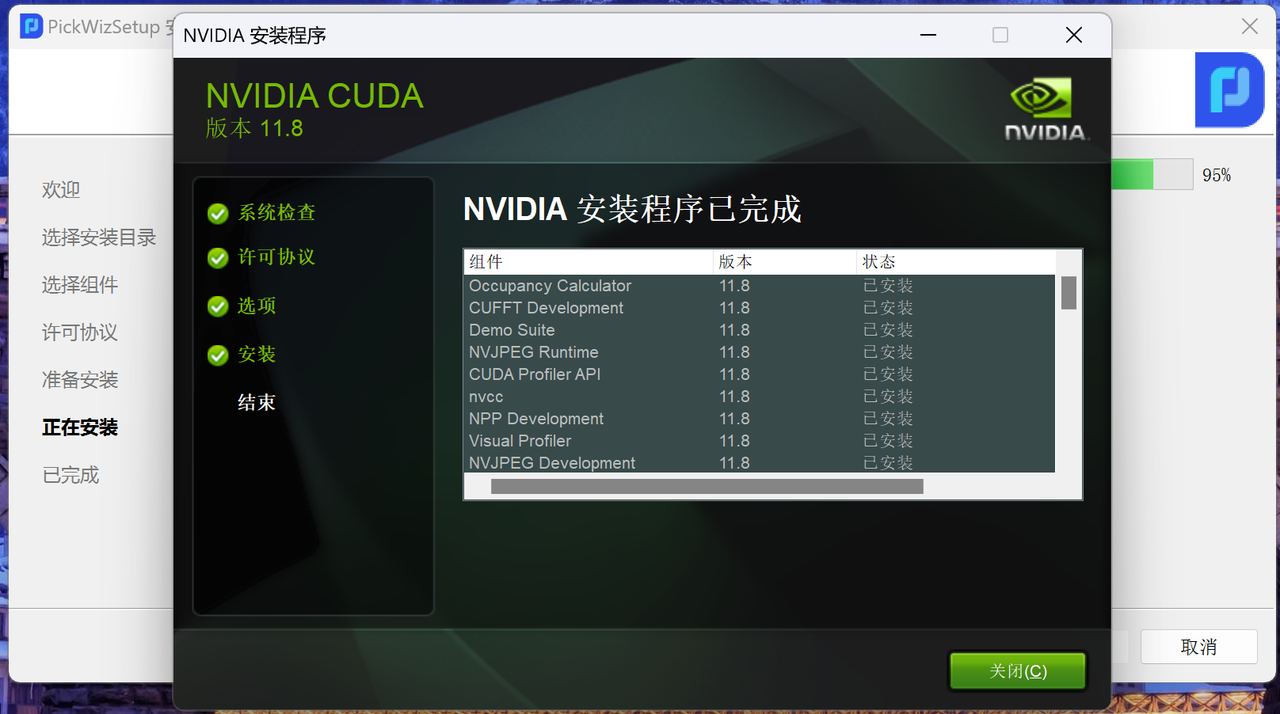
CUDA installation completed
The PickWiz installation continues. The first installation takes about 30 minutes. Please wait patiently. After the installation is completed, the following prompt will appear:
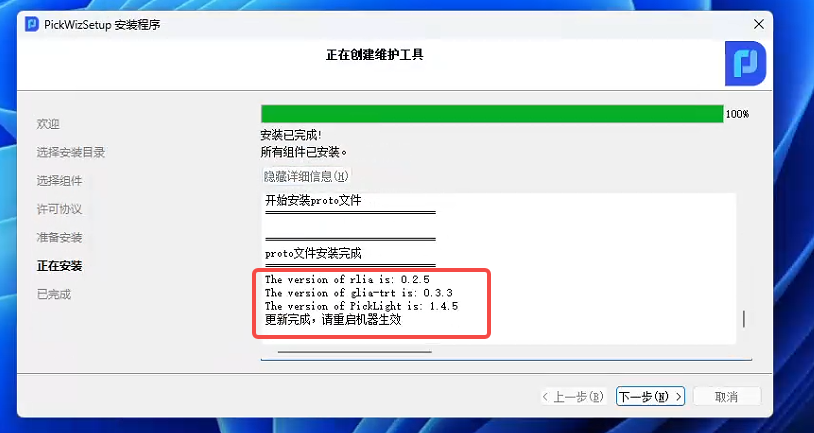
Click "Next" to complete the installation
After installing PickWiz for the first time, please restart your computer and run PickWiz again
3.2 Update
To update using the full upgrade package, please refer to 3.1 Install using the full installation package
3.3 Install whl package separately
For the installation of PickLight, GLIA, RLIA and other whl packages.
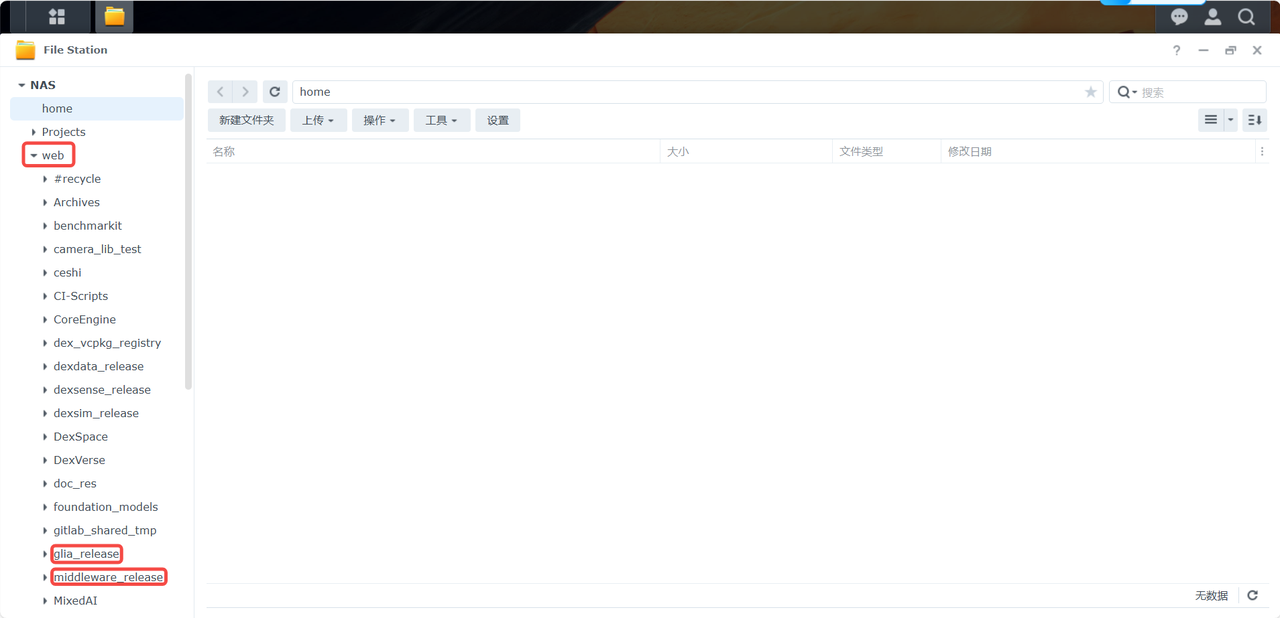
- Download the whl package on the NAS, refer to the NAS address 2.1 download method
Navigate to the required whl package directory to download
- After downloading open the Anaconda Prompt terminal
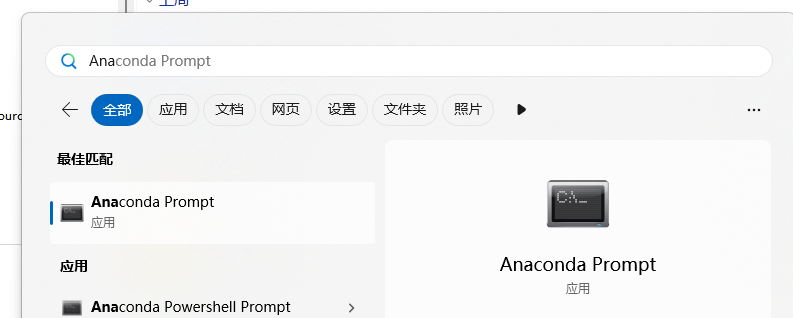
- In the opened Anaconda Prompt terminal, enter the conda activate pickwiz_py39 command to activate the backend environment

- Enter the command to the directory where the whl package is downloaded and saved. Usually the whl package is downloaded and saved in the C:\Users\Administrator\Downloads directory. Then enter Downloads in the Anaconda Prompt terminal to reach the directory where the whl package is saved.
.jpg)
- In the directory where the whl package is saved, execute the installation command
pip install xxx.whl,xxx.whlrepresents the name of the package

If you install the same version of the whl package, you should first execute the
pip uninstall xxx.whlcommand to uninstall it, and then execute the installation commandpip install xxx.whl, otherwise the whl package installation may fail.
4. Uninstall the software
(1) Use the uninstaller to uninstall
Open the installation directory for PickWiz and refer to the steps in this document [3.1 New Machine Installation] (#31-全新机器安装) "Select Installation Directory"
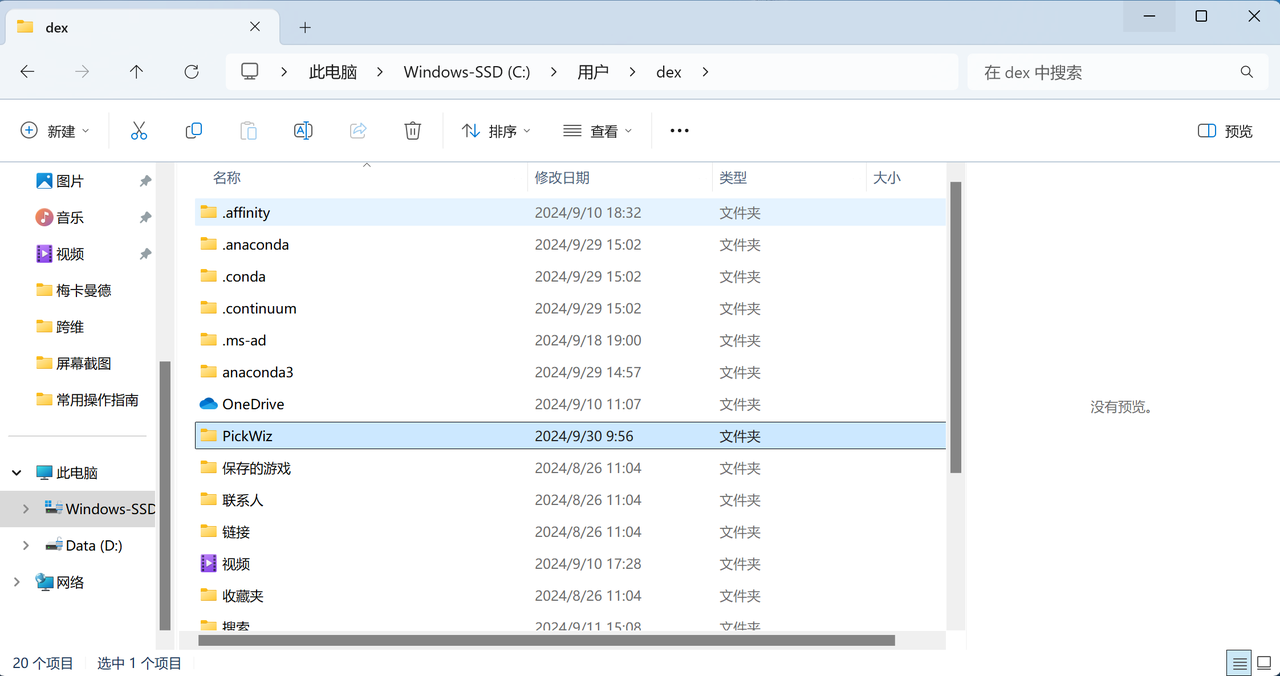
Found the application named MaintenanceTool.exe
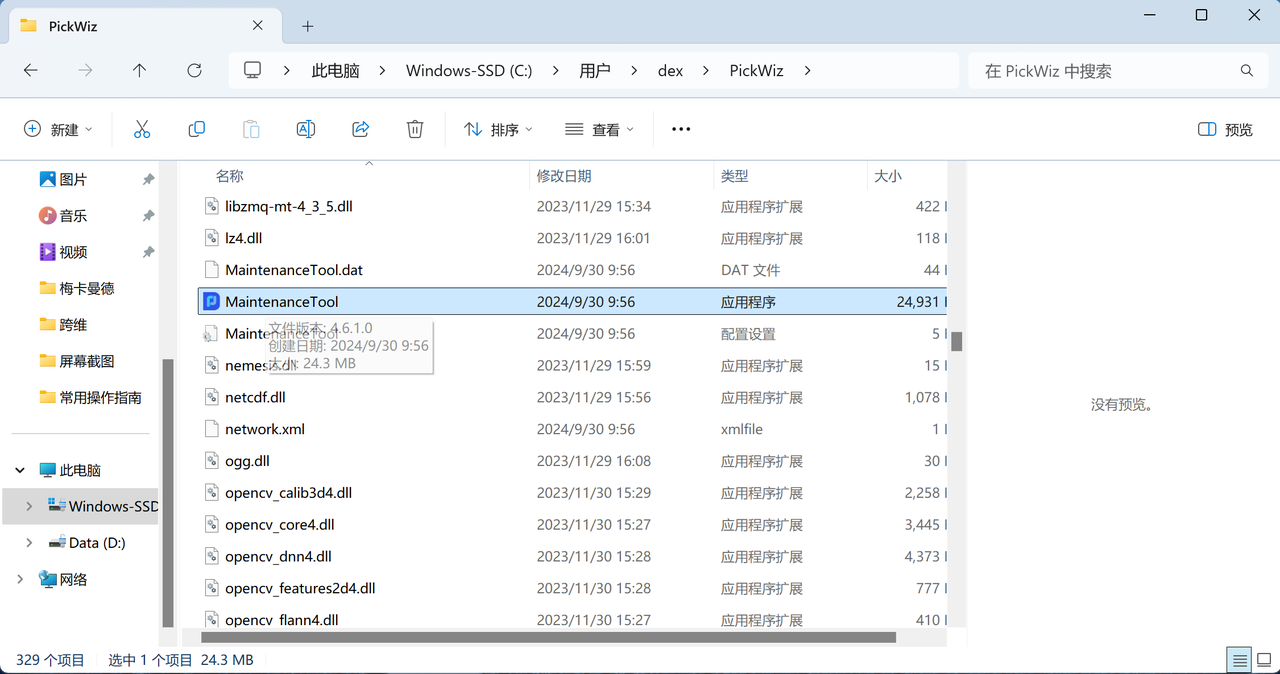
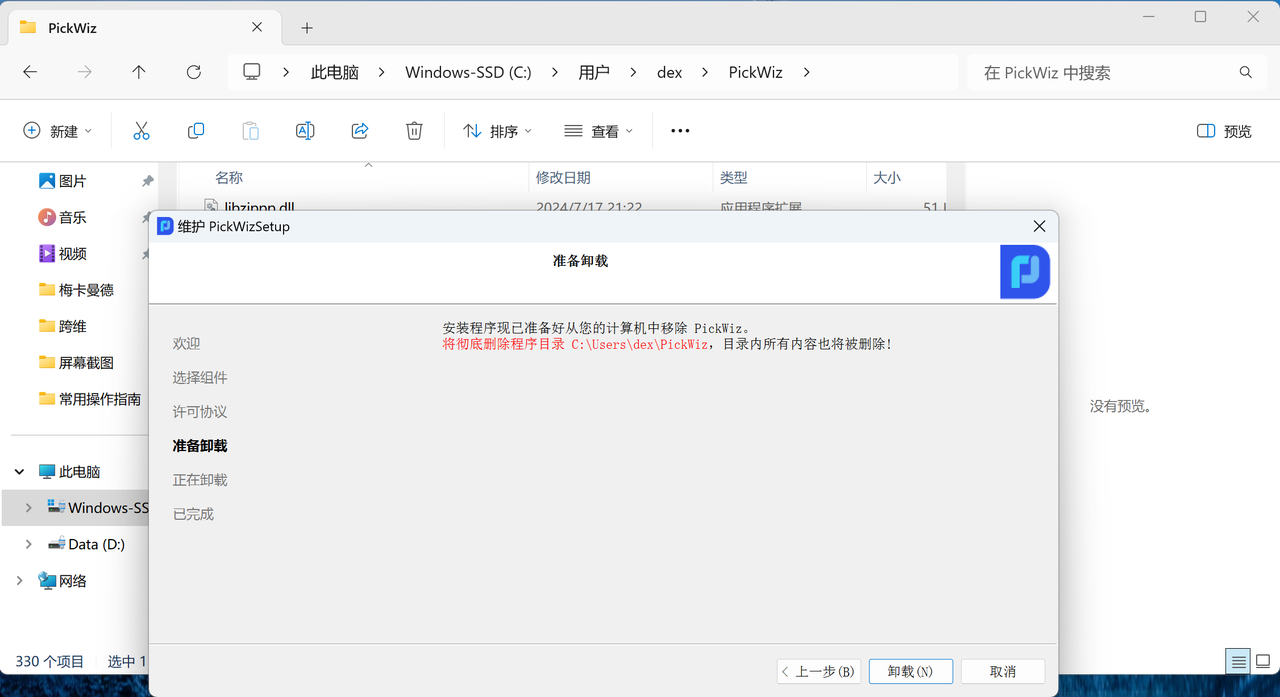
Double-click the MaintenanceTool application to enter the "Maintenance PickWizSetup" window and click "Remove All Components"
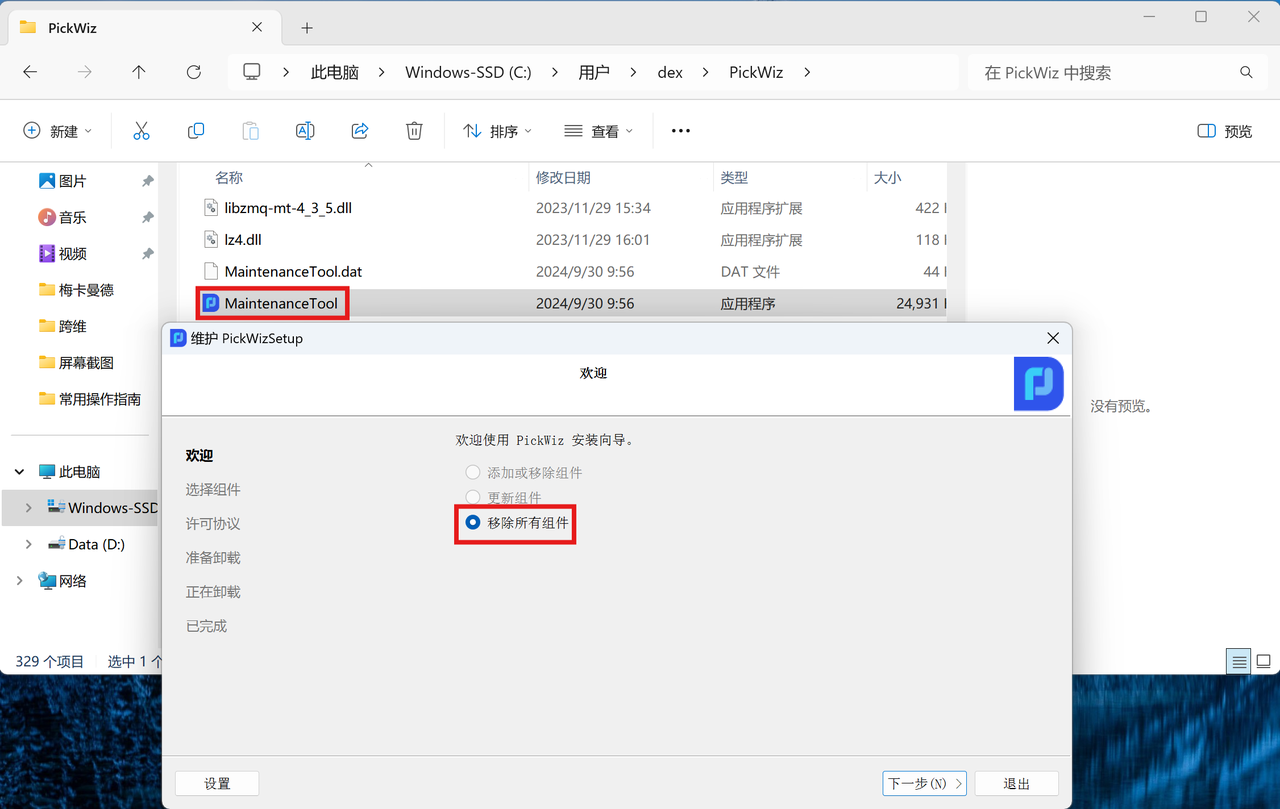
Click "Uninstall" to complete PickWiz uninstallation
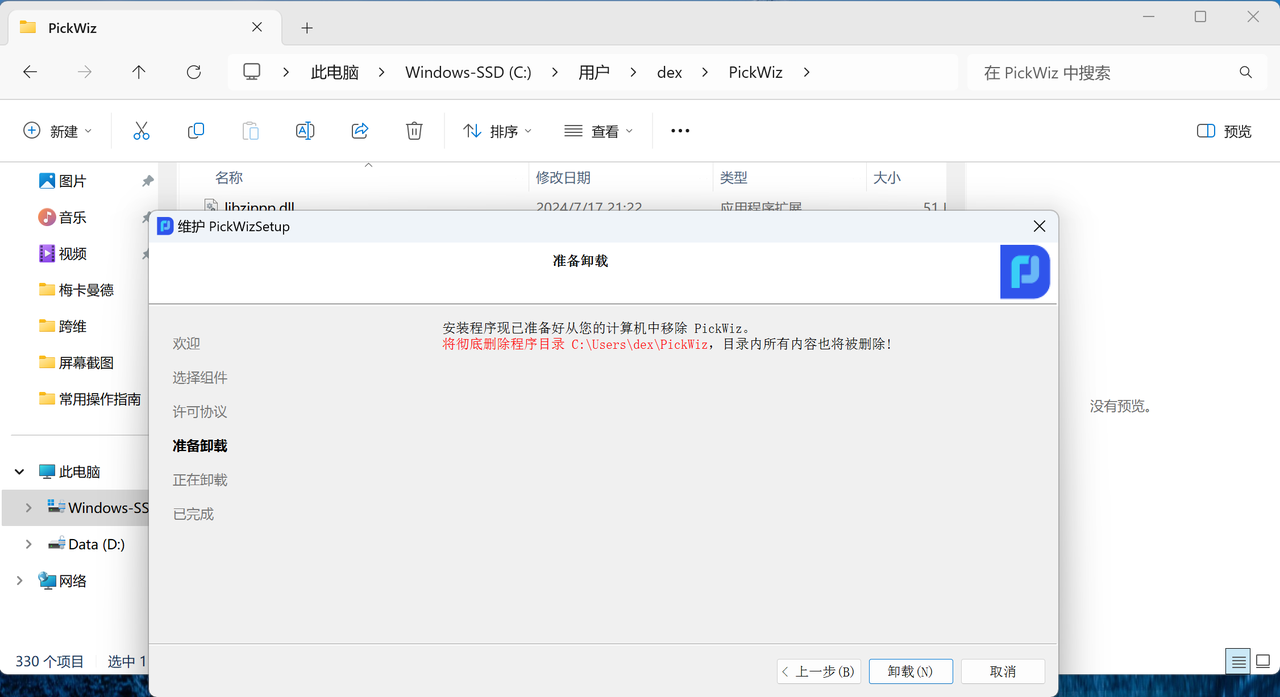
(2) Uninstall using the control panel
Open "Control Panel" in the Start menu and click "Uninstall a program"
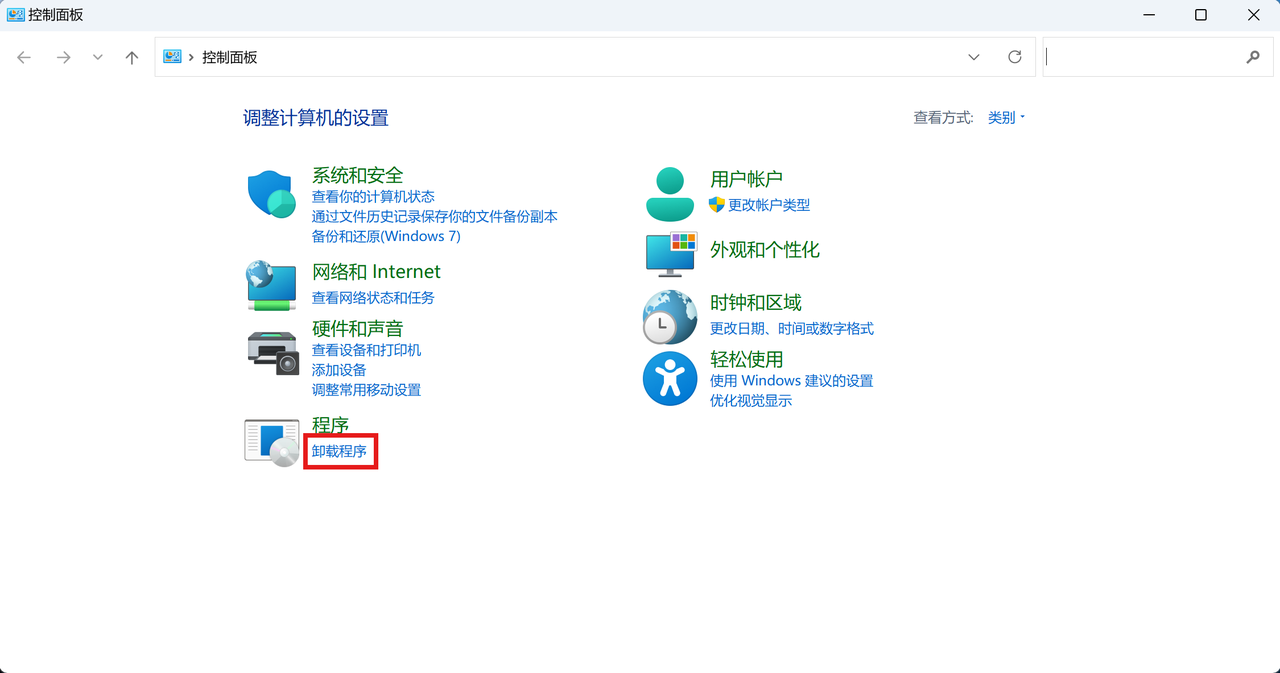
Find the PickWiz program, right-click and click "Uninstall"
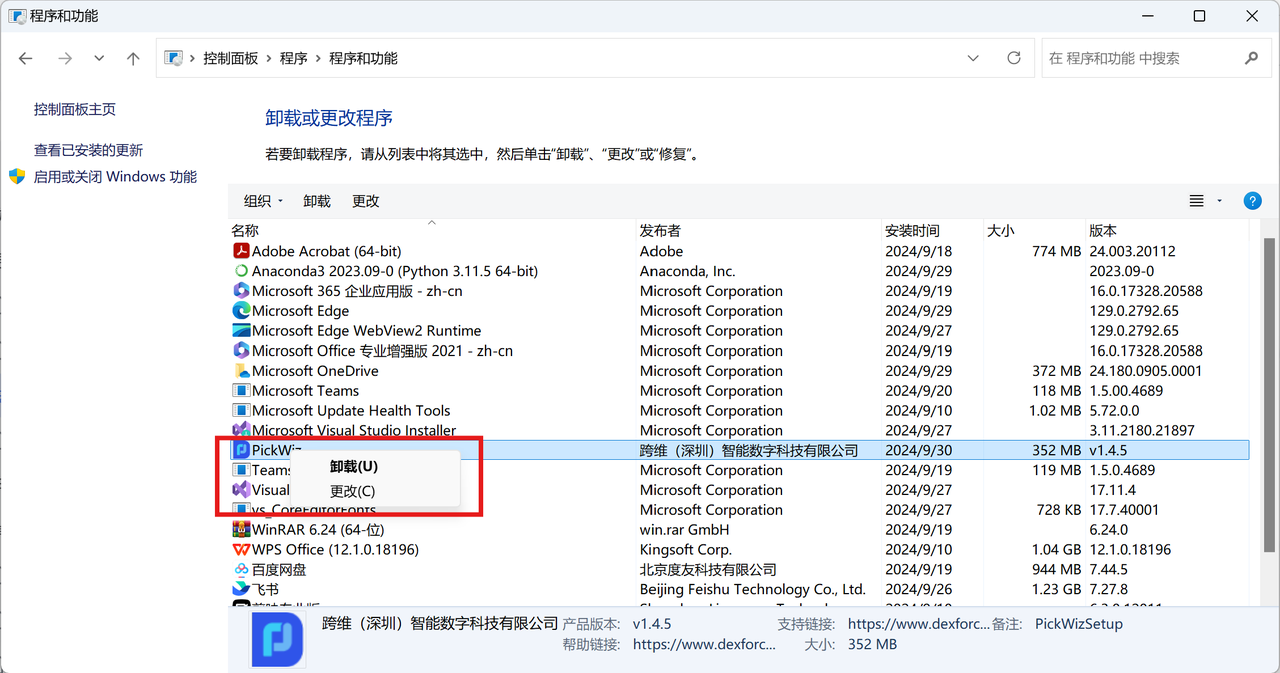
Enter the "Maintenance PickWizSetup" window and click "Remove All Components"
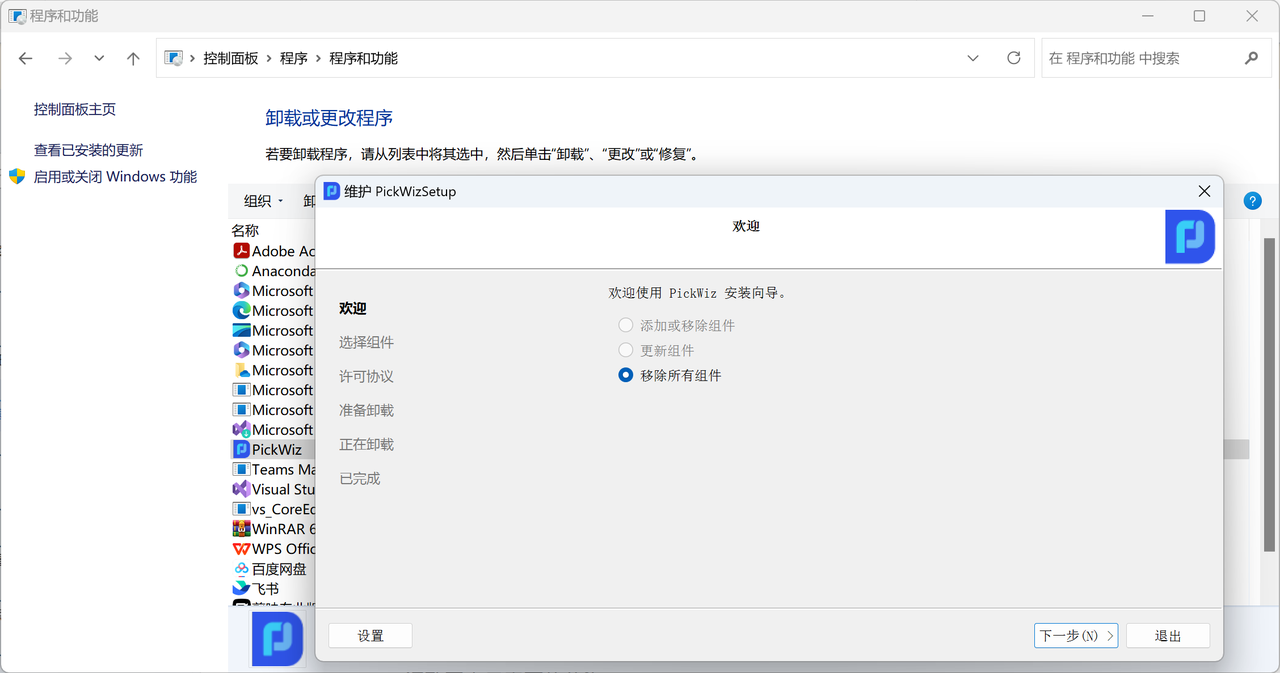
Click "Uninstall" to complete PickWiz uninstallation
5. Software License Agreement
Open the PickWiz installation directory and enter the folder named "Licenses" to view the PickWiz software license agreement.
6. Installation FAQs
| Question Category | Problem Description | Possible Cause | Solution |
|---|---|---|---|
| Operating system | Error when opening PickWiz: Open3D.dll not found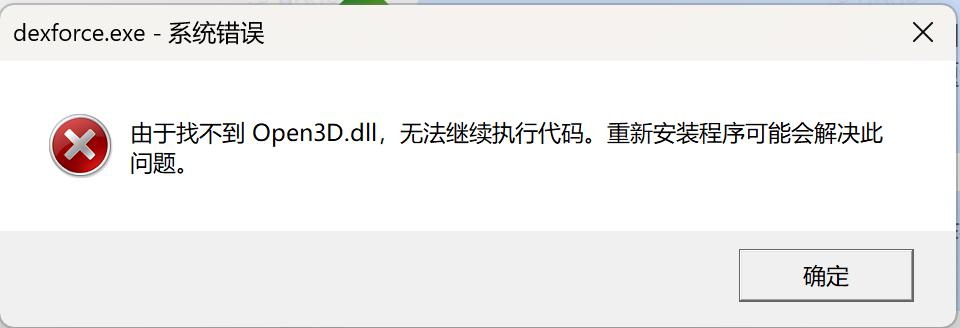 | The operating system of the device does not meet the machine configuration requirements | Upgrade the device operating system to Windows 11 Professional Edition |
| GPU | Error when opening PickWiz: RLIA.dll and Open3D.dll not found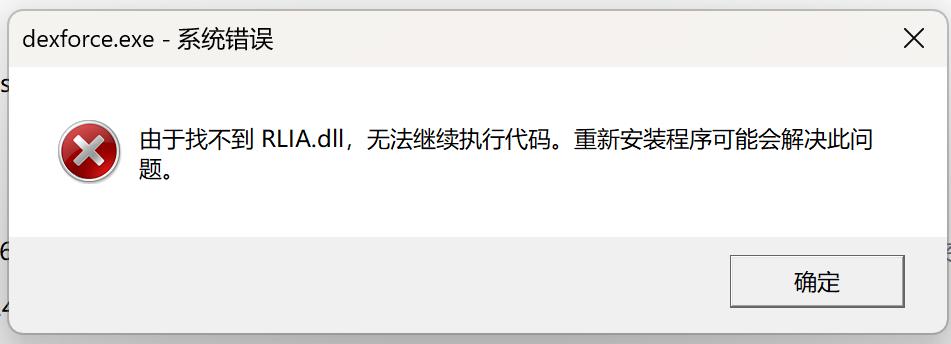 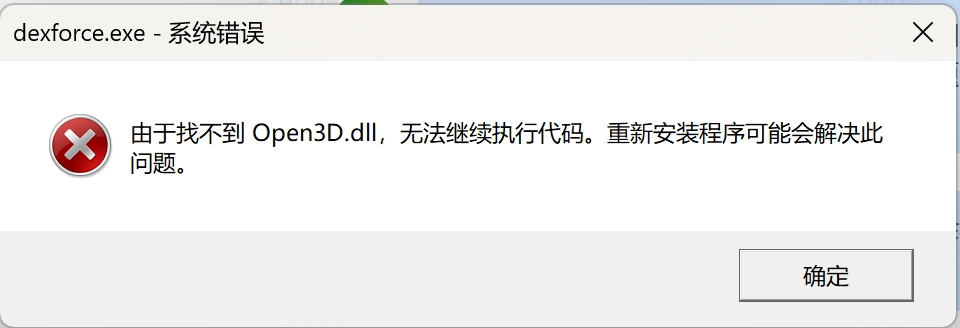 | The device graphics card does not meet the machine configuration requirements | The graphics card requirement is NVIDIA GTX 1660 or above, with driver version 525 or above |
Error during installation: "No available graphics card was detected and the installation cannot continue."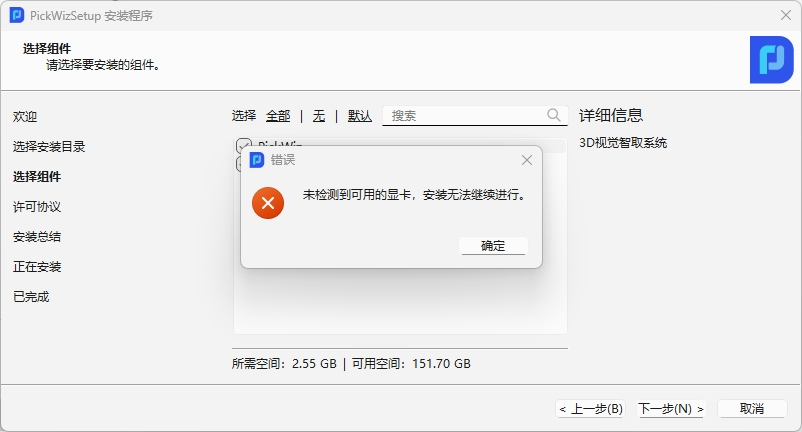 | Graphics card missing | 1. Restart the computer; 2. Update the driver: find Display adapters in Device Manager, right-click the NVIDIA graphics card, and click Update driver;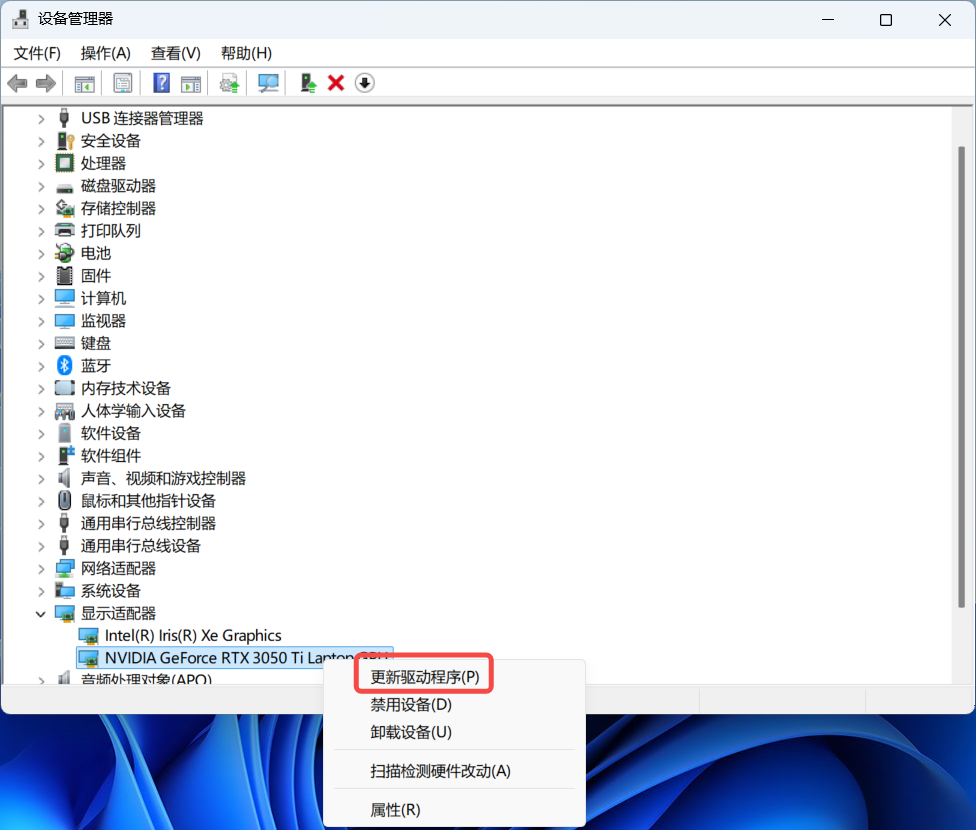 3. Open the case and check whether the graphics card is firmly inserted. If it is loose, insert it firmly. 3. Open the case and check whether the graphics card is firmly inserted. If it is loose, insert it firmly. | |
Error when running PickWiz: "The system has not detected an available graphics card. Please try restarting the computer/updating the driver and checking whether the graphics card is firmly inserted."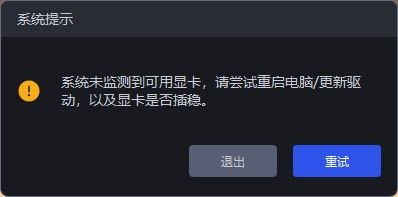 | Graphics card missing | 1. Restart the computer; 2. Update the driver: find Display adapters in Device Manager, right-click the NVIDIA graphics card, and click Update driver;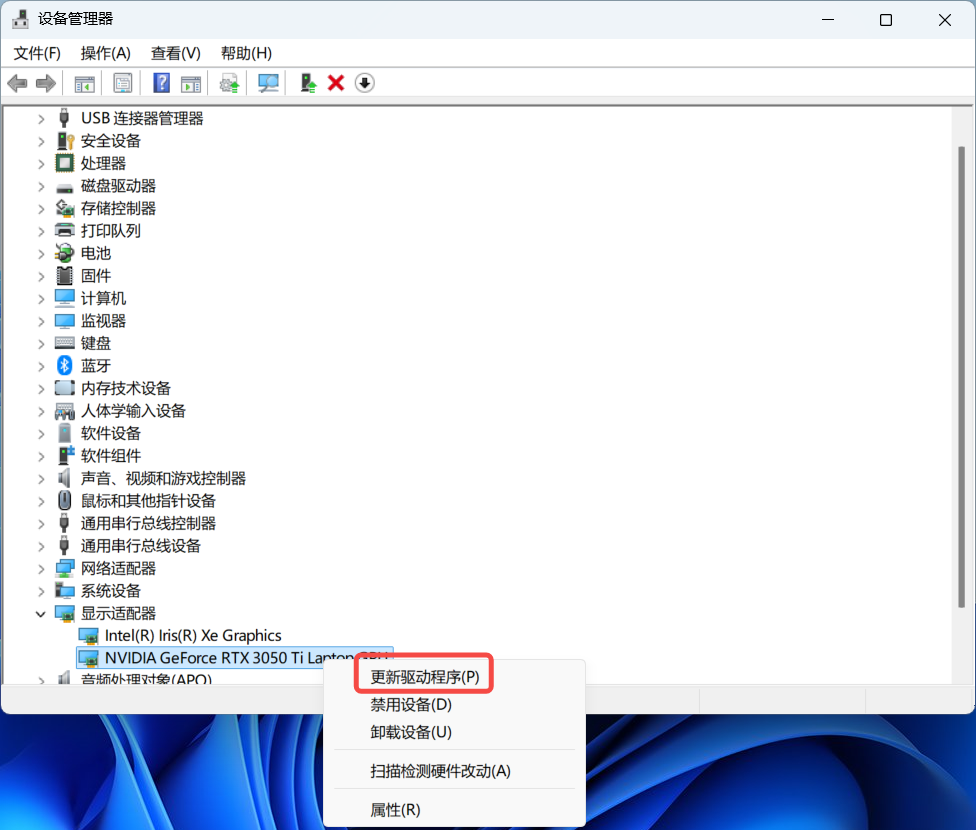 3. Open the case and check whether the graphics card is firmly inserted. If it is loose, insert it firmly. 3. Open the case and check whether the graphics card is firmly inserted. If it is loose, insert it firmly. | |
| Hard disk | Error during installation: no space left | Insufficient remaining space on drive C | Reinstall the system and install again after the remaining space on drive C reaches more than 128 GB. Note: do not install on drive D or another hard disk. |
| Restart | Error when opening PickWiz: RLIA.dll, Open3D.dll, vtklmagingCore-9.2.dll, and pcl_kdtree.dll not found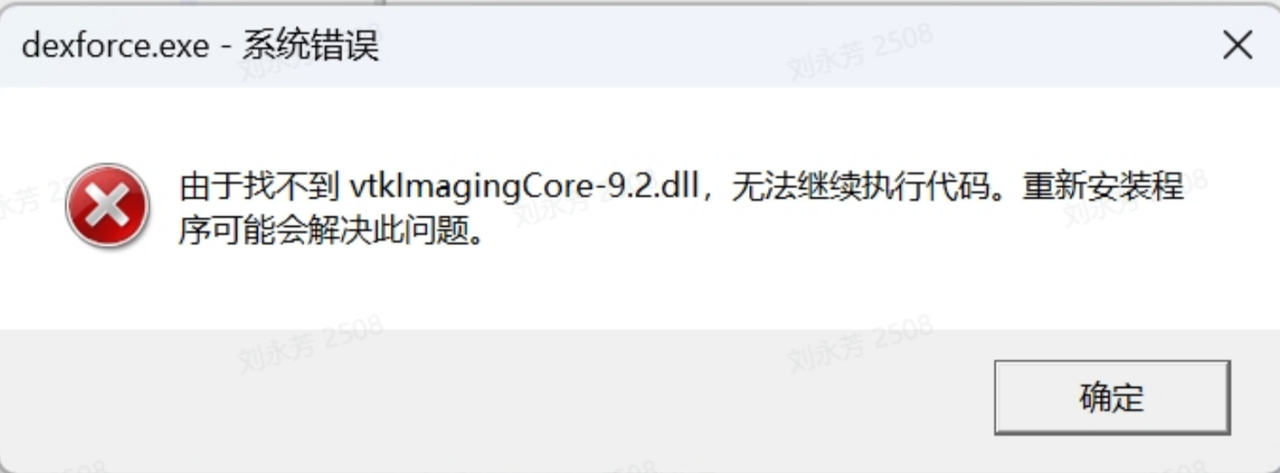 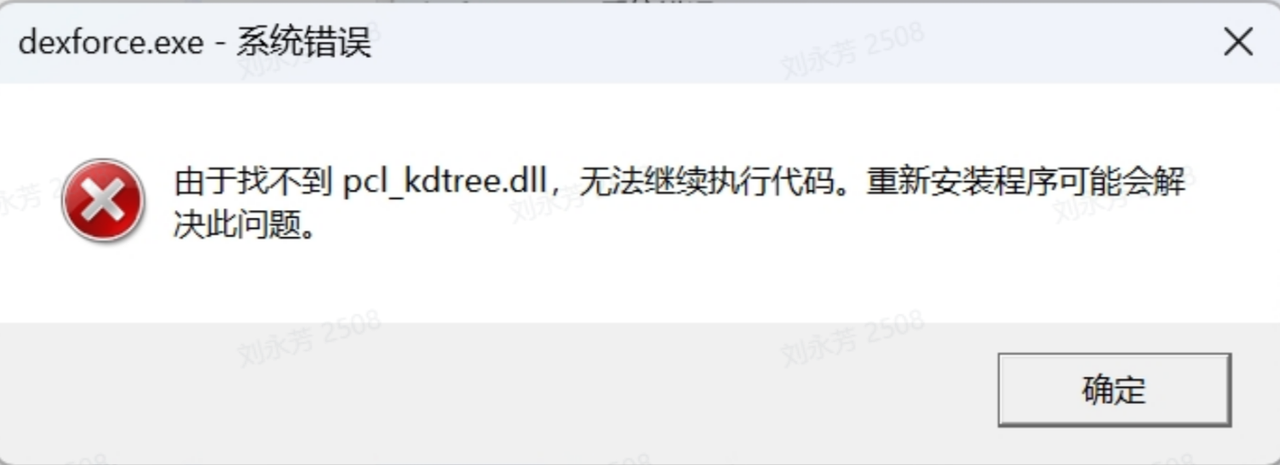 | When PickWiz is installed for the first time, the device must be restarted for the environment variables to take effect | Restart the device. Note: after restarting, PickWiz may load slowly the first time it is opened. Please wait patiently. |
| Middleware installation error (middleware is a git directory, please remove the git directory) | 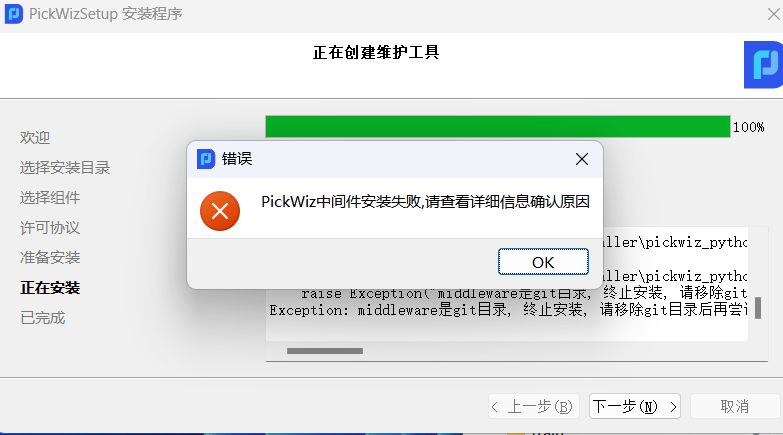 | The middleware and PickLight folders must be completely deleted | Use Anaconda Prompt to run conda activate pickwiz_py392, then run pip show middleware to find the site-packages directory. Delete the middleware and PickLight folders and their info folders in site-packages, or continue running pip uninstall middleware and pip uninstall PickLight in Anaconda Prompt.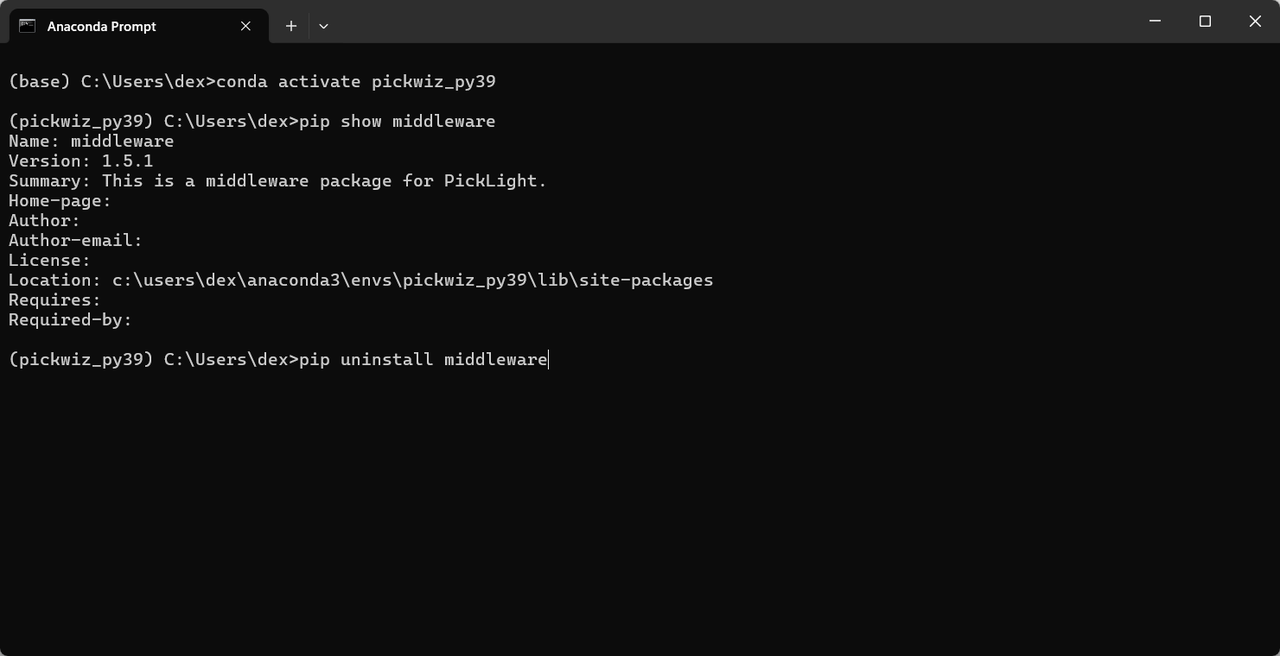 |
| Compressed file missing from the full installation package | The full installation package upgrades PickWiz 1.5 to PickWiz 1.7.3 and reports installation failure.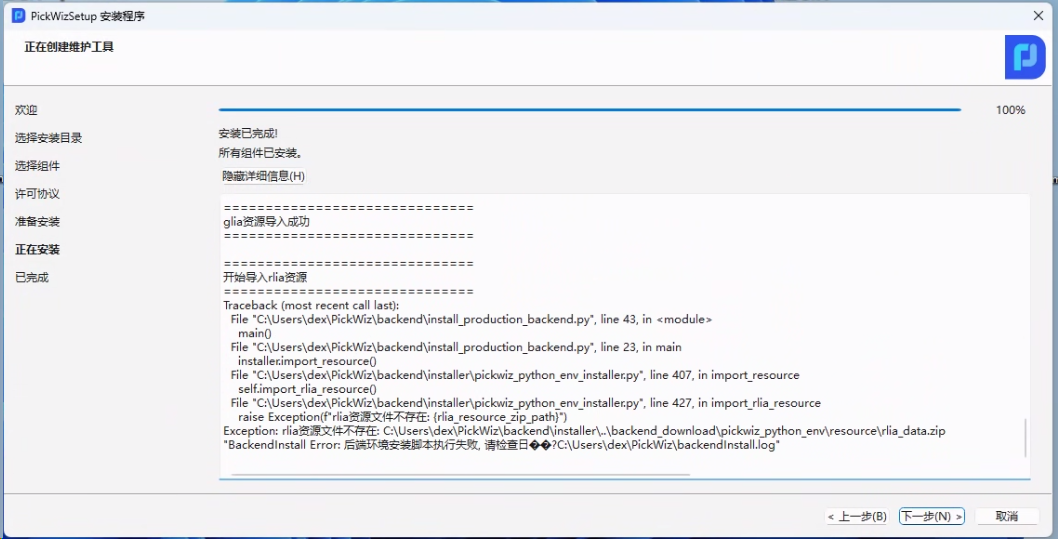 | The downloaded full installation package is missing two compressed files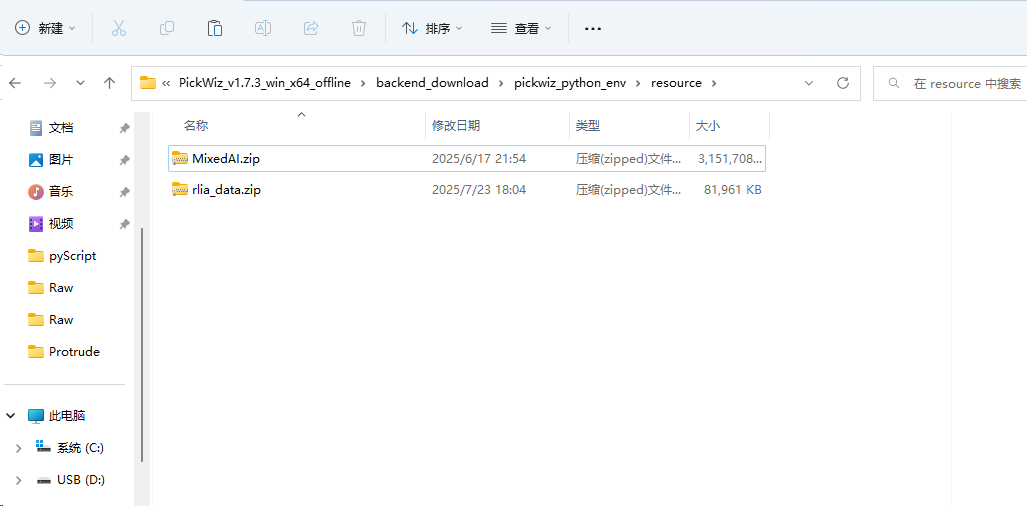 A normal full installation package has 4 compressed files in this directory A normal full installation package has 4 compressed files in this directory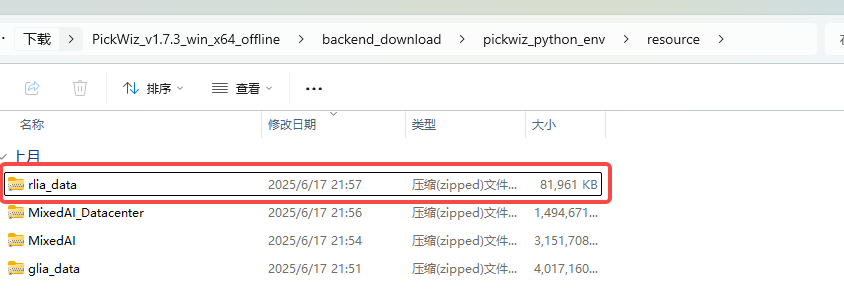 | Download the full installation package again |
| System security interception | Error after installation startup: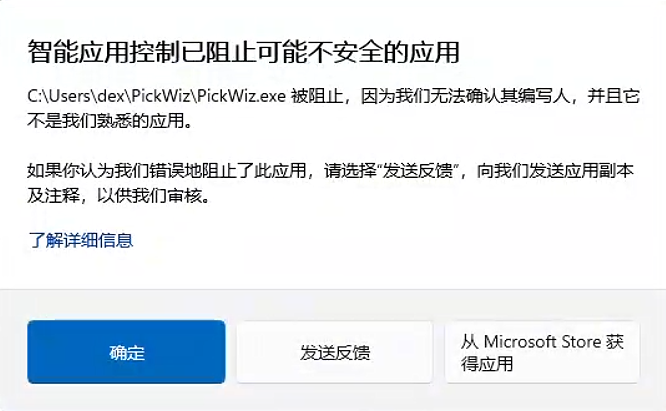 Or a pop-up error is reported, error code: 0xc0e9002 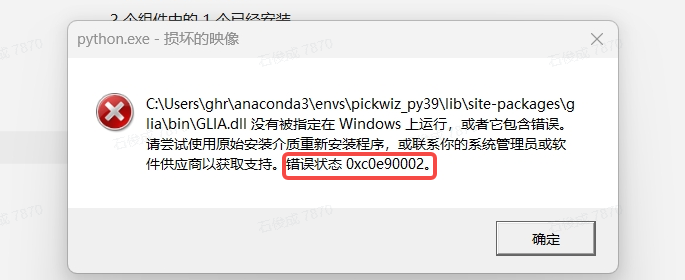 | Windows Smart App Control blocks software startup | 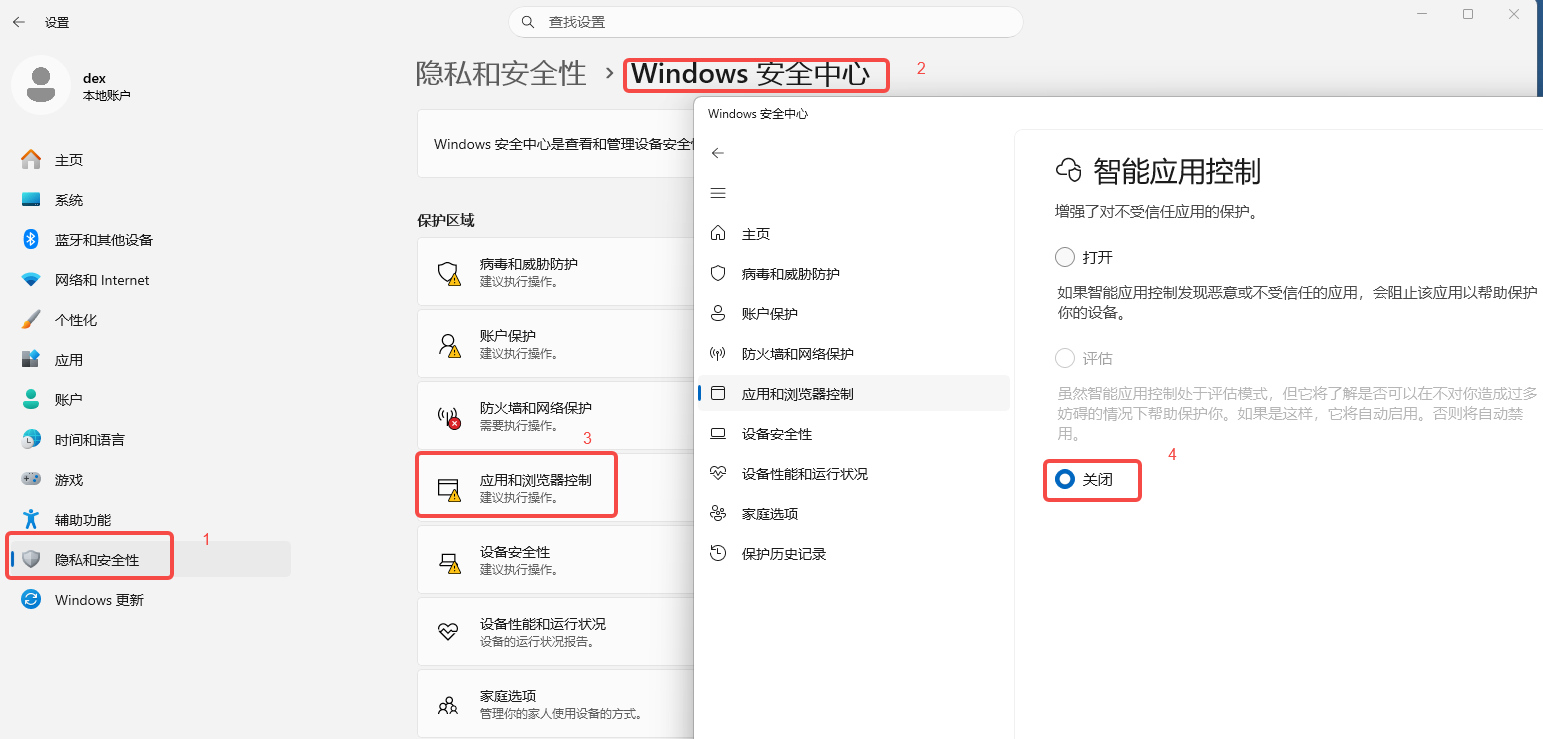 Use the method above to turn off Smart App Control Use the method above to turn off Smart App Control |
| PC Environment | 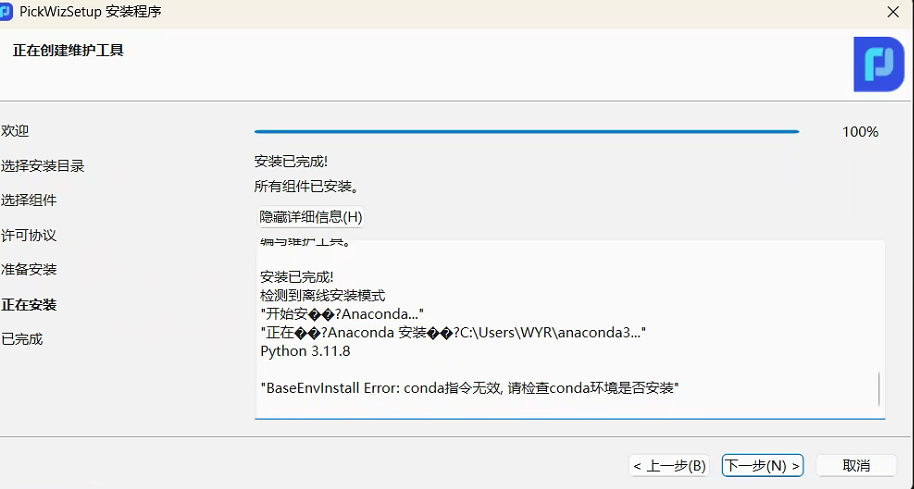 | The environment under the installation directory is contaminated with residual virtual environments, causing incorrect path indexing of configuration files; Conda is not properly installed. | Clean up residual virtual environments in the default installation folder. This is a special case. It is recommended to ensure a clean installation path before installation. The anaconda3 folder shall be installed under C:/User/ by default. Before installation, make sure there are no other Conda environments or leftover Conda environment file fragments in the same directory level. |
| Software crashes on launch during loading | The license service installed with KingView software starts automatically at boot, which causes port conflicts with the front-end and back-end communication service of PickWiz. | 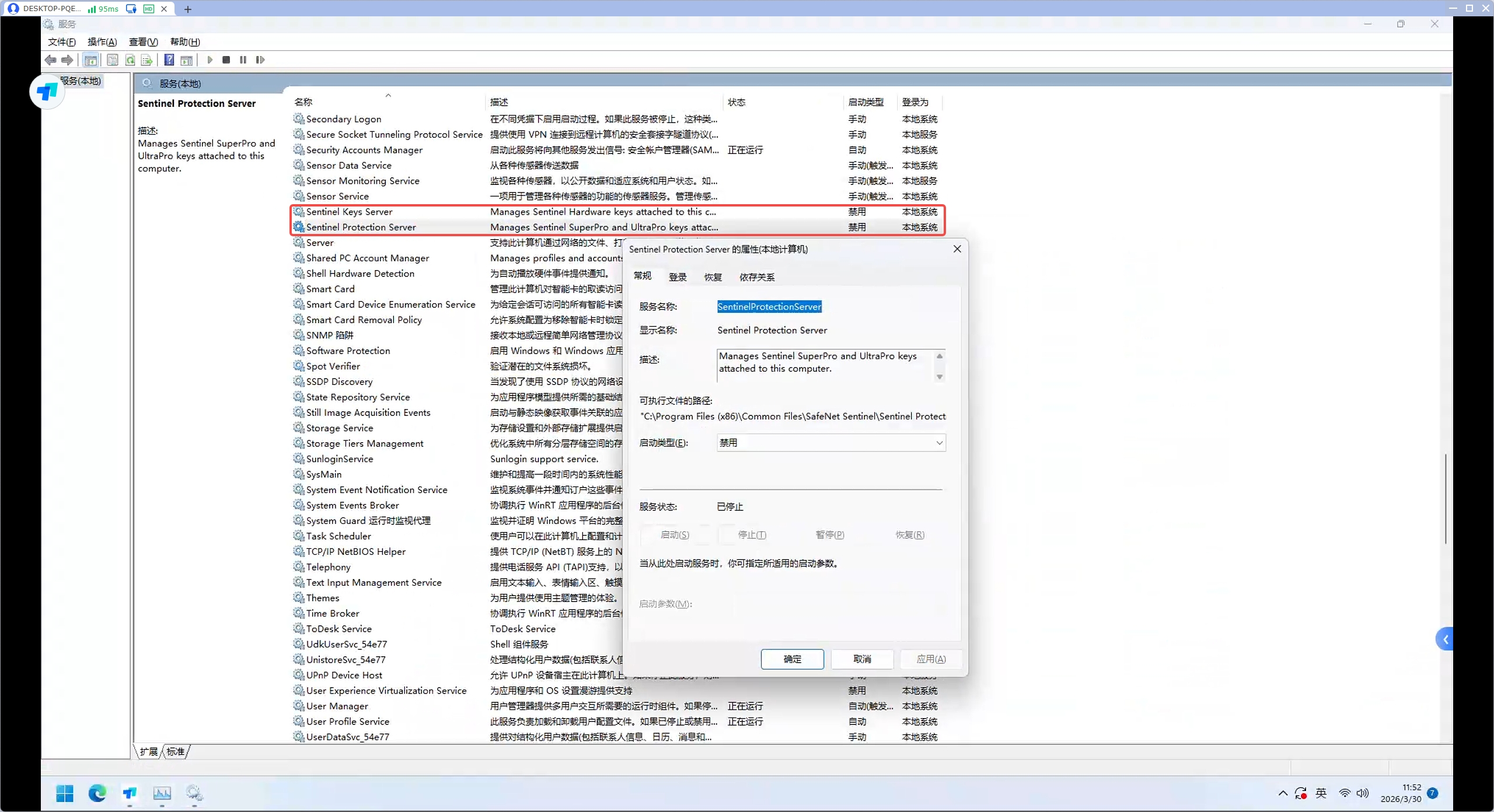 Stop the license service of KingView software to launch PickWiz normally. Stop the license service of KingView software to launch PickWiz normally. |
If you have any other questions, please contact Dexforce technical support for help.