One-Click Imaging Model Training
An imaging model is a Deep Learning model. It takes the left and right 2D images captured by the two cameras of the binocular KINGFISHER camera, together with the camera Intrinsic Parameter, as input. The imaging model analyzes the disparity between the two 2D images and uses triangulation principles and Deep Learning techniques to predict the depth information of each pixel in the scene, ultimately outputting the scene depth map and Point Cloud data.
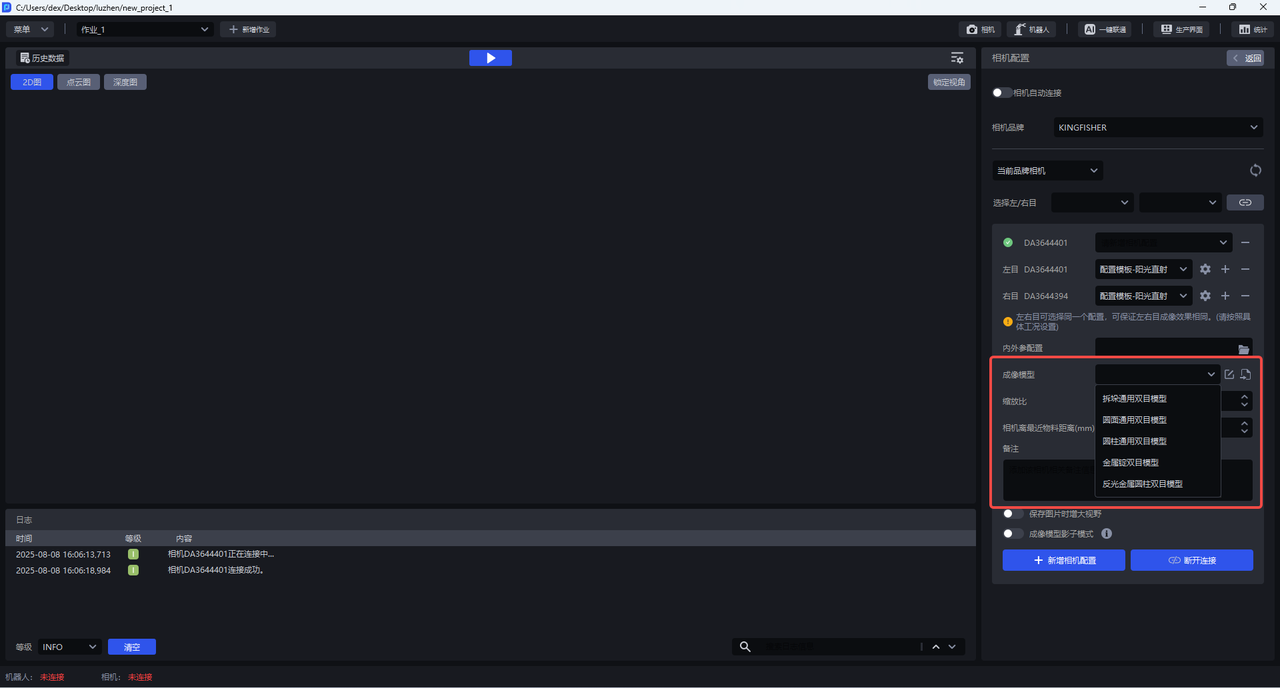
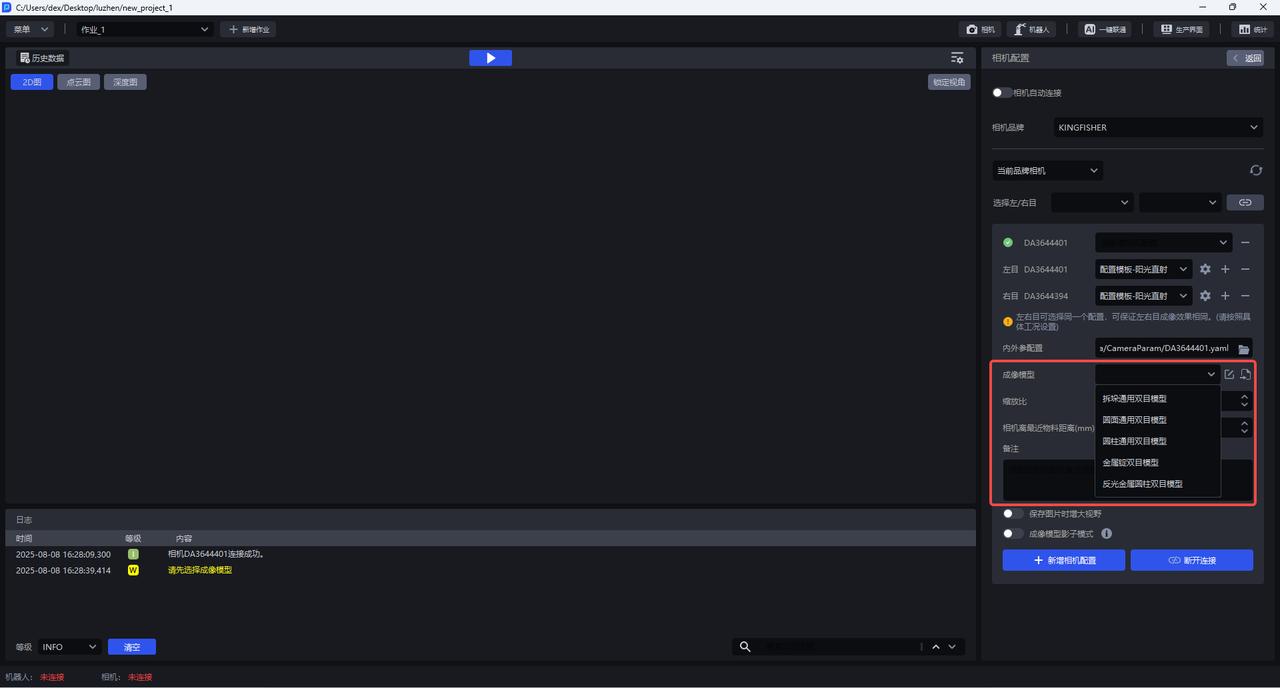
The binocular KINGFISHER camera has 5 built-in generic imaging models: the generic binocular depalletizing model, generic binocular circular-surface model, generic binocular cylindrical model, metal ingot binocular model, and reflective metal cylindrical binocular model. If these 5 generic models cannot meet the scene requirements, a dedicated imaging model should be trained specifically for the scene and imported.
If the generic model or a dedicated trained imaging model of the binocular camera exhibits issues such as Point Cloud collapse on site, One-Click Integration can be used for further training and optimization of the imaging model.
1. Select the task scene
The binocular KINGFISHER camera currently supports using One-Click Integration to train imaging models in ordered and unordered scenes, but does not yet support multiple workpiece categories (Feature Options-Recognition Type).
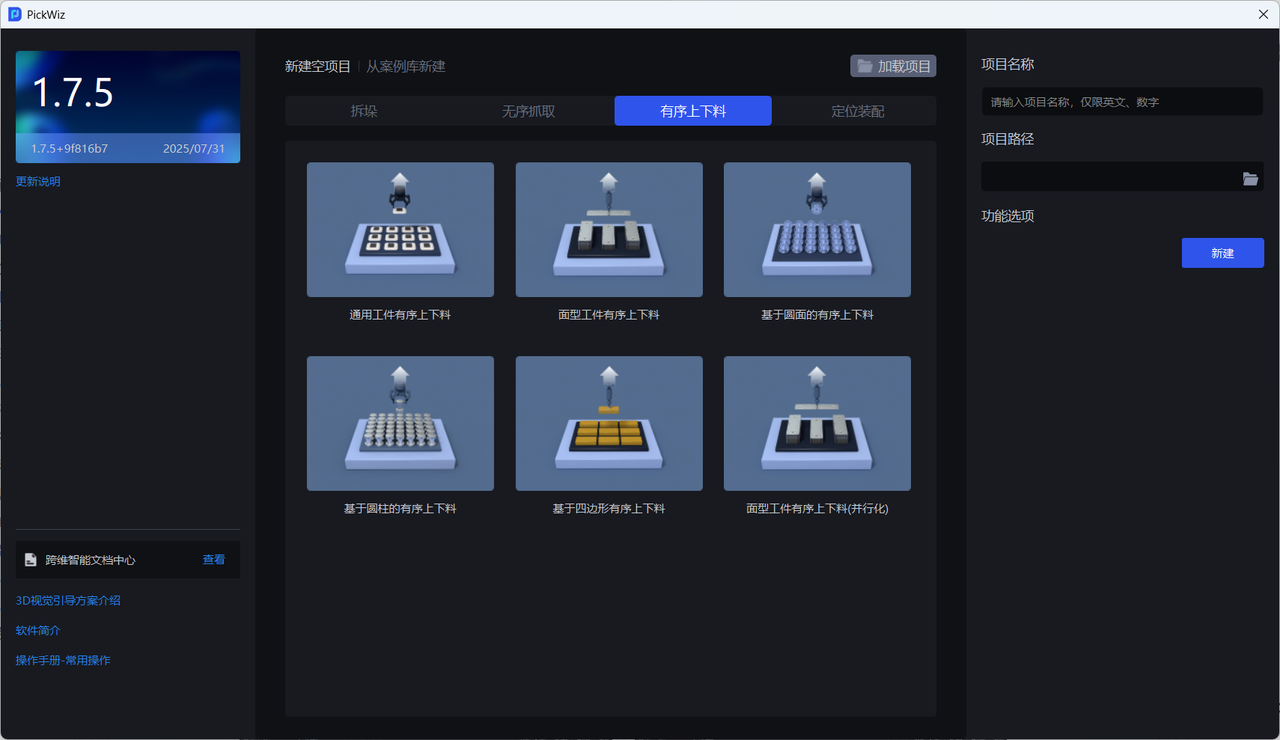
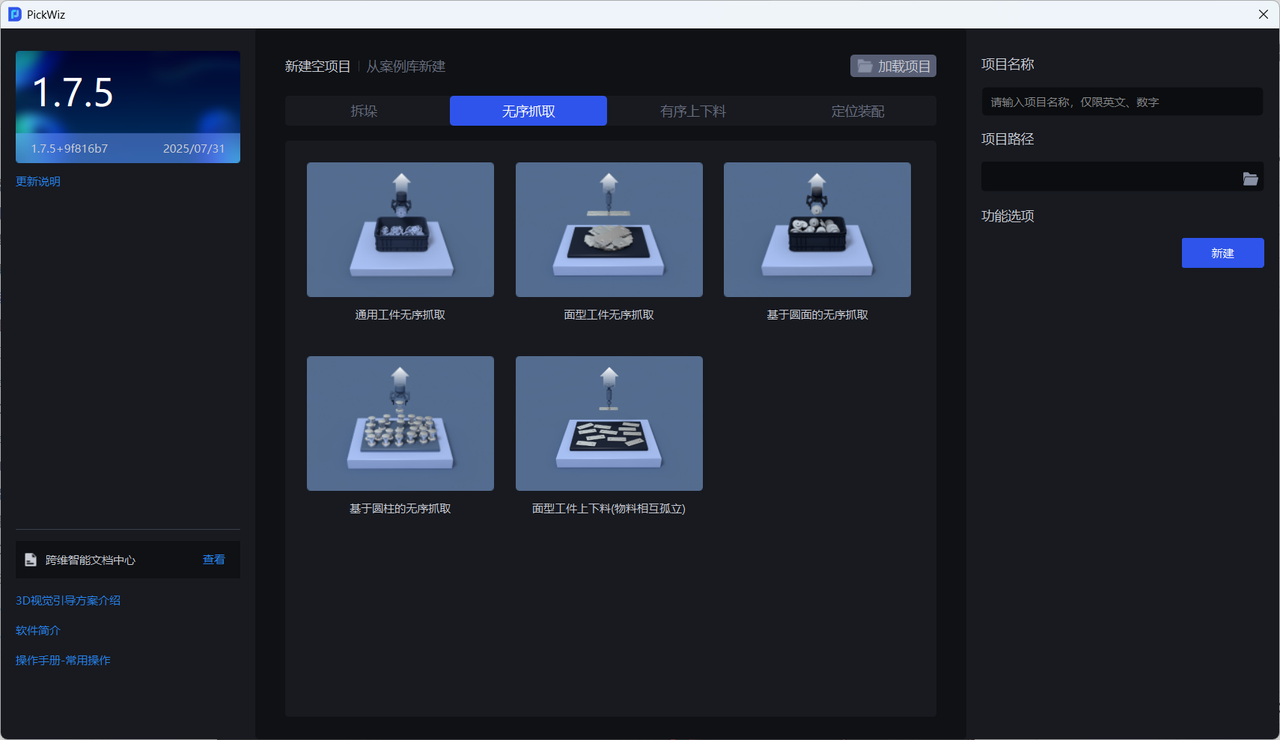
2. Connect and configure the binocular camera
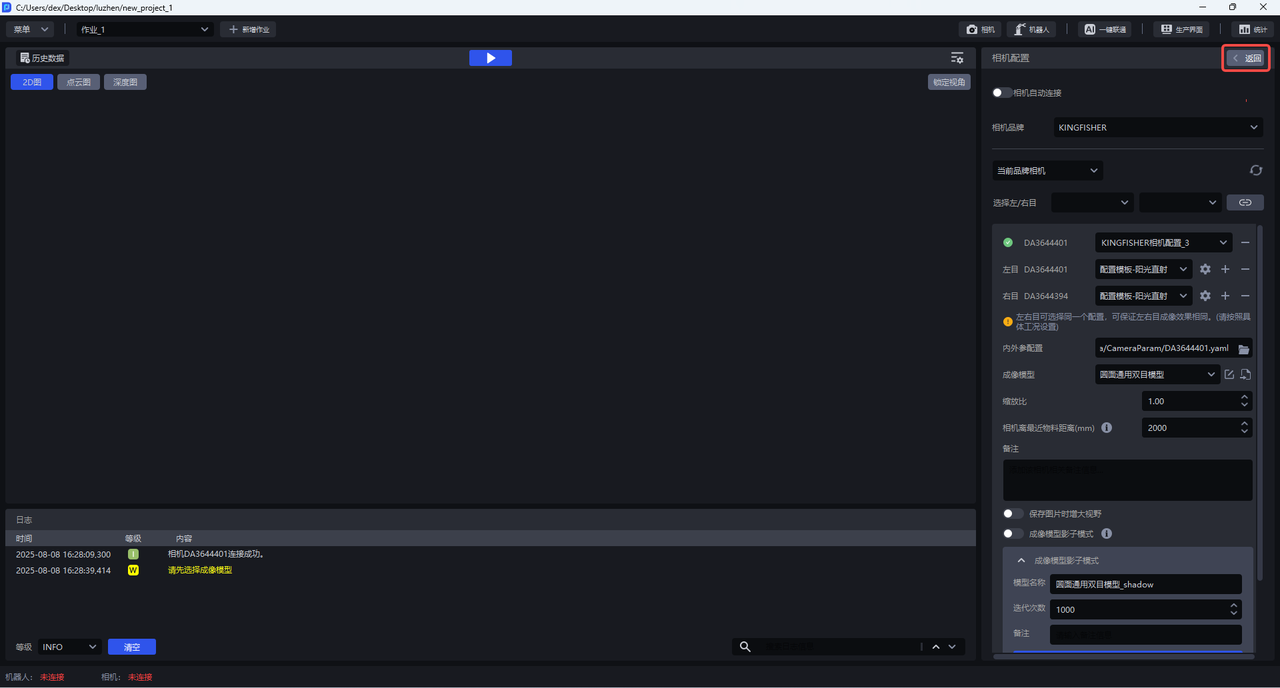
After installing the binocular KINGFISHER camera, connect the binocular camera in PickWiz, set the Scaling Ratio, select the imaging model, and set the minimum distance (adjust according to actual conditions).
(1)Connect the binocular camera
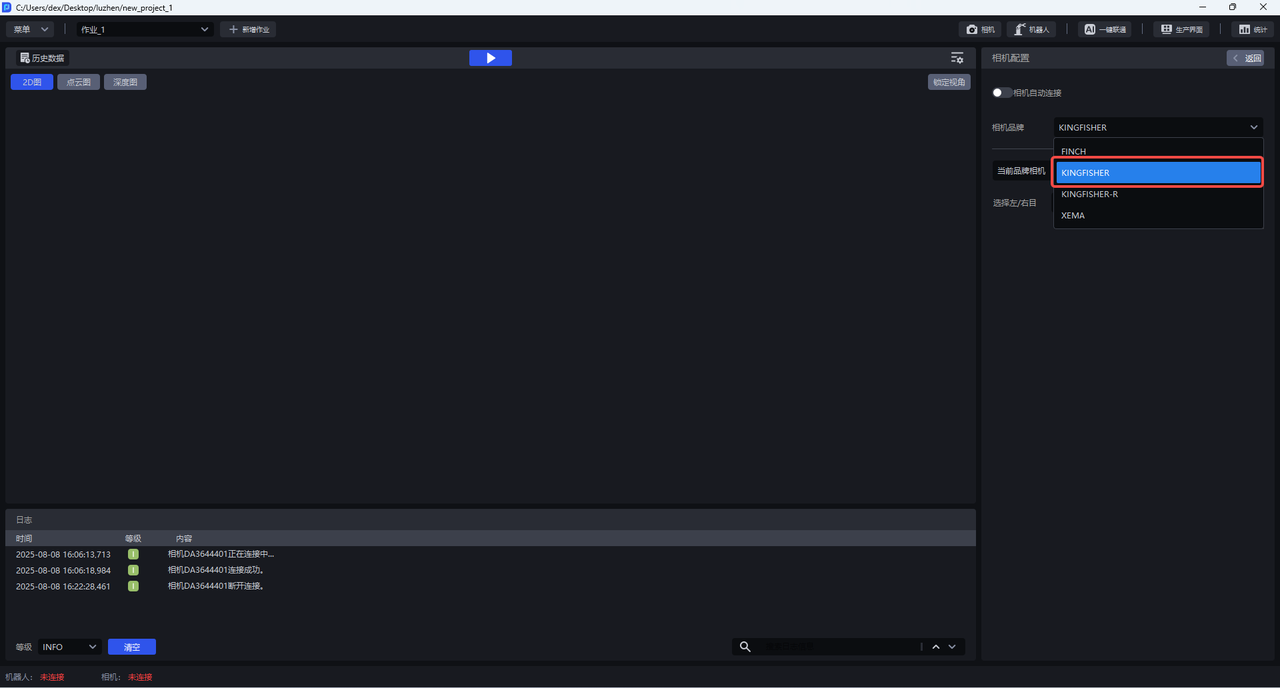
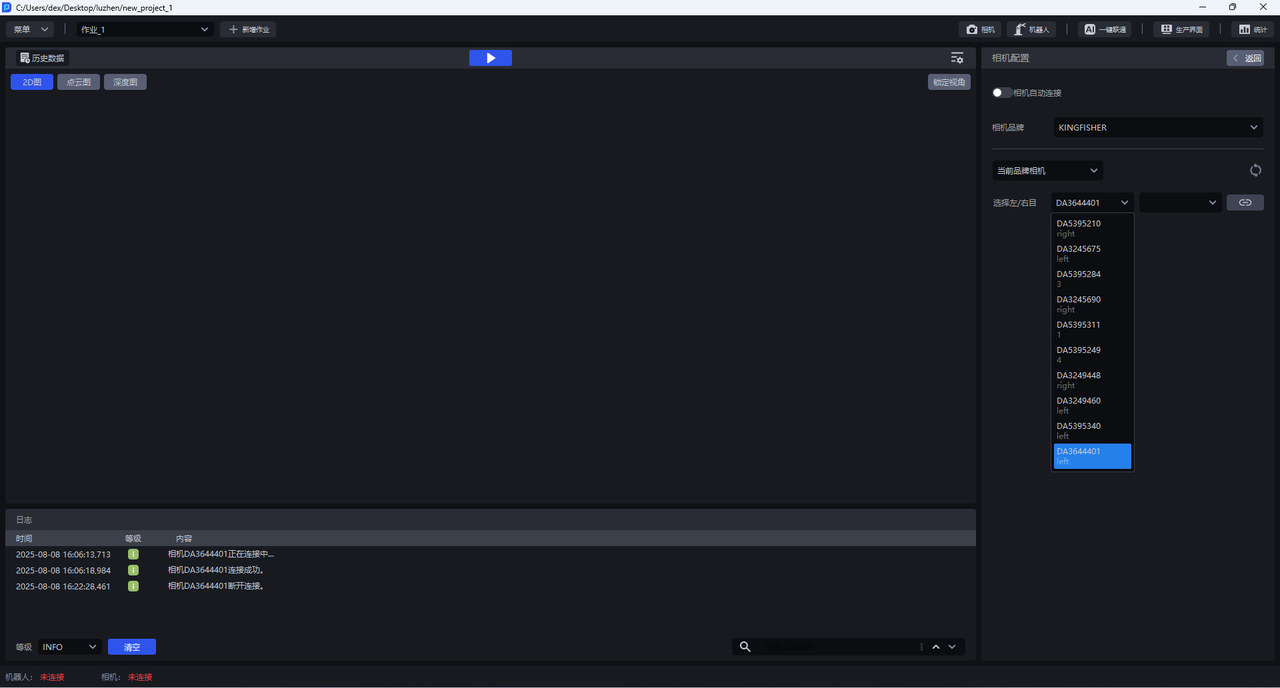
(2)Download the Intrinsic Parameter and Extrinsic Parameter configuration files of the binocular camera from KINGFISHER - Camera Calibration Files and import them. These Intrinsic Parameter and Extrinsic Parameter configuration files will be read during imaging model training
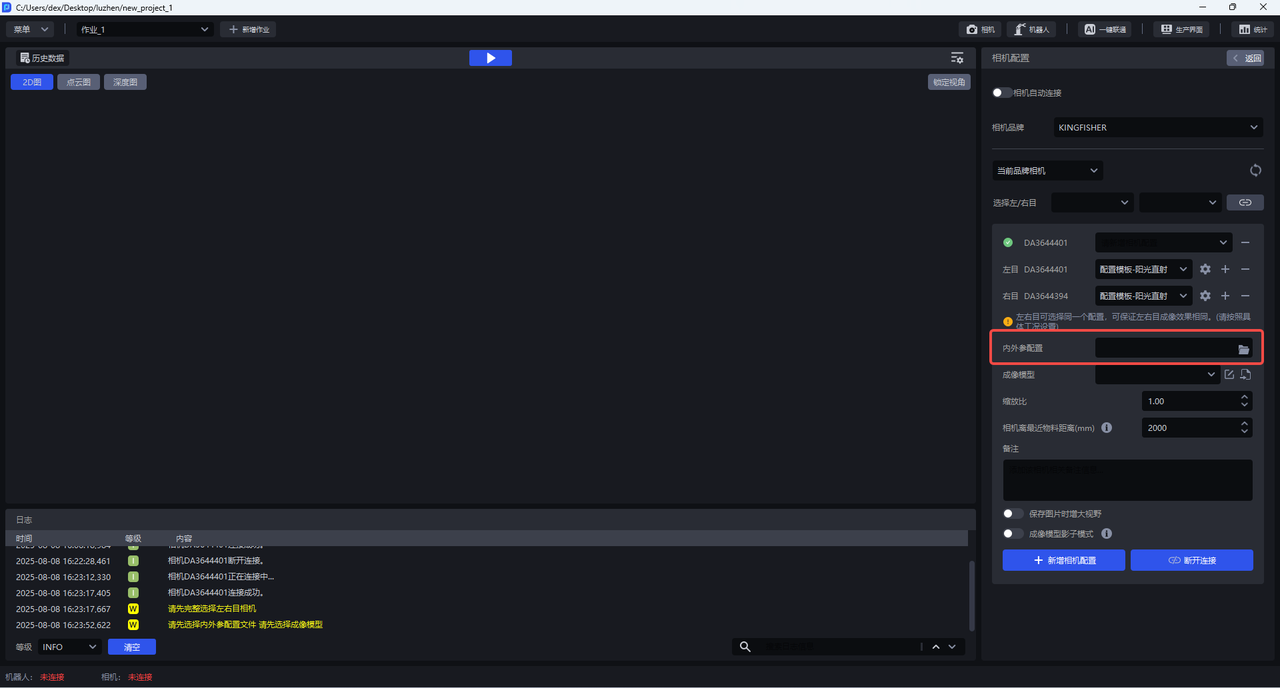
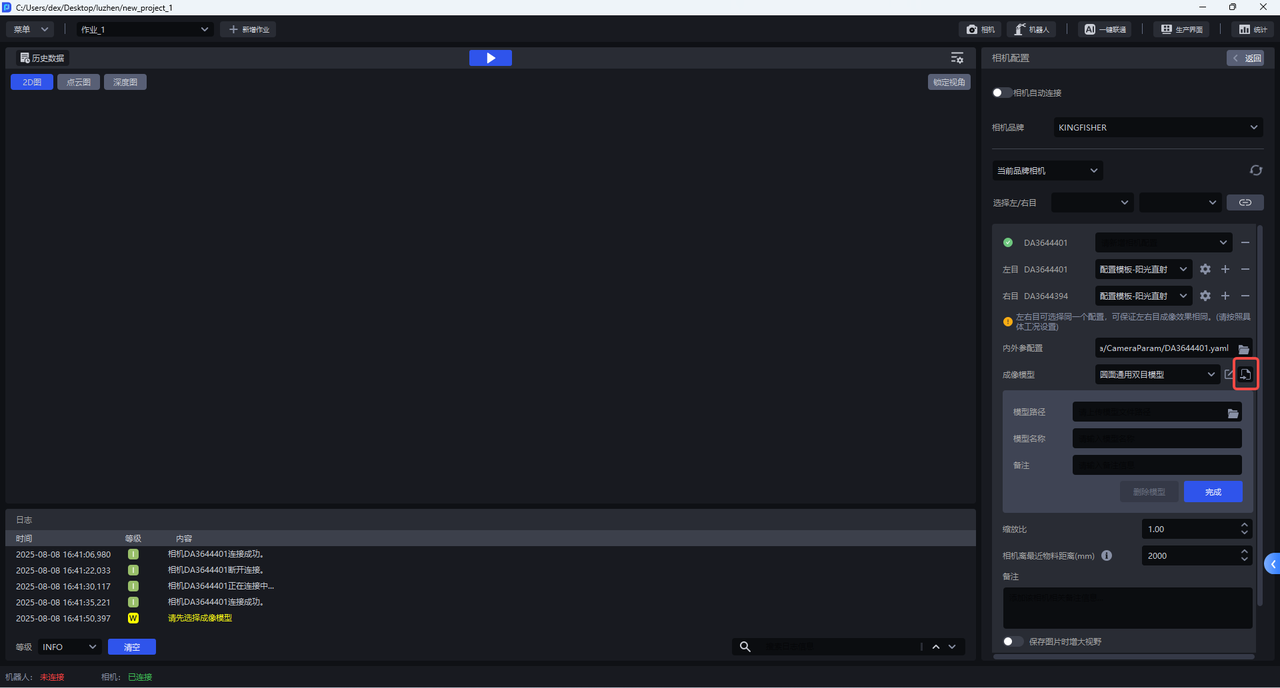
(3)Select a generic model or import a dedicated imaging model trained specifically for the scene. This model is the imaging model to be further trained with One-Click Integration.
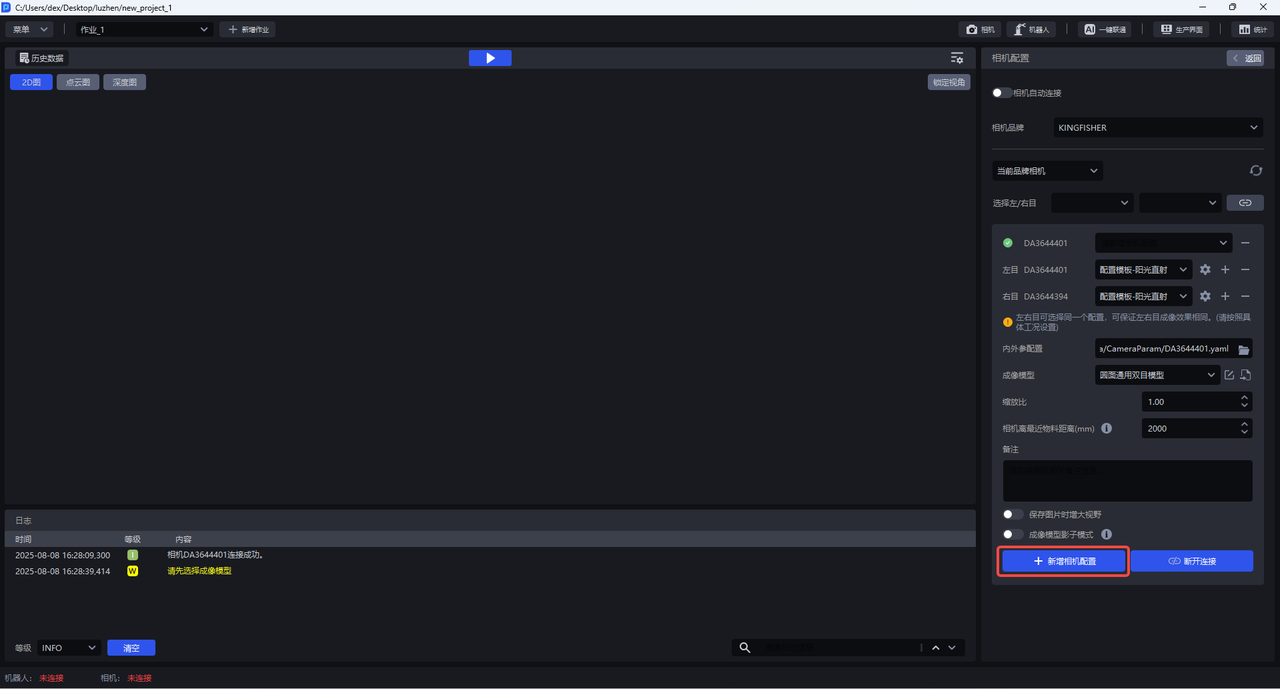
(4)Click +Add Camera Configuration
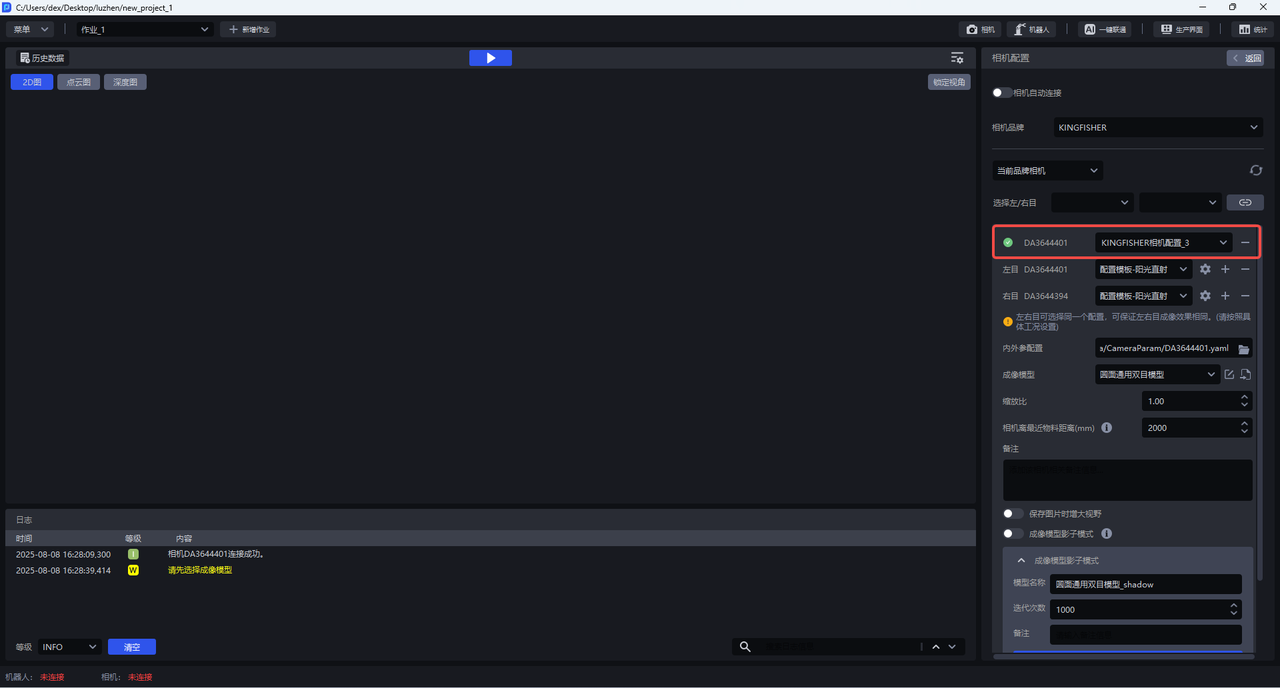
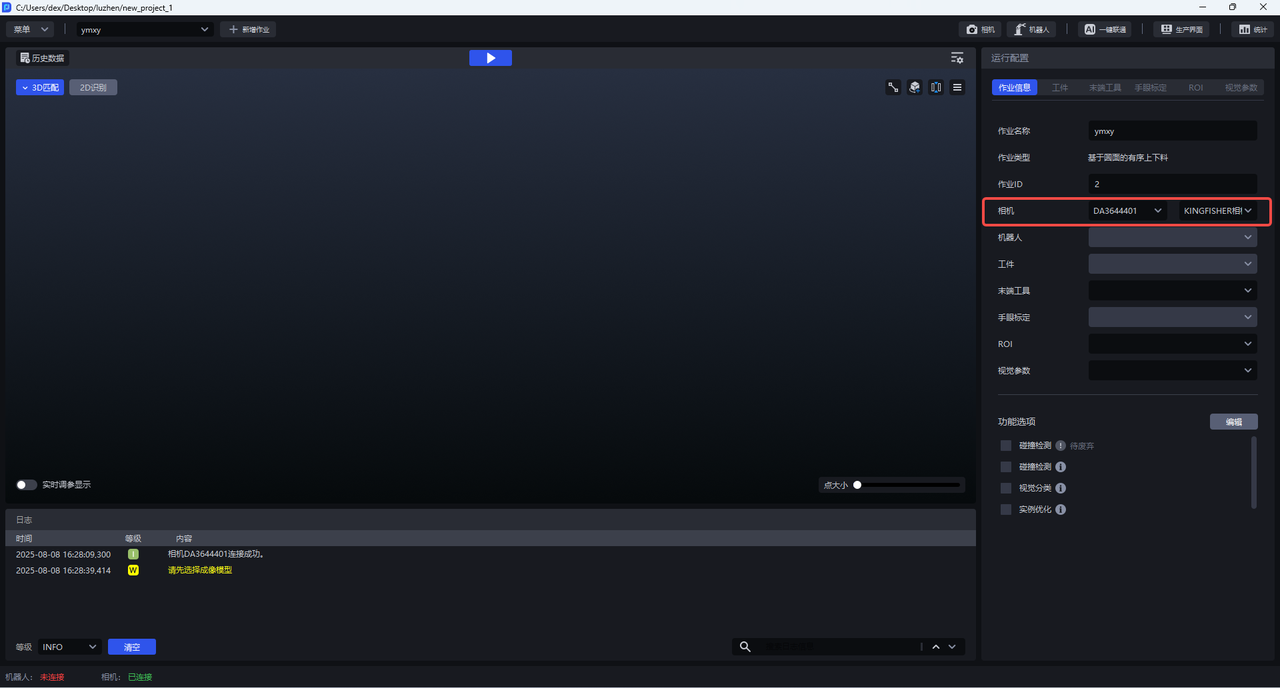
(5)Click Return and select the newly added camera configuration in the task information
3. Configure the workpiece
3.1 Mesh file
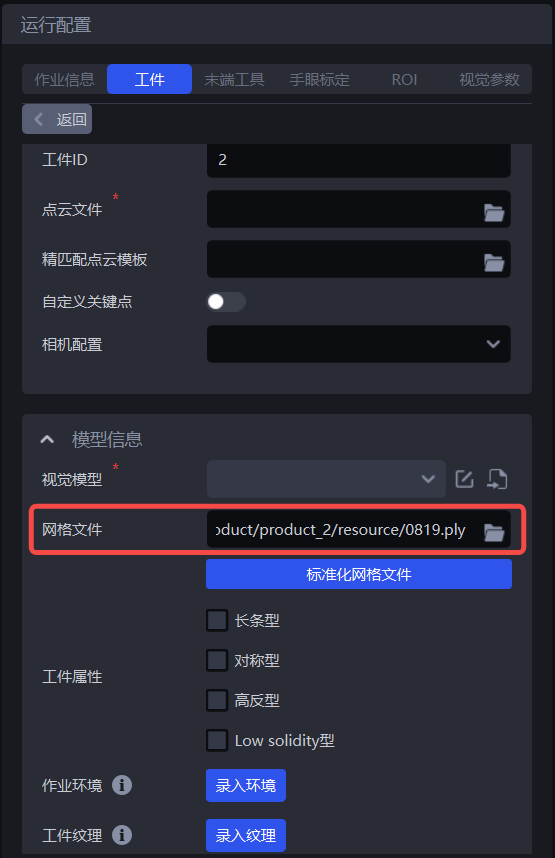
For generic workpieces, surface-type workpieces, circular-surface workpieces, cylindrical workpieces, and quadrilateral workpieces, One-Click Integration imaging model training relies on the mesh file to render a large number of synthetic images under different viewpoints and lighting conditions, thereby expanding the training data and improving the generalization capability of the imaging model.
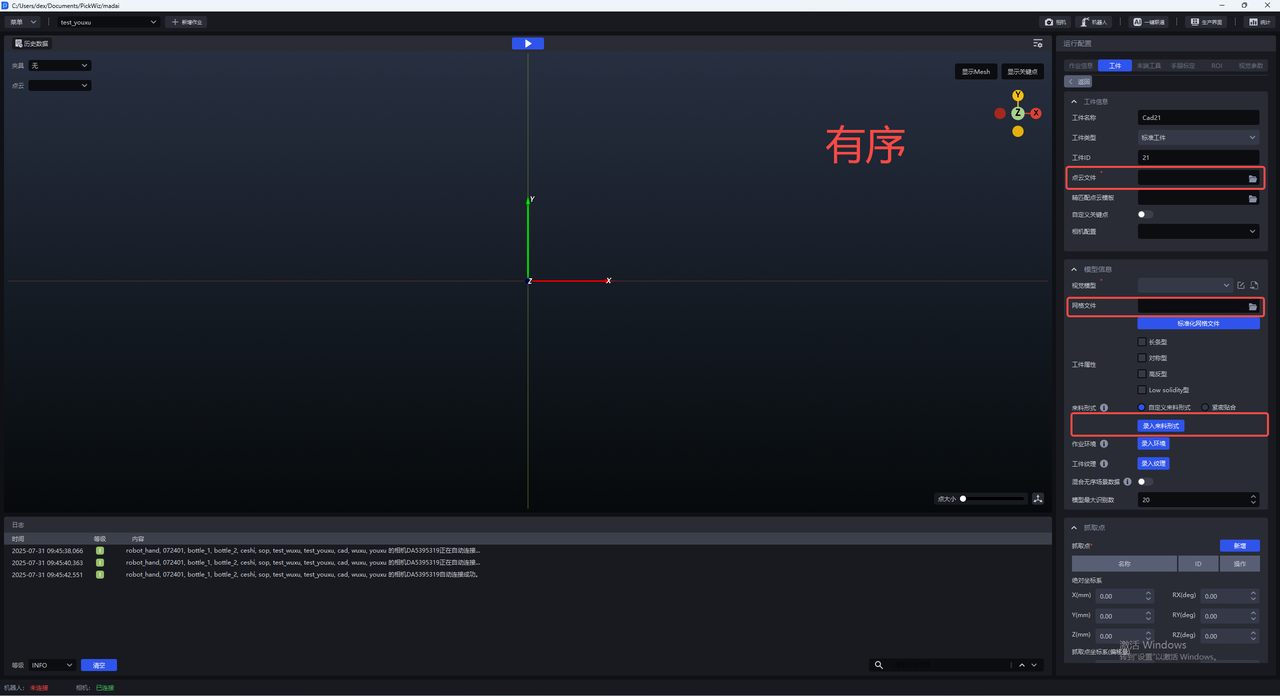
Upload the mesh file and click Standardize Mesh File. Currently, only mesh files in ply format are supported.
3.2 Infeed pattern
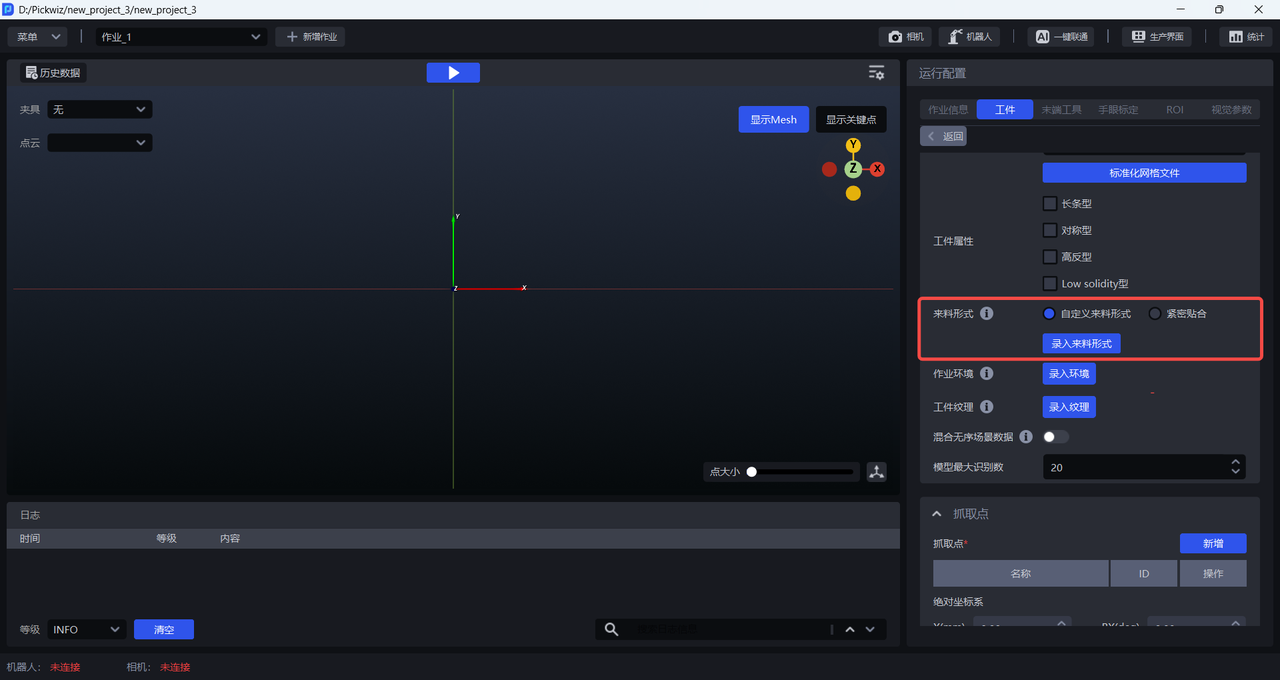
In ordered loading and unloading scenarios, the infeed pattern affects the angle and placement of the workpiece within the camera field of view, so Infeed Pattern must be entered. The Infeed Pattern should cover all situations that may occur on site, and the training data generated by One-Click Integration will include synthetic images for various infeed patterns.
The infeed pattern is divided into two types: “Tightly Arranged” and “Custom Infeed Pattern.” “Tightly Arranged” is suitable for scenarios where workpieces are fed in an ordered manner, with consistent poses and small spacing. “Custom Infeed Pattern” is suitable for all scenarios with ordered infeed.
3.2.1 Tightly Arranged
For scenarios where workpieces are fed in an ordered manner, with consistent poses and small spacing, click Tightly Arranged and set the number of workpieces in each row and column. However, the total number of workpieces must be less than 40. If the number of workpieces exceeds 40, the ratio of the configured row/column workpiece counts must share the same common divisor ratio as the actual row/column workpiece counts. For example, if the actual infeed pattern is 12 per row and 8 per column, then the ratio is 12:8, which simplifies to 3:2. Therefore, setting 3 per row and 2 per column or 6 per row and 4 per column is acceptable, but 9 per row and 6 per column is not (because it exceeds 40).
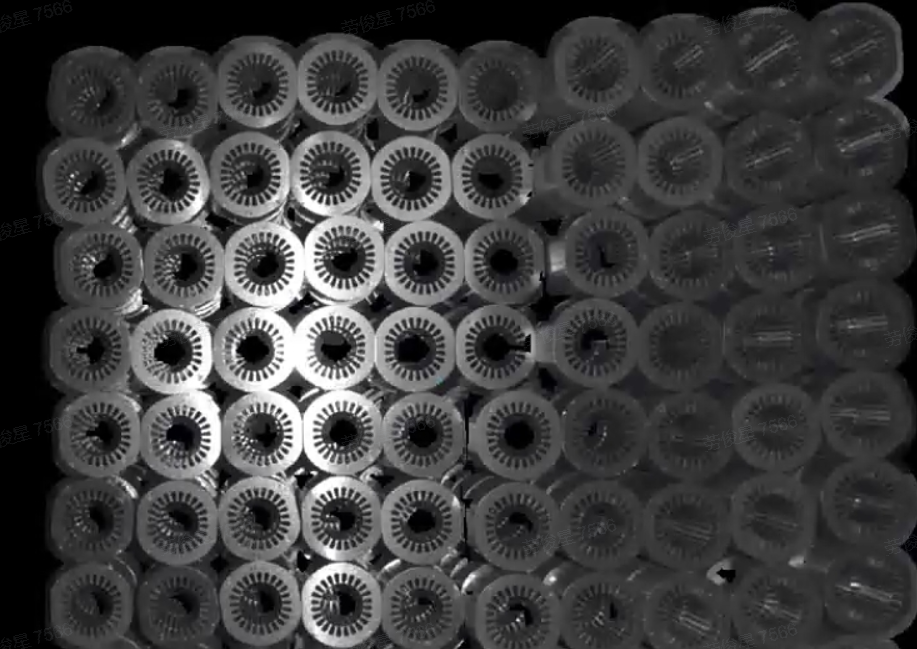
Example:
If the workpiece infeed pattern is 6 per row and 3 per column, there are 18 workpieces in total. Therefore, the range for the number of workpieces per row can be directly set to [6,8], and the range for the number of workpieces per column can be set to [2,3]
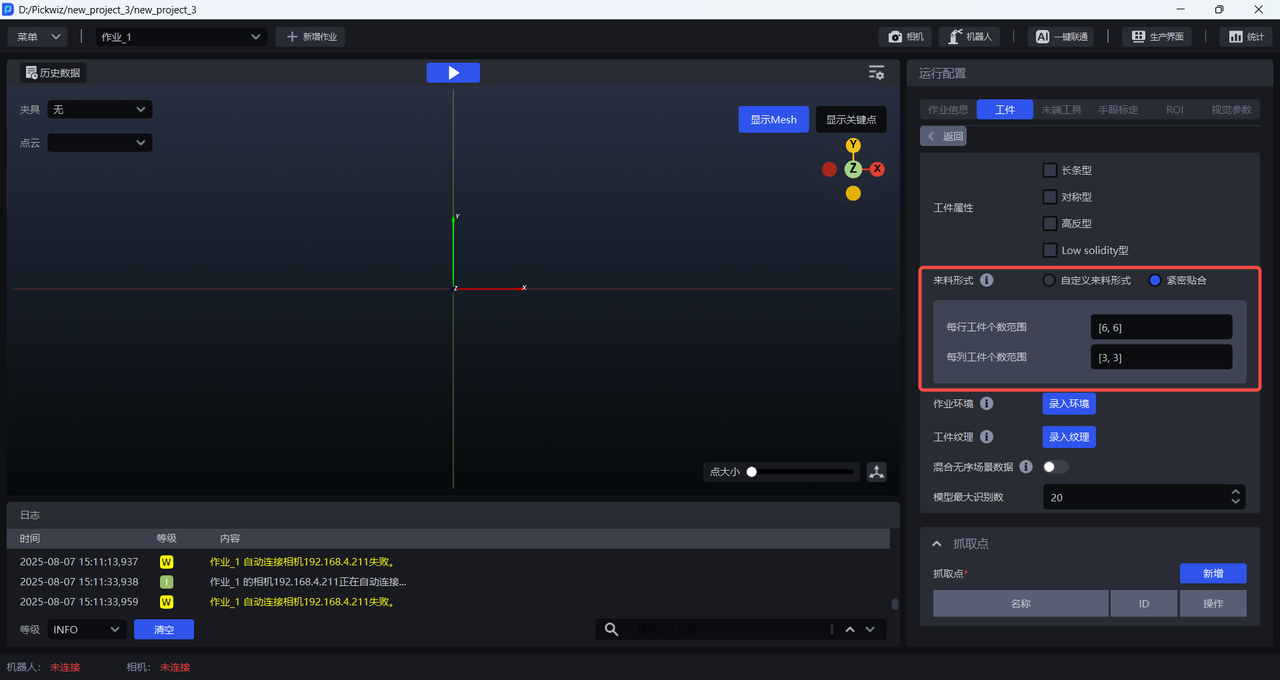
3.2.2 Custom Infeed Pattern
All scenarios with ordered infeed can use a custom infeed pattern. The operation steps are as follows:
- Click
Enter Infeed Patternto open theInfeed Pattern Editor
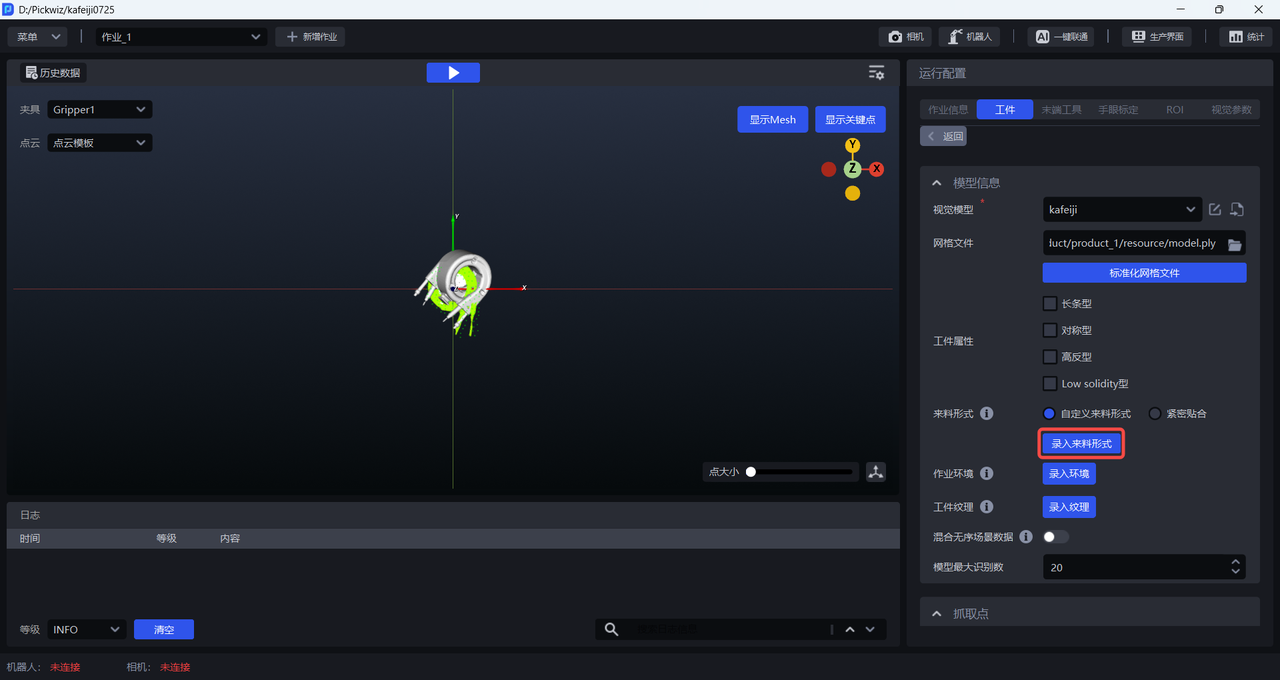
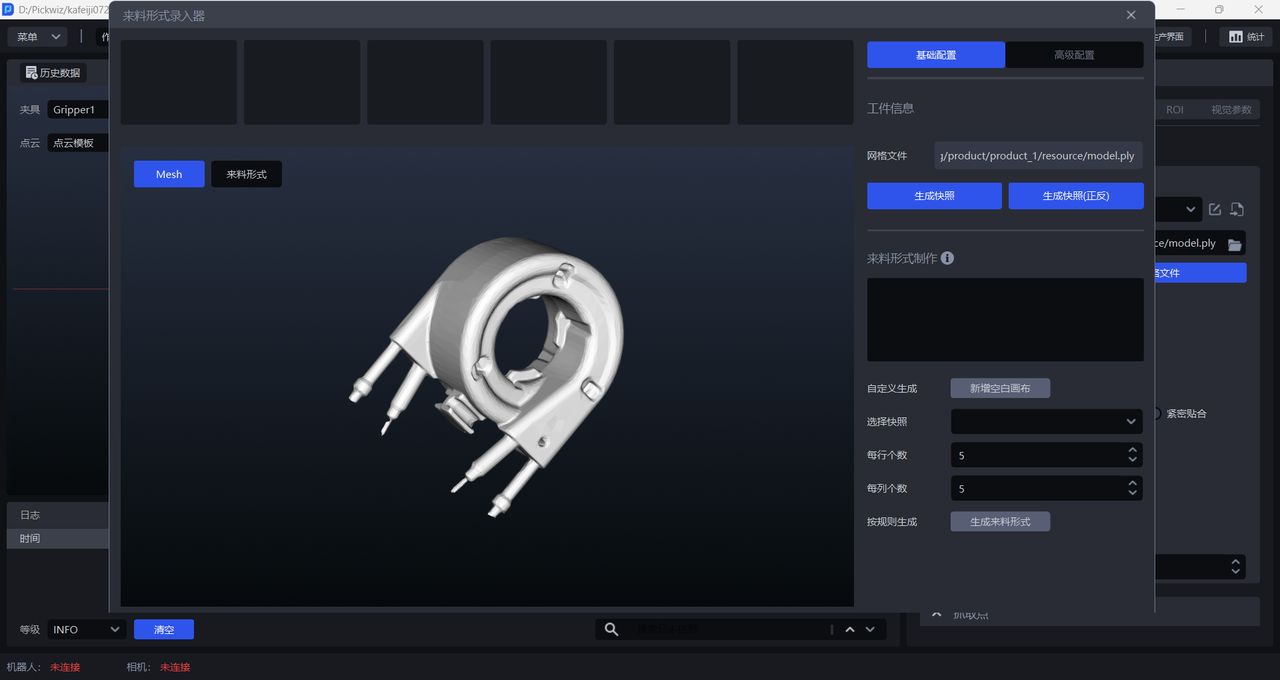
- Rotate the Mesh model to an appropriate pose (the workpiece pose under the camera perspective), then click
Generate Snapshot/Generate Snapshot (Front/Back)to generate workpiece snapshots under that pose.Generate Snapshot (Front/Back)generates snapshots from both the front and back perspectives at the same time, as shown below.
- After generating snapshots, you can click
Add Blank Canvasand drag the snapshots onto the canvas to create the workpiece infeed pattern according to the actual scenario, as shown below.
You can also select a snapshot, set the number of items per row and per column, and then click Generate Infeed Pattern. The system will directly generate the infeed pattern on the canvas according to the selected snapshot and the configured row and column counts, as shown below.
- After the infeed pattern is entered and the other items are configured one by one, once
One-Click Integrationis triggered, one-click training for ordered scenes will generate training data based on the entered infeed pattern, as shown below.

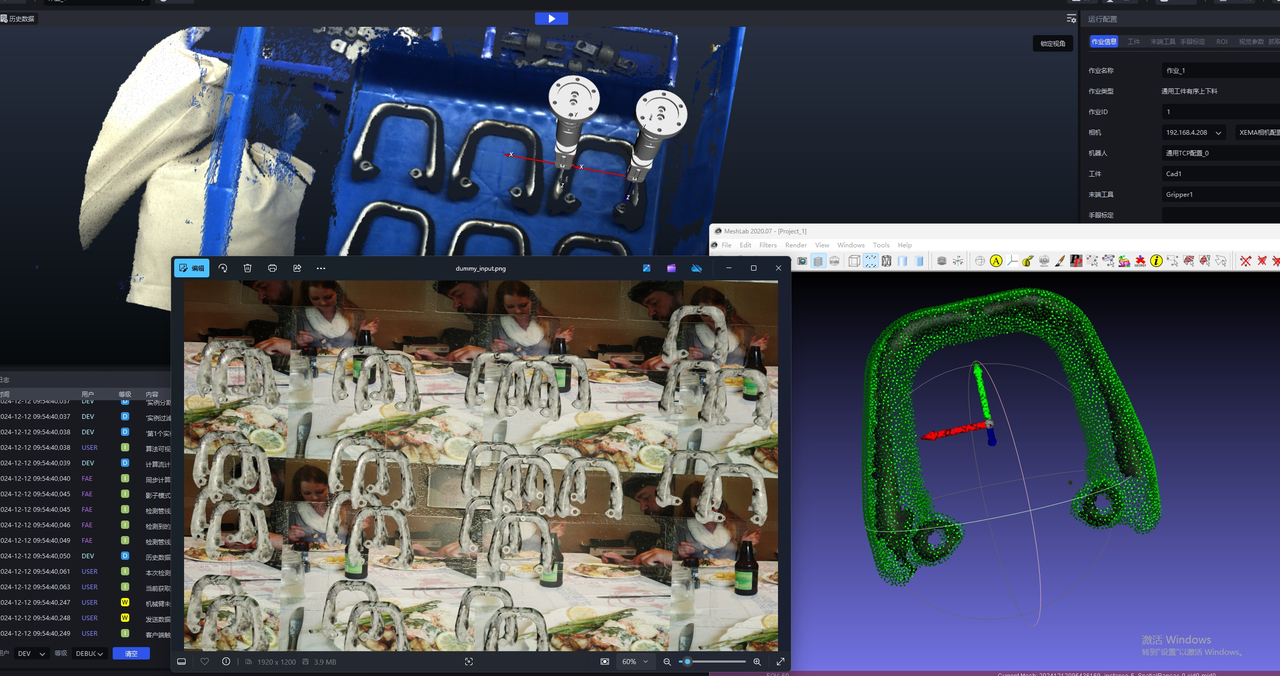
If workpieces are stacked in the actual scenario, click
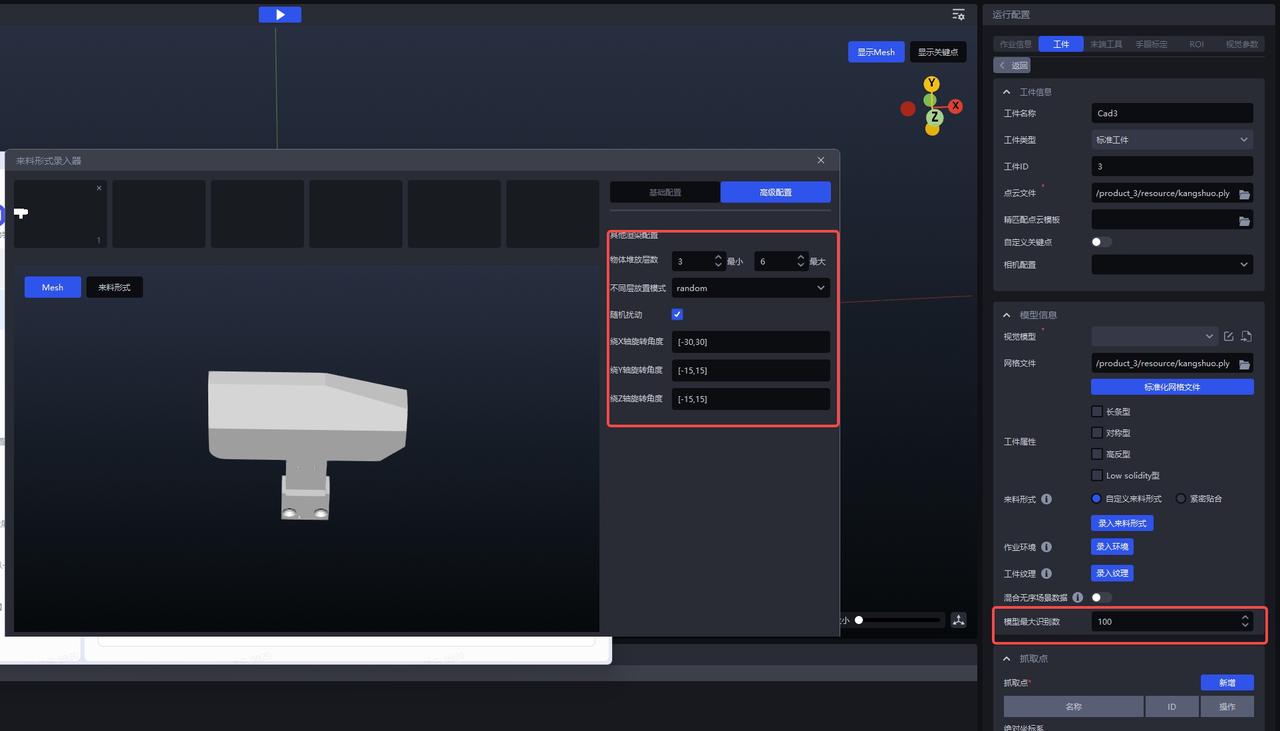
Advanced Configurationto configure the stacking. Set the rotation angle according to the workpiece pose.
Confirm the stacking height
Set the possible perspectives of the workpiece and configure the rotation angles
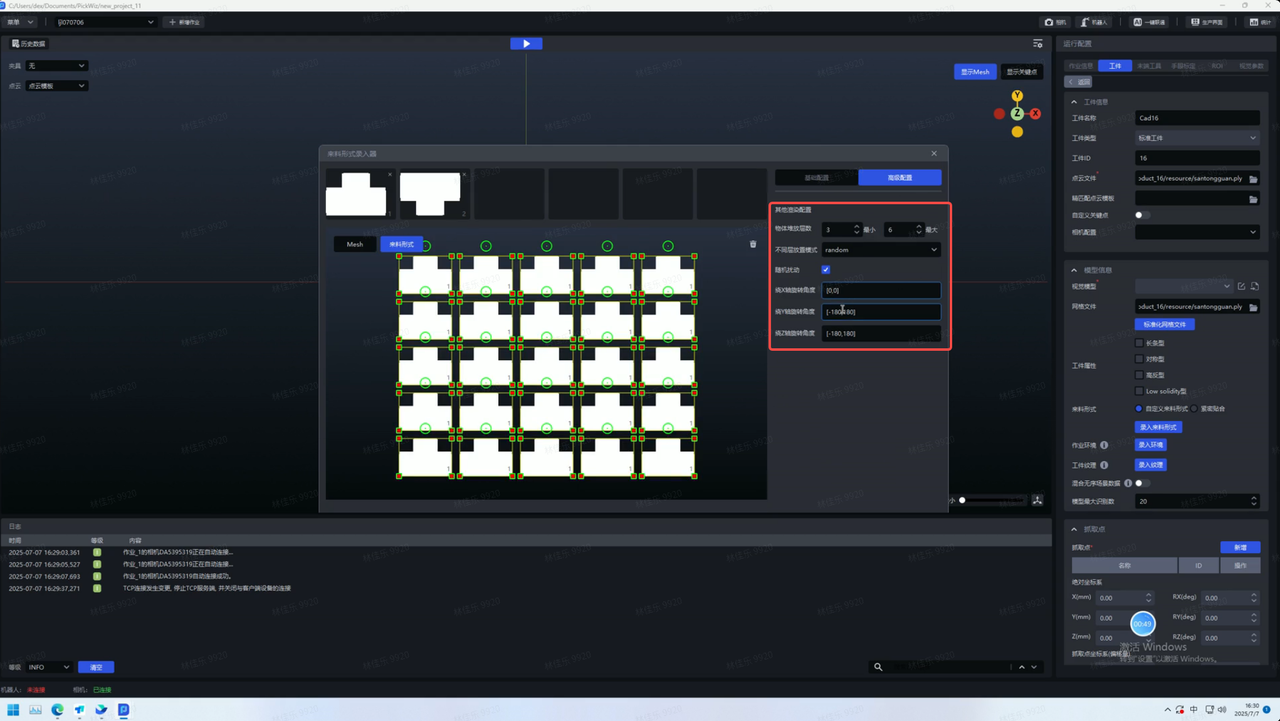
In the advanced configuration, the possible angular deviations of on-site workpieces should be assessed based on the CAD model and snapshots. As shown below, if the workpiece is most likely to have an angular deviation around the x-axis on site, the rotation angle around the X-axis should be set larger. At the same time, some minor disturbances may also occur around the y and z axes, so smaller values should also be set for the rotation angles around the Y-axis to ensure that the configured angles can cover the scenarios that may occur on site.
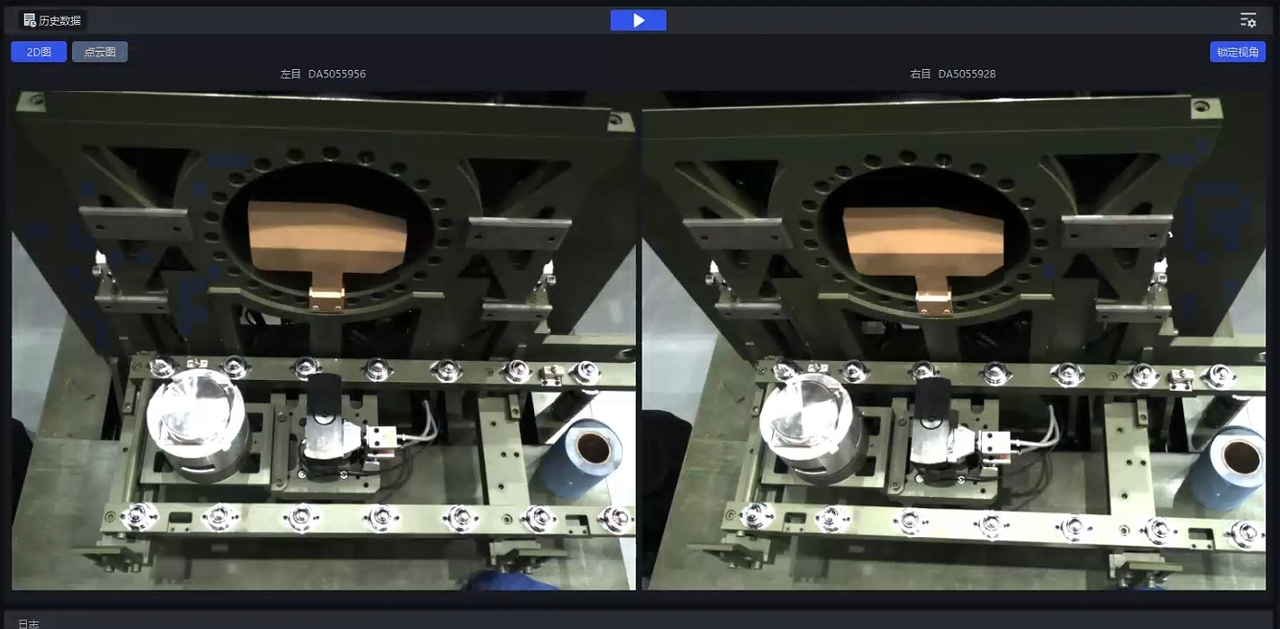
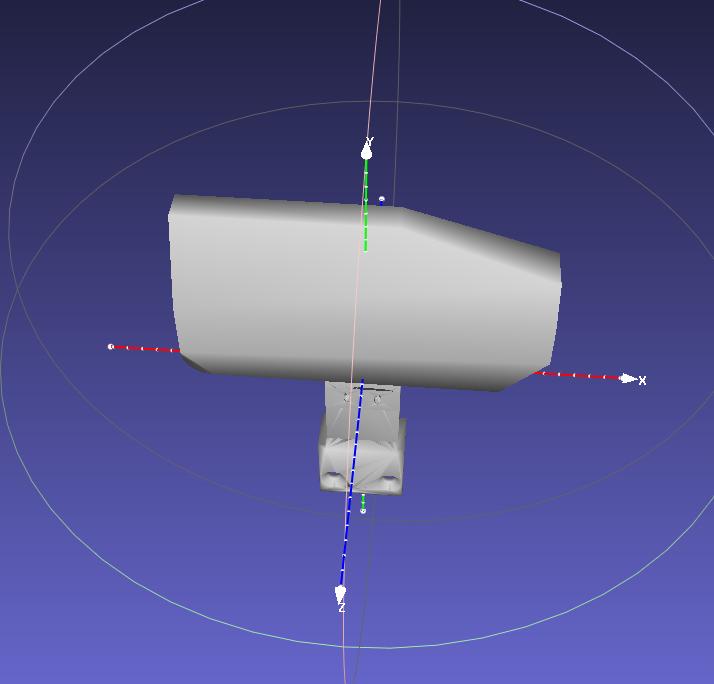
| Before Modification (Incorrect) | After Modification | |
|---|---|---|
| pattern | 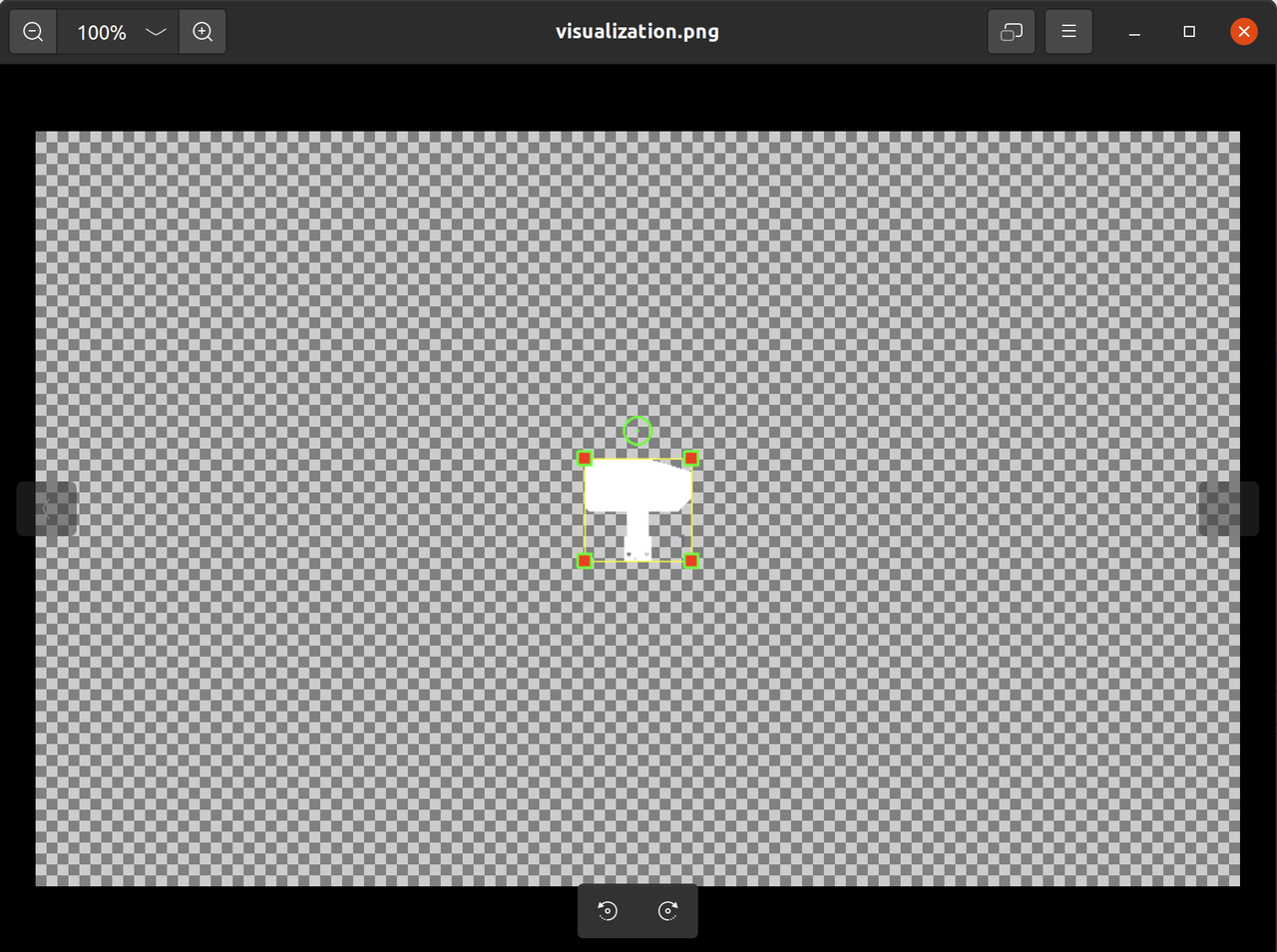 | 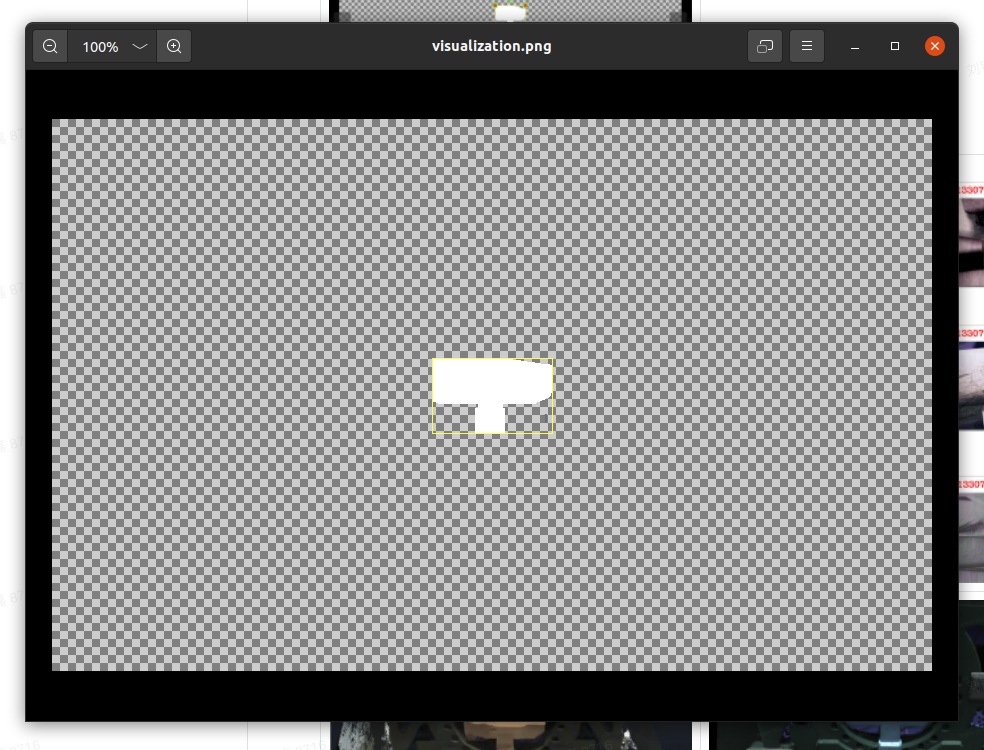 |
| TB | 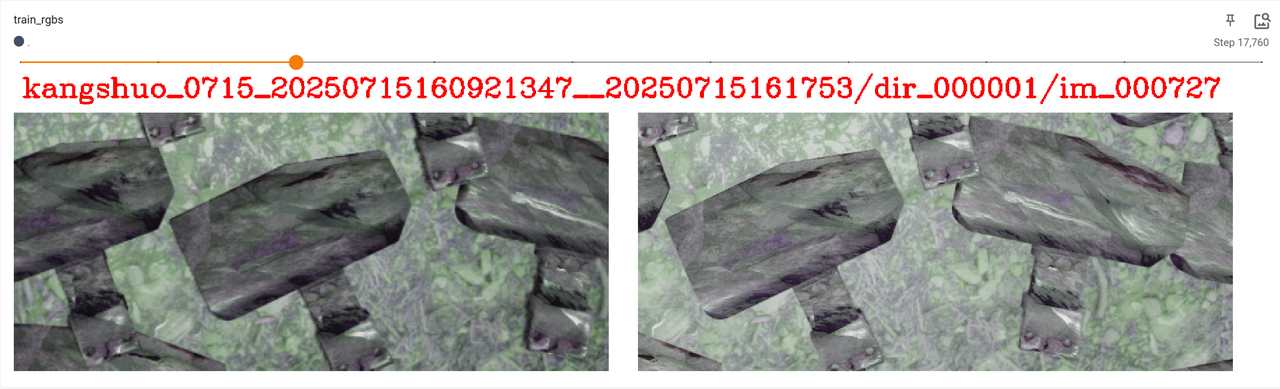 | 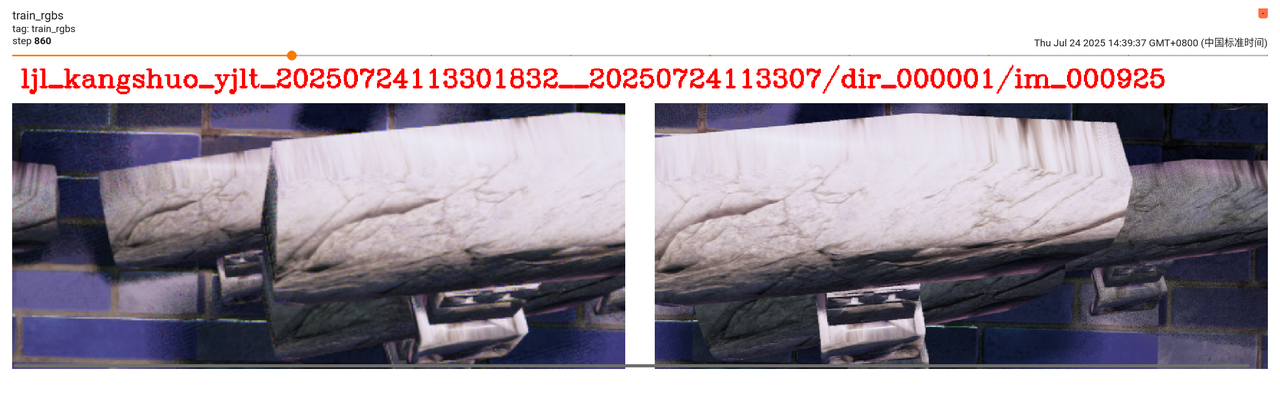 |
| Point Cloud Imaging | 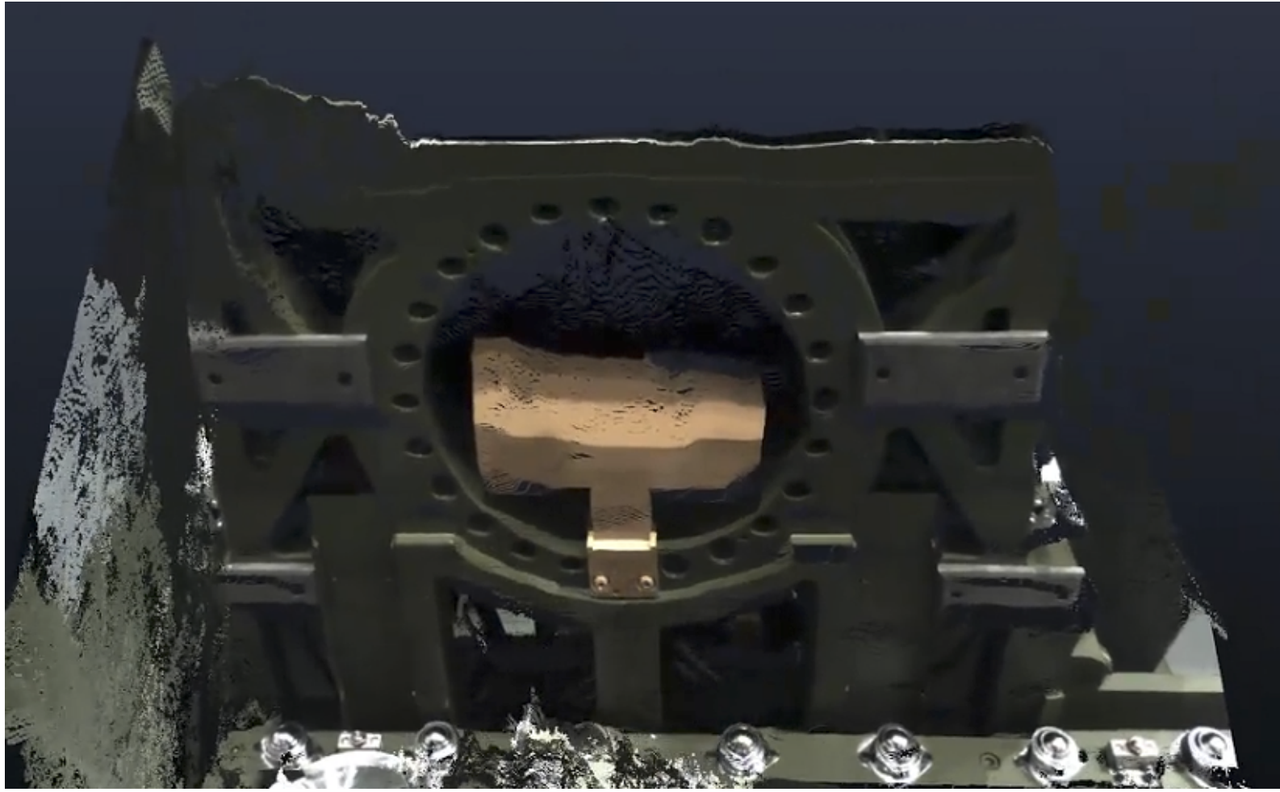 | 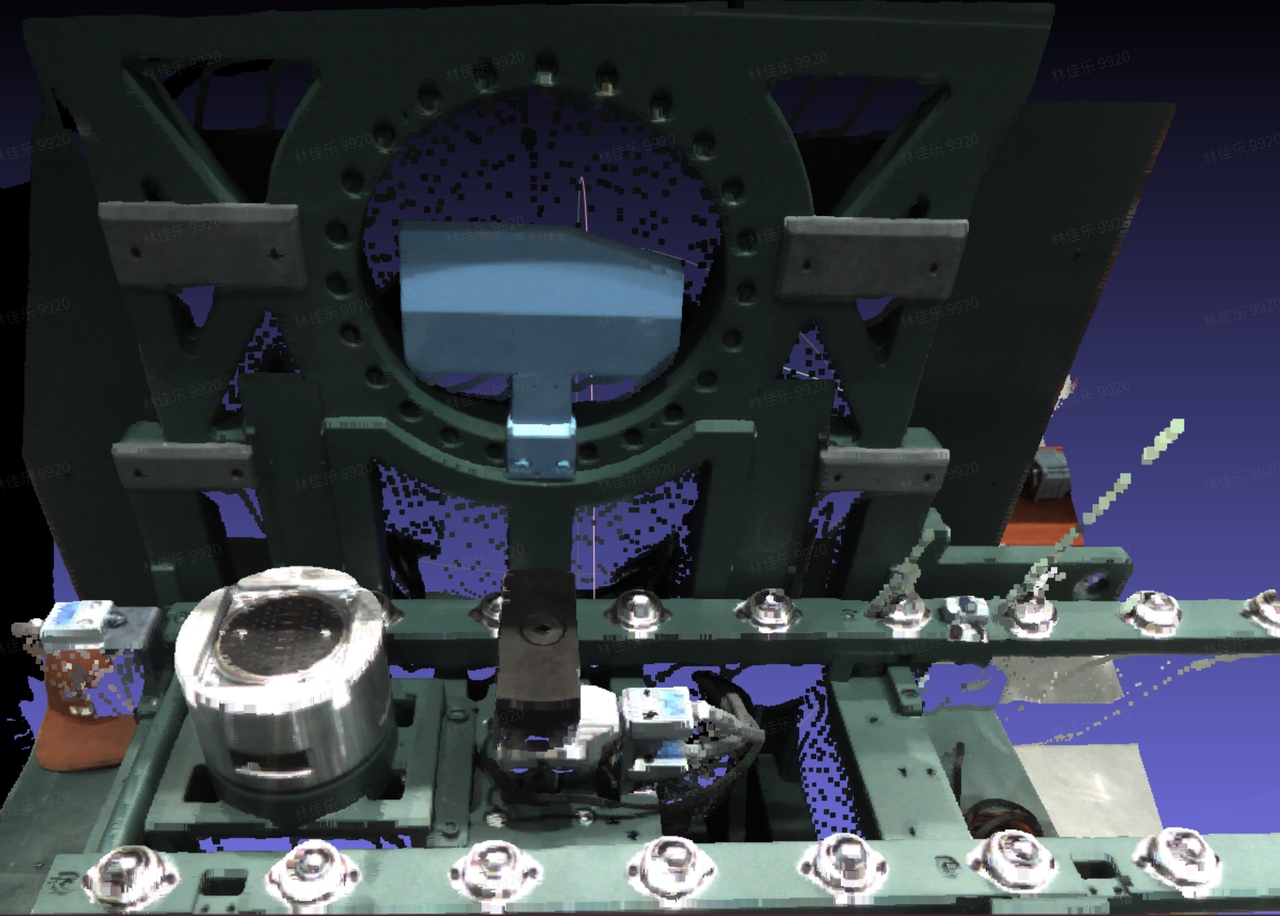 |
3.3 Check the workpiece configuration
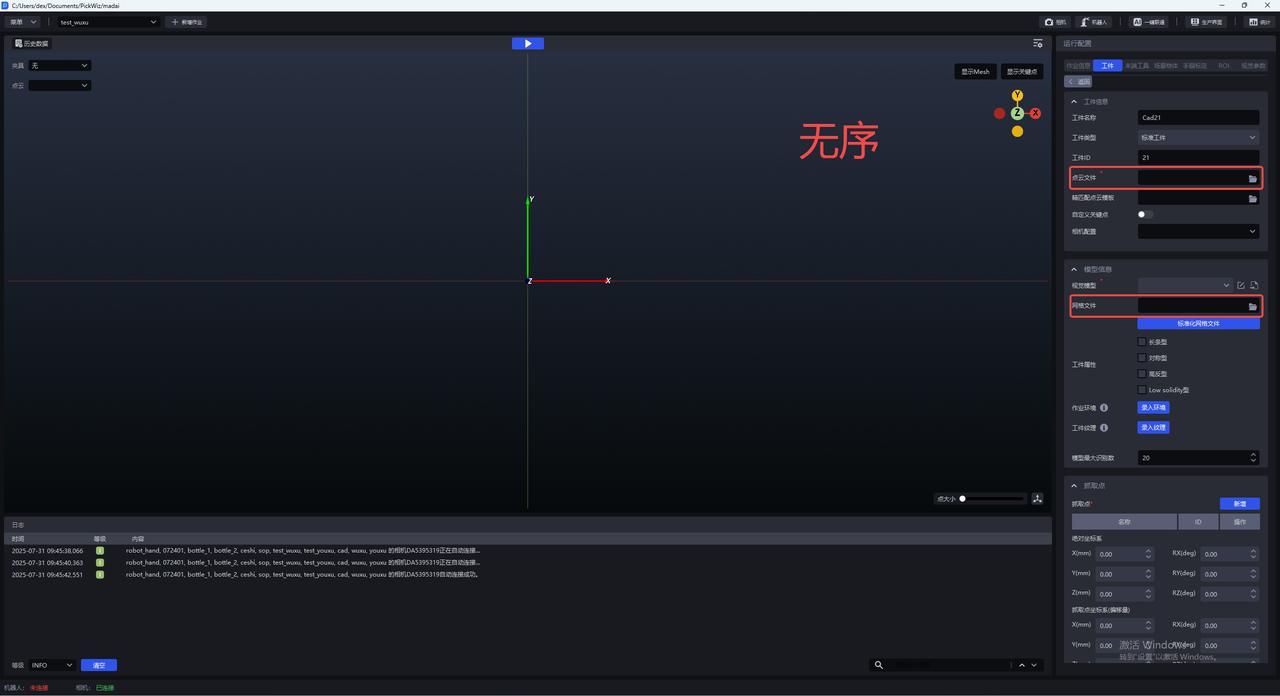
In ordered loading and unloading scenarios, the mesh file, Point Cloud file, and infeed pattern must be configured. In unordered picking scenarios, the mesh file and Point Cloud file must be configured. Please check whether the workpiece configuration is complete. If it is incomplete, an error will be reported when One-Click Integration is triggered later.
3.4 Field of view type
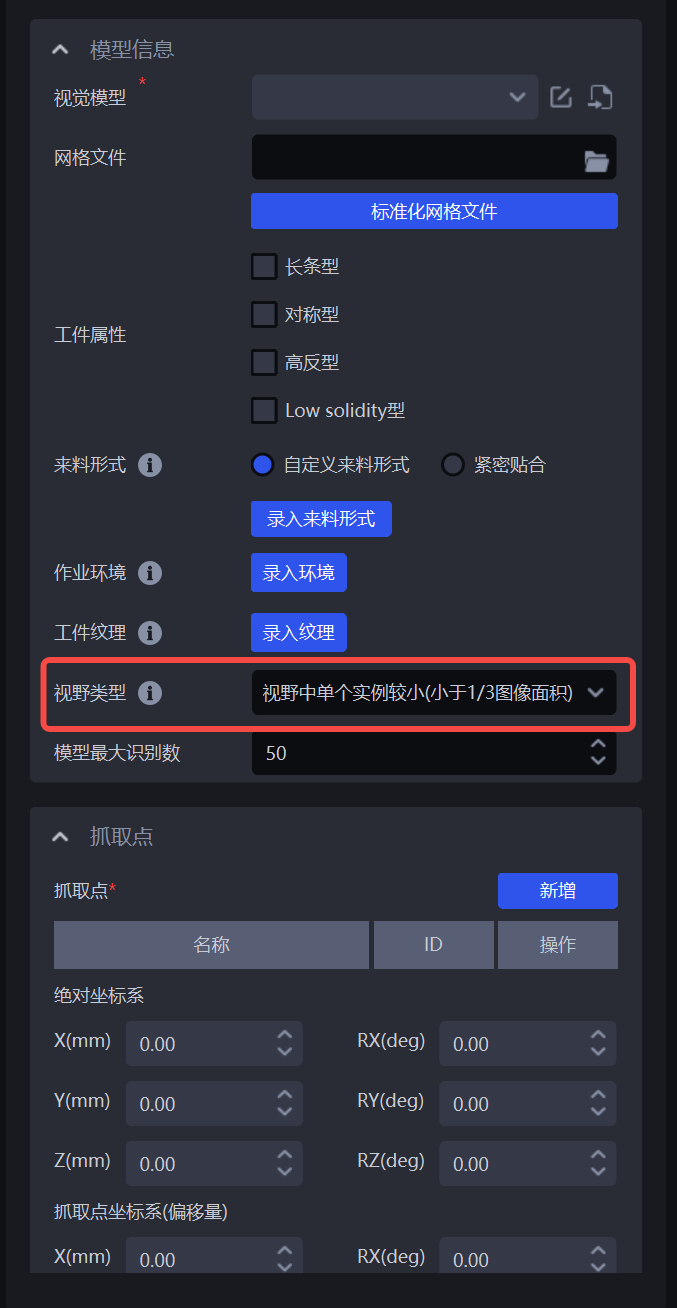
In single-target scenarios, the field of view type parameter in the workpiece module can be used to specify the actual rendering height of One-Click Integration according to the actual scenario.
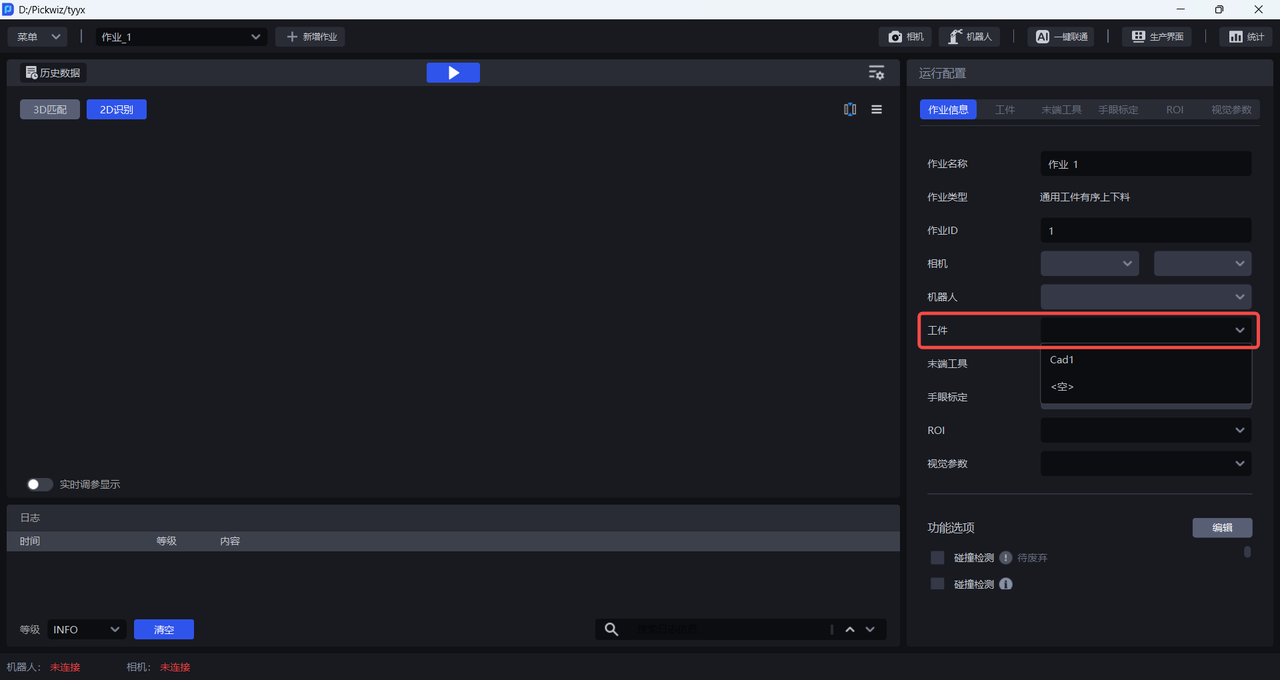
After confirming that everything is correct, select the newly added workpiece configuration in the task information.
4. Configure ROI
Please refer to ROI Operation Guide to configure ROI 3D and ROI 2D on the ROI interface.
Note:
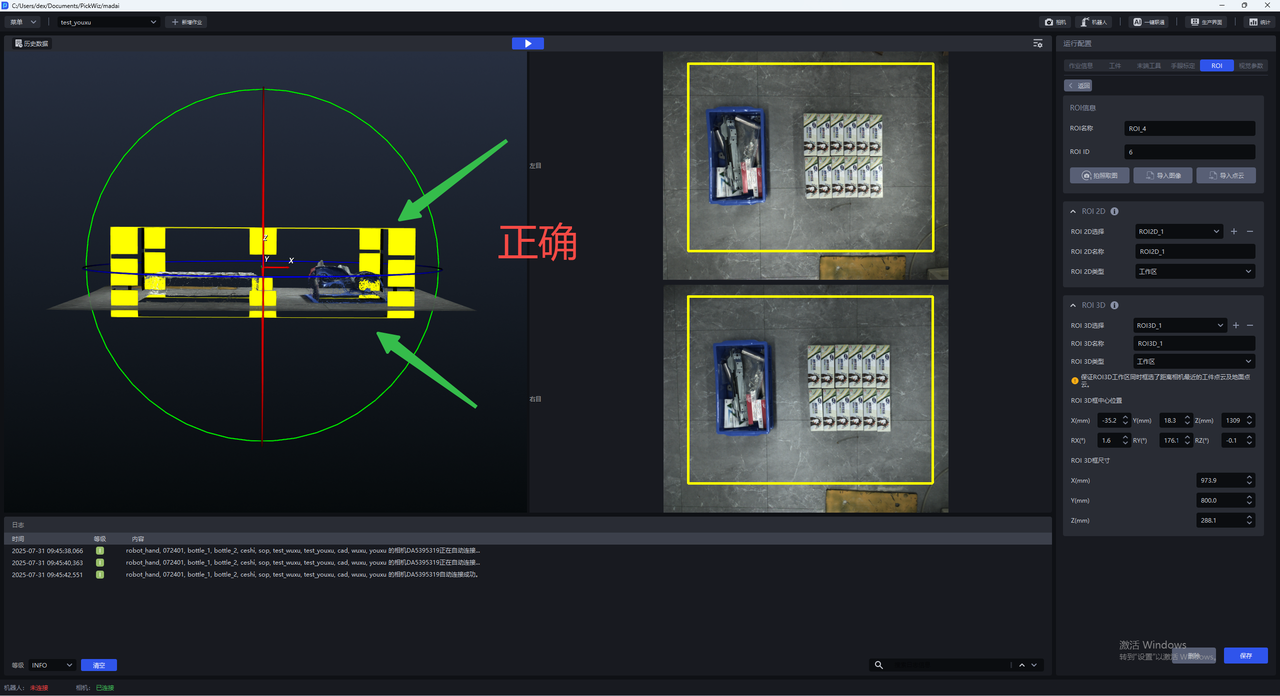
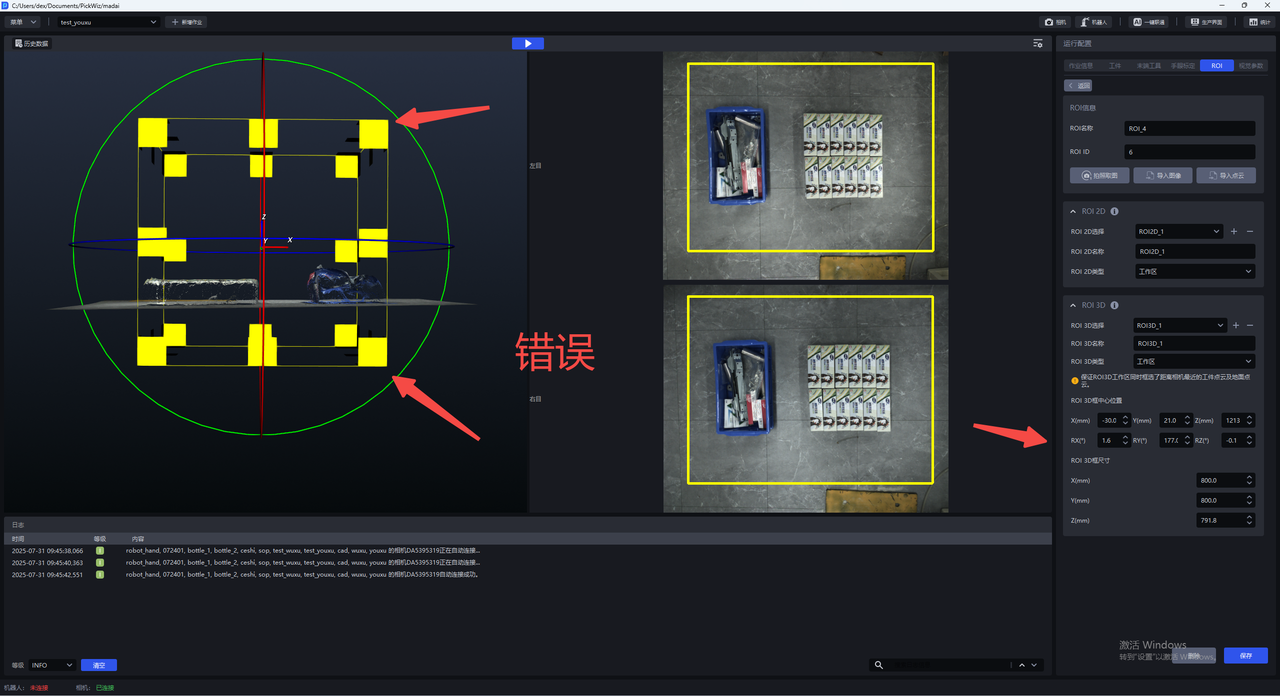
When adjusting ROI 3D, make sure that the height in the Z direction of the ROI 3D**workspace **just includes the Point Cloud of the workpiece closest to the camera and the ground Point Cloud (as shown below).
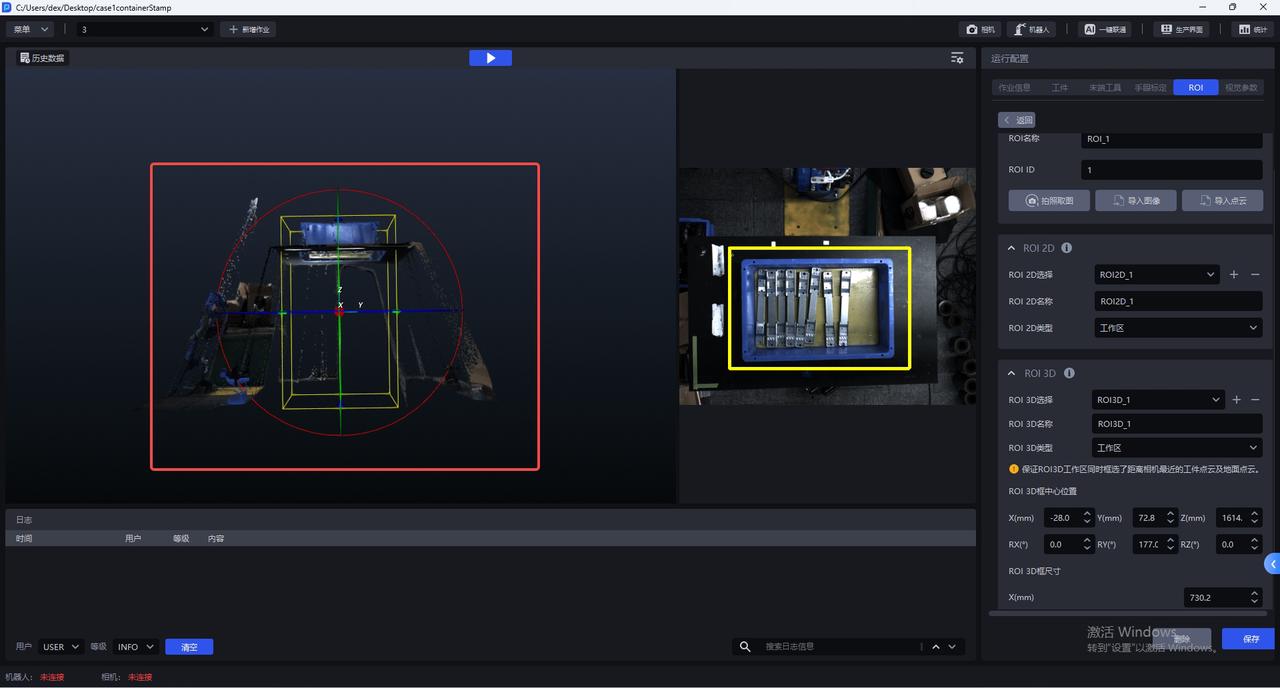
The bottom edge of the ROI 3D box should fit the ground as closely as possible, and the top surface must not be too high
5. Configure Scene Object
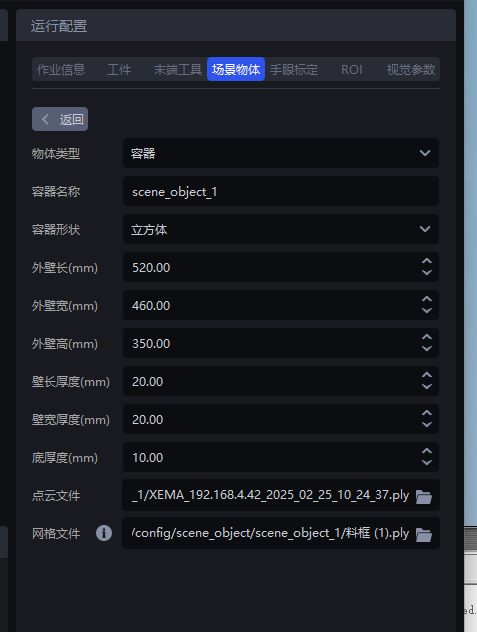
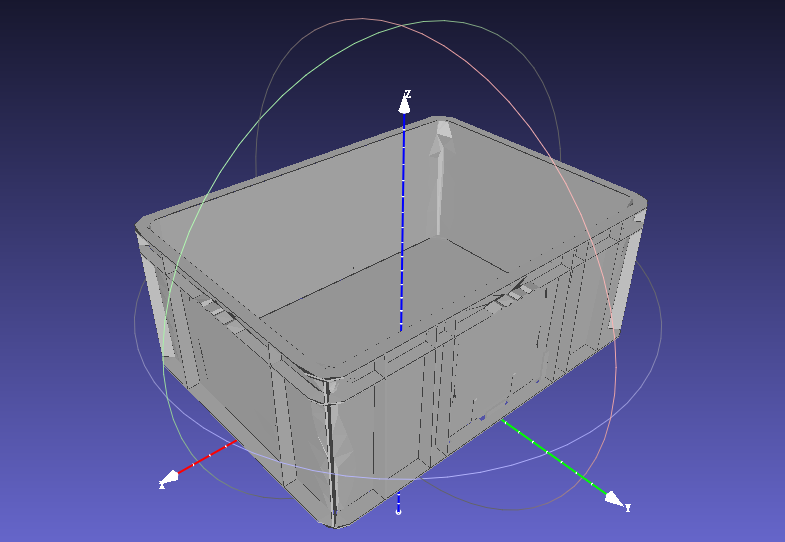
In generic unordered scenarios, for scenes with a bin frame and the collision detection feature option enabled, Scene Object should be configured. Upload the mesh file of the bin frame, and the Object Dimensions of the Scene Object must be consistent with the actual bin frame dimensions.
6. Create a training task
After completing the camera, workpiece, and ROI configurations, click One-Click Integration to trigger imaging model training.
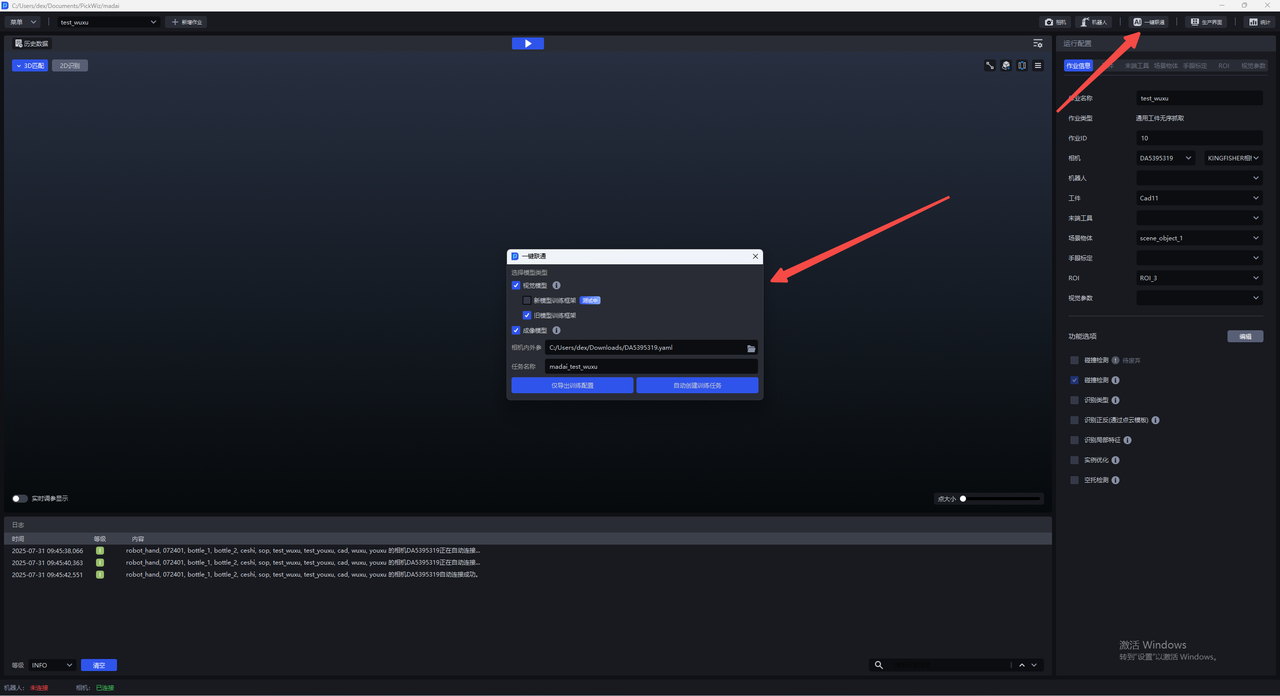
If manual editing of the input data is required, choose Export Training Configuration Only; if no editing is required, choose Automatically Create Training Task.
6.1 Export training configuration only
Suitable for users who need to manually edit the data. Afterwards, you need to manually create a training task on the DexVerse platform.
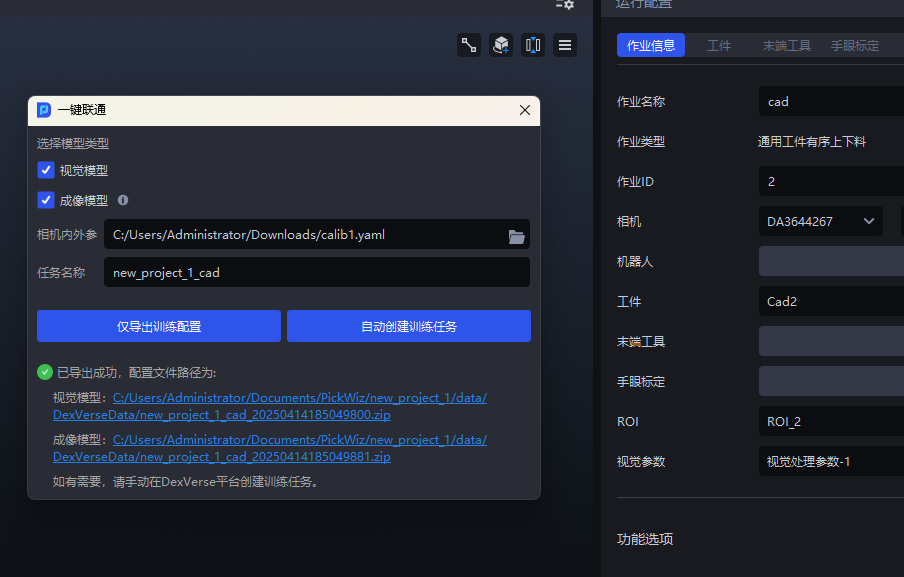
(1)On the main interface, click One-Click Integration. The One-Click Integration pop-up window appears. Select Imaging Model and confirm that the KINGFISHER camera is connected, as shown below.
(2)Click Export Training Configuration Only . The software will read the Intrinsic Parameter and Extrinsic Parameter files of the existing camera and export them to the related path of the training configuration. You can click the link at the bottom of the pop-up window to view the contents of the compressed data package or modify the configuration.
(3)Manually upload the data to the DexVerse platform to create a training task. For details, see DexVerse Operation Manual.
6.2 Automatically create a training task
Suitable for most scenarios. After configuring the workpiece/ROI, etc. in PickWiz, a training task can be automatically created on the DexVerse platform.
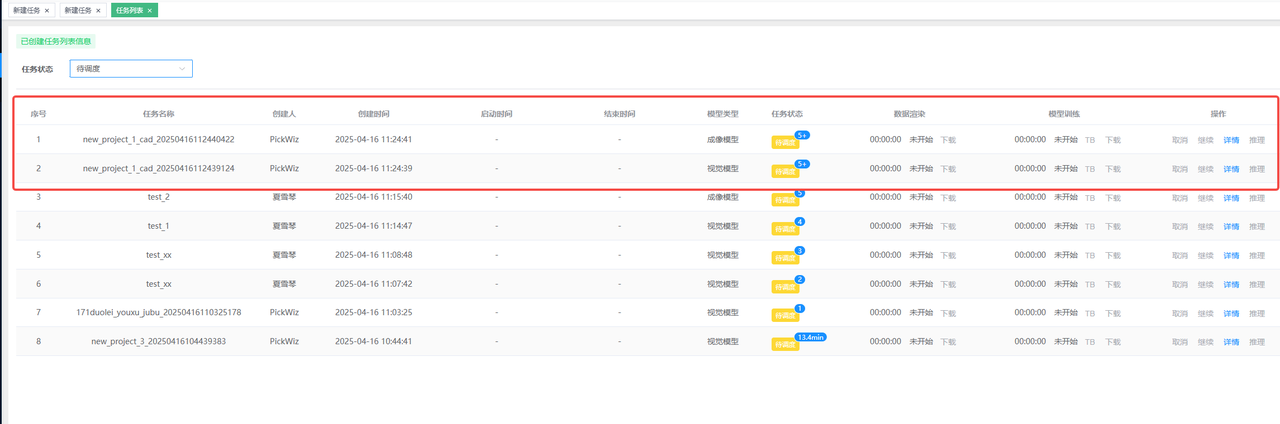
(1)On the main interface, click One-Click Integration. The One-Click Integration pop-up window appears. Select Imaging Model, confirm that the KINGFISHER camera is connected, and then name the task for convenient searching in DexVerse, as shown below.
(2)Select Imaging Model and click Automatically Create Training Task .
(3)Go to the DexVerse platform to view the automatically created training task. For details, see DexVerse Operation Manual.
7. Train the vision model and imaging model simultaneously
In the One-Click Integration pop-up window of PickWiz, select both Vision Model and Imaging Model , and then click Export Training Configuration Only / Automatically Create Training Task .