Camera Connection and Parameter Tuning Guide
1. Camera Connection
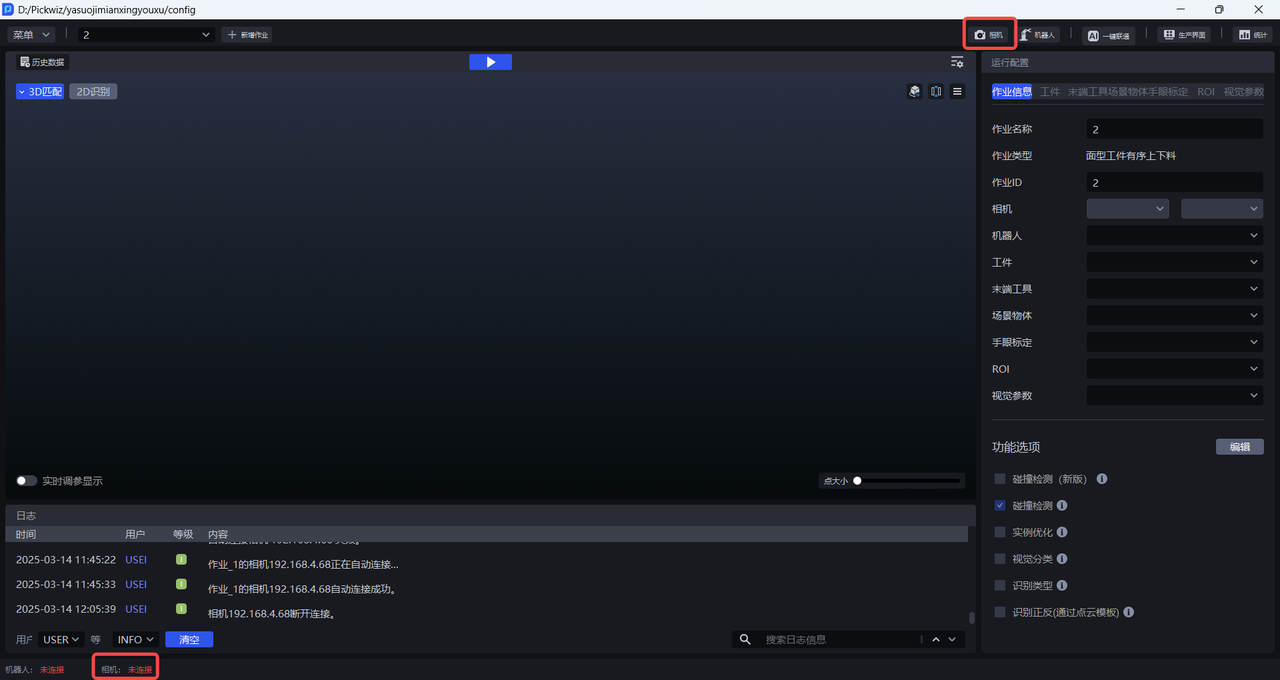
- Use an Ethernet cable to connect the Camera and the industrial PC, turn on the Camera power, then click the
Camerapanel on the main interface to open theCamerapage.
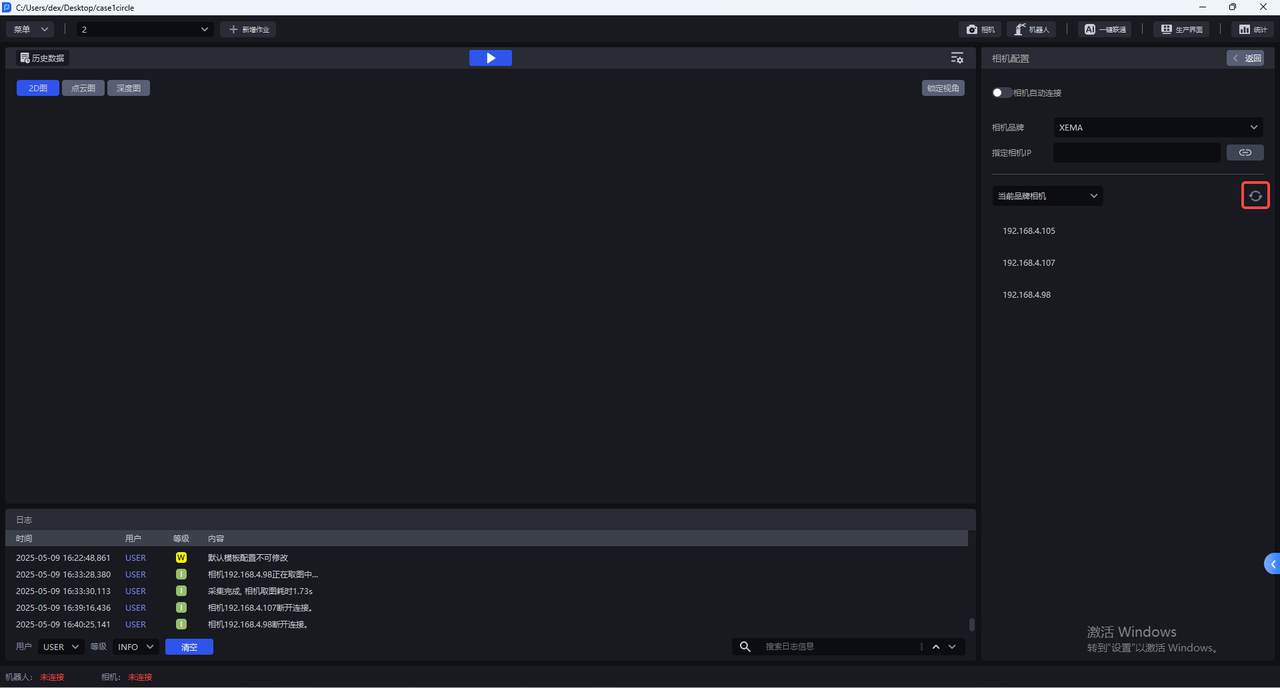
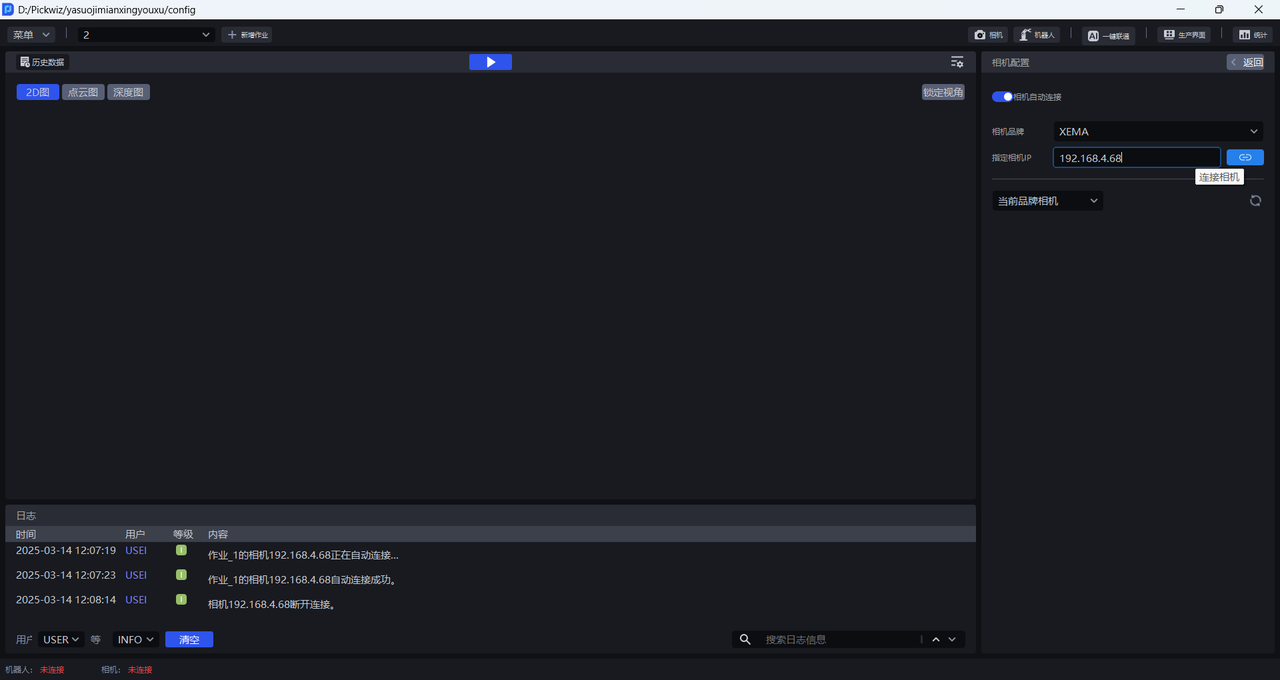
- On the Camera page, select the Camera brand to connect. Available options are XEMA, FINCH, SPARROW, KINGFISHER, and KINGFISHER-R. Then click
Searchto search for Cameras of the current brand or Cameras that were previously connected, and connect to the Camera with the corresponding IP address.
Please note when connecting a Kingfisher Camera:
Before connecting a Kingfisher Camera, please refer to KINGFISHER Series Camera User Manual to download and install the MVS software. Be sure to install MVS before installing PickWiz; otherwise, the Kingfisher Camera may not be searchable in the Camera brand list.
If PickWiz is installed before MVS, the Kingfisher Camera may not be searchable in the Camera brand list. Please restart and then open PickWiz again.
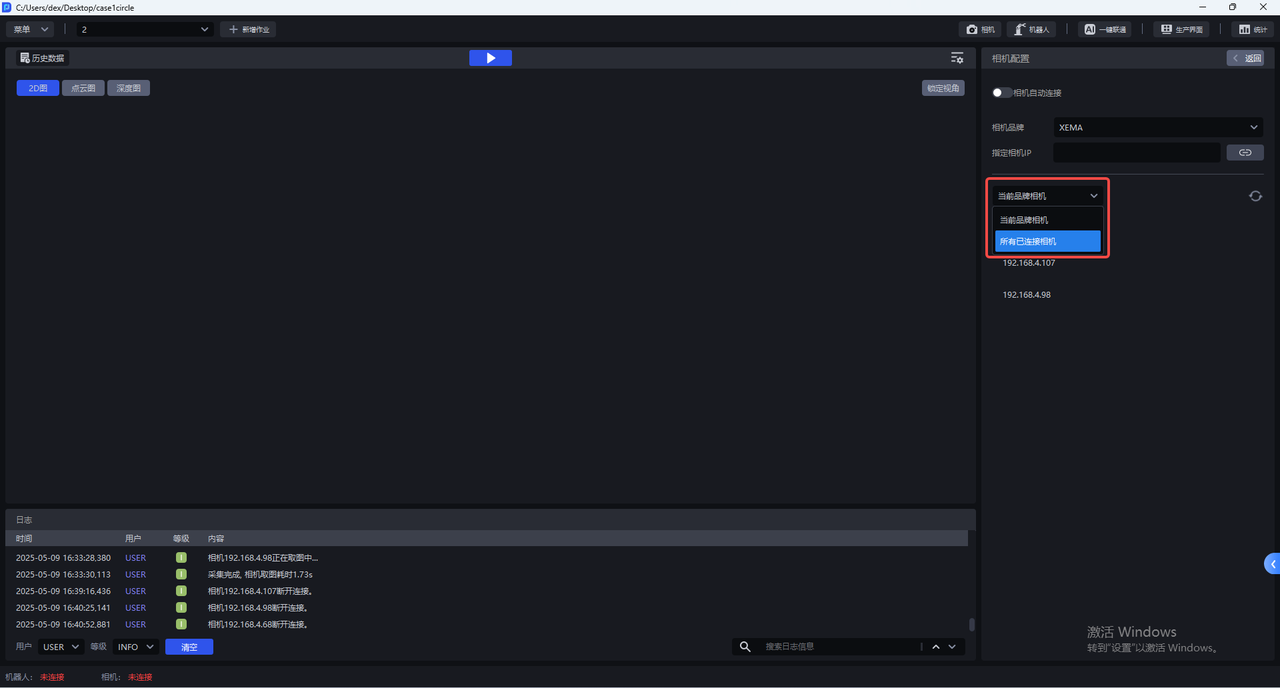
You can also directly enter the IP address of the Camera and then click the 连接相机 button.
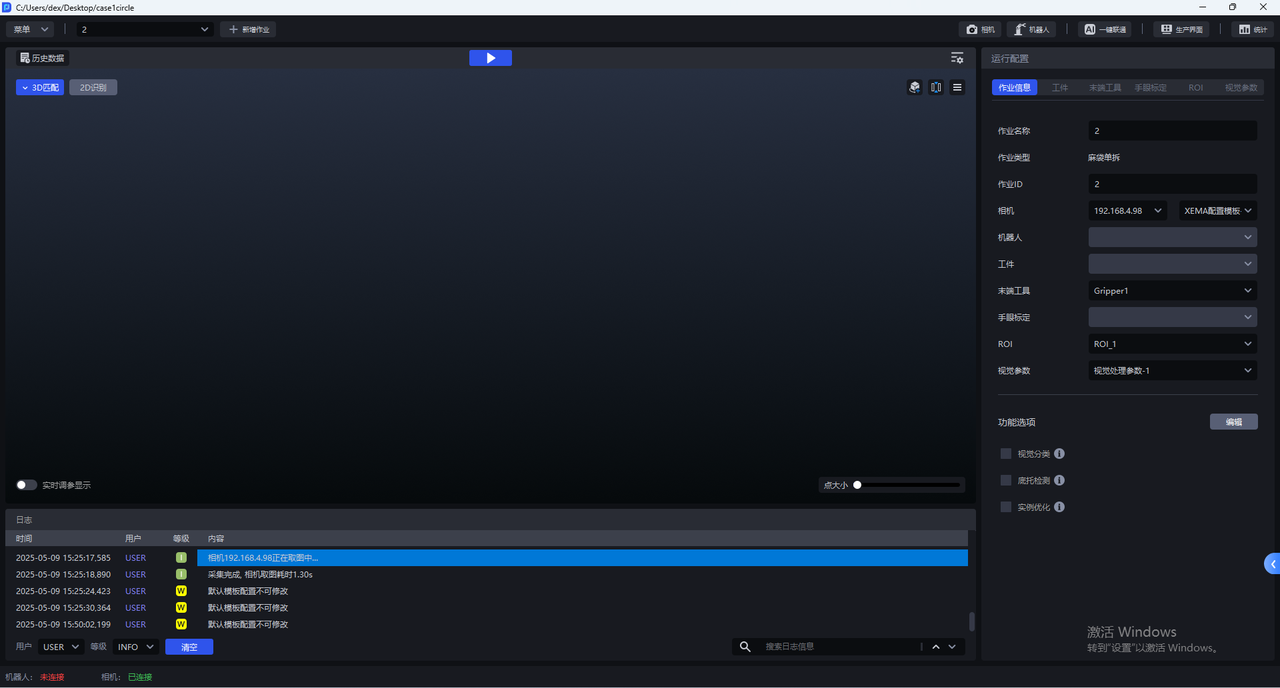
- After the Camera is connected successfully, you should select a Camera for the current task on the
Task Informationpage. After the Camera is selected, the Camera connection status in the status bar changes to "Connected", as shown below.
2. Camera Configuration
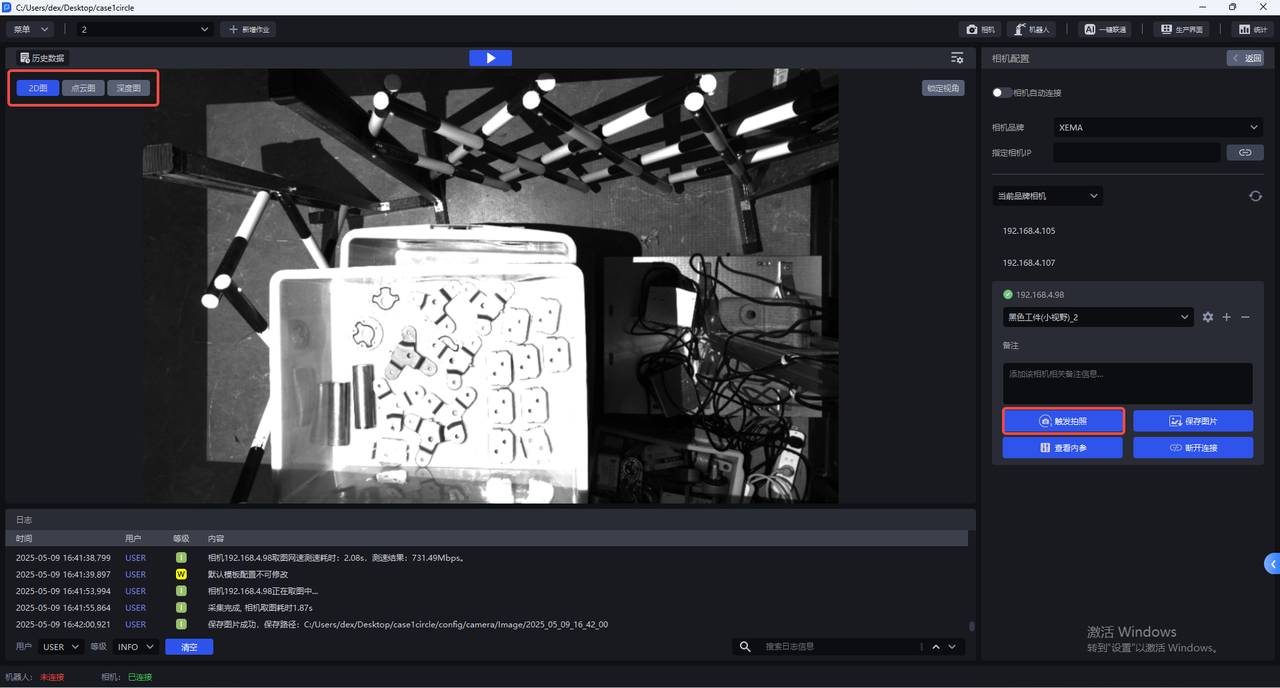
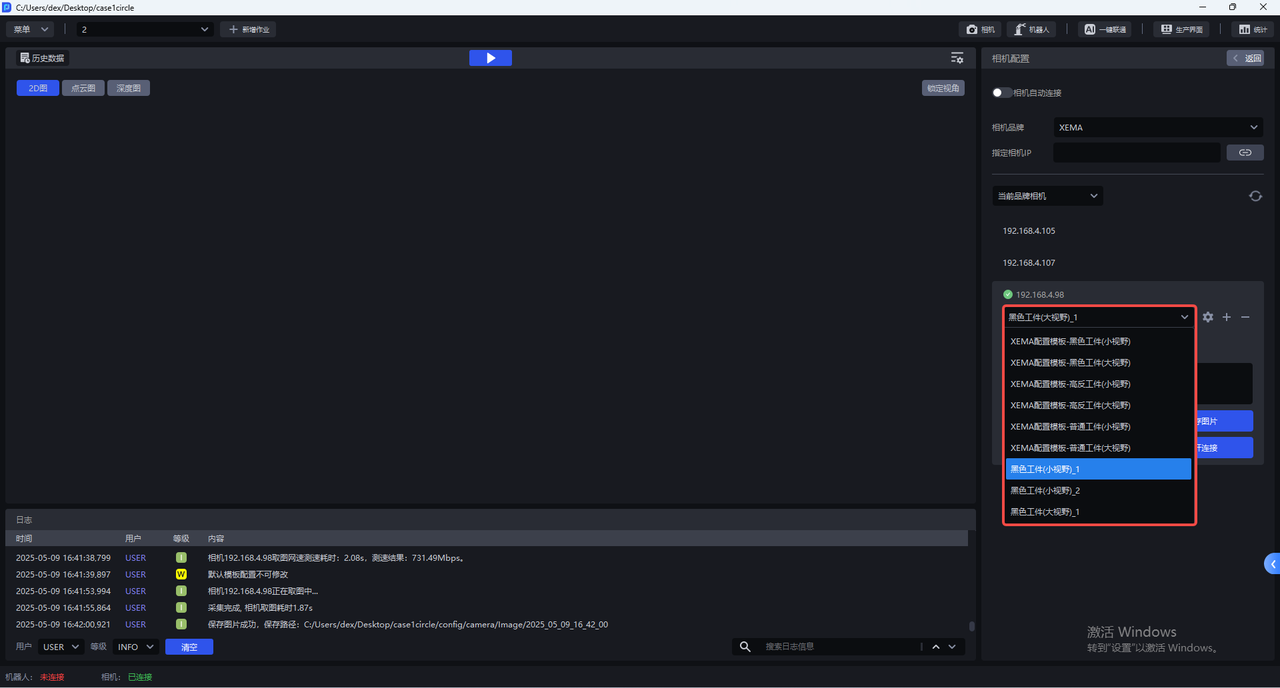
- Each Camera has multiple default configurations, and none of the default configurations can be modified. Select the corresponding default configuration and click
Trigger Captureto capture a 2D image, Point Cloud image, and depth image using the imaging parameters. You can view the imaging quality in the visualization window on the left.
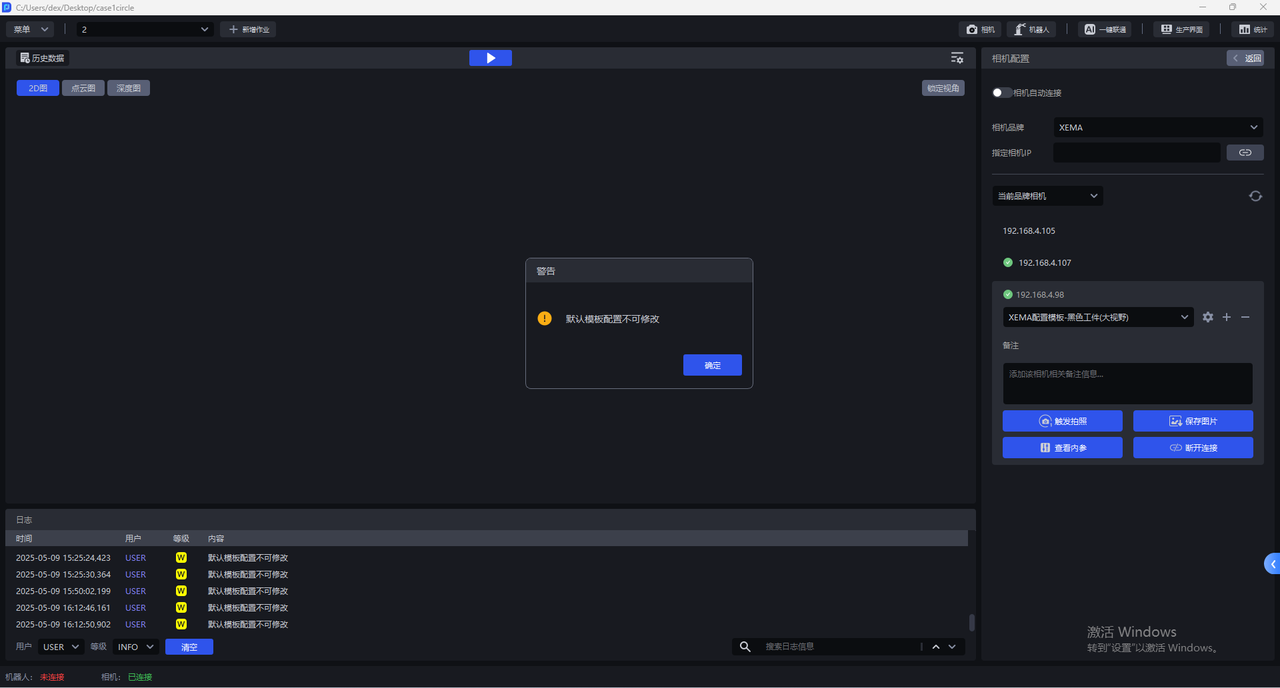
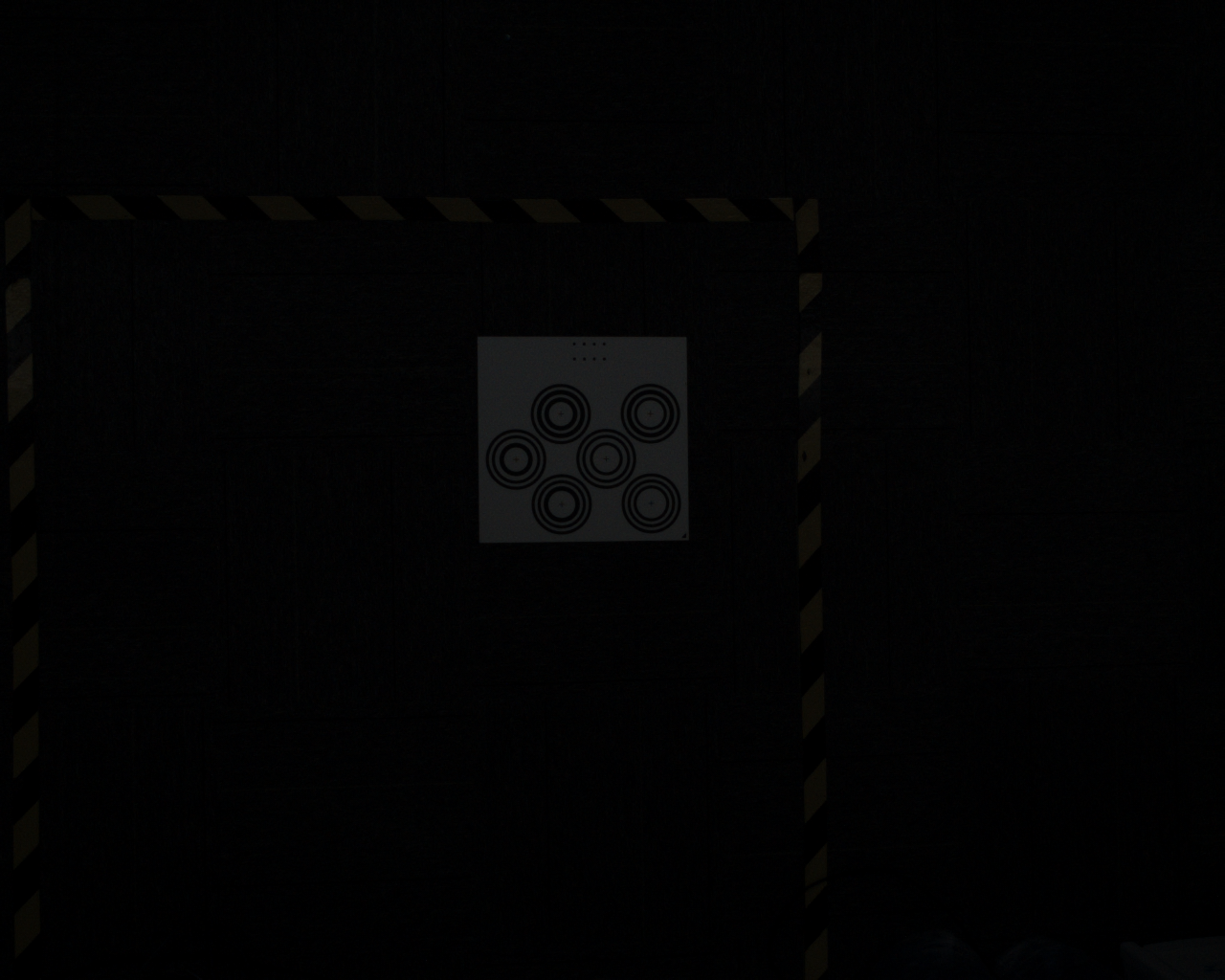
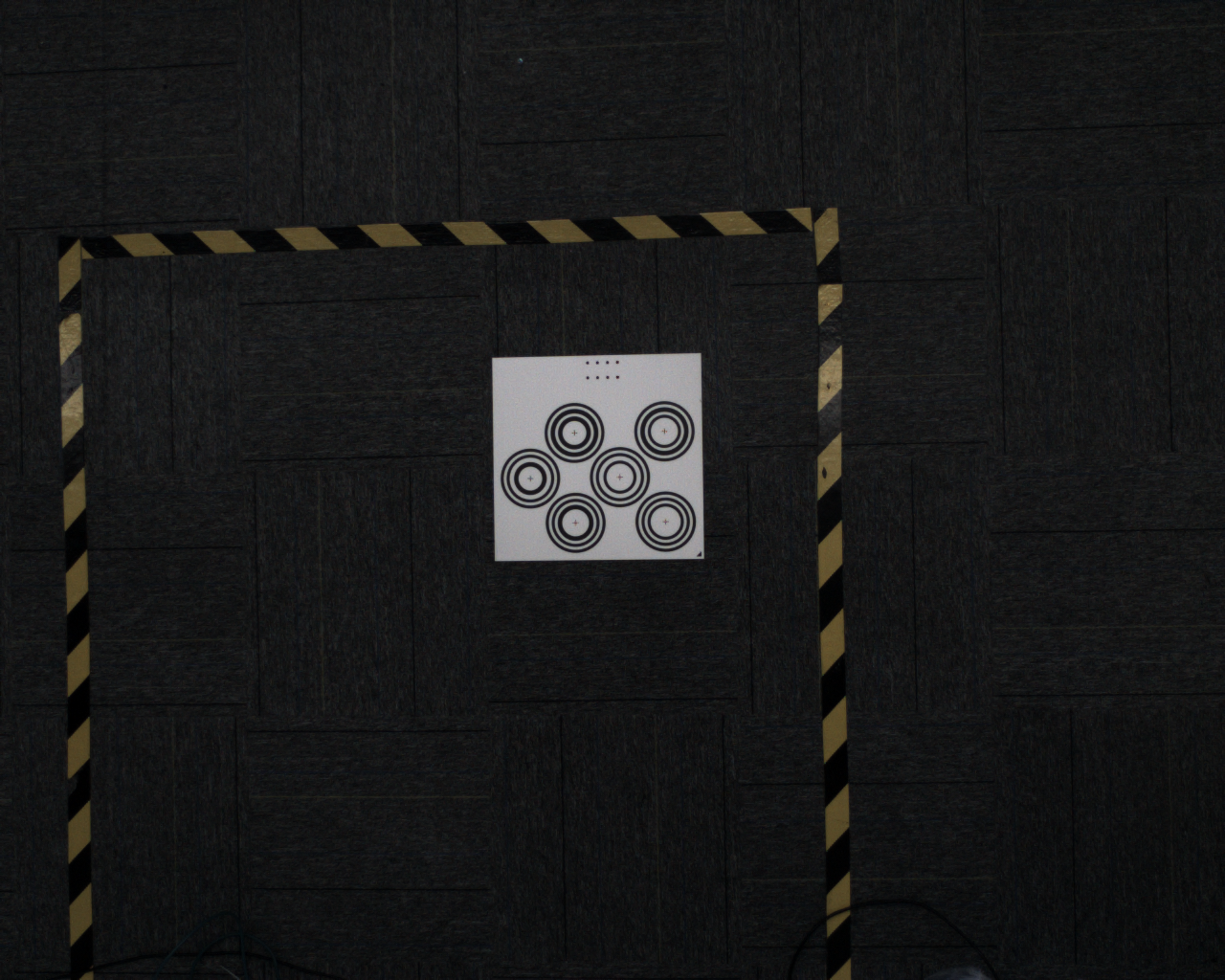
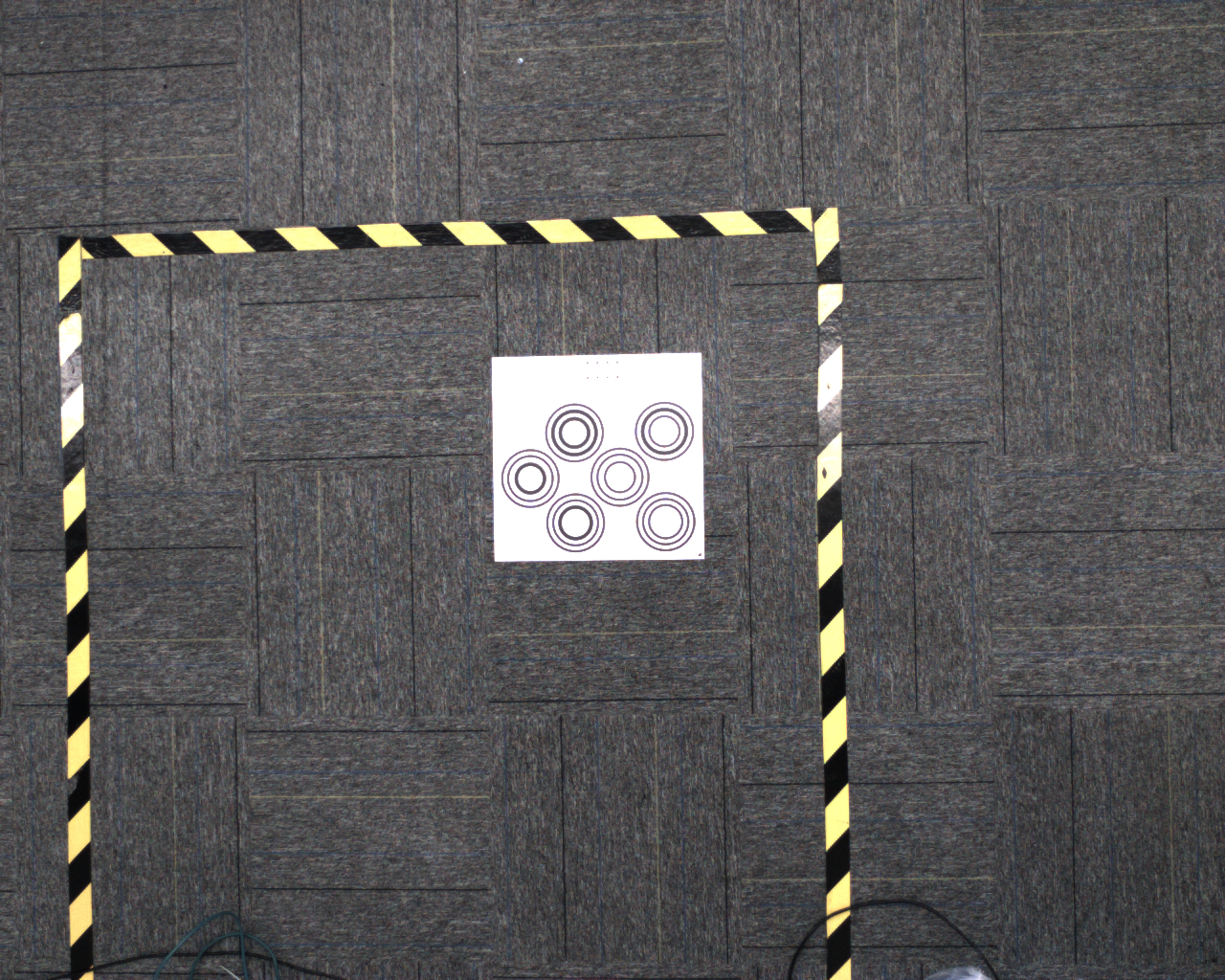
- The default Camera configurations cannot be modified. If none of the 2D images captured with all default configurations can reach normal exposure, you can click
+to copy the current default Camera configuration, add a new identical Camera configuration, and then directly enter the Camera configuration page to modify the parameters.
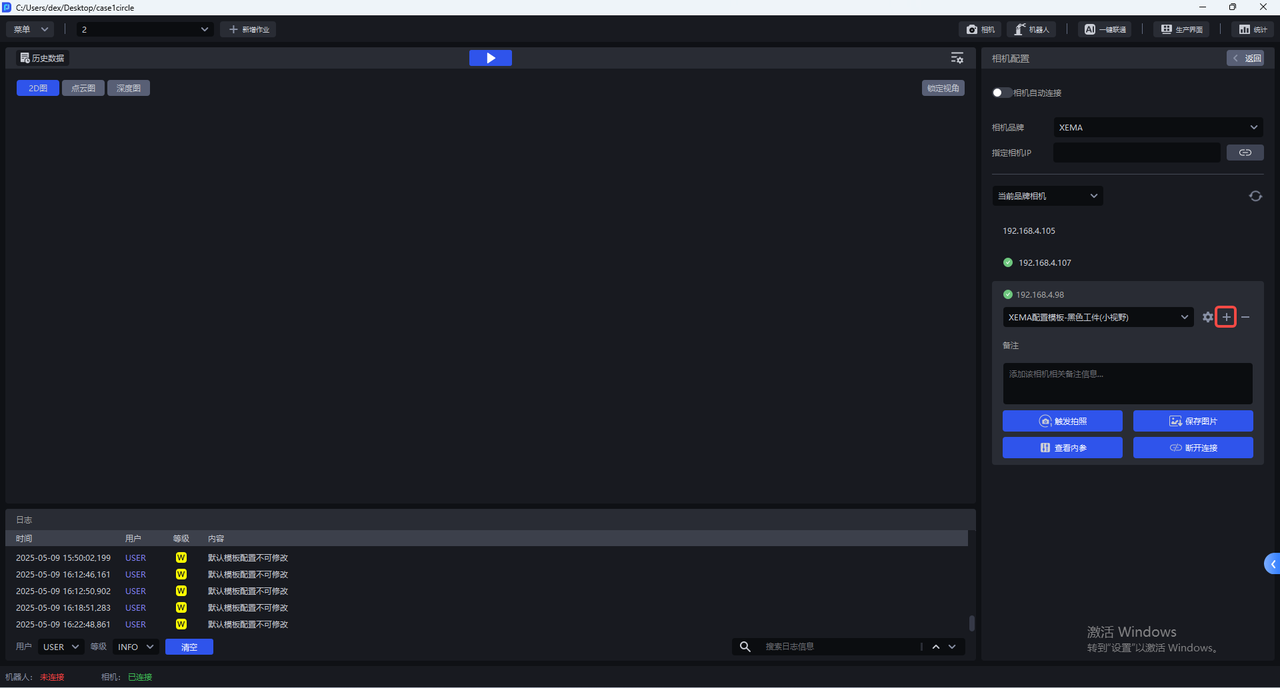
After copying the current default Camera configuration, you can switch to the newly added Camera configuration and click the Settings button to enter the Camera configuration page and modify the parameters.
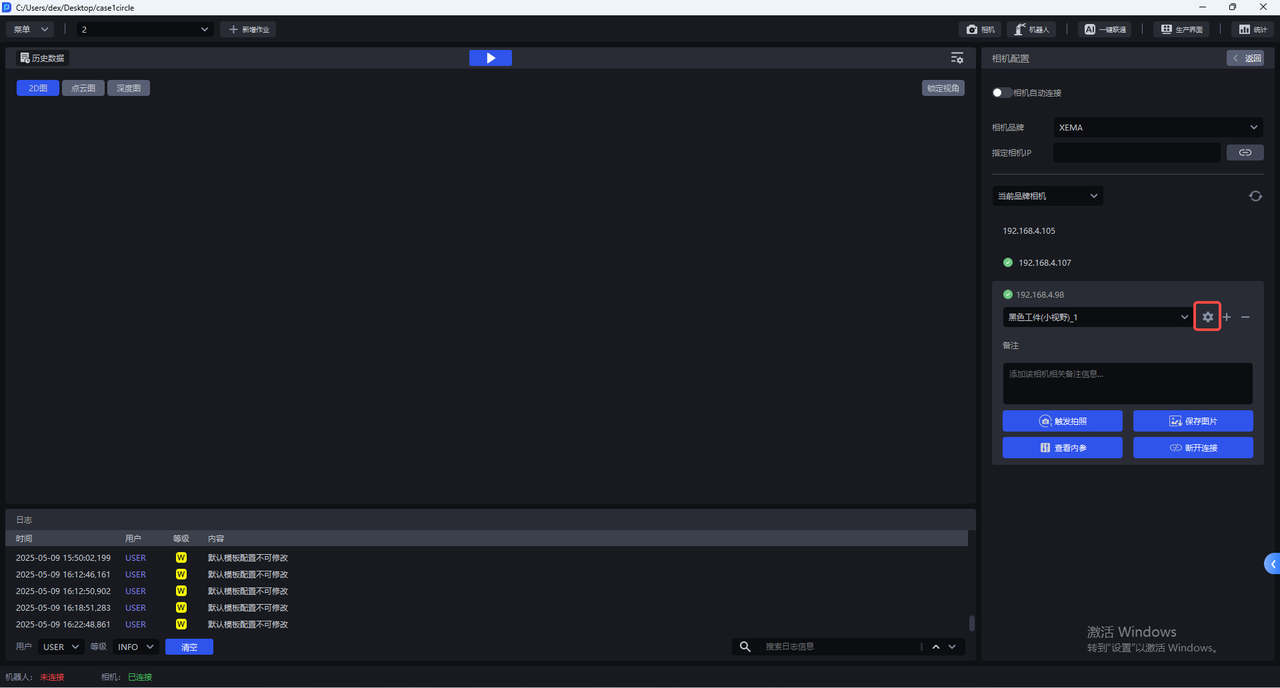
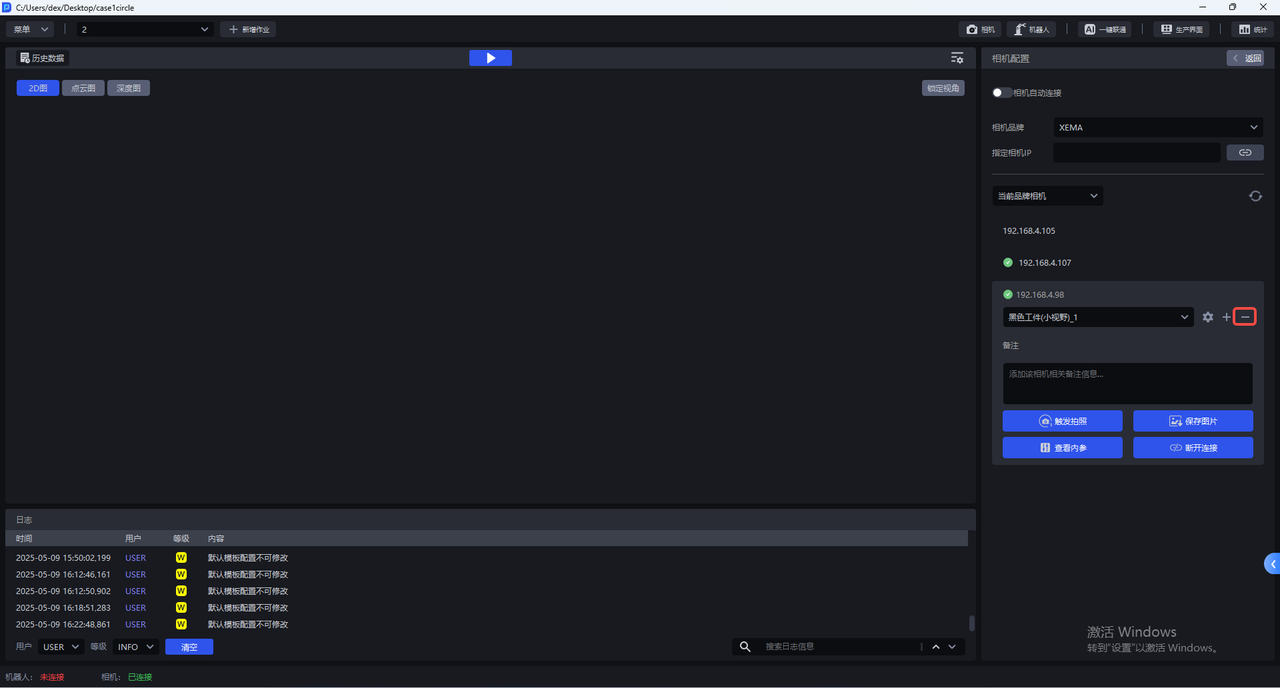
Click — to delete the newly added Camera configuration.
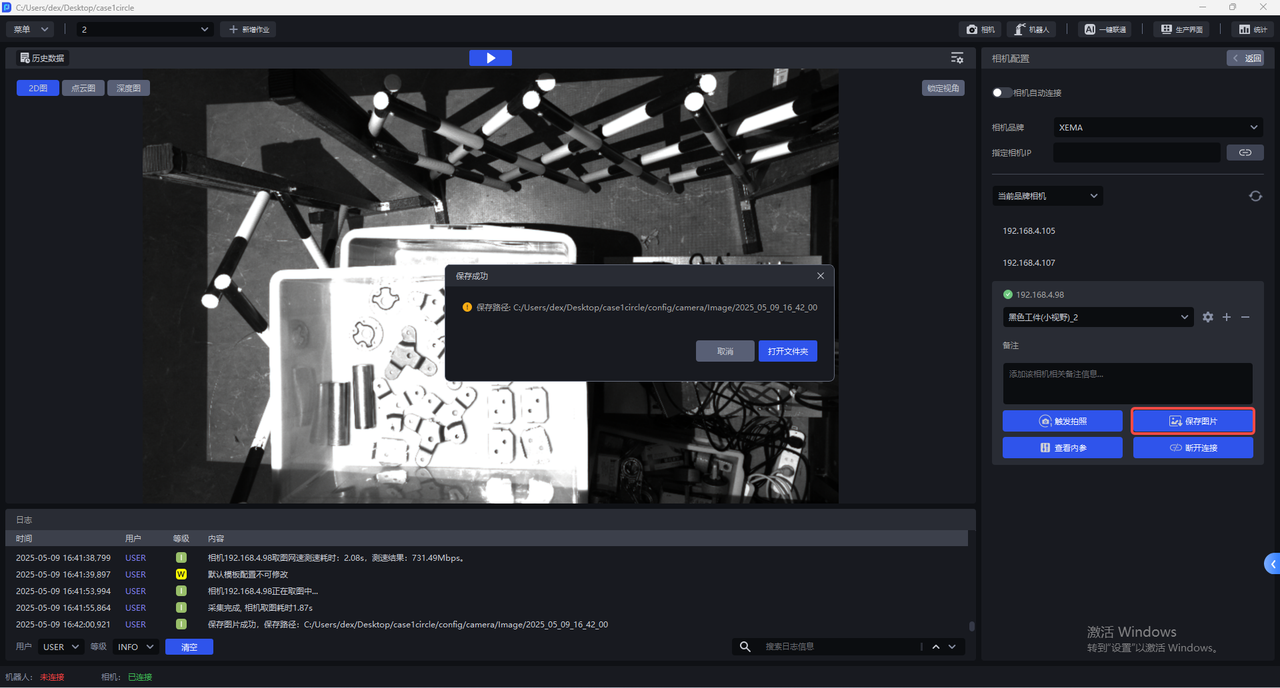
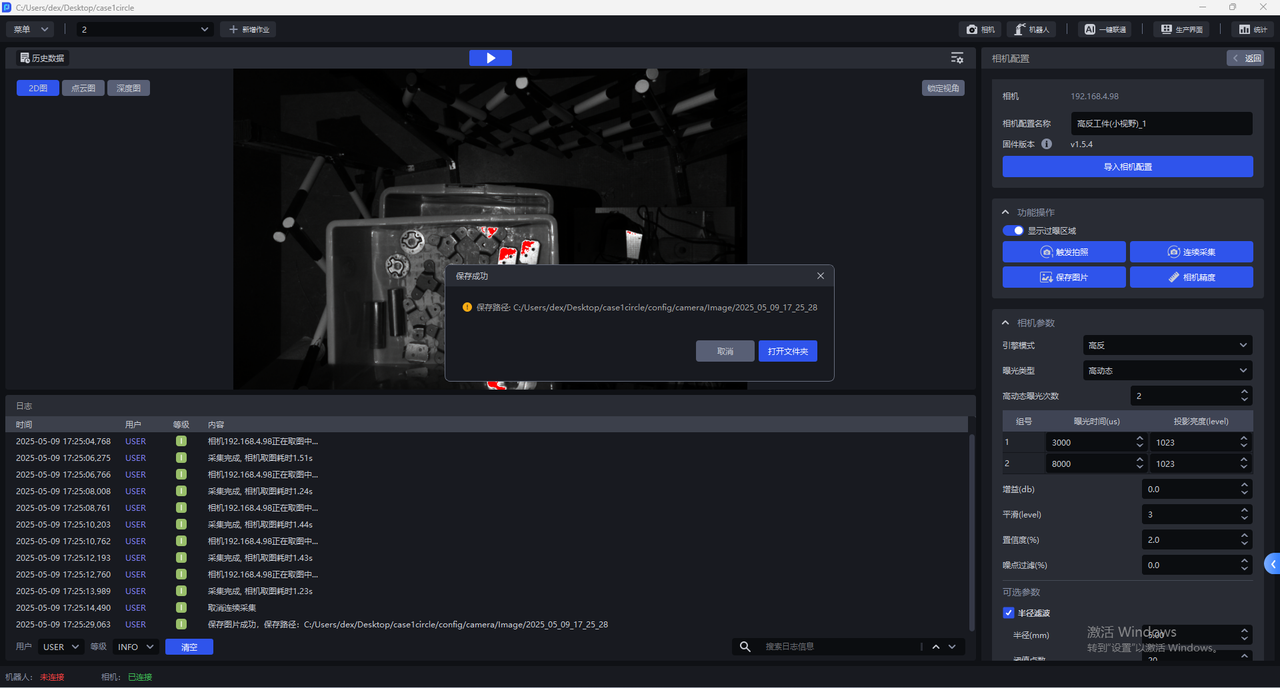
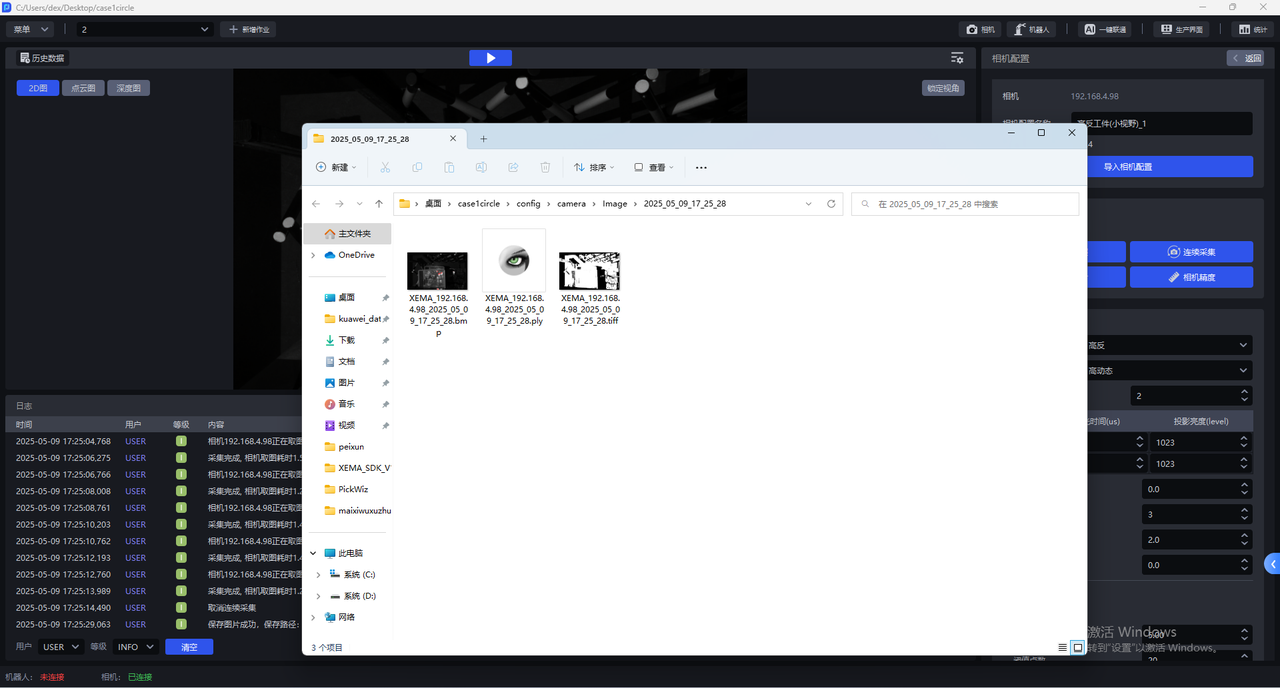
- Click
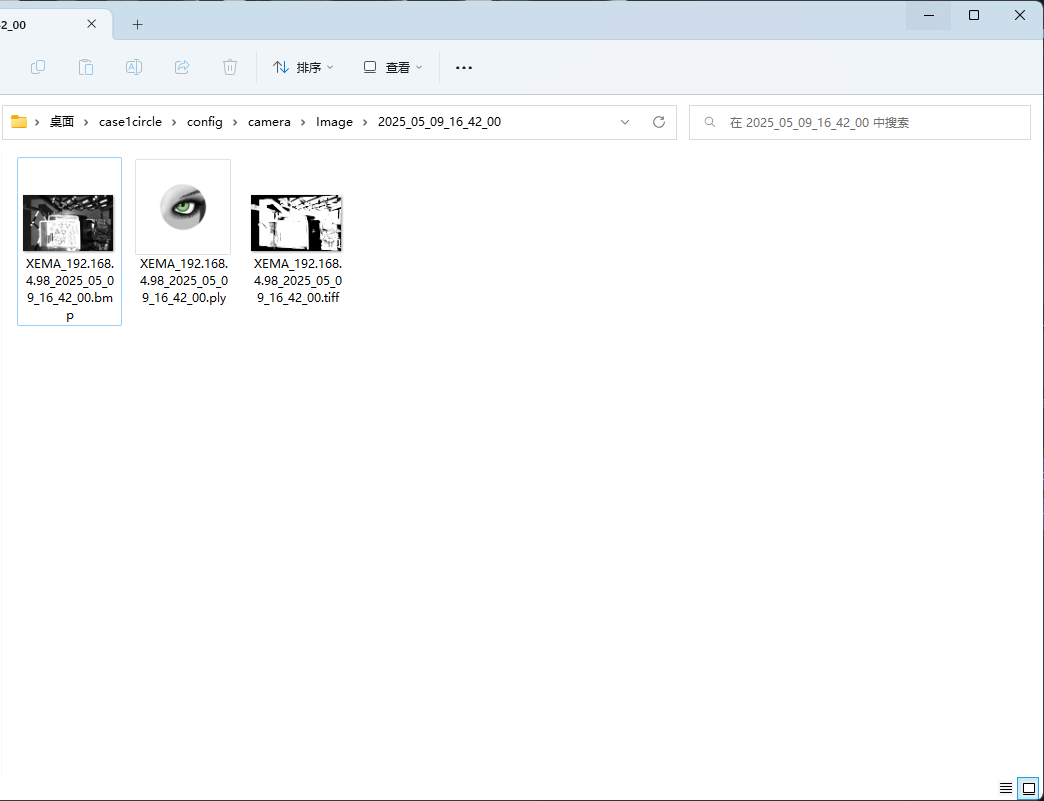
Save Imageto save the 2D image, Point Cloud image, and depth image captured using the current configuration to the local machine, as shown below. The save path is 项目文件夹/config/camera/image/拍摄时间. Files with the suffix bmp are 2D images, files with the suffix ply are Point Cloud images, and files with the suffix tiff are depth images.
- Click
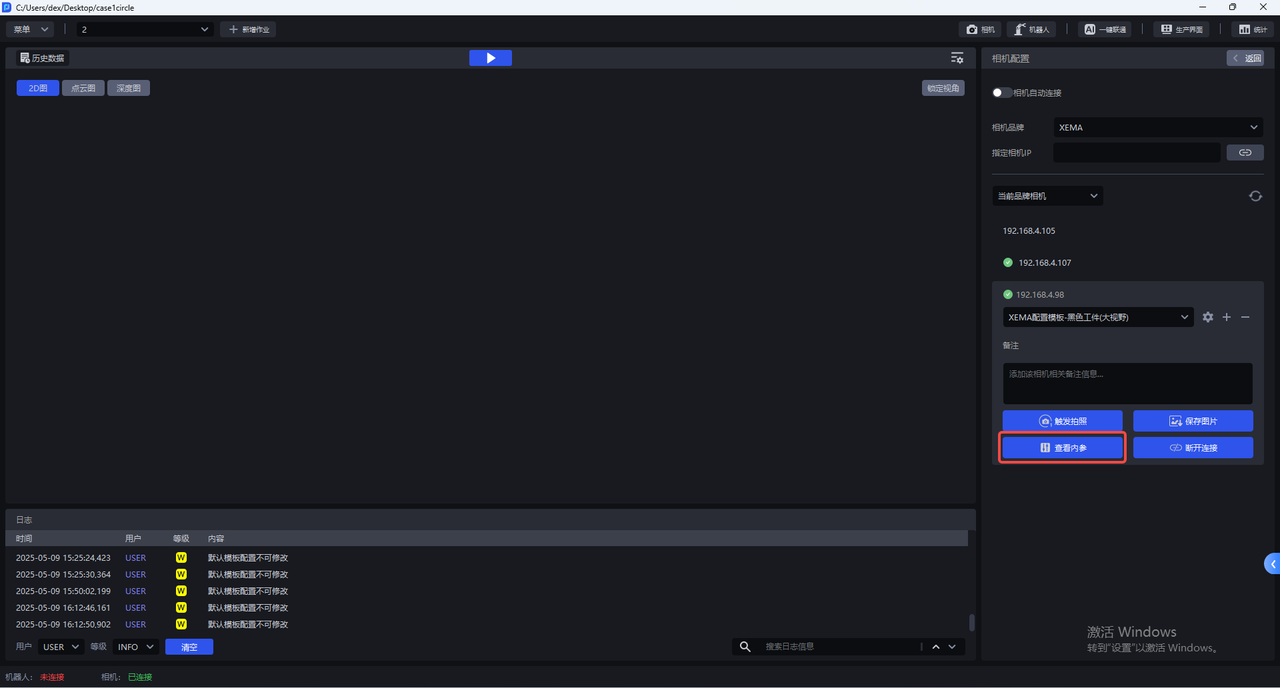
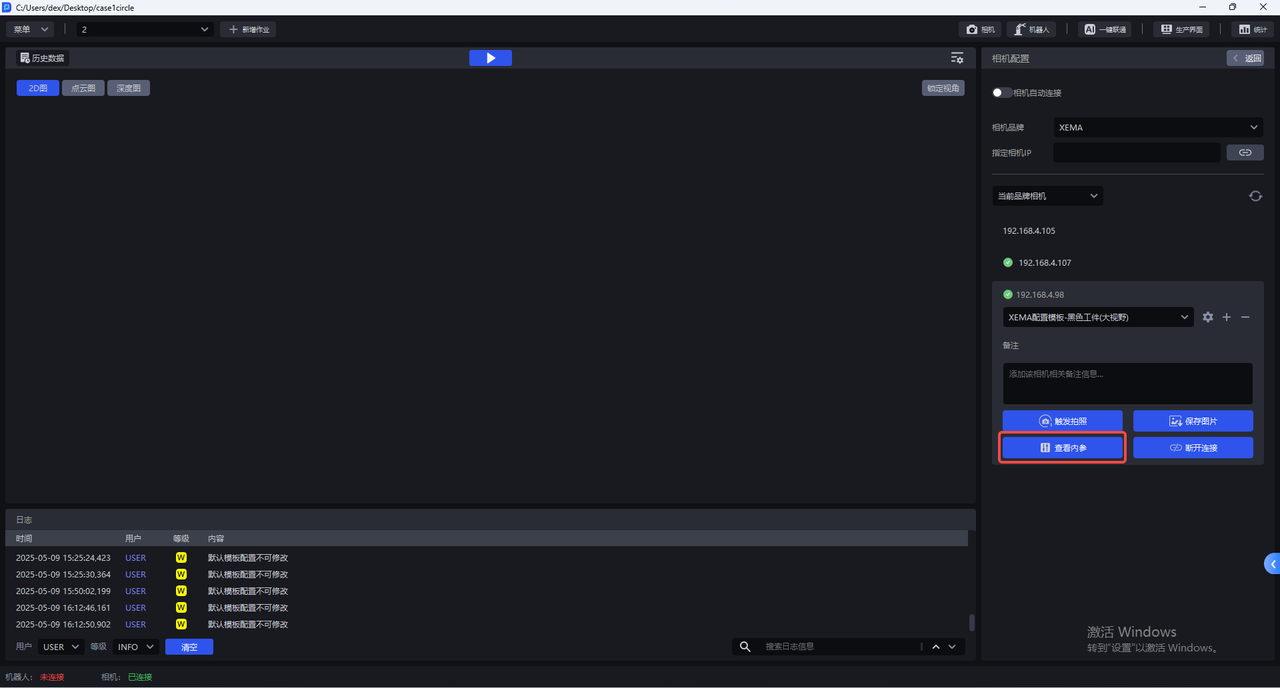
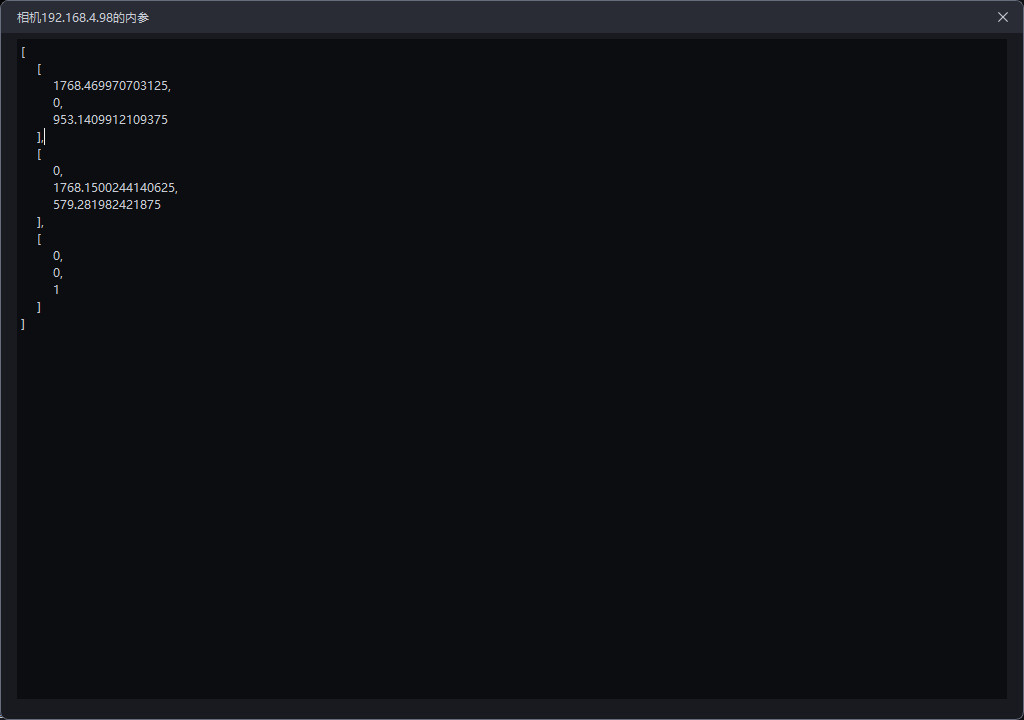
View Intrinsicsto view the Camera Intrinsic Parameter, including lens focal length, principal point coordinates, distortion coefficients, etc.
- Click
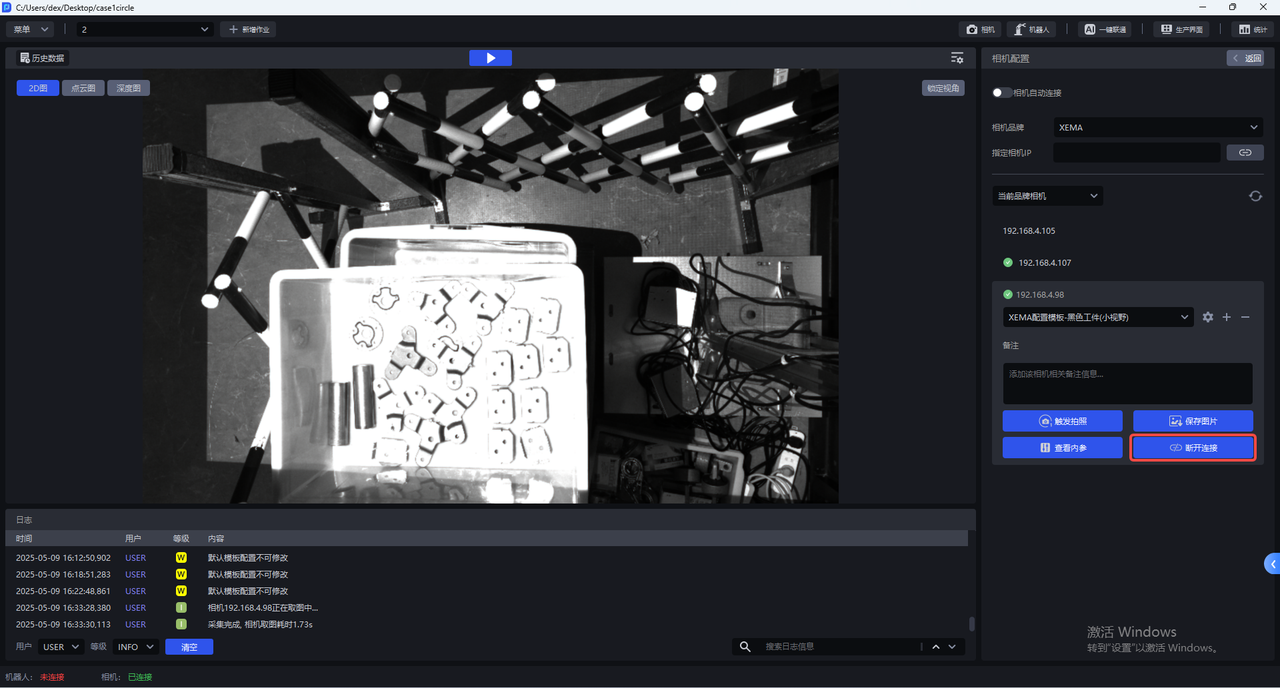
Disconnectto disconnect the Camera and select a Camera to reconnect.
2.1 Import Camera Configuration
Enter the Camera configuration page and click Import Camera Configuration to import an existing Camera configuration into the Camera.
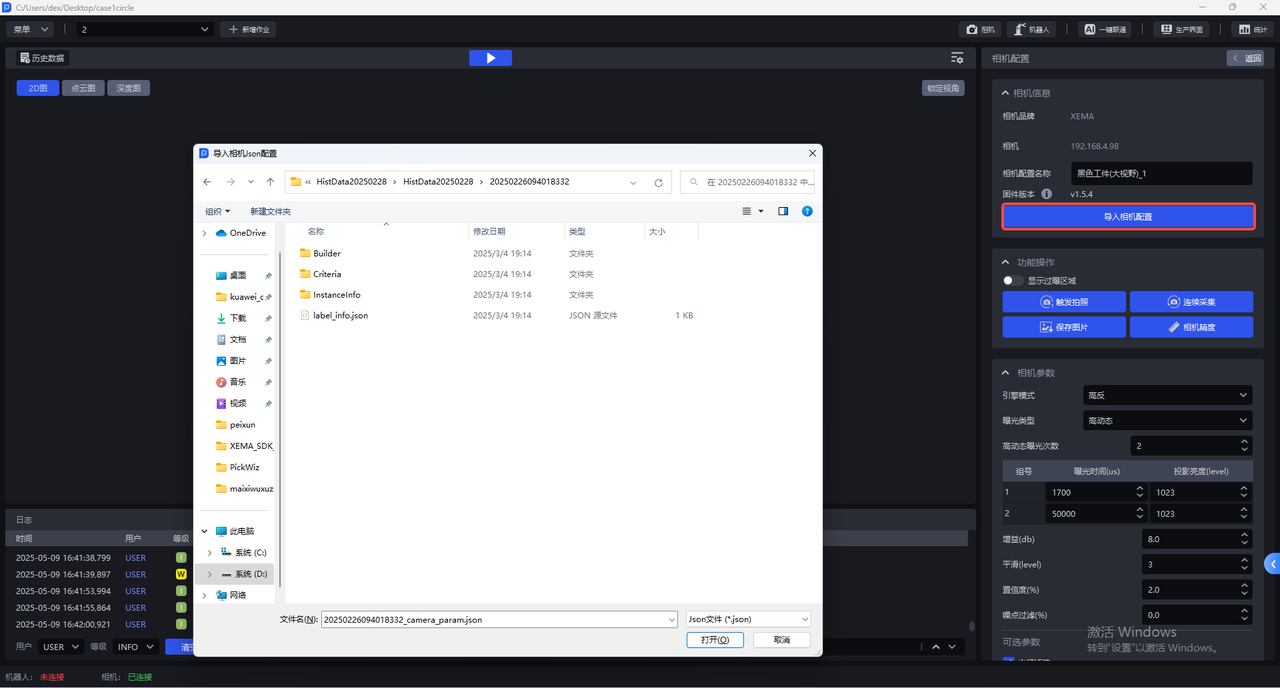
2.2 Functional Operations
The Camera configuration page provides the following functional operations:
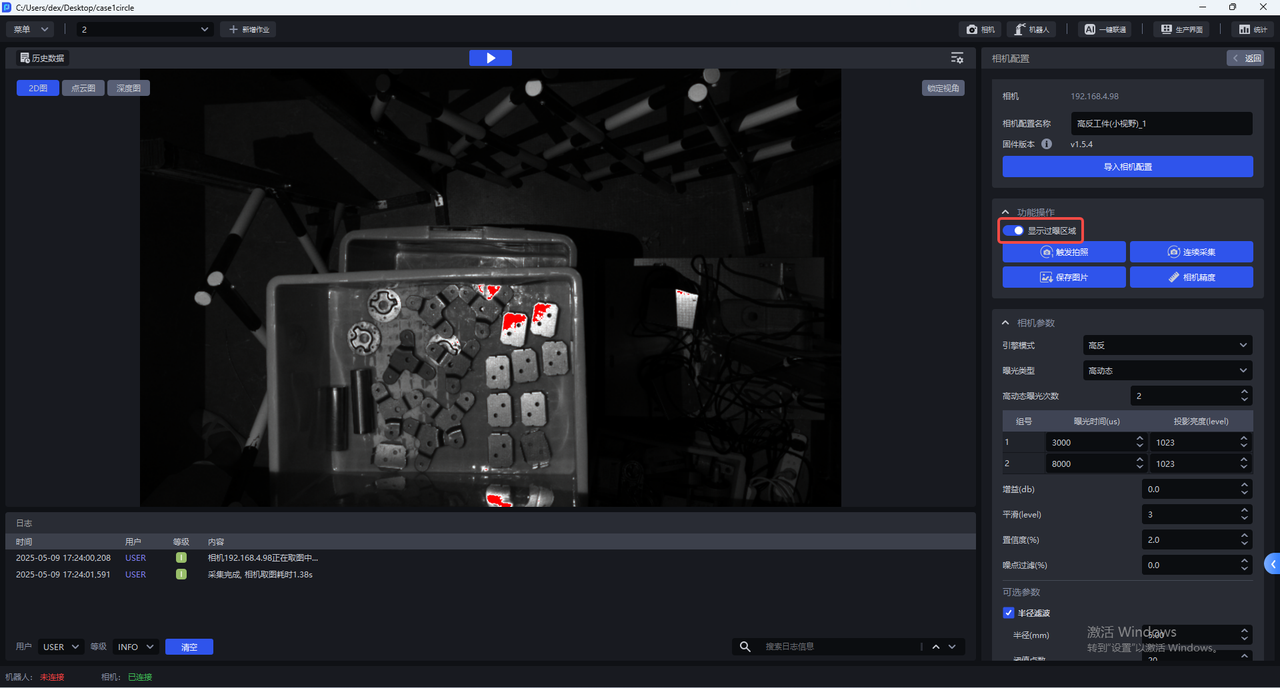
- Display Overexposed Areas
After enabling Display Overexposed Areas, the visualization window displays the overexposed areas of the current image, as shown below.
- Trigger Capture
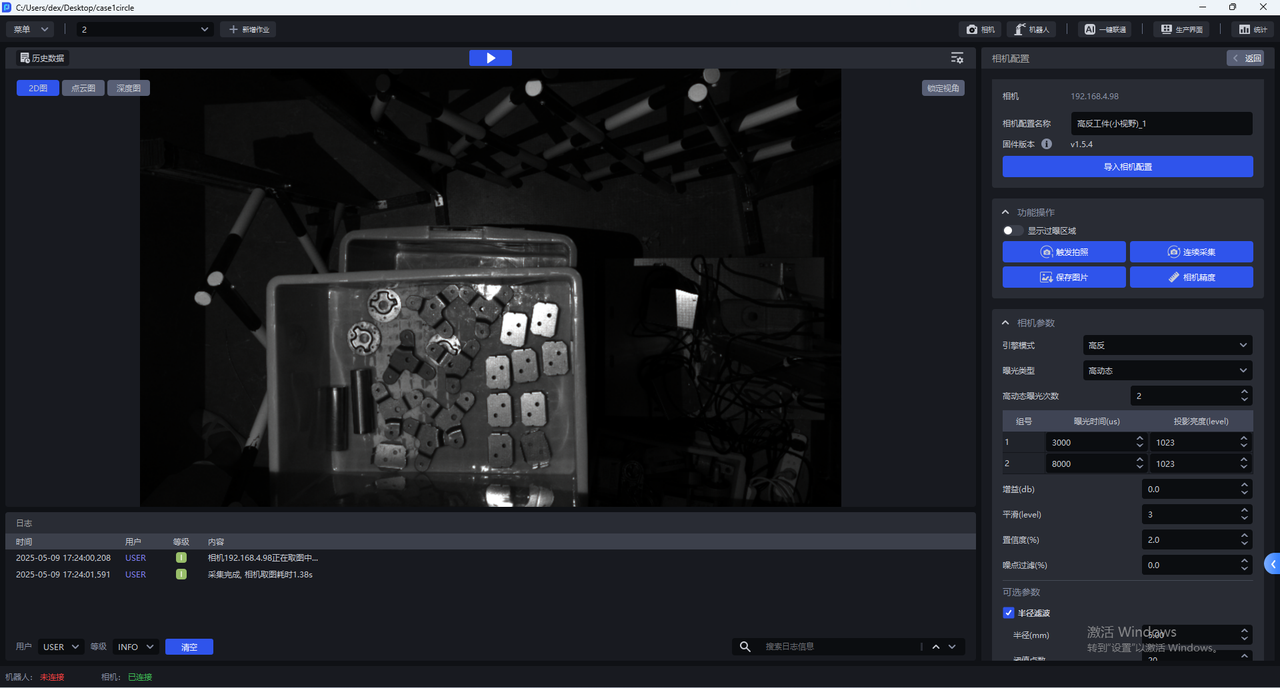
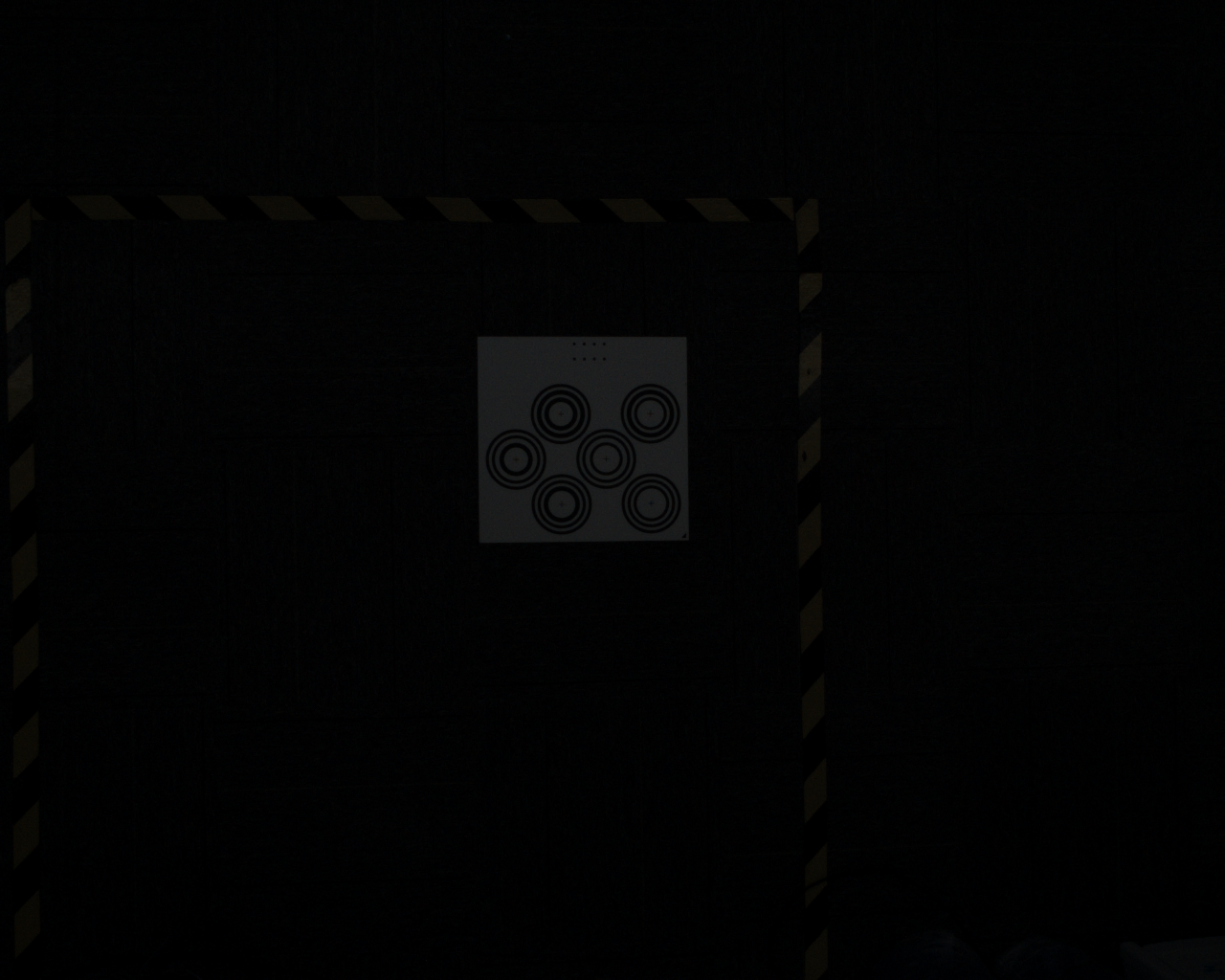
Click Trigger Capture to capture a 2D image, Point Cloud image, and depth image using the current Camera configuration. You can view the imaging quality of the current Camera configuration in the visualization window.
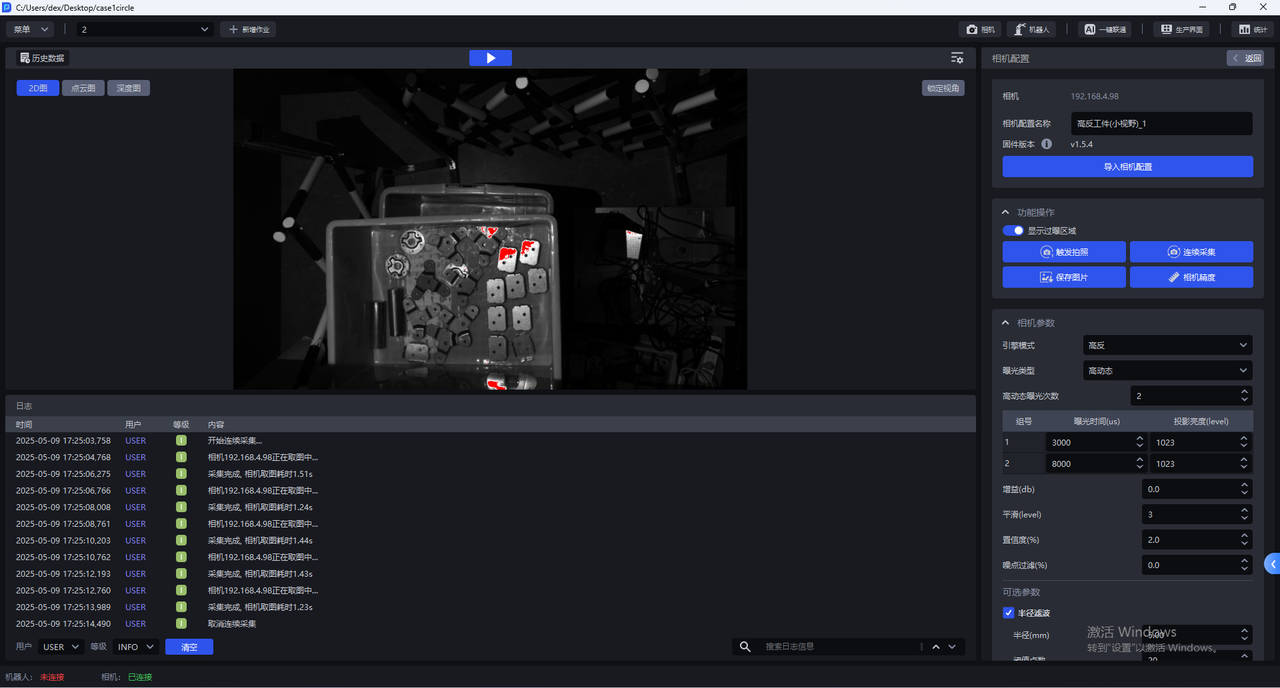
- Continuous Acquisition
Click Continuous Acquisition, and the Camera captures images continuously. Click Cancel Acquisition to stop image capture.
- Save Image
Click Save Image to save the captured 2D image, Point Cloud image, and depth image.
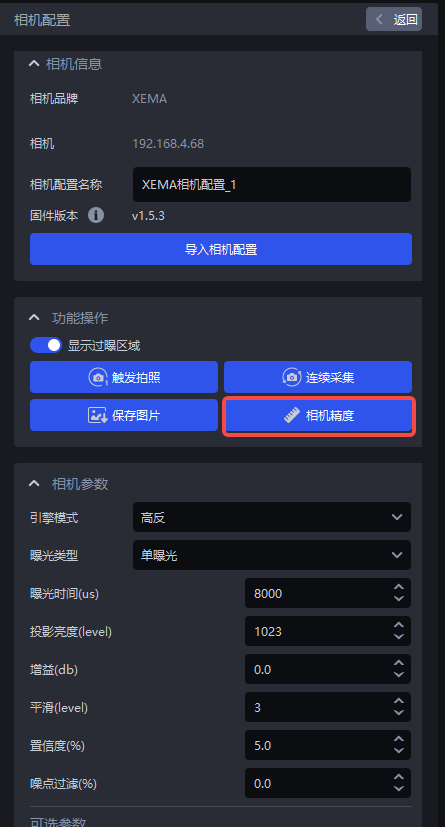
- Camera Accuracy
Click Camera Accuracy to view and verify Camera accuracy.
2.3 Camera Accuracy
2.3.1 View Camera Accuracy
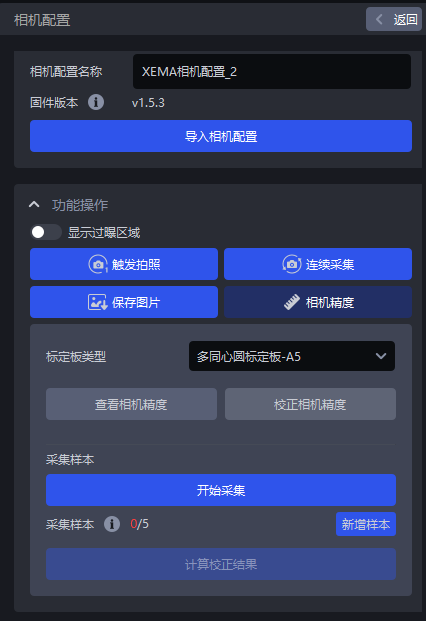
- Place the Calibration Board within the Camera field of view, then click
Camera Accuracyon the Camera configuration page to open the Camera accuracy page, as shown below.
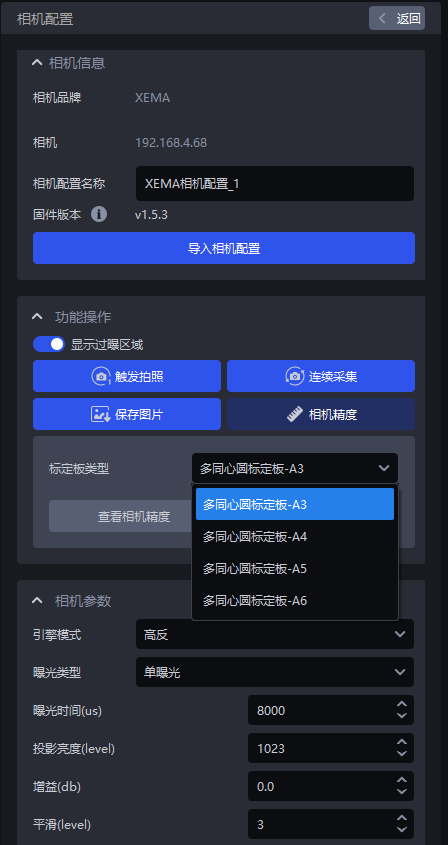
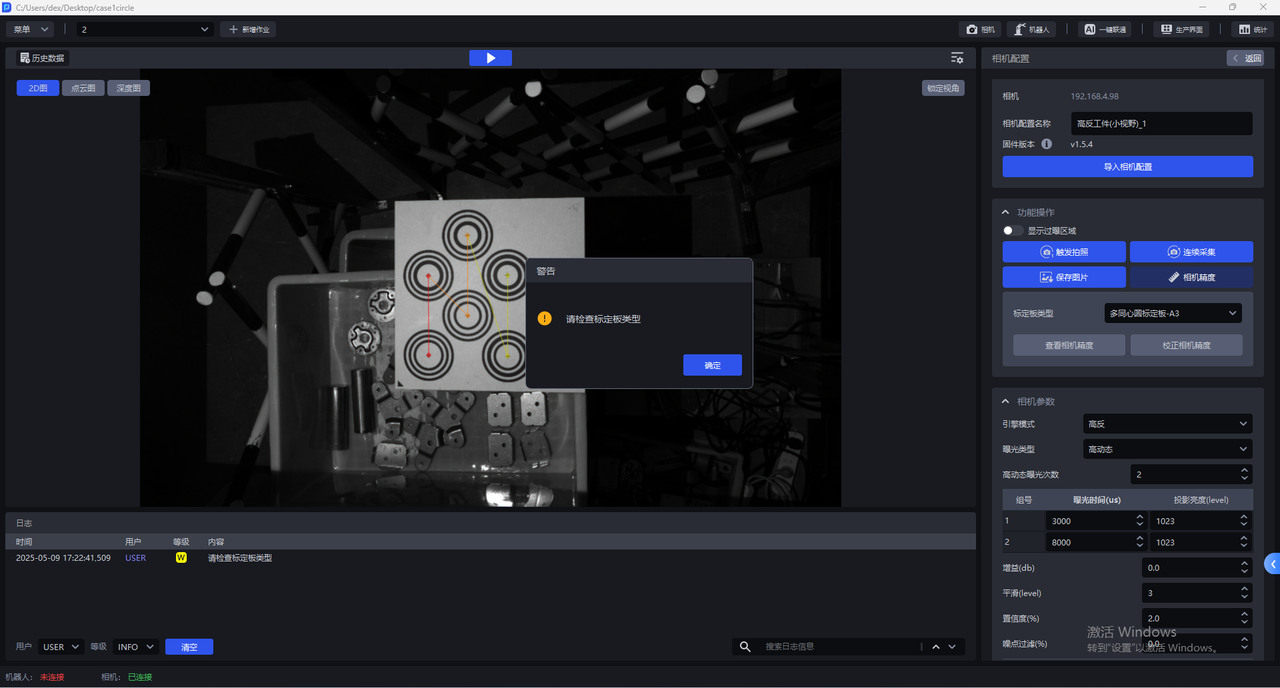
- Select the corresponding Calibration Board. If the selected Calibration Board does not match the actual one, a warning pop-up saying "Please check the Calibration Board type" appears, as shown below. A warning pop-up appears when the Calibration Board type is A3.
- After selecting the correct Calibration Board type, click
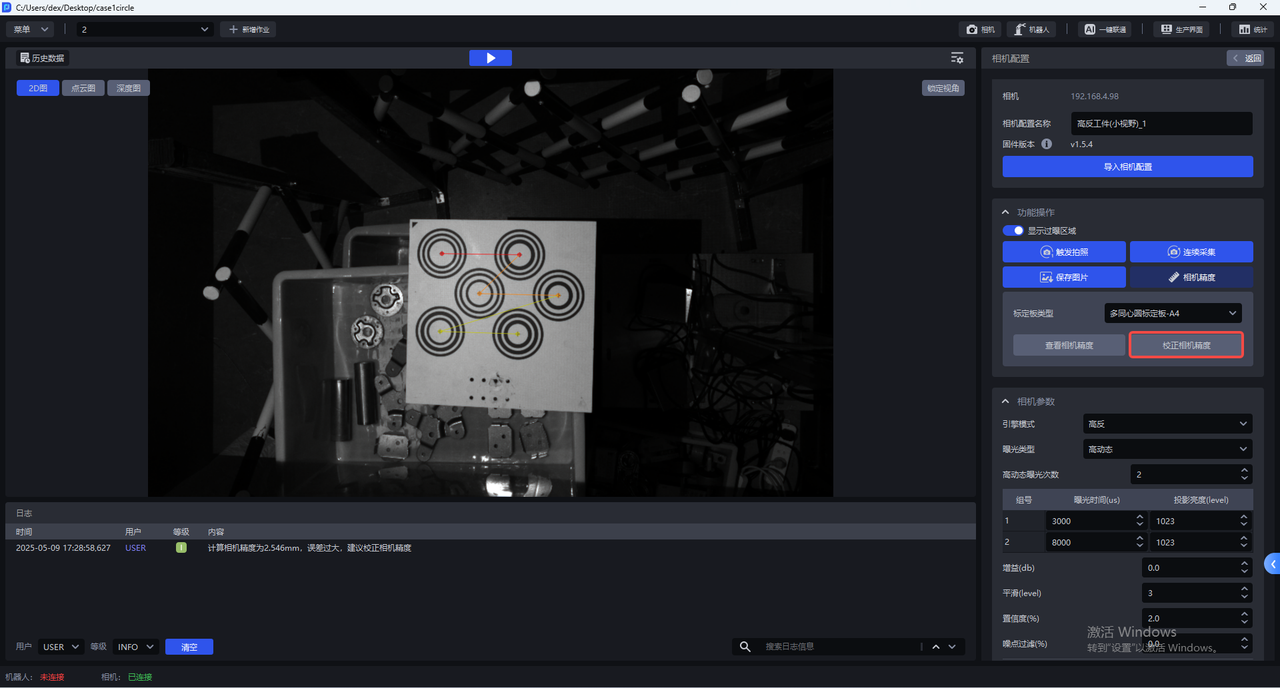
View Camera Accuracy. PickWiz automatically calculates the current Camera accuracy. If the Camera accuracy meets the requirements, directly adjust the Camera imaging parameters; if the Camera accuracy is too large, a prompt pop-up saying "The error is too large. It is recommended to calibrate the Camera accuracy" appears.
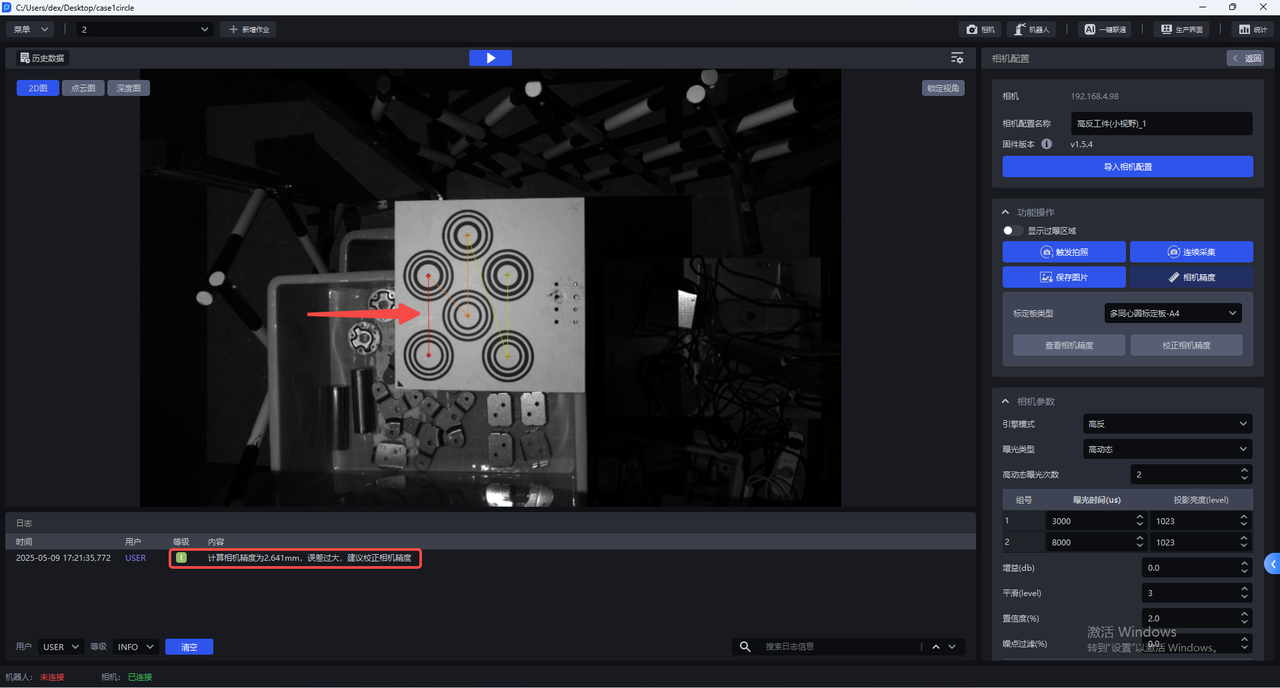
For each Camera series, Camera accuracy of <Xmm means the accuracy meets the requirement.
XEMA-D:0.2mm
XEMA-S:0.2mm
XEMA-L:0.5mm
FINCH:0.8mm
SPARROW:0.2mm
KINGFISHER:0.8mm
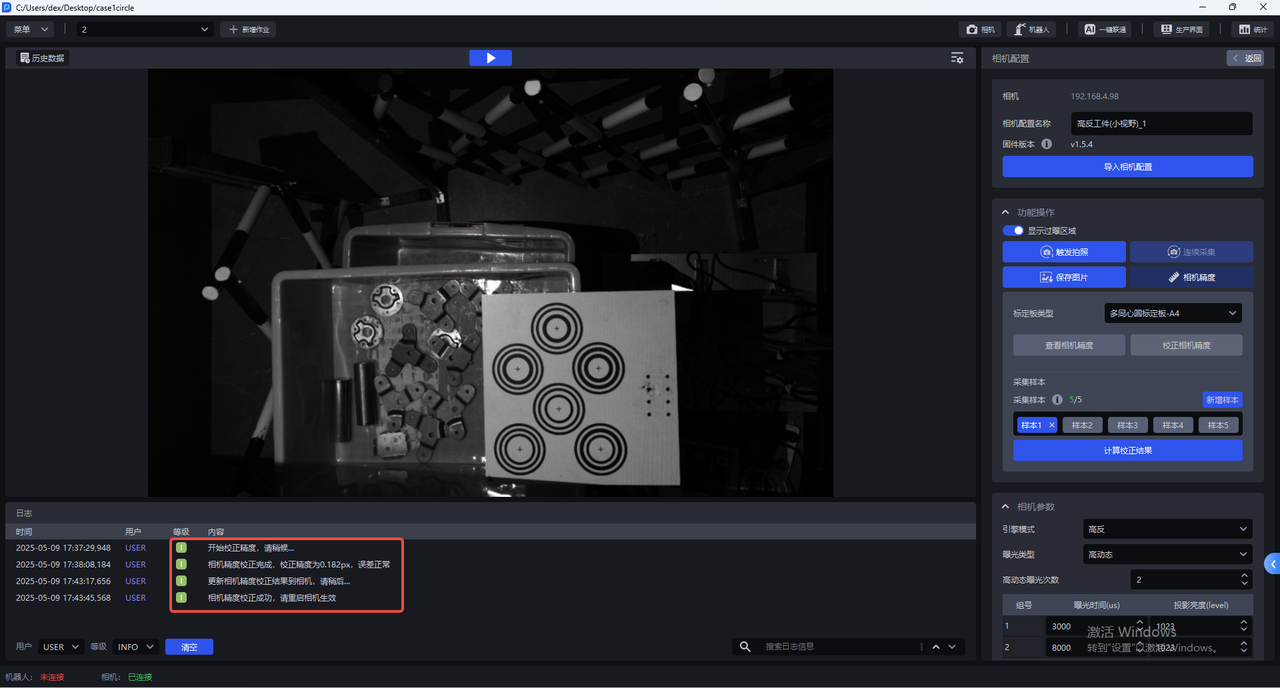
2.3.2 Calibrate Camera Accuracy
During actual Camera use and after Extrinsic Parameter calibration, you need to verify whether the current Camera accuracy meets the requirements.
When viewing Camera accuracy, if the Camera accuracy error is abnormal, the Camera accuracy should be calibrated;
If the Point Cloud captured by the current Camera shows large fluctuations, the Camera accuracy should be calibrated.
Before calibrating Camera accuracy, enable
Display Overexposed Areasto check the exposure level of Camera imaging. If there are overexposed areas, adjust the exposure time of single exposure to ensure normal Camera imaging exposure.After calibration is completed, switch the Camera imaging parameters back to the original configuration.
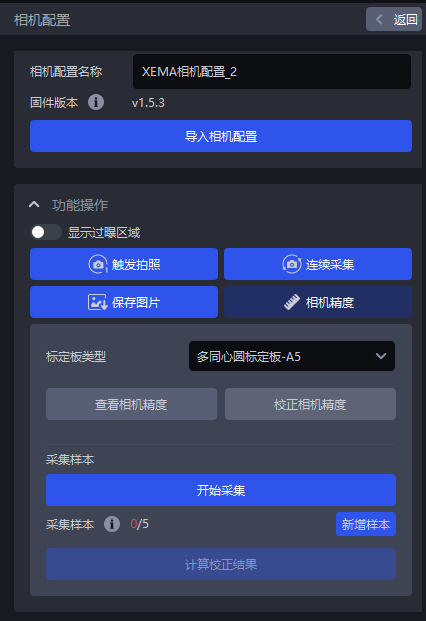
- On the Camera configuration page, click
Camera Accuracy
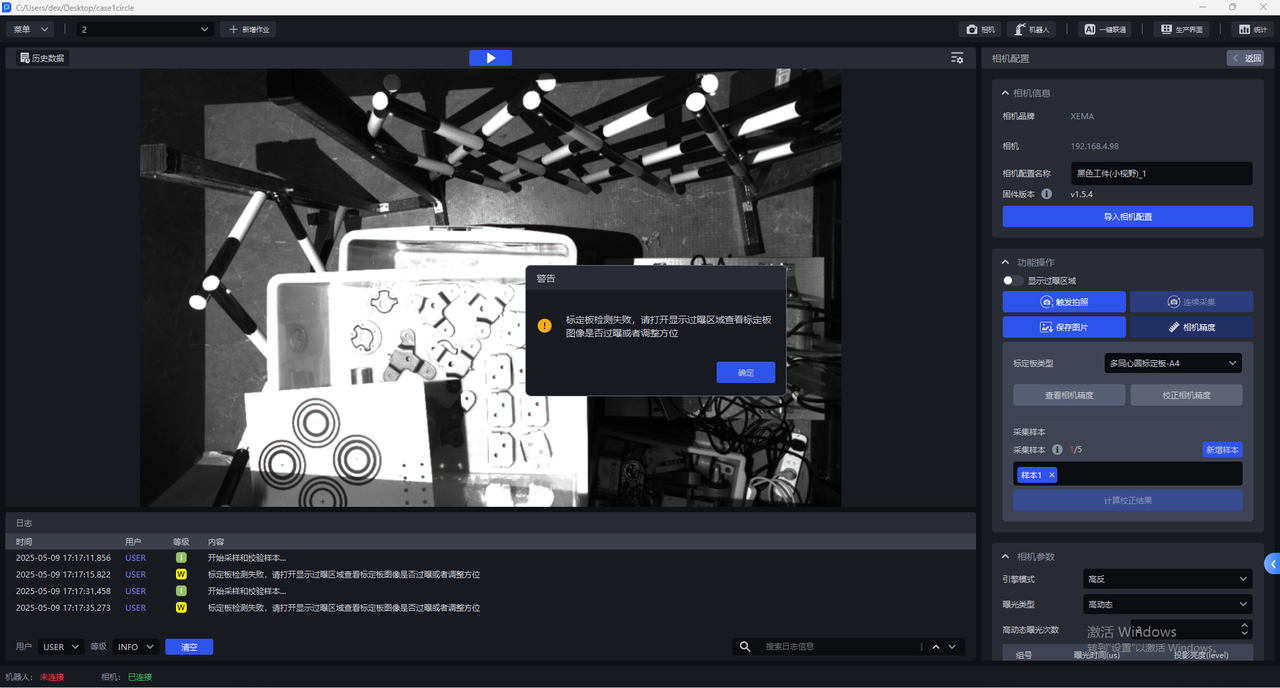
- Select the corresponding Calibration Board. If the selected Calibration Board does not match the actual one, a warning pop-up saying "Please check the Calibration Board type" appears, as shown below. The actual Calibration Board type is A4. If the selected Calibration Board type is A3, a warning pop-up appears.
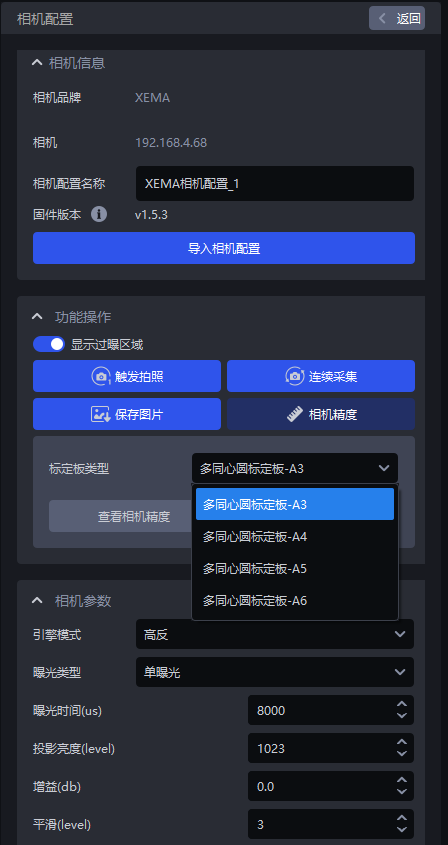
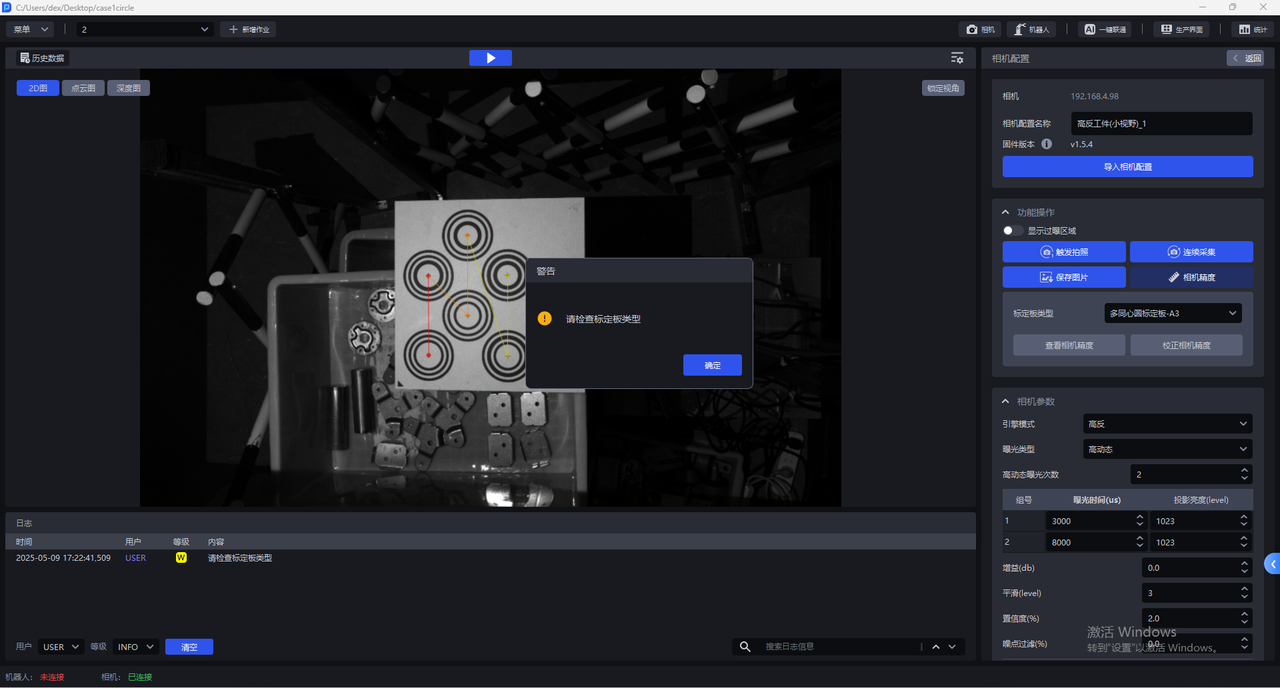
- After selecting the correct Calibration Board type, click
Calibrate Camera Accuracy
- Place the Calibration Board horizontally in the center of the Camera field of view, then click
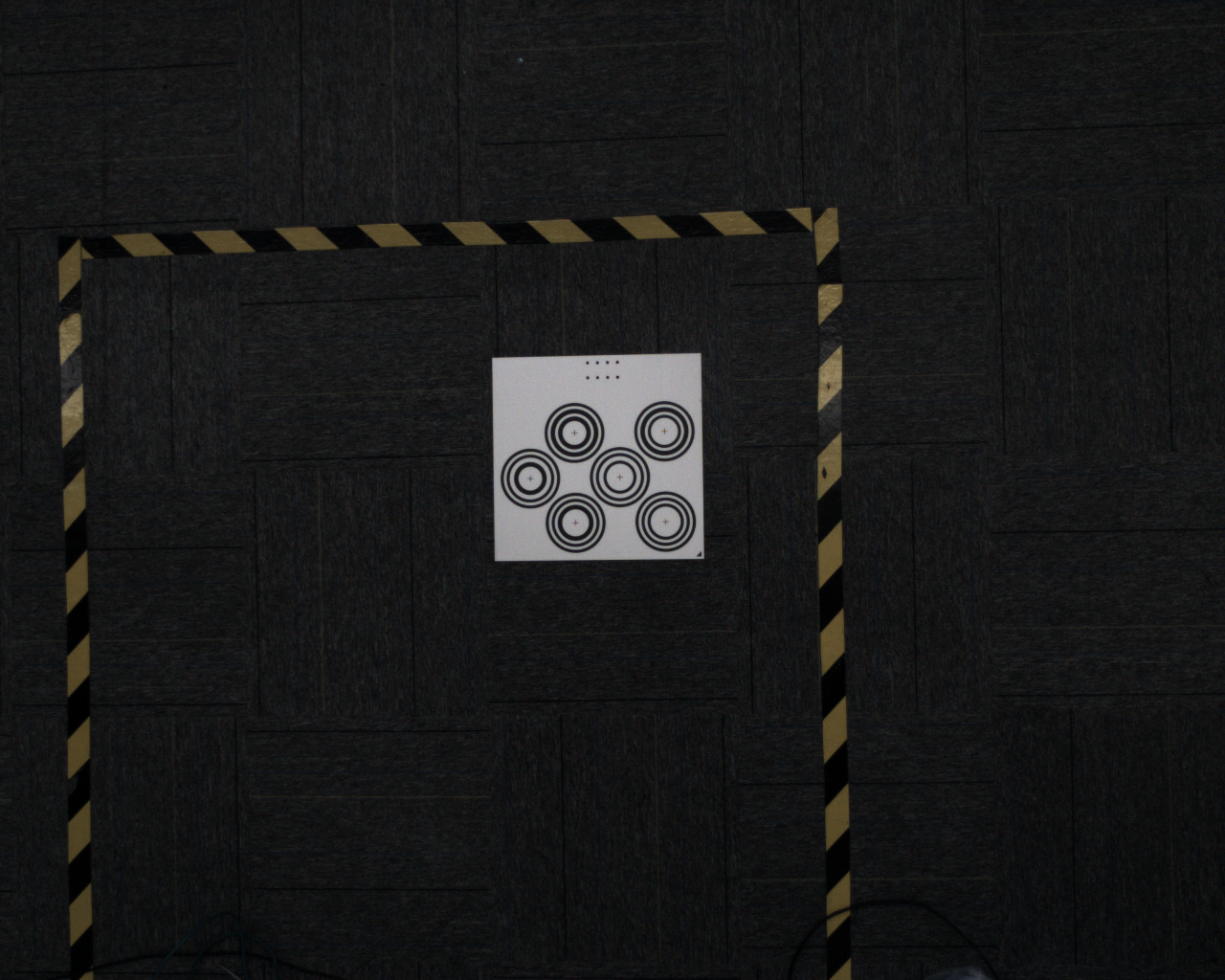
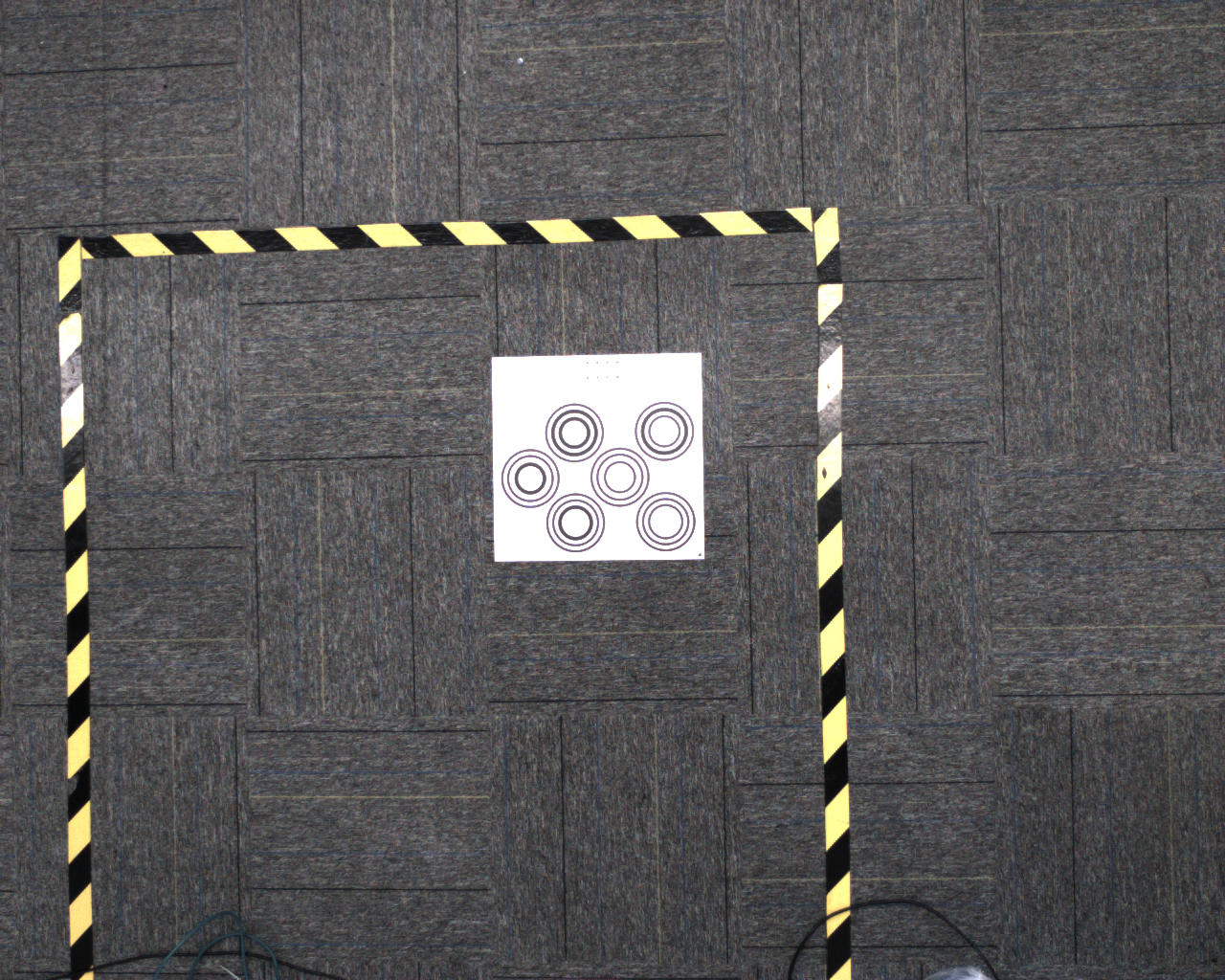
Add Sample. The Camera starts sampling and validating the sample. If the collected sample passes validation, it is added belowCollected Samples, as shown below.
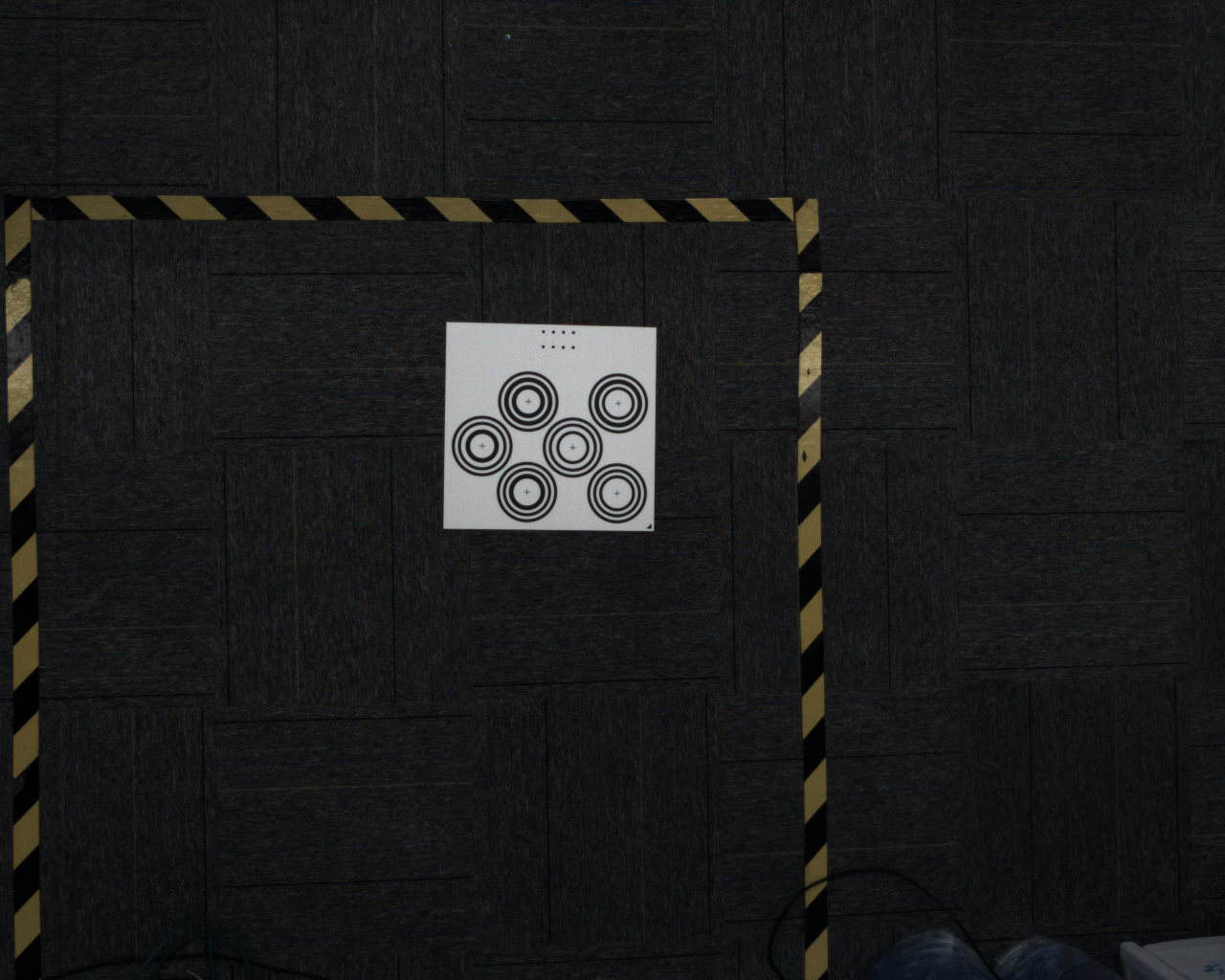
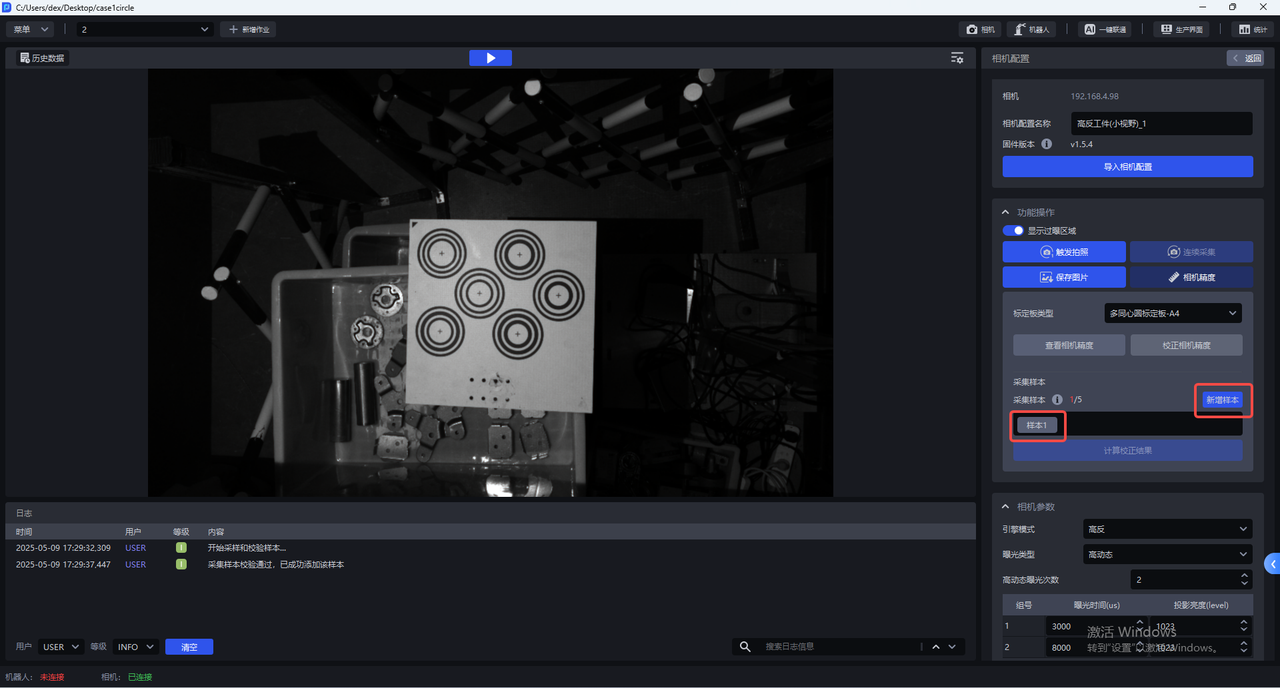
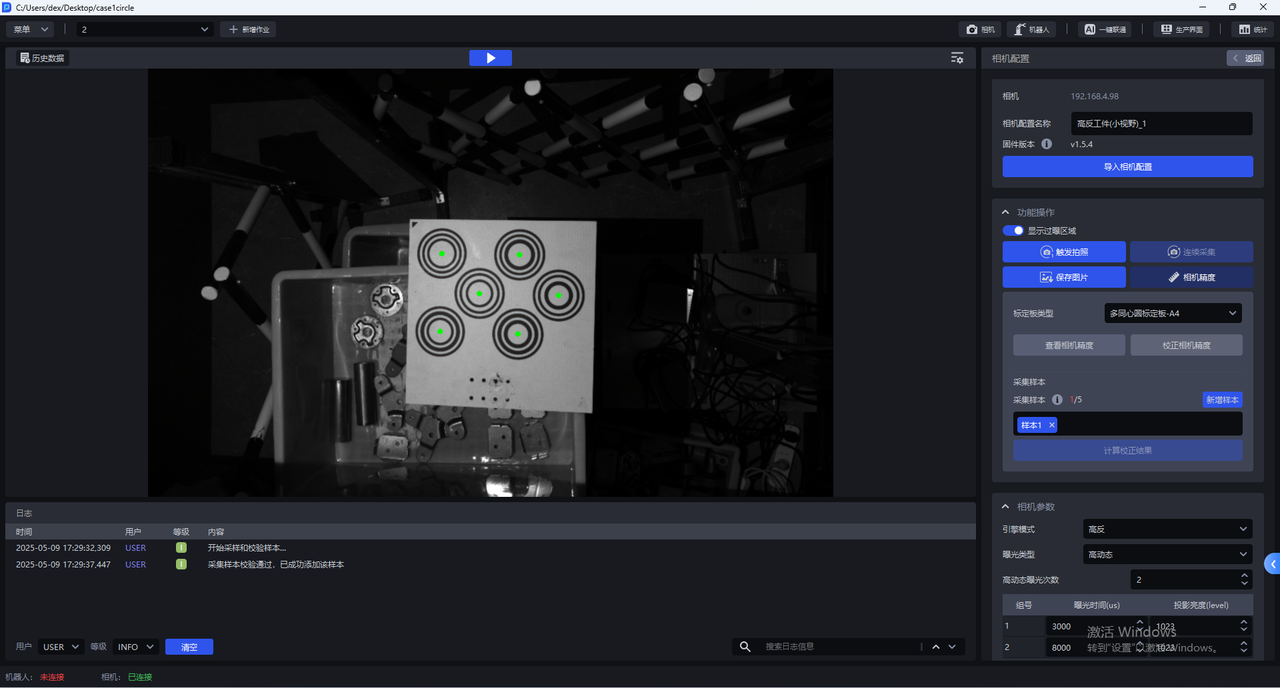
Click Sample x to view the collected sample. For a validated sample, the centers of all concentric circles on the Calibration Board turn green.
- Move the Calibration Board to the 4 corners within the Camera field of view and add samples.
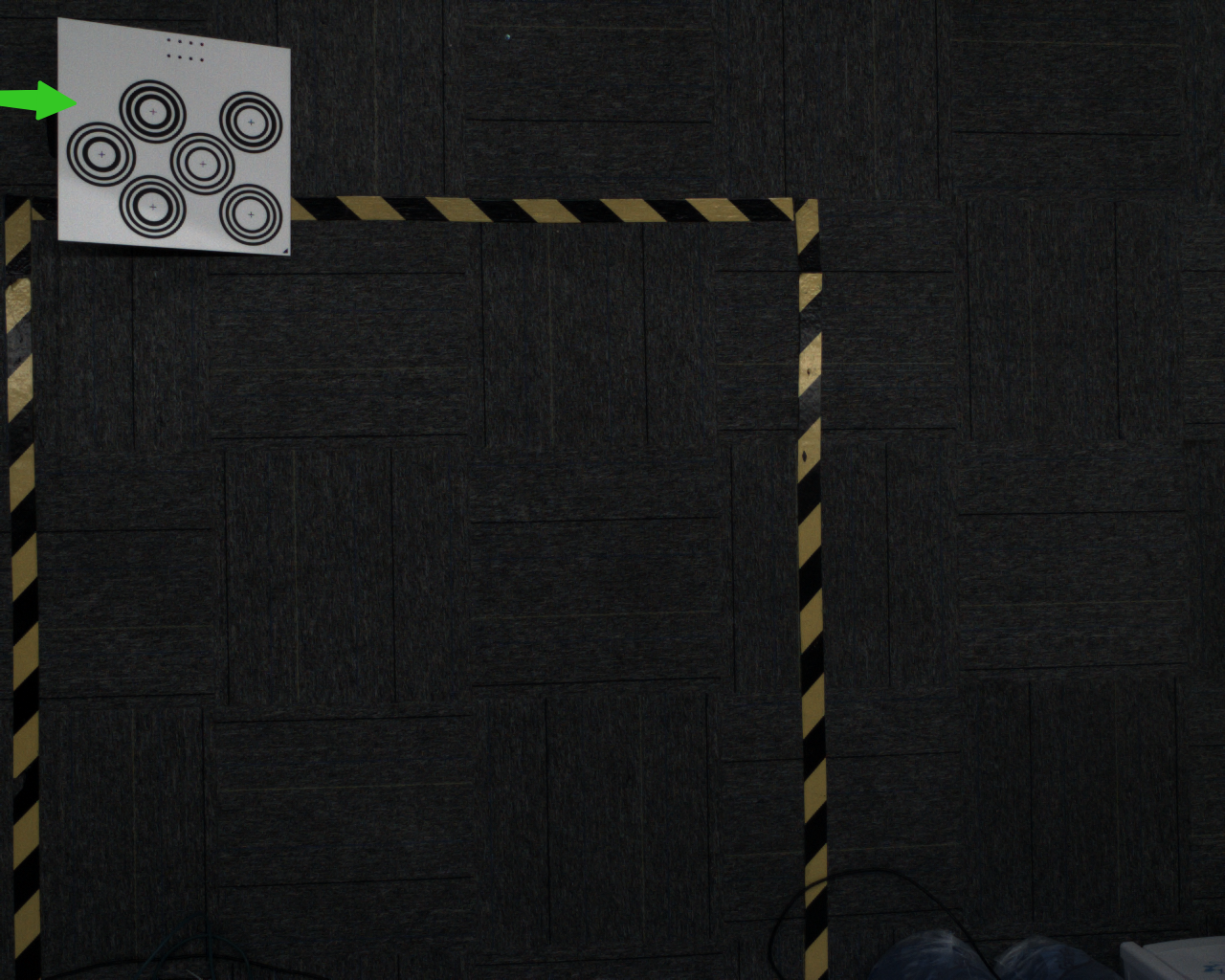
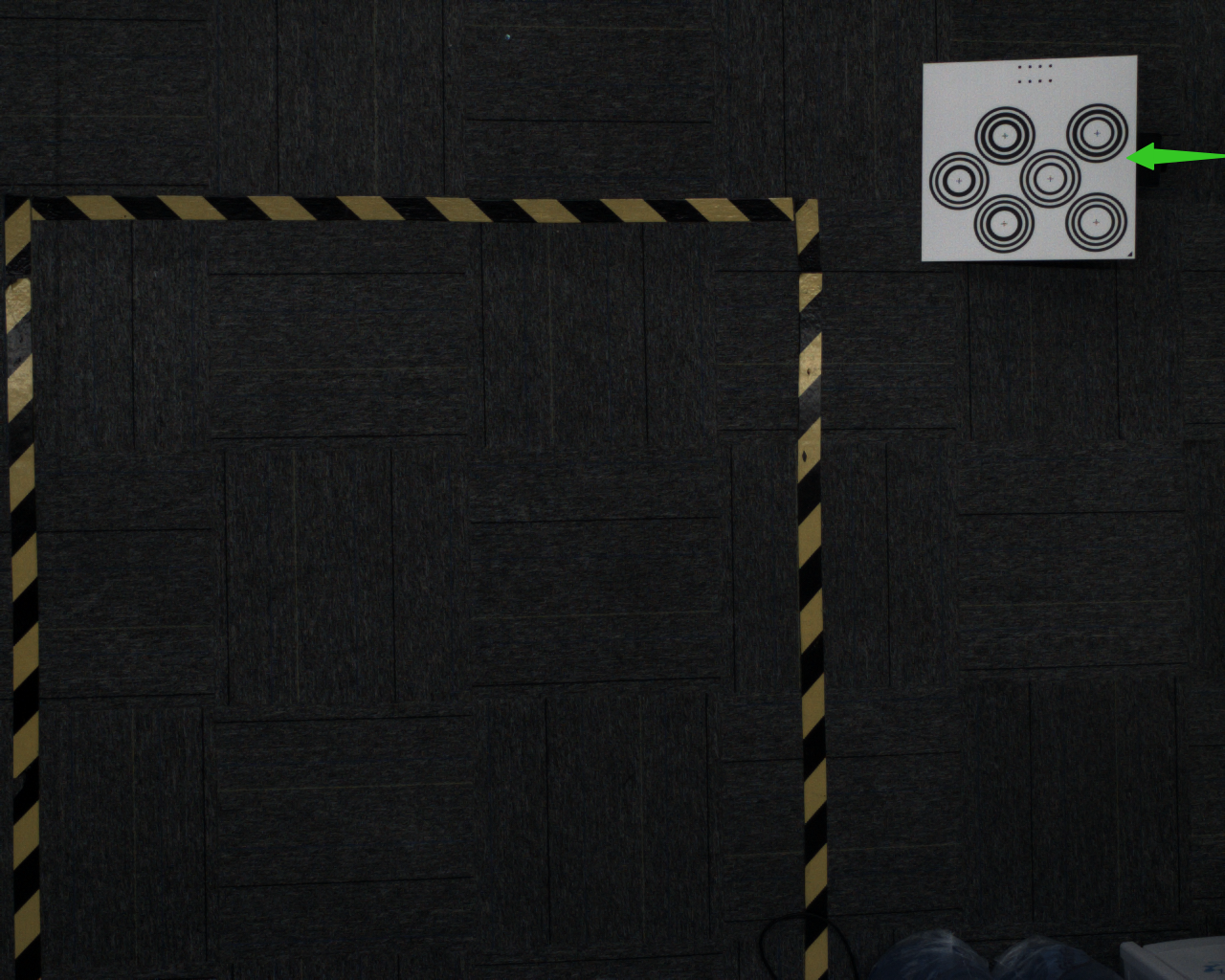
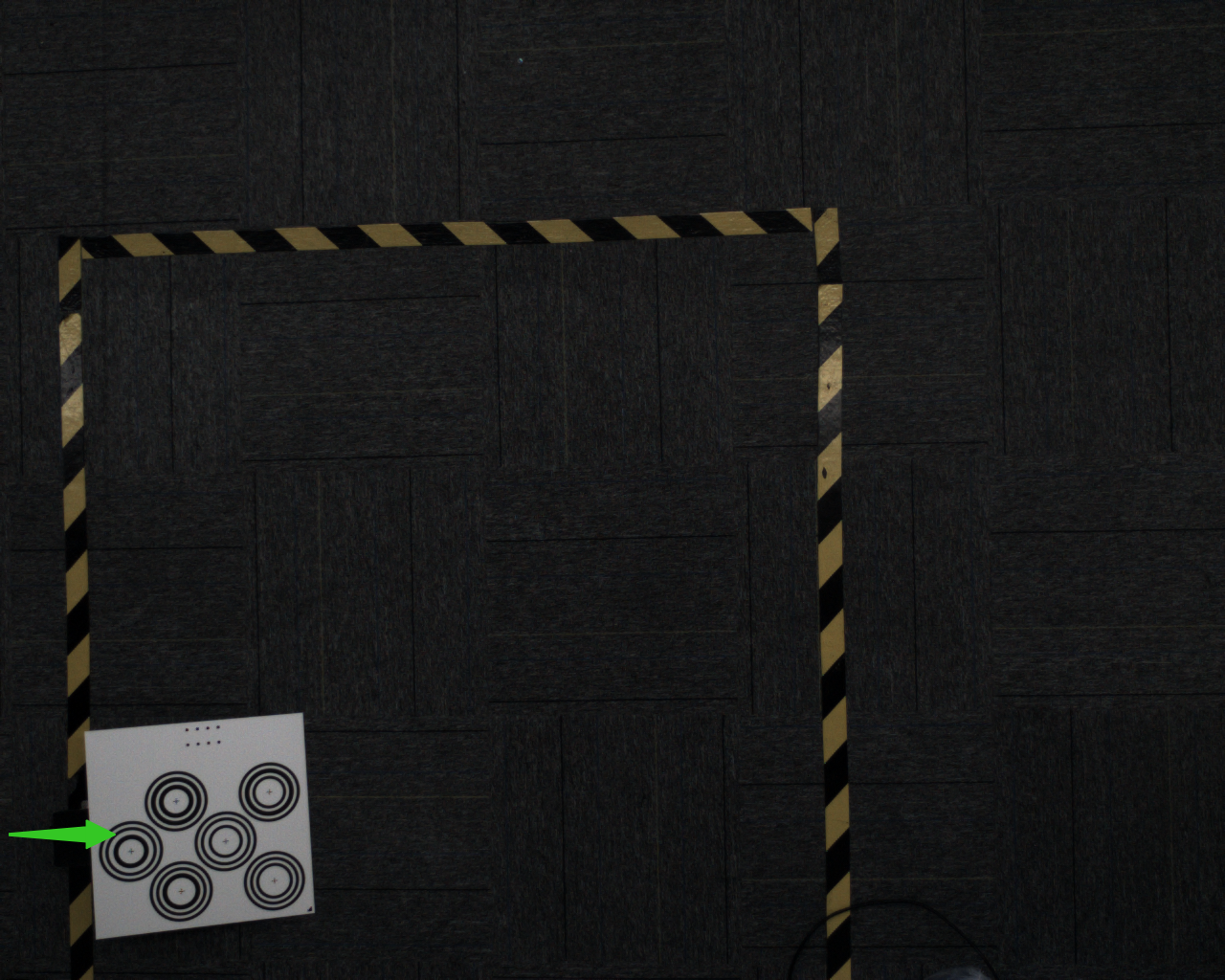
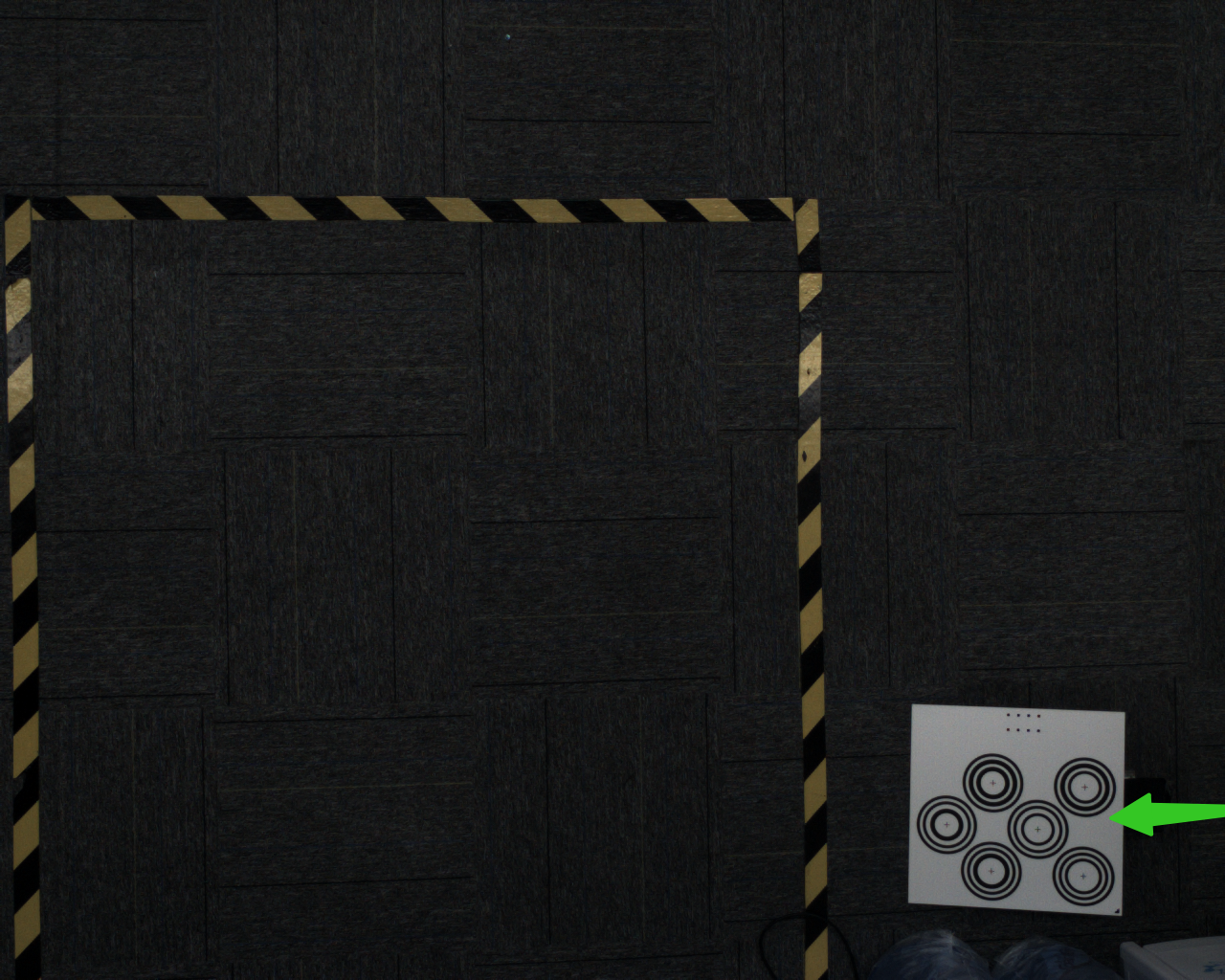
At each corner, raise the Calibration Board at an angle. The placement angle of the Calibration Board should be 15-30°, and the tilt angle should be neither too large nor too small.
- After adding 5 samples, click
Compute Calibration Result
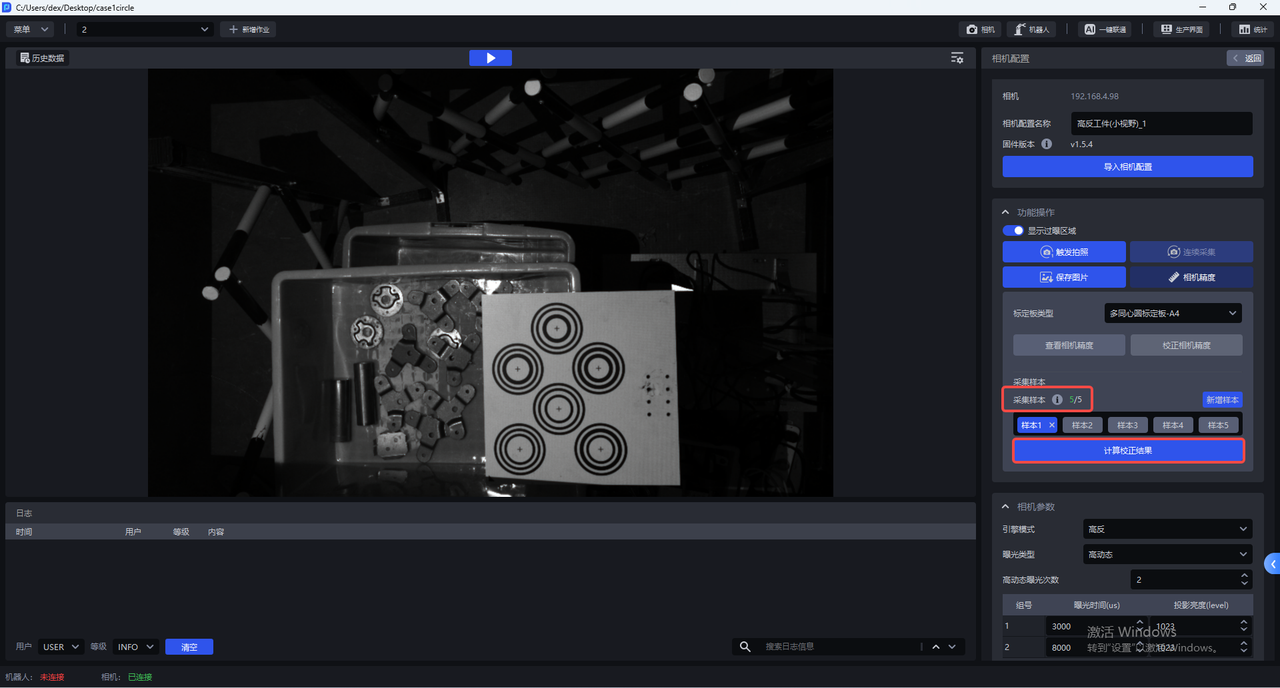
- After calibration is complete, a prompt pop-up appears saying "Camera accuracy calibration completed. The calibrated accuracy is x, the error is normal. Do you want to overwrite the current Camera parameter configuration?"
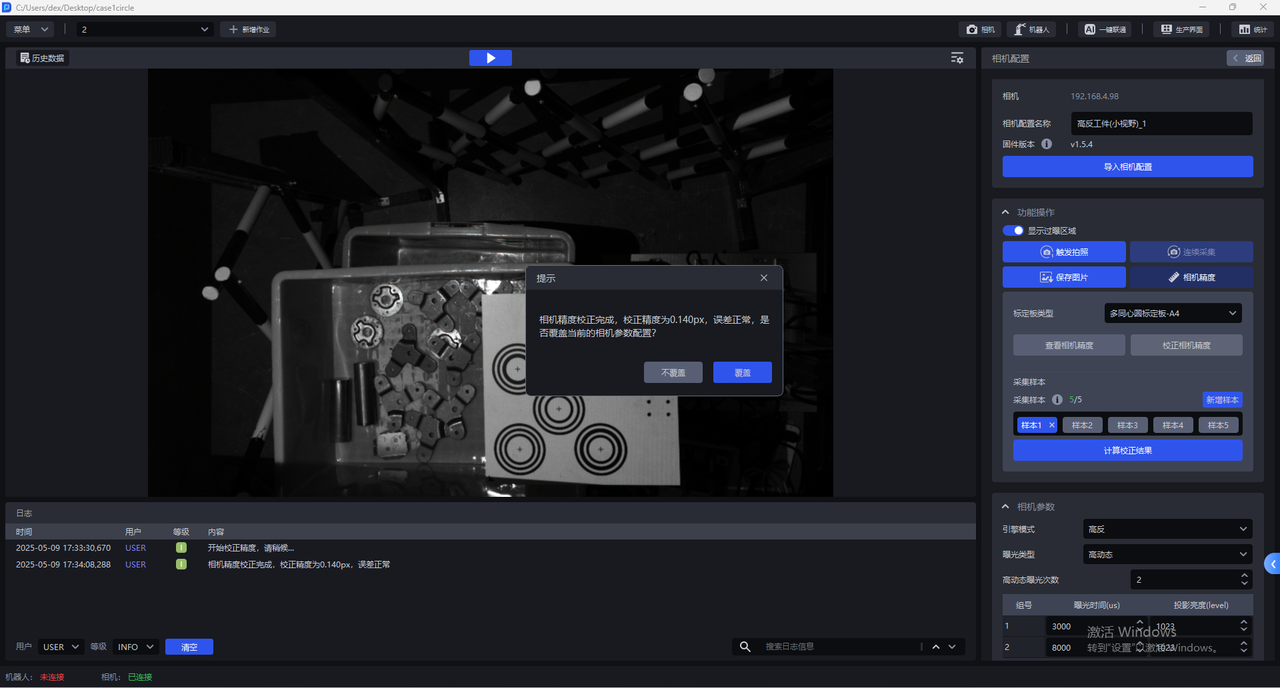
If you choose to overwrite the current Camera parameter configuration, the Camera accuracy calibration result is updated to the Camera. The Camera must be restarted for it to take effect.
3. Camera Parameter Tuning
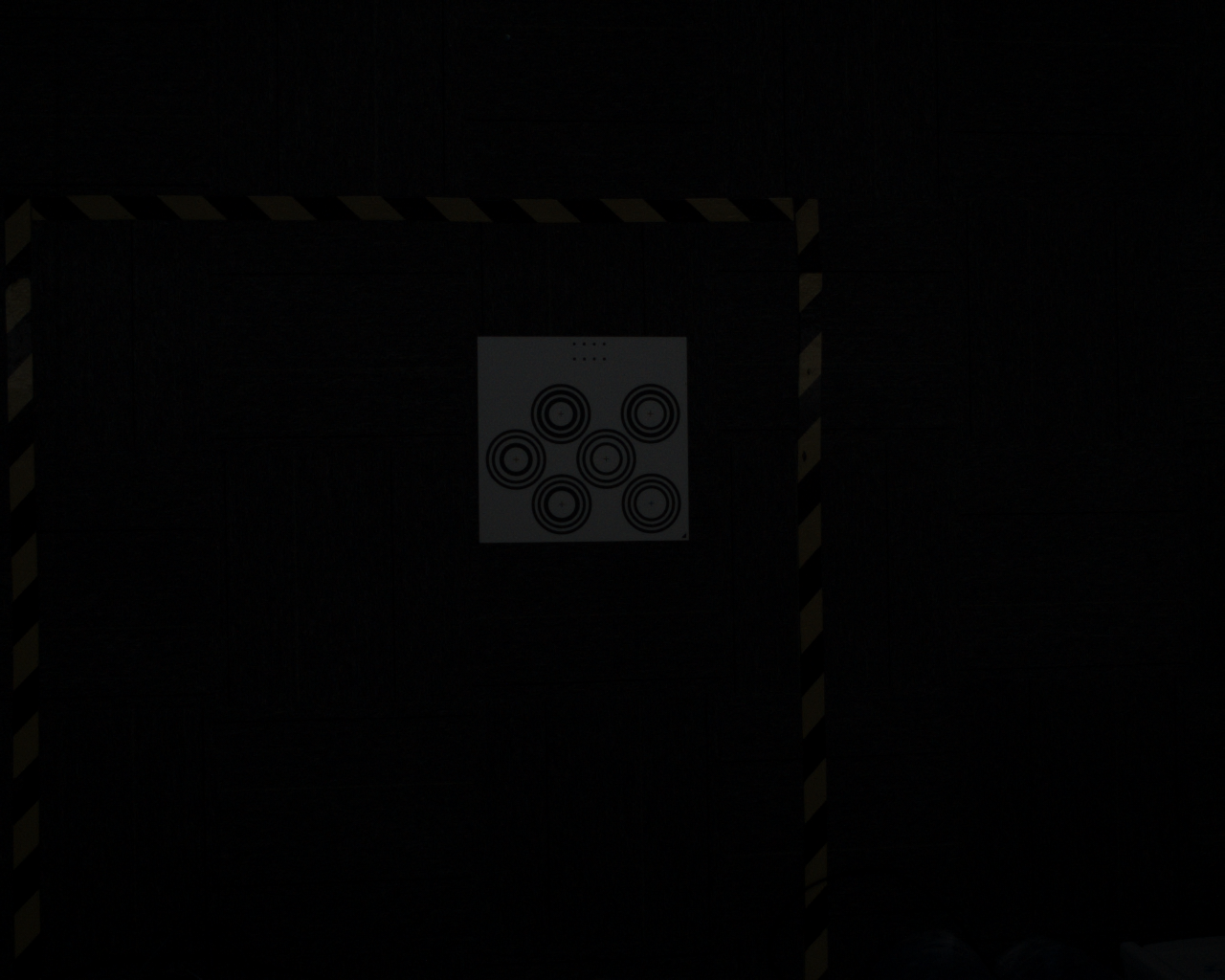
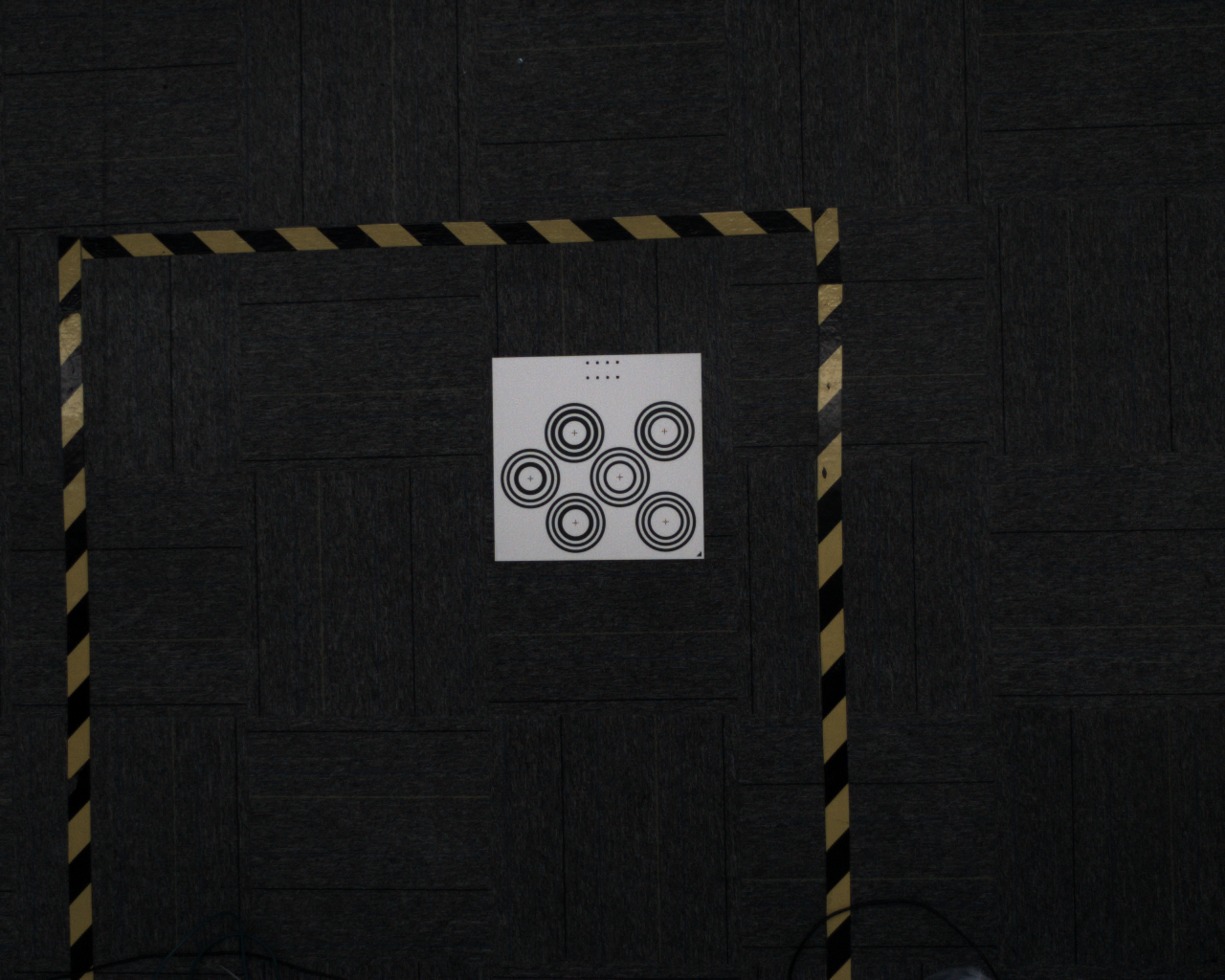
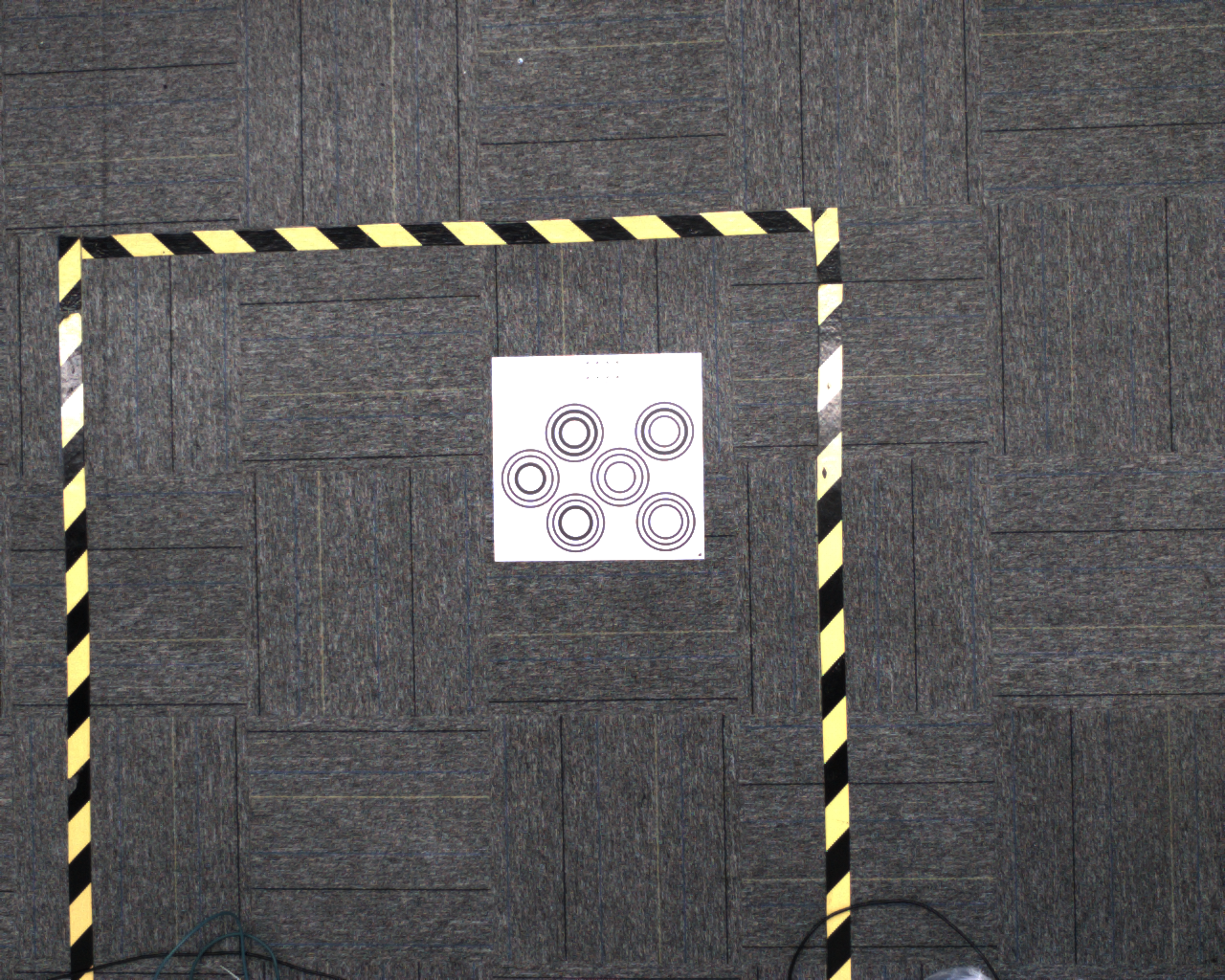
The default Camera configuration does not allow Camera parameter adjustment. For newly added Camera configurations, you need to adjust the Camera parameters to ensure clear imaging with normal exposure.
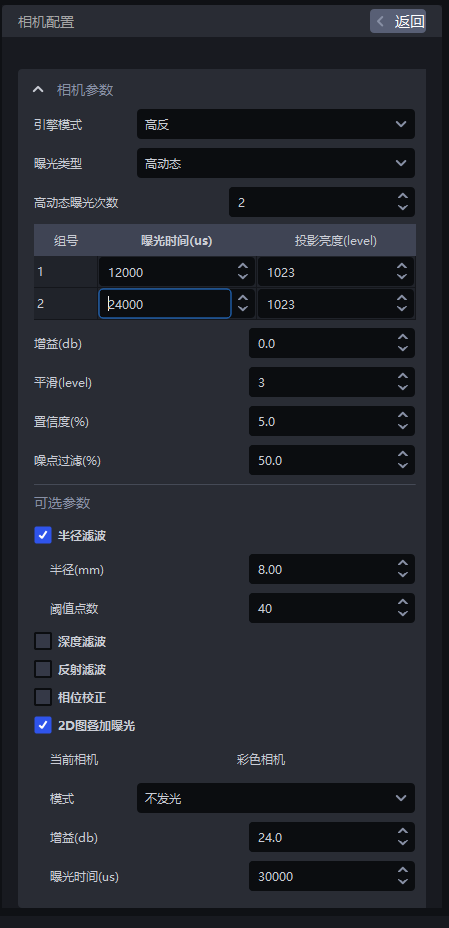
3.1 Required Parameters
3.1.1 Engine Mode
| Engine Mode | Description |
|---|---|
| Standard | Suitable for general Target Objects |
| High Reflective | Suitable for highly reflective Target Objects |
| Black | Suitable for black Target Objects |
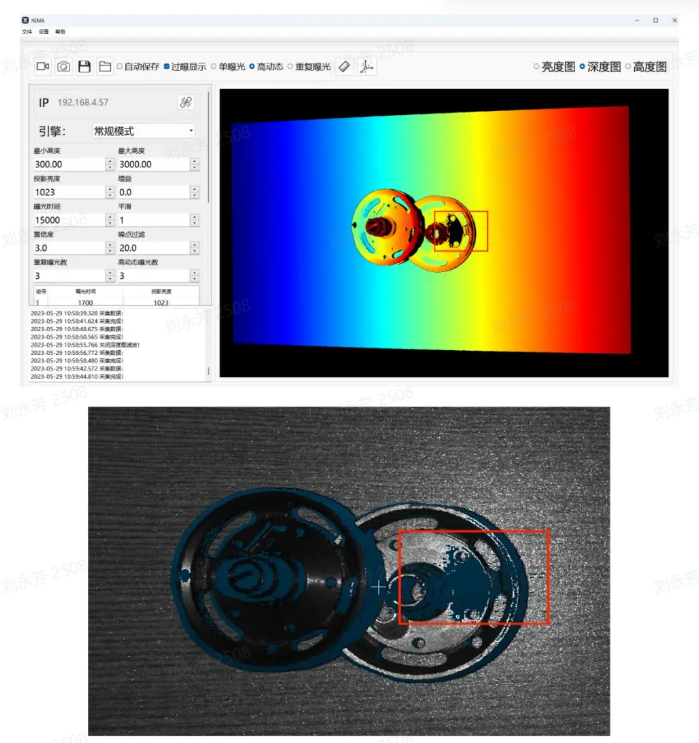
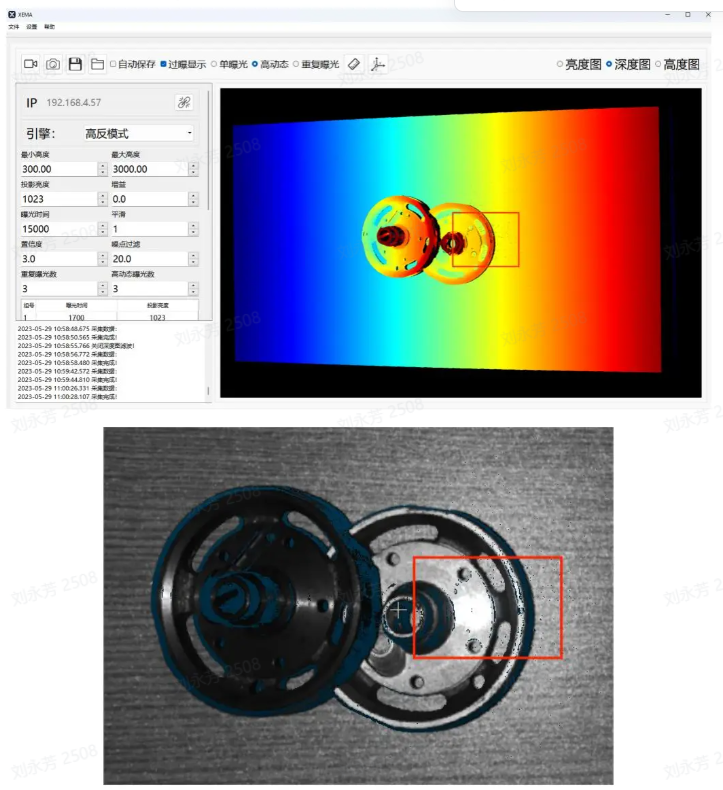
3.1.2 Exposure Type
(1)Single Exposure
Single exposure can be used for Target Objects with ordinary textures.
(2)HDR
For highly reflective Target Objects, HDR can be used for Point Cloud fusion.
High Dynamic Range Imaging (HDRI or HDR) is a set of technologies used to achieve a larger exposure dynamic range (that is, a greater range between bright and dark areas) than ordinary digital imaging techniques.
HDR makes image layers more distinct and the contrast between light and dark more obvious (especially for reflective Target Objects).
Parameter tuning recommendation: When using HDR, you can select the number of HDR exposures according to the specific scenario and Target Object. The value range is 2~6, and the default is 2. If the 3D Point Cloud quality and 2D image quality are poor, you should increase the number of groups to expose the object multiple times to achieve the best imaging quality.
It is recommended to use fewer HDR exposures while meeting the Point Cloud quality requirement.
(3)Repeated Exposure
For black Target Objects, repeated exposure can be used to optimize the Point Cloud through multiple exposures.
This is the number of times the Camera repeats image capture. Its purpose is to improve the signal-to-noise ratio. The higher the signal-to-noise ratio, the better; random noise is suppressed and valid information is increased. The value range is 0~10.
3.1.3 Exposure Time
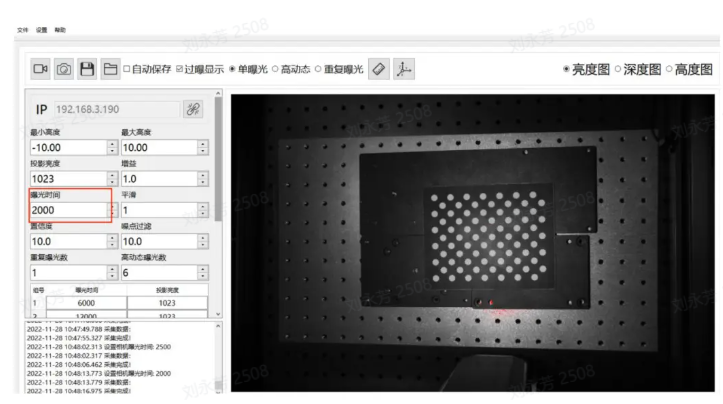
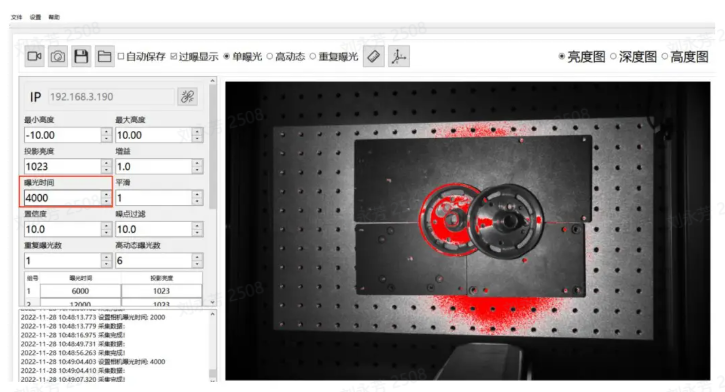
Camera exposure time: Exposure time is the duration for which the shutter remains open while reflected light from the scene passes through the lens and reaches the imaging sensor material. The longer the exposure time, the more light enters. If the exposure time is too long, overexposure occurs and affects the Point Cloud, so it should be adjusted according to actual conditions.
Range: 1700-100000
Exposure Time and Projection Brightness are one group. Each HDR exposure count corresponds to one group, and each group should be assigned appropriate Exposure Time and Projection Brightness values.
Exposure Time: This is the amount of time light enters the Camera while the shutter is open. The longer the exposure time, the more light enters and the clearer the image becomes.
If the exposure time is too long, overexposure occurs. You can enable Display Overexposed Areas, and the red areas indicate overexposed regions.
3.1.4 Projection Brightness
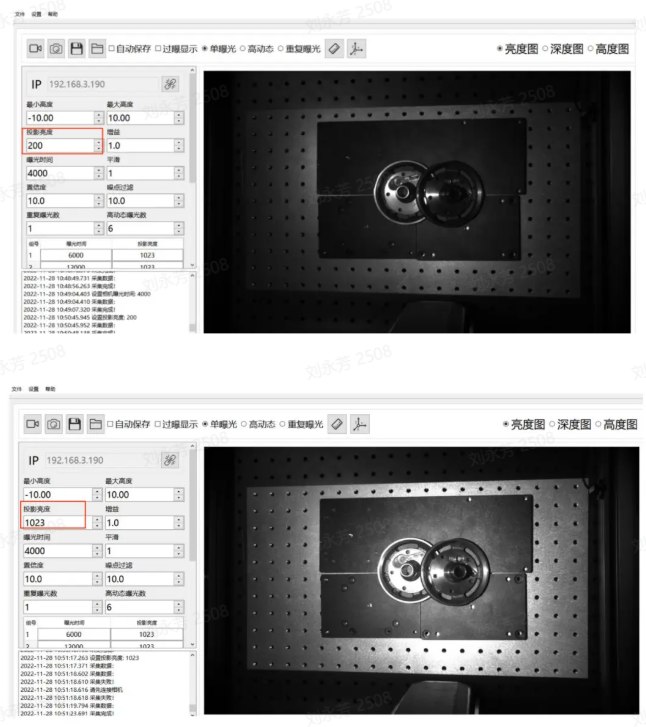
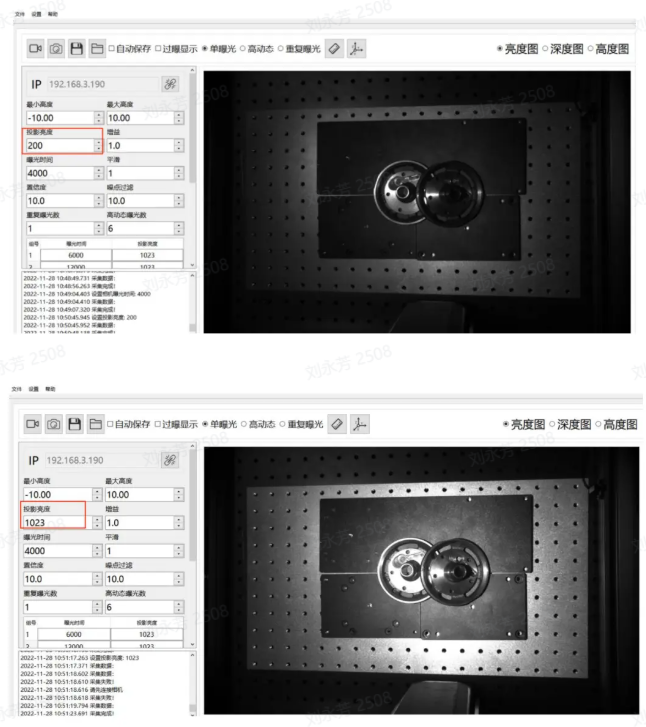
Projection Brightness refers to the intensity of projected light. The greater the light intensity, the brighter and clearer the image becomes. Within a certain range, people perceive the image as clearer when the brightness is higher. If it exceeds that range, excessive brightness makes the image difficult to see clearly.
Range: 0-1023
The larger this value is, the greater the projection brightness, which can effectively improve the signal-to-noise ratio. It is recommended to use the maximum value. Only consider reducing this value if the image is still overexposed after setting the Exposure Time to the minimum.
Note: It is recommended to set the brightness to 1023.
3.1.5 Gain
Adjusts the brightness of the image.
Range: 0-24
The gain value of the 2D Camera can be adjusted and should be increased appropriately. As gain increases, noise also increases.
3.1.6 Smoothing
Range: 0-5
Smooths the Point Cloud to remove noise.
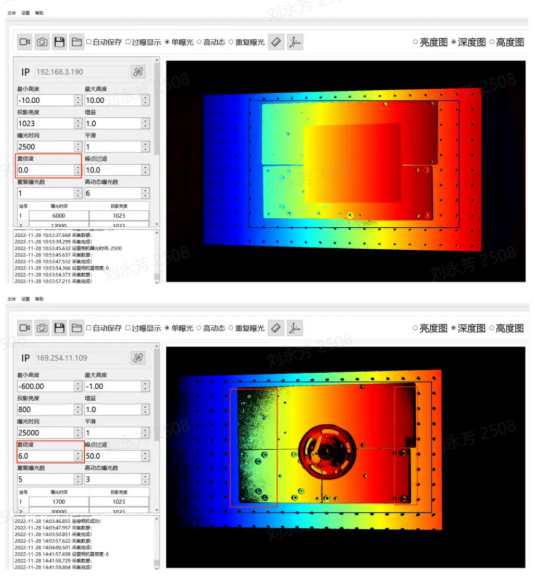
3.1.7 Confidence
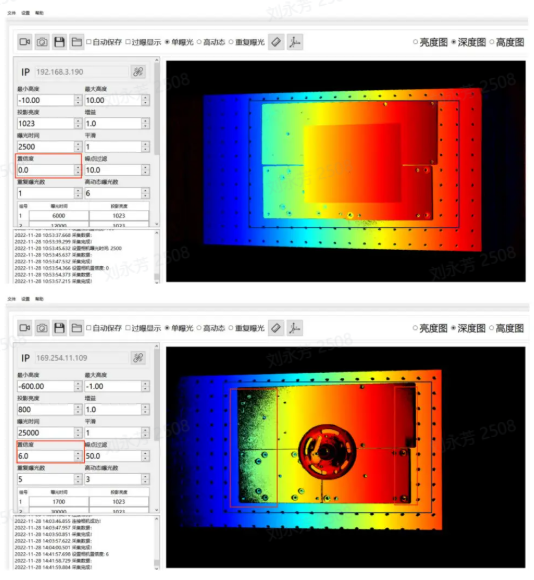
Confidence indicates the degree of reliability. It performs an initial filtering of the Point Cloud. Generally, 2-5 is sufficient, and customers can adjust it according to on-site conditions.
Lowering Confidence retains more black areas in the depth image; conversely, increasing Confidence removes black noise in the depth image.
Range: 0-100
3.1.8 Noise Filtering
Range: 0-100
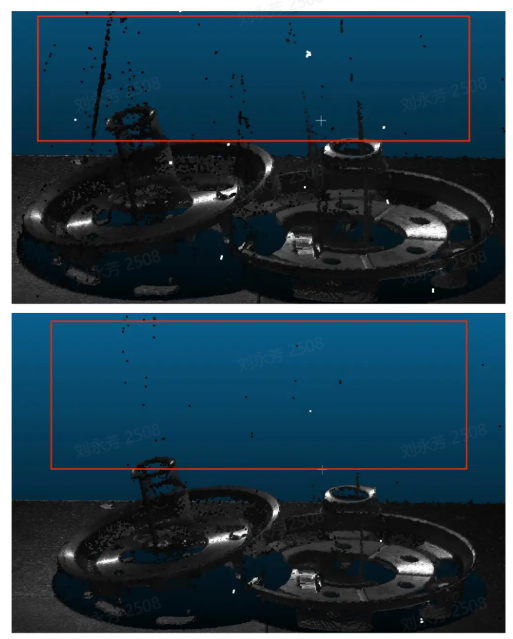
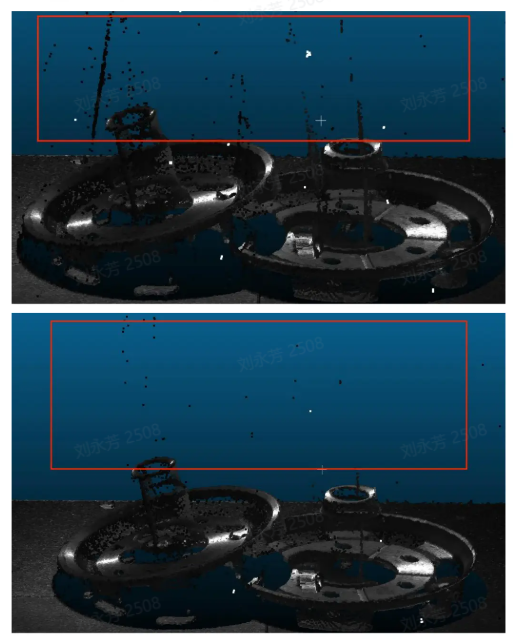
When recognizing objects with metal surfaces, aluminum foil surfaces, reflective films, or smooth surfaces, specular reflection can cause locally excessive reflected light, resulting in loss of original object information and interfering with PickWiz recognition and image detection. Increasing the noise filtering value can remove the generated noise portion while preserving the original object information.
3.2 Optional Parameters
3.2.1 Radius Filtering
Radius range: 0.00-99.99
Threshold range: 0-99
For each point in the Point Cloud, determine a sphere with radius r. If the number of points inside the sphere is less than the threshold, it is considered a noise point and should be removed.
3.2.2 Depth Filtering
Filters floating noise points in the Z-axis direction. The larger the threshold, the more obvious the filtering effect. For this depth-image-based filtering method, a threshold of 33 is recommended at a distance of 1000mm.
Range: 0-100
3.2.3 Reflection Filtering
Filters facade noise caused by mutual reflection of metals. The larger the threshold, the more obvious the filtering effect.
Range: 0-100
3.2.4 Phase Correction
Phase Correction means grayscale compensation for the Point Cloud. It is a method for correcting grayscale information in 3D Point Cloud data. The purpose of grayscale compensation is to eliminate differences in grayscale values and convert the grayscale information in the Point Cloud into values corresponding to the actual surface reflectivity of the object. The larger the threshold, the more obvious the correction effect.
Range: 0-100
Usage: First place the Calibration Board and use the plane of the Calibration Board as the reference plane, as shown below.
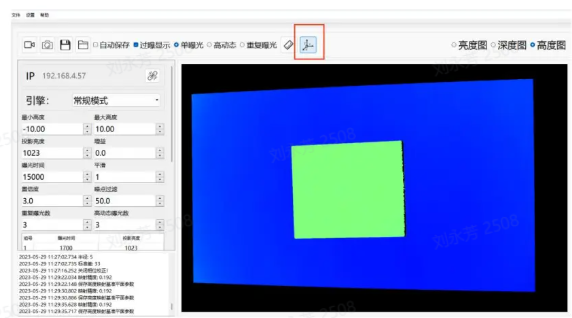
Set the maximum height to 1 and the minimum height to -1 so that only the Calibration Board portion is displayed, as shown below.
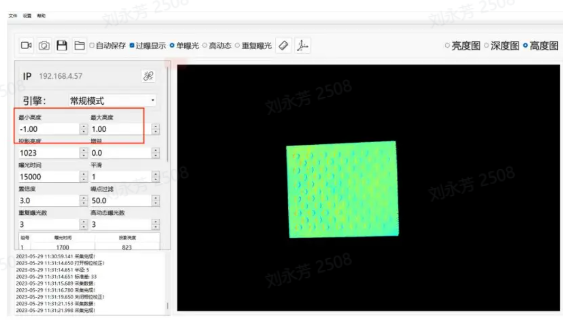
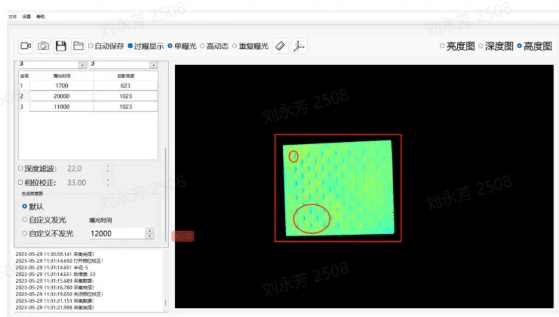
Without enabling Phase Correction, the Calibration Board appears as shown below. On the actual Calibration Board, the entire surface is flat, and there is no elevation difference between the circular and non-circular parts. However, in the actual captured result, the circles fluctuate in height.
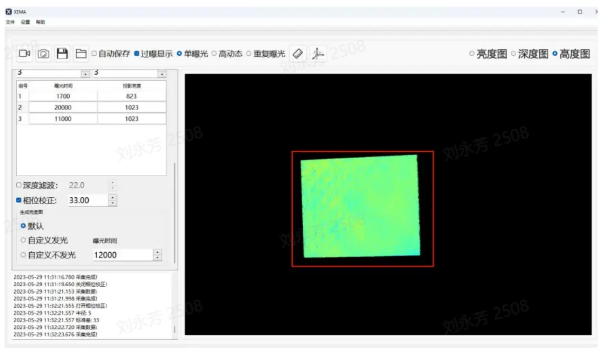
After enabling Phase Correction, if the Calibration Board basically shows no color difference or only a slight difference, the correction is successful.
3.2.5 2D Image Overlay Exposure
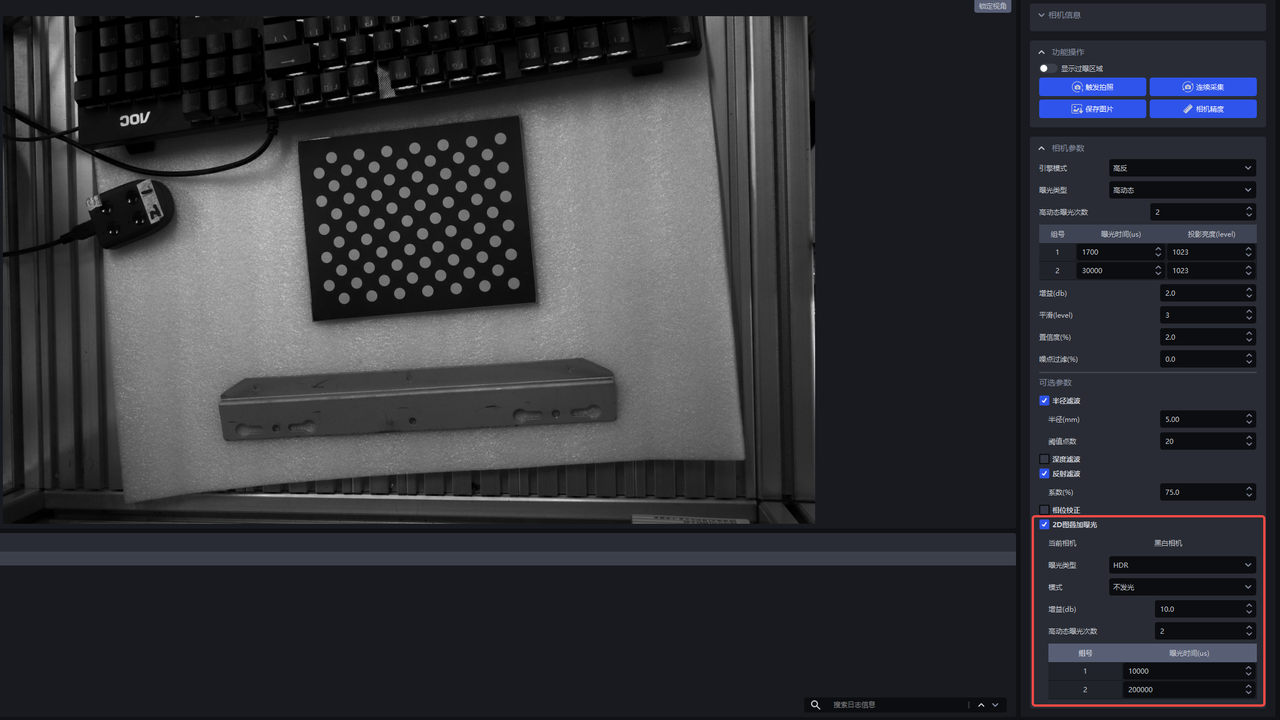
This function can independently overwrite the original 2D image after obtaining the Point Cloud. Sometimes the Point Cloud is good, but the 2D image is too dark or overexposed and does not meet requirements. In this case, you can enable 2D overlay exposure to overwrite the original 2D image.
Exposure Type: Optional Single Exposure / HDR
Only for XEMA and SPARROW Cameras (both color and monochrome Cameras are supported), the Exposure Type for 2D image overlay exposure newly supports HDR mode.
Mode:
Single Exposure: Available modes are Illuminated (supported only by monochrome Cameras) / Non-illuminated / Auto Exposure
Illuminated/Non-illuminated: Select Illuminated to manually adjust Exposure Time and Gain to make the image brighter; select Non-illuminated to use the ambient light brightness, and you can also manually set Exposure Time and Gain to make the image brighter.
Auto Exposure: You can adjust Target Brightness and Maximum Exposure Time to make the image brighter.
HDR: Available mode is Non-illuminated
- Only Non-illuminated is supported: You can adjust the number of HDR exposures and HDR exposure time to make the image brighter.
4. Typical Cases
This section uses ordinary objects, black objects, and metal mirror-reflective Target Objects as examples to explain how to capture a clear and complete Point Cloud. Parameters are not absolute and can be fine-tuned according to the working environment.
4.1 Ordinary Objects
When capturing ordinary objects, while avoiding overexposure, Projection Brightness and Exposure Time should be increased as much as possible. This gives the best capture result. First set Projection Brightness to the maximum 1023, Exposure Time to the minimum 20000, and Confidence to 10 to retain depth information. At this time, no overexposure is found in the brightness image. However, the black region marked in the height map is not displayed (the cat ear position in the captured image).
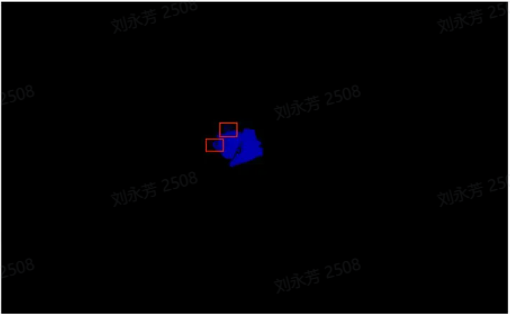
At this point, you can increase the number of repeated exposures to add more valid information, for example, set it to 6. If the brightness image is slightly dark at this time, you can appropriately increase the Exposure Time, such as increasing it from 20000 to 22000 here. Increasing it further will cause overexposure, so be careful.
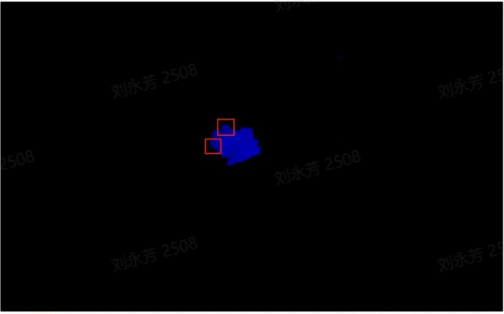
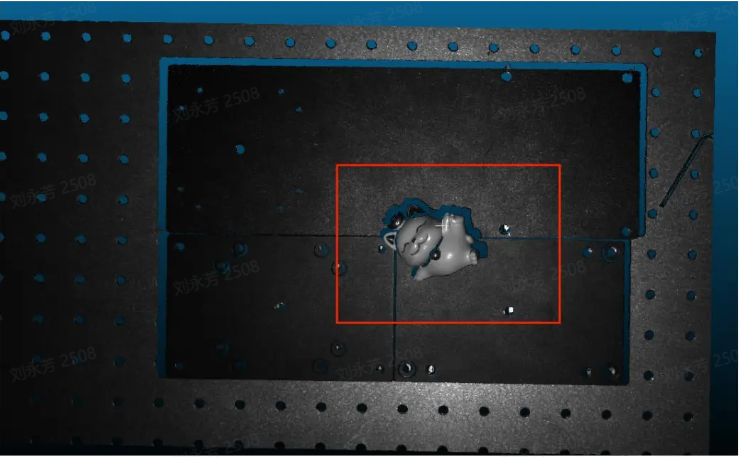
Final result:
4.2 Black Objects (Repeated Exposure)
When capturing black objects, such as a pure black sponge, first set Projection Brightness to the maximum 1023 and Exposure Time to 35000. If the image is not bright enough, you can also increase Exposure Time without causing overexposure. As shown below:
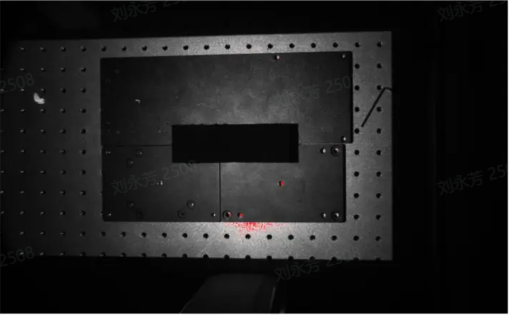
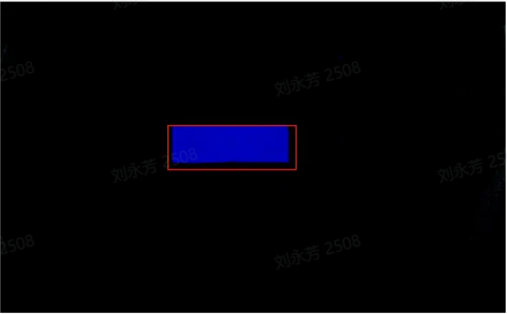
However, it is found that the sponge in the height map has a lot of random noise. At this point, increase the number of repeated exposures to 5 to improve the signal-to-noise ratio. This suppresses random noise and increases valid information, as shown below:
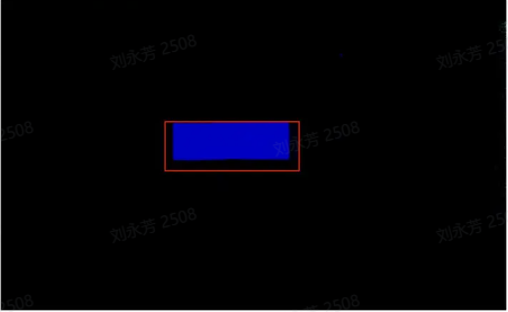
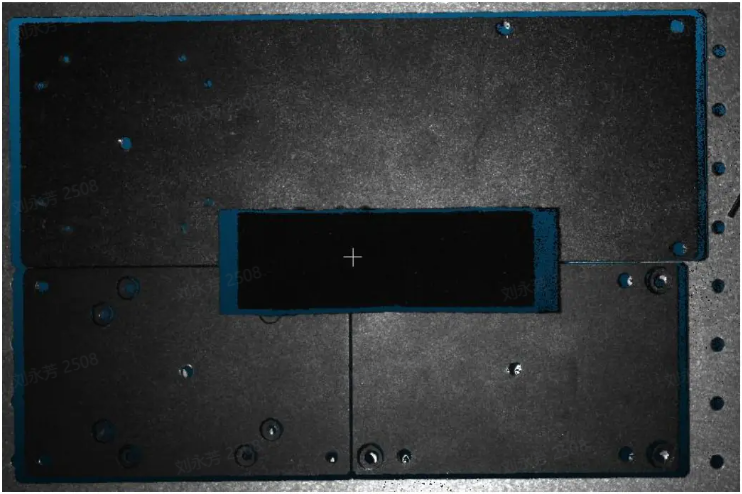
Final Point Cloud result:
Recommended parameters (for indoor illumination conditions, for reference only, and can be fine-tuned) use repeated exposure:
Projection Brightness: 1023, Exposure Time: 35000, Repeated Exposure Count: 5
Confidence: 0, Noise Filtering: 0
4.3 Metal Mirror-Reflective Target Objects (HDR)
When detecting metal surfaces, aluminum foil surfaces, reflective films, and smooth-surface objects, specular reflection can cause locally excessive reflected light, resulting in loss of the original object information. In an actual operating environment, the number of exposures can be selected according to object layers. As shown below, there is a Target Object, a black plate, and a perforated platform, so the number of exposures can be set to 3.
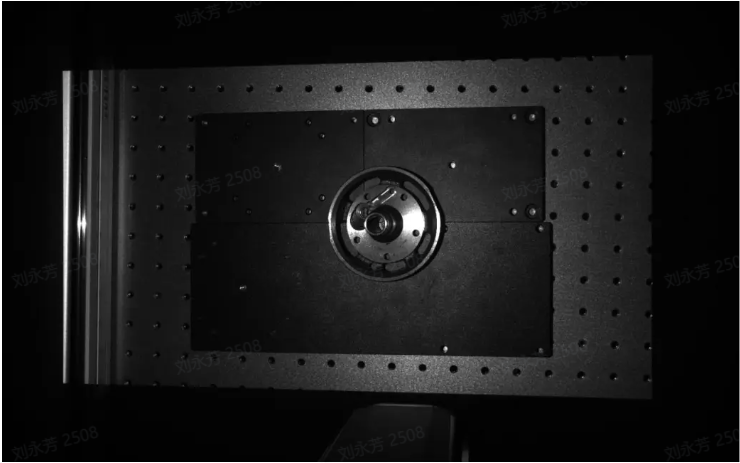
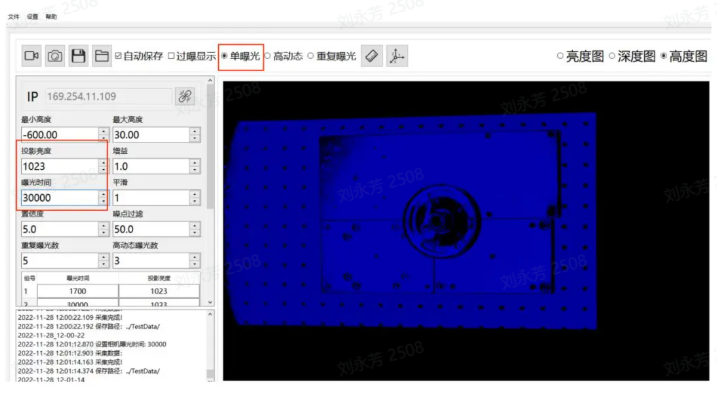
Step 1: First set Projection Brightness to the maximum 1023 and Exposure Time to 30000. The purpose is to obtain depth information in the darkest area. (Confidence is 5 and Noise Filtering is 50.) This can serve as one set of exposure data under HDR. Without enabling HDR, the height map appears as shown below, and the depth information of the outermost black plate can be seen.
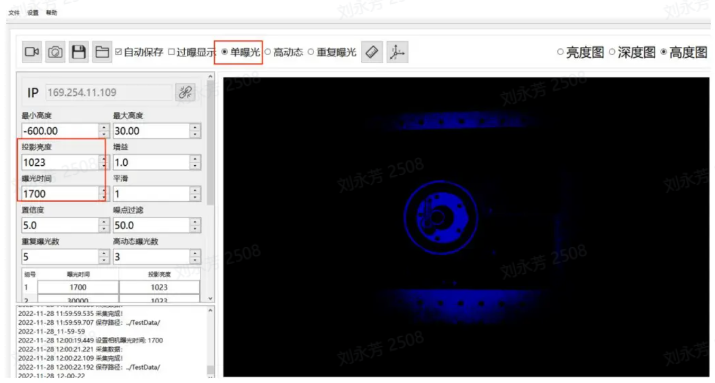
Step 2: To obtain depth information in the brightest area, display the depth information of the missing part (the brightest area) of the Target Object in Step 1. For example, keep Projection Brightness at 1023 and set Exposure Time to 1700 (Confidence is 5 and Noise Filtering is 50) as one set of exposure data under HDR. Without enabling HDR, the height map appears as shown below, and the previously missing information of the Target Object (the brightest part) is successfully displayed.
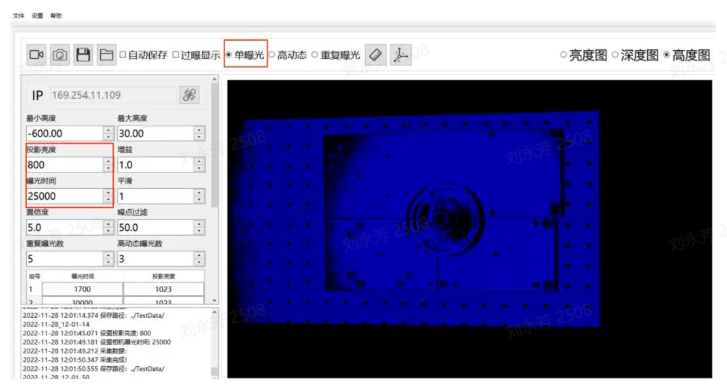
Step 3: Set Projection Brightness to an intermediate value between Step 1 and Step 2, which is 800, and set Exposure Time to 25000 (Confidence is 5 and Noise Filtering is 50). This can serve as one set of exposure data under HDR. Without enabling HDR, the height map appears as shown below.
Step 4: Enable HDR and set the number of exposures to 3. Group 1 data: 1700, 1023; Group 2 data: 30000, 1023; Group 3 data: 25000, 800. Confidence is 5, and Noise Filtering is 50.
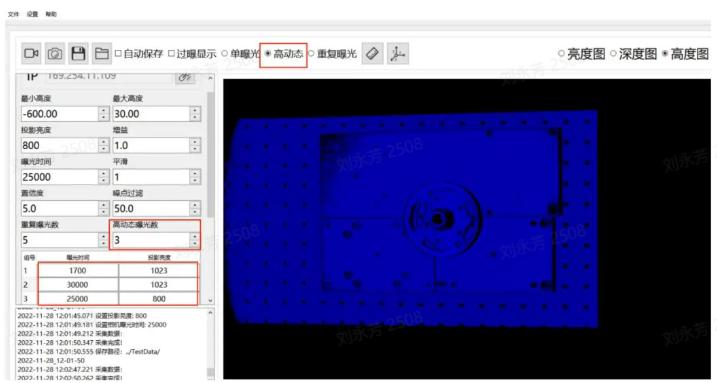
As shown below, a clear and complete Point Cloud image can be obtained without missing areas.
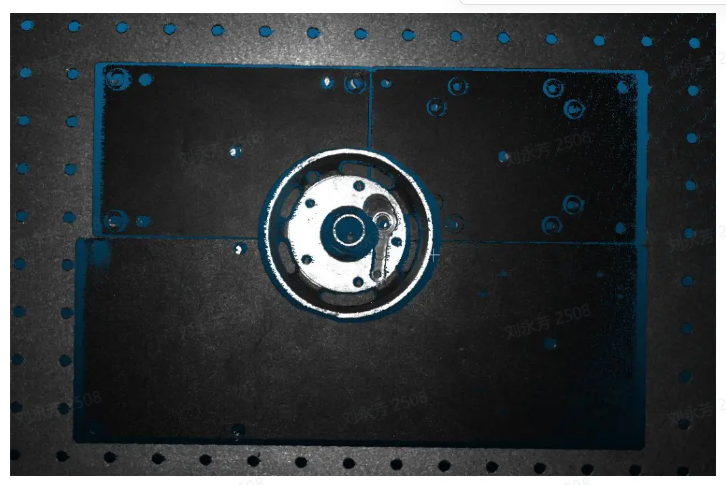
Recommended parameters (for indoor illumination conditions, for reference only, and can be fine-tuned)
Use High Dynamic for Engine Mode, number of HDR exposures: 3, Noise Filtering: 50, Confidence: 5,
Exposure Time and Projection Brightness:
- Exposure Time: 1700 Projection Brightness: 1023
- Exposure Time: 30000 Projection Brightness: 1023
- Exposure Time: 25000 Projection Brightness: 800