KINGFISHER Series Camera User Manual
1. Product Overview
The KINGFISHER intelligent 3D Camera is based on binocular stereo imaging technology. It imitates the visual principle of human eyes, uses two Cameras to capture images from different angles, and, through intelligent algorithms trained with Sim2Real and two sets of images from different angles, can accurately reconstruct the 3D point cloud of a Scene within as fast as 0.5s under various ambient light conditions. This solves issues with traditional 3D Cameras, such as susceptibility to ambient light, slower imaging, shorter service life, and higher cost, effectively improving the stability of the vision system and bringing revolutionary innovation and breakthroughs to the field of 3D imaging.
2. Safety Precautions
Please read the safety precautions carefully and operate strictly in accordance with the following specifications. Otherwise, the Camera may be seriously damaged, and Dexforce will not be responsible for any resulting maintenance issues.
Do not immerse in water
Do not expose to fire
Do not disassemble the unit
Do not connect the Power Supply privately
Do not extend the network cable without authorization
Do not use the Camera in humid environments, environments with condensation, or dusty environments
Do not use the Camera in environments with strong magnetic fields or high-voltage discharge equipment (such as electric welders)
Do not subject the Camera to external impact or drops. If this occurs, contact service personnel for inspection and repair
Keep away from devices such as laser marking machines and laser engraving machines that may damage the Camera. If use is necessary, contact company personnel for confirmation
Do not use beyond the specified range. Operating distance: XEMA-P:100-150mm;XEMA-DCW:0.3-0.5m;XEMA-SCW:0.5-1m;XEMA-LCW:1-2.5m;SPARROW:0.3-0.5m;FINCH:1.5-3.5m:for special customization, communicate requirements with the camera team in advance
Use the Camera strictly within the allowable high and low temperature range specified in the product specification.
3. Specifications
| Model | Baseline (mm) | Field of View | Resolution | Recommended Working Distance (mm) | Field of View (mm) | Typical Acquisition Time (s) | Repeatability (μm) | Interface | Power Supply |
|---|---|---|---|---|---|---|---|---|---|
| KINGFISHER-S-601 | 60 | 46°/42°(H/V) | 1280*1024 | 200 - 500 | Near Field 135*157 Far Field 433*393 | 1 | 136 | GigE | POE |
| KINGFISHER-S-1001 | 150 | 48°/39°(H/V) | 1280*1024 | 500 - 2000 | Near Field 455*355 Far Field 1803*1425 | 1 | 259 | GigE | POE |
| KINGFISHER-W-3003 | 400 | 50°/43°(H/V) | 1280*1024 | 1500 - 3500 | Near Field 1452*1166 Far Field 3274*2721 | 1 | 272 | GigE | POE |
| KINGFISHER-S-1201W | 150 | 59°/47°(H/V) | 4024*3036 | 500 - 2000 | Near Field 559*440 Far Field 2283*1760 | 1 | 259 | GigE | POE |
| KINGFISHER-W-1201W | 400 | 60°/46°(H/V) | 4024*3036 | 1500 - 3500 | Near Field 1774*1276 Far Field 4012*2978 | 1 | 272 | GigE | POE |
| KINGFISHER-W-300W | 400 | 60°/45°(H/V) | 2048*1536 | 1500 - 3500 | Near Field 1605*1270 Far Field 3873*2965 | 1 | 376 | GigE | POE |
4. Installation and Connection
4.1 Unboxing Inspection
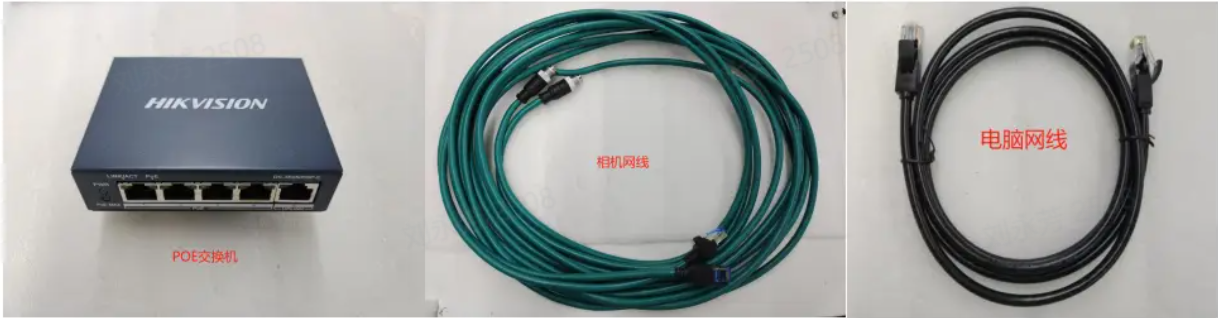
| Accessory Name | Quantity | Purpose |
|---|---|---|
| KingFisher Camera | 1 | Capture images |
| Standard Gigabit network cable | 1 | Connect the Camera and transmit data |
| Standard power cable | 1 | Connect the Camera and supply power to the Camera |
| Matching Calibration Board | 1 | Parameter inspection and Extrinsic Parameter correction |
4.2 Hardware Installation
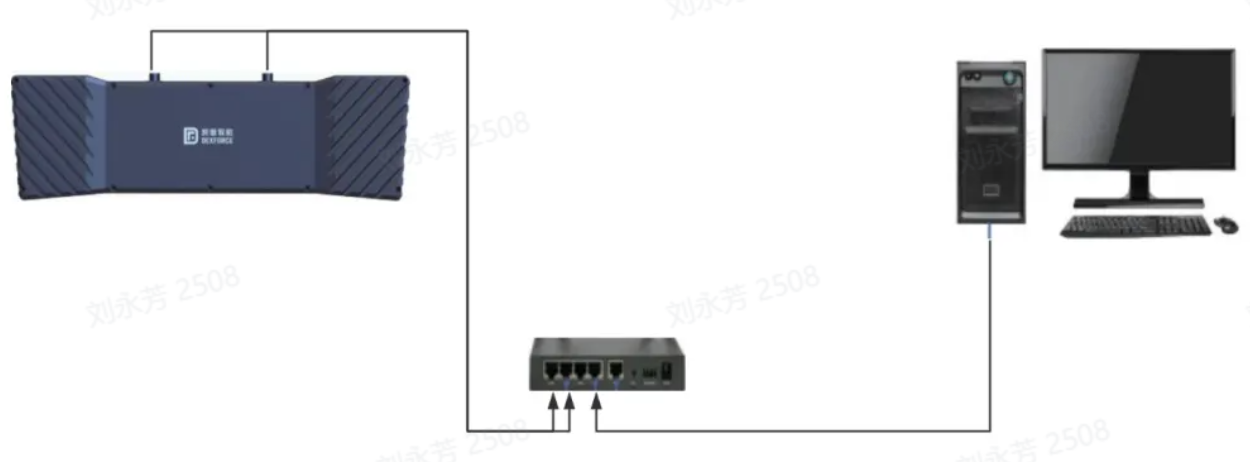
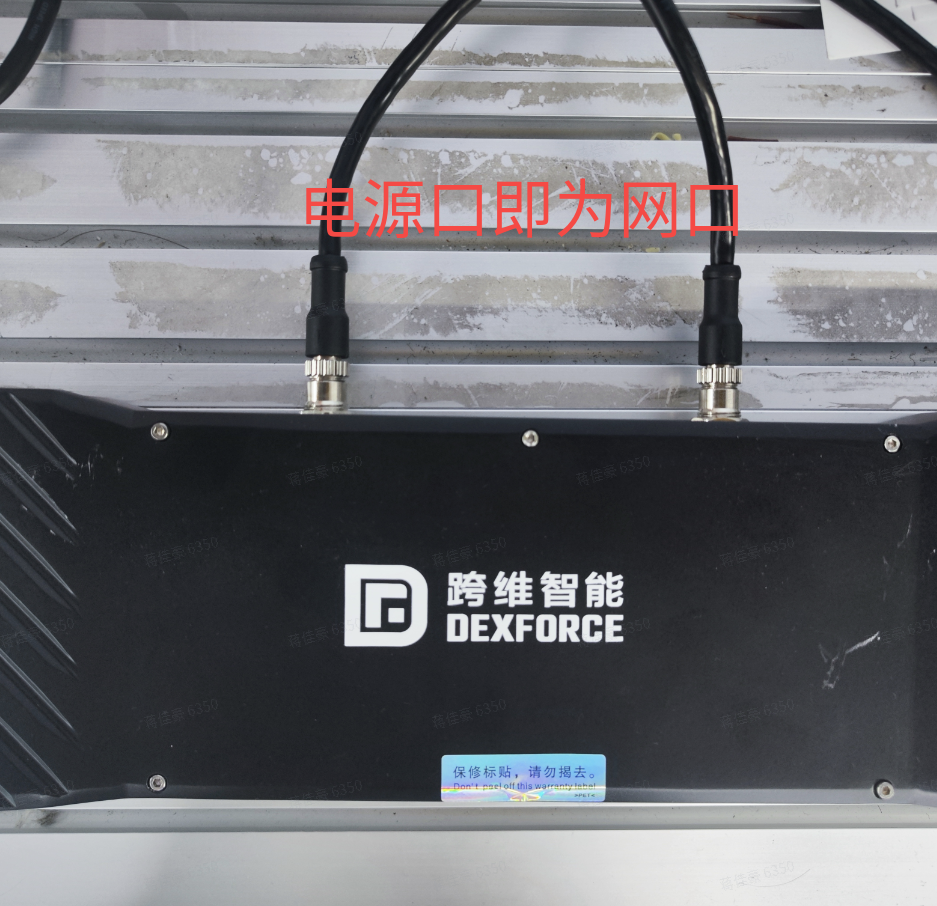
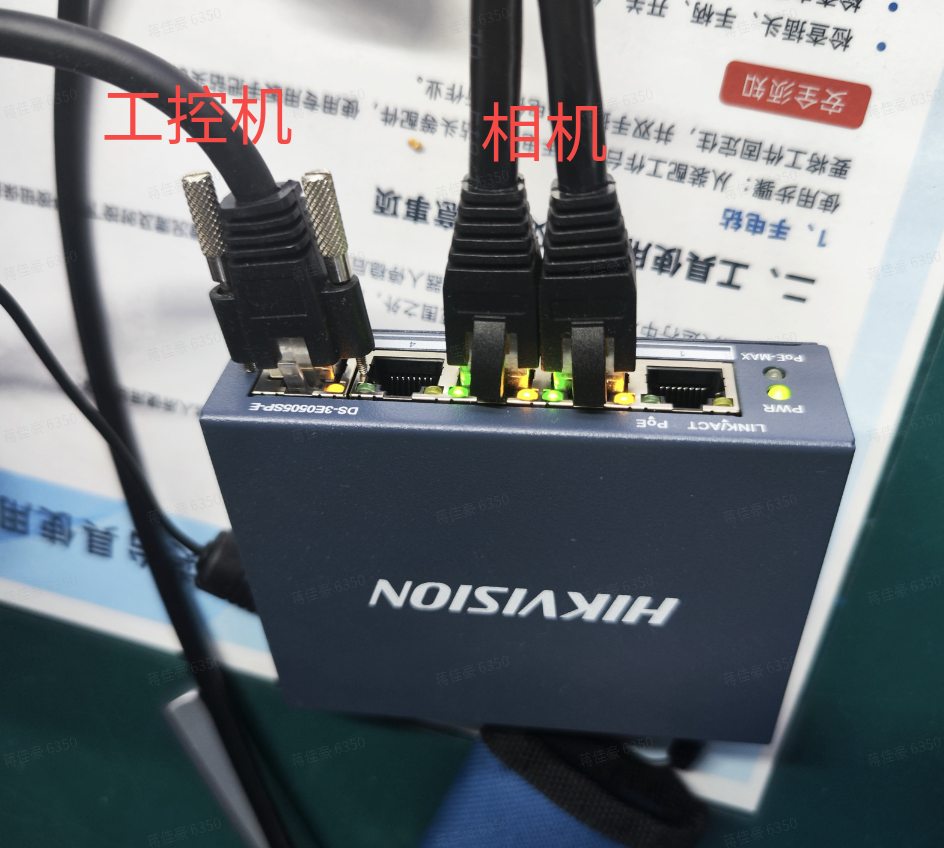
The Camera is connected to the POE switch through a network cable. The POE switch supplies power to the Camera. Connect the computer network cable to the POE switch.
4.3 MVS Connection and Configuration
MVS Installation
MVS software is the Hikrobot industrial Camera client software. It has functions such as real-time preview of Camera images, modification of Camera device parameters, image capture, video storage, and online device upgrade. It can help engineers and developers quickly configure and debug the Camera, ensuring the accuracy and stability of image acquisition.
Dexforce currently uses MVS software to configure and debug KingFisher Cameras. The industrial PC already has this software installed. If you need to install it yourself, click the following address to download the software https://www.hikrobotics.com/cn/machinevision/service/download/?module=0
Use MVS to configure a normal Camera connection and obtain the Intrinsic Parameter and Extrinsic Parameter calibration files
Binocular windows PickWiz Deployment (Application-Oriented) (Internal),refer to the demo video or sections 3.1 to 3.2 in the linked document
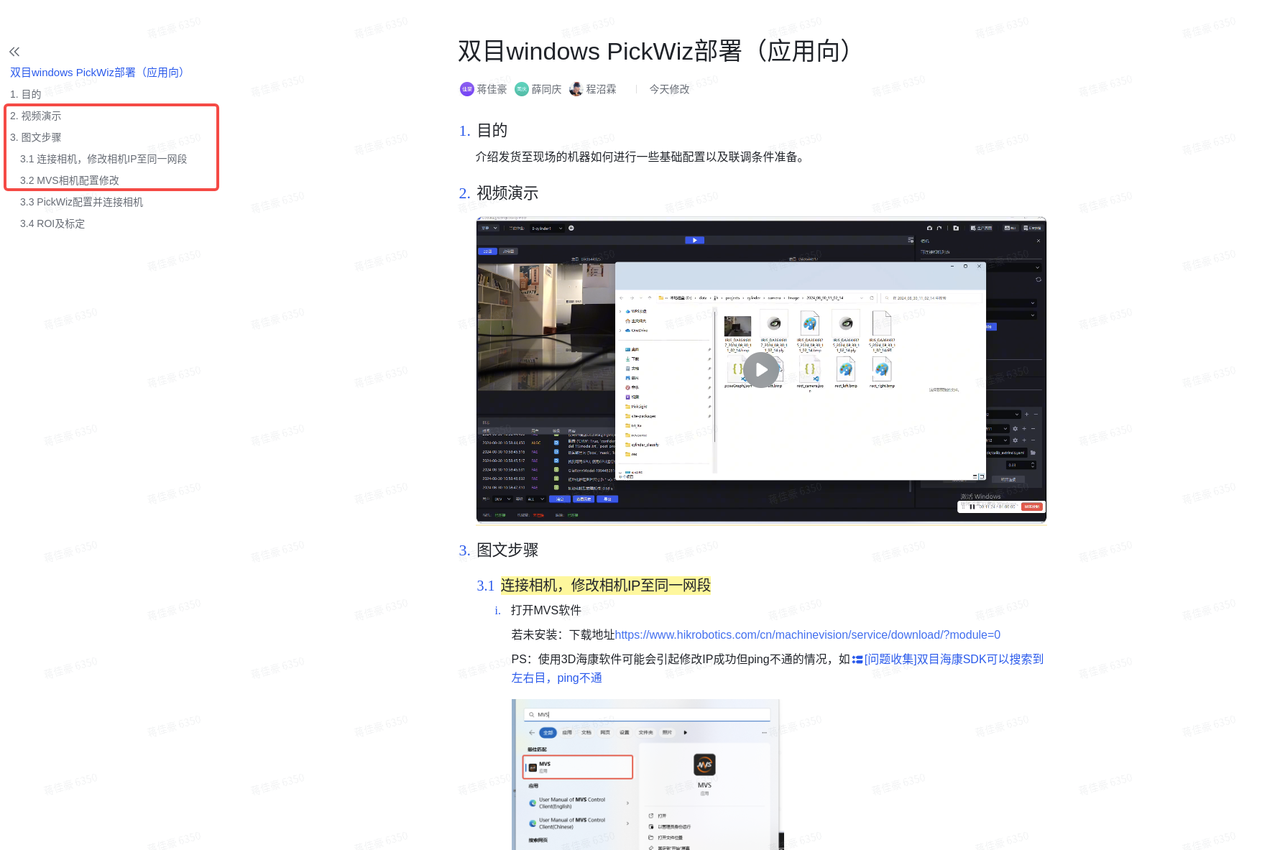
Binocular windows PickWiz Deployment (Application-Oriented)
Purpose
This section introduces how to perform some basic configuration and prepare conditions for system commissioning on machines delivered to the site.
Required workflow: modify the Camera IP so that it can connect -> connect the Camera in pickwiz and configure it to output point clouds -> verify with the red line image (Camera Accuracy)
Video demonstration
Illustrated steps
Connect the Camera and modify the Camera IP to the same network segment
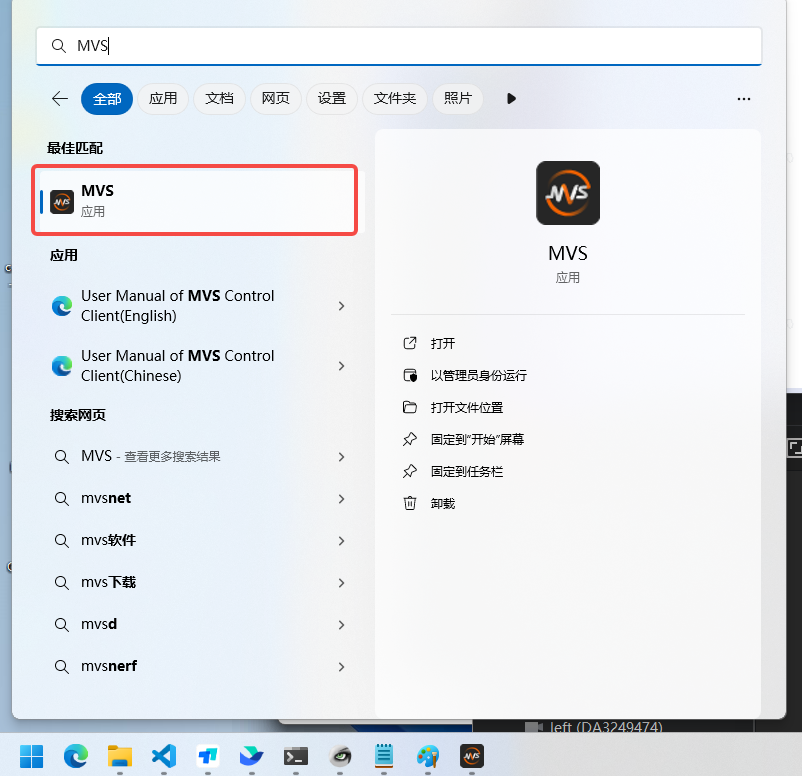
Open the MVS software
If it is not installed: Download link
PS: Using Hikrobot 3D software may cause the IP modification to succeed but the device to be unreachable by ping, for example
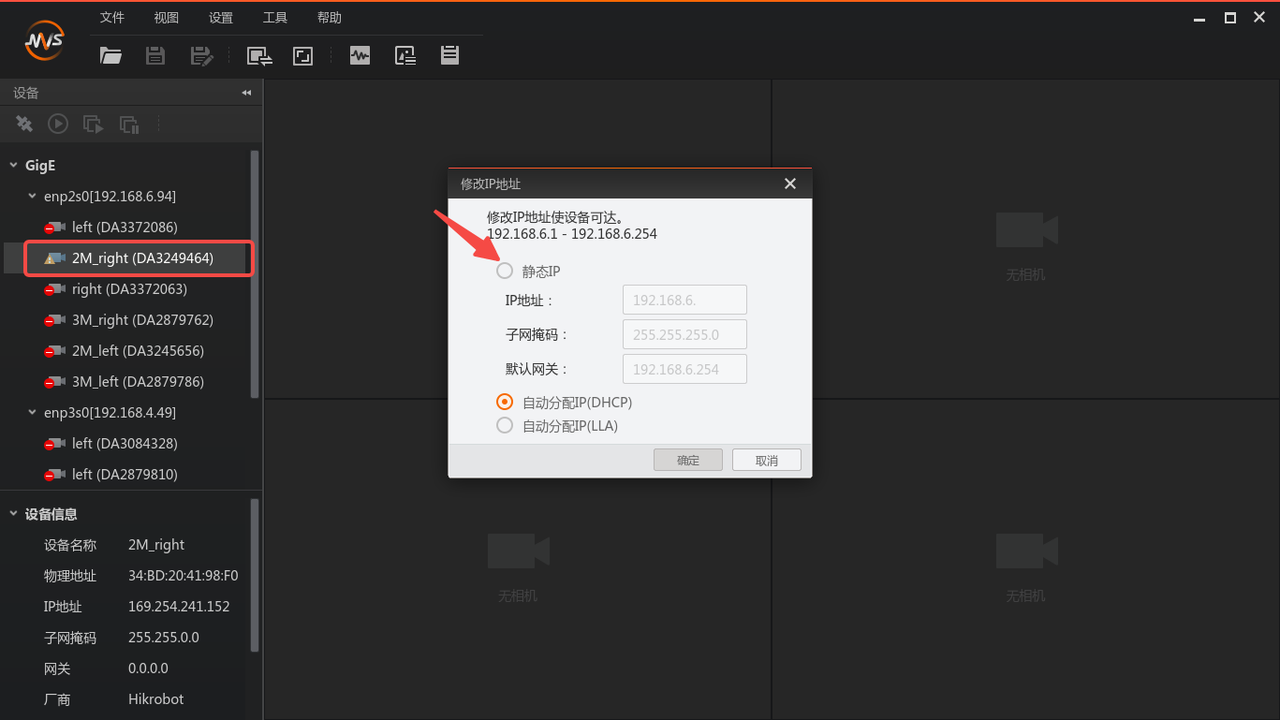
View the Camera list on the left side of MVS and double-click the Camera you want to connect. If it cannot be connected, modify the IP. The Camera IP must be changed to the same network segment as the industrial PC
If the Camera is directly connected to the industrial PC, it is recommended to set the computer IP to a static IP, and then set the Camera IP to a static IP in the same network segment in MVS.
If you want to set automatic acquisition, first change it to a static IP (connectable state), and after connecting, change the IP again to "Automatic IP Assignment (DHCP)"
The Camera serial number must be recorded here. If the Camera name is 2M_right(DA3249464), then the serial number is DA3249464, which will be used later
Modify the MVS Camera configuration
Turn off automatic white balance (color 0 adjustment; it is recommended that the balance ratio values of the two Cameras be kept the same)
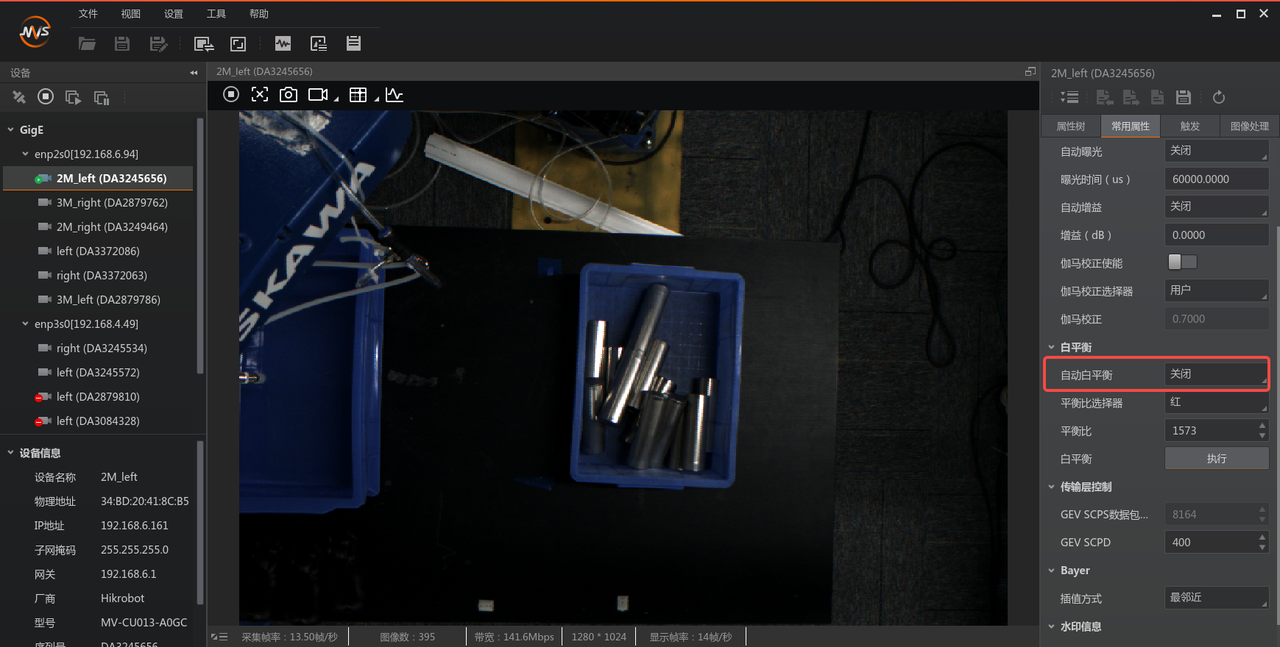
If the white balance values of the Cameras are different, the image tone will be inconsistent, as shown in the two images below.
Recommended normal display effect:
Fill in the “White Balance” value as 1500. PS: High resolution tends to be cooler in tone, so 1800 can be entered. In short, it should match human visual perception.
Set “White Balance Component Selector” to “Red”.
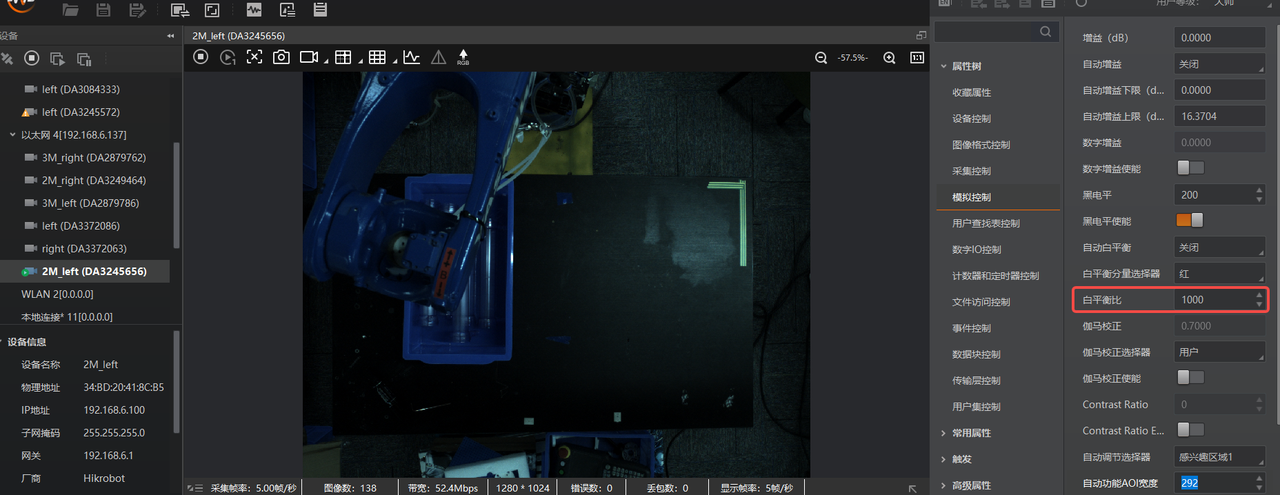
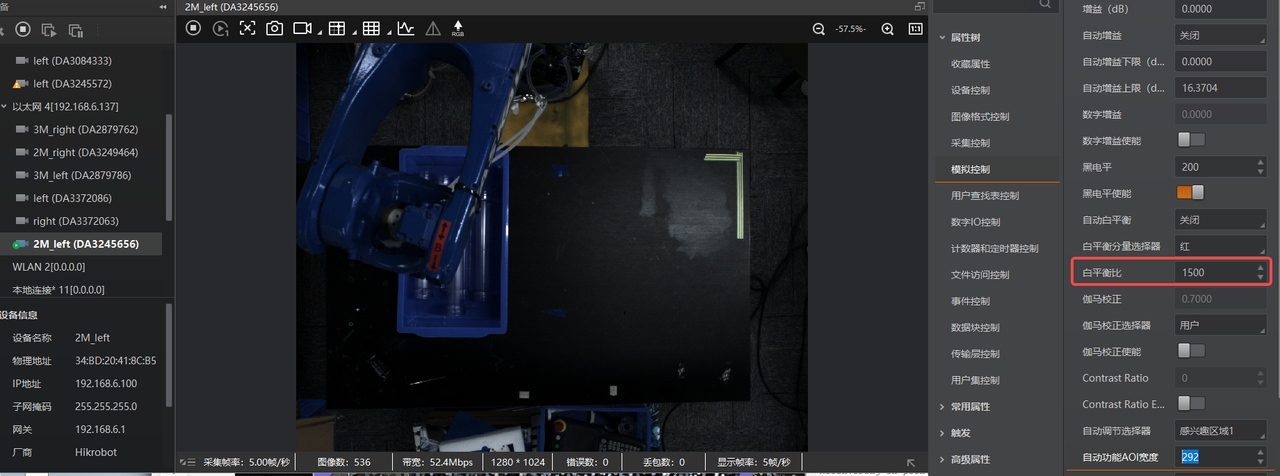
Automatic Exposure AOI settings
Click the box indicated by the arrow, click “Edit”, and draw the AOI
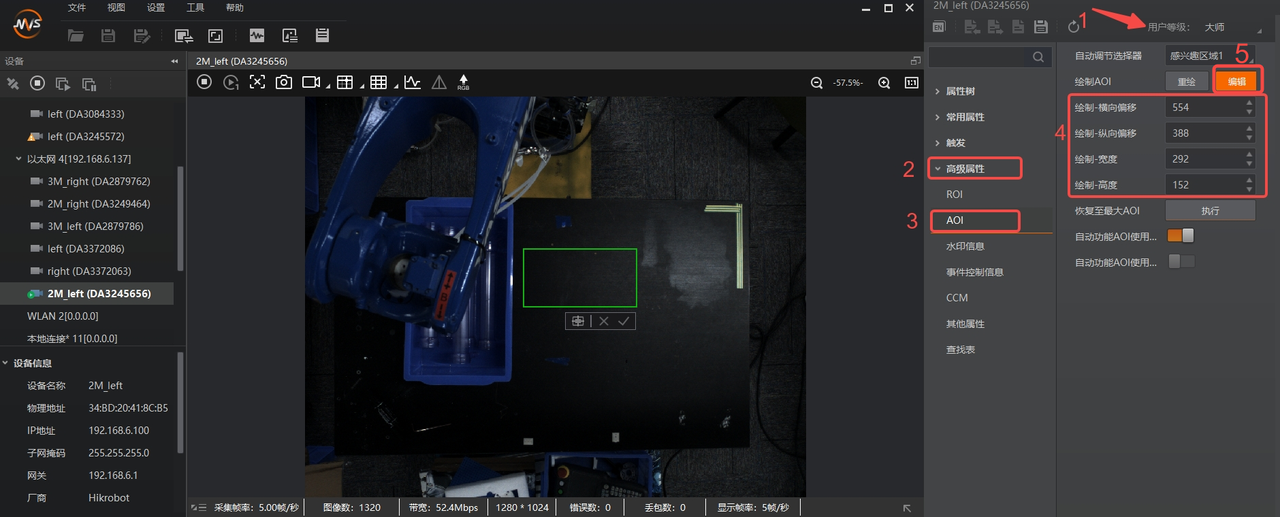
“Automatic Exposure AOI” means that only the exposure inside the AOI is considered, making the texture inside the box clear. However, the automatic exposure value is global, so there may be a situation where the “focused area” is clear while the rest is overexposed.
When a green box appears
Place the mouse on the center of the green box and click to drag the AOI area
Place the mouse on the green box line to stretch the AOI area
After completing the AOI drawing, record the AOI box data and enable "Automatic Function AOI Usage Intensity" as shown below
The AOI box data includes: horizontal offset, vertical offset, width, and height. These need to be filled in manually in the Pickwiz software Camera parameters
In the image preview box, right-click and click "Finish" to finish AOI configuration
Close MVS and disconnect the Camera
4.4 Configure and Connect the Camera in PickWiz
PickWiz software configuration
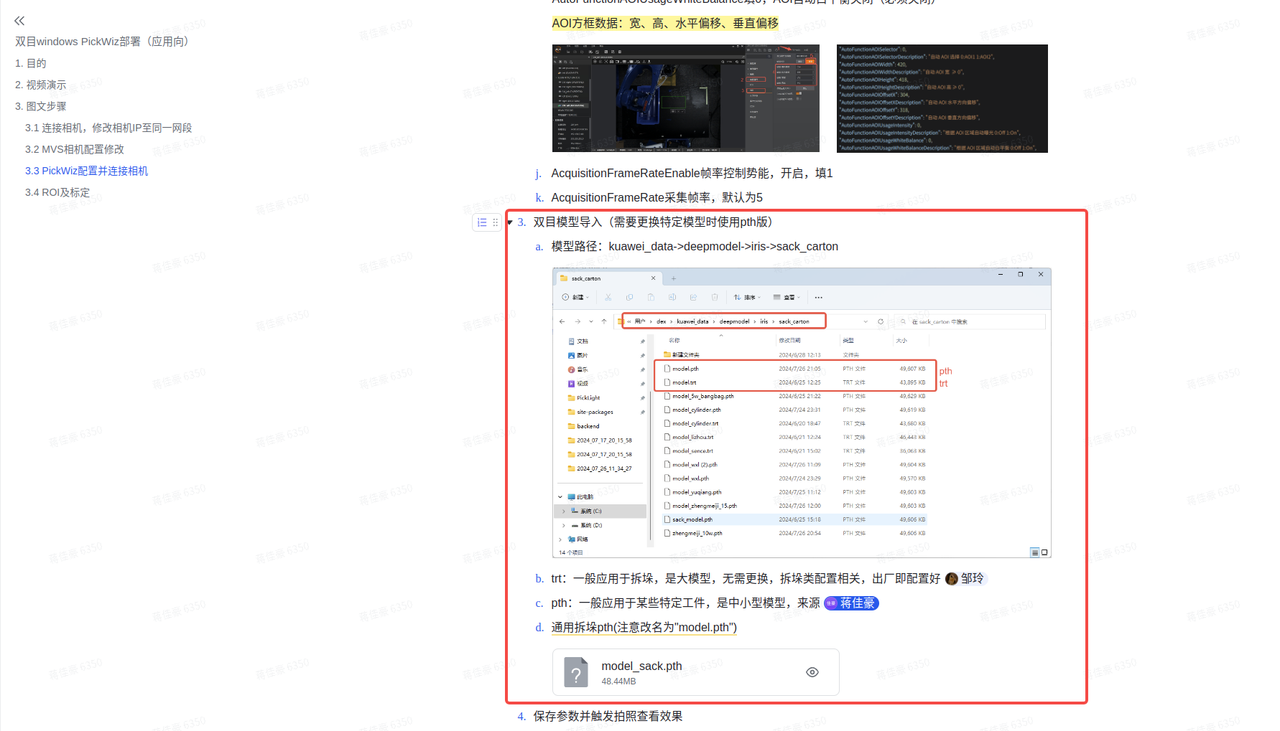
Import the model
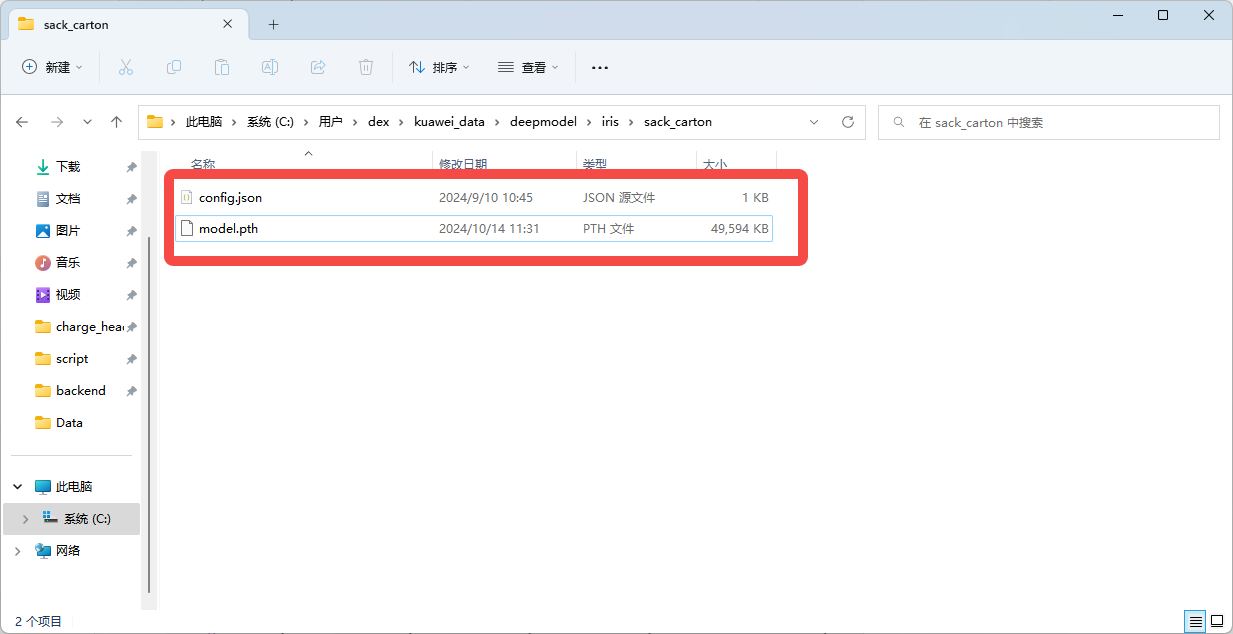
After obtaining the binocular model pth file, place the pth file in the “kuaweidata/deepmodel/iris/sack_carton/” directory and rename it to model.pth. For how to obtain it, see section 3.3 of Binocular windows PickWiz Deployment (Application-Oriented) (Internal)
Open the software to connect and configure parameters
config.json configuration: the Path is shown below. If it does not exist, create a file with the same name, and focus on modifying the max_disp parameter
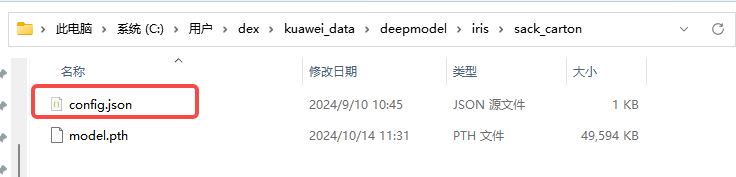
{//内容解析 "matcher_type": "pth",//模型类型,“pth”或“trt” "max_disp": 256,//视差值, //视差计算公式disp = fx * baseline / distance "igev_refine_iters": 32,//迭代次数 "scale_x": 1.0,//2D图像x方向的放缩比 "scale_y": 1.0,//2D图像y方向的放缩比 "rectify_enlarge": false,//是否恢复全局视野 "roi_delta_x": 0//x方向的roi2d窗口偏移 }
The max_disp parameter must be set carefully. Use the formula for calculation. If it is too large, it will introduce noise; if it is too small, it will lead to disparity prediction errors. max_disp means the maximum disparity. Calculate it once for the maximum working distance and once for the minimum working distance, and take the larger value.
Formula: disp = baseline length * Camera Intrinsic Parameter fx / distance to the object
Connection
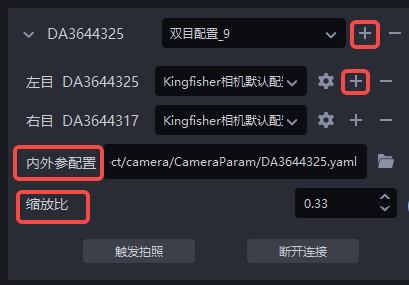
Check the binocular configuration option. If it does not exist, create a new one using the “+” sign
Different Camera parameters can be set for the left and right Cameras
For importing Intrinsic Parameter and Extrinsic Parameter configurations, refer to section 3.3 of Binocular windows PickWiz Deployment (Application-Oriented)
For high resolution, first set the scale ratio to 0.33(3036*4024) to prevent full-image Inference from exhausting GPU memory. No modification is needed for low resolution(1024.1280)
Parameter introduction and configuration (lengthy, recommended to read all of it)
4.5 Download the Intrinsic Parameter and Extrinsic Parameter Calibration Files
The Intrinsic Parameter and Extrinsic Parameter calibration files are the factory configuration files of the Dexforce Camera and are used to describe the relative relationship between the left and right Cameras
Find the corresponding Intrinsic Parameter and Extrinsic Parameter calibration file according to the Camera model and serial number (left and right SN) in KINGFISHER-Camera Calibration Files, as shown below, and download the latest version of the calibration file.
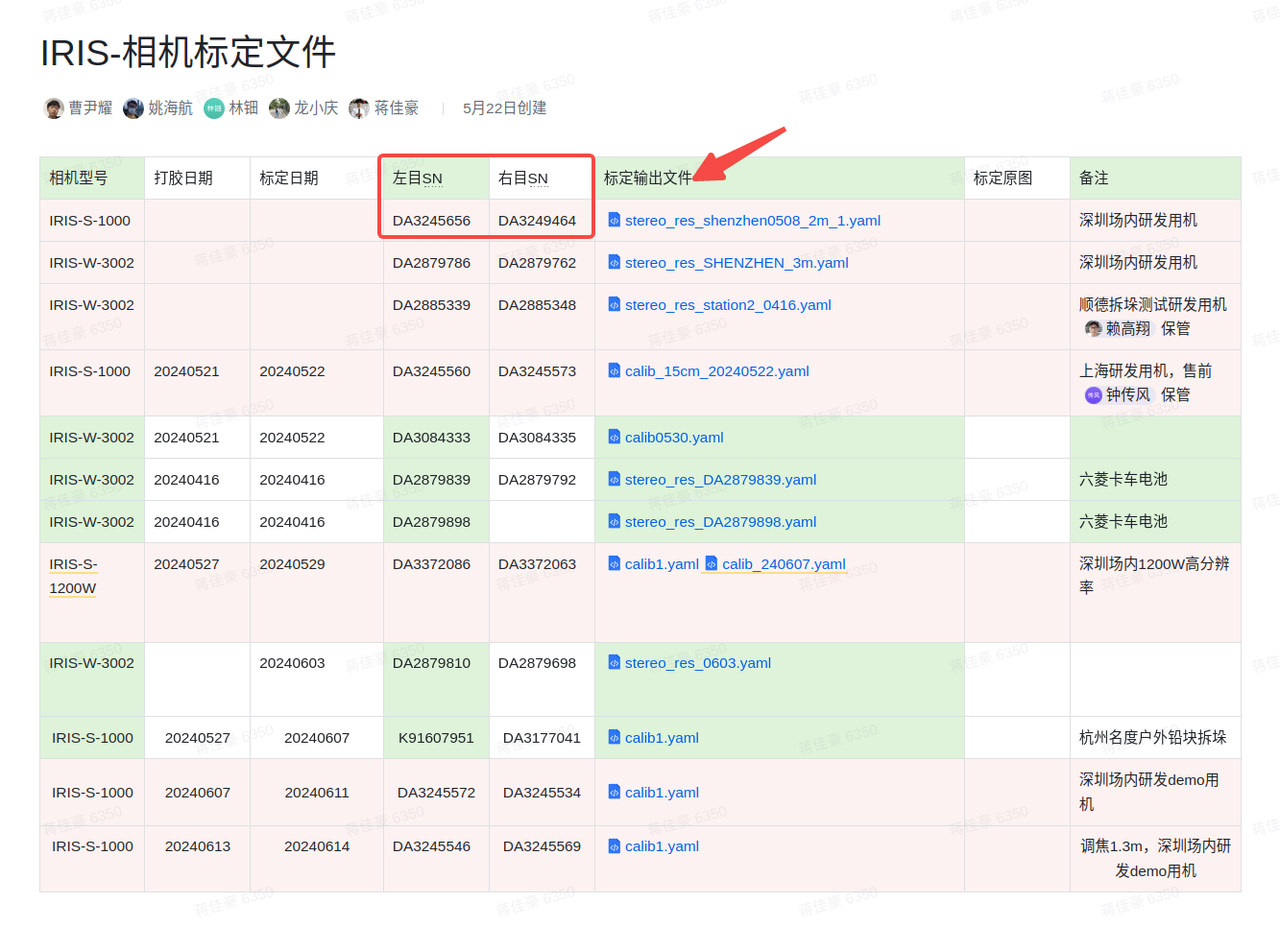
If the corresponding calibration file cannot be found, ask for confirmation
Obtain the Camera Intrinsic Parameter and Extrinsic Parameter calibration files
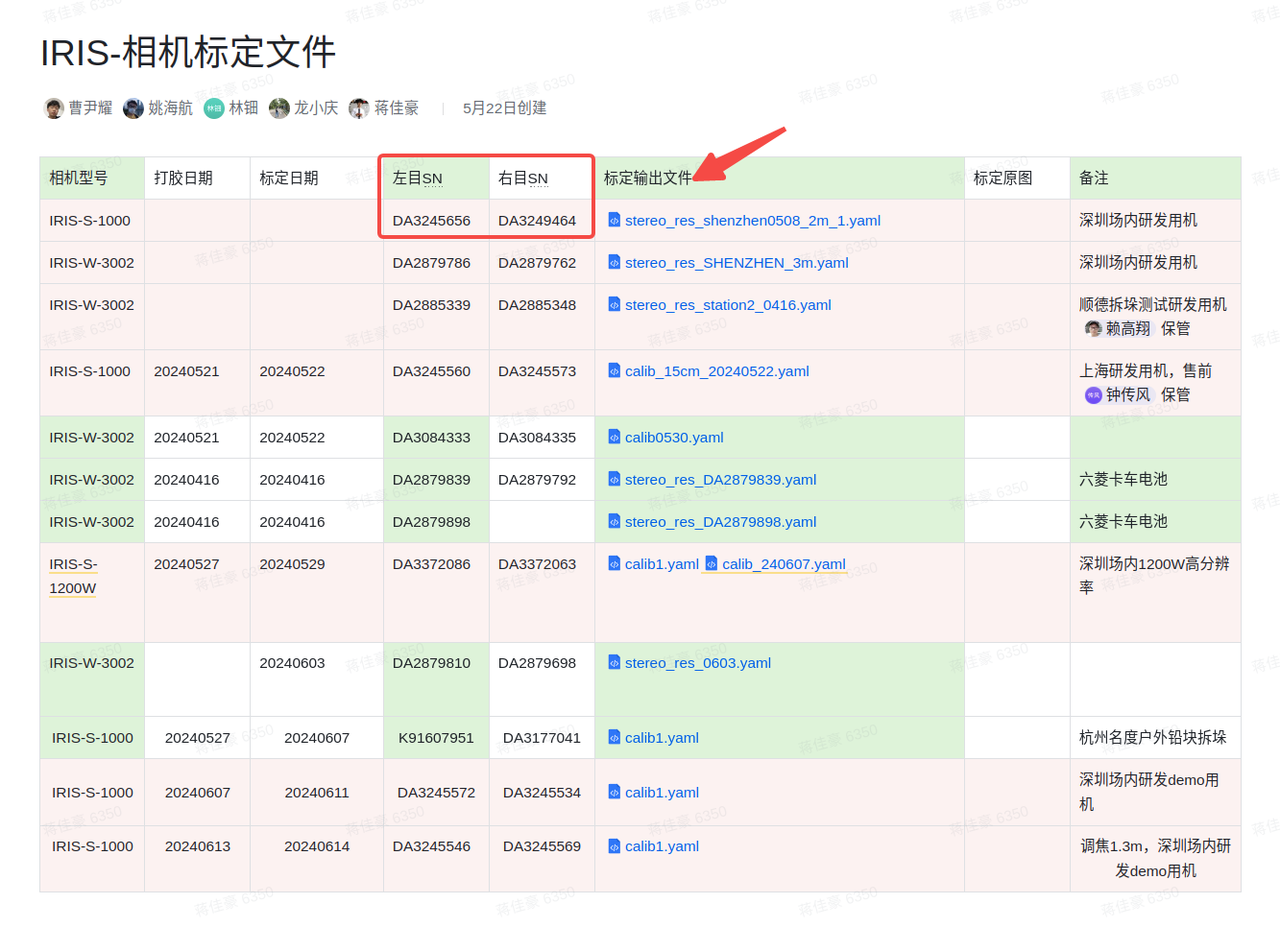
Use the serial number of the Camera recorded in step a to query under this link KINGFISHER-Camera Calibration Files
Compare the left and right SN numbers (serial numbers) and download the corresponding calibration file. PS: If the corresponding calibration file cannot be found, ask for confirmation
Import the binocular model (using the pth version)
- Model Path: kuawei_data->deepmodel->iris->sack_carton,if this Path does not exist, create it manually
~~trt: generally used for depalletizing, it is a large model and does not need to be replaced. Depalletizing-related configuration is preconfigured at the factory ~~
pth: source
General depalletizing pth(note that it should be renamed to "model.pth")
Configure the binocular model parameter config.json
After version 1.4.2, place the “config.json” file together with “model.pth” into the sack_carton folder, fill in the following content, and modify it appropriately. Note:The max_disp parameter must be set carefully. Use the formula for calculation. If it is too large, it will introduce noise; if it is too small, it will lead to disparity prediction errors. max_disp means the maximum disparity. Calculate it once for the maximum working distance and once for the minimum working distance, and take the larger value. Then check whether the calculated disparity is less than 256, 384, or 512, and fill in the "max_disp" parameter accordingly.
Formula: disp = baseline length * Camera Intrinsic Parameter fx / distance to the object
Note: the baseline length is 0.15 for KingFisher-S-1000 and 0.40 for KingFisher-W-3002.
For low resolution, fx is generally around 1275; for high resolution, it is approximately 3000*scale according to the scale ratio.
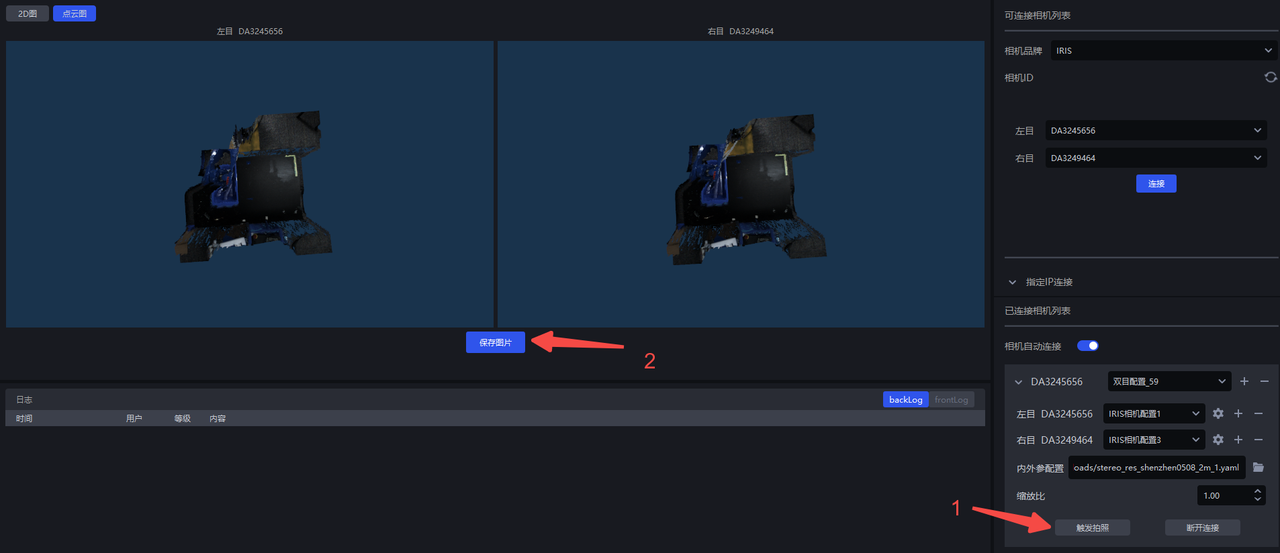
Save the parameters and trigger image capture to check the effect
Note: The parameters of the left and right Cameras should preferably remain consistent except for AOI. When the range requirements are not strict, AOI can also be consistent. Check whether the capture effects and styles of the left and right Cameras are consistent. If color cast occurs, automatic white balance may not have been turned off, or the Camera may have recorded that value before automatic white balance was disabled. In that case, re-enter MVS and fill in the white balance ratio value again.
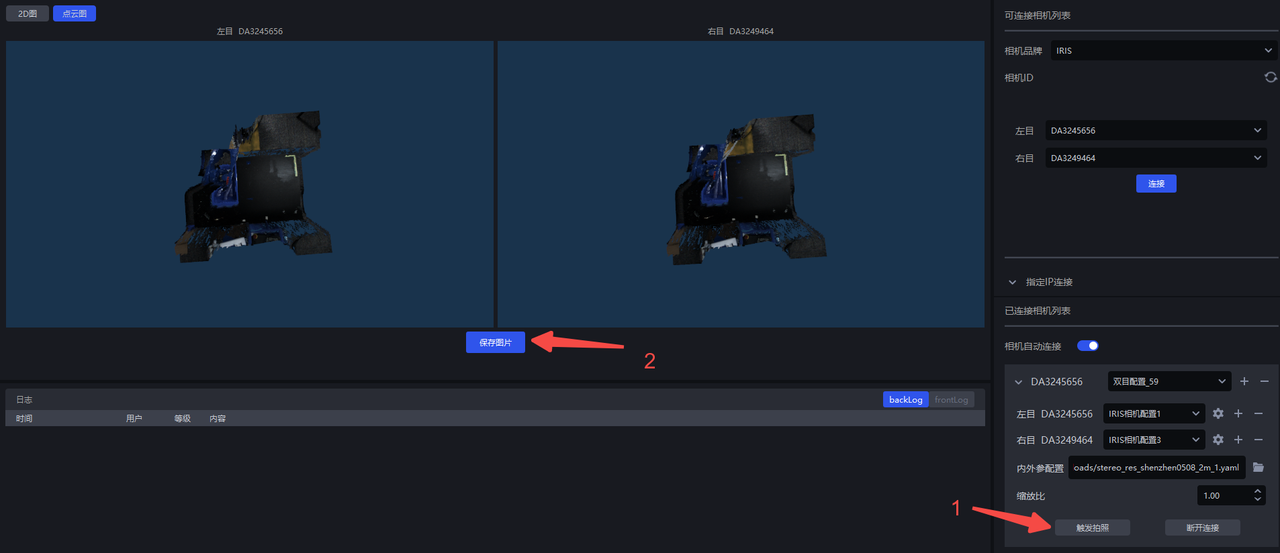
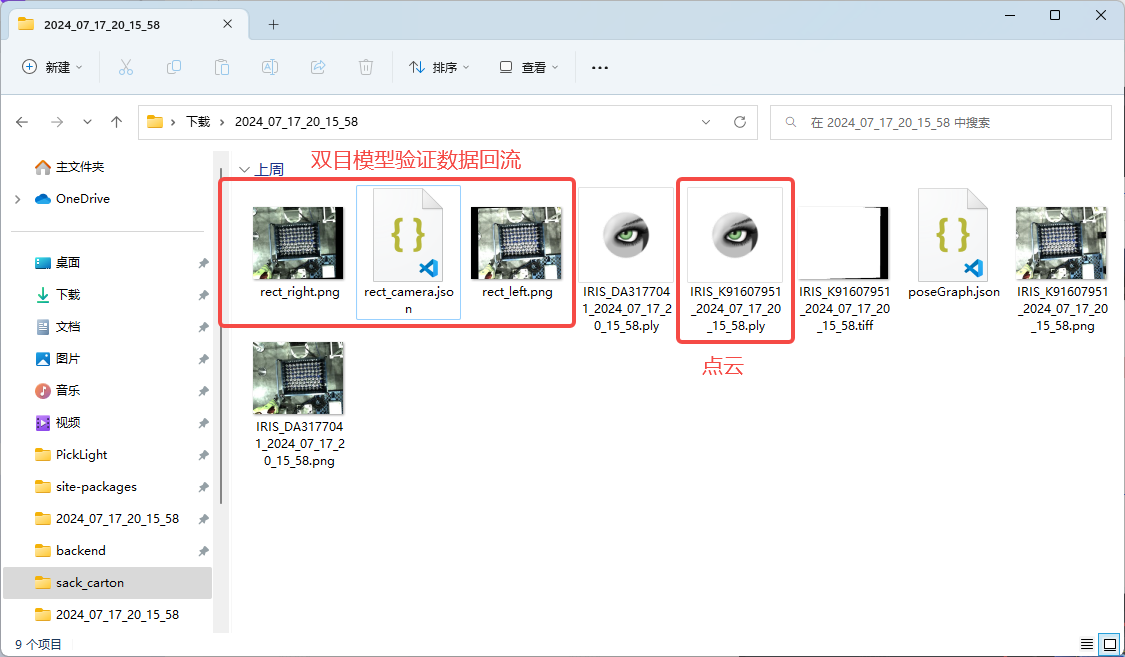
When binocular data verification is required on site, you can directly capture and save images, and then send the data from “Save Images”
Check whether the Camera is normal (whether Extrinsic Parameter correction is needed)
This step is required; otherwise image acquisition may fail
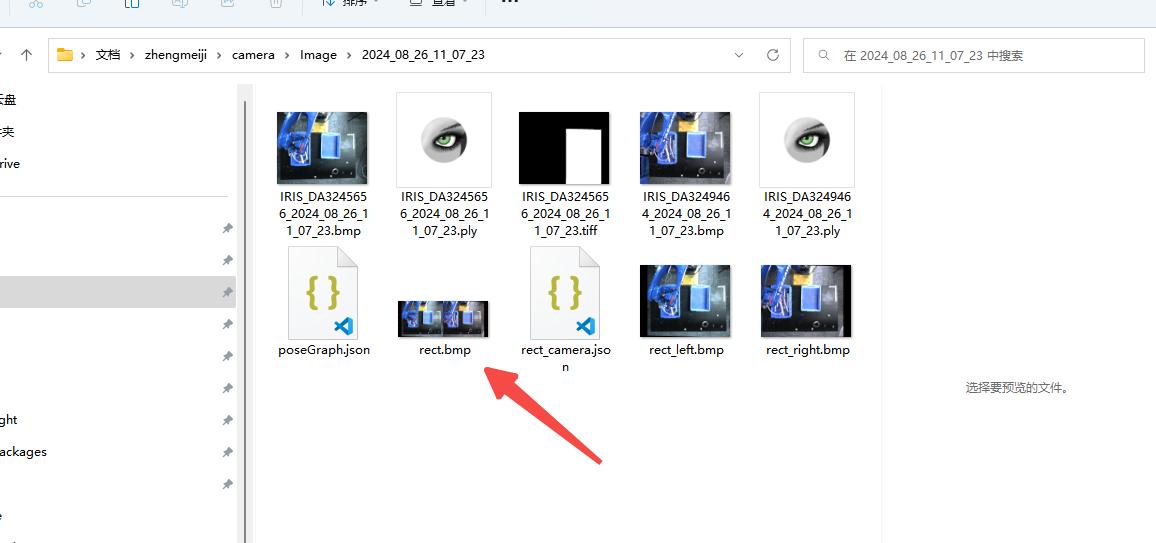
After saving images in the Camera interface, open the saved folder
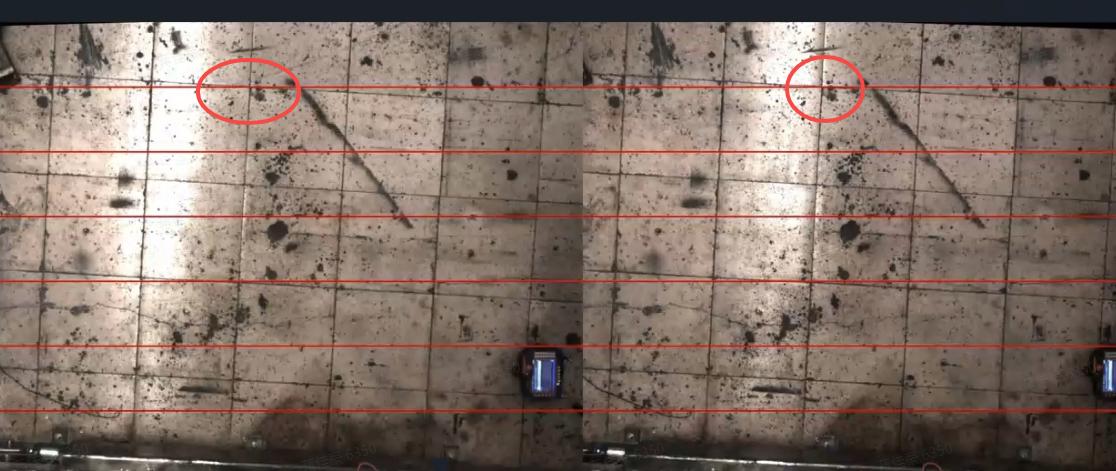
Find rect.bmp and check whether the red lines in the left and right images pass through the same point. The normal situation is shown below: you can see that the red lines pass through the same point in the actual Scene, proving that the Camera Extrinsic Parameter is correct; otherwise, Extrinsic Parameter correction is required (for the specific steps, refer to ROI and eye-hand calibration).
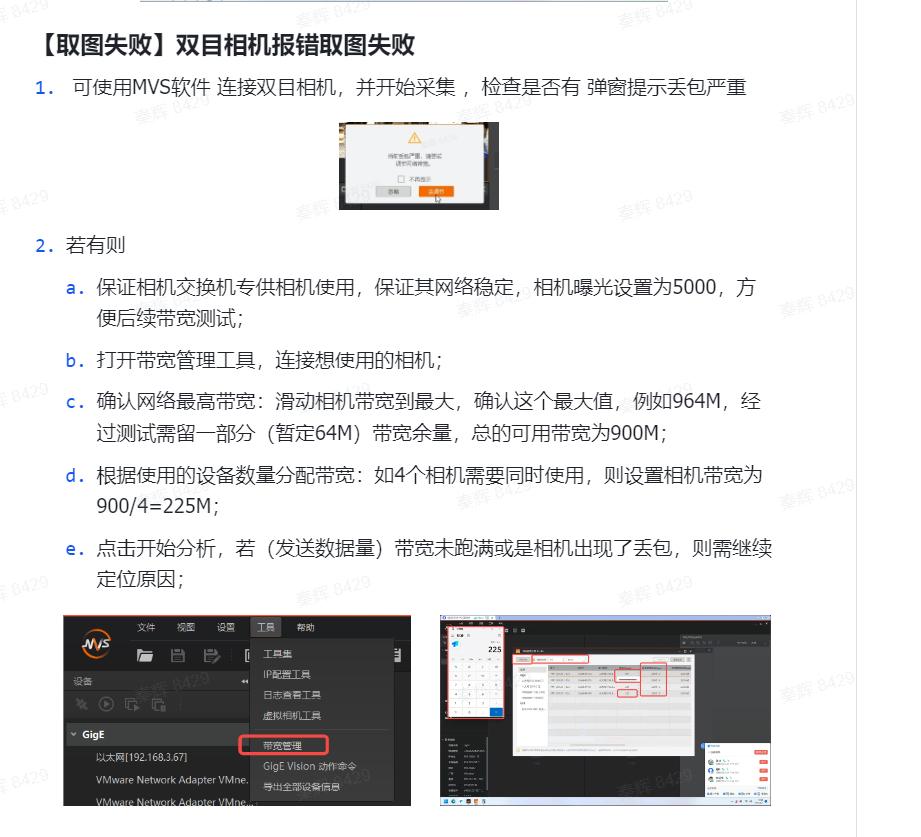
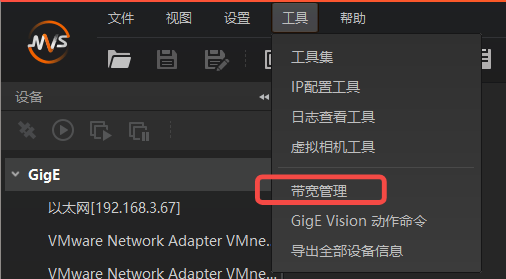
If image acquisition fails, set bandwidth for the high-resolution Camera
Common PickWiz Usage Issues(V1.4.0+)
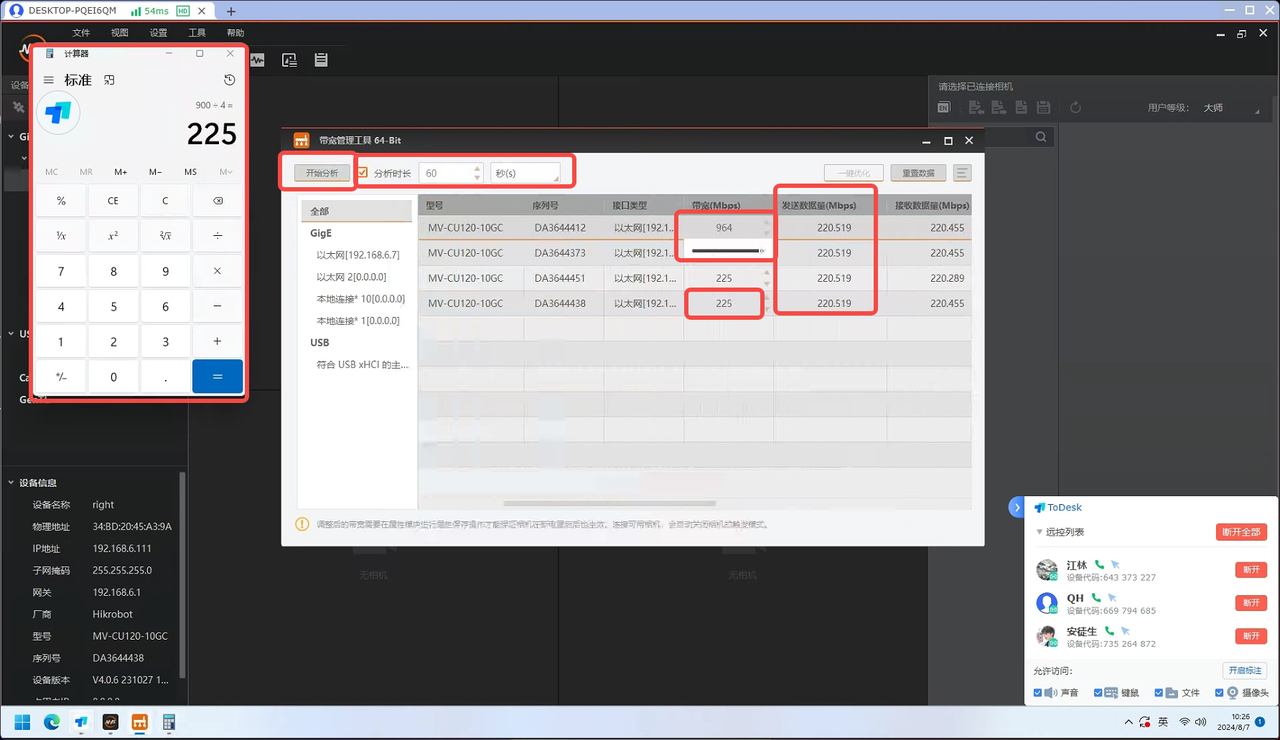
4.6 ROI
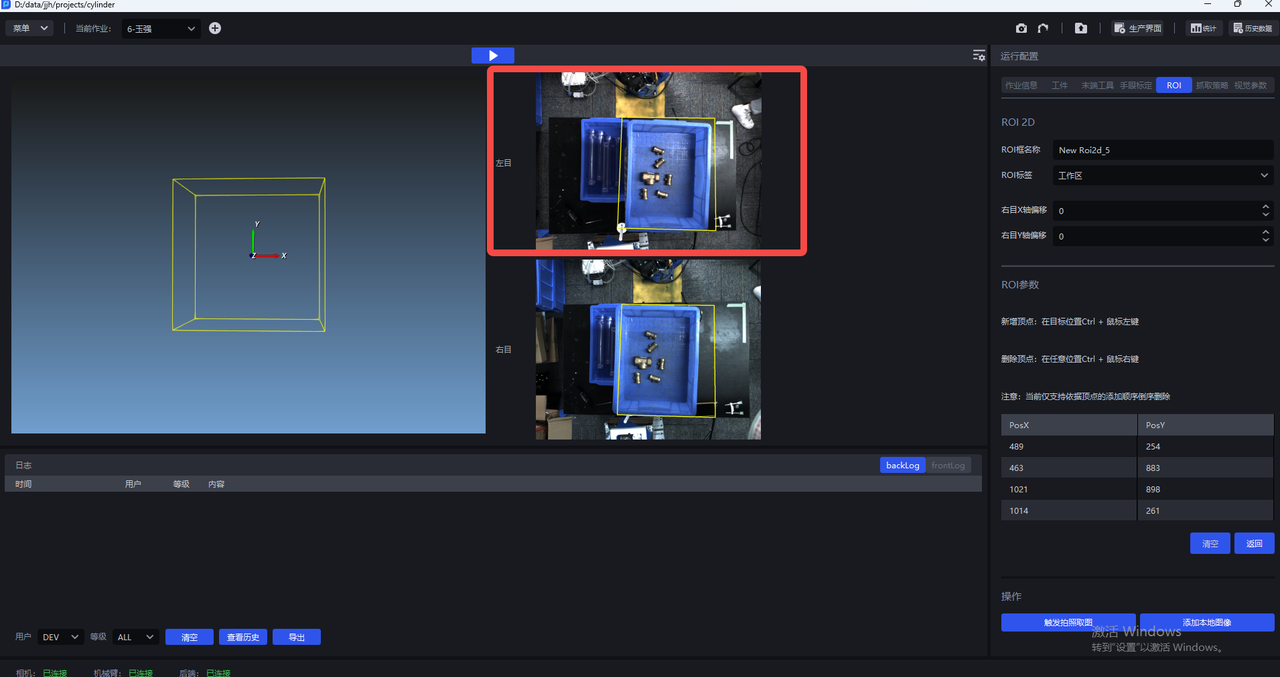
ROI settings
Recognition-oriented ROI2D is mainly based on the left Camera (working area)
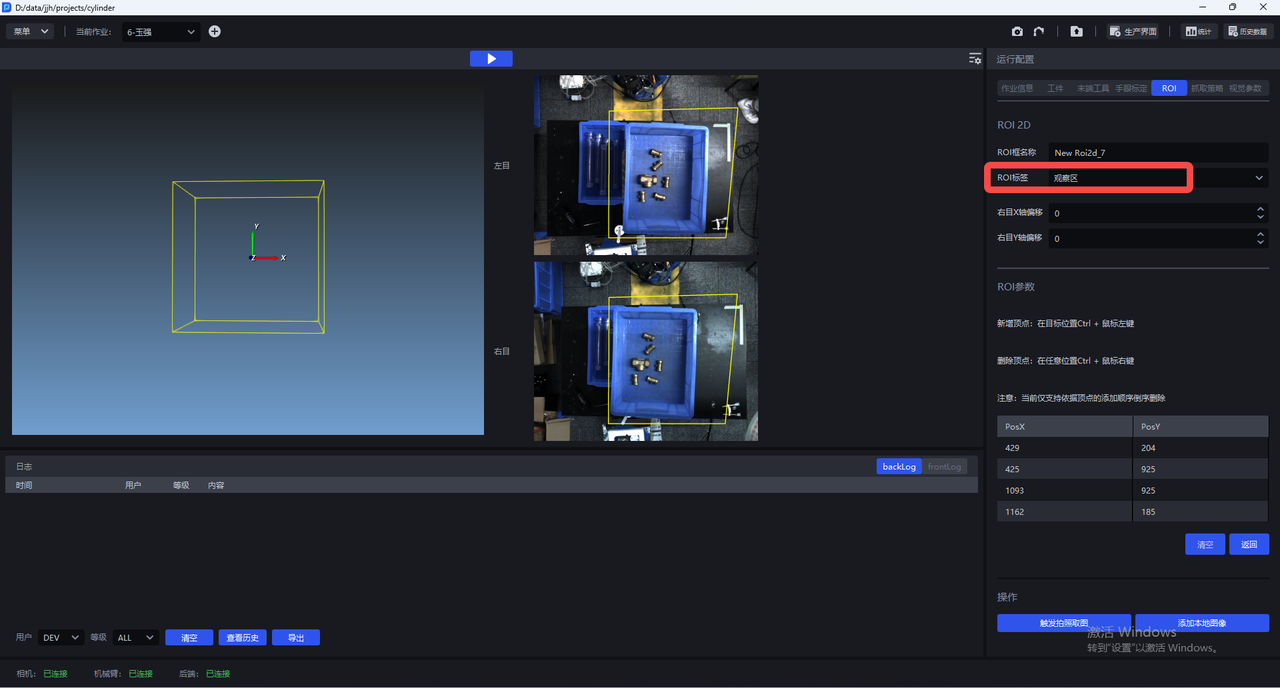
Point cloud cropping ROI2D (observation area)
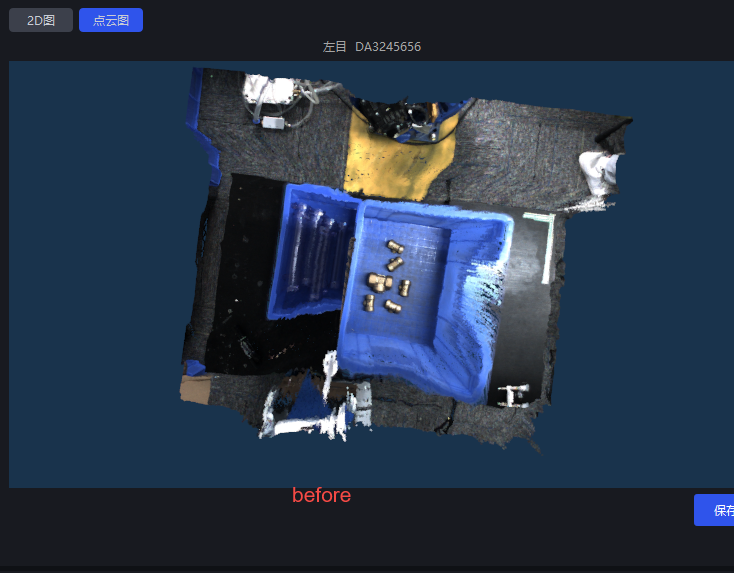
After the settings are completed, only the point cloud within the ROI range is generated, which can improve Takt Time and eliminate interference from other point clouds. PS: There may also be cases where the point cloud quality does not meet the standard after ROI is set, so this must be considered together with the actual situation
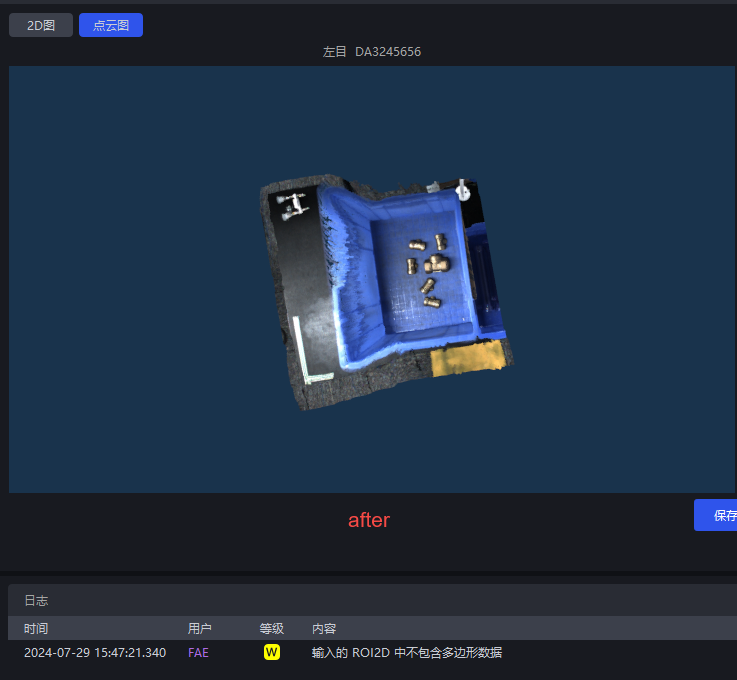
4.7 Eye-Hand Calibration
For the eye-hand calibration workflow, please refer to the relevant instructions in eye-hand calibration
After the Camera connection is completed, eye-hand calibration must be performed; otherwise, it will affect the image acquisition effect
Adjust the AOI property of the MVS software to fixed exposure
Capture images with the Camera according to the eye-hand calibration process
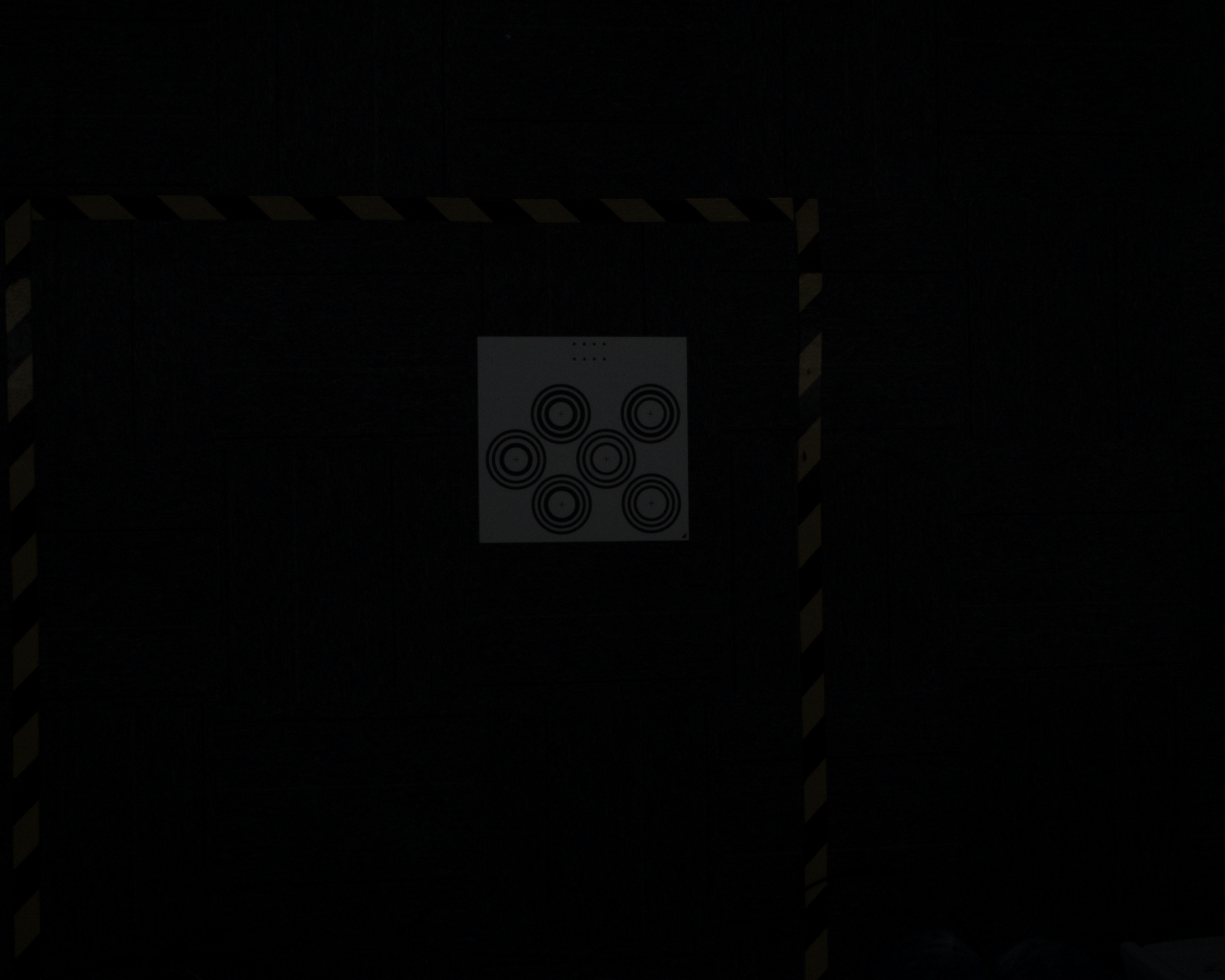
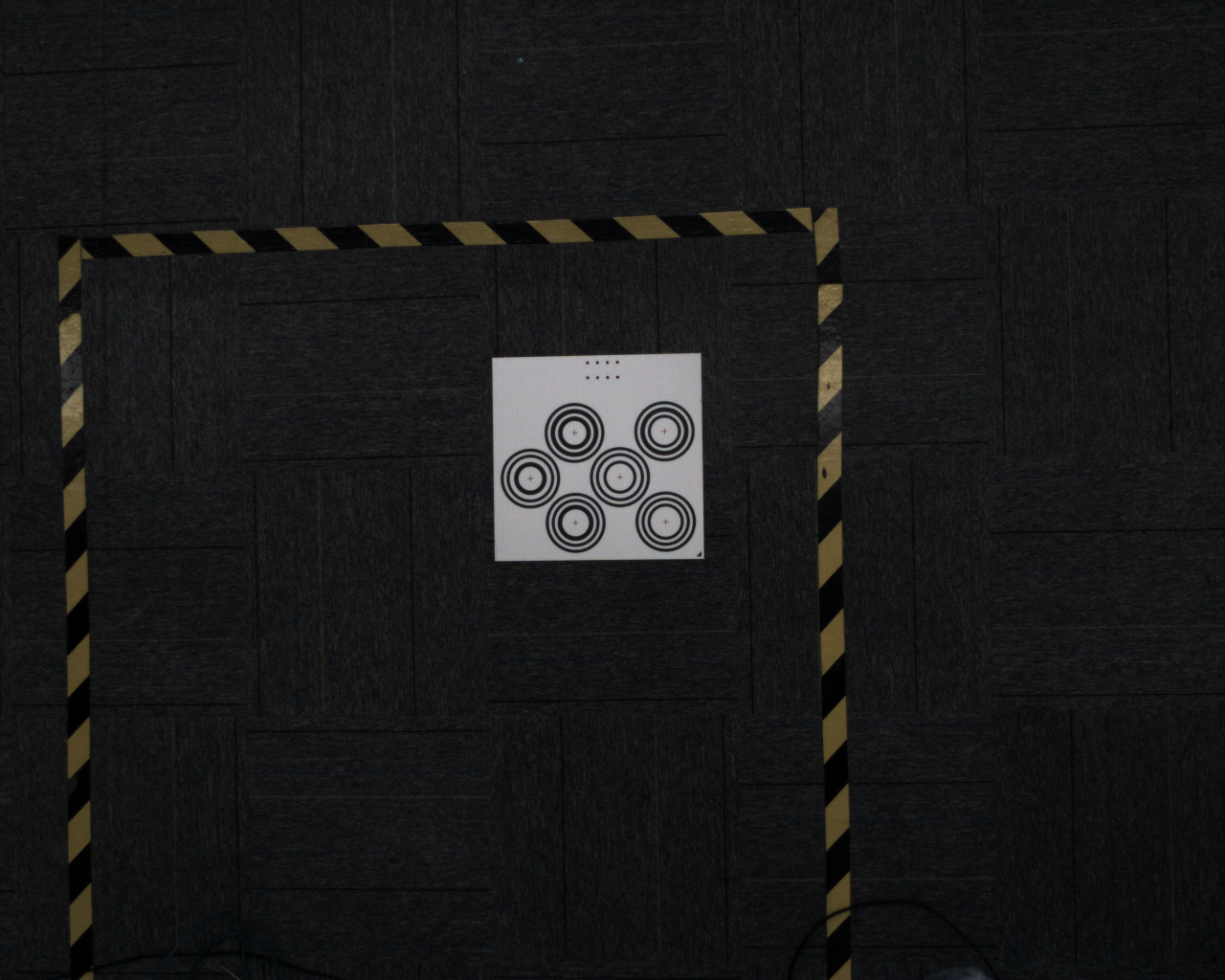
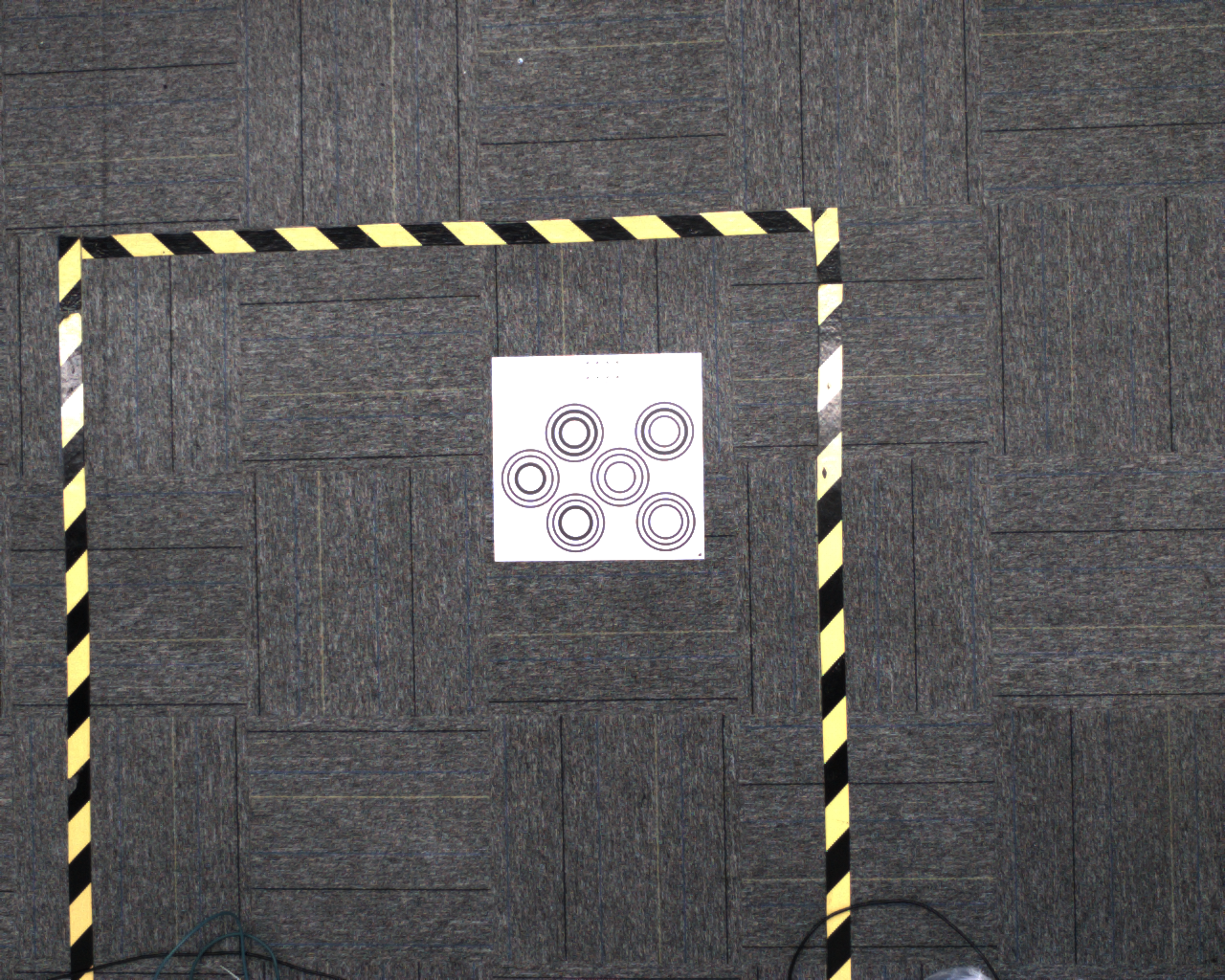
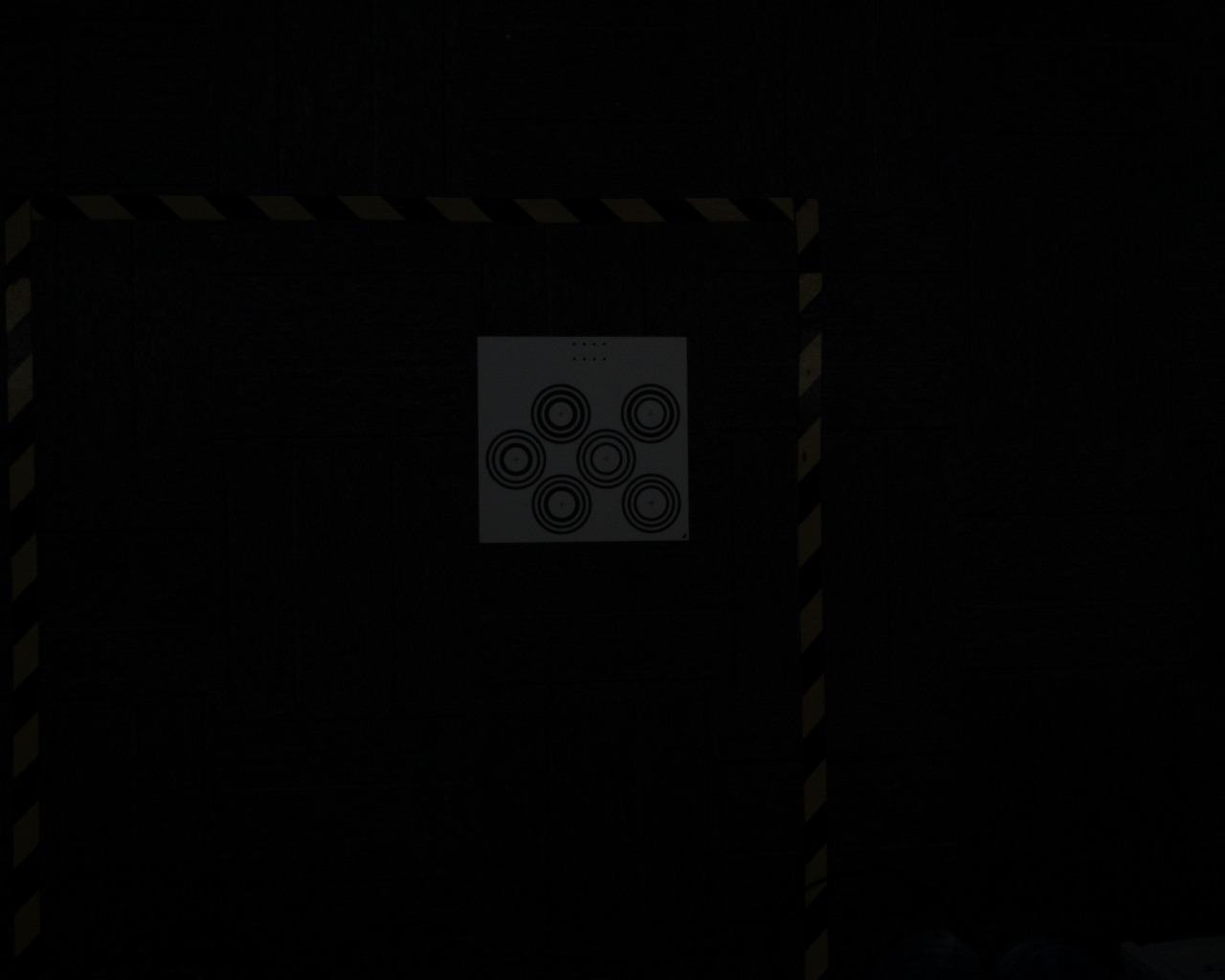
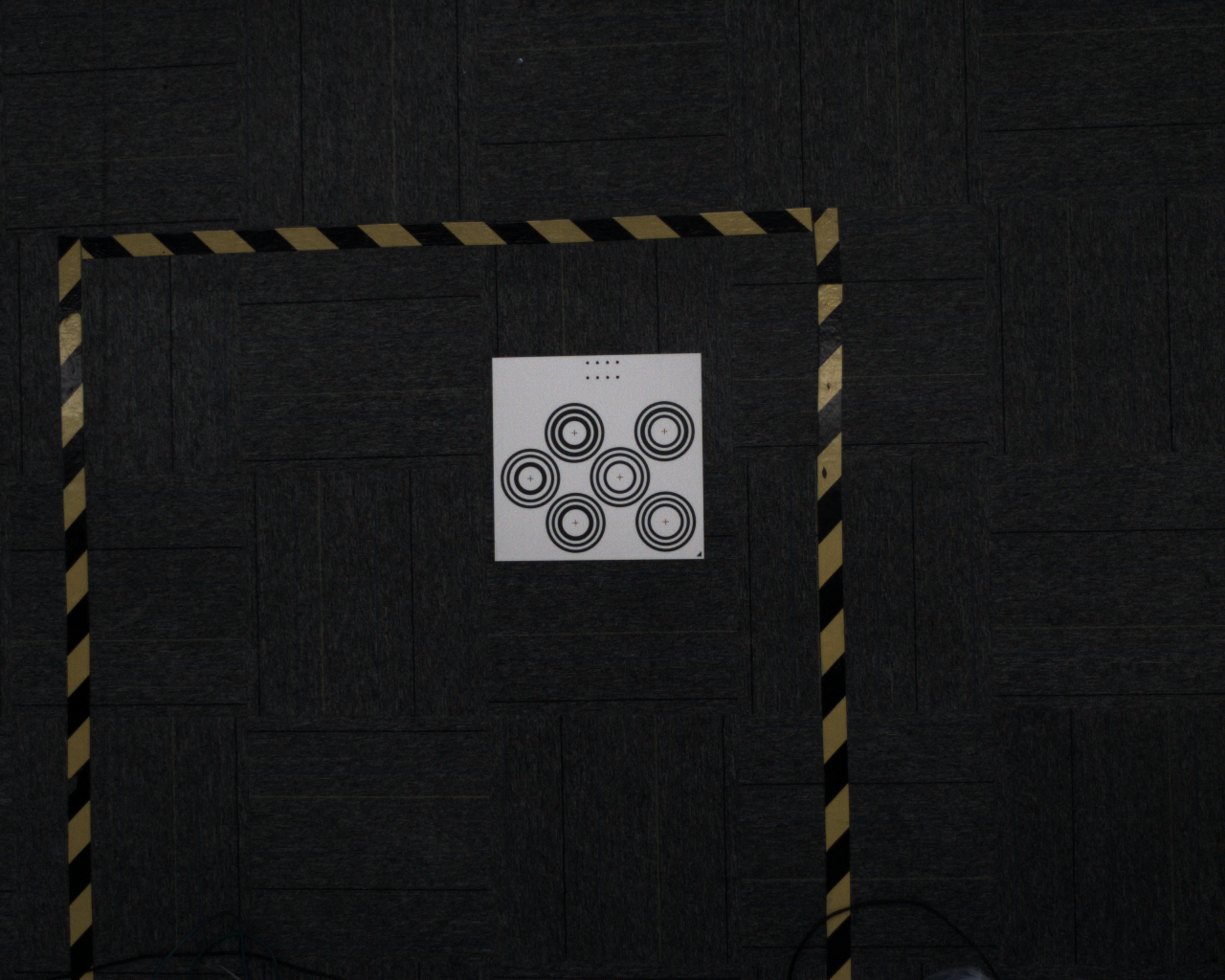
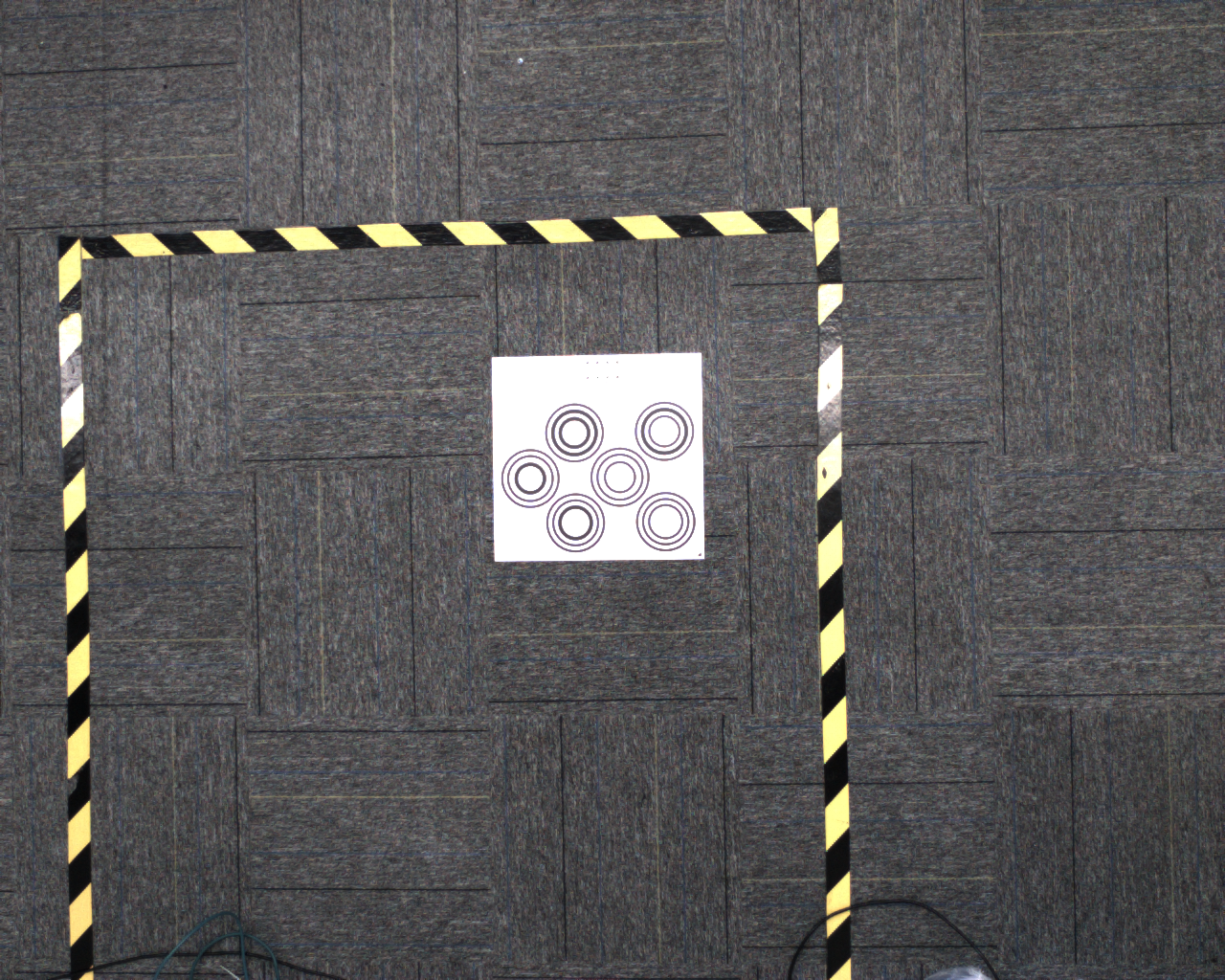
Adjust the image brightness so that the Calibration Board is not overexposed, as shown below (right)
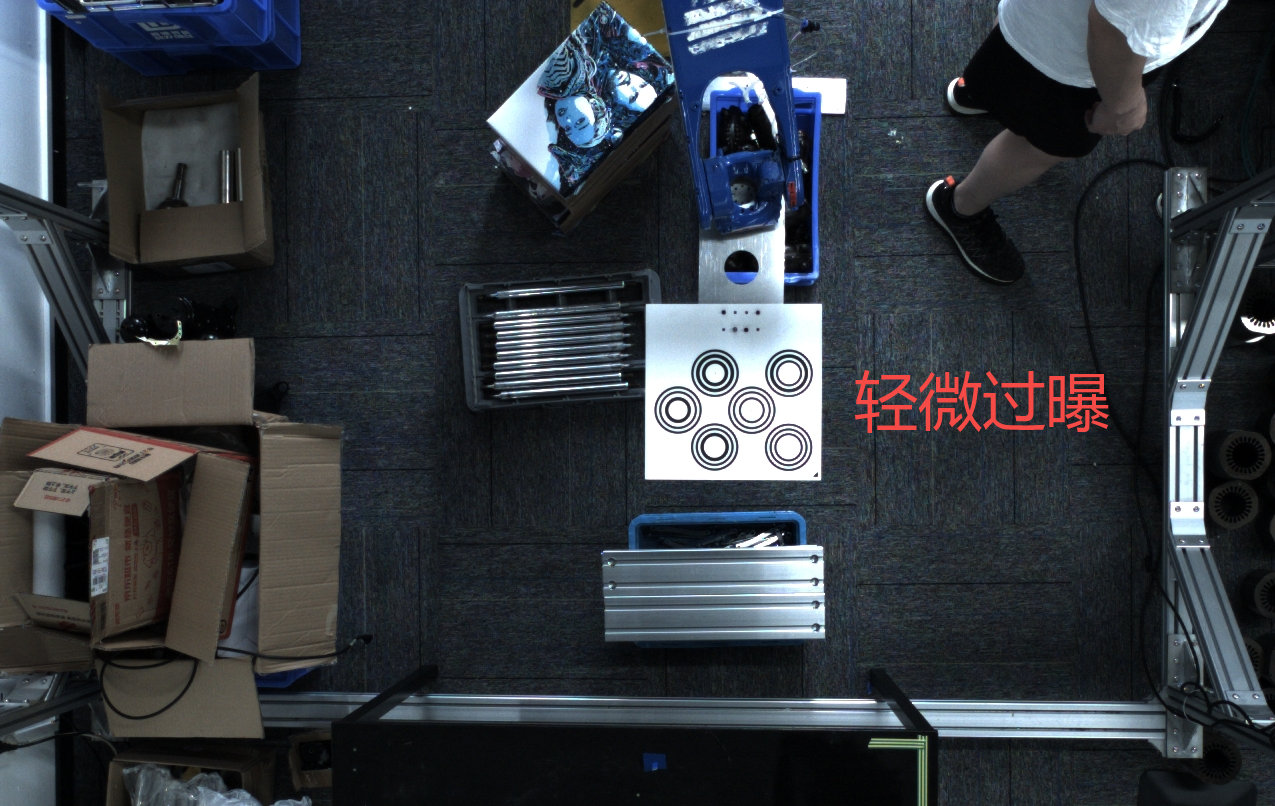
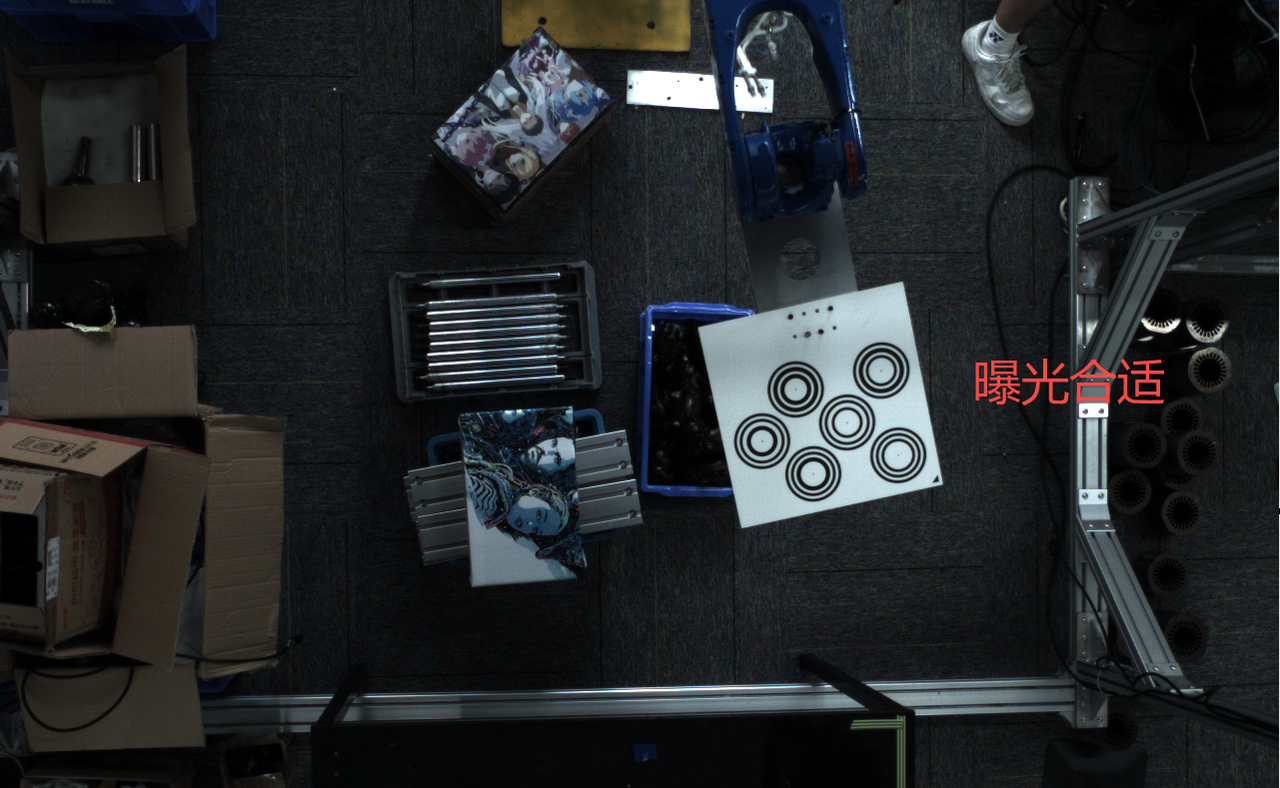
Extrinsic Parameter correction
If the calibration error is small, but there is still a large error in the actual point touch or point cloud deformation, after confirming that human operation factors have been ruled out, check the red line image saved after the Camera captures an image to determine whether the Camera structure changed during transportation. In that case, Intrinsic Parameter correction is required. Refer to Binocular Camera Extrinsic Parameter Correction Specification Extrinsic Parameter Correction Program
5. Camera Configuration
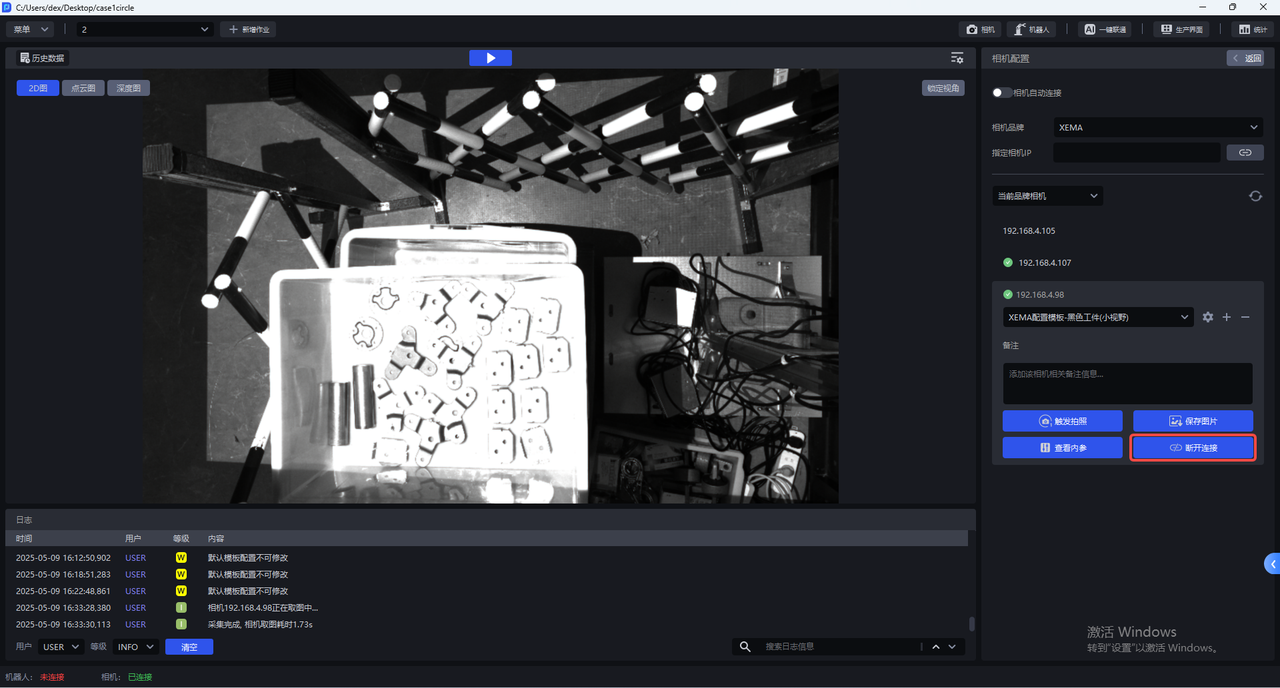
- Each Camera has multiple default configurations, and none of them can be modified. Select the corresponding default configuration, click
Trigger Capture, and use the imaging parameters to capture 2D images, point clouds, and depth maps. You can view the imaging quality in the visualization window on the left.
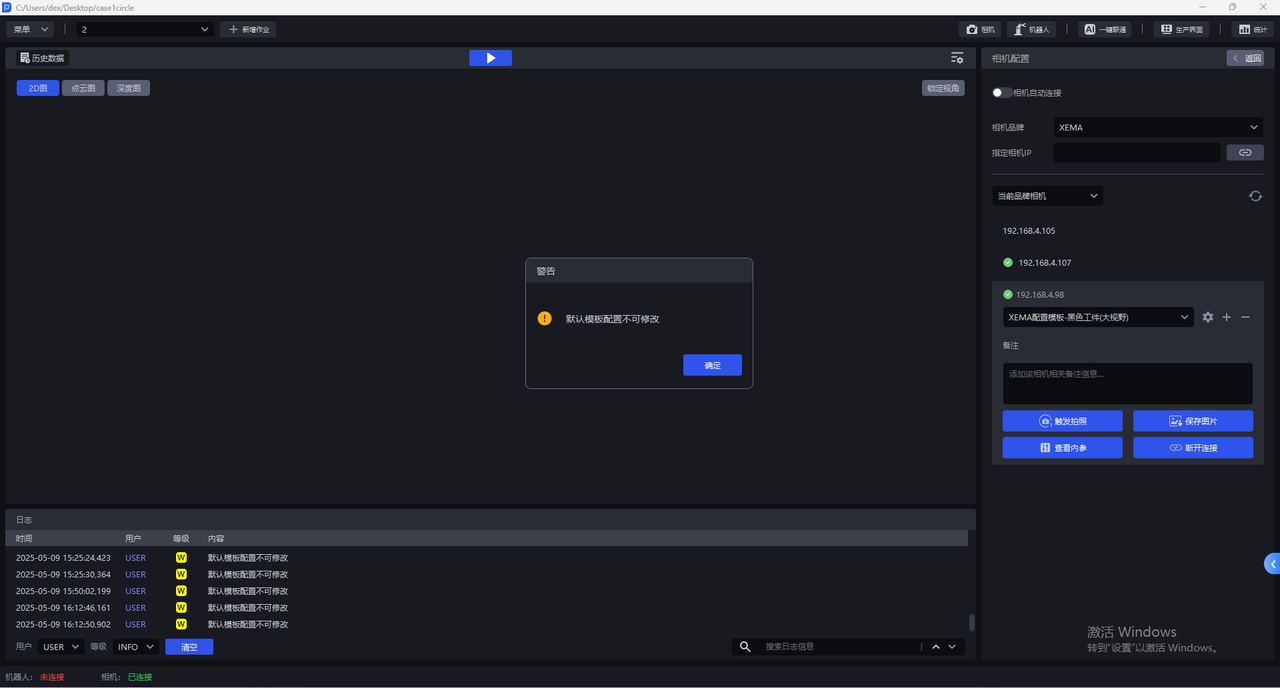
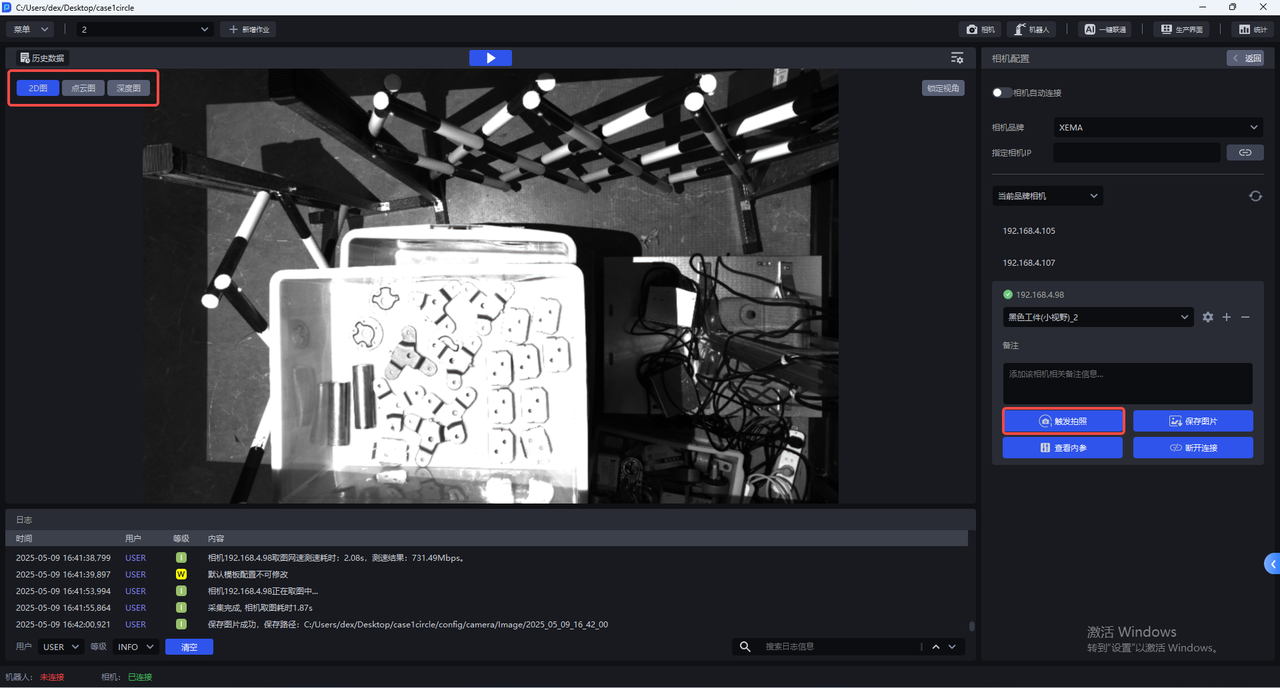
- The default Camera configuration cannot be modified. If none of the default configurations can produce a 2D image with proper exposure, you can click
+to copy the current default Camera configuration, add an identical Camera configuration, and directly enter the Camera configuration interface to modify parameters.
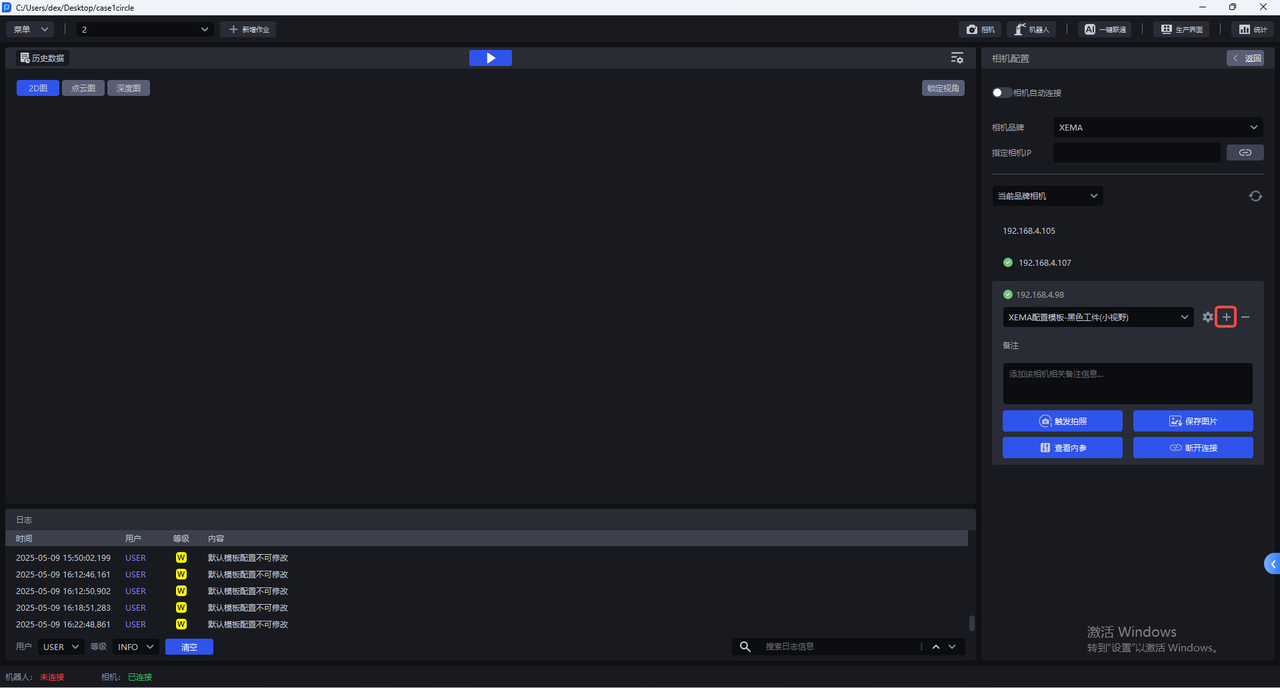
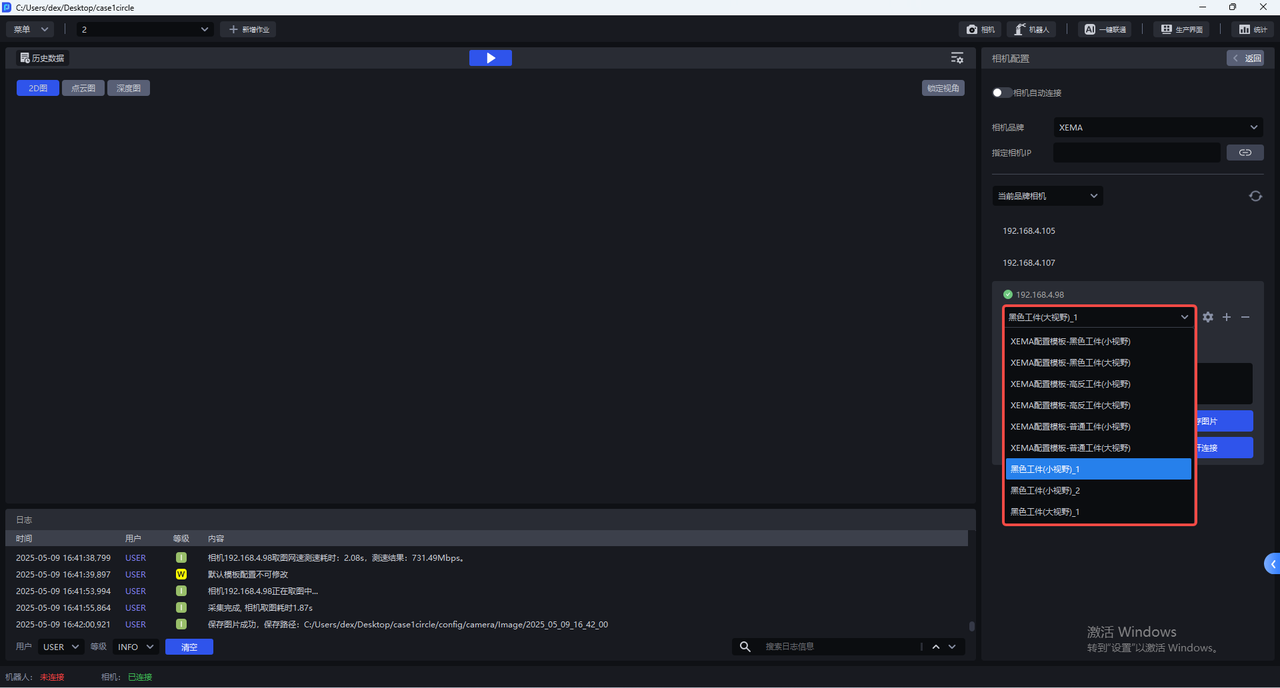
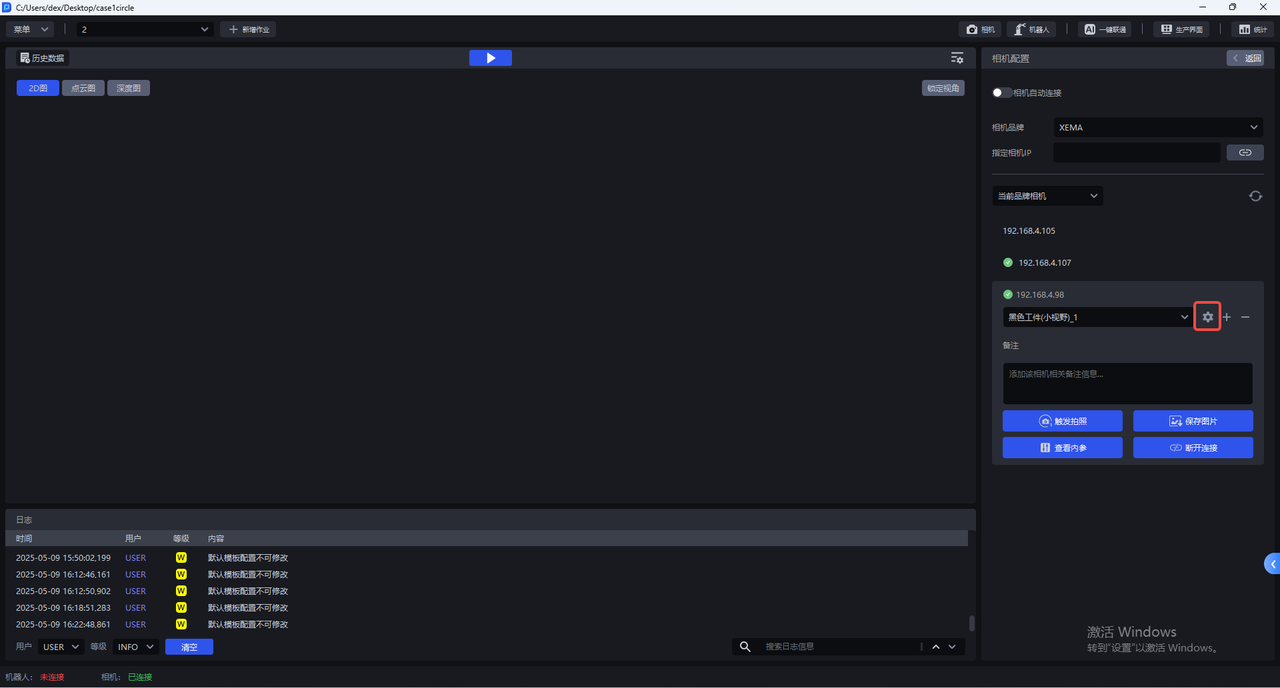
After copying the current default Camera configuration, you can switch to the newly added Camera configuration and click the settings Button to enter the Camera configuration interface and modify parameters.
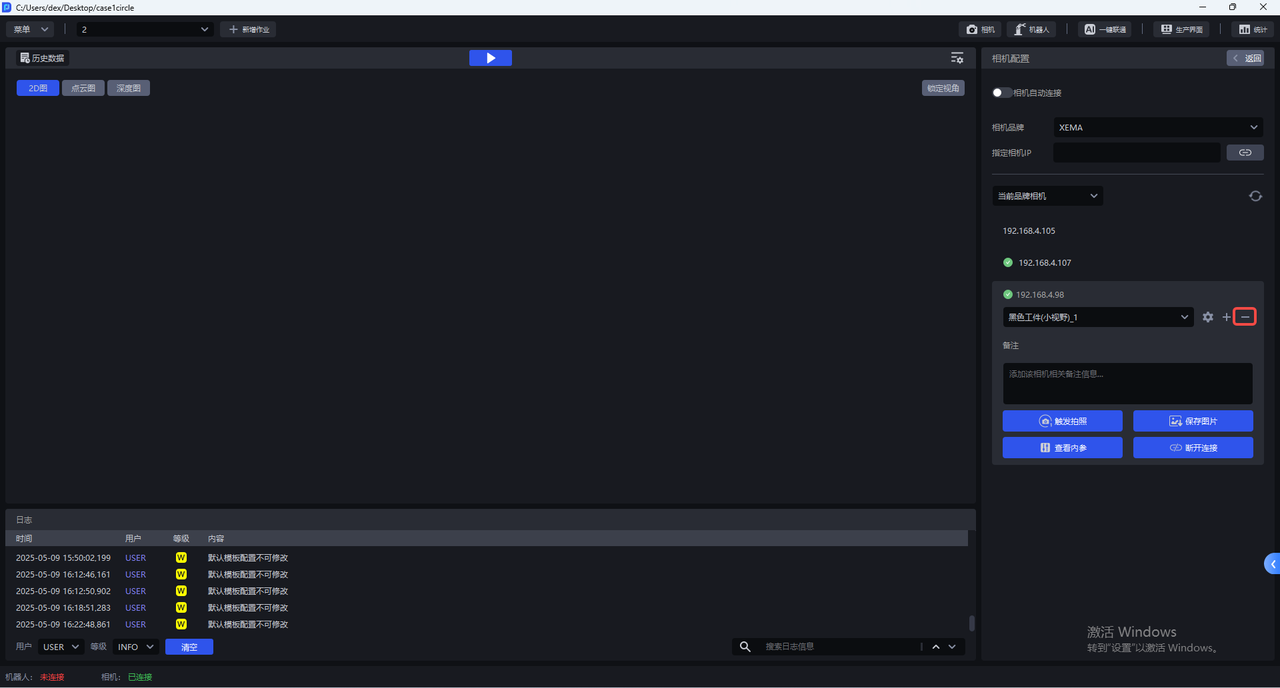
Click — to delete the newly added Camera configuration.
- Click
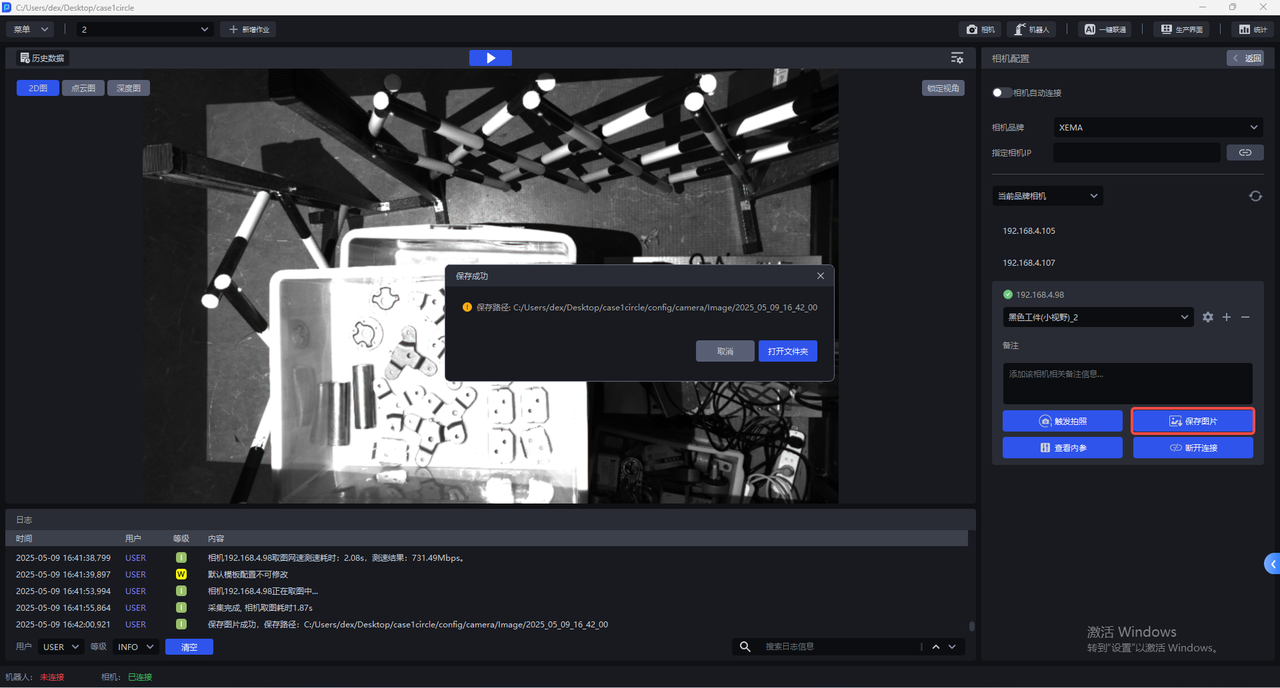
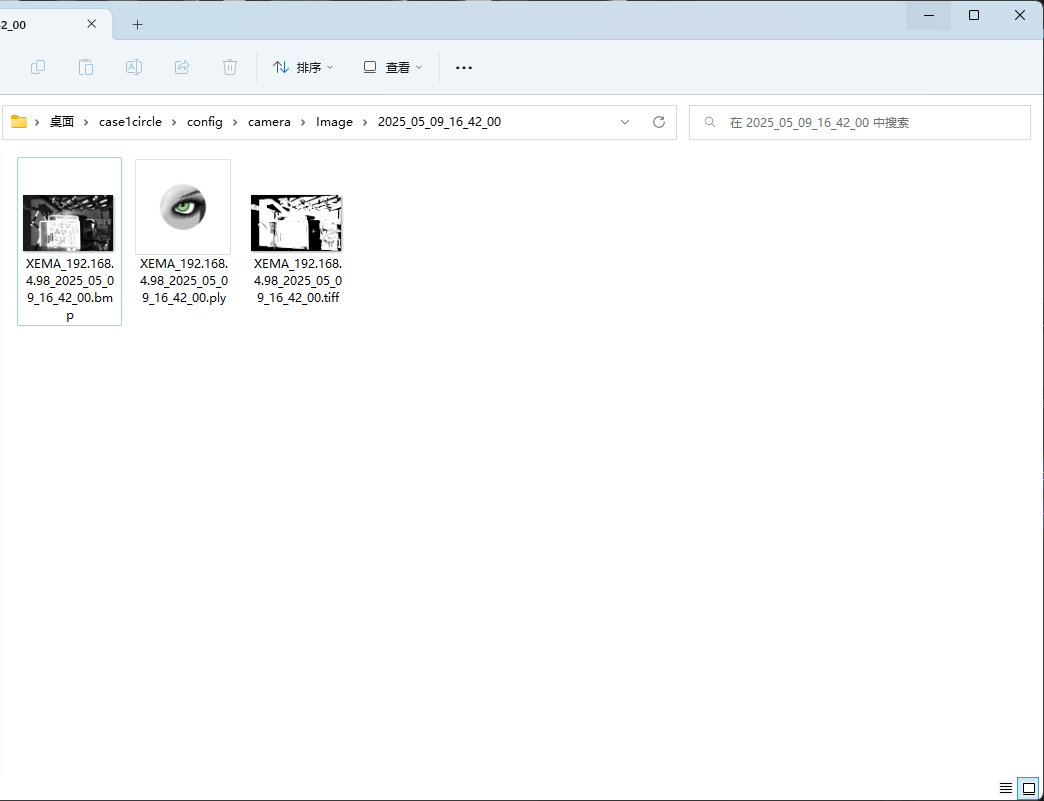
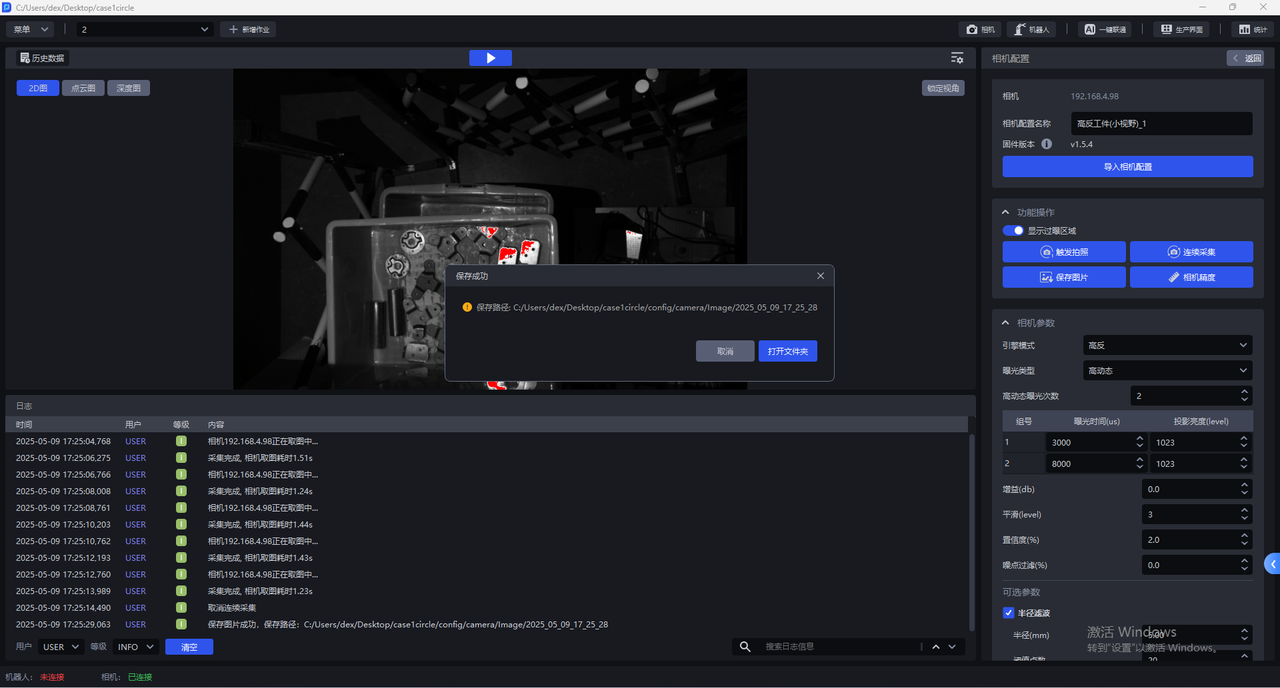
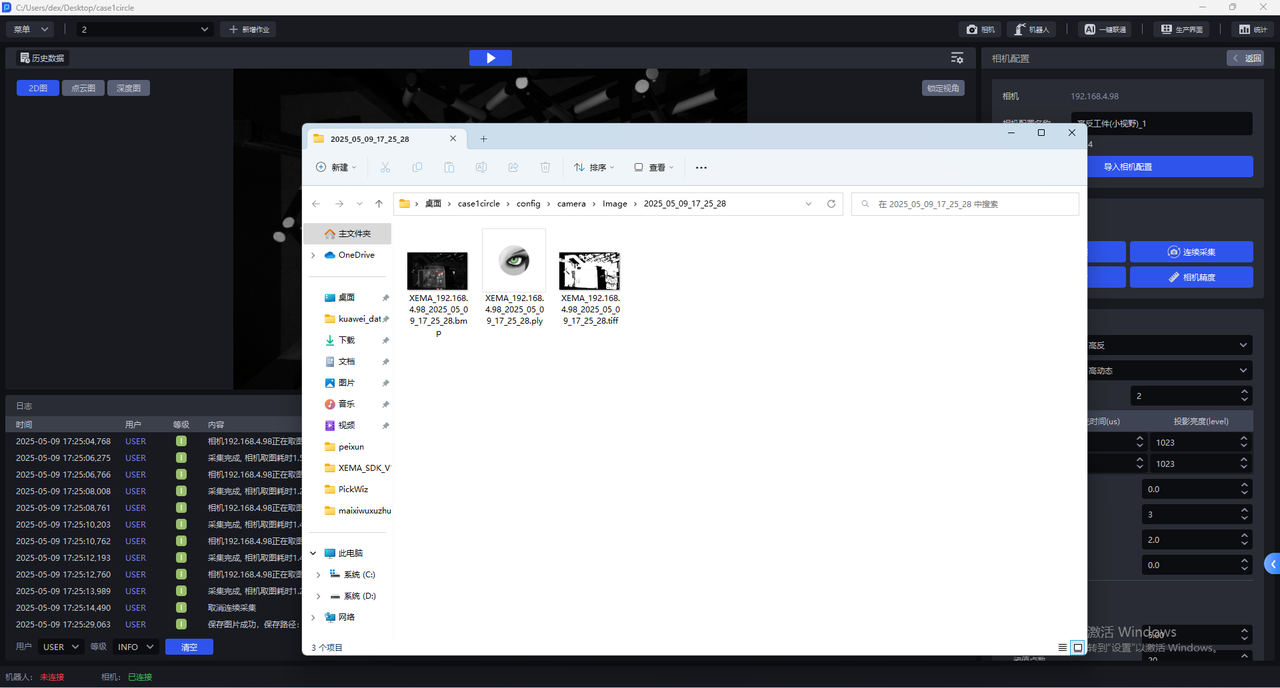
Save Imagesto save the 2D image, point cloud, and depth map captured with the current configuration to the local machine, as shown below. The save Path is 项目文件夹/config/camera/image/拍摄时间. Files with the bmp extension are 2D images, files with the ply extension are point clouds, and files with the tiff extension are depth maps.
- Click
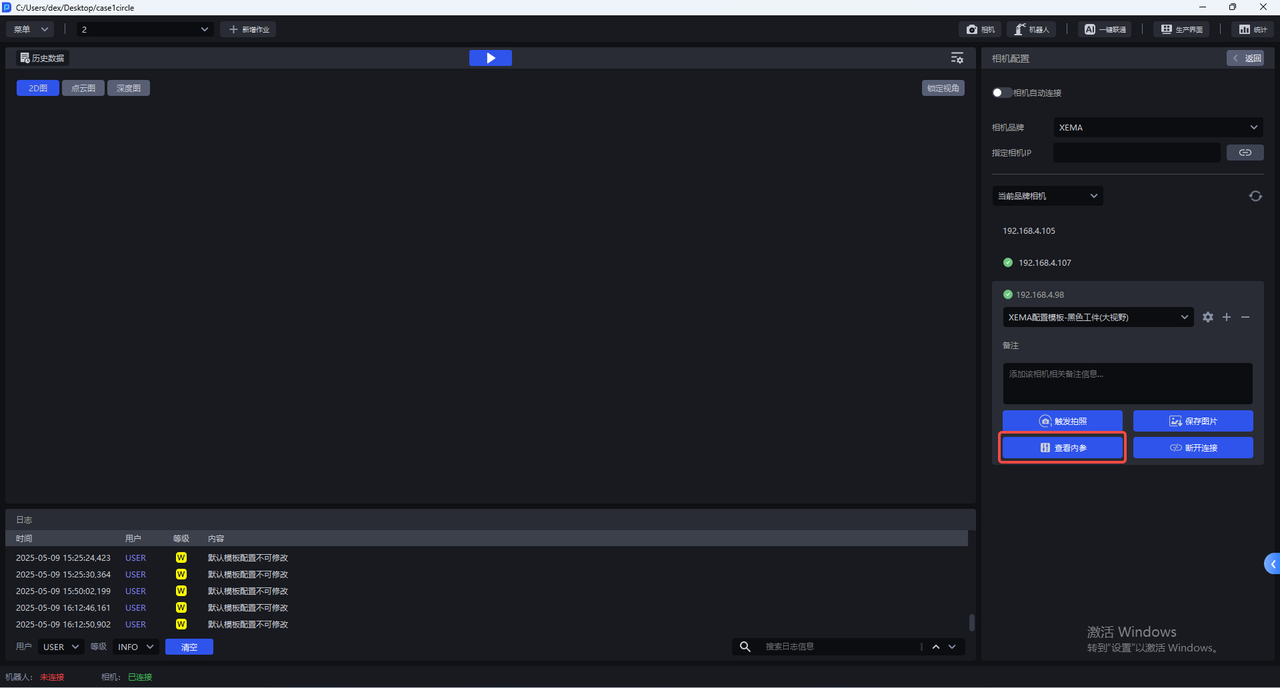
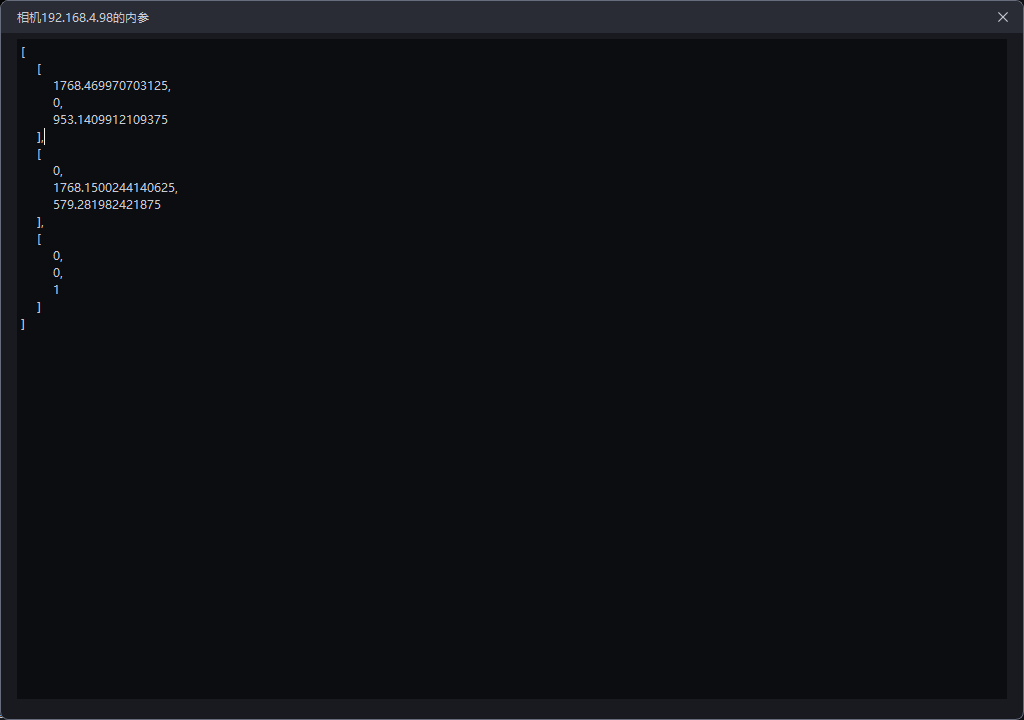
View Intrinsic Parameterto view the Camera Intrinsic Parameter, including lens focal length, principal point coordinates, distortion coefficients, and so on.
- Click
Disconnectto disconnect the Camera and select another Camera to connect.
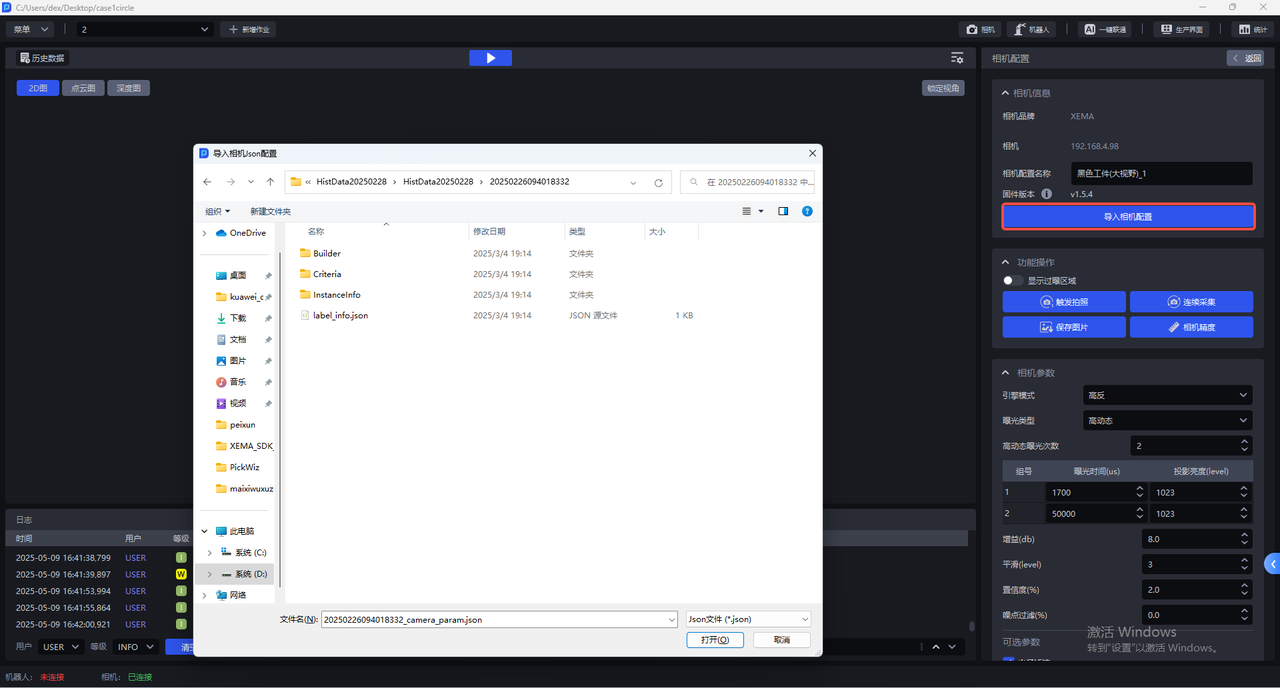
5.1 Import Camera Configuration
In the Camera configuration interface, click Import Camera Configuration to import an existing Camera configuration into the Camera.
5.2 Functional Operations
The Camera configuration interface has the following functions:
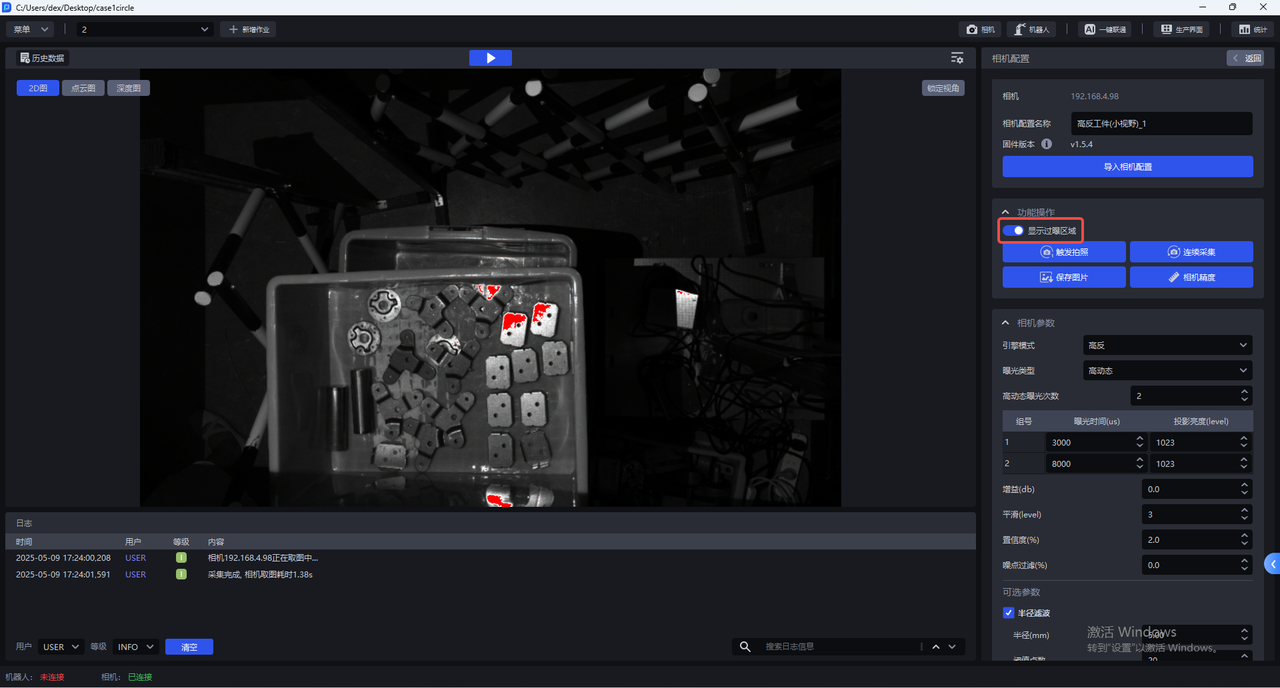
- Display Overexposed Areas
After Show Overexposed Areas is enabled, the visualization window will display the overexposed areas of the current image, as shown below.
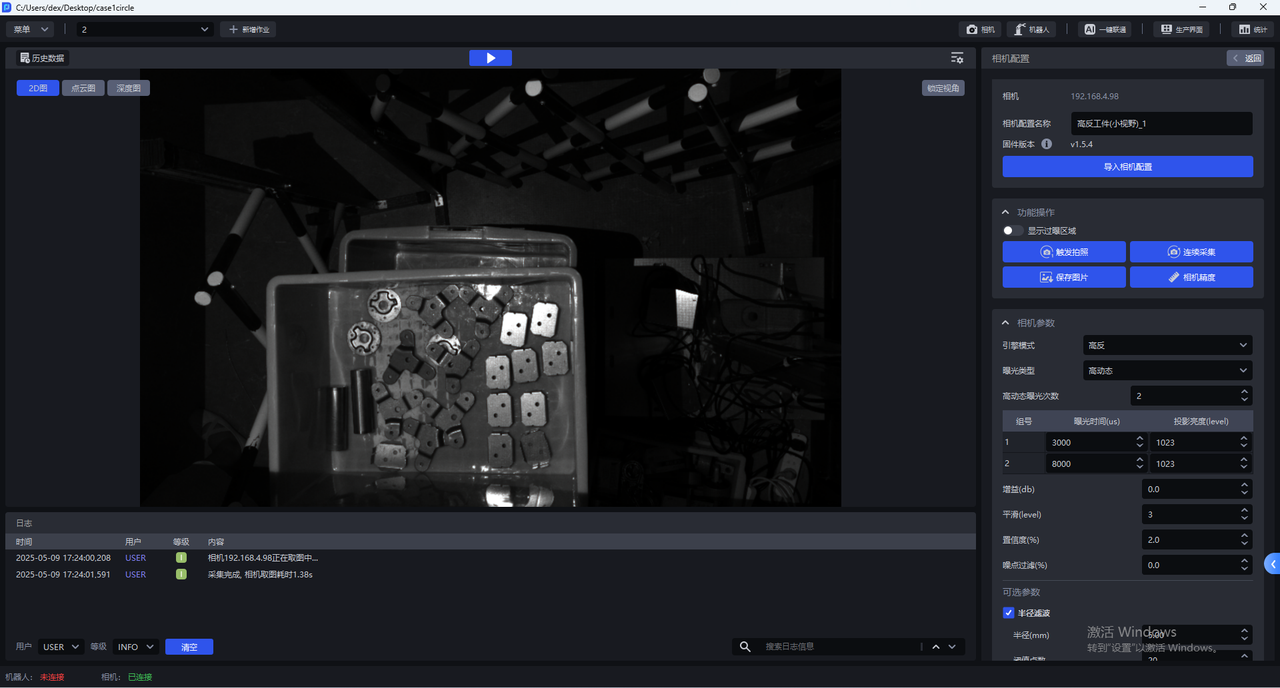
- Trigger Capture
Click Trigger Capture to capture 2D images, point clouds, and depth maps using the current Camera configuration. You can view the imaging quality of the current Camera configuration in the visualization window.
- Continuous Capture
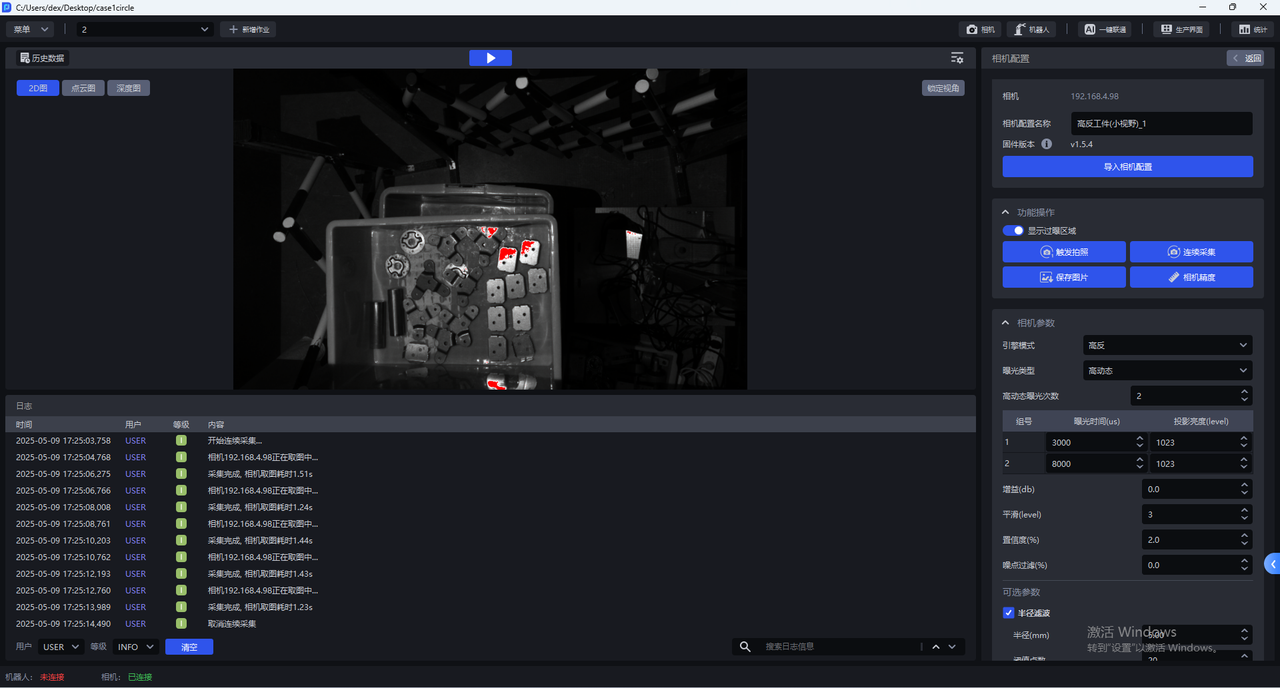
Click Continuous Capture, and the Camera will capture images continuously. Image capture stops only after you click Stop Capture
- Save Images
Click Save Images to save the captured 2D images, point clouds, and depth maps
- Camera Accuracy
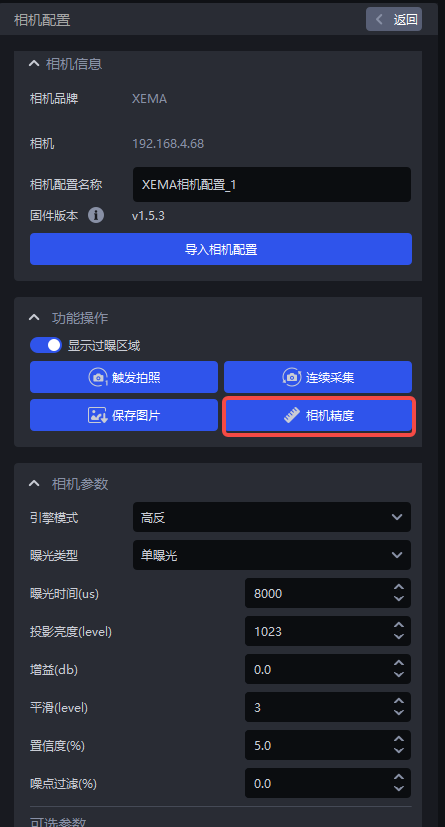
Click Camera Accuracy to view and verify Camera Accuracy
5.3 Camera Accuracy
5.3.1 View Camera Accuracy
- Place the Calibration Board within the Camera field of view. In the Camera configuration interface, click
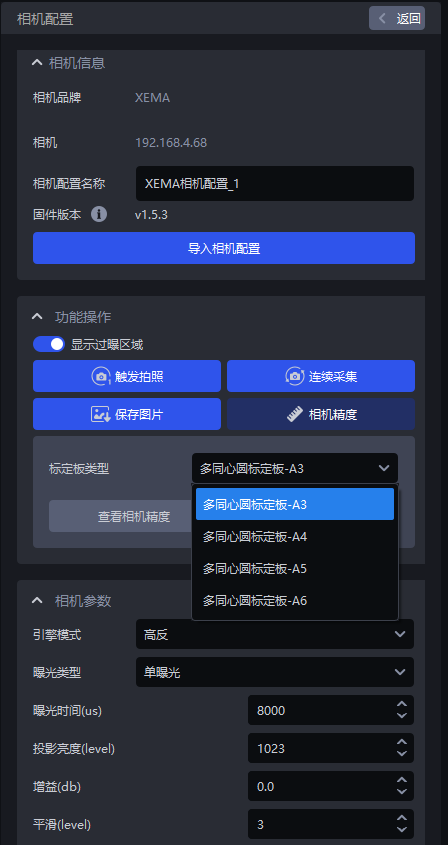
Camera Accuracy, and the Camera Accuracy interface will appear, as shown below
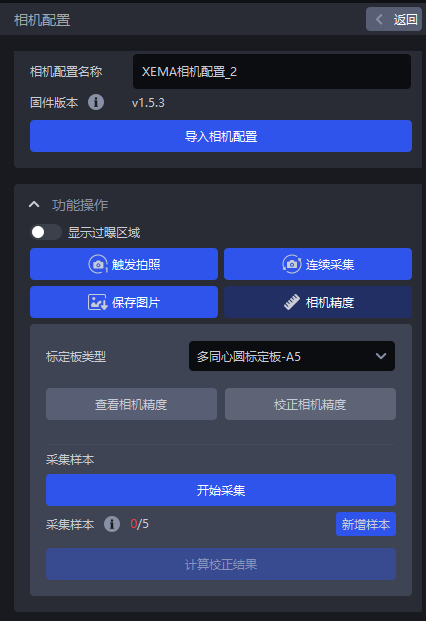
- Select the corresponding Calibration Board. If the selected Calibration Board does not match the actual one, a warning dialog stating "Please check the Calibration Board type" will pop up, as shown below. A warning dialog appears when the Calibration Board type is A3
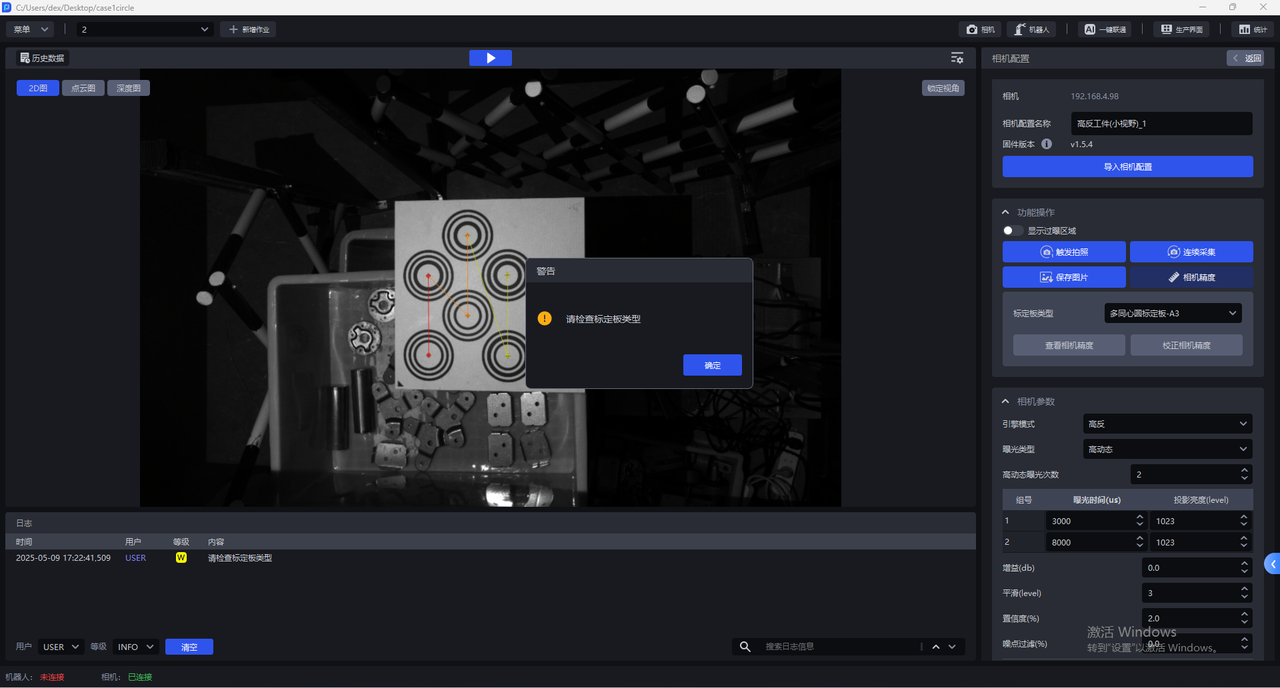
- After selecting the correct Calibration Board type, click
View Camera Accuracy. PickWiz will automatically calculate the Camera Accuracy of the current Camera. If the Camera Accuracy meets the requirements, you can directly adjust the Camera imaging parameters. If the Camera Accuracy is too large, a prompt dialog stating "The error is too large; Camera Accuracy calibration is recommended" will pop up.
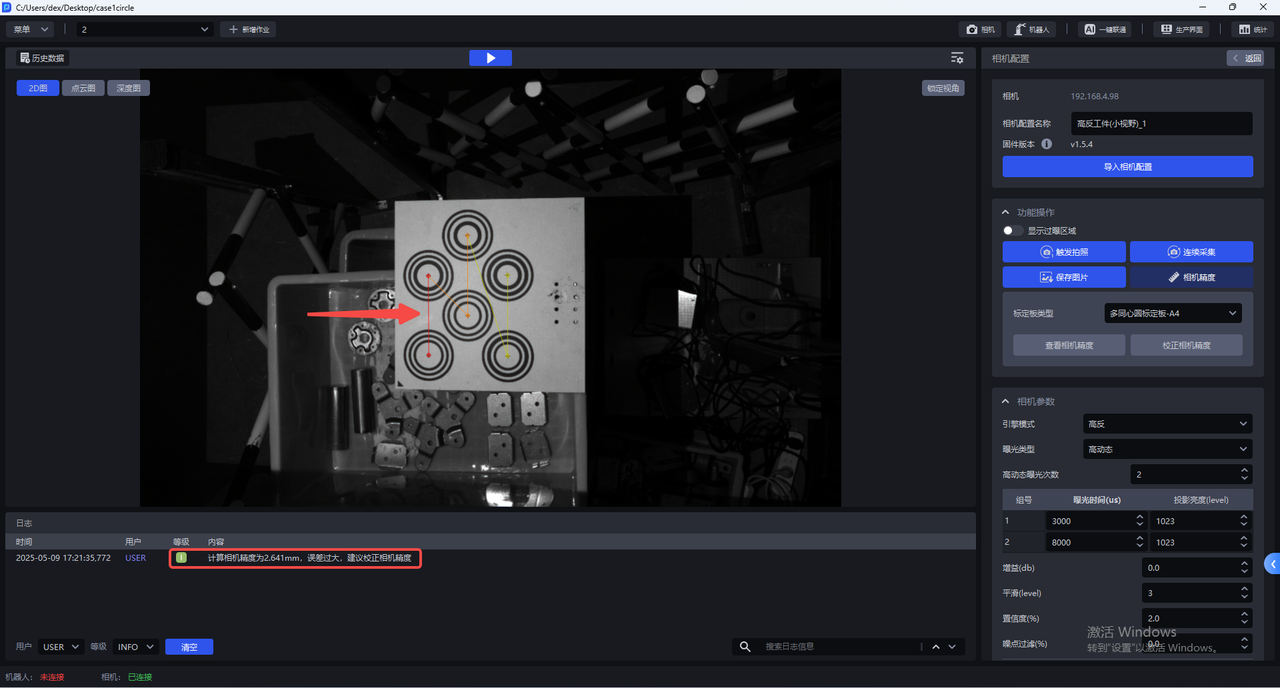
For each Camera series, Camera Accuracy <Xmm indicates that the accuracy meets the requirements
XEMA-D:0.2mm
XEMA-S:0.2mm
XEMA-L:0.5mm
5.3.2 Calibrate Camera Accuracy
During actual Camera use and after Extrinsic Parameter correction, it is necessary to verify whether the current Camera Accuracy meets the requirements.
If the Camera Accuracy error is abnormal when viewing Camera Accuracy, the Camera Accuracy should be calibrated;
If the point cloud captured by the current Camera has large undulations, the Camera Accuracy should be calibrated
Before calibrating Camera Accuracy, enable
Show Overexposed Areasto check the exposure level of Camera imaging. If there are overexposed areas, adjust the exposure time of single exposure to ensure normal Camera imaging exposure.After calibration is completed, switch the Camera imaging parameters back to the original configuration
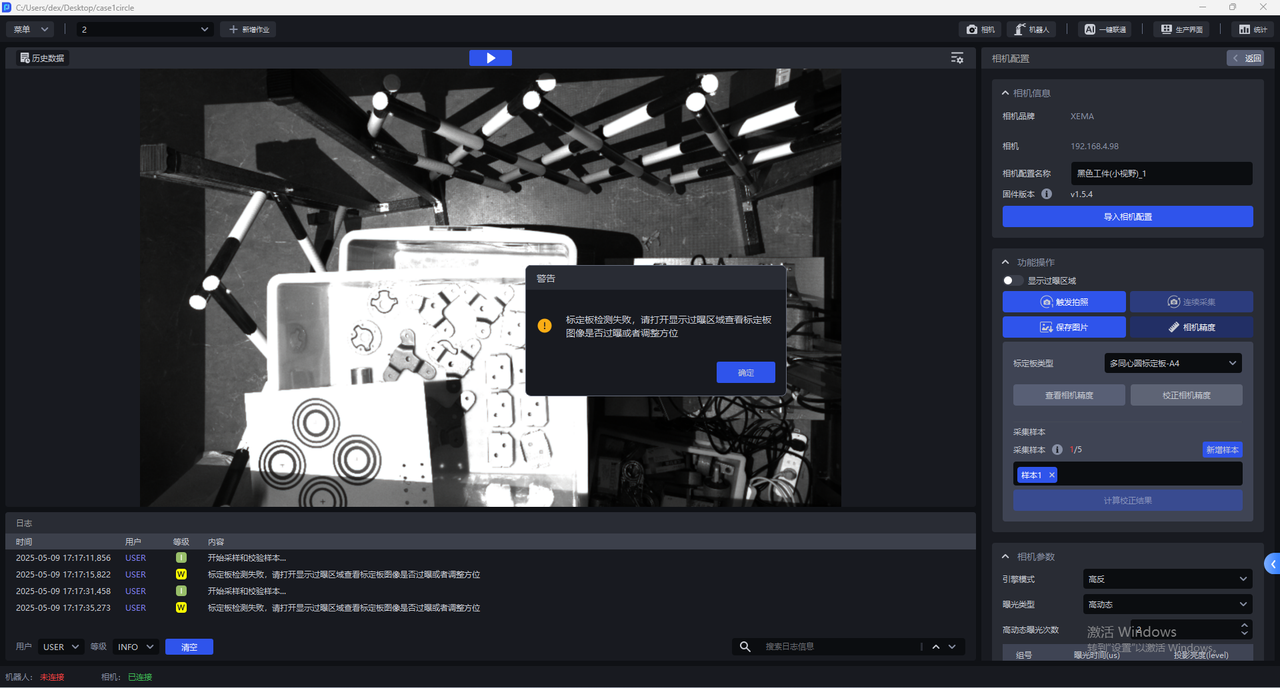
- In the Camera configuration interface, click
Camera Accuracy
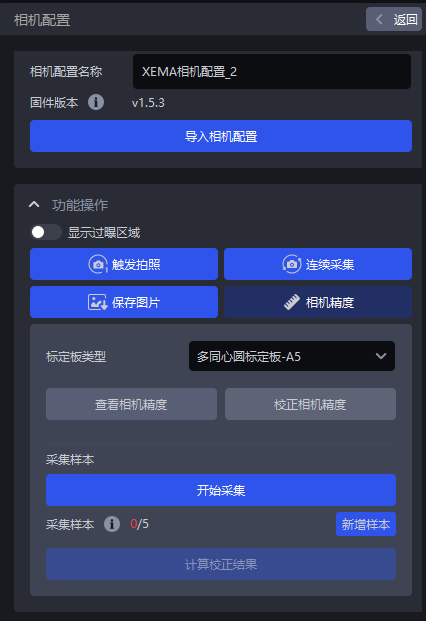
- Select the corresponding Calibration Board. If the selected Calibration Board does not match the actual one, a warning dialog stating "Please check the Calibration Board type" will pop up, as shown below. A warning dialog appears when the Calibration Board type is A3
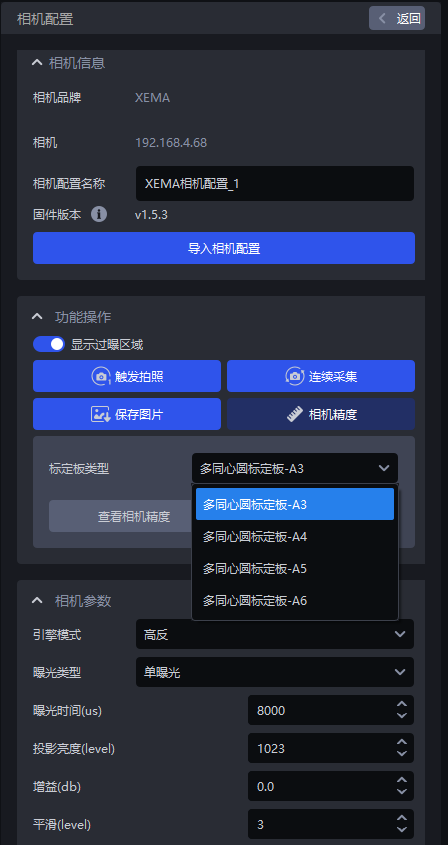
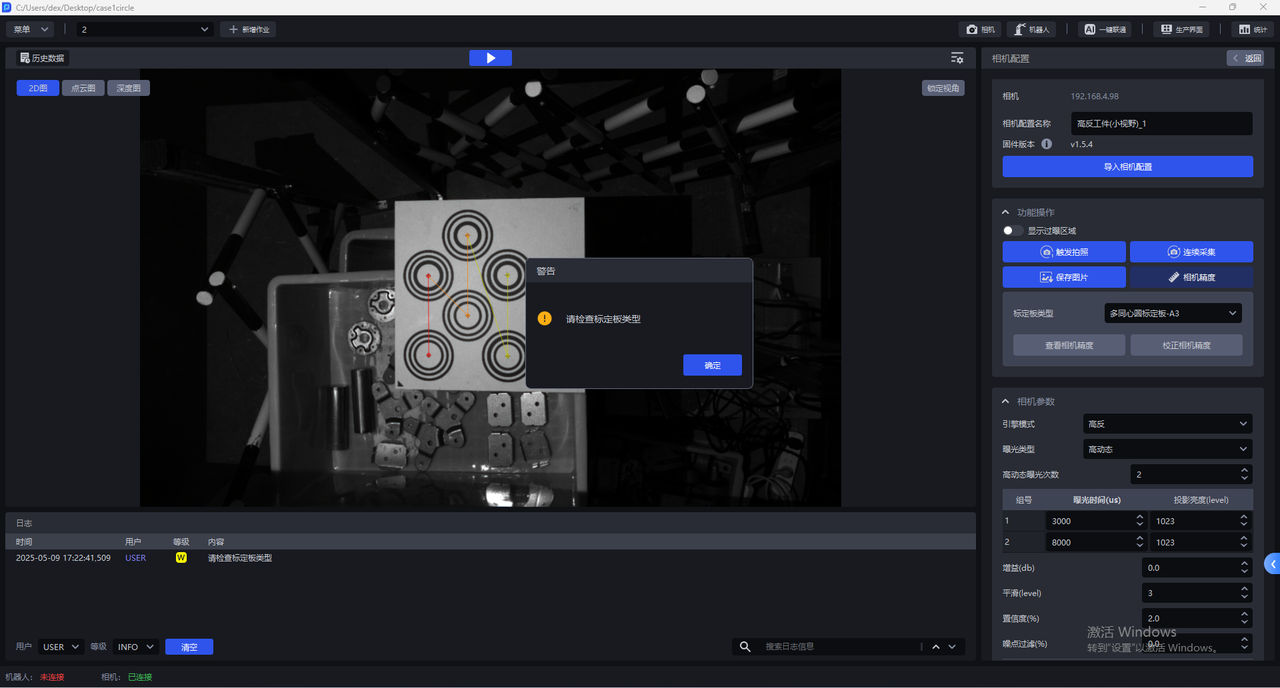
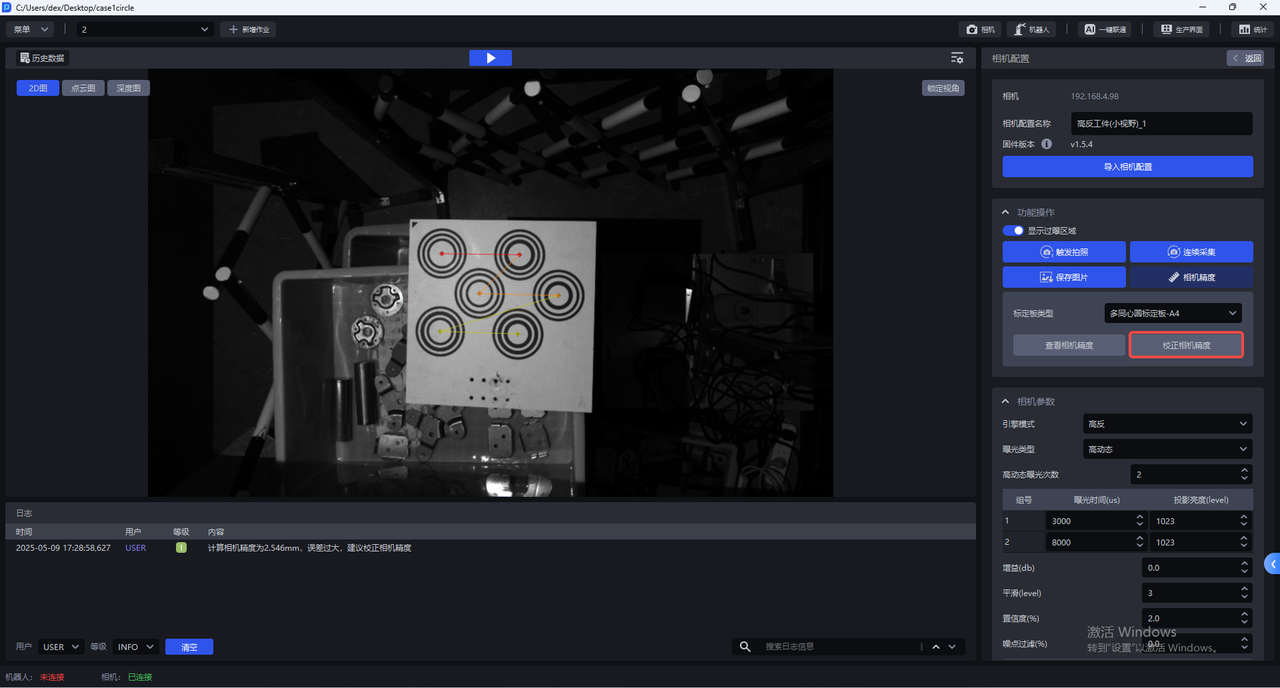
- After selecting the correct Calibration Board type, click
Calibrate Camera Accuracy
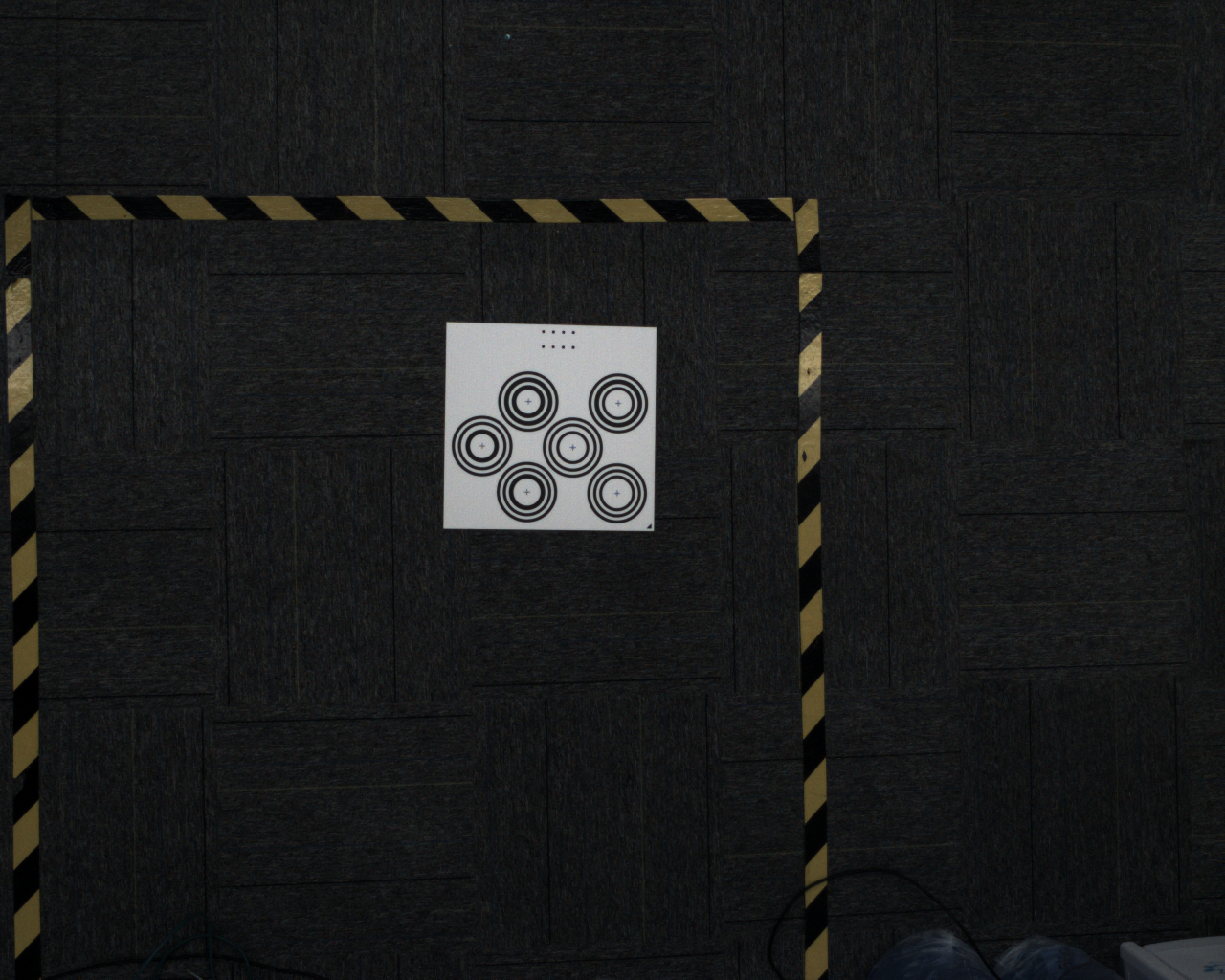
- Place the Calibration Board horizontally at the center of the Camera field of view, then click
Add Sample. The Camera starts sampling and verifying samples. If a collected sample passes verification, it will be added belowCollected Samples, as shown below
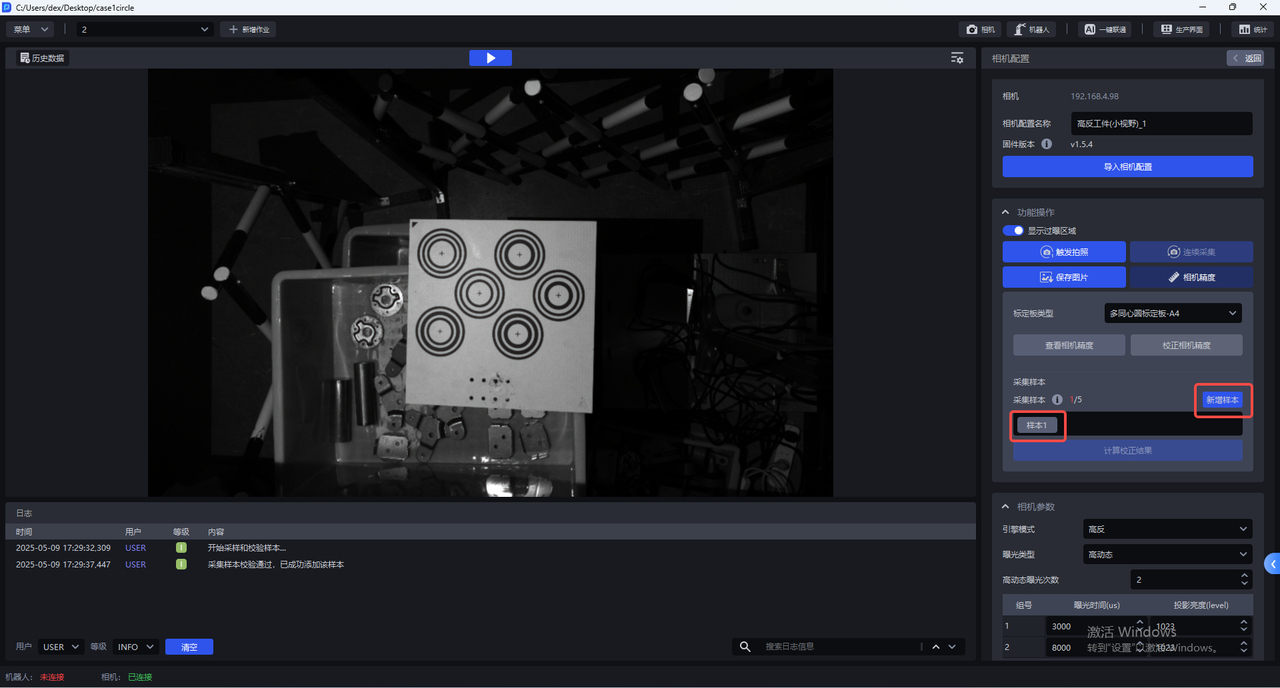
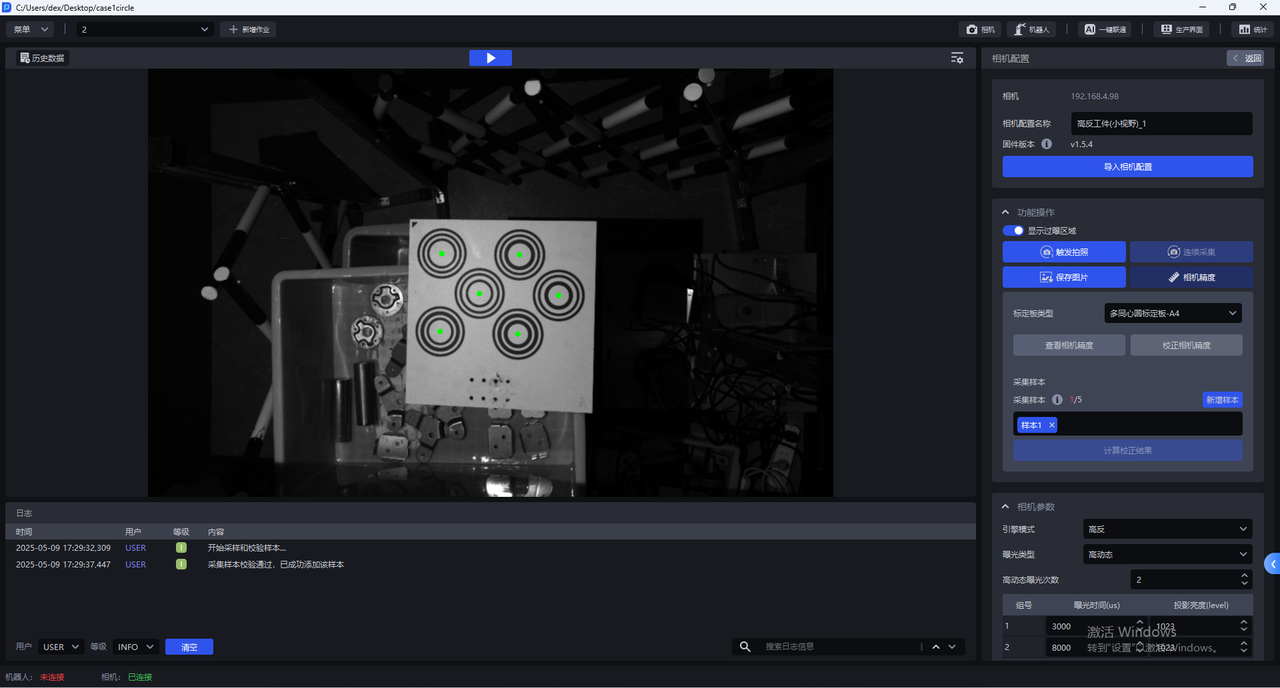
Click Sample x to view the collected sample. For a sample that passes verification, the centers of all concentric circles on the Calibration Board turn green
- Move the Calibration Board to the four corners within the Camera field of view and add samples
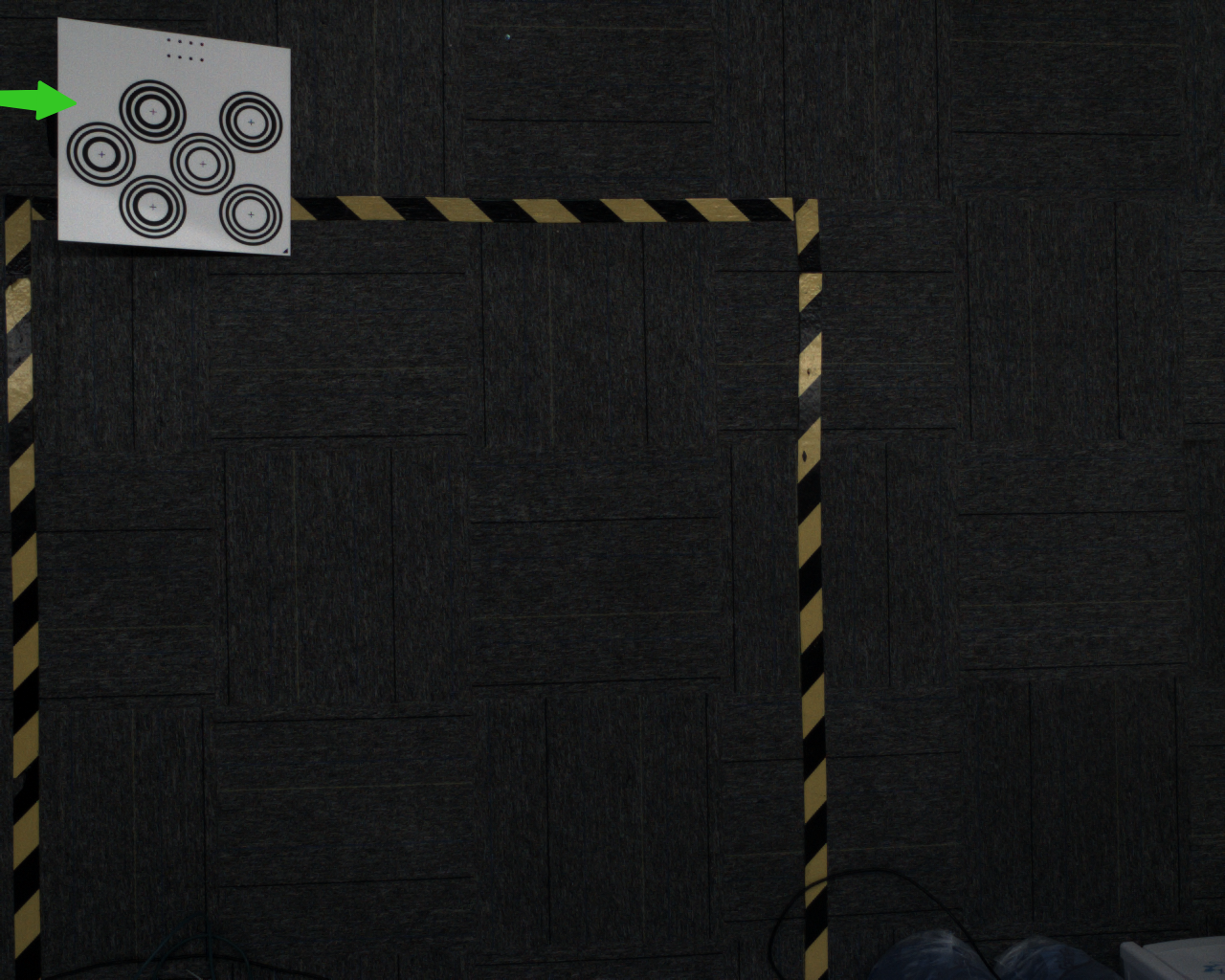
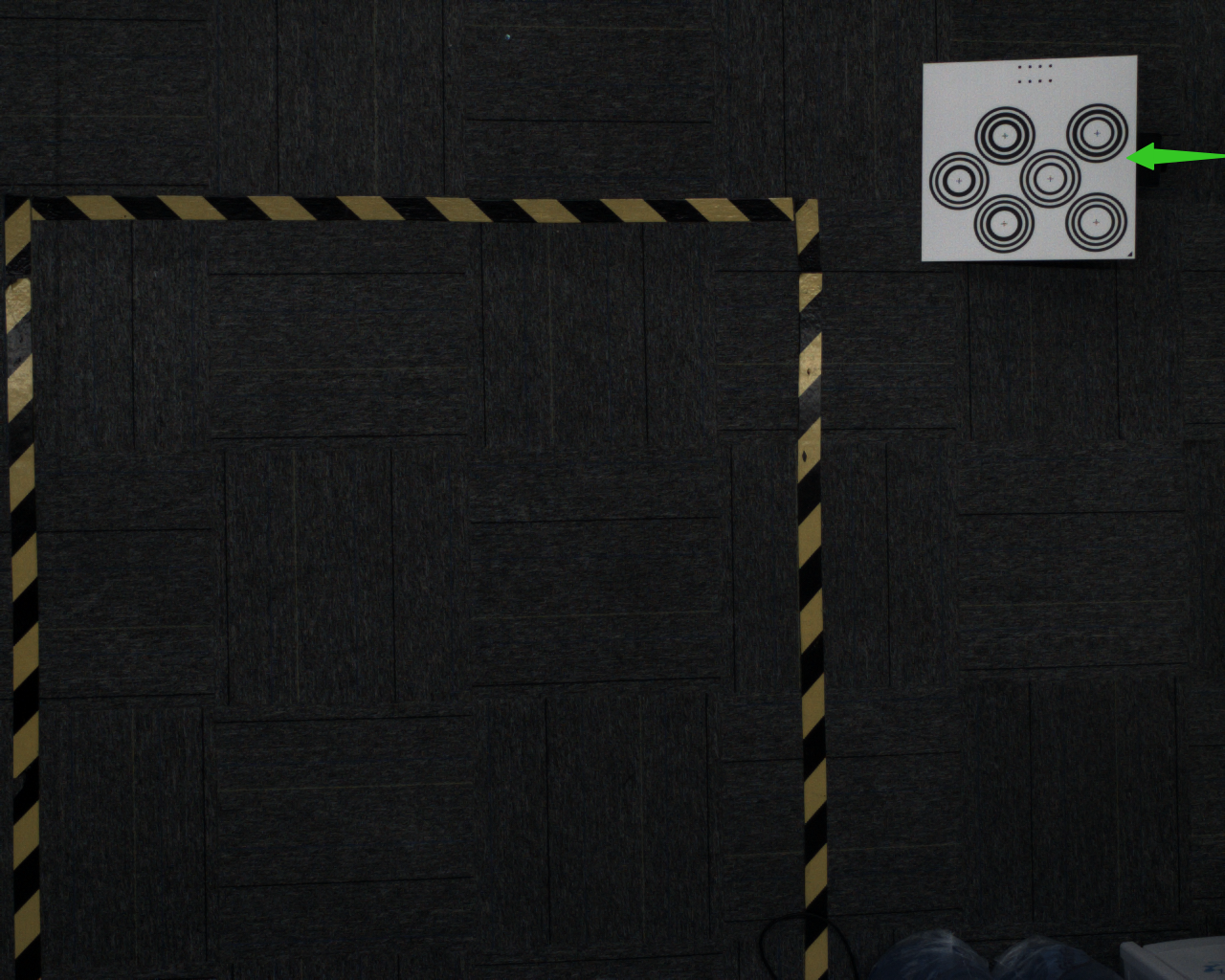
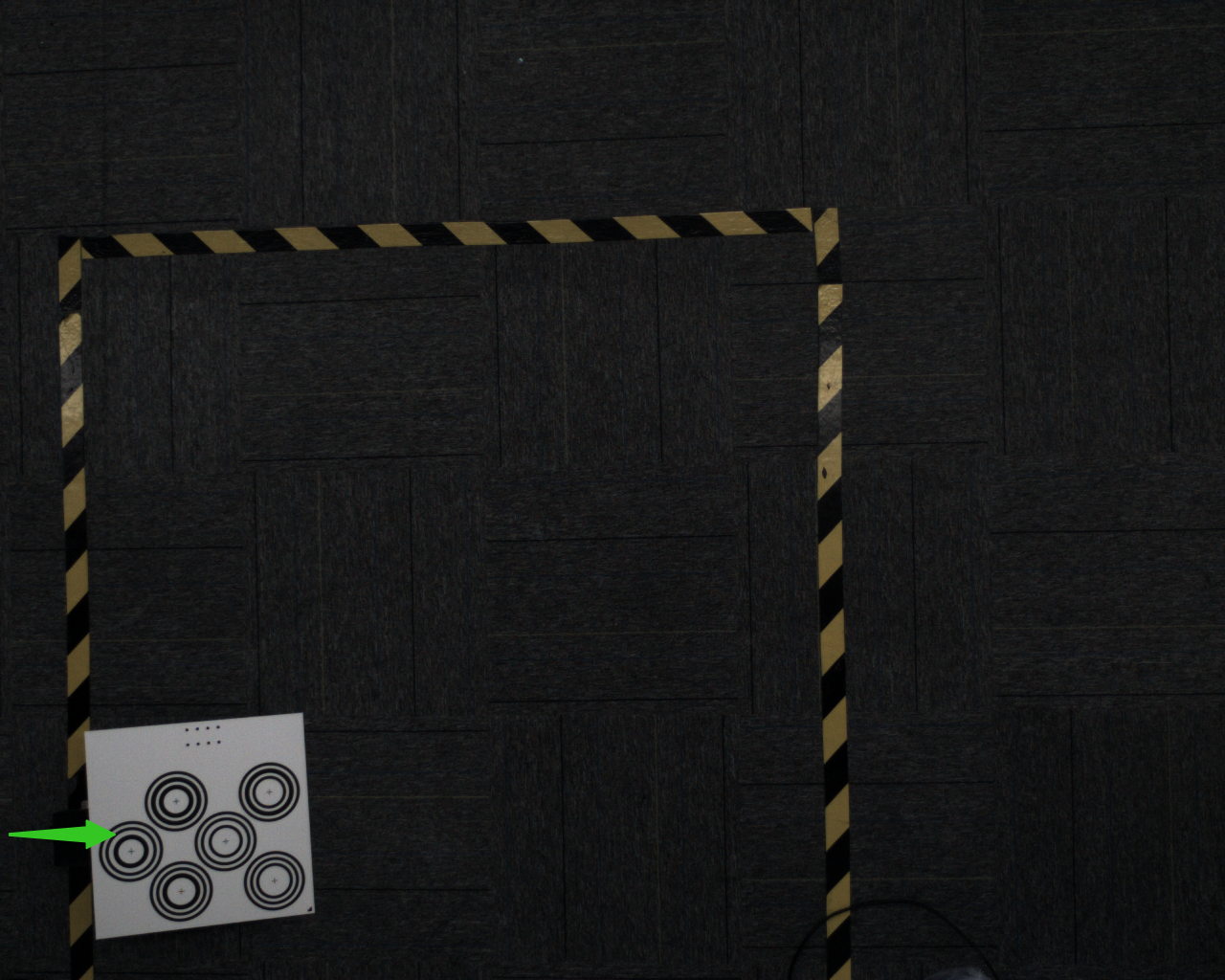
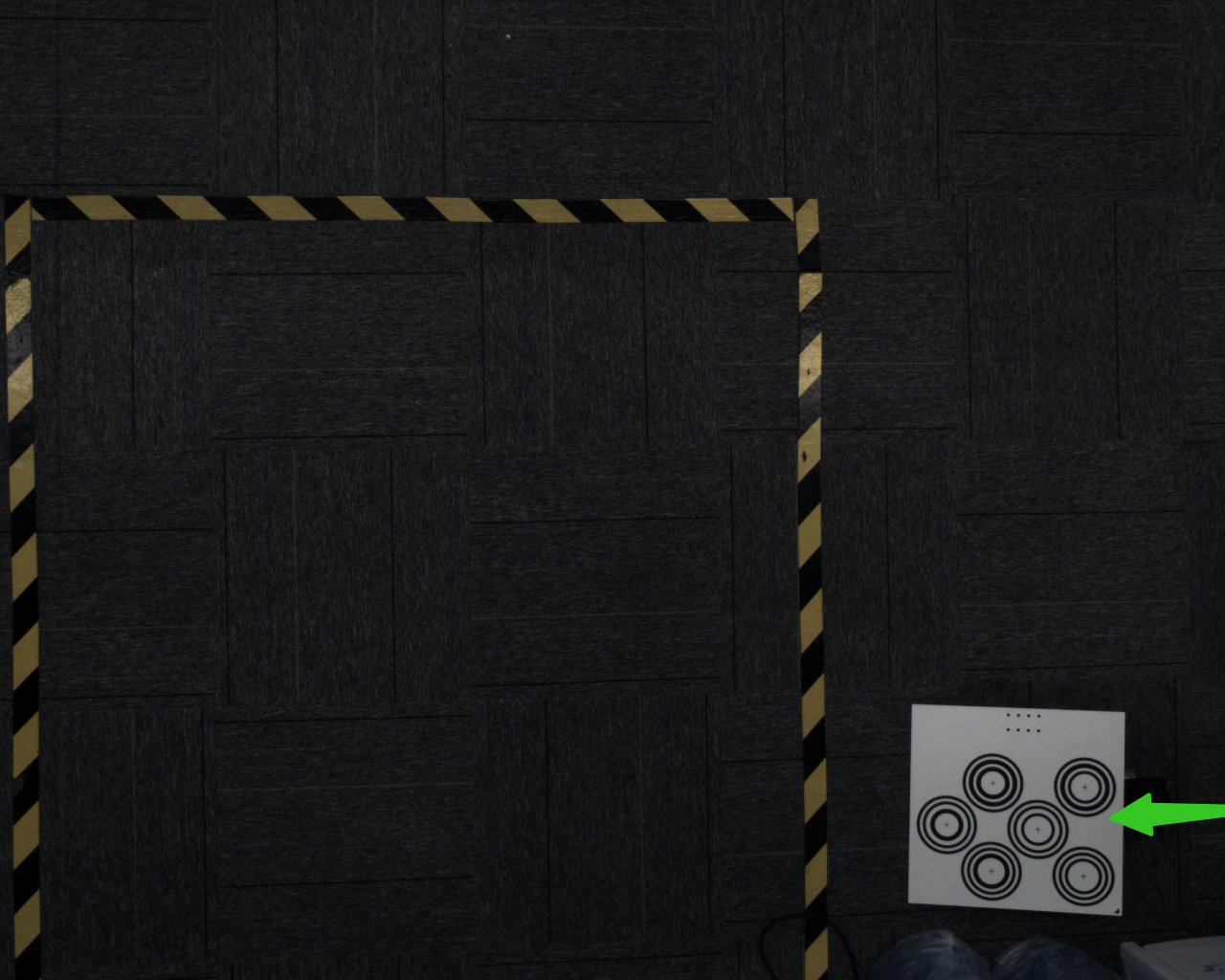
At each corner, prop up the Calibration Board at an angle. The placement angle of the Calibration Board should be 15-30°. The tilt angle should not be too large or too small
- After adding 5 samples, click
Calculate Calibration Results
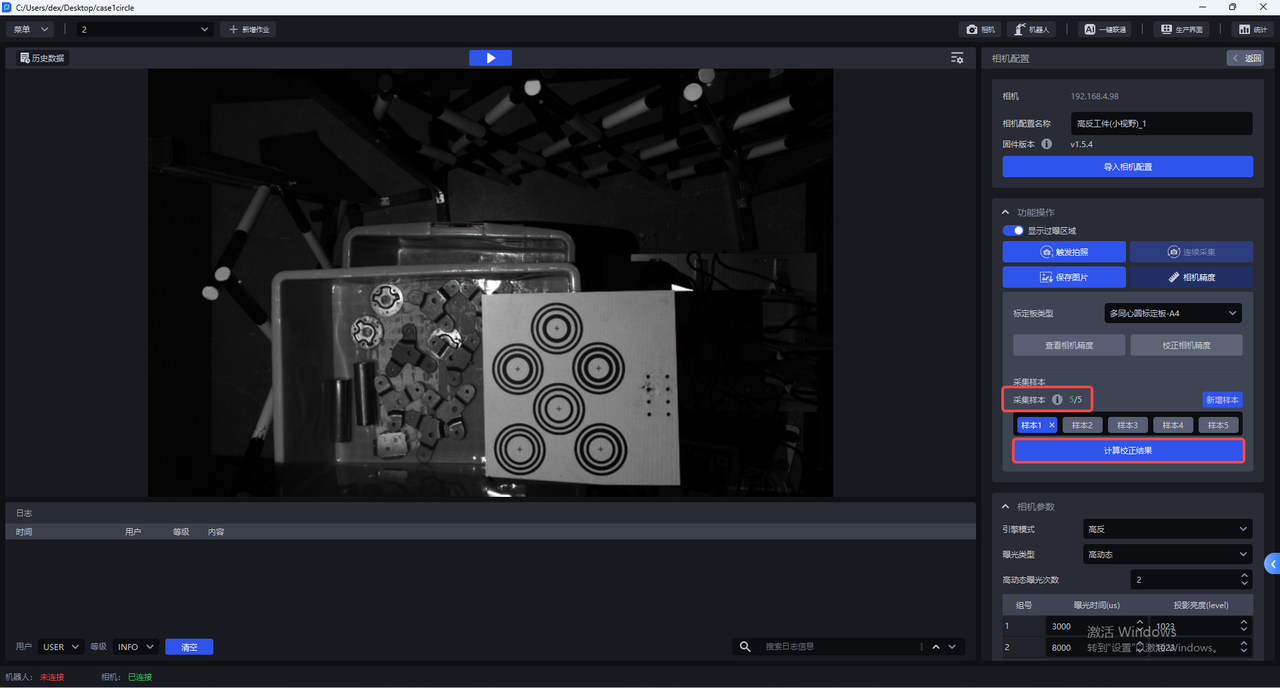
- After calibration is completed, a prompt dialog will appear: "Camera Accuracy calibration is complete. The calibrated accuracy is x, and the error is within the normal range. Overwrite the current Camera parameter configuration?"
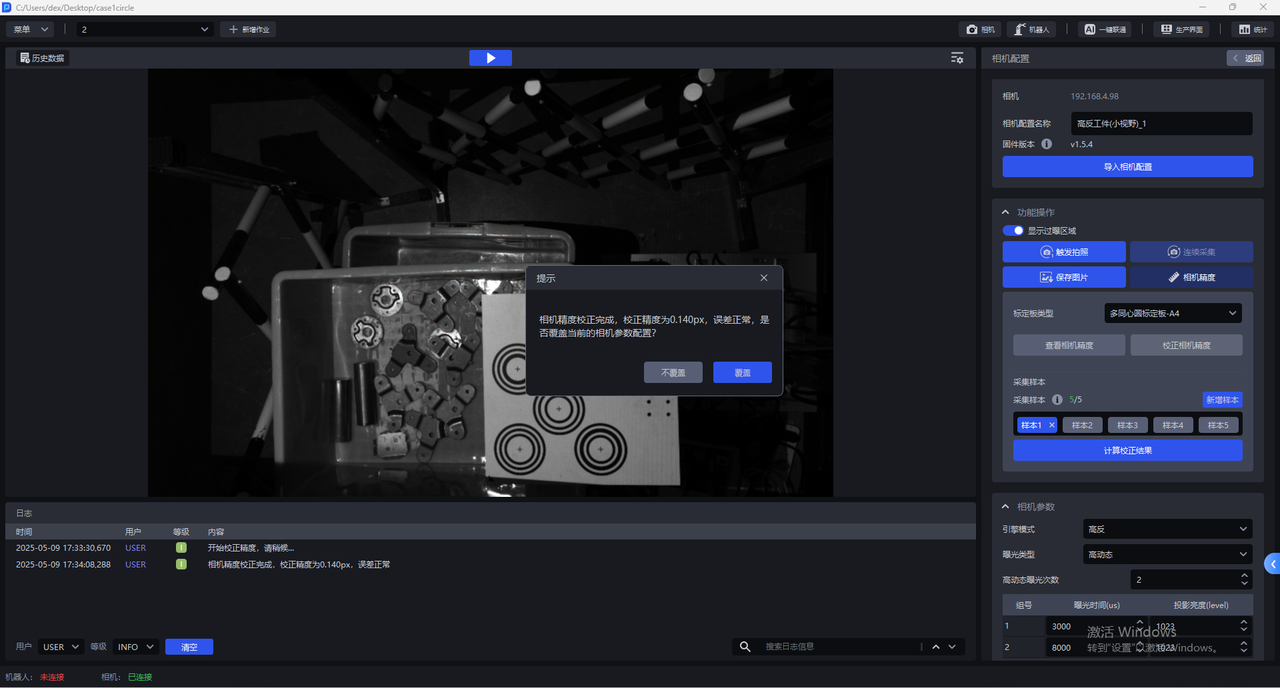
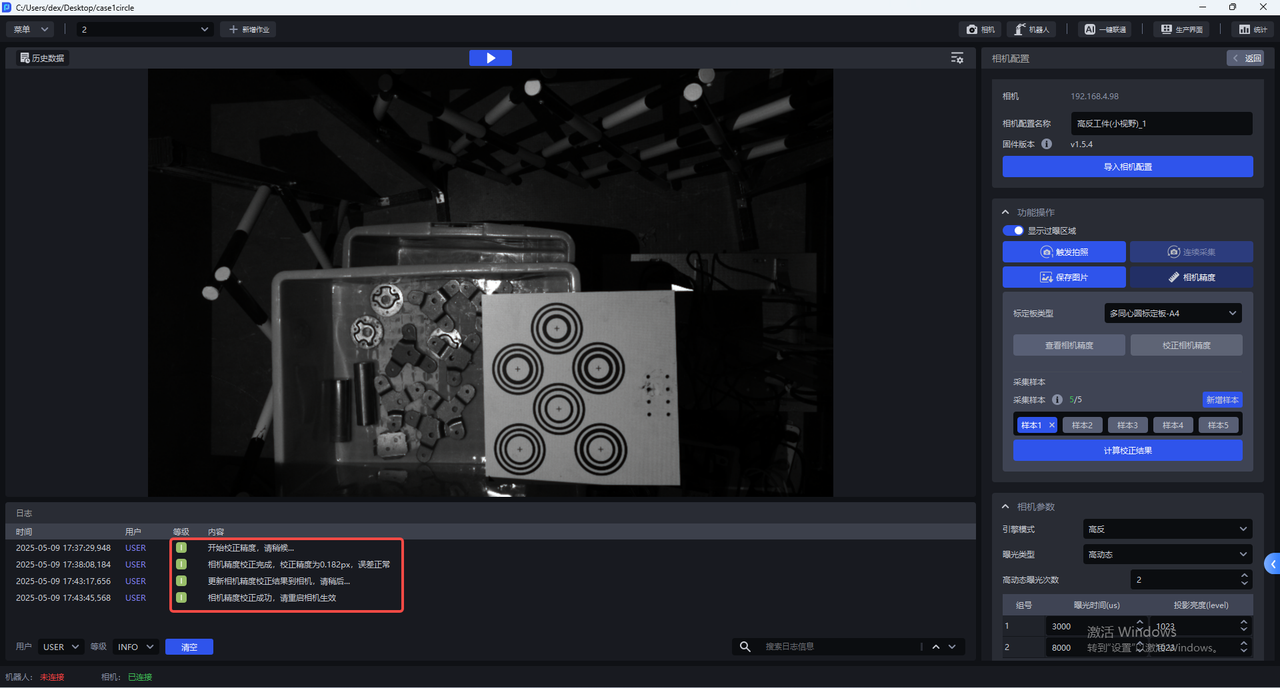
If you choose to overwrite the current Camera parameter configuration, the Camera Accuracy calibration result will be updated to the Camera. The Camera must be restarted for it to take effect
6. Camera Parameter Adjustment
The binocular Camera consists of two 2D Cameras. Deep Learning model segmentation and recognition are based on the left Camera image, and the left Camera image is preprocessed before being input into the Deep Learning model
6.1 Required Parameters
6.1.1 Engine Mode
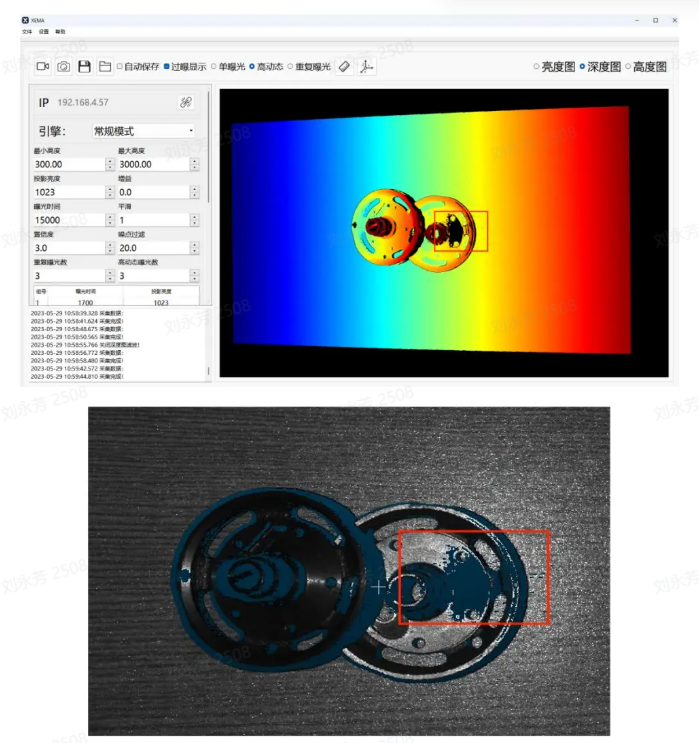
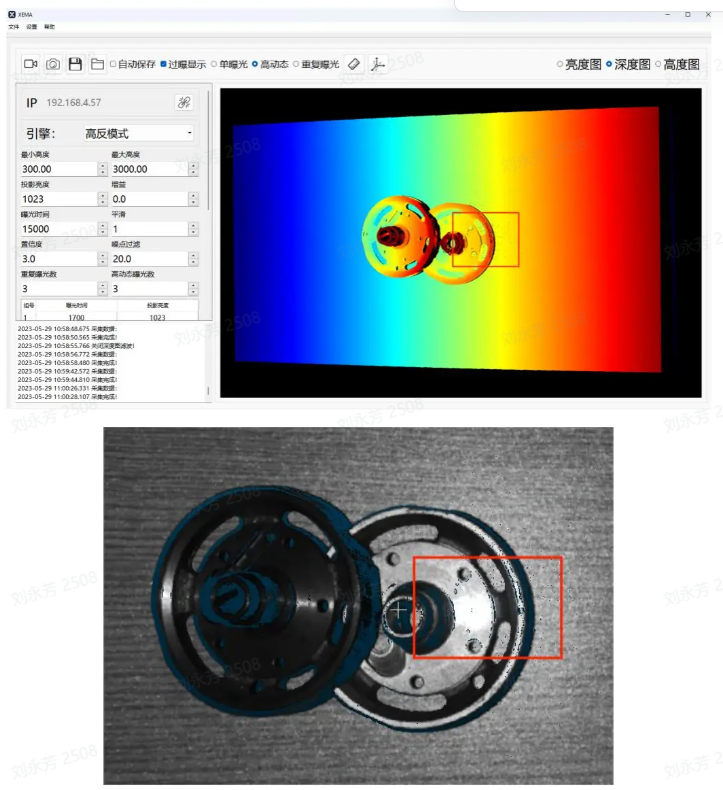
Engine modes include Standard, High-Reflective, and Black. High-Reflective mode is highly effective for highly reflective objects, Black mode is highly effective for black workpieces, and Standard mode can handle ordinary workpieces.
| Engine Mode | Description |
|---|---|
| Standard | Suitable for general workpieces |
| High-Reflective | Suitable for highly reflective workpieces |
| Black | Suitable for black workpieces |
6.1.2 Exposure Type
(1)Single Exposure
Single Exposure can be used for workpieces with ordinary textures
(2)High Dynamic Range:
The HDR function can be used for highly reflective workpieces to perform point cloud fusion
The High Dynamic Range option of Exposure Type should be used together with the High Dynamic Range option of Engine Mode
High Dynamic Range Imaging (HDRI or HDR for short) is a set of technologies used to achieve a greater exposure dynamic range (that is, a larger difference between light and dark) than ordinary digital imaging technology.
High Dynamic Range makes image layers clearer and light-dark contrast more obvious (especially when facing reflective workpieces).
Parameter adjustment suggestions:
- When using High Dynamic Range, you can select the number of HDR exposures according to the specific Scene and workpiece. The value range is 2~6, and the default is 2. If the 3D point cloud quality and 2D image quality are poor, increase the number of groups to expose the object multiple times to achieve the best imaging quality.
It is recommended to use fewer HDR exposures while still meeting point cloud quality requirements.
(3)Repeated Exposure: the number of times the Camera repeatedly captures images. Its function is to improve the signal-to-noise ratio (the ratio of signal to noise). The higher the signal-to-noise ratio, the better, because random noise will be suppressed and effective information will increase. The value range is 0~10.
Repeated Exposure can be used for black objects to optimize the point cloud through multiple exposures
6.1.3 Exposure Time
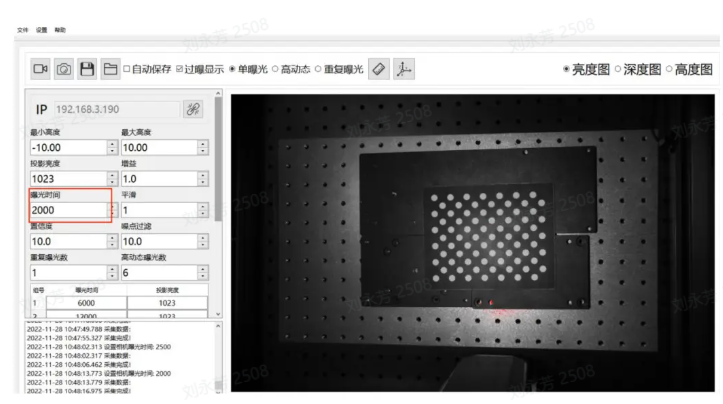
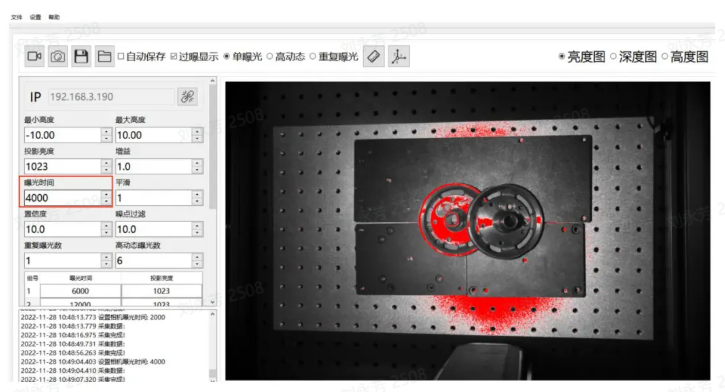
Camera exposure time: Exposure time is the amount of time the shutter remains open while reflected light from the scene passes through the lens and reaches the imaging photosensitive material. The longer the exposure time, the more light enters. If the exposure time is too long, overexposure will occur, thereby affecting the point cloud. It should be adjusted according to the actual situation
Range: 1700-100000
Exposure time and projection brightness form one group. Each HDR exposure count corresponds to one group, and an appropriate exposure time and projection brightness value should be set for each group.
Exposure time: The exposure time is the duration during which light enters the Camera while the shutter is open. The longer the exposure time, the more light enters and the clearer the image becomes.
If the exposure time is too long, overexposure will occur. You can enable the display of overexposed areas, and the red parts indicate overexposed regions.
6.1.4 Projection Brightness
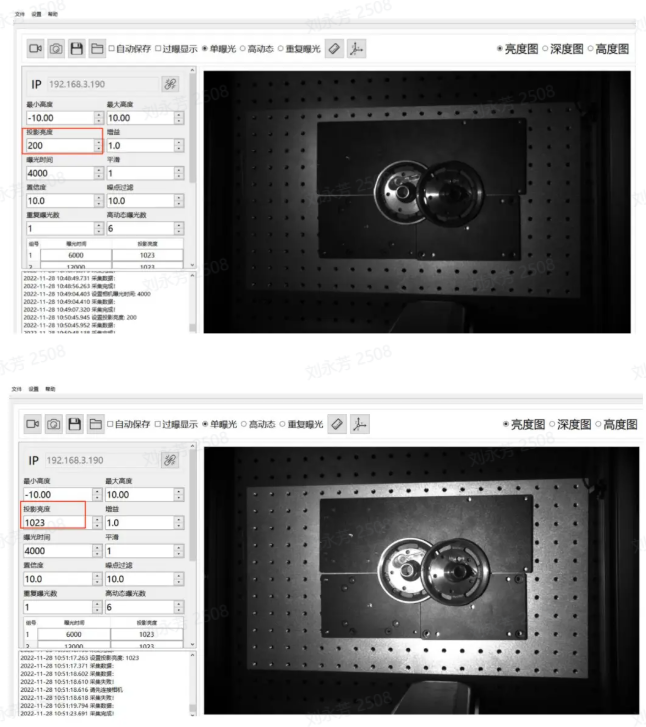
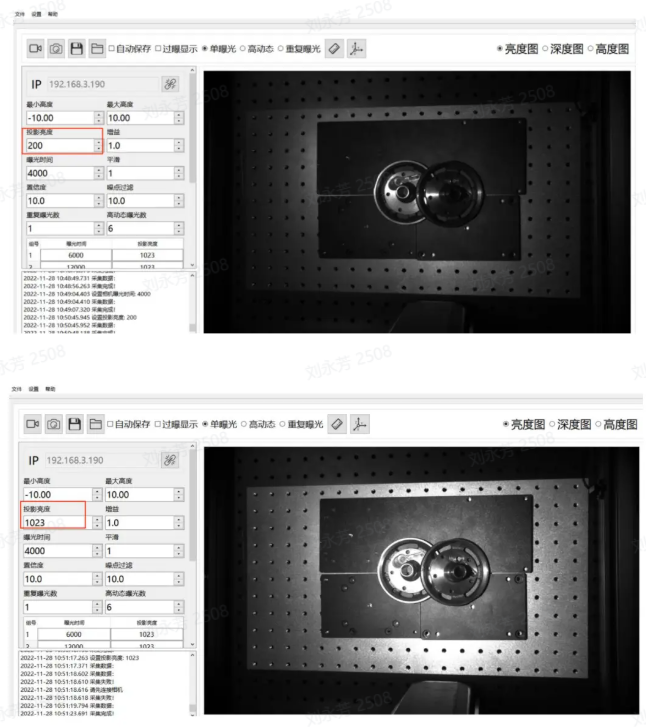
Projection brightness refers to the intensity of the projected light. The greater the light intensity, the brighter and clearer the image. Within a certain range, the human eye perceives a brighter image as clearer. If this limit is exceeded, excessive brightness will make the image impossible to see clearly.
Range: 0-1023
The larger this value, the greater the projection brightness and the more effectively the signal-to-noise ratio can be improved. It is recommended to use the maximum value. Only consider reducing this value if the exposure time has been adjusted to the minimum and overexposure still occurs
Note: It is recommended to adjust the brightness to 1023
6.1.5 Gain
Adjusts image brightness.
Range: 0-24
The gain value of the 2D Camera can be adjusted and should be increased appropriately. As gain increases, noise also increases accordingly
6.1.6 Smoothing
Range:0-5
Performs smoothing on the point cloud
6.1.7 Confidence
Confidence indicates the degree of reliability. It performs an initial screening of the point cloud. Generally, 2-5 is sufficient, and customers can adjust it according to the on-site conditions
Lowering the Confidence retains more black areas in the depth map; conversely, increasing the Confidence removes black noise in the depth map.
Range: 0-100
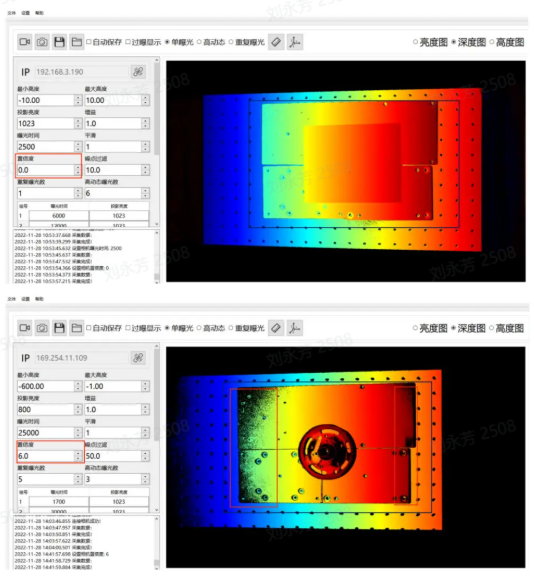
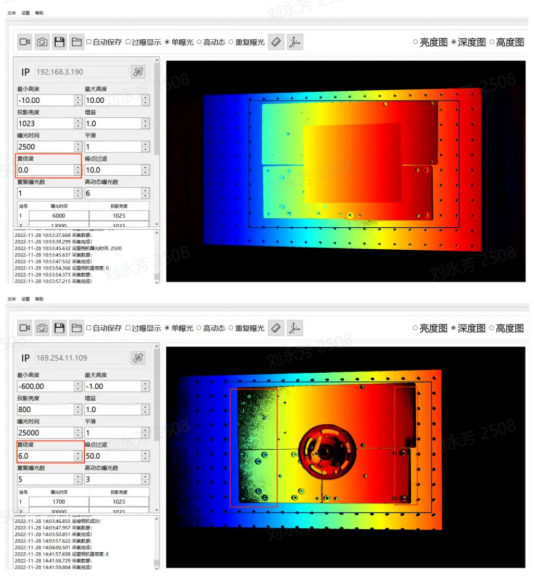
6.1.8 Noise Filtering
In machine vision application scenarios, when detecting metal, aluminum foil surfaces, reflective films, and objects with smooth surfaces, specular reflection can cause local reflected light to be too strong, resulting in the loss of the object's original information and interfering with machine vision detection. Noise Filtering can remove the generated noise and preserve the object's original information.
Range0-100
When recognizing metal, aluminum foil surfaces, reflective films, and objects with smooth surfaces, specular reflection may cause local reflected light to be too strong, thereby losing the original object information and interfering with Pickwiz recognition and image detection. Increasing the Noise Filtering value can remove the generated noise and preserve the object's original information.
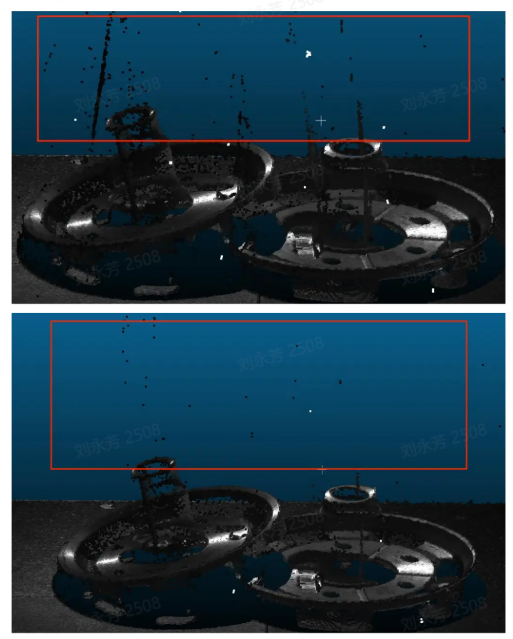
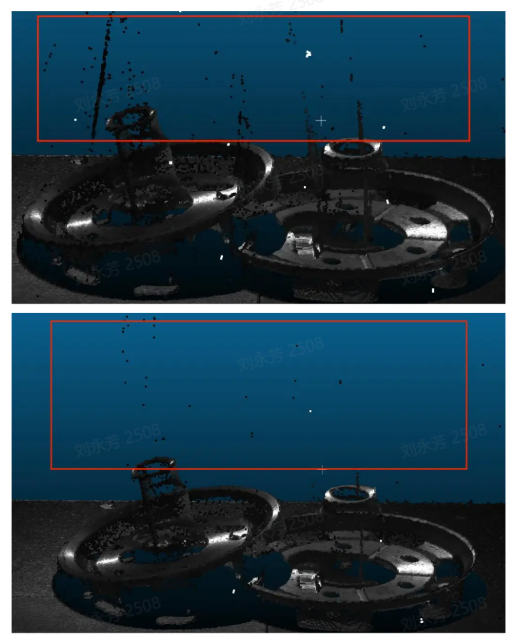
6.2 Optional Parameters
6.2.1 Radius Filtering
For each point in the point cloud, determine a sphere with radius r and count the valid points. If the number of internal points is less than the valid point threshold, it is considered a noise point and removed. The smaller the radius and the larger the valid point count, the more obvious the filtering effect
Radius range: 0-99
Valid point range: 0-99
6.2.2 Depth Filtering
Filters suspended noise points in the Z-axis direction. The larger the Threshold, the more obvious the filtering effect. For the filtering method based on the depth map, a Threshold of 33 is recommended at a distance of 1000mm.
Range: 0-100
6.2.3 Reflection Filtering
Filters facade noise caused by mutual reflection of metal. The larger the Threshold, the more obvious the filtering effect
Range: 0-100
6.2.4 Phase Correction
Phase Correction, that is, point cloud grayscale compensation, is a method of correcting grayscale information in 3D point cloud data. The purpose of point cloud grayscale compensation is to eliminate these grayscale differences and convert the grayscale information in the point cloud into values corresponding to the actual surface reflectivity of the object. The larger the Threshold, the more obvious the correction
Range: 0-100
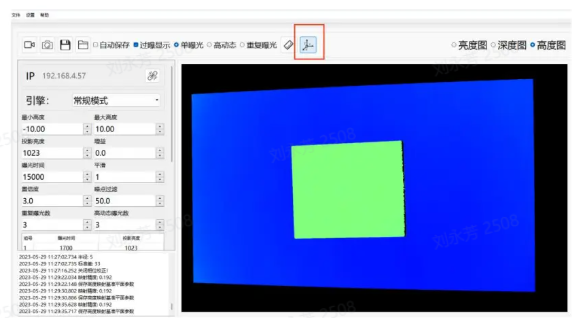
Usage: First place the Calibration Board and use its plane as the reference plane, as shown above.
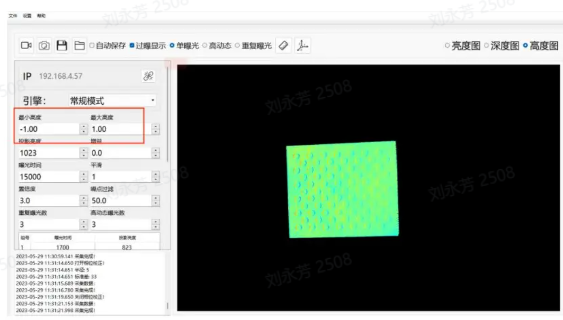
As introduced in the Maximum Height and Minimum Height section, set the maximum height to 1 and the minimum height to -1 so that only the Calibration Board part is displayed, as shown above.
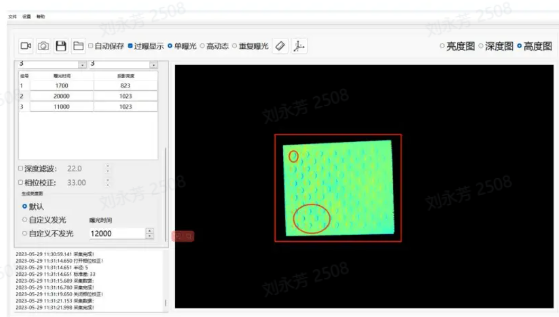
When Phase Correction is not enabled, the Calibration Board is shown above. In the actual Calibration Board, the whole surface is planar, and there is no up-and-down fluctuation between the circular and non-circular parts, but the actual captured result shows fluctuations on the circles.
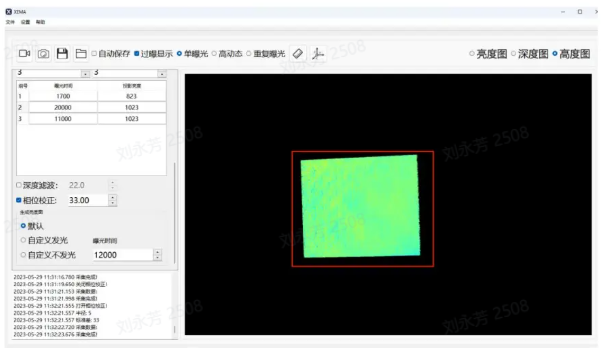
After enabling Phase Correction, if the Calibration Board basically shows no color difference or the difference is not obvious, the correction is successful.
6.2.5 2D Image Overlay Exposure
This function can separately overwrite the initial 2D image after obtaining the point cloud. Sometimes the point cloud is good, but the 2D image is too dark or overexposed and does not meet requirements. At this time, 2D overlay exposure can be enabled to overwrite the initial 2D image.
Selecting illumination allows you to set the exposure time, gain, and shooting mode (Single Exposure or High Dynamic Range).
Selecting no illumination means using the ambient light brightness. You can also set the exposure time, gain, and shooting mode (Single Exposure or High Dynamic Range).
Overlay Gain
When using the 2D overlay exposure function, this gain can be adjusted to make the image brighter
Overlay Exposure Time
When using the 2D overlay exposure function, this exposure time can be adjusted to make the image brighter
7. Typical Cases
Principles of Camera parameter adjustment: keep the exposure on the workpiece surface uniform and make the texture clearly visible. The parameter adjustment cases use the 1024*1280 resolution as an example
Case 1: Shanghai Industry Fair - Outdoor Sunlight Depalletizing
Scene characteristics: sudden ambient light changes, from indoor LED lighting to direct sunlight (the image below shows the effect before and after adjustment)
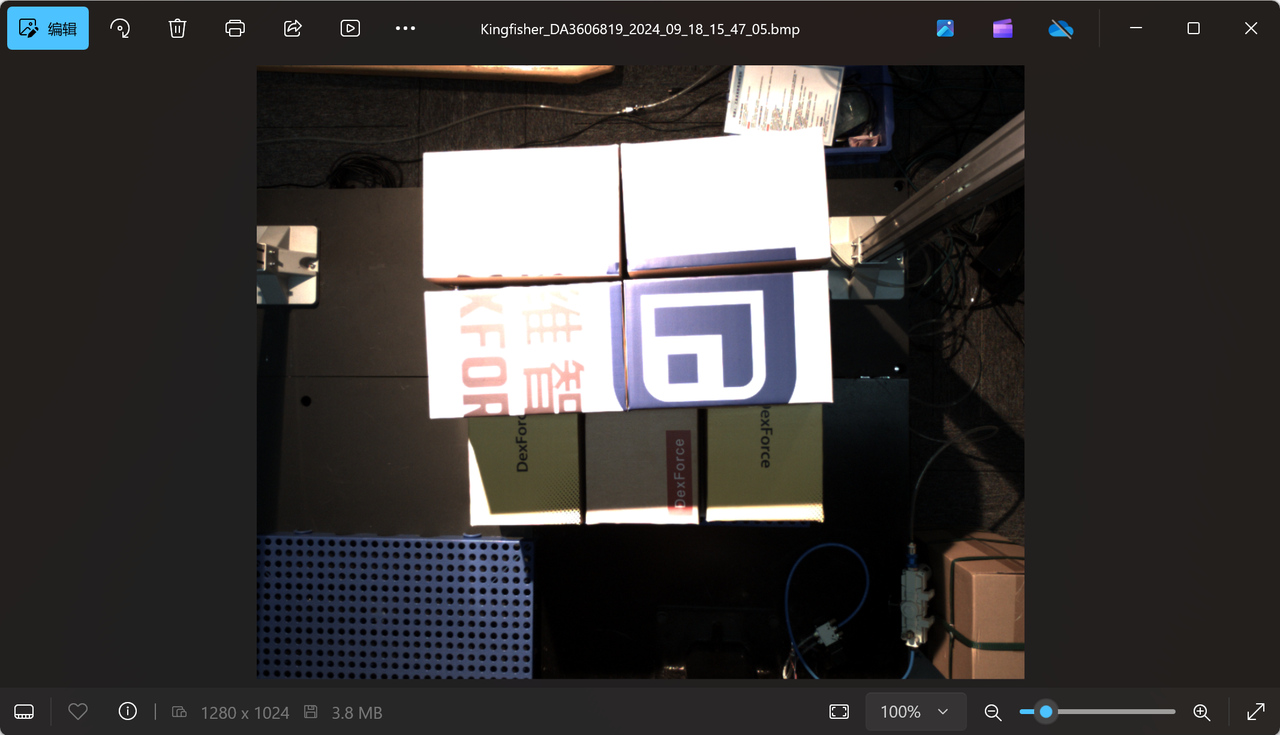
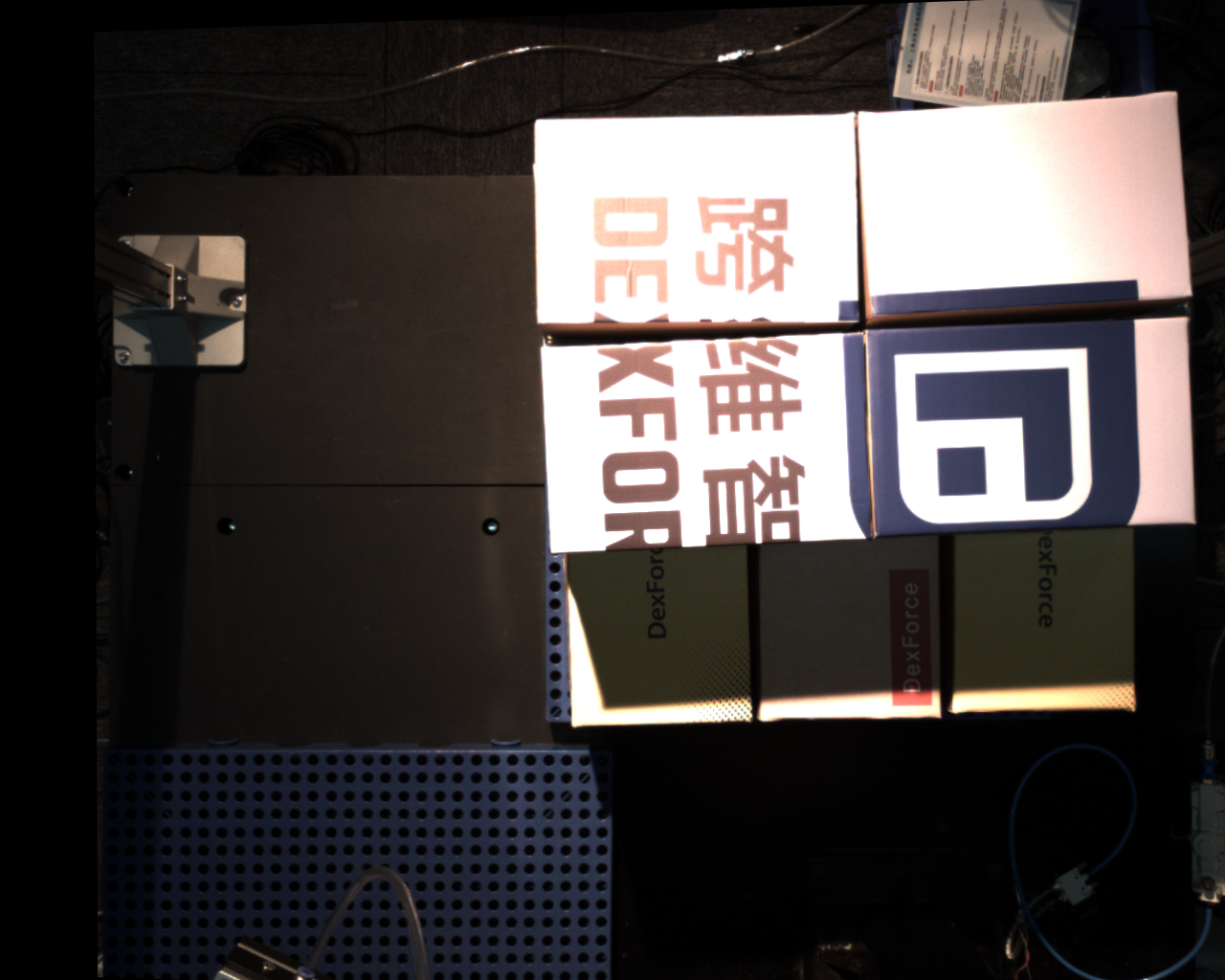
Parameter adjustment approach: After the ambient light changes suddenly, keep imaging stable and keep the Takt Time unchanged. Use automatic exposure mode 2 (AOI automatic exposure built into the Hikrobot SDK) and modify the AOI parameters.
Case 2: Shanghai Industry Fair - Highly Reflective Bars Under Indoor Lighting
Scene characteristics: spotlight color changes, but brightness remains almost the same
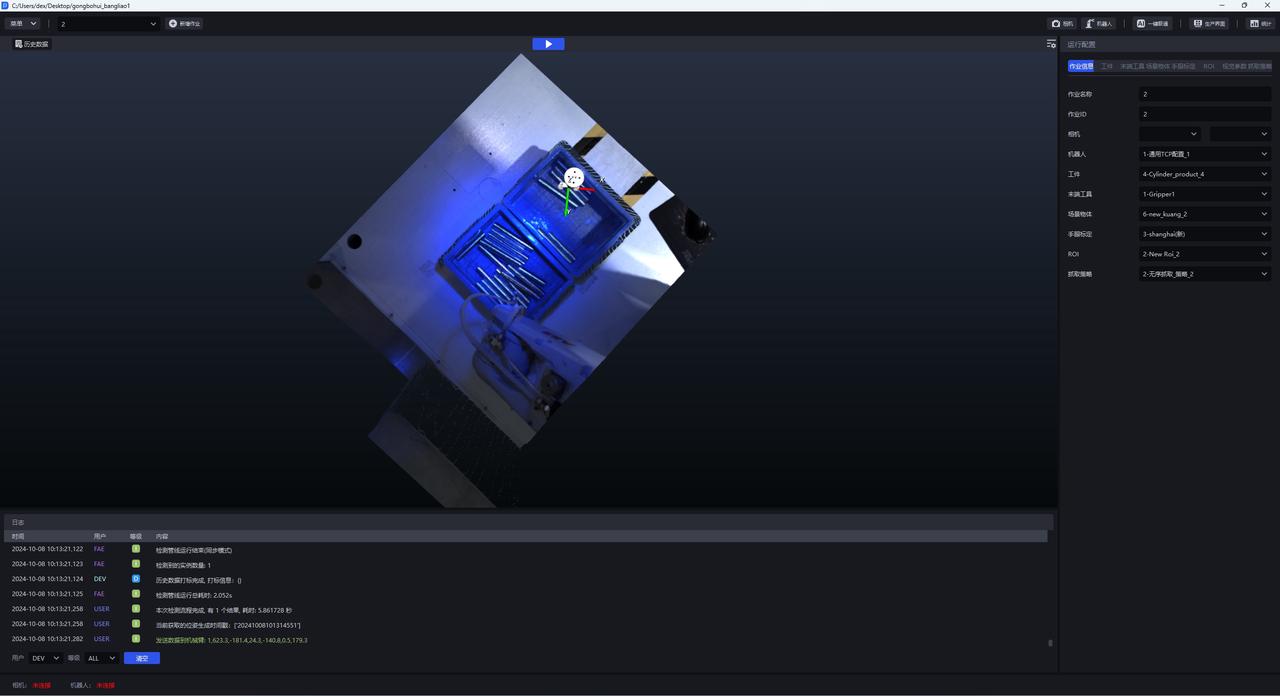
Parameter adjustment approach: Use fixed exposure and simply reduce the exposure value
Case 3: Luyuan Cylinder - Semi-Outdoor Sunlight Highly Reflective Workpiece
Scene characteristics: there is a skylight overhead, so light intensity varies during the day depending on the weather, and supplementary lighting is needed at night (the image below shows the adjusted effect)
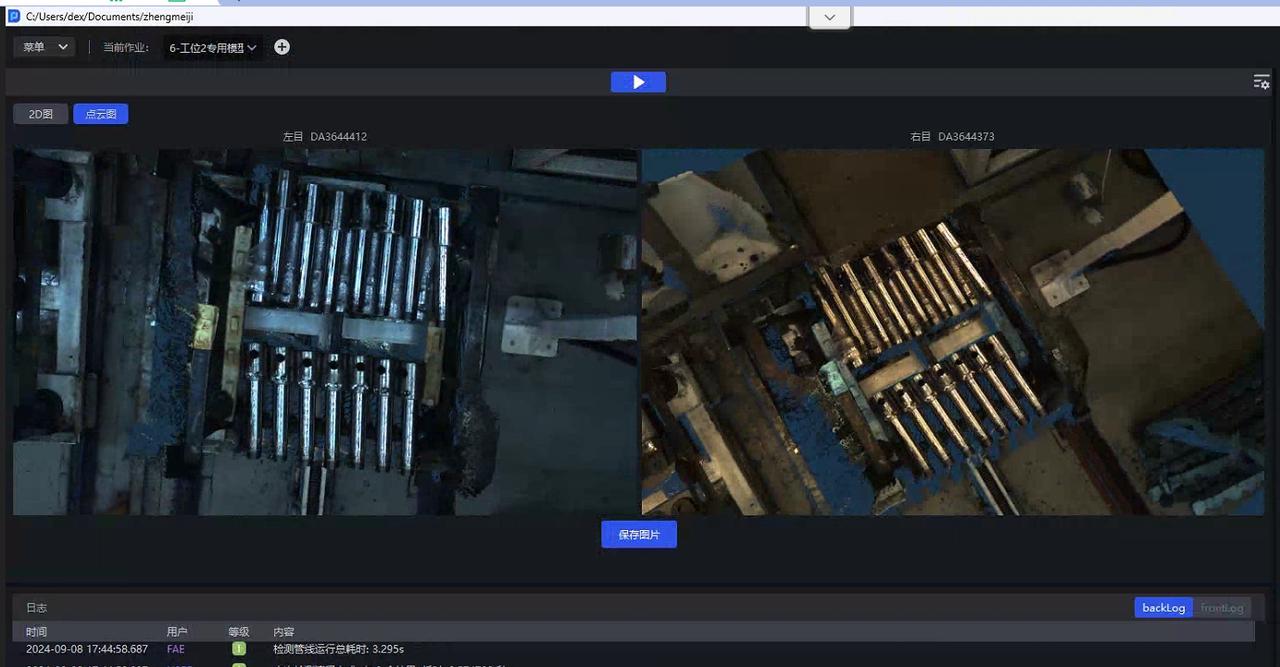
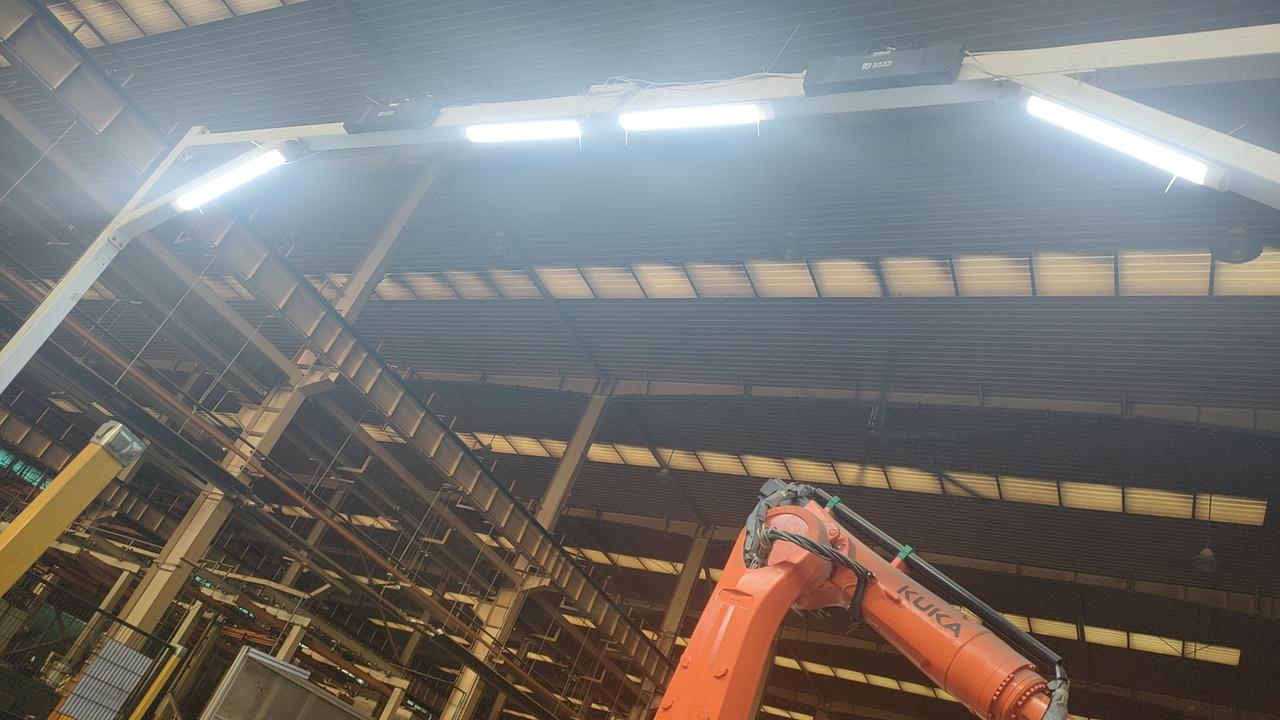
Parameter adjustment approach: No need to consider Takt Time. Use PID automatic exposure and adjust it to the required brightness
Case 4: Dezhou, Shandong - Tengyang Depalletizing
Scene characteristics: direct sunlight appears around 3 or 4 p.m., causing local overexposure on the stack surface (the image below shows the HDR result)
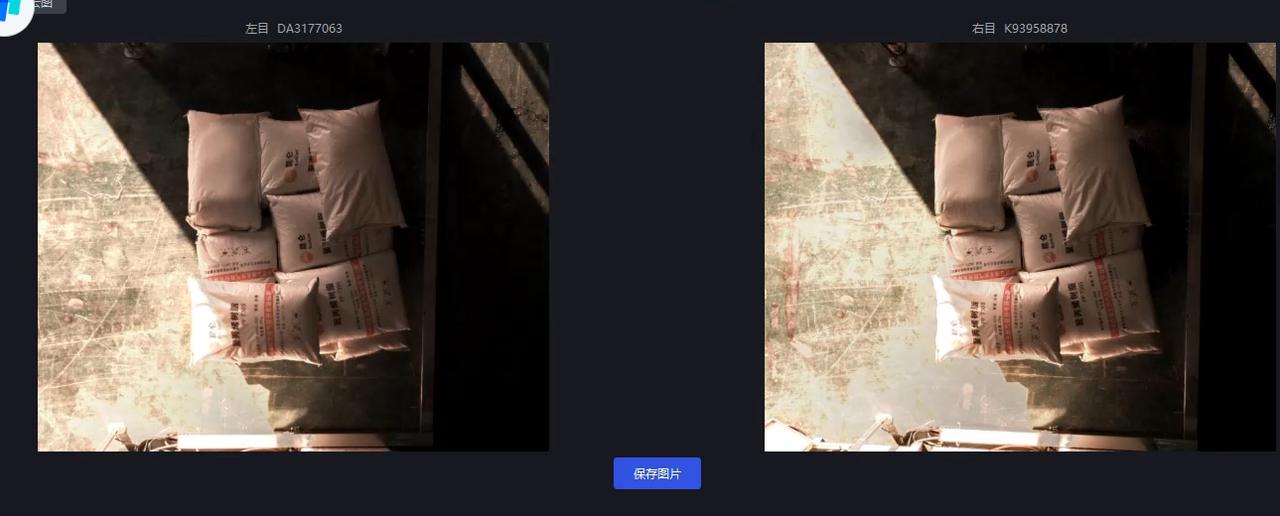
Parameter adjustment approach: For scenes with large ambient brightness changes and white sacks, if Hikrobot AOI automatic exposure is selected, it is easily affected by the exposed bottom area, so pid automatic exposure is chosen and ExposureAuto is set to 3. Strong direct sunlight causes severe local overexposure, so HDR high dynamic composition is required and HDR is enabled, "HDREnable": 1, based on the PID exposure multiplier. See the yellow-marked part in the parameters for details. "HDR": "AutoExposureTimeRates", 0.1 is used because the sunlight is very strong and the exposure in bright areas must be reduced; 1 is the suitable exposure value under normal adjustment; 1.5 is used to increase the brightness in dark areas.
Understanding the binocular Camera
Structure
The binocular Camera consists of two 2D Cameras, and the Intrinsic Parameter and Extrinsic Parameter calibration files are used to describe the relative relationship between these two Cameras.
Deep Learning model segmentation and recognition are based on the left Camera image.
Essence of parameter adjustment
At the hardware level, it belongs to 2D, so what is actually adjusted are parameters such as exposure and white balance of the 2D Camera. Only after the exposure is adjusted properly can the subsequent imaging quality and accuracy be guaranteed.
Introduction to related concepts
Baseline length: the distance between the two Cameras (in simple terms)
Number of binocular point clouds: as many pixels as there are, there will be that many points. In other words, a resolution of 3036*4024 will produce tens of millions of point clouds
rectify: baseline correction, the process of aligning two 2D RGB images, visualized as the red line image. You can see that the red lines inside the red circle pass through the same point in the two images
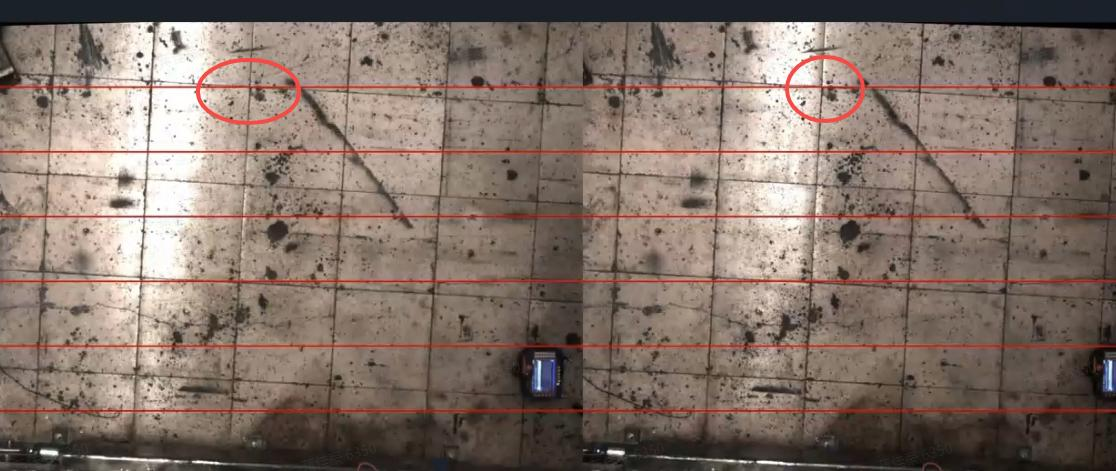
Disparity: in the 2D images captured by the two Cameras, after rectify, how many pixels apart a point in the actual Scene is in the horizontal direction between the left and right images
Formula: disp = baseline length * Camera Intrinsic Parameter fx / distance to the object
scale ratio: the resolution 3036*4024 multiplied by the scale ratio 0.34 yields an image close to 1024*1280 resolution, and the Intrinsic Parameter changes accordingly during Inference