Type Recognition Guide
The Type Recognition feature is used to recognize multiple types of Target Objects. This document mainly describes how to configure multiple Target Object types in actual scenarios and use One-click Integration to train a model.
1. Operation Guide
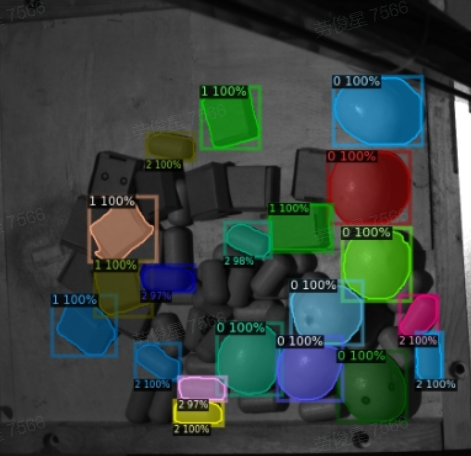
The Type Recognition feature is suitable for general Target Object random picking scenarios, general Target Object ordered loading and unloading scenarios, and surface-type Target Object ordered loading and unloading scenarios
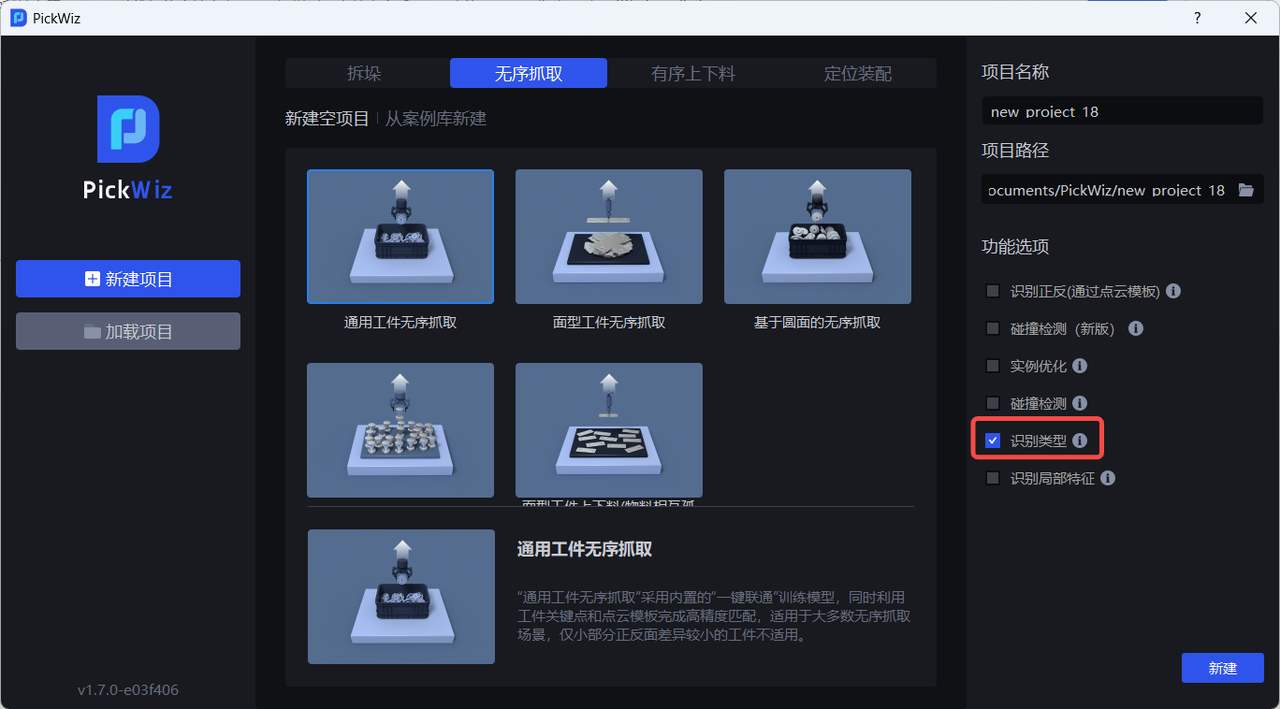
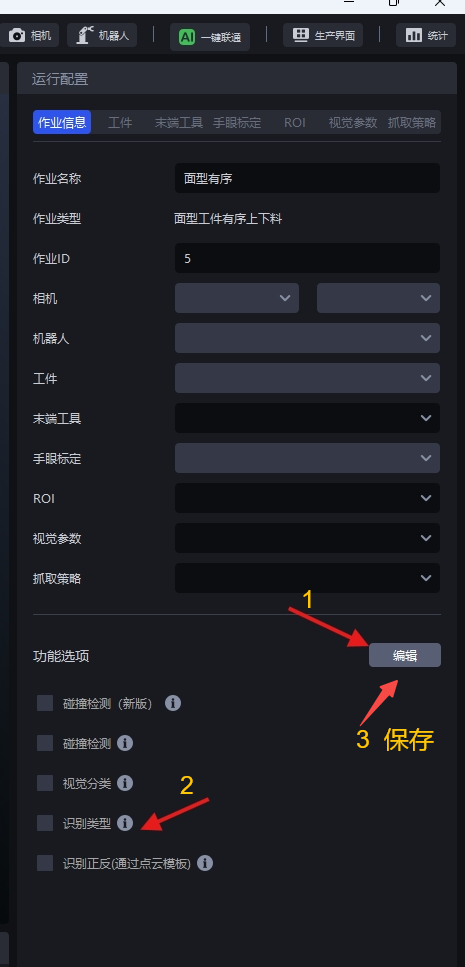
- When there are multiple types of Target Objects in the actual scene, select the Type Recognition feature when creating a new Project; if it was not selected when creating the new Project, go to the Task Information page, click Edit in the lower-right corner, then select Type Recognition and save.
- Configure multiple Target Object types on the Target Object page
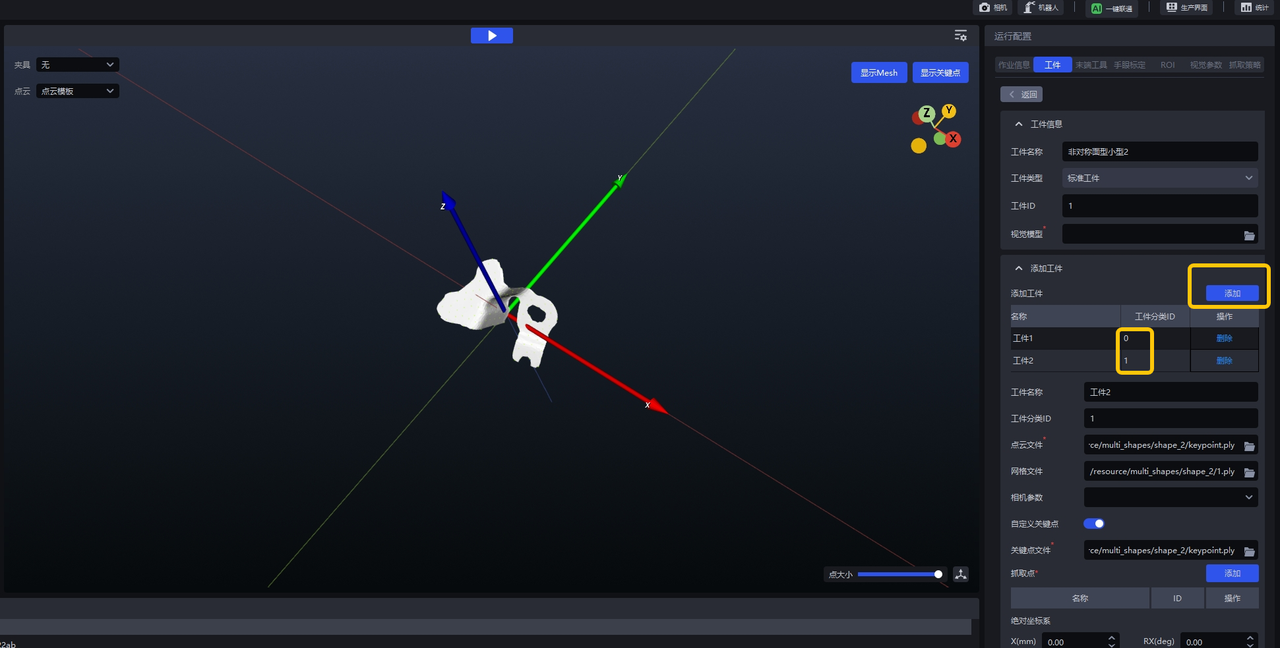
Click Add to add Target Object types. The Target Object id can be used to distinguish Target Object types. Upload the Point Cloud, keypoints (optional), and mesh file for each Target Object type.
2. One-click Integration Training Guide
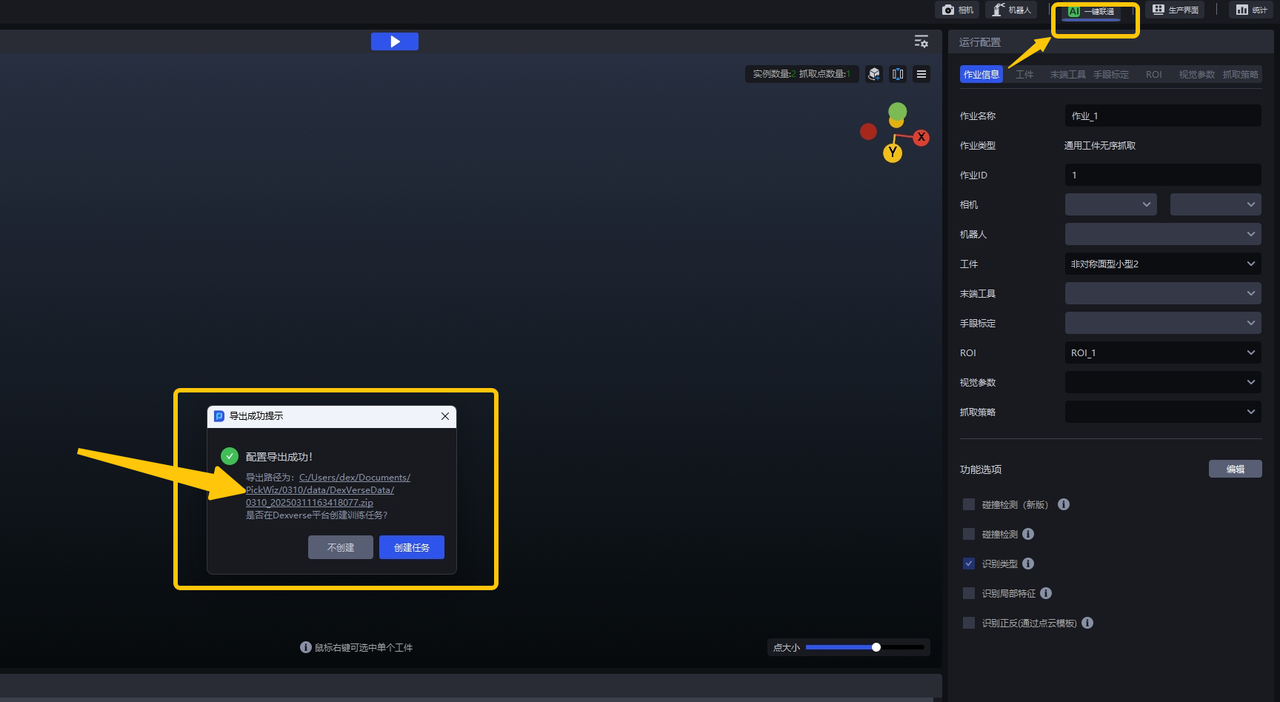
After configuring multiple Target Object types on the Target Object page and setting the ROI, return to the main interface, select the corresponding Target Object and ROI in Task Information, and then click the One-click Integration panel. An "Export Successful" pop-up appears
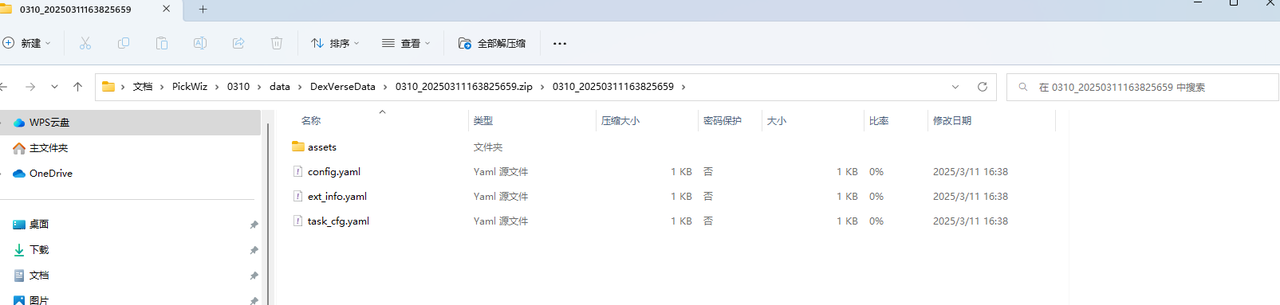
Click the export path to enter the training configuration folder and check whether the training configuration is correct
After the check is complete, click "Create Task"
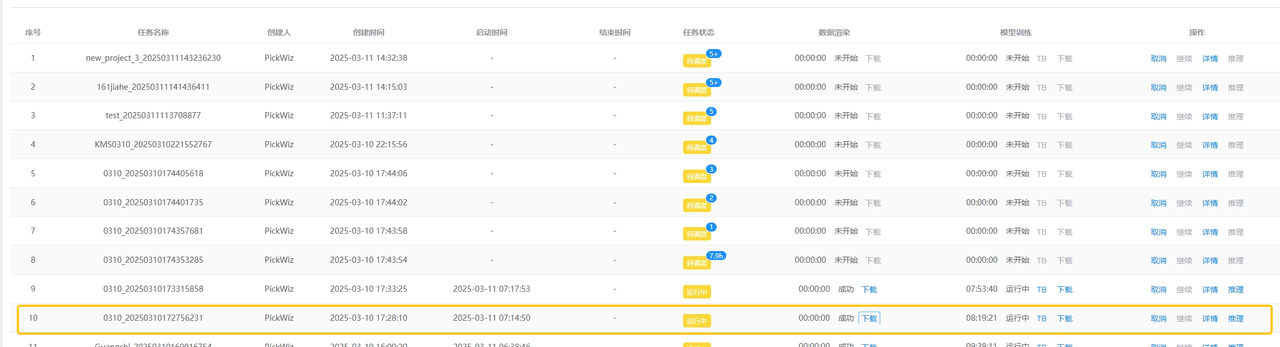
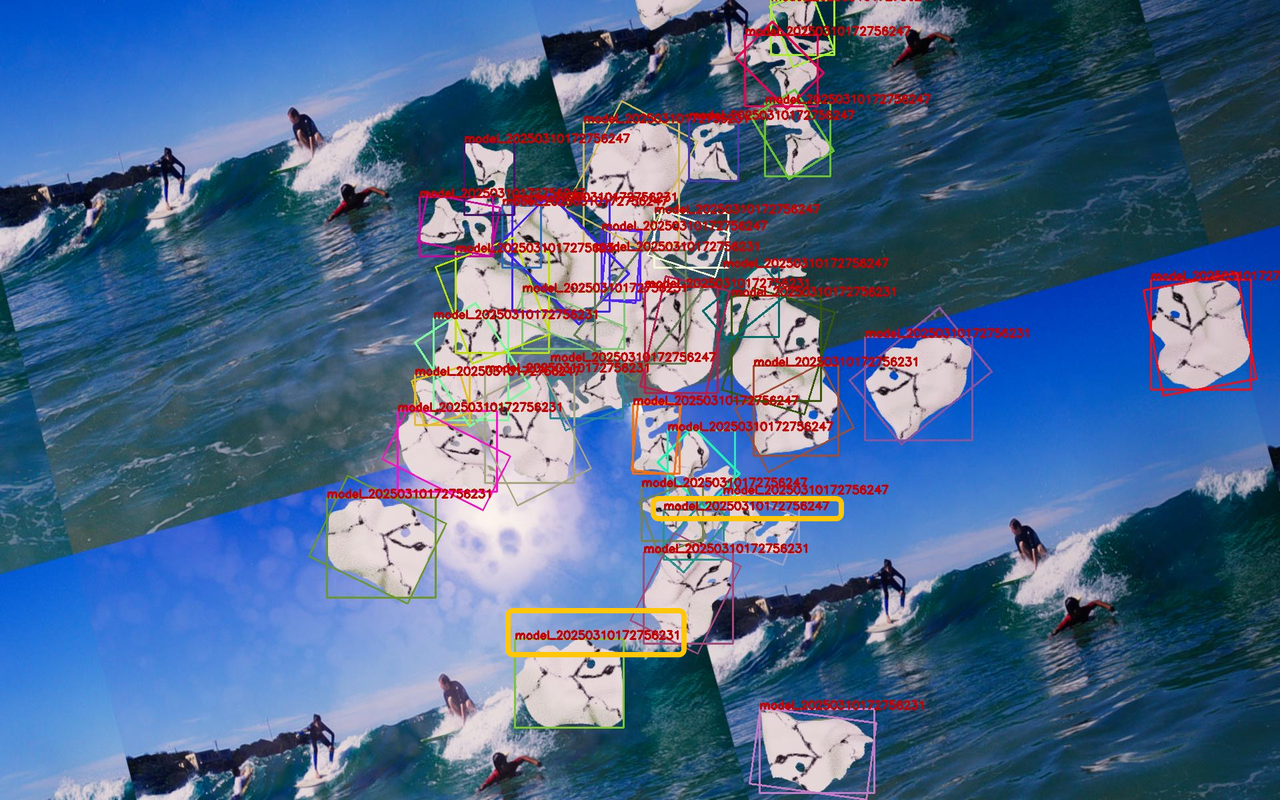
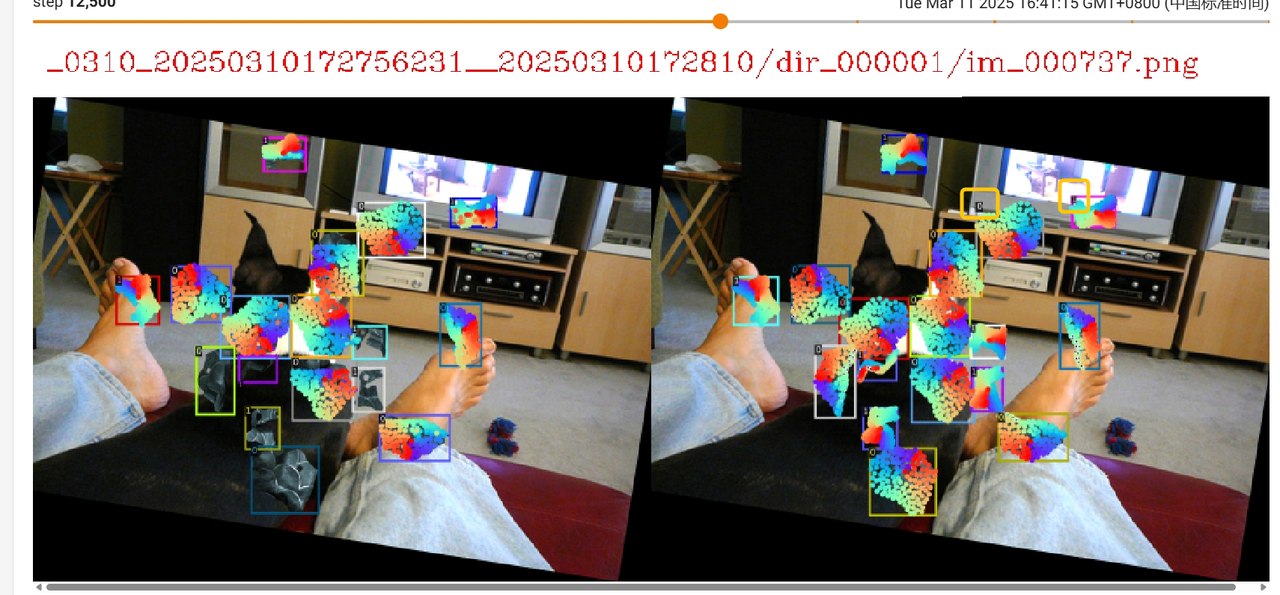
- You can view the task on the DexVerse platform (address: http://192.168.4.135:8081/tasklist), download the "Data Rendering" file of the corresponding task to check whether there are multiple Target Objects, and click TB to check whether there are multiple Target Objects and multiple ids.
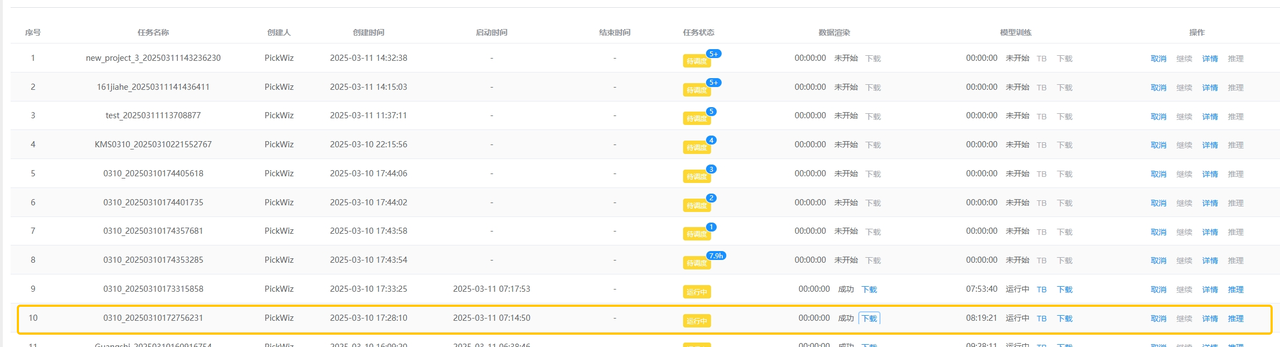
- After model training is complete, download the model, upload it on the Target Object page in PickWiz, and then run it to verify the model effect
3. Example: General Target Object Random Picking / General Target Object Ordered Loading and Unloading Scenario
General Random Scenario:
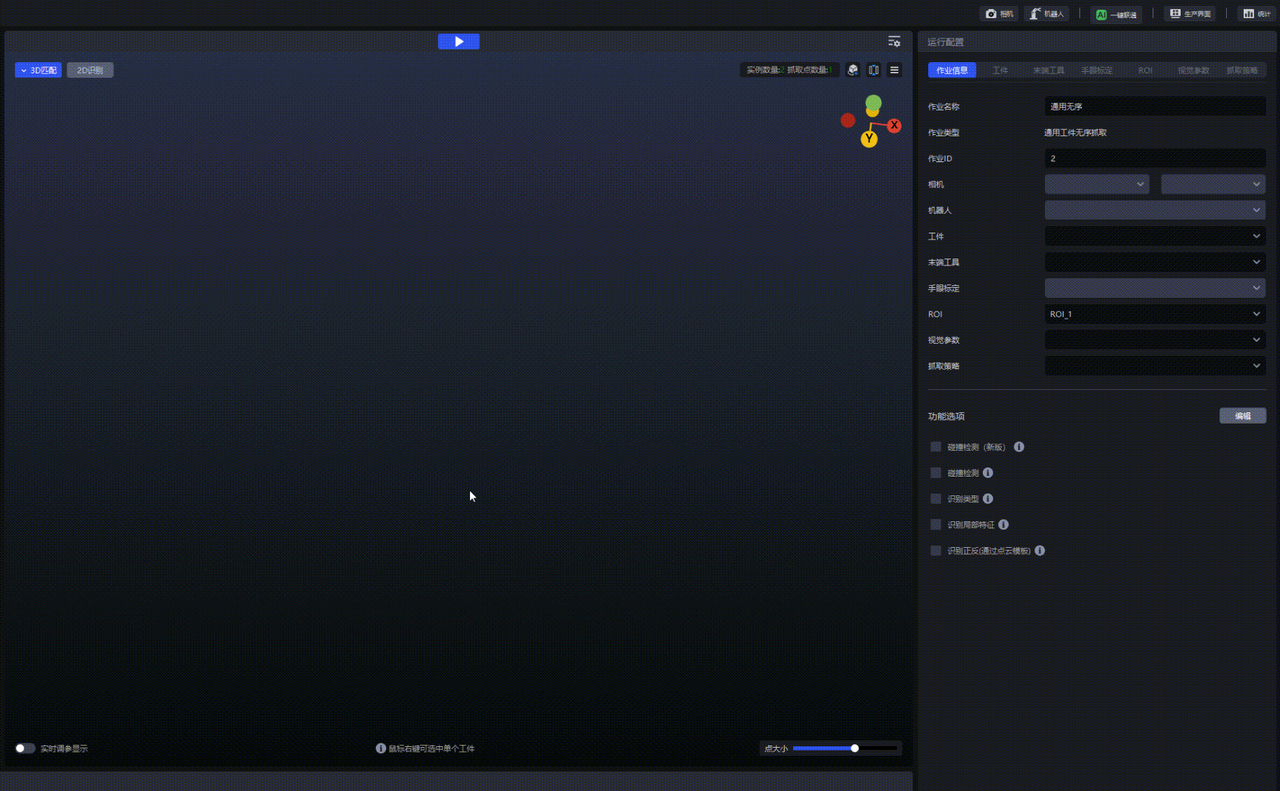
After creating the task in PickWiz, you can view the task on the DexVerse platform (address: http://192.168.4.135:8081/tasklist)
Download "Data Rendering" to check whether there are multiple Target Objects
Click TB to check whether there are two Target Objects and two ids
After model training is complete, download the model and verify it in PickWiz