Tool User Guide
Tool is the device installed at the end of the robotic arm to perform picking tasks. It is a key component that enables the Robot to complete tasks such as depalletizing, unordered picking, ordered loading and unloading, and positioning assembly.
1. Add a Tool
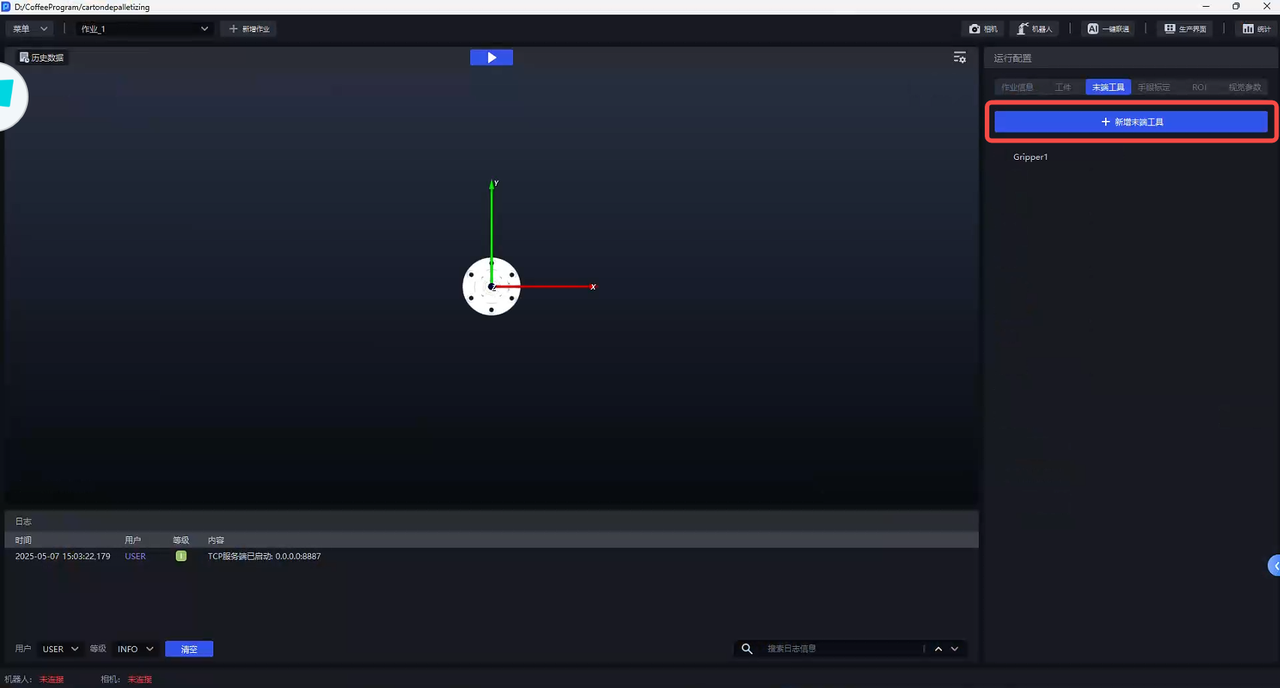
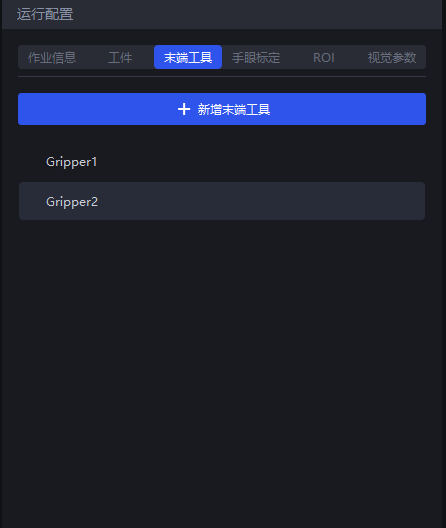
On the right side of the main interface, under Runtime Configuration, click Tool to enter the Tool editing page, then click Add End Tool.
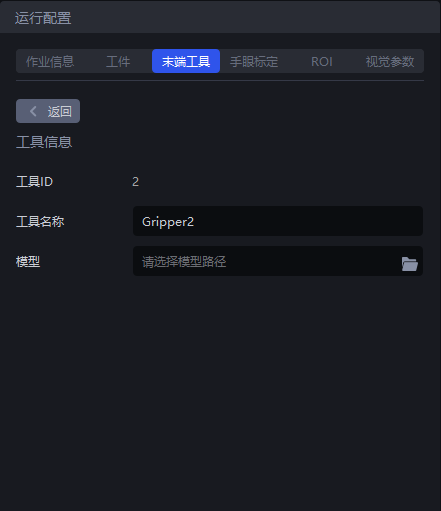
Enter the tool name, select the tool type, and upload the Tool CAD model file.
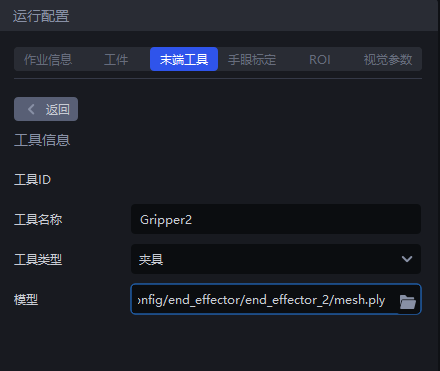
| Configuration Item | Description |
|---|---|
| Tool ID | The current Tool ID. No modification is required. |
| Tool Name | The current tool name. It can be modified. |
| Tool Type | The current tool type. Set it according to actual conditions. The default selection is gripper. |
| Tool Model | Upload area for the current Tool CAD model file. Click the file icon on the right to select the tool model file. Supported file formats: .ply / .obj / .stl / .STL |
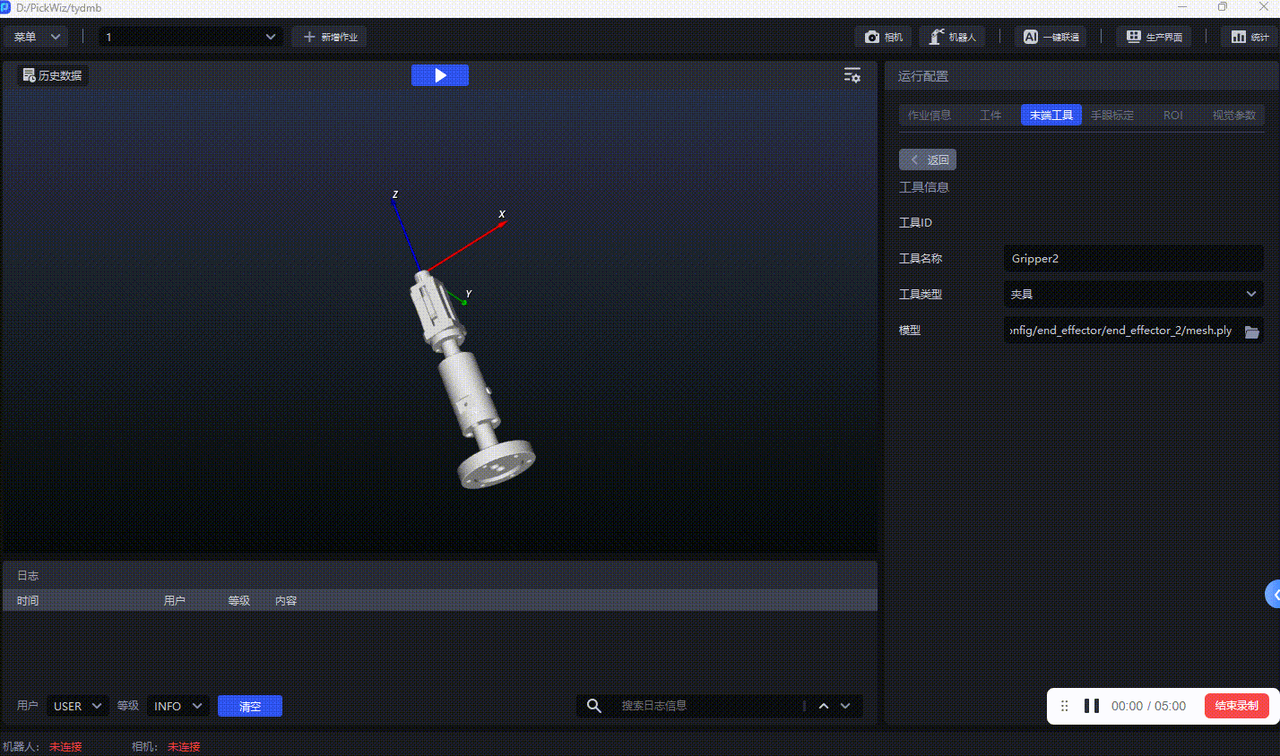
As shown below, after uploading the Tool CAD model, you can see the Tool model in the visualization window on the left. Click and hold to drag and view the model from different angles. After completing the settings, click Return, and the Tool configuration will be saved automatically.
2. Modify a Tool
To modify a Tool configuration, on the right side of the main interface under Runtime Configuration, click Tool to enter the Tool editing page, then click the Tool you want to edit. After the modification is complete, click Return, and the Tool configuration will be saved automatically.
3. Delete a Tool
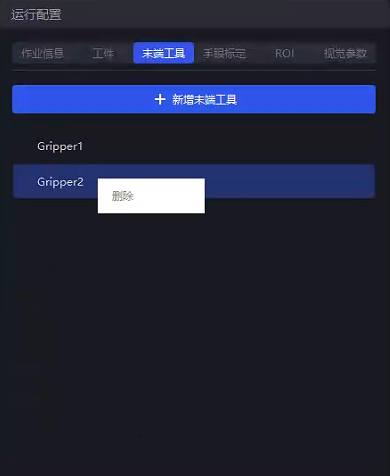
To delete a Tool configuration, right-click the Tool to be deleted, then click Delete.
4. Select a Tool in a Task
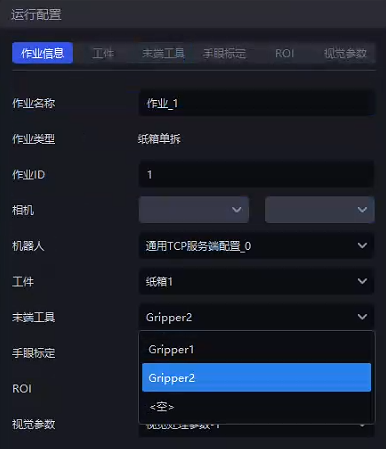
After adding or modifying a Tool, click Task Information below Runtime Configuration, then click the drop-down list at “Tool” and select the appropriate Tool according to actual requirements.