Scene Object User Guide
After selecting the functional option Collision Detection, a new task configuration item—Scene Object—is added for configuring containers (including multiple container types with non-fixed dimensions) for collision detection with the gripper. When using one-click end-to-end training for the vision model or binocular imaging model, you need to upload the container mesh file to generate container data.
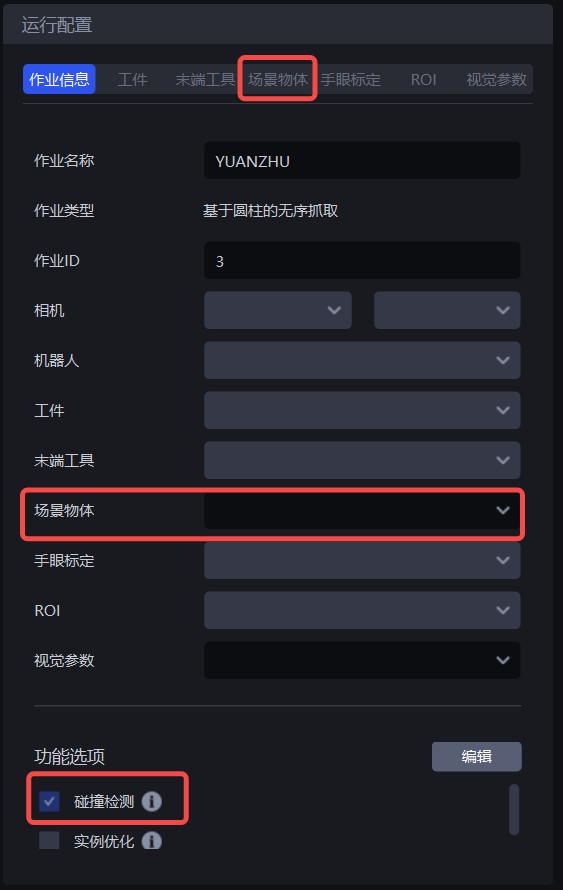
1. Add, Modify, and Delete Scene Objects
Click the Scene Object section, as shown below.
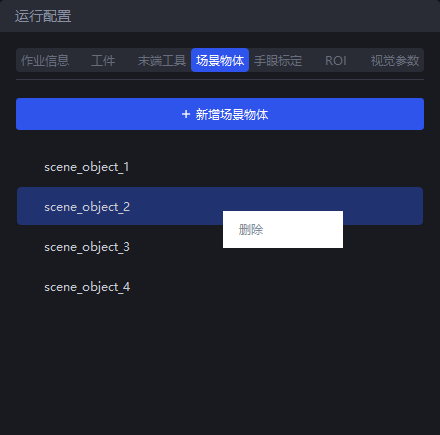
Left-click
+Add Scene Objectto create a new Scene Object;Left-click a specific Scene Object to open the Scene Object page and modify its information;
Right-click a specific Scene Object to delete the corresponding Scene Object.
2. Configure Scene Objects
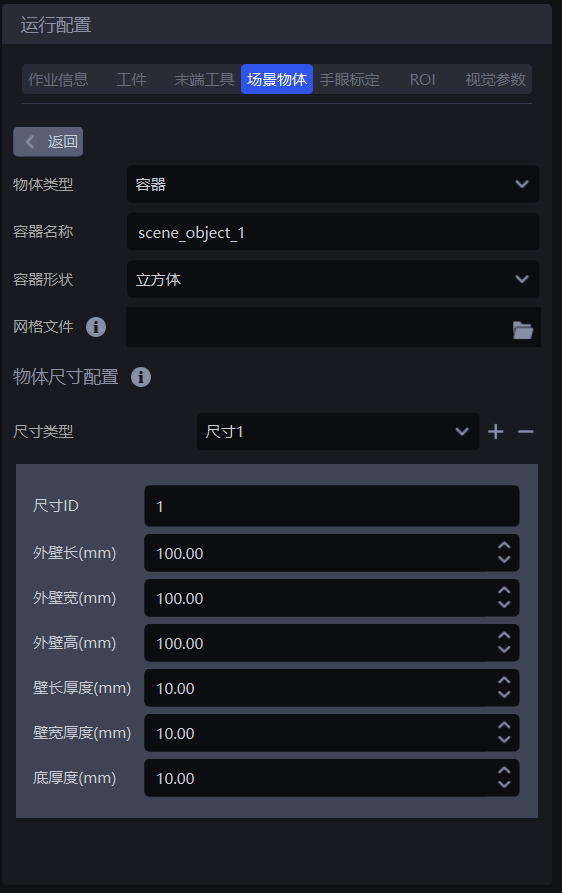
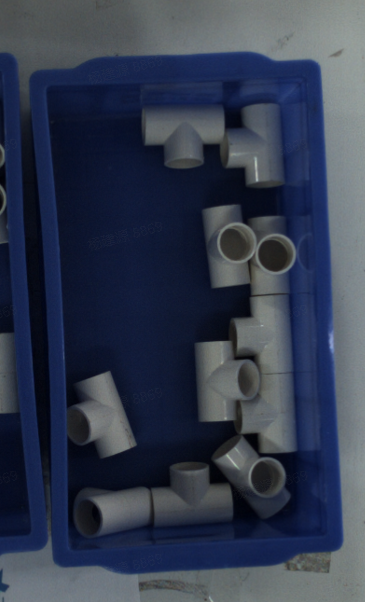
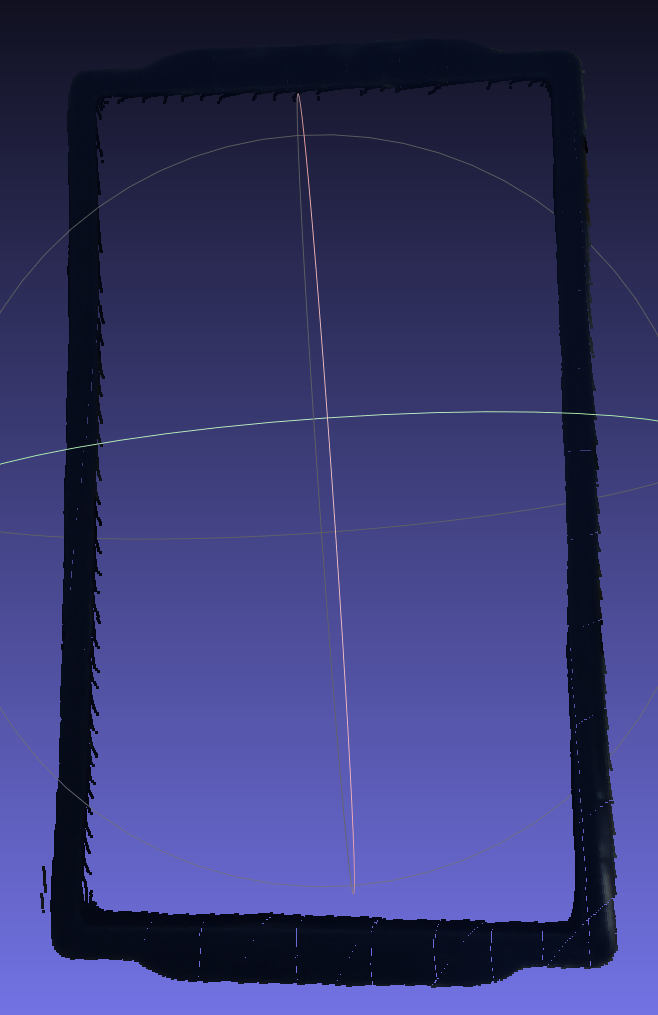
Object Type: The Scene Object type. Currently, onlyContaineris supported.Container Name: Used to identify the current containerContainer Shape: Currently, only the cuboid shape is supportedMesh File: Optional. When the incoming material includes a container, you can upload the container mesh file. When using one-click end-to-end training for the vision model or binocular imaging model, container data is generated in the simulation environment to simulate the incoming material method, which can improve recognition of the container and the Target Objects inside it.
Only unordered picking scenarios require a mesh file upload
Object Size Configuration: Configure the size priors of the container. During container detection, the size prior is used to fit a quadrilateral and obtain the template Point Cloud of the container, which is then accurately matched with the scene Point Cloud of the container to obtain the final pose. If multiple container sizes exist in the scene, you can set different size priors for the same Scene Object. Click "+" or "-" to add or delete size priors, as shown below.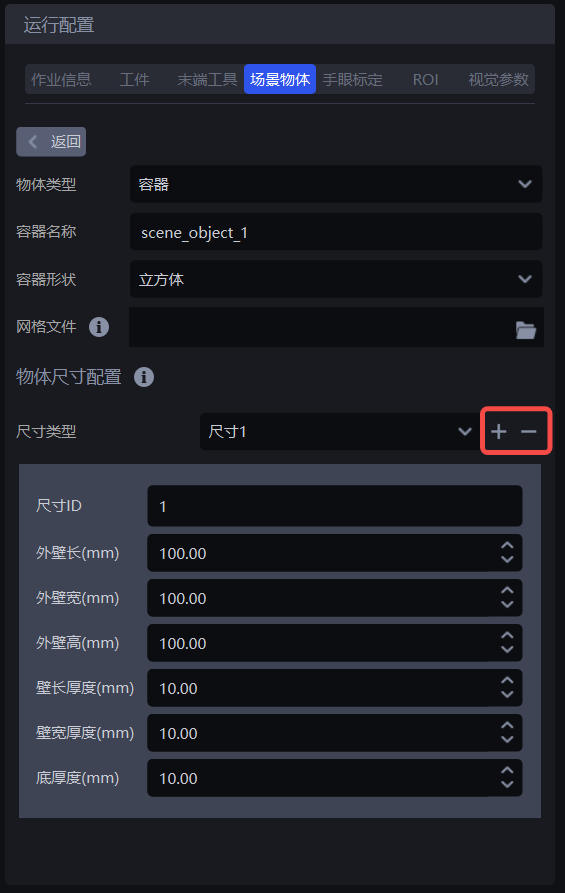
Size ID: Used to identify the current size prior configuration. When the Robot outputs the container size ID, the current size ID will be usedOuter Wall Length: The outer wall length of the container, in mm. When the Robot outputs the container dimensions (length, width, height, long-side wall thickness, short-side wall thickness, bottom thickness), this configuration is used as the first valueOuter Wall Width: The outer wall width of the container, in mm. When the Robot outputs the container dimensions (length, width, height, long-side wall thickness, short-side wall thickness, bottom thickness), this configuration is used as the second valueOuter Wall Height: The outer wall height of the container, in mm. When the Robot outputs the container dimensions (length, width, height, long-side wall thickness, short-side wall thickness, bottom thickness), this configuration is used as the third valueLong-side Wall Thickness: The wall thickness of the long side of the container, in mm. When the Robot outputs the container dimensions (length, width, height, long-side wall thickness, short-side wall thickness, bottom thickness), this configuration is used as the fourth valueShort-side Wall Thickness: The wall thickness of the short side of the container, in mm. When the Robot outputs the container dimensions (length, width, height, long-side wall thickness, short-side wall thickness, bottom thickness), this configuration is used as the fifth valueBottom Thickness: The bottom wall thickness of the container, in mm. When the Robot outputs the container dimensions (length, width, height, long-side wall thickness, short-side wall thickness, bottom thickness), this configuration is used as the sixth value
3. Select a Scene Object
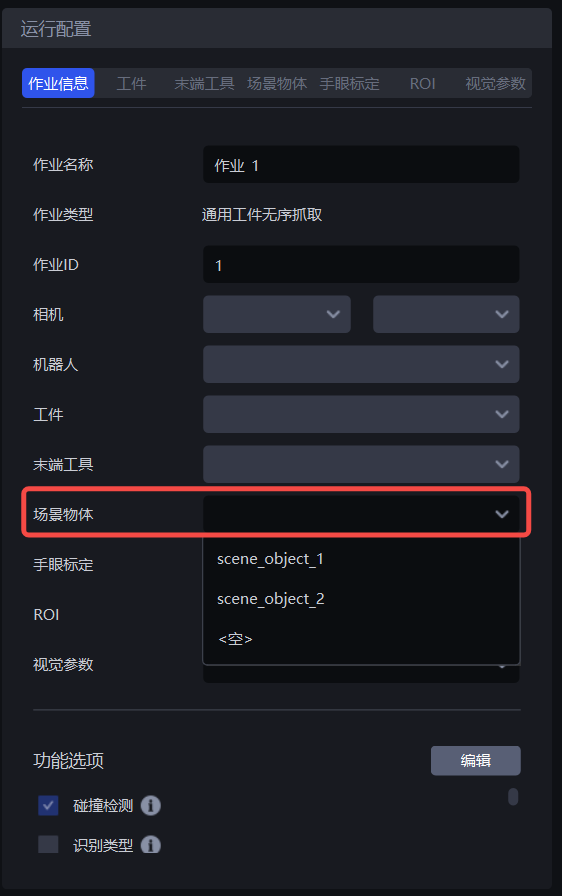
After configuring the Scene Object, select the Scene Object bound to the current task from the Scene Object drop-down list in the task information.
4. Robot-Related Commands
In Commands Sent from PickWiz to Robot, after a successful match and when no detection exception is found, you can configure retrieval of the matched container information.
| Information | Placeholder | Function |
|---|---|---|
| Scene Object Size ID | so_size_id | The matched container size prior ID (consistent with the configured content), with a length of 1. The unmatched value is -1. |
| Scene Object Size | so_size | The matched container size prior (consistent with the configured content), with a length of 6 [outer wall length, outer wall width, outer wall height, long-side wall thickness, short-side wall thickness, bottom thickness]. The unmatched value is [0,0,0,0,0,0]. |
| Scene Object Pose | so_pose | The matched Scene Object Pose, with a length of 6 [x,y,z,a,b,c]. The unmatched value is [0,0,0,0,0,0]. |