Installation Guide
1. Machine Configuration Requirements
| Operating System | Windows 11 Professional |
|---|---|
| CPU | Intel i7-8700 or above |
| Memory | 16G or above |
| GPU | NVIDIA RTX 3050/3060 (driver version 525 or above) |
| Hard Drive | 128 GB SSD or above (remaining space on drive C) |
2. Download the Installation Package
2.1 Download Methods
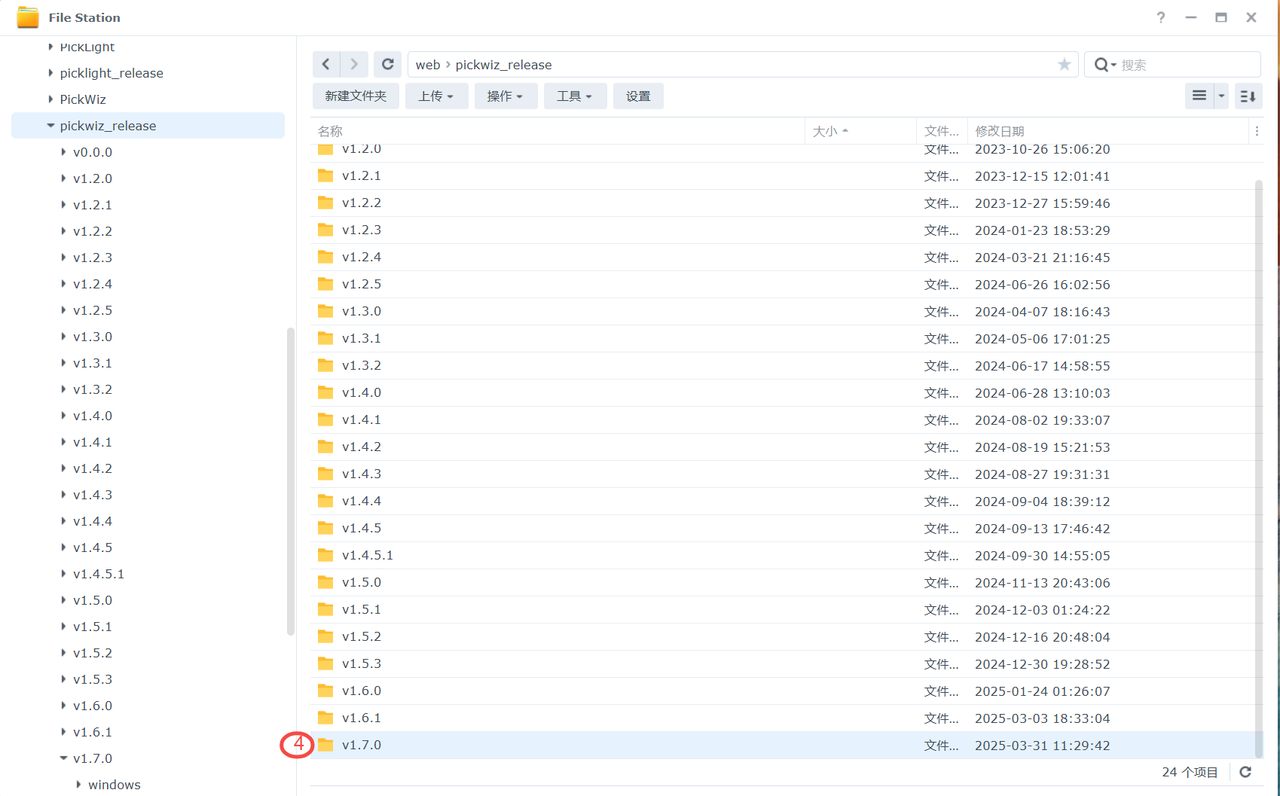
After logging in to the NAS, navigate to the directory where the PickWiz installation packages are stored:
Find the required software version in the pickwiz_release folder.
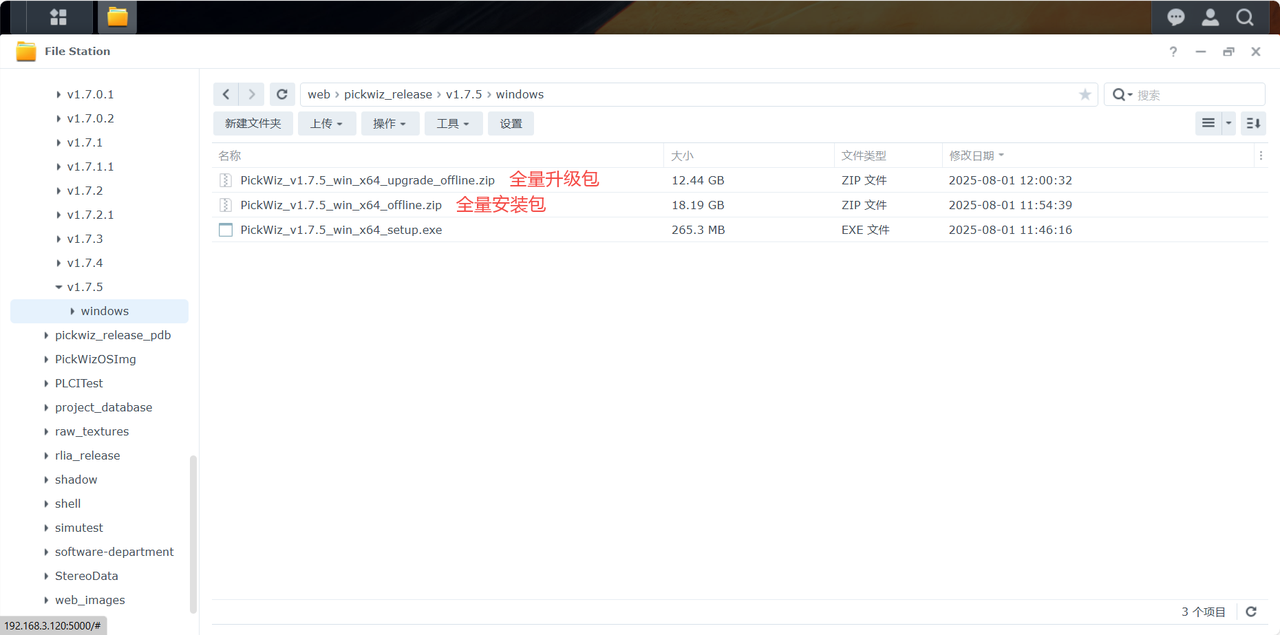
After opening the windows directory, you can see the following file list:

2.2 Description of Installation Package Types
Full Installation Package & Full Upgrade Package
The full installation package is named
PickWiz_v{X.Y.Z}_win_x64_offline.zipand contains the PickWiz application, the basic Deep Learning environment, and the General-purpose Models, as shown below.The full upgrade package is named
PickWiz_v{X.Y.Z}_win_x64_upgrade_offline.zip, and contains the PickWiz application and General-purpose Models, with the basic environment-related resources removed. If the basic environment has already been installed using the full offline package, the offline upgrade package can be used for subsequent upgrades (smaller in size).
The full installation package & full upgrade package support fully offline installation
3. Install the Software
3.1 Installation on a New Machine
The full installation package & full upgrade package support fully offline installation
Checks required before installation:
When installing or updating PickWiz using the full installation package, Anaconda does not need to be installed;
If Anaconda is already installed but it is installed in a folder that requires administrator permissions (such as the
Windowsfolder,Program Files,Program Files (x86),ProgramData, etc. on drive C), or if the environment variables are configured incorrectly, first uninstall the installed Anaconda and delete the corresponding environment variables, and make sure Anaconda is not installed under the PickWiz installation directory (such asC:\Users\dex);If 360 antivirus software is installed before installation, turn it off first; otherwise, it may block the installer.
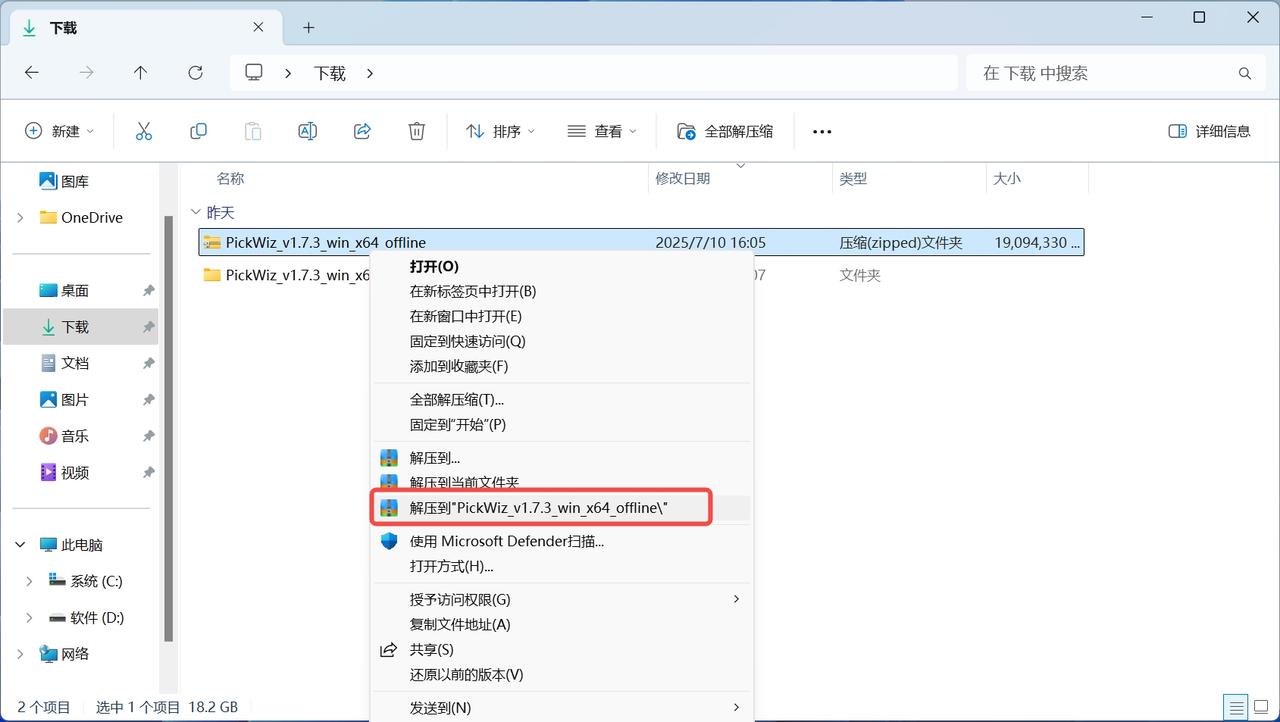
(1) Extract the full installation package
(2) Install PickWiz
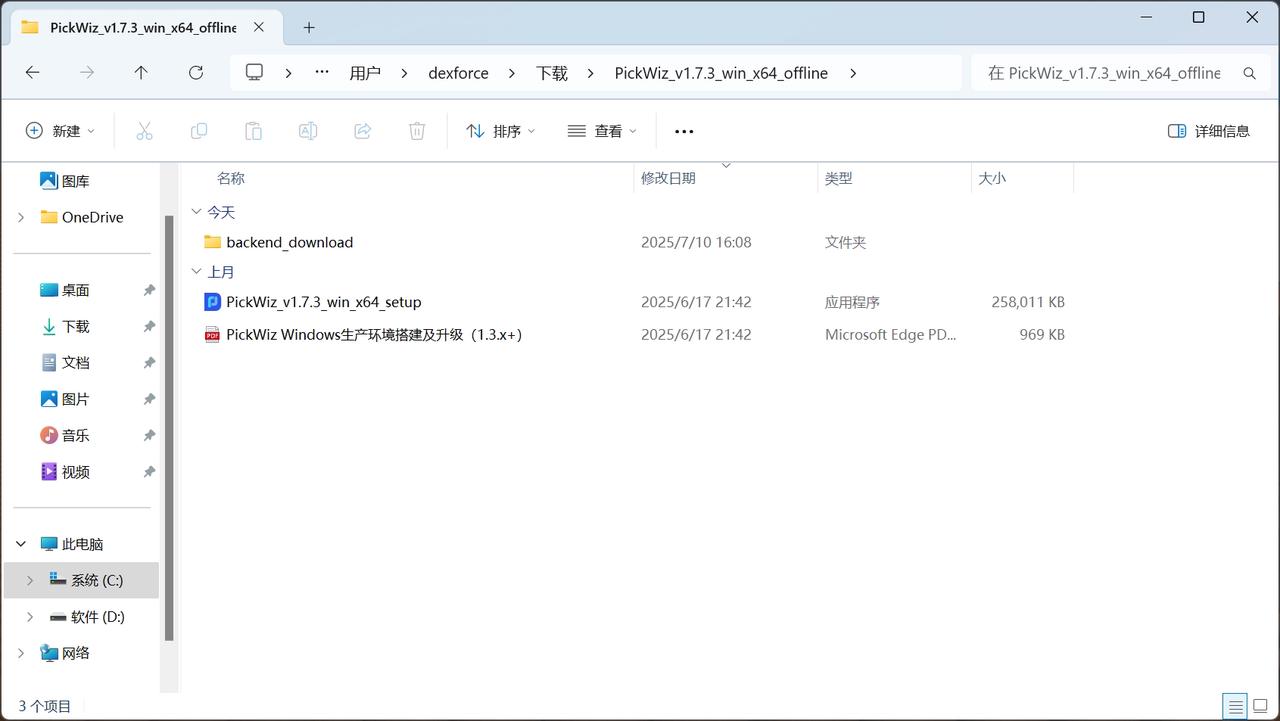
- Open the extracted files and double-click the exe application file, as shown below;
Select the installation directory
It is recommended to install it in the default directory and it cannot be installed on another hard drive
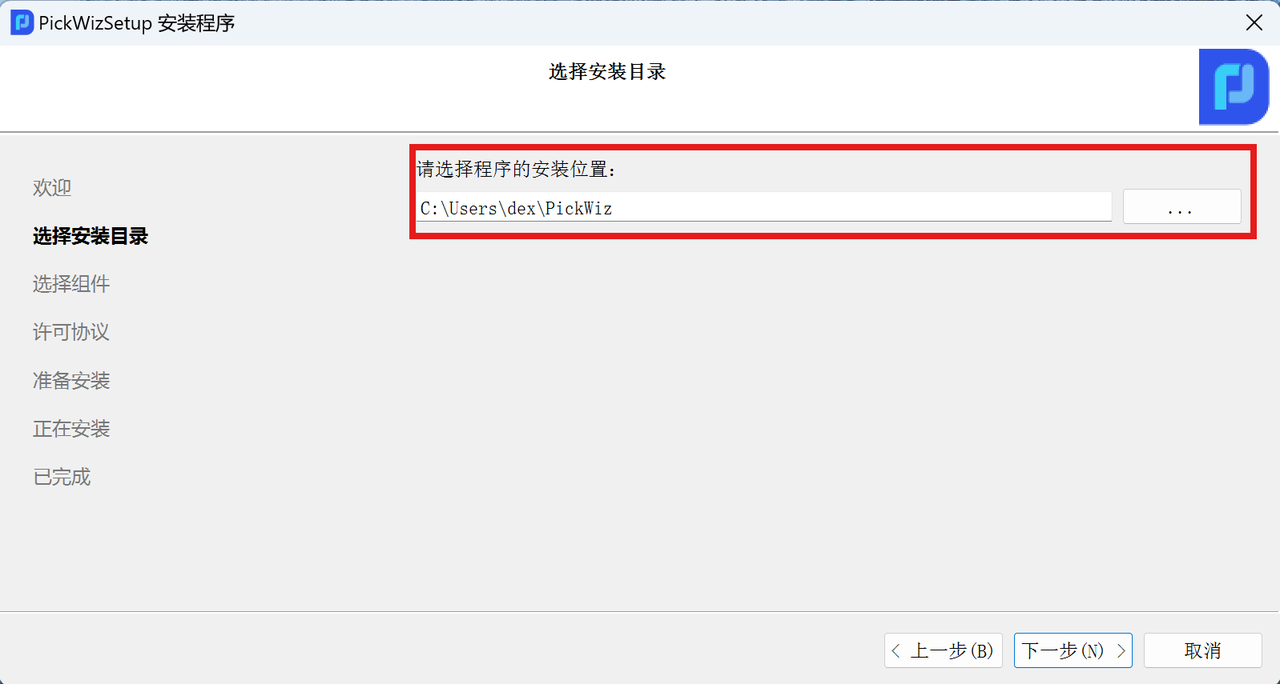
Follow the prompts until "Select Components"
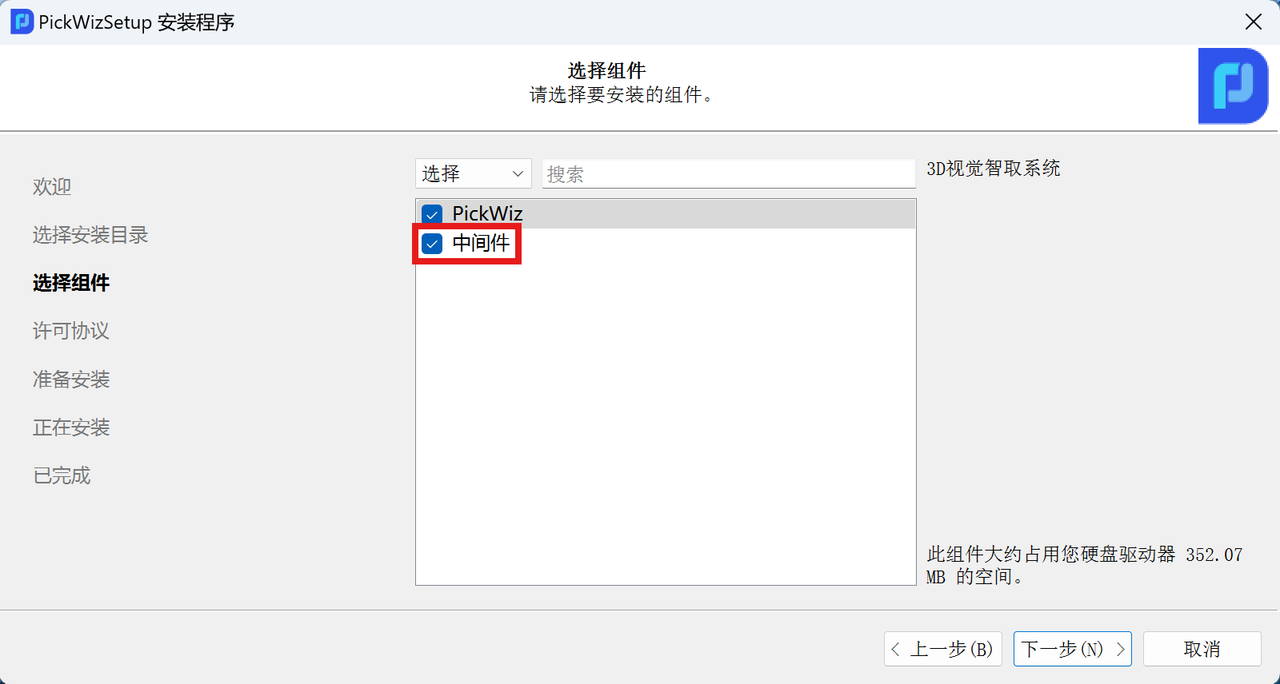
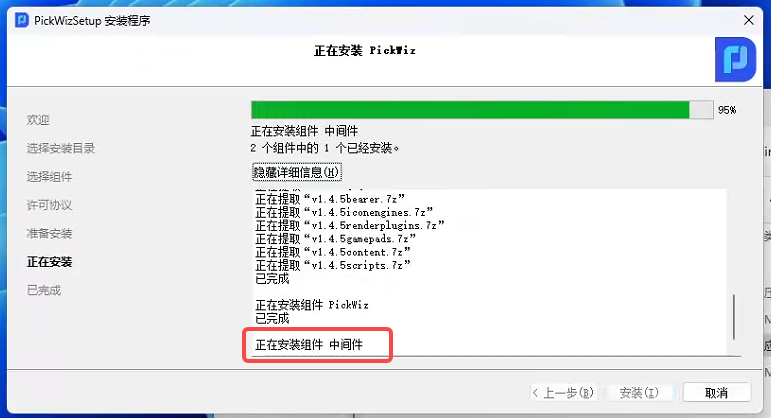
When the installation progress reaches 95%, a prompt saying "Installing component middleware" will appear
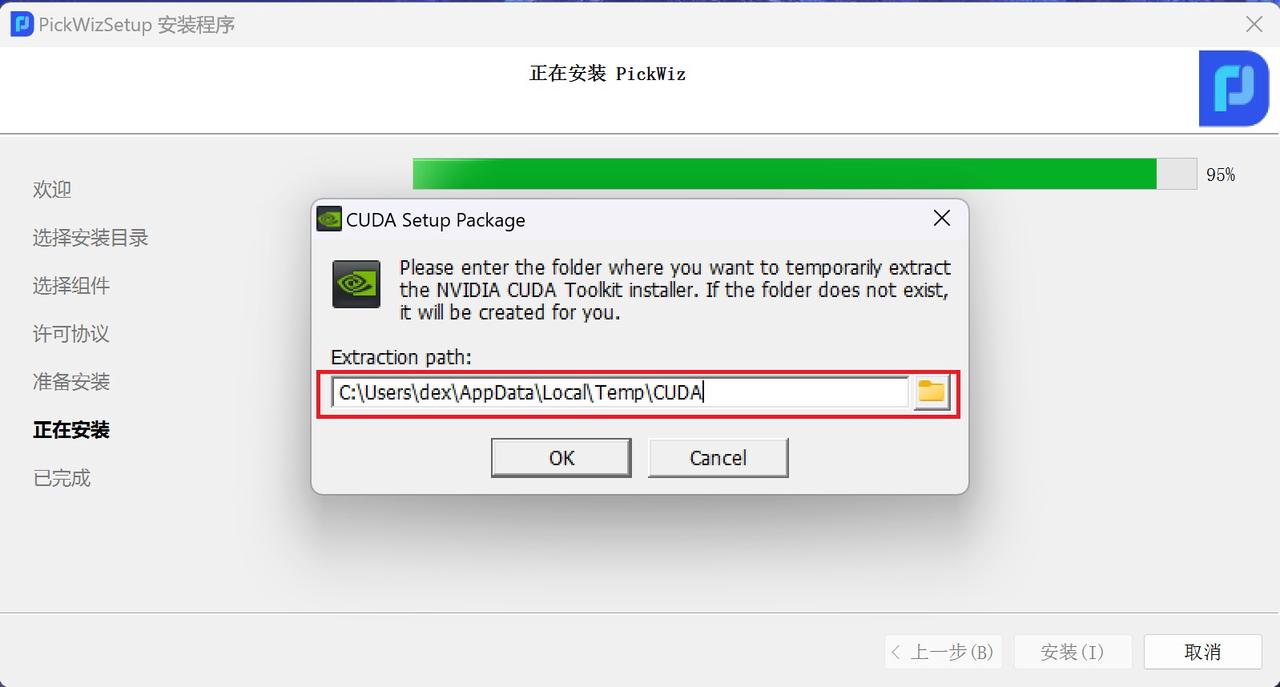
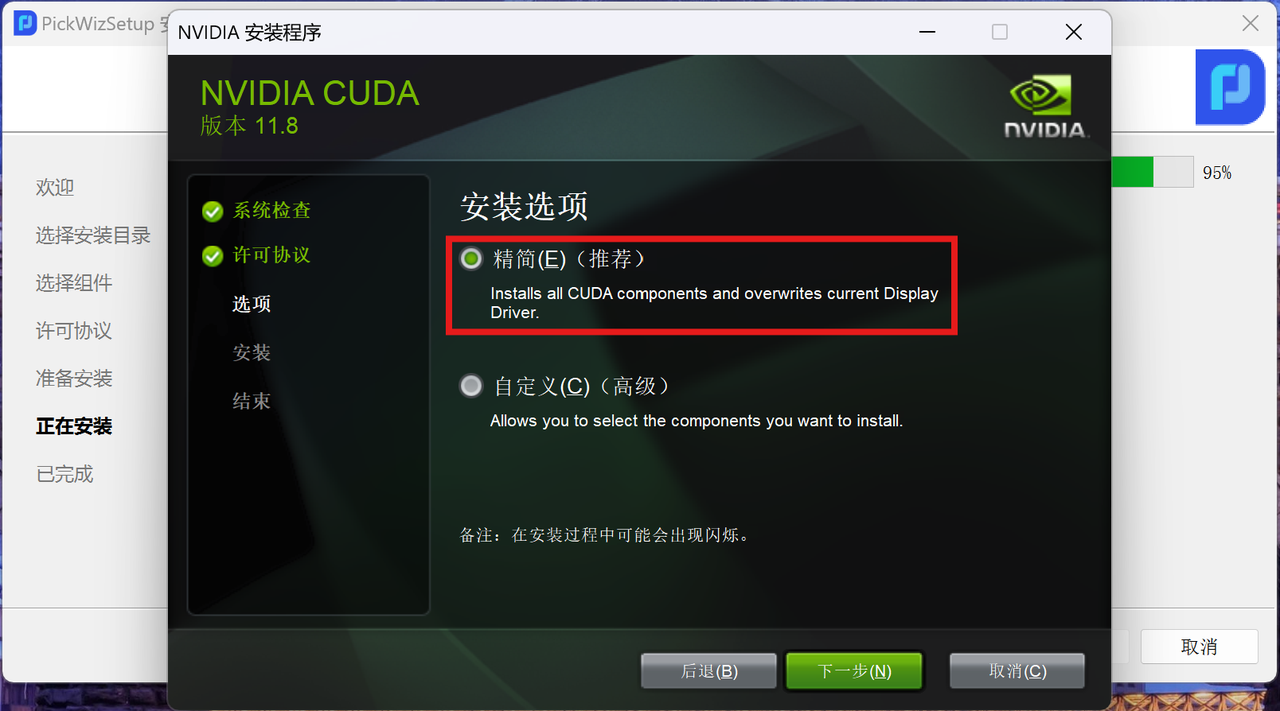
When PickWiz is installed for the first time on a new machine, a CUDA installation window will pop up. The figure below shows the temporary CUDA extraction directory. It is recommended to use the default folder. This folder will be deleted automatically after installation is complete.
For "Installation options", it is recommended to select "Compact"
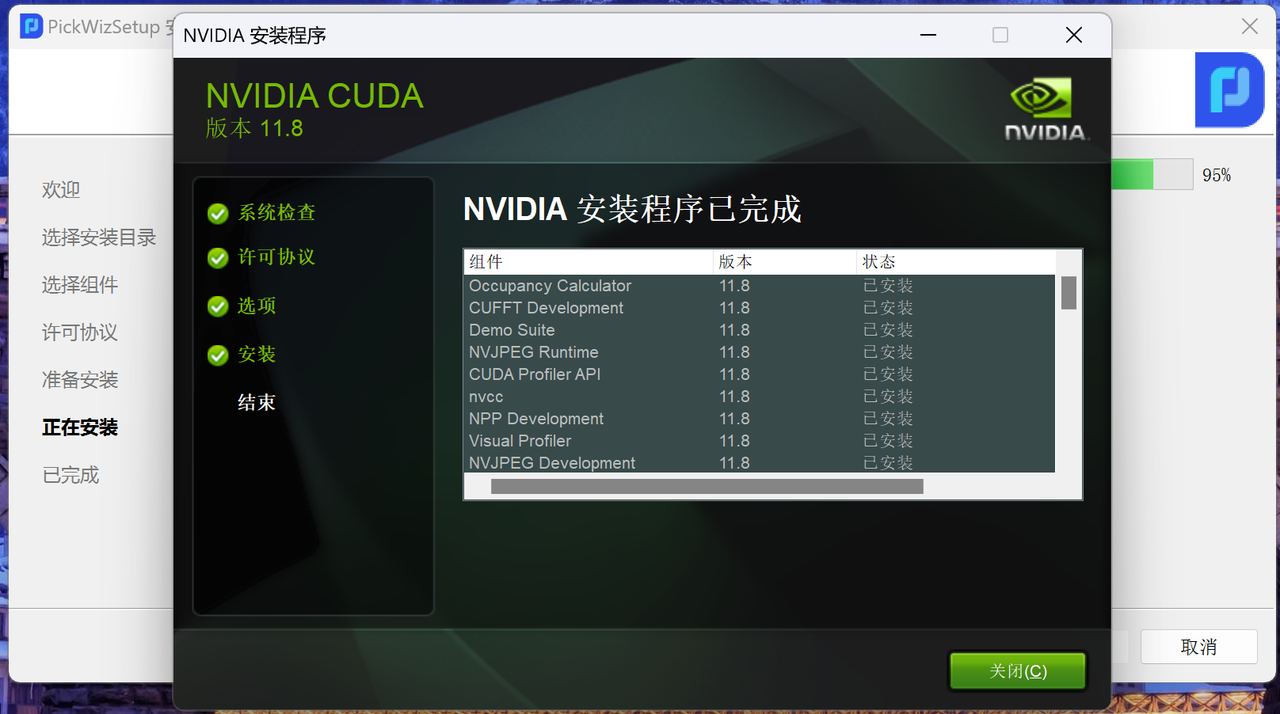
CUDA installation completed
PickWiz installation will continue. The first installation takes about 30 minutes. Please wait patiently. After the installation is complete, the following prompt will appear:
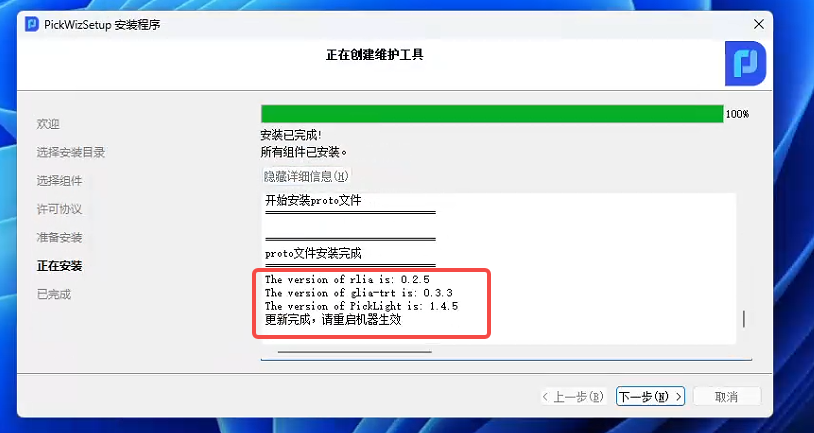
Click "Next" to complete the installation
After installing PickWiz for the first time, please restart the computer before running PickWiz
3.2 Update
To update using the full upgrade package, refer to 3.1 Installation on a New Machine
3.3 Install whl Packages Separately
For the installation of whl packages such as PickLight, GLIA, and RLIA.
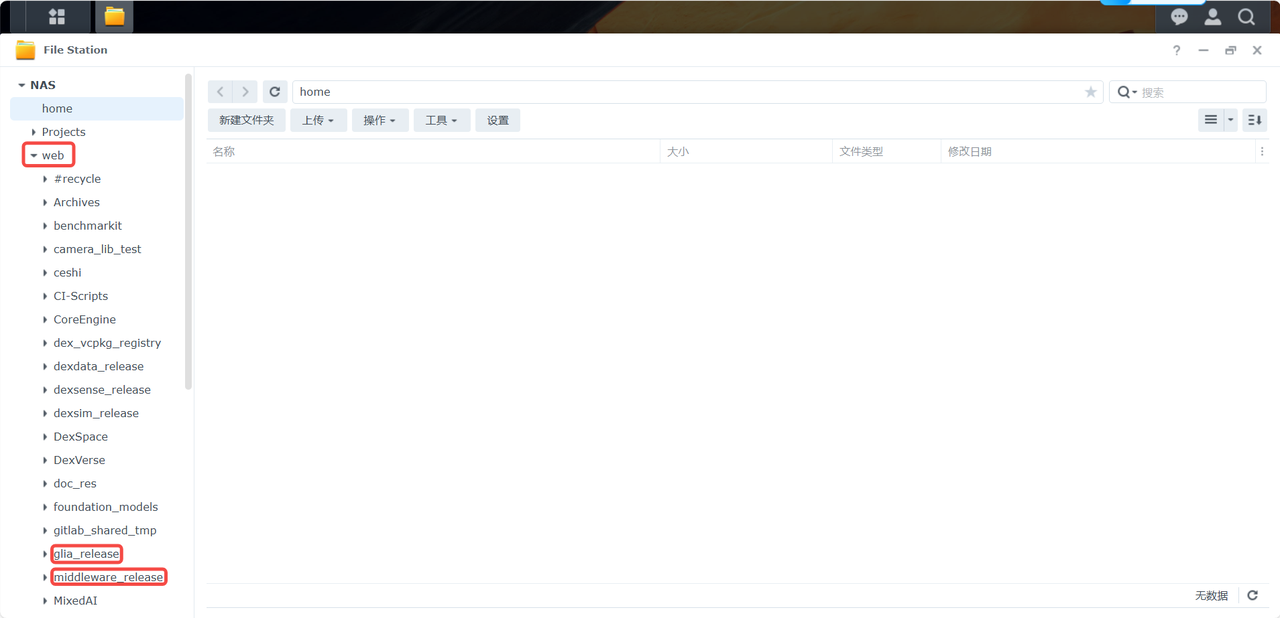
- Download the whl package from the NAS. For the NAS address, refer to 2.1 Download Methods
Navigate to the directory of the required whl package and download it
- After downloading, open the Anaconda Prompt terminal
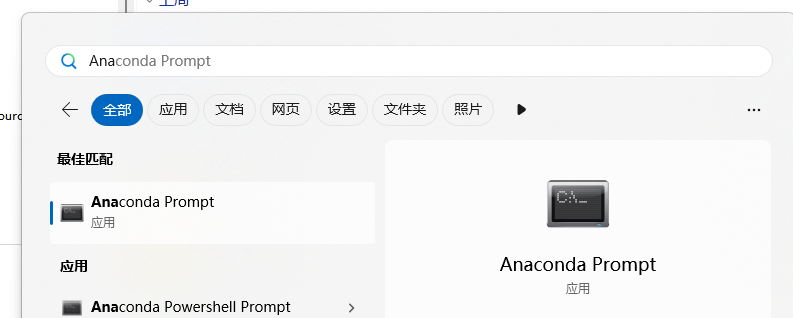
- &##x20;In the opened Anaconda Prompt terminal, enter the
conda activate pickwiz_py39command to activate the backend environment

- Enter the command to navigate to the directory where the whl package was downloaded and saved. Typically, whl packages are saved in the
C:\Users\Administrator\Downloadsdirectory after download, so enter Downloads in the Anaconda Prompt terminal to reach the storage directory of the whl package
.jpg)
- In the storage directory of the whl package, run the installation command
pip install xxx.whl, wherexxx.whlindicates the package name

If you are installing the same version of a whl package, first run the
pip uninstall xxx.whlcommand to uninstall it, and then run thepip install xxx.whlinstallation command. Otherwise, the whl package installation may fail
4. Uninstall the Software
(1) Uninstall using the uninstaller
Open the PickWiz installation directory. For the installation directory, refer to the "Select the installation directory" step in 3.1 Installation on a New Machine of this document
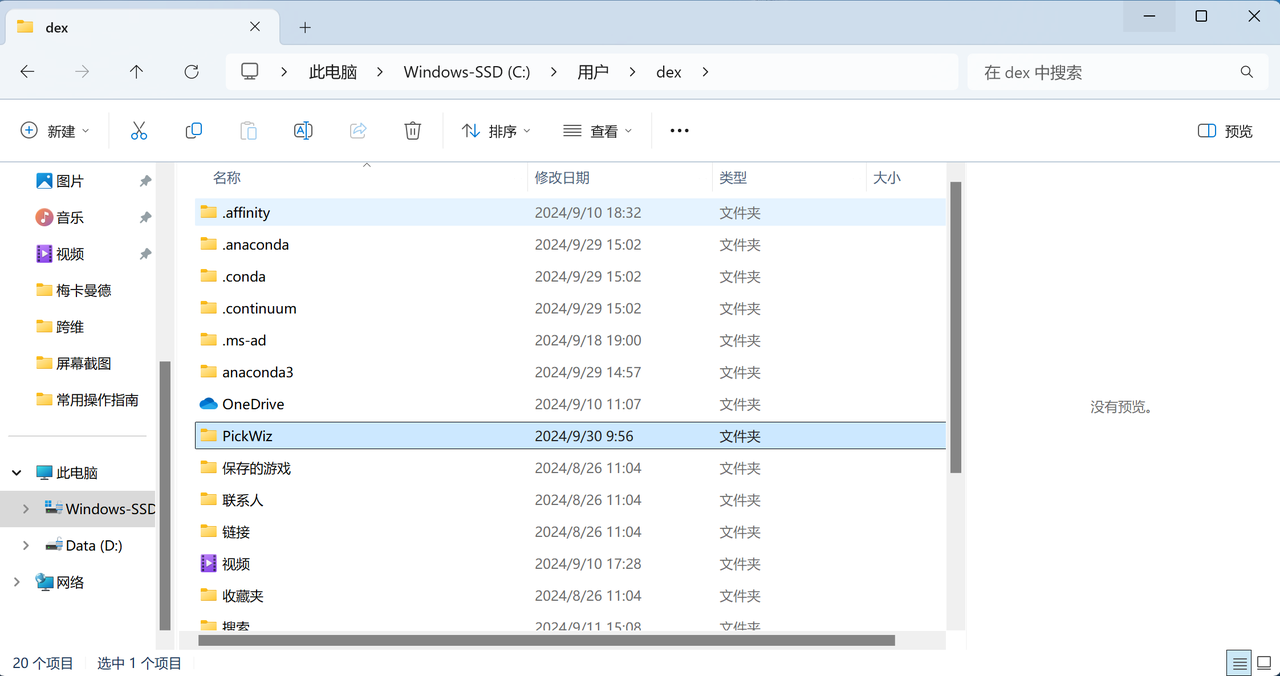
Find the application named
MaintenanceTool.exe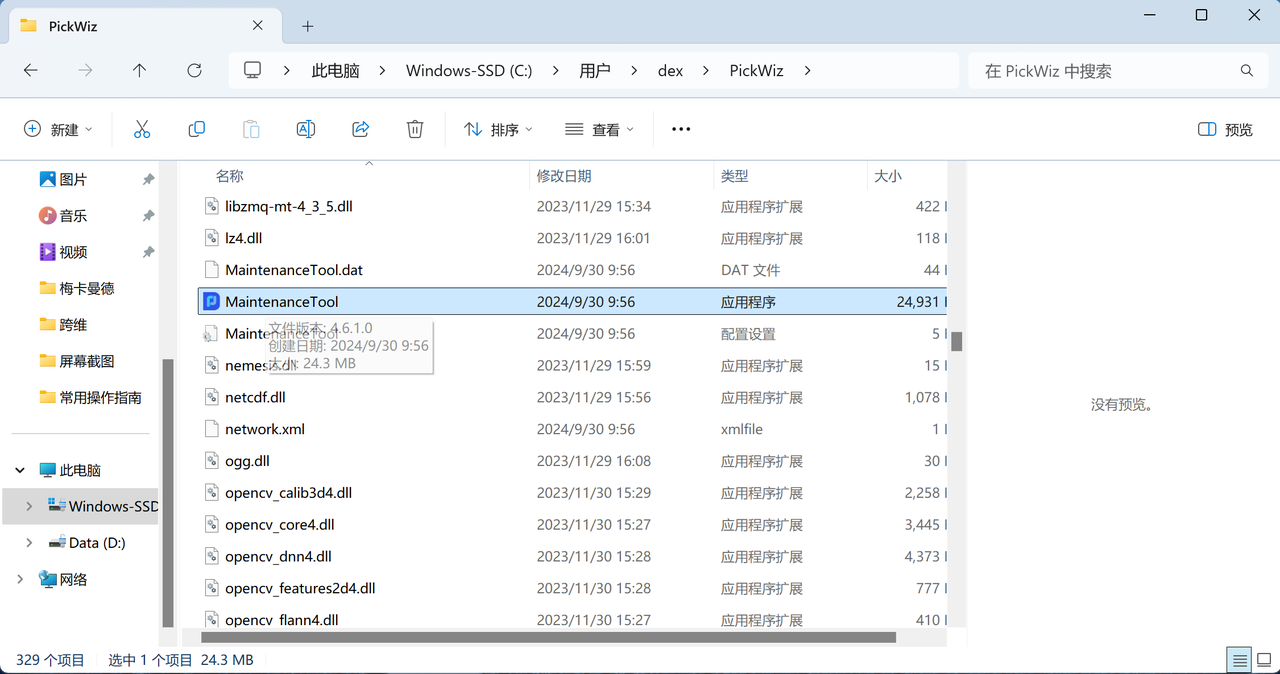
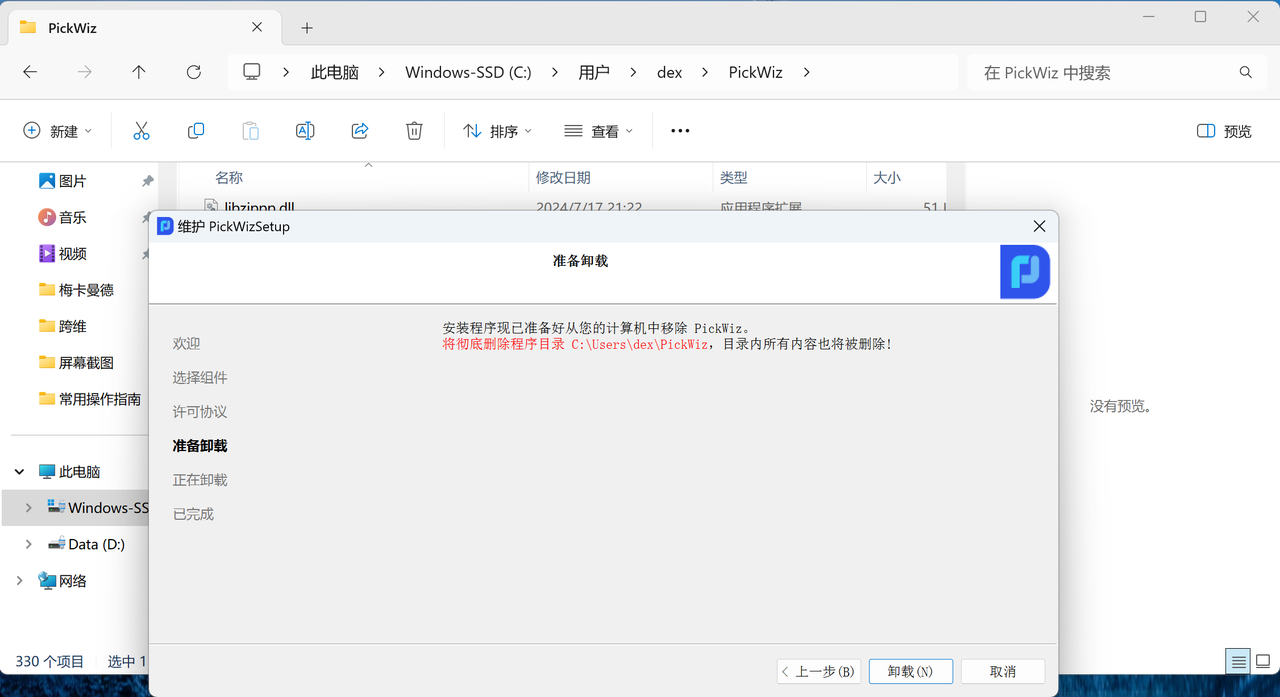
Double-click the MaintenanceTool application to enter the "Maintain PickWizSetup" window, and select "Remove all components"
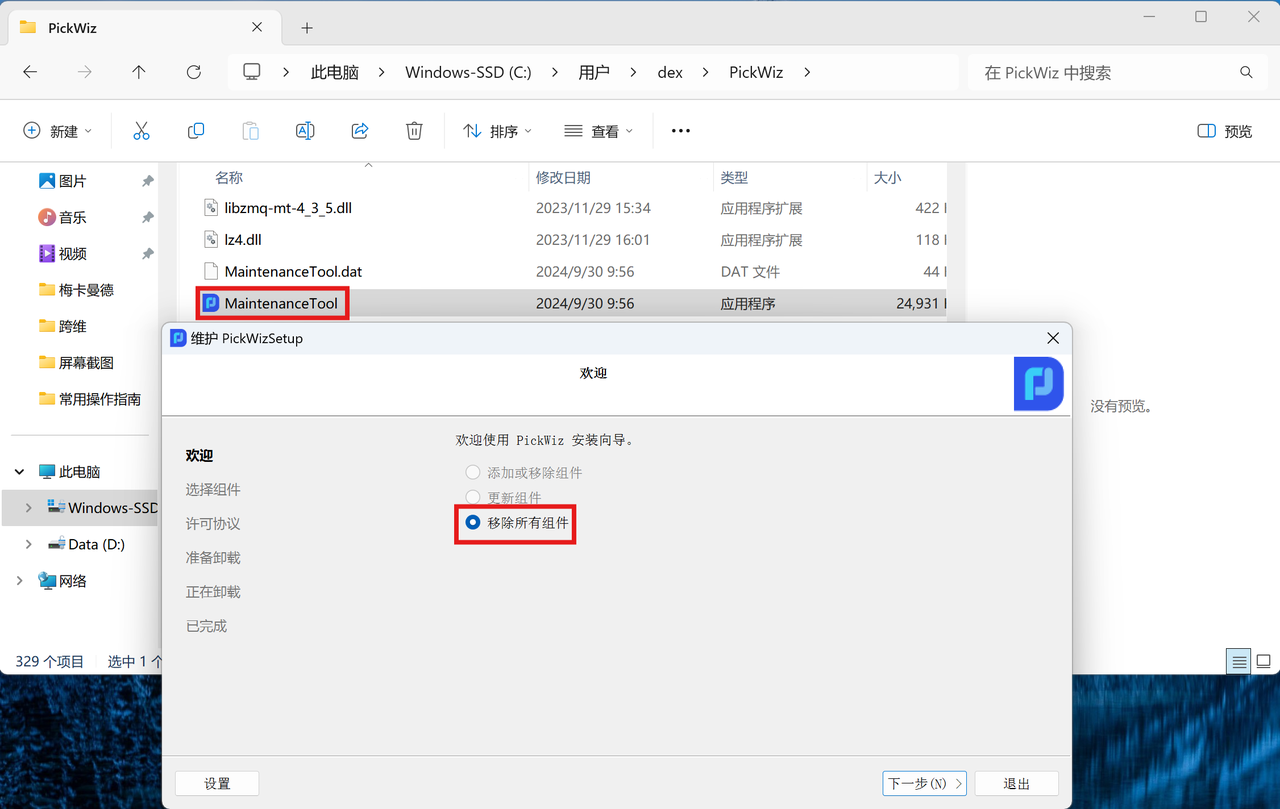
Click "Uninstall" to complete the PickWiz uninstallation
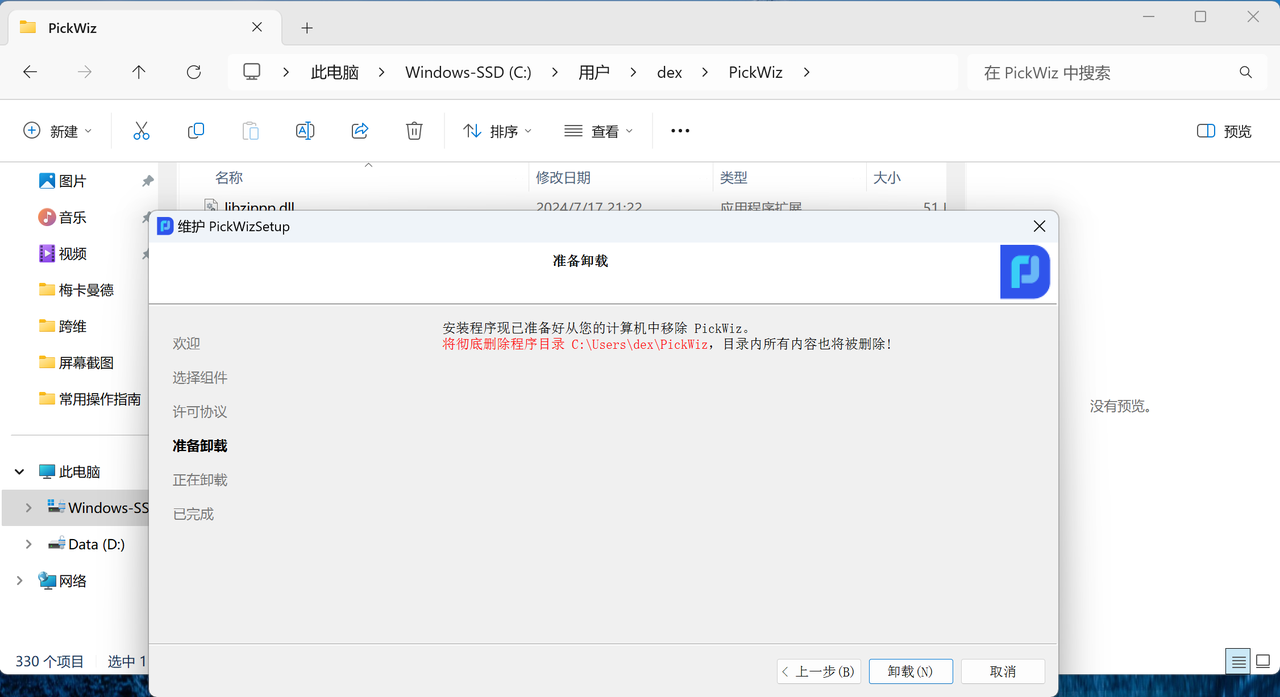
(2) Uninstall using the Control Panel
Open "Control Panel" from the Start menu and click "Uninstall a program"
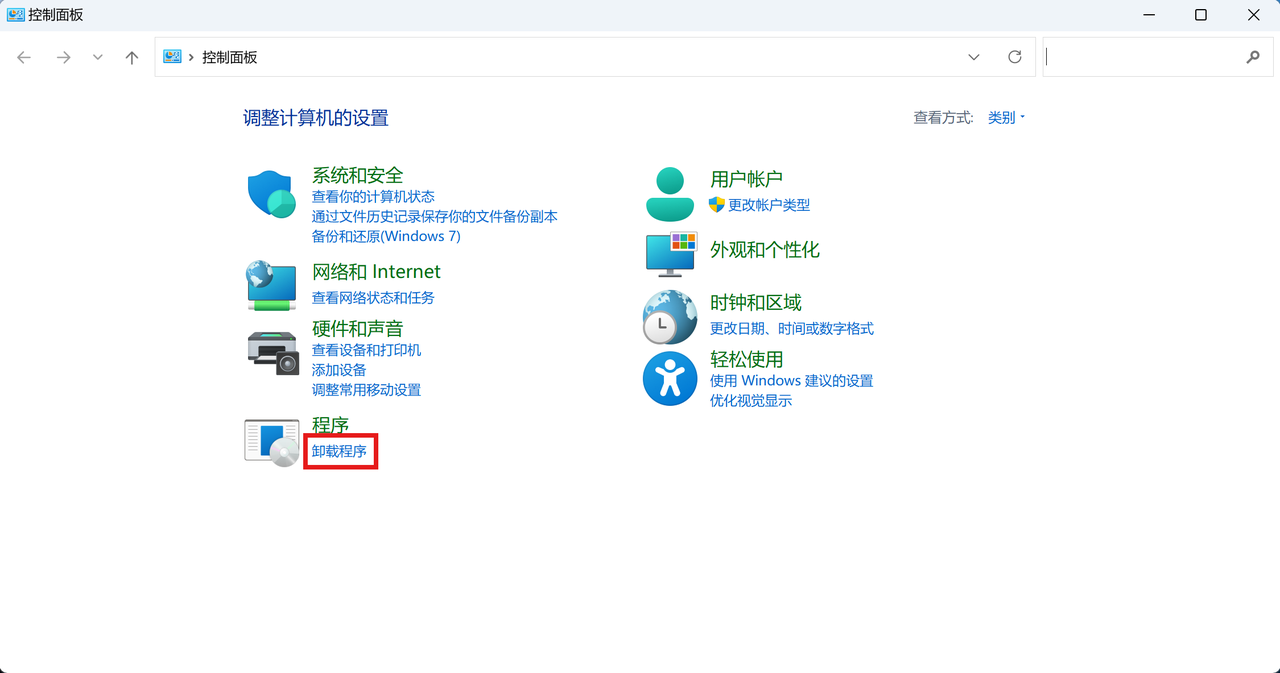
Find the PickWiz program, right-click it, and click "Uninstall"
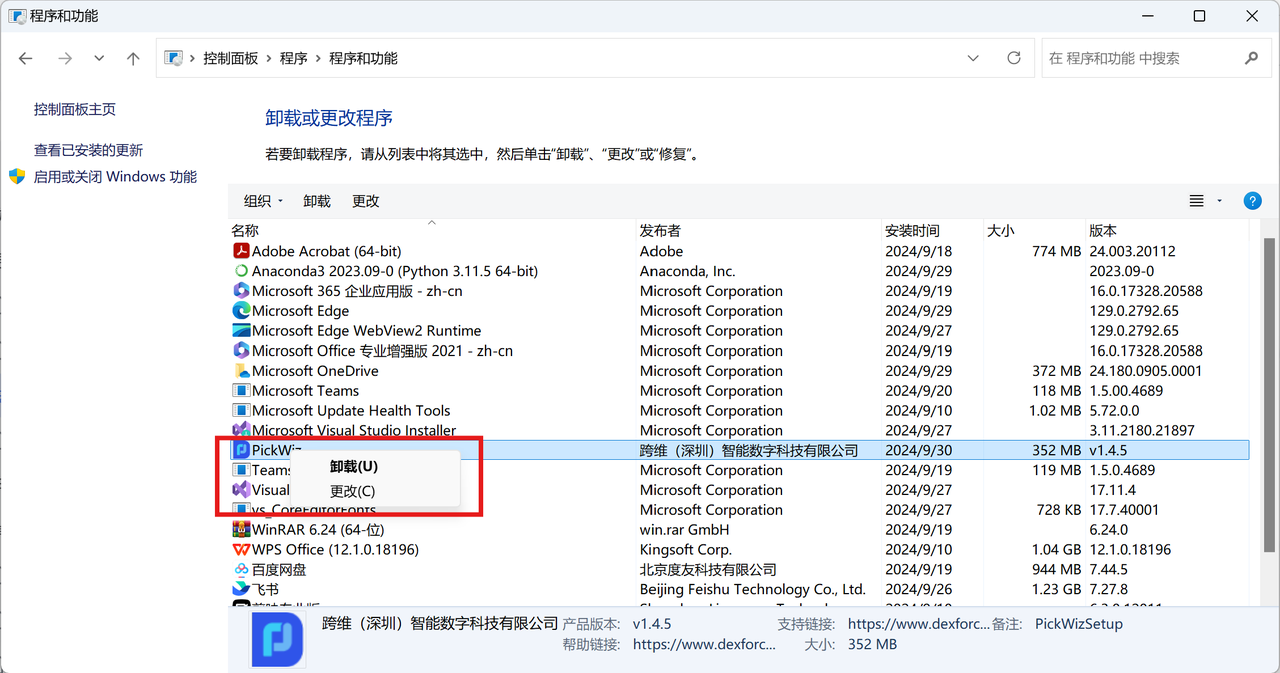
Enter the "Maintain PickWizSetup" window and select "Remove all components"
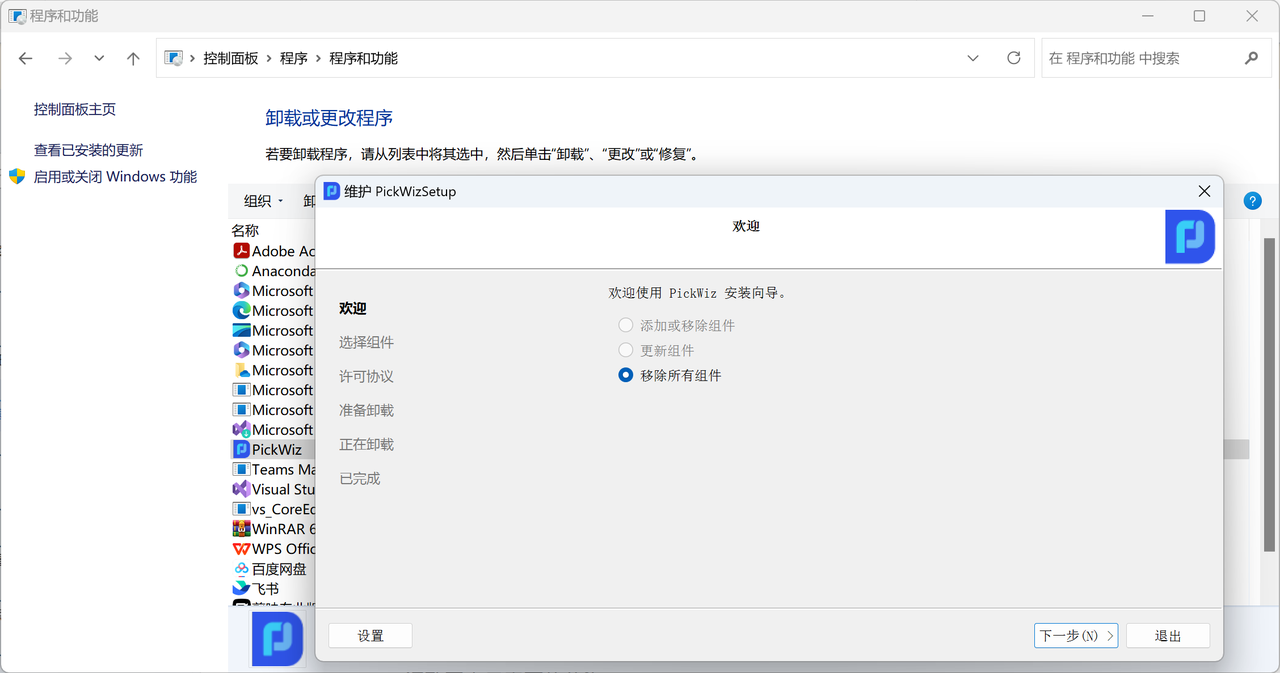
Click "Uninstall" to complete the PickWiz uninstallation
5. Software License Agreement
Open the PickWiz installation directory and enter the folder named "Licenses" to view the PickWiz software license agreement.
6. Common Installation Issues
| Issue Category | Issue Description | Possible Cause | Solution |
|---|---|---|---|
| Operating System | Error when opening PickWiz: Open3D.dll not found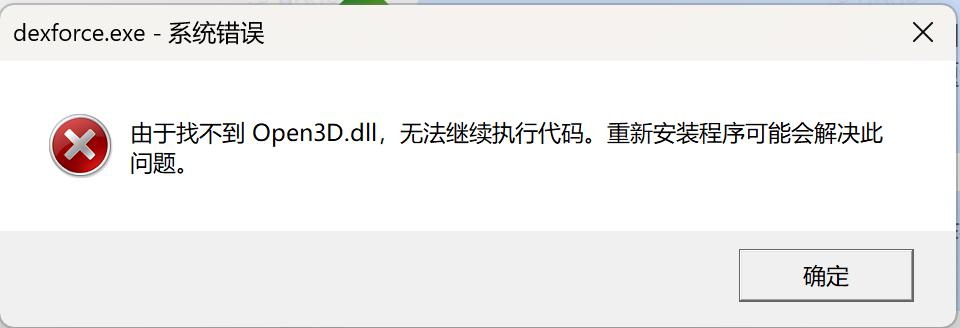 | The device operating system does not meet the machine configuration requirements | Upgrade the device operating system to Windows 11 Professional |
| GPU | Error when opening PickWiz: RLIA.dll and Open3D.dll not found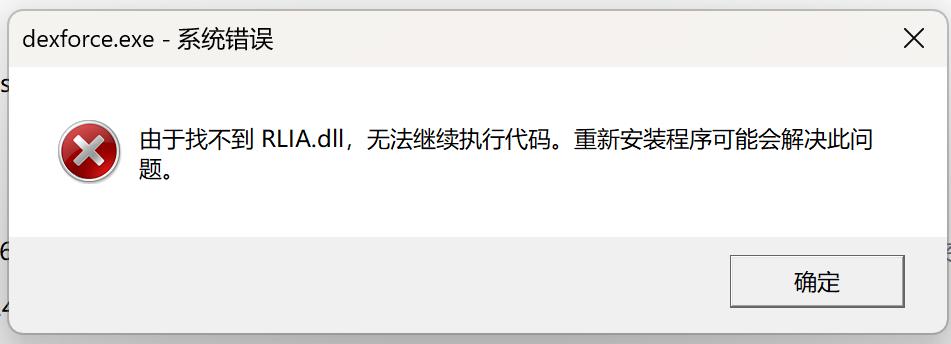 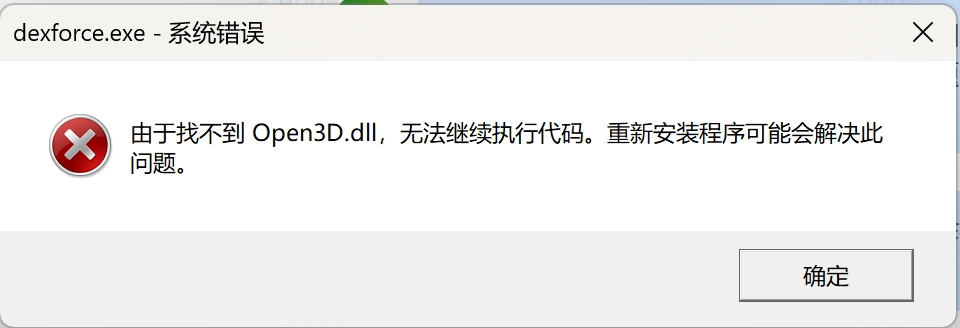 | The device graphics card does not meet the machine configuration requirements | Graphics card requirement: NVIDIA GTX 1660 or above (driver version 525 or above) |
Error during installation: “No available graphics card detected. Installation cannot continue.”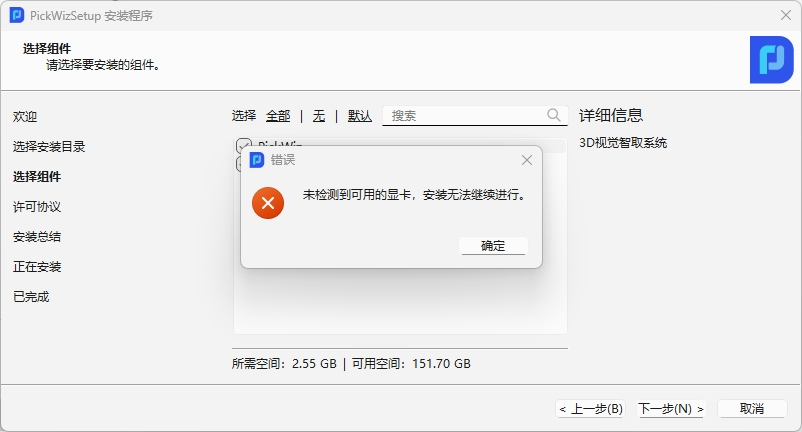 | Graphics card missing | 1. Restart the computer; 2. Update the driver: find Display adapters in Device Manager, right-click the NVIDIA graphics card, and click Update driver;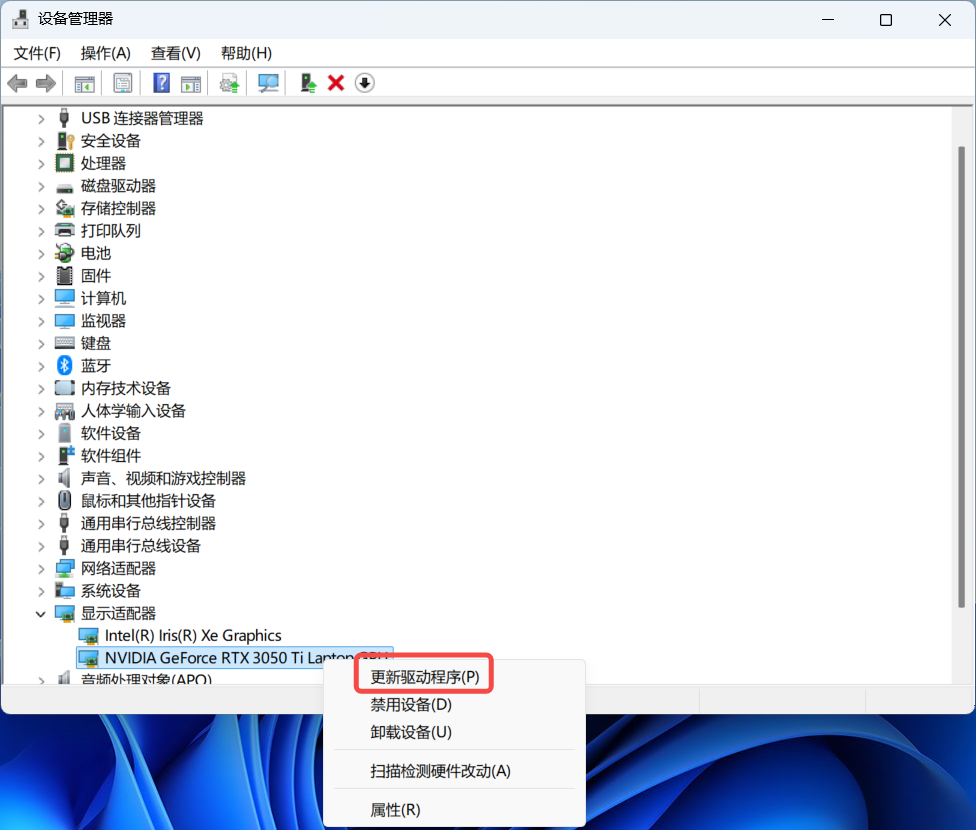 3. Open the chassis and check whether the graphics card is firmly seated. If it is loose, reseat it firmly. 3. Open the chassis and check whether the graphics card is firmly seated. If it is loose, reseat it firmly. | |
Error when running PickWiz: “No available graphics card detected by the system. Please try restarting the computer/updating the driver, and check whether the graphics card is firmly seated.”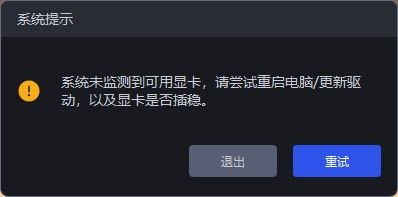 | Graphics card missing | 1. Restart the computer; 2. Update the driver: find Display adapters in Device Manager, right-click the NVIDIA graphics card, and click Update driver;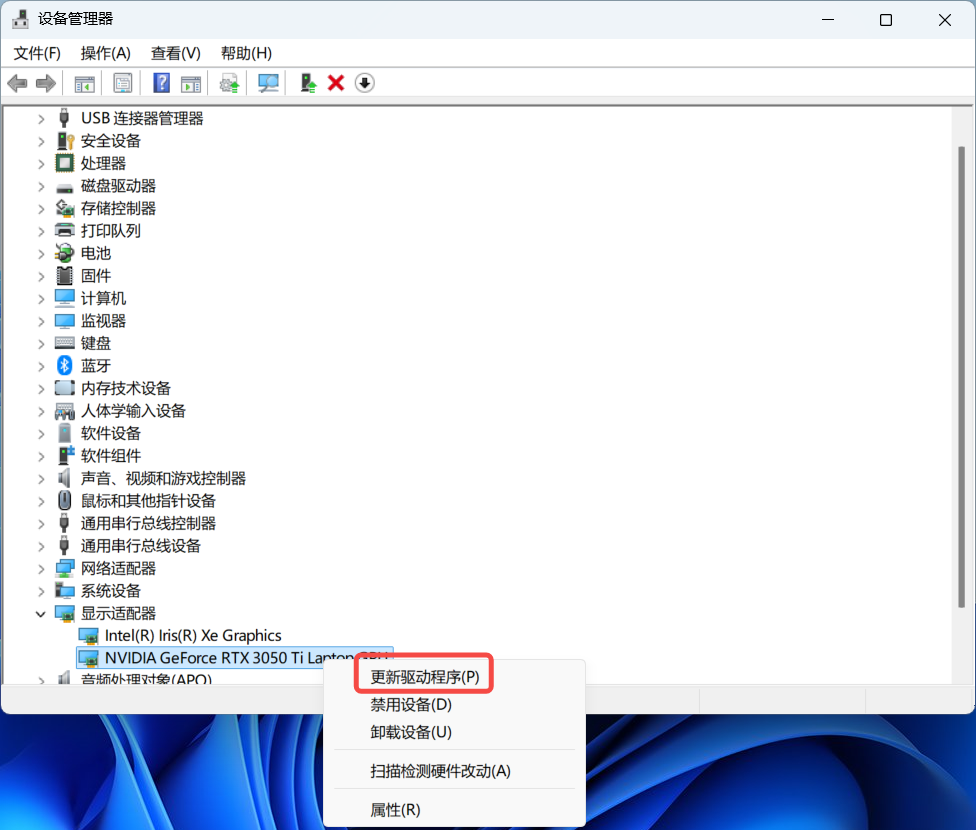 3. Open the chassis and check whether the graphics card is firmly seated. If it is loose, reseat it firmly. 3. Open the chassis and check whether the graphics card is firmly seated. If it is loose, reseat it firmly. | |
| Hard Drive | Error during installation: no space left | Insufficient remaining space on drive C | Reinstall the system, and install again after the remaining space on drive C reaches more than 128GB. Note: it cannot be installed on drive D or other hard drives |
| Restart | Error when opening PickWiz: RLIA.dll, Open3D.dll, vtklmagingCore-9.2.dll, and pcl_kdtree.dll not found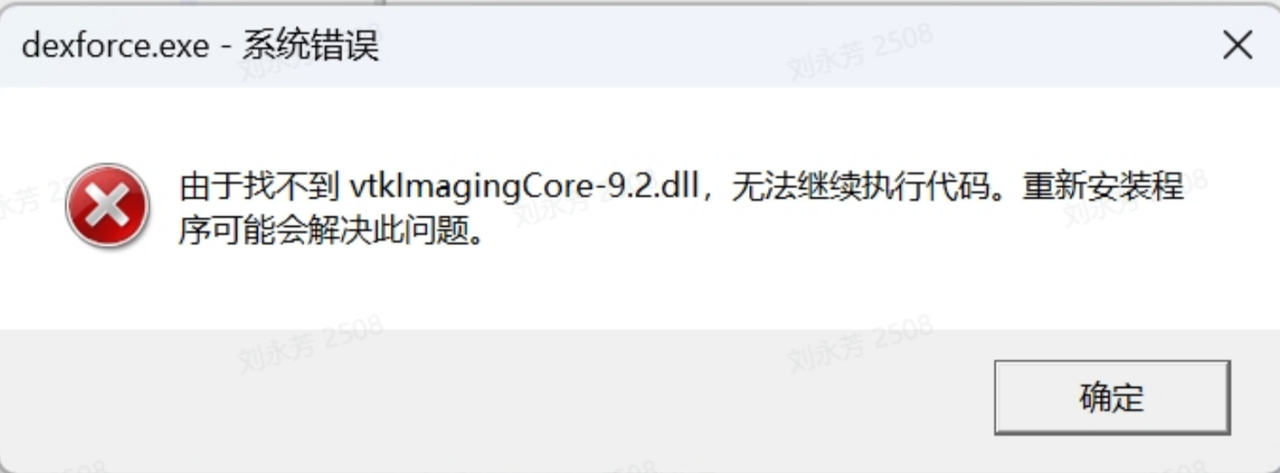 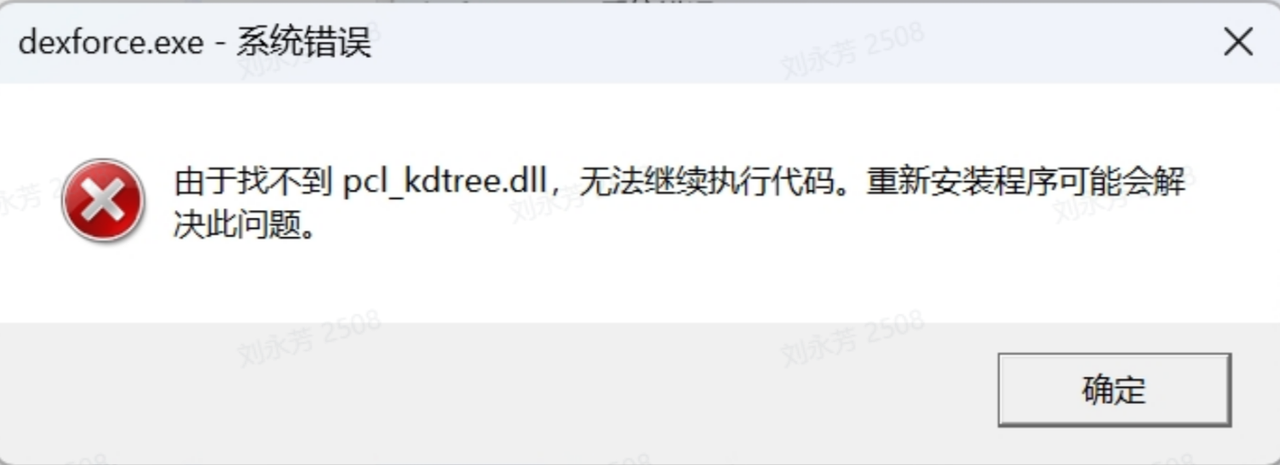 | After installing PickWiz for the first time, the device must be restarted for the environment variables to take effect | Restart the device. Note: after restarting the device, the first startup of PickWiz will be slower. Please wait patiently |
| Middleware installation error (middleware is a git directory, please remove the git directory) | 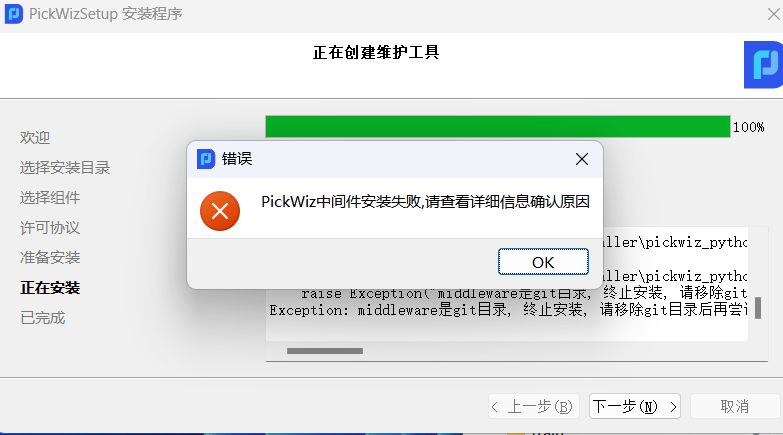 | The middleware and PickLight folders must be completely deleted | 1. Use the Anaconda Prompt terminal to run conda activate pickwiz_py392; 2. Enter pip show middleware to find the site-packages directory; 3. Delete the middleware and PickLight folders and their info folders from the site-packages folder, or continue in the Anaconda Prompt terminal and run the pip uninstall middleware and pip uninstall PickLight commands to delete them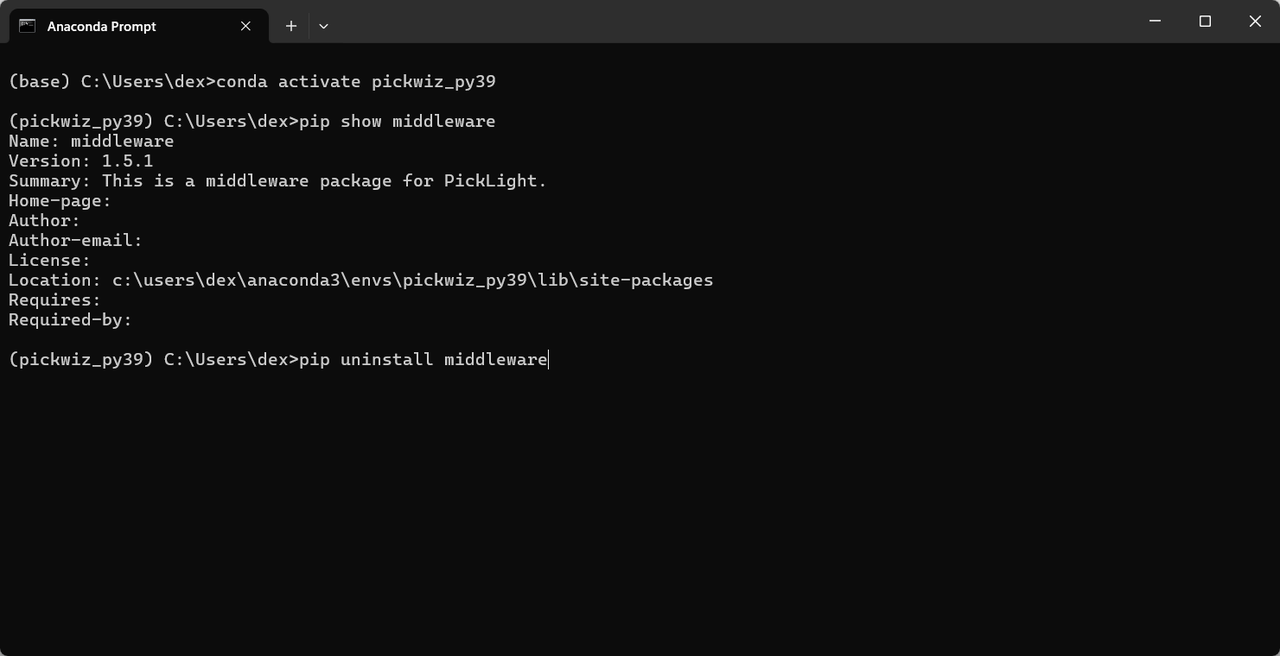 |
| Missing compressed files in the full installation package | Upgrading from PickWiz 1.5 to PickWiz 1.7.3 using the full installation package prompts installation failure.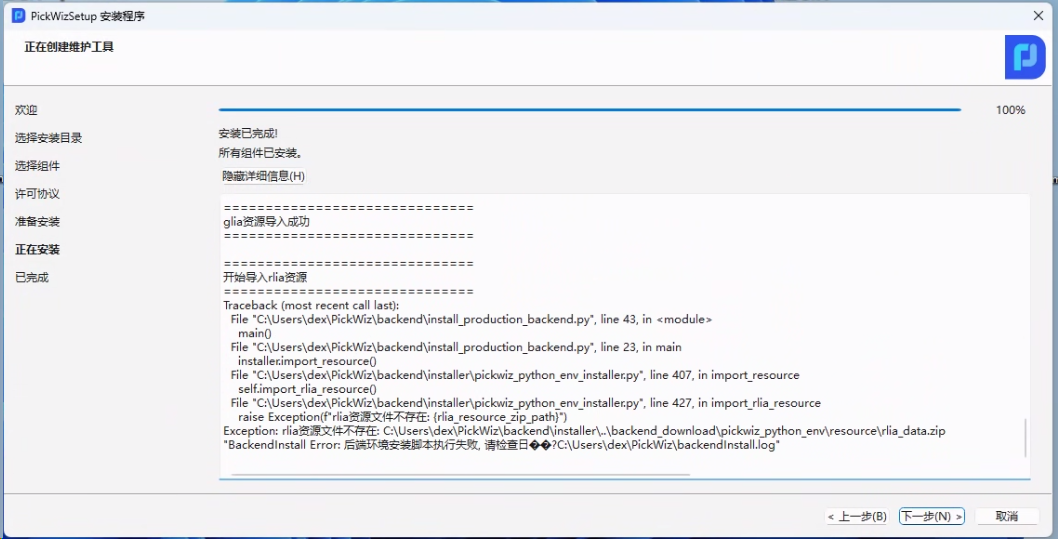 | The downloaded full installation package is missing two compressed files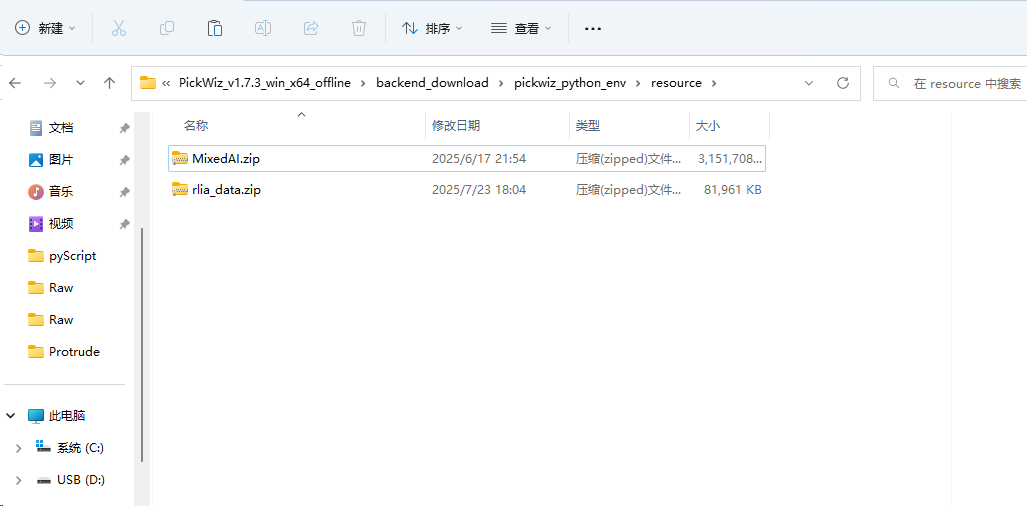 A normal full installation package has 4 compressed files in this directory A normal full installation package has 4 compressed files in this directory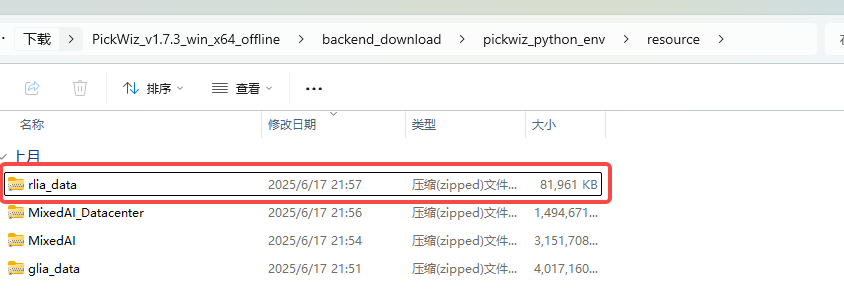 | Re-download the full installation package |
If you have any other questions, please contact Dexforce technical support personnel for assistance.