Disable Calibration Sample Similarity Check
If the samples collected during PickWiz eye-hand calibration have high similarity and the error Same as Original Sample is reported, you can disable the calibration sample similarity check through the frozen_config configuration file.
Note:
After disabling the calibration sample similarity check and completing the calibration calculation, pay attention to and verify the calibration accuracy at different positions across the entire field of view/work area to avoid insufficient coverage or low accuracy in some areas.
1. Close PickWiz
2. Disable the Calibration Sample Similarity Check
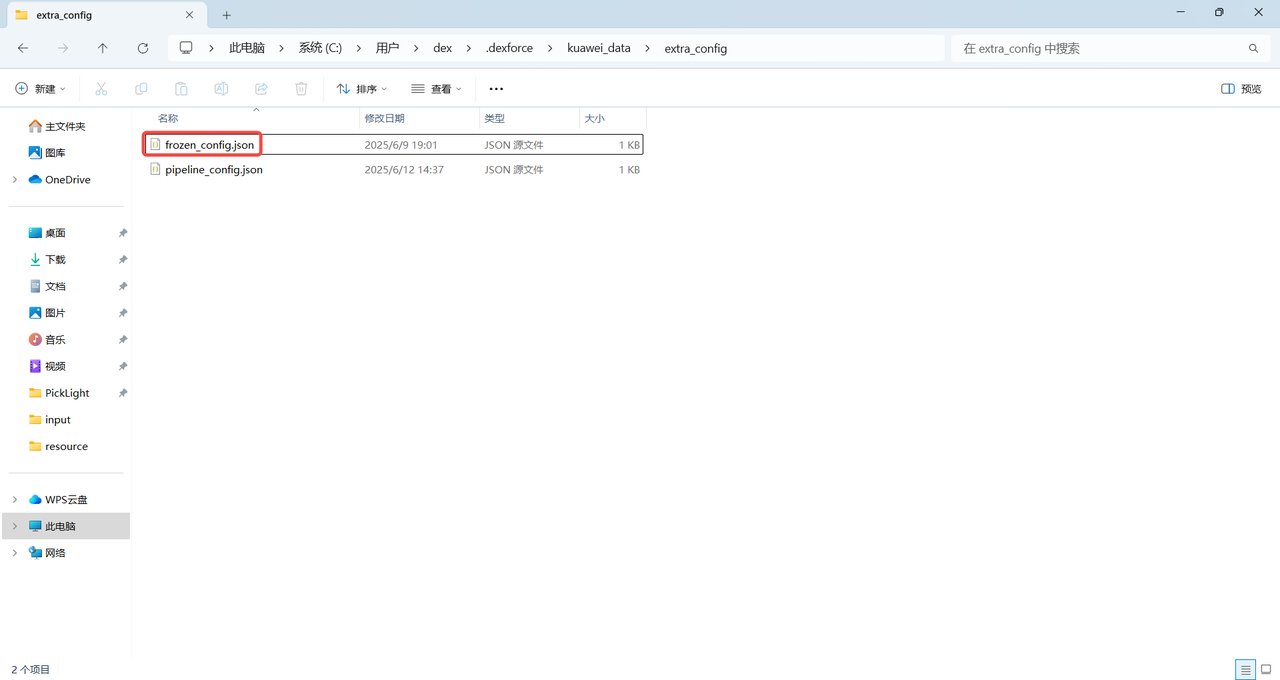
Open the frozen_config.json configuration file at the path {user}/.dexforce/kuawei_data/extra_config, as shown below.
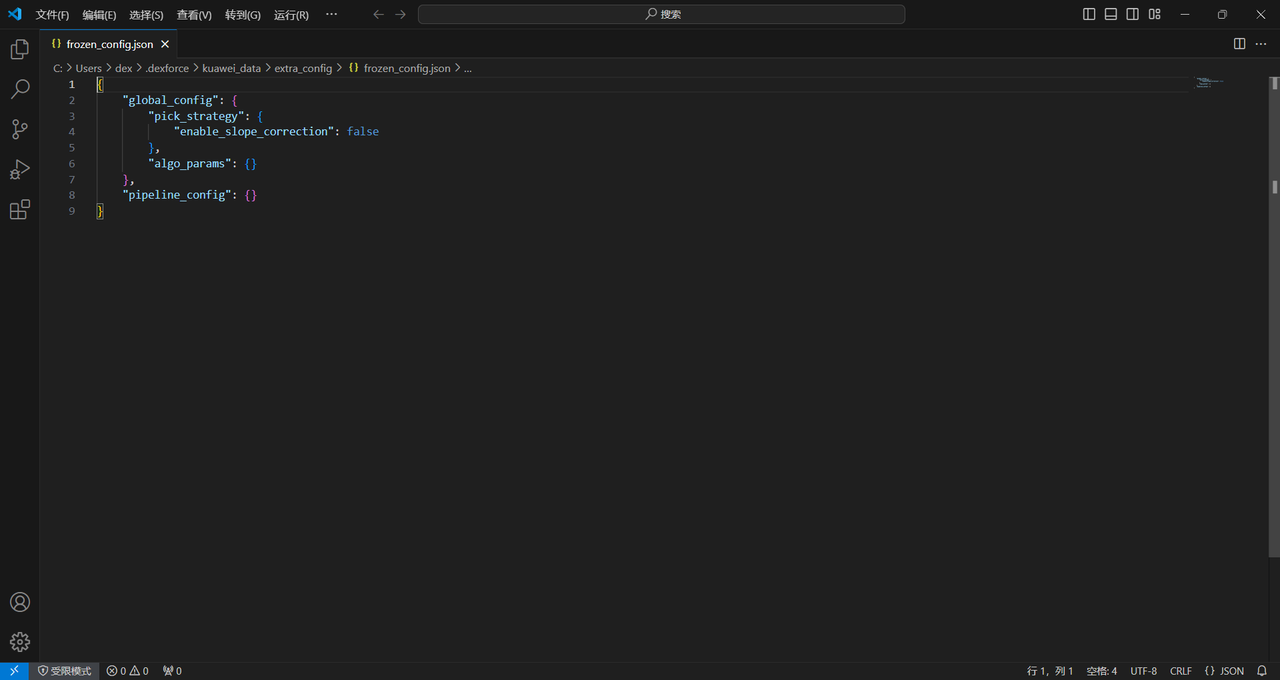
Add "calibration-check_sample": {"min_angle_diff":0.0} under algo_params, as shown below.
{
    "global_config": {//Global Configuration
        "algo_params": {//Global Algorithm Parameter Configuration
        "calibration-check_sample": {"min_angle_diff":0.0}//Calibration sample similarity check value is 0
        }
    }
}
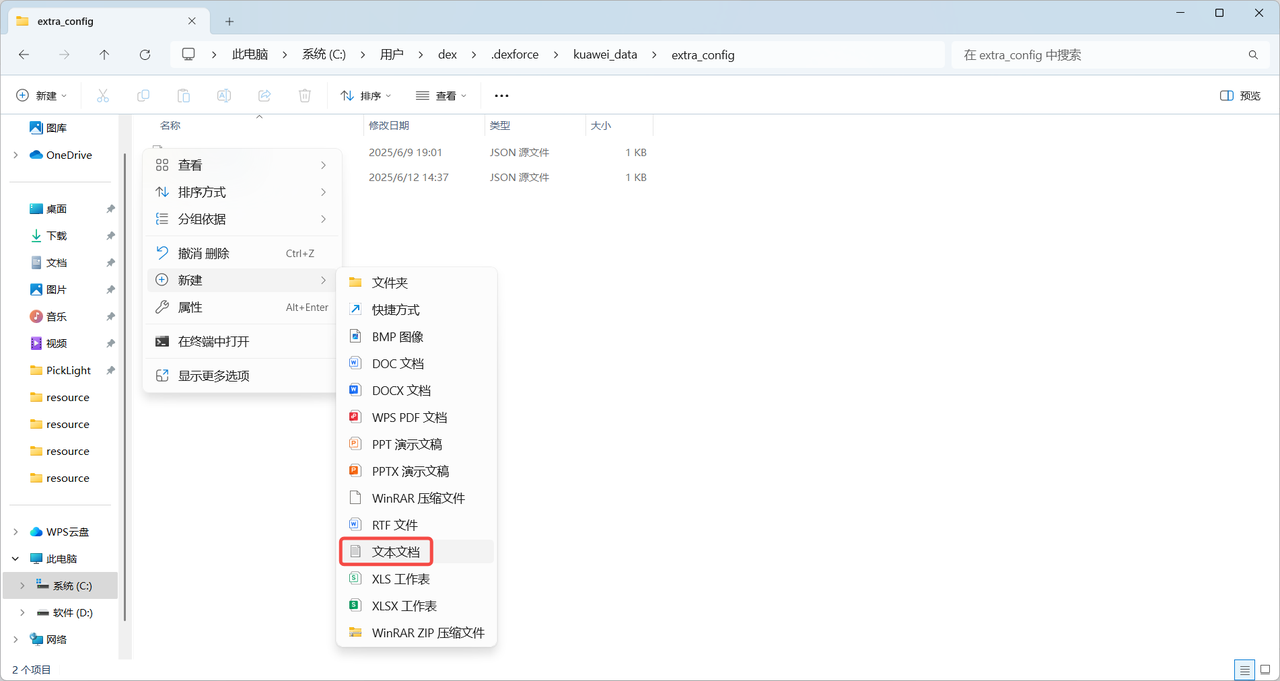
The frozen_config configuration file was introduced in PickWiz 1.7.3. If this configuration file cannot be found in PickWiz 1.7.3 or later, manually create one under the path {user}/.dexforce/kuawei_data/extra_config, as shown below.
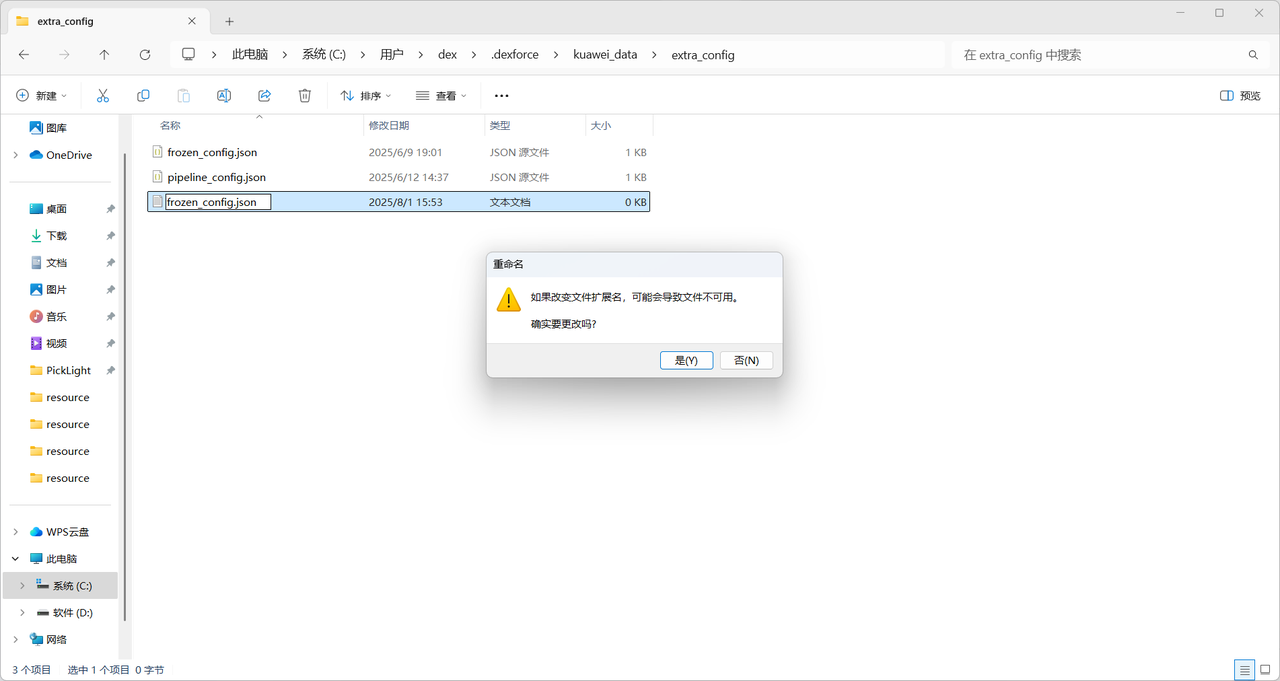
After creating the frozen_config configuration file, copy the following code into the file.
{
    "global_config": {//Global Configuration
        "algo_params": {//Global Algorithm Parameter Configuration
        "calibration-check_sample": {"min_angle_diff":0.0}//Calibration sample similarity check value is 0
        }
    }
}
3. Restart PickWiz
After restarting PickWiz, disabling the calibration sample similarity check will take effect.