Visualized Real-Time Parameter Tuning Operation Guide
The software provides the Real-Time Parameter Tuning Display function. In real-time parameter tuning mode, the visualization window can observe the vision results after parameter tuning in real time, improving the usability and smoothness of visual parameter adjustment. This article introduces how to use the Real-Time Parameter Tuning Display function.
1. Enable Real-Time Parameter Tuning Display
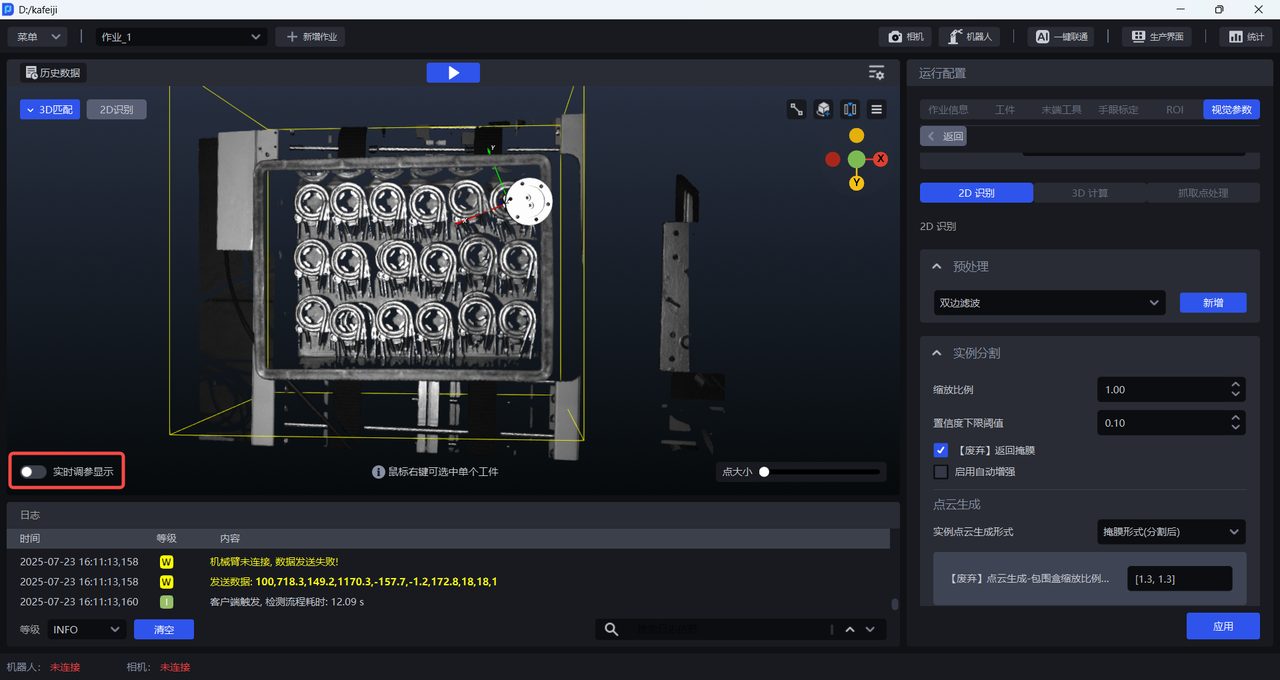
After completing the configuration of each item in task information, click Real-Time Parameter Tuning Display in the lower-left corner of the visualization window to enable real-time parameter tuning mode.
2. Adjust Vision Parameters
Open the Vision Parameters page and modify the vision parameters under 2D Recognition, 3D Computation, and Pick Point Processing. You can refer to the vision parameter adjustment file for tuning.
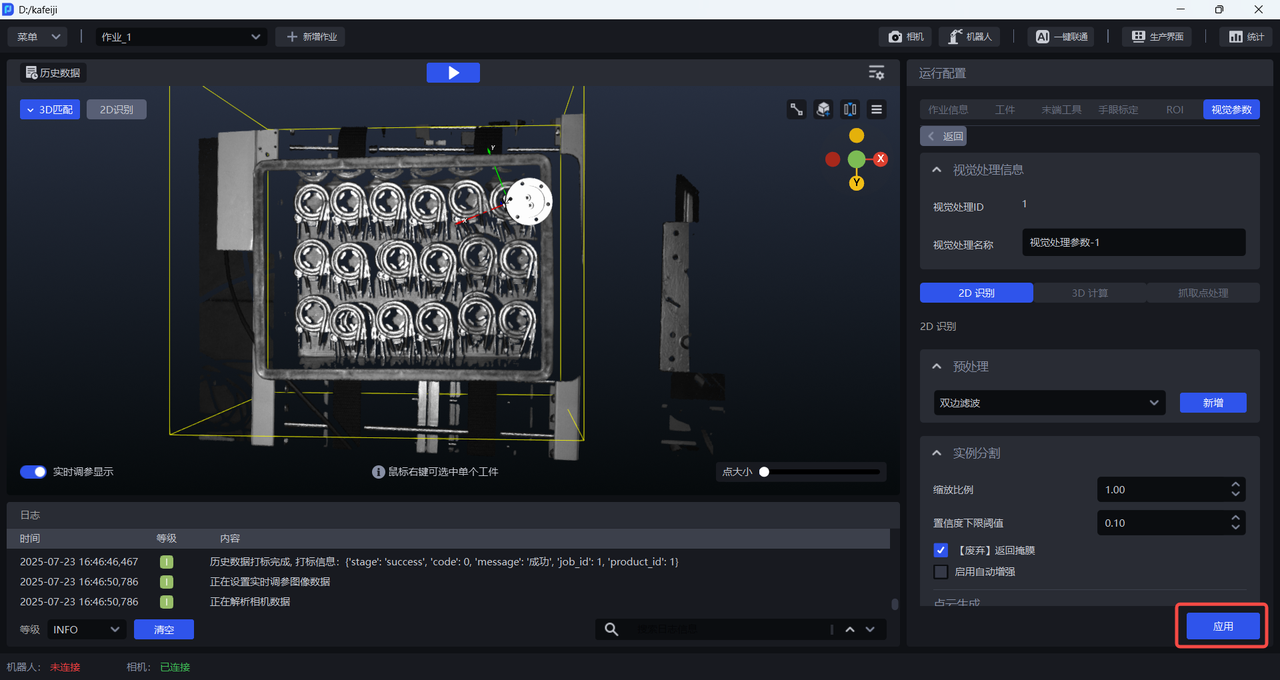
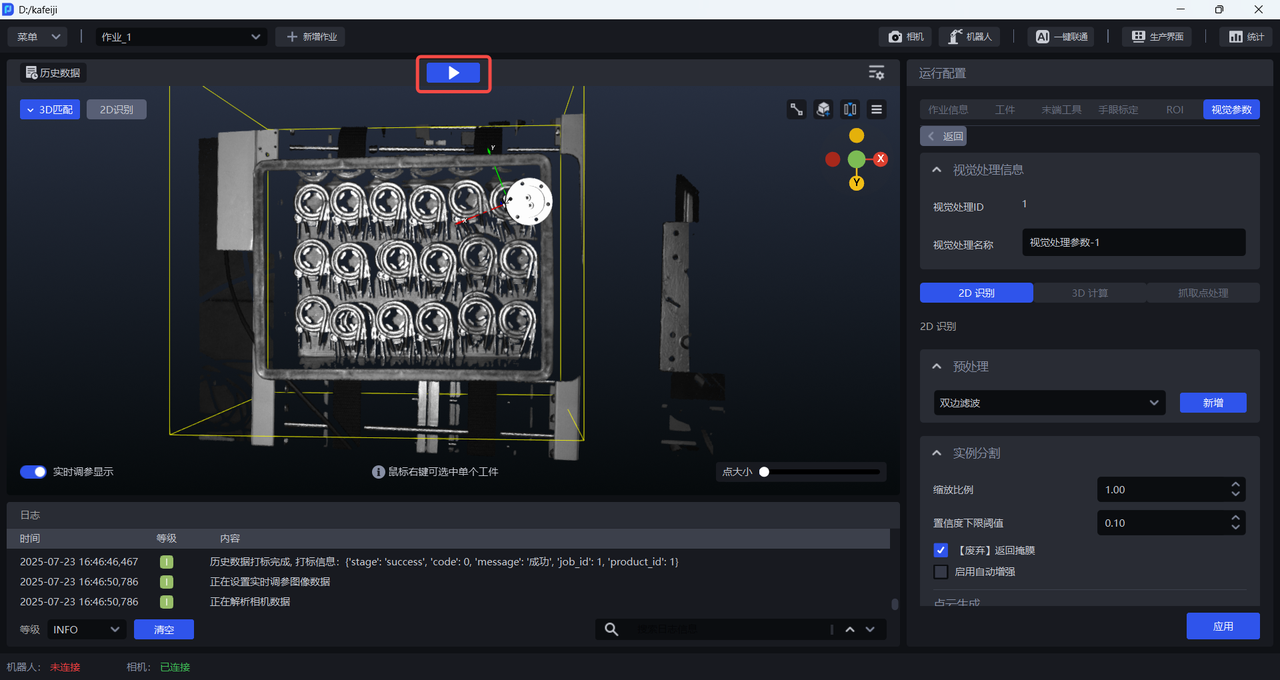
After adjusting the vision parameters, click Apply or the Run Button on the main page to view the vision results after tuning in the visualization window.
3. Visualization Window
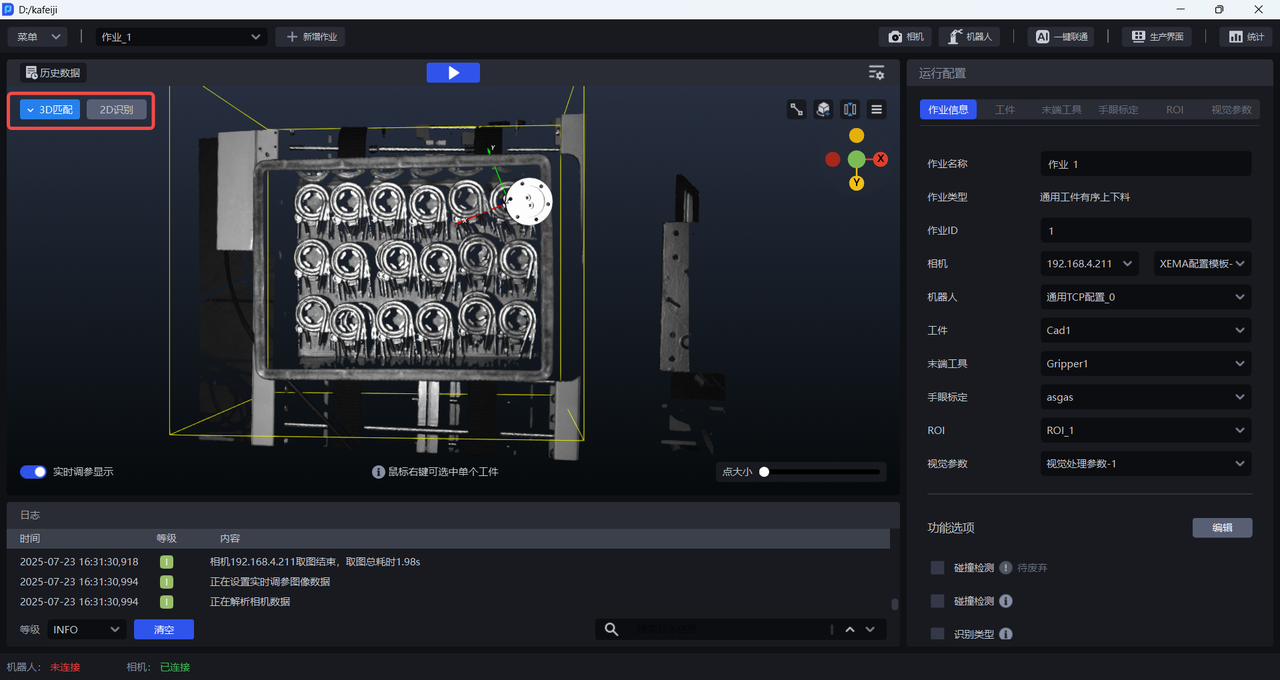
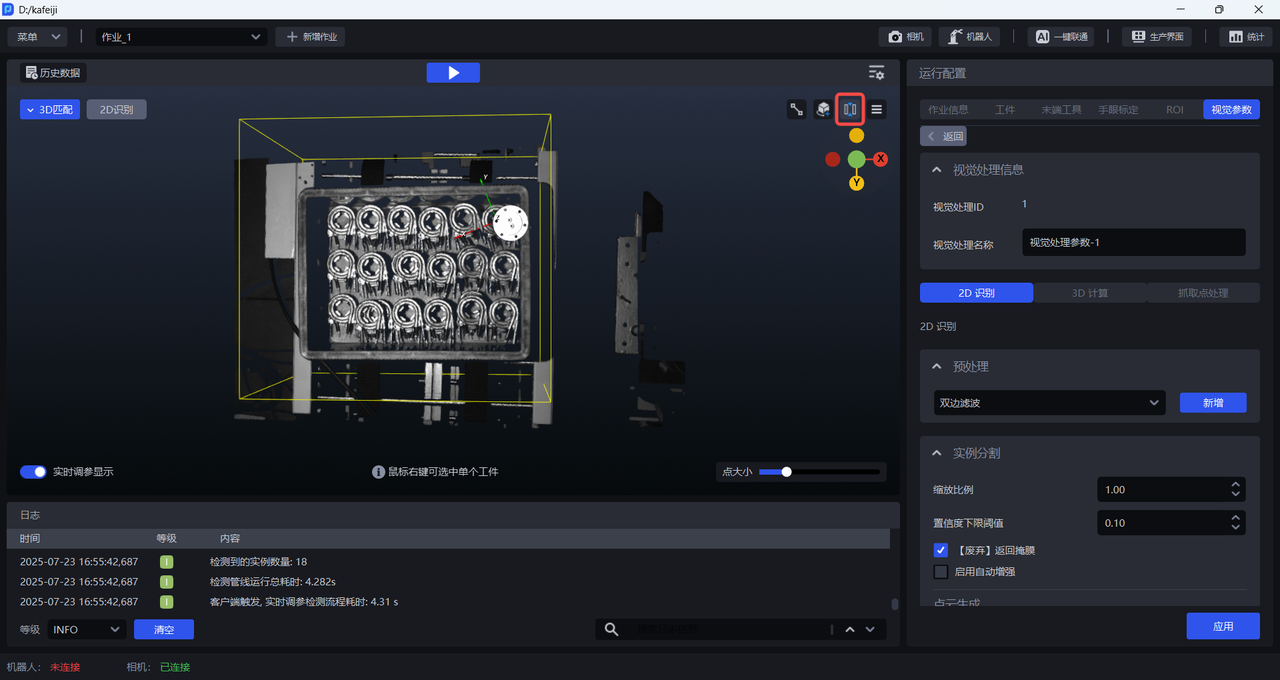
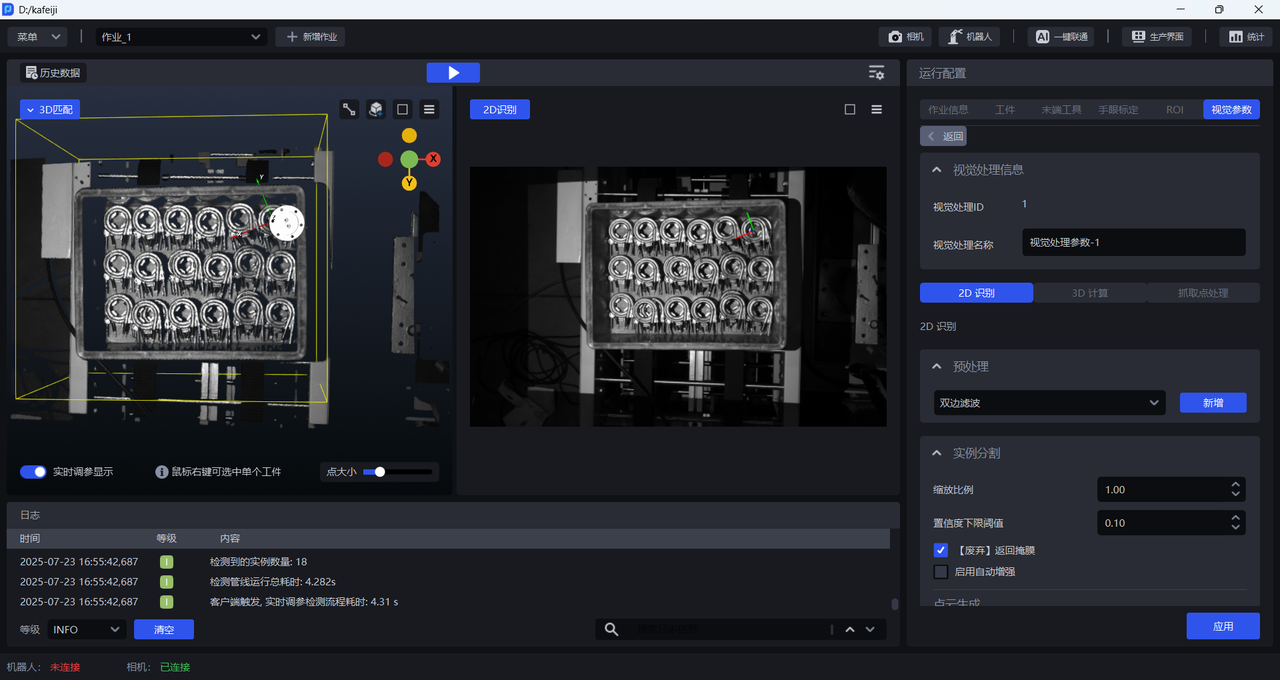
The visualization window contains two subwindows: 3D Matching and 2D Recognition.
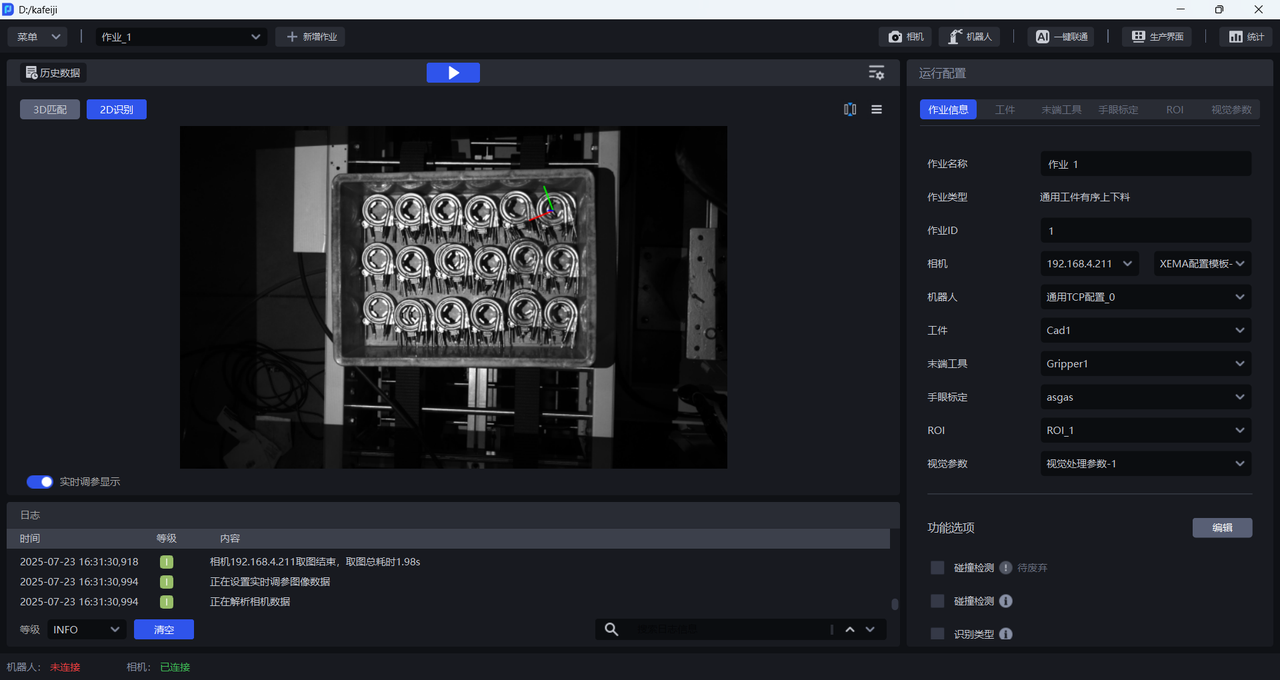
(1)Split/Merge Windows
Click the Split Window Button to split the window into the 3D Matching window and the 2D Recognition window, as shown below.
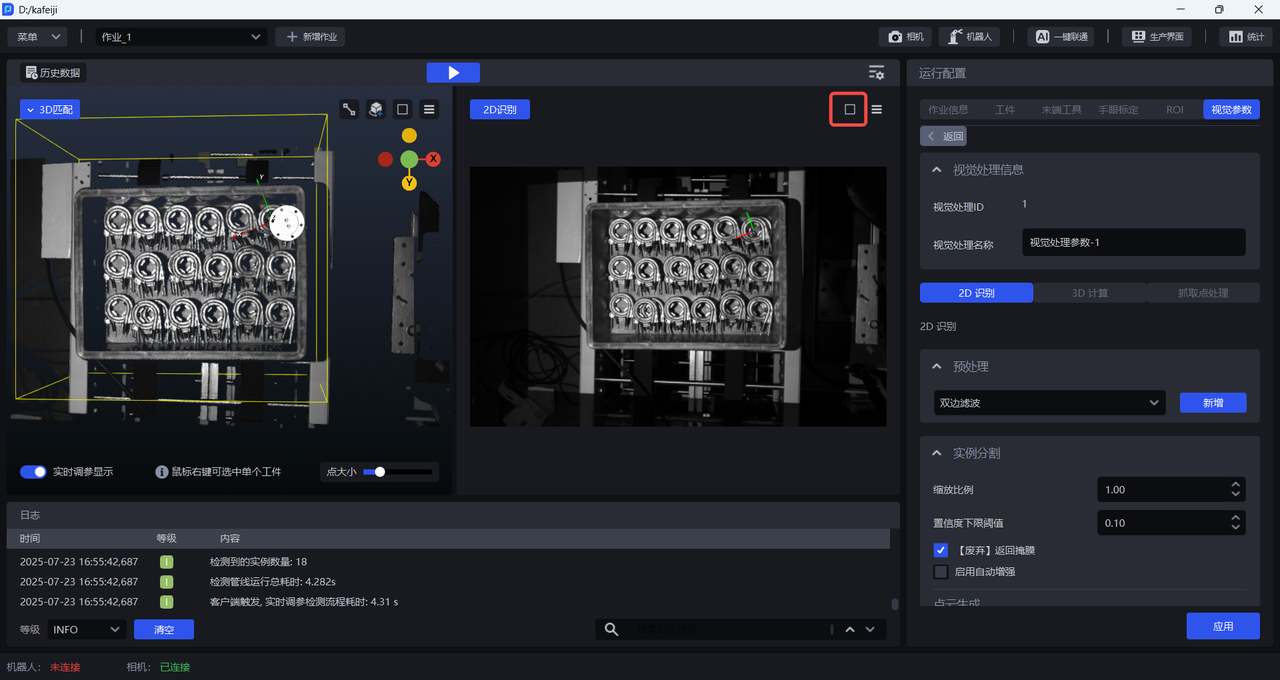
Click the Merge Window Button to merge the windows, as shown below.
(2)Set the background color of the 3D Matching window
You can modify the background color of the 3D Matching window to make it easier to observe the scene Point Cloud. The default window color is dark gray. If the scene Point Cloud is dark in color, it is difficult to observe the scene Point Cloud, so you can modify the window background color.
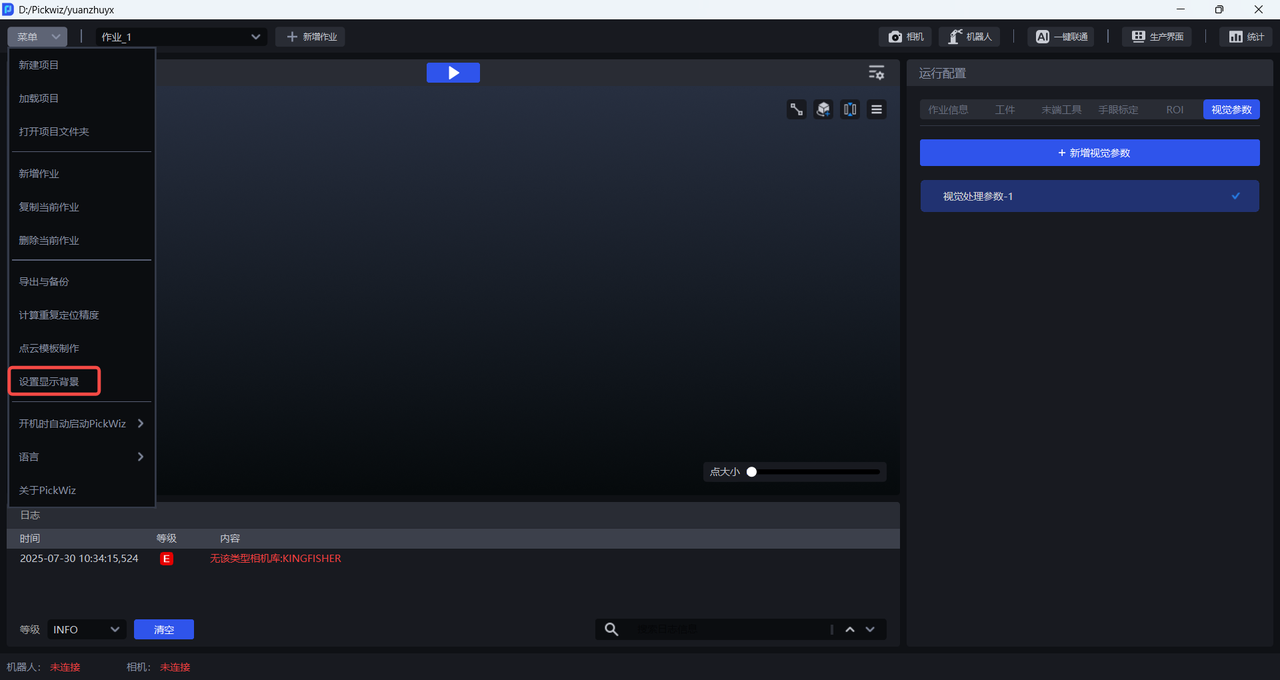
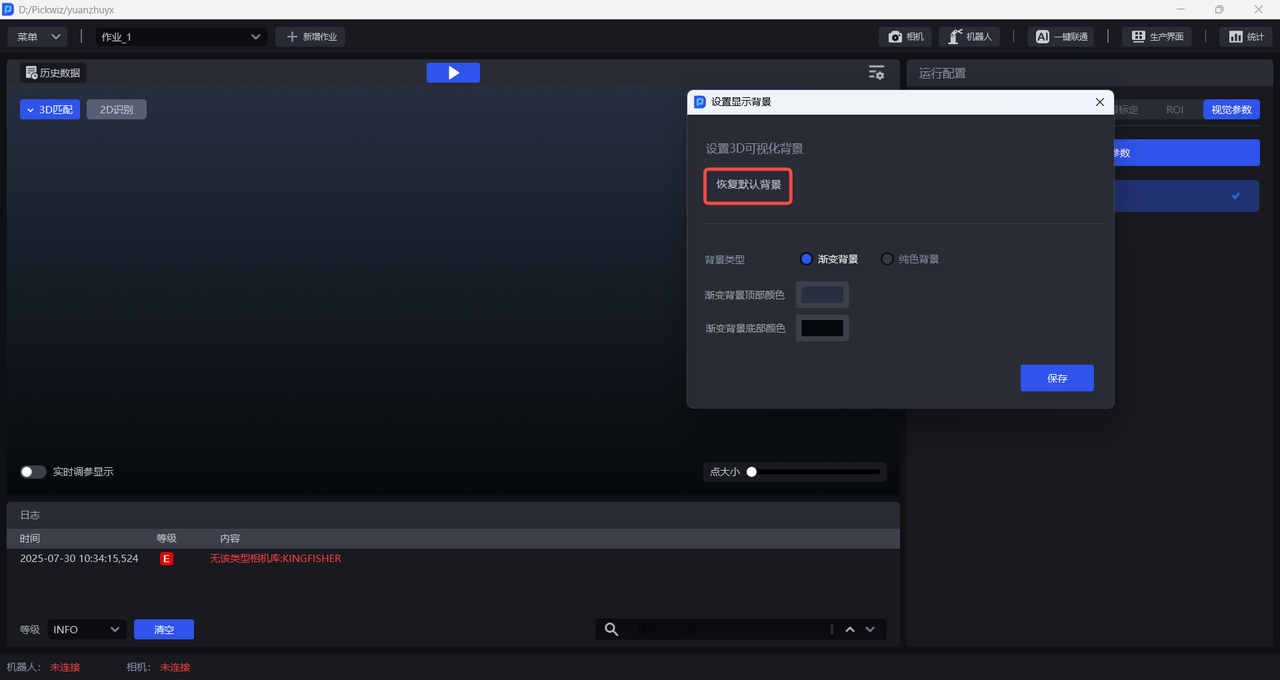
Click Menu>Set Display Background to open the Set Display Background pop-up window, as shown below.
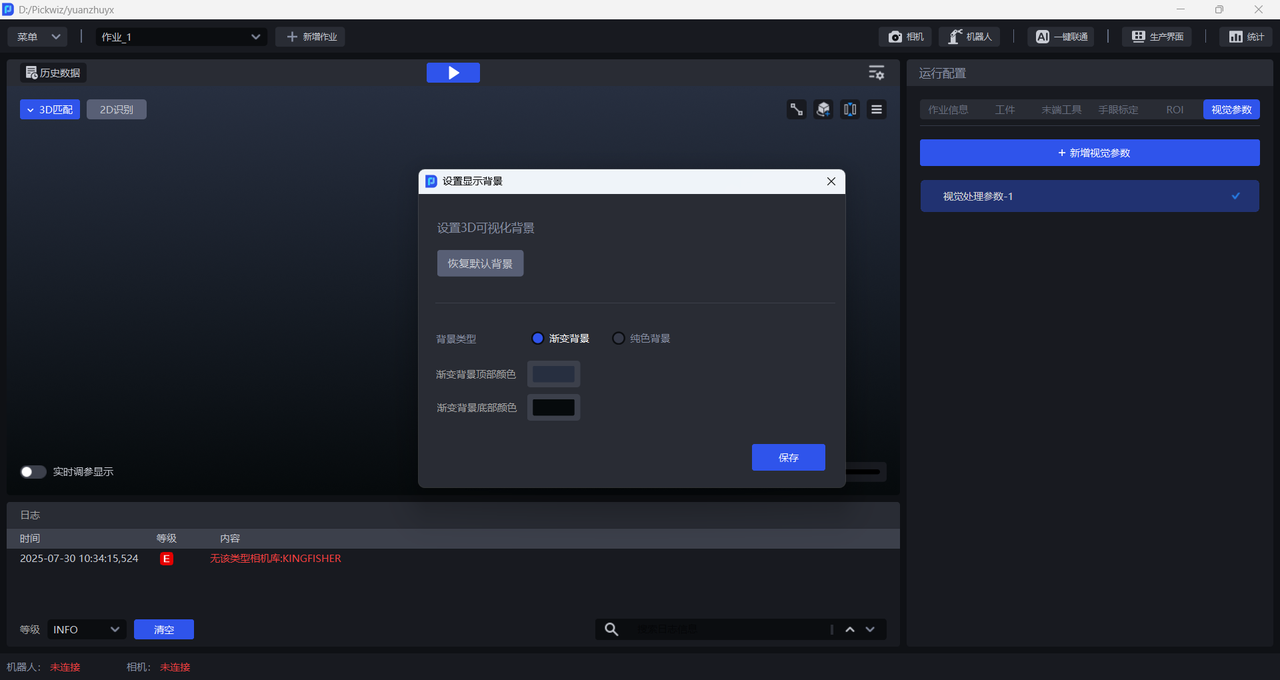
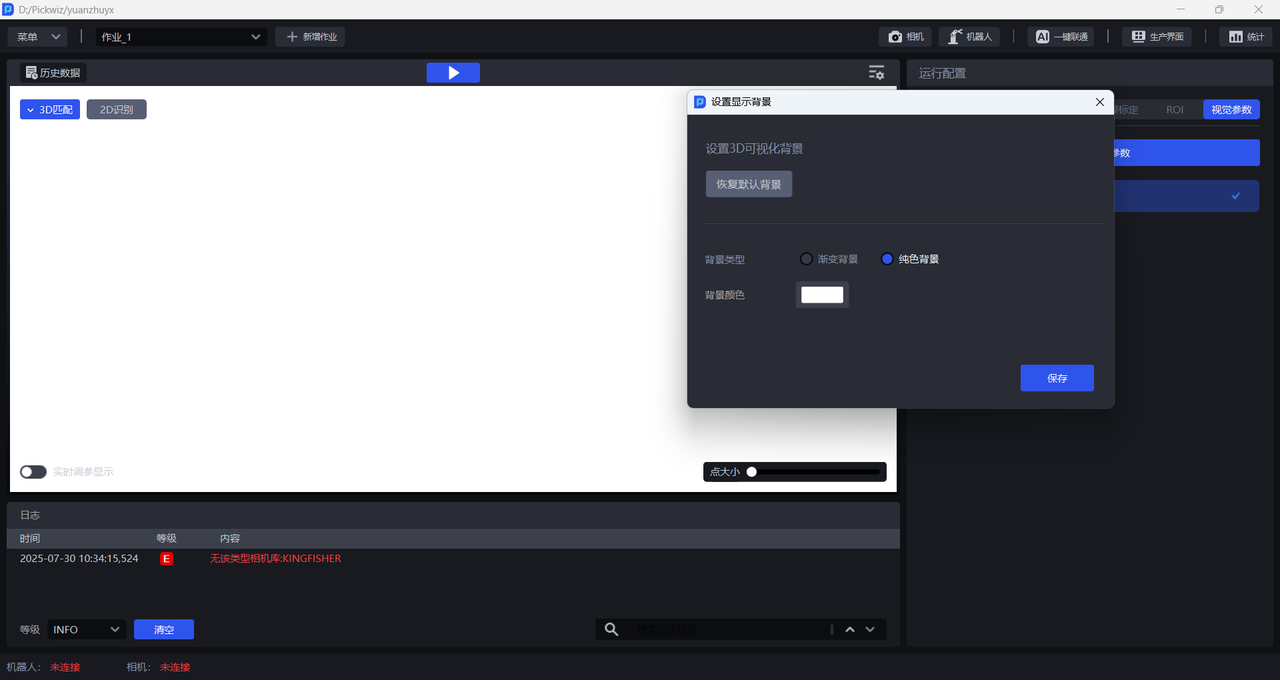
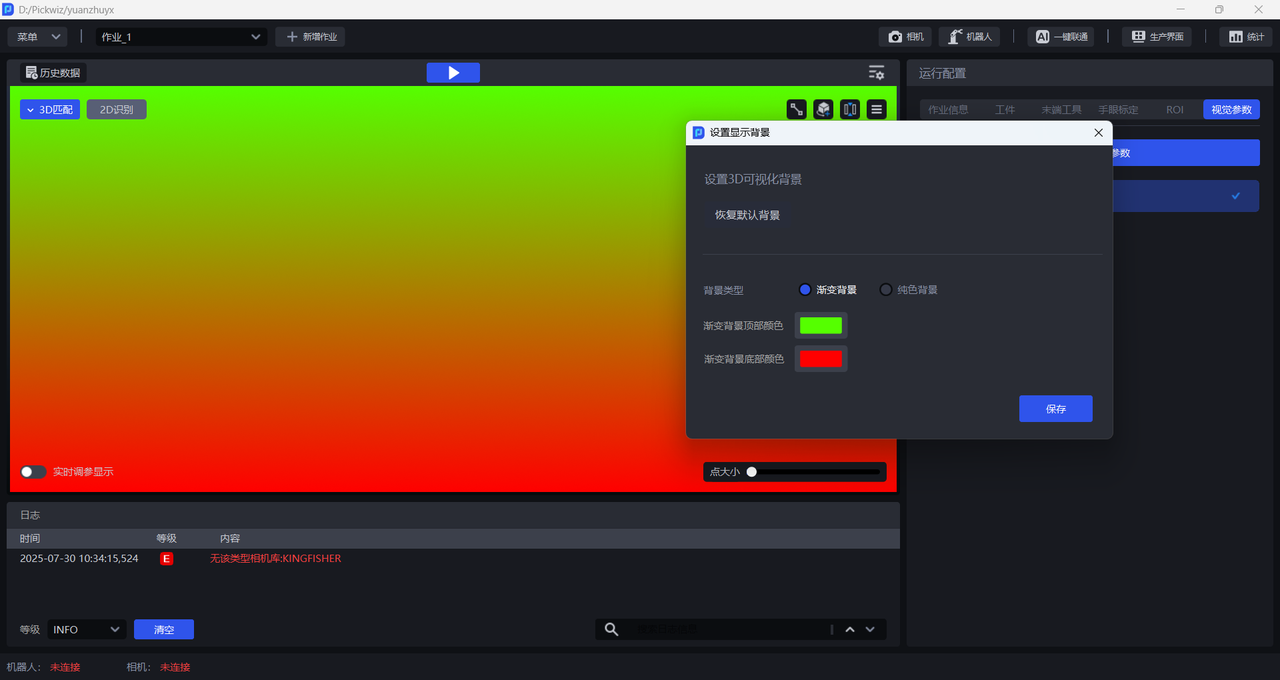
You can set the 3D Matching window to a solid-color or gradient-color background, as shown below.
Click Restore Default Background to restore the 3D Matching window to the default dark gray background, as shown below.
3.1 2D Recognition
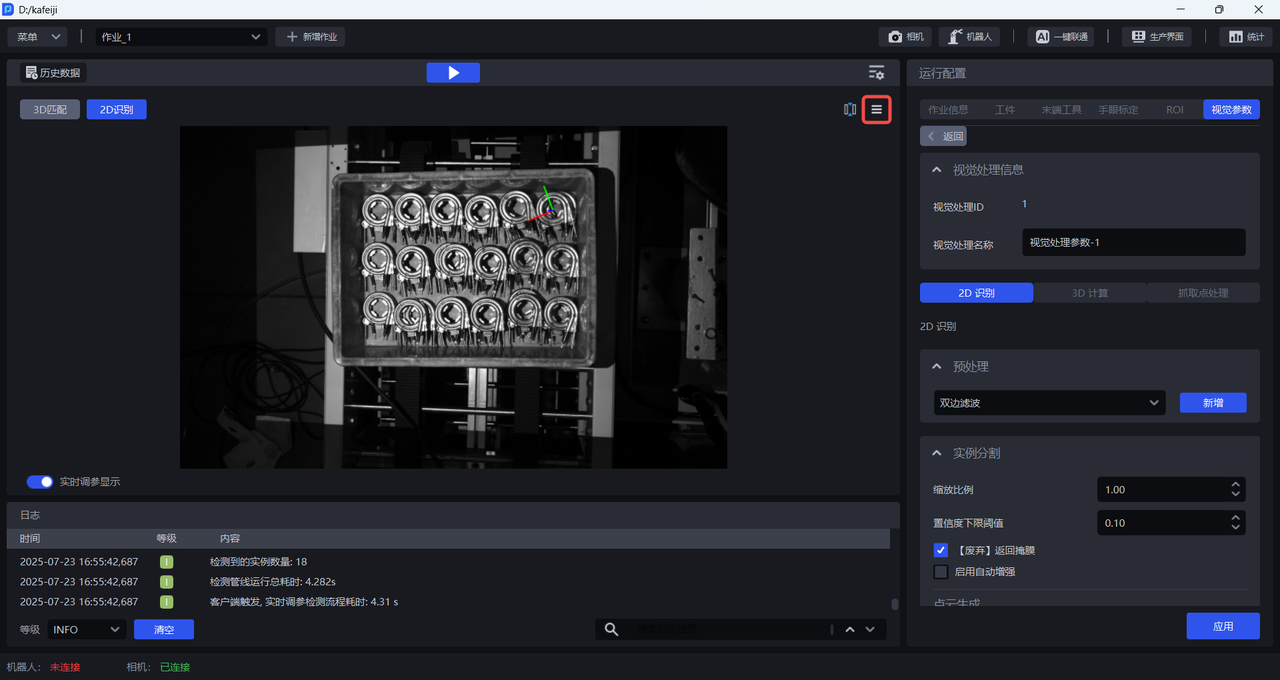
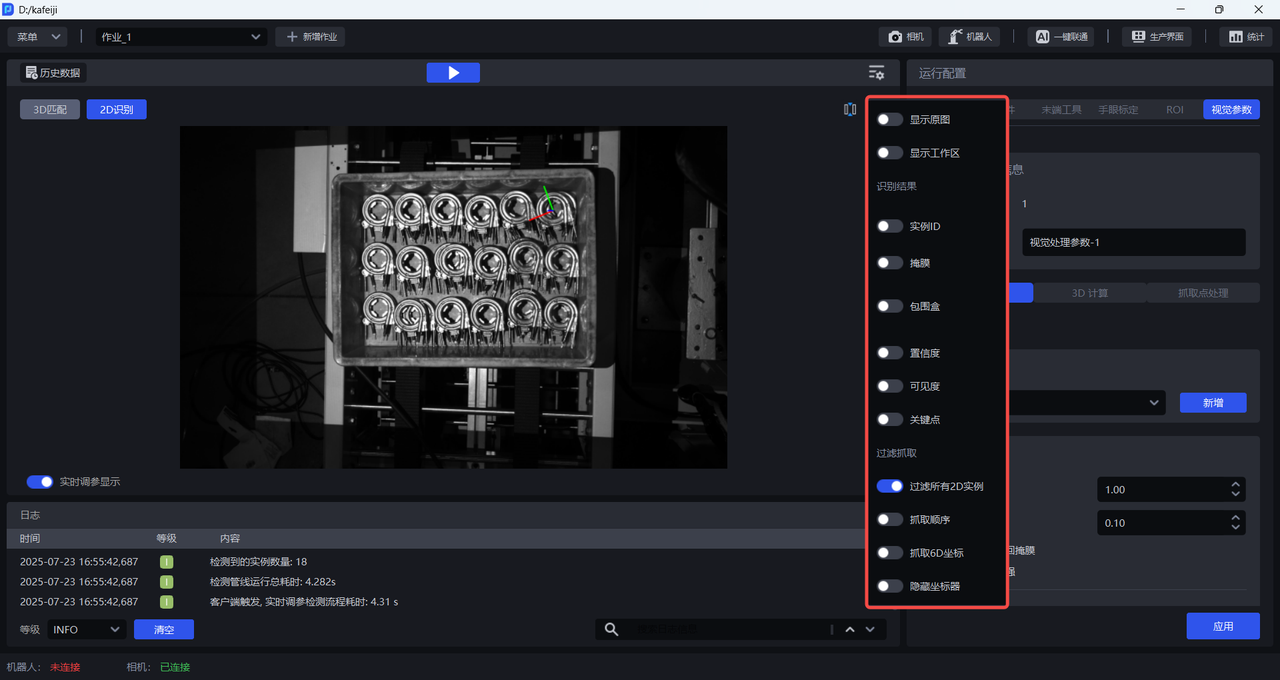
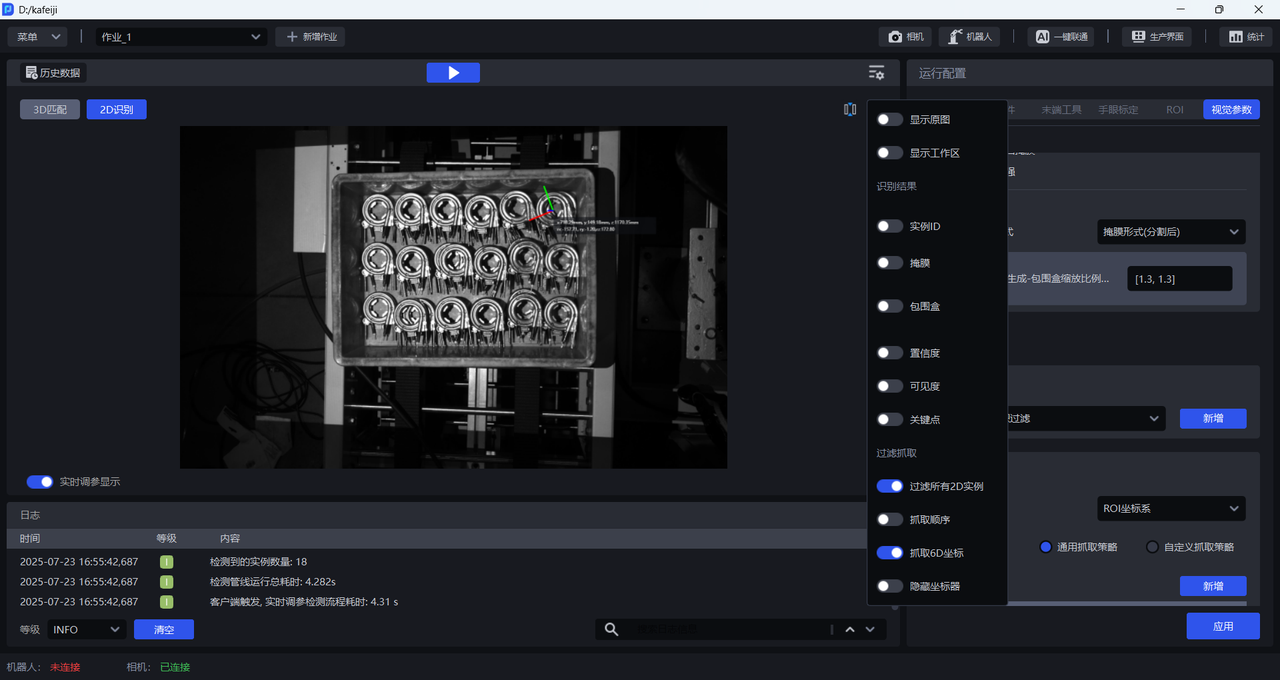
Click the Settings Button in the 2D Recognition window to choose which 2D vision results to display, as shown below.
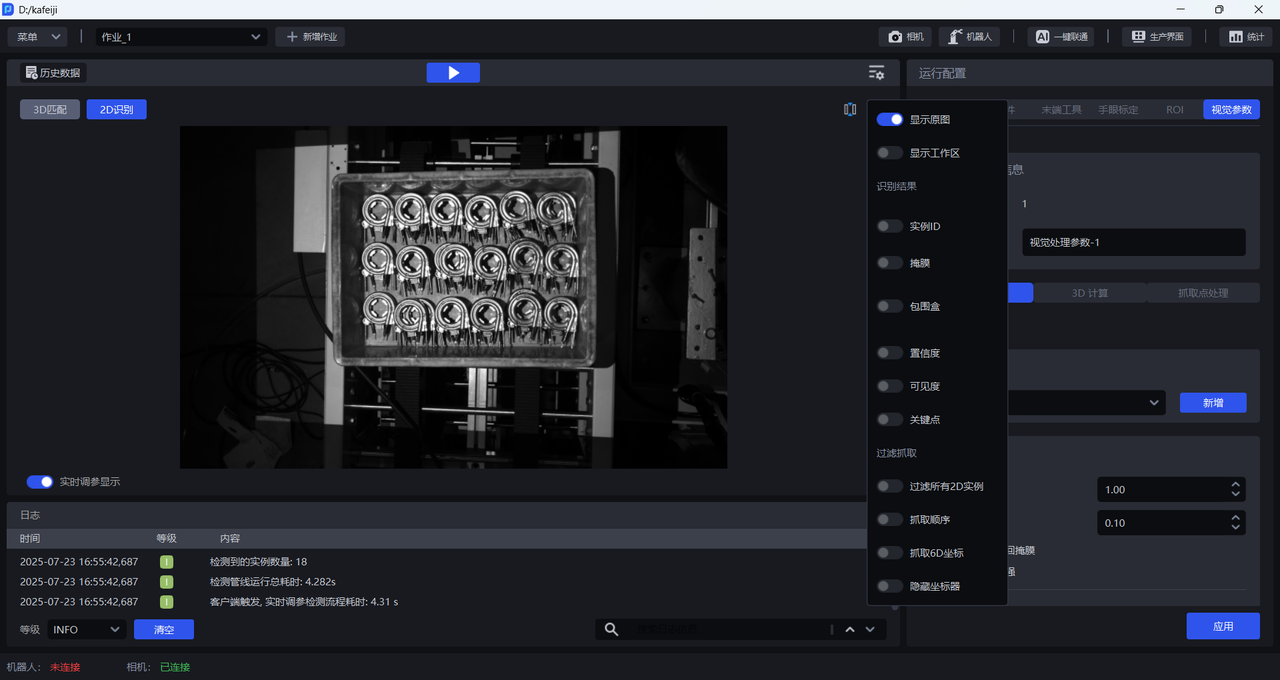
3.1.1 Display Original Image
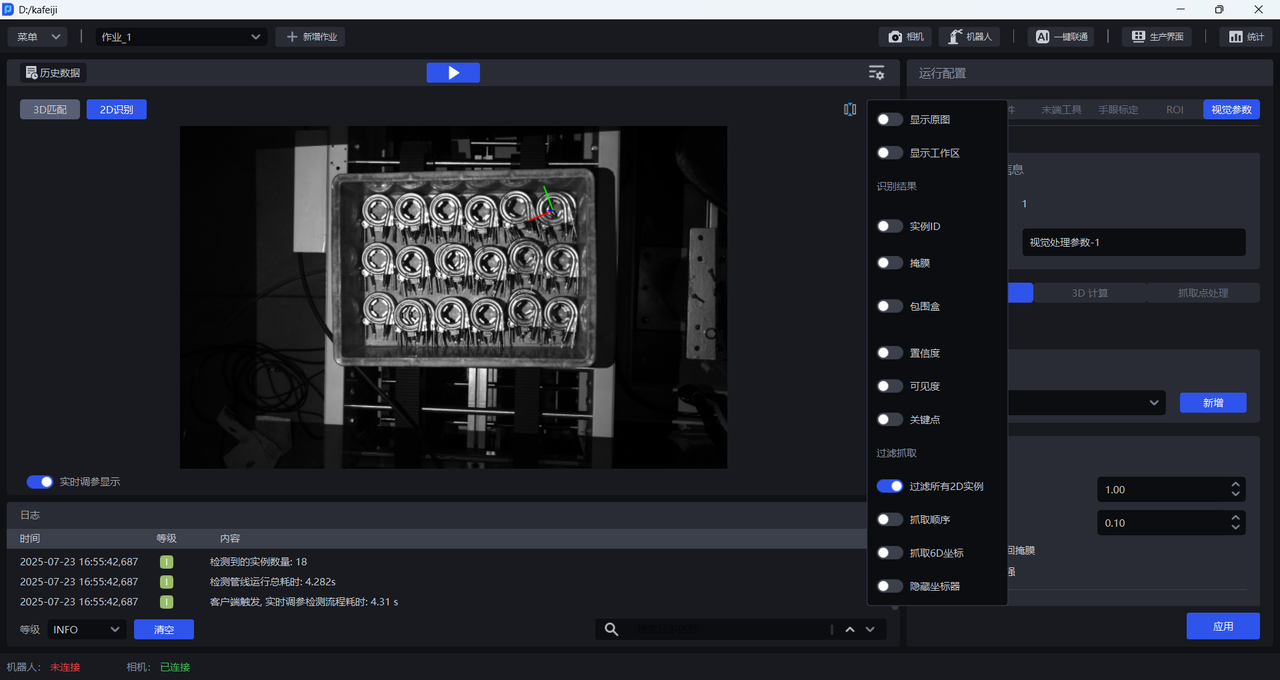
Enable Display Original Image. After it is enabled, only the 2D image captured by the Camera is displayed, with no vision results shown, and the other setting items cannot be enabled.
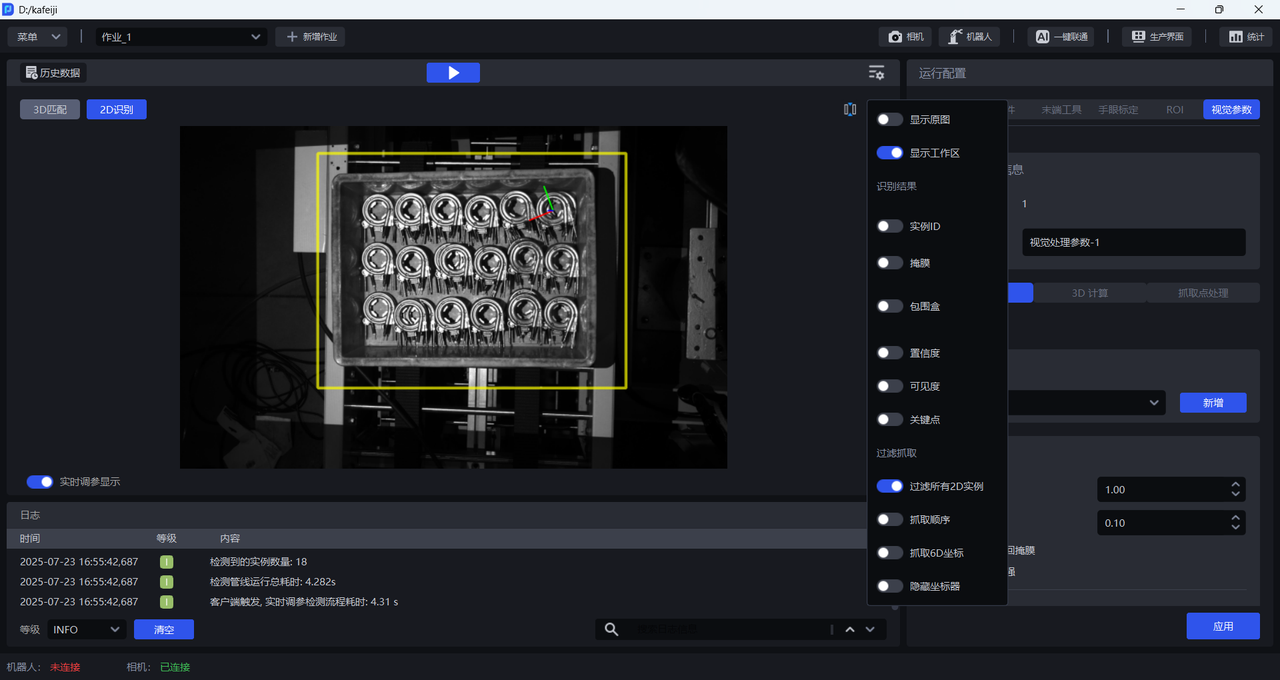
3.1.2 Display Workspace
Enable Display Workspace. After it is enabled, only the ROI 2D Workspace is displayed, as shown below.
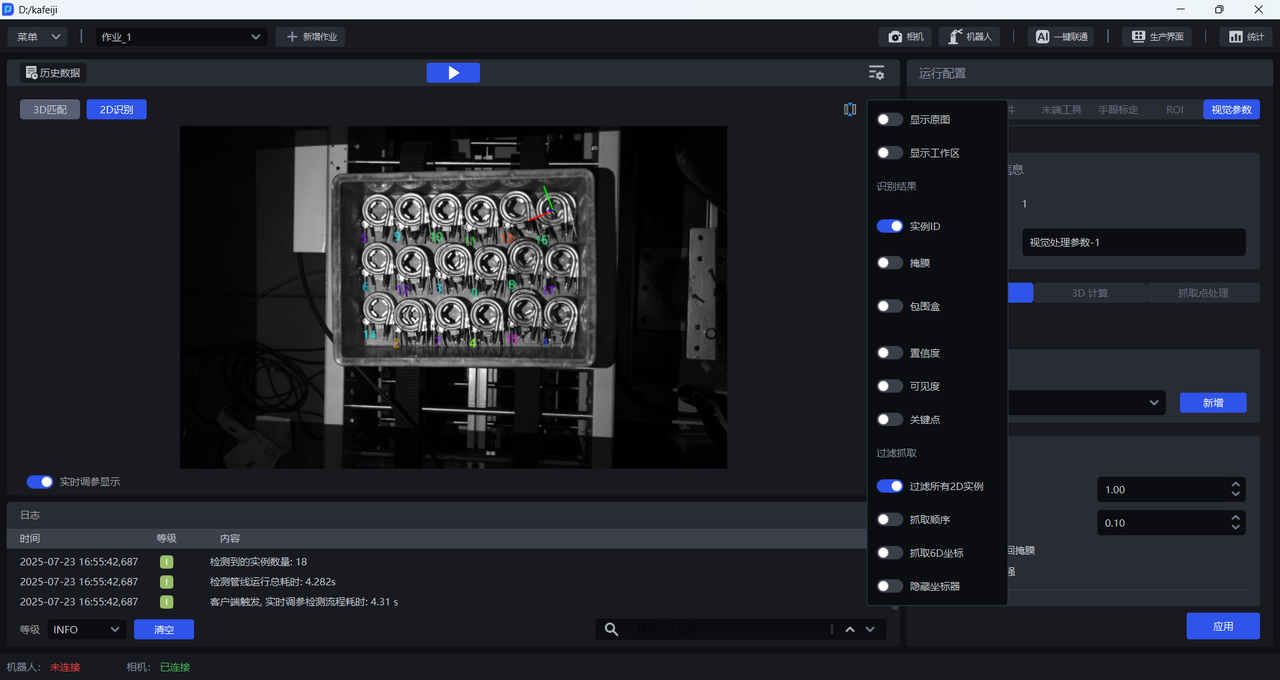
3.1.3 Instance ID
Enable Instance ID. After it is enabled, the unique identifiers of the recognized Target Object instances are displayed, as shown below.
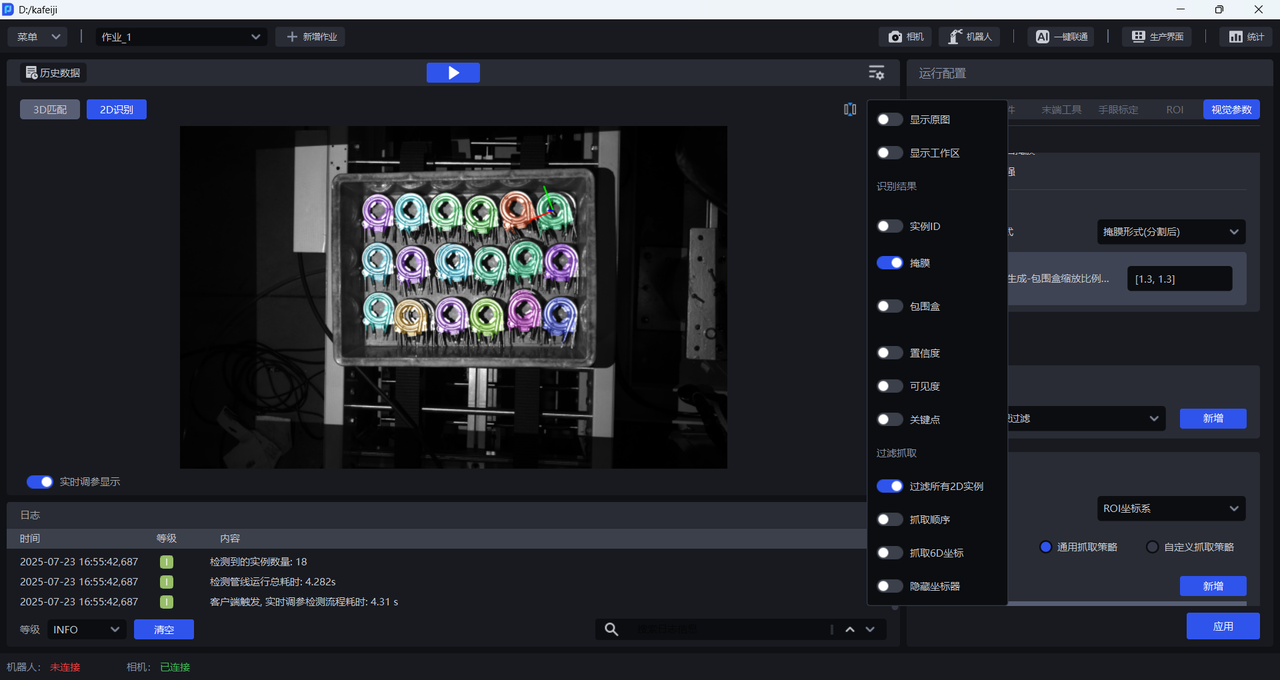
3.1.4 Mask
Enable Mask. After it is enabled, the masks of the recognized Target Object instances are displayed, as shown below.
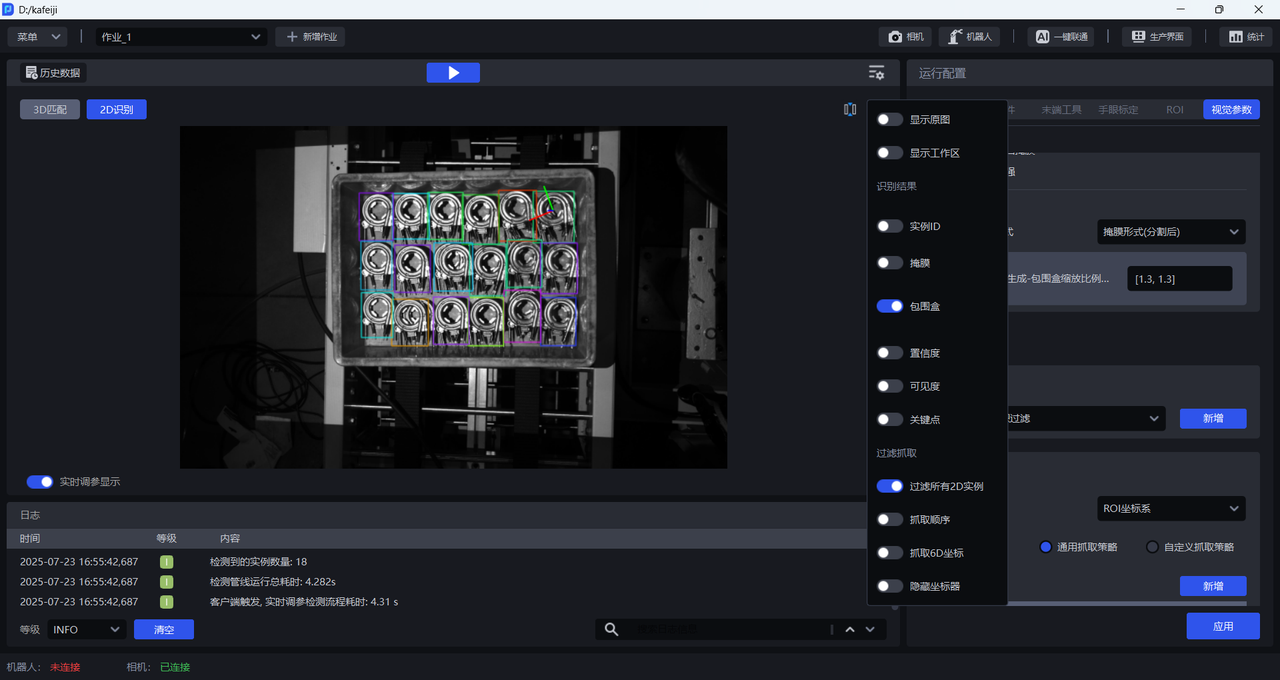
3.1.5 Bounding Box
Enable Bounding Box. After it is enabled, the bounding boxes of the recognized Target Object instances are displayed, as shown below.
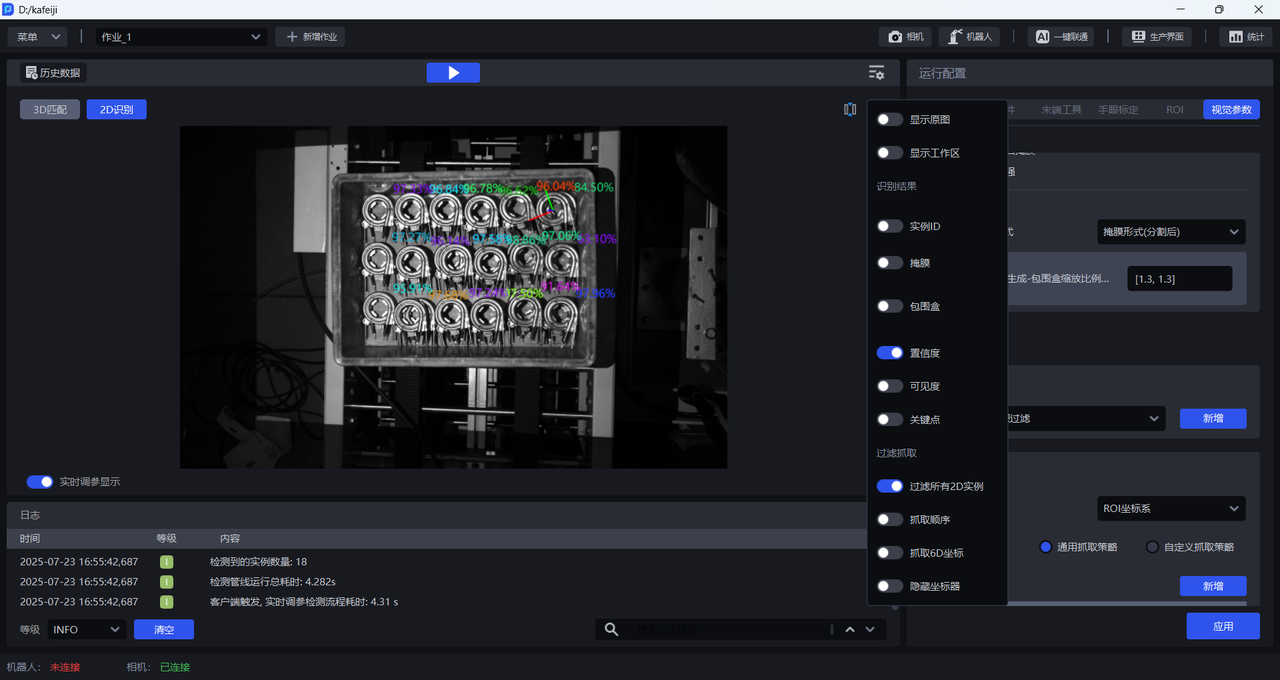
3.1.6 Confidence
Enable Confidence. After it is enabled, the Confidence of the recognized Target Object instances is displayed, as shown below.
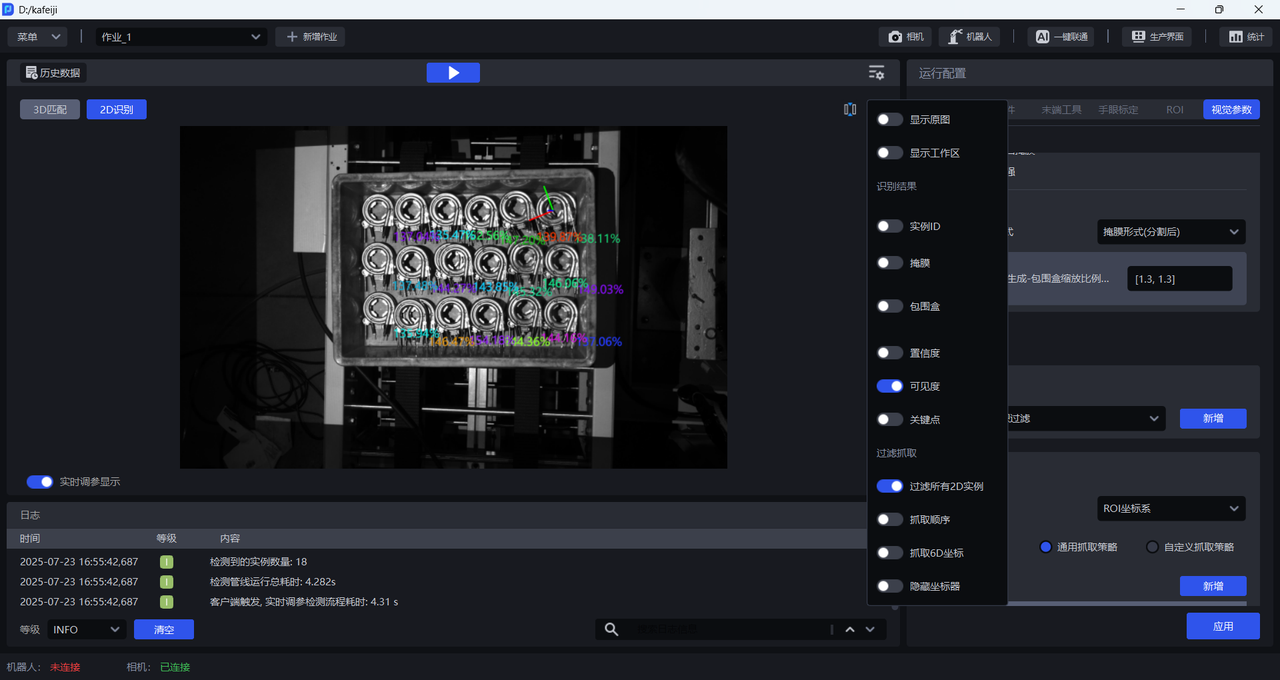
3.1.7 Visibility
Enable Visibility. After it is enabled, the visibility of the recognized Target Object instances is displayed, as shown below.
3.1.8 Keypoints
Enable Keypoints. After it is enabled, the keypoints of the recognized Target Object instances are displayed, as shown below.
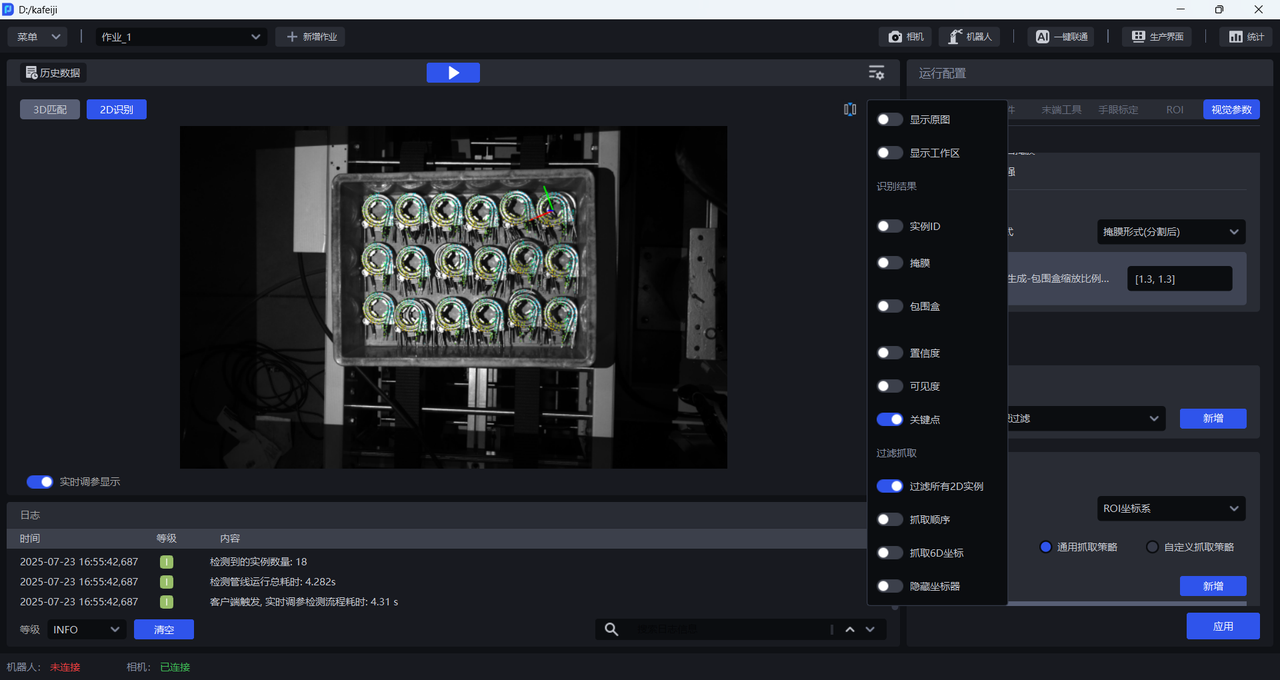
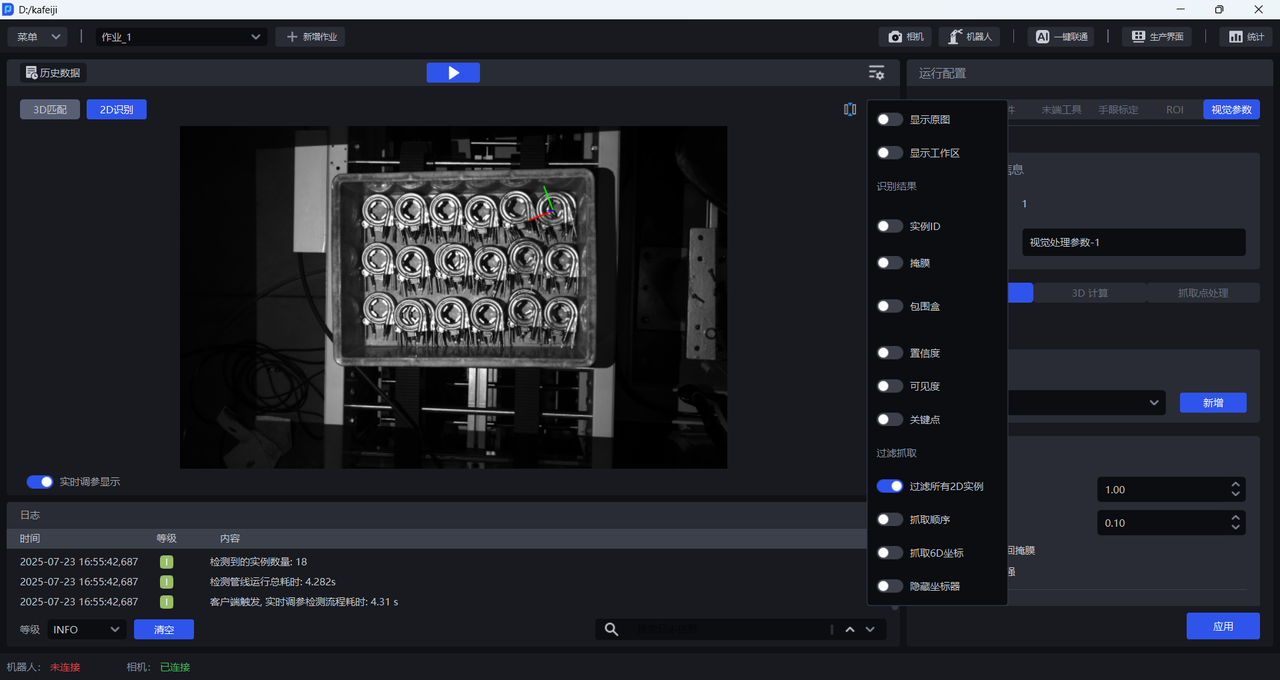
3.1.9 Filter All 2D Instances
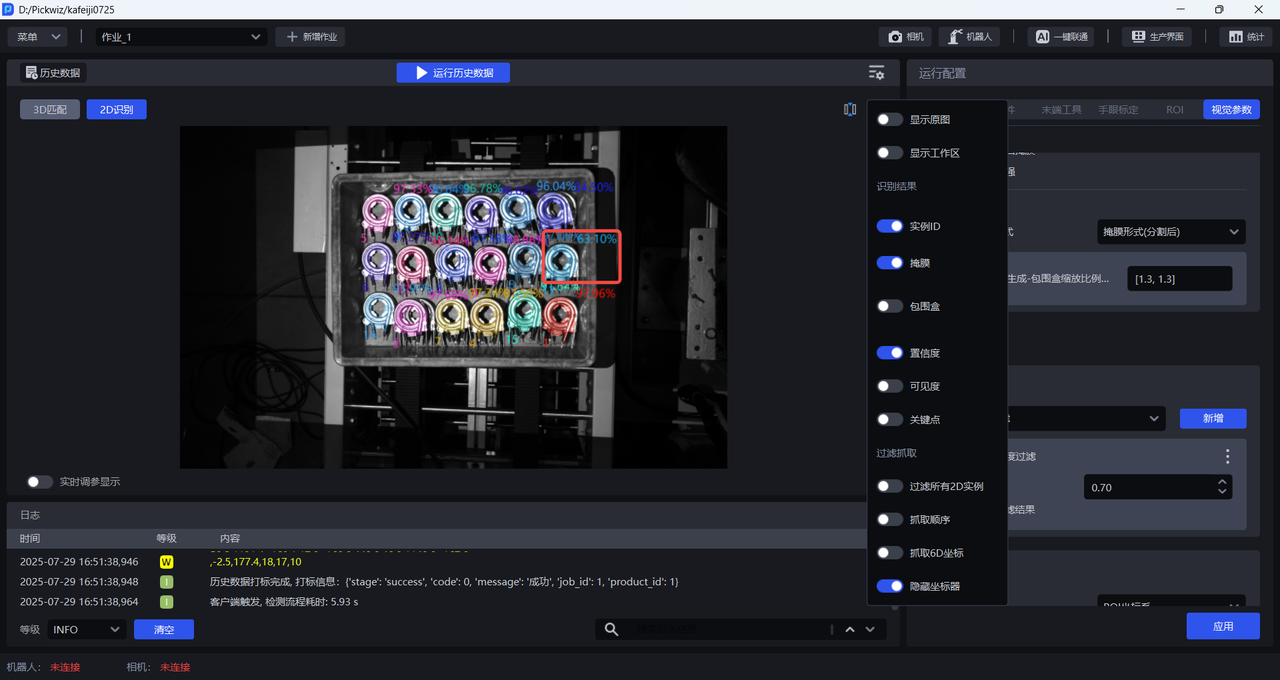
When disabled, the instances recognized by the Instance Segmentation node are displayed; when enabled, the instances filtered by the Instance Filtering node are displayed.
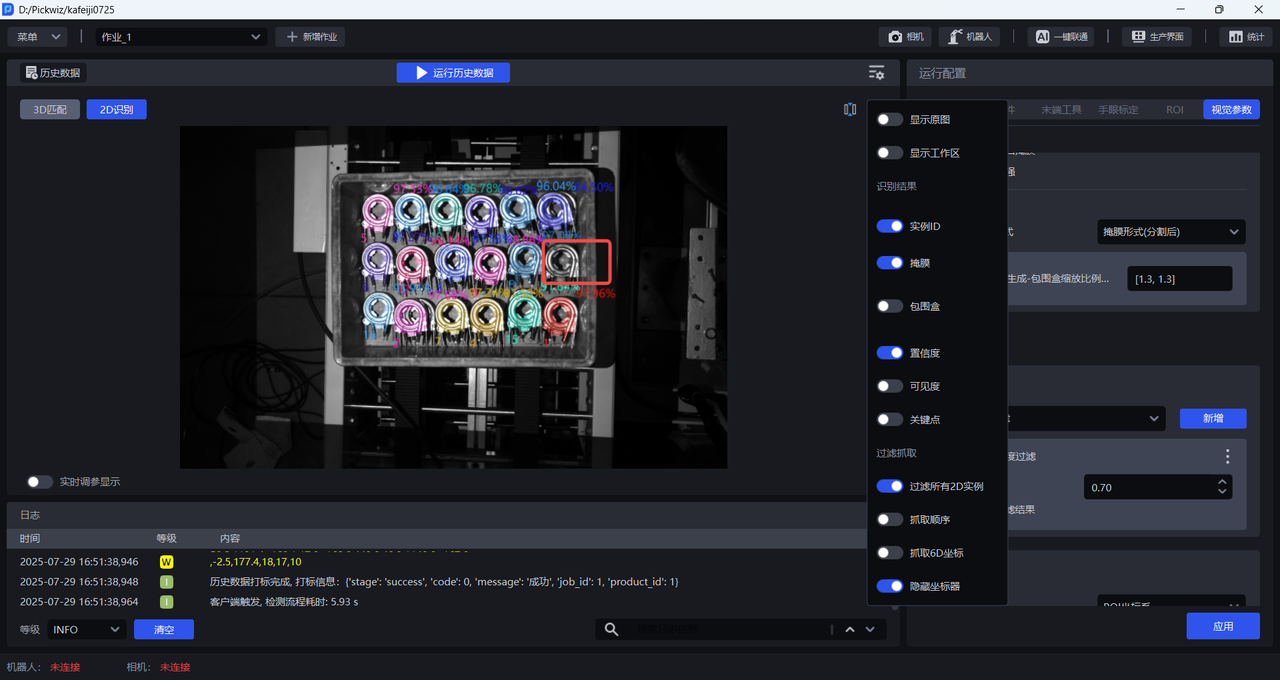
As shown below, the Filter Based on Confidence function is added to the Instance Filtering node, and Reference Confidence is set to 0.7. Therefore, instances with Confidence lower than 70% are filtered out.
When Filter All 2D Instances is disabled, the instance in the red box in the figure below has a Confidence of 63.1% and is not filtered out.
When Filter All 2D Instances is enabled, the instance in the red box has a Confidence of 63.1% and is filtered out.
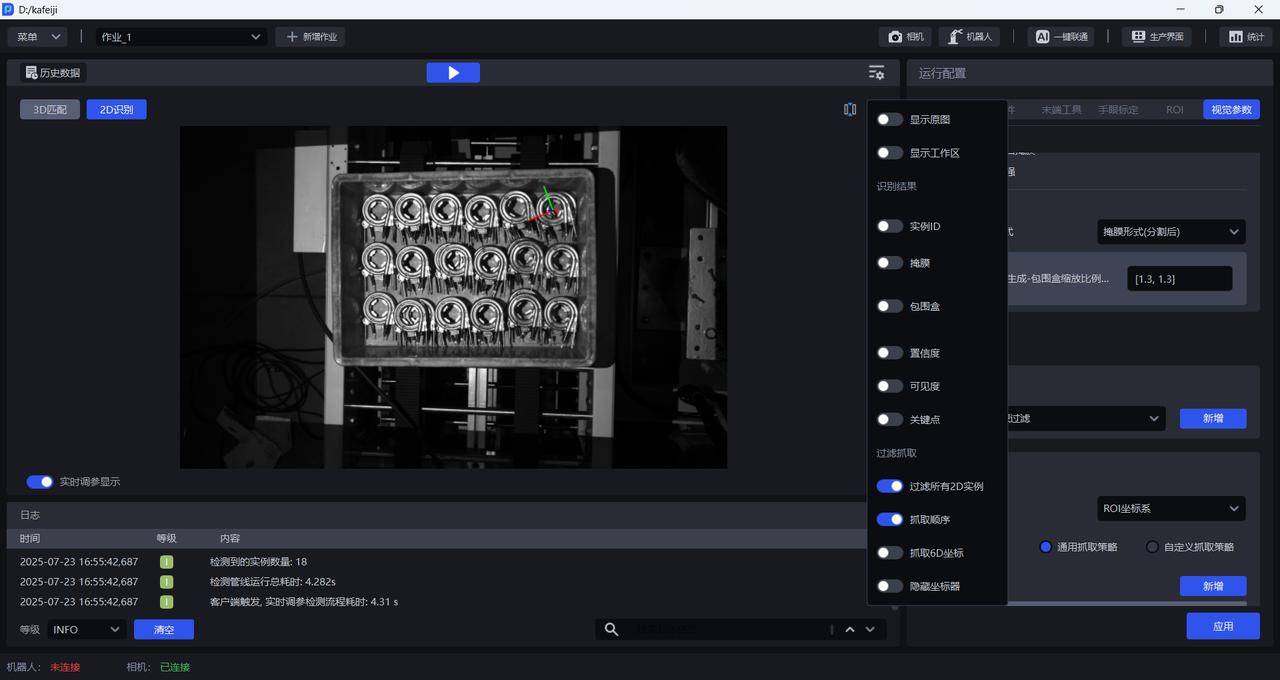
3.1.10 Picking Order
Enable Picking Order. After it is enabled, the picking order of the recognized Target Object instances is displayed, as shown below.
3.1.11 6D Picking Coordinates
Enable Picking 6D Coordinates. After it is enabled, the Picking Pose (that is, the 6D coordinates) of the recognized Target Object instances is displayed, as shown below.
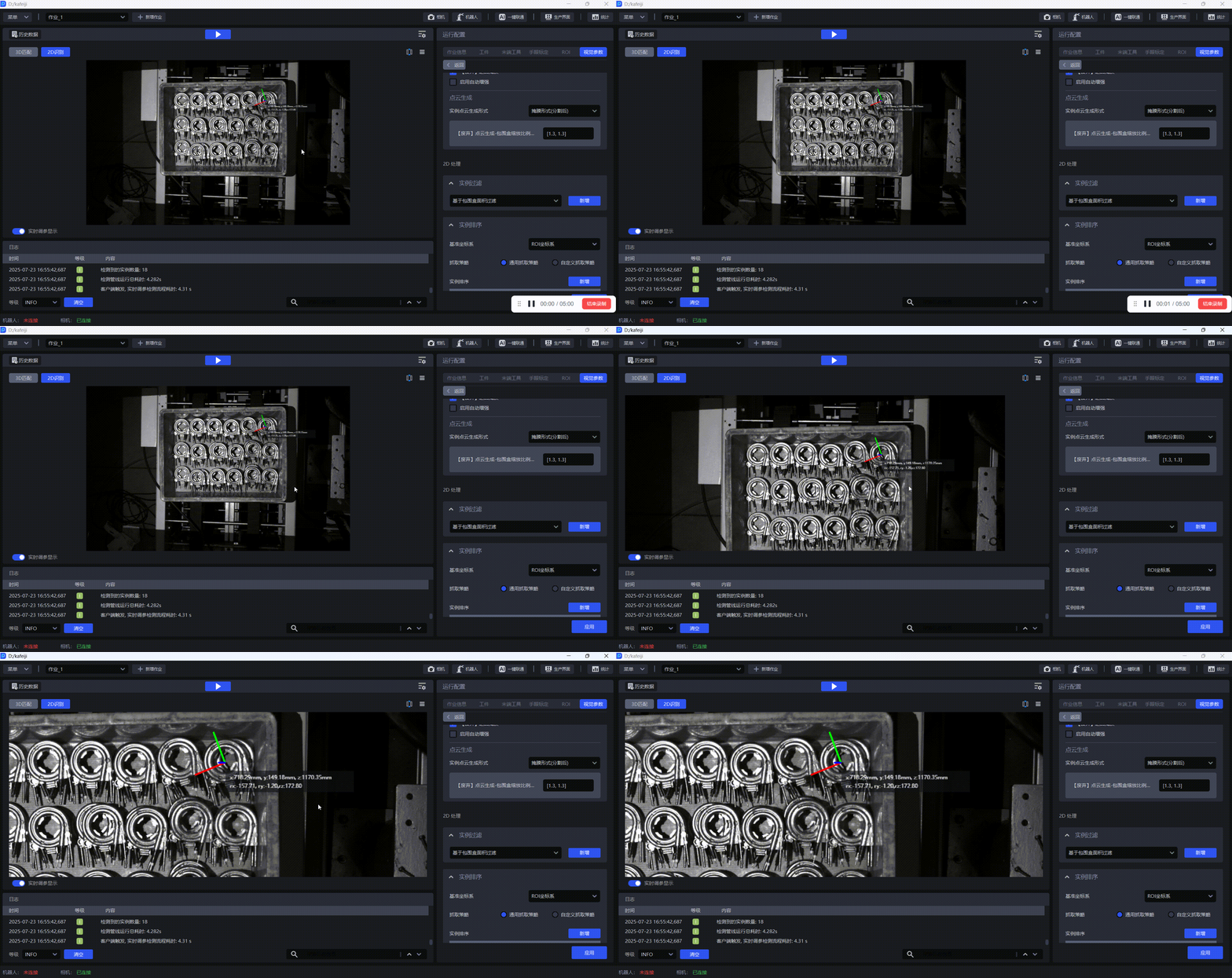
Left-click a blank area in the 2D Recognition window to close the settings box. Then place the cursor over the 2D Recognition window and scroll the mouse wheel upward to zoom in on the 2D image and view the 6D coordinates of the Pick Point.
3.1.12 Hide Coordinate Axes
Enable Hide Coordinate Axes. After it is enabled, the coordinate axes of the Pick Point are hidden; when disabled, the coordinate axes of the Pick Point are displayed.
3.2 3D Matching
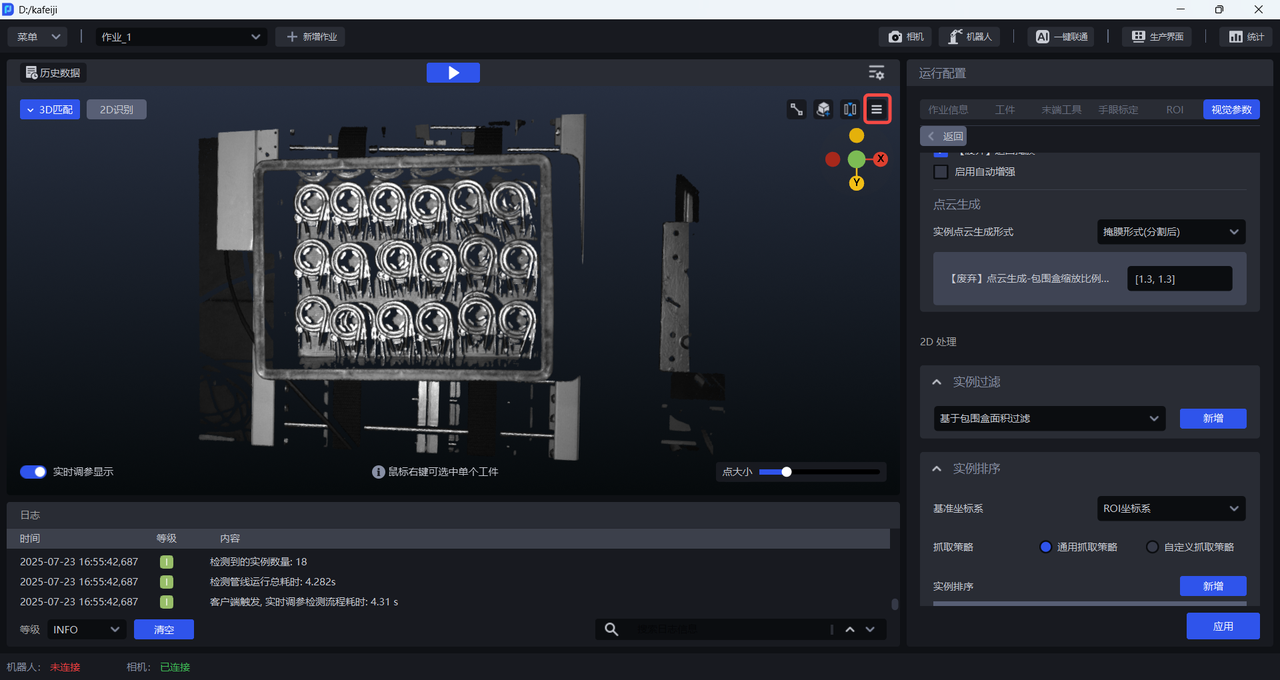
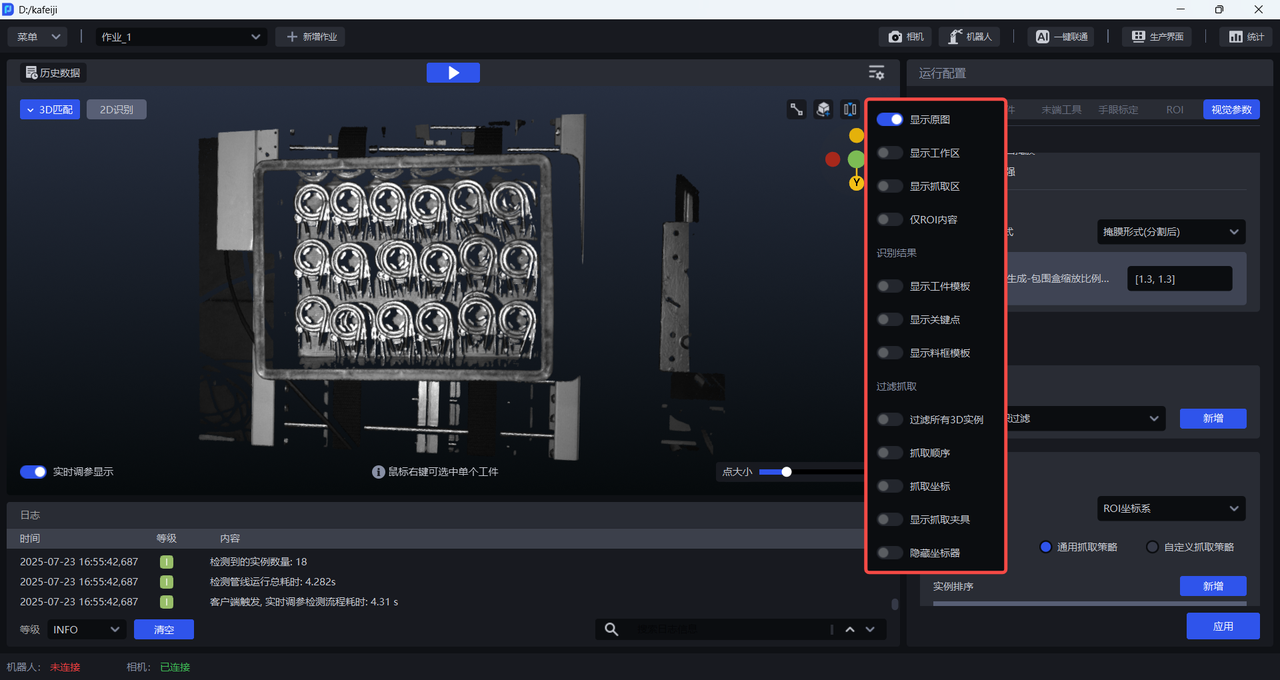
Click the Settings Button in the 3D Matching window to choose which 3D vision results to display, as shown below.
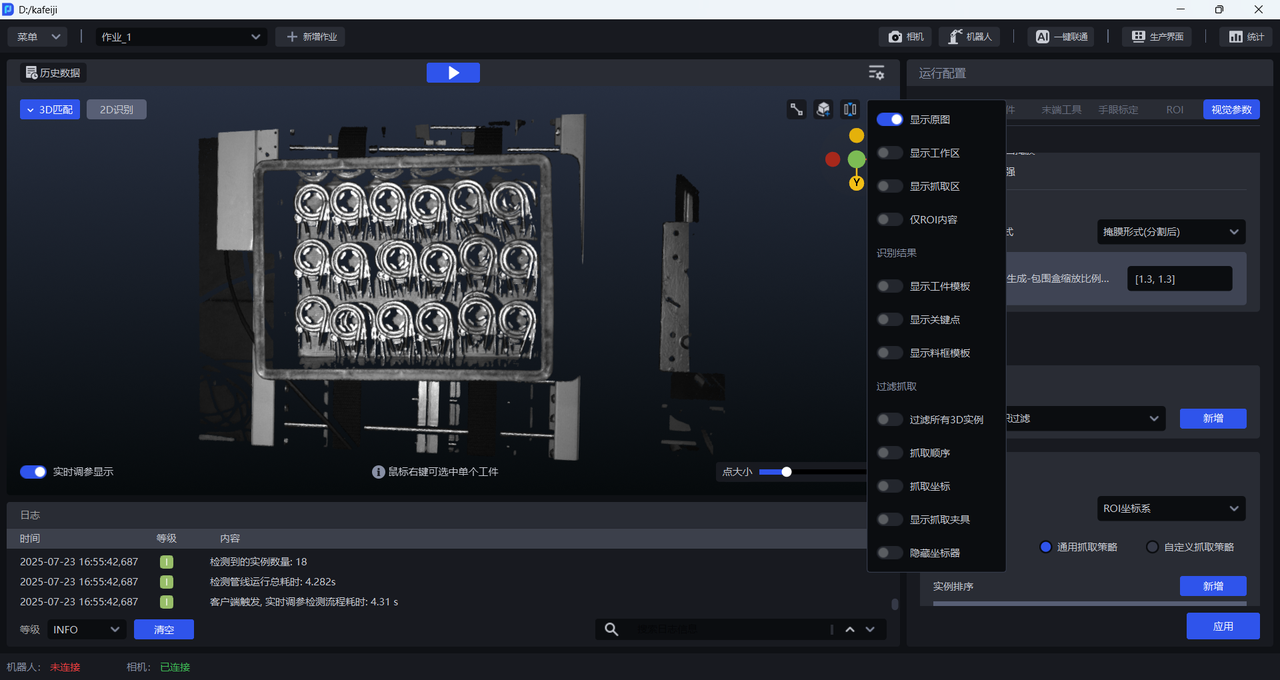
3.2.1 Display Original Image
Enable Display Original Image. After it is enabled, only the 3D Point Cloud is displayed, with no vision results shown, and the other setting items cannot be enabled, as shown below.
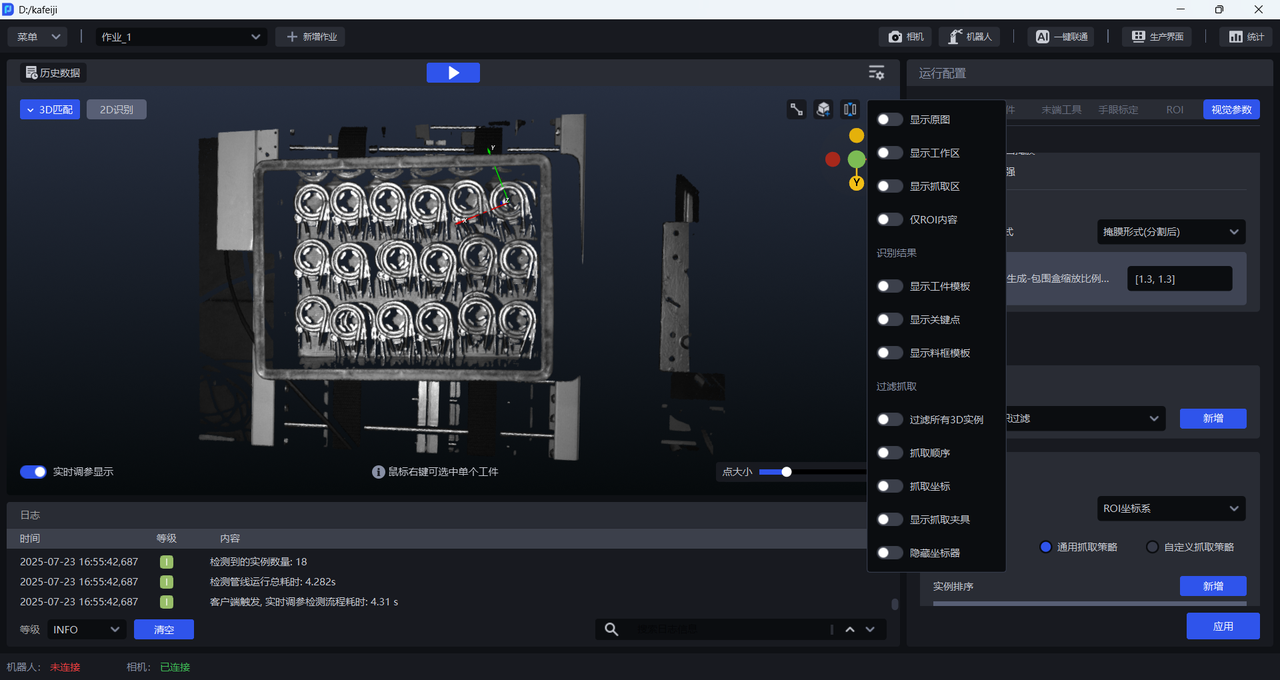
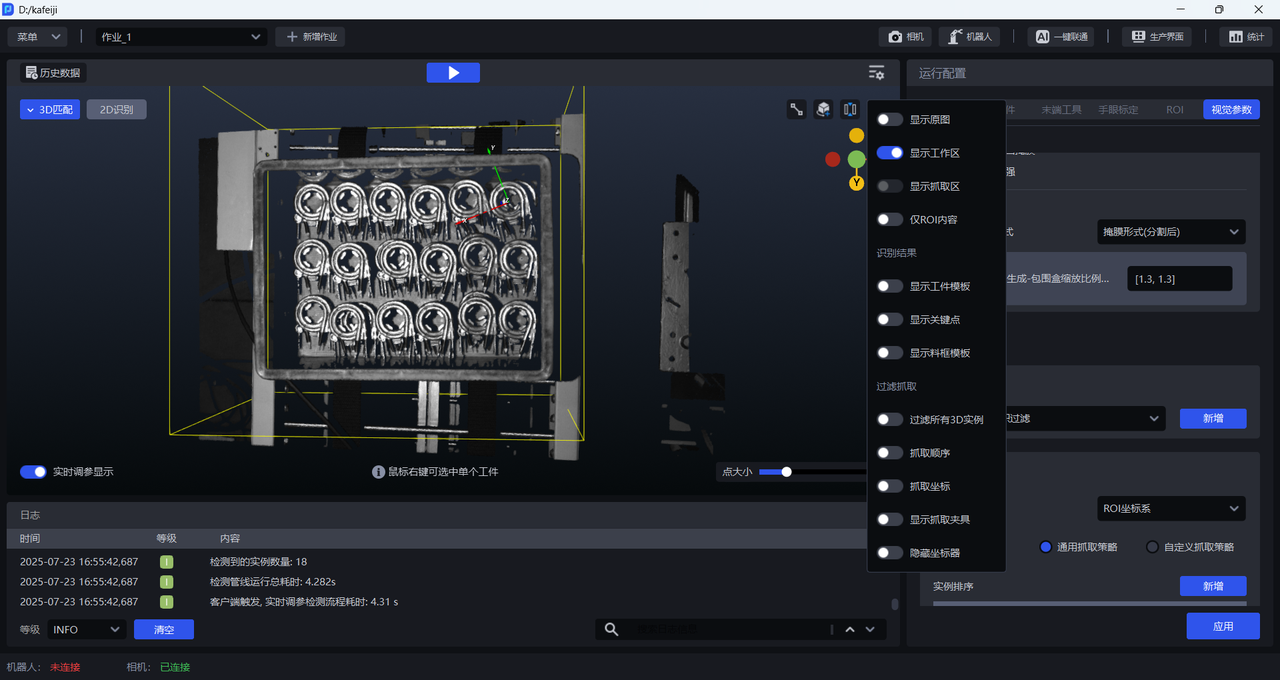
3.2.2 Display Workspace
Enable Display Workspace. After it is enabled, only the ROI 3D Workspace is displayed, and Display Picking Area cannot be enabled, as shown below.
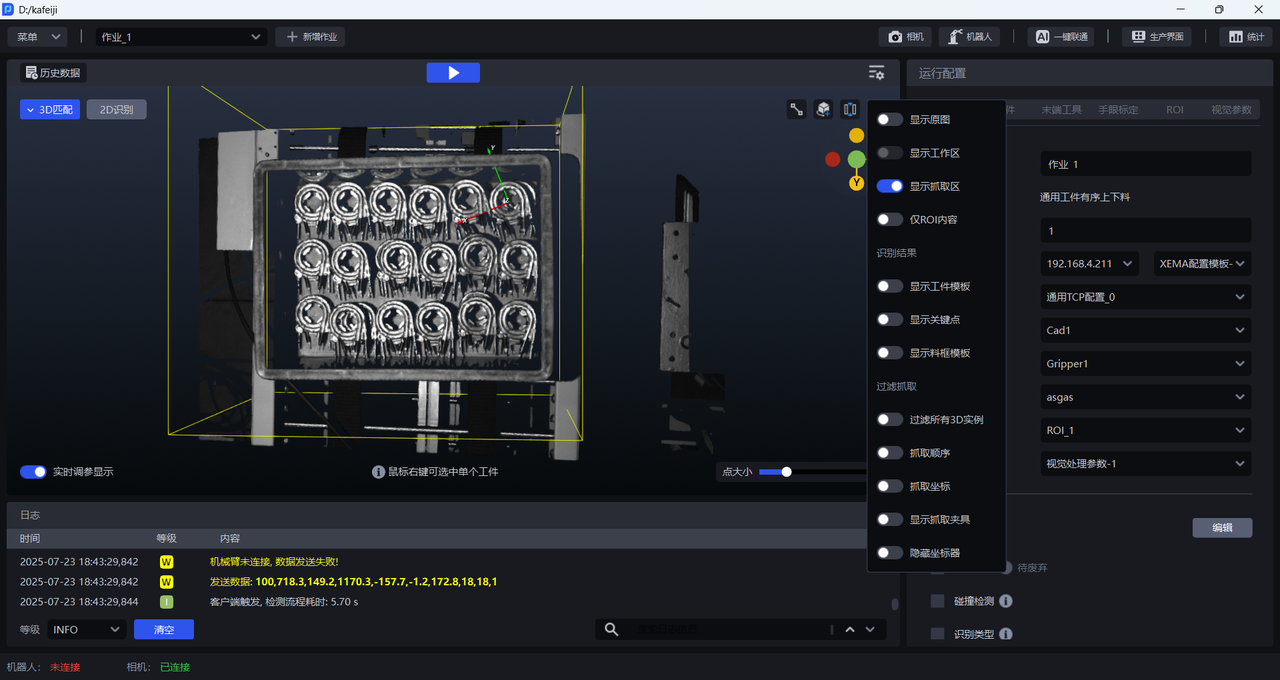
3.2.3 Display Picking Area
Enable Display Picking Area. After it is enabled, only the ROI 3D Picking Area is displayed, and Display Workspace cannot be enabled, as shown below.
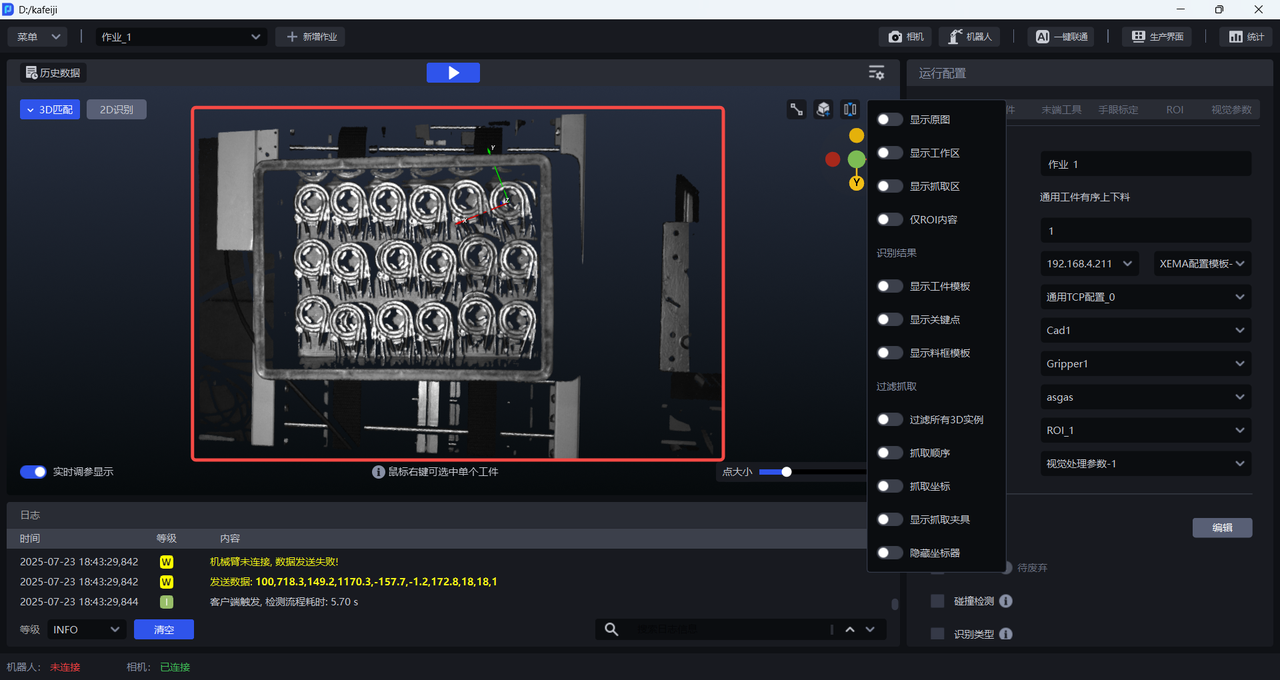
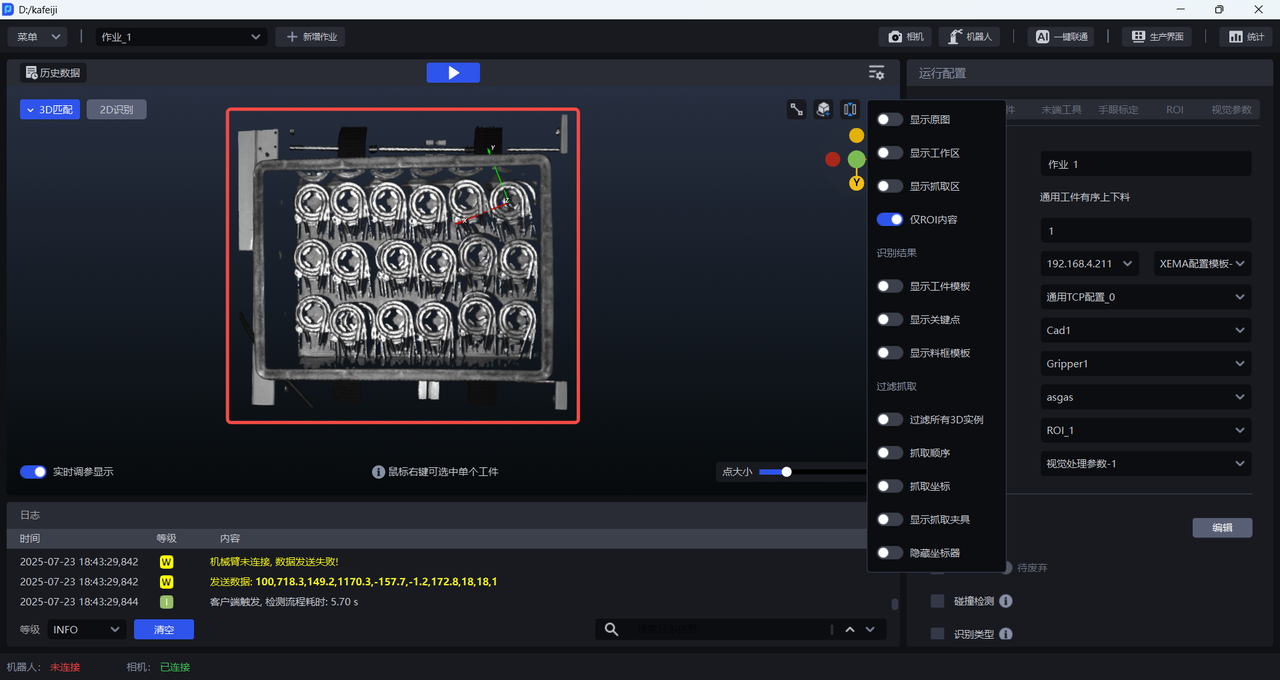
3.2.4 ROI Content Only
Enable ROI Content Only. After it is enabled, only the content inside the ROI 3D area is displayed, and the parts outside the ROI area become black, as shown below.
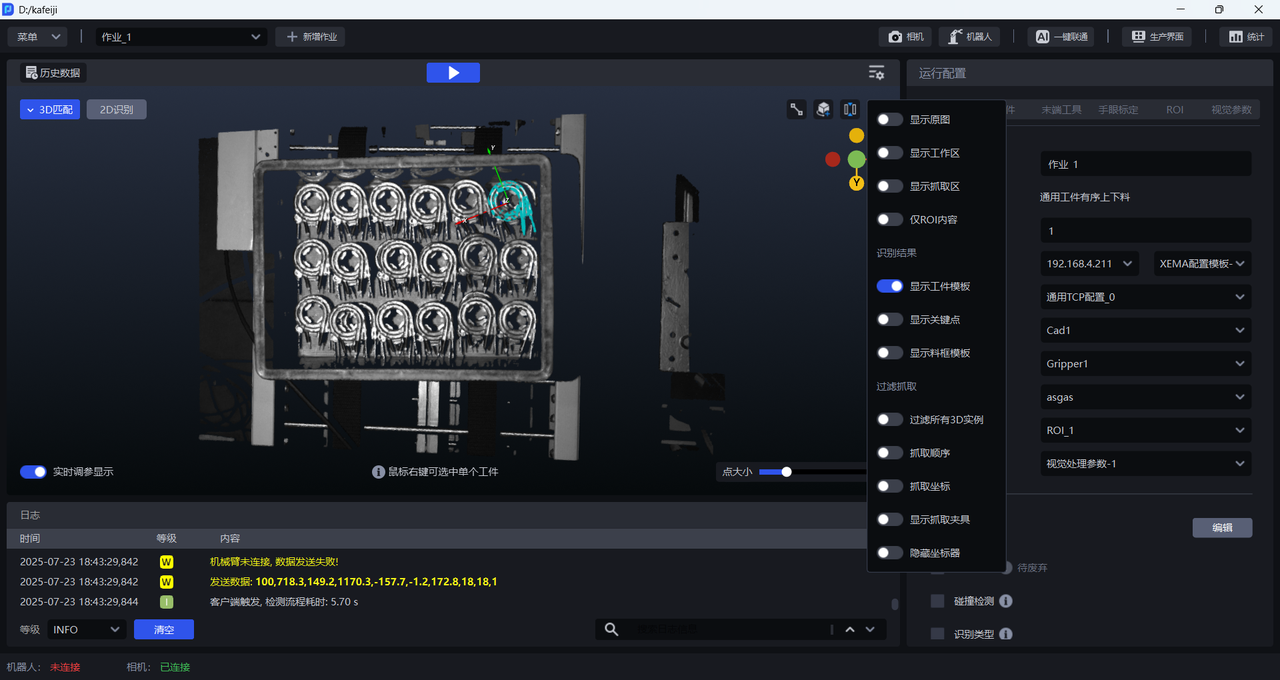
3.2.5 Display Target Object Template
Enable Display Workpiece Template. After it is enabled, the Point Cloud template of the recognized Target Object instances is displayed, as shown below.
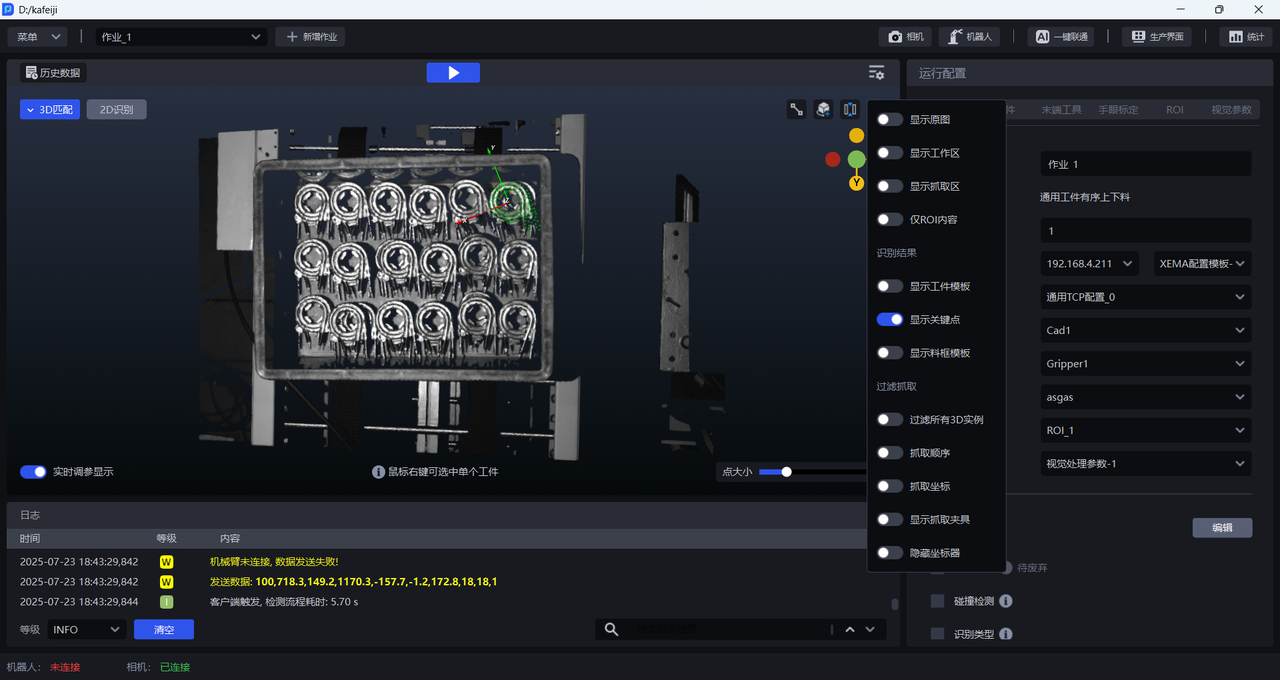
3.2.6 Display Keypoints
Enable Display Keypoints. After it is enabled, the keypoints of the recognized Target Object instances are displayed, as shown below.
3.2.7 Display Container Template
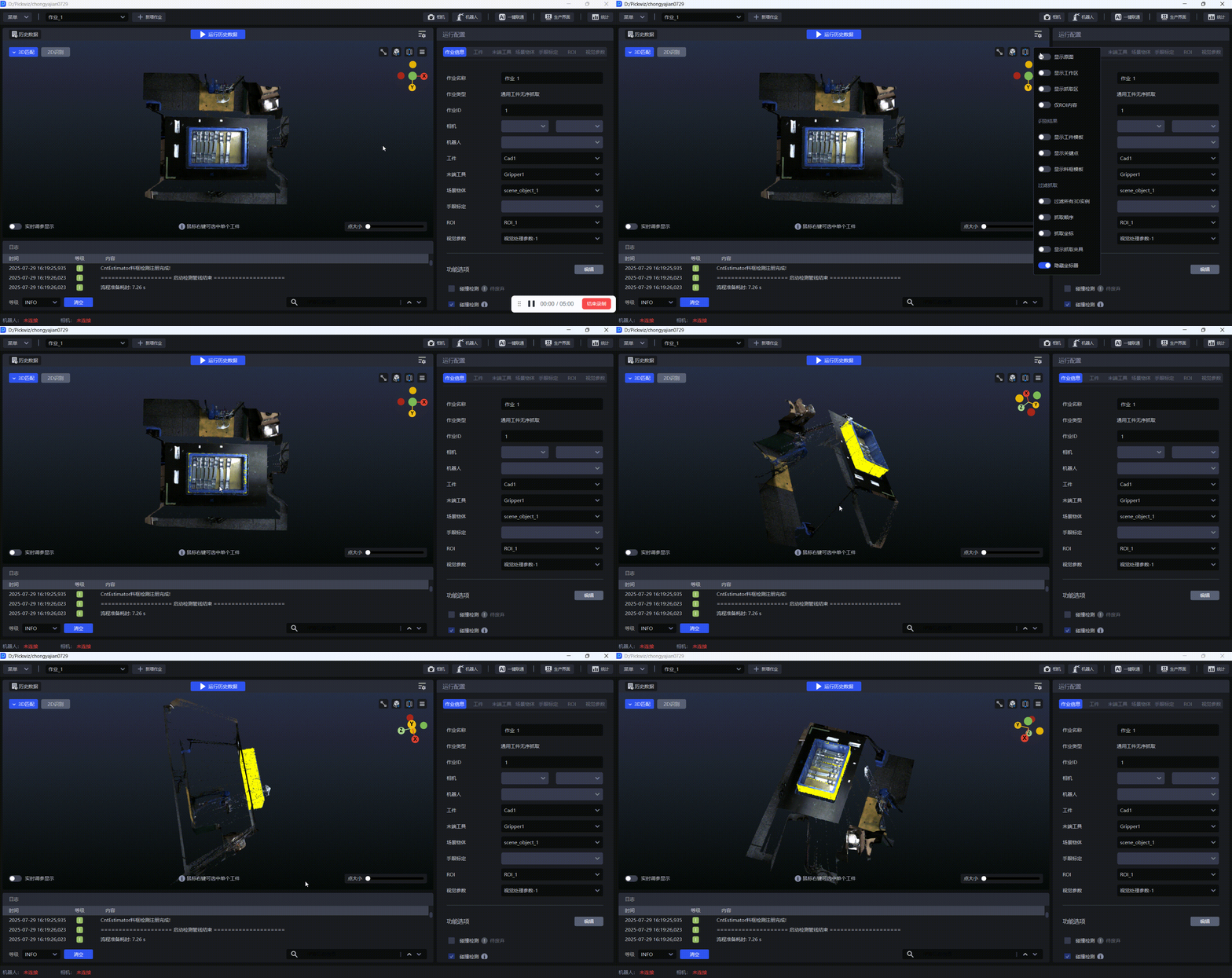
If there is a container in the scene, you need to select Collision Detection in the functional options to detect whether the Tool collides with the container during picking. For details, refer to Collision Detection User Guide. After enabling Display Container Template, you can view the container template Point Cloud obtained through quadrilateral fitting, as shown below.
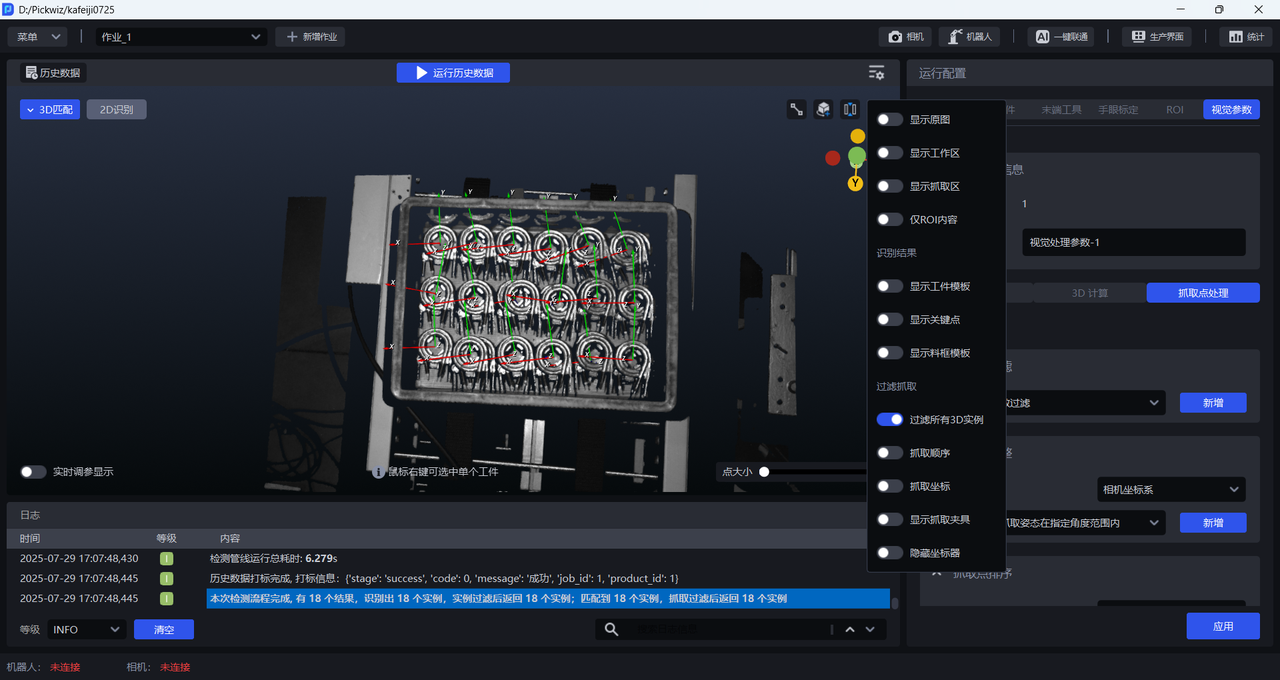
3.2.8 Filter All 3D Instances
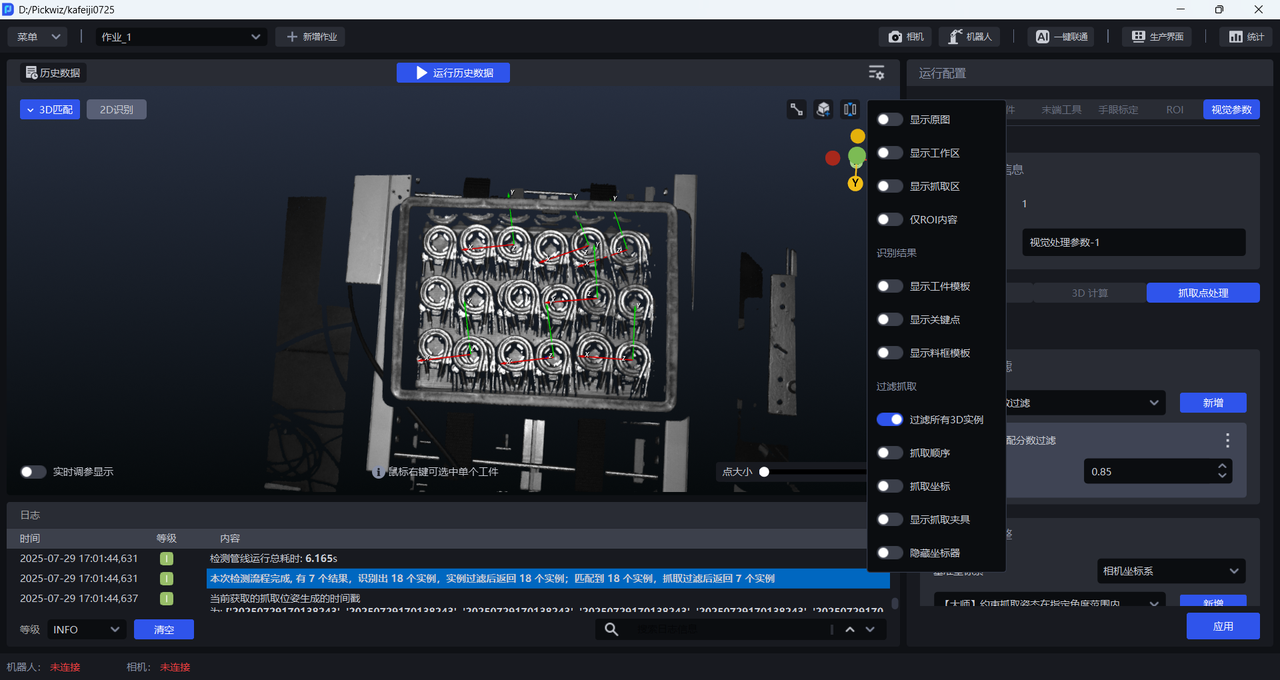
When enabled, the Pick Points output after Pick Point filtering are displayed; when disabled, the Pick Points output by the 3D computation node are displayed.
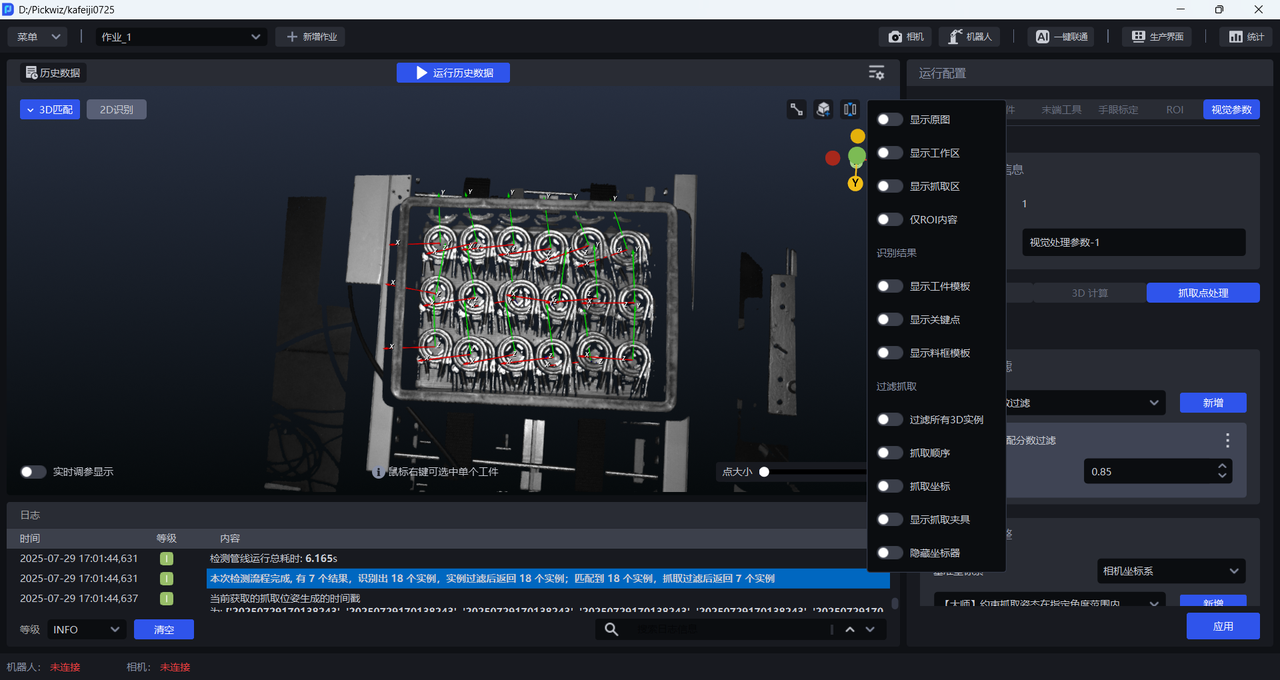
As shown below, the Filter Based on Accurate Matching Score function is added to the Pick Point Filtering node, and Score Threshold is set to 0.85. Therefore, Pick Points generated from Target Object poses whose Accurate Matching score is greater than 0.85 are output.
When Filter All 3D Instances is disabled, the Pick Points output by the 3D computation node are displayed. As shown below, all 18 Target Objects generate Pick Points.
When enabled, the Pick Points output after Pick Point filtering are displayed. As shown below, 11 Pick Points are filtered out, leaving only 7 Pick Points.
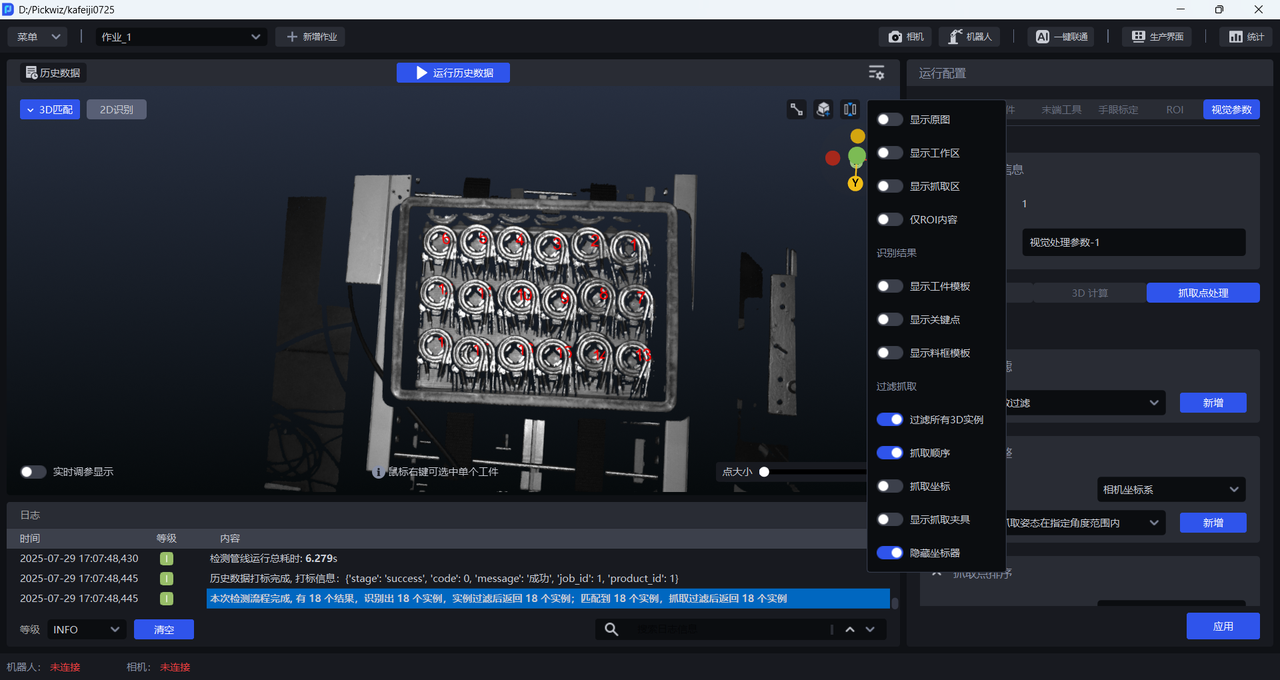
3.2.9 Picking Order
After it is enabled, the picking order of the Target Objects is displayed, as shown below.
3.2.10 Picking Coordinates
After it is enabled, the picking coordinates of the Target Objects are displayed, as shown below.
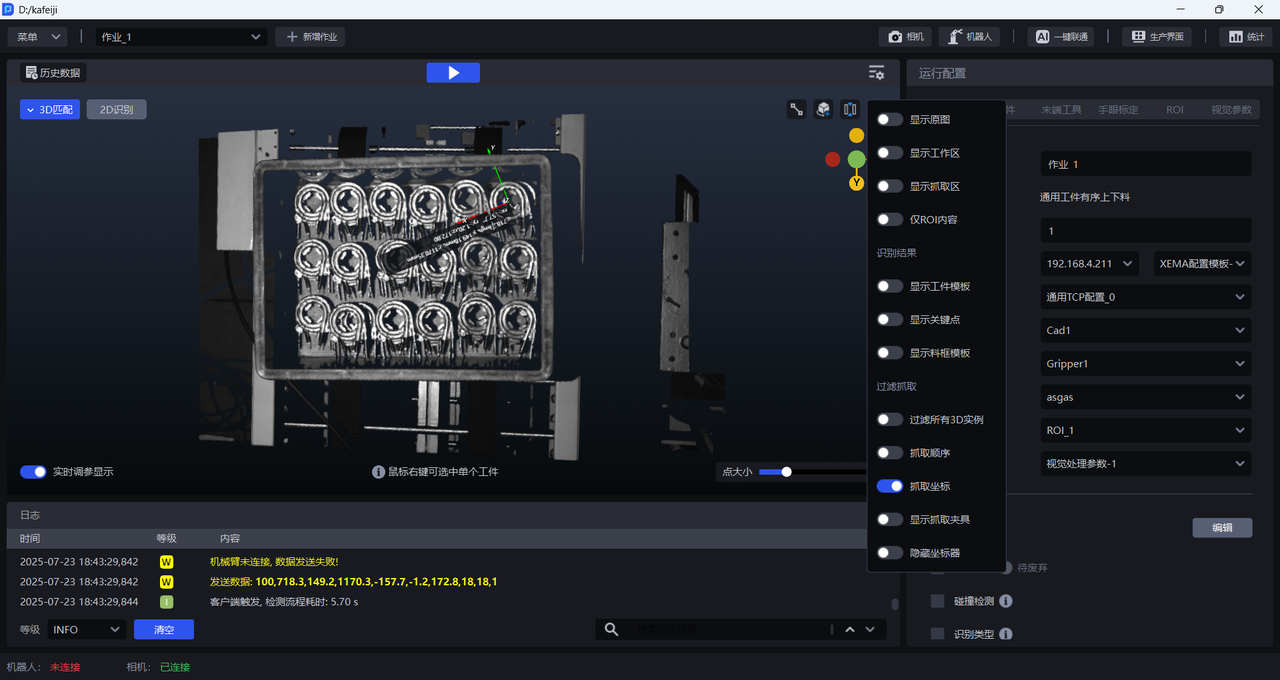
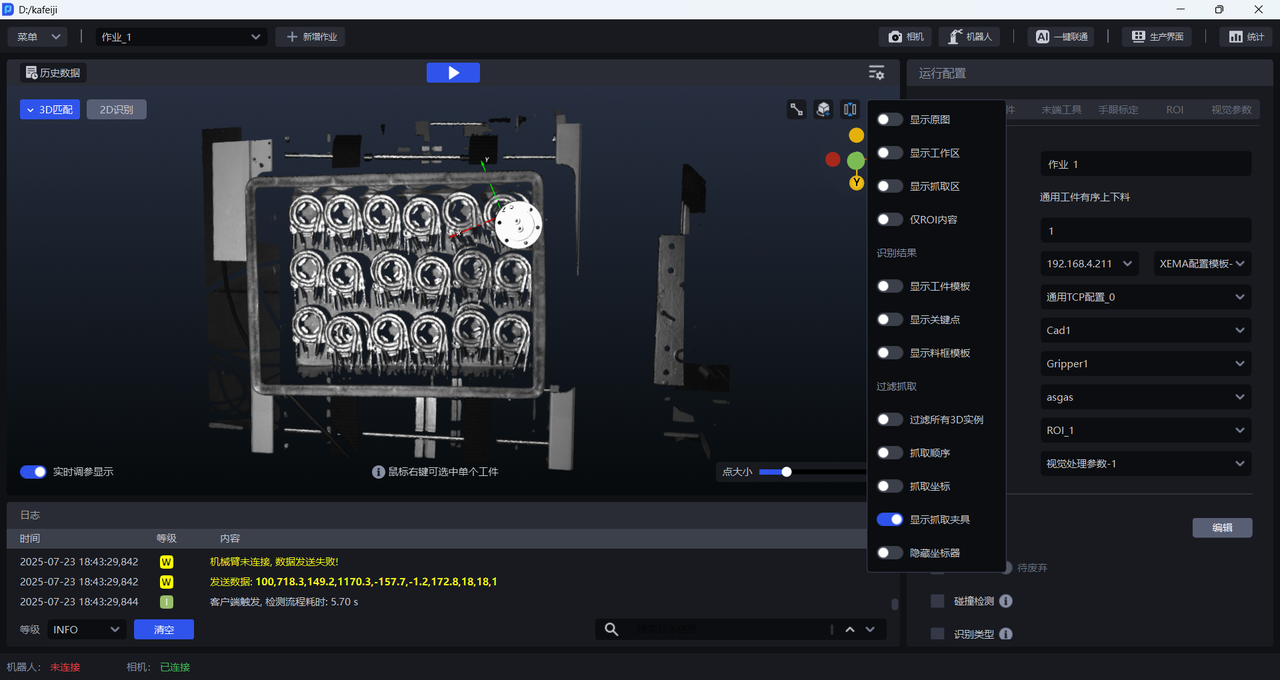
3.2.11 Display Picking Gripper
After it is enabled, the picking gripper of the Target Objects is displayed, as shown below.
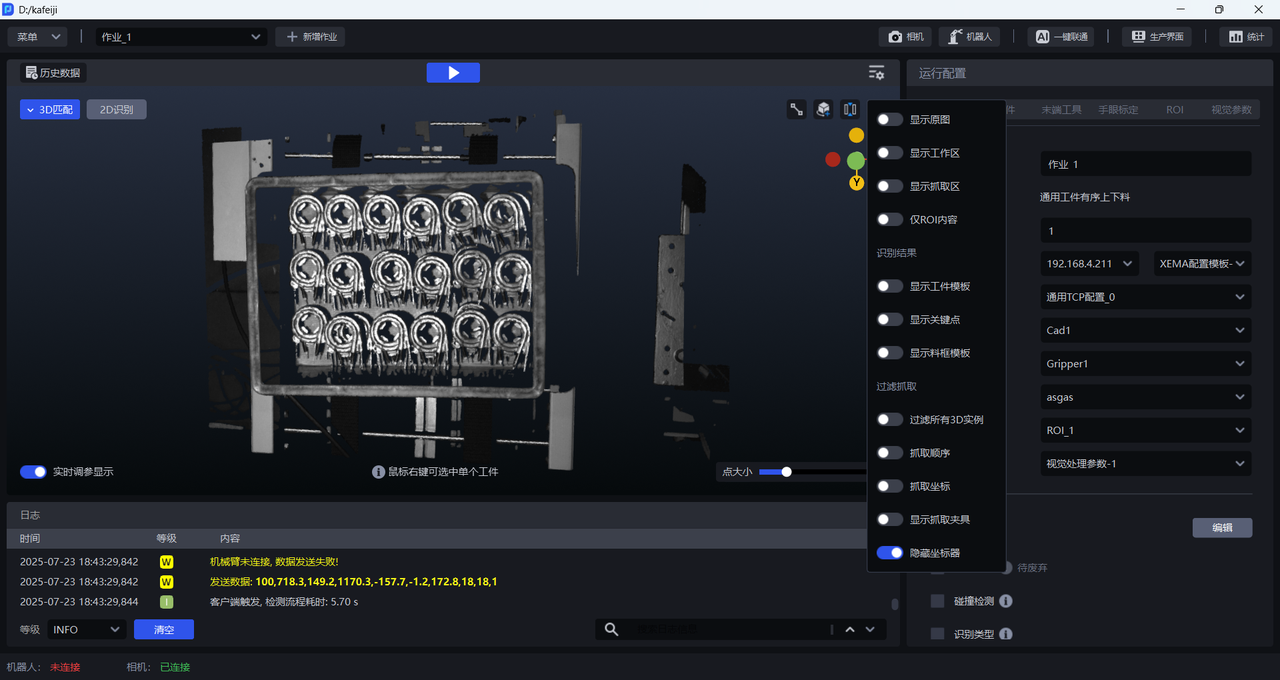
3.2.12 Hide Coordinate Axes
After it is enabled, the coordinate axes are hidden; when disabled, the coordinate axes of the Pick Point are displayed.
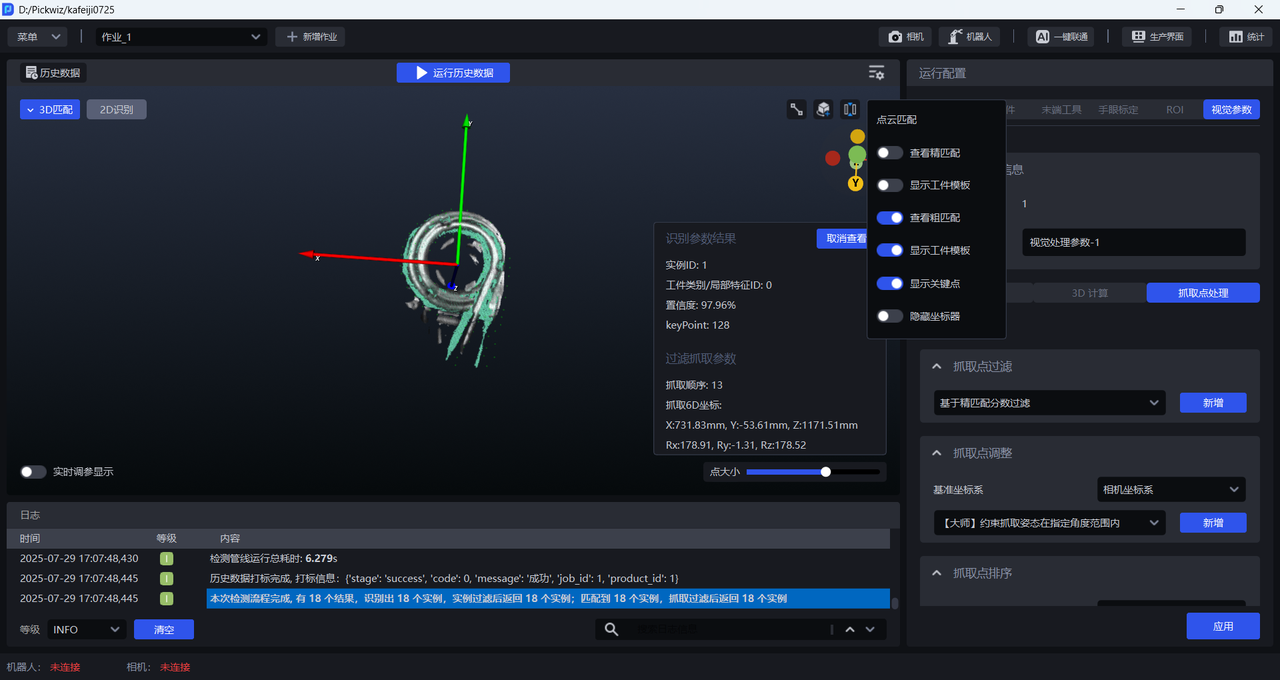
3.2.13 View a Single Target Object
Place the cursor over different Target Objects to view the vision recognition result of each Target Object, as shown below.
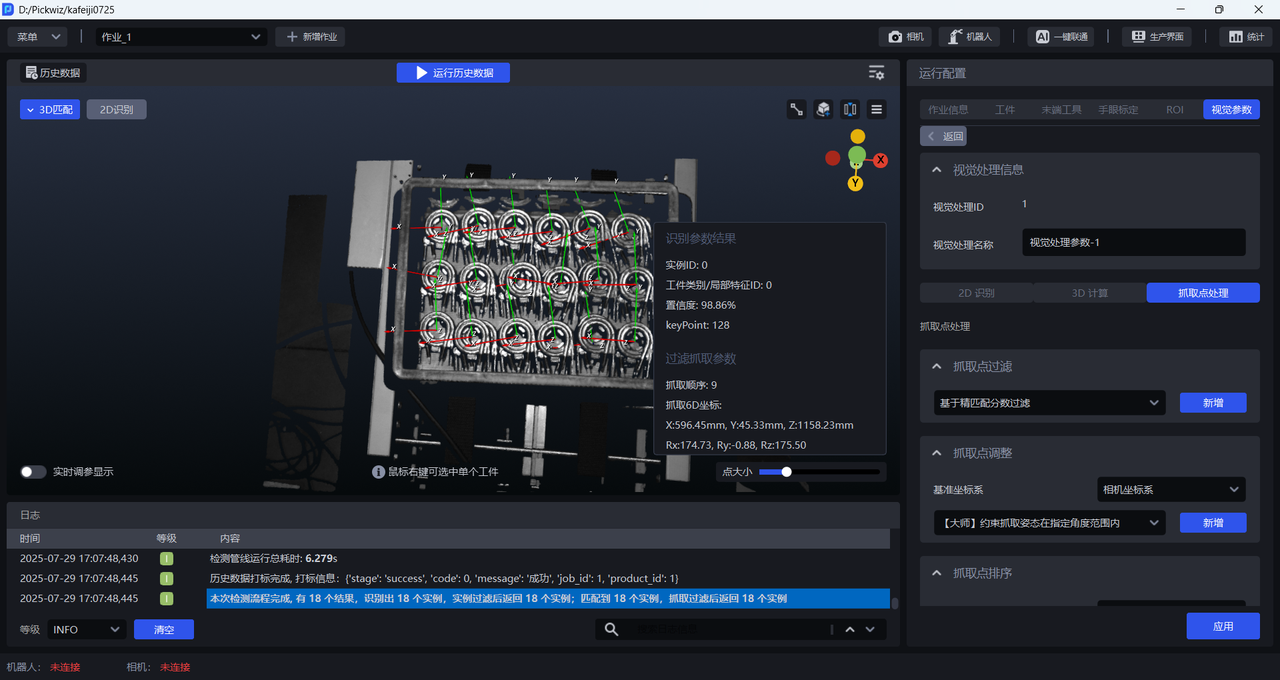
Right-click to select the Target Object you want to view, as shown below.
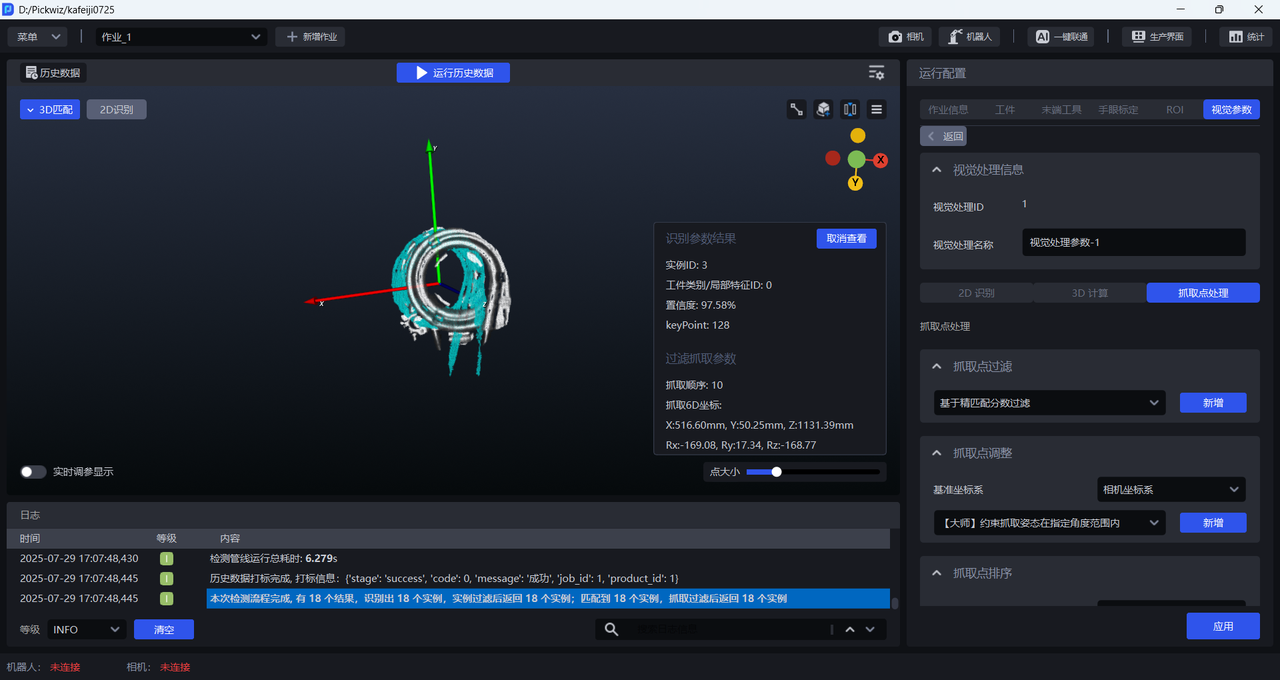
Adjust the point size to change the size of the Target Object Point Cloud, as shown below.
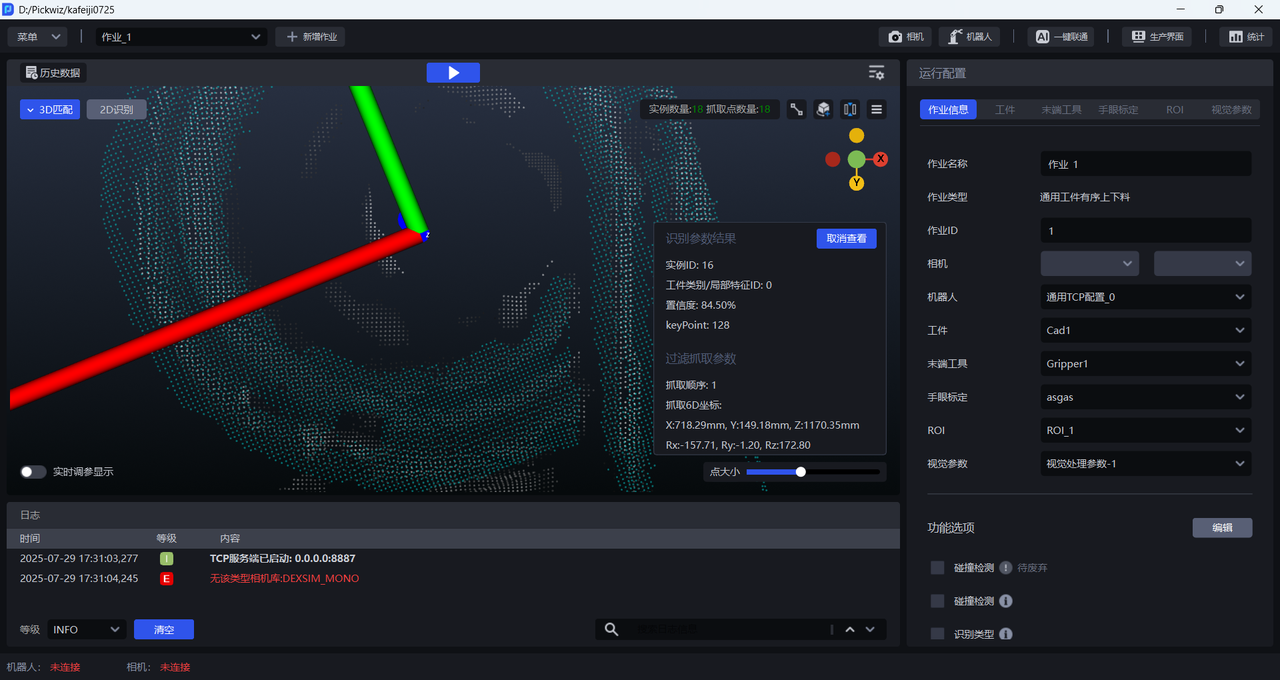
After selecting a single Target Object, you can view its Point Cloud template and Accurate Matching result.
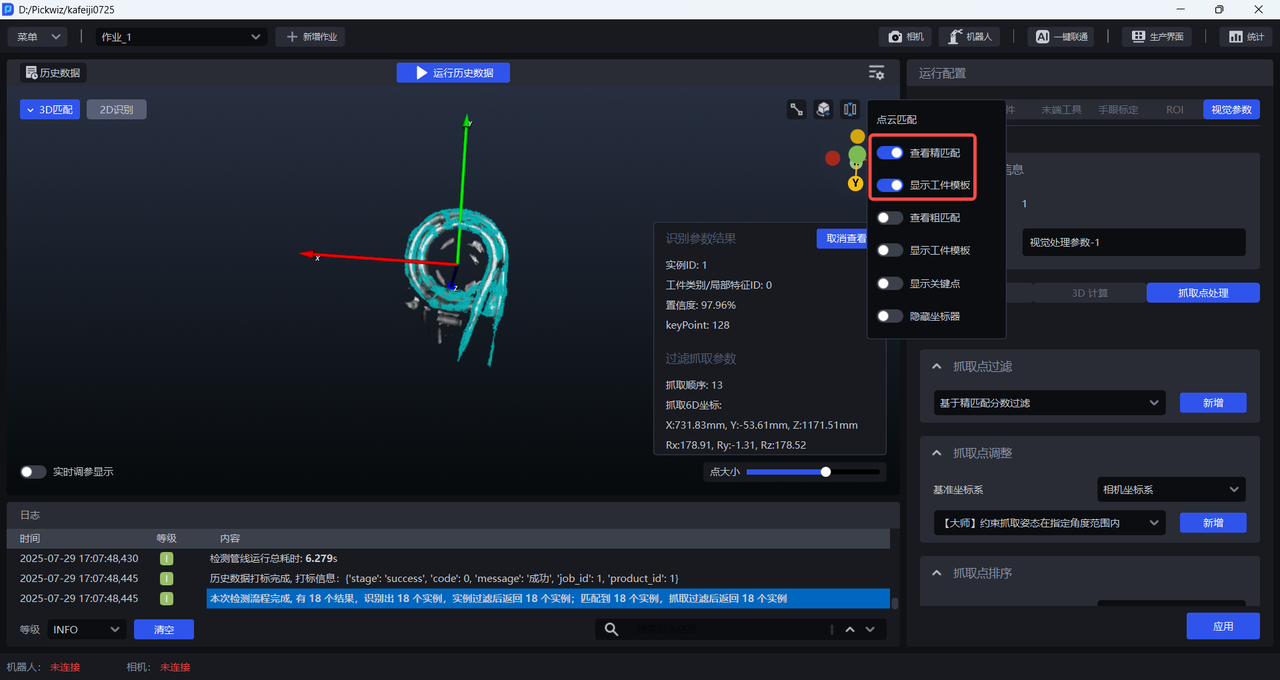
You can also view its keypoints and coarse matching result.
3.2.14 Display Fitted Circle
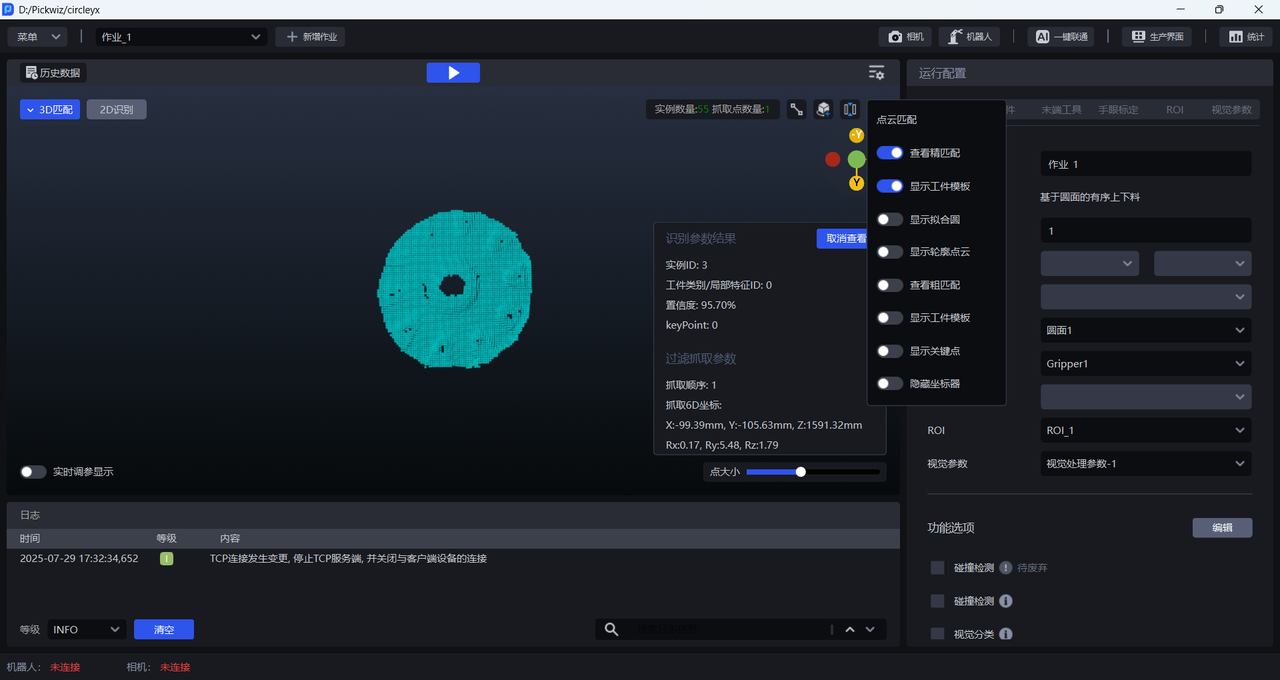
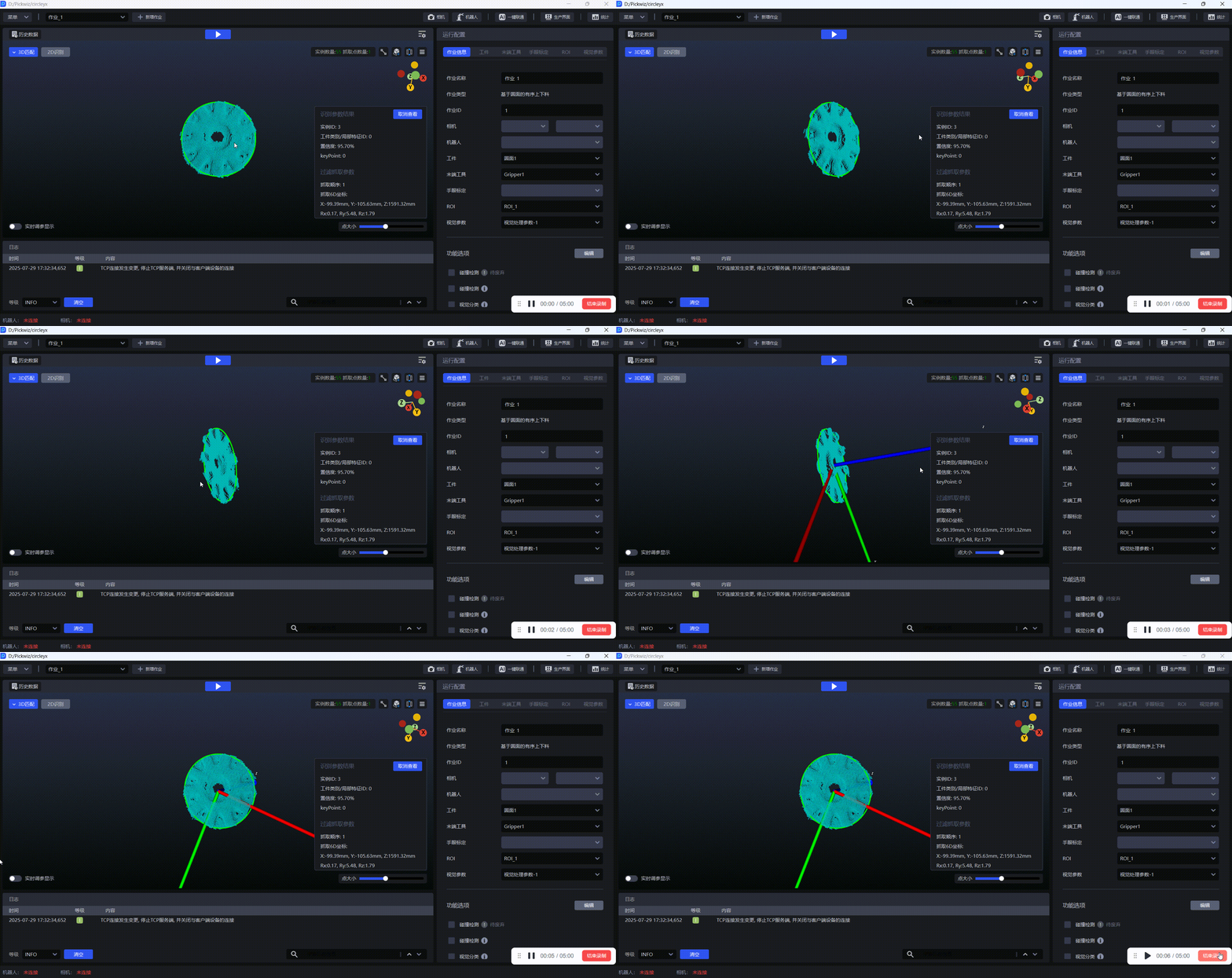
For Circular Surface Target Objects, enabling Display Fitted Circle allows you to view the fitted circle, as shown below.
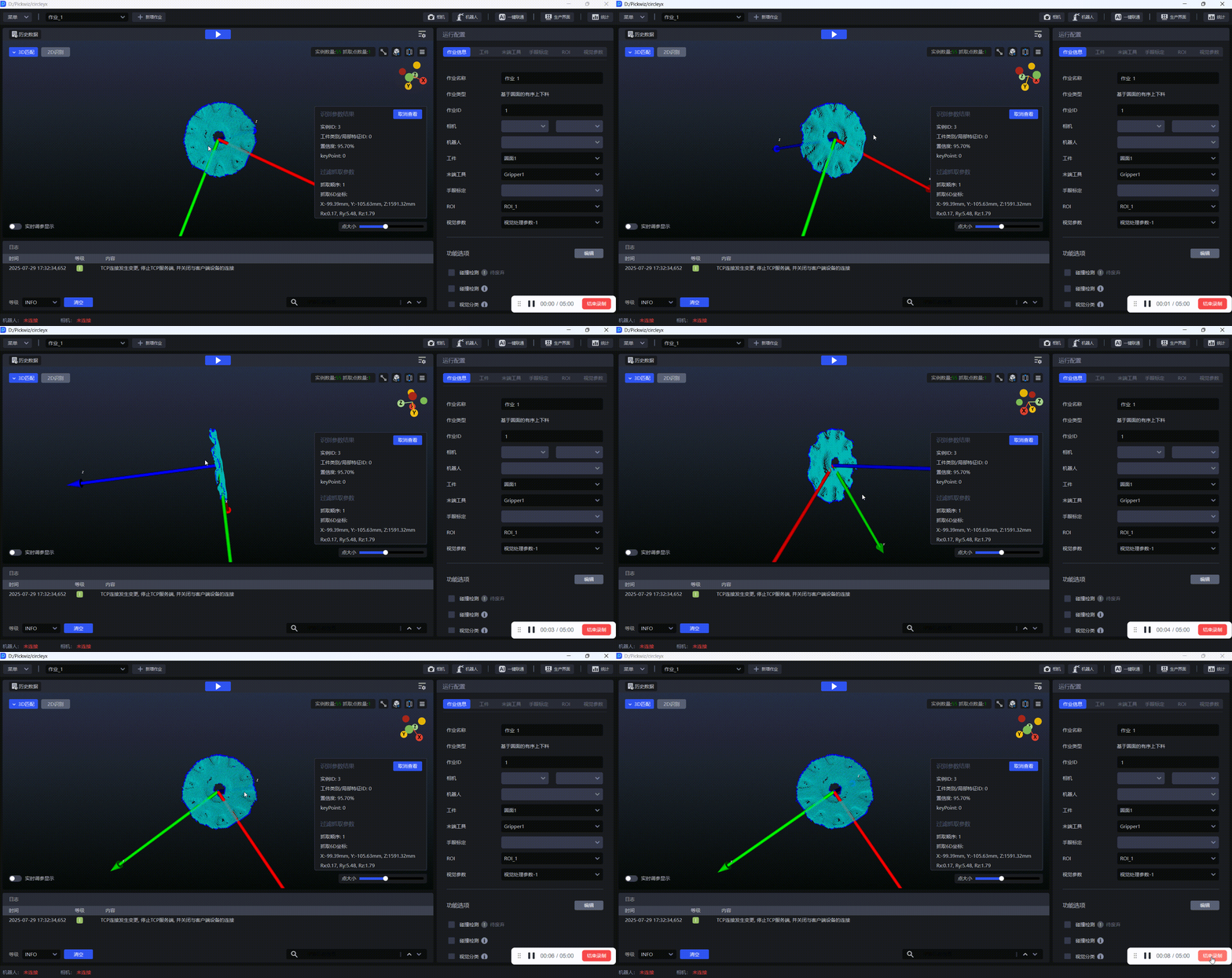
3.2.15 Display Contour Point Cloud
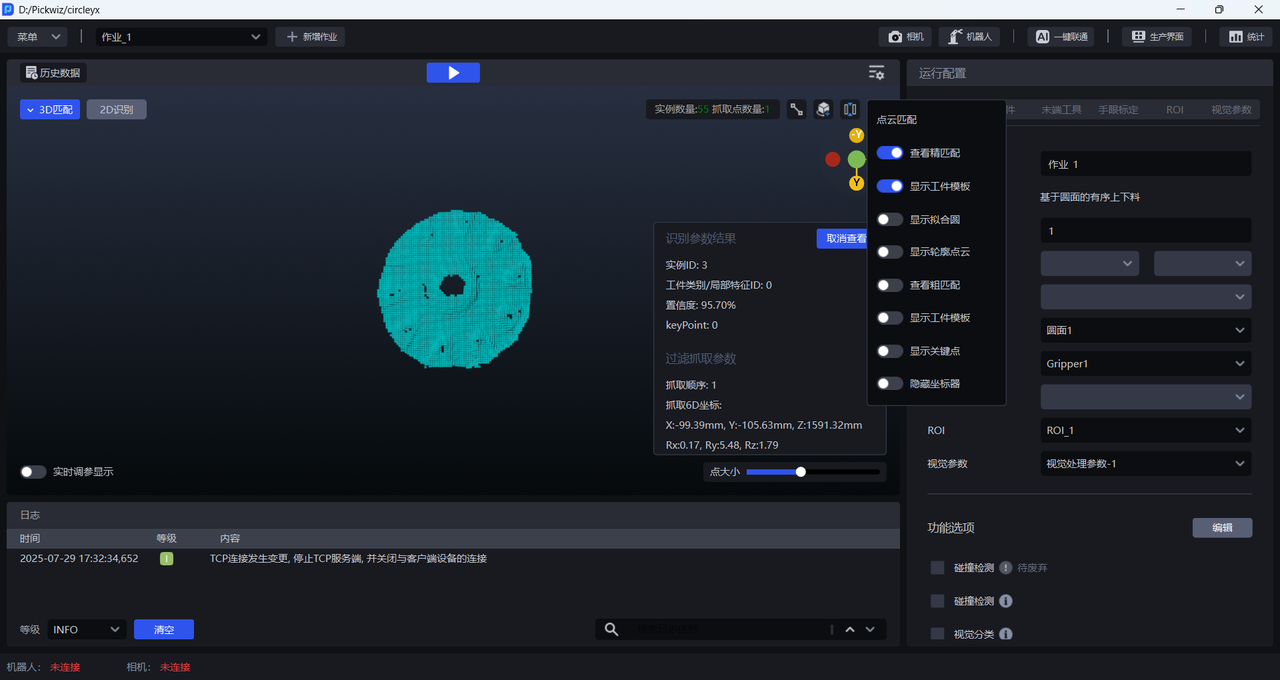
For Circular Surface Target Objects, enabling Display Contour Point Cloud allows you to view the contour Point Cloud of the Circular Surface Target Object, as shown below.
3.2.16 Display Neighborhood Point Cloud
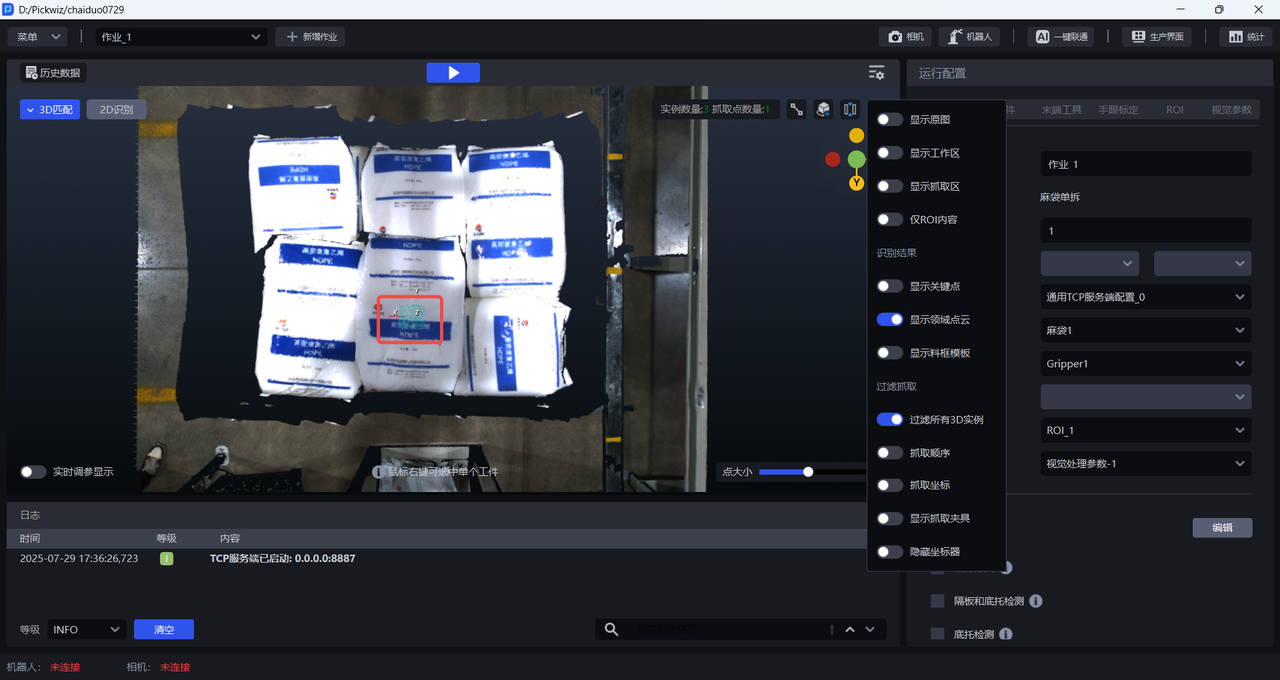
In depalletizing scenarios, Pick Points are calculated within the neighborhood Point Cloud range. When enabled, the neighborhood Point Cloud within the Pick Point calculation range is displayed.
4. Example
Filter Low-Confidence Target Object Instances
(1)After enabling real-time parameter tuning mode, adjust the value of “2D Recognition - Minimum Score Threshold.” The system responds to your modification, and the visualization window shows in real time that instances with Confidence below 0.8 are filtered out.
(2)After clicking Apply / Run / Run Historical Data , the full workflow can be computed, and you can view the final result affected by the adjusted “2D Recognition - Minimum Score Threshold.”