Real-Time Visual Thermal Drift Calibration Guide
1. Create a New Calibration Sphere Task
Create a calibration sphere task in the 【Positioning and Assembly】 scenario and complete the task configuration
Run the calibration sphere task to obtain the detected Picking Pose as the reference pose for visual thermal drift correction, and record it for use in the following steps
2. Configure Visual Drift Correction Parameters
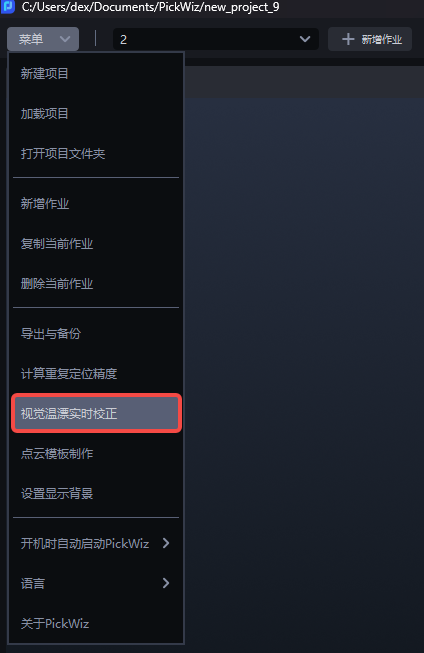
- Select 【Real-Time Visual Thermal Drift Calibration】 from the software menu bar
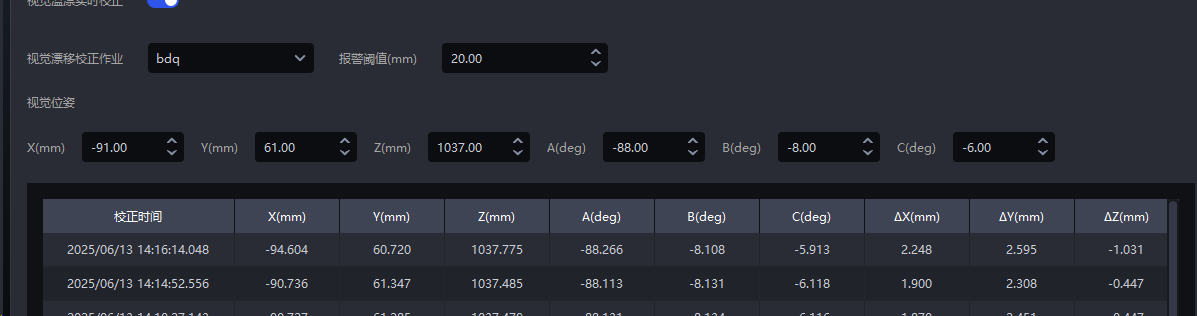
- In the pop-up window, turn on the 【Real-Time Visual Thermal Drift Calibration】 switch and configure 【Visual Thermal Drift Task】, 【Alarm Threshold】, and 【Vision Pose】 (the value is the Picking Pose obtained by running the calibration sphere task in Step 1)
3. Correct the Actual Task
- The correction operation can only be triggered and run by the robot. Configure 【Vision Detection Send Command】 in the robot configuration of the task to be corrected as follows. co=4 indicates triggering the calibration sphere run, which will calculate a drift offset
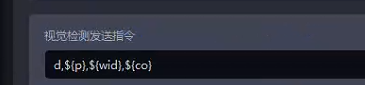
You can configure the field
in_dtinCommands Sent from PickWiz to Robotto indicate whether the drift correction threshold check is satisfied. If it is within the threshold check range or real-time visual drift correction is not enabled,in_dt=1; otherwisein_dt=0Test the correction effect
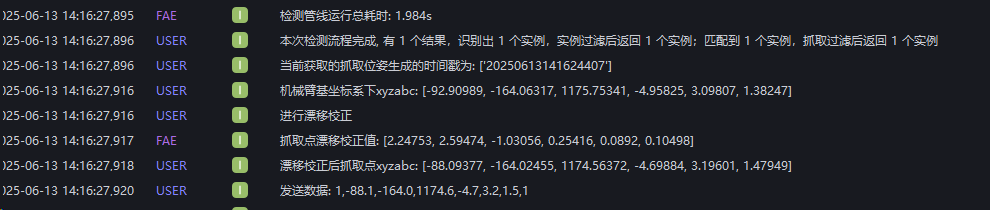
First turn off the visual thermal drift correction switch, manually trigger the task to run, and record the current pose 【representing the pose before offset】
Then turn on the visual thermal drift correction switch and trigger the actual workpiece task through the robot to obtain the pose after drift correction 【with an error within ±5 mm】
Coordinates Without Compensation
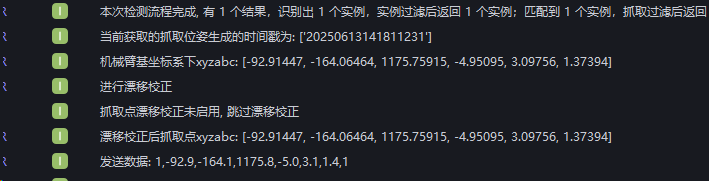
Coordinates After Compensation
4. Disable the Correction Function
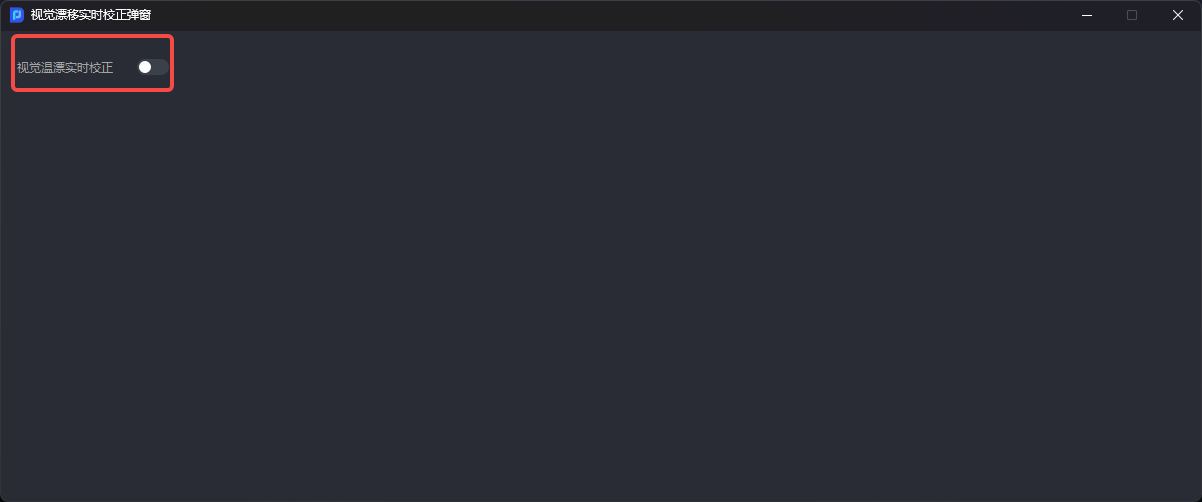
Turn off the 【Real-Time Visual Thermal Drift Calibration】 switch in the 【Real-Time Visual Thermal Drift Calibration pop-up】 window
Notes:
Manually clicking Run in the interface to trigger the calibration sphere task will not apply compensation. Compensation is applied only when the task is triggered by the robot and run with the corresponding send command configured;
After the calibration sphere task is executed, if the threshold is exceeded, all subsequent runs of other normal tasks will continuously alarm and send an exception signal to the robot
Site-customized implementation logic: when the threshold is exceeded, the signal output is '0,0,0,0,0,0,0'