Target Object Operation Guide
The Target Object is the object that the Robot needs to pick. Different types of Target Objects require different configurations. Please select the corresponding configuration workflow based on the Target Object type.
1. Sack
1.1 Add a Target Object
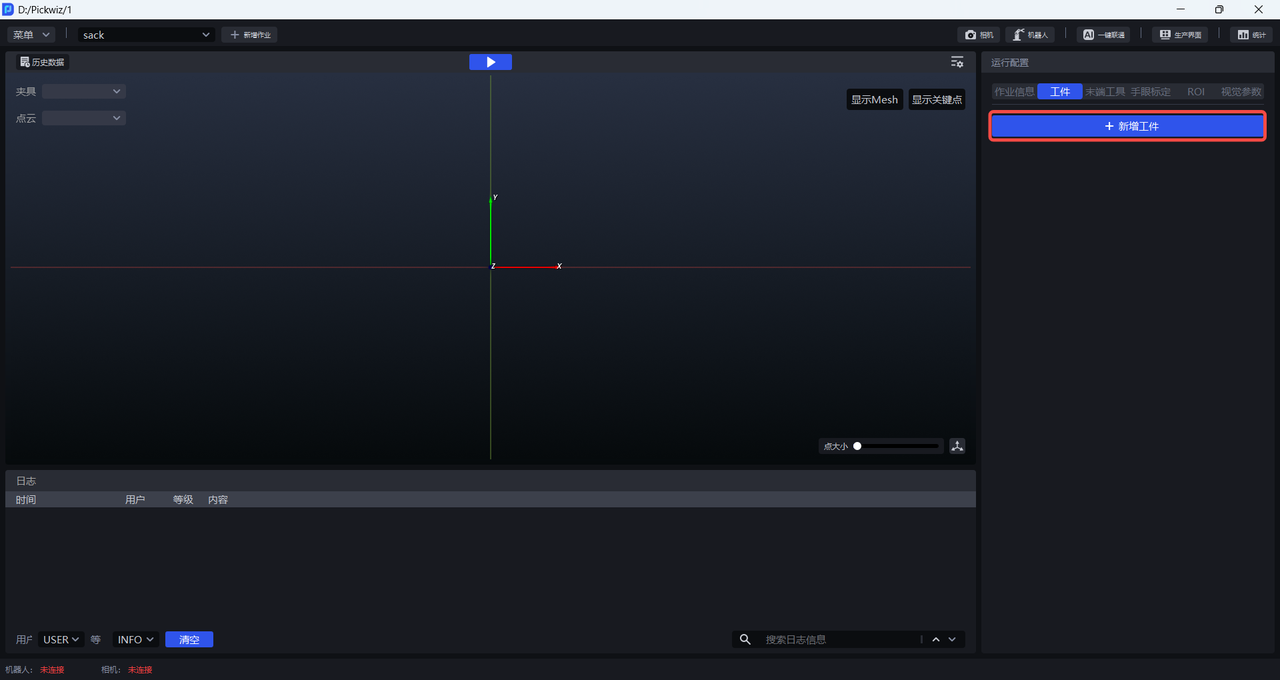
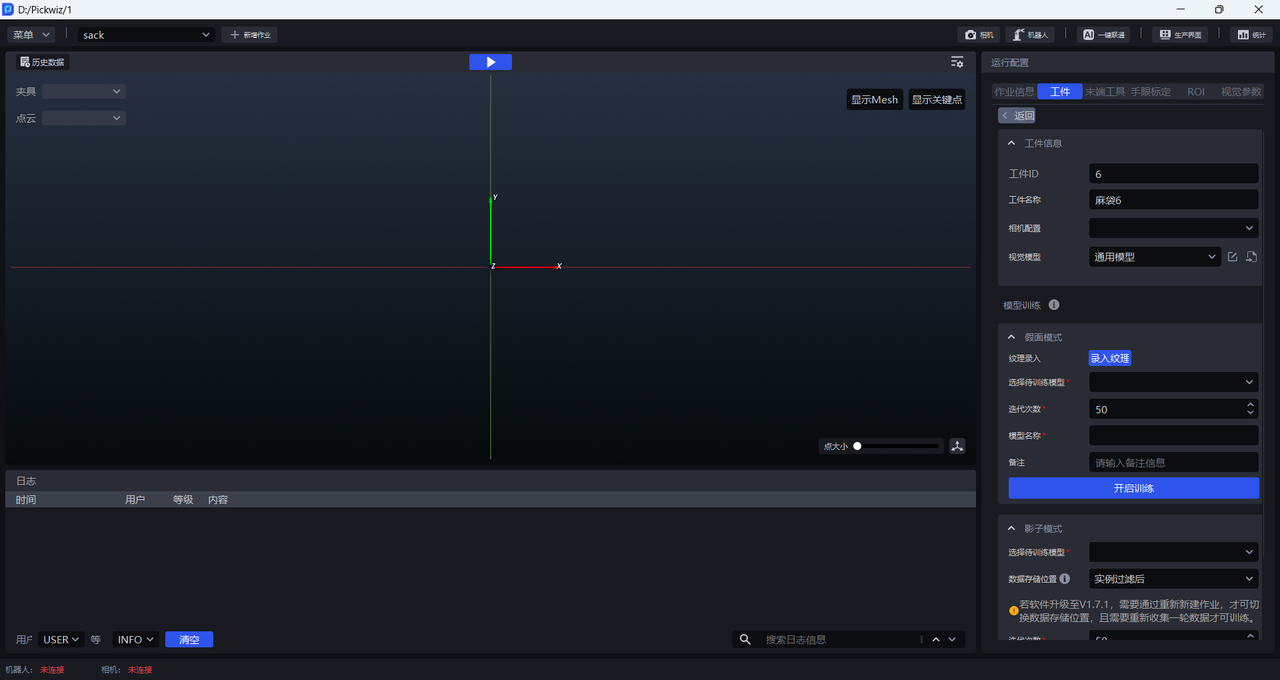
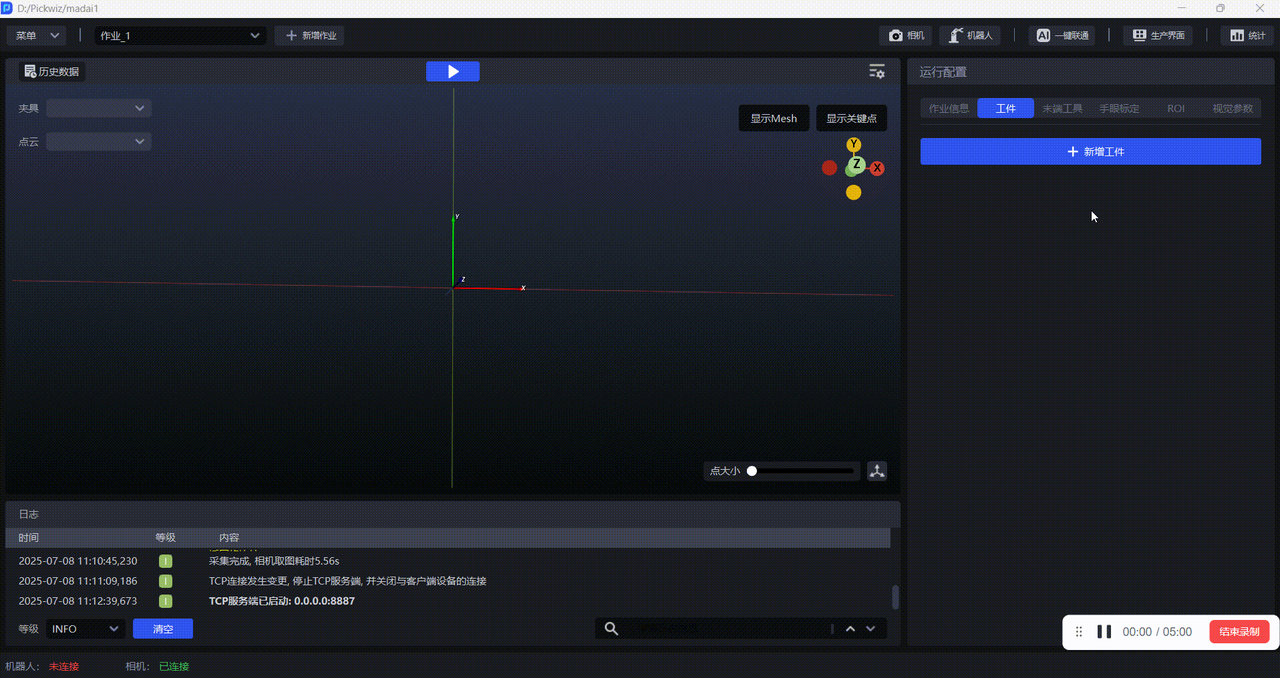
Click + Add Workpiece in the Target Object section of Runtime Configuration to enter the Target Object page.
1.2 Configure the Target Object
(1)Target Object Information
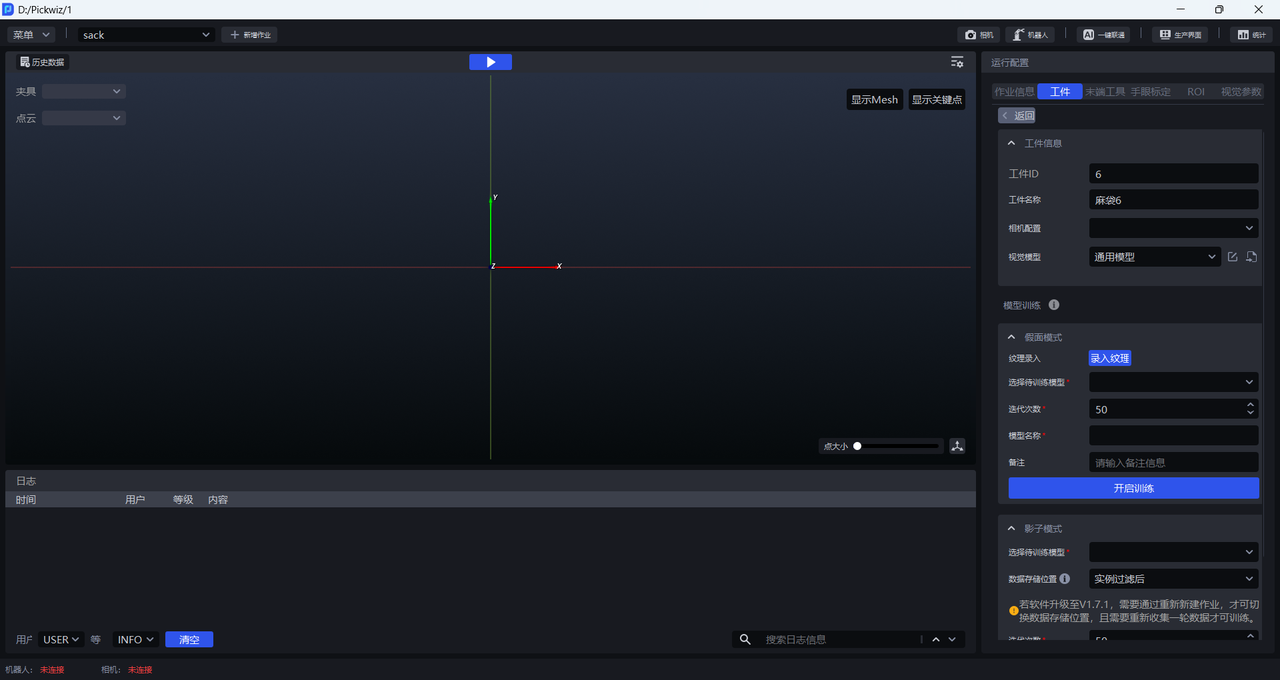
| Target Object ID | The Target Object ID is typically used by the Robot to switch Target Objects during changeover, and it can be modified. |
| Target Object Name | The default Target Object name is the Target Object type Sack&Target Object ID, and it can be modified. |
| Camera Configuration | You can select a Camera configuration. This field is optional. |
| Vision Model | A Deep Learning model used to segment instances from the scene. The default vision model for sacks is the general sack model. If the segmentation result of the general sack model is unsatisfactory, you can use Mask Mode or Shadow Mode to optimize the vision model. |
(2)Model Training
| Mask Mode | Optional. If the segmentation result of the general sack model is unsatisfactory, you can use Mask Mode to optimize the segmentation performance of the vision model. Mask Mode requires recording new textures and using synthetic data to train the model. For detailed operations, refer to How to Use Mask Mode |
| Shadow Mode | Optional. If the segmentation result of the general sack model is unsatisfactory, you can use Shadow Mode to optimize the segmentation performance of the vision model. Shadow Mode requires using real production data to train the model and improve the segmentation performance of the vision model. For detailed operations, refer to How to Use Target Object Shadow Mode |
1.3 Select the Target Object
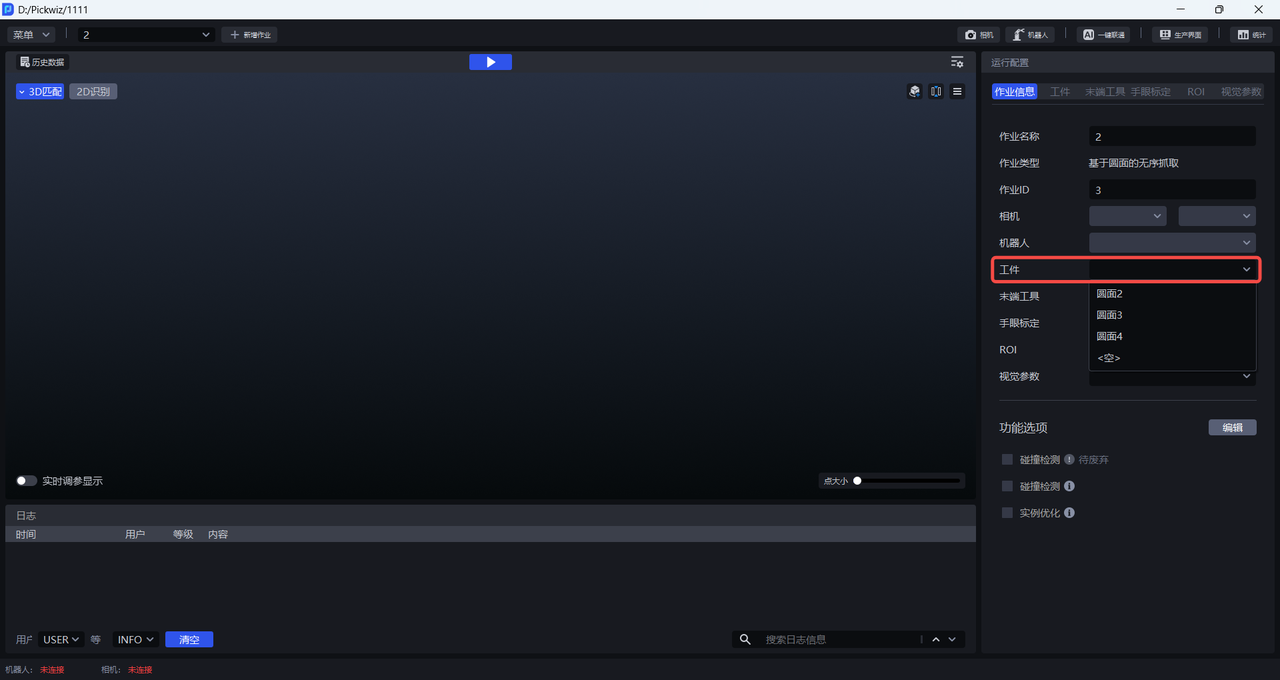
After completing the sack configuration, click Return to return to the main interface, and select the corresponding sack in Task Information - Target Object.
1.4 Example
2. Carton
2.1 Add a Target Object
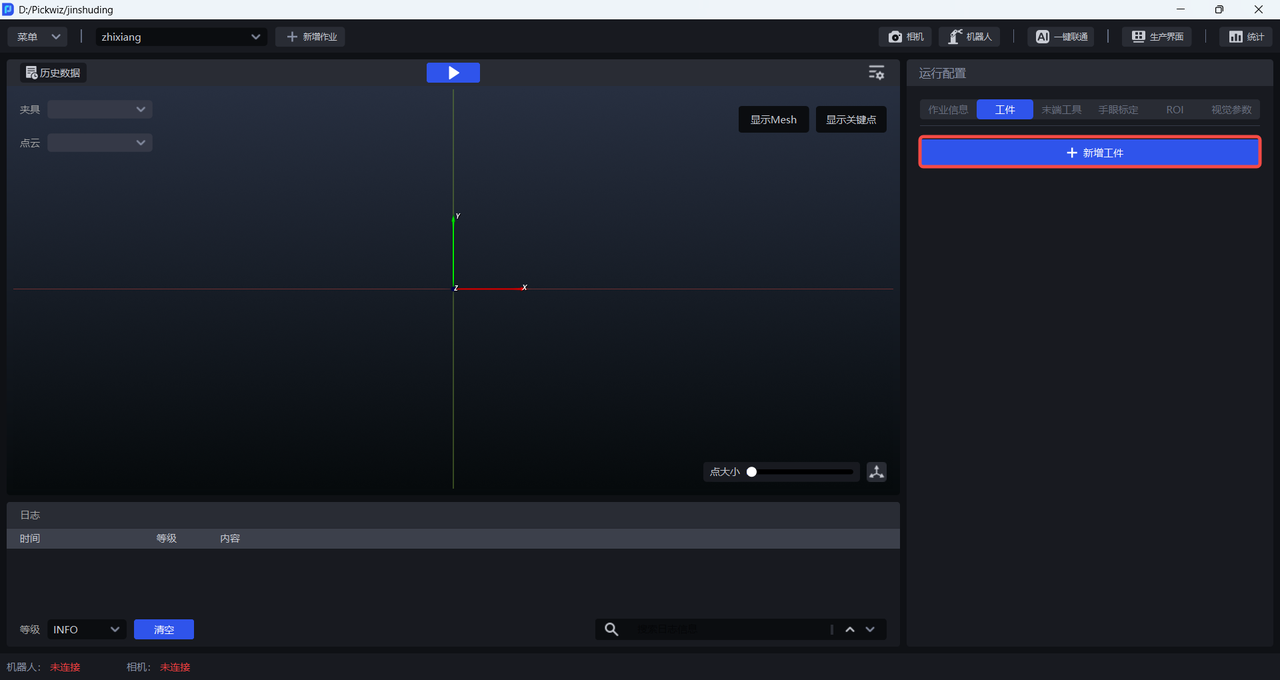
Click + Add Workpiece in the Target Object section of Runtime Configuration to enter the Target Object page.
2.2 Configure the Target Object
(1)Target Object Information
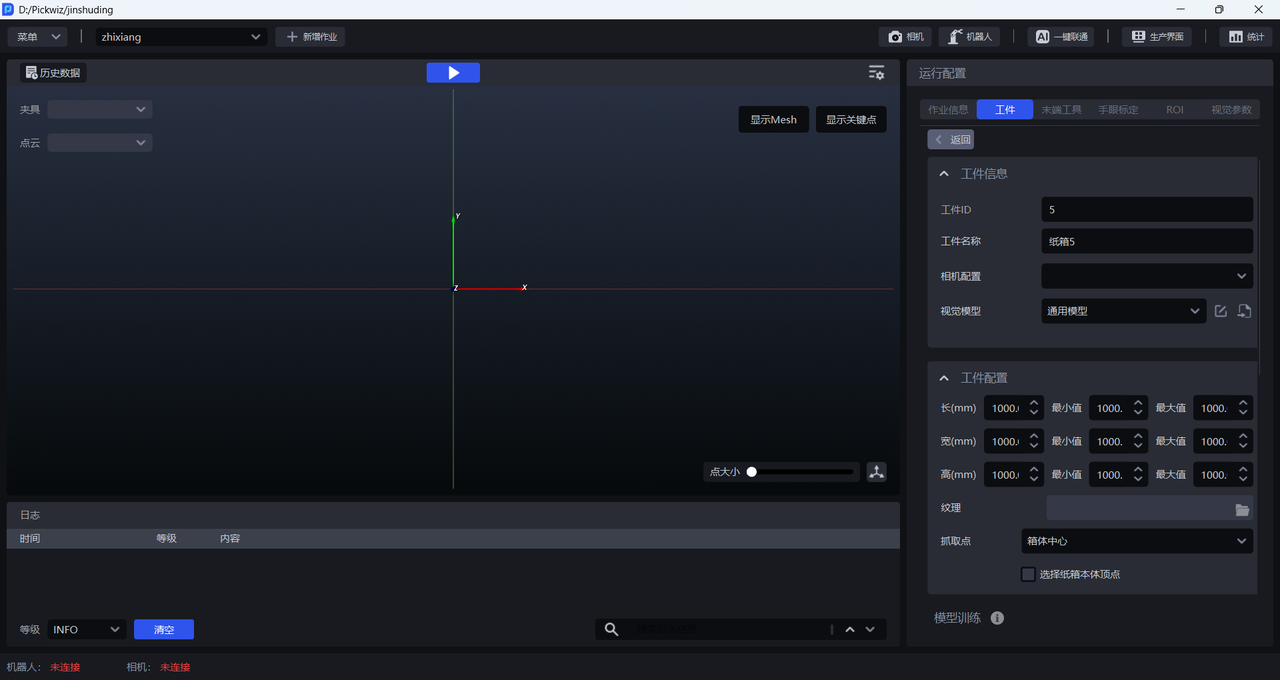
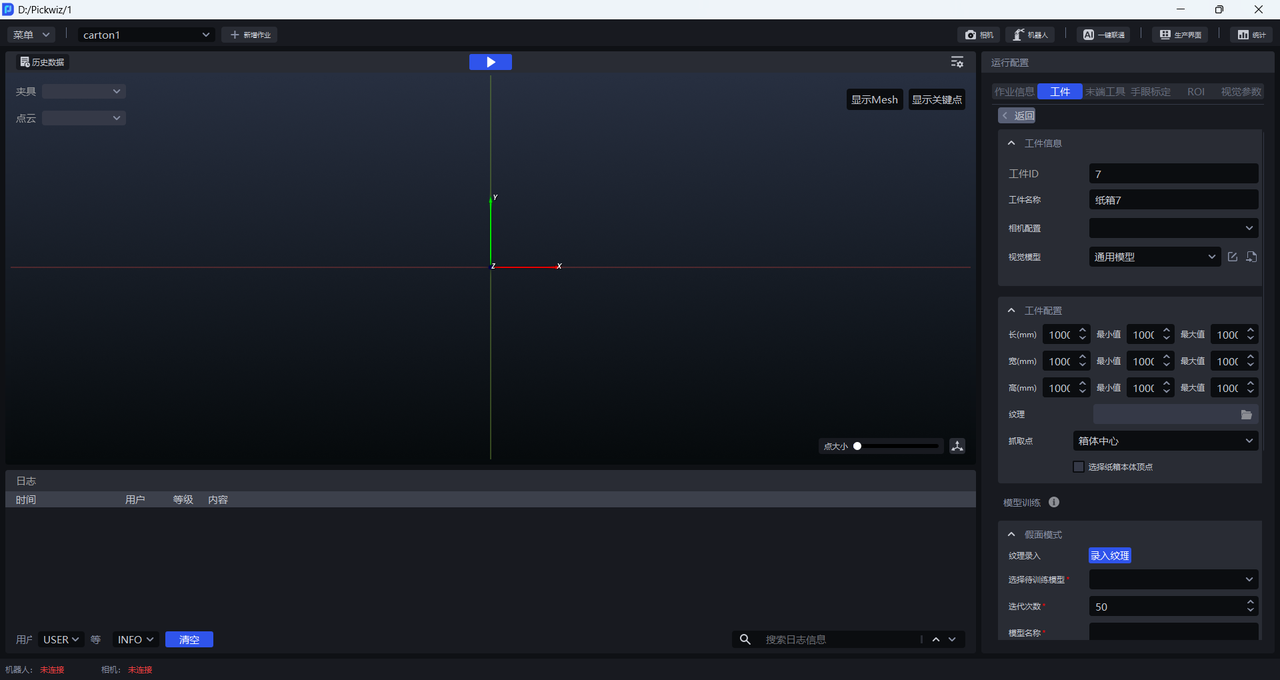
| Target Object ID | The Target Object ID is typically used by the Robot to switch Target Objects during changeover, and it can be modified. |
| Target Object Name | The default Target Object name is Carton&Target Object ID, and it can be modified. |
| Camera Configuration | You can select a Camera configuration. This field is optional. |
| Vision Model | A Deep Learning model used to segment instances from the scene. The default vision model for cartons is the general carton model. If the segmentation result of the general carton model is unsatisfactory, you can use Mask Mode or Shadow Mode to optimize the vision model. |
(2)Target Object Configuration
| Length/Width/Height | Configure the length, width, and height of the carton to prevent incorrect segmentation by the vision model. This field is optional. |
| Texture | Import the texture image of the carton and use the texture to control the picking direction. This feature is disabled and does not need to be filled in. |
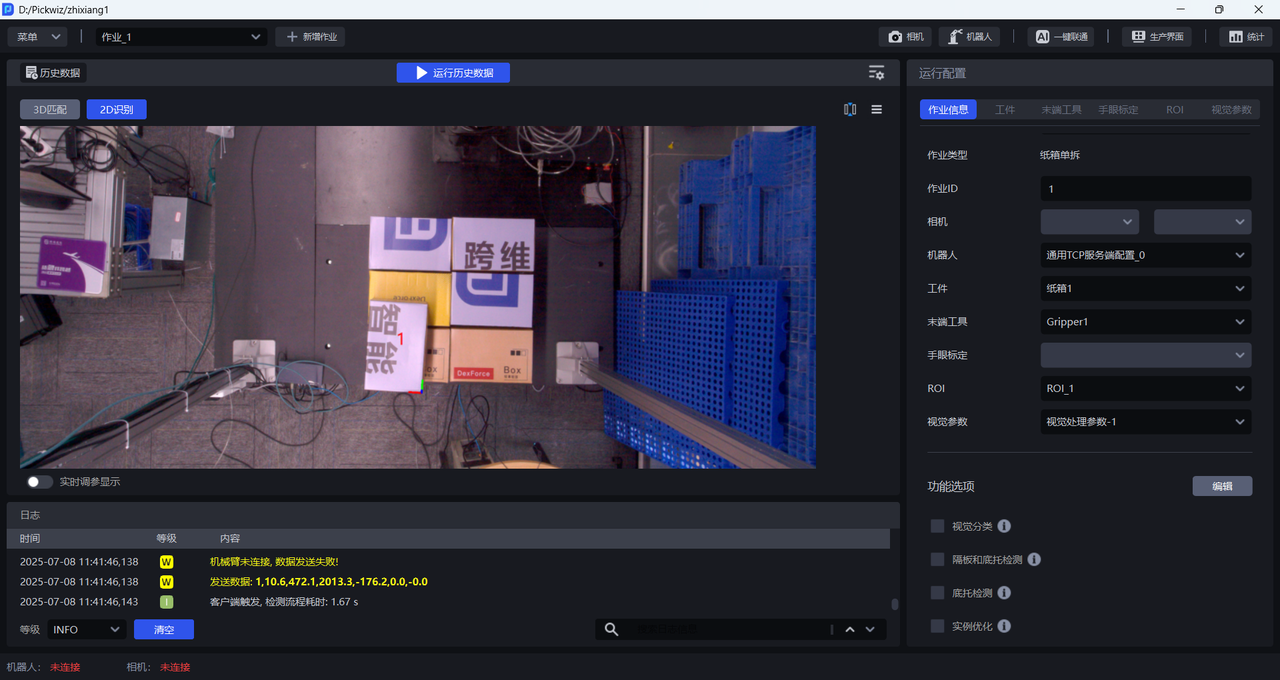
| Pick Point | Set the Pick Point of Target Object for the Robot to pick the carton. Options include “Center of Box”, “Upper Left Corner of Box”, “Lower Left Corner of Box”, and “Upper Right Corner of Box”. |
| Select Box Body Vertex | If selected, the vertex of the box body itself is used as the coordinate origin, with the left side of the long edge as the upper left; if not selected, the box vertex in the pixel coordinate system is used as the coordinate origin, and the corresponding corner point is selected. |
Examples of carton Pick Point settings are shown below.
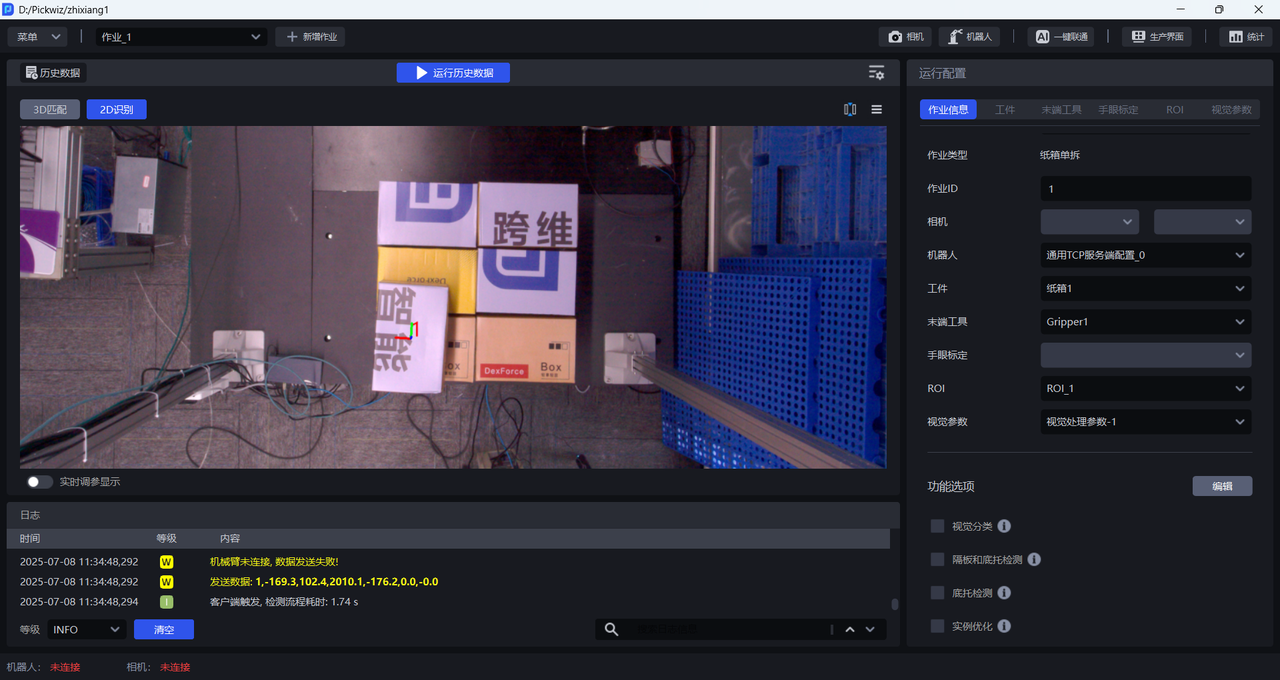
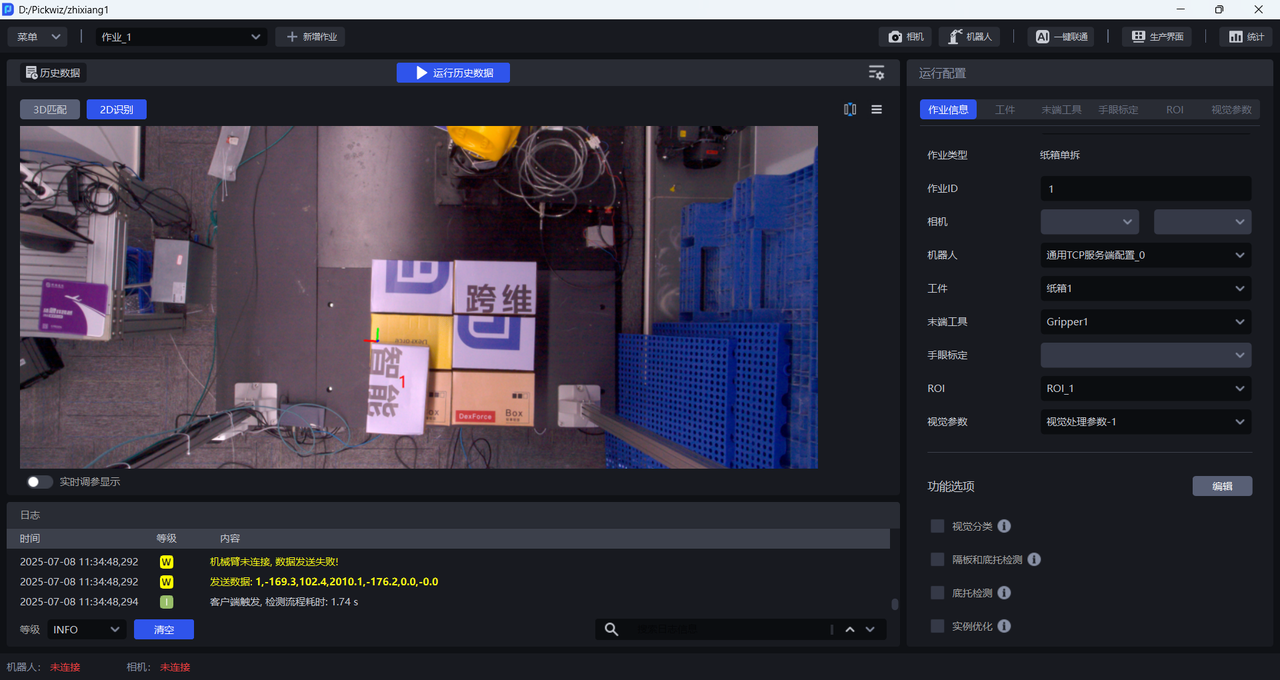
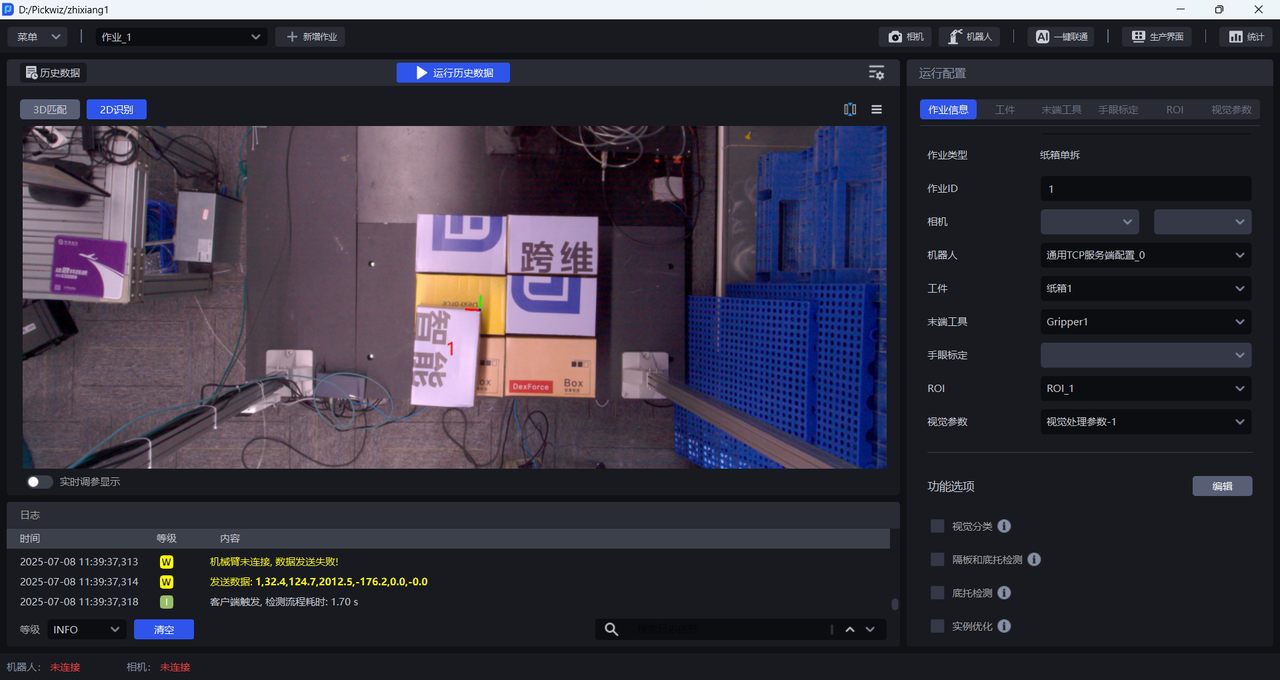
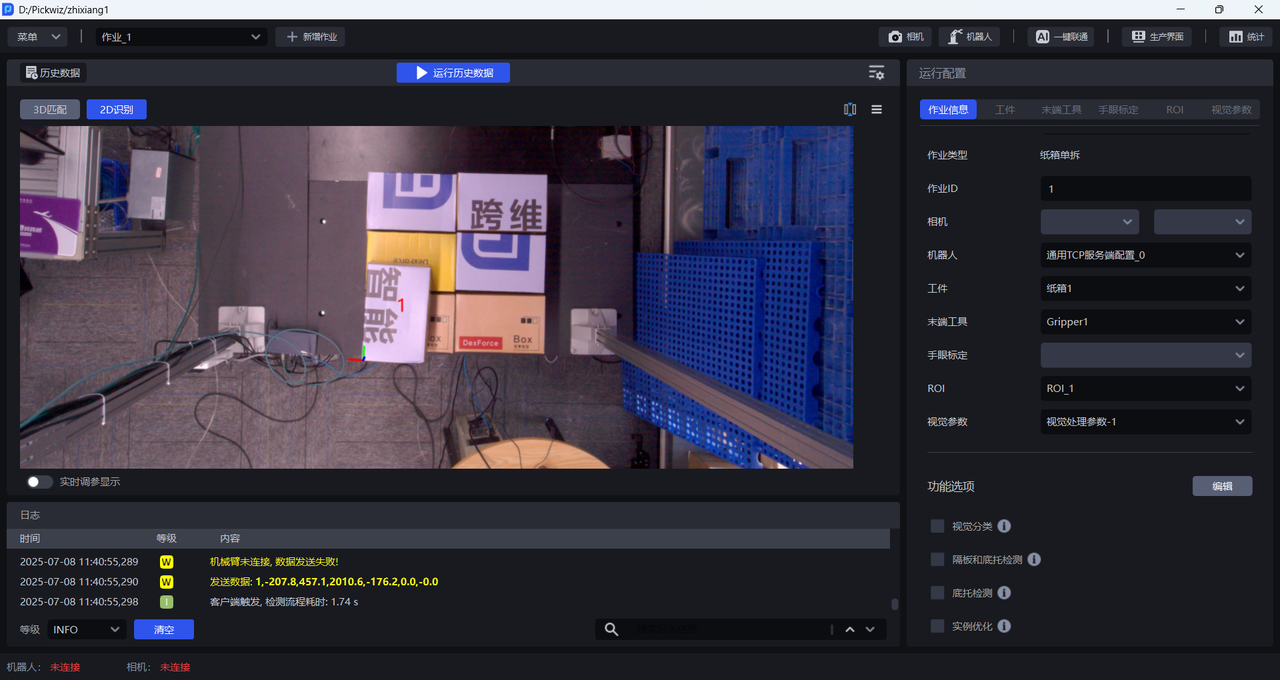
(3)Model Training
| Mask Mode | Optional. If the segmentation result of the general carton model is unsatisfactory, you can use Mask Mode to optimize the segmentation performance of the vision model. Mask Mode requires recording new textures and using synthetic data to train the model. For detailed operations, refer to How to Use Mask Mode |
| Shadow Mode | Optional. If the segmentation result of the general carton model is unsatisfactory, you can use Shadow Mode to optimize the segmentation performance of the vision model. Shadow Mode requires using real production data to train the model and improve the segmentation performance of the vision model. For detailed operations, refer to How to Use Target Object Shadow Mode |
2.3 Select the Target Object
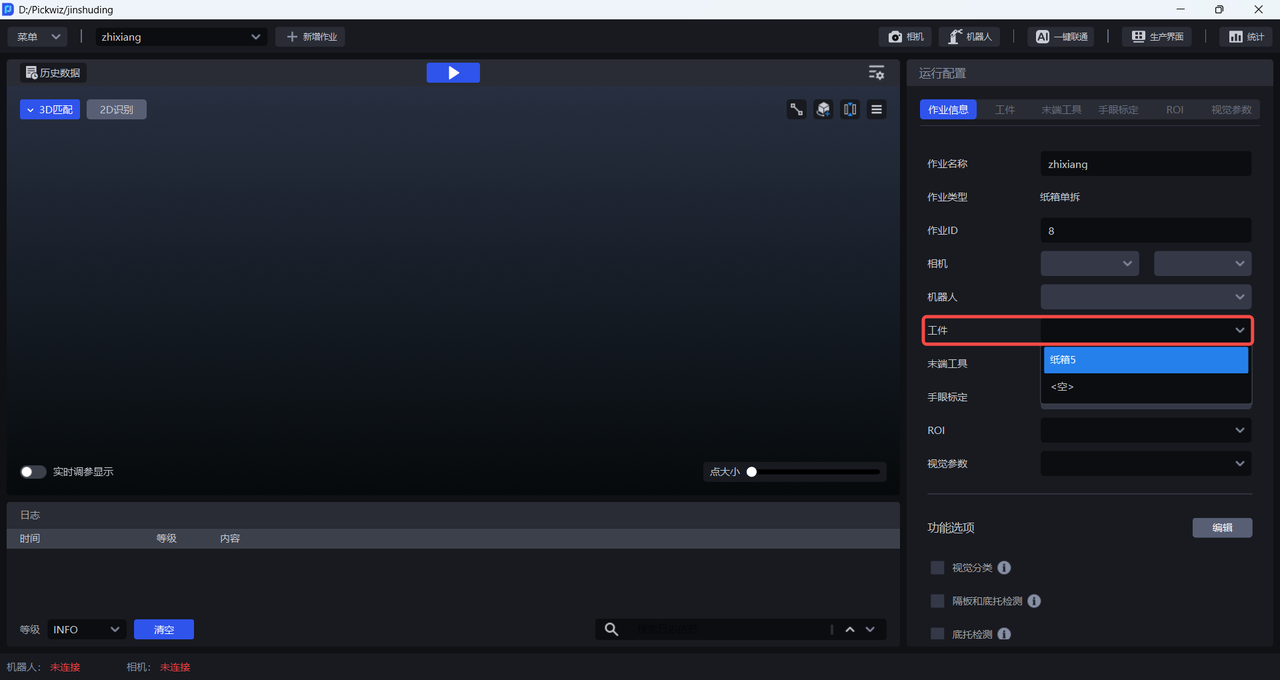
After completing the carton configuration, click Return to return to the main interface, and select the corresponding carton in Task Information - Target Object.
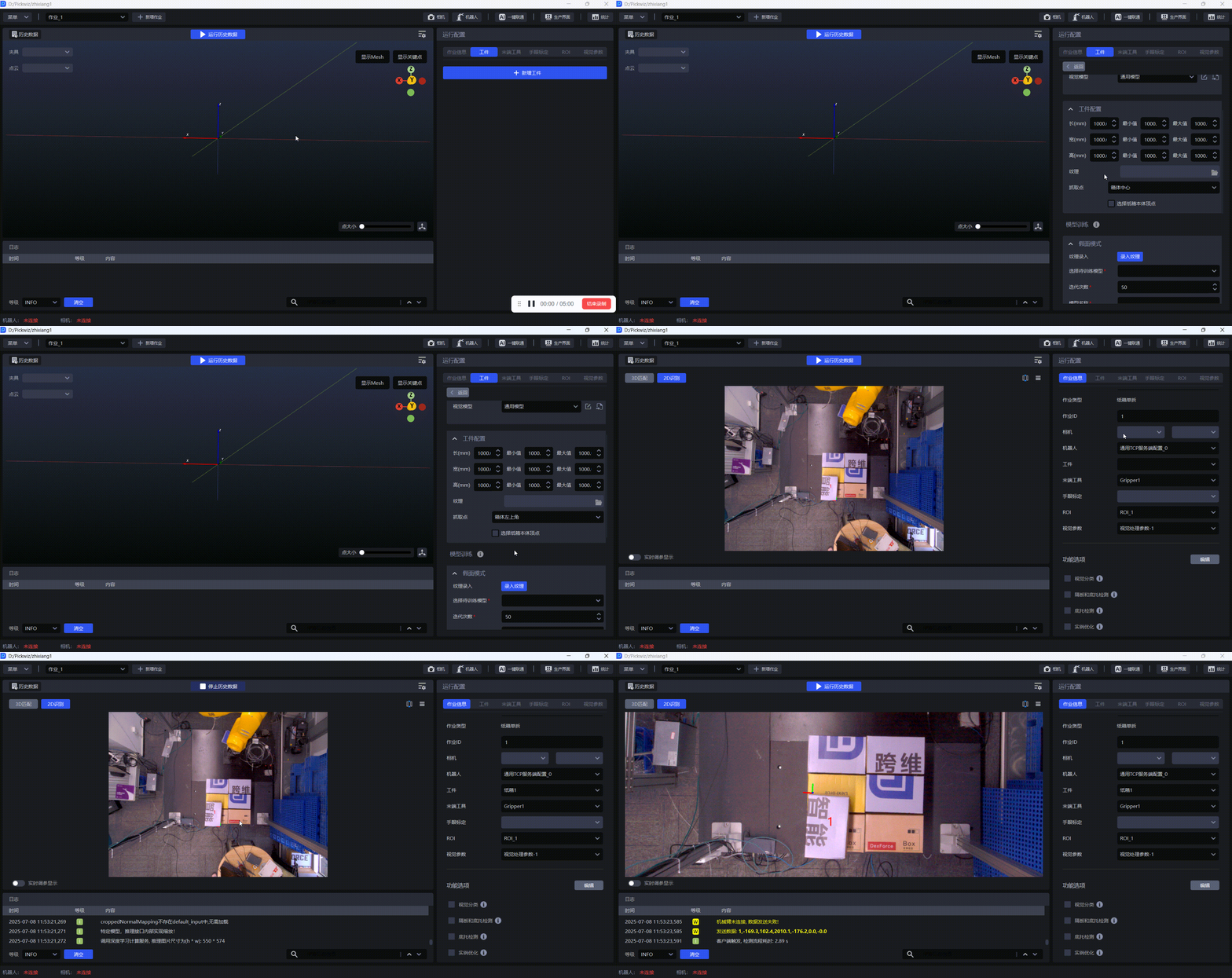
2.4 Example
3. General Target Object
3.1 Add a Target Object
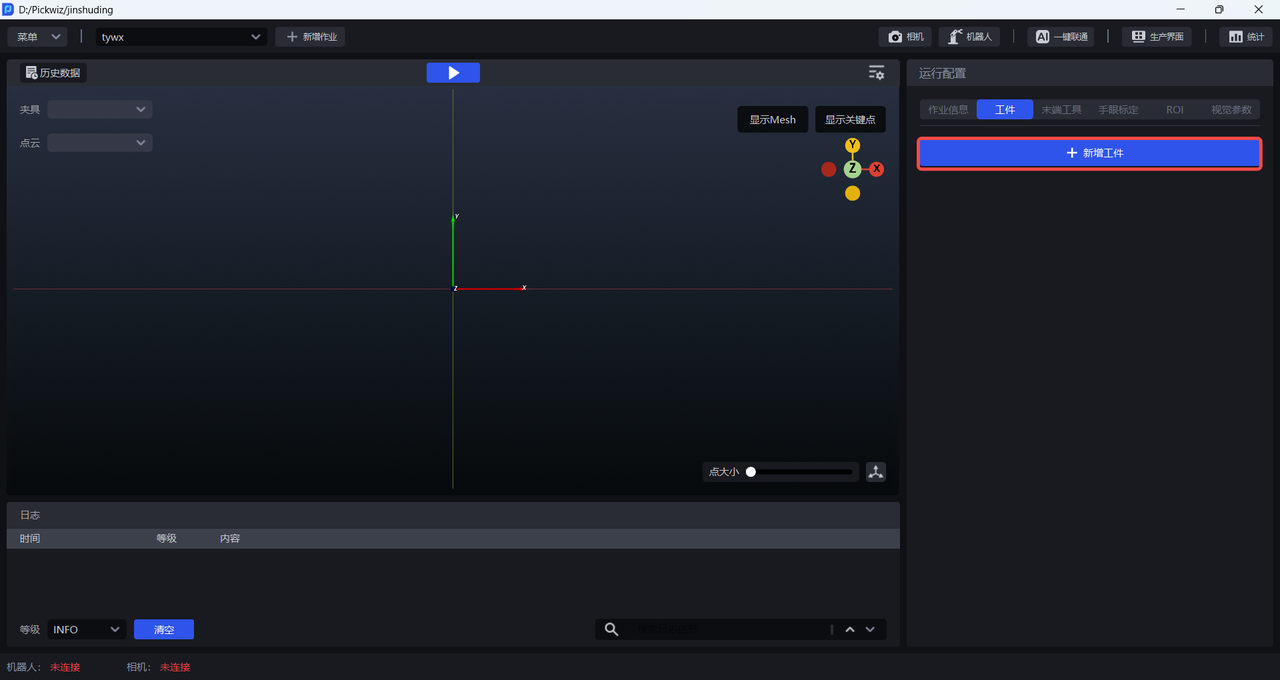
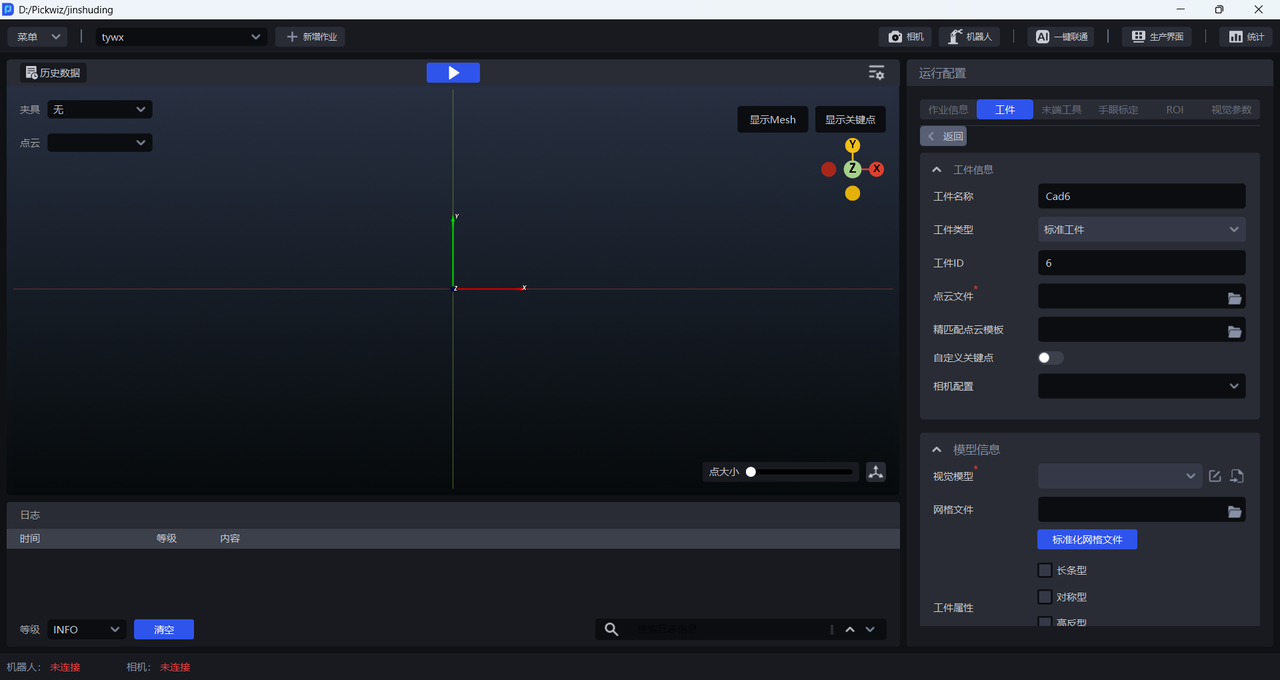
Click + Add Workpiece in the Target Object section of Runtime Configuration to enter the Target Object page.
3.2 Configure the Target Object
(1)Target Object Information
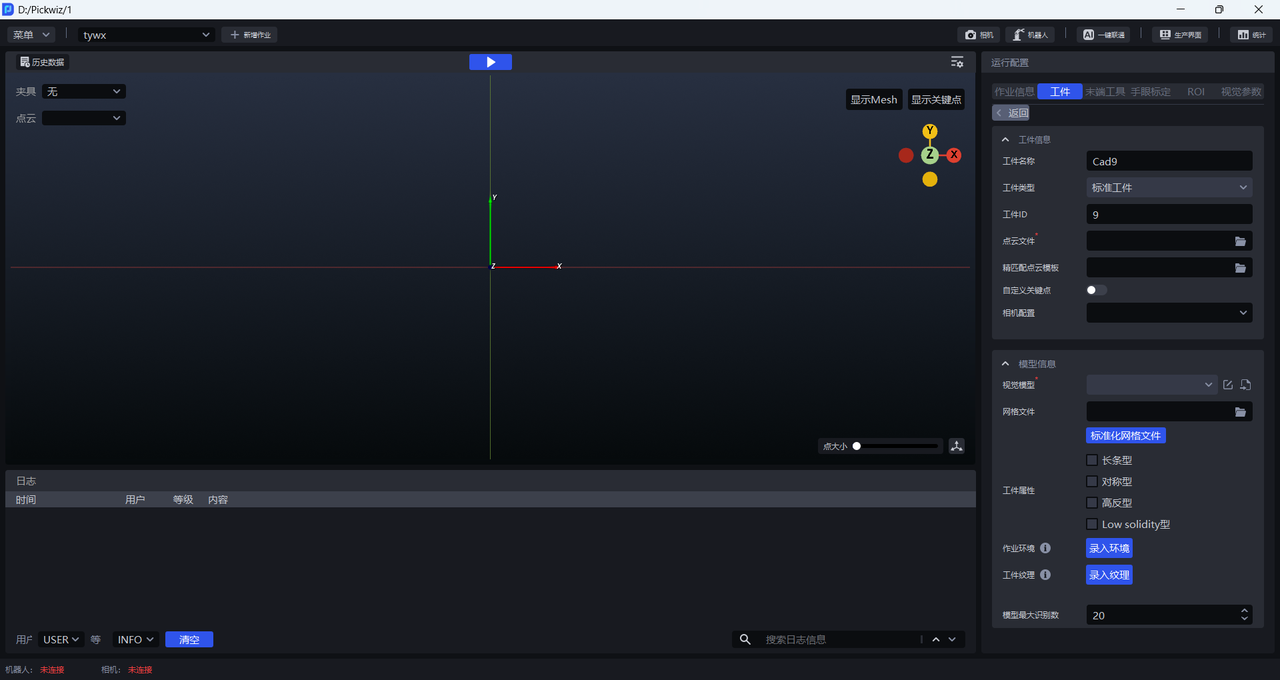
| Target Object ID | The Target Object ID is typically used by the Robot to switch Target Objects during changeover, and it can be modified. |
|---|---|
| Target Object Name | The default name of a General Target Object is “Cad&Target Object ID”, and it can be modified. |
| Target Object Type | The default Target Object type of a General Target Object is Standard Target Object, and it cannot be modified. |
| Point Cloud File | Required. Upload the Point Cloud template of the General Target Object for coarse matching with the actual Point Cloud captured by the Camera. You can refer to Point Cloud Template Creation Guide to create the Point Cloud template. |
| Accurate Matching Point Cloud Template | Optional. You can upload the full Point Cloud template of the General Target Object for accurate matching with the actual Point Cloud captured by the Camera to optimize the Target Object pose. You can refer to Point Cloud Template Creation Guide to create the accurate matching Point Cloud template. |
| Custom Keypoints | Required. General Target Objects should enable custom keypoints and upload the keypoints of the General Target Object for matching with the keypoints predicted by the vision model on the actual Point Cloud. The keypoint filename is generally keypoint_128.ply. You can refer to Point Cloud Template Creation Guide to create the keypoint file. |
| Camera Configuration | You can select a Camera configuration. This field is optional. |
General Target Objects should enable custom keypoints and upload the keypoint file of the General Target Object. The keypoint filename is generally keypoint_128.ply
(2)Model Information
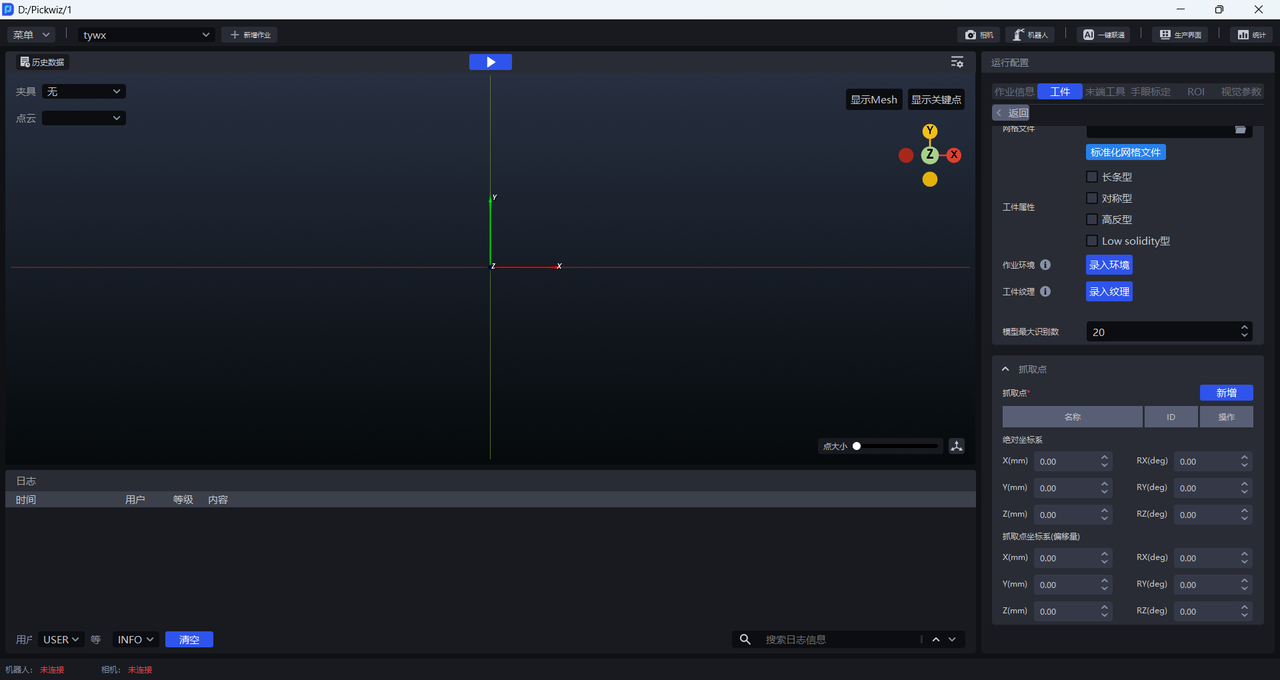
| Vision Model | Required. A Deep Learning model used to segment instances from the scene. The vision model of a General Target Object uses a CAD-based synthetic data training (one-click end-to-end) method. Different General Target Objects also use different vision models, so the vision model of a General Target Object must be trained through one-click end-to-end training. For the detailed process, refer to One-Click End-to-End Vision Model Training/ One-Click End-to-End Imaging Model Training |
| Mesh File | Required. Upload the CAD model of the General Target Object. The mesh file should be a standardized CAD model to support subsequent operations such as one-click end-to-end vision model training, Point Cloud template generation, and Point Cloud alignment mesh generation. Refer to Point Cloud Template Creation Guide to standardize the mesh file. |
| Incoming Material Form | Only for ordered loading and unloading scenarios. It is used to simulate the incoming material form of the Target Object in the recorded scene to support one-click end-to-end model training in ordered scenarios. Tight Arrangement: helps quickly set the number of Target Objects in rows/columns and is suitable for scenarios where Target Objects arrive in an ordered manner, have consistent poses, and have small spacing. Custom Incoming Material Form: enables full configuration of the detailed parameters of the incoming material form and is suitable for all incoming material types. |
| Target Object Attributes | Optional. Used for one-click end-to-end model training. Options include "Long-strip", "Symmetric", "High Reflective", and "lowsolidity". |
| Task Environment | Optional. Record the task environment for one-click end-to-end model training. During data generation in one-click end-to-end, the default randomly transformed Background is replaced with the recorded task environment data, thereby improving recognition performance. |
| Target Object Texture | Optional. Record the Target Object texture for one-click end-to-end model training. During model training in one-click end-to-end, the uploaded texture is used for data augmentation, thereby improving recognition performance. |
| Maximum Model Recognition Count | Used for one-click end-to-end to control the maximum number of instances that the vision model can recognize during Inference. Under the same conditions, the larger the recognition count, the more recognition results the model can return, but the longer the model Inference time. In ordered scenarios, it is generally recommended to fill in a value slightly greater than the number of materials in one layer. In unordered scenarios, it should be set according to the actual scenario. |
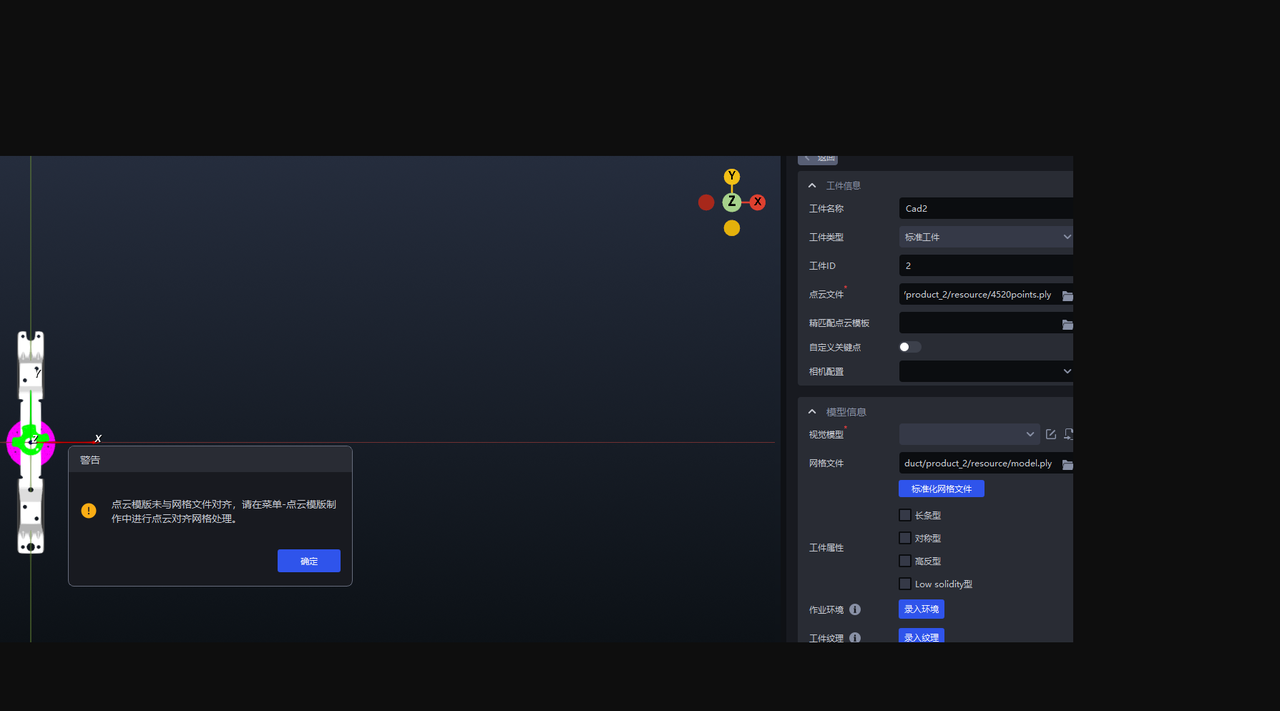
In General Target Object scenarios, when importing the Point Cloud file/keypoint file, the system automatically verifies whether the coordinate center is aligned with the mesh file.
(3)Pick Point
When a new Target Object configuration is added, there is no Pick Point by default and it must be added manually. After adding a Pick Point, adjust its pose based on the absolute coordinate system or the Pick Point coordinate system.
| Absolute Coordinate System | Pick Point of the Target Object CAD model |
|---|---|
| Pick Point Coordinate System (Offset) | Adjust the Pick Point using the center of the Target Object as the origin. |
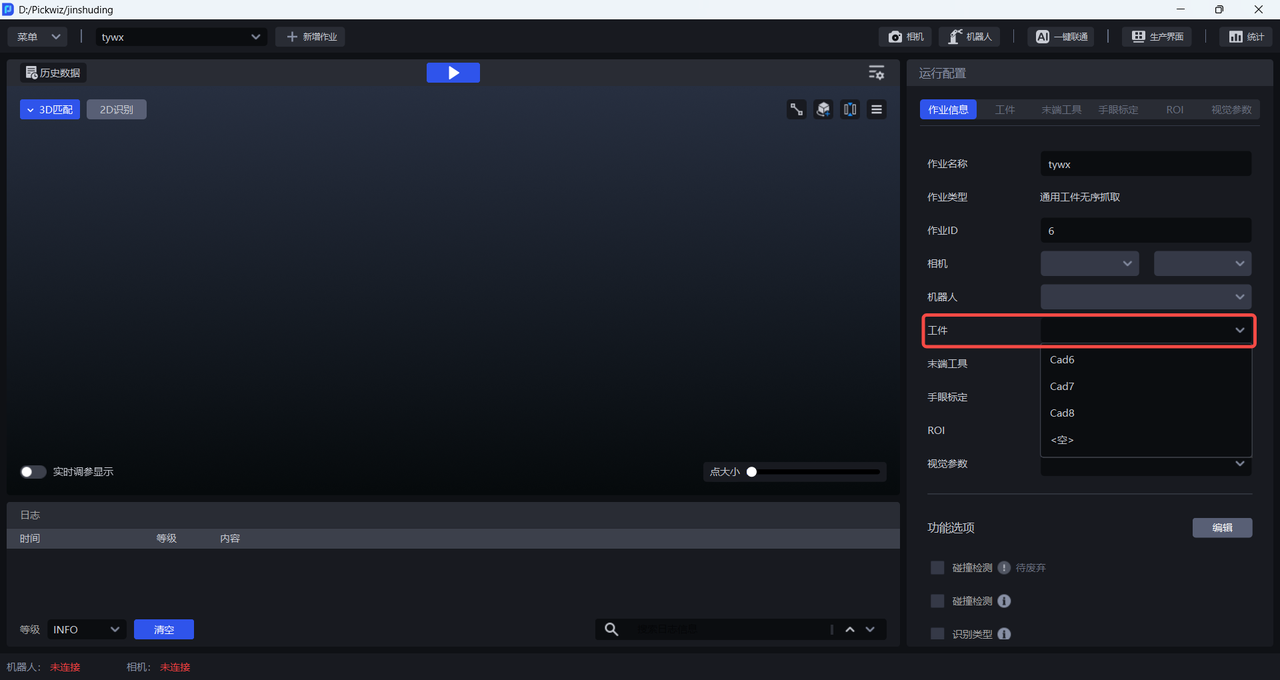
3.3 Select the Target Object
After completing the General Target Object configuration, click Return to return to the main interface, and select the corresponding General Target Object in Task Information - Target Object.
3.4 Example
4. Surface Target Object
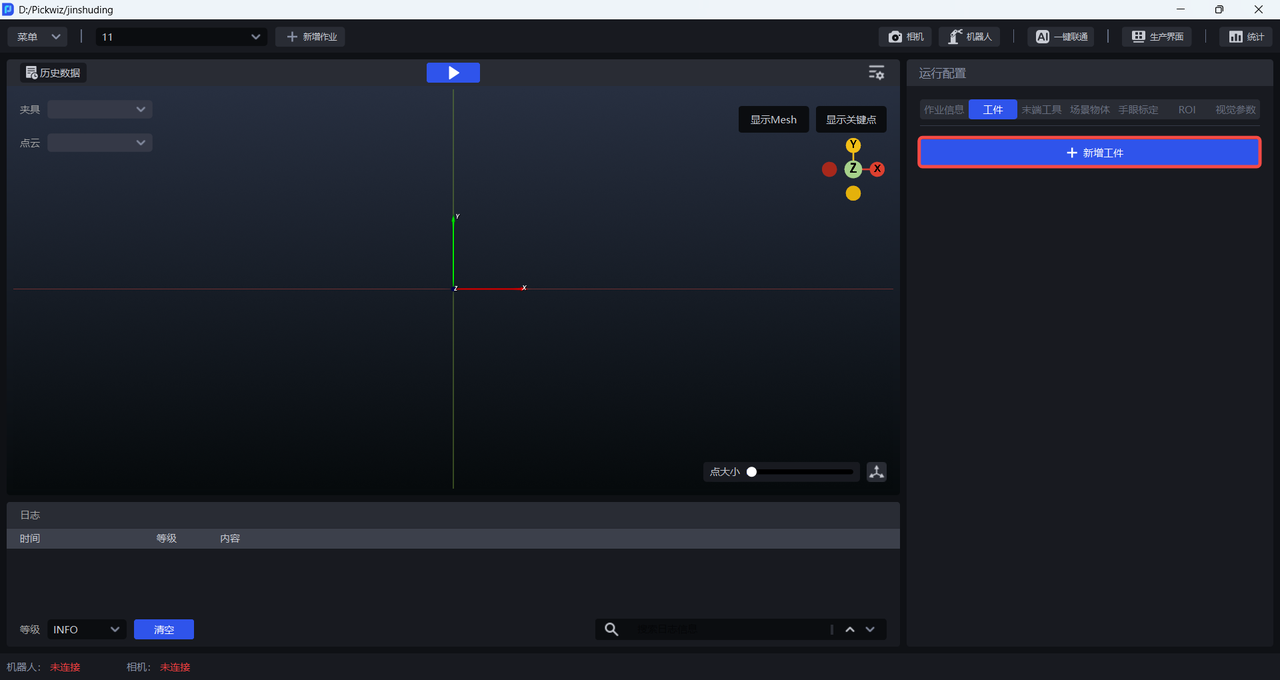
4.1 Add a Target Object
Click + Add Workpiece in the Target Object section of Runtime Configuration to enter the Target Object page.
4.2 Configure the Target Object
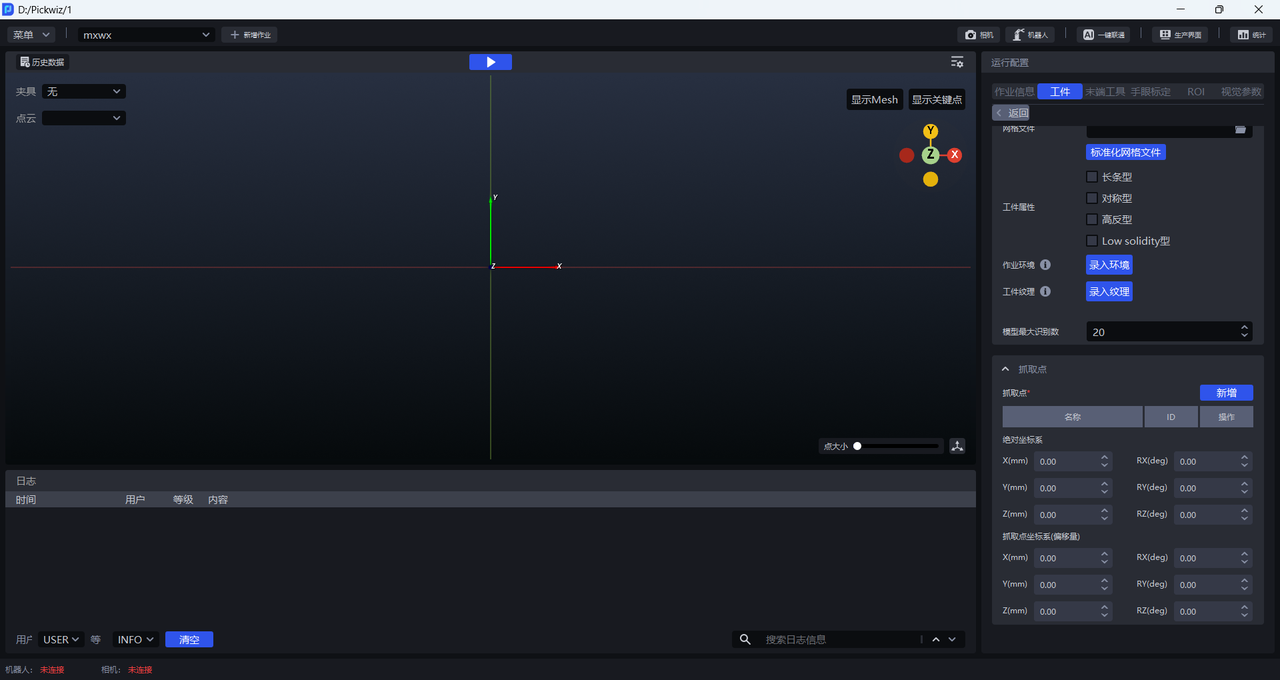
(1)Target Object Information
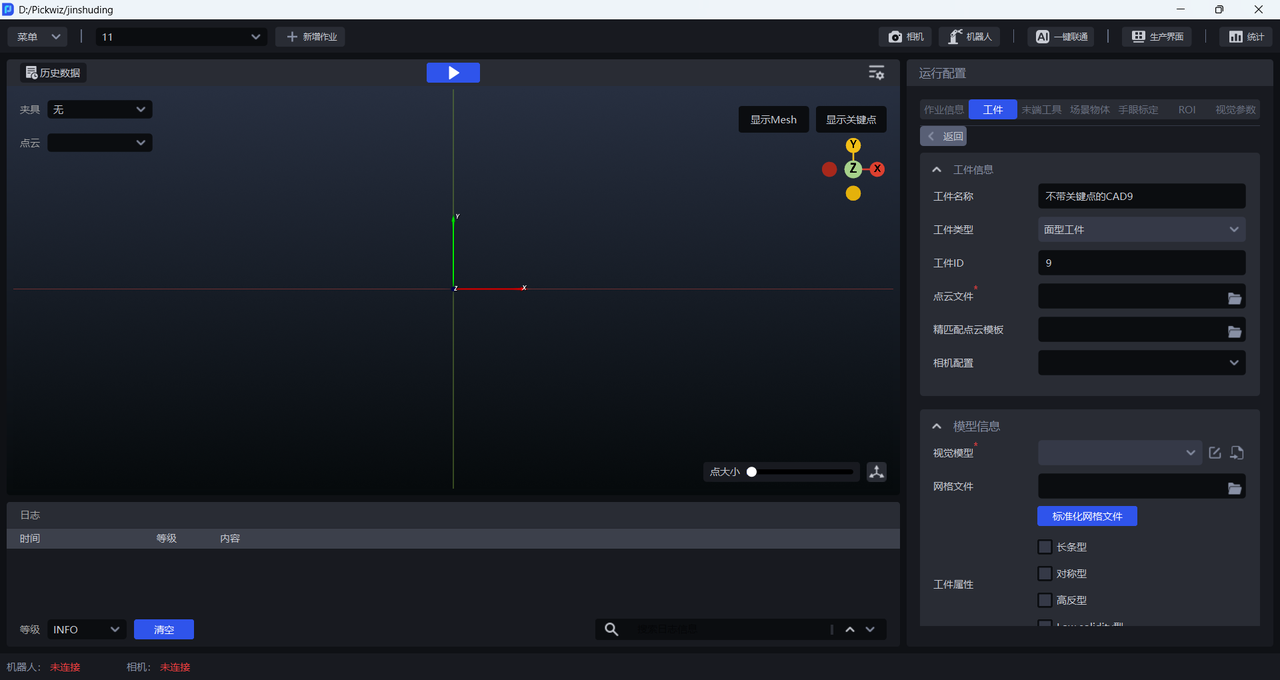
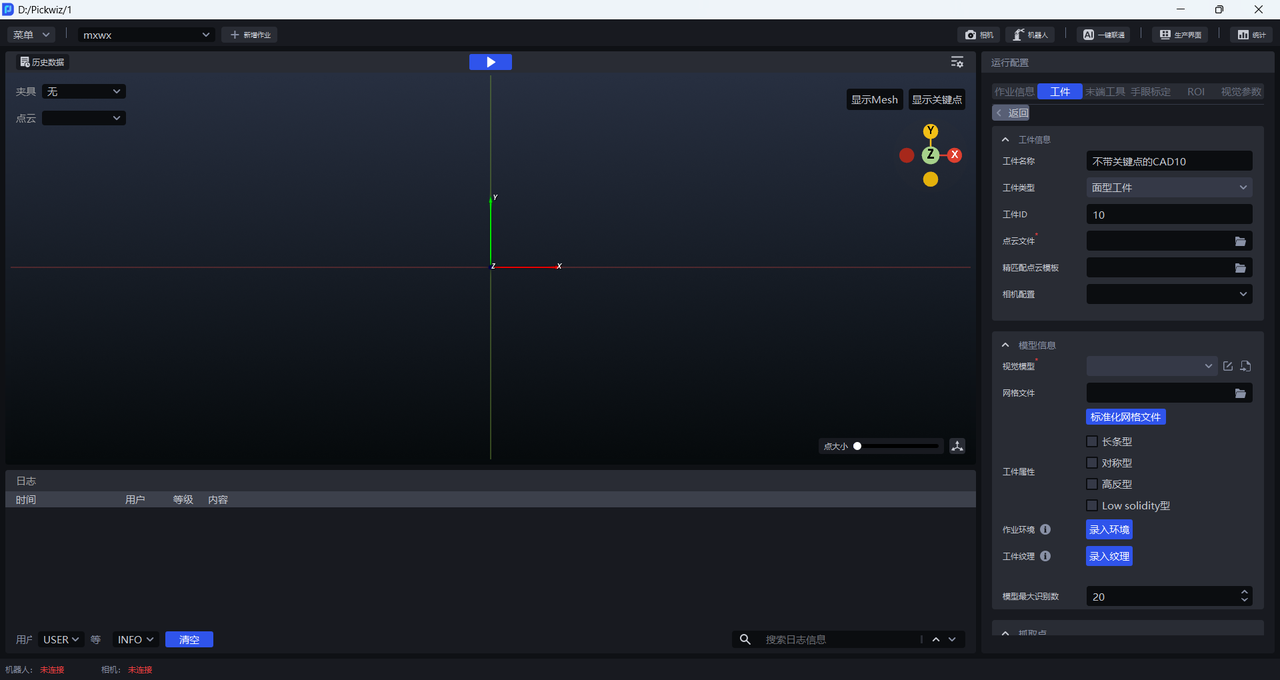
| Target Object ID | The Target Object ID is typically used by the Robot to switch Target Objects during changeover, and it can be modified. |
|---|---|
| Target Object Name | The default name of a Surface Target Object is “CAD without keypoints&Target Object ID”, and it can be modified. |
| Target Object Type | The default Target Object type of a Surface Target Object is Surface Target Object, and it cannot be modified. |
| Point Cloud File | Required. Upload the Point Cloud template of the Surface Target Object for coarse matching with the actual Point Cloud captured by the Camera. You can refer to Point Cloud Template Creation Guide to create the Point Cloud template. |
| Accurate Matching Point Cloud Template | Optional. You can upload the full Point Cloud template of the Surface Target Object for accurate matching with the actual Point Cloud captured by the Camera to optimize the Target Object pose. You can refer to Point Cloud Template Creation Guide to create the accurate matching Point Cloud template. |
| Custom Keypoints | Optional. Surface Target Objects do not have keypoints, so there is no need to enable custom keypoints. |
| Camera Configuration | You can select a Camera configuration. This field is optional. |
(2)Model Information
| Vision Model | Required. A Deep Learning model used to segment instances from the scene. The vision model of a Surface Target Object uses a CAD-based synthetic data training (one-click end-to-end) method. Different Surface Target Objects also use different vision models, so the vision model of a Surface Target Object must be trained through one-click end-to-end training. For the detailed process, refer to One-Click End-to-End Vision Model Training/ One-Click End-to-End Imaging Model Training. For loading and unloading scenarios of Surface Target Objects (materials are isolated from each other), there is no need to upload a vision model. |
| Mesh File | Required. Upload the CAD model of the Surface Target Object. The mesh file should be a standardized CAD model to support subsequent operations such as one-click end-to-end vision model training, Point Cloud template generation, and Point Cloud alignment mesh generation. Refer to Point Cloud Template Creation Guide`` to standardize the mesh file. |
| Incoming Material Form | Only for ordered loading and unloading scenarios. It is used to simulate the incoming material form of the Target Object in the recorded scene to support one-click end-to-end model training in ordered scenarios. Tight Arrangement: helps quickly set the number of Target Objects in rows/columns and is suitable for scenarios where Target Objects arrive in an ordered manner, have consistent poses, and have small spacing. Custom Incoming Material Form: enables full configuration of the detailed parameters of the incoming material form and is suitable for all incoming material types. |
| Target Object Attributes | Optional. Used for one-click end-to-end model training. Options include "Long-strip", "Symmetric", "High Reflective", and "lowsolidity". |
| Task Environment | Optional. Record the task environment for one-click end-to-end model training. During data generation in one-click end-to-end, the default randomly transformed Background is replaced with the recorded task environment data, thereby improving recognition performance. |
| Target Object Texture | Optional. Record the Target Object texture for one-click end-to-end model training. During model training in one-click end-to-end, the uploaded texture is used for data augmentation, thereby improving recognition performance. |
| Maximum Model Recognition Count | Used for one-click end-to-end to control the maximum number of instances that the vision model can recognize during Inference. Under the same conditions, the larger the recognition count, the more recognition results the model can return, but the longer the model Inference time. In ordered scenarios, it is generally recommended to fill in a value slightly greater than the number of materials in one layer. In unordered scenarios, it should be set according to the actual scenario. |
(3)Pick Point
When a new Target Object configuration is added, there is no Pick Point by default and it must be added manually. After adding a Pick Point, adjust its pose based on the absolute coordinate system or the Pick Point coordinate system.
| Absolute Coordinate System | Pick Point of the Target Object CAD model |
|---|---|
| Pick Point Coordinate System (Offset) | Adjust the Pick Point using the center of the Target Object as the origin. |
4.3 Select the Target Object
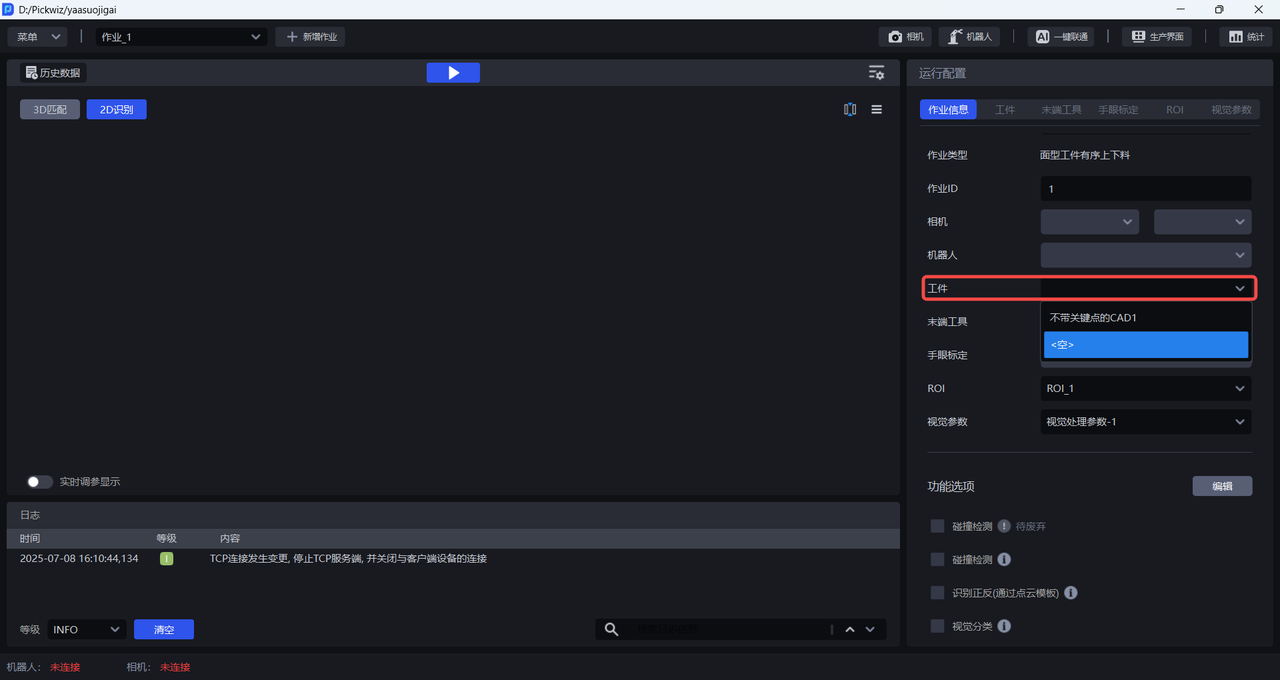
4.4 Example
5. Circular Surface
5.1 Add a Target Object
Click + Add Workpiece in the Target Object section of Runtime Configuration to enter the Target Object page.
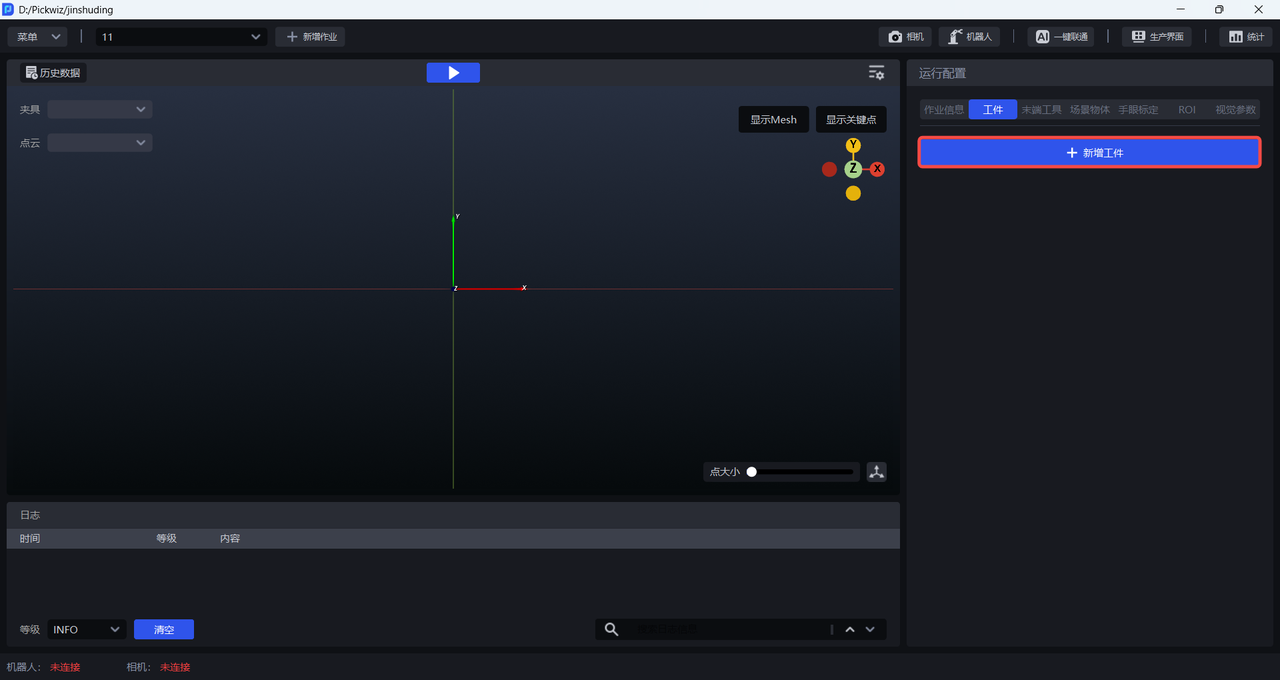
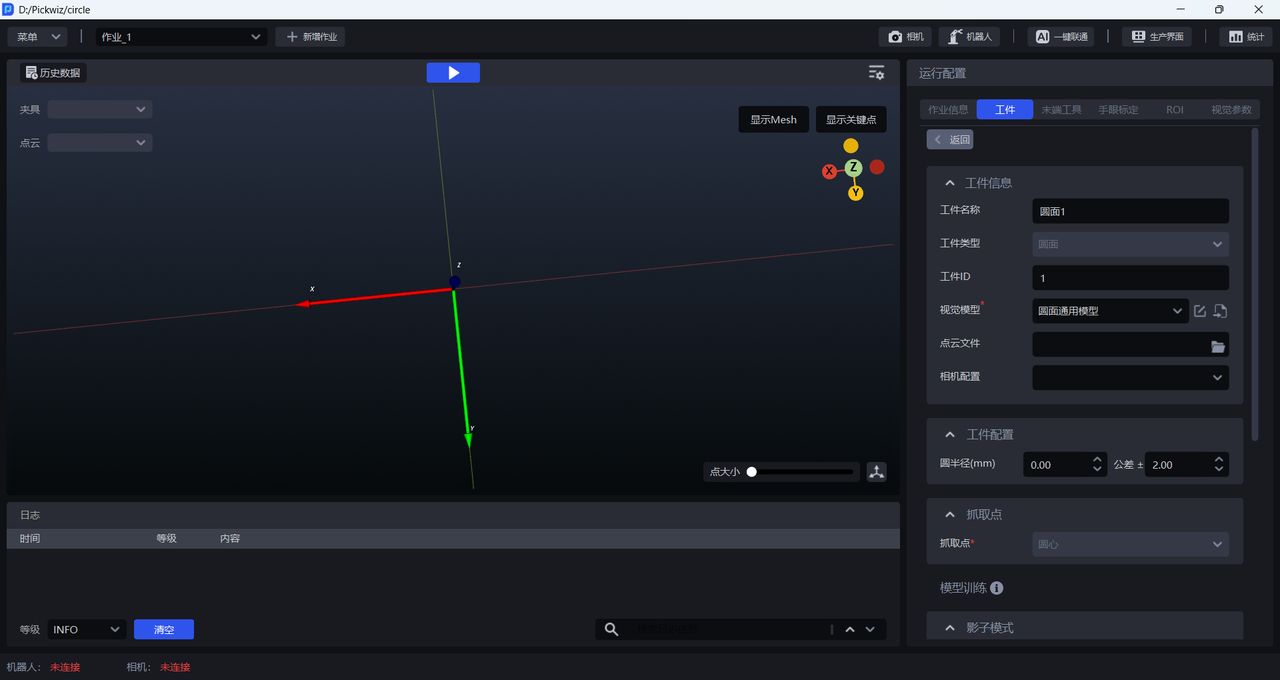
5.2 Configure the Target Object
(1)Target Object Information
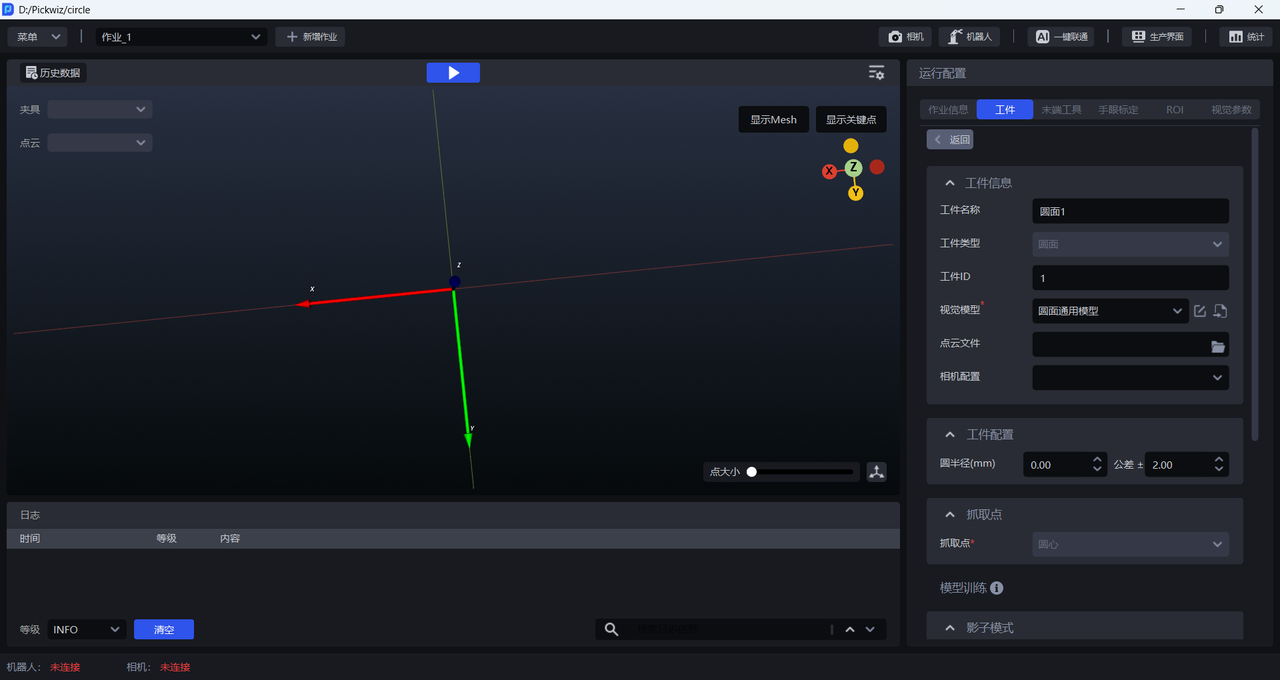
| Target Object ID | The Target Object ID is typically used by the Robot to switch Target Objects during changeover, and it can be modified. |
|---|---|
| Target Object Name | The default name of a Circular Surface Target Object is “Circular Surface&Target Object ID”, and it can be modified. |
| Target Object Type | The default Target Object type of a Circular Surface Target Object is Circular Surface, and it cannot be modified. |
| Vision Model | A Deep Learning model used to segment instances from the scene. The default vision model for Circular Surface is the general Circular Surface model. If the segmentation result of the general Circular Surface model is unsatisfactory, you can use Shadow Mode to optimize the vision model. |
| Point Cloud File | Optional. When on-site accuracy requirements are high, Point Cloud edge quality is poor, or circle fitting error is large, you can select Vision Parameters - Object Pose Correction and upload a Point Cloud template for Circular Surface pose correction. You can select the \Builder\pose\output\inverse-pcd file in historical data as the Point Cloud template. |
| Camera Configuration | You can select a Camera configuration. This field is optional. |
(2)Target Object Configuration
| Circle Radius (mm) | Optional. When the Pick Point deviates from the center of the circle, preconfigure the radius of the Circular Surface as prior data for circle fitting. |
|---|
(3)Pick Point
| Pick Point | The default Pick Point of a Circular Surface is at the center of the circle. |
|---|
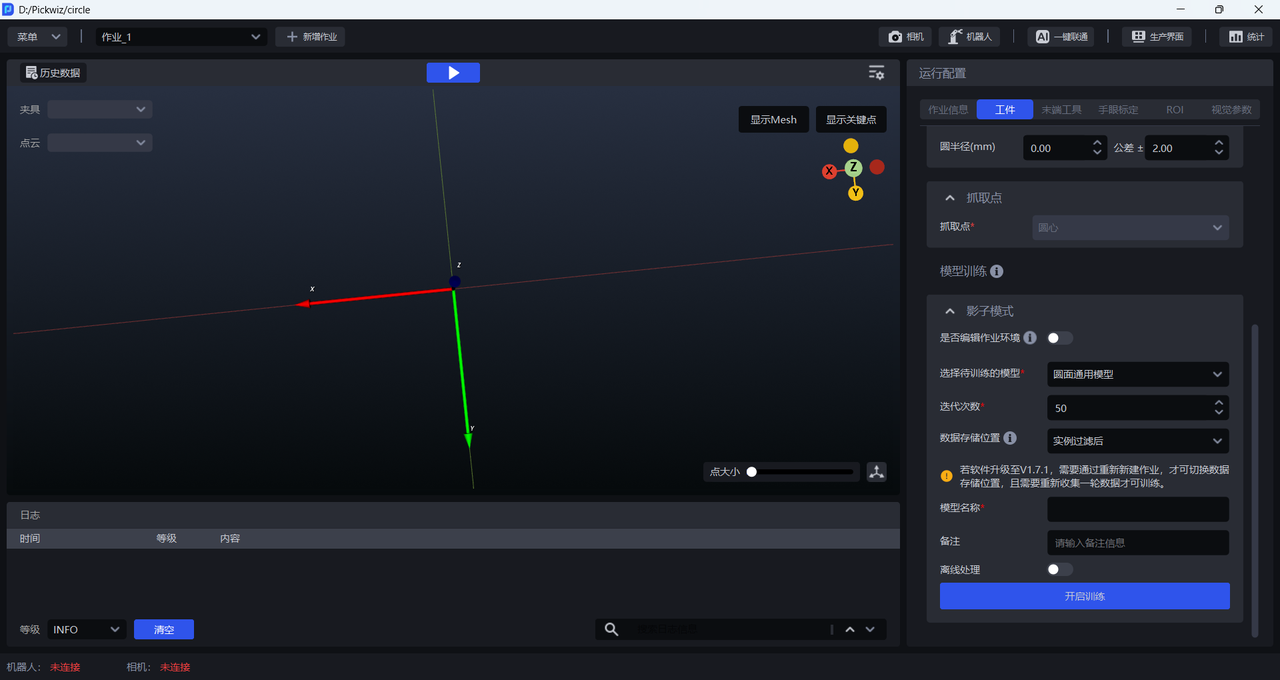
(4)Model Training
| Shadow Mode | Optional. If the segmentation result of the general Circular Surface model is unsatisfactory, you can use Shadow Mode to optimize the segmentation performance of the vision model. Shadow Mode requires using real production data to train the model and improve the segmentation performance of the vision model. For detailed operations, refer to How to Use Target Object Shadow Mode |
|---|
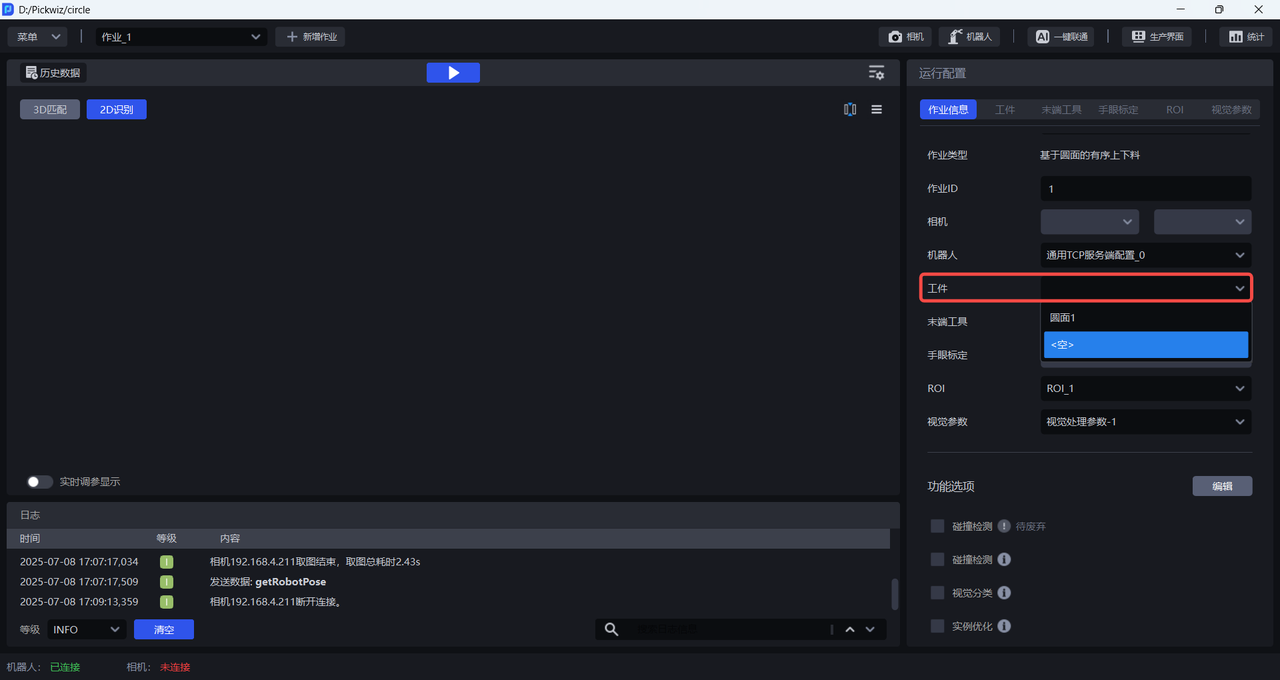
5.3 Select the Target Object
5.4 Example
6. Cylinder
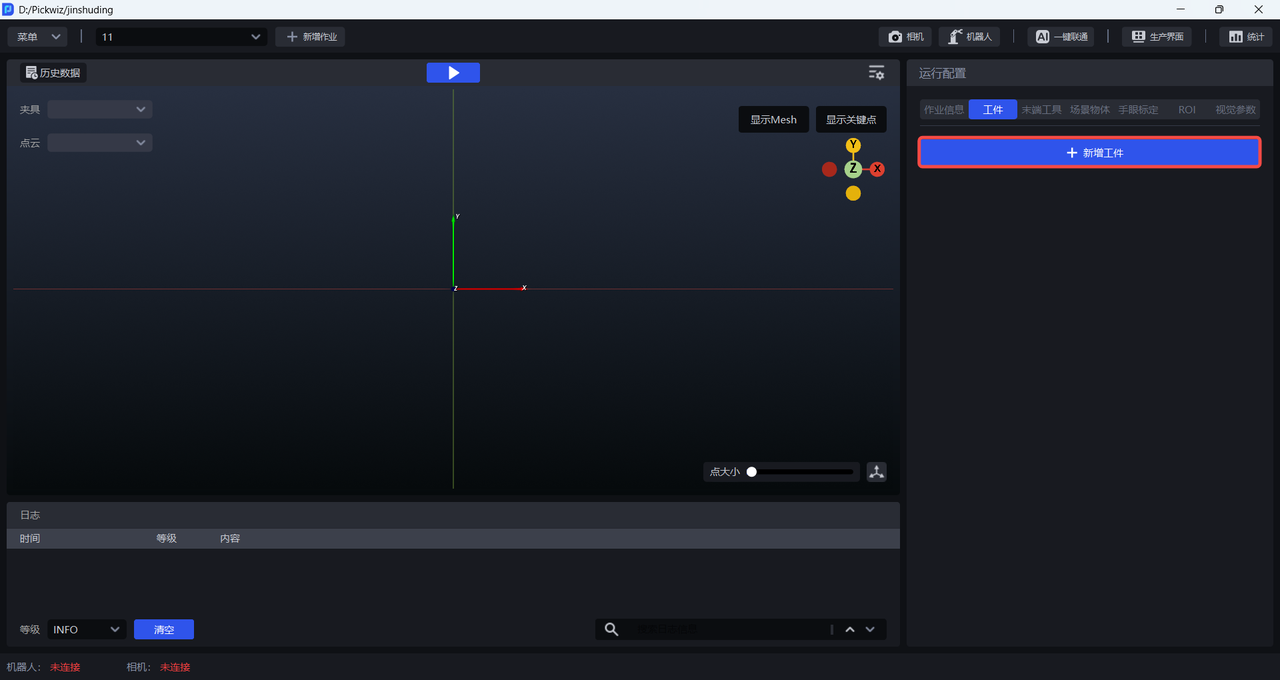
6.1 Add a Target Object
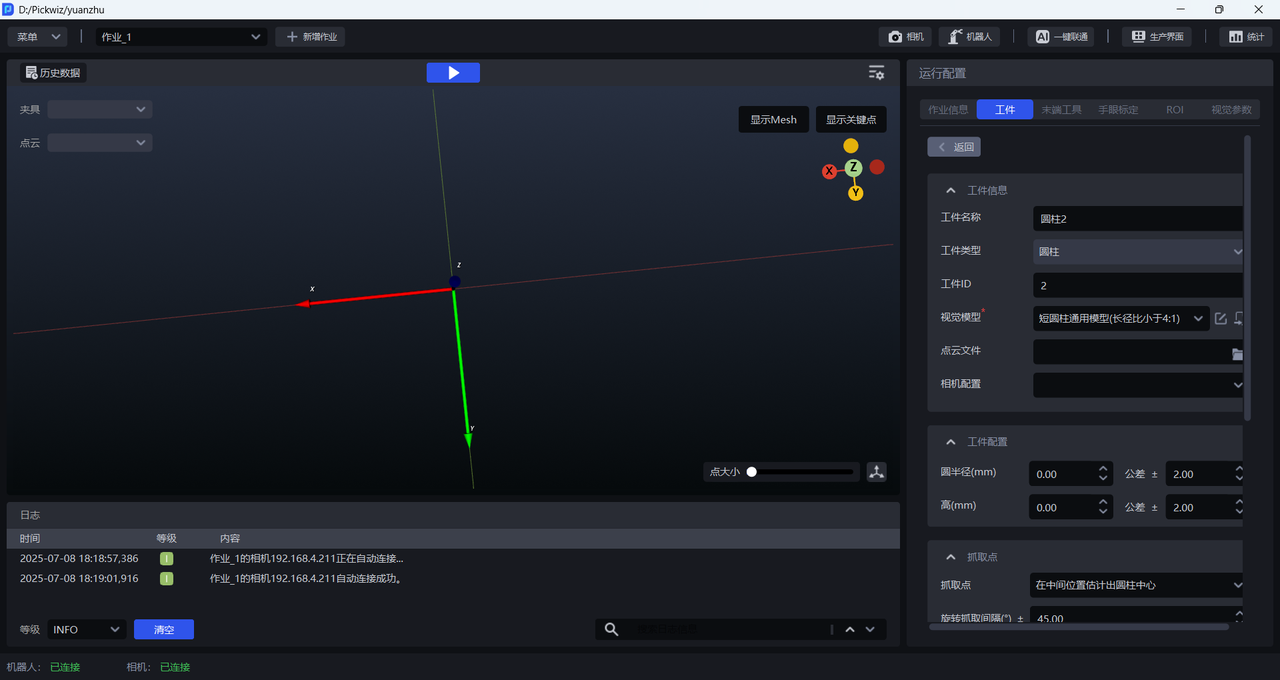
6.2 Configure the Target Object
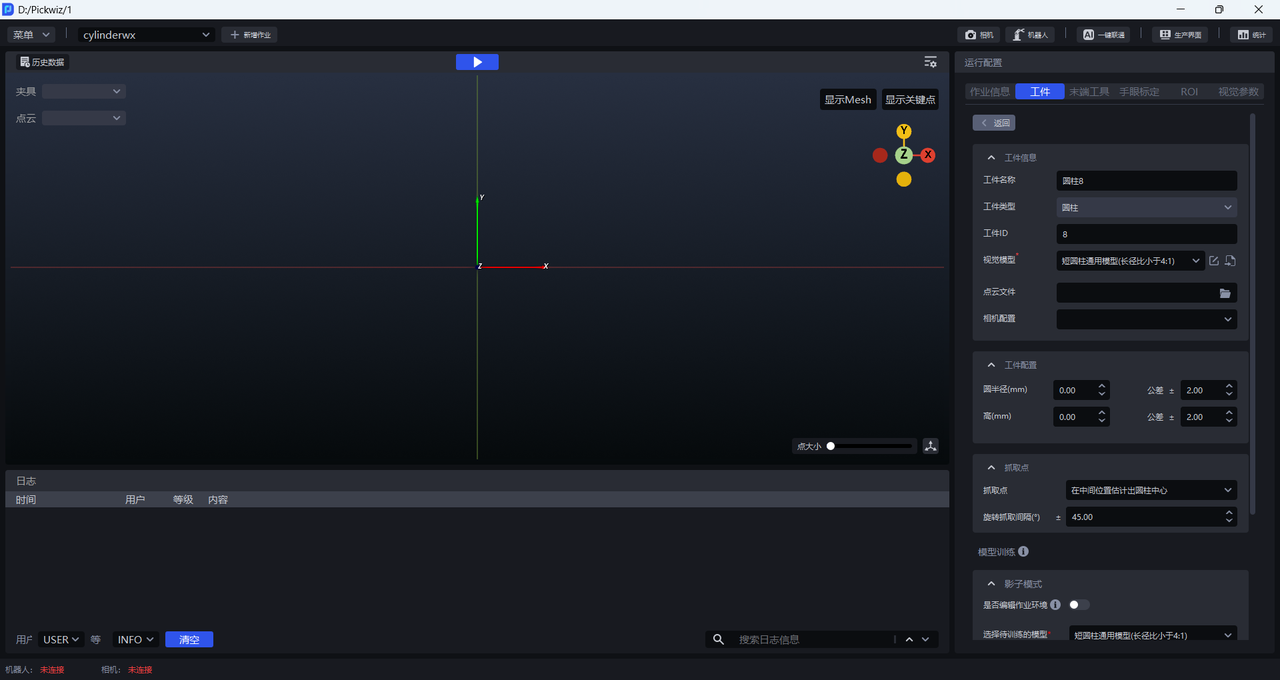
(1)Target Object Information
| Target Object ID | The Target Object ID is typically used by the Robot to switch Target Objects during changeover, and it can be modified. |
|---|---|
| Target Object Name | The default name of a Cylinder Target Object is “Cylinder&Target Object ID”, and it can be modified. |
| Target Object Type | The default Target Object type of a Cylinder Target Object is Cylinder, and it cannot be modified. |
| Vision Model | A Deep Learning model used to segment instances from the scene. Cylinder has two vision models: the general short-cylinder model and the general long-cylinder model. If the segmentation result of the general cylinder model is unsatisfactory, you can use Shadow Mode to optimize the vision model. |
| Point Cloud File | Optional. When on-site accuracy requirements are high, Point Cloud edge quality is poor, or cylinder fitting error is large, you can select Vision Parameters - Object Pose Correction and upload a Point Cloud template for cylinder pose correction. You can select the \Builder\pose\output\inverse-pcd file in historical data as the Point Cloud template. |
| Camera Configuration | You can select a Camera configuration. This field is optional. |
- Vision Model
Click the Edit button to modify the vision model.
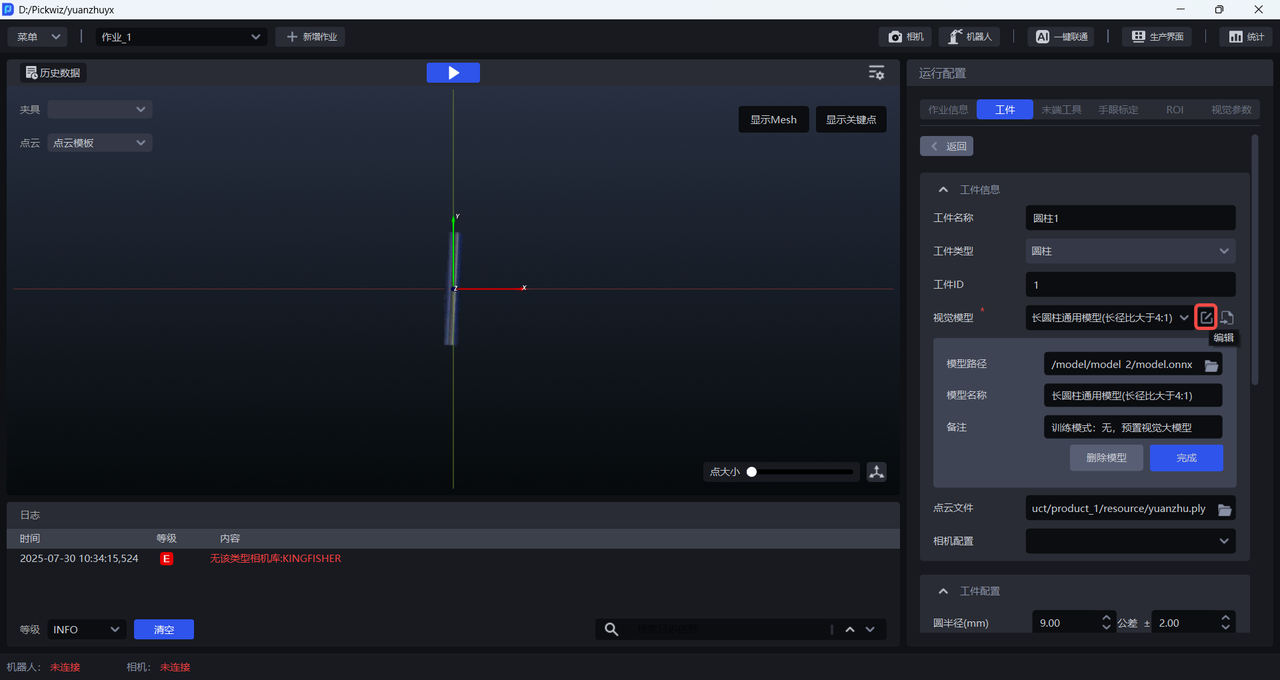
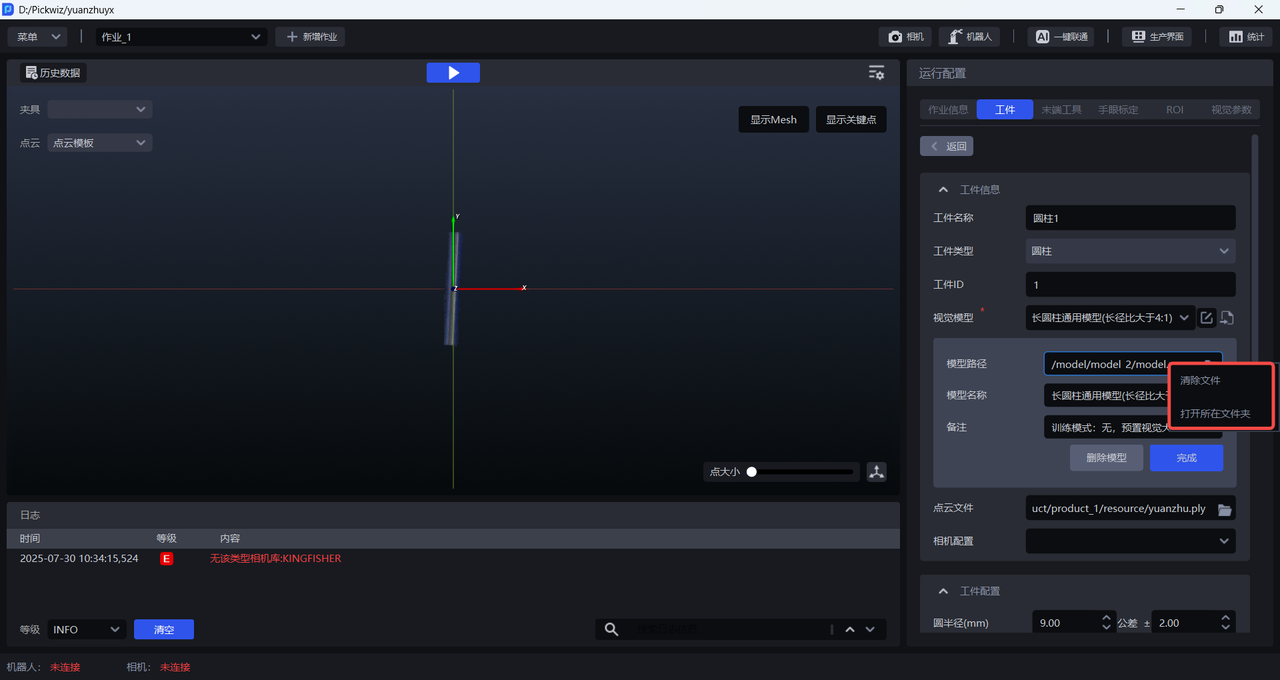
Right-click the Model Path text box to select Clear File, then choose a new path; or select Open Containing Folder to open the folder where the vision model is located.
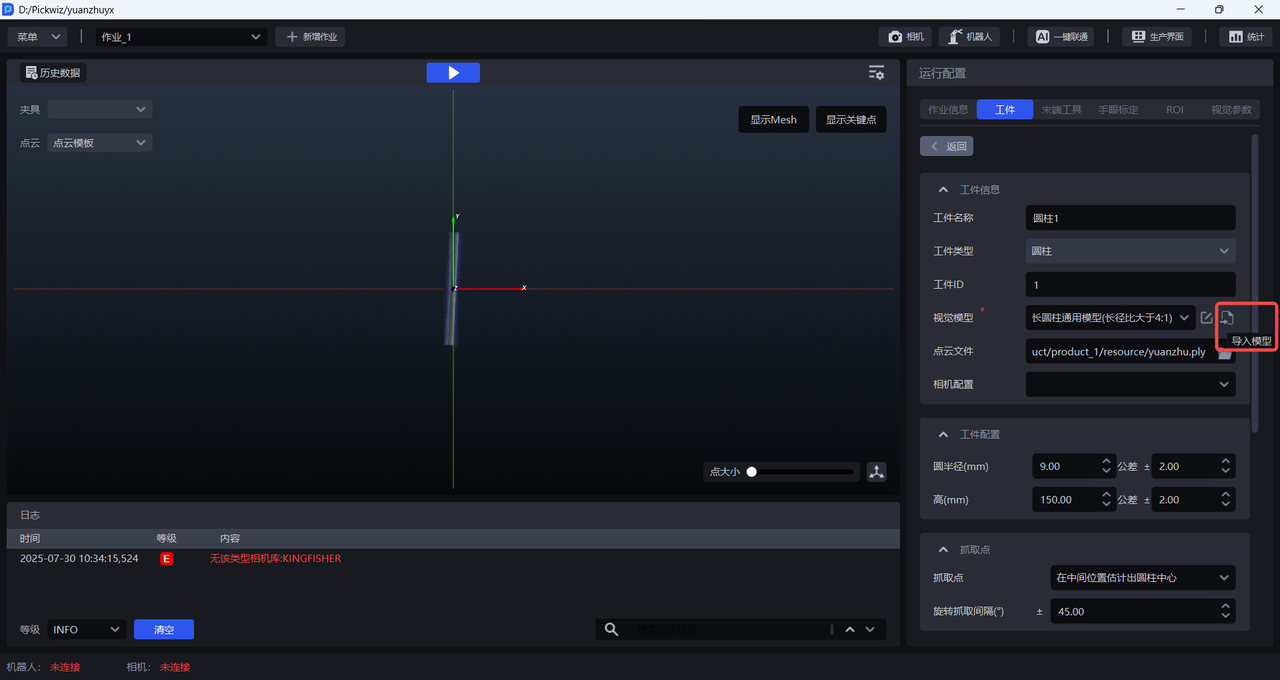
Click the Import Model button to upload a vision model.
- Point Cloud File
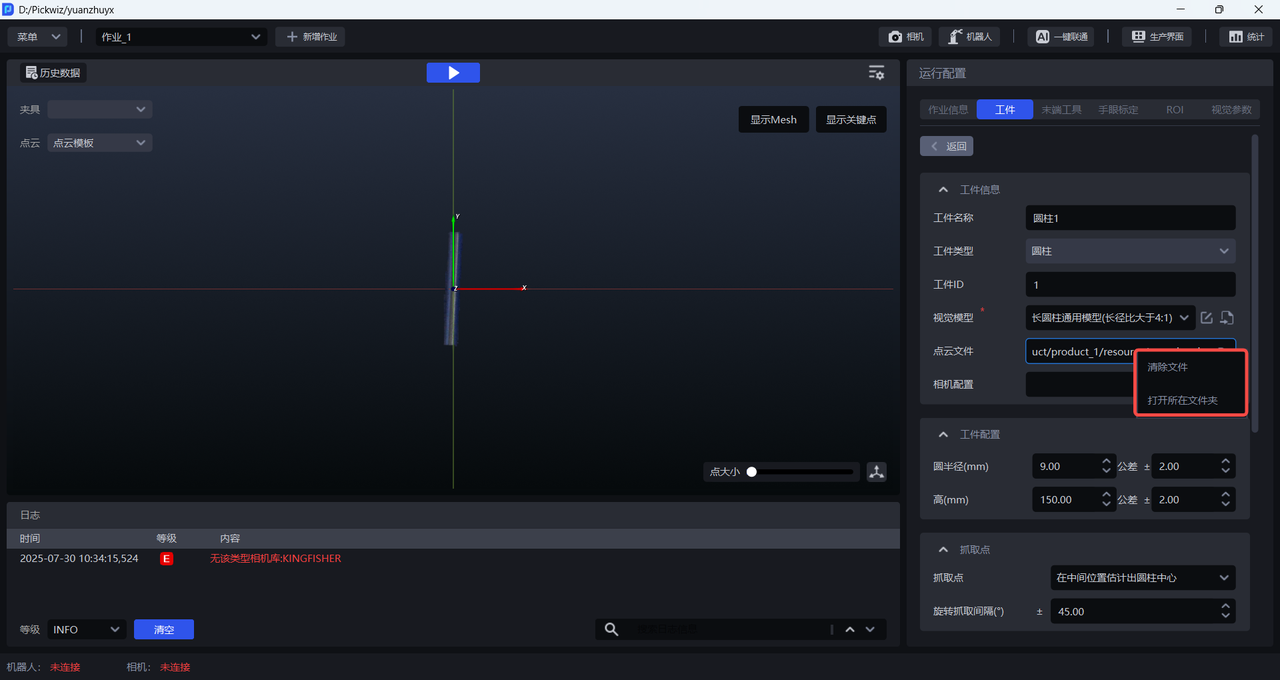
Right-click the text box of Point Cloud File to select Clear File, then upload a new file; or select Open Containing Folder to open the folder where the Point Cloud template is located, as shown below.
(2)Target Object Configuration
| Circle Radius (mm) | Optional. When the cylinder cannot be fitted or the cylinder fitting error is large, preconfigure the circular surface radius of the cylinder as prior data for cylinder fitting. |
| Height (mm) | Optional. When the cylinder cannot be fitted or the cylinder fitting error is large, preconfigure the height of the cylinder as prior data for cylinder fitting. |
(3)Pick Point
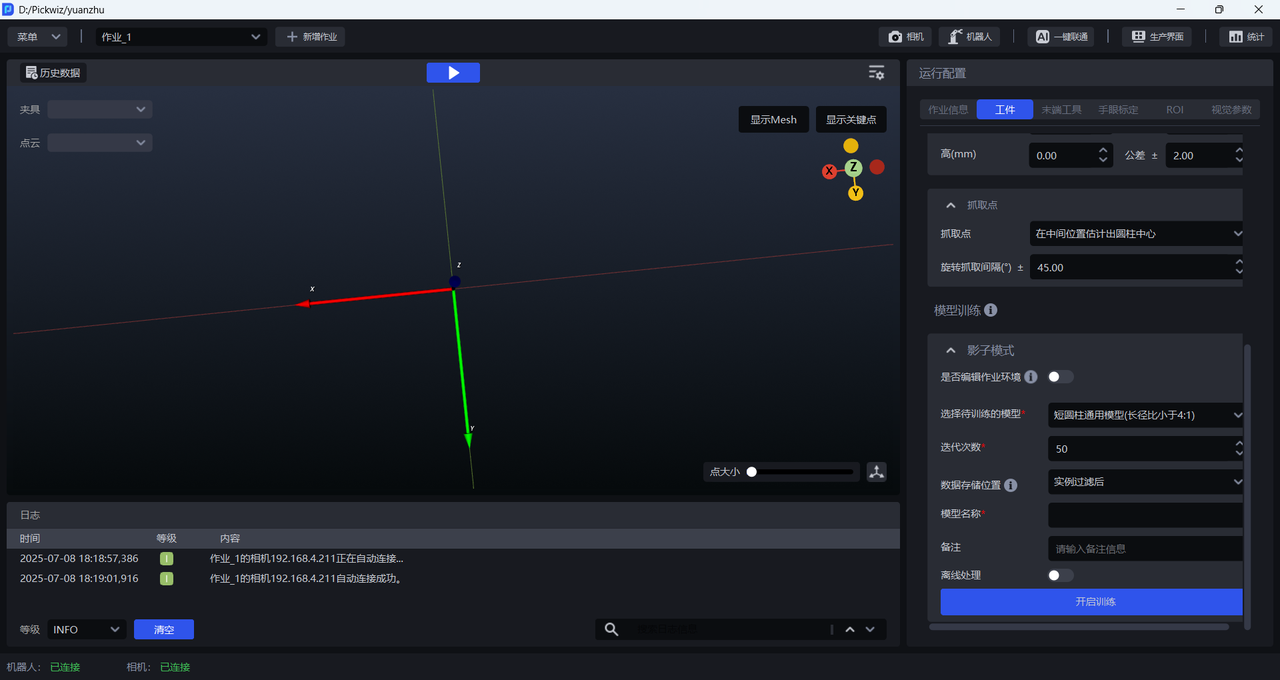
| Pick Point | Estimate the cylinder center at the middle position, or estimate the cylinder center from the end point based on prior dimensions. |
| Rotational Pick Interval (°) | Within the picking range, generate one Pick Point at each interval. The default is 45°. |
- Pick Point
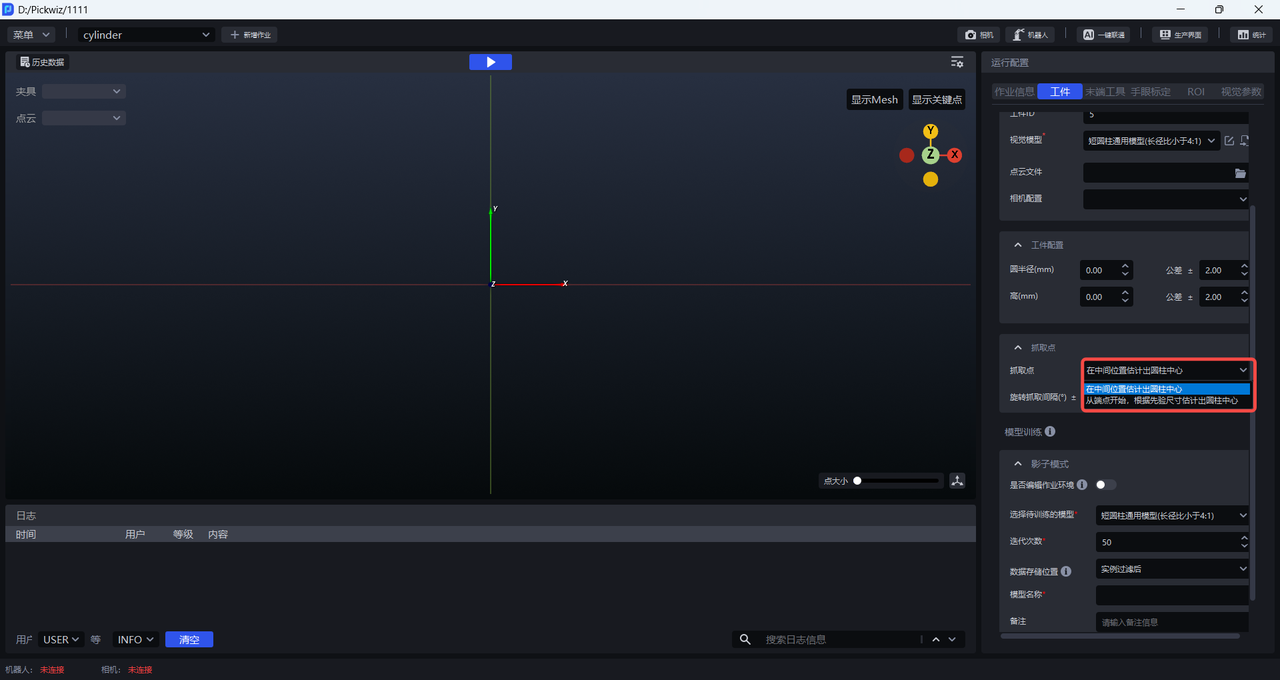
Reference Case Description
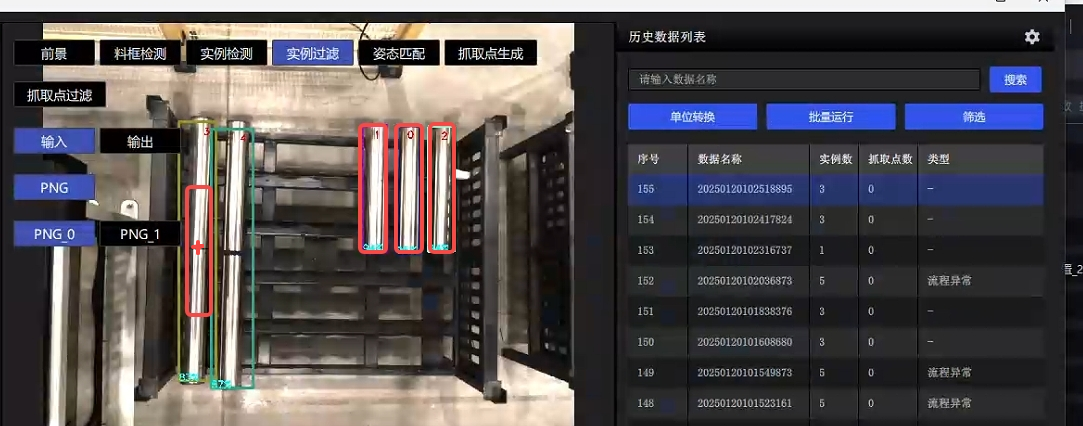
In the scenario shown below, if the cylinder center is estimated at the middle position by default, the Pick Point may be generated at an incorrect position.
Therefore, you need to select estimation from the end point and estimate the cylinder center based on prior dimensions, which can reasonably avoid the above situation.

Note
During Robot communication, this configuration takes effect when the incoming prior dimensions of the Target Object or the prior dimension values set in the software are not 0; otherwise, when the value is 0, the system estimates the cylinder center at the middle position by default.
- Rotational Pick Interval (°)
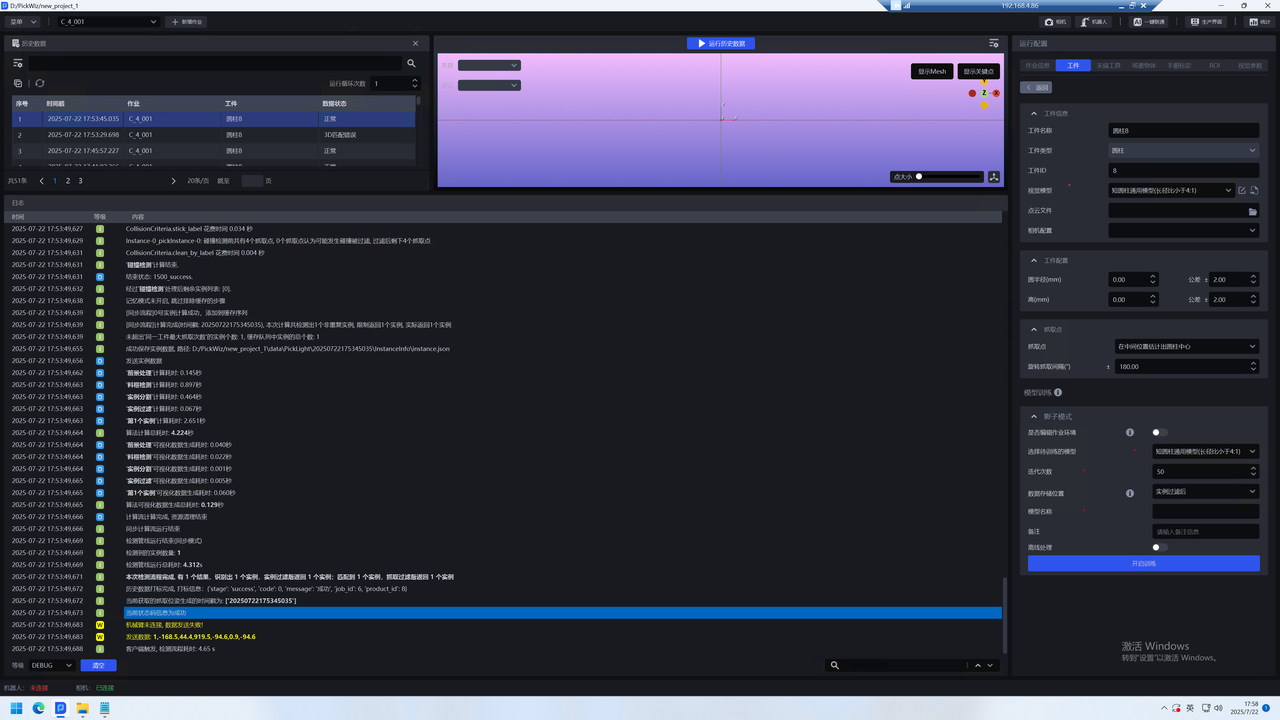
Within the picking range of the cylinder, one Pick Point is generated at each interval in degrees. The default is 180°.
(4)Model Training
| Shadow Mode | Optional. If the segmentation result of the general cylinder model is unsatisfactory, you can use Shadow Mode to optimize the segmentation performance of the vision model. Shadow Mode requires using real production data to train the model and improve the segmentation performance of the vision model. For detailed operations, refer to How to Use Target Object Shadow Mode |
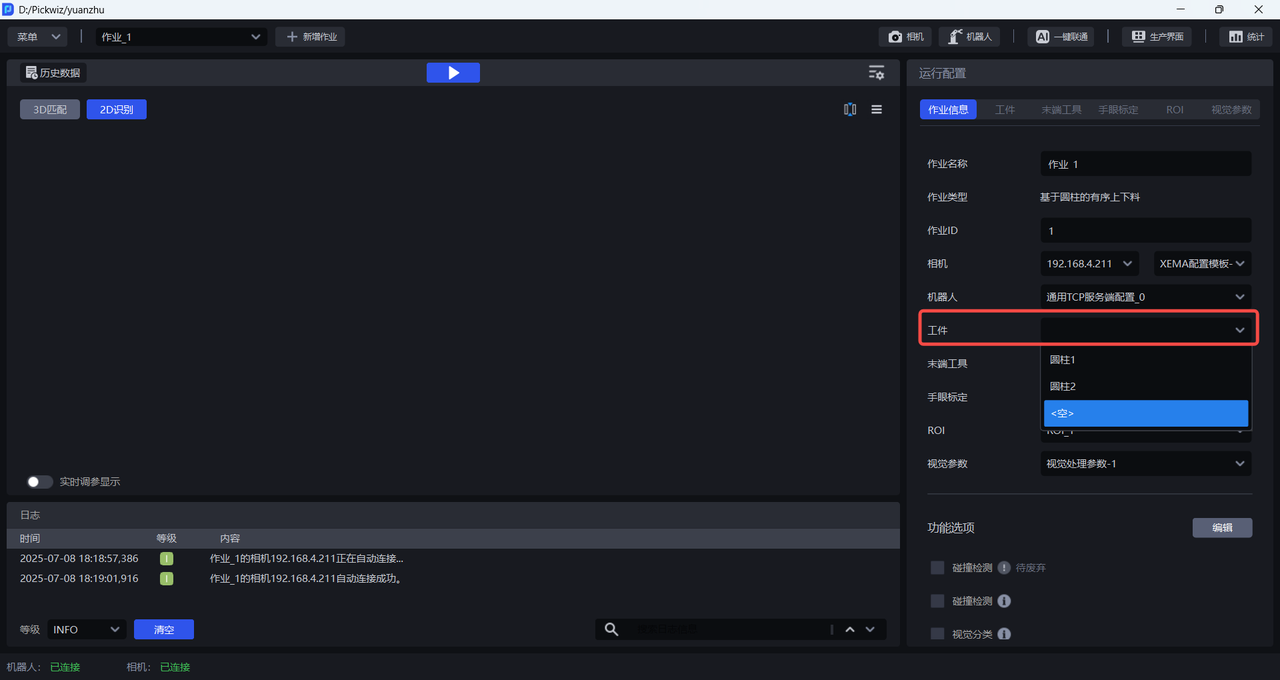
6.3 Select the Target Object
6.4 Example
7. Quadrilateral
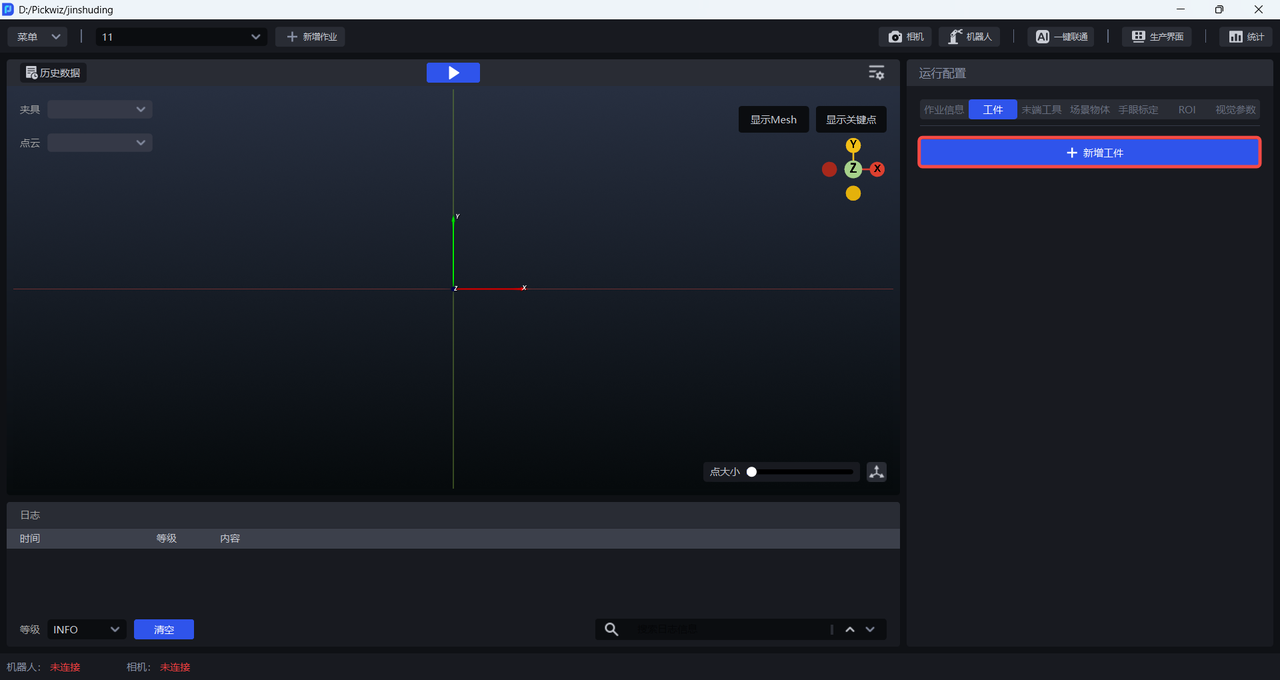
7.1 Add a Target Object
7.2 Configure the Target Object
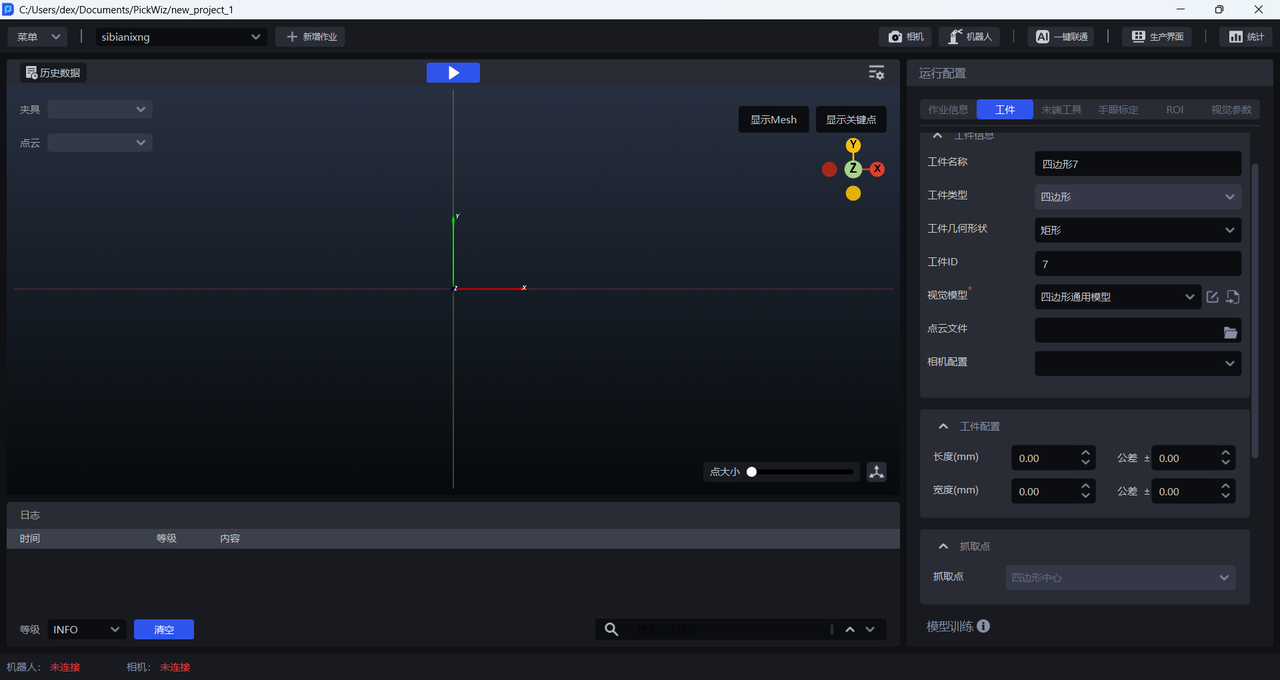
(1)Target Object Information
| Target Object ID | The Target Object ID is typically used by the Robot to switch Target Objects during changeover, and it can be modified. |
|---|---|
| Target Object Name | The default Target Object name is Quadrilateral&Target Object ID. |
| Target Object Type | Quadrilateral by default. |
| Target Object Geometry | For a Quadrilateral Target Object, select rectangular or non-rectangular. Switch the Target Object shape to switch the vision algorithm so that it better adapts to Quadrilateral Target Objects of different shapes. |
| Vision Model | Used to segment instances from the scene. Quadrilateral Target Objects use the general quadrilateral model for instance segmentation. If the segmentation result of the general quadrilateral model is unsatisfactory, you can use Shadow Mode to optimize the vision model. |
| Point Cloud File | Optional. When on-site accuracy requirements are high, Point Cloud edge quality is poor, or quadrilateral fitting error is large, you can select Vision Parameters - Object Pose Correction and upload a Point Cloud template for quadrilateral pose correction. You can select the \Builder\pose\output\inverse-pcd file in historical data as the Point Cloud template. |
| Camera Configuration | You can select a Camera configuration, resulting in different imaging effects. |
(2)Target Object Configuration
| Length (mm) | Optional. When the Pick Point of the quadrilateral deviates from the center, preconfigure the length and width of the quadrilateral as prior data for quadrilateral fitting, which helps achieve finer quadrilateral fitting. |
| Width (mm) | Optional. When the Pick Point of the quadrilateral deviates from the center, preconfigure the length and width of the quadrilateral as prior data for quadrilateral fitting, which helps achieve finer quadrilateral fitting. |
(3)Pick Point
| Pick Point | The Pick Point of a Quadrilateral Target Object is set to the center of the quadrilateral by default. |
(4)Model Training
| Shadow Mode | Optional. If the segmentation result of the general quadrilateral model is unsatisfactory, you can use Shadow Mode to optimize the segmentation performance of the vision model. Shadow Mode requires using real production data to train the model and improve the segmentation performance of the vision model. For detailed operations, refer to How to Use Target Object Shadow Mode |