Project Operation Guide
Project is the core working unit in PickWiz. It includes Robot configuration and communication, eye-hand calibration, vision parameters, and multiple other functional and task configurations, providing an efficient and flexible solution for robots to complete picking tasks and meeting the needs of various industrial scenarios such as bag and carton depalletizing, random picking, ordered loading and unloading, and positioning assembly.
The workflow for setting up a Project is as follows:

1. Create a Project
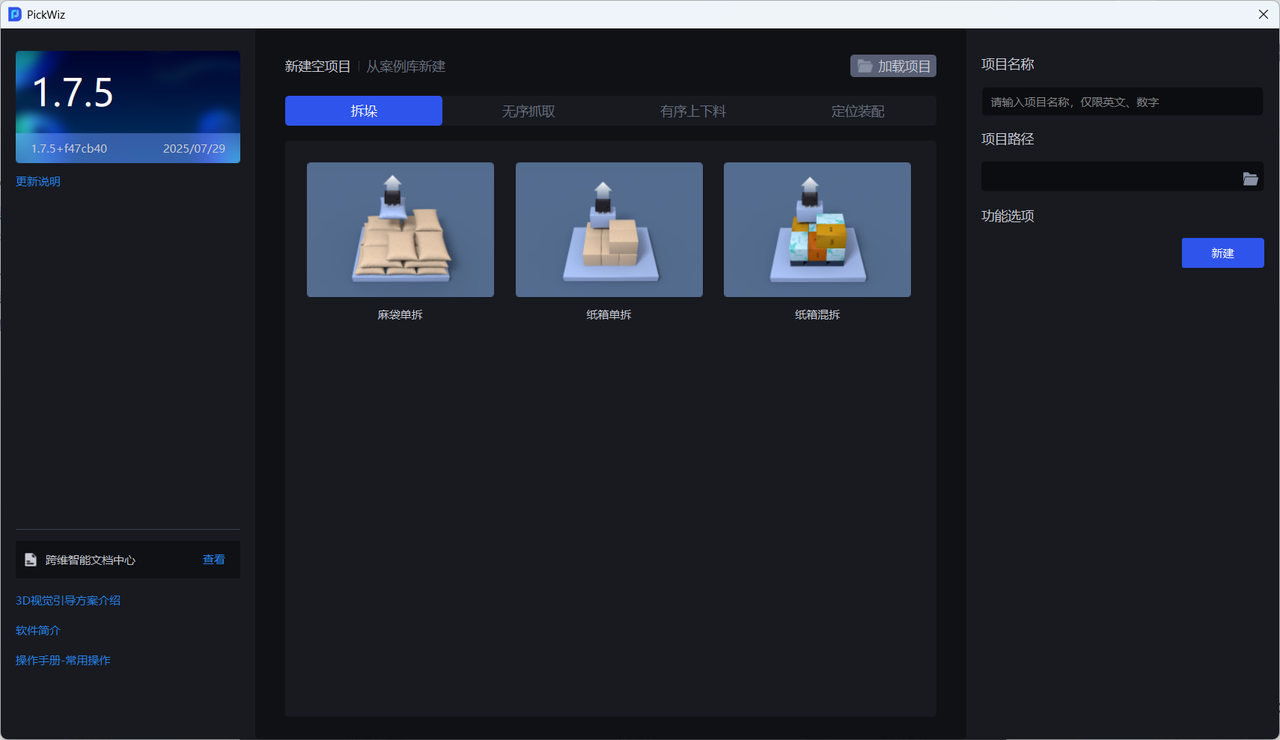
When you open the PickWiz software for the first time, you will enter the welcome page. To create an empty Project, refer to 1.1 Create an Empty Project;
For common typical application scenarios, you can load the Project for the required scenario from the Case Library. It contains the basic configuration data for the scenario, allowing faster commissioning and configuration. For details, refer to 1.2 Create a Project from the Case Library.
1.1 Create an Empty Project
Select a task scenario and create an empty Project for that scenario.
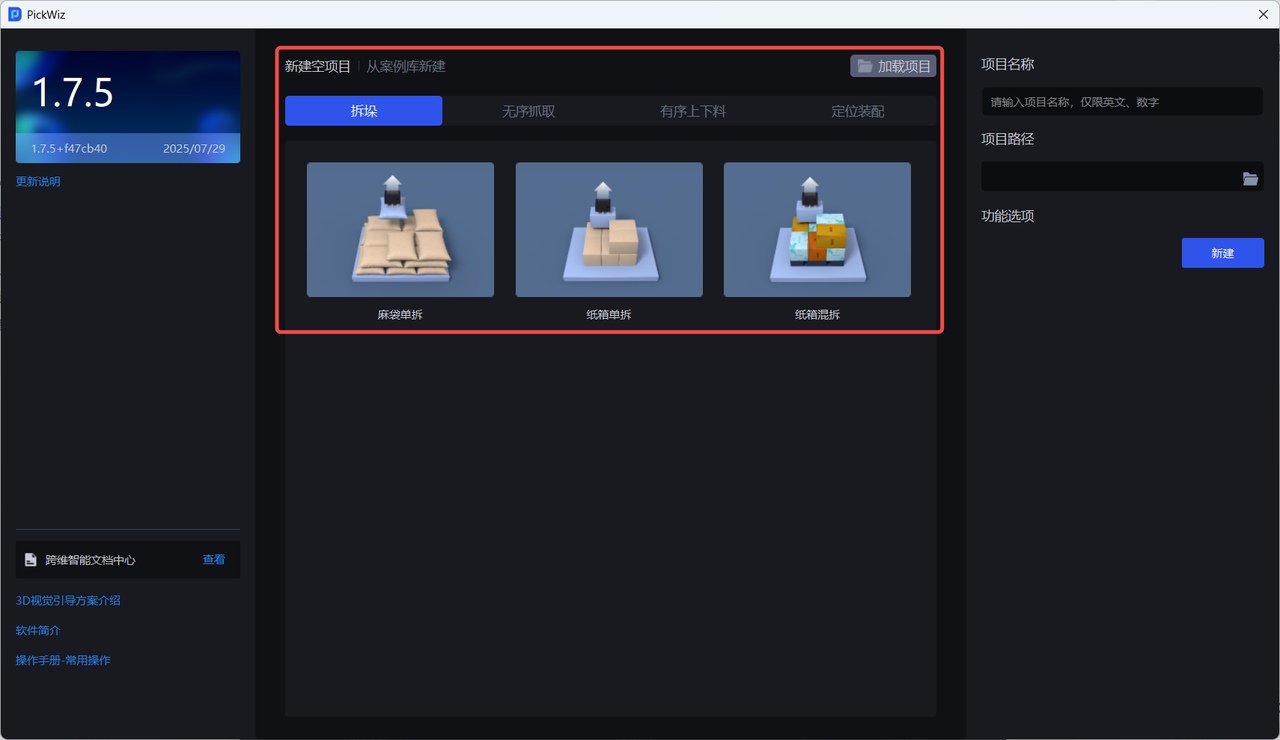
Enter the new scenario Project page.
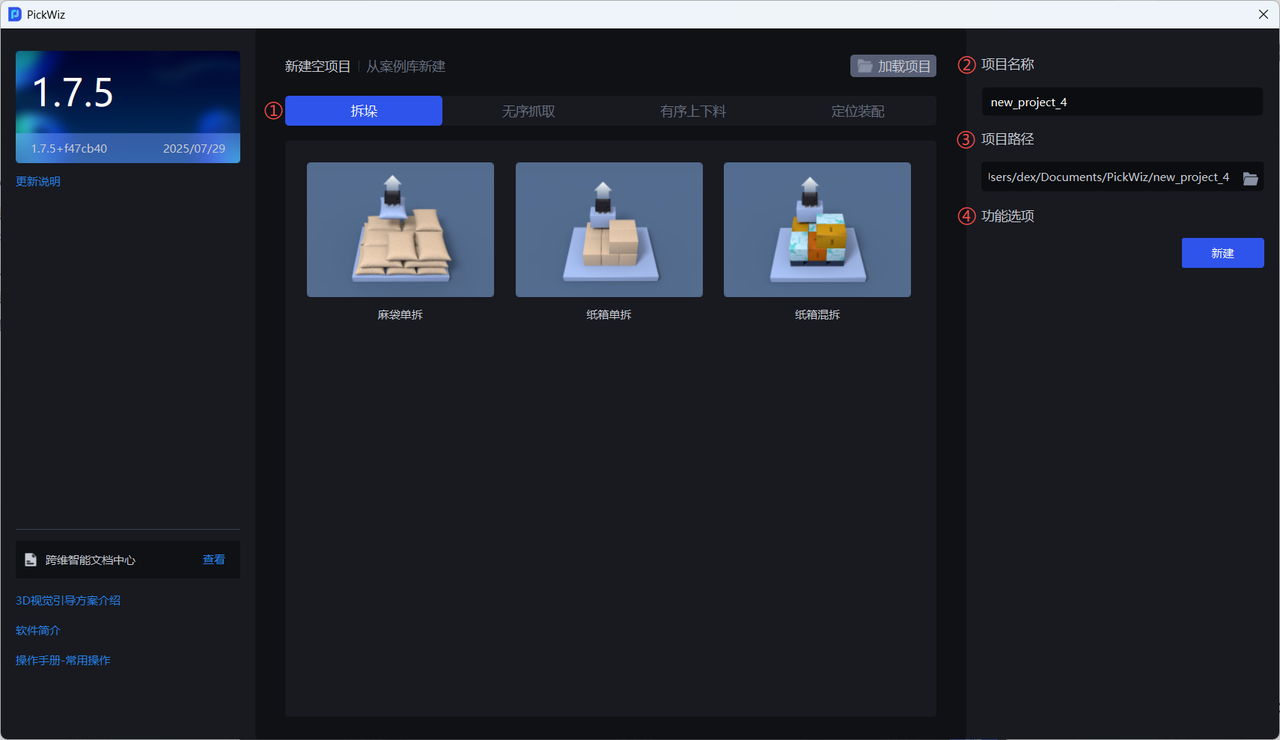
① Select a task scenario
Click the scenario image with the mouse to display the introduction to the task scenario
If the material is bags or cartons, refer to Depalletizing Scenario
If the material is stacked workpieces arranged randomly and irregularly, refer to Random Picking Scenario
If the material is stacked workpieces arranged in an ordered and regular manner, refer to Ordered Loading and Unloading Scenario
If there is only one workpiece that needs positioning within the Camera field of view, refer to Positioning Assembly
Scenario 1: Depalletizing Scenario
Depalletizing refers to the process of separating stacked materials one by one and transporting them to a specified position.
- If the material is a single type of bag, select Single Bag Depalletizing
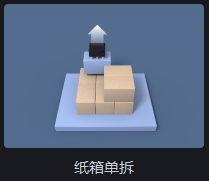
- If the material is a single type of carton, select Single Carton Depalletizing
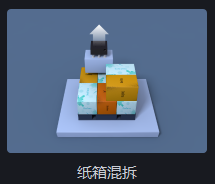
- If the material is multiple types of cartons, select Mixed Carton Depalletizing
Scenario 2: Random Picking Scenario
The random picking scenario refers to the Robot recognizing and picking workpieces arranged randomly and irregularly to complete loading and unloading tasks.
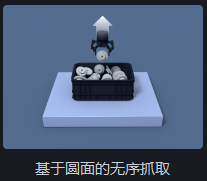
- If the workpiece has a circular face and is arranged randomly and irregularly, select Random Picking Based on Circular Faces
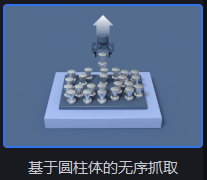
- If the workpiece is cylindrical and is arranged randomly and irregularly, select Random Picking Based on Cylinders
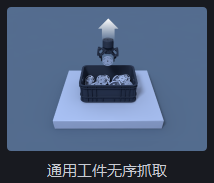
- If the workpiece is neither a circular face nor a cylinder, has a large difference between its front and back sides, and is arranged randomly and irregularly, select General Workpiece Random Picking. This scenario is suitable for most random picking scenarios, but it is not suitable for workpieces with only small differences between the front and back sides.
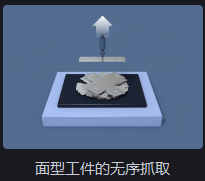
- If the workpiece is neither a circular face nor a cylinder, has a small difference between its front and back sides, and is arranged randomly and irregularly, select Random Picking of Surface-Type Workpieces
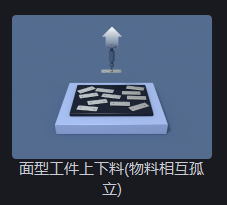
- If the workpiece is neither a circular face nor a cylinder, has a small difference between its front and back sides, is isolated from other workpieces, and is arranged randomly and irregularly, select Loading and Unloading of Surface-Type Workpieces (Materials Isolated from Each Other)
Scenario 3: Ordered Loading and Unloading Scenario
The ordered loading and unloading scenario refers to the Robot recognizing and picking workpieces arranged in an ordered and regular manner to complete loading and unloading tasks.
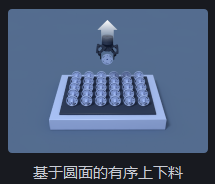
- If the workpiece has a circular face and is arranged regularly and in order, select Ordered Loading and Unloading Based on Circular Faces
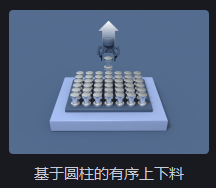
- If the workpiece is cylindrical and is arranged regularly and in order, select Ordered Loading and Unloading Based on Cylinders
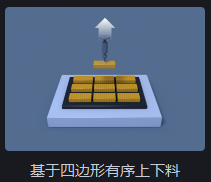
- If the workpiece is quadrilateral and is arranged regularly and in order, select Ordered Loading and Unloading Based on Quadrilaterals
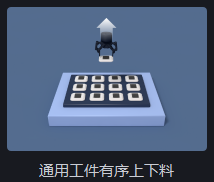
- If the workpiece is neither circular-faced, cylindrical, nor quadrilateral, has a large difference between its front and back sides, and is arranged regularly and in order, select General Workpiece Ordered Loading and Unloading. This scenario is suitable for most ordered loading and unloading scenarios, but it is not suitable for workpieces with only small differences between the front and back sides.
- If the workpiece is neither circular-faced, cylindrical, nor quadrilateral, has a small difference between its front and back sides, and is arranged regularly and in order, select Ordered Loading and Unloading of Surface-Type Workpieces
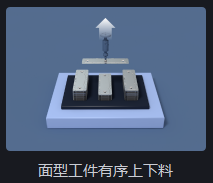
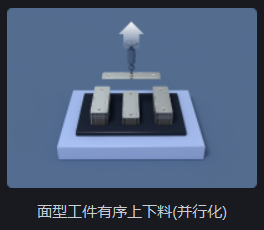
- If the workpiece is neither circular-faced, cylindrical, nor quadrilateral, has a small difference between its front and back sides, is arranged regularly and in order, and you also need to significantly reduce vision calculation time, select Ordered Loading and Unloading of Surface-Type Workpieces (Parallelized)
Scenario 4: Positioning Assembly
Positioning assembly refers to a scenario where there is only one workpiece that needs positioning within the Camera field of view, for example, precise single-target positioning of a charging head so that the robotic arm can accurately plug and unplug it.
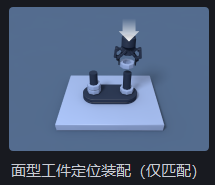
- If there is only one workpiece that needs positioning within the Camera field of view, the difference between its front and back sides is small, and the position variation is small (
ROI 3Dcan completely enclose the workpiece; forROI 3D, see ROI Operation Guide), select Positioning Assembly of Surface-Type Workpieces (Matching Only)
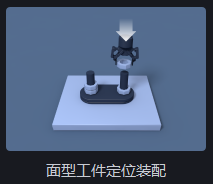
- If there is only one workpiece that needs positioning within the Camera field of view, the difference between its front and back sides is small, and the position variation is large (
ROI 3Dcannot completely enclose the workpiece; forROI 3D, see ROI Operation Guide), select Positioning Assembly of Surface-Type Workpieces
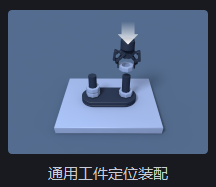
- If there is only one workpiece that needs positioning within the Camera field of view and the difference between its front and back sides is large, select General Workpiece Positioning Assembly. It is not suitable for workpieces with only small differences between the front and back sides.
② After selecting the task scenario, fill in the Project Name. The default is "new project" + the Project sequence number, and you can modify it as needed.
The Project name cannot contain Chinese characters or spaces
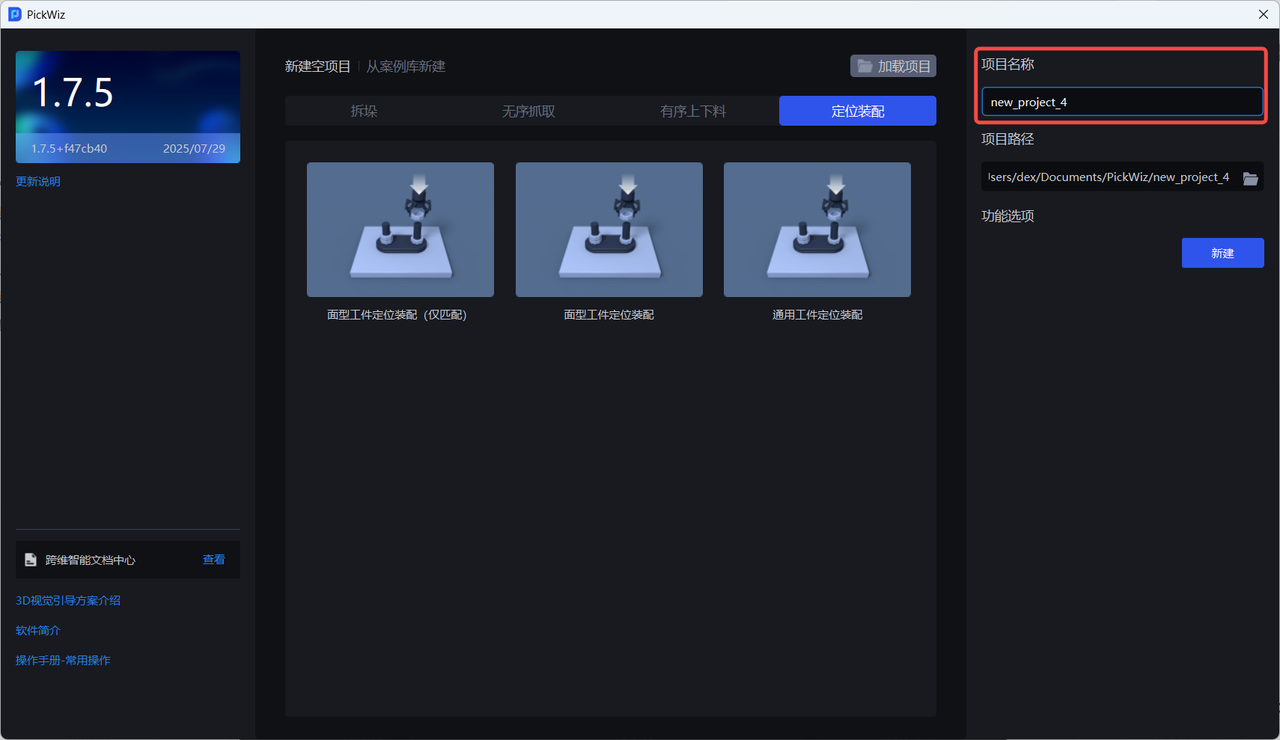
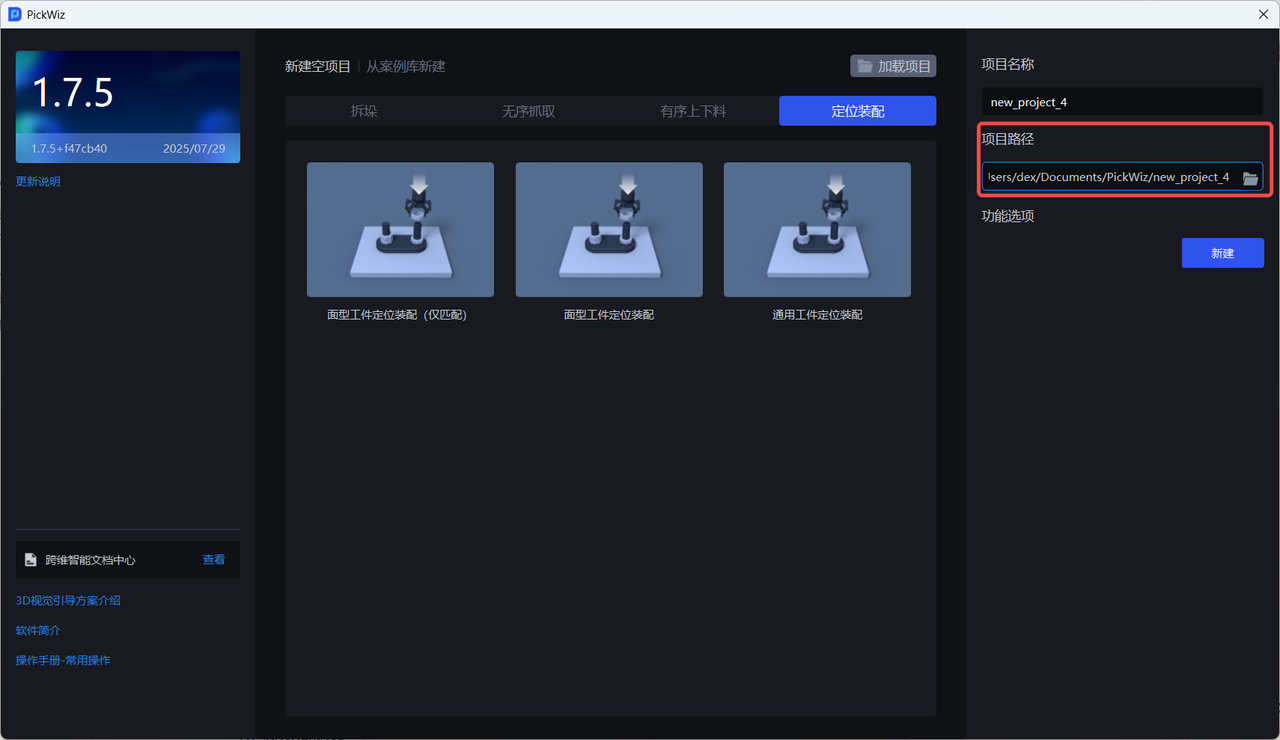
③ Select the Project Path. The default storage path is C:\Users\dex\Documents\PickWiz, and you can modify it as needed.
④ Select functional options
Each scenario has multiple task types, and each task type corresponds to multiple functional options that can be selected based on the actual working conditions.
| Functional Option | Description |
|---|---|
| Instance Optimization | Optimizes the instances generated by the model and processes instance Masks. |
| Pallet Detection | Used to detect pallets. After selecting it, pallet detection-related parameters will be added to the Vision Parameters page. For the detailed procedure, refer to Pallet Detection Guide |
| Separator and Pallet Detection | Applicable to scenarios where there are separators between each layer of material and pallets are present. Through Vision Classification, you can separately enter three data types: separators, pallets, and workpieces. For the detailed procedure, refer to Separator and Pallet Detection Guide |
| Collision Detection | Used to detect collisions between the Tool and the container and filter out Picking Poses that may collide. After selecting it, you need to configure container-related parameters in "Scene Object", and collision detection-related parameters will also be added to the Vision Parameters page. For the detailed procedure, refer to Collision Detection Guide. |
| Recognition Type | Uses one Deep Learning model to recognize multiple types of workpieces. After selecting it, you need to configure multiple workpiece types on the Workpiece page as required, and then use the built-in One-Click Connection to train the model. For the detailed procedure, refer to Recognition Type Guide |
| Local Feature Recognition | Positions the workpiece through its local features. After selecting it, you need to configure the overall information and local information of the workpiece on the Workpiece page as required, and then use the built-in One-Click Connection to train the model. For the detailed procedure, refer to Local Feature Recognition Guide |
| Front/Back Recognition (via Point Cloud Template) | You can import Point Cloud templates for the front and back sides of the workpiece to match the front or back side of the picked workpiece, and separately configure Pick Points for the front and back sides. For the detailed procedure, refer to Front/Back Recognition (via Point Cloud Template) Guide |
| Vision Classification | Used to recognize different textures, orientations, and other features of the same workpiece. After enabling it, you can enter different feature types of the same object on the Workpiece page and set related parameters on the Vision Parameters page. For the detailed procedure, refer to Vision Classification Guide |
1.2 Create a Project from the Case Library
- On the welcome page, switch to
Create from Case Libraryand select the Project for the required scenario
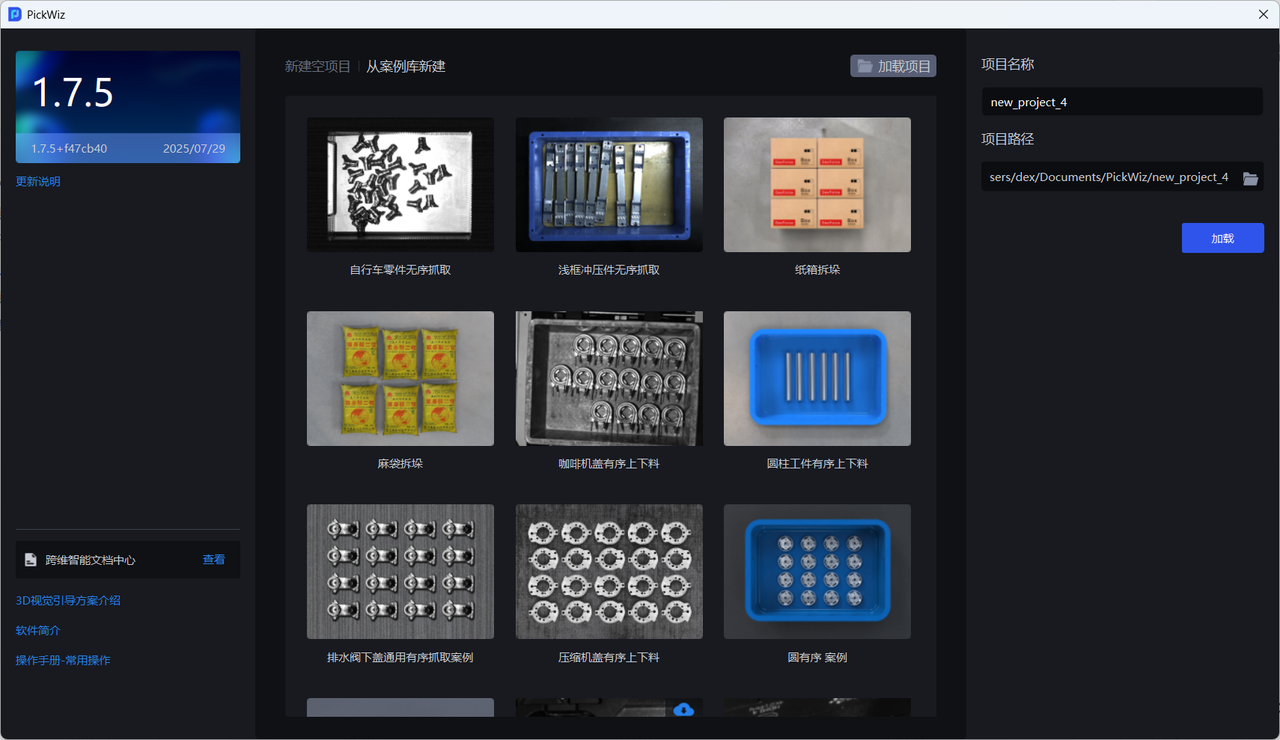
- If this is your first time using the case, click the
Downloadbutton to download the Project configuration
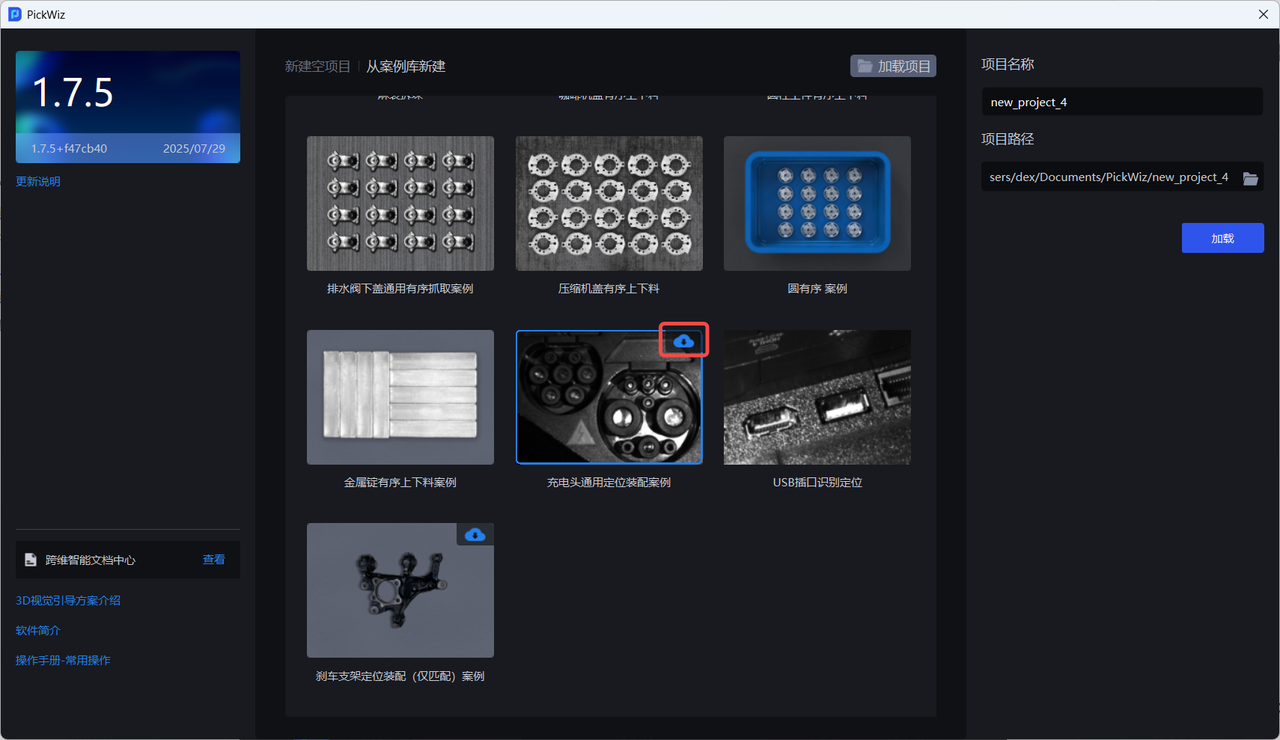
- After downloading the Project configuration for the case, fill in the Project name and Project path.
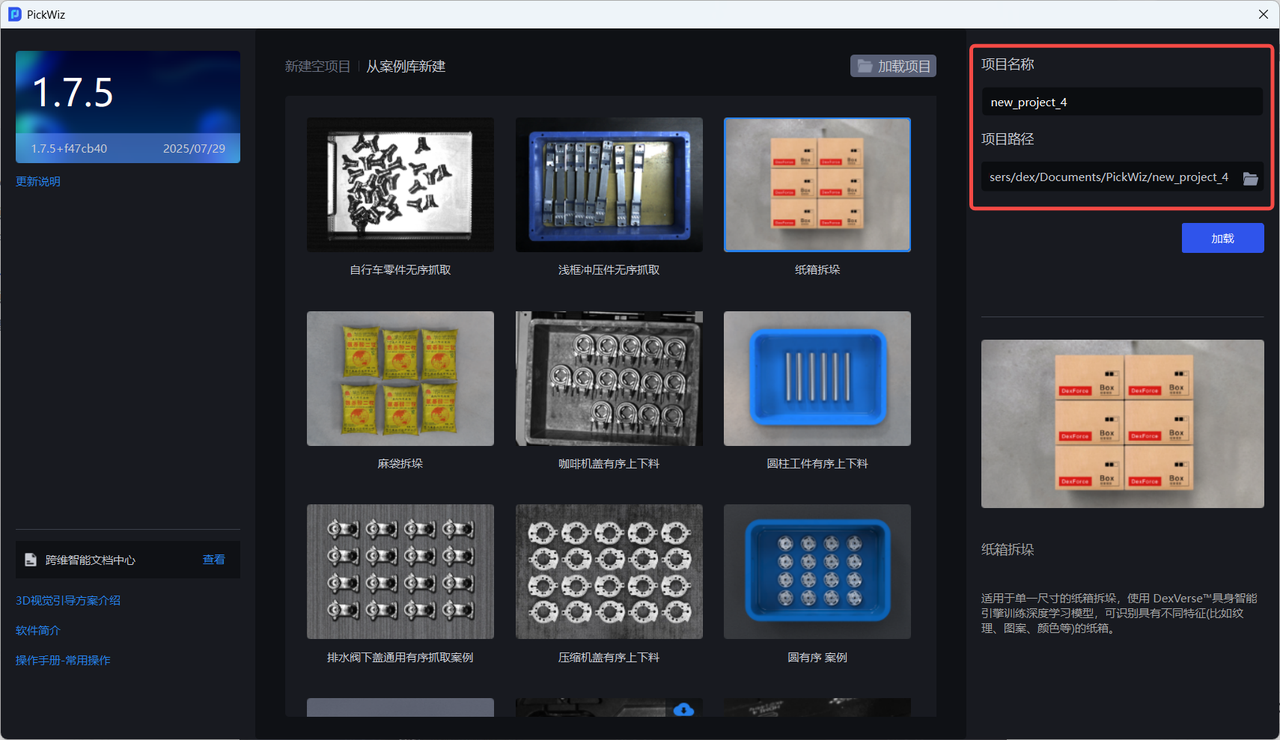
2. Load a Project
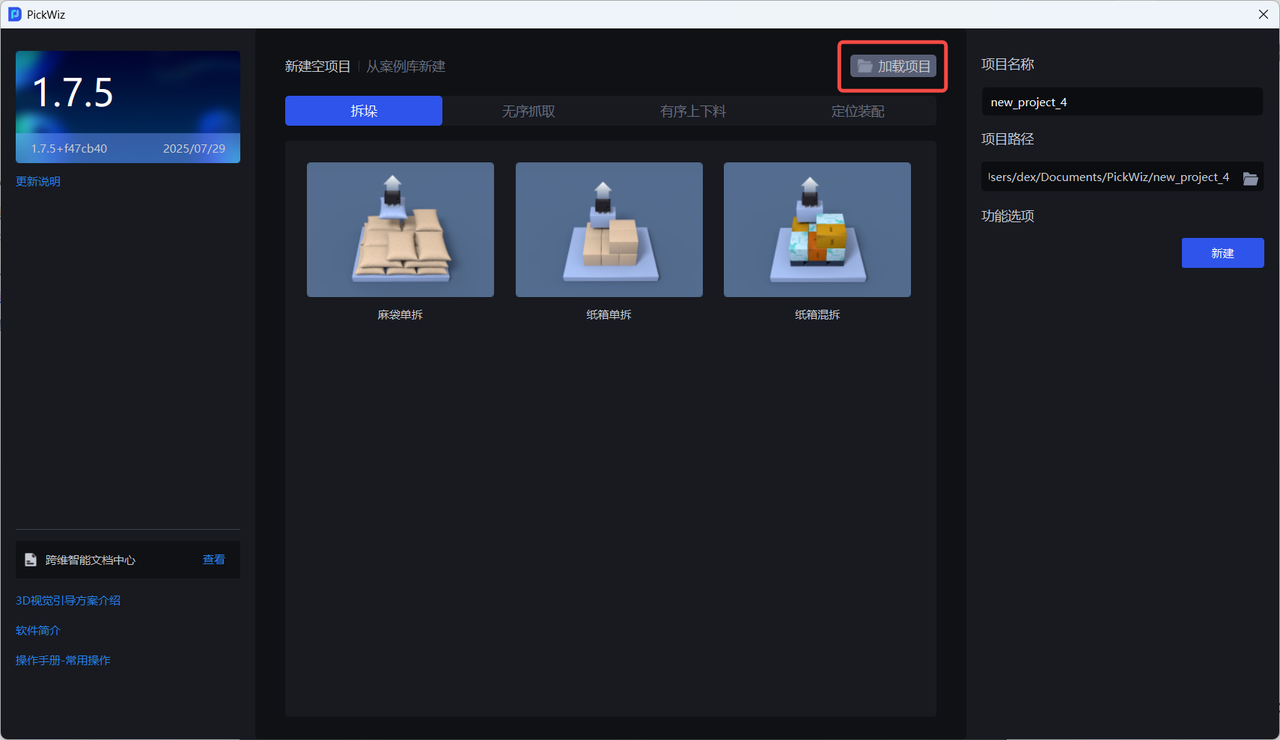
If you need to open an existing Project from disk, click Load Project on the welcome page.
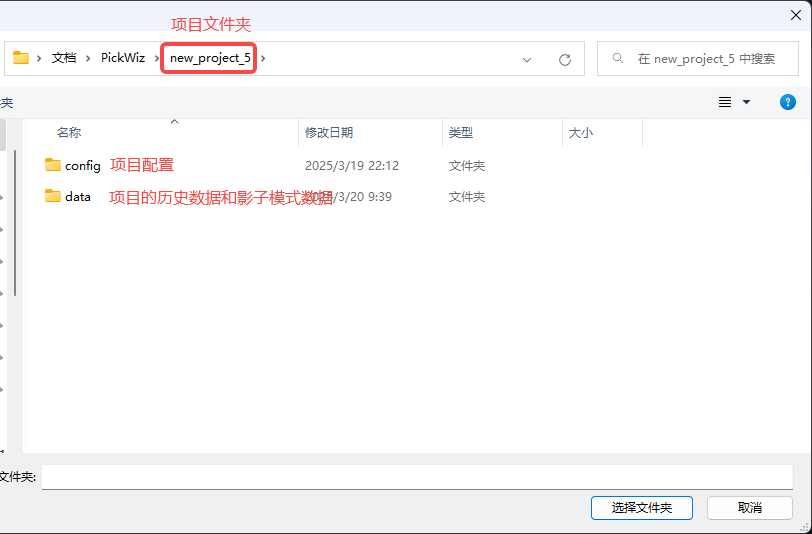
Open the corresponding Project folder, select the Project, and click Select Folder. The default Project storage path is C:\Users\dex\Documents\PickWiz.
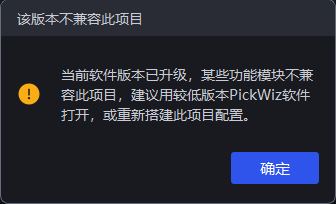
If the following compatibility issue occurs when opening the Project, use a lower version of the PickWiz software to open the Project. If necessary, contact Dexforce technical support.
3. Project Configuration
Open the Project configuration folder config to view the Project configuration data, as shown below.
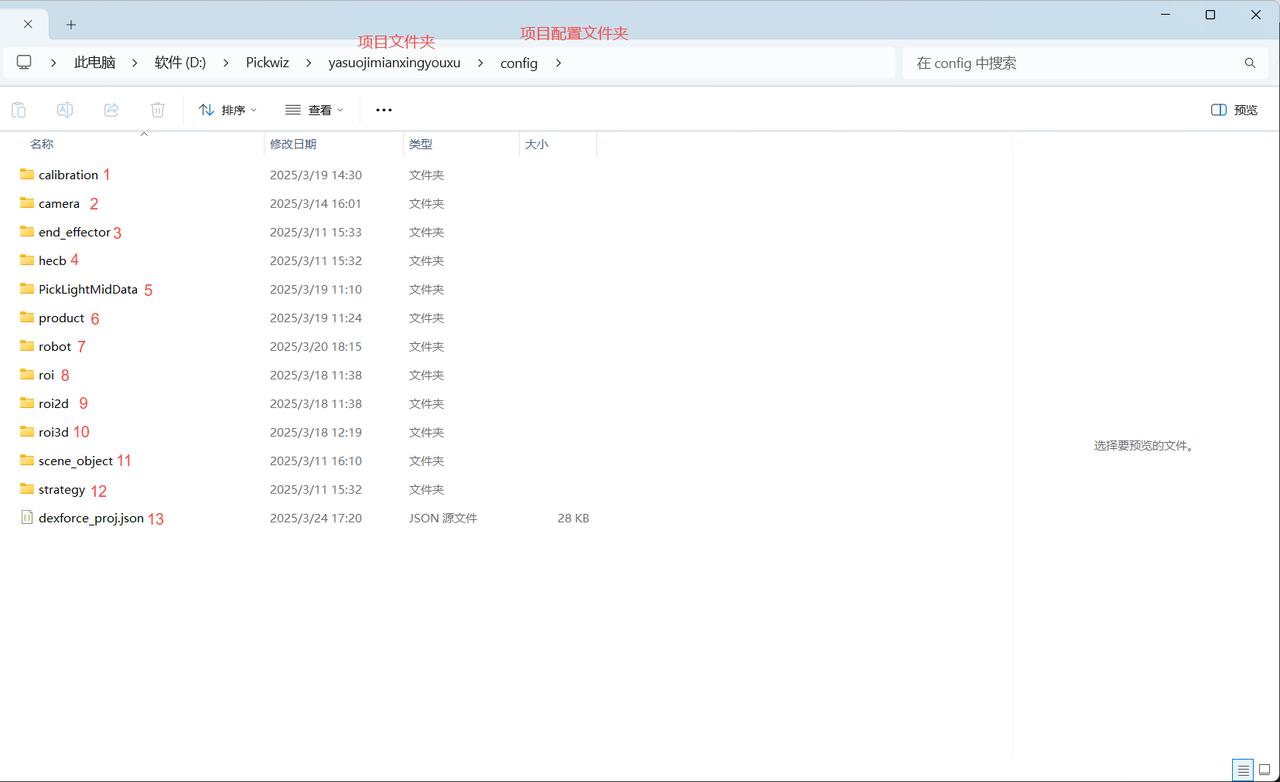
Note
Modifying the Project configuration folder is not recommended. Otherwise, PickWiz may report errors and fail to operate properly.
| No. | Folder Name | Configuration Name | Description |
|---|---|---|---|
| 1 | calibration | eye-hand calibration (new version) | Stores the eye-hand calibration (new version) configuration used when the current task is running |
| 2 | camera | Camera | Stores the Camera and Camera parameters used when the current task is running |
| 3 | end_effector | Tool | Stores the Tool configuration used when the current task is running |
| 5 | PickLightMidData | Visualization configuration | Stores the configuration corresponding to the visualization window |
| 6 | product | Workpiece | Stores the workpiece configuration of the current task |
| 7 | robot | Robot | Stores the Robot used when the current task is running |
| 8 | roi | ROI | Stores the ROI configuration used when the current task is running |
| 9 | roi2d | ROI 2D | Stores the ROI 2D configuration used when the current task is running |
| 10 | roi3d | ROI 3D | Stores the ROI 3D configuration used when the current task is running |
| 11 | scene_object | Scene Object | Stores various objects in the actual scenario of the current task, including bins, pallets, etc. |
| 12 | strategy | Vision Parameters | Stores the vision parameter configuration used when the current task is running |
| 13 | dexforce_proj.json | Root configuration file | The root configuration file of the Project. All configuration items corresponding to all tasks in the Project are specified in this file |
After a new Project is created, Pickwiz will create a default task. The Project configuration data can be cross-checked with the task information.
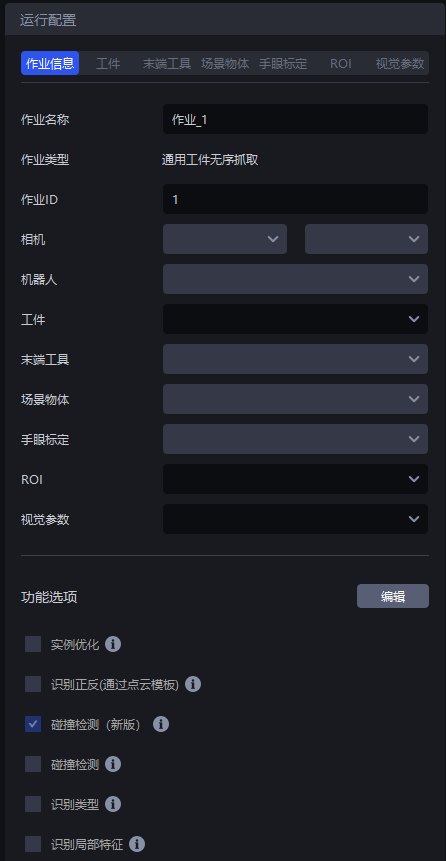
| Label | Description |
|---|---|
| Task Name | The name of the current task. It can be modified |
| Task Type | The type of the current task, that is, the task scenario. It corresponds to the task scenario selected when creating a new task and cannot be modified |
| Task ID | Identifies the current task. The Robot can switch tasks through this ID |
| Camera | The Camera and Camera parameters used when the current task is running. For connecting the Camera and adjusting camera imaging quality, refer to Camera Connection and Parameter Adjustment Guide |
| Robot | The Robot used when the current task is running. For establishing communication with the Robot, refer to Robot Configuration and Communication Operation Guide |
| Workpiece | The workpiece configuration of the current task. After adding it on the Workpiece page, configure it in the task information. For adding workpieces, refer to Workpiece Operation Guide |
| Tool | The Tool configuration used when the current task is running. After adding it on the Tool page, configure it in the task information. For adding a Tool, refer to Tool User Guide |
| Scene Object | Various objects in the current task scenario, including bins, pallets, etc. The Scene Object page appears only after Collision Detection, Pallet Detection, and Separator and Pallet Detection are selected in Functional Options. After adding Scene Objects, they need to be configured in the task information. For the detailed procedure, refer to Pallet Detection Guide, Collision Detection Guide, and Separator and Pallet Detection Guide |
| eye-hand calibration | The eye-hand calibration configuration used when the current task is running. After adding it on the eye-hand calibration page, configure it in the task information. For the detailed procedure, refer to Eye-Hand Calibration Operation Guide |
| ROI | The ROI configuration used when the current task is running. After adding it on the ROI page, configure it in the task information. For the detailed procedure, refer to ROI Operation Guide |
| Vision Parameters | The vision parameter configuration used when the current task is running. Configure it on the Vision Parameters page. For the detailed procedure, refer to Vision Parameter Adjustment Guide |
| Functional Options | Click "Edit" to select working-condition attributes such as "Collision Detection", "Recognition Type", "Local Feature Recognition", and "Pallet Detection". After selecting working-condition attributes related to the Project, PickWiz will match the functional configuration suitable for those conditions, that is, it will add the selected condition-related configurations to workpieces, vision parameters, and other related configurations. For related functions, refer to Functional Options Guide |