Software Function FAQs
1. Software Startup/Shutdown/Restart/Operation
1.1 White Screen
Problem: Opening the software displays a white screen
Affected Version: All versions
Solution: A monitor needs to be connected for it to display properly.
1.2 Black Screen
Problem: After clicking Run, the computer shows a black screen, powers off, and restarts
Affected Version: All versions
Solution: The Power Supply wattage may be insufficient. Check the Power Supply wattage; a value greater than 250W is recommended.
1.3 Abnormal Power Loss Prevents the Software from Starting
Problem: After an abnormal power loss, the software cannot be started and keeps reporting the error "Please restart the software"
Affected Version: All versions
Solution:
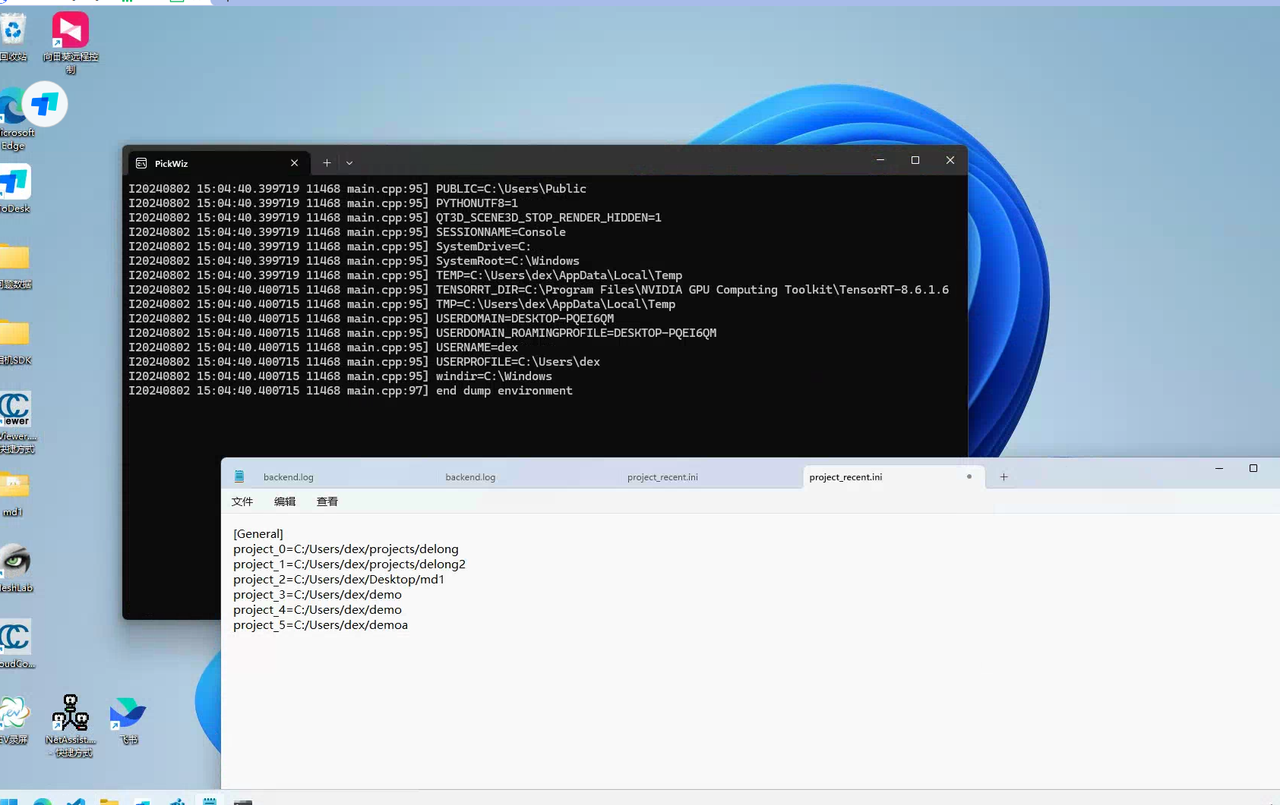
Check the .dexforce/project/project_recent.ini file in the user directory
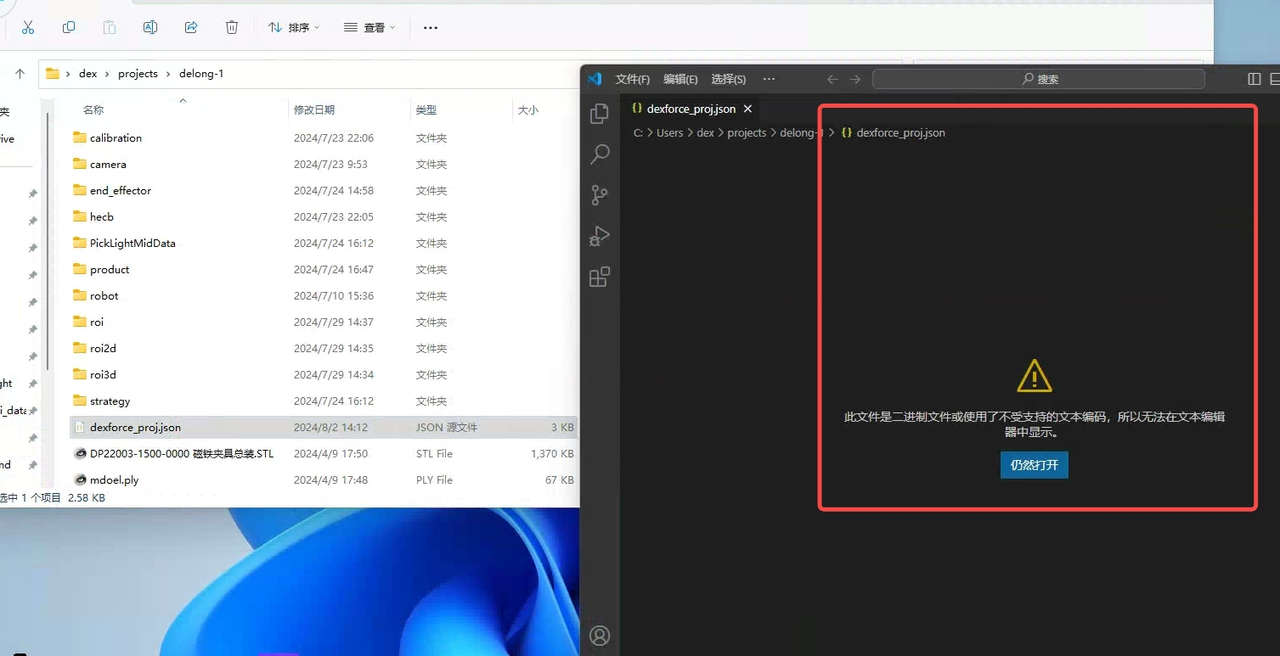
Open the folder of the first path and check dexforce_proj.json to see whether the file is corrupted
If the file is corrupted, rename this folder. PickWiz will reopen the next Project and can then be opened normally (if you need to use the current Project file, you can use a backup to overwrite it)
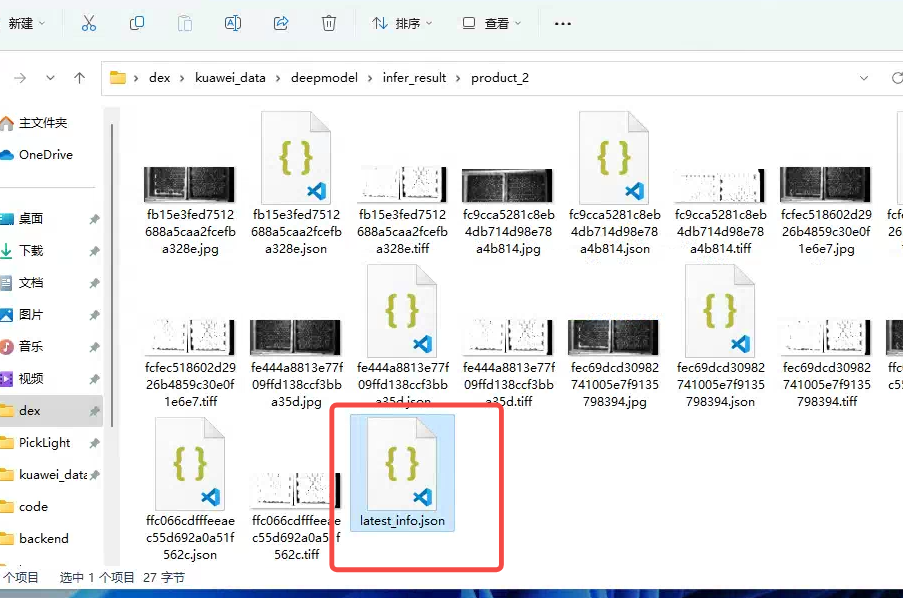
When using shadow mode, note whether the latest_info.json file is corrupted
1.4 Abnormal VRAM
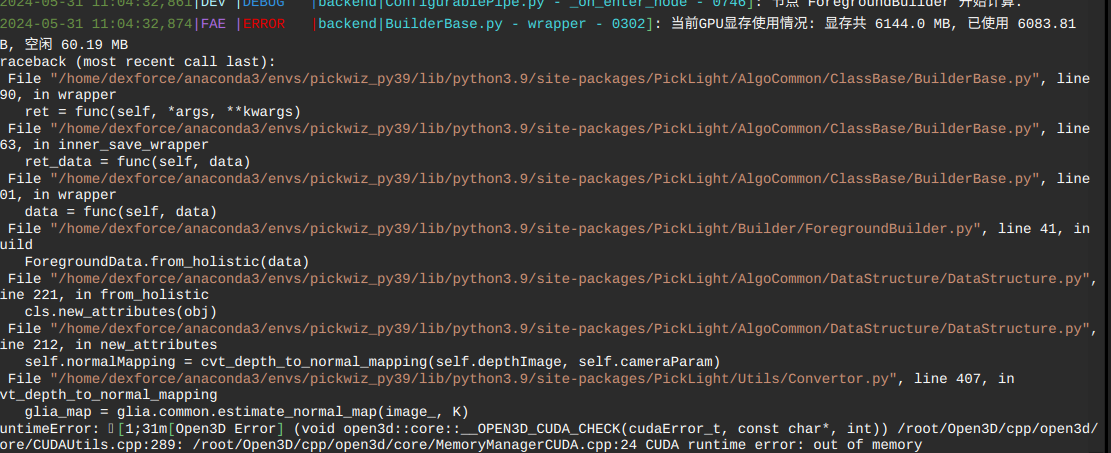
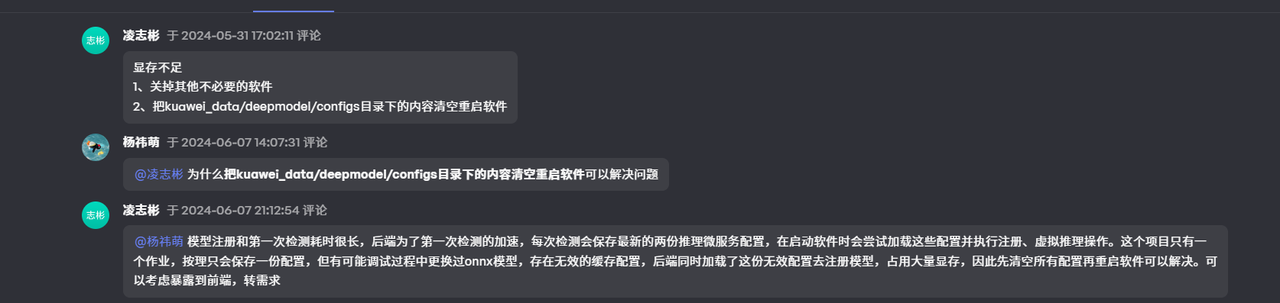
Problem: The software keeps reporting VRAM errors during operation
Affected Version:
Possible Cause:
After two models are loaded, the remaining VRAM is insufficient to support Inference
Solution:
1.5 glia_error Reported on First Run
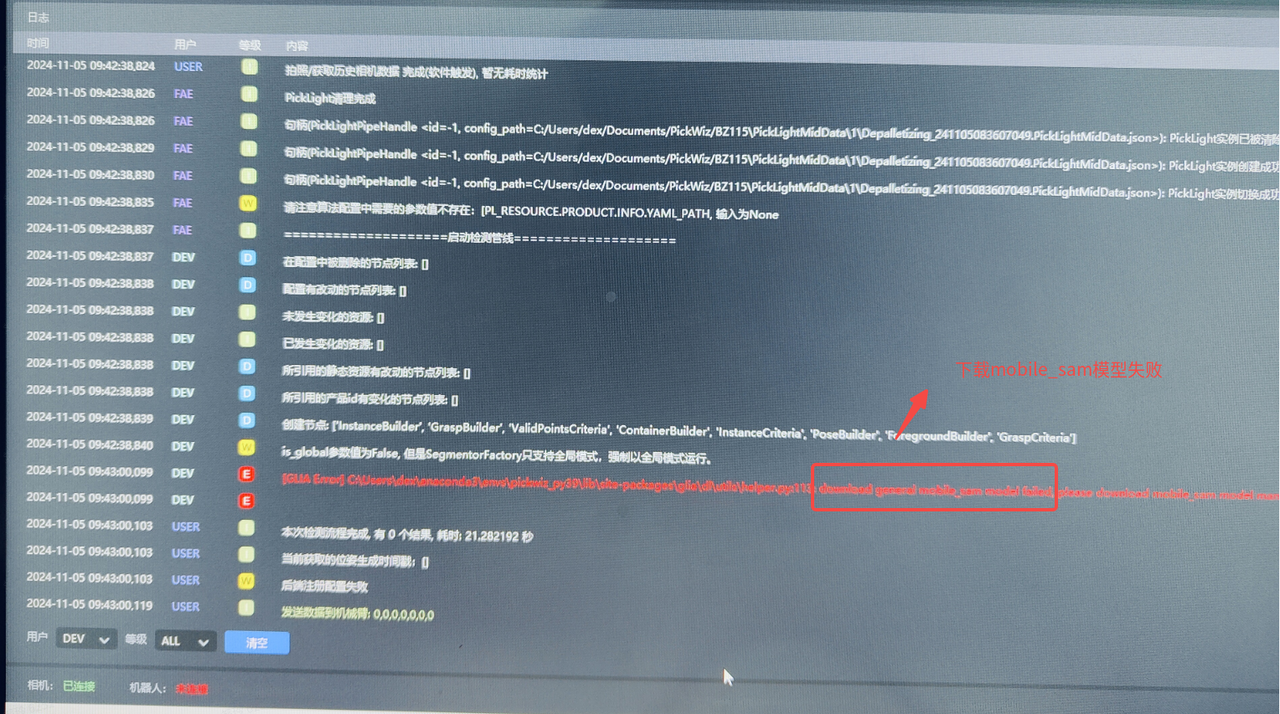
Problem: glia_error is reported on the first run, and the required general model cannot be downloaded
Affected Version:
Possible Cause:
Solution: Download the corresponding model in this document according to the error content and place it in the corresponding path

1.6 Start PickWiz Automatically at Boot
Problem: After disabling auto-start in pickwiz and rebooting, one pickwiz instance still starts
Affected Version: All versions
Possible Cause: The user added a custom task for starting PickWiz at boot in Task Scheduler, which conflicts with PickWiz's built-in auto-start at boot.
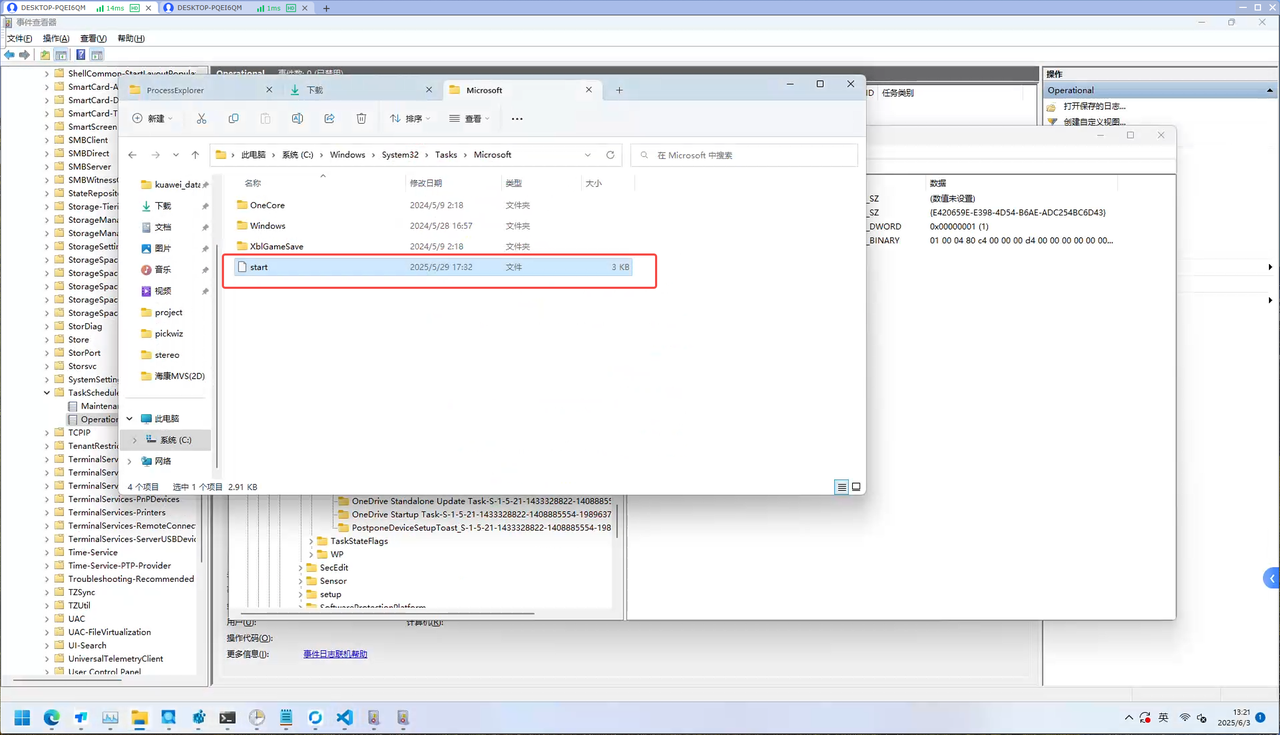
Solution: After deleting the custom boot startup program, PickWiz can start automatically at boot normally.
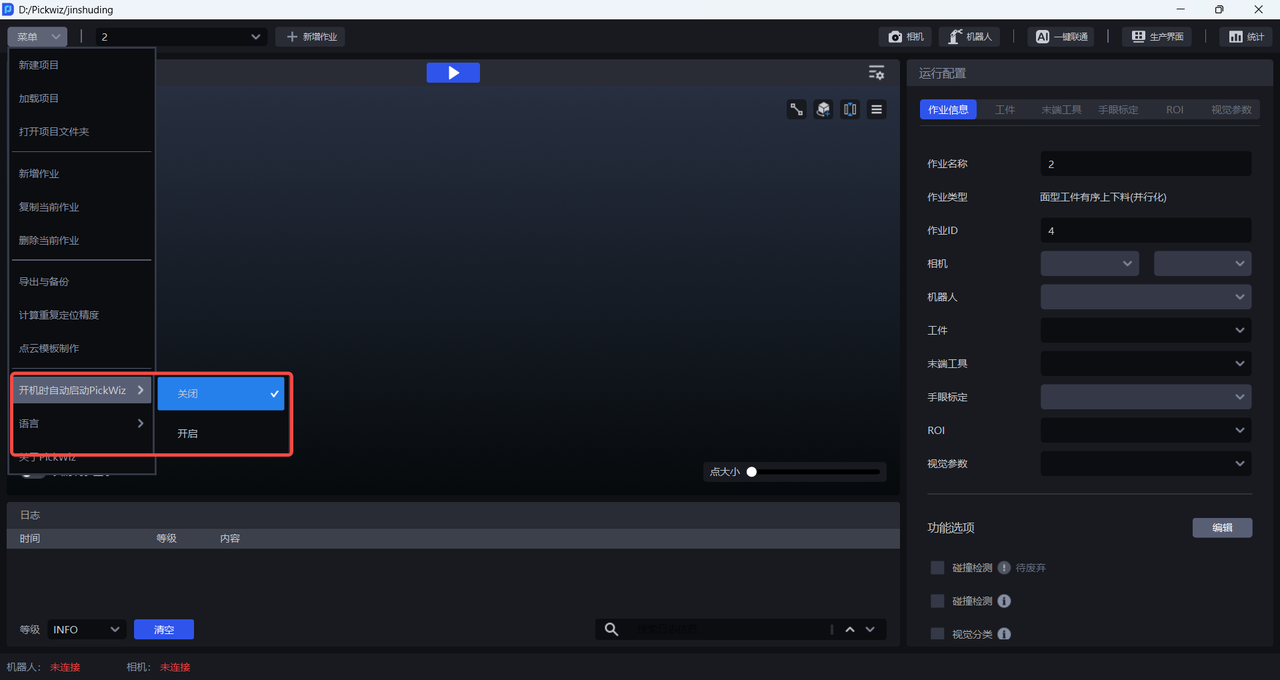
If you need to set PickWiz to start automatically at boot, click Menu>Automatically Start PickWiz at Boot>Enable on the main interface
2. Interaction
2.1 Abnormal Display
Problem: Due to resolution issues in the user interface, some controls cannot be clicked
Affected Version:
Possible Cause:
Solution: The software is currently not compatible with different resolutions (1920×). Use the middle mouse button or drag to adjust the size of the selection box.
3. User Information Injection
3.1 Target Object Point Cloud Information Replacement Failed
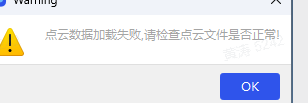
Problem: When replacing the Point Cloud file, the software reports an error, and the template to be imported is automatically cleared
Affected Version:
Possible Cause: The imported Point Cloud file cannot be placed in the product/product_1/resource directory under the project directory and needs to be imported from another directory

Solution: Move the imported Point Cloud file from product/product_1/resource under the project directory to another location.
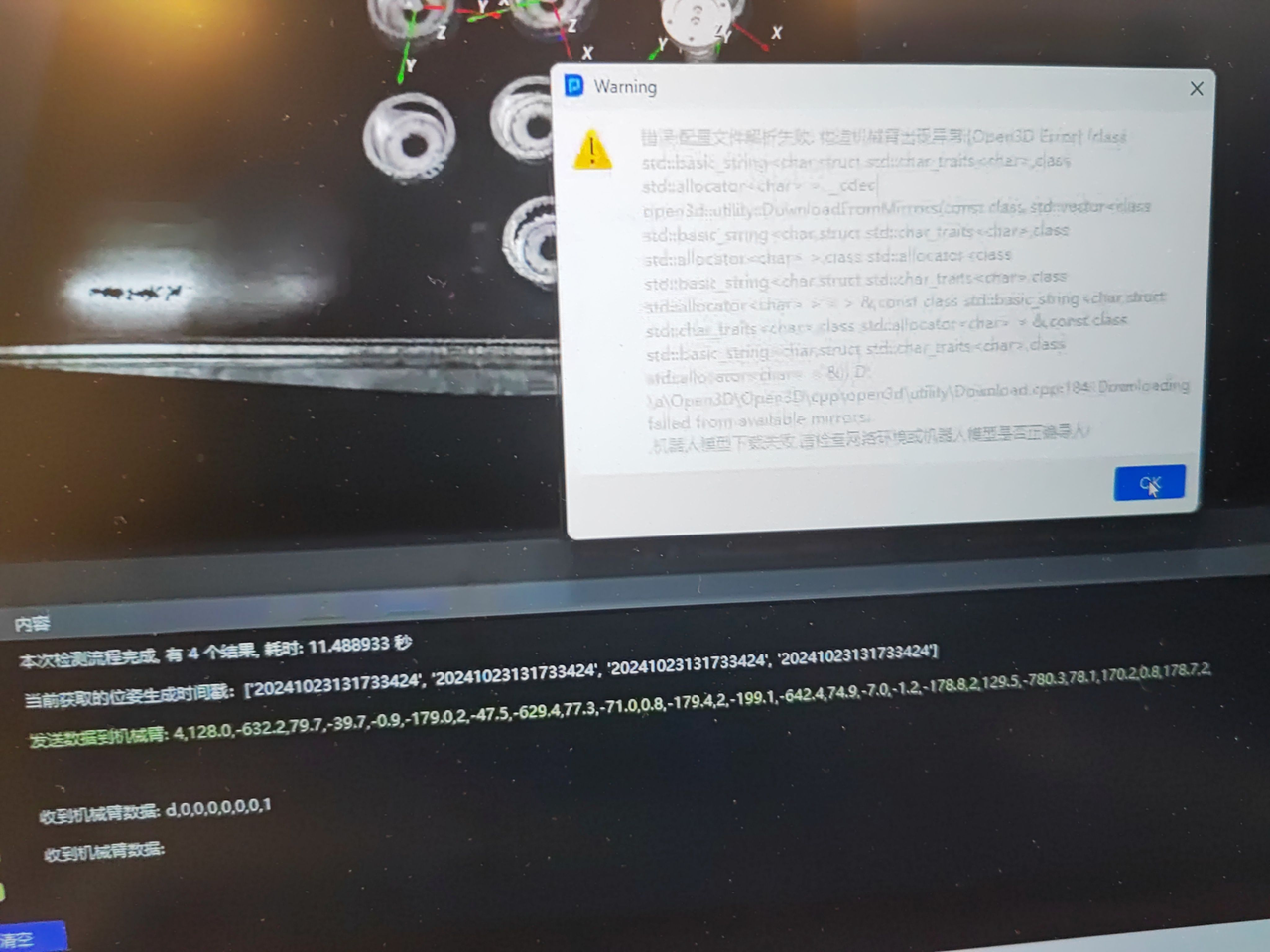
3.2 Tool Model Parsing Failed
Problem: Configuration file parsing failed when importing the fixture model
Possible Cause: The software currently does not support Chinese characters in the Project path
Solution: The software currently does not support Chinese characters in the Project path. Please use a fully English path
3.3 Incomplete 2D Recognition Segmentation
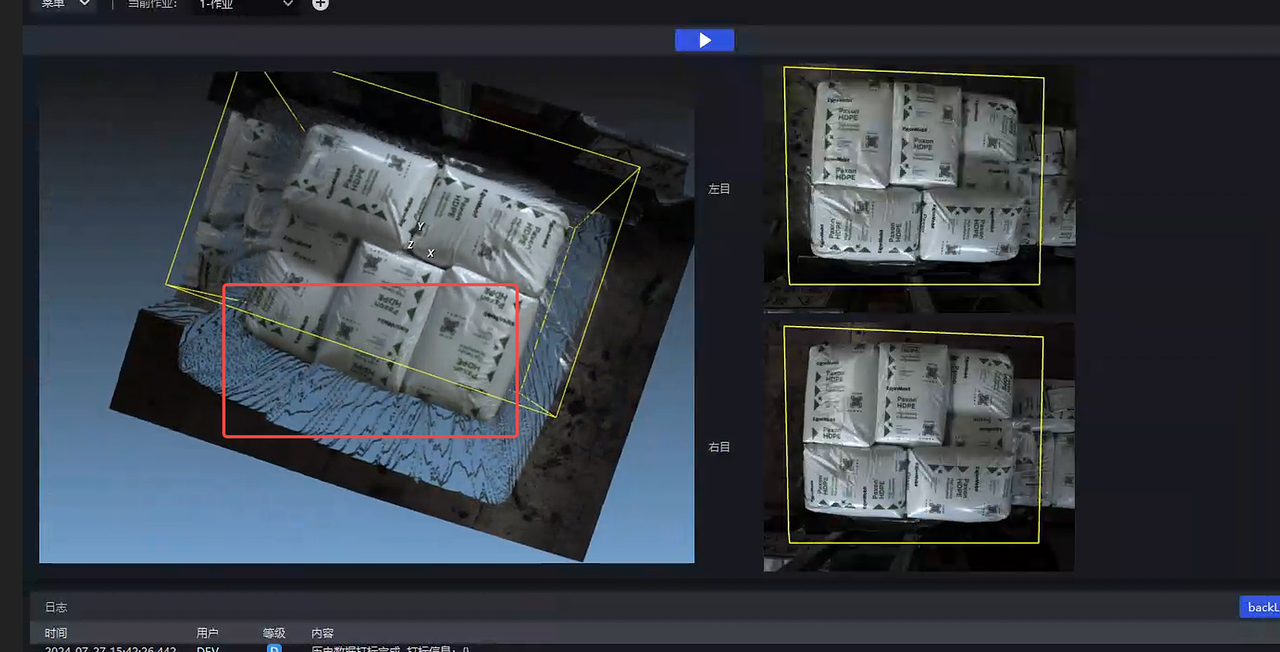
Problem: 2D recognition segmentation is incomplete
Possible Cause: ROI does not fully cover the target area
Solution: ROI does not fully cover it; the entire Target Object should be enclosed.
4. Historical Data
4.1 Historical Data Grasping Strategy/Vision Parameters Did Not Take Effect
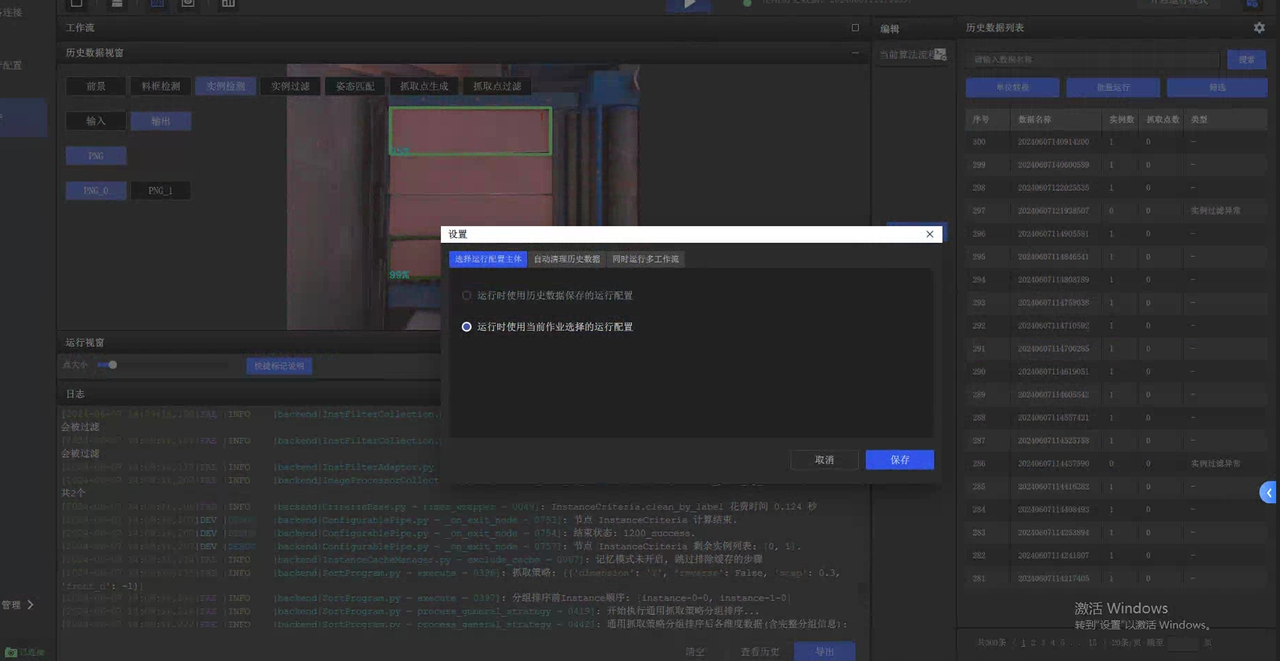
Problem: After running historical data, the grasping strategy/vision parameters did not take effect
Possible Cause: The run configuration of historical data was used, so the grasping strategy/vision parameters of the current task did not take effect.
Solution: Change it to use the current task configuration, and it will return to normal.
4.2 Abnormal Error Reported for Normal Historical Data
Problem: After test-running historical data that previously output results normally, an abnormal error of the full inspection function is reported.
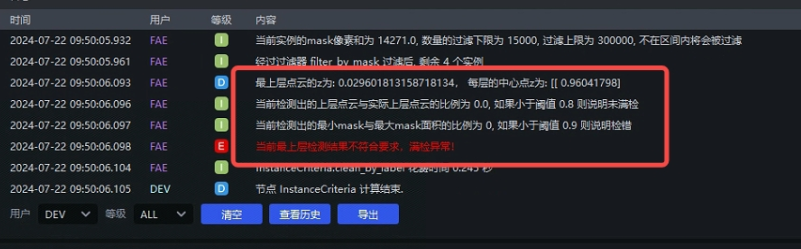
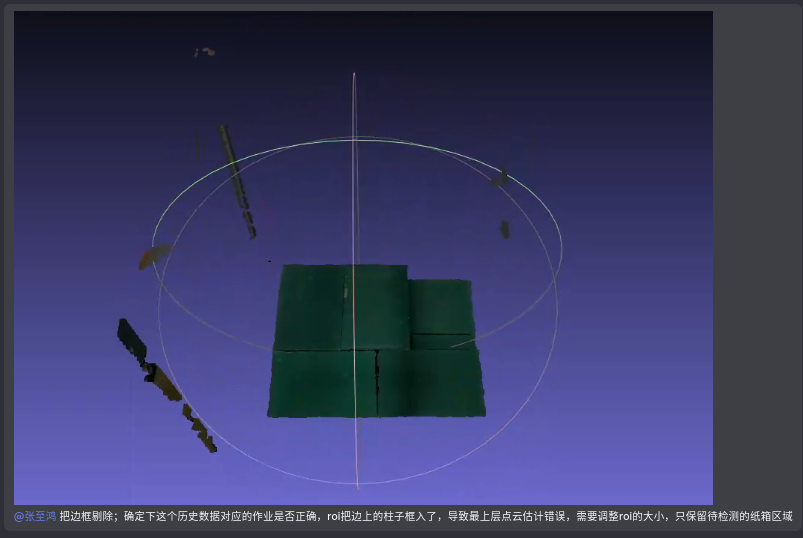
**Possible Cause: **This type of situation mostly occurs when different tasks/ROI3d are used. Because the Point Cloud of the current historical data is inconsistent with the currently used roi, many noise points may be added above the instance Point Cloud, thereby triggering a full inspection exception.
Solution: It is necessary to ensure that the tasks are consistent or adjust the roi.
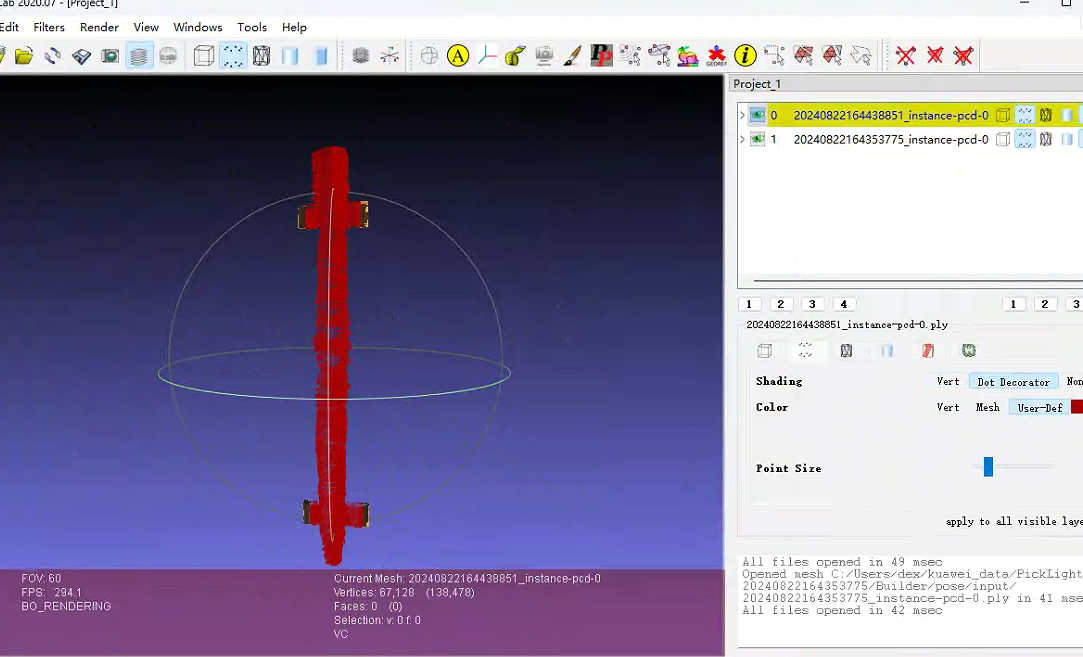
4.3 Whether the scale Parameter of generate_pcds_by_bboxes Takes Effect
Problem: There is no effective comparison before and after setting the scale parameter of generate_pcds_by_bboxes
Affected Version:
Possible Cause: The function generate_pcds_by_bbox is in the instance filtering node and is used for Point Cloud generation. To observe the effect of adjusting this function, you need to check the effect in the historical data Point Cloud file; it will not be visualized in the frontend interface.
Solution: The specific method is as follows
4.4 Unable to Use Camera Data After Batch Running Historical Data
Problem: After batch running historical data, Camera Data cannot be used
Affected Version:
Possible Cause: When the input data is ”Camera Data“, executing ”Batch Run Historical Data“ will cause the input mode to become inconsistent
Solution: The correct operation steps are as follows:
5. Robot
**5.1 **Alarm for Failure to Load the Robot Model
Problem: After upgrading from 1.4.1 to 1.4.5, the previously configured robot in the copied task cannot be seen.
Affected Version:
Possible Cause:
Solution:
5.2 robot communication connection
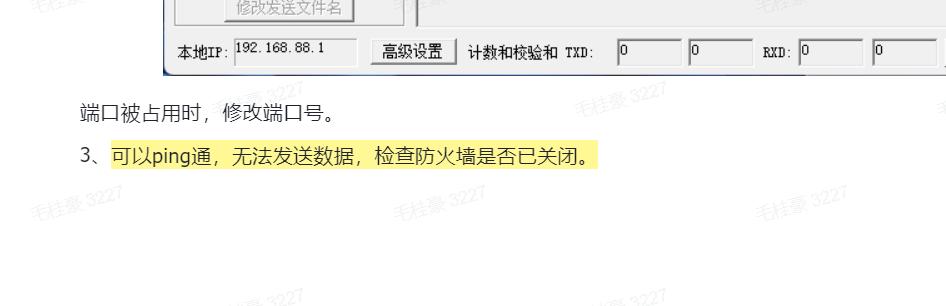
Problem: During communication protocol integration, the communication data transmission between the Robot and the communication assistant is normal, and the data transmission between the communication assistant and PickWiz is normal, but PickWiz cannot receive the photo-taking command sent by the Robot
Affected Version: All versions
Possible Cause: This problem is often encountered in communication. It is caused by the Windows firewall not being disabled.
Solution: Ask the FAE to configure it on site.
6. Dongle
6.1 Dongle Detection Error (27)
Problem: Dongle detection error (27)
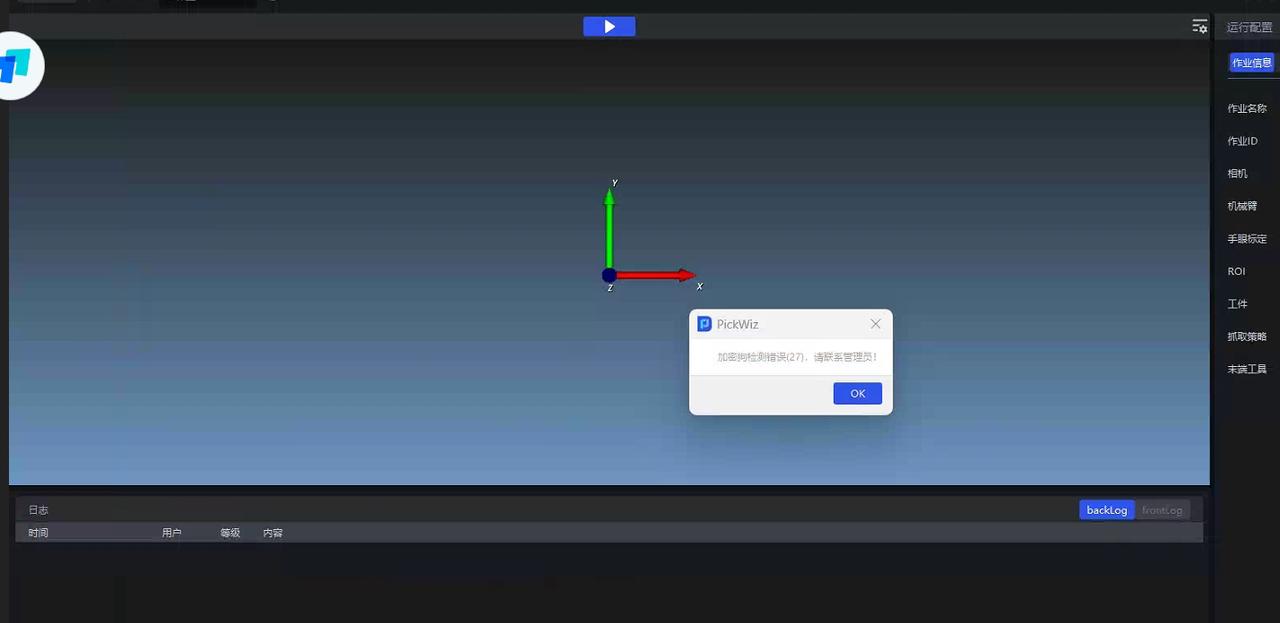
Possible Cause: The built-in remote desktop connection of windows was used
Solution: The built-in remote desktop connection of windows cannot be used (there is a risk of information leakage). You must use a monitor/todesk/Sunlogin:
6.2 Dongle Detection Error (31)
Problem: Dongle detection error (31)
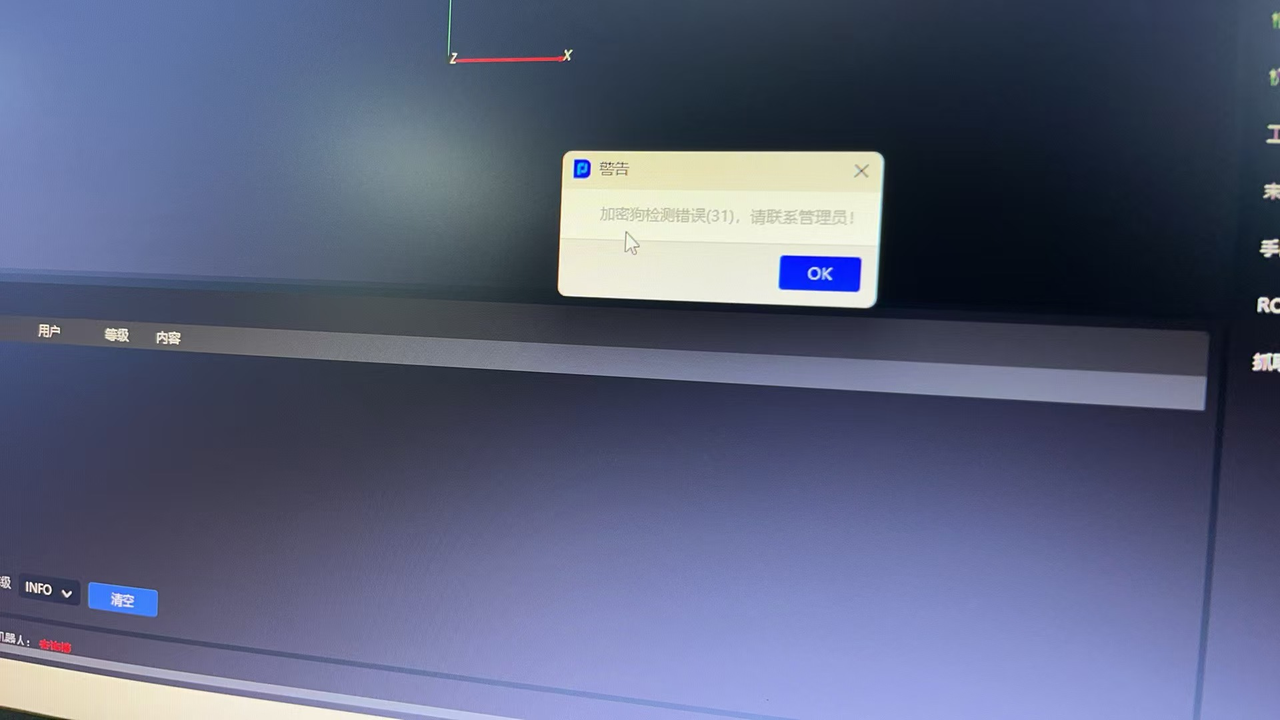
Possible Cause: Indicates unauthorized
Solution: Contact the company administrator for authorization
7. Takt Time
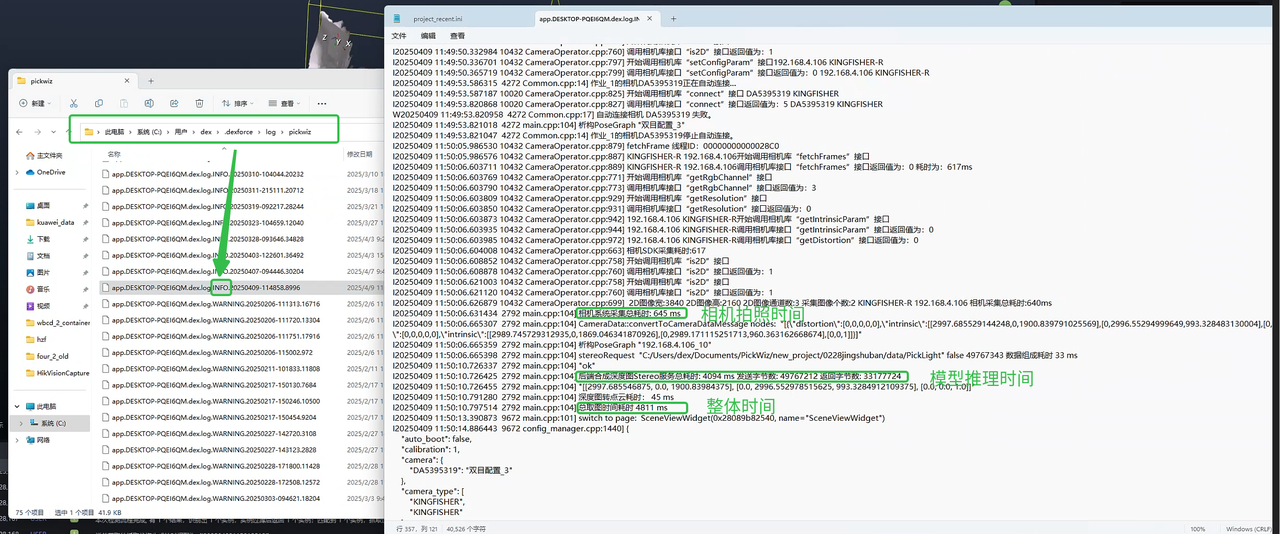
【Stereo Photo-Taking Time Record】
A:The log records for the stereo camera image capture time (photo taking only, model Inference, and total time) are located at: C:\Users\dex\.dexforce\log\pickwiz. Find the most recent INFO log by time and open it with Notepad
【Long Time Caused by Many Instances】When the number of instances is very large, Point Cloud generation takes a long time
GliaRcnn's mask_on parameter is set to false, indicating that mask is not transmitted;
1.4.2 and earlier versions, select the processing function for Point Cloud generation: generate_pcds_by_masks
1.4.3+, select the processing function for Point Cloud generation: generate_pcds_by_bboxes
【Log Meanings】The meanings of each time consumption item in the backend log
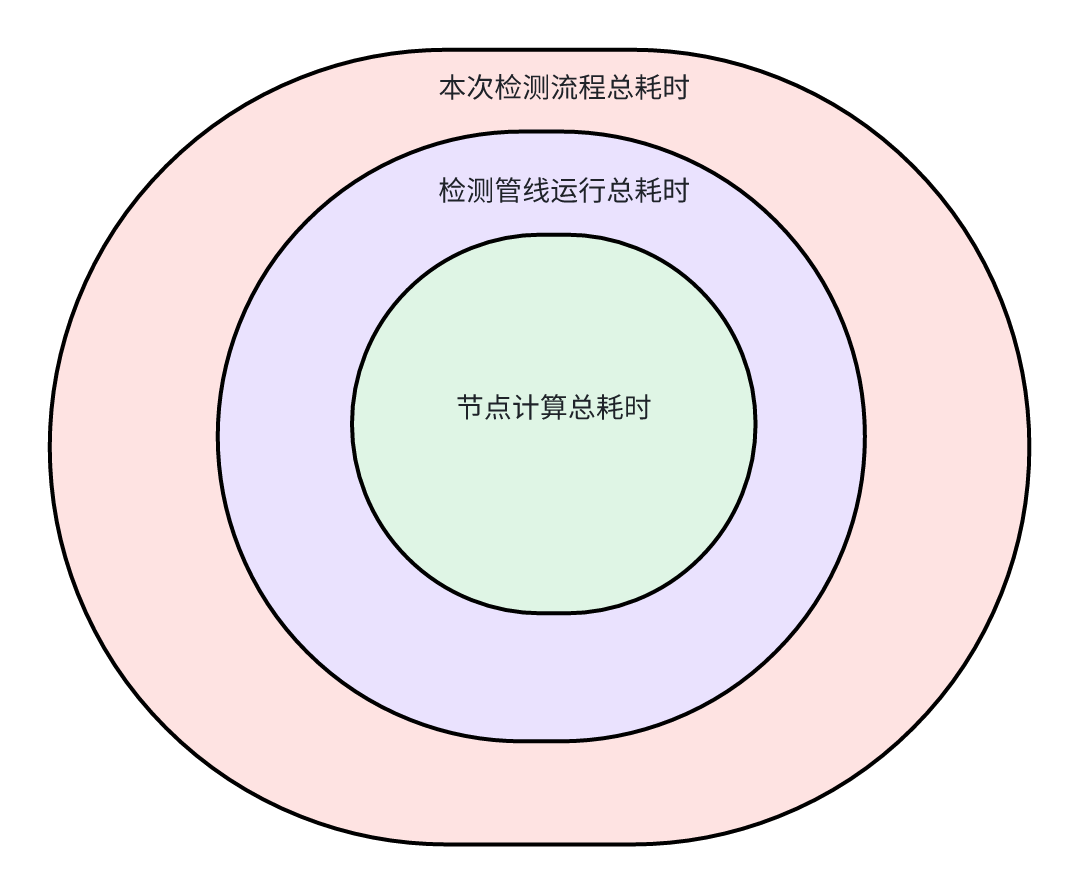
Total node computation time: the total time from entering the first node to exiting the last node, including the total time for algorithm execution and processing function execution of each node
Total detection pipeline time: the total time from triggering the call to PickLight's detection interface to the end, including: configuration comparison, node update, algorithm registration, and the above Total node computation time
Total time of this detection process: the total time from receiving Camera Data to calculating the Pick Point, including: task configuration parsing, resource registration, node generation, and the above Total detection pipeline time. This time represents the actual time consumed by one backend computation. During the first run, the registration time is relatively long. For each subsequent computation, if the configuration remains unchanged, there will be additional memory reclamation time, currently about 0.1-0.2s, so it will appear to be always slightly longer than Total detection pipeline time.
【Enable Multi-Workflow Cache】The meaning of Workflow cache
Disabled: backend single-instance mode. Each task switch triggers reloading of the backend instance, including resource registration/node generation, etc.
After enabling: backend multi-instance mode. When hardware resources permit, multiple instances are cached to the greatest extent. Each time a task is switched, instance loading is performed only during the first run, after which it is cached. Subsequent runs no longer require registration operations
When there are multiple tasks and these tasks are switched frequently, enabling the multi-Workflow cache function can avoid frequent instance creation/registration operations and improve Takt Time