Slip Sheet Detection Guide
The Slip Sheet Detection feature is enabled in scenarios where a slip sheet needs to be picked. After it is enabled, the slip sheet can be picked after normal Target Object picking is completed. This document mainly describes how to adjust related vision parameters after enabling Slip Sheet Detection.
1. Operation Guide
The Slip Sheet Detection feature is suitable for depalletizing scenarios
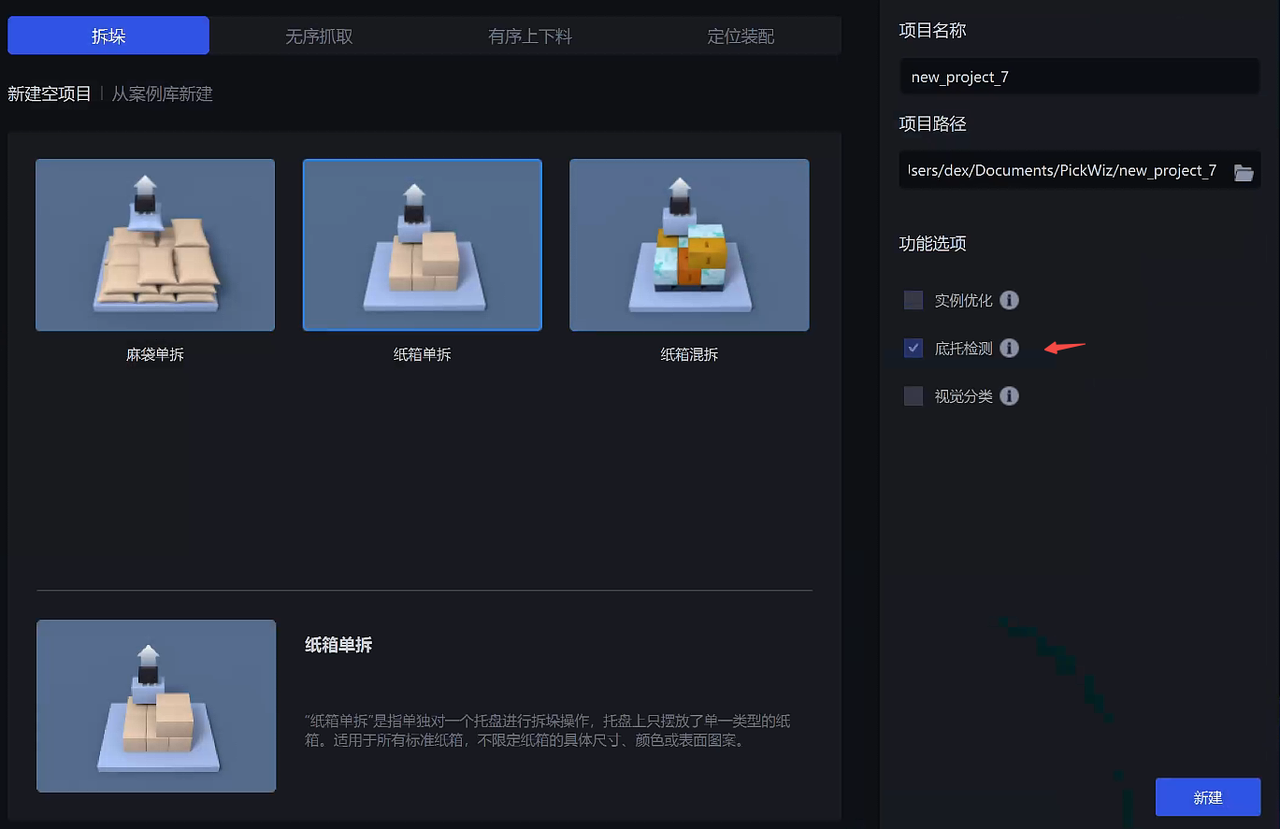
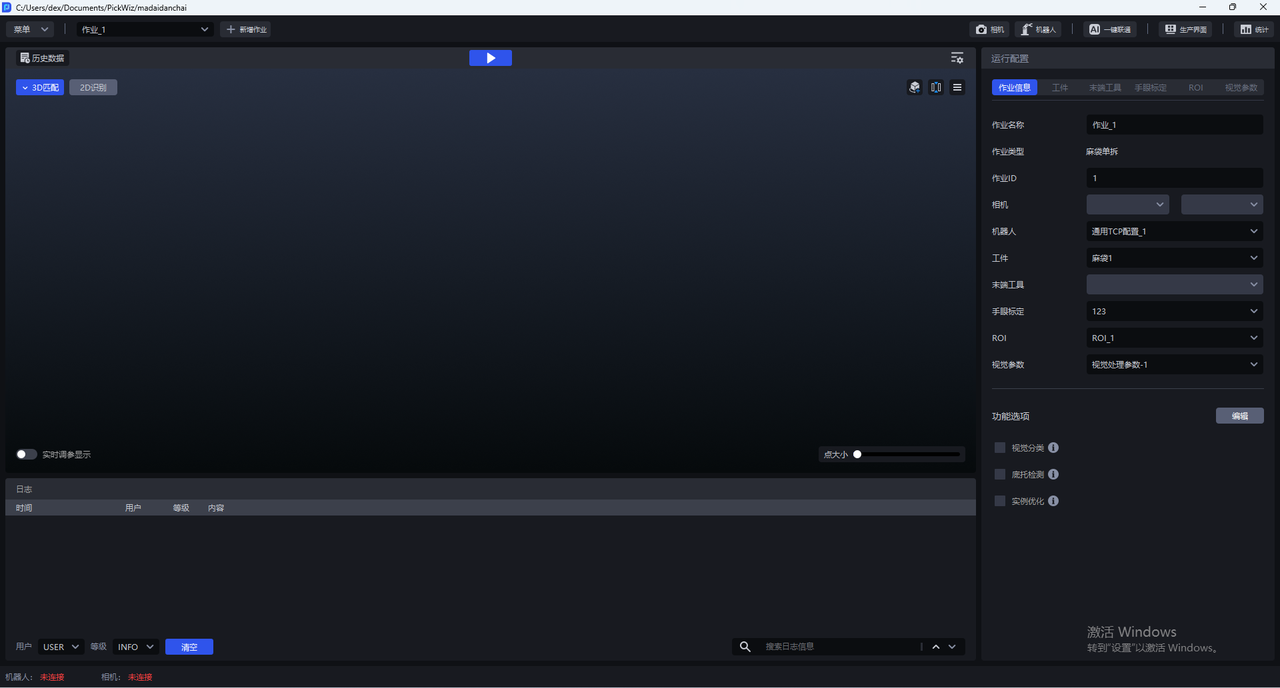
- When there is a slip sheet in the actual scene, select the Slip Sheet Detection feature when creating a new Project; if it was not selected when creating the new Project, go to the Task Information page, click Edit in the lower-right corner, and then select Slip Sheet Detection
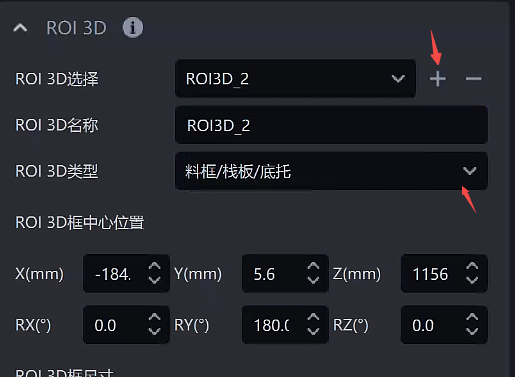
- Create an ROI on the ROI page and adjust the ROI 3D box to fully cover the Target Object. Then create ROI3D_2 and select ROI 3D Type as Bin/Pallet/Slip Sheet
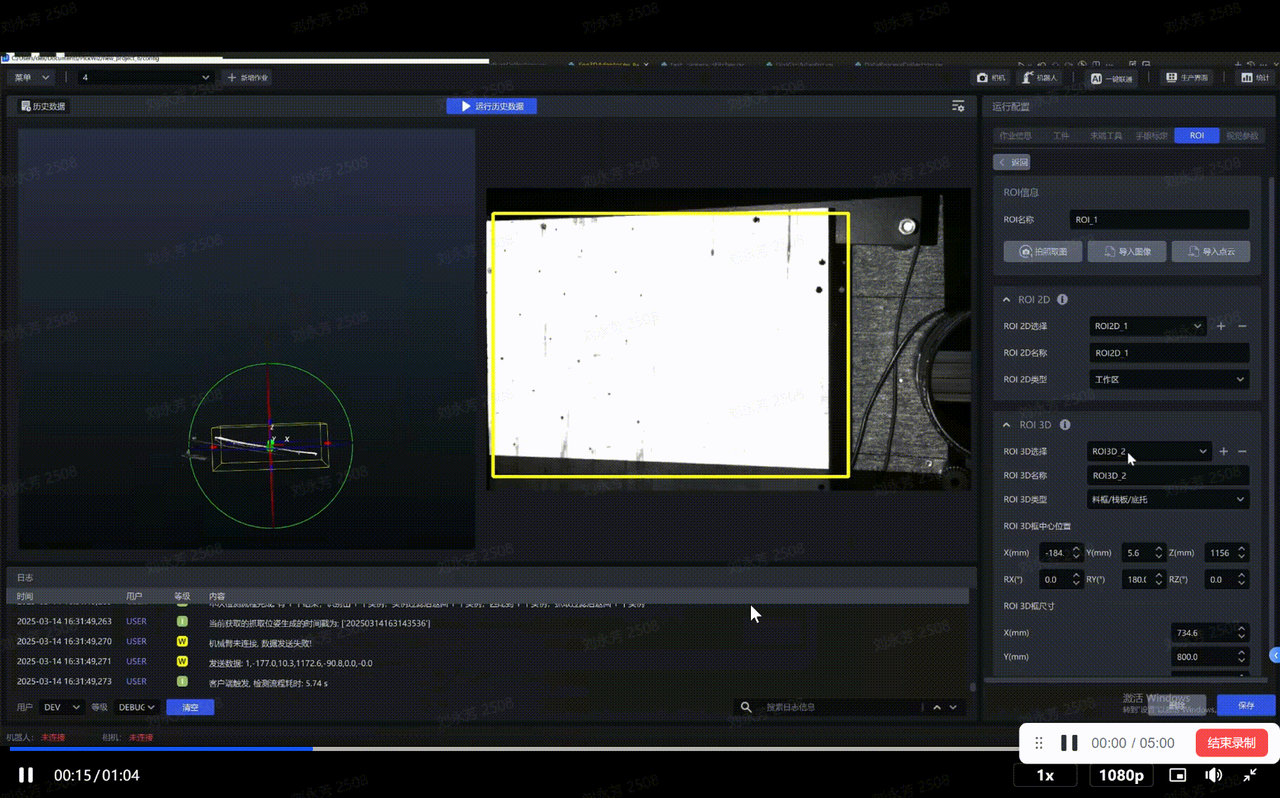
Adjust the size of ROI3D_2 so that it includes only the slip sheet area
2. Parameter Tuning Guide
After selecting each configuration item in Task Information, adjust parameters under Vision Parameters - 3D Calculation - Slip Sheet Detection
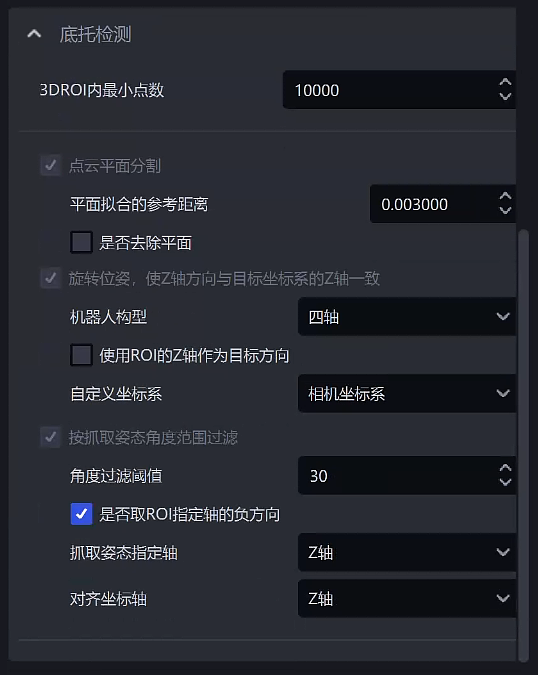
| Parameter | Description | Default Value | Range | Tuning Recommendation | |
|---|---|---|---|---|---|
| Minimum Point Count in 3D ROI | If the number of point clouds extracted in the ROI 3D workspace is smaller than this value, it indicates that the Target Object has been completely picked, and the process automatically enters the Slip Sheet Detection section | 10000 | 0-100000 | The value should be smaller than the point cloud count of a single Target Object | |
| Point Cloud Plane Segmentation | Reference Distance for Plane Fitting | Points whose distance to the plane is lower than the reference distance are considered points on the plane and are retained; otherwise, they are considered points outside the plane and are filtered out. The larger the value, the thicker the retained plane. | 0.003 | 1e-6 ~ 10 | Reduce this value when high point cloud accuracy is required, and increase it when lower point cloud accuracy is acceptable |
| Remove Plane | If selected, the fitted plane is removed; if not selected, the fitted plane is retained | Not selected | / | Usually no adjustment is needed | |
| Rotate Pose so That the Z-axis Direction Is Consistent with the Z-axis of the Target Coordinate System | Robot Configuration | Set according to the number of axes of the robot arm on site. If a six-axis robot is used as a four-axis robot, it should be set to four-axis | Four-axis | Four/Six-axis | Select according to on-site requirements |
| Use the ROI Z-axis as the Target Direction | Only takes effect when the Robot Configuration is set to four-axis. If selected, the Z-axis direction of the Picking Pose is consistent with the Z-axis direction of the ROI Coordinate System; if not selected, the Z-axis direction of the Picking Pose is consistent with the Z-axis direction of the Camera Coordinate System | Not selected | / | Usually no adjustment is needed | |
| Custom Coordinate System | The coordinate system of the Picking Pose | Camera Coordinate System | Default Coordinate System; Camera Coordinate System; ROI Coordinate System; Robot Arm Coordinate System | Usually no adjustment is needed | |
| Filter by Pick Pose Angle Range | Angle Filter Threshold | Calculates the maximum angle between the specified axis of the Picking Pose and the specified axis of the ROI Coordinate System. Pick Points whose angle is greater than the angle filter threshold will be filtered out | 30 | -360~360 | Usually remains unchanged. If the incoming material is significantly tilted and picking is still required, it is recommended to increase the threshold |
| Whether to Use the Negative Direction of the Specified ROI Axis | If selected, the negative direction of the specified axis of the ROI Coordinate System is used for angle calculation; otherwise, the positive direction of the specified ROI axis is used for angle calculation | Selected | / | Usually no adjustment is needed | |
| Specified Axis of Picking Pose | Specifies an axis of the Picking Pose to calculate the angle | Z-axis | X/Y/Z axis | Usually no adjustment is needed | |
| Align Coordinate Axis | Specifies an axis of the ROI Coordinate System to calculate the angle | Z-axis | X/Y/Z axis | Usually no adjustment is needed | |