Task Operation Guide
In PickWiz, a task refers to a combination of a series of related tasks performed by a Robot in a specific industrial scenario. Specific tasks include depalletizing, random picking, ordered loading and unloading, and positioning assembly.
In PickWiz, a task is a software working unit smaller than a Project. It contains various task-related configurations, including workpieces, Tools, eye-hand calibration, ROI (Region of Interest), vision parameters, Camera, Robot, and more.
1. Create a Task
1.1 Create the First Task
When creating a new Project, you need to select a task scenario. After the Project is created, PickWiz by default provides the first task. Please refer to Project Operation Guide to create a Project.
A task is provided by default when a new Project is created
1.2 Create Multiple Tasks
In some industrial scenarios, there may be multiple material areas, such as component assembly. In this case, one Robot needs to pick multiple types of materials at the same time, or move between multiple material areas, and may need to complete different task operations such as depalletizing, ordered loading and unloading, and random picking.
To meet this requirement, in PickWiz, you can create multiple tasks in the same Project according to different working conditions and then perform subsequent task configuration. In this way, the Robot can carry out multiple task operations simultaneously, greatly improving industrial production efficiency.
Click + New Task in the upper-left corner of the main page, and the page will automatically jump to the new task page.
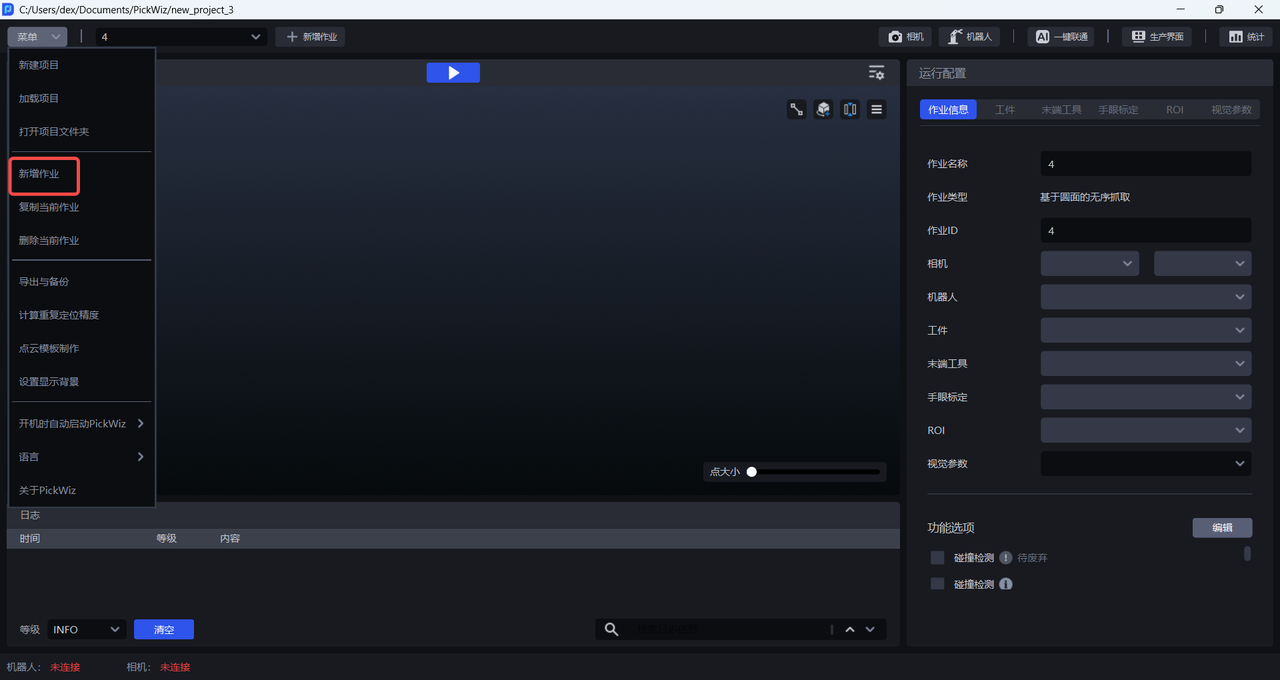
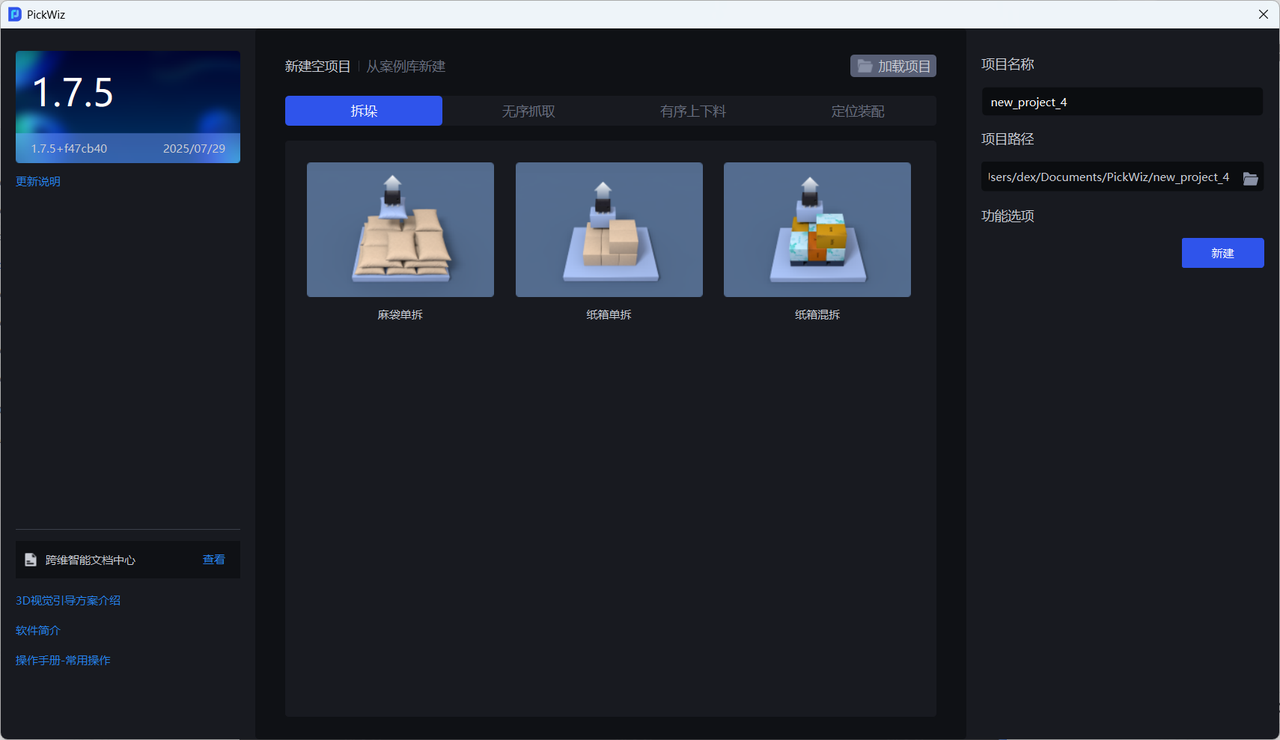
Based on actual requirements, select the corresponding task scenario, enter the "Task Name", and finally click Create to create a task.
Please refer to Introduction to 3D Vision-Guided Solutions to select the required task scenario
2. Configure a Task
Before running a task, all configuration items in the task information must be selected.
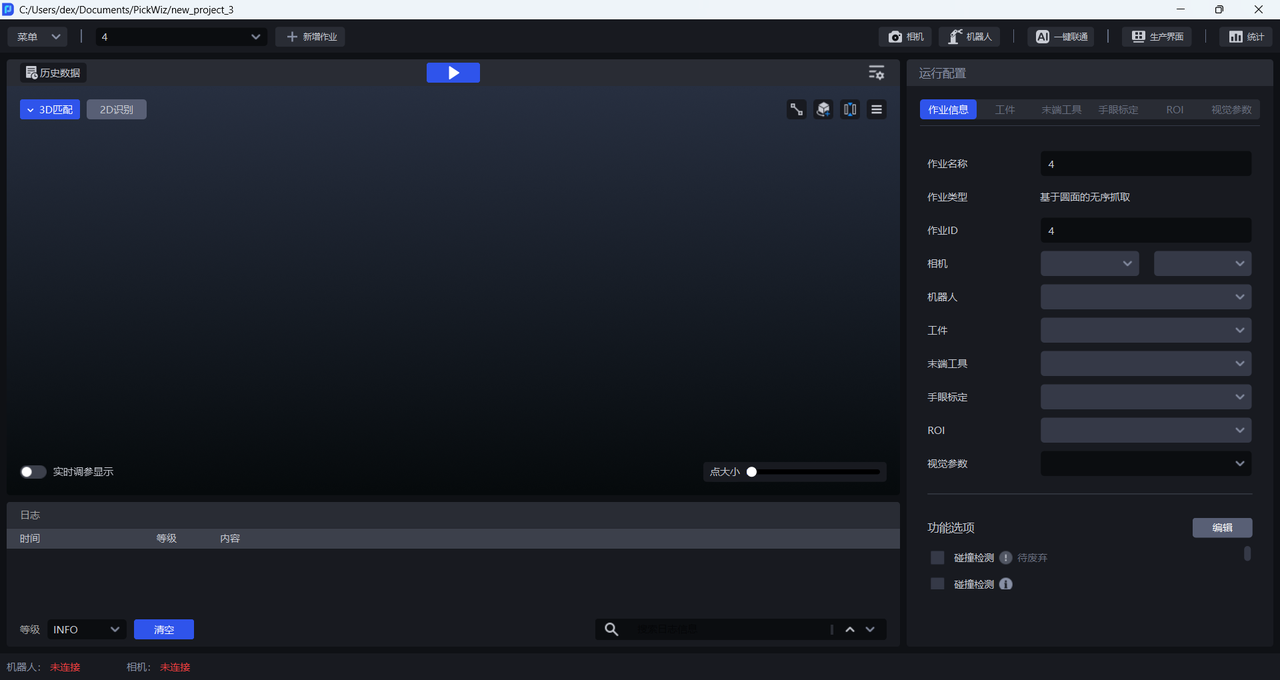
| Configuration Item | Description |
|---|---|
| Task Name | The name of the current task and can be modified |
| Task Type | The type of the current task, that is, the task scenario. It corresponds to the task scenario selected when creating a new task and cannot be modified |
| Task ID | Identifies the current task. The Robot can switch tasks through this ID |
| Camera | The Camera and Camera parameters used when the current task is running. For connecting the Camera and adjusting camera imaging quality, refer to Camera Connection and Parameter Adjustment Guide |
| Robot | The Robot used when the current task is running. For establishing communication with the Robot, refer to Robot Configuration and Communication Operation Guide |
| Workpiece | The workpiece configuration of the current task. After adding it on the Workpiece page, configure it in the task information. For adding workpieces, refer to Workpiece Operation Guide |
| Tool | The Tool configuration used when the current task is running. After adding it on the Tool page, configure it in the task information. For adding a Tool, refer to Tool User Guide |
| Scene Object | Various objects in the current task scenario, including bins, pallets, etc. The Scene Object page appears only after Collision Detection, Pallet Detection, and Separator and Pallet Detection are selected in Functional Options. After adding Scene Objects, they need to be configured in the task information. For the detailed procedure, refer to Pallet Detection Guide, Collision Detection Guide, and Separator and Pallet Detection Guide |
| eye-hand calibration | The eye-hand calibration configuration used when the current task is running. After adding it on the eye-hand calibration page, configure it in the task information. For the detailed procedure, refer to Eye-Hand Calibration Operation Guide |
| ROI | The ROI configuration used when the current task is running. After adding it on the ROI page, configure it in the task information. For the detailed procedure, refer to ROI Operation Guide |
| Vision Parameters | The vision parameter configuration used when the current task is running. Configure it on the Vision Parameters page. For the detailed procedure, refer to the Vision Parameter Adjustment Guide |
After selecting all configuration items, click the  button to run the current task.
3. Delete a Task
(1)Delete any task: Click the task drop-down list to view all tasks. Hover the mouse cursor over the task to be deleted, and the 🗑 function button will appear. Click 🗑 to delete the task and its configuration.
(2)Delete the current task: Open the menu and click Delete Current Task to delete the current task and its configuration.
4. Duplicate a Task
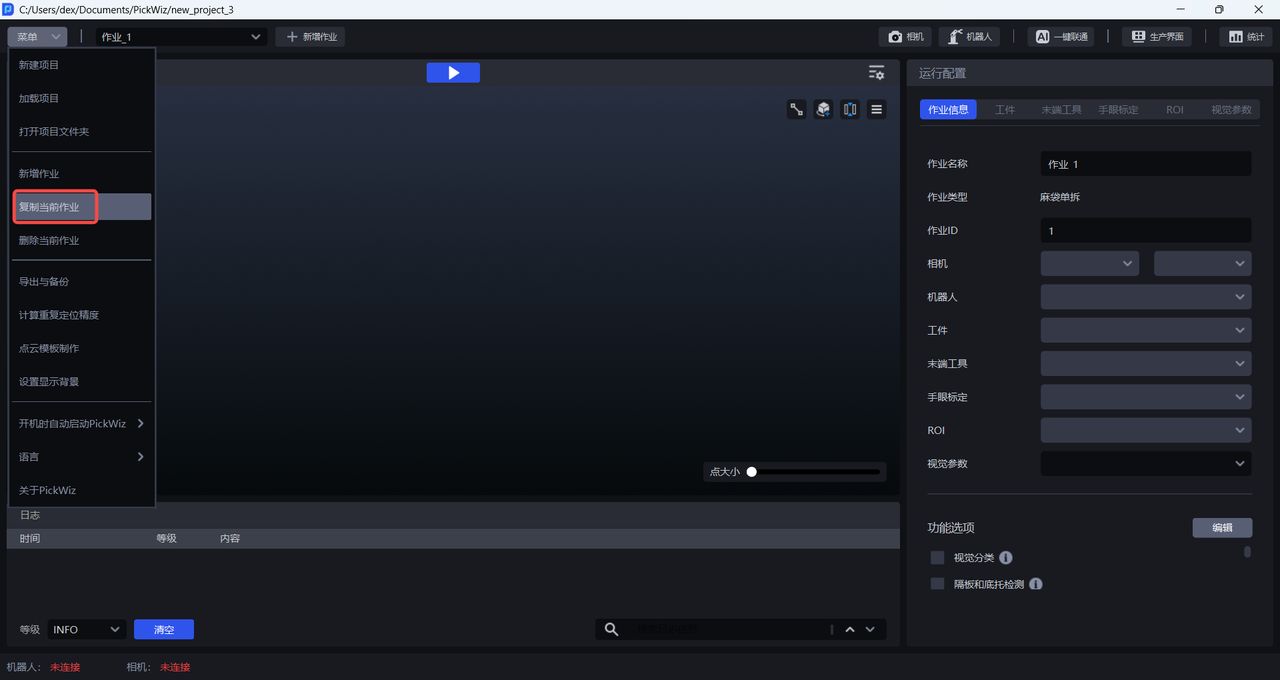
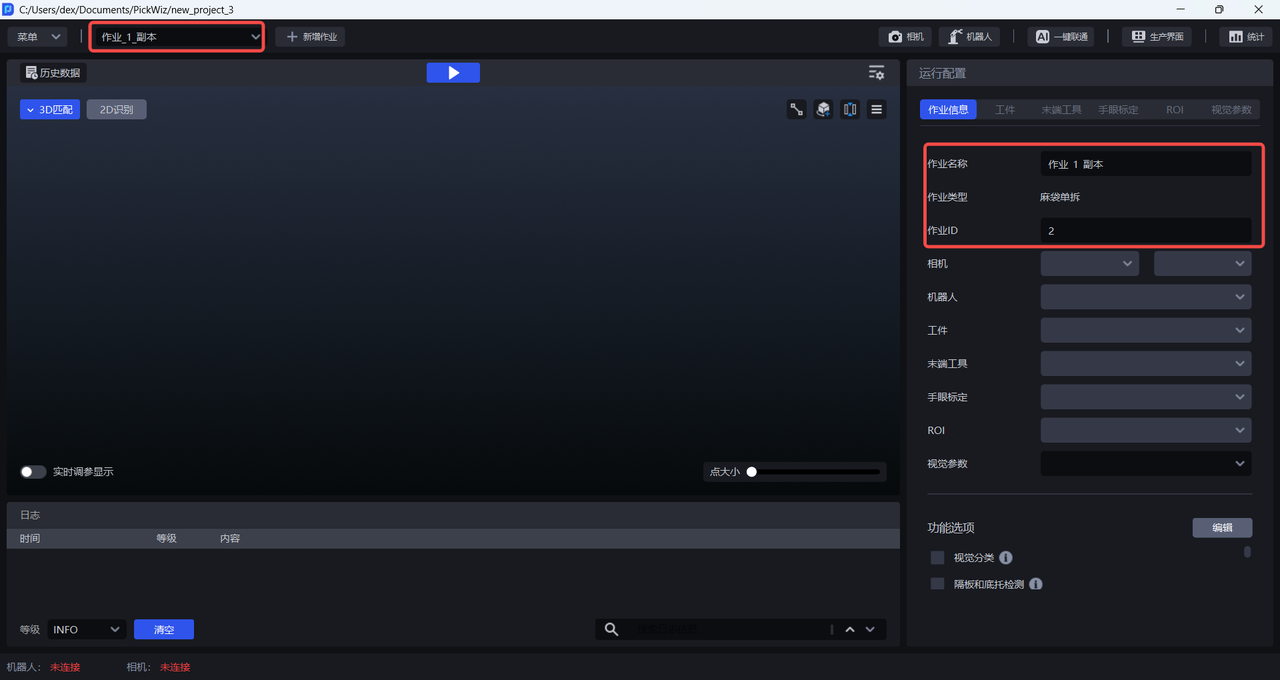
Open the menu and click Duplicate Current Task to get a new task copy. This task copy duplicates all configurations of the original task.
5. Switch Tasks
During task operation, there are two ways to switch tasks: switching on the Pickwiz software side and switching on the Robot side.
5.1 Switch in Pickwiz
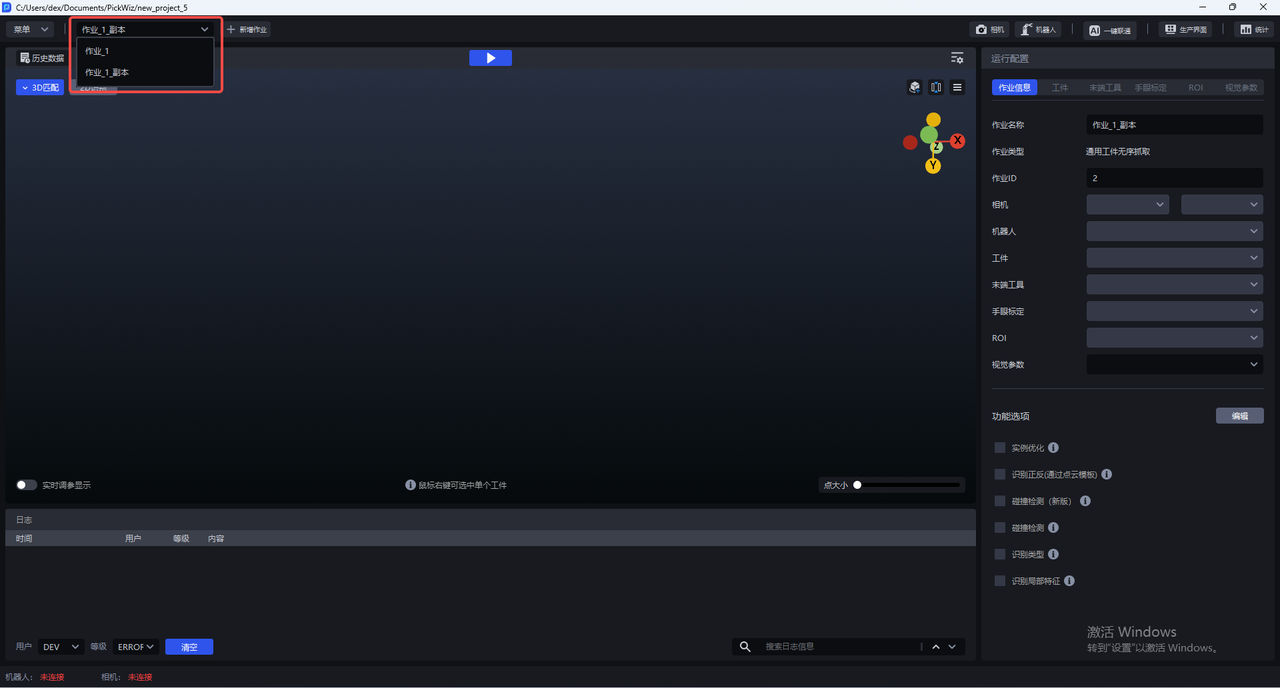
On the main page, you can click the task drop-down list in the upper-left corner and select the task that needs to run currently.
5.2 Switch on the Robot Side
You can import a Project file with business logic on the Robot side, allowing the Robot to send a signal to PickWiz to switch tasks. The Robot can communicate with PickWiz through the command content {wid} (Task ID) and complete task switching.
For the communication methods and commands between Pickwiz and the Robot, refer to Robot Configuration and Communication Operation Guide