One-Click Vision Model Training
The vision model is a Deep Learning model used to segment instances from the scene. The vision models for sacks, cartons, circles, cylinders, and quadrilaterals are all generic models. The vision models for generic workpieces and surface-type workpieces are obtained through One-Click Integration training based on CAD. This article introduces how to use One-Click Integration to obtain vision models for generic workpieces and surface-type workpieces.
One-Click Integration mainly involves two systems:
PickWiz: Desktop client software running on the user's IPC, which automatically calls DexVerse backend APIs to create new training tasks.
DexVerse: A platform that automatically triggers, manages, schedules, and monitors Deep Learning training tasks.
1. Select the task scene
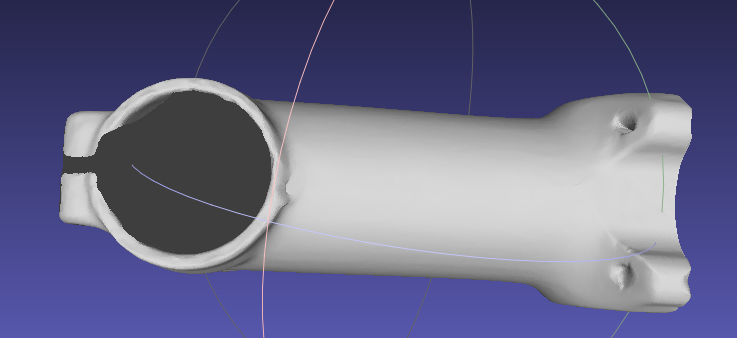
When the workpiece does not belong to sacks, cartons, circles, cylinders, or quadrilaterals, and the front and back sides differ significantly, select the generic workpiece ordered loading/unloading, unordered picking, or positioning and assembly scenario;
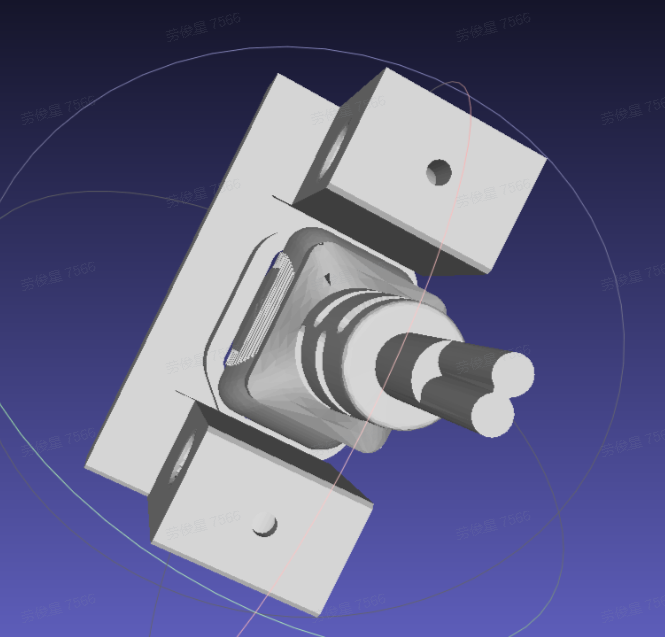
When the workpiece does not belong to sacks, cartons, circles, cylinders, or quadrilaterals, and the front and back sides differ only slightly, select the surface-type workpiece ordered loading/unloading, unordered picking, or positioning and assembly scenario.
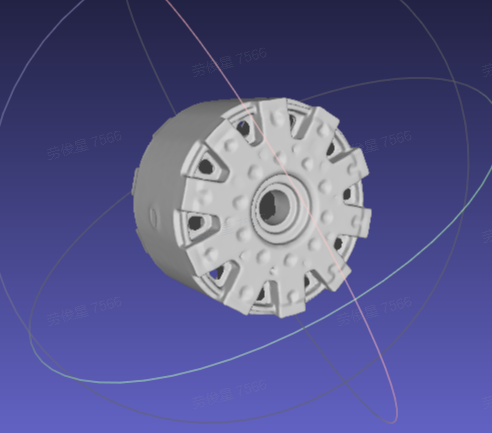
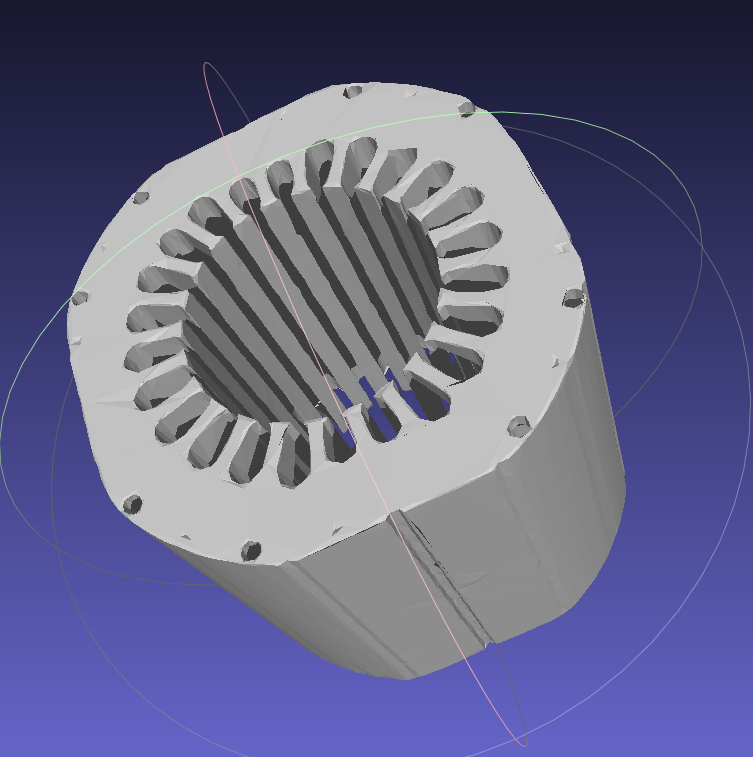
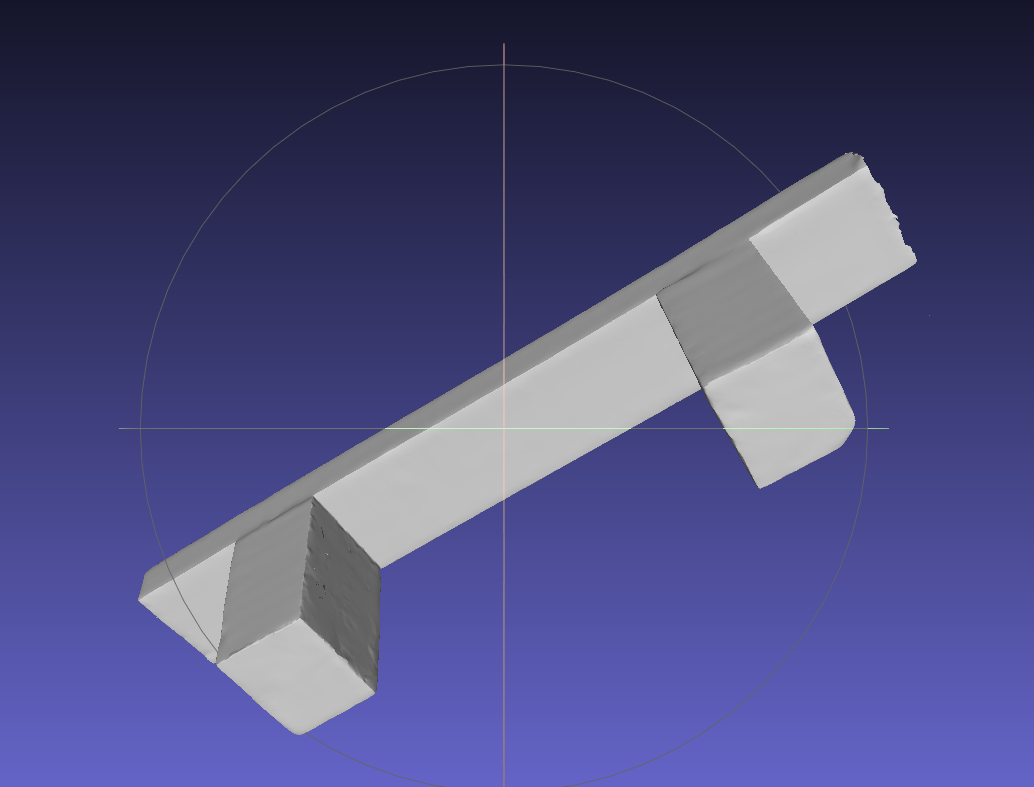
2. Configure the workpiece
Click +Add Workpiece on the Workpiece interface
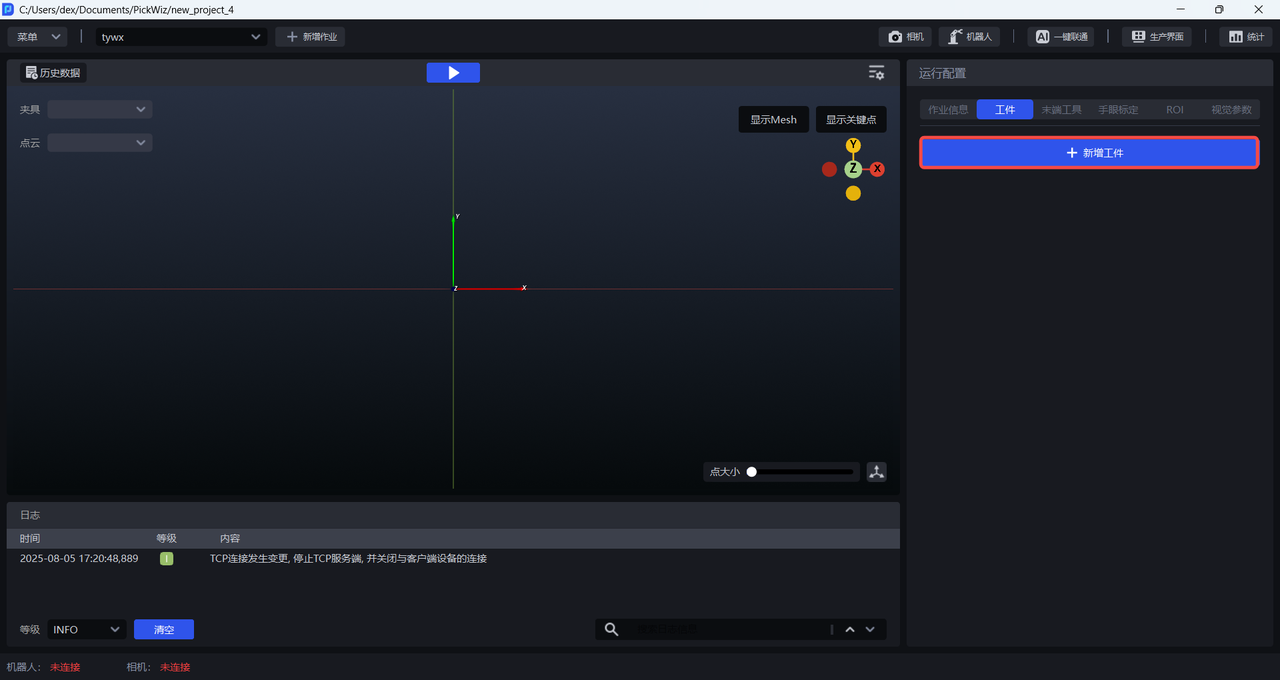
2.1 Mesh file
When using One-Click Integration to train the vision model, generic workpieces and surface-type workpieces rely on the mesh file to render a large number of synthetic images under different viewpoints and lighting conditions, thereby expanding the training data and improving the generalization capability of the vision model. If a surface-type workpiece is relatively simple and has few features, the mesh file does not need to be uploaded.
Upload the mesh file and click Standardize Mesh File. Currently, only mesh files in ply format are supported.
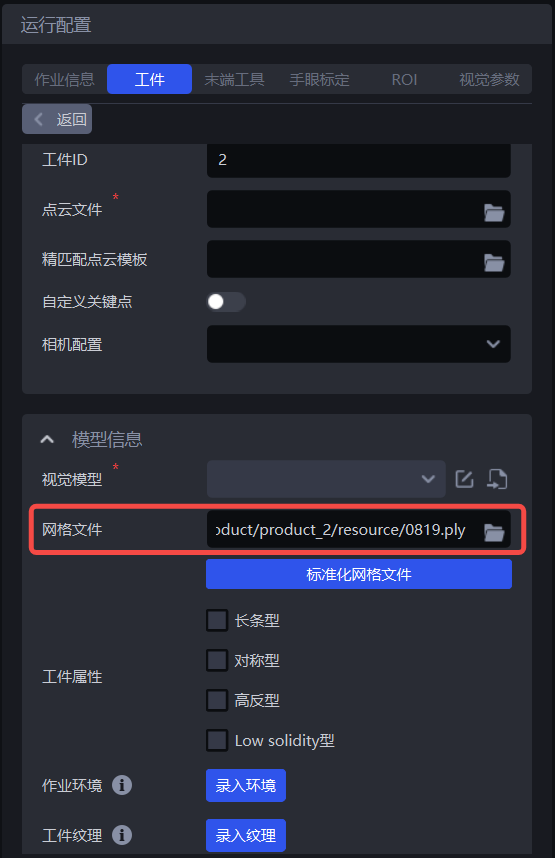
In the Point Cloud Template creation module, select mesh file processing
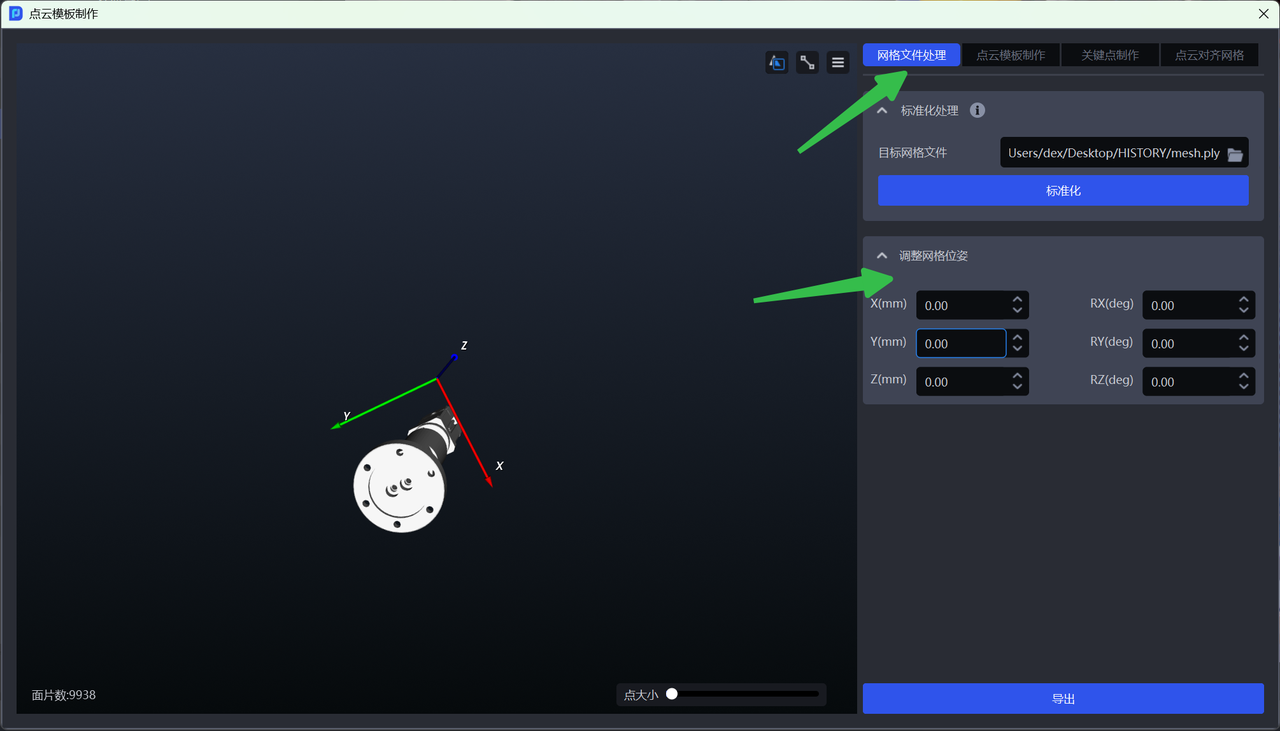
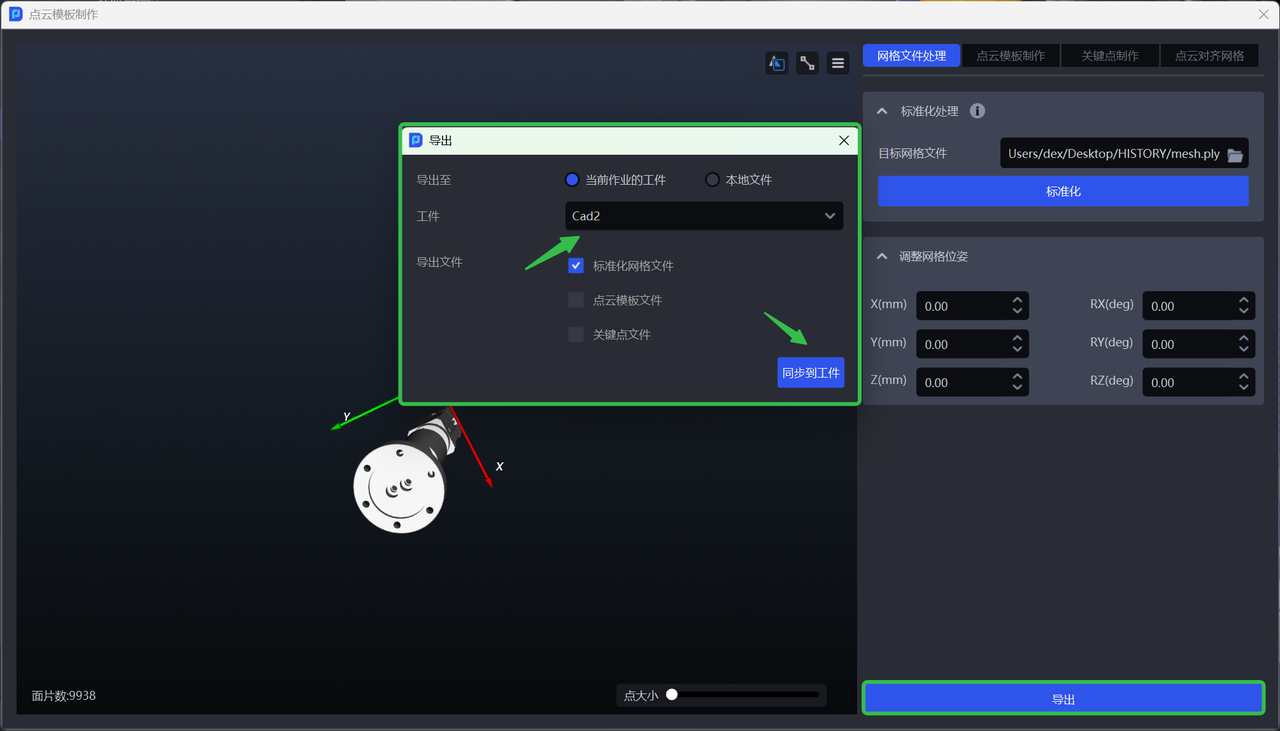
You can adjust the mesh pose as needed and synchronize it to the workpiece of the current task when exporting;
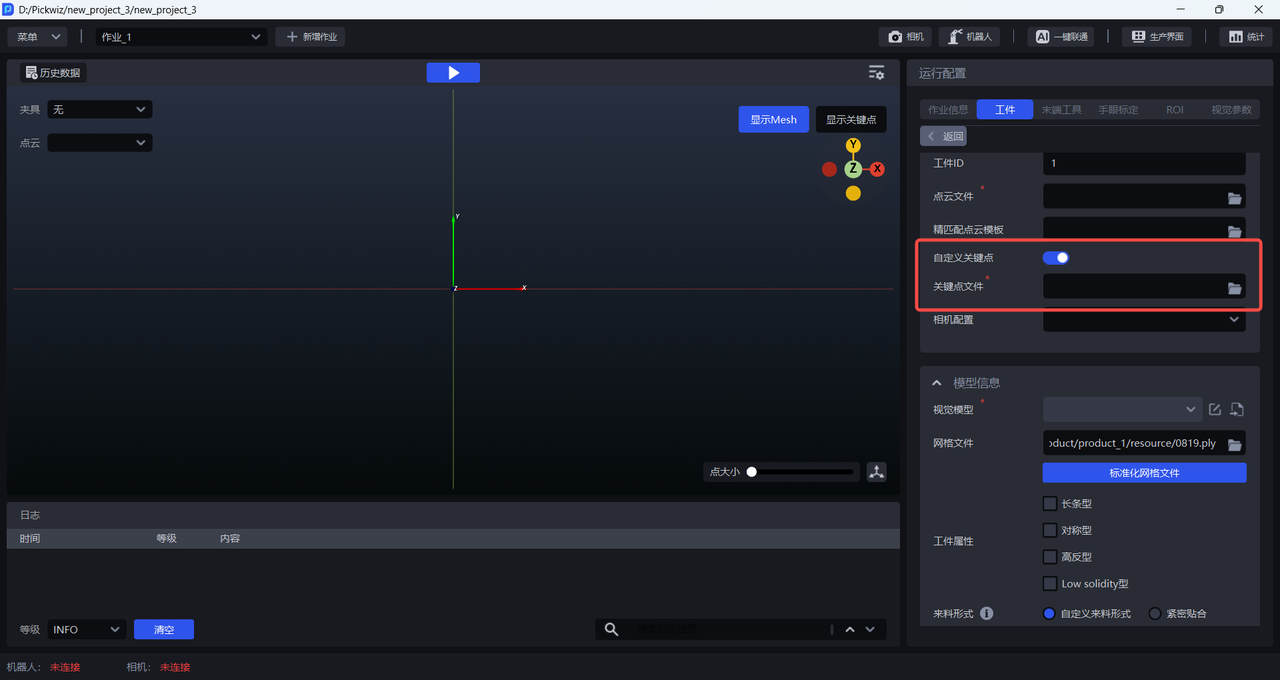
2.2 Keypoint file
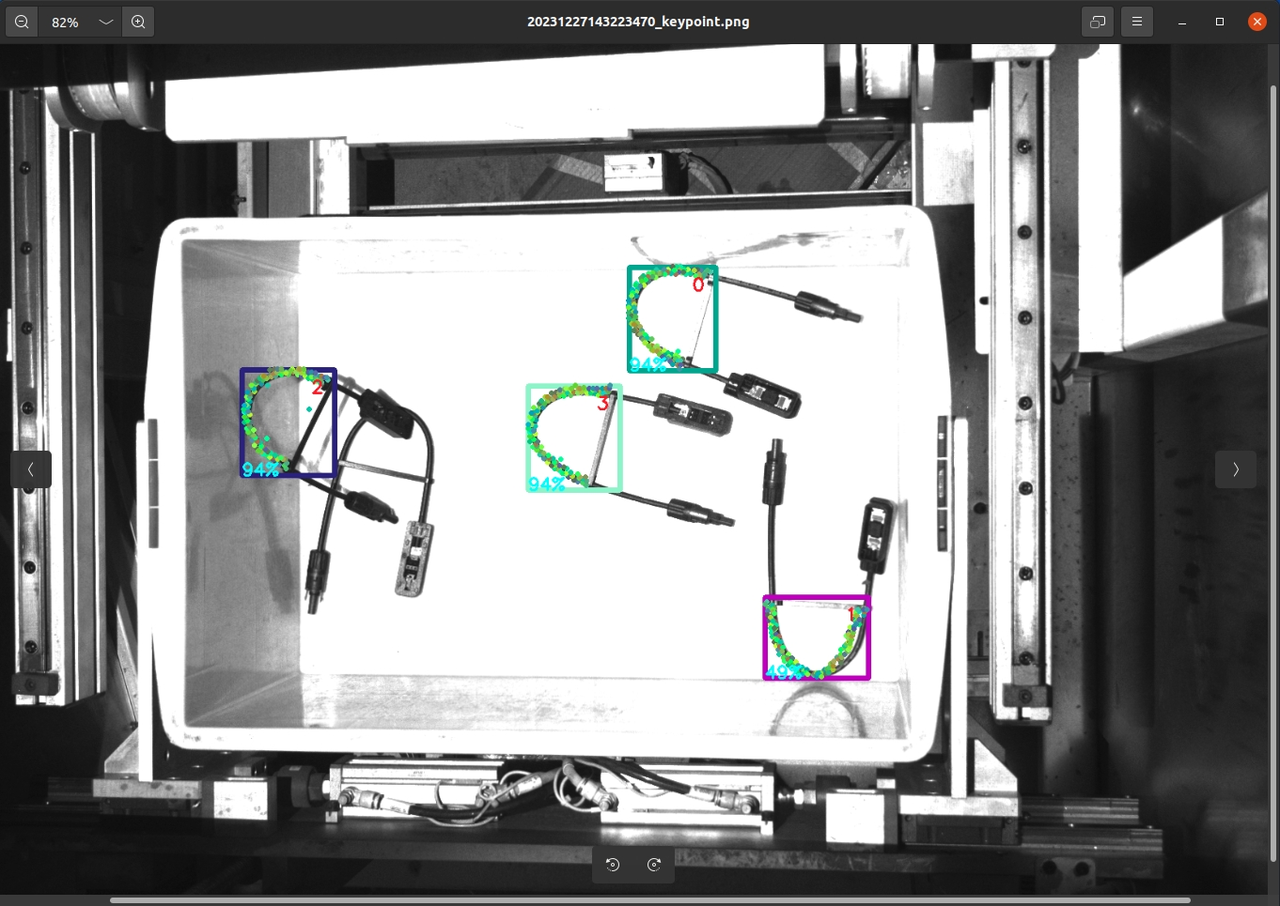
When using One-Click Integration to train the vision model, the front and back sides of generic workpieces differ significantly, so a keypoint file must be uploaded for front/back recognition. The front and back sides of surface-type workpieces differ only slightly, so no keypoint file is required. Please refer to Point Cloud Template Creation Guide to create keypoints for generic workpieces.
2.3 Workpiece attributes
When training the vision model for generic workpieces and surface-type workpieces, you can select Workpiece Attributes. One-Click Integration will generate training data that better matches the specified workpiece attributes, so the trained vision model can achieve better recognition performance and higher robustness for workpieces with those attributes.
If Workpiece Attributes is not selected, the generated training data will not specifically account for the specified workpiece features (such as symmetry, highly reflective materials, etc.), which may result in suboptimal recognition performance of the trained vision model.
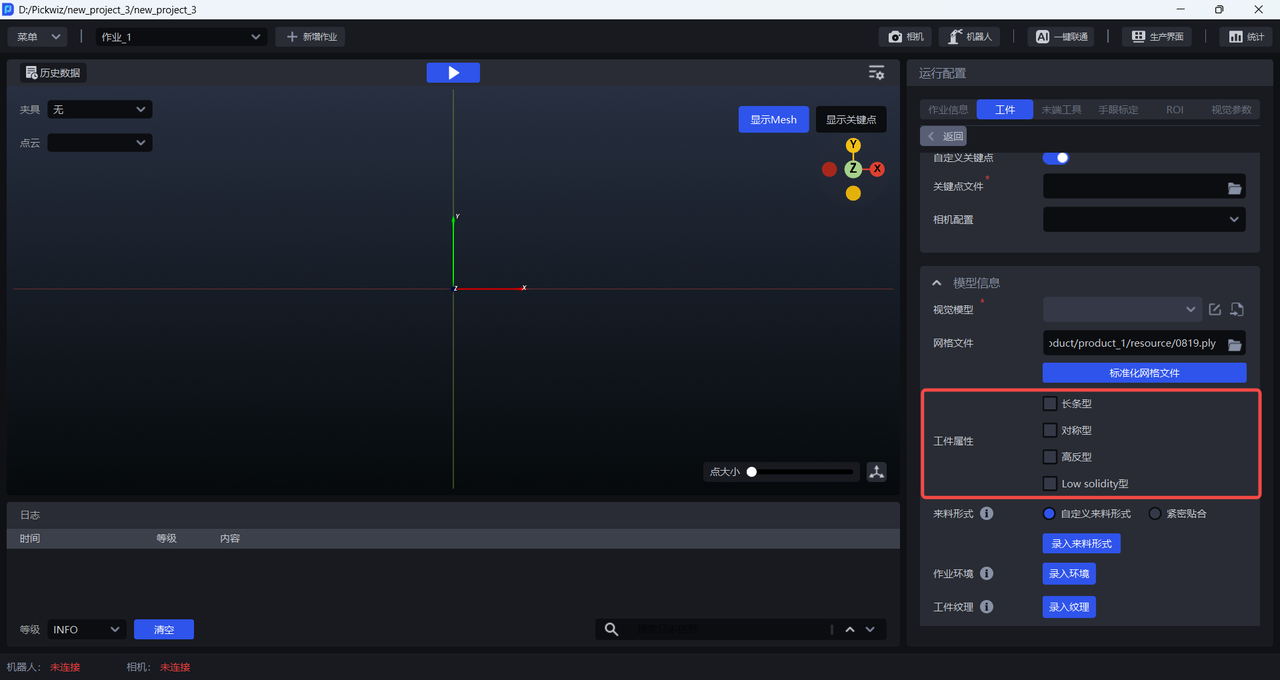
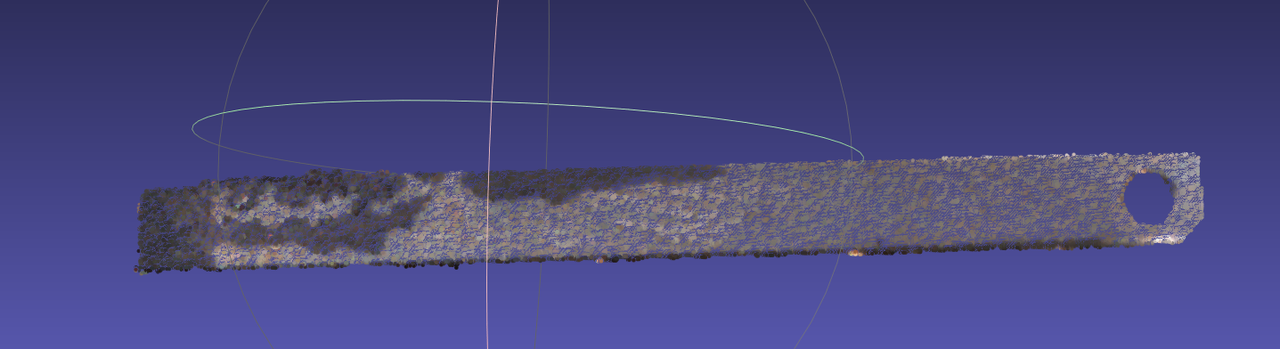
When the workpiece is elongated, you can select Long-strip in Workpiece Attributes;

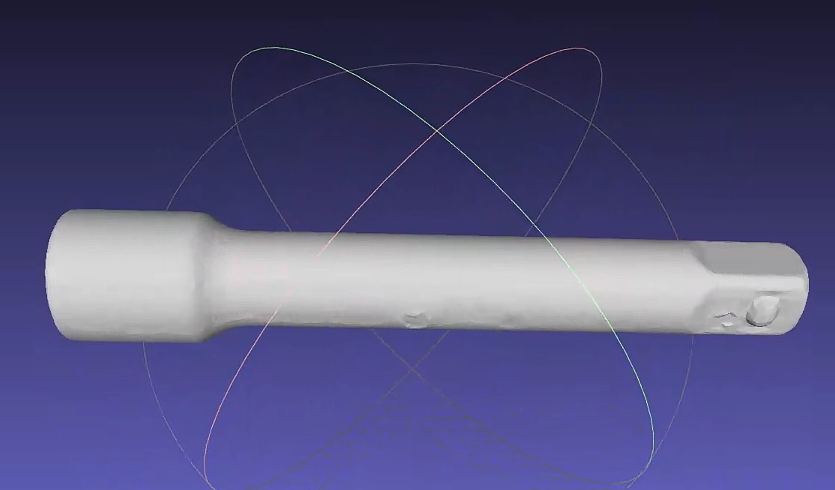
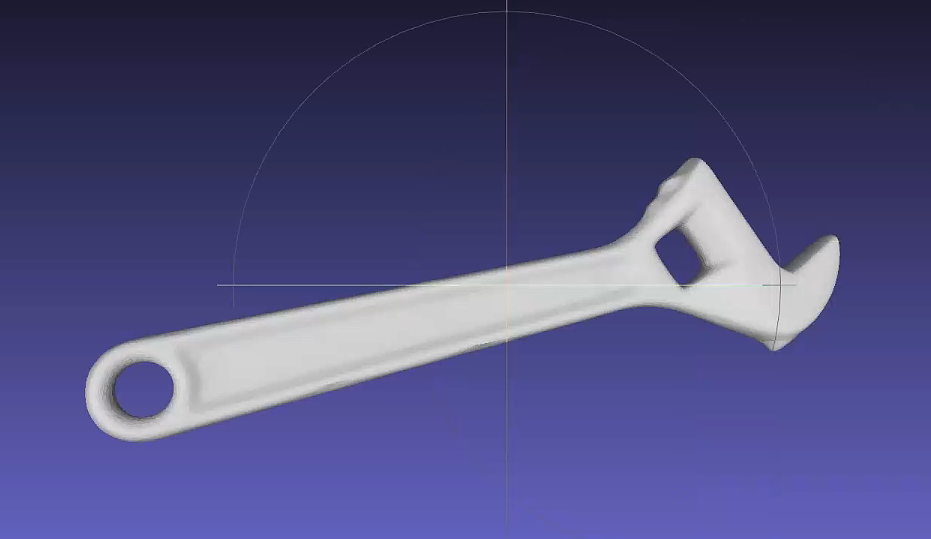
When the workpiece is symmetric, you can select Symmetric in Workpiece Attributes;
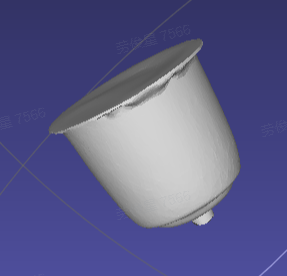
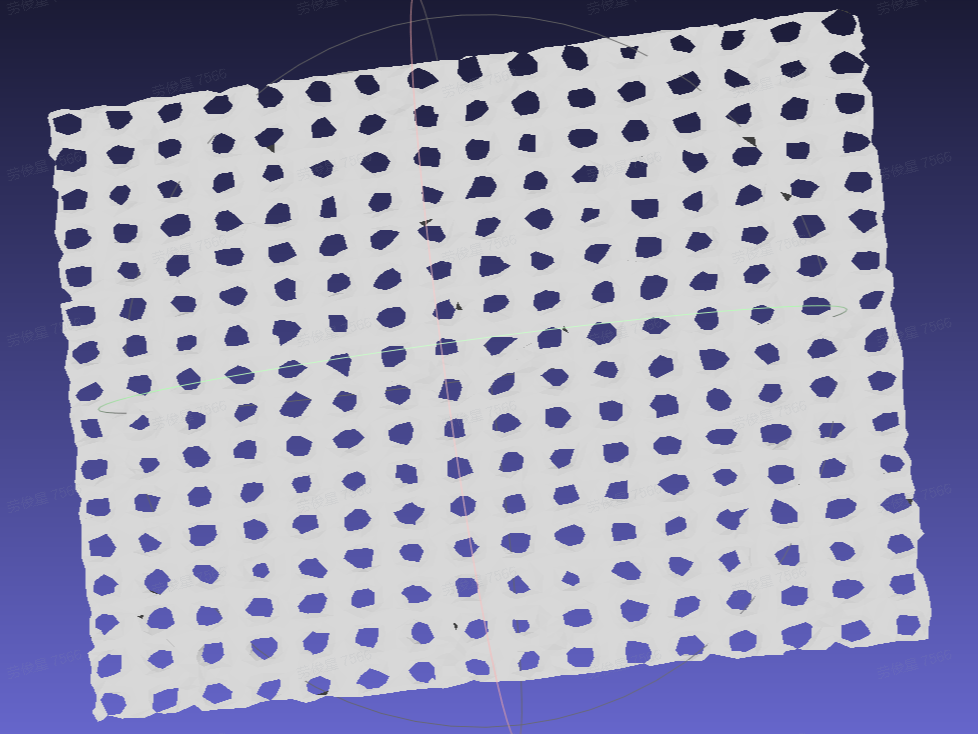
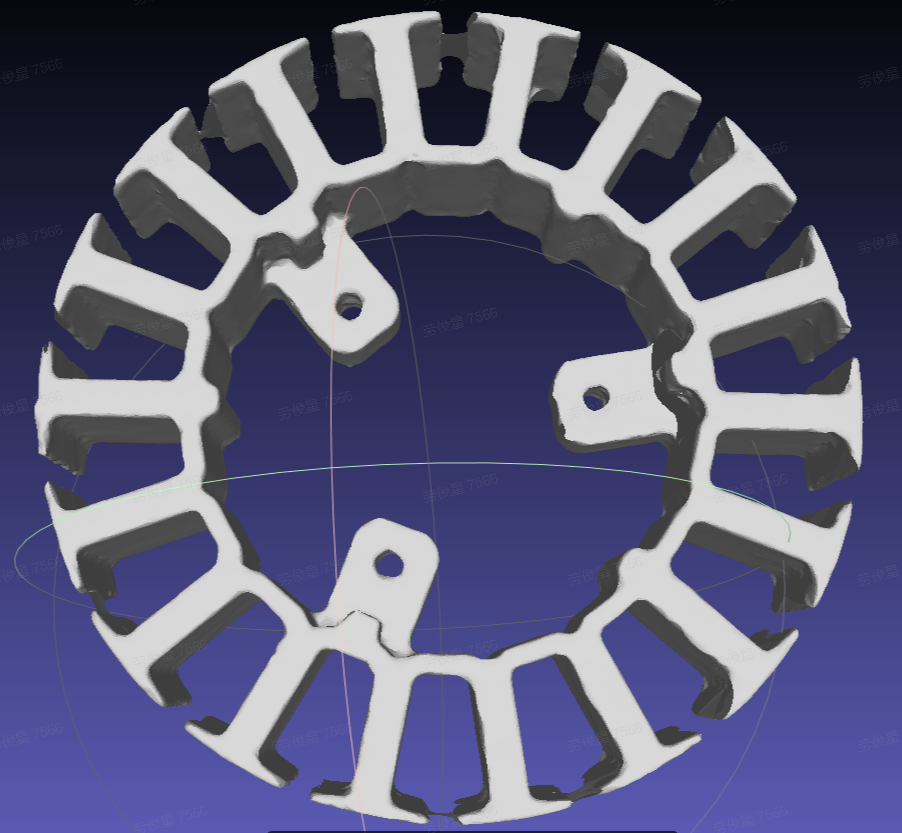
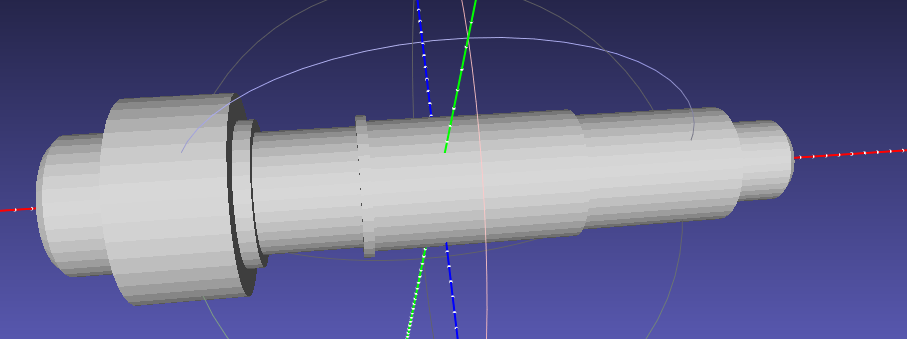
When the workpiece is highly reflective, you can select Highly Reflective in Workpiece Attributes;
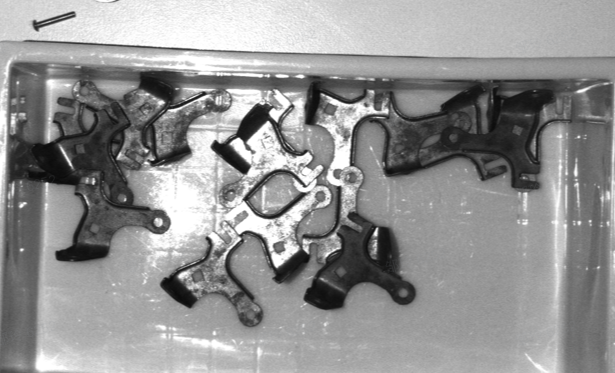
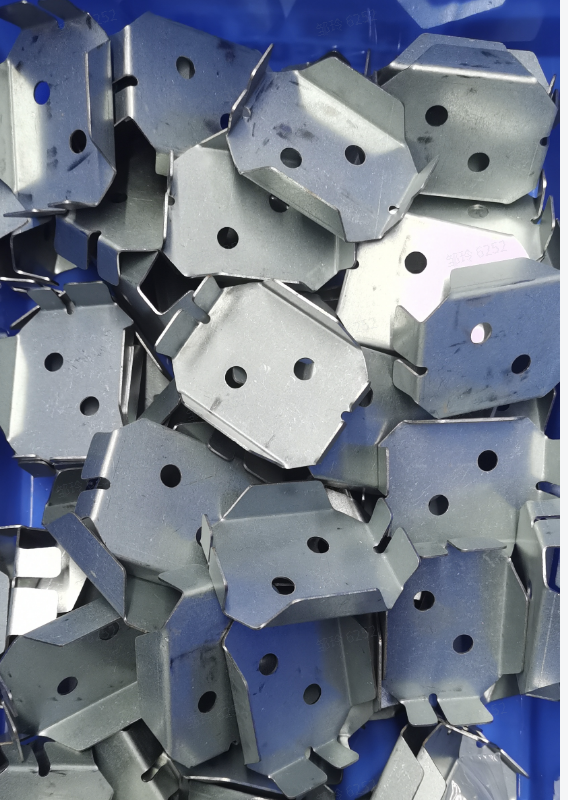
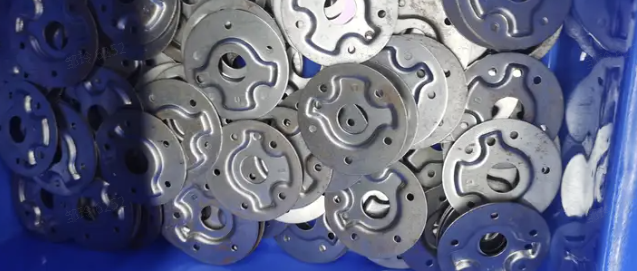
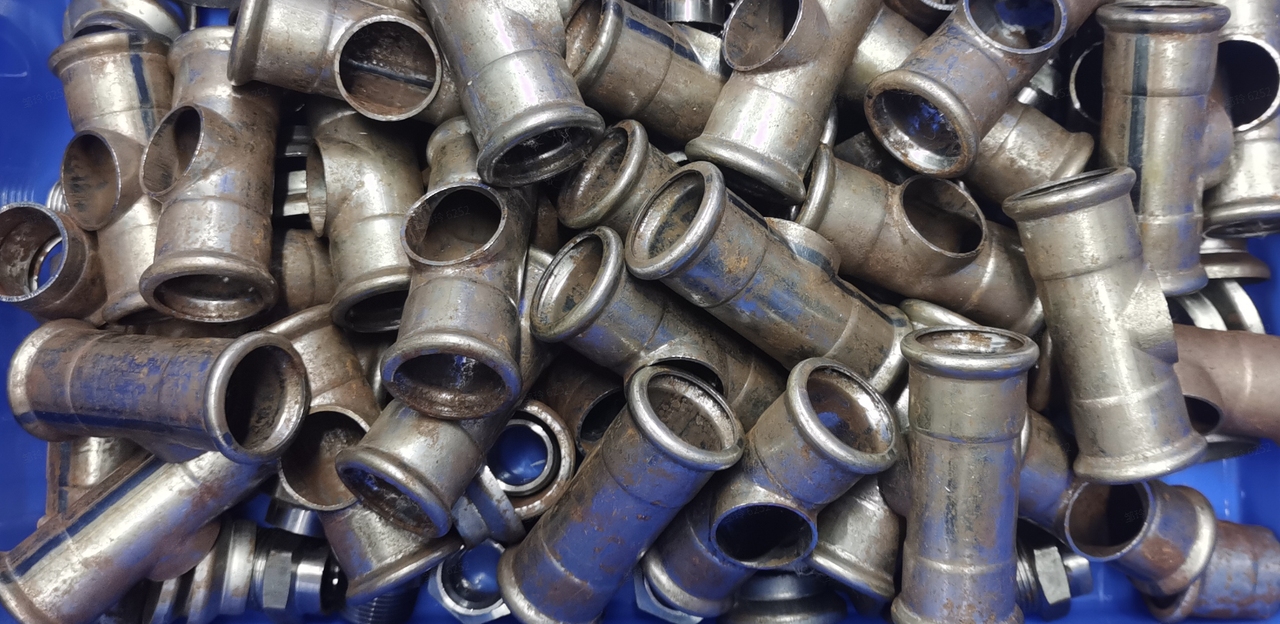
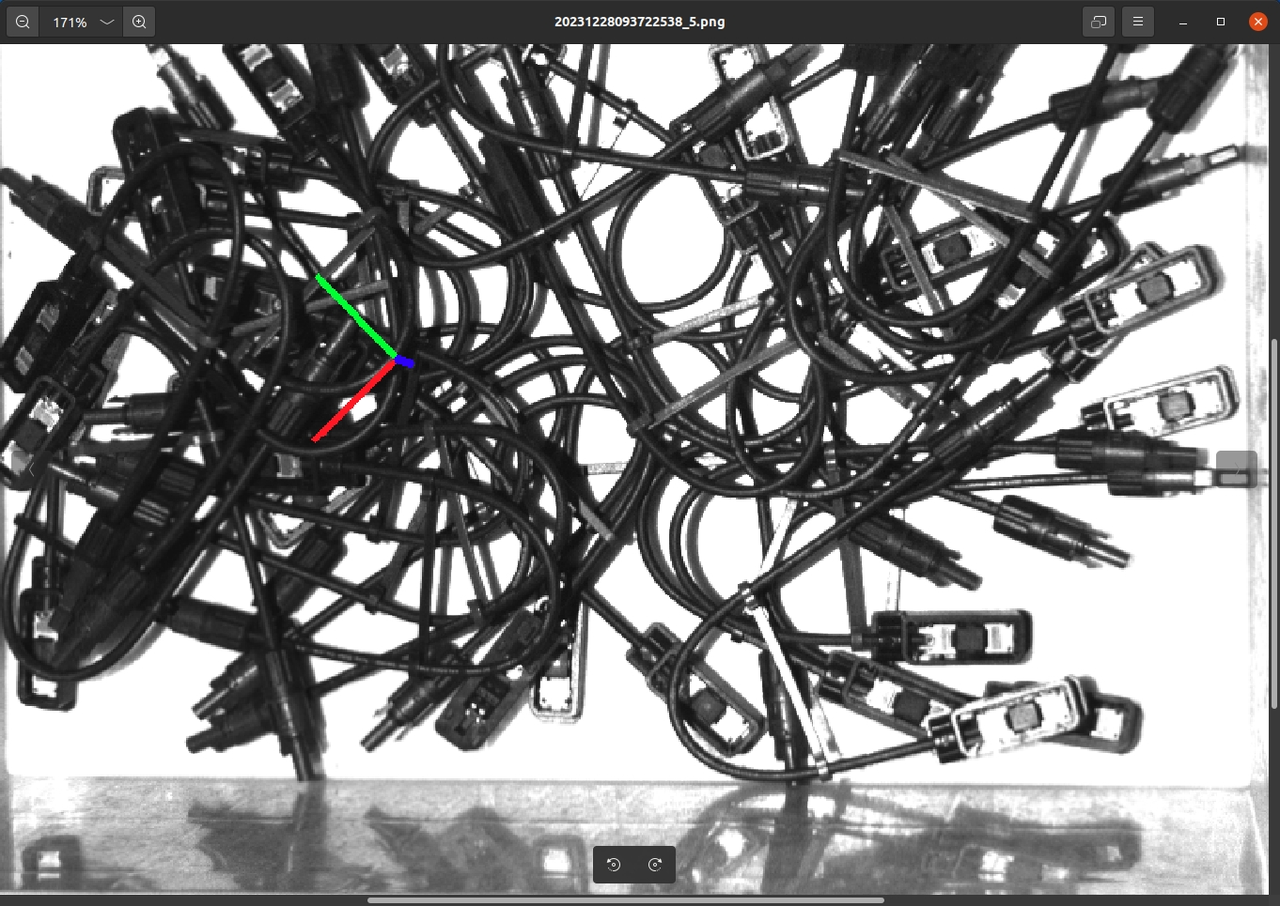
When the workpiece is a low-density, hollow-type workpiece (such as a wire harness), you can select Low solidity in Workpiece Attributes.
2.4 Infeed pattern
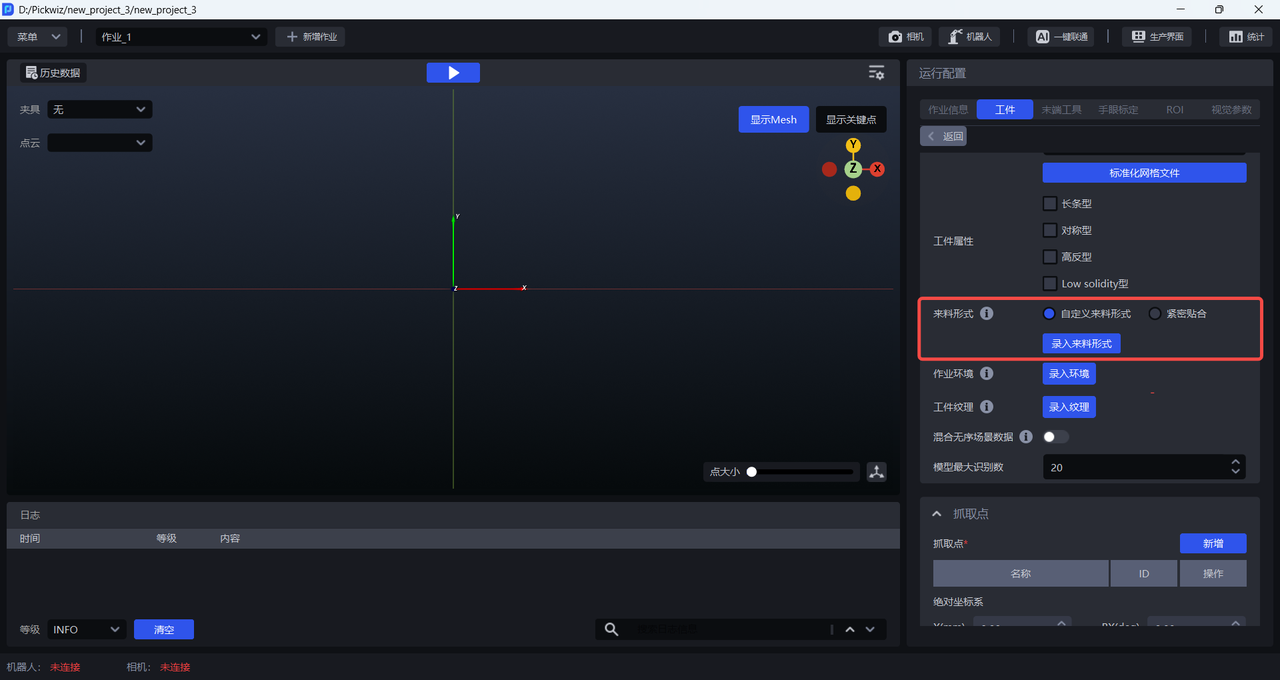
In ordered loading/unloading scenarios for generic/surface-type workpieces, when using One-Click Integration to train the vision model, you can enter the infeed pattern to simulate the actual way workpieces are fed in the real scenario. This helps the trained vision model achieve better recognition performance and higher robustness in the real scenario. If the infeed pattern is not entered, the recognition performance of the trained vision model may be suboptimal.
The infeed pattern is divided into two types: “Tightly Arranged” and “Custom Infeed Pattern.” “Tightly Arranged” is suitable for scenarios where workpieces are fed in an ordered manner, with consistent poses and small spacing. “Custom Infeed Pattern” is suitable for all scenarios with ordered infeed.
2.4.1 Tightly Arranged
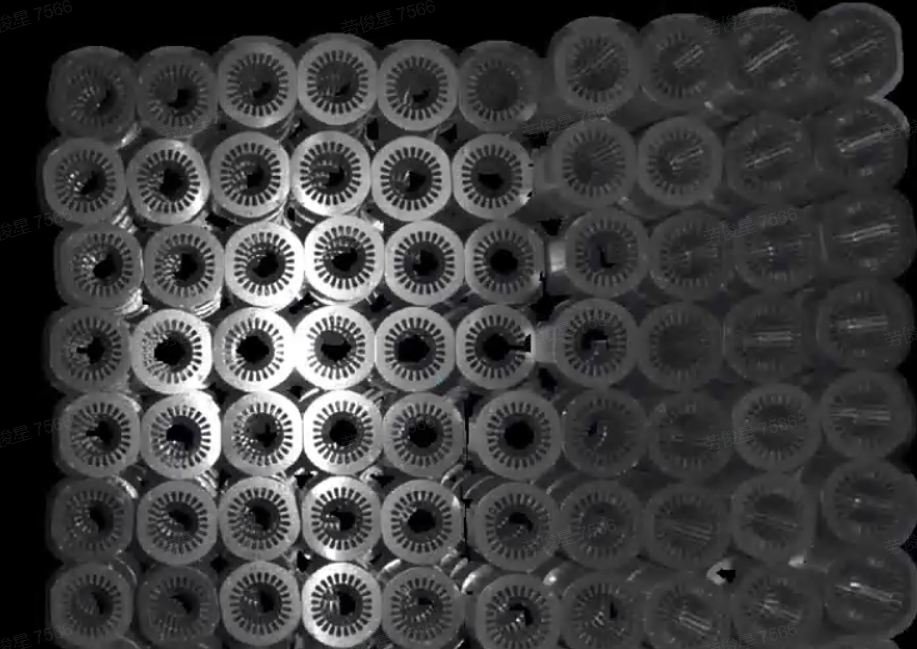
For scenarios where workpieces are fed in an ordered manner, with consistent poses and small spacing, click Tightly Arranged and set the number of workpieces in each row and column. However, the total number of workpieces must be less than 40. If the number of workpieces exceeds 40, the ratio of the configured row/column workpiece counts must share the same common divisor ratio as the actual row/column workpiece counts. For example, if the actual infeed pattern is 12 per row and 8 per column, then the ratio is 12:8, which simplifies to 3:2. Therefore, setting 3 per row and 2 per column or 6 per row and 4 per column is acceptable, but 9 per row and 6 per column is not (because it exceeds 40).
Example:
If the workpiece infeed pattern is 6 per row and 3 per column, there are 18 workpieces in total. Therefore, the range for the number of workpieces per row can be directly set to [6,6], and the range for the number of workpieces per column can be set to [3,3]
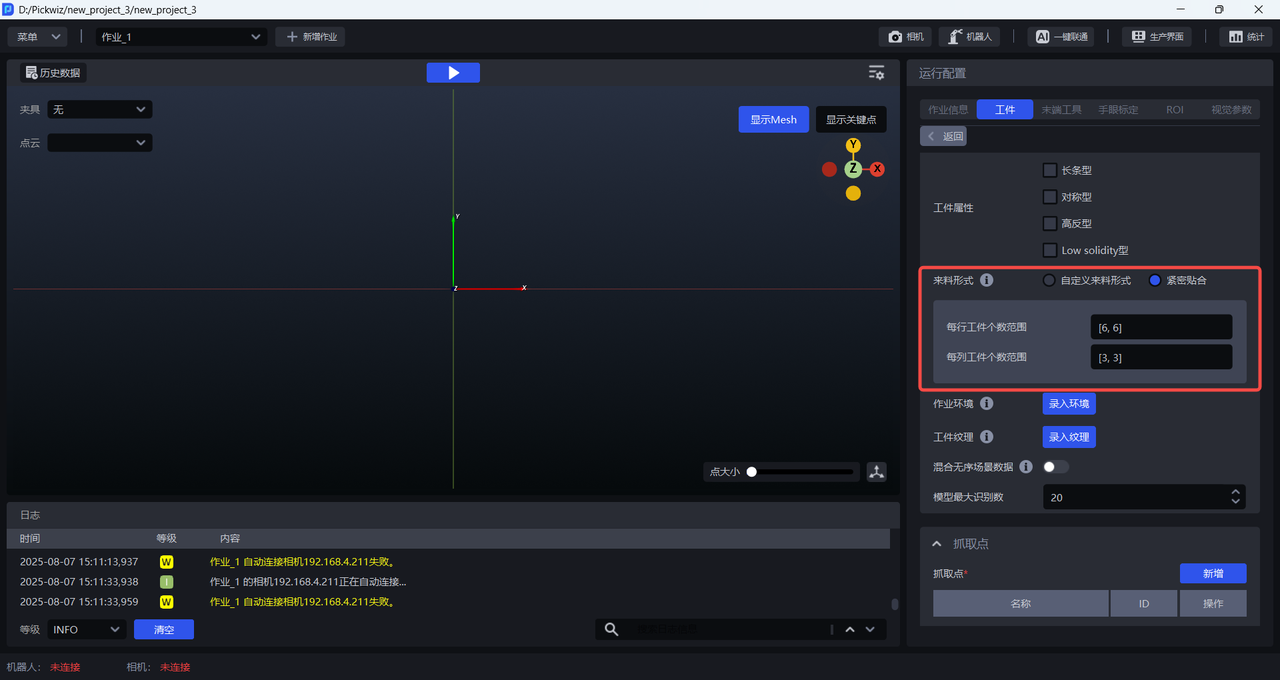
2.4.2 Custom Infeed Pattern
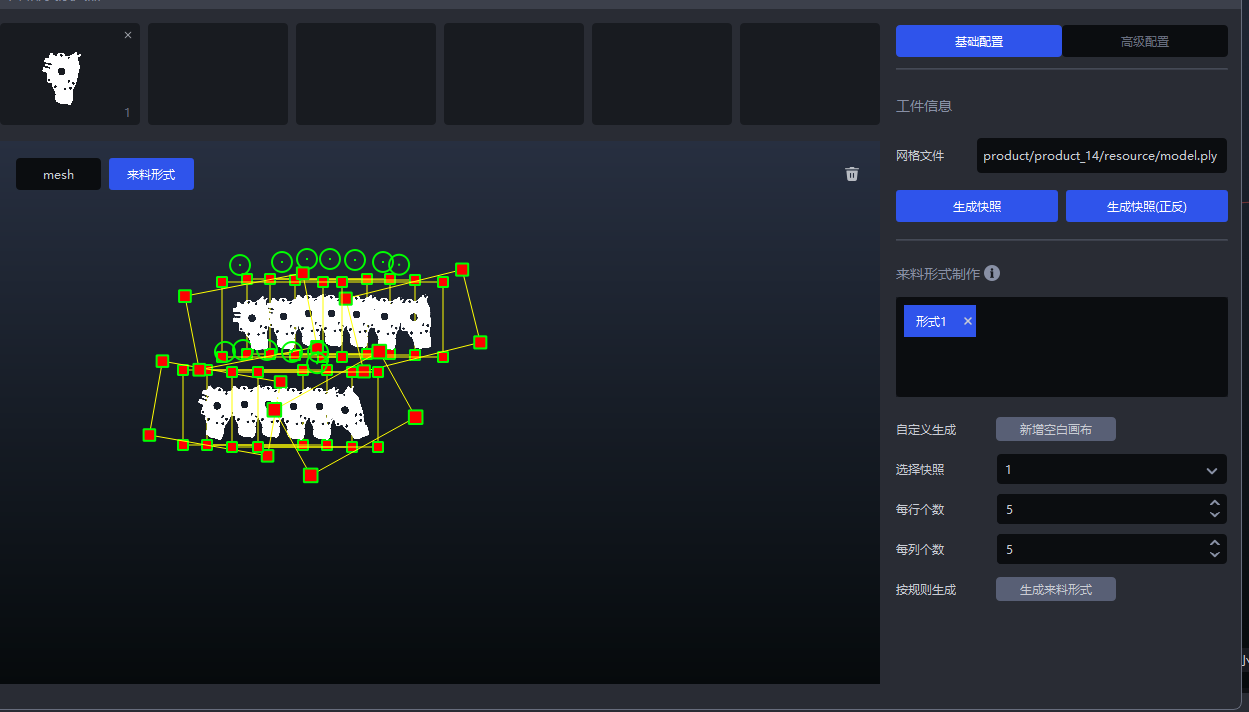
All scenarios with ordered infeed can use a custom infeed pattern. The operation steps are as follows:
- Click
Enter Infeed Patternto open theInfeed Pattern Editor
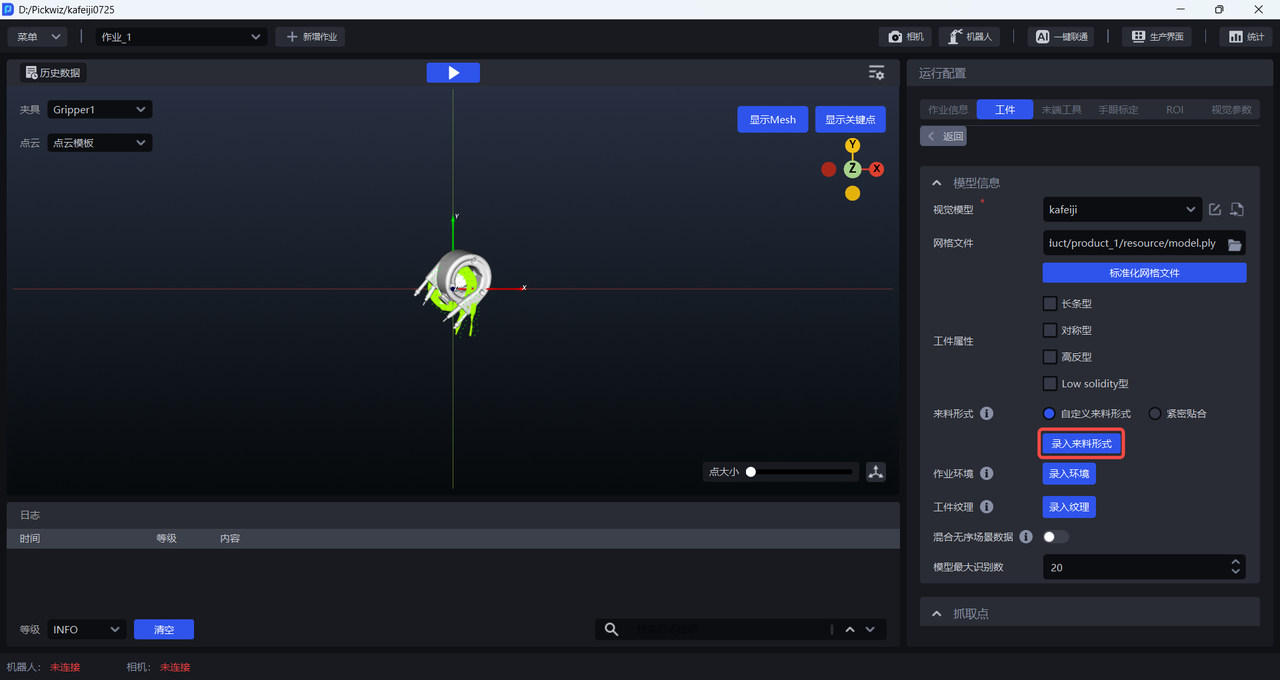
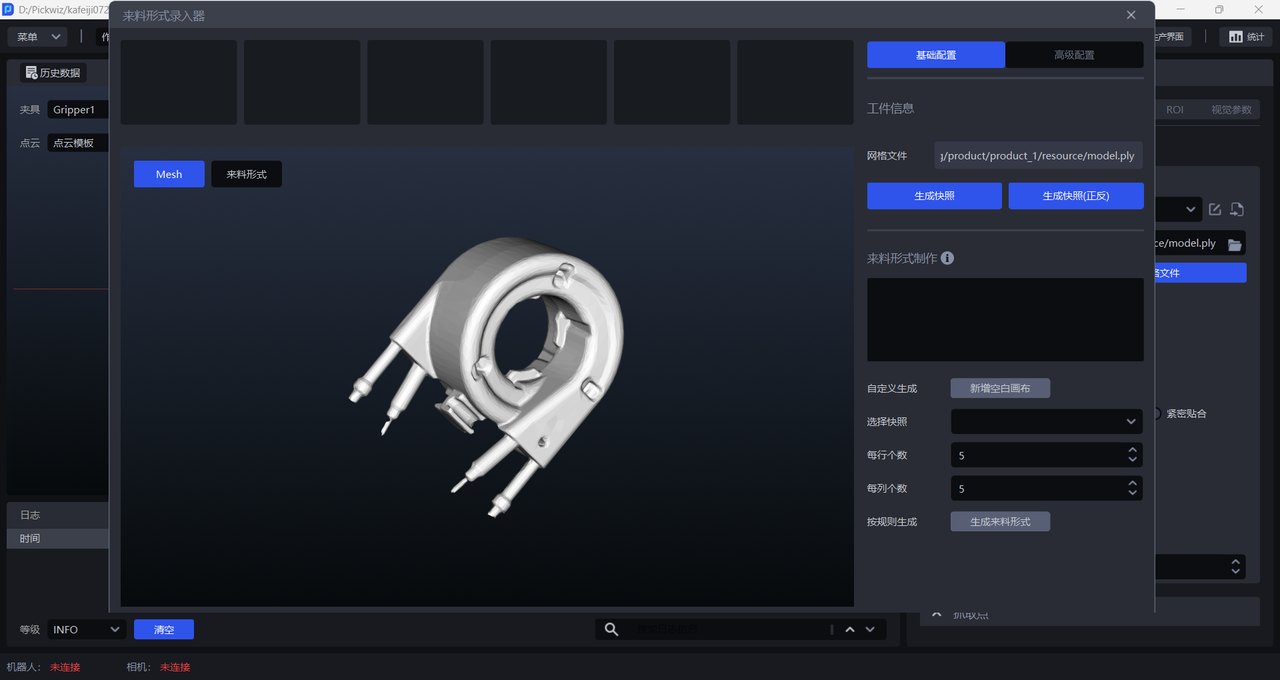
- Rotate the Mesh model to an appropriate pose (the workpiece pose under the camera perspective), then click
Generate Snapshot/Generate Snapshot (Front/Back)to generate workpiece snapshots under that pose.Generate Snapshot (Front/Back)generates snapshots from both the front and back perspectives at the same time, as shown below.
- After generating snapshots, you can click
Add Blank Canvasand drag the snapshots onto the canvas to create the workpiece infeed pattern according to the actual scenario, as shown below.
You can also select a snapshot, set the number of items per row and per column, and then click Generate Infeed Pattern. The system will directly generate the infeed pattern on the canvas according to the selected snapshot and the configured row and column counts, as shown below.
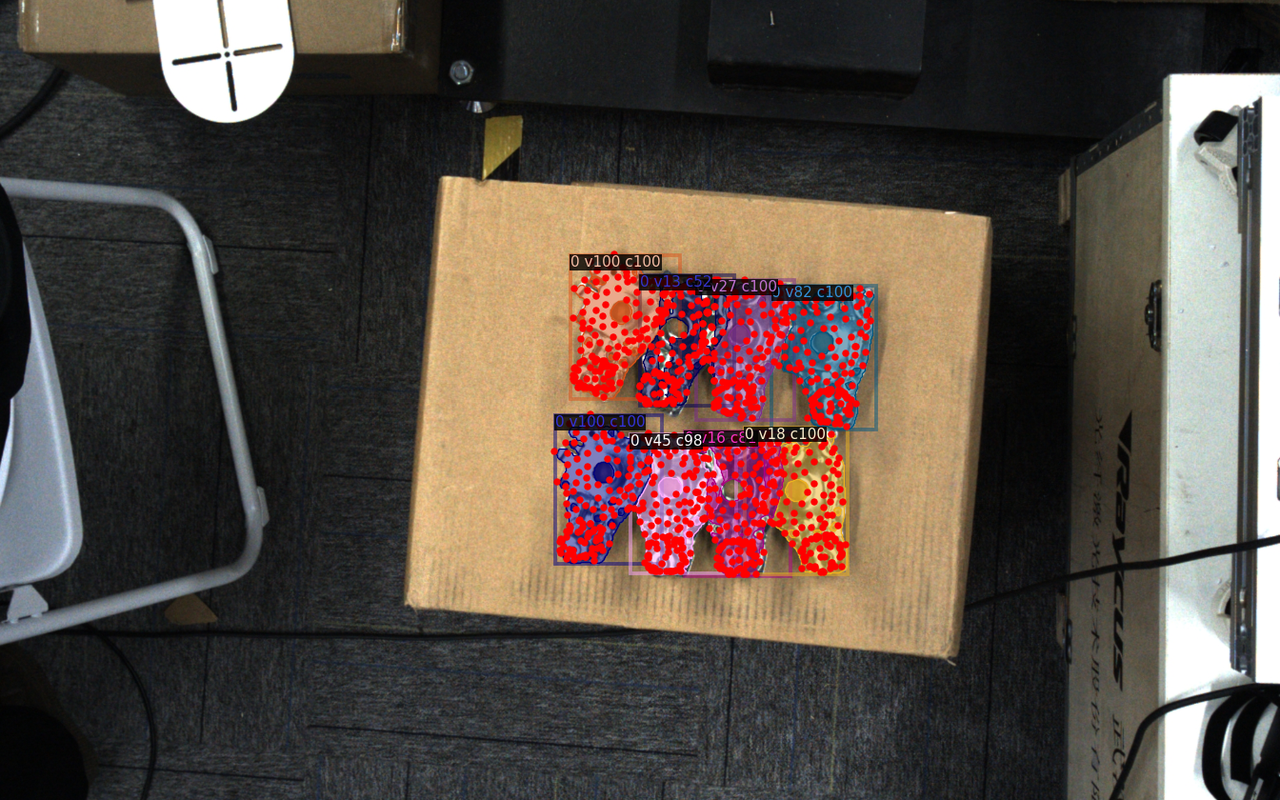
- After the infeed pattern is entered and the other items are configured one by one, once
One-Click Integrationis triggered, one-click training for ordered scenes will generate training data based on the entered infeed pattern, as shown below.
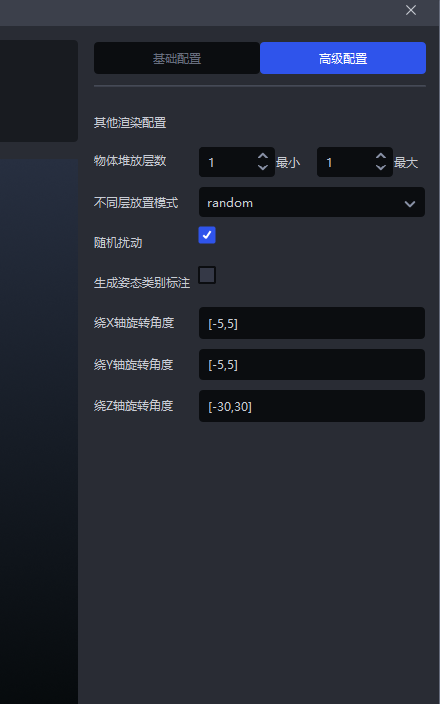
If workpieces are stacked in the actual scenario, click
Advanced Configurationto configure the stacking. Set the rotation angle according to the workpiece pose.
Example: The workpiece pose in the scene rotates around the Z-axis, so set the rotation angle to [-30,30]
  |  |
|---|
2.5 Task environment
When training the vision model for generic workpieces and surface-type workpieces, you can enter the task environment. When One-Click Integration generates training data, it will replace the originally randomly transformed Background in synthetic images with the entered task environment images, so the trained vision model can achieve better recognition performance and higher robustness in the actual scenario.
The operation steps are as follows:
- Click
Enter Environmentto enter theTask Environment Editor
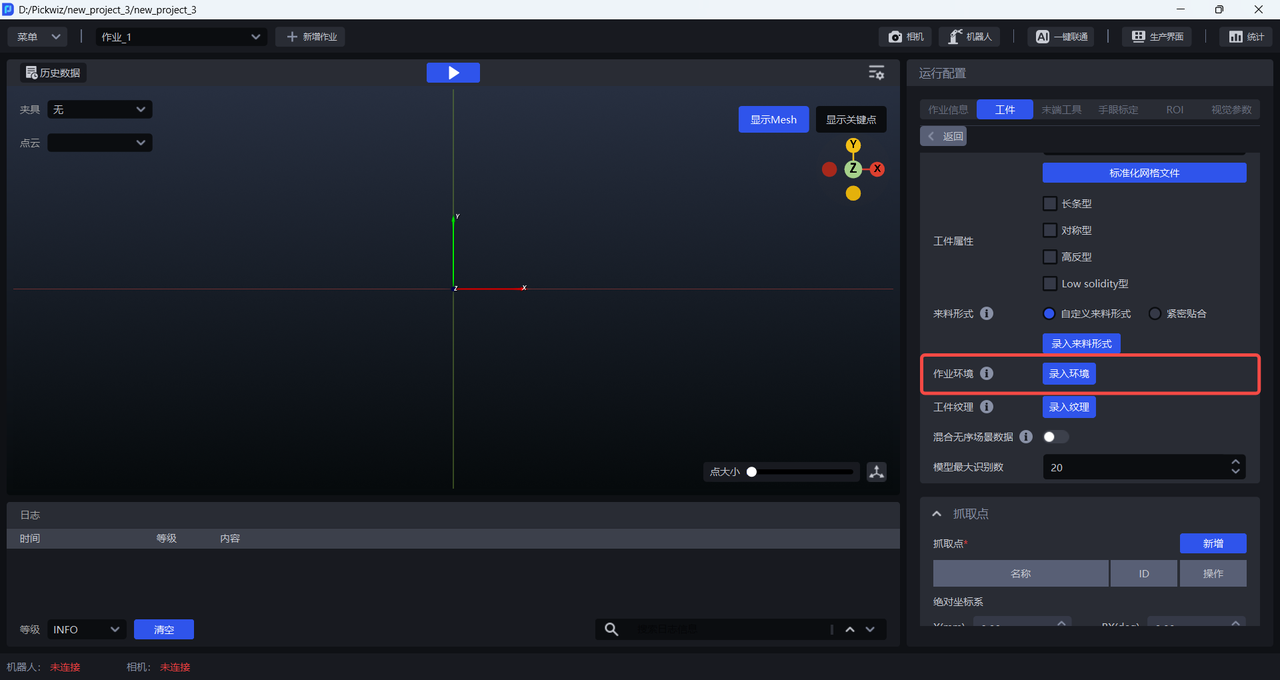
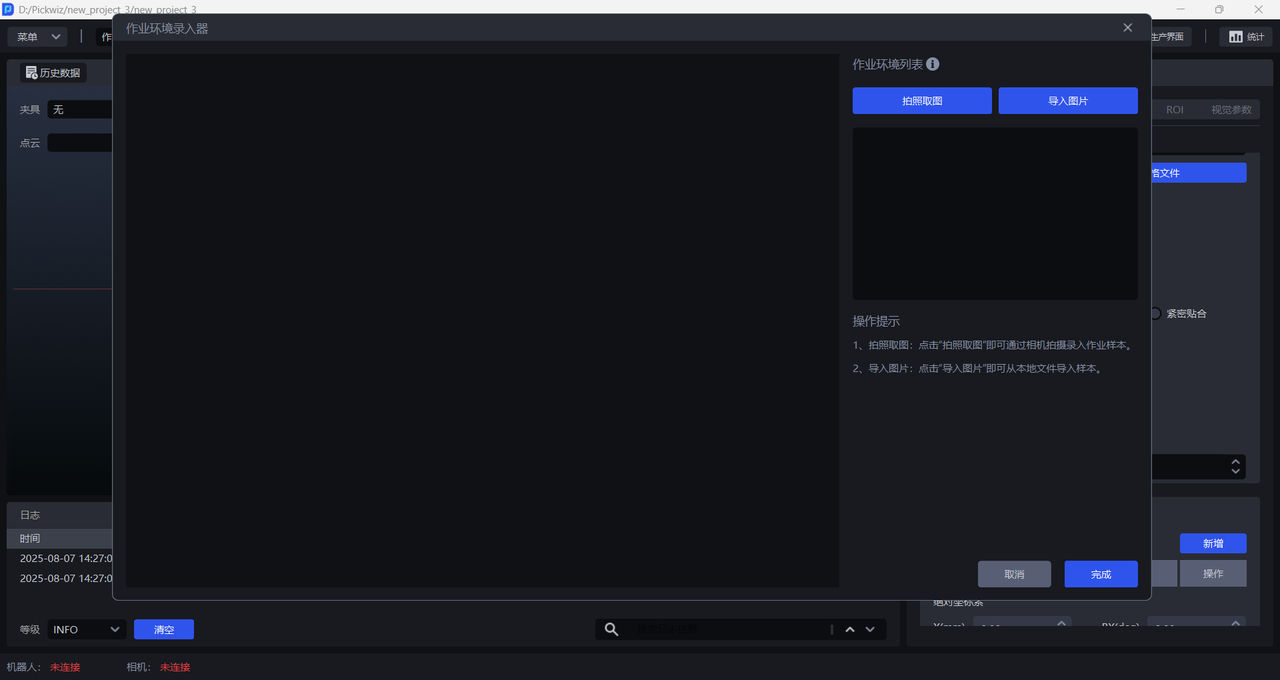
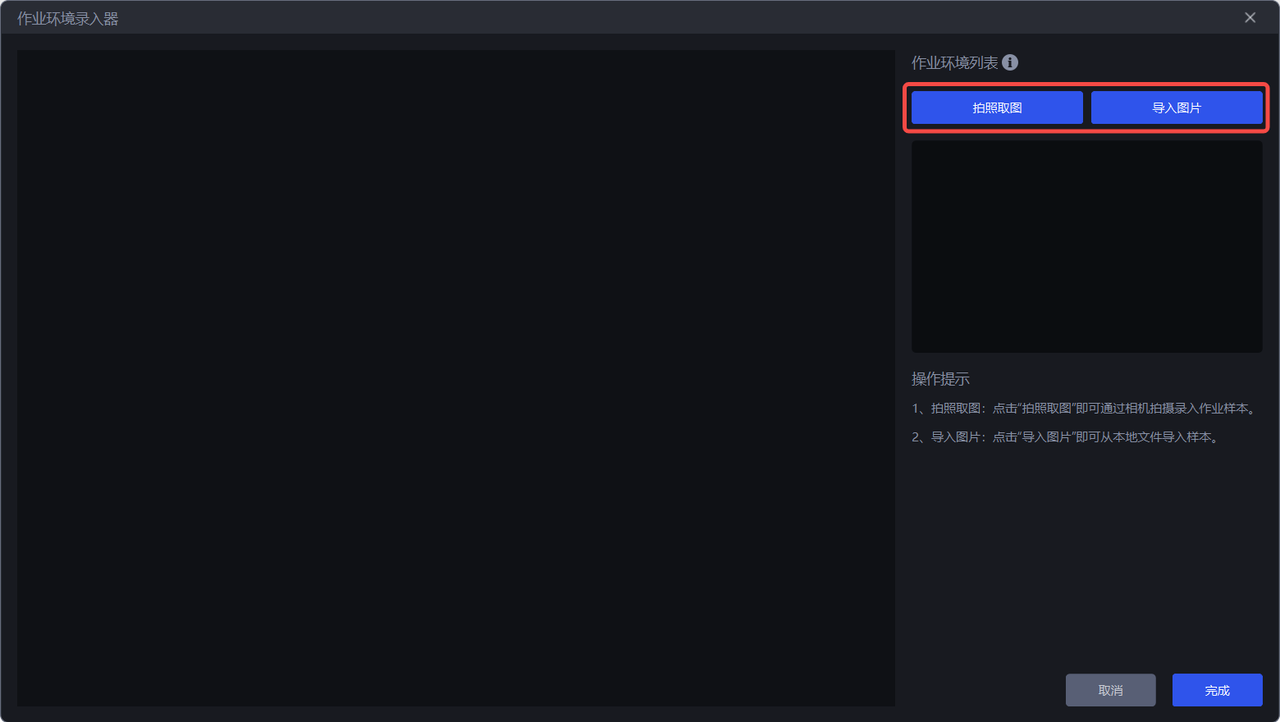
- There are two ways to obtain task environment images: one is
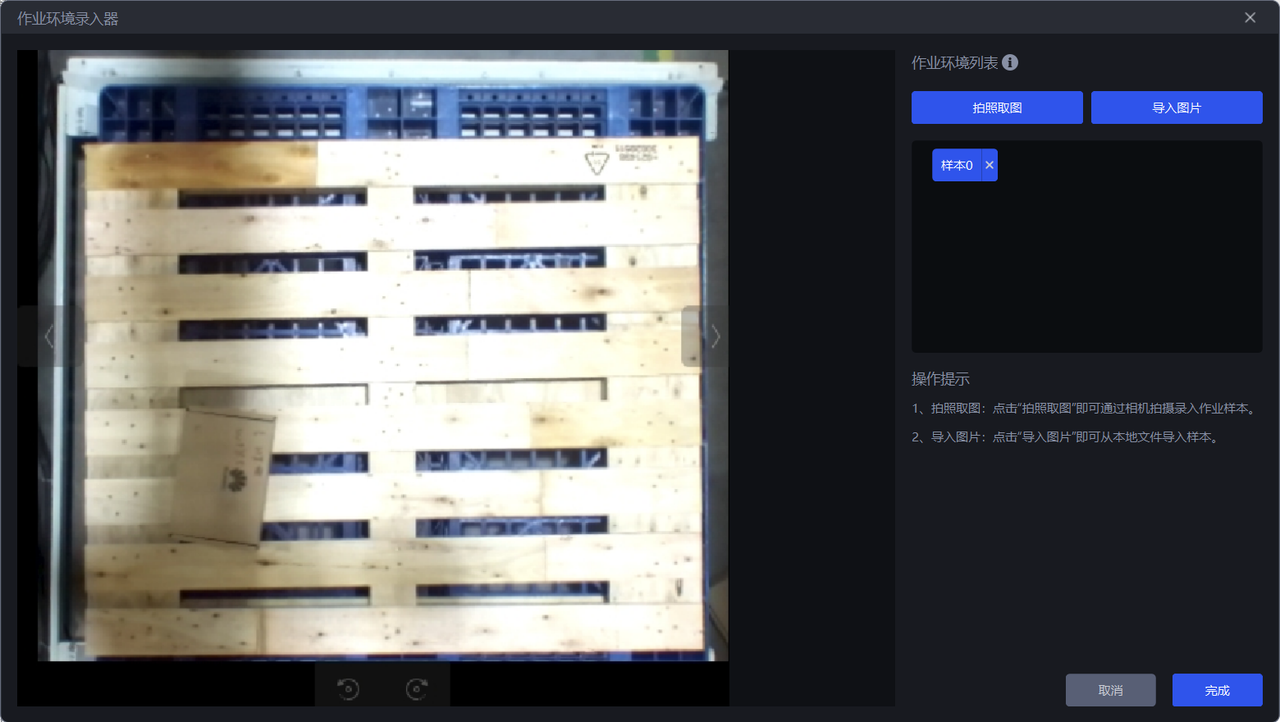
Capture Image, which captures the task environment within the camera field of view; the other is to directlyImport Image. Task environment images cannot include workpieces or the bin frame, but may include pallets and base trays.
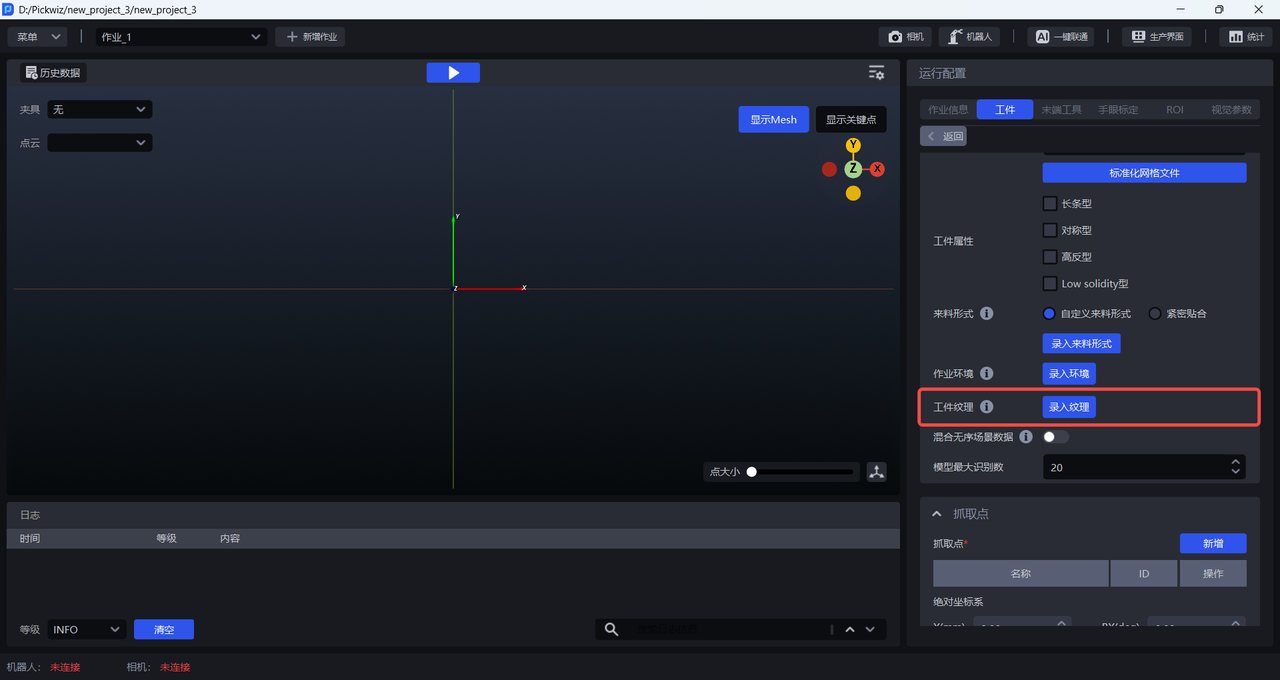
2.6 Workpiece texture
When training the vision model for generic/surface-type workpieces, you can enter workpiece textures. One-Click Integration will use the uploaded workpiece textures to generate training data, so the trained vision model can achieve better workpiece recognition performance and higher robustness.
The operation steps are as follows:
- Click
Enter Textureto enter theTexture Editor
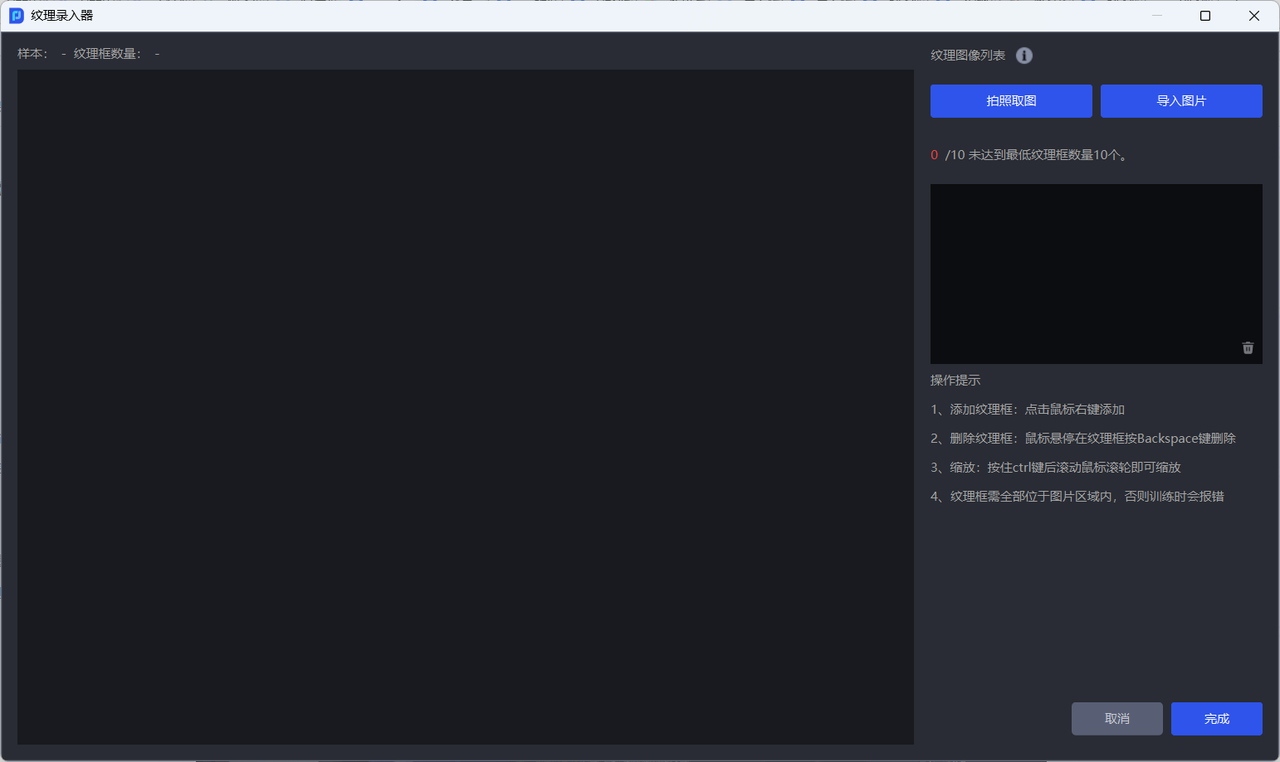
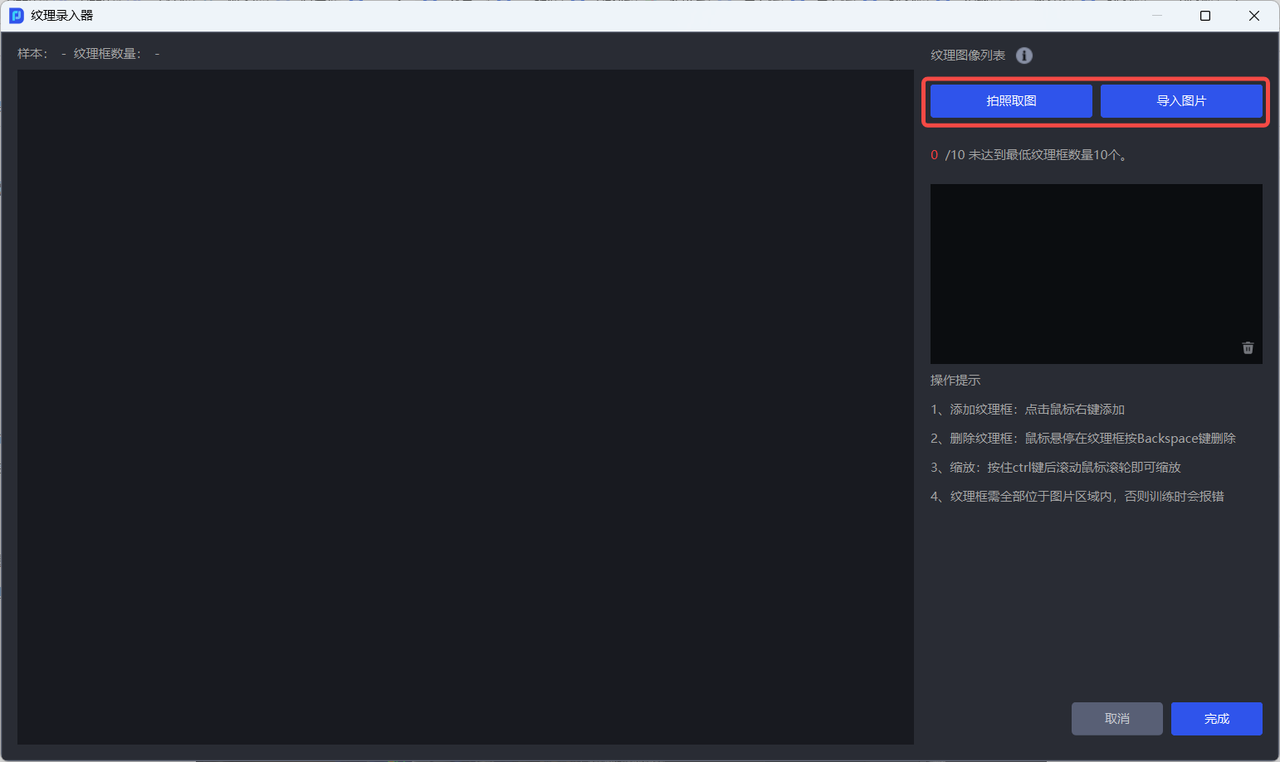
- There are two ways to obtain workpiece texture images: one is
Capture Image, which captures the workpiece texture within the camera field of view; the other is to directlyImport Image.
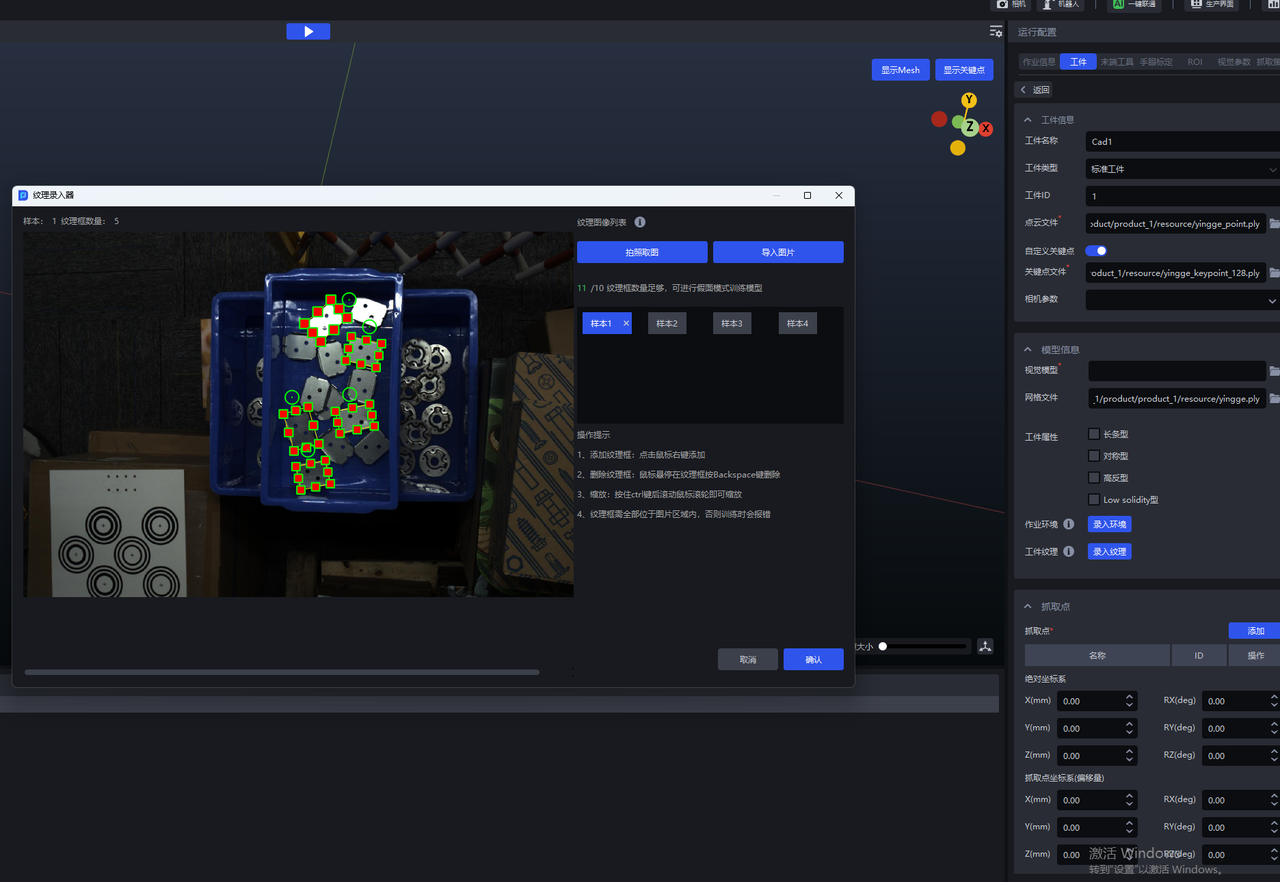
- After obtaining the workpiece texture image, right-click to add a texture box to the image; hold down the
Ctrlkey while scrolling the mouse wheel to zoom the texture box; hover the mouse over the texture box and then press theBackSpacekey to delete the texture box.
Note:
The texture box should completely enclose the workpiece and fit closely to the workpiece edges; otherwise, it will affect the recognition performance of the vision model;
The texture boxes must all be completely inside the image area; otherwise, an error will occur when training the vision model.
2.7 Mixed unordered scene data
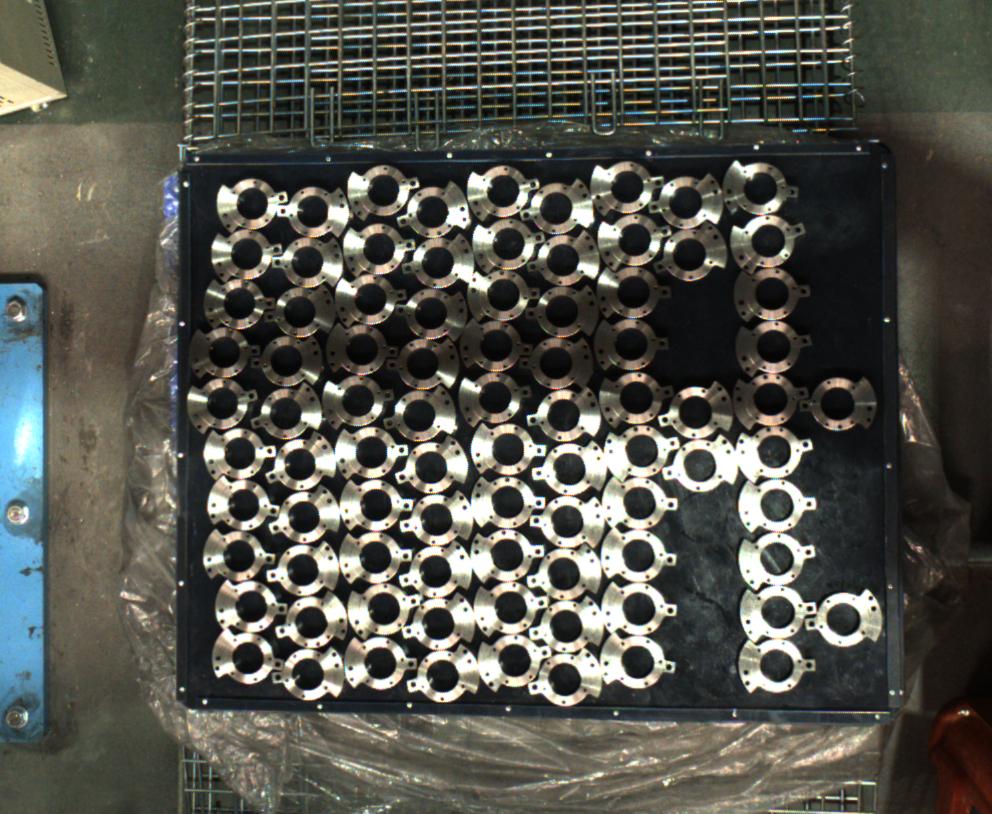
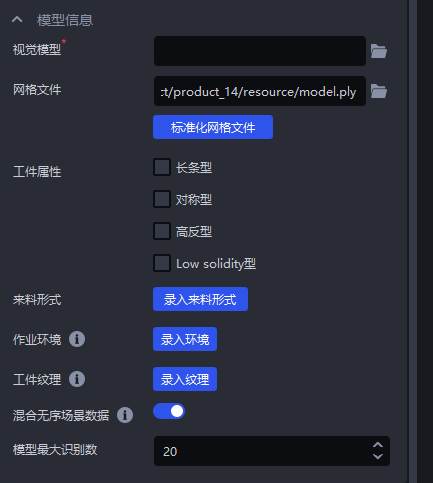
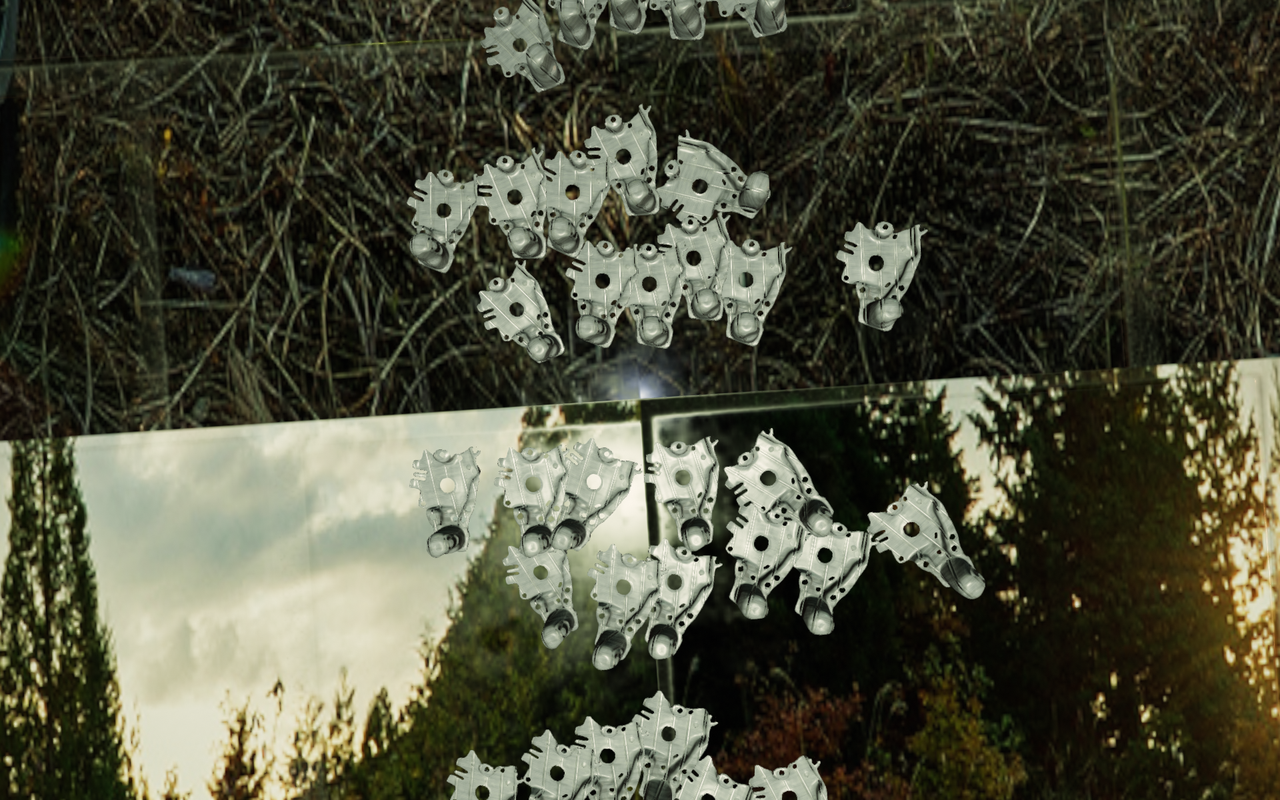
In ordered loading/unloading scenarios for generic/surface-type workpieces, if the infeed pattern is row-and-column ordered but the workpiece poses are inconsistent, Mixed Unordered Scene Data can be enabled. One-Click Integration will then generate synthetic data for both ordered scenes (row-and-column ordered) and unordered scenes (inconsistent poses) for training, so the trained vision model can achieve better recognition performance and higher robustness in scenarios with inconsistent workpiece poses.
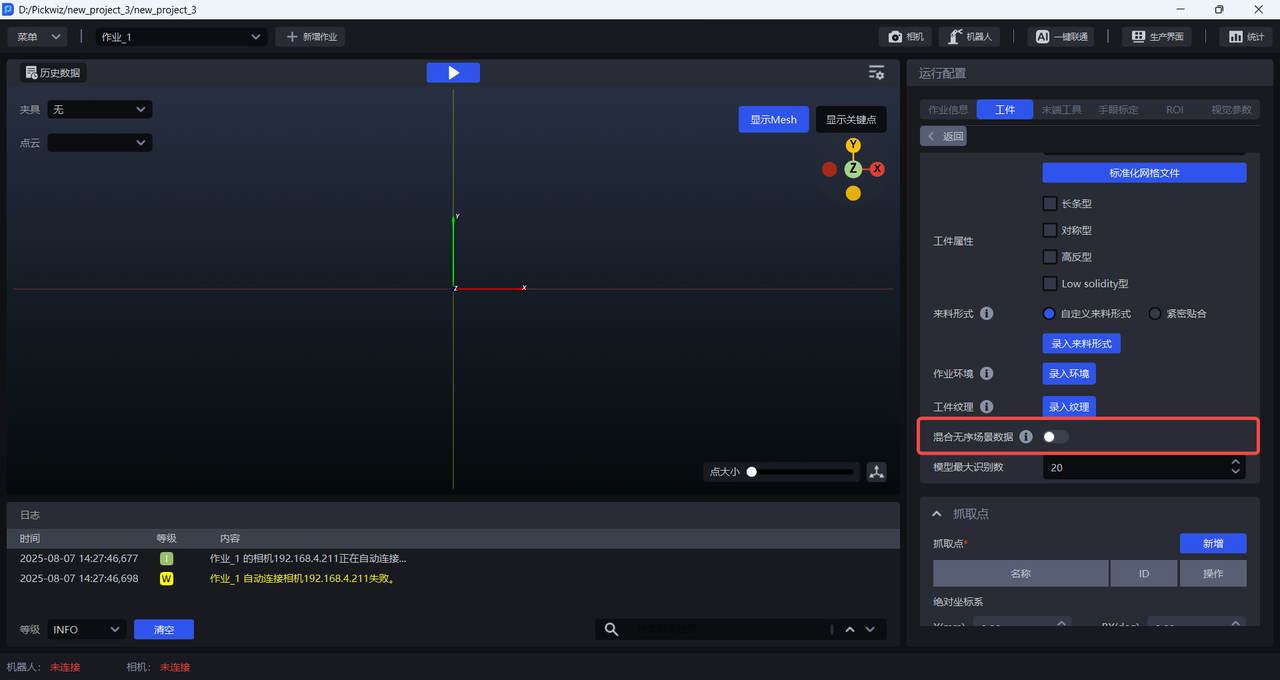
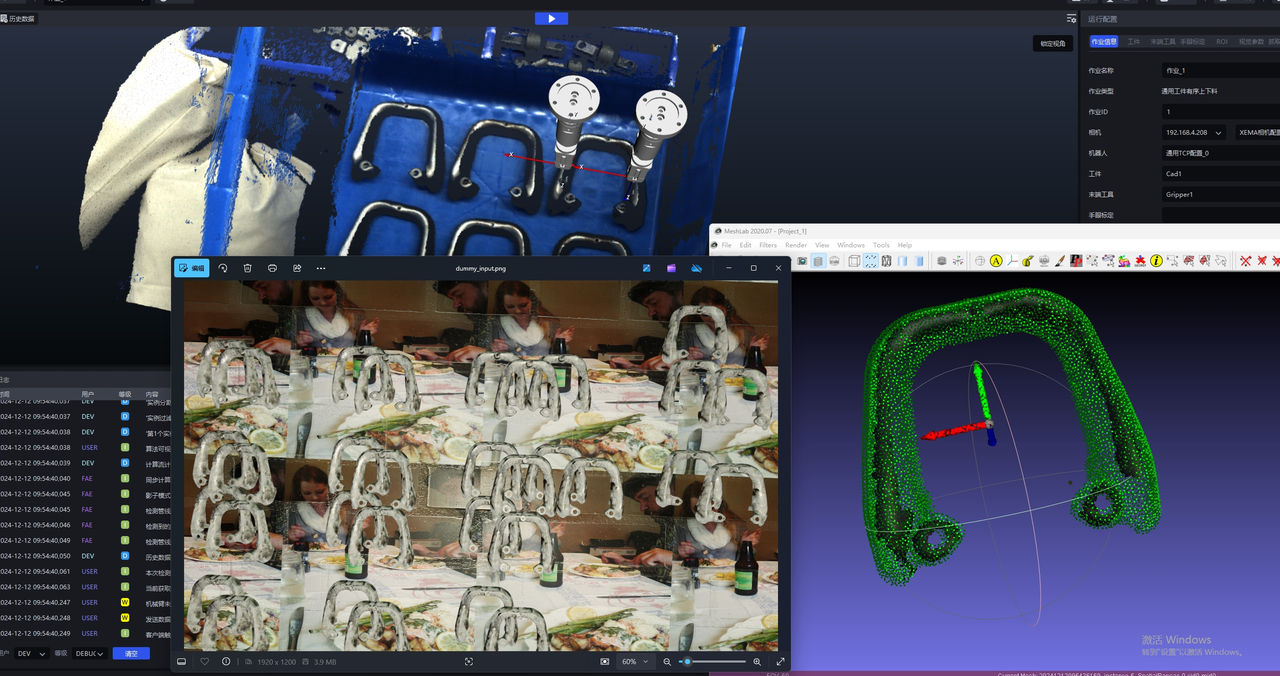
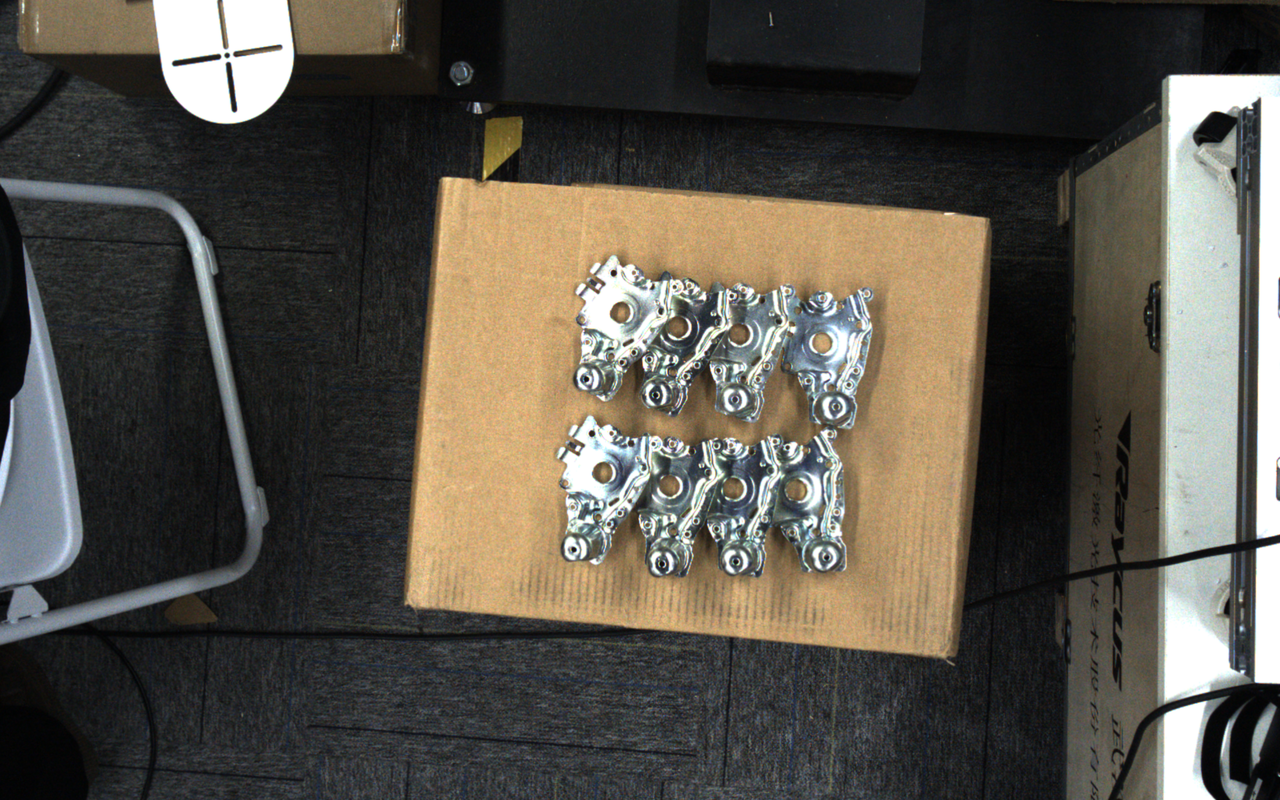
Example: For a surface-type + symmetric workpiece, the difference between the front and back sides is inherently small. If Mixed Unordered Scene Data is enabled, the generated training data will contain multiple poses, and the model may misjudge the front and back sides of the workpiece, as shown below.
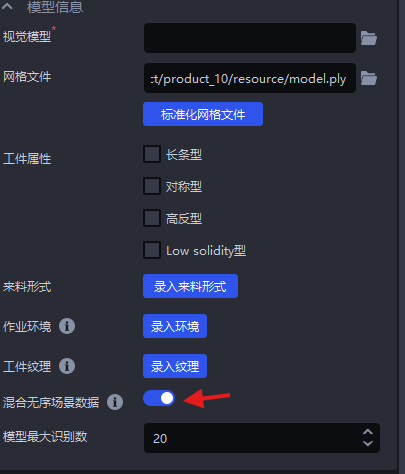
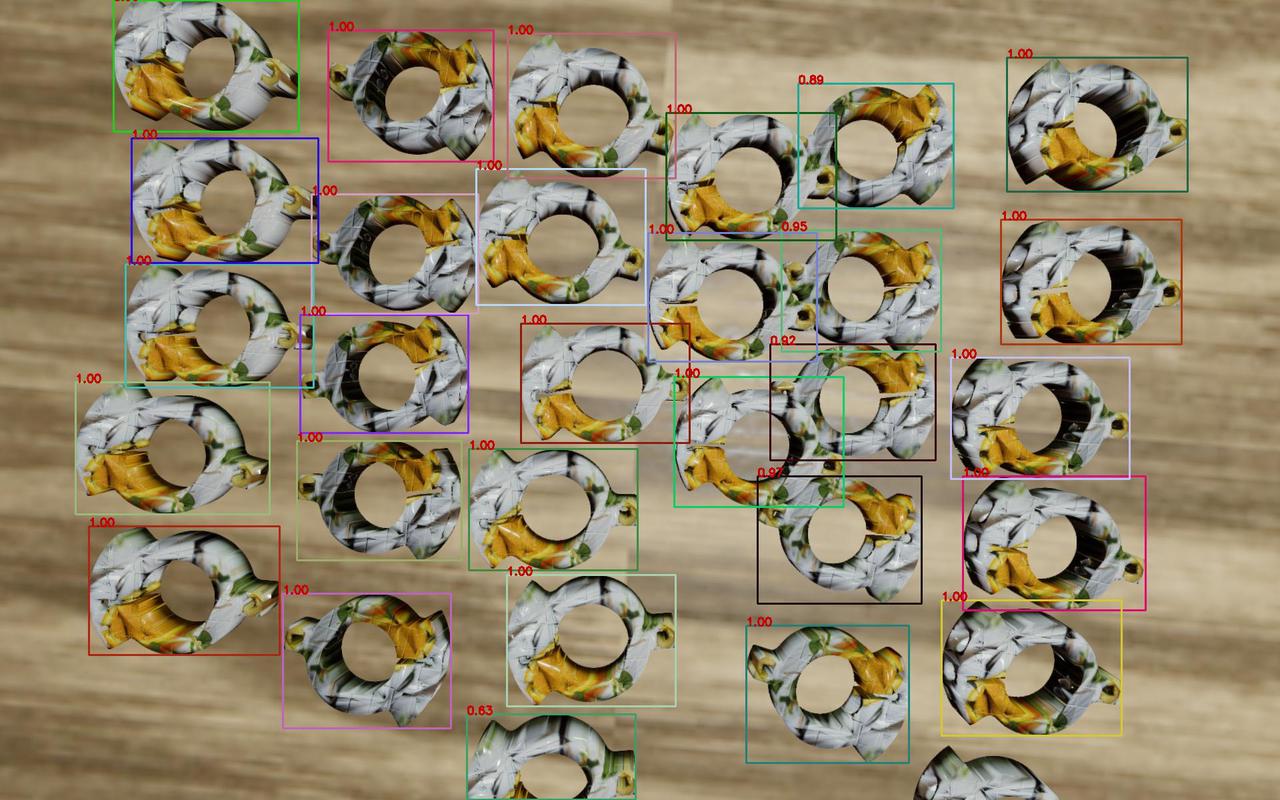
Example: In a generic workpiece ordered loading/unloading scenario, when Mixed Unordered Scene Data is enabled, the synthetic images generated after One-Click Integration is triggered contain both the row-and-column order of the ordered scene and the inconsistent poses of the unordered scene.
2.8 Maximum model detection count
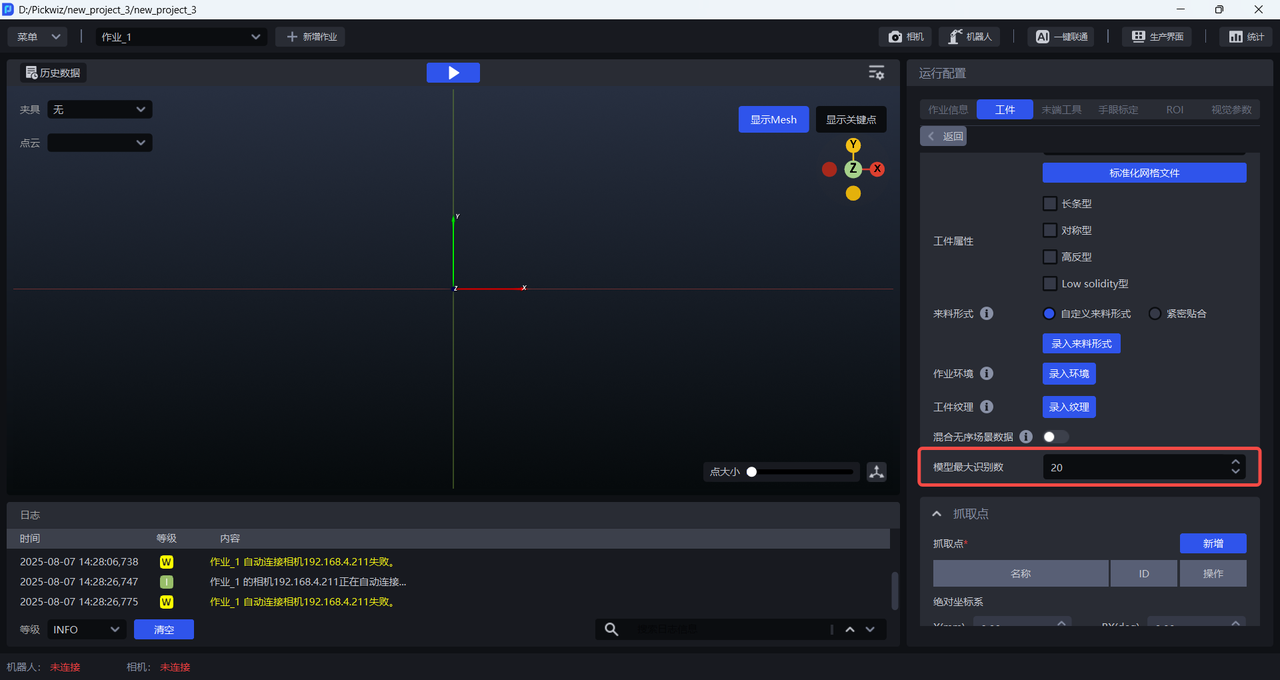
The maximum model detection count refers to the maximum number of instance detection results that the model can output during inference on a single image. Limiting the maximum model detection count is mainly used to optimize computational resources during model inference, reduce time consumption, and improve Takt Time. The default value is 20 and can be modified according to the number of workpieces in the actual scenario.
2.9 Feature options
When training the vision model for generic workpieces and surface-type workpieces, select the corresponding feature options. After One-Click Integration is triggered, the generated training data will include different workpiece types, different workpiece orientations, textures, local features, etc., so the trained vision model will have better recognition performance for changes in actual scenarios.
2.9.1 Vision classification
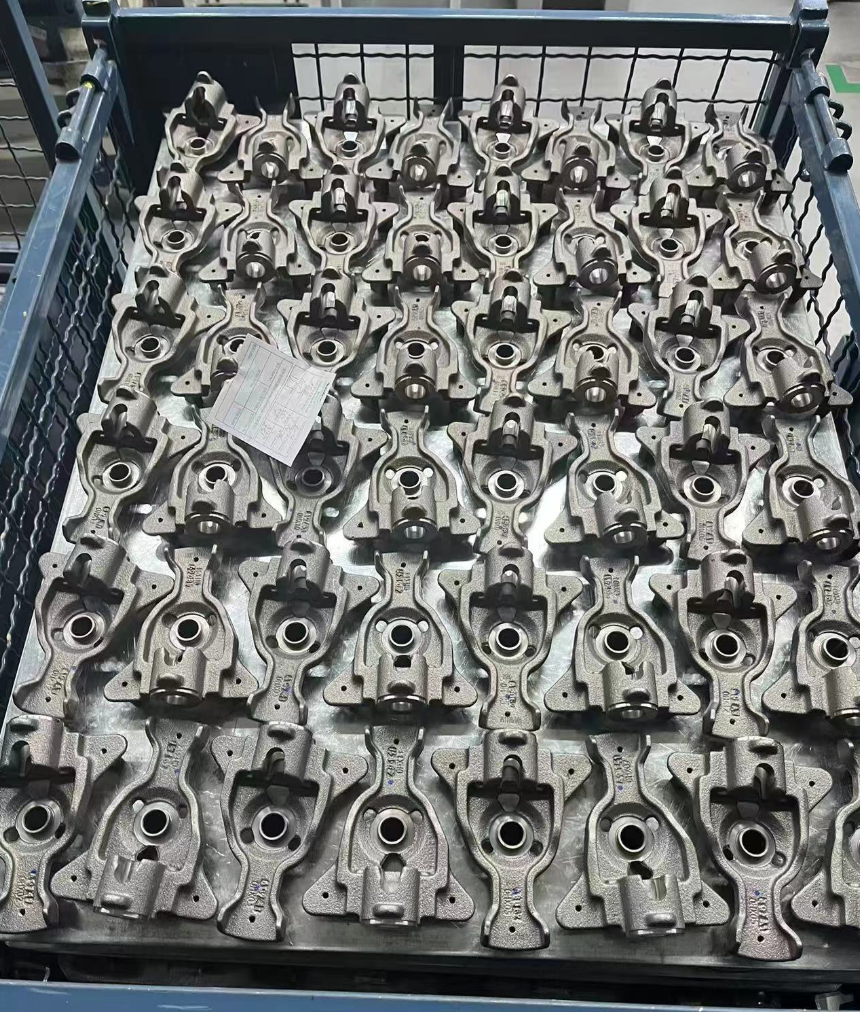
Vision classification refers to classifying workpieces by orientation, texture, etc.
Example: A workpiece has two placement forms. It is necessary to pick workpieces in the same orientation first and then pick workpieces in the opposite orientation. After selecting vision classification, the vision model trained by One-Click Integration can classify the orientation of the workpieces, thereby enabling orientation-based picking.
2.9.2 Recognition type
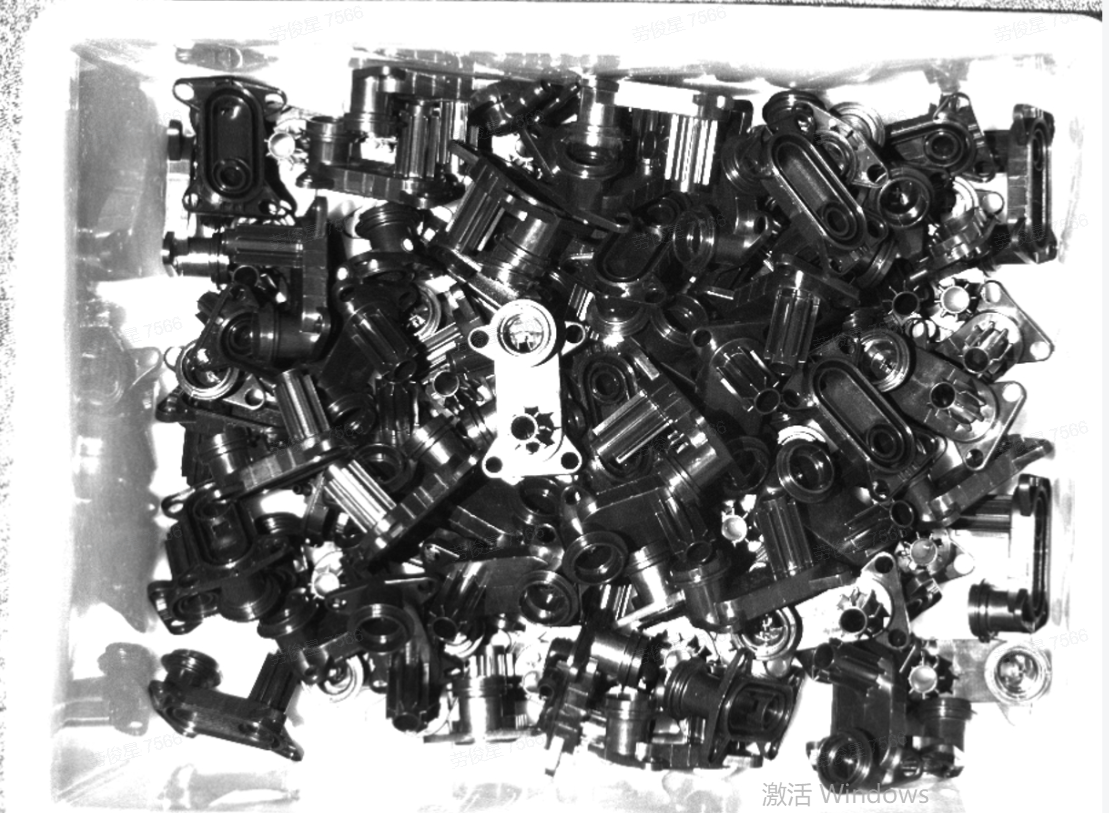
Recognition type refers to distinguishing among workpieces of different categories. The training data generated by One-Click Integration is classified according to preset categories. After image data for each category is input and learned by the model, the model can determine which category a workpiece belongs to.
The front and back sides of a workpiece can be treated as two types, and the recognition type feature can be used to generate two kinds of training data containing the front and back sides. When using recognition type to train the front and back sides, the Point Cloud of both the front and back sides of the workpiece must be uploaded.
Example: The workpiece structure is complex, and features vary greatly from different angles. Therefore, when creating the workpiece Point Cloud, the Point Cloud of both the front and back sides must be created, and the Point Cloud of the front and back sides should be combined into a single Point Cloud file.
2.9.3 Recognize local features
Recognizing local features refers to the recognition of local workpiece features (such as holes, protrusions, etc.).
Surface-type workpiece unordered picking scenarios do not yet support recognizing local features
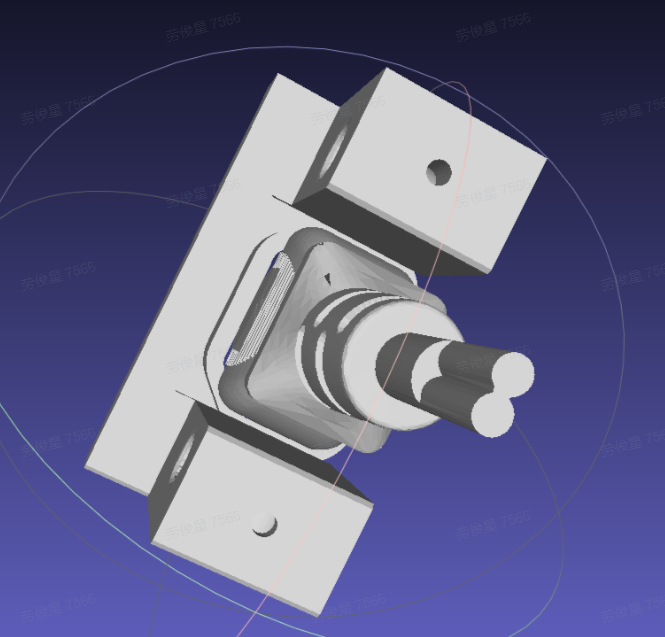
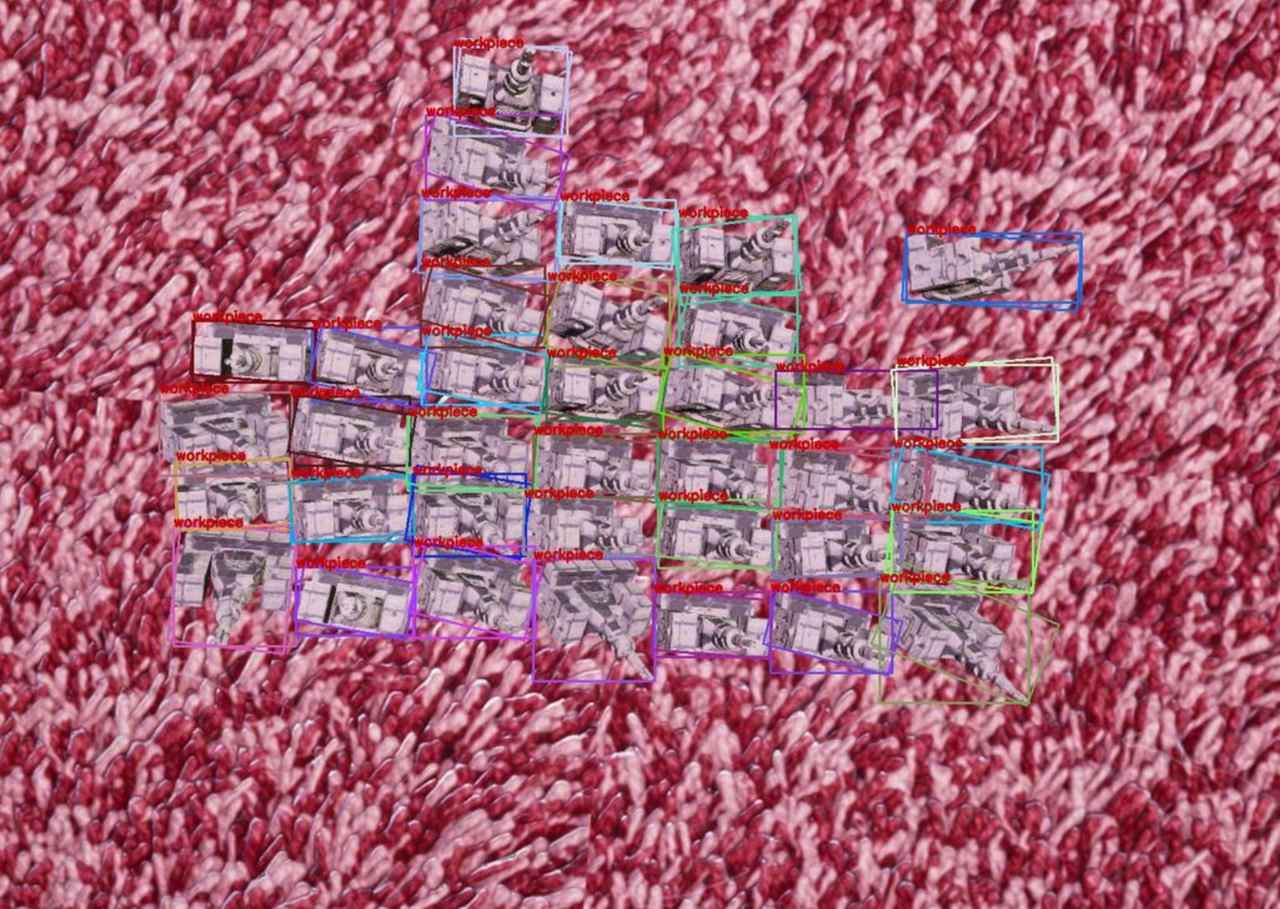
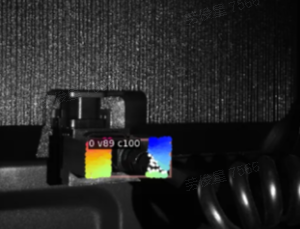
Example: When there is only one workpiece within the camera field of view, it can be converted into an ordered scene so that One-Click Integration can be used. It is necessary to use the overall CAD to simulate the effect of occluding the recognition side.
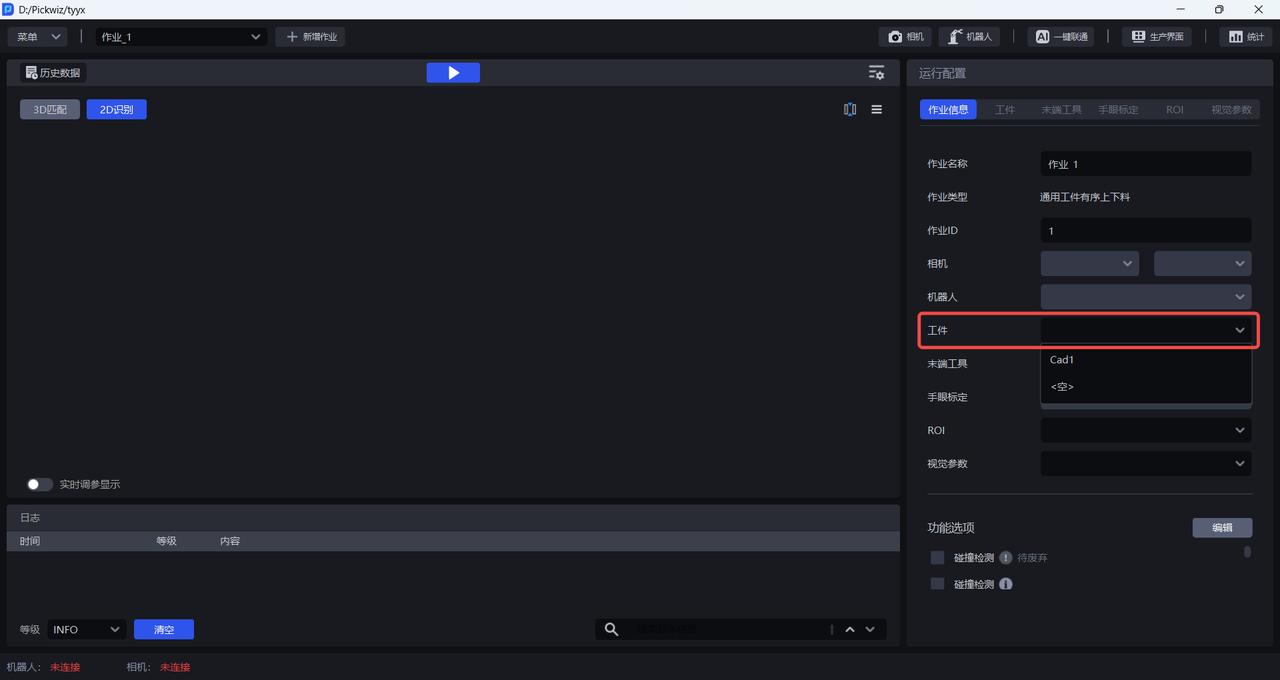
After completing the workpiece configuration, select the newly added workpiece configuration in the task information.
2.10 Field of view type parameter
In single-target scenarios, the field of view type parameter in the workpiece module can be used to specify the actual rendering height of One-Click Integration according to the actual scenario.
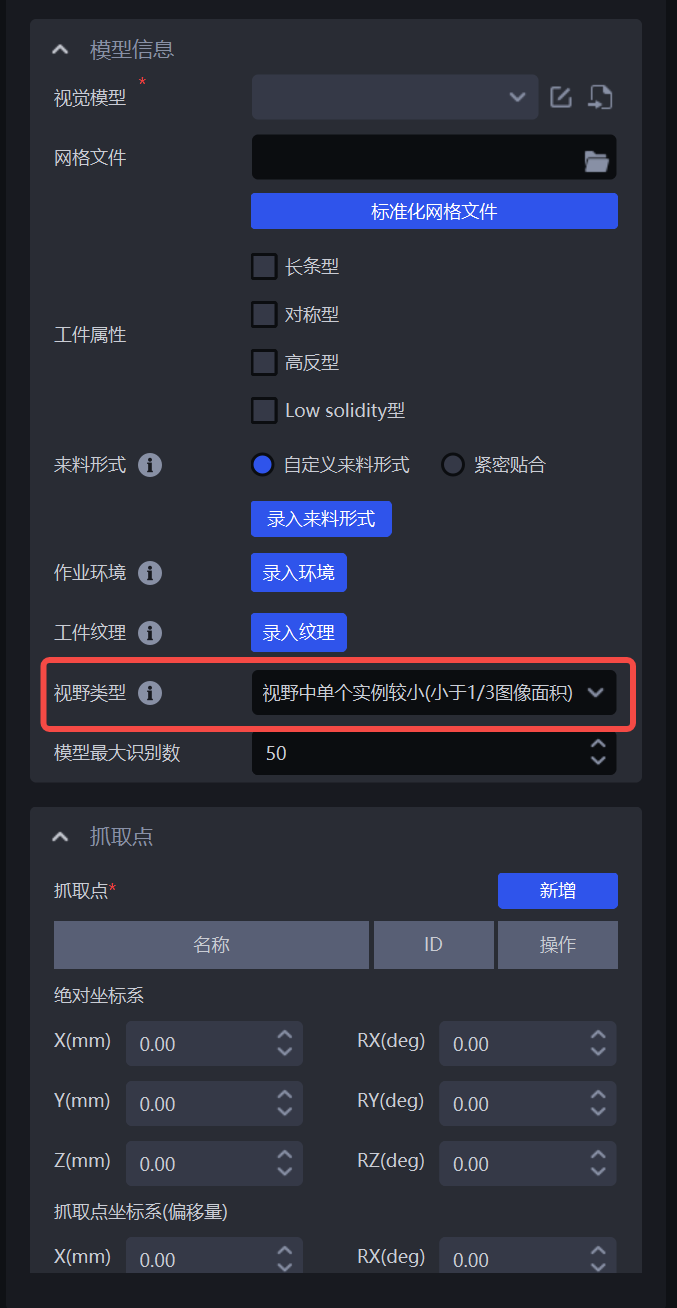
After confirming that everything is correct, select the newly added workpiece configuration in the task information.
3. Configure ROI
Please refer to ROI Operation Guide to configure ROI 3D and ROI 2D on the ROI interface.
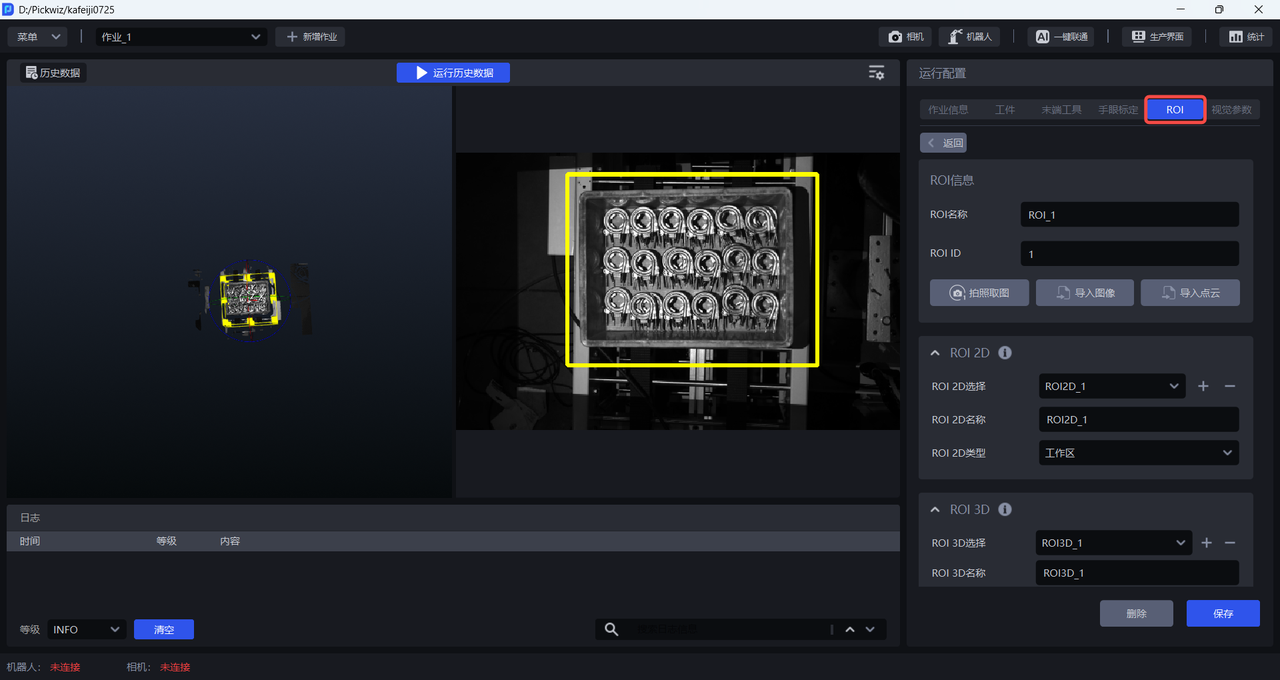
After configuring ROI 3D and ROI 2D, select the corresponding ROI in the task information.
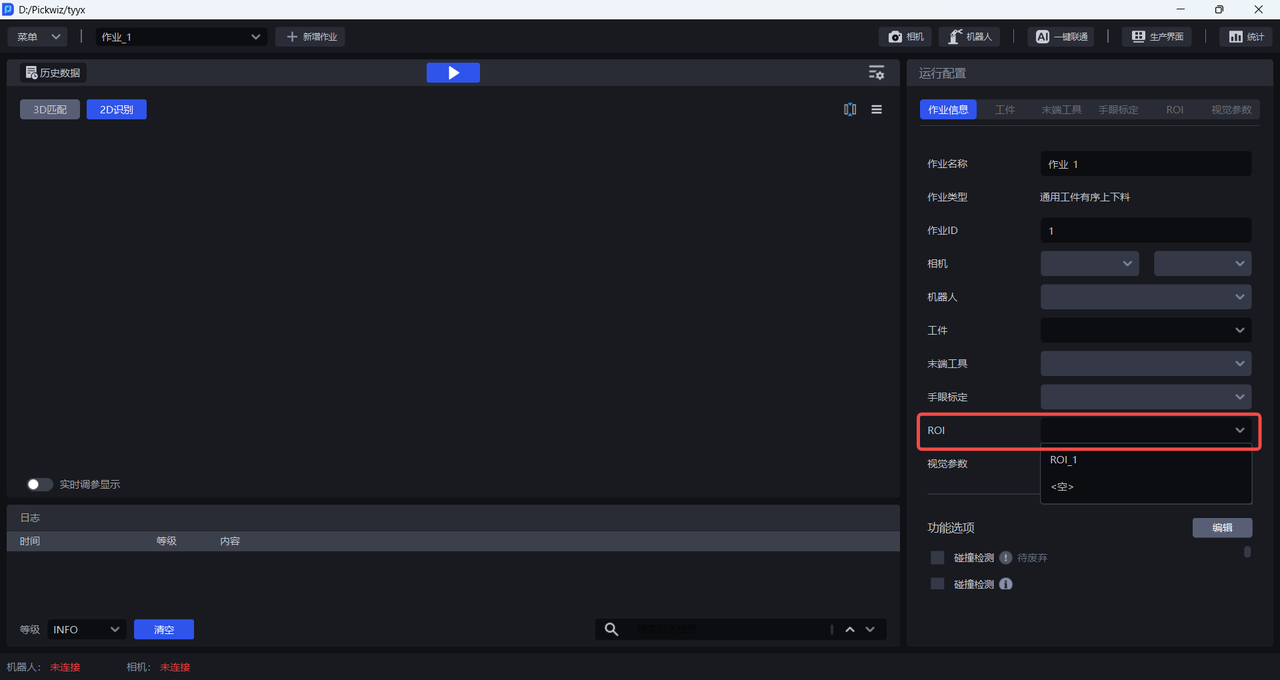
4. Train the vision model
After completing the workpiece and ROI configurations, click One-Click Integration to trigger vision model training. If manual editing of the input data is required, choose Export Training Configuration Only; if no editing is required, choose Automatically Create Training Task.
4.1 Export training configuration only
Suitable for users who need to manually edit the data. Afterwards, you need to manually create a training task on the DexVerse platform.
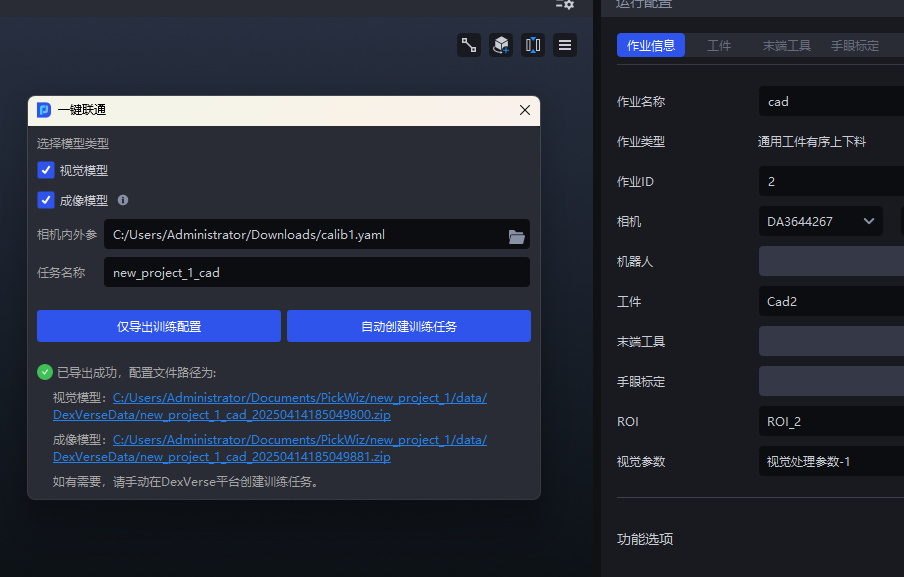
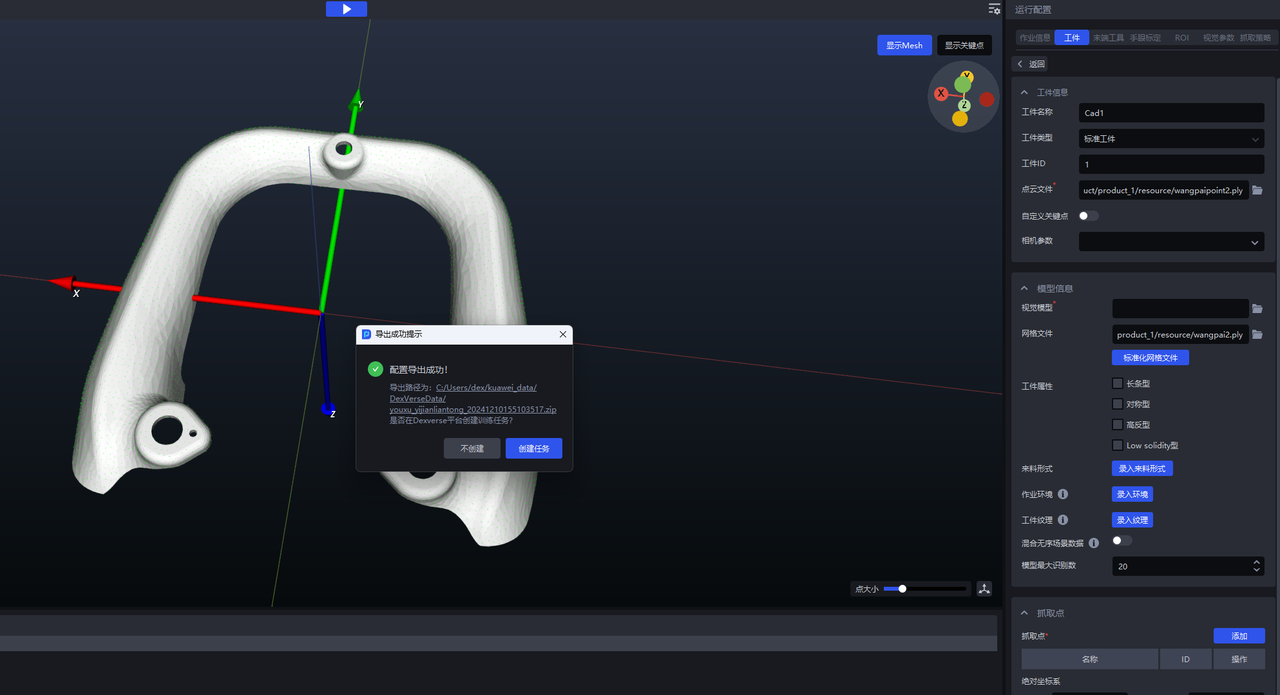
(1)On the main interface, click One-Click Integration . The One-Click Integration pop-up window appears, and select Vision Model, as shown below.
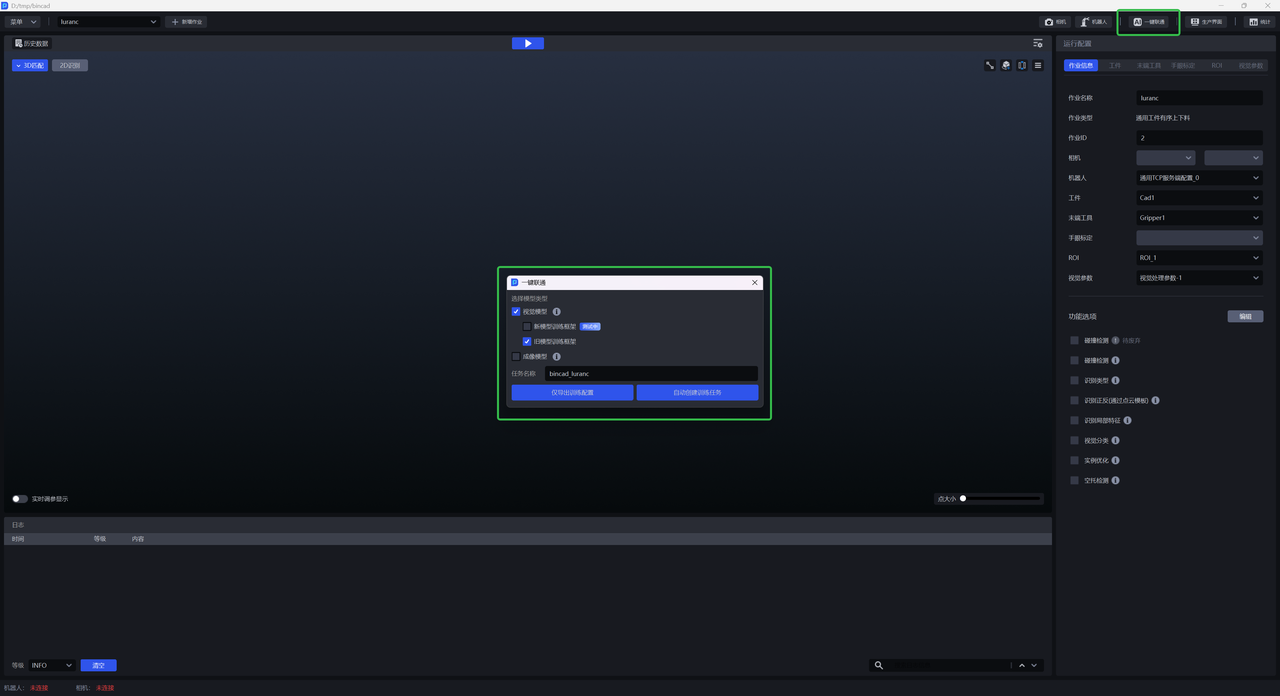
(2)Click Export Training Configuration Only . You can click the link at the bottom of the pop-up window to view the contents of the compressed data package or modify the configuration.
(3)Go to the DexVerse platform to create a training task. For details, see DexVerse Operation Manual.
4.2 Automatically create a training task
Suitable for most scenarios. After configuring the workpiece/ROI, etc. in PickWiz, a training task can be automatically created on the DexVerse platform.
(1)On the main interface, click One-Click Integration . The One-Click Integration pop-up window appears, as shown below.
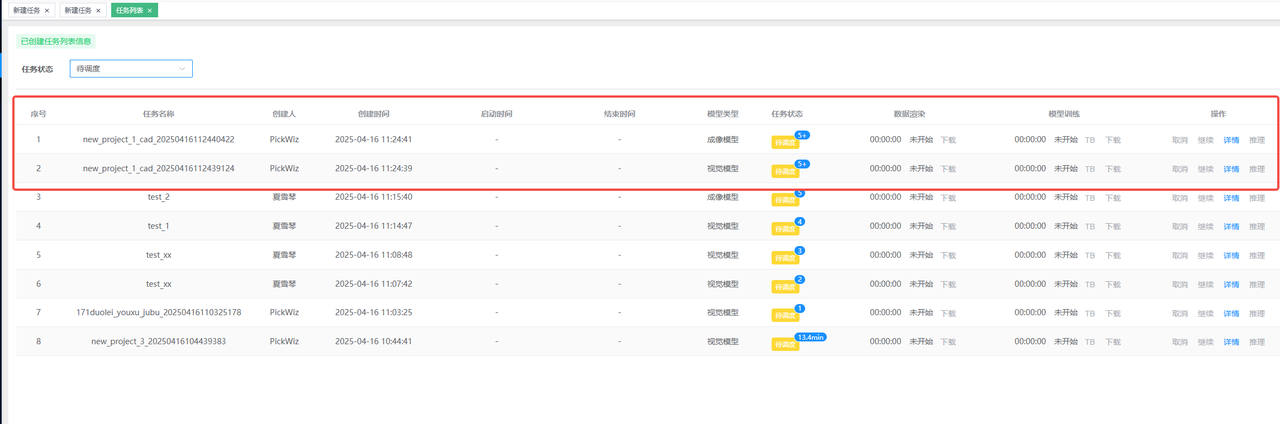
(2)Select Vision Model , then name the training task for convenient searching in DexVerse. Click Automatically Create Training Task .
(3)Go to the DexVerse platform to view the automatically created training task. For details, please refer to DexVerse Operation Manual.
5. Train the vision model and imaging model simultaneously
In the One-Click Integration pop-up window of PickWiz, select both Vision Model and Imaging Model , and then click Export Training Configuration Only / Automatically Create Training Task .