Separator Sheet and Slip Sheet Detection Guide
The Separator Sheet and Slip Sheet Detection feature is mainly used in ordered scenarios where each layer of Target Objects has a separator sheet underneath. After the Target Objects are picked, the separator sheets and slip sheet also need to be picked. This document mainly describes how to configure and use this feature after enabling Separator Sheet and Slip Sheet Detection.
1. Operation Guide
When each layer of Target Objects in the actual scene has a separator sheet underneath, select the Separator Sheet and Slip Sheet Detection feature when creating a new Project or a new task; if it was not selected when creating the new Project or new task, go to the Task Information page, click Edit in the lower-right corner, and then select Separator Sheet and Slip Sheet Detection
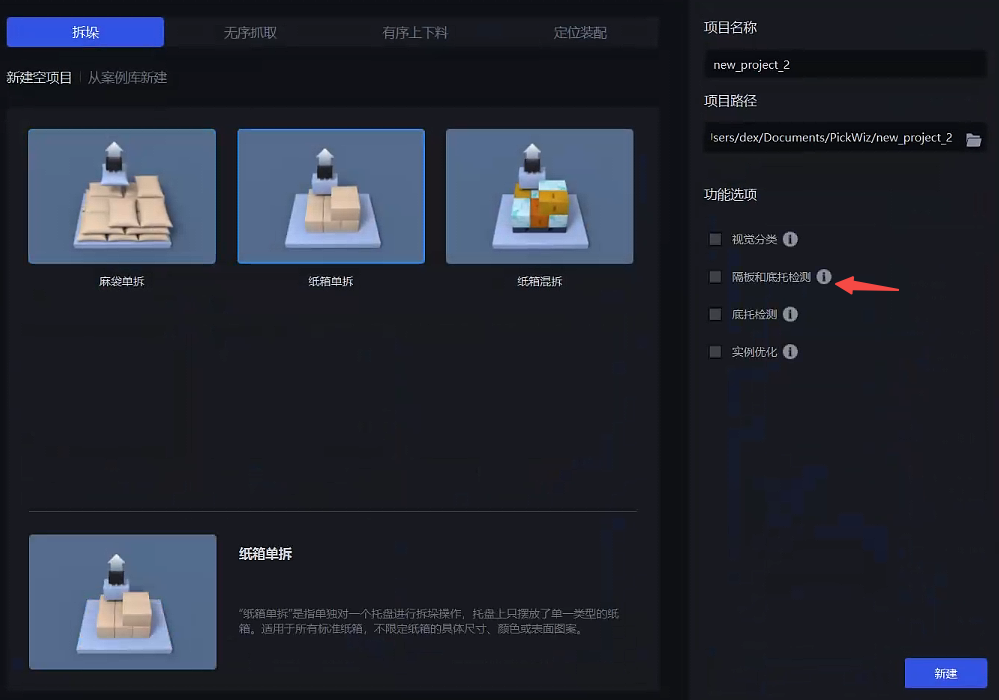
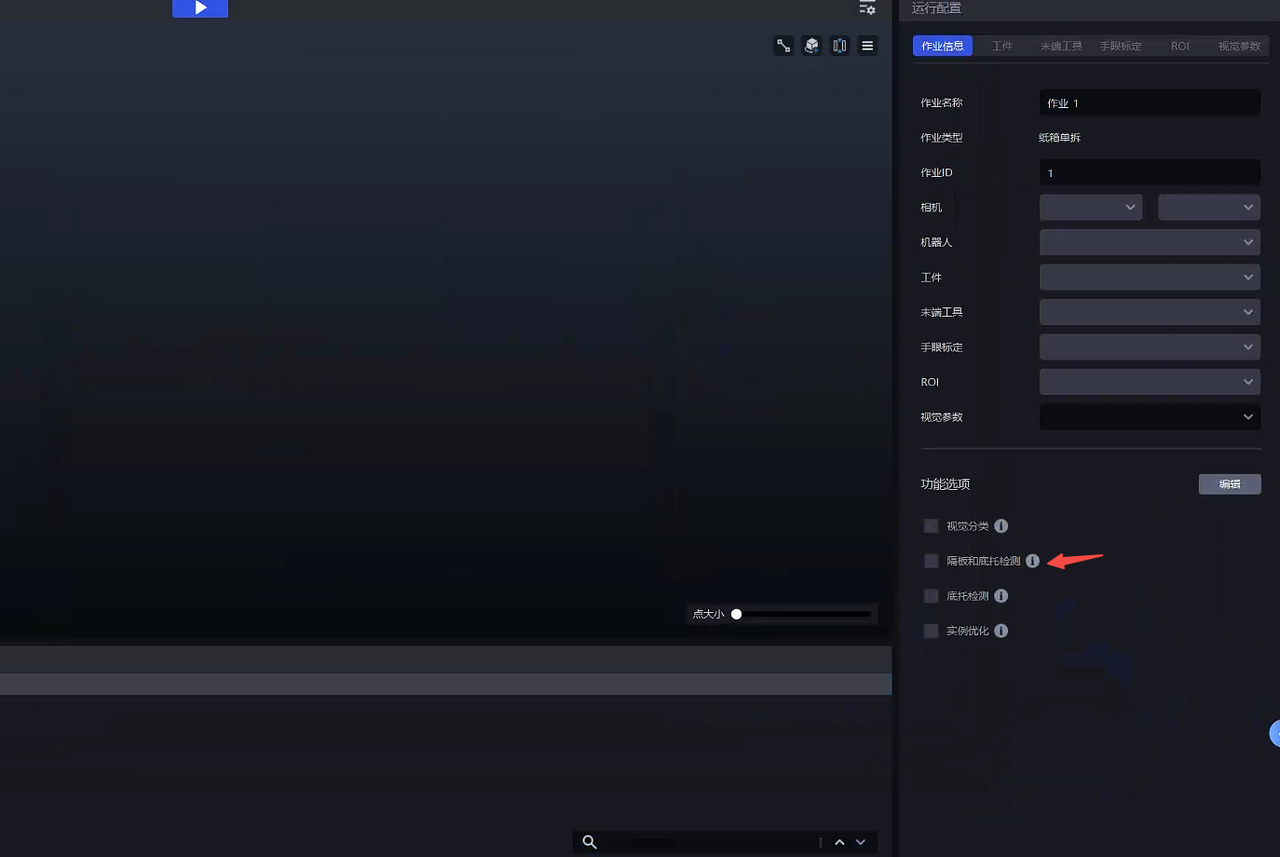
After enabling the feature, add a new Target Object on the Target Object page, click Enter Type under Target Object Information - Visual Classification, and enter types for the Target Object, separator sheet, and slip sheet respectively.
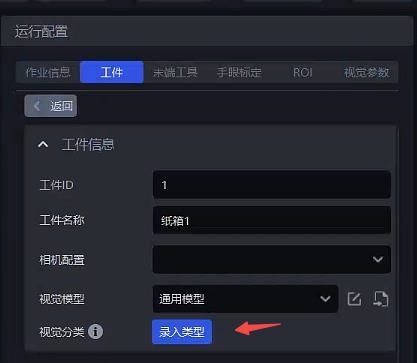
Enter types
For details, refer to: Visual Classification Guide
Click + to add a type
Enter the type id
Capture an image or import an image
Draw a box around the corresponding image region in the image. The boxed region must be consistent with the roi2d region. Enter at least 10 samples for each type
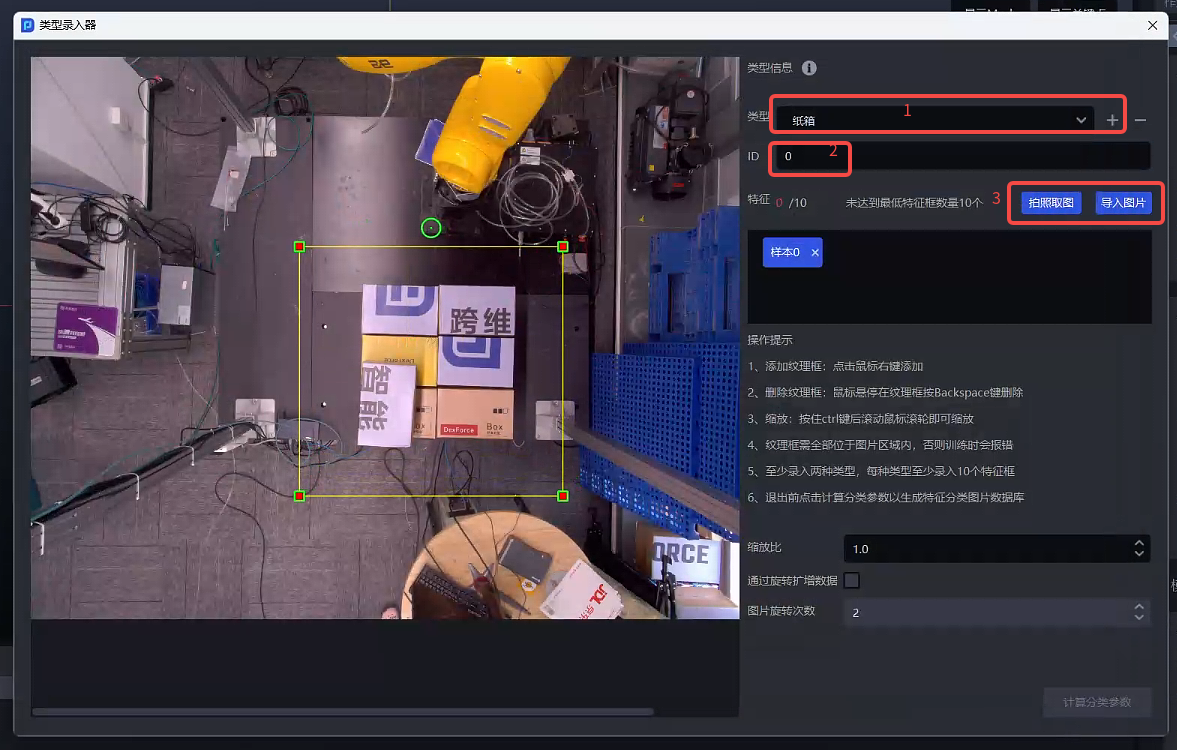
Adjust parameters
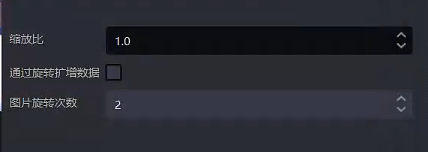
| Parameter | Description | Default Value | Range | Tuning Recommendation |
|---|---|---|---|---|
| Scale Ratio | Scales the images in the entered type database and extracts image features. The smaller the Scale Ratio, the faster the category information is computed. | 1.0 | 0.1 - 2.0 | 1.0 |
| Augment Data by Rotation | Rotates the entered type images to augment the number of images in the type database | Selected | / | / |
| Image Rotation Count | After selecting Augment Data by Rotation, the number of images in the database is increased according to the Image Rotation Count. For example, if the Image Rotation Count is 4, the image is rotated counterclockwise by 90° (360°/4) each time, for a total of 4 rotations; if the Image Rotation Count is 3, the image is rotated counterclockwise by 120° (360°/3) each time, for a total of 3 rotations | 2 | [1,360] | The larger the value, the more rotation angles are added to the augmented images |
After completing the test entry, open Robot Configuration and add the Target Object type command token '{cid}' to the commands sent by vision inspection
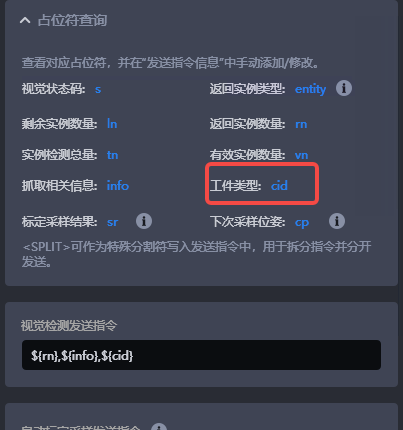
2. Parameter Tuning Guide
By adjusting the vision parameters, the vision system can better distinguish and recognize separator sheets and slip sheets based on the entered classification data.
Separator sheet and slip sheet detection uses the Extract Highest Layer Texture function by default, so most parameters are the same as those in Extract Highest Layer Texture.
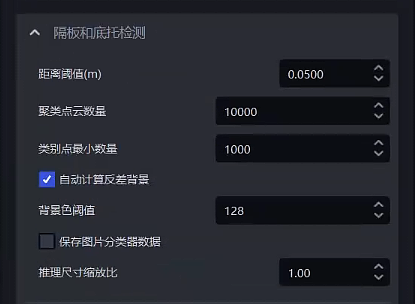
| Parameter | Description | Default Value | Range | Tuning Recommendation |
|---|---|---|---|---|
| Distance Threshold (m) | The upper distance threshold for highest-layer plane extraction. Points whose distance to the plane is lower than this value are considered points on the plane; otherwise, they are considered points outside the plane. Unit: m | 0.05 | 0.0001-1 | Adjust the distance threshold according to the height of the Target Object, usually 1/2 of the height |
| Cluster Point Cloud Count | The expected number of points participating in clustering | 10000 | 1-10000000 | The larger the Cluster Point Cloud Count, the slower the model Inference but the higher the accuracy; the smaller the Cluster Point Cloud Count, the faster the model Inference but the lower the accuracy |
| Minimum Category Point Count | The minimum number of points used to filter categories | 1000 | 1-10000000 | / |
| Automatically Compute Contrasting Background | When selected, black or white with high contrast is automatically computed based on the hue of the current instance | Selected | / | / |
| Background Color Threshold | When 'Automatically Compute Contrasting Background' is selected, if the instance's own color value is greater than the 'Background Color Threshold', the Background is set to black; otherwise, it is white. When 'Automatically Compute Contrasting Background' is not selected, the value of this Parameter is the Background color. Note that 0 is black and 255 is white | 128 | 0-255 | / |
| Save Image Classifier Data | Saves image classifier data when selected | Not selected | / | Data will be saved after selection, which increases time consumption; it is recommended to enable this when you need to supplement classification data in the early stage |
| Inference Scale Ratio | The scaling ratio used during Image Classification Inference | 1.0 | 0.01-1.0 | Keep it consistent with the Scale Ratio in Enter Type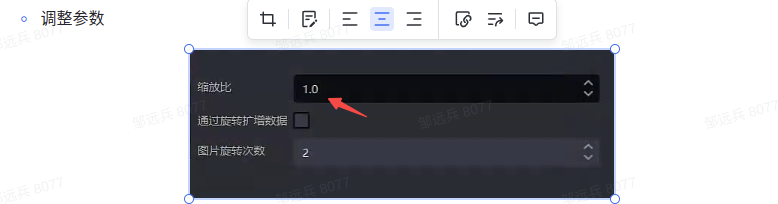 |