How to Use Workpiece Shadow Mode
1. Feature Overview
In Deep Learning models, Shadow Mode is a data augmentation method that reuses real data accumulated during model operation in actual scenarios for model training, increasing data diversity and improving the model's generalization capability.
2. Applicable Scenarios
When the on-site detection success rate for the same type of object has already reached above 95%+ and you want to achieve 99.9%, you can use Shadow Mode to train the model yourself.
Currently, Shadow Mode training through PickWiz on the edge side (IPC) is supported only for depalletizing, generic circular-surface, generic cylindrical, and generic quadrilateral scenarios. Other scenarios are not yet supported.
3. Operating Procedure
Ensure that the total amount of Shadow Mode data meets the requirement: at least 100 shadow data samples
On the main interface, click Workpiece, then click the specific workpiece to enter the Workpiece Configuration Interface, and scroll down to Shadow Mode
【172New Configuration】Task Environment
Supported scenario types: cylindrical and circular-surface scenarios only
Feature Description
Click
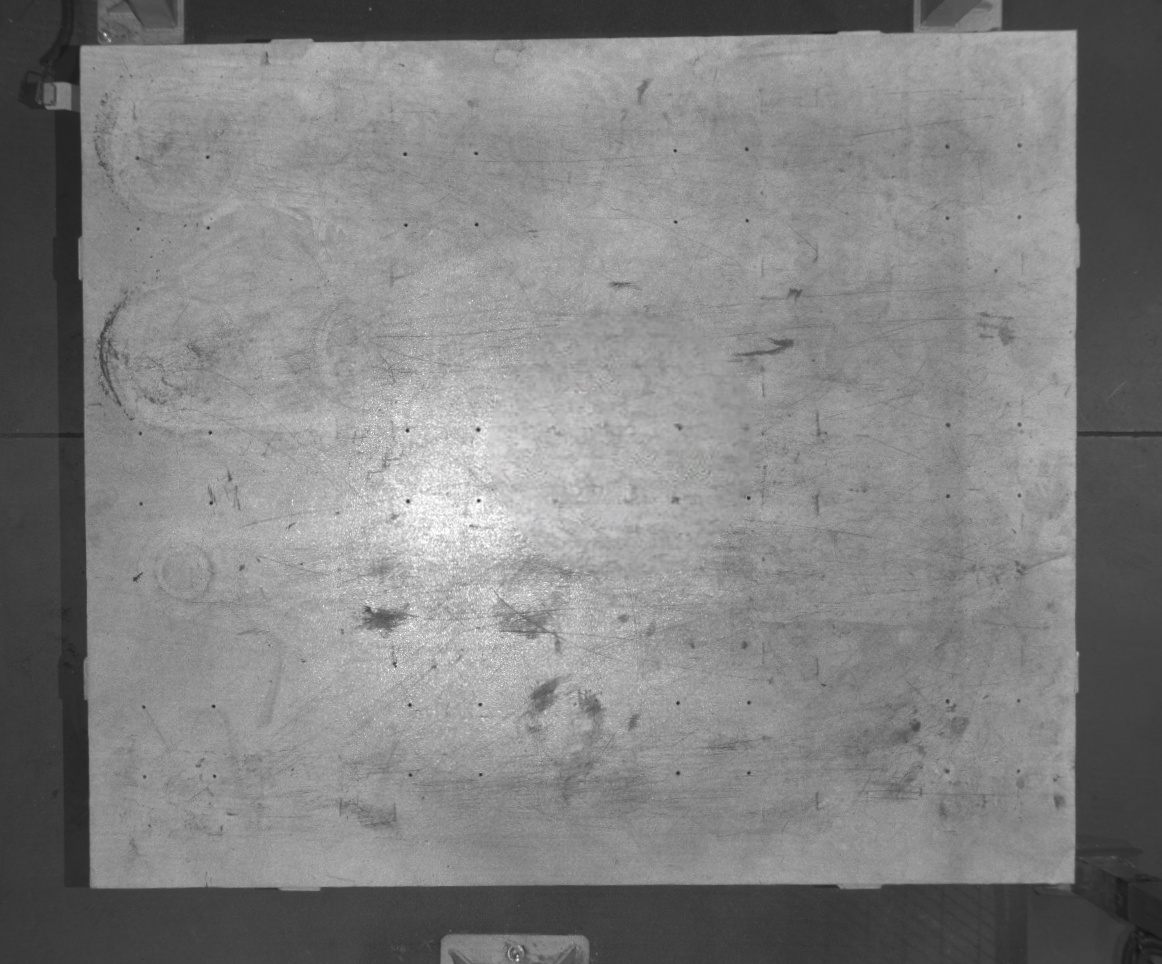
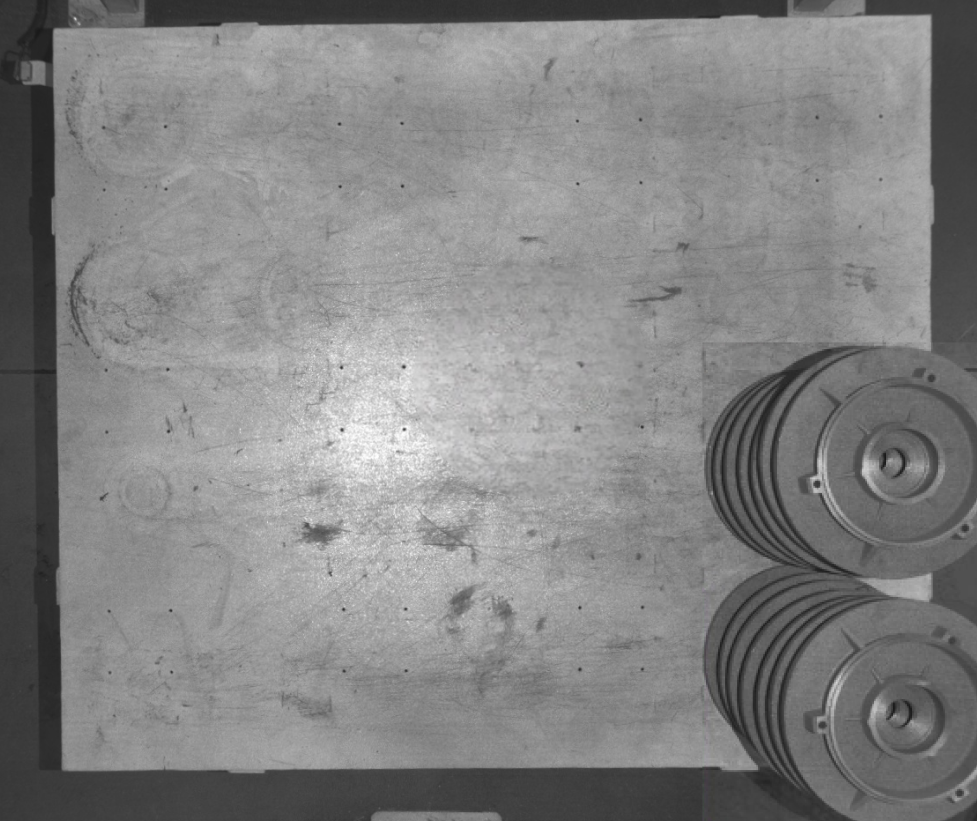
Edit Task Environmentto view and edit shadow data samples that contain no workpiece instance information. In the task environment data, you need to delete sample data that does not contain any workpiece and use it as the task environment (in extremely rare cases, a sample may contain an undetected workpiece; such a sample will mislead the model and must be deleted, as shown in the lower-right image). Make sure the task environment data contains no workpieces and only the base tray/pallet/floor, so it can be used for subsequent shadow training and prevent the model from misrecognizing non-workpiece objects such as the base tray, pallet, or floor.Applicable Scenarios
When the model has a risk of missed detections, add base tray/pallet/floor data from the task environment to enhance training and help the model better distinguish the recognition target.
Select the model to be trained
【171New Configuration】Data Storage Location
After instance filtering: selected by default.
Applicable Scenarios: Use the data output from "After instance filtering" for training. This is suitable for cases where incorrect segmentation exists and filtering is required.
Before instance filtering
Applicable Scenarios: Use the data output from "Before instance filtering" for training. This is suitable for scenarios with good workpiece segmentation performance
Keep the number of iterations at the default value
Set the model name
Set remarks; this can be left blank
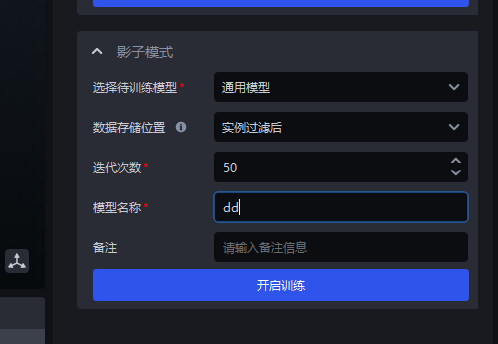
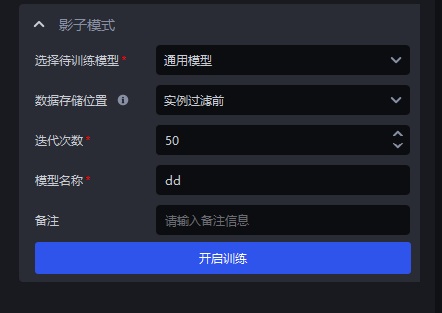
Click
Start TrainingAfter training is complete, you can directly select the model under Vision Model for use.
4. Frequently Asked Questions
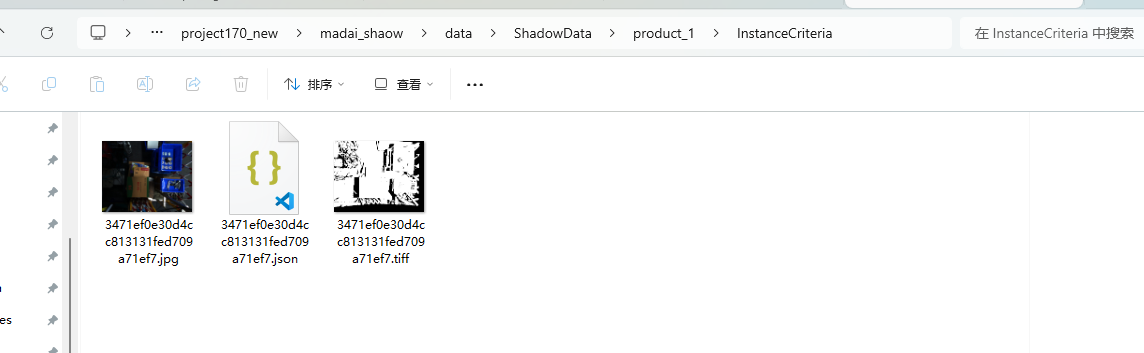
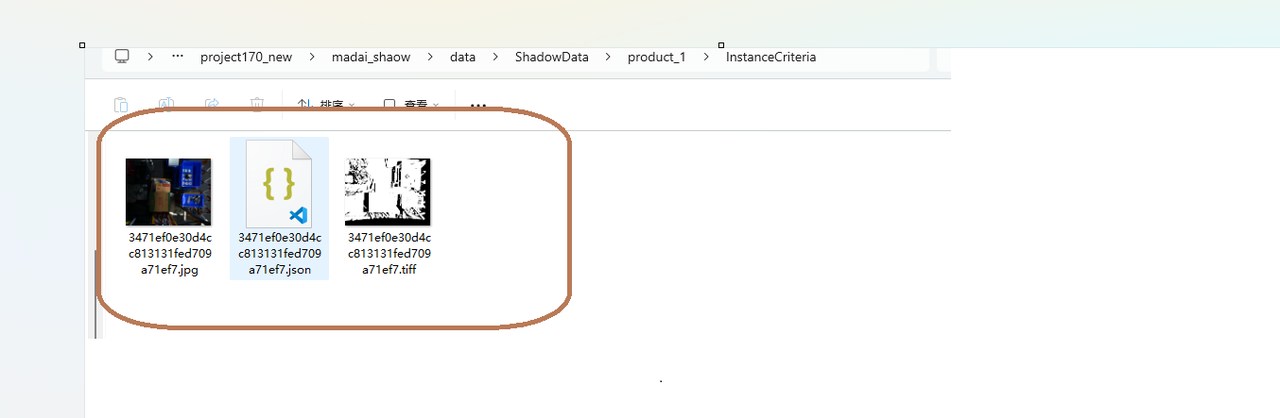
Shadow data save paths
Storage path after instance filtering: \项目文件夹\data\ShadowDate\product_{工件id}\InstanceCriteria
Storage path before instance filtering: \项目文件夹\data\ShadowDate\product_{工件id}\InstanceBuilder

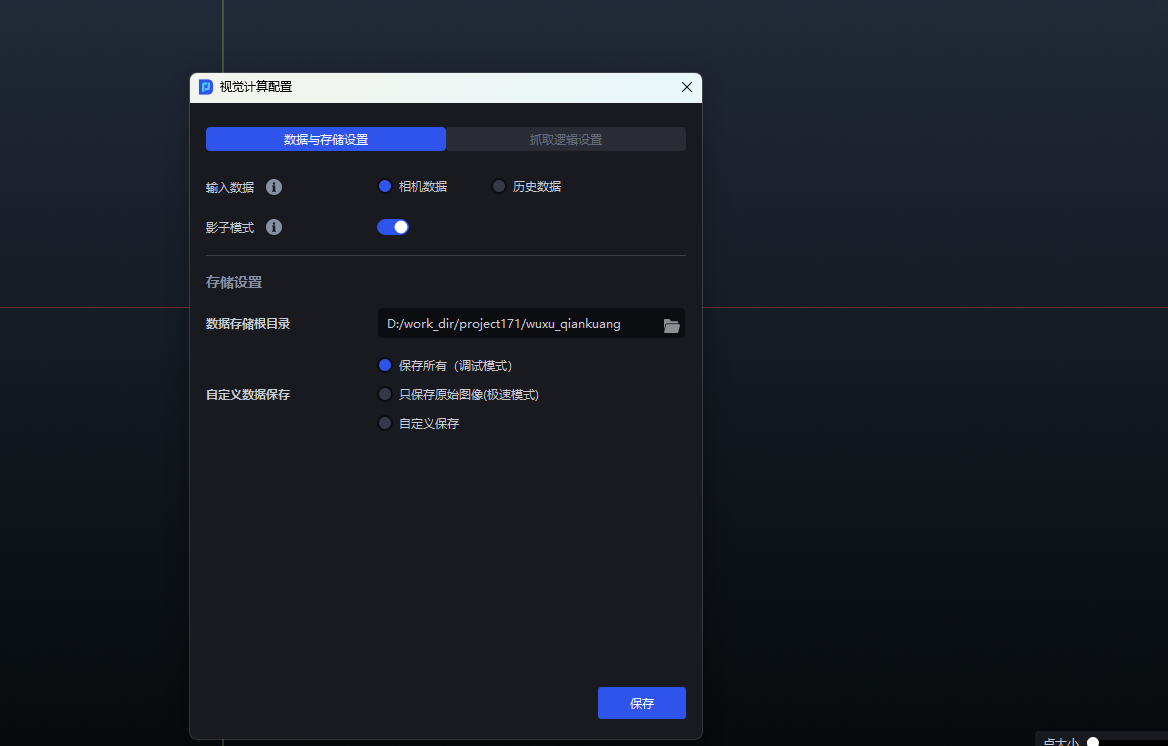
How to confirm whether Shadow Mode is enabled
How much total shadow data is required before training can be started
What should I do if the trained model performs poorly?
Check whether the detected material and the material used during Shadow Mode training belong to the same category
On the Workpiece interface, check whether the workpiece model has been replaced with the latest trained Deep Learning model
On the Vision Parameters interface, try adjusting the Scaling Ratio in 2D recognition
If a single Scaling Ratio cannot meet the needs of the actual scenario (for example, in depalletizing scenarios, the optimal Scaling Ratio may differ between objects in the top layer and bottom layer), select the Auto Enhancement function on the Vision Parameters interface and configure multiple Auto Enhancement - Scaling Ratios. For details, see Depalletizing Vision Parameter Adjustment Guide