Calibration Result Inspection and Analysis
After calibration is completed, the calibration results need to be inspected to determine whether the accuracy of the calibration results can meet the accuracy requirements of the actual scenario. If Calibration Error exceeds the normal range, the cause of the error must be identified. After solving the problem, recalibrate and inspect again until the calibration result accuracy meets the scenario requirements.
1. Calibration Diagnosis
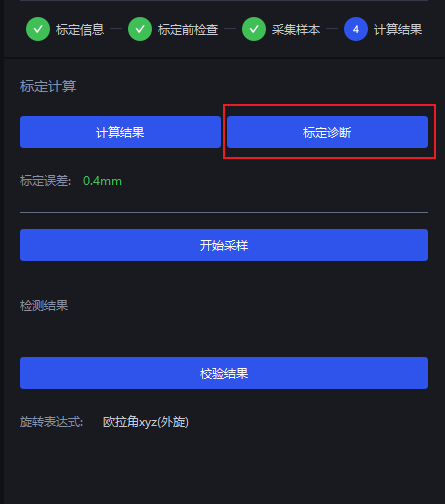
In Calibration Calculation, click Calibration Diagnosis, and PickWiz will draw the relevant analysis charts in the visualization window on the left.
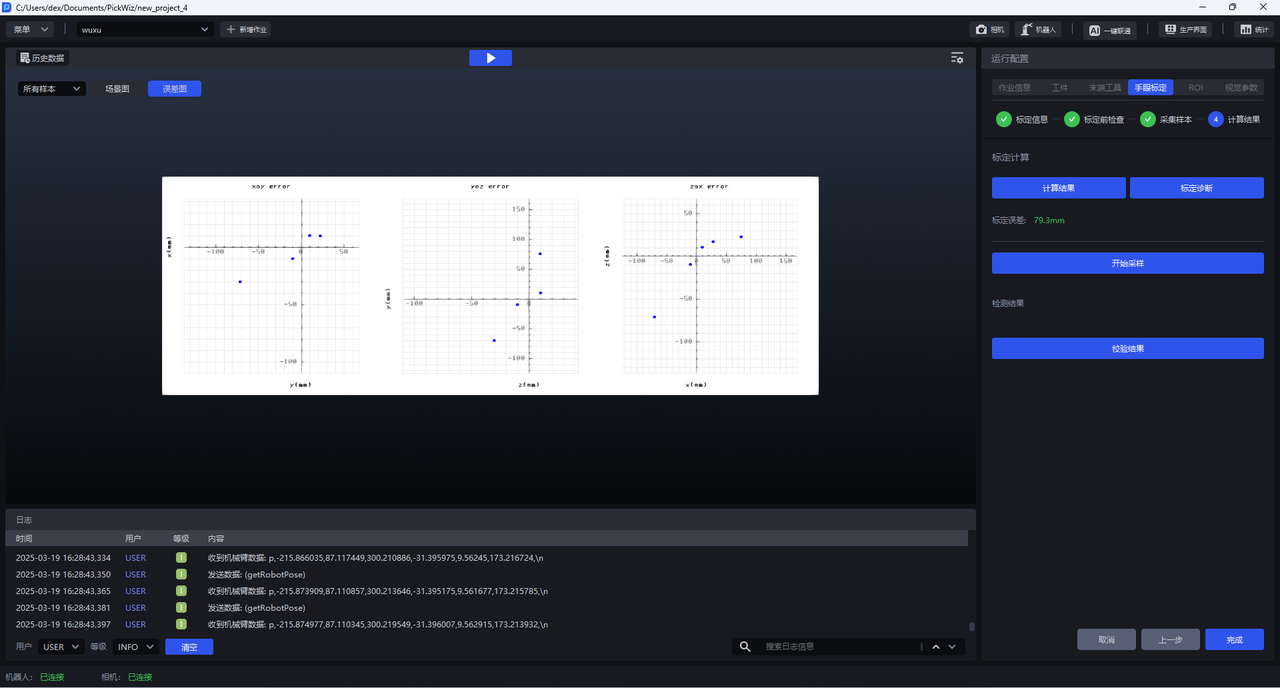
In the visualization window, you can view the scene view and error plot of all samples, as well as the saved sample view, scene view, and point cloud view for each sample, as shown below.
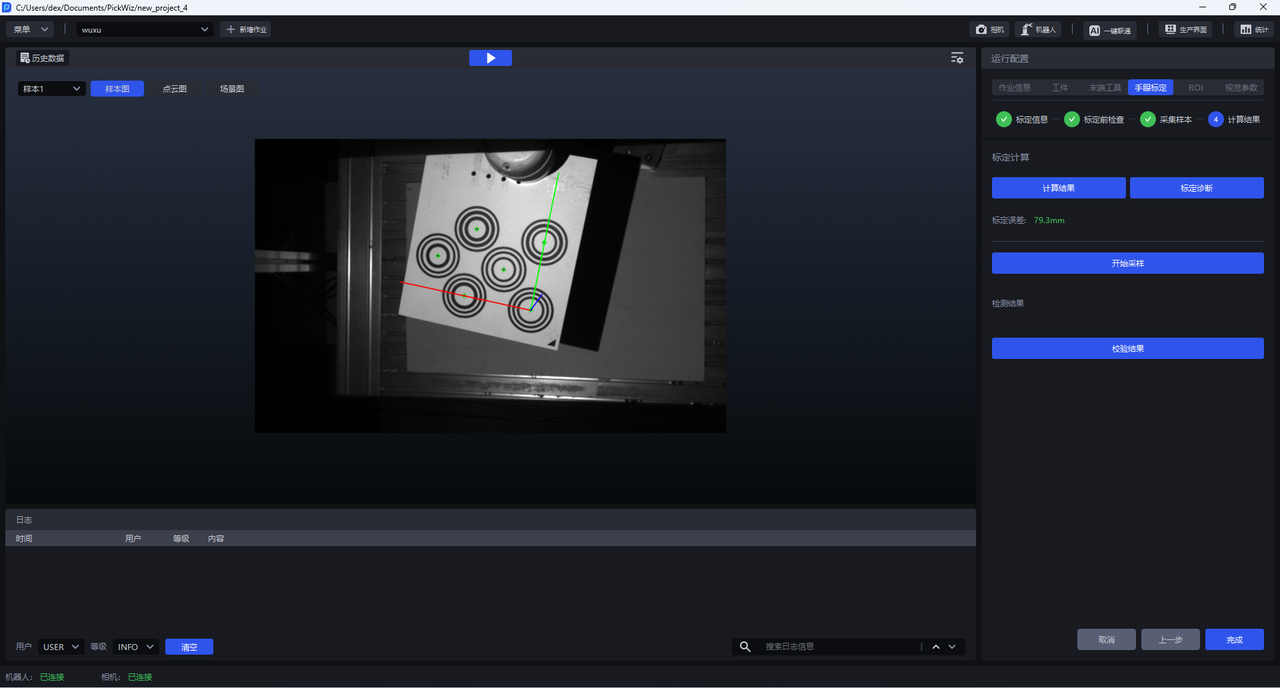
1.1 Error Plot
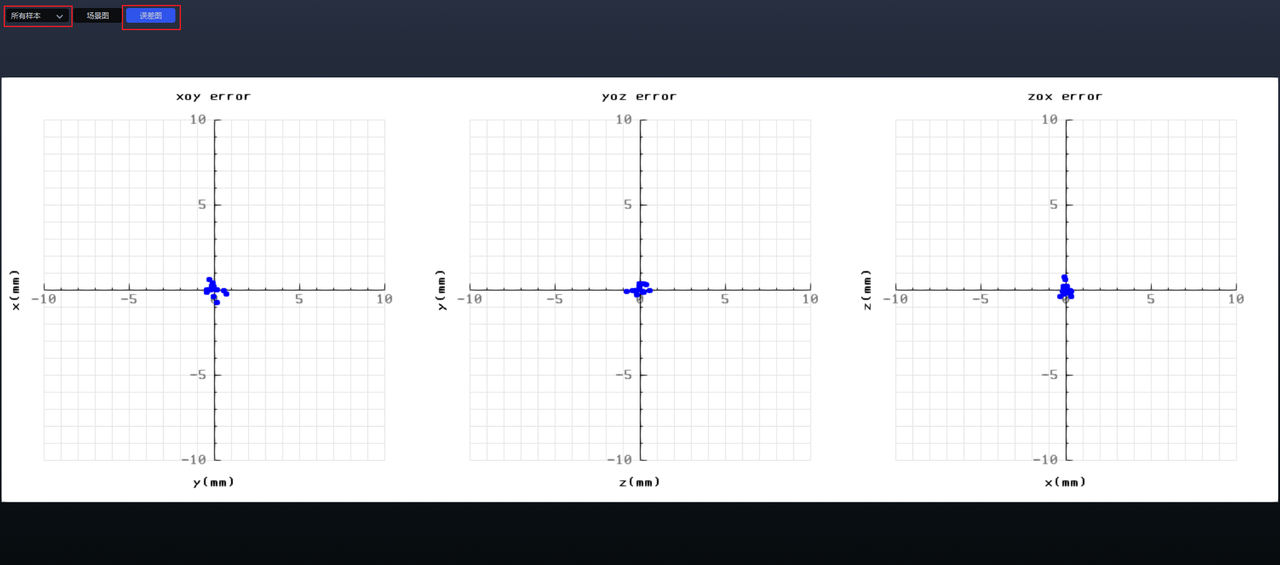
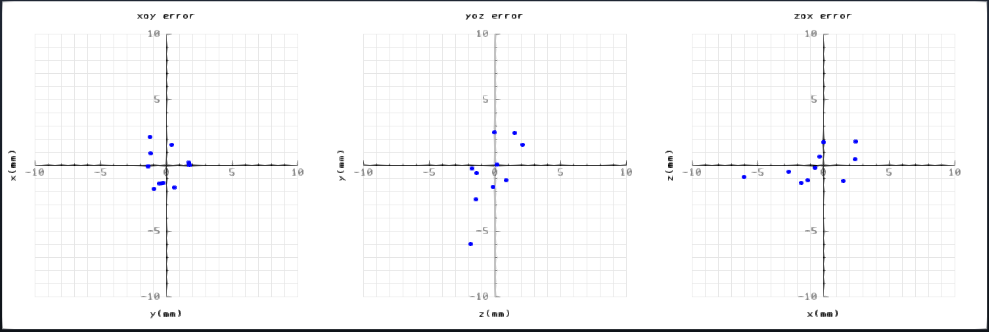
The error plot is used to display the deviation between the true position and the calculated position of each circle center on the Calibration Board. There are 3 error plots, which display the errors on the XoY, YoZ, and ZoX planes respectively. Each plane uses the true position of the Calibration Board circle center as the origin. By observing the deviation of the calculated position on these three planes, you can intuitively see the deviation of each circle center in different directions. One small grid represents one millimeter of error.
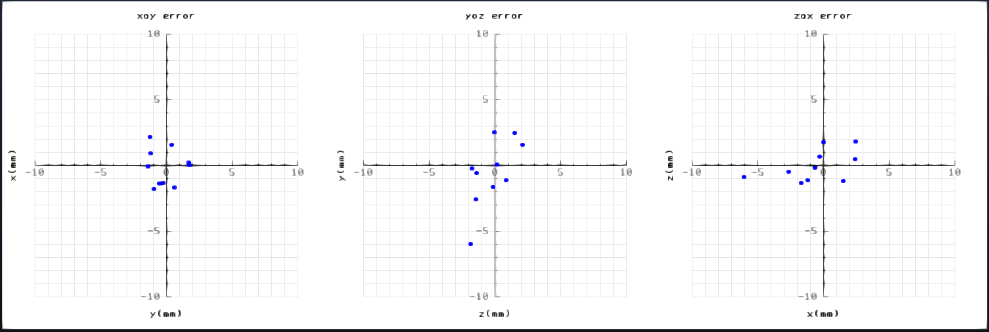
Check the distribution of the dots in the 3 plots. If the dots in all 3 plots are distributed in the center, it indicates that the error between the true position and the calculated position of each circle center on the Calibration Board is small, and the calibration result is usable, as shown below.
If the dot distribution is scattered, it indicates that the error between the true position and the calculated position of the circle centers on the Calibration Board is very large, and the calibration result is unusable. It is necessary to filter collected samples or recalibrate, as shown below.
1.2 Scene View
The scene view is used to display the distribution of the Robot base and the pose of the end of the robot arm during sampling. The larger coordinate axes represent the robot base coordinates, and the several smaller coordinate axes represent the robot arm end coordinates for each sampling.
During calibration diagnosis, only structured-light cameras (Xema, Finch, and Sparrow series cameras) have scene point clouds. Stereo cameras (Kingfisher series cameras) do not have scene point clouds.
The figure below shows the scene view of all samples. You can observe the pose distribution of the end of the robot arm. If the end of the robot arm is distributed relatively evenly and the coordinate axes have relatively large-angle rotations, it indicates that the calibration result is usable.
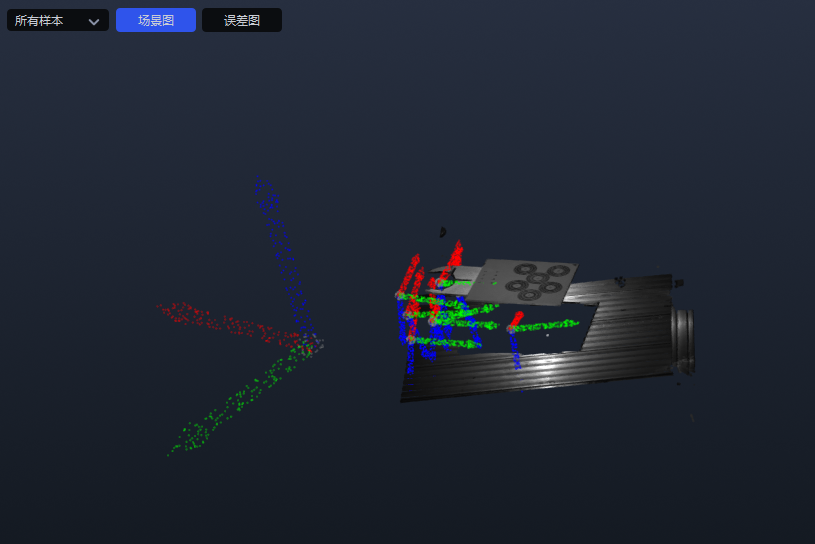
If the scene view of all samples shows that the distribution of the robot arm end is relatively concentrated or the coordinate-axis rotation angles are relatively small, the calibration result is unusable. You can switch the Scene View of Sample x to view the robot base coordinates and robot arm end coordinates for each sampling one by one and find the abnormal samples.
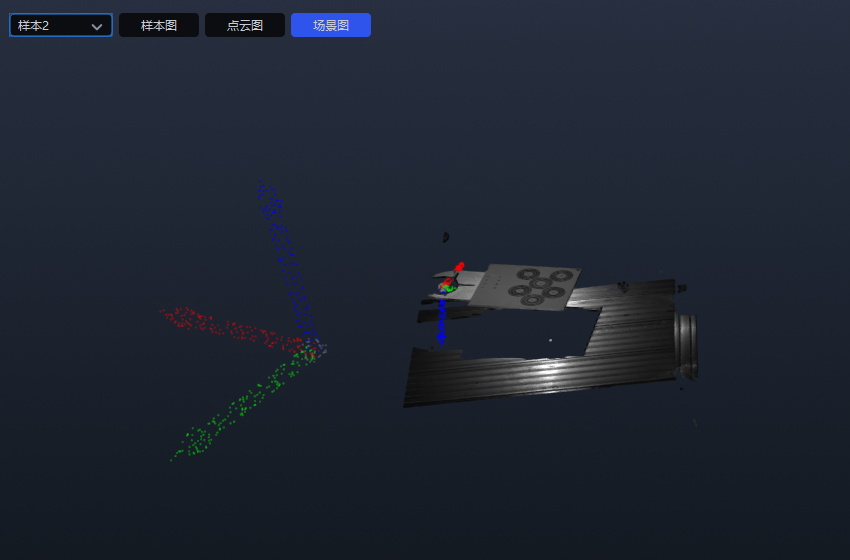
After finding the abnormal samples, if Get Coordinates Online is selected as Yes, filter collected samples or recalibrate. If Get Coordinates Online is selected as No, first check whether the order or units of the manually entered robot pose are incorrect. If there is an error, correct it and click Calculation Results to recalculate the calibration result. If there is no error, filter collected samples or recalibrate.
1.3 Point Cloud View
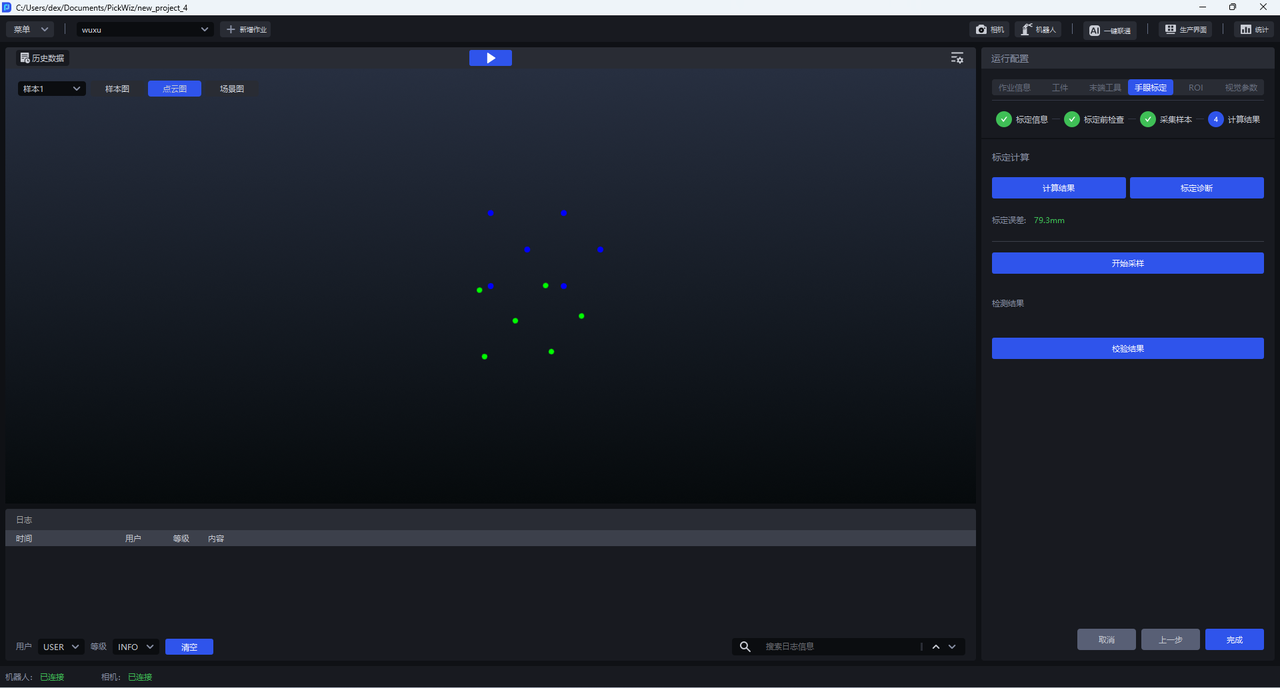
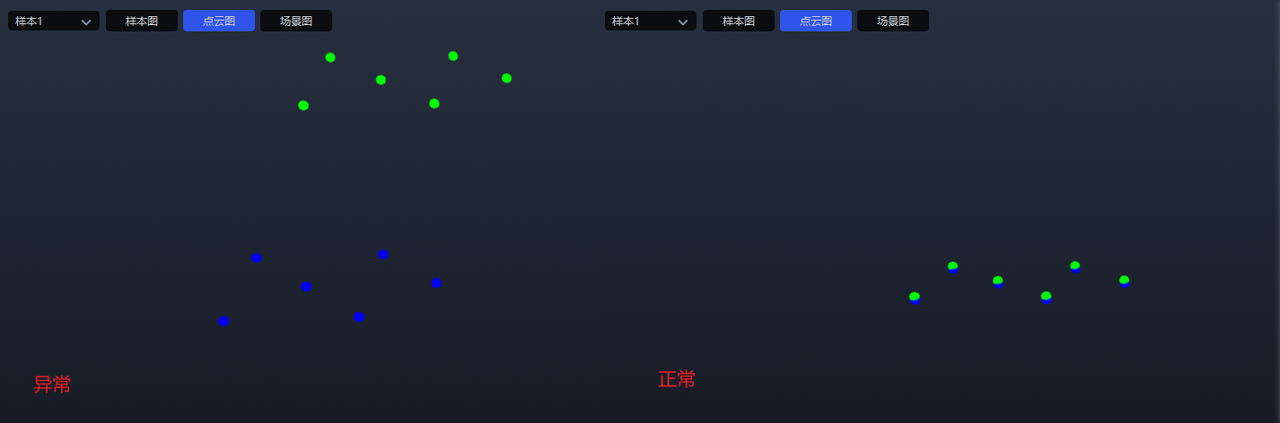
The point cloud view is used to display the reprojection of the Calibration Board during each sampling. The blue points represent the standard Calibration Board Pose, and the green points represent the Calibration Board Pose after reprojection. The higher the overlap between the blue points and the green points, the higher the accuracy of the calibration result.
Switch the Point Cloud View of Sample x to view the reprojection of the Calibration Board during each sampling, as shown below.
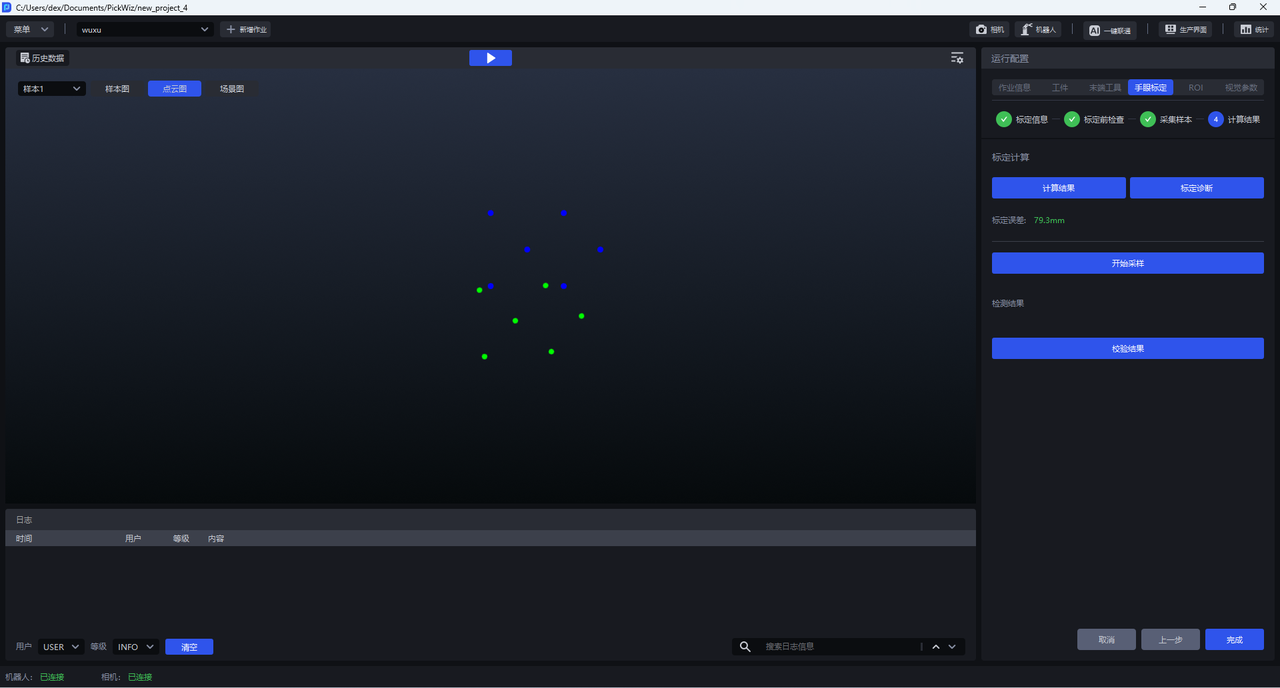
If the overlap between the blue points and the green points is low or there is no overlap at all, it indicates that the calibration result is unusable. If Get Coordinates Online is selected as Yes, filter collected samples or recalibrate. If Get Coordinates Online is selected as No, first check whether the order or units of the manually entered robot pose are incorrect. If there is an error, correct it and click Calculation Results to recalculate the calibration result. If there is no error, filter collected samples or recalibrate.
2. Verify Calibration Results
After eye-hand calibration is completed, you can verify whether the calibration results meet the requirements by controlling the robot needle-point tool to touch a point and comparing the robot coordinates with the coordinates provided by the vision system.
Before verification, confirm on the teach pendant that the robot's current coordinate system is consistent with the coordinate system used during calibration
- Enter the
Calculation Resultsstage and place the Calibration Board used during calibration within the Camera field of view.
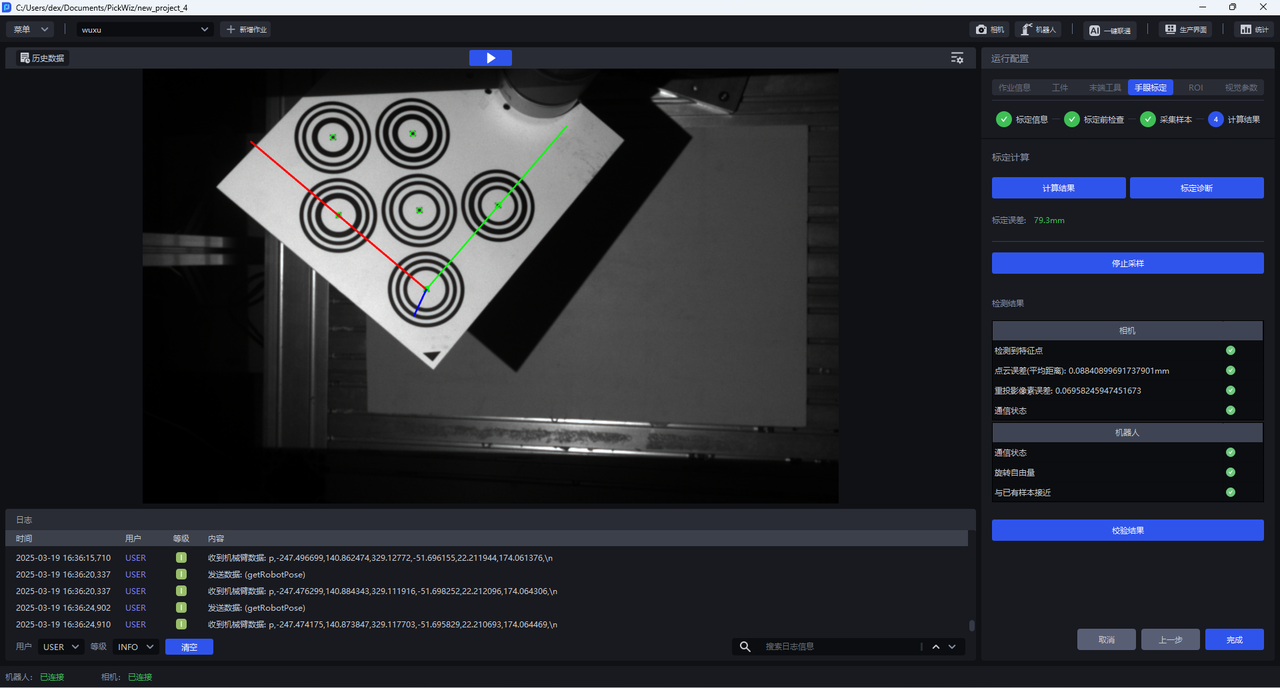
Click
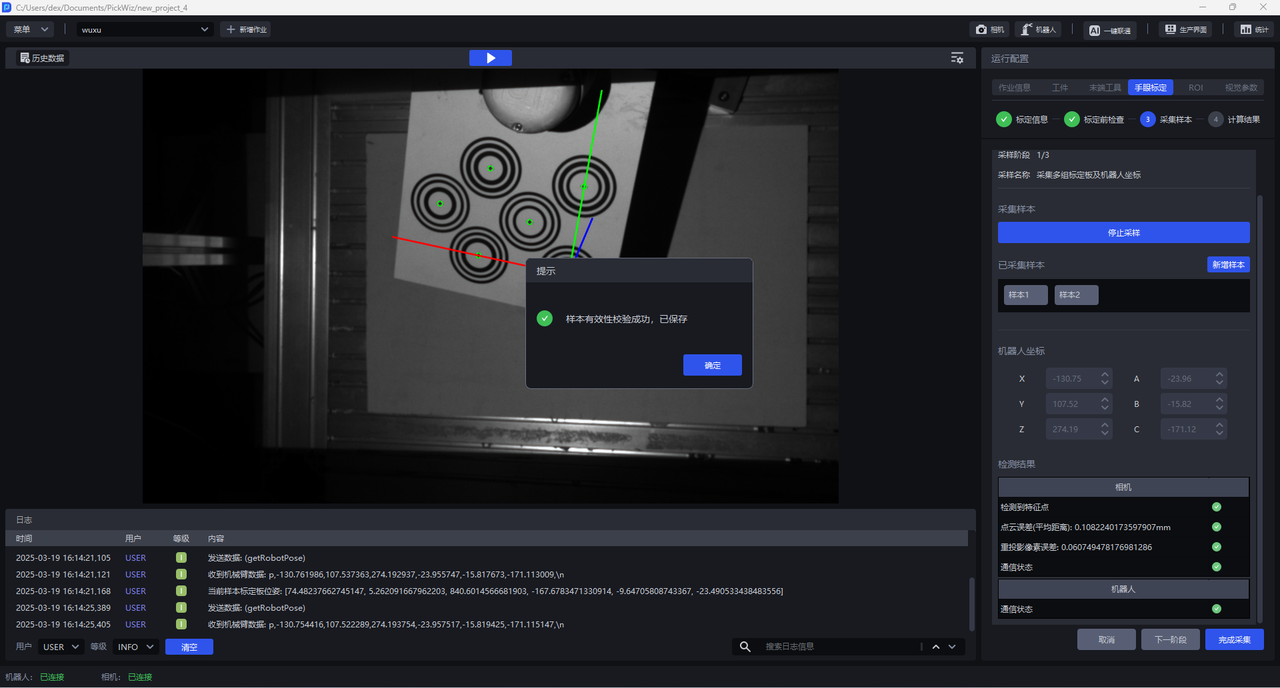
Start Sampling. TheStart Samplingbutton will change toStop Sampling. After both camera detection and robot detection pass with green icons, a coordinate axis will appear on the Calibration Board in the visualization window, and the center of each concentric circle will turn green.Click the
Verification Resultbutton, and theCoordinates in Robot Base Coordinate Systempopup will appear. This coordinate is the coordinate of the coordinate-axis center on the Calibration Board in the robot base coordinate system.
If Get Coordinates Online is Yes, this coordinate is calculated automatically, as shown below.
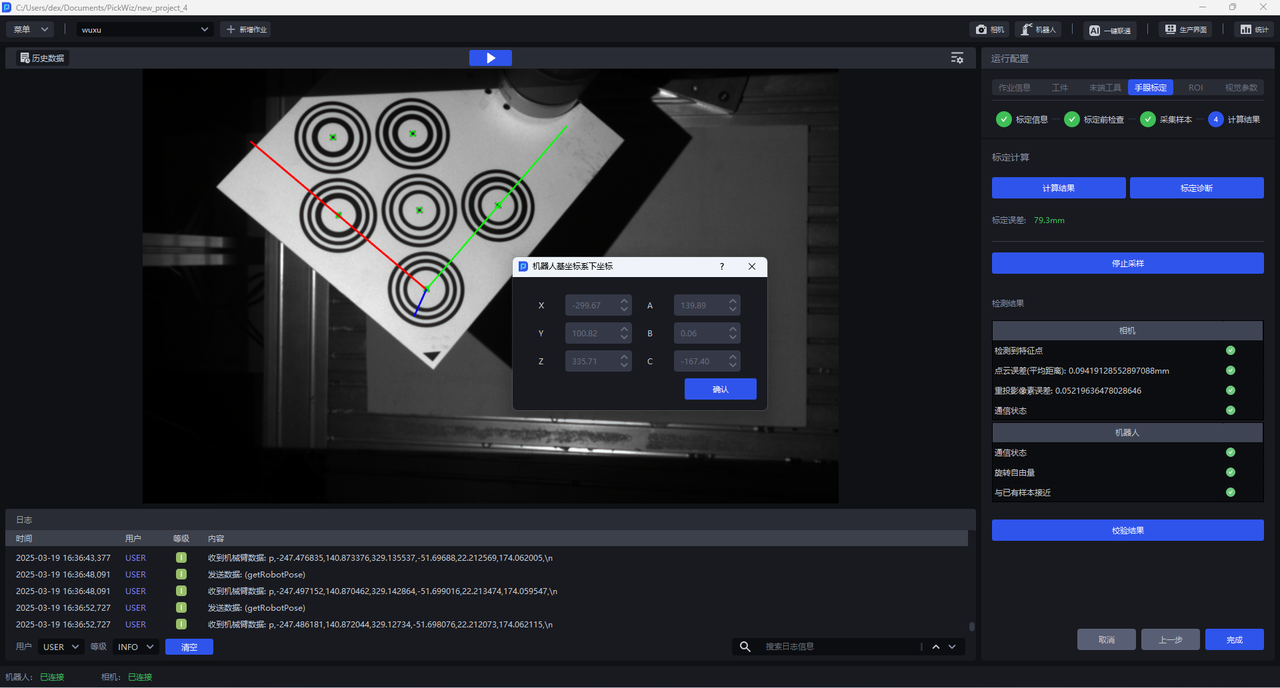
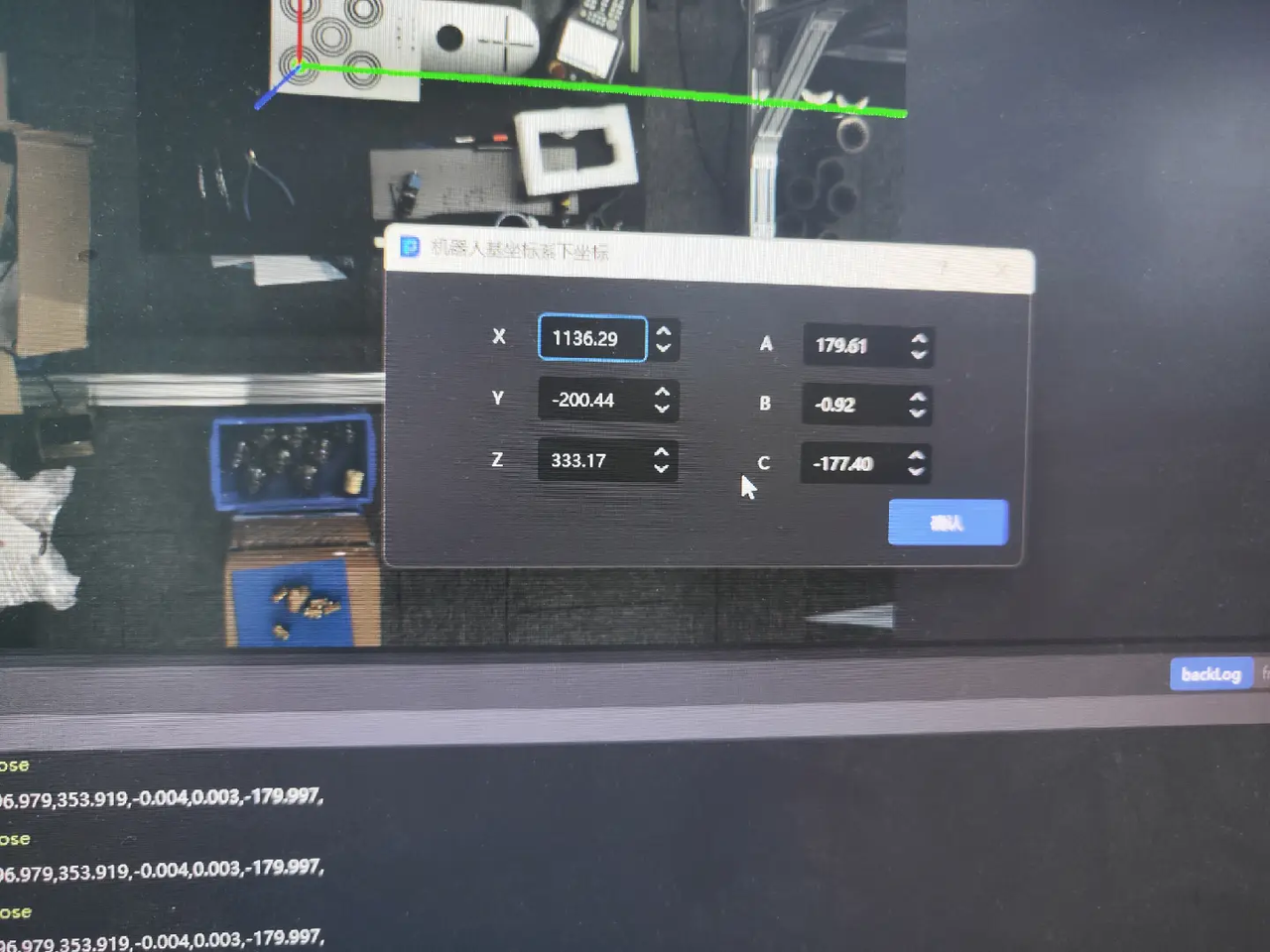
If Get Coordinates Online is No, this coordinate must be filled in manually first, as shown below.
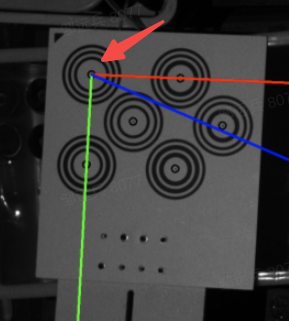
- Install the needle-point tool at the end of the robot arm, create a new tool coordinate at the tip of the needle-point tool, and control the Robot to move so that the needle tip points to the coordinate-axis center on the Calibration Board, as shown below.
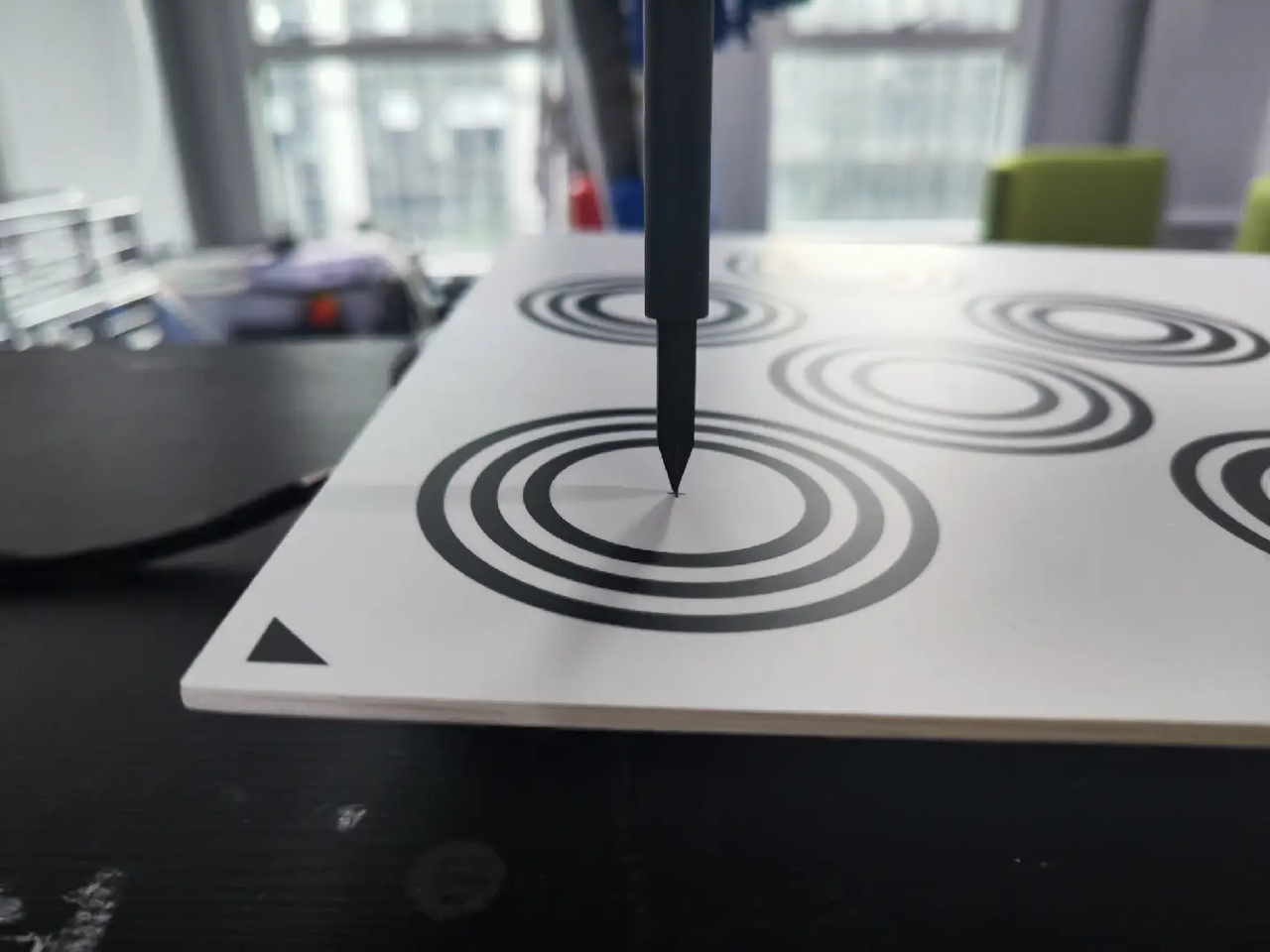
- Compare the needle-tip coordinate provided by the vision system at this time with the needle-tip coordinate on the robot teach pendant to determine whether the calibration result accuracy meets the requirements. If the difference between the two is small, the calibration result is usable. Otherwise, the calibration result is unusable. Check whether the order or units of the manually entered pose are incorrect and whether there is any deviation in the needle-point tool touch point. If everything is correct, recalibrate.
3. Filter Collected Samples
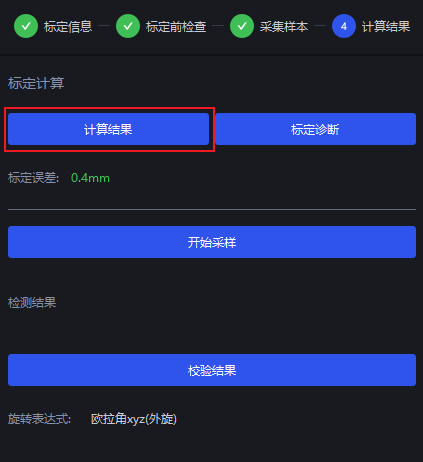
After clicking Calculation Results, PickWiz will filter out the samples with excessively large errors in Collected Samples and exclude them from the final calibration calculation. You can view the grayed-out samples in Collected Samples during the sampling stage, and the filtered sample IDs will be prompted below.
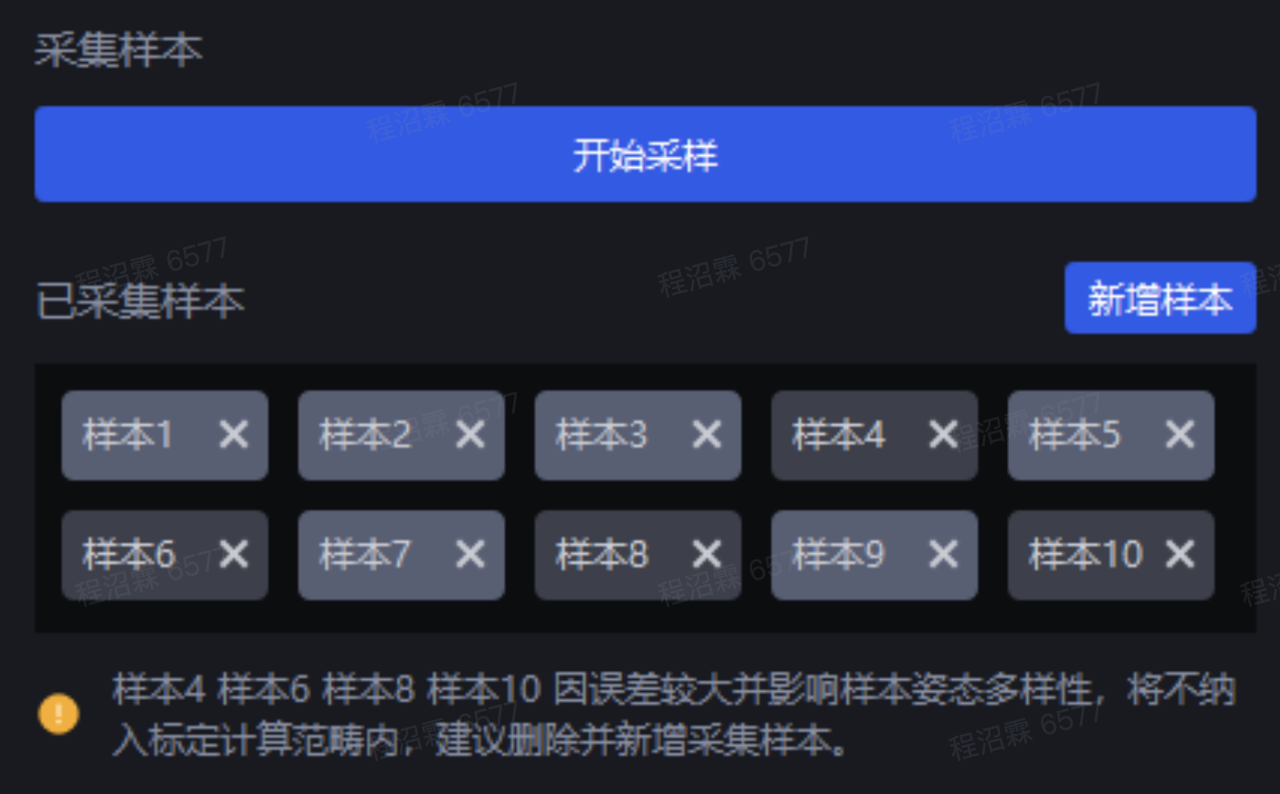
If the sample's error plot, scene view, and point cloud view in Calibration Diagnosis show good calibration accuracy, keep the filtered samples. Otherwise, delete the filtered samples.