Repeated Positioning Accuracy Operation Guide
In PickWiz, repeated positioning accuracy refers to the consistency error calculation of the results when the vision recognition system recognizes the position of the same object multiple times. It can be used to troubleshoot the stability of vision system recognition. Influencing factors include Camera accuracy and vision recognition accuracy.
1. Calculate Repeated Positioning Accuracy Using Camera Data
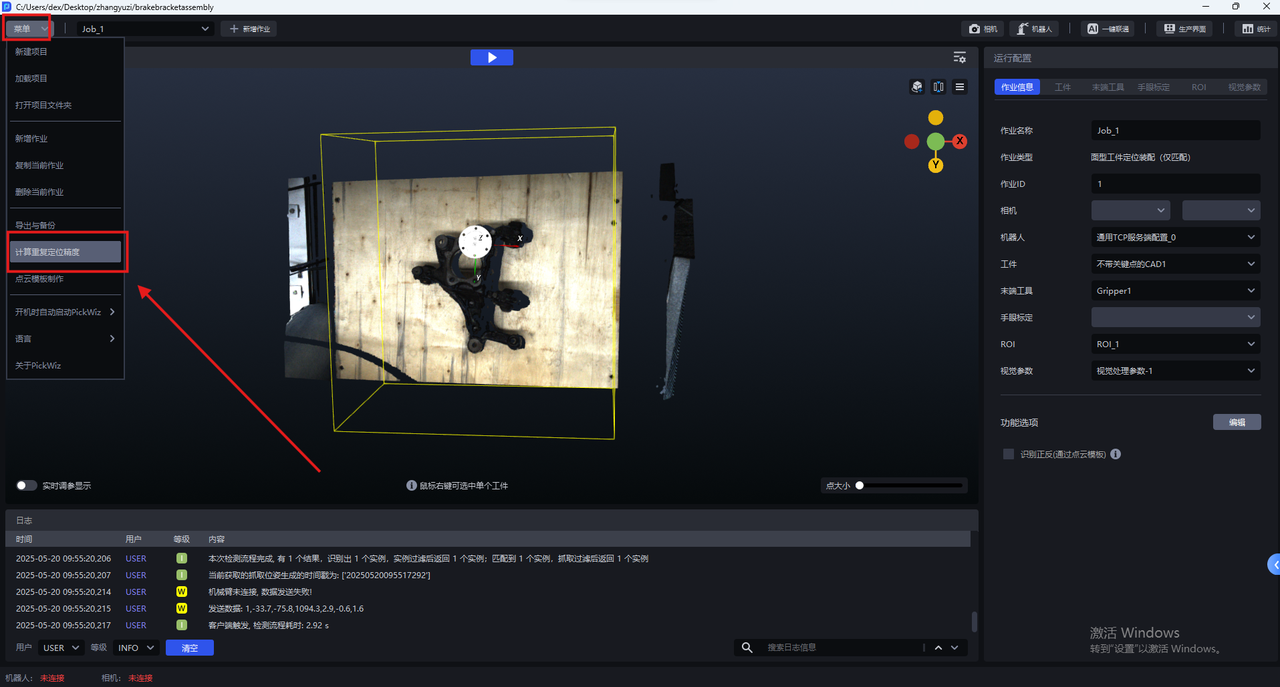
After entering the PickWiz main page, connect the Camera and Robot, place a single Target Object within the Camera field of view, and configure the task according to the actual scenario (see Task Operation Guide). Click Menu, then click Compute Repeated Positioning Accuracy.
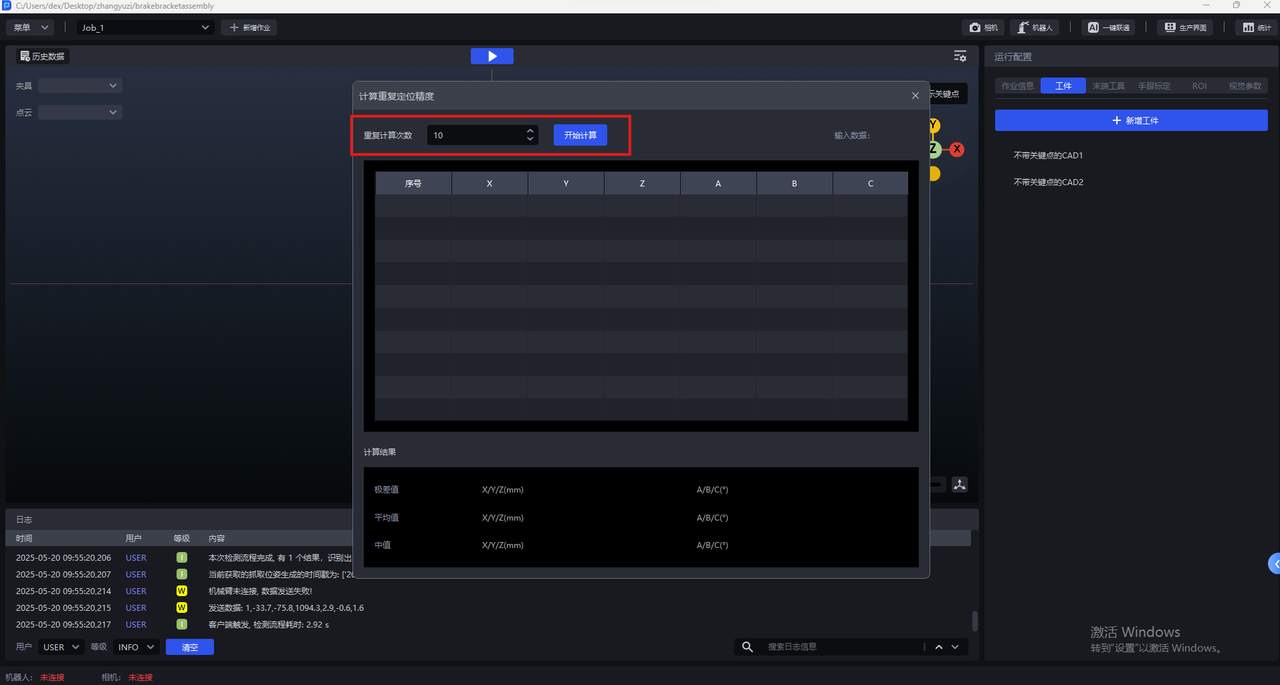
Enter the repeated positioning accuracy calculation panel and set the number of repeated calculations. The default is 10 times. The more times you calculate, the more accurate the result. After the settings are complete, click Start Calculation.
Note
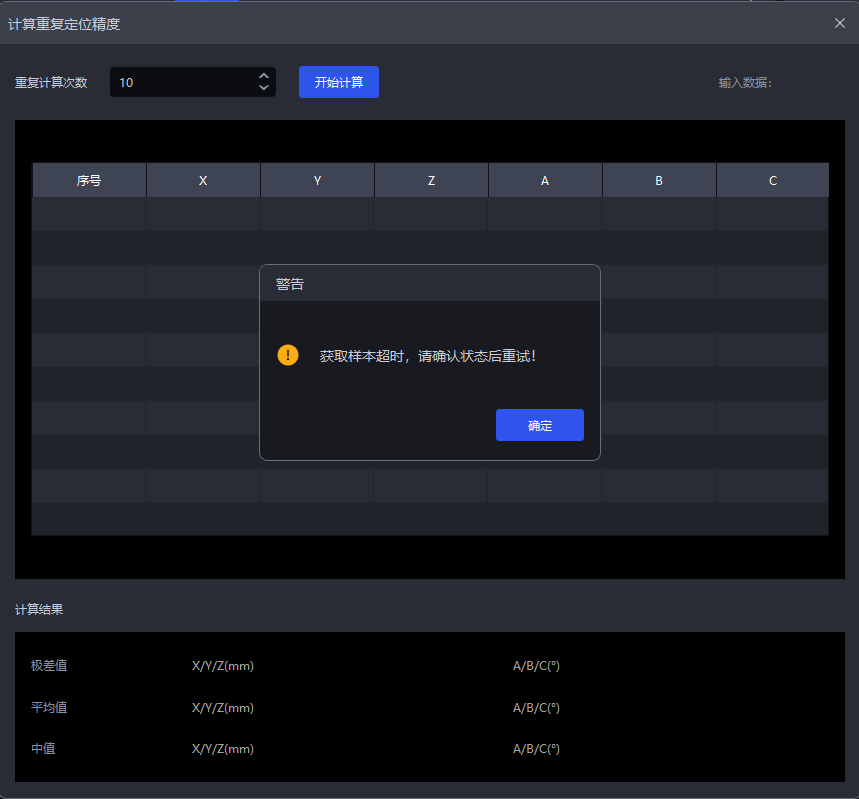
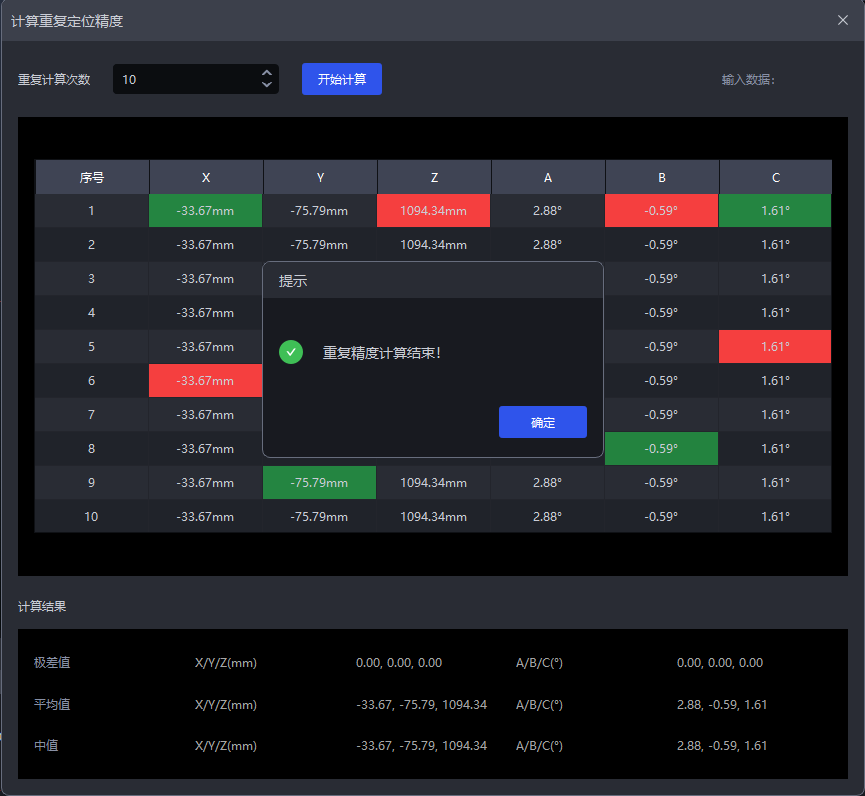
If no pose data or running progress is generated for a long time after clicking
Start Calculation, and then a timeout pop-up appears (as shown below), an abnormal run has occurred. Click OK, close the repeated accuracy calculation page, and go to the log section on the main page to troubleshoot the cause.
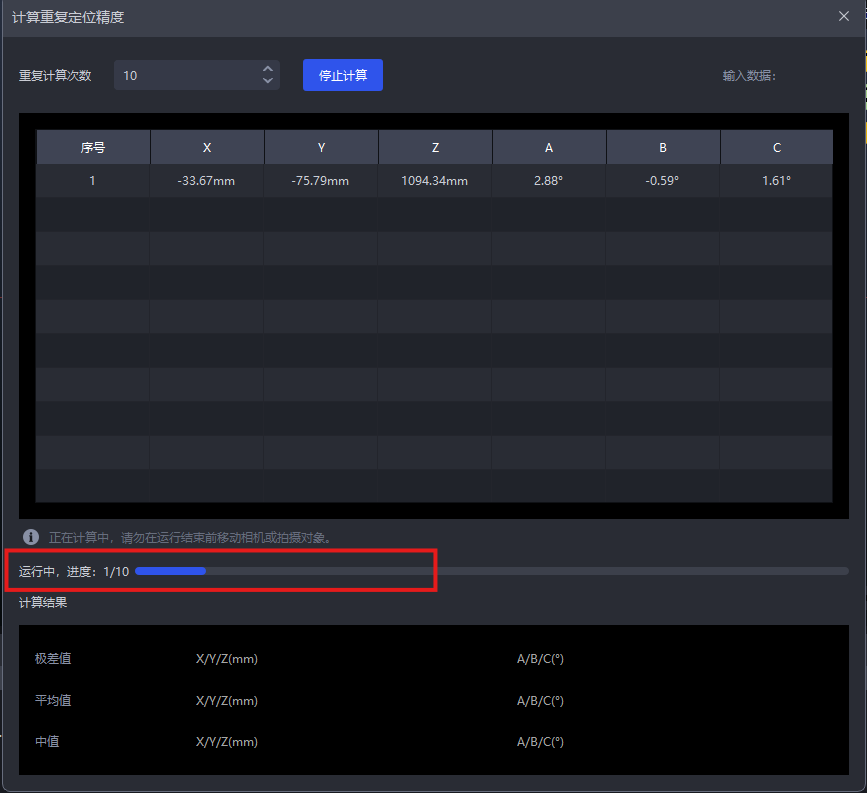
The accuracy calculation runs automatically. The pose information obtained during operation is automatically summarized on the page, and the range, average, and median of the poses are calculated. You can view the running progress above the calculation results.
After the configured number of repeated calculations is completed, a prompt pop-up appears automatically. Click Confirm.
As shown below, after the repeated accuracy calculation is completed, you can view the pose information of the Target Object for each calculation and the accuracy calculation results on the page.
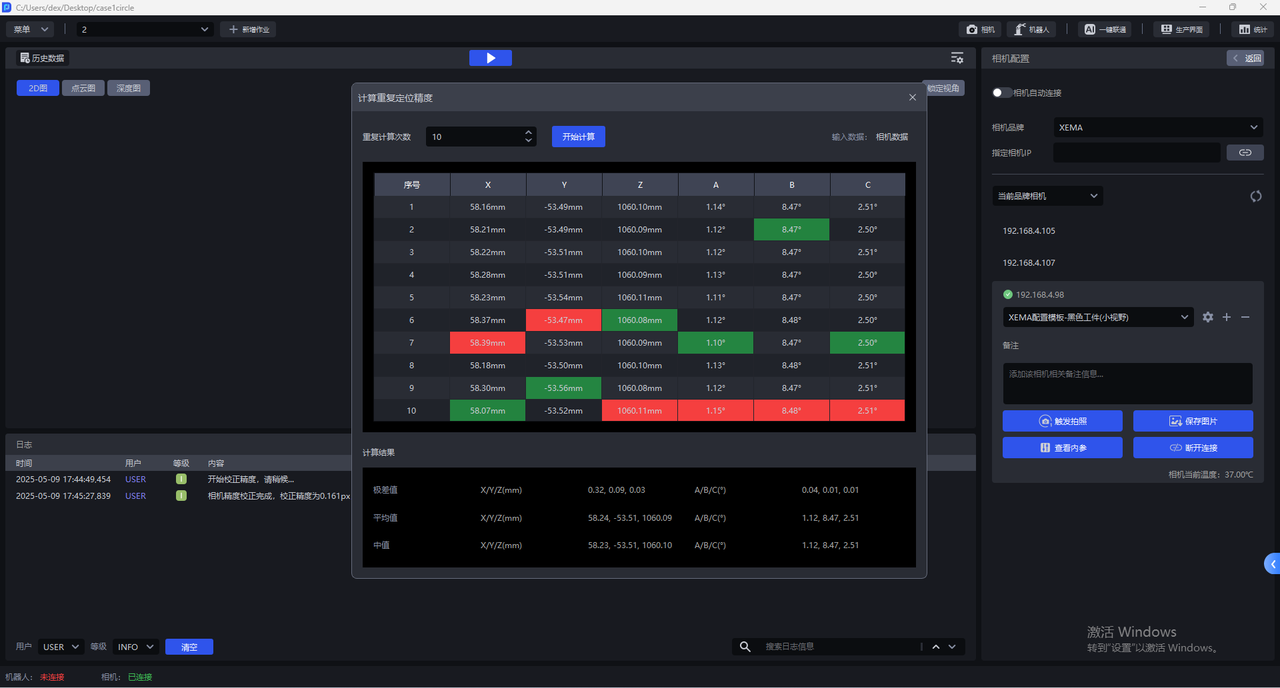
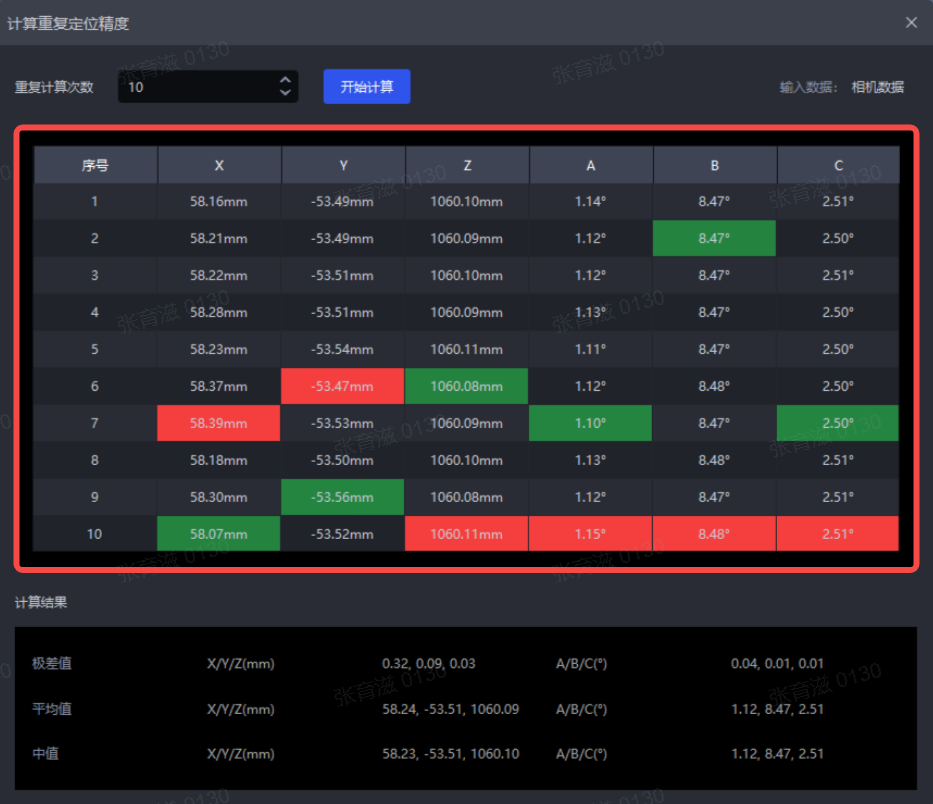
(1)Target Object Pose Information
As shown below, you can view the 6D pose information (X, Y, Z, A, B, C) of the Target Object obtained in each calculation in the middle of the interface. The red values indicate the maximum value of each degree of freedom across N calculations, and the green values indicate the minimum value of each degree of freedom across N calculations.
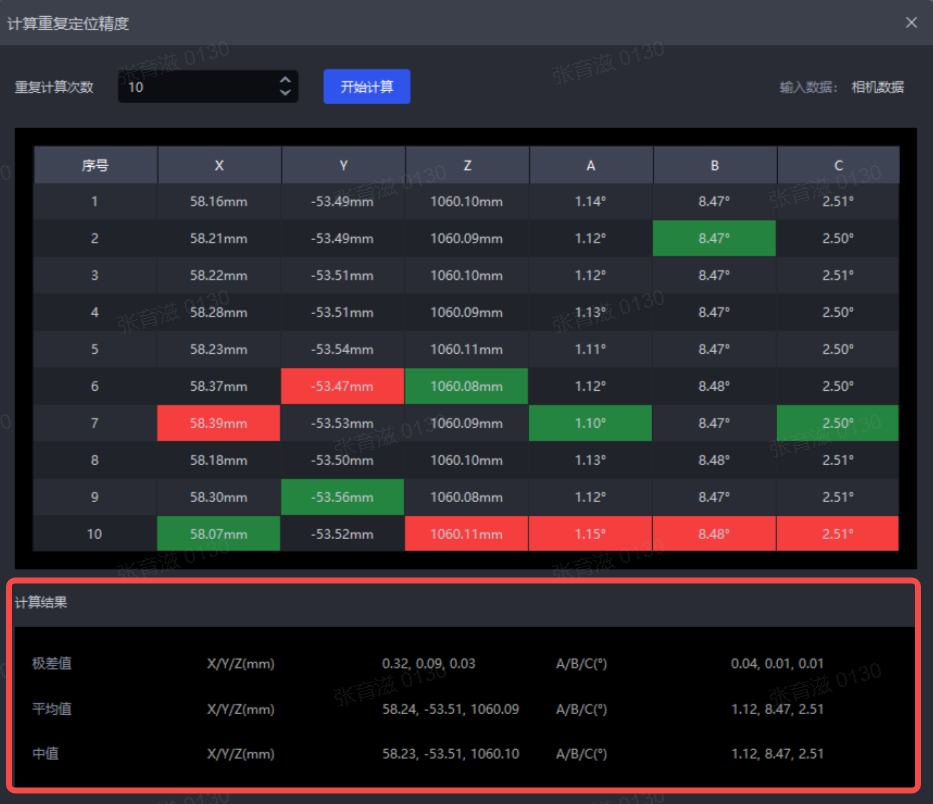
(2)Accuracy Calculation Results
At the bottom of the interface, you can view the range, average, and median of each parameter across N runs.
| Parameter | Calculation Method |
|---|---|
| Range | Difference between the maximum and minimum values of each degree of freedom in the N calculation results |
| Average | Sum of each degree-of-freedom value in the N calculation results / N |
| Median | Median of each degree-of-freedom value in the N calculation results after sorting |
In most cases, a range of less than 0.5 mm for the X/Y/Z-axis coordinates is sufficient to meet the accuracy requirements of general scenarios. If the actual scenario has higher accuracy requirements, the range of the X/Y/Z-axis coordinates should be smaller, such as ±0.1 mm. If the range is too large, you can improve accuracy by checking the following aspects: whether the Robot and Camera are installed securely, Robot absolute accuracy, Camera Point Cloud quality, Camera Intrinsic Parameter, recognition accuracy, etc.
2. Calculate Repeated Positioning Accuracy Using Historical Data
- Select multiple historical data entries
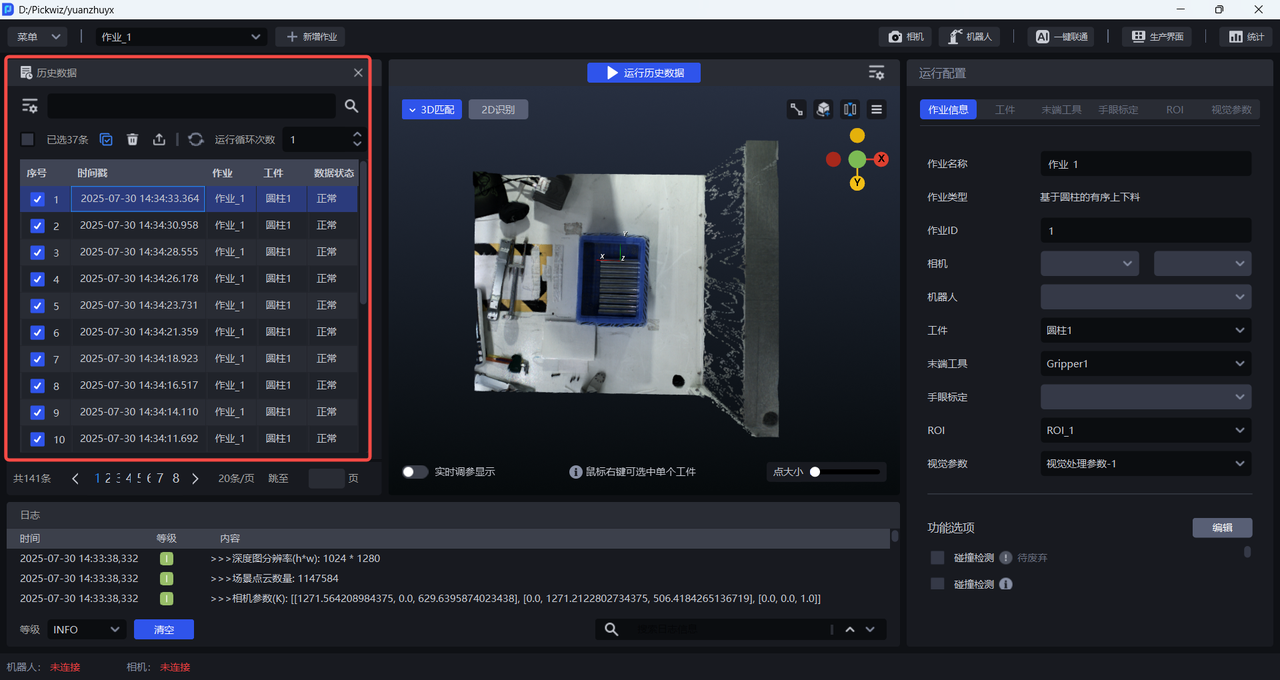
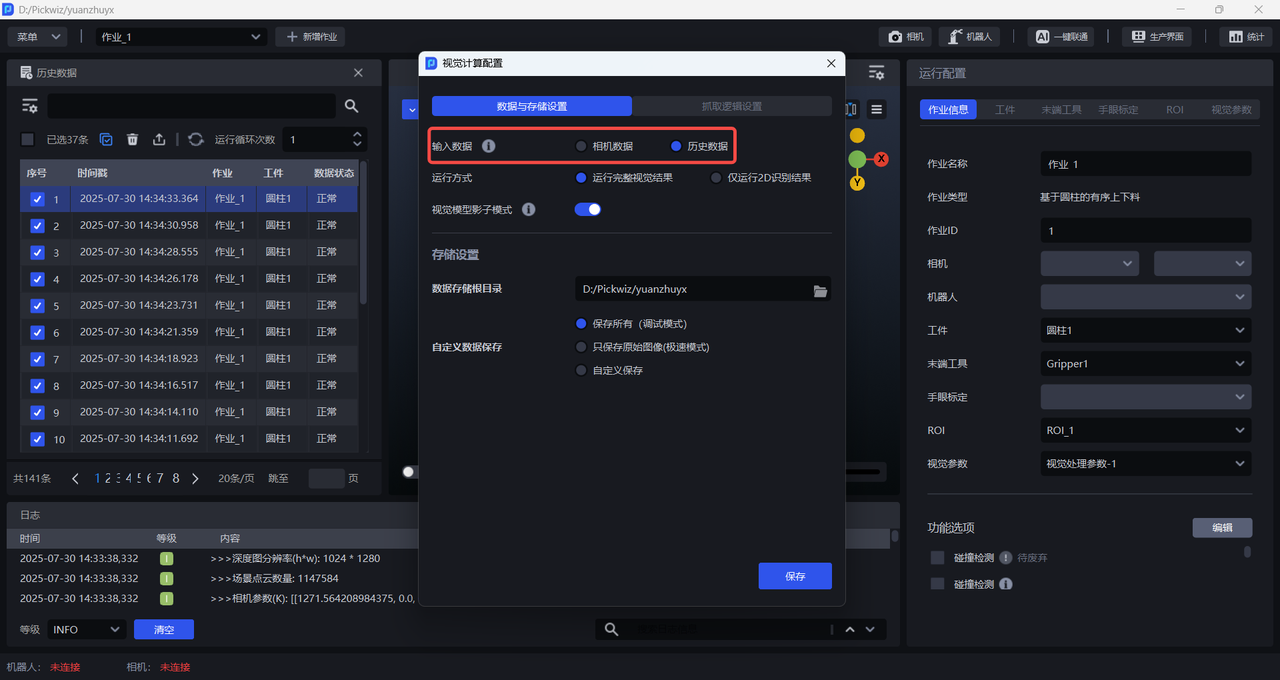
- In the
Vision Computation Configurationpage, switchInput DatatoHistorical Dataand save
- Then click
Compute Repeated Positioning AccuracyinMenu, open theCompute Repeated Positioning Accuracypage, and clickStart Calculation
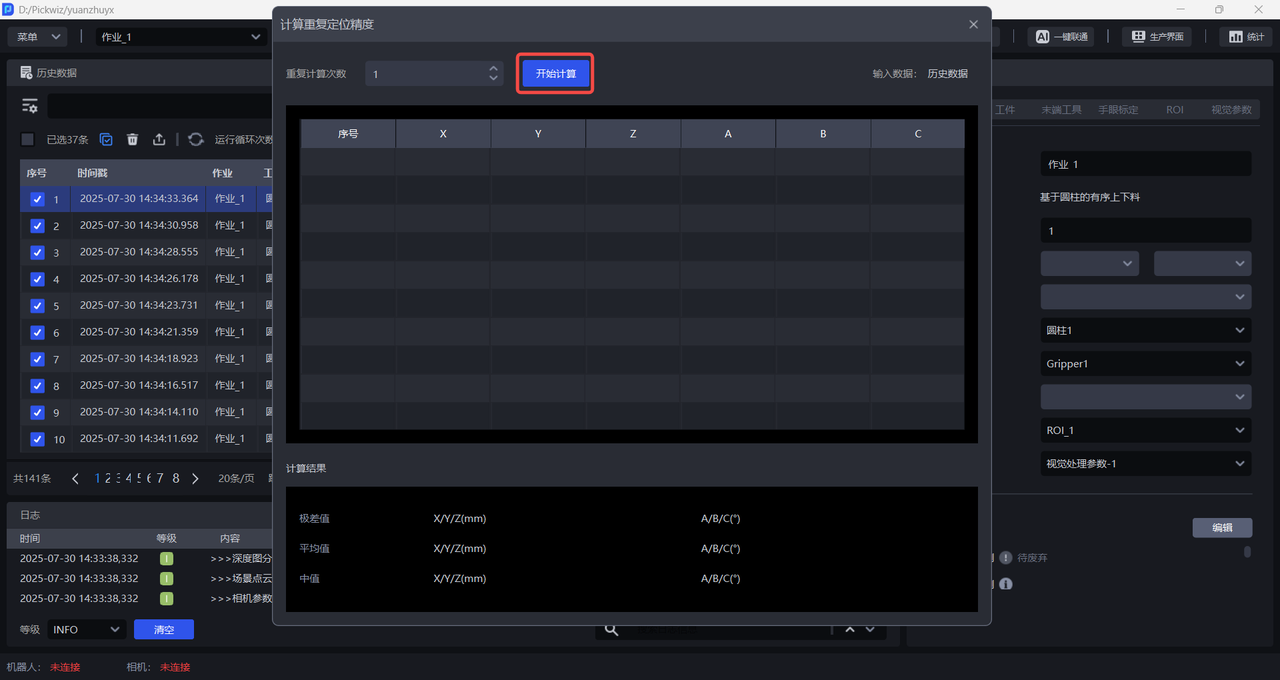
- After the calculation is complete, you can view the pose information of the Target Object for each calculation and the accuracy calculation results on the page.