
Carton Depalletizing Visual Parameters
4. Configure Carton Depalletizing Visual Parameters
During initial setup, keep the default visual parameters and use the same set of representative data to establish a baseline. Prepare data for neatly stacked cartons, interleaved stacks, the topmost layer, and the bottommost layer. Adjust only one processing stage at a time.
4.1 Check 2D Instance Recognition
First, run the default configuration and confirm that:
- Each pickable carton has one complete mask.
- No single carton is split into multiple instances.
- Adjacent cartons are not merged into one instance.
- The pallet, equipment, and cartons on lower layers are not recognized as current pick targets.
If recognition is abnormal, check the following in order:
- Scaling ratio: The default value is
1.0. If instances are missed, merged, or incompletely segmented, make small adjustments and compare the results. - Minimum confidence threshold: The default value is
0.5. Lowering the threshold retains more candidate instances but may increase false recognition. Raising it filters out results with low confidence but may cause instances to be missed. - Auto enhancement: Enable it only if recognition remains unstable after adjusting the scaling ratio and confidence threshold. This function increases processing time, so verify both the recognition rate and cycle time after enabling it.
For detailed parameters, see the 2D Instance Segmentation Configuration Guide.
4.2 Extract Top-Layer Carton Texture
When the model recognizes cartons on both upper and lower layers, or when tightly packed or interleaved stacks, occlusion, or similar textures cause confusion between layers, add “Extract Top-Layer Texture” to 2D preprocessing.
Adjust the parameters in this order:
- The default distance threshold is
50 mm. For the first adjustment, try approximately half the carton height. - If lower-layer cartons are still retained, reduce the distance threshold appropriately. If the texture of top-layer cartons is incomplete, increase it appropriately.
- The default number of clustering point cloud points is
10000. Increasing it can improve clustering accuracy but also increases processing time. - The default minimum number of category points is
1000. Increasing it filters out more small regions. After adjusting it, confirm that no top-layer cartons have been removed by mistake. - Keep “Automatically Calculate Contrasting Background” enabled. Adjust the background color threshold only when a fixed background color is needed.
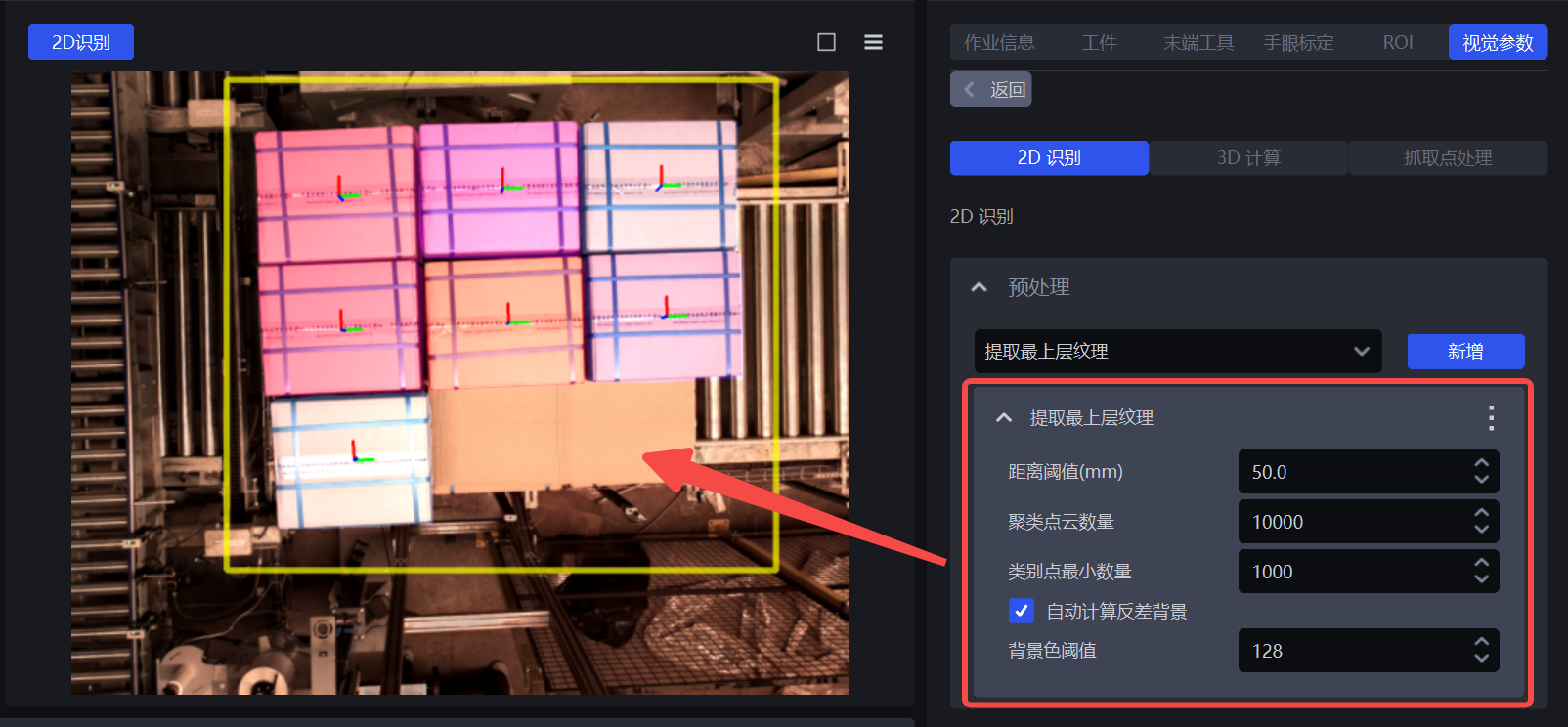
During validation, inspect more than the colored masks. Confirm that the texture of the actual top-layer cartons is fully retained and that lower-layer cartons and surrounding areas have been set as the background. For details, see Extract Top-Layer Texture.
4.3 Configure Instance Sorting
Carton depalletizing should output the highest-layer instances first. If the positive Z direction of ROI 3D has already been set to point upward, use the ROI coordinate system and establish the sorting strategy in this order:
- For the first priority, select “Instance Point Cloud Center Z Coordinate Value, Descending.”
- Start by setting the Z-direction grouping step to approximately half the carton height so that cartons at similar heights are grouped into the same layer.
- When the picking route within a layer needs to be controlled, add Y- and X-direction strategies based on the robot’s position and obstacle avoidance requirements.
- Multiple strategies are executed in list order. Each subsequent strategy sorts only within the groups formed by the preceding strategy.
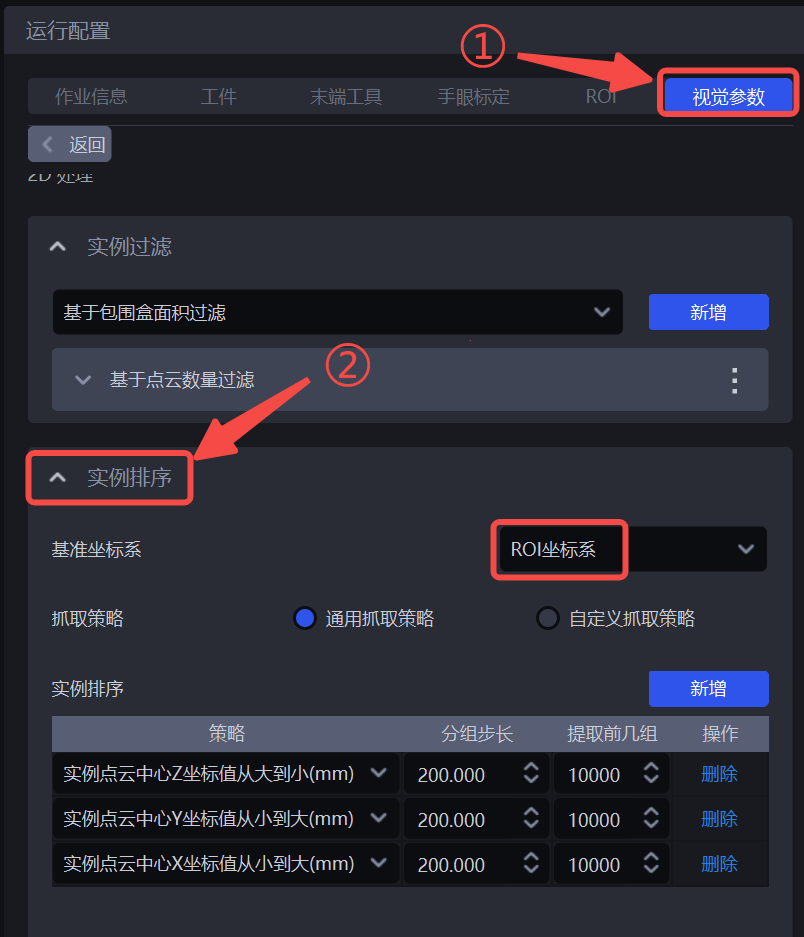
The values in the image only show where to configure the settings. Determine the actual grouping step from the carton height. After running, use the instance IDs and DEBUG logs to check whether:
- The highest-layer instances appear first.
- Cartons on the same layer are placed in the same group.
- After adding Y- and X-direction strategies, the picking order within a layer meets the robot path requirements.
If the order is reversed, check the Z-axis direction of the ROI coordinate system before changing the sorting direction. For details, see the Instance Sorting Configuration Guide.
4.4 Adjust the Point Cloud and Carton Pose
If the default configuration calculates poses reliably, no additional 3D preprocessing functions are needed. If point cloud noise or uneven carton surfaces occur, make adjustments according to the issue:
- For scattered noise points, add “Remove Point Cloud Outliers.” The default number of neighboring points is
30, and the default standard deviation multiplier is1.0. - If a substantial height difference across a carton’s surface affects its pose, try “Filter Point Cloud Points Beyond the Object Distance Limit.” A distance threshold that is too small may remove valid point cloud points, so this function is not part of the default configuration.
- Carton pose estimation typically uses the ROI coordinate system.
- The default neighborhood width and neighborhood length are both
50 mm. Increase them appropriately if surface irregularities make the pick point height unstable. An overly large range may include point cloud points from lower-layer or adjacent cartons.
The result should meet these conditions: the pose center is on the carton’s upper surface, the pose axes align with the carton edges, and the picking direction faces an accessible side of the carton.
For details, see the 3D Preprocessing Function Configuration Guide and the Carton Pose Estimation Configuration Guide.
Unit of the Rectangle Fitting Threshold
Existing documentation labels the unit of the rectangle fitting threshold as both m and mm. For this case, first keep the default value of 2.0 shown in the current interface. When adjusting it, follow the unit displayed in the current PickWiz interface rather than converting units directly.
4.5 Filter Pick Points on Occluded Cartons
The model may still recognize parts of lower-layer cartons. To prevent the robot from attempting to pick targets occluded by upper-layer cartons, add “Filter Pick Points on Occluded Targets” to pick point filtering.
The default parameters include:
- Cuboid lengths in the X, Y, and Z directions:
1500 mm,1500 mm, and800 mm. - Distance threshold between the detection region and the pick point origin:
50 mm. - Point cloud count threshold within the detection region:
1000. - Specified axis direction:
[0, 0, -1].
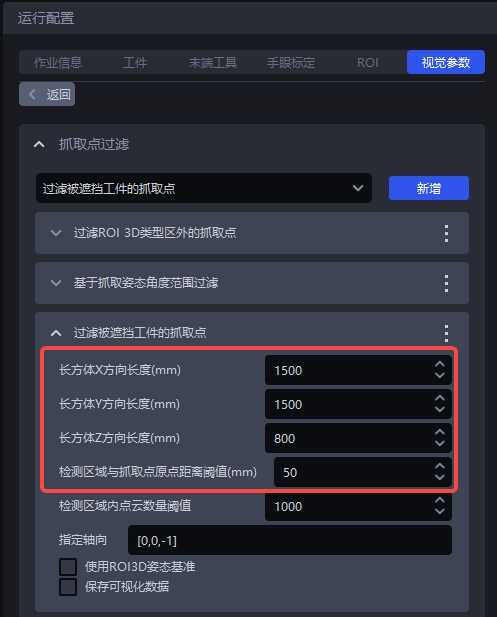
These defaults are not the final values for every site. During setup:
- Confirm that the specified axis direction matches the direction in which the end-effector approaches the carton.
- Adjust the cuboid dimensions according to the end-effector size and approach path.
- If occluded targets are not filtered out, reduce the point cloud count threshold appropriately.
- If valid pick points are filtered out by mistake, check whether the detection region is too large or the threshold is too low.
- Enable “Save Visualization Data” only when debugging the detection region.
For details, see Filter Pick Points on Occluded Targets.
4.6 Save and Validate the Parameters
After saving the visual parameters, run the prepared data sets repeatedly and check each processing stage in order:
- 2D: Whether top-layer cartons are recognized individually and completely.
- 3D: Whether the carton point clouds and poses are stable.
- Sorting: Whether the highest-layer cartons are output first.
- Pick points: Whether their positions, directions, and heights are appropriate.
- Filtering: Whether pick points on lower-layer or occluded cartons are filtered out.
- Logs: Whether the instance counts at each stage and the final output agree with the visualization results.
If a stage does not produce the expected result, return to that processing stage and adjust it separately to avoid changing multiple parameters at once.