
Project Configuration
Project Configuration
Project Directory
The project folder is the directory selected when creating or loading a project. Project configuration is stored in the config directory under the project folder:
<Project folder>\configWhen using the default project storage location, the project configuration path is typically:
C:\Users\<Windows username>\Documents\PickWiz\<Project name>\configCaution
Do not edit files in the config directory directly. Doing so may cause PickWiz errors or prevent it from working properly.
The data directory under the project folder stores the project's historical data:
<Project folder>\dataFor information on viewing and using historical data, see the Historical Data User Guide.
Configuration Directory
config is the root directory for project configuration. Its subdirectories store different types of configuration data. dexforce_proj.json records the tasks in the project and the relationships between each task and its configurations.
| Directory or File Name | Description |
|---|---|
| calibration | Stores eye-hand calibration configurations. |
| camera | Stores camera connection information and camera parameter configurations. |
| end_effector | Stores end-effector configurations. |
| PickLightMidData | Stores configuration data used by the visualization window. |
| product | Stores target configurations. |
| robot | Stores robot configurations and communication parameters. |
| roi | Stores ROI configurations. |
| roi2d | Stores ROI 2D configurations. |
| roi3d | Stores ROI 3D configurations. |
| scene_object | Stores configurations for scene objects such as bins and pallets. |
| strategy | Stores visual parameter configurations. |
| dexforce_proj.json | The project's root configuration file. It records the tasks in the project and specifies the camera, robot, target, end-effector, eye-hand calibration, ROI, visual parameters, and other configurations used by each task. |
Configurations and Task Information
After a project is created, PickWiz creates a default task. The Task Information page specifies the configurations used by the current task.
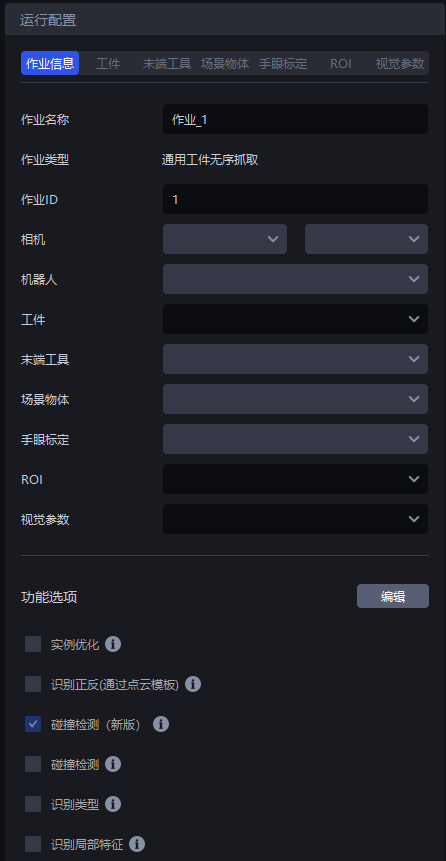
| Task Information | Description |
|---|---|
| Task Name | The name of the current task. It can be changed. |
| Task Type | The task scenario for the current task. It is set when the project or task is created and cannot be changed afterward. |
| Task ID | The unique identifier of the current task. The robot can switch tasks using the Task ID. |
| Camera | Specifies the camera and camera parameters used by the current task. For configuration instructions, see the Camera Connection and Parameter Adjustment Guide. |
| Robot | Specifies the robot used by the current task. For robot configuration and communication instructions, see the Robot Configuration Guide. |
| Target | Specifies the target used by the current task. For instructions on creating and configuring a target, see the Target Configuration Guide. |
| End-effector | Specifies the end-effector used by the current task. For creation and configuration instructions, see the End-effector Configuration Guide. |
| Scene Object | Specifies the scene objects used by the current task, such as bins and pallets. For configuration instructions, see the Scene Object Configuration Guide. After enabling Pallet Detection, Partition and Pallet Detection, or collision detection, configure the corresponding scene objects for the actual scene. |
| Eye-hand Calibration | Specifies the eye-hand calibration configuration used by the current task. For instructions, see the Eye-hand Calibration Operation Guide. |
| ROI | Specifies the ROI configuration used by the current task. For instructions, see the ROI Configuration Guide. |
| Visual Parameters | Specifies the visual parameter configuration used by the current task. Refer to the visual parameter adjustment guide for the task scenario. |
| Feature Options | Click “Edit” to adjust features such as collision detection, Type Identification, Local Identification, and Pallet Detection. PickWiz displays the corresponding target, scene object, and visual parameter configuration options based on the selected features. |