
Partition and Pallet Detection User Guide
Partition and Pallet Detection is mainly used in orderly Scenes where a partition sits below each layer of Targets. After picking the Targets, the robot must also pick the partitions and pallet. This guide explains how to configure and use the function.
1. Operation Guide
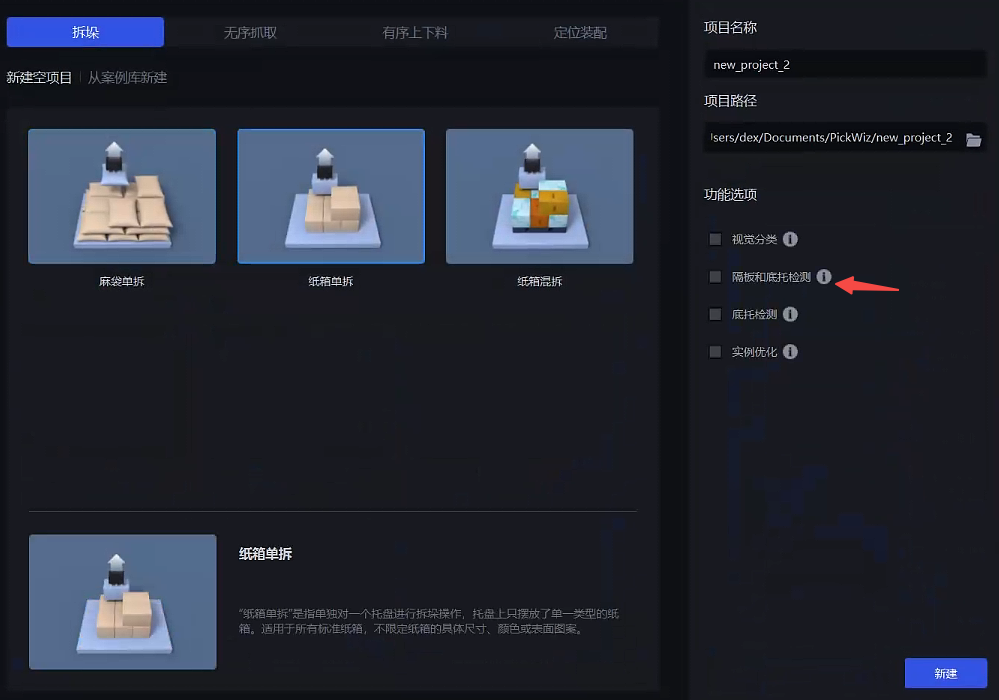
When there are partitions under each layer of Target in the actual Scene, when creating a new project or creating a new Task, check the Partition and Pallet Detection function; if it is not checked when creating a new project or create a new Task, in the Task Information Interface, click Edit on the lower right, and then check Partition and Pallet Detection
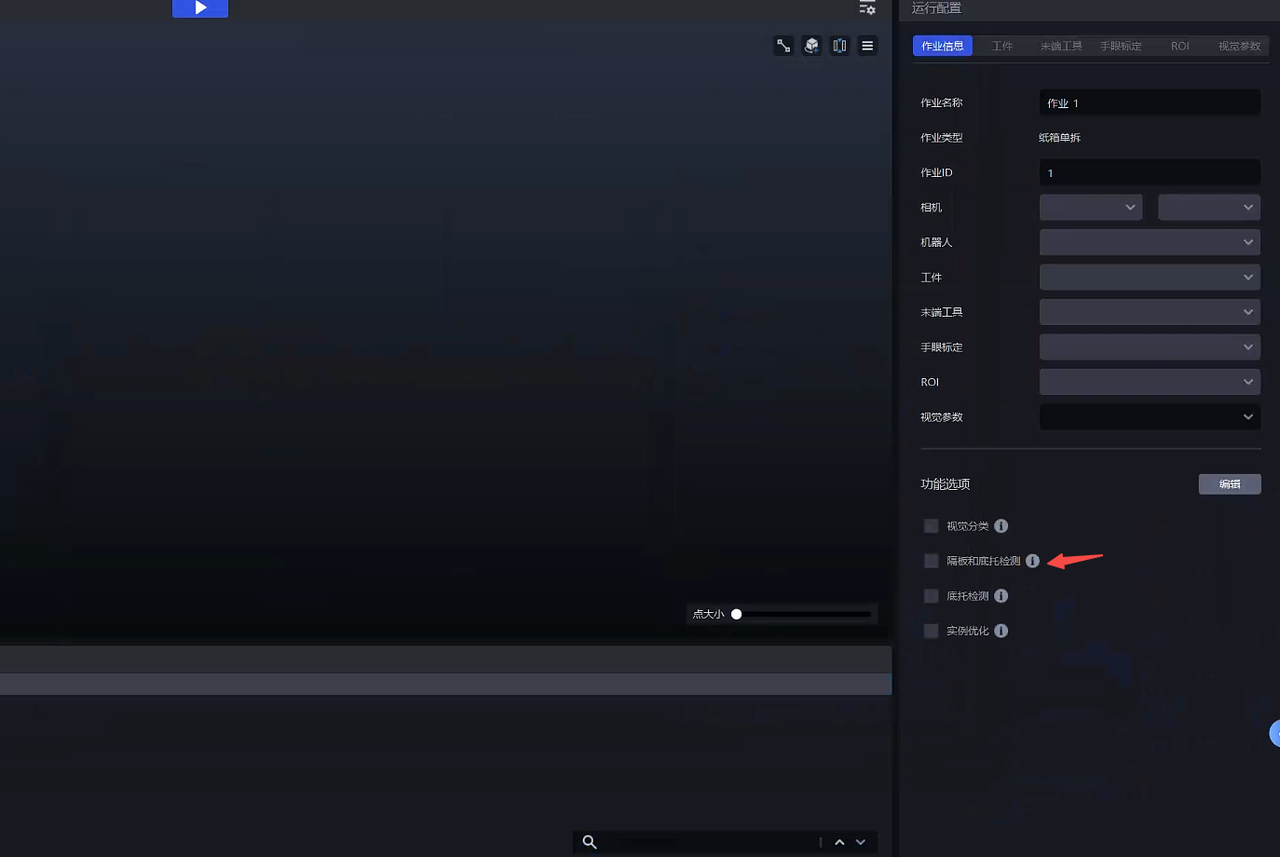
After adding the plug-in, add a Target in the Target interface. Under Target Information - Visual Classification, click Enter Type and enter the types for the Target, partition, and pallet separately.
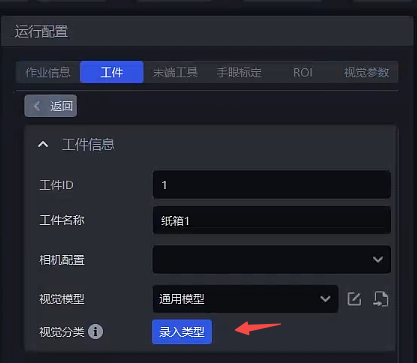
Entry type
Specific reference: Visual Classification User Guide
Click + Add Type
Fill in the type id
Take a photo or import a picture
Frame the corresponding image area in the picture. The frame selection area needs to be consistent with the roi2d area. At least 10 samples of each type must be entered.
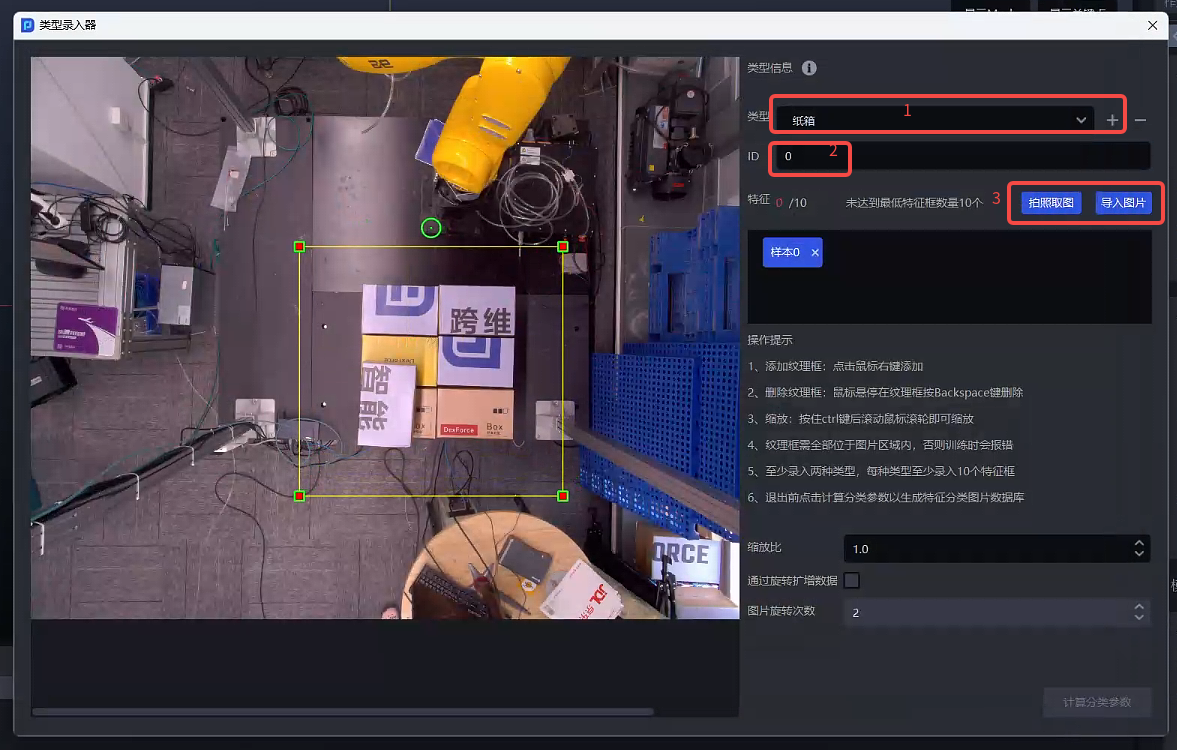
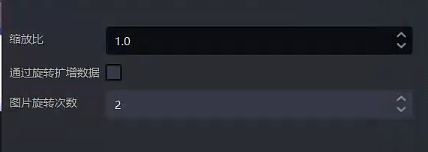
Adjust Parameter
| Parameter | Description | Default value | value range | Parameter adjustment recommendation |
|---|---|---|---|---|
| scaling ratio | scales the entered type database images and extracts image features. The smaller the scaling ratio, the faster the category information is calculated. | 1.0 | 0.1 - 2.0 | 1.0 |
| Amplified data by rotation | Rotate the entered type pictures to expand the number of pictures in the type database | Check | / | / |
| Number of image rotations | After selecting Augment data by rotation, the image rotation count determines how many augmented images are added to the database. If the count is 4, each image is rotated counterclockwise by 90° (360°/4), four times. If the count is 3, it is rotated counterclockwise by 120° (360°/3), three times. | 2 | [1,360] | The larger the value, the more angles of the amplified image |
Finally click Calculate Classification Parameter and close the Type Entry
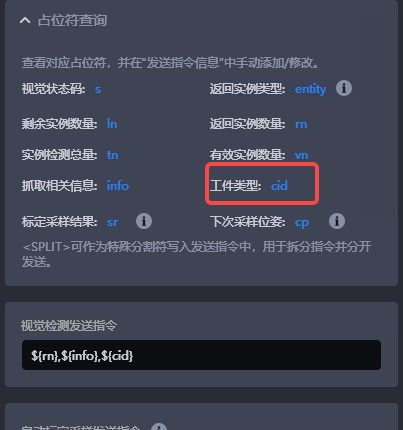
After the test is entered, open Robot configuration and add the Target type command character ‘{cid}’ to the visual inspection sending command.
2. Parameter adjustment guide
Adjust the visual parameters so the vision system can better distinguish partitions and pallets using the entered classification data.
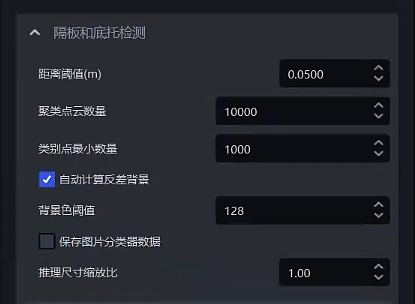
Partition and Pallet Detection use the top texture extraction function by default, so most of the Parameters are consistent with the Extract Top-Layer Texture Parameter.
| Parameter | Description | Default value | value range | Parameter adjustment recommendation |
|---|---|---|---|---|
| distance Threshold(m) | The upper distance threshold for extracting the topmost plane. Points whose distance from the plane is below this value are considered to lie on the plane; other points are considered outside the plane. Unit: m. | 0.05 | 0.0001-1 | adjusts the distance Threshold according to the Target height, usually 1/2 of the height |
| Clustering Point Cloud Number | The number of points expected to participate in clustering | 10000 | 1-10000000 | The greater the number of clustering Point Clouds, the model inference speed will decrease and the accuracy will increase; the smaller the number of clustering Point Clouds, the model inference speed will increase and the accuracy will decrease |
| Minimum number of category points | Minimum number of points used to filter categories | 1000 | 1-10000000 | / |
| automatically calculates the contrast background | After checking, it will automatically calculate the black or white color that differs greatly from the current instance according to the color tone | Check | / | / |
| Background ColorThreshold | When "Automatically calculate contrasting background" is selected, the background is black if the instance's color value exceeds the "Background color threshold", or white if it is below the threshold. When the option is not selected, this parameter directly sets the background color: 0 is black and 255 is white. | 128 | 0-255 | / |
| Save image classifier data | Save image classifier data when checked | Uncheck | / | After checked, the data will be saved, which will increase the time consumption; when it is necessary to supplement the classification data in the early stage, it is recommended to turn on |
| Inference size scaling ratio | Image ClassificationInference scaling ratio | 1.0 | 0.01-1.0 | is consistent with the scaling ratio in the entry type 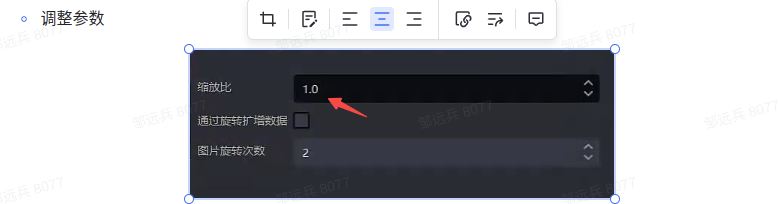 |