
Run and Acceptance
5. Run and Acceptance
5.1 Select Runtime Data
For initial debugging, use “Save All (Debug Mode)” in the visual computation settings to retain data and logs from every processing stage. Once the task is stable, switch to “Save Original Images Only (Ultra-Fast Mode)” according to the site's cycle time requirements.
Select a data source according to the debugging stage:
- Camera data: Use it to check images, point clouds, and the complete running process at the current site.
- Historical data: Use it to run the same set of samples repeatedly and compare results before and after adjusting visual parameters.
When using historical data, ensure that the 2D images and point clouds come from the same capture. For instructions, see the Historical Data User Guide.
5.2 Run the Task Manually
- Confirm that the camera, robot, target, end-effector, eye-hand calibration, ROI, and visual parameters in Task Information are all configured for this case.
- When using camera data, confirm that the camera is connected and the carton stack is within the valid field of view.
- On the first run, do not move the robot; check only the visual computation results.
- Click the Run button and wait for the current detection to finish.
- When using historical data, select representative data before running the task. To compare the effects of parameter changes, keep the samples and other settings unchanged.
Robot Operation Safety
Test operation with the robot only after the visual results pass inspection. For the first test, use low speed, single-step, or single-cycle operation, and ensure that personnel have left the robot's work area.
5.3 Check the 2D Results
In the 2D results window, enable “Show Workspace,” “Instance ID,” “Mask,” “Bounding Box,” and “Confidence,” then check each of the following:
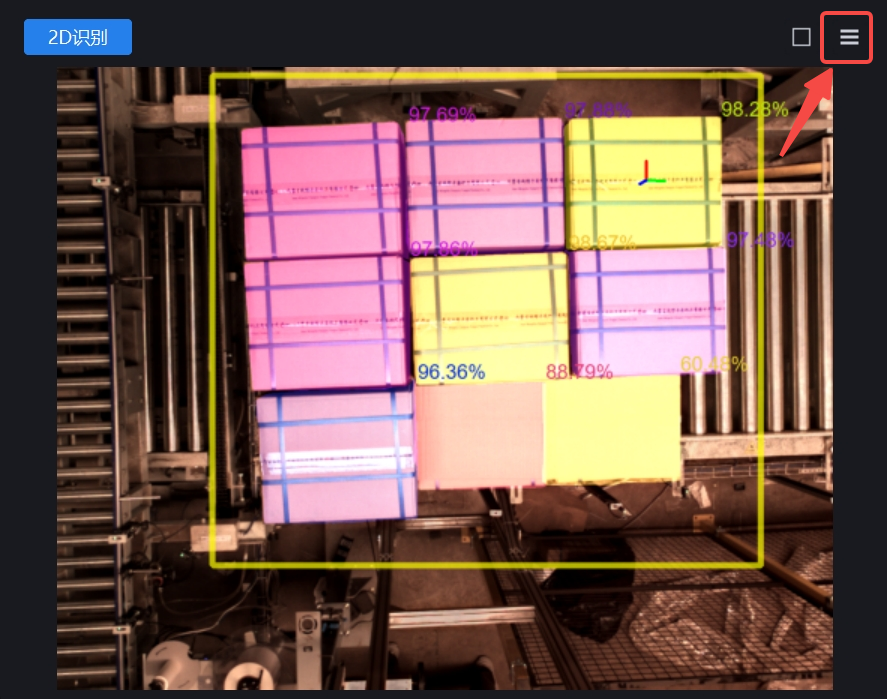
- The 2D ROI covers all possible carton positions without including too much of the surrounding area.
- Each top-layer carton corresponds to a separate instance, and its mask boundary generally matches the carton's outer contour.
- No single carton is split into multiple instances, and adjacent cartons are not merged.
- Lower-layer cartons, pallets, separator sheets, and equipment structures are not output as priority instances.
- The order of the Instance IDs matches expectations, with cartons on the highest layer first.
5.4 Check the 3D Results and Pick Points
In the 3D results window, check the following:
- The point cloud of each top-layer carton is continuous, with no obvious missing areas, collapsed areas, or floating noise points.
- The pose center is on the carton's upper surface, and the pose axes align with the directions of the carton's edges.
- Each output instance generates one valid Pick Point.
- Pick Points are on carton surfaces where suction is allowed, not in gaps, on taped areas where picking is prohibited, or outside the cartons.
- Pick Points on lower-layer cartons occluded by upper-layer cartons have been filtered out.
- After eye-hand calibration is complete, output coordinates belong to the robot coordinate system. If no calibration result is selected, do not use camera coordinates directly for robot motion.
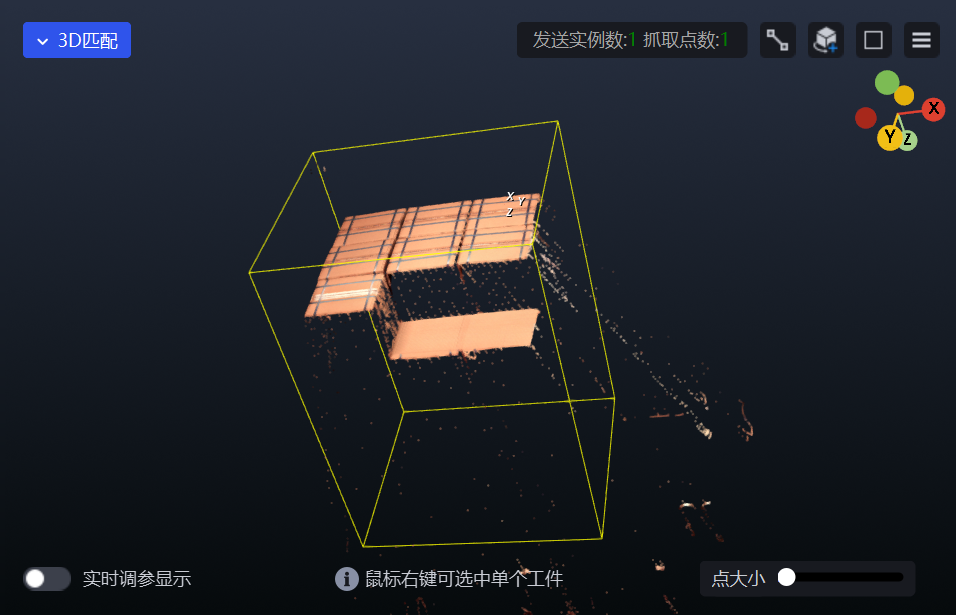
Rotate the point cloud to view it from above and from the side, focusing on the height of each Pick Point and its position relative to the carton surface.
5.5 Locate Processing Stages Using Logs
You can clear the logs before running the task to avoid mixing records from different runs. After the run finishes, work upward from the end of the current detection record and check these processing stages:
- The number of cartons identified by Instance Segmentation.
- The number of instances retained after instance filtering.
- The first target and grouping results after instance sorting.
- The number of instances for which poses were calculated successfully.
- The number of Pick Points generated.
- The number of Pick Points remaining after filtering.
- The final numbers of instances and Pick Points sent to the robot.
- The time taken by each processing stage and the detection process.
If the instance count unexpectedly becomes 0 at any stage, check that stage's parameters first instead of immediately adjusting the subsequent Pick Point settings. For descriptions of the log fields, see Log Description.
5.6 Acceptance Criteria
Use at least samples representing the highest layer, the lowest layer, shifted incoming cartons, and typical interleaved stacking for validation. If reflective tape or occlusion occurs at the site, include corresponding samples as well.
The visual configuration can be considered to have passed when all of the following conditions are met:
- Pickable cartons on the top layer are identified individually and completely.
- No Pick Points are output for lower-layer cartons while pickable cartons remain on an upper layer.
- The instance order meets the requirement to process upper layers before lower layers.
- Point clouds, poses, and Pick Points remain stable across multiple runs.
- Pick Point positions and orientations meet the suction requirements of the end-effector.
- Instance counts in the logs match the visualized results, with no unresolved errors.
- Visual computation time meets the site's cycle time requirements.
- During low-speed operation with the robot, the actual picking deviation remains within the range allowed by the project.