
Disable Calibration Sample Similarity Check
When collecting eye-hand calibration samples, if PickWiz repeatedly displays “Identical to the original sample” because the available motion range is limited, you can disable the sample similarity check in the configuration file.
After the check is disabled, the system will allow samples with similar poses to be used in the calculation. After calibration, you must verify accuracy at different positions across the entire field of view and work area to avoid excessive local errors caused by insufficient sample coverage.
1. Close PickWiz
Close PickWiz completely before changing the configuration to prevent the program from overwriting the file when it exits.
2. Open the configuration file
Open the following file:
{user}/.dexforce/kuawei_data/extra_config/frozen_config.json
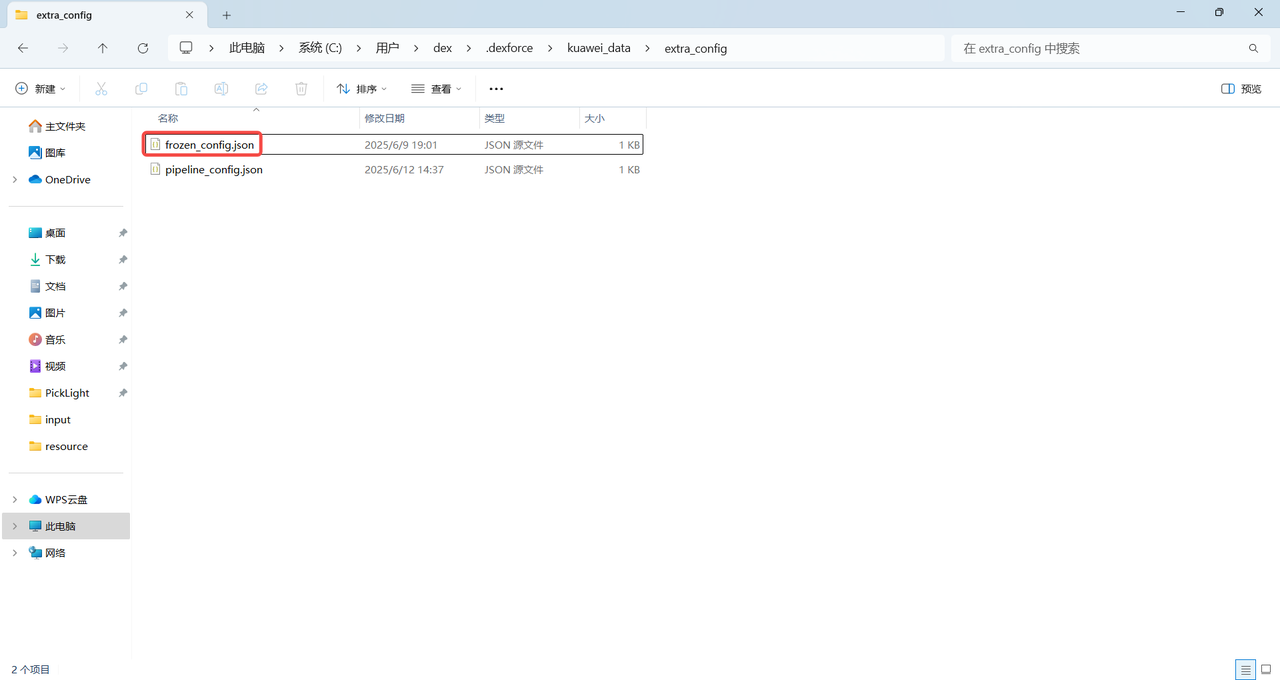
If the file does not exist in the directory, create a text file and change its full name to frozen_config.json. Confirm that Windows is showing file extensions so the file is not saved as frozen_config.json.txt.
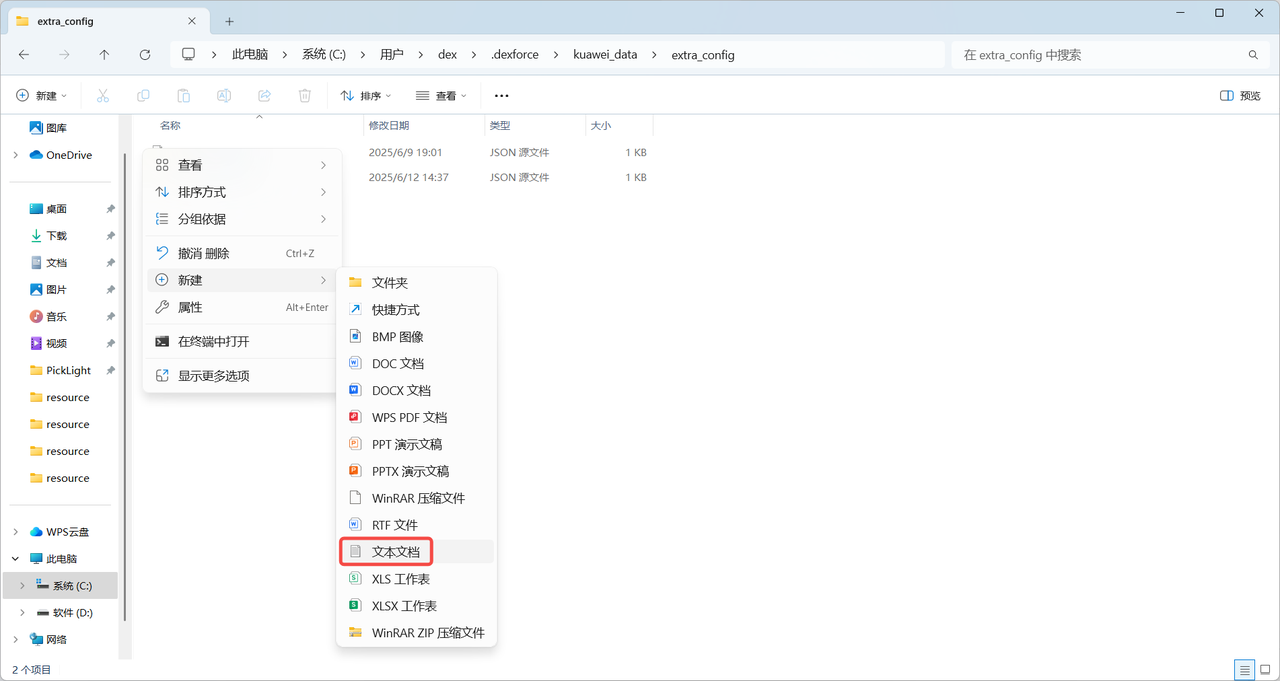
3. Modify the configuration
If the file is empty or newly created, enter the following valid JSON:
{
  "global_config": {
    "algo_params": {
      "calibration-check_sample": {
        "min_angle_diff": 0.0
      }
    }
  }
}
If the file already contains other settings, add only the following field to the existing global_config.algo_params object. Do not overwrite other parameters:
"calibration-check_sample": {
  "min_angle_diff": 0.0
}
Before saving, check that the commas, quotation marks, and braces are complete. JSON files do not support comments.
4. Restart and verify
- Save frozen_config.json
- Restart PickWiz
- Collect calibration samples with similar poses again and confirm that the similarity check no longer blocks them
- After the calculation is complete, check the results according to Check and Analyze Calibration Results, and verify accuracy across the entire work area