
Mask Mode User Guide
1. Feature Overview
When training deep learning models, data augmentation can increase data diversity and robustness. Mask Mode is a form of data augmentation that applies real textures to the surfaces of real or synthetic data used for training. This simulates different scenes and sources of interference, helping the model adapt to a range of real-world conditions.
Note
Sacks are trained using real data, while cartons are trained using synthetic data.
2. Applicable Scenarios and Training Requirements
2.1 Applicable Scenarios
In depalletizing scenarios, incoming items may be relatively orderly but have complex or varied textures. This can cause recognition failures, a bbox to enclose multiple instances, or a bbox to fail to fully enclose one instance, as with medicine boxes.
Currently, Mask Mode training through PickWiz on the device side (industrial PC) is supported only for depalletizing scenarios. Other scenarios are not yet supported.
2.2 Pre-training Checks
- Prepare at least 10 texture samples of the objects to be picked.
- The industrial PC requires a GTX 3050 graphics card at minimum; otherwise, Mask Mode training may fail.
3. Train a Mask Model
3.1 Record Textures
- On the Target screen, click
Record Textures.
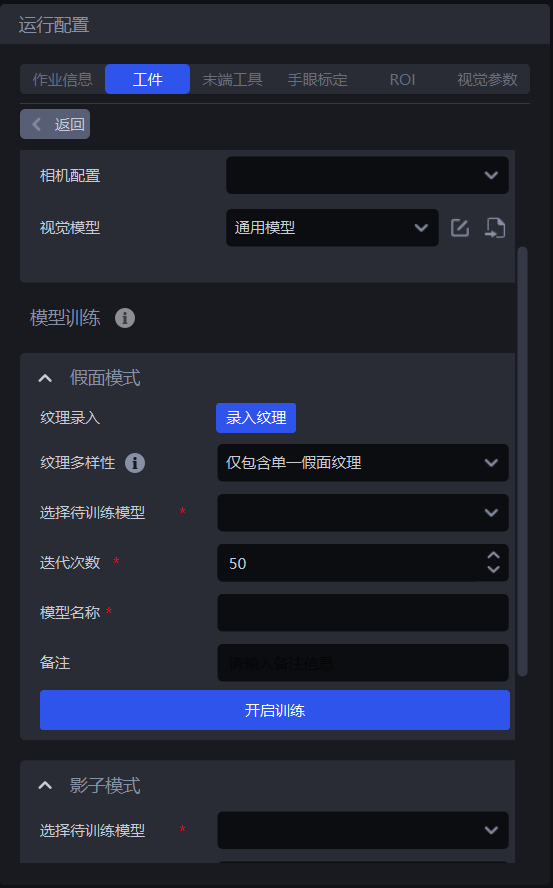
- Add images of the objects to be picked. You can select
Take PhotoorImport Image.
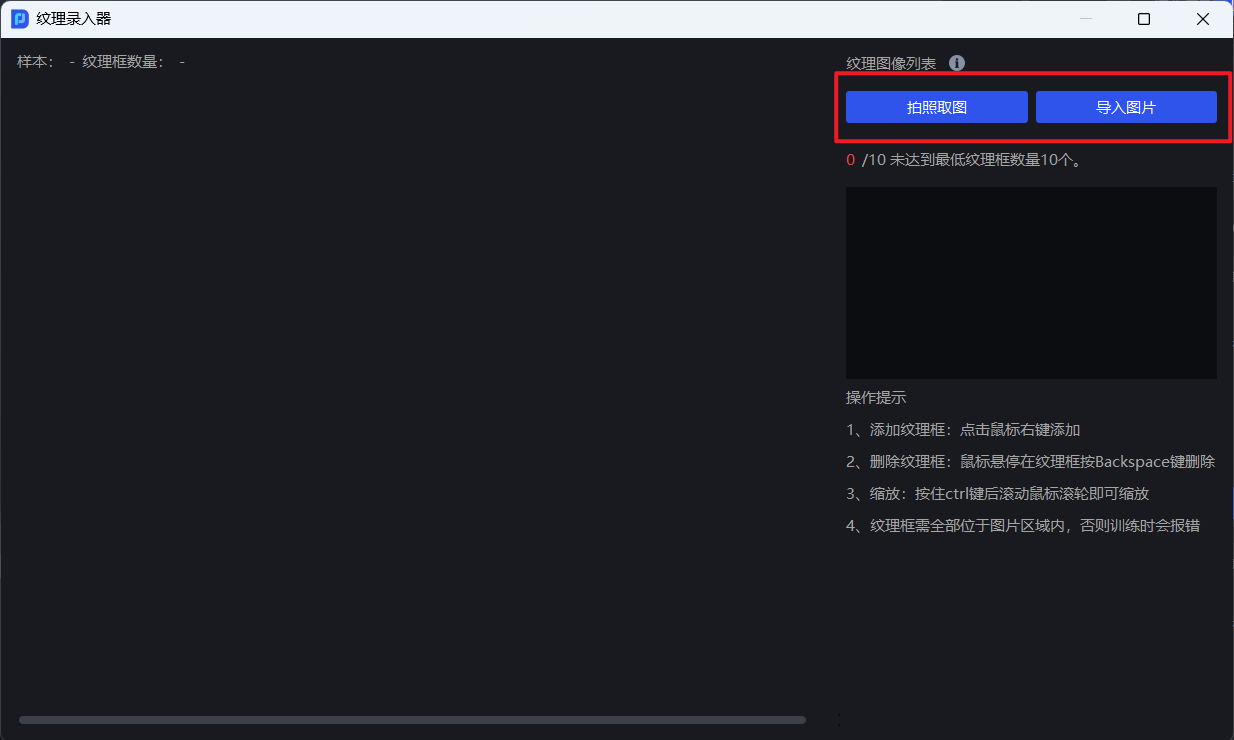
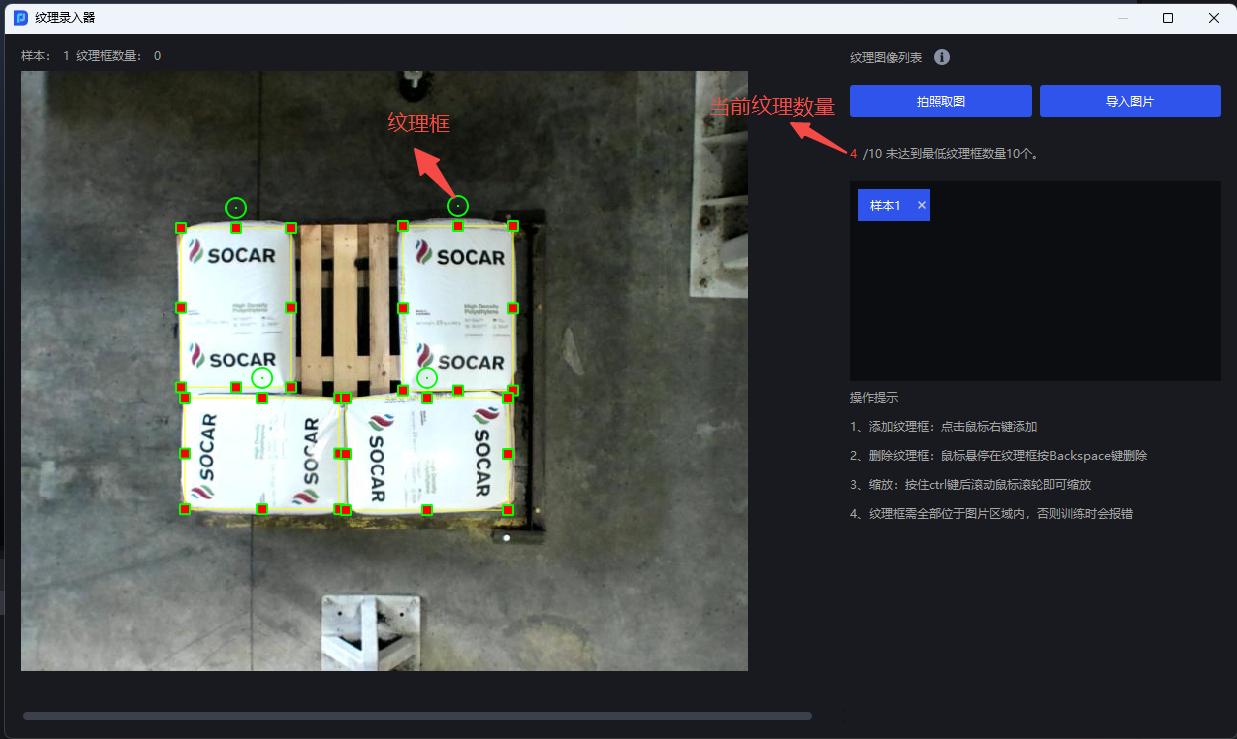
- Right-click an image of an object to be picked to add a texture box around the object's texture. At least 10 textures are required, and you can draw multiple texture boxes on each image.
Tips
For each type of texture in each image, adding 2–3 or more samples is recommended to help ensure effective Mask Mode training.
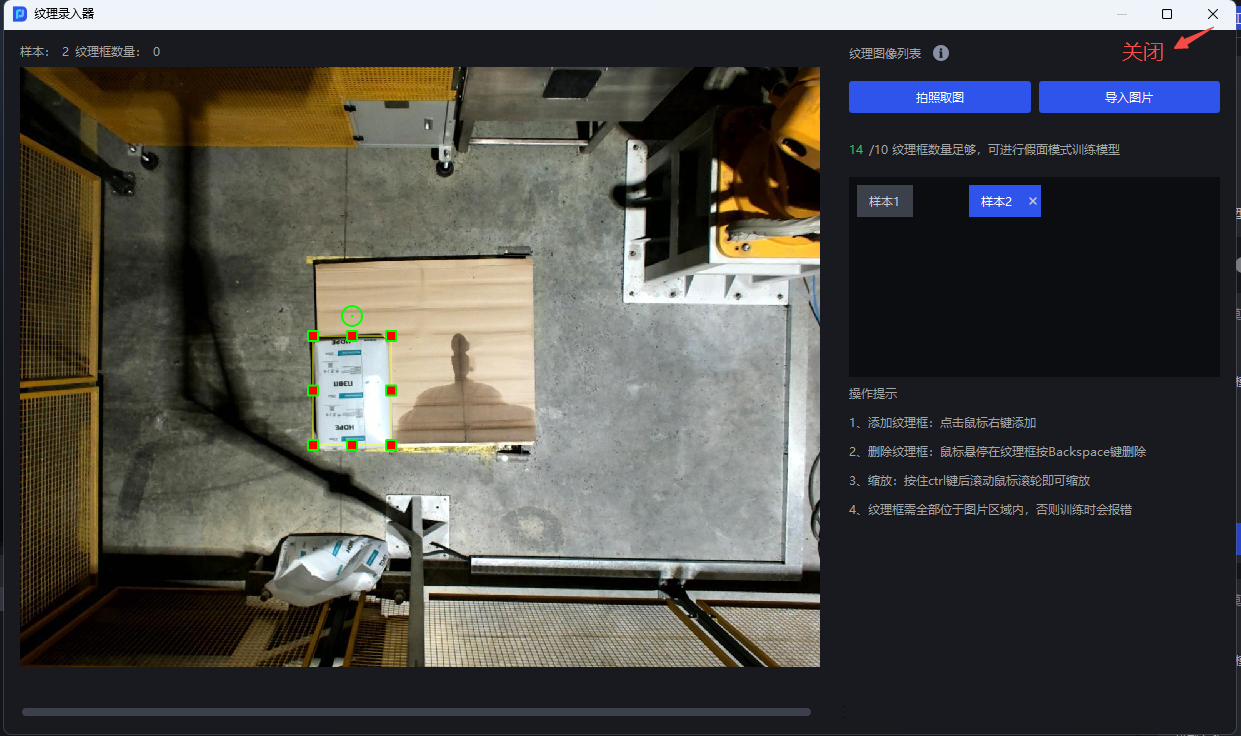
- After recording at least 10 textures of the objects to be picked, close the texture recorder.
3.2 Configure Texture Diversity
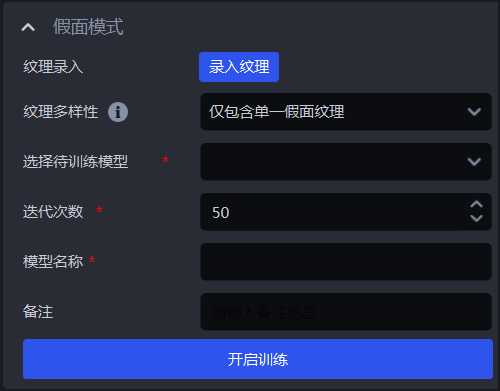
For Texture Diversity, select either Contains Only One Mask Texture or Contains Multiple Mask Textures. If the selected texture boxes contain only one type of texture, select Contains Only One Mask Texture; if they contain multiple types, select Contains Multiple Mask Textures.
3.3 Configure and Start Training
Select the Model to Train, leave Number of Iterations at its default value, set the Model Name, and then click Start Training.
3.4 Use the Trained Model
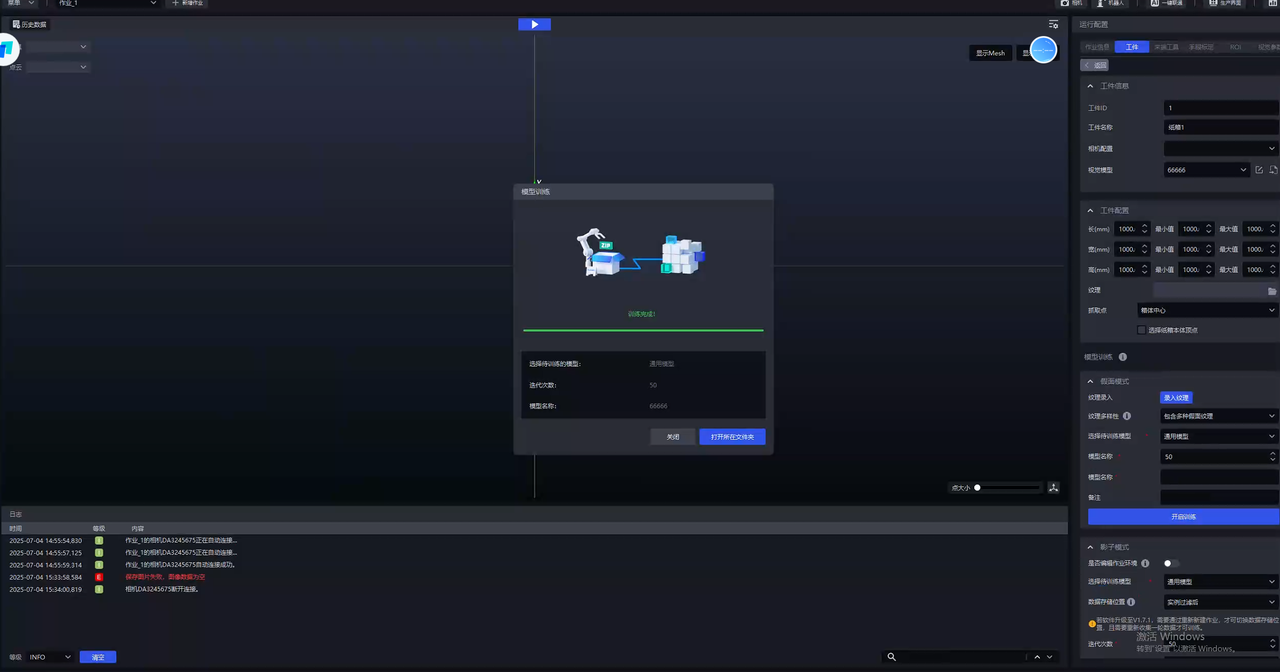
After training is complete, click Open Containing Folder and replace the Target Information - Visual Model with the newly trained model.
4. Frequently Asked Questions
4.1 Where Is Texture Data Saved?
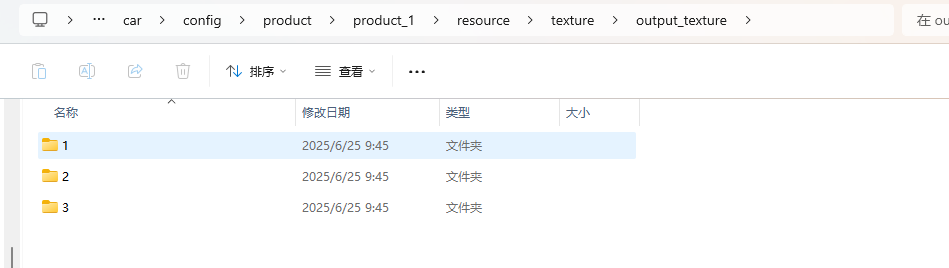
The texture dataset is saved under the corresponding project configuration. The texture boxes on each image are saved in separate directories.
Warning
Each time new Mask Mode training starts, the texture data exported from the previous training run is cleared.
4.2 Can Distorted Images Be Used for Training?
Slight distortion does not prevent an image from being used, but when taking photos, keep the phone as parallel to the target object as possible.
4.3 How Large Should a Texture Box Be?
Enclose one complete object and avoid including other objects that could interfere.
4.4 How Do I Iterate the Model After Adding Textures?
- Model iteration is supported. Delete the textures used for previous training, and select a model previously trained in Mask Mode as the initial model for the new training run.
- If you can obtain all textures at once, training with all of them together is recommended.
4.5 What Should I Do If Model Performance Is Poor?
- Check whether the materials being detected are in the same category as those used for Mask Mode training.
- On the Target screen, check whether the Visual Model has been replaced with the latest trained deep learning model.
- On the Target screen, click Record Textures. In the texture recorder, check whether the selected textures cover every case, such as the front and back of a medicine box.
- On the Visual Parameters screen, try adjusting Scaling Ratio under 2D Recognition - Instance Segmentation.
- If a single scaling ratio cannot meet the needs of the actual scenario, select the Auto Augmentation function on the Visual Parameters screen and set multiple Auto Augmentation – Scaling Ratios. See the 2D Instance Segmentation Configuration Guide.
4.6 What Should I Do If Mask Model Training Fails?
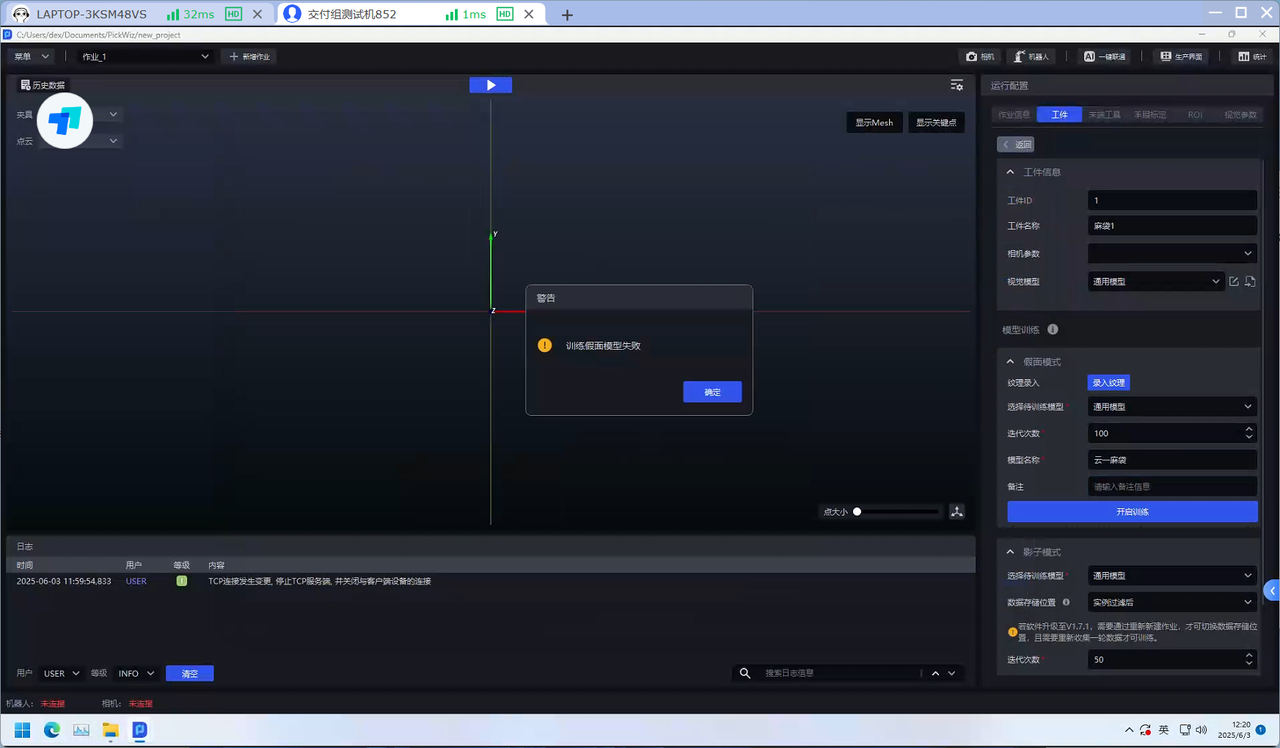
First, confirm that the industrial PC's graphics card meets the minimum requirement in Pre-training Checks. A graphics card below a GTX 3050 may cause “Mask model training failed.”