
Load a Project
Load a Project
Select an Existing Project
To open a project already stored on disk, click “Load Project” on the New Project page.
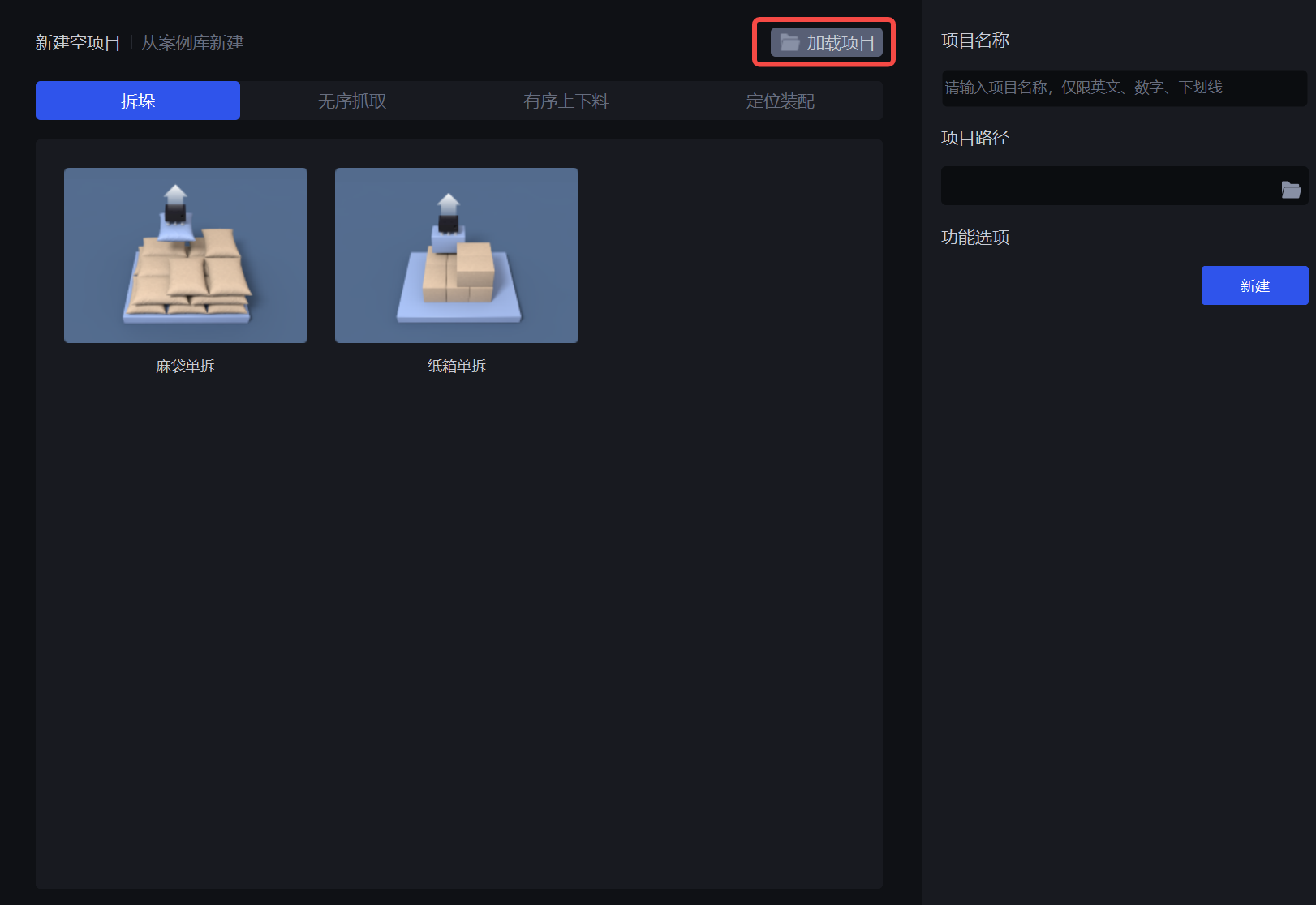
In the folder selection window, open the project folder you want to load, then click “Select Folder”.
The default project storage path is:
C:\Users\<Windows username>\Documents\PickWiz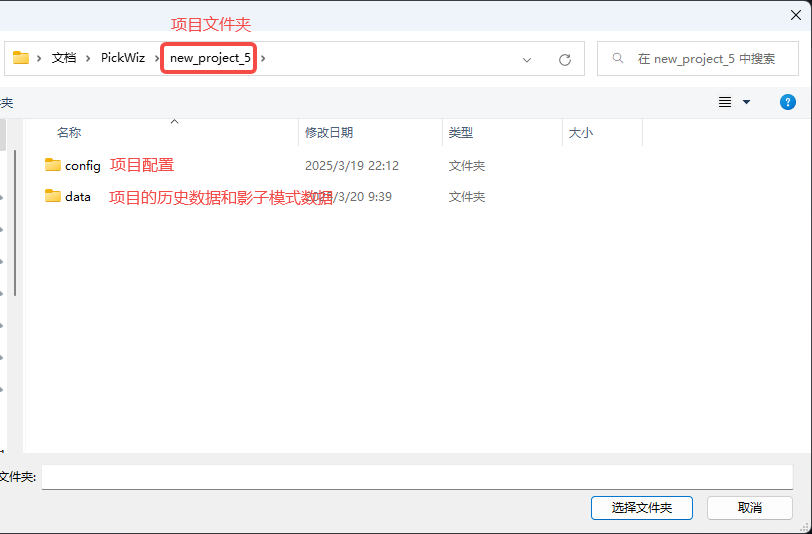
The project folder typically contains these directories:
config: Project configuration data.data: Historical project data and shadow mode data.
For details about the project configuration directory, see Project Configuration.
Handle Version Incompatibility
If “This version is incompatible with this project” appears when loading a project, the current version of PickWiz cannot open the project directly.

Note
Open the project with an older version of PickWiz that is compatible with it. If necessary, contact Dexforce technical support.