
Troubleshooting
7. Troubleshooting
When an issue occurs, diagnose it in this order: input data → 2D recognition → instance filtering and sorting → 3D pose → Pick Point. Identify the stage where the result first becomes abnormal, then adjust the corresponding configuration.
7.1 Quick Diagnosis
| Symptom | Check first | Configuration entry points | Pass criteria |
|---|---|---|---|
| No recognition, missed recognition, false recognition, or abnormal masks | ROI, image brightness, preprocessing results, scaling ratio, Confidence, and instance filtering | ROI, Camera, 2D preprocessing, Instance Segmentation, and instance filtering configurations | Each carton on the top layer corresponds to one complete instance, with no obvious false recognition |
| Incorrect pick angle | ROI axis direction, Robot rotation expression, tool TCP, Eye-hand calibration, and pose coordinate system | Robot configuration, Eye-hand calibration, and carton pose estimation | The pose axes align with the carton edges, and the Robot’s approach direction is correct at low speed |
| Slight Pick Point offset | Calibration accuracy, TCP, carton Point Cloud, pick position, and neighborhood range | Calibration result inspection, End-effector, and Pick Point adjustment | The offset remains consistent across multiple runs and falls within the project’s permitted range |
| Pick Point floats above the surface, presses too deeply, or is severely offset | Whether the Point Cloud has collapsed, is missing, or has abnormal height variations; Camera imaging settings; and 3D preprocessing | Camera configuration, 3D preprocessing, and carton pose estimation | The Point Cloud on the carton’s upper surface is continuous, and the Pick Point lies on the actual surface |
| A lower-layer instance is output while cartons remain on the upper layer | Whether upper-layer instances were recognized and their poses calculated successfully; top-layer texture; instance sorting; and occlusion filtering | Top-layer texture, instance sorting, and Pick Point filtering | No lower-layer Pick Point is output while a valid upper-layer Pick Point exists |
| Abnormal vision processing time | Time spent in each stage as recorded in the DEBUG log | Vision processing configuration and solutions for abnormal Cycle time | Each processing stage and the total processing time meet on-site requirements |
7.2 Troubleshoot 2D Recognition Issues
- Check whether the 2D ROI contains the entire carton. If the ROI boundary cuts off the carton, correct the ROI first.
- Check whether the original image is too bright, too dark, blurry, or affected by strong reflections. If the image is abnormal, adjust the Camera first.
- Use the processing record or historical data to inspect the image before Instance Segmentation and confirm that 2D preprocessing has not removed the carton by mistake.
- Check the scaling ratio and the minimum Confidence Threshold.
- Check the instance count in the logs. If Instance Segmentation produces results but the count becomes
0after instance filtering, check the instance filtering Parameters. - If large rotations cause missed recognition, enable automatic augmentation and add the necessary rotation angles. More rotation angles increase processing time.
- If recognition remains unstable after these adjustments, consider using Mask Mode or Shadow Mode to optimize the model.
Configuration entry points:
- ROI Configuration Guide
- Camera Connection and Parameter Tuning Guide
- 2D Preprocessing Function Configuration Guide
- 2D Instance Segmentation Configuration Guide
- Instance Filtering Function Configuration Guide
- Mask Mode User Guide
- Shadow Mode User Guide
7.3 Troubleshoot Pick Angle and Slight Offset
If the pick angle is incorrect, check the following in order:
- Whether the positive Z direction of the 3D ROI points upward.
- Whether the Robot’s number of axes, rotation expression, and coordinate system type are correct.
- Whether the origin and orientation of the End-effector model match the Robot TCP.
- Whether the Task uses the correct Eye-hand calibration result.
- Whether carton pose estimation uses the intended coordinate system.
- Whether the pose axes in the 3D results align with the carton’s long and short edges.
If the Pick Point has only a small, consistent offset, use a point-probing check to distinguish calibration error from vision error. Do not increase the Pick Point offset before confirming the cause. Doing so may correct only one carton layer while increasing the error at other heights.
Configuration entry points:
- Calibration Result Inspection and Analysis
- End-effector Configuration Guide
- Carton Pose Estimation Configuration Guide
- Pick Point Adjustment Function Configuration Guide
7.4 Troubleshoot Pick Points Floating Above the Surface or Pressing Too Deeply
First, inspect the Point Cloud of the carton’s upper surface from the side. If the Point Cloud itself has collapsed, floats above the surface, or is missing over a large area, check the Camera imaging settings first. Do not use a Pick Point offset to compensate for Point Cloud errors.
If the carton surface has actual height differences, the Threshold for “Filter Point Clouds Beyond the Object Distance” must cover the maximum height difference that may occur. A Threshold that is too small removes valid surface Point Cloud data, causing the Pick Point to float, press down, or shift toward a local area.
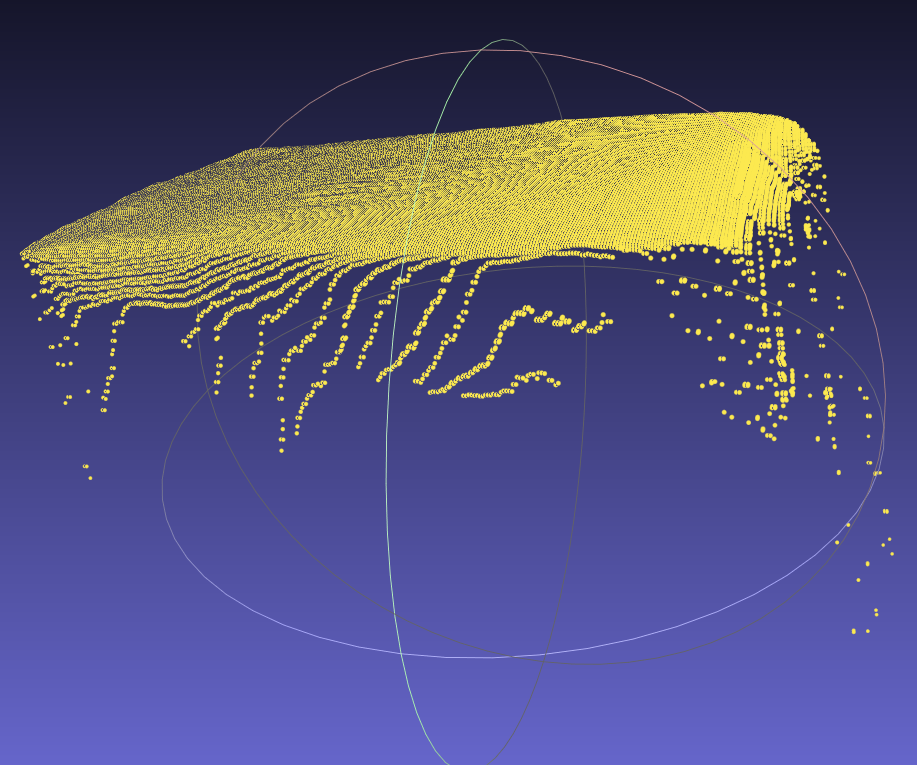
After making adjustments, verify again using samples from the highest layer, the lowest layer, and cartons with uneven surfaces. For details, see the 3D Preprocessing Function Configuration Guide.
7.5 Troubleshoot Incorrect Output of Lower-Layer Cartons
Diagnose the issue in the following order:
- Check whether the upper-layer cartons successfully completed 2D recognition, instance filtering, pose estimation, and Pick Point generation.
- If recognition of an upper-layer carton failed, resolve the issue at the corresponding stage first. Do not conceal the failure through sorting alone.
- If cartons on both the upper and lower layers are recognized, check the distance Threshold and clustering results for “Extract Top-Layer Texture.”
- If calculations succeed for both layers but the lower layer is ranked first, check the direction of the ROI Z axis and the sorting strategy that orders Z coordinates from largest to smallest.
- If lower-layer Pick Points remain, check the detection direction, cuboid range, and Point Cloud count Threshold for “Filter Pick Points of Occluded Targets.”
- Rerun data containing multiple carton layers and confirm that lower-layer Pick Points do not appear in the final output while valid upper-layer Pick Points exist.