
Siemens Snap7 Communication Configuration
With Siemens Snap7 communication, PickWiz acts as the client and the Siemens PLC acts as the server. When communicating with the Siemens PLC, PickWiz actively controls the PLC by sending instructions, which the PLC executes upon receipt.
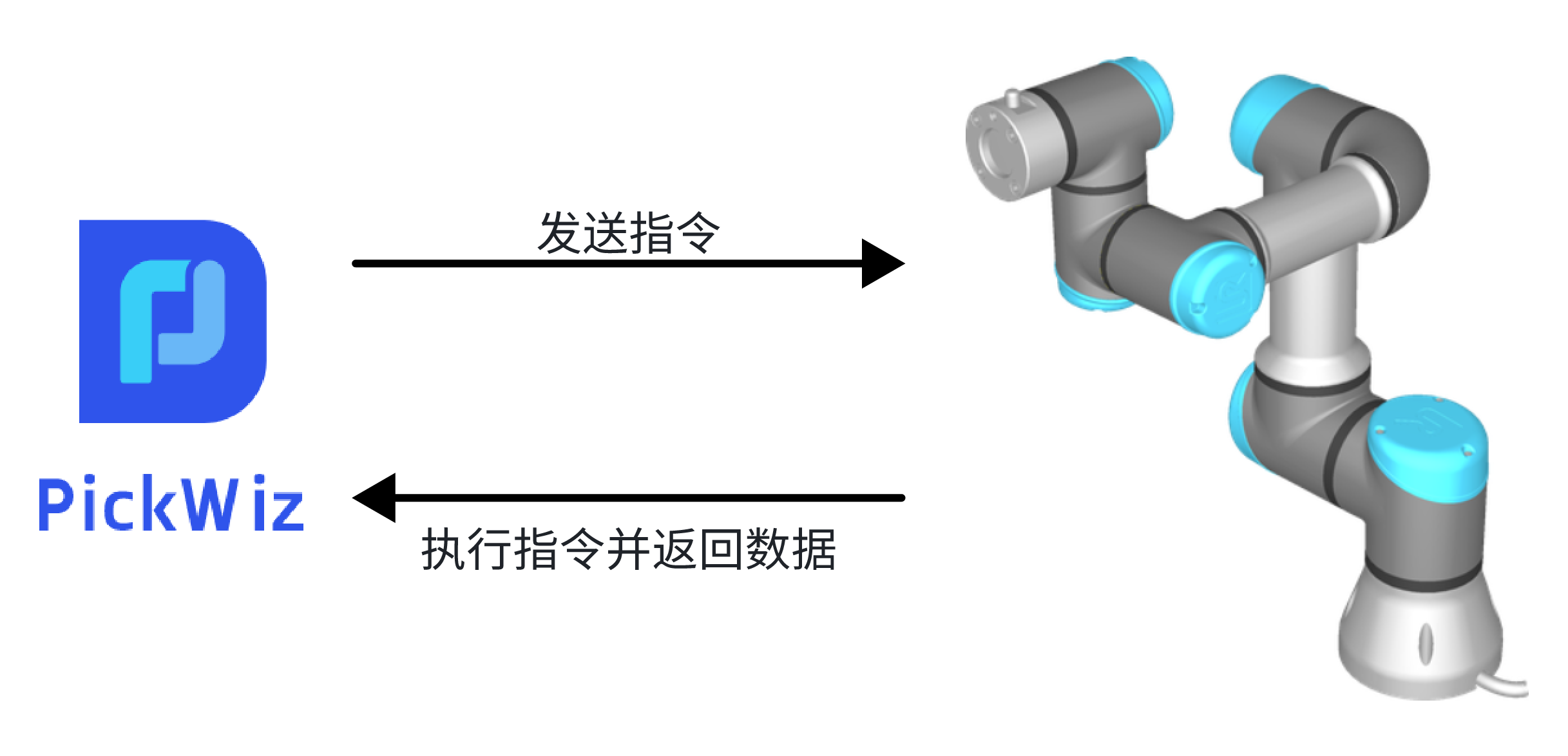
Before you begin, follow the Robot Configuration Guide to prepare the project, network, and PLC communication program, then open the Add Robot screen.
1. Select Siemens Snap7 Communication
Click + Add Robot, select Siemens Snap7 as the communication method, then click Next to open the Robot Configuration screen.
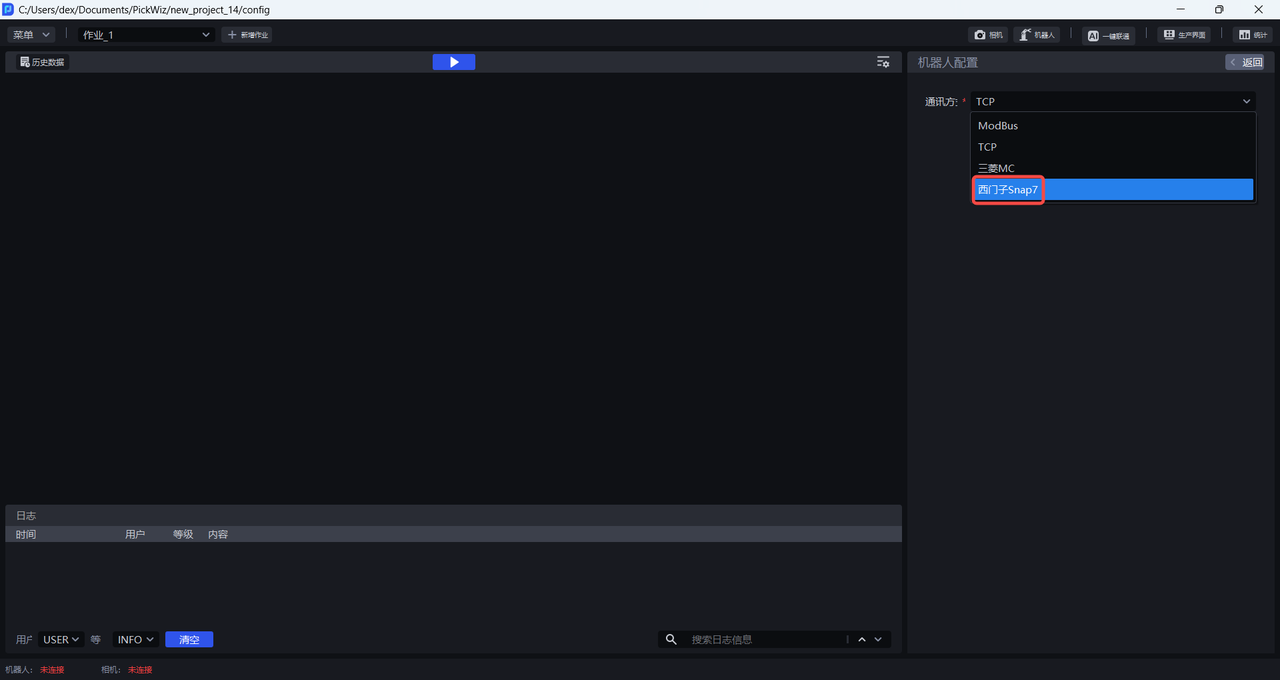
2. Configure Siemens Snap7 Communication
For general settings such as robot name, brand, model, number of axes, and rotation expression, see the Robot Configuration Guide. This page focuses on Siemens Snap7 communication parameters and fields.
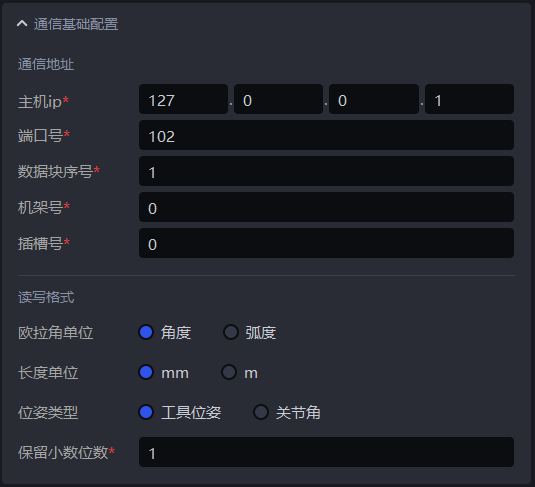
2.1 Basic Communication Settings
| Setting | Description | |
|---|---|---|
| Communication address | Host IP | IP address of the local machine. For Siemens Snap7 communication, the default is 127.0.0.1. |
| Port number | The specified port on the local machine to which the robot connects. The default port is 6000 and generally does not need to be changed. | |
| Data block number | PLC data block number. | |
| Rack number | Rack number of the Siemens PLC hardware module. Set it according to the selected hardware. | |
| Slot number | Slot number of the Siemens PLC hardware module. Set it according to the selected hardware. | |
| Read/write format | Euler angle unit | Unit for Euler angles: degrees or radians. The default is degrees. |
| Length unit | Length unit used by the robot, including for robot poses and target dimensions. The default is mm. | |
| Pose type | How the robot pose is represented. The default is tool pose. Tool pose is the pose of the robot's end-effector; joint angles describe the positions of the robot's individual joints, whose combination determines the pose of the robot arm or end-effector. When Other Device is selected as the robot brand and model, only tool pose can be selected as the pose type by default. | |
| Decimal places | Number of decimal places retained for floating-point data in robot instructions. Only numbers are supported. The default is 1. | |
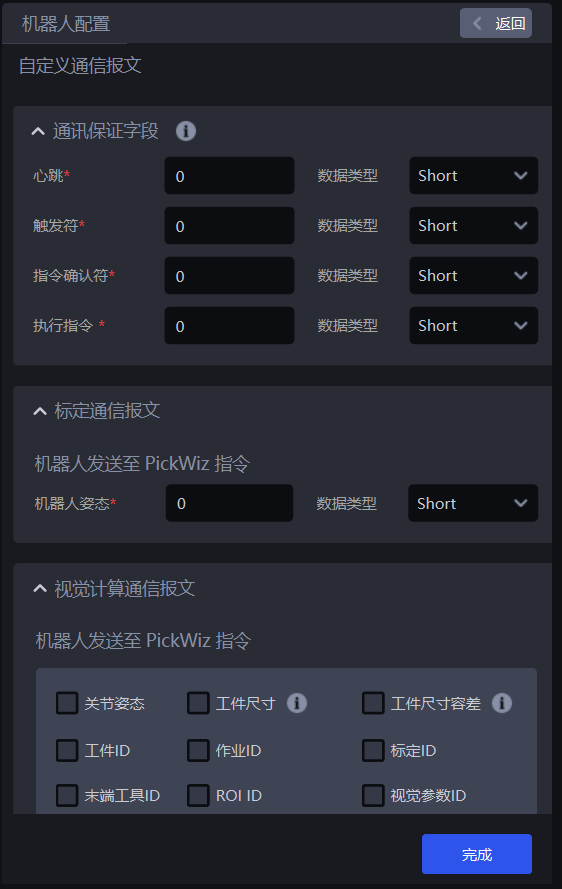
2.2 Custom Communication Message Configuration
3. Siemens Snap7 Instruction Reference
3.1 Communication Assurance Fields
These fields monitor communication status and ensure that each instruction is executed uniquely. Enter an address block in each text box. An address block is an area in the robot/PLC that stores data, and each area has a corresponding address number. Read and write operations by the robot/PLC or PickWiz access these corresponding storage areas.
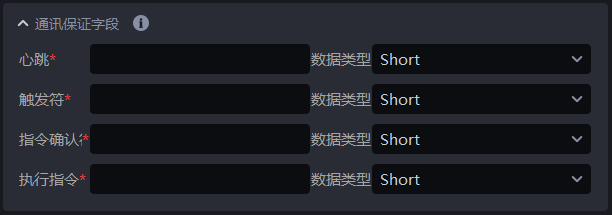
| Field | Description |
|---|---|
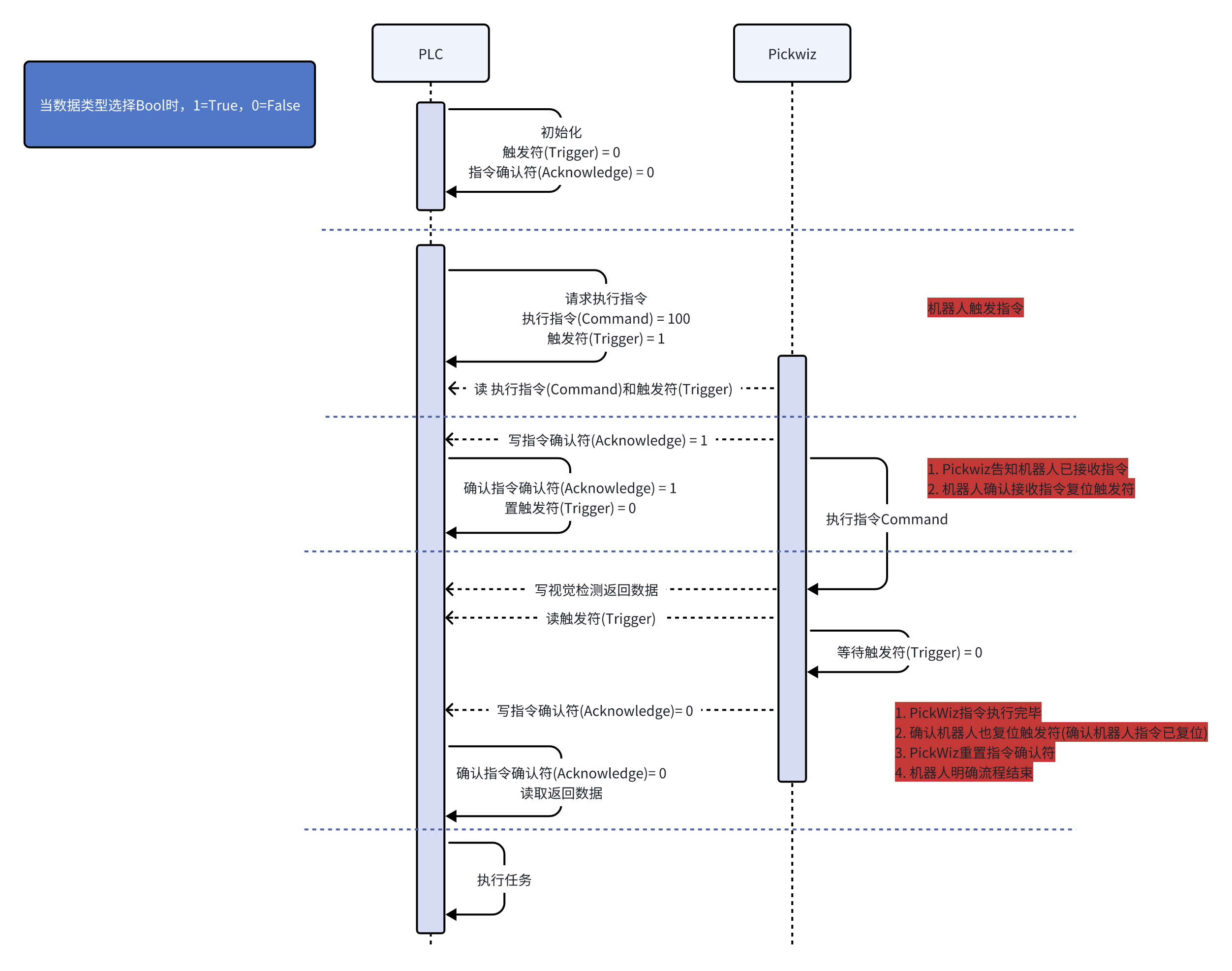
| Heartbeat | Monitors communication status. When the robot/PLC is connected to PickWiz, PickWiz writes 1 to the corresponding address block. When communication between the robot/PLC and PickWiz is disconnected (PickWiz has not written 1 for an extended period), the robot/PLC writes 0 to that address block. |
| Trigger flag | Indicates whether the robot/PLC has triggered an instruction. When the robot/PLC triggers an instruction, it writes 1 to the trigger flag address block, and PickWiz reads the data from that block. After the robot/PLC receives confirmation that PickWiz has received the instruction (the instruction acknowledgment flag is 1), the robot/PLC writes 0 to the trigger flag address block to prevent a second trigger. After PickWiz finishes executing the instruction, it returns the vision inspection result to the robot/PLC and reads the trigger flag address block. If it reads 0, the robot/PLC can read the returned vision inspection result. |
| Instruction acknowledgment flag | Indicates whether PickWiz has received an instruction. After the robot/PLC triggers an instruction and PickWiz reads it, PickWiz writes 1 to the instruction acknowledgment flag address block to notify the robot/PLC that the instruction was received. Once PickWiz has executed the instruction and confirmed that the robot/PLC has reset the trigger flag (written 0), PickWiz also resets the instruction acknowledgment flag (writes 0). This tells the robot/PLC that execution is complete and the process has ended. The robot then reads the returned vision inspection result and performs the task. |
| Execute instruction | Specifies the instruction the robot/PLC needs to execute. The robot/PLC writes 100/101 to the execute instruction address block, and PickWiz reads that block to determine the requested instruction. 100 is the image capture instruction; 101 is the clear cache instruction (used when capturing one image to pick multiple targets). |
3.2 Calibration Communication Message
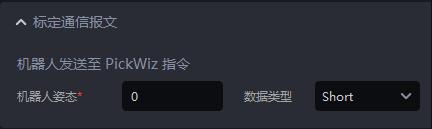
The robot sends its pose to PickWiz for eye-hand calibration and to let PickWiz obtain the robot's current pose when image capture is triggered in an eye-in-hand setup.
If Pose Type is set to Tool Pose in the basic communication settings, send the current pose of the robot's end-effector to PickWiz (6 values).
If Pose Type is set to Joint Angles, send the joint pose (6 values) so the joint pose of the pick point closest to this reference joint pose can be calculated.
During eye-hand calibration or when image capture is triggered in an eye-in-hand setup, the robot writes its current pose to this address block, and PickWiz reads the pose from it.
A robot pose contains 6 values. Reserve storage for 6 values when writing it to the address block.
3.3 Vision Calculation Communication Message
When Execute Instruction has a value of 100, vision calculation can be performed and the following messages apply. Select a checkbox to display its corresponding address input box, then enter an address block. When the robot triggers the image capture instruction, it writes data to the corresponding address block, and PickWiz reads that data.
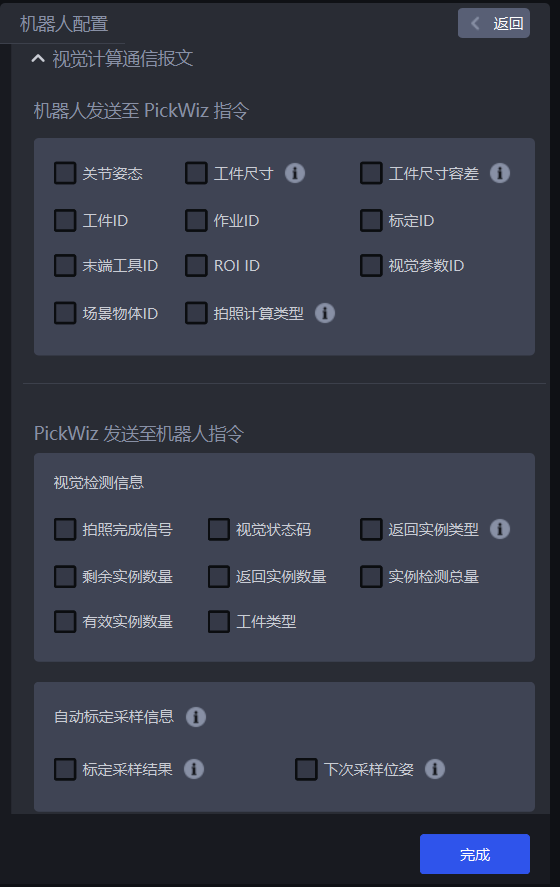
(1) Instructions Sent from the Robot to PickWiz
| Field | Description |
|---|---|
| Joint pose | The robot's reference joint pose, comprising 6 values. When Pose Type is Joint Angles, enter the Reference Joint Pose to calculate the joint pose of the pick point closest to this reference joint pose. |
| Target dimensions | When incoming targets have multiple sizes, the robot needs to adjust its picking strategy automatically according to their dimensions. The number of dimension values sent by the robot and their meanings vary by scene. For a circular surface, send 1 value representing the radius; for a cylinder, send 2 values representing radius\height; for a carton, send 3 values representing length\width\height; for a quadrilateral, send 2 values representing width\length. |
| Target dimension tolerance | When incoming targets have multiple sizes, the robot needs to adjust its picking strategy automatically according to their dimensions. The number of tolerance values sent by the robot and their meanings vary by scene. For a circular surface, send 1 value representing the radius tolerance; for a cylinder, send 2 values representing radius\height tolerances; for a quadrilateral, send 2 values representing width\length tolerances. |
| Target ID | Target ID, used by the robot to switch automatically between targets to pick. |
| Task ID | Task ID, used by the robot to switch tasks automatically. |
| Calibration ID | Calibration ID, used by the robot to switch eye-hand calibration configuration files automatically. |
| End-effector ID | End-effector ID, used by the robot to switch end-effectors automatically when performing a task. |
| ROI ID | ROI ID, used by the robot to switch ROIs automatically. |
| Vision parameter ID | Vision parameter ID, used by the robot to switch vision parameters automatically. |
| Scene Object ID | Scene Object ID, used by the robot to switch Scene Objects automatically. |
| Image capture calculation type | 0: Capture a new image and perform vision calculation; 1: Perform vision calculation using the cached image (the image captured previously); 2: Capture an image only; 3: Capture an image for "automatic random-pose sampling"; 4: Real-time visual drift correction; 5: Perform vision calculation using historical data; 6: Shut down the industrial PC. |
(2) Instructions Sent from PickWiz to the Robot
- Vision inspection information
| Field | Description |
|---|---|
| Image capture complete signal | 1 value indicating that image capture is complete. The robot/PLC must reset it after receiving it. |
| Inspection result signal | 1 value. The default is 100 for success and 0 for other errors. These values can be customized. |
| Returned instance type | 1 value: 0 represents a target and 1 represents a pallet. Picking information differs by instance type. |
| Remaining instance count | 1 value. When using the capture-once, pick-multiple logic, returns the current number of cached instances remaining. |
| Returned instance count | 1 value. Returns the number of instances identified by 2D instance segmentation. This value is less than or equal to Number of Instances to Send. If there are multiple instances, Pick-Related Information Length increases with the returned instance count. |
| Total detected instance count | 1 value. The number of detected instances before instance filtering. |
| Valid instance count | 1 value. The number of detected instances after instance filtering. |
| Target type |
- Automatic calibration sampling instructions
When the eye-hand calibration method is "automatic random-pose sampling," this instruction must be configured; otherwise, the robot cannot communicate with PickWiz.
| Calibration sampling result: different results correspond to different signal values | 0: Minimum sample count reached; 1: New sample added successfully; 11: Failed to add a new sample; 12: Automatic sampling ended and the sample list has been completed; 13: Failed to generate a sampling pose; 14: Not on the calibration sampling page; 15: System error |
|---|---|
| Next sampling pose | The position to which the robot moves to collect the next calibration sample. |
- Pick-related information
The lengths below are for a single pick point. For multiple pick points, the length is the number of values × the number of pick points.
Information common to all scenes
| Field | Description |
|---|---|
| Target category | |
| Picked target ID | 1 value; the current target number. |
| Pick point pose | 6 values; the pose data for the pick point. |
| Pick point index | 1 value; the current pick point number. |
| Additional information | 1 value; custom additional information for the current target. |
| Approach points | Applies only when the pose type is Joint Angles. Length: 1 + number of path points; format: (number of path points, joint poses of path points from the pre-pick point to the pick point). |
| Retreat points | Applies only when the pose type is Joint Angles. Length: 1 + number of path points; format: (number of path points, joint poses of path points from the pick point to the retreat pick point). |
Information common to carton/sack depalletizing
Product length: 1 value; the current product length (along the image x direction).
Product width: 1 value; the current product width (along the image y direction).
Product orientation: 1 value; product orientation (0: horizontal along x; 1: vertical along y).
Upper-left pallet vertex position: 3 values (x, y, z), indicating the position of the pallet's upper-left vertex in the current scene.
Upper-right pallet vertex position: 3 values (x, y, z), indicating the position of the pallet's upper-right vertex in the current scene.
Lower-left pallet vertex position: 3 values (x, y, z), indicating the position of the pallet's lower-left vertex in the current scene.
Lower-right pallet vertex position: 3 values (x, y, z), indicating the position of the pallet's lower-right vertex in the current scene.
Carton depalletizing information:
- Product height: 1 value; the current product height.
Neatly arranged/randomly arranged circular-surface picking:
- Circular-surface radius: 1 value; the radius of the current product's circular surface.
Neatly arranged/randomly arranged cylinder picking:
Circular-surface radius: 1 value; the radius of the current product's circular surface.
Cylinder height: 1 value; the current product height.
Randomly arranged picking:
- Target category: 1 value; the current target category.
Quadrilateral:
Quadrilateral length: 1 value; the current product length.
Quadrilateral width: 1 value; the current product width.
Vision status codes
Vision status codes are used for troubleshooting. The complete list follows.
Select "Vision Status Code" under Instructions Sent from PickWiz to the Robot – Vision Inspection Information, and configure the address block and communication data type.
If no custom vision status codes are configured, the default return value is
100for success and0for all other errors.
| Error | Default value | Related node |
|---|---|---|
| Success | 100 | / |
| Bottom plate detected | 301 | Foreground processing (Foreground Builder) |
| No container detected | 4000 | Container detection (Container Builder) |
| No instance detected | 5000 | Instance Segmentation (Instance Builder) |
| No pose detected | 6000 | Pose estimation (Pose Builder) |
| No pick point detected | 7000 | Pick point generation (Grasp Builder) |
| No path detected | 8000 | Robot trajectory generator (Trajectory Builder) |
| No instance dimensions detected | 9000 | Target dimension generator (Size Builder) |
| Empty ROI | 1101 | Invalid point filter (ValidPoints Criteria) |
| No valid instance | 12000 | Instance filtering (Instance Criteria) |
| No valid target pose | 13000 | Pose filtering (Pose Criteria) |
| No valid pick point | 14000 | Pick point filtering (Grasp Criteria) |
| All detected results are unpickable due to collisions | 15000 | Collision detection filter (Collision Criteria) |
| No instance with valid dimensions | 17000 | Target dimension filter (Size Criteria) |
| Error | 20000 | General error; check the logs to confirm. |
| Out of video memory | 20001 | General error; check the logs to confirm. |
| Invalid input (check algorithm parameters) | 20002 | General error; check the logs to confirm. |
| Full detection | 20003 | Related to the point cloud processing operator (full_detect_judgment) |
| Foreign object detection error | 20004 | Related to the instance filtering operator (foreign_matter_judgement) |
4. Verify the Connection
After configuring Siemens Snap7 communication, select the robot configuration for the current task scene on the task Main Screen. Select the corresponding configuration in the robot configuration selector. PickWiz will attempt to establish communication with the robot using the Siemens Snap7 protocol.
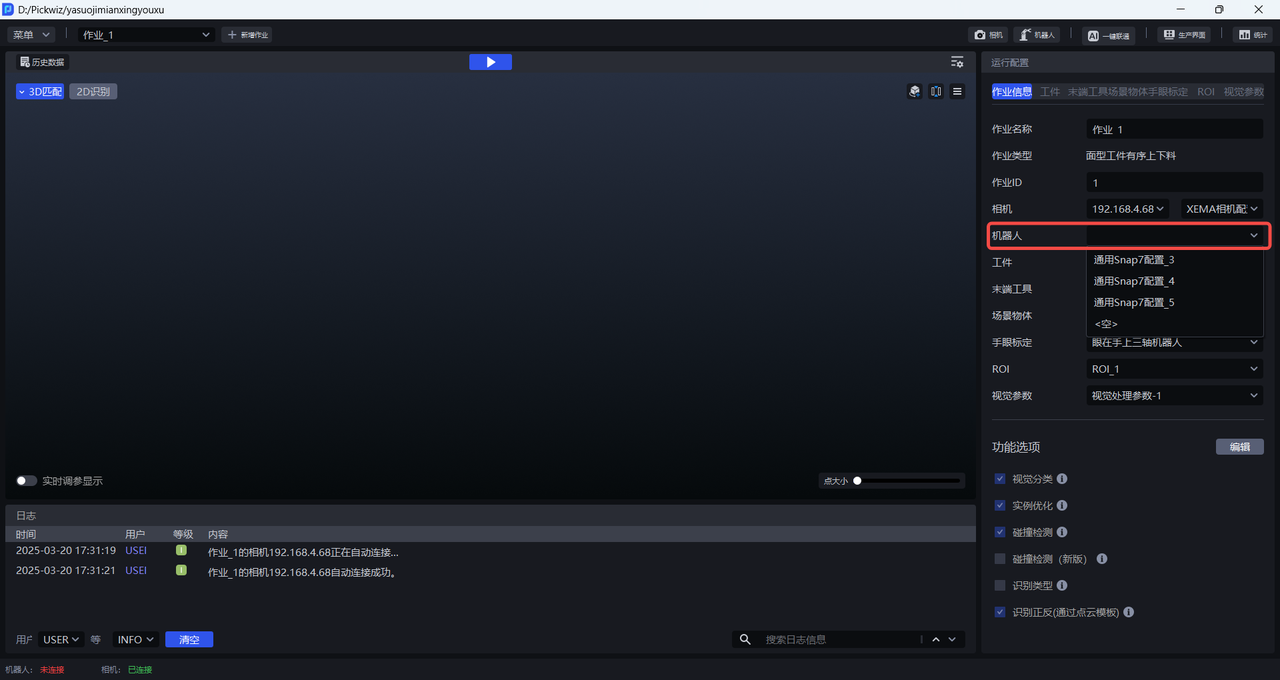
If the connection succeeds, the robot communication status in the lower-left corner of the main screen displays "Connected."

If the connection fails, the robot communication status displays "Disconnected." Check that the network cable between the robot and industrial PC is securely connected and that the program loaded and running on the robot system is correct, then configure the robot again.

For instructions on editing, copying, deleting, and selecting robot configurations for a task, see the Robot Configuration Guide.
5. Related Documents
Return to communication method selection and the general configuration process
Configure the number of instances and pick points in vision results
Learn about placeholder processing hooks available for Snap7