
Shadow Mode User Guide
1. Shadow Mode Overview
In deep learning models, Shadow Mode is a data augmentation method. It reuses real data collected while a model runs in an actual scene to train the model, increasing data diversity and improving the model’s ability to generalize.
2. Choose a Shadow Mode
| Mode | What It Improves | Applicable Conditions | Minimum Training Data | Configuration Entry |
|---|---|---|---|---|
| Target Shadow Mode | Instance detection performance of the Visual Model | The detection success rate for objects of the same type has reached at least 95% and needs further improvement | 100 samples | Target Configuration screen |
| KINGFISHER Shadow Mode | Point Cloud quality of the binocular Camera’s Imaging Model | Imaging is good in 70%–90% of the area, but parts of the Target or material frame Point Cloud have collapsed | 20 data samples saved when triggered by the robotic arm | Binocular Camera Configuration screen |
SIPE Model Limitations
In V1.9.0, SIPE end-to-end models do not currently support Shadow Mode, Mask Mode, or One-Click Connection. The training procedures in this guide apply to Visual Models and Imaging Models that support Shadow Mode.
3. Target Shadow Mode
3.1 Applicable Scenarios and Data Requirements
If the on-site detection success rate for the same type of object has already reached 95%+ and you want to reach 99.9%, you can use Shadow Mode to train the model yourself.
V1.9.0 supports Shadow Mode training for Visual Models produced by the older One-Click Connection training framework. The same model can also undergo multiple rounds of Shadow Mode training for continued improvement. For neatly arranged general-target loading and unloading and randomly arranged general-target picking, Visual Models with keypoints from earlier versions cannot be used in V1.9.0; submit a new One-Click Connection training task first.
Before use, ensure that the total amount of Shadow Mode data meets the requirement: at least 100 shadow data samples.
3.2 Enable Shadow Mode
On the main screen, click Target, select a specific Target to open the Target Configuration screen, scroll down to Shadow Mode, and click Enable Shadow Mode.
3.3 Configure the Retention Policy
Set the retention policy and the maximum data size or number of samples for Shadow Mode training data according to your needs. When the configured maximum is exceeded, the system automatically deletes the data written earliest.
- Save by fixed size: Unit: GB. Available range: [0.01, 5]. Default: 1 GB.
- Save by fixed quantity: Unit: samples. Available range: [100, 1000]. Default: 150 samples.
3.4 Edit the Task Environment
When the model is at risk of missing detections, add pallet/base support/floor data from the Task environment to enhance training and help the model distinguish what it should identify.
Click Edit Task Environment to view and edit shadow data samples with no Target instance information. In the Task environment data, delete samples that contain no Targets for use as the Task environment (in rare cases, a sample may contain a Target that was not identified; such samples would mislead the model and must be deleted, as shown in the lower-right image). Ensure that Task environment data contains no Targets and contains only base supports/pallets/floors for subsequent shadow training, so the model does not mistakenly identify base supports, pallets, floors, or other non-Target objects as Targets.
Tips
Samples must be 2D recognition error samples for which detection fails completely. 2D errors filtered out by functions and 3D error samples will not appear or take effect in Edit Task Environment.
3.5 Configure and Start Training
- Select the model to train.
- Set the number of iterations. The default is 50. More iterations take longer to train. Keeping 50 is usually recommended, but you can adjust the number as needed.
- Select the training data source:
- After Instance Filtering: Selected by default. Suitable when incorrect segmentation occurs and needs to be filtered.
- Before Instance Filtering: Suitable when Target segmentation performs well.
- Set the model name.
- Add remarks if needed.
- Select offline processing if needed.
- Click
Start Training.
3.6 Use the Trained Model
After training finishes, select and use the new model directly under Visual Model.
3.7 Frequently Asked Questions
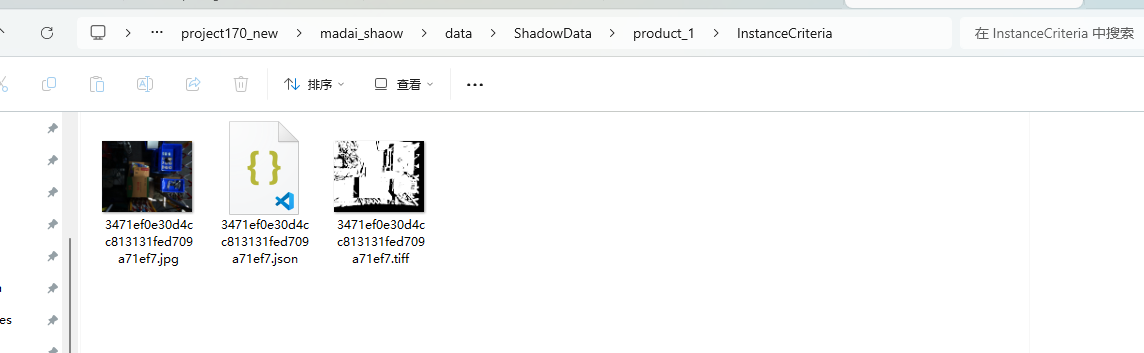
Where is shadow data saved?
- Storage path after Instance Filtering:
\项目文件夹\data\ShadowDate\product_{工件id}\InstanceCriteria - Storage path before Instance Filtering:
\项目文件夹\data\ShadowDate\product_{工件id}\InstanceBuilder

What should I do if the trained model performs poorly?
- Check whether the material being detected is the same type as the material used during Shadow Mode training.
- On the Target screen, check whether the Target model has been changed to the latest trained deep learning model.
- On the Visual Parameters screen, try adjusting the Scaling Ratio for 2D recognition.
- If a single scaling ratio cannot meet the needs of the actual scene, select the Auto Augmentation function on the Visual Parameters screen and set multiple Auto Augmentation – Scaling Ratios. See the 2D Instance Segmentation Configuration Guide.
4. KINGFISHER Shadow Mode
4.1 Applicable Scenarios and Data Requirements
In V1.9.0, Shadow Mode can train Imaging Models for KFC series cameras, including KINGFISHER-S-602 and KINGFISHER-W-3004.
If the Imaging Model currently used by the Camera produces good images for 70%~90% of the area (but parts of the Target or material frame Point Cloud have collapsed), you can train on shadow data from the real scene to obtain a fine-tuned model with better Point Cloud imaging (good imaging for 95%+ of the area).
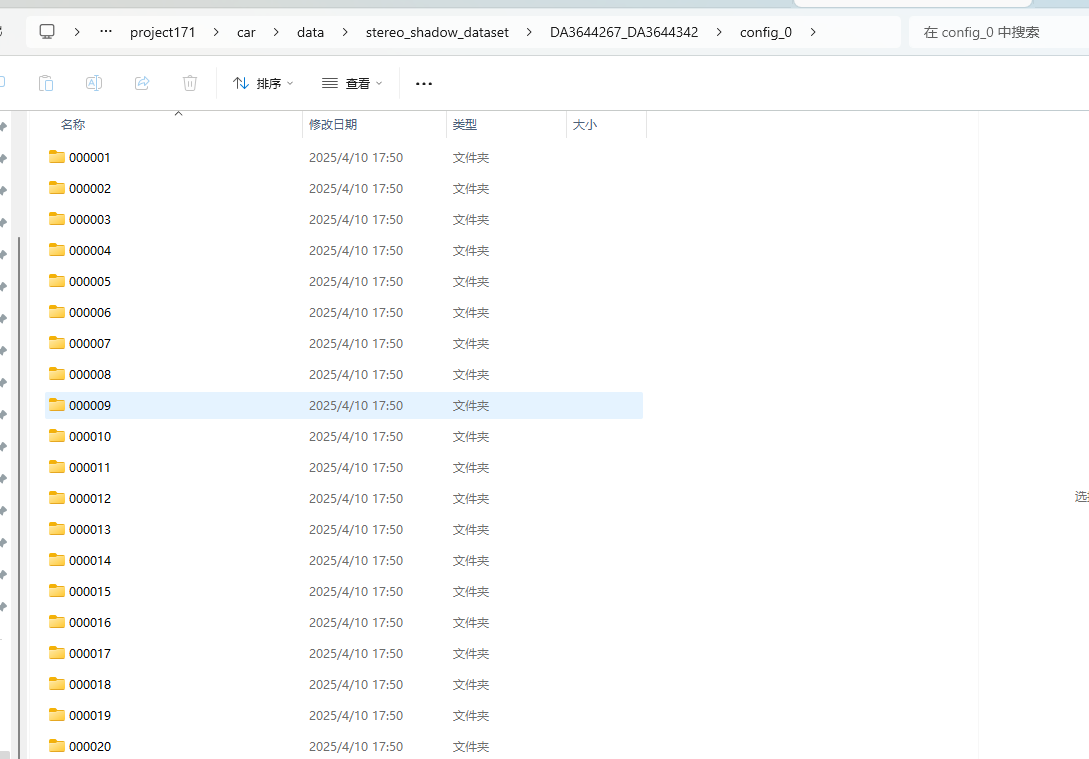
Before use, ensure that the total amount of Shadow Mode data meets the requirement: at least 20 shadow data samples. Use only data saved when triggered by the robotic arm.
4.2 Enable Shadow Mode
On the main screen, click Camera. On the Camera Configuration screen, connect the binocular Camera, scroll down to Imaging Model Shadow Mode, and select the checkbox to enable it.
4.3 Configure the Retention Policy
Set the retention policy and the maximum data size or number of samples for Shadow Mode training data according to your needs. When the configured maximum is exceeded, the system automatically deletes the data written earliest.
- Save by fixed size: Unit: GB. Available range: [0.01, 5]. Default: 1 GB.
- Save by fixed quantity: Unit: samples. Available range: [100, 1000]. Default: 150 samples.
4.4 Configure and Start Training
- Keep the default number of iterations.
- Set the model name.
- Add remarks if needed.
- Click
Start Trainingand wait for model training to finish.
4.5 Use the Trained Model
After training finishes, select the corresponding new model in Model Configuration, then click Trigger Capture to check the results.