Front/Back Recognition (Using Point Cloud Templates) Guide
Front/Back Recognition (Using Point Cloud Templates) allows you to import the front-side and back-side Point Cloud templates of a workpiece to match whether the picked workpiece is front-side or back-side, and Pick Points can be configured separately for the front side and back side of the workpiece. This article mainly introduces how to configure the front and back sides of a workpiece and adjust related visual parameters after enabling Front/Back Recognition (Using Point Cloud Templates).
The Front/Back Recognition (Using Point Cloud Templates) function is applicable to general workpiece random picking, planar workpiece random picking, planar workpiece ordered/random loading and unloading, general workpiece ordered/random loading and unloading, planar workpiece ordered loading and unloading (materials isolated from each other), planar workpiece positioning assembly (Point Cloud matching only), and planar workpiece positioning assembly and general workpiece positioning assembly
Front/back template creation: the Point Cloud template creation function of PickWiz
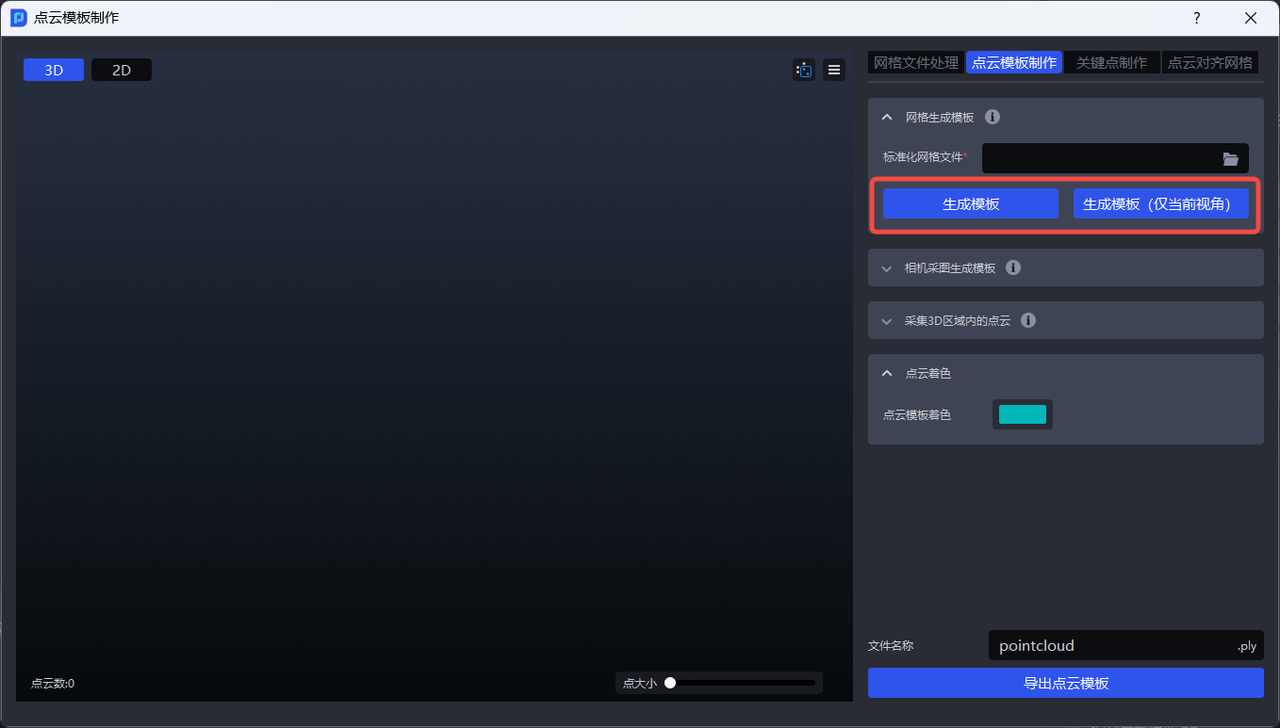
Operation Guide
1. Planar Workpieces
1.1 When the front side and back side of the workpiece in the actual scene differ greatly, enable the Front/Back Recognition (Using Point Cloud Templates) function when creating a new project; if it was not enabled when creating the project, go to the task information page, click Edit in the lower right corner, then enable Front/Back Recognition (Using Point Cloud Templates) and save.
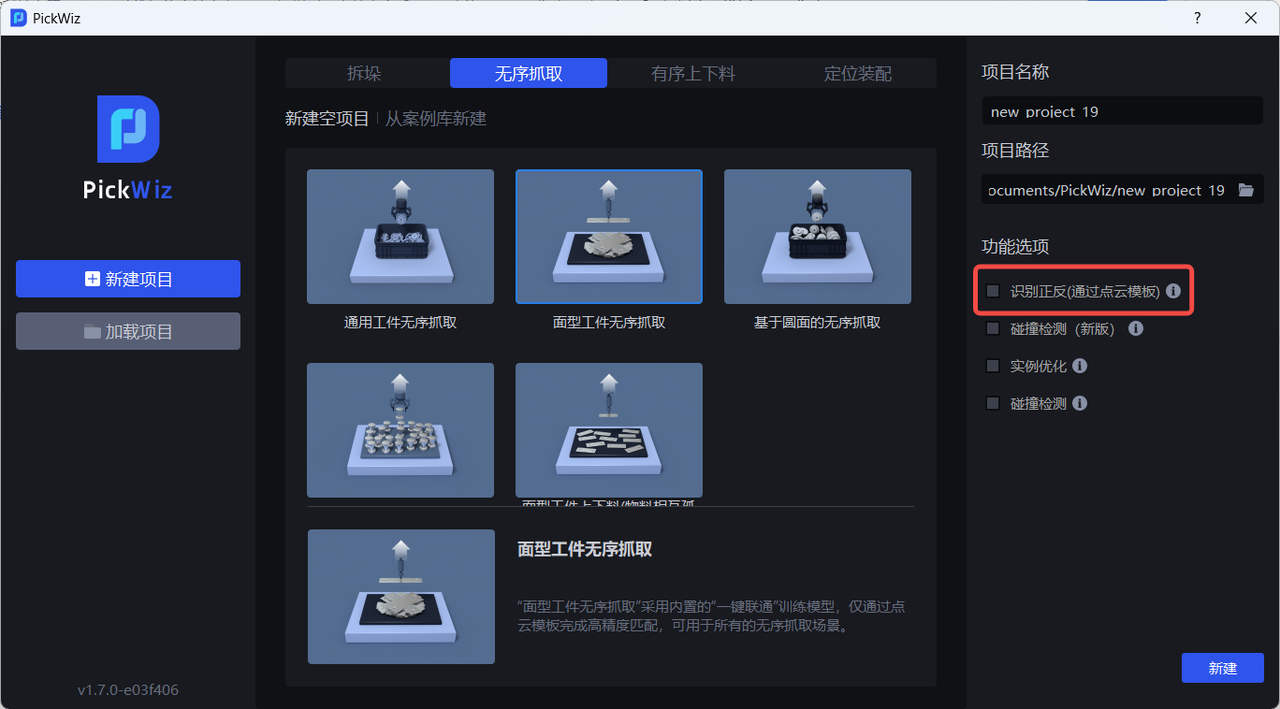
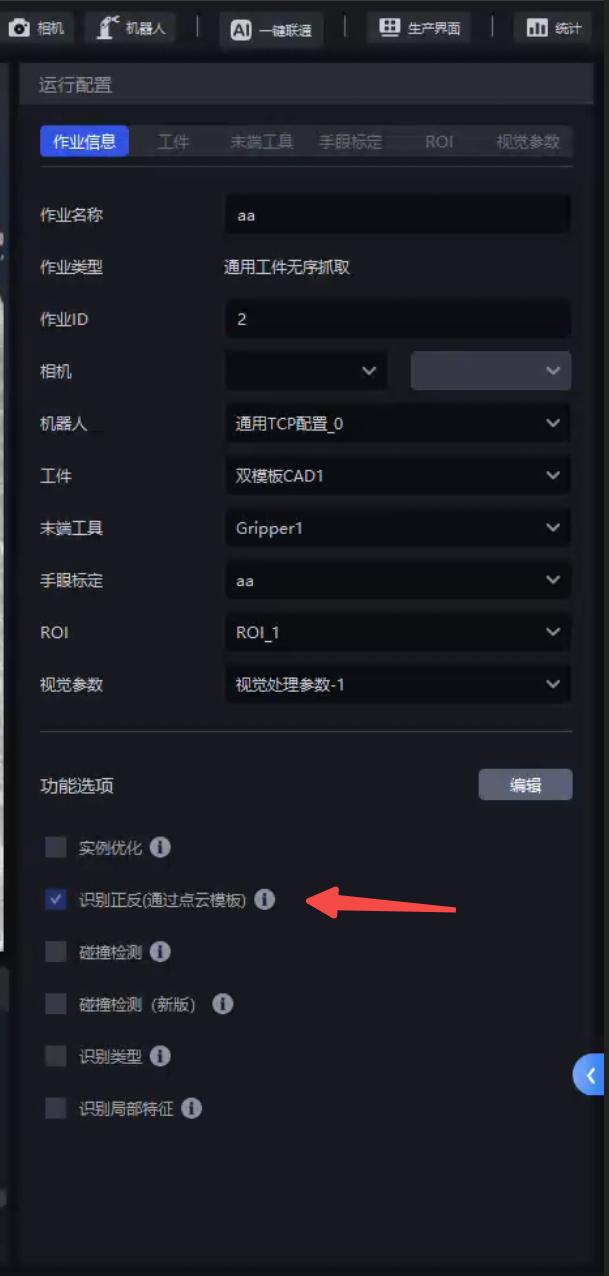
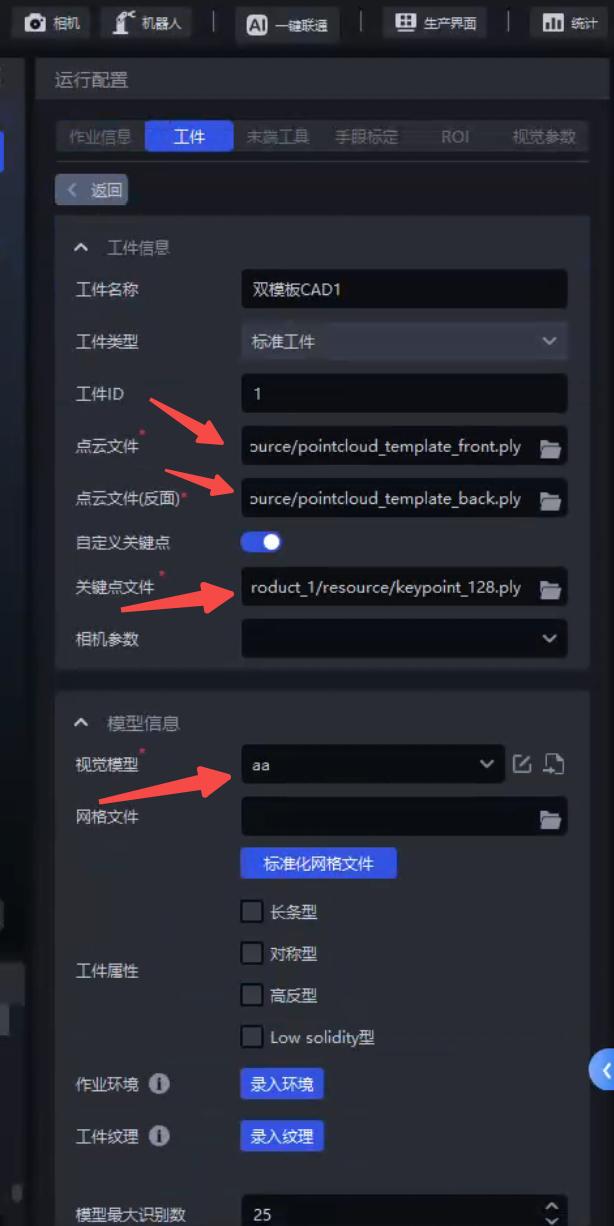
1.2 Configure dual-template CAD on the workpiece page and upload the workpiece's Point Cloud File, Point Cloud File (Back Side), vision model, and custom keypoints.
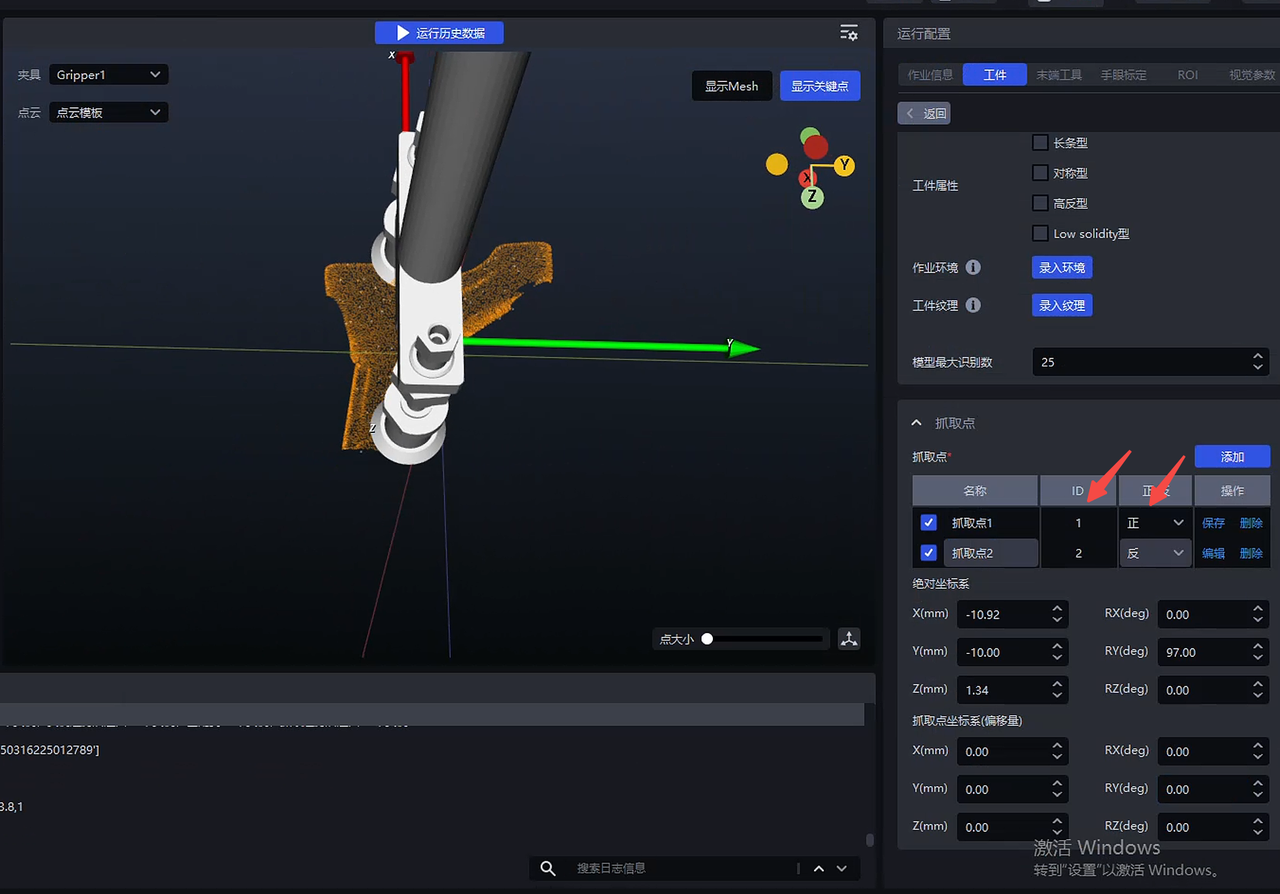
1.3 Set the corresponding Pick Points for the front and back templates respectively
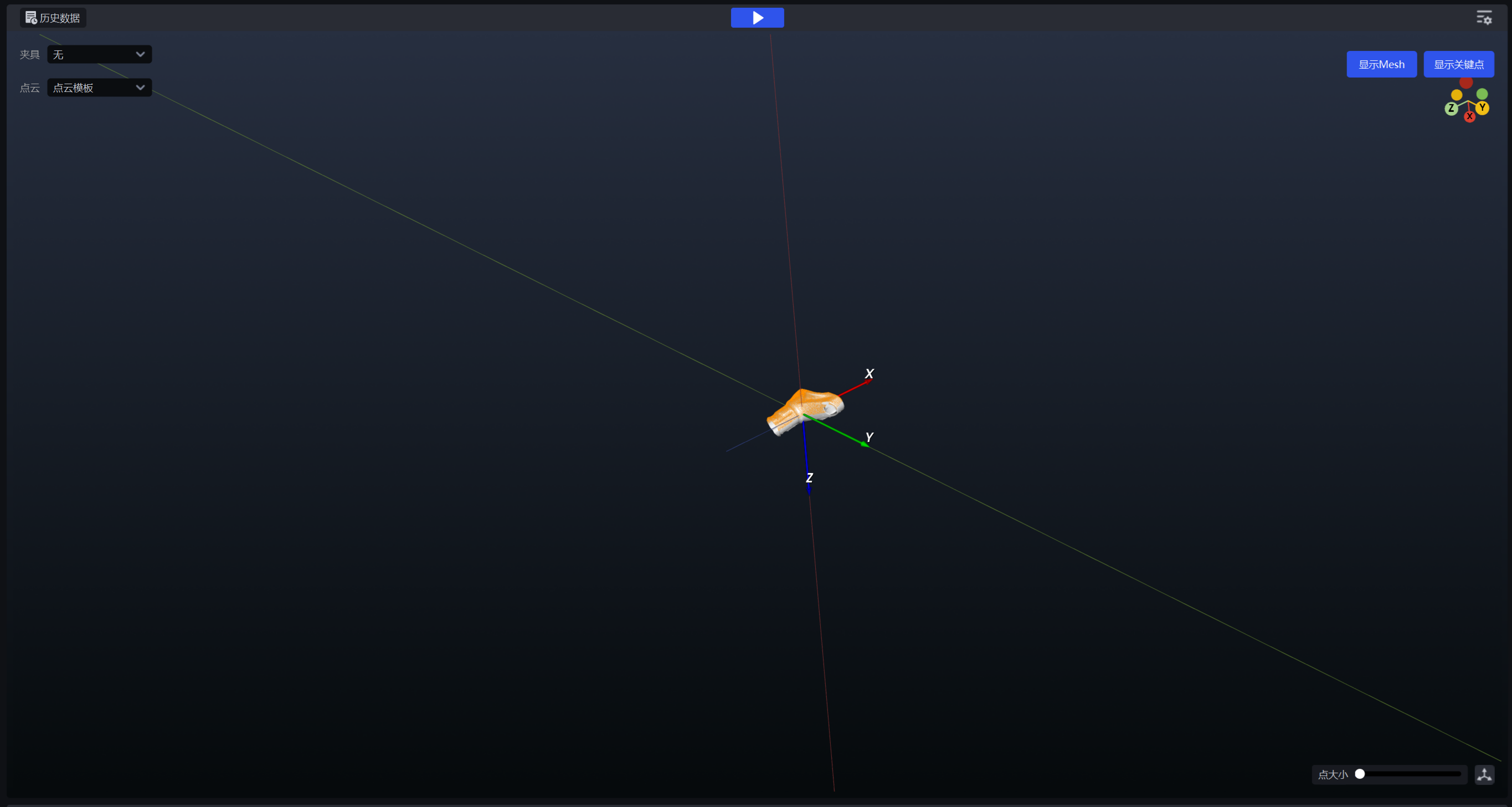
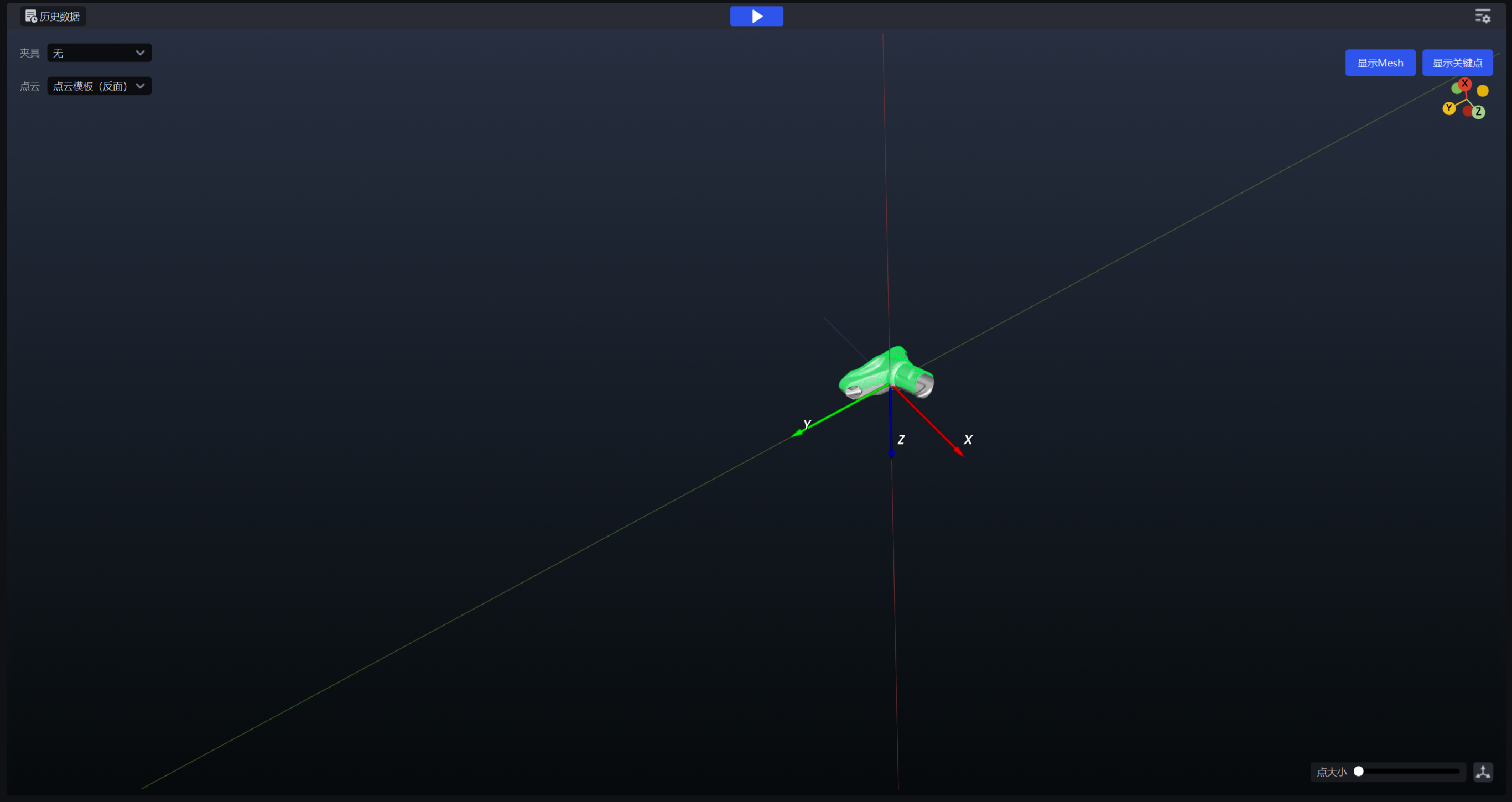
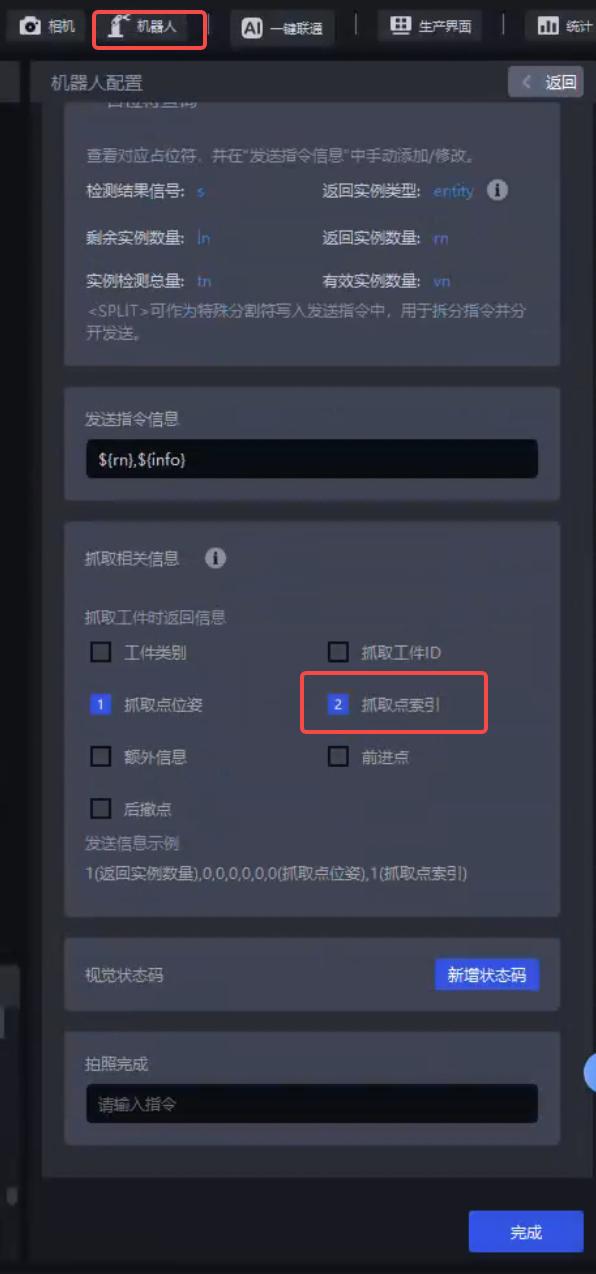
1.4 In Robot Configuration, enable Pick Point Index in the picking-related information
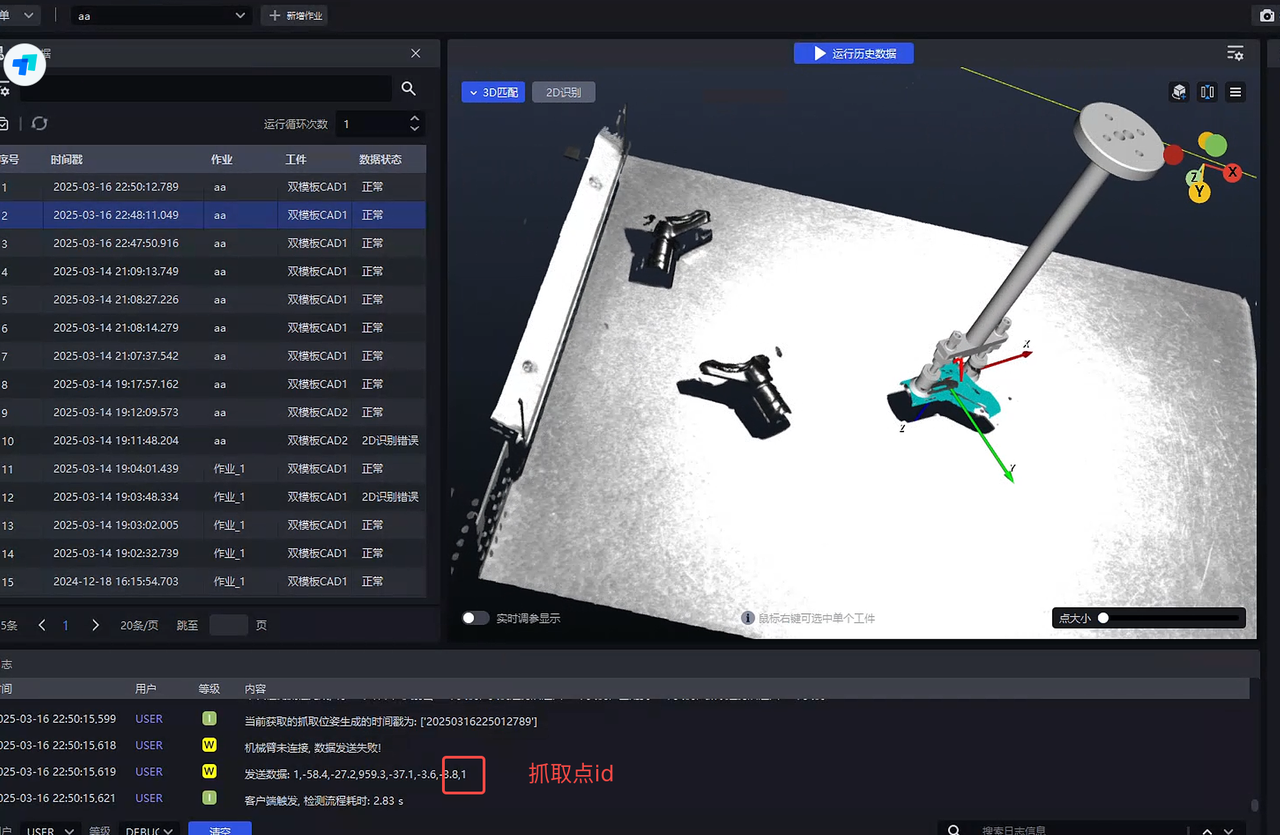
Note
The Pick Point id returned by the robot should correspond correctly to the front/back templates
2. General Workpieces with Identical Front and Back Shapes
Examples are as follows:
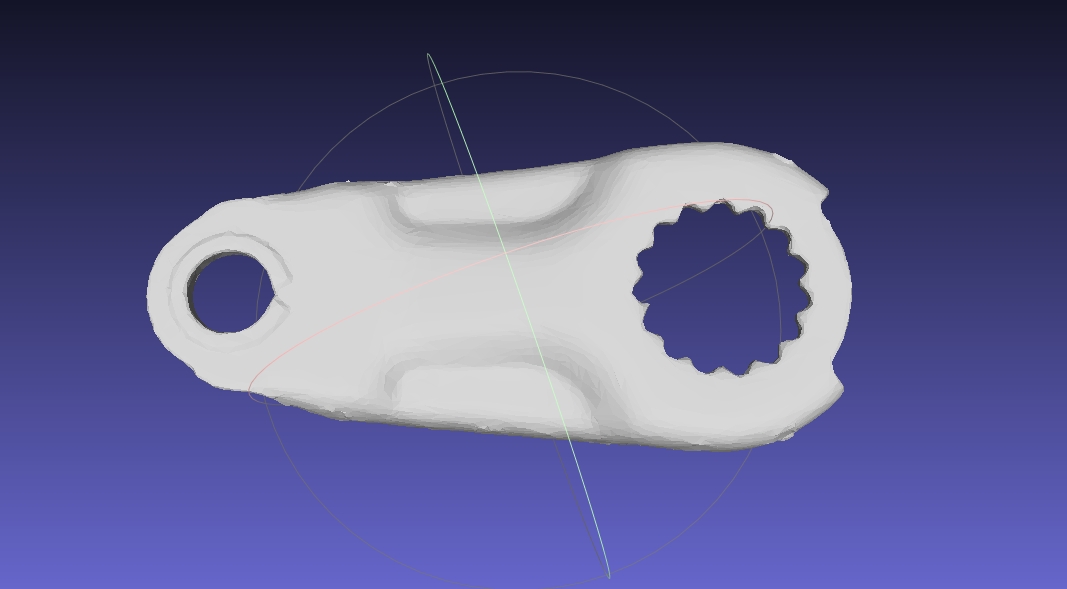 Front Side Front Side | 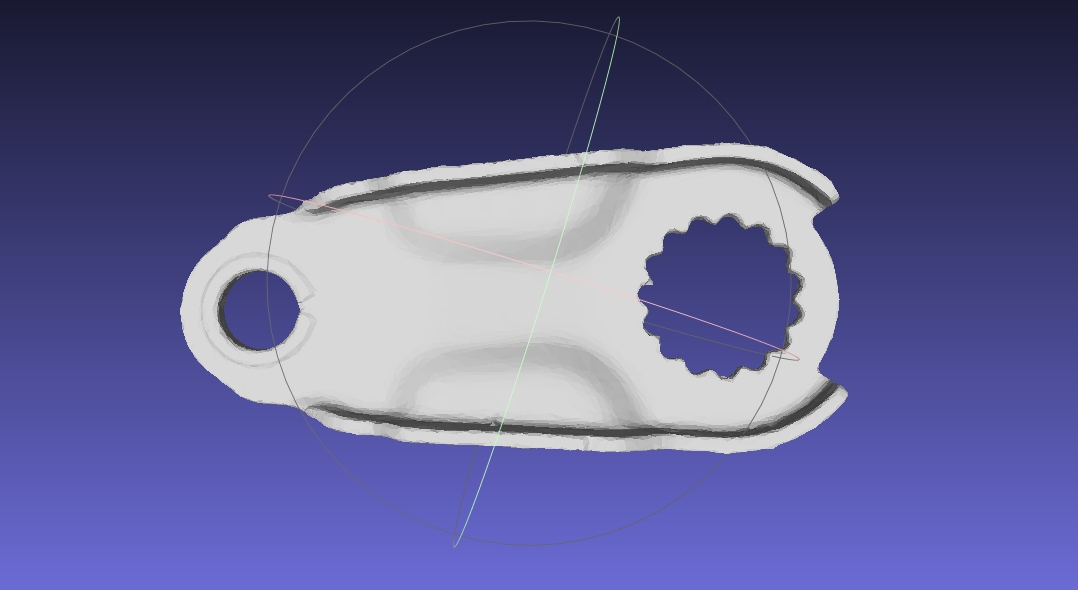 Back Side Back Side |
|---|
2.1 Same as 1.1 above
2.2 Configure dual-template CAD on the workpiece page and upload the workpiece's Point Cloud File, Point Cloud File (Back Side), vision model, and custom keypoints.
PickWiz matches general workpieces based on the original template according to the keypoint situation. If keypoint prediction is incorrect, it will match in reverse. In this case, use the score comparison of interleaved templates to correct the error. The front and back templates should not align with the front and back sides of the CAD model, but should be modified to interleave with each other.
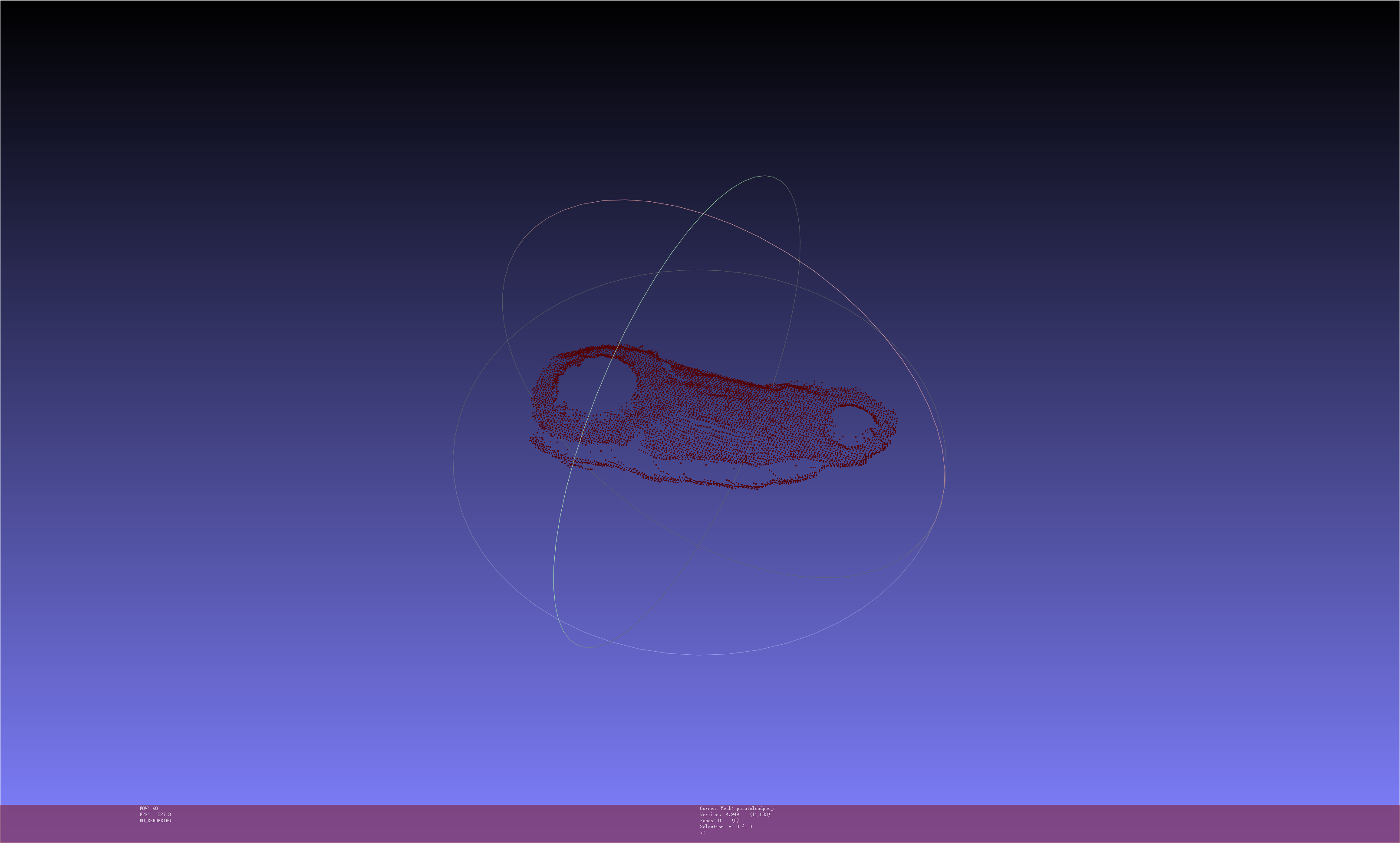
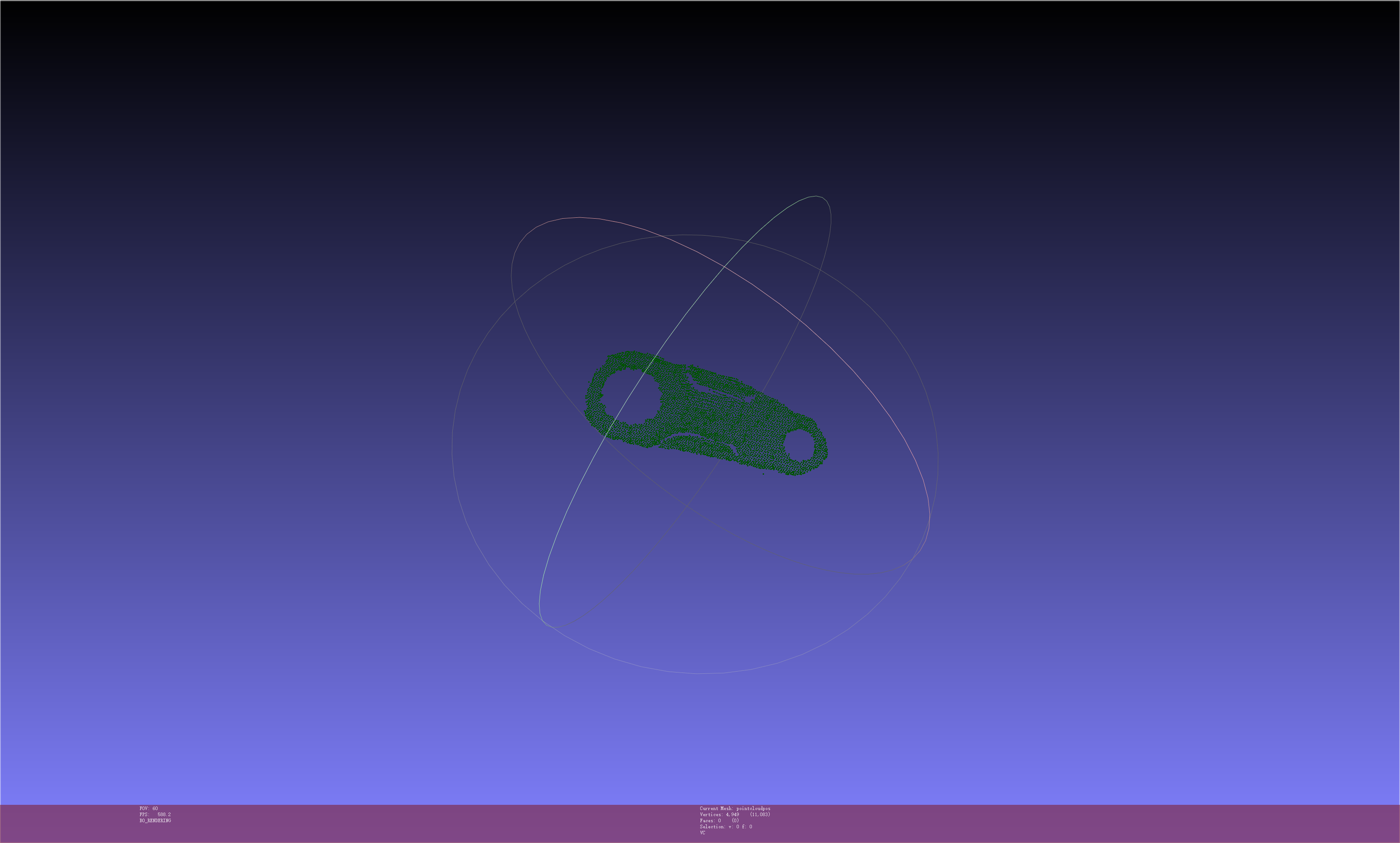
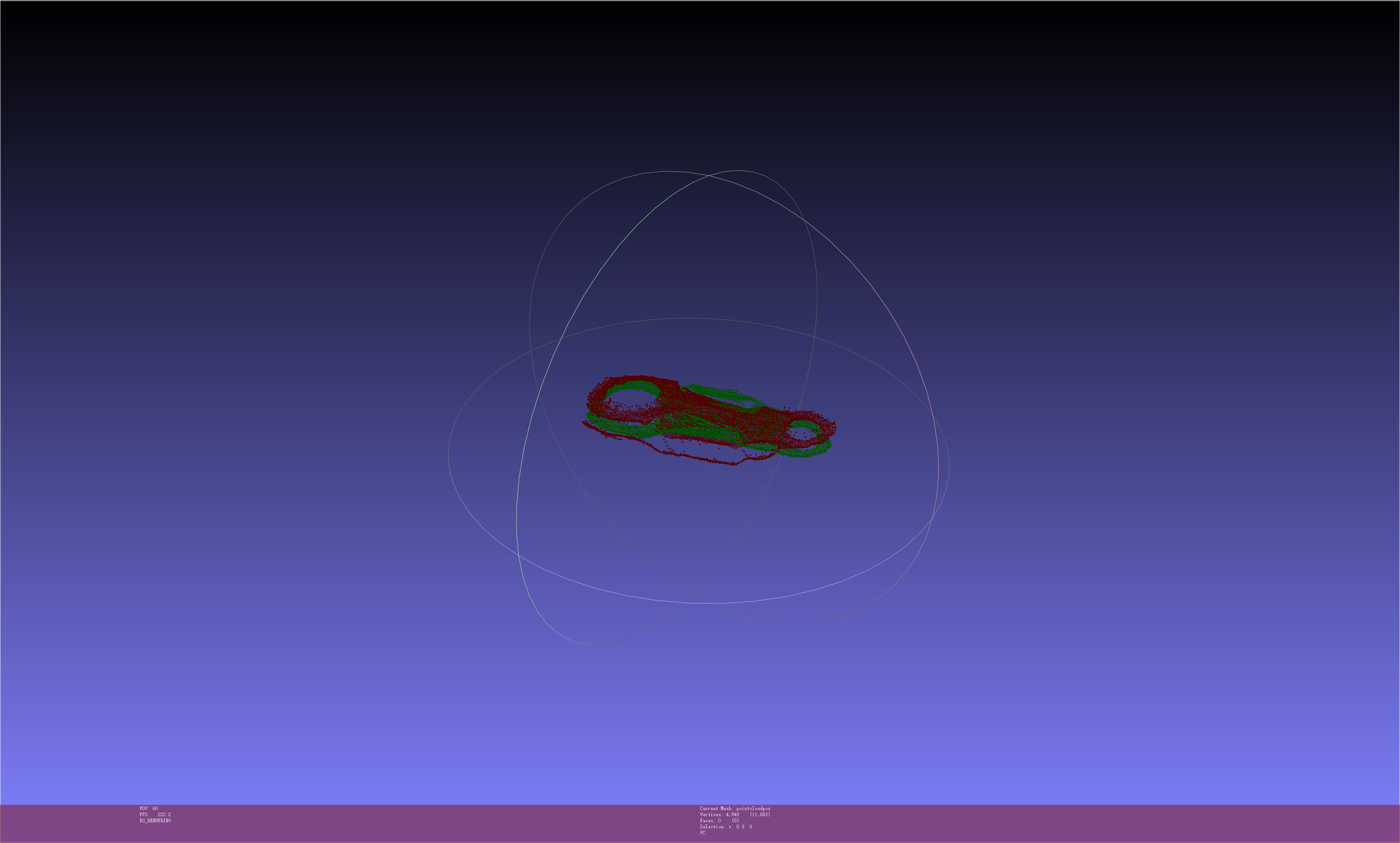
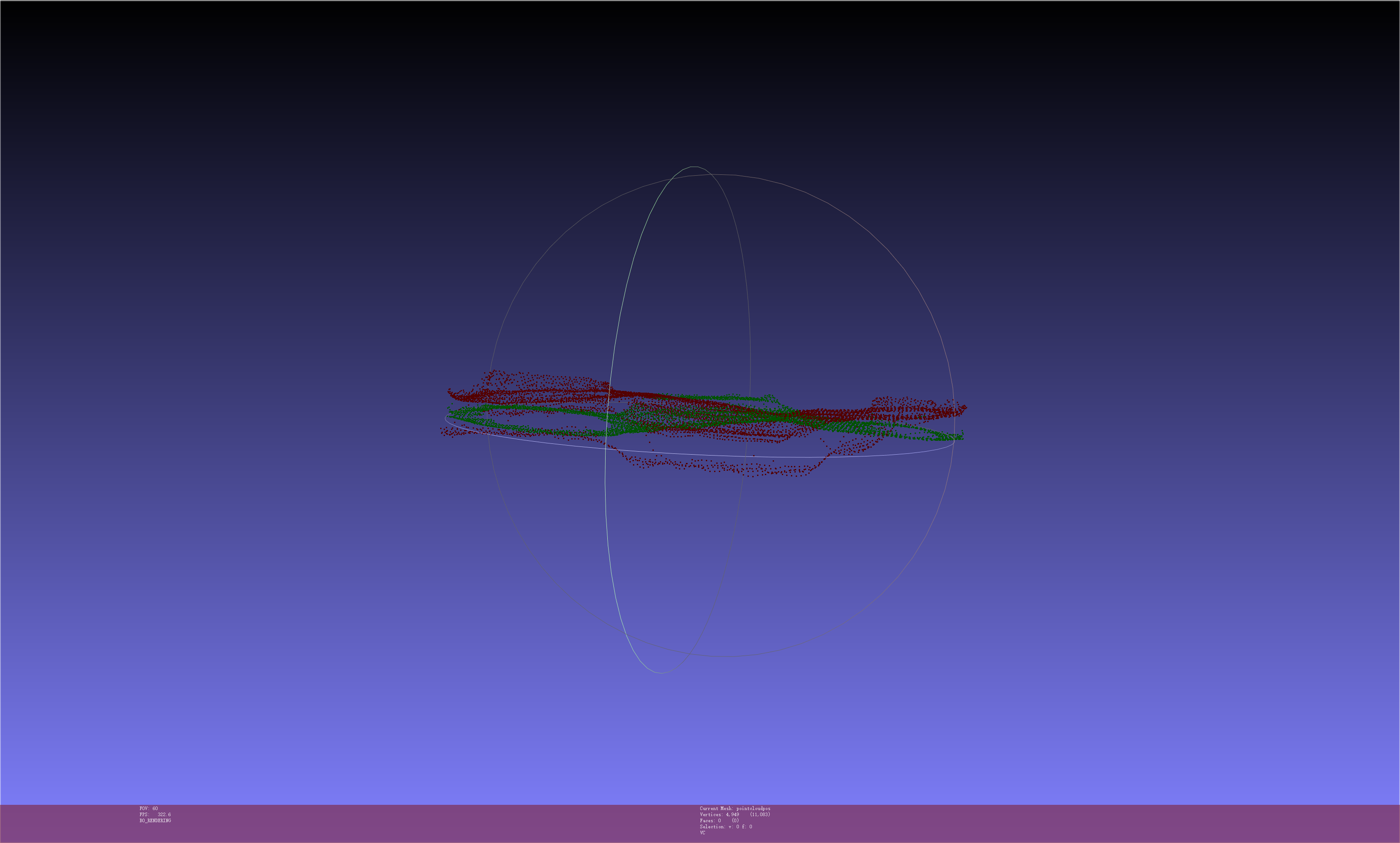
When the workpiece has identical front and back shapes, the front and back templates need to be interleaved and placed on the same plane. As shown below.
The following are the front-side and back-side templates of the workpiece Point Cloud. The two templates need to be placed in an interleaved manner on the same plane.
2.3 Set Pick Points
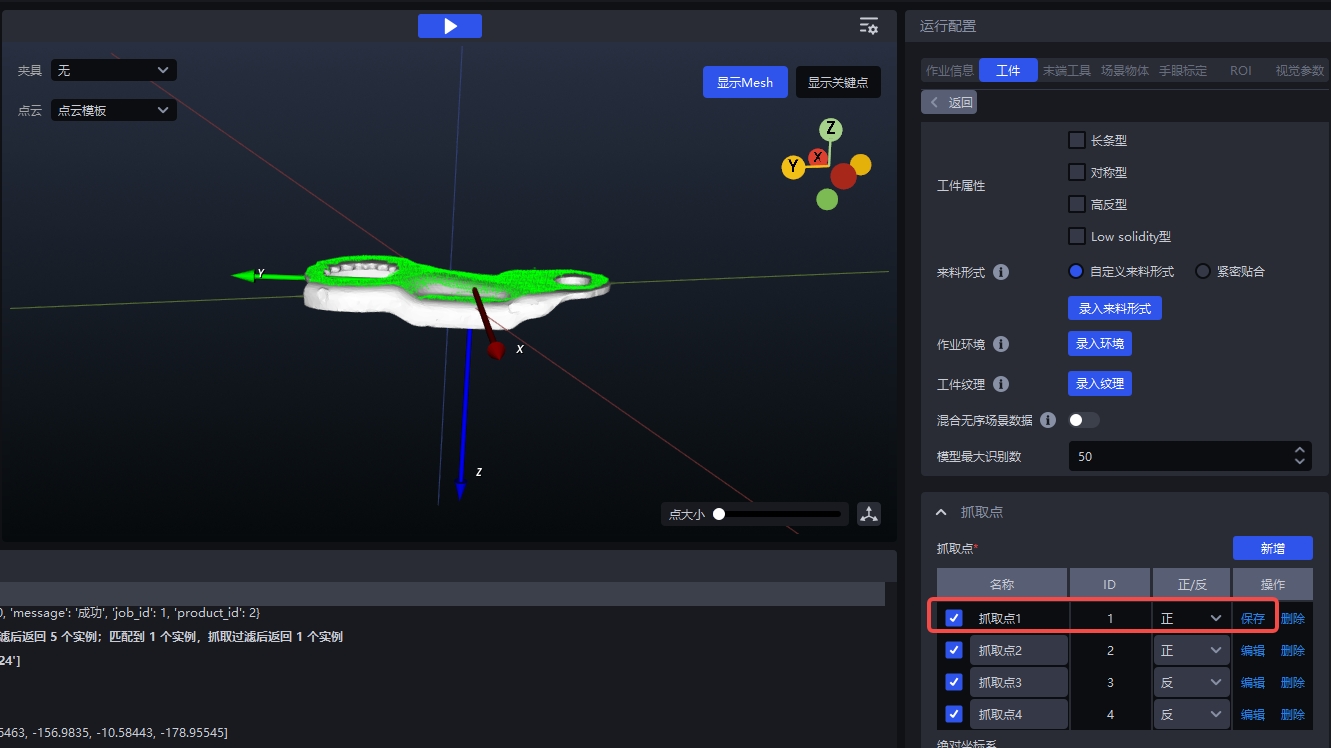
Click Add to set the Pick Points for the front and back templates. Check the Front/Back attribute, and adjust the Pick Point positions of the front-side and back-side template Point Clouds according to the visualization window.
Both the front-side and back-side templates need two Pick Points:
- The first Pick Point ensures that the correct Pick Point is output when the front template correctly matches a front-side workpiece;
- The second Pick Point ensures that when the workpiece is front-side, the front template matches incorrectly, and the back template matches successfully in an inverted orientation, the result can still be output according to the back-side Pick Point, so it should be configured according to the back-side Pick Point. The same applies to the back side.
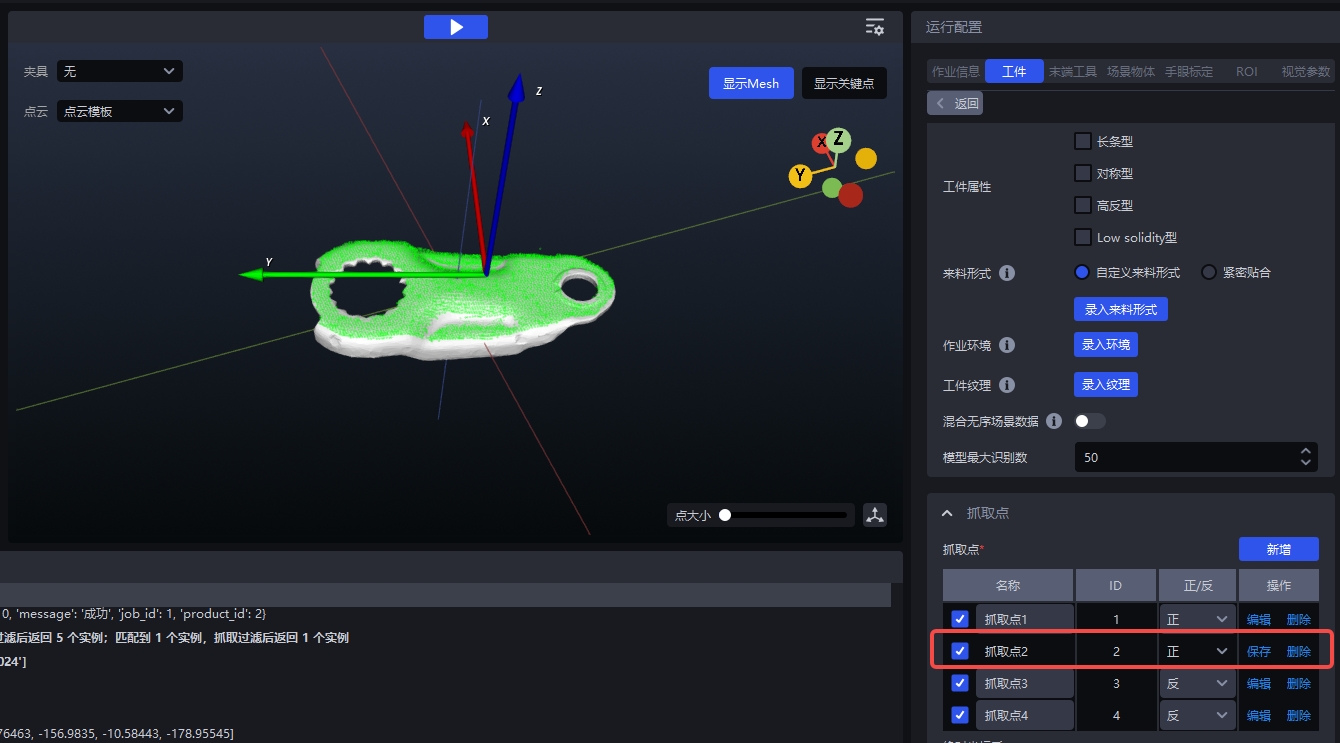
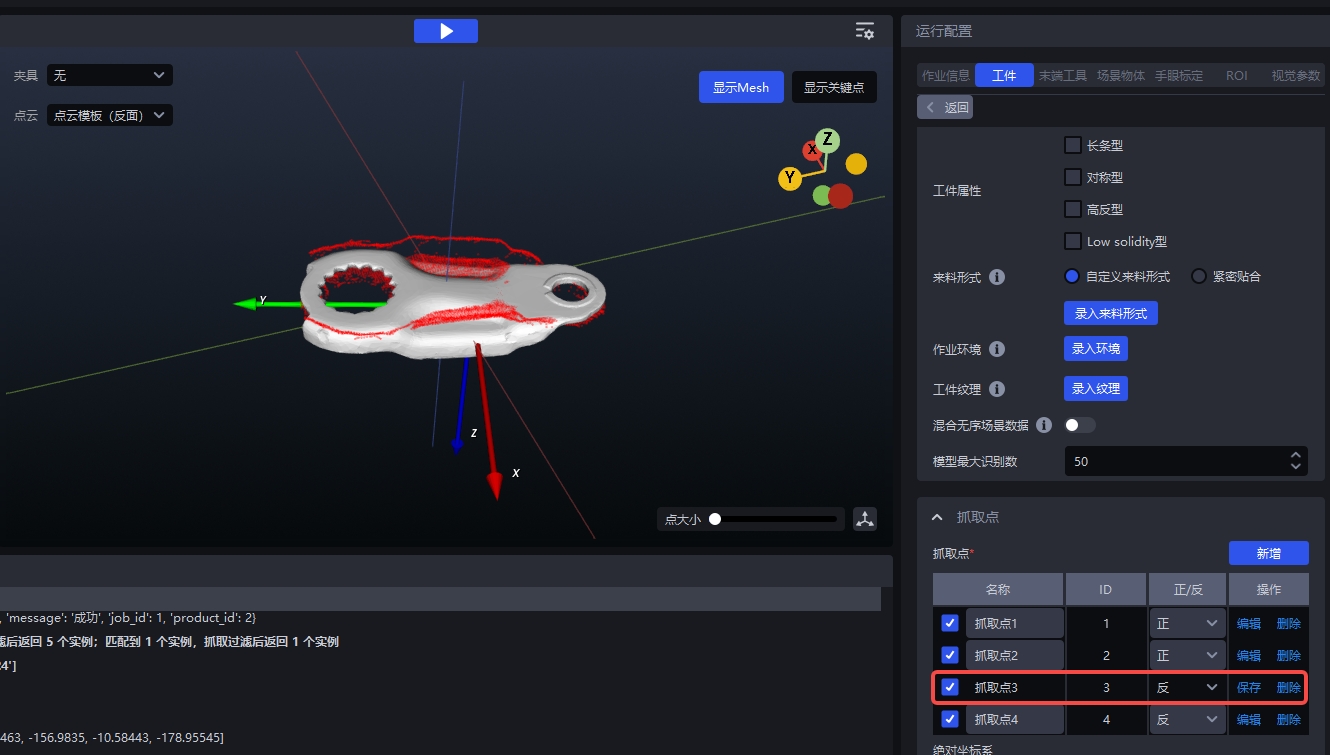
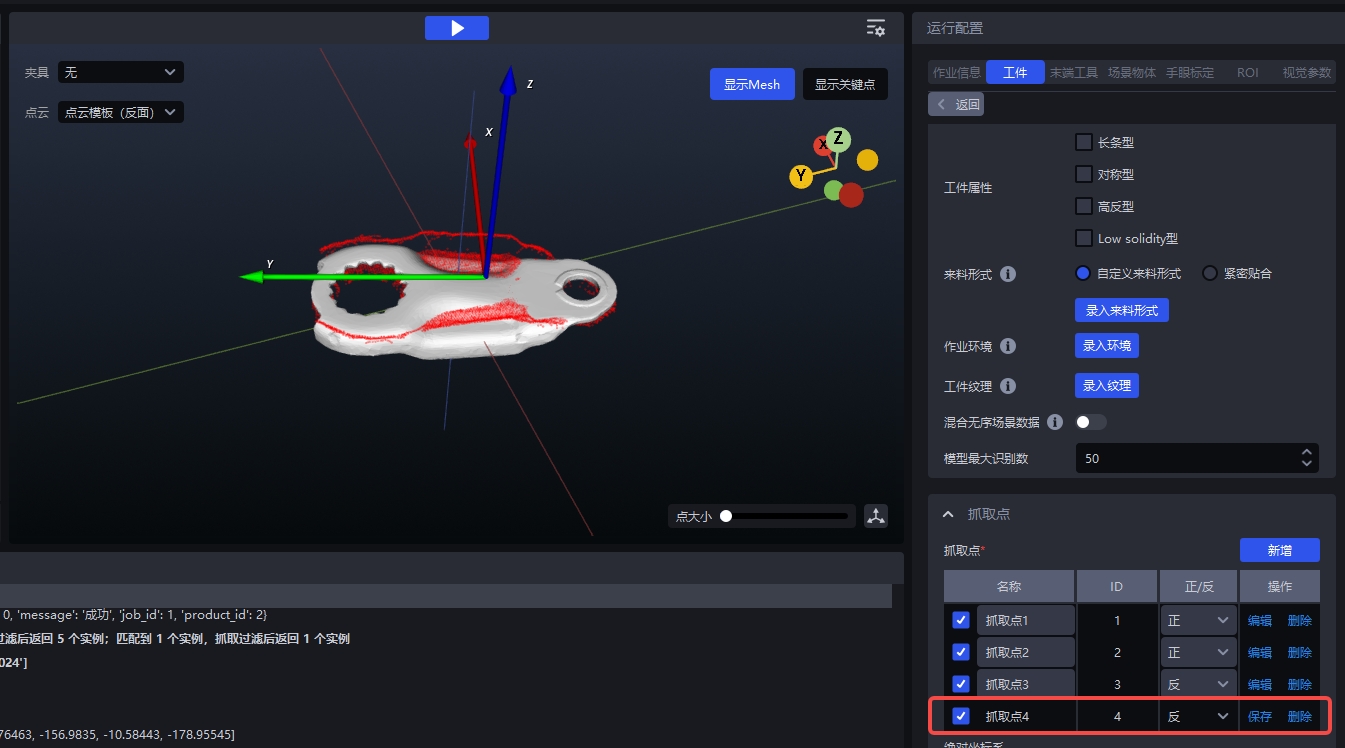
2.4 In Robot Configuration, enable Pick Point Index in the picking-related information, same as 1.4 above