DexVerse Operation Manual
DexVerse is a cloud platform that combines cloud-native technology with MixedAI capabilities to automatically trigger, manage, schedule, and monitor Deep Learning training tasks, mainly serving industrial vision model training and embodied intelligence R&D scenarios.
Its core functions and features include:
Task management capabilities: Supports full lifecycle management of Deep Learning training tasks, including automatic triggering, dynamic scheduling, and real-time monitoring. You can view task status, download data or models, and handle operations such as task failure, cancellation, and resume.
Technical integration advantages: Based on cloud-native technology, it enables elastic resource scaling and dynamic task scheduling. Combined with MixedAI's simulation and machine learning capabilities, it lowers the barrier to using MixedAI, and users do not need to manage MixedAI versions or subdivided hardware resources themselves.
Integrated usage scenarios: Through PickWiz's "One-Click Integration" feature, data generation and model training can be completed in the cloud based on exported training configurations (such as zip files) (supported only on the intranet).
Embodied intelligence support: In embodied intelligence R&D, it provides functions such as full lifecycle model management (pre-training, fine-tuning, Inference), data engines (Real2Sim data projection, generative data augmentation, and automated skill augmentation), online adaptive fine-tuning, and high-fidelity simulation verification.
1. Create a Task
(1)Visit the DexVerse training platform in the production environment at http://192.168.4.135:8081/, open the login page shown below, and use Feishu to scan the QR code to log in.
(2)After logging in, go to the "New Task" page in the "Task Management" module, as shown below:
(3)On the page shown below, you can create a new training task. Note: At this point, you must enter a task name and upload the task data file (the zip file regenerated after modification and recompression in Step2), then click the "Create Task" button to create the new task, as shown below:
(4)After a new task is created successfully, the page automatically jumps to the task list page, as shown below:
(5)Click the "Details" button on the far right to open the detailed information page for the corresponding task, as shown below:
(6)Click the circular icon in the upper-right corner to open the Personal Center and Log Out pages. The Personal Center page is shown below:
(7)The Log Out page is shown below:
2. View the Trained Model Type
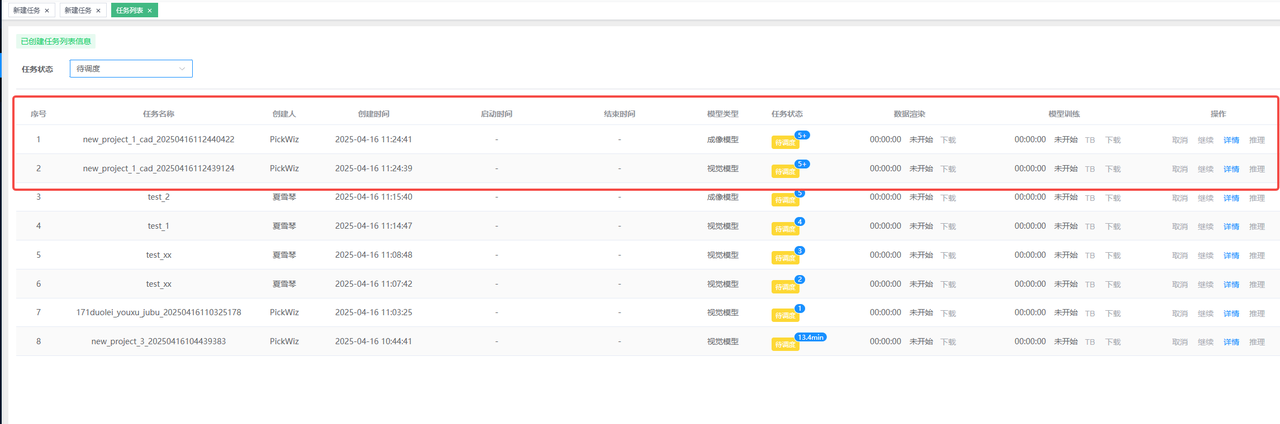
PickWiz 1.7.1 added a model type field
3. View Task Details
4. Cancel a Task
Currently, only tasks in the following states can be canceled:
Pending scheduling
Scheduling
Running
5. Resume a Task
Resuming a task, or task resume, means that a failed task can be started again. The task will run again on the server where it was executed last time. If the target server has no available resources (GPU) at that moment, it will wait in the queue.
6. Download the Model Exported by the Task
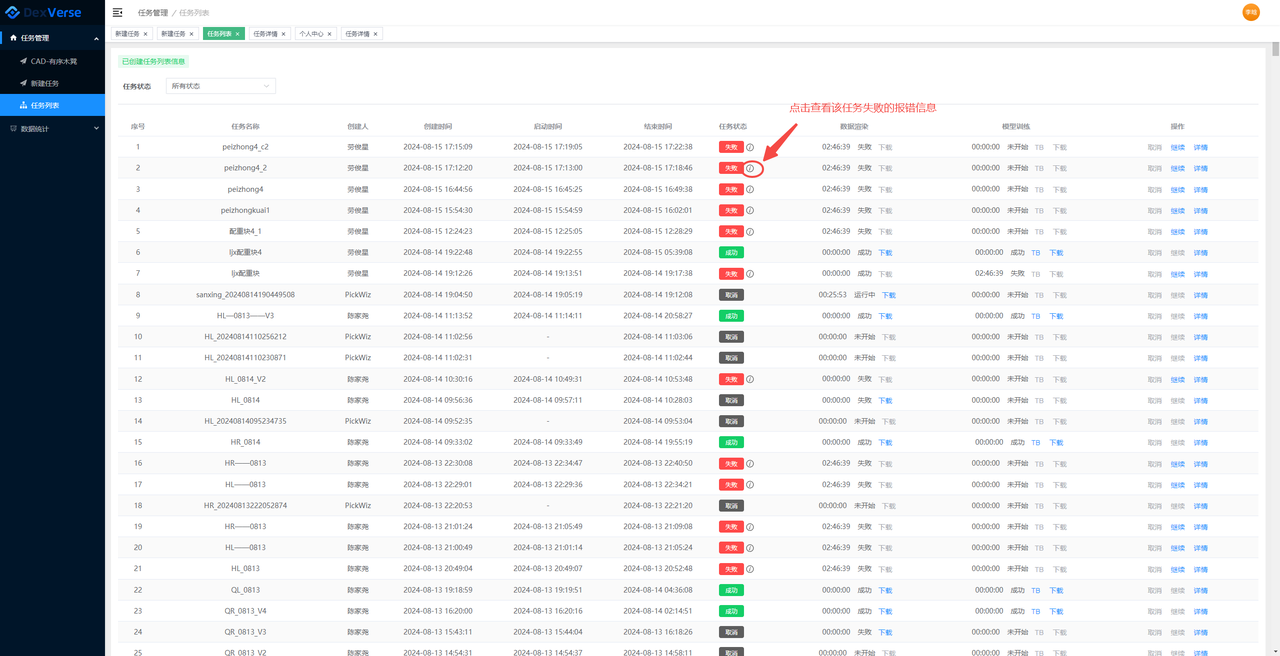
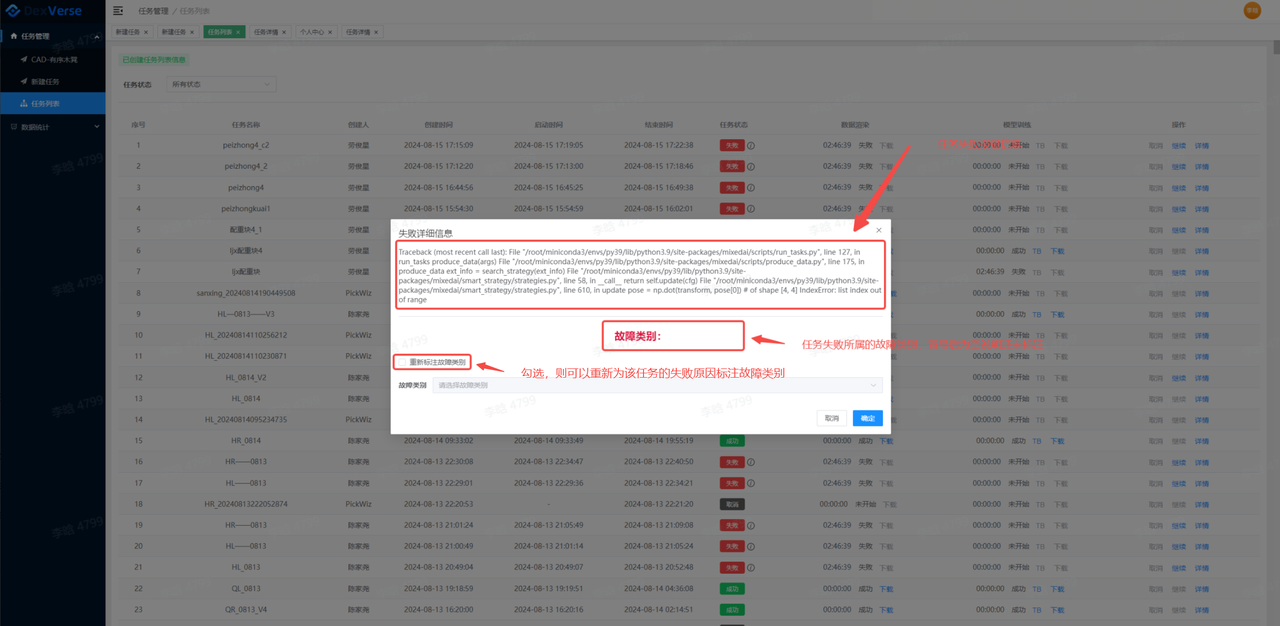
7. View the Cause of Failure