ROI Operation Guide
1. ROI Introduction
ROI, short for Region Of Interest, refers in the field of machine vision to the area selected from the target image that needs focused processing.
ROI is divided into two categories. One is ROI 2D, which is an area selected on a two-dimensional plane. It considers only the two dimensions of length and width and is usually a rectangular, circular, or other shaped area on an image or screen, similar to marking out a specific range on a sheet of paper.
The other is ROI 3D, which is an area selected in three-dimensional space. In addition to length and width, depth also needs to be considered, and it can be imagined as defining a spatial region in real space.
ROI has three functions:
Improve processing efficiency: When processing image data with high resolution, analyzing and processing the entire image often requires a large amount of computing resources and time. By specifying an ROI, the processing range can be limited to a specific area, thereby greatly reducing the computation amount.
Enhance analysis accuracy: ROI is the most critical specific area in an image. By performing fine-grained analysis on the ROI, the detection, identification, and measurement accuracy of specific targets can be improved.
Eliminate interference factors: In an image, there may be some areas unrelated to the analysis target, and these areas affect the accuracy of the analysis result. By defining an ROI, these interference factors can be excluded to improve the reliability of the analysis.
2. Set ROI
In PickWiz, ROI settings include ROI 2D and ROI 3D settings.
2.1 Add ROI
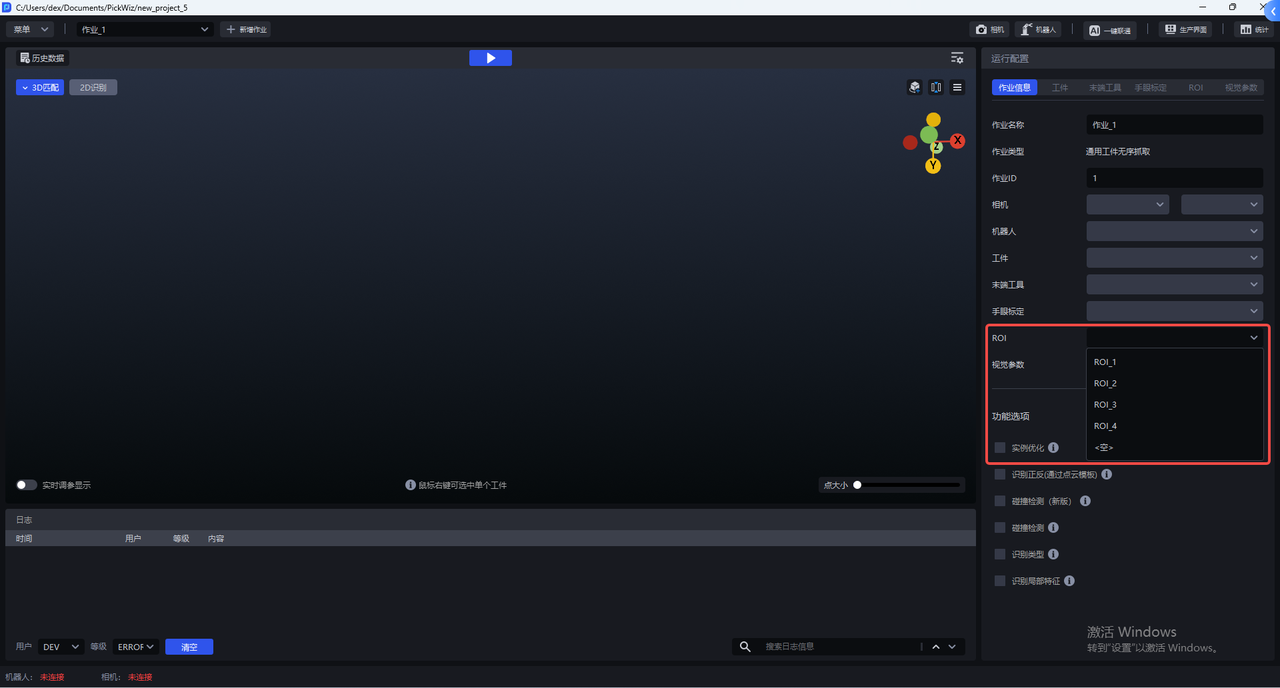
(1)Click ROI in the running configuration, then click +Add ROI to add an ROI configuration. The interface automatically jumps to the ROI configuration interface, where the newly added ROI can be configured.
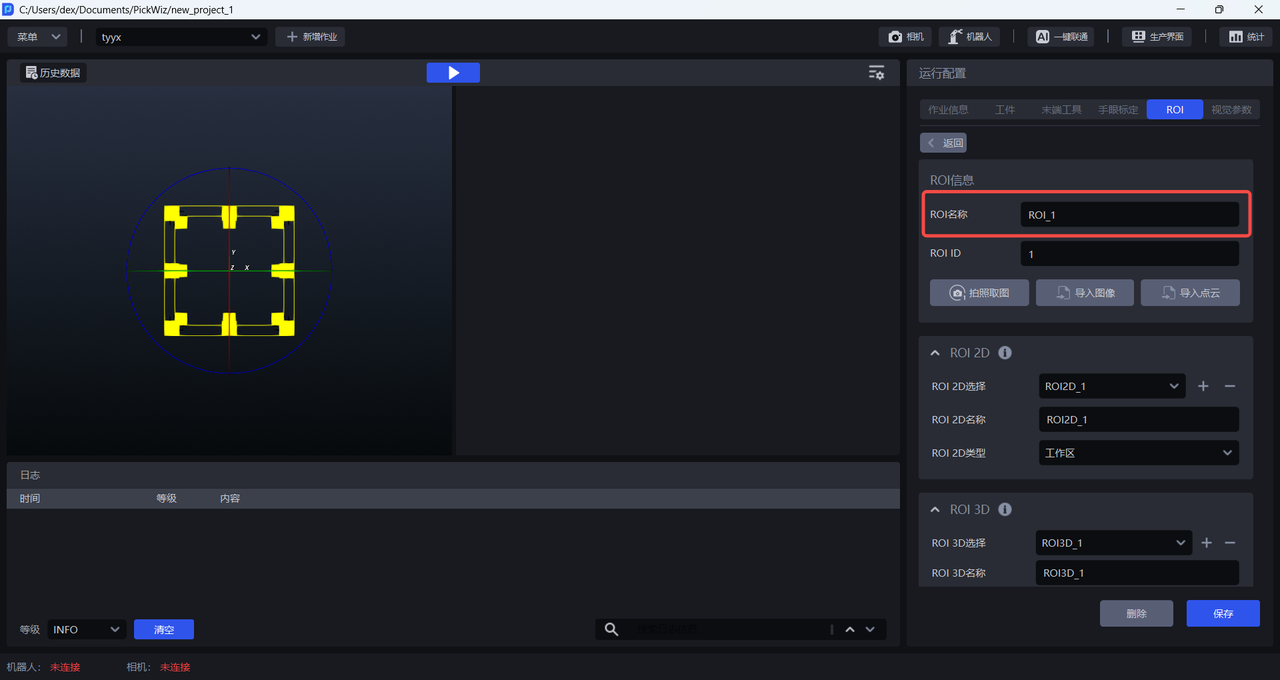
(2)You can edit the name of the ROI configuration yourself. Chinese and uppercase/lowercase English letters are supported, while punctuation characters are not supported.
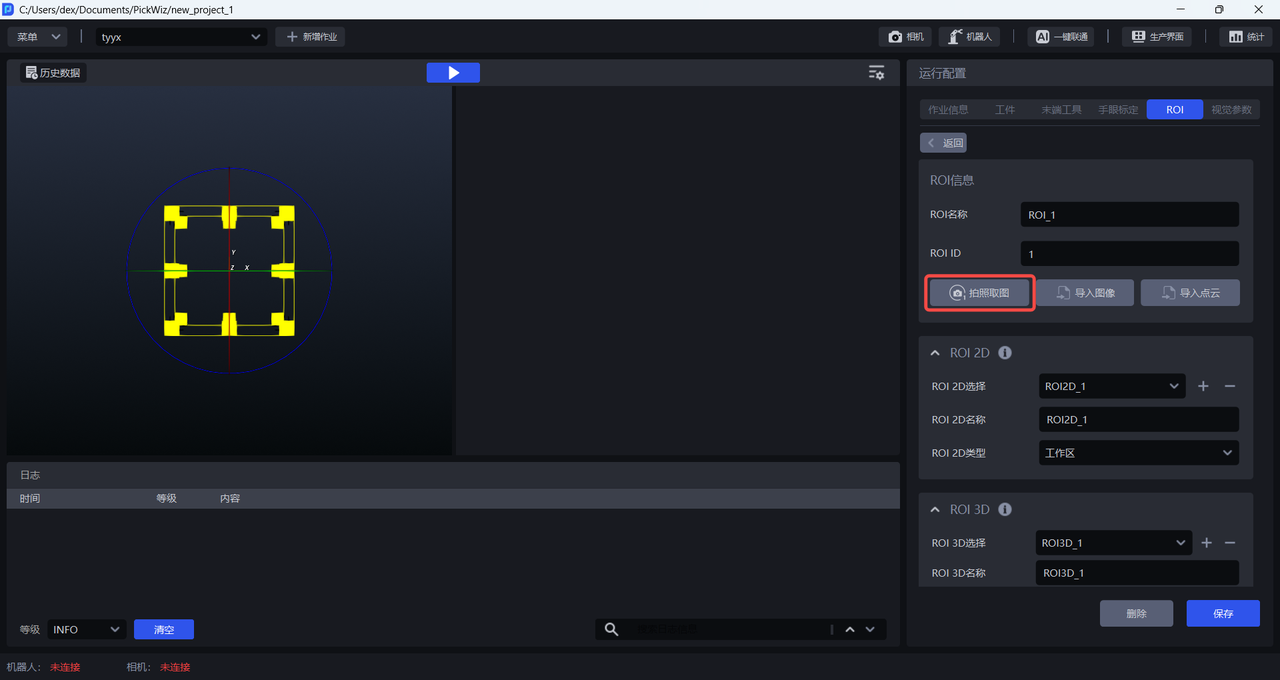
(3)Before setting the ROI, the Target Object image needs to be loaded. There are two loading methods:
- Click
Capture Image, and PickWiz triggers the camera to take pictures and automatically obtains the 2D image and 3D Point Cloud.
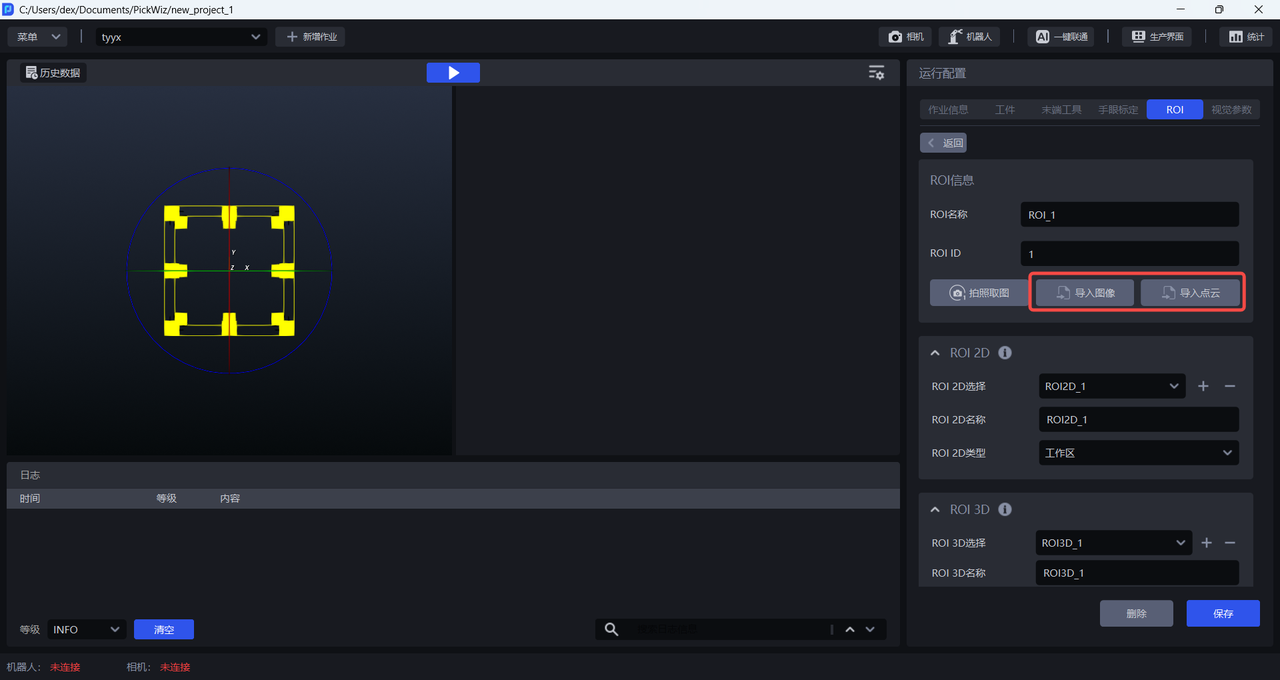
- Click
Import ImageorImport Point Cloudto manually select the Target Object image from the folder and load it into PickWiz. ClickImport Imageto import a 2D image for ROI 2D settings, and clickImport Point Cloudto import a 3D Point Cloud for ROI 3D settings.
(4)After the Target Object image is loaded, ROI 2D/3D can be set.
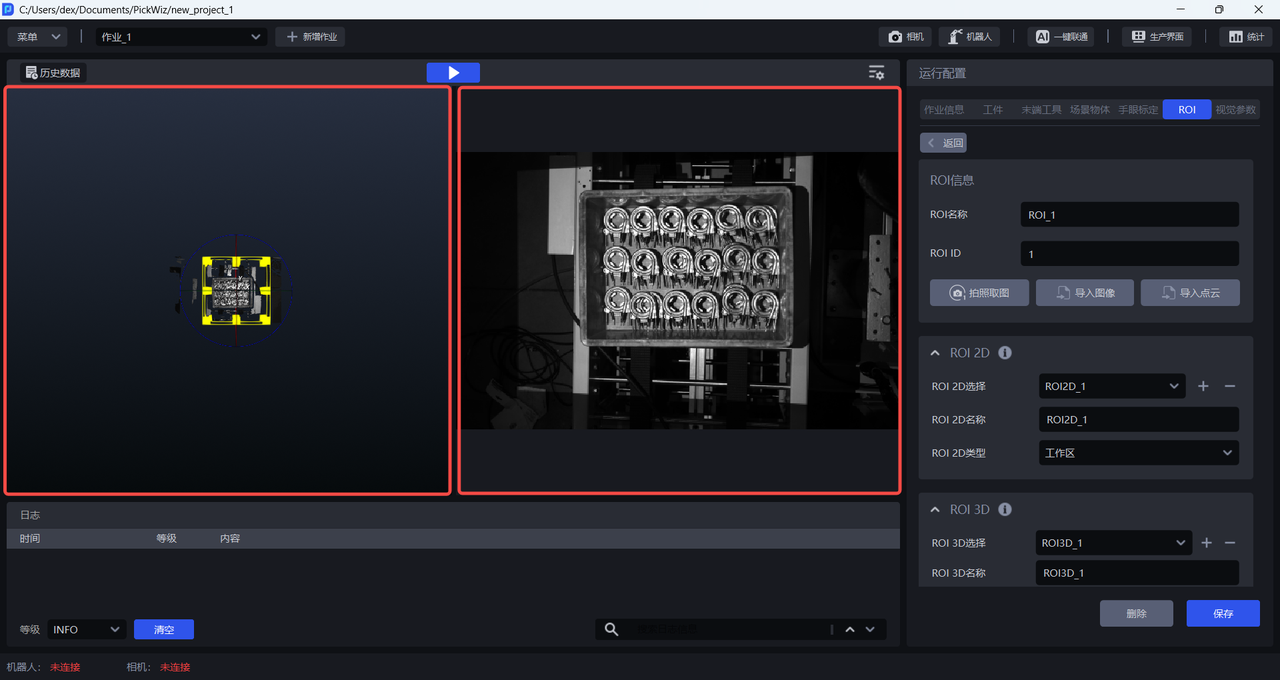
The left side of the visualization window is the 3D Point Cloud window, and the right side is the 2D image window. You can drag to adjust the size of the 3D Point Cloud window and the 2D image window, as shown below.
2.2 Set ROI 2D
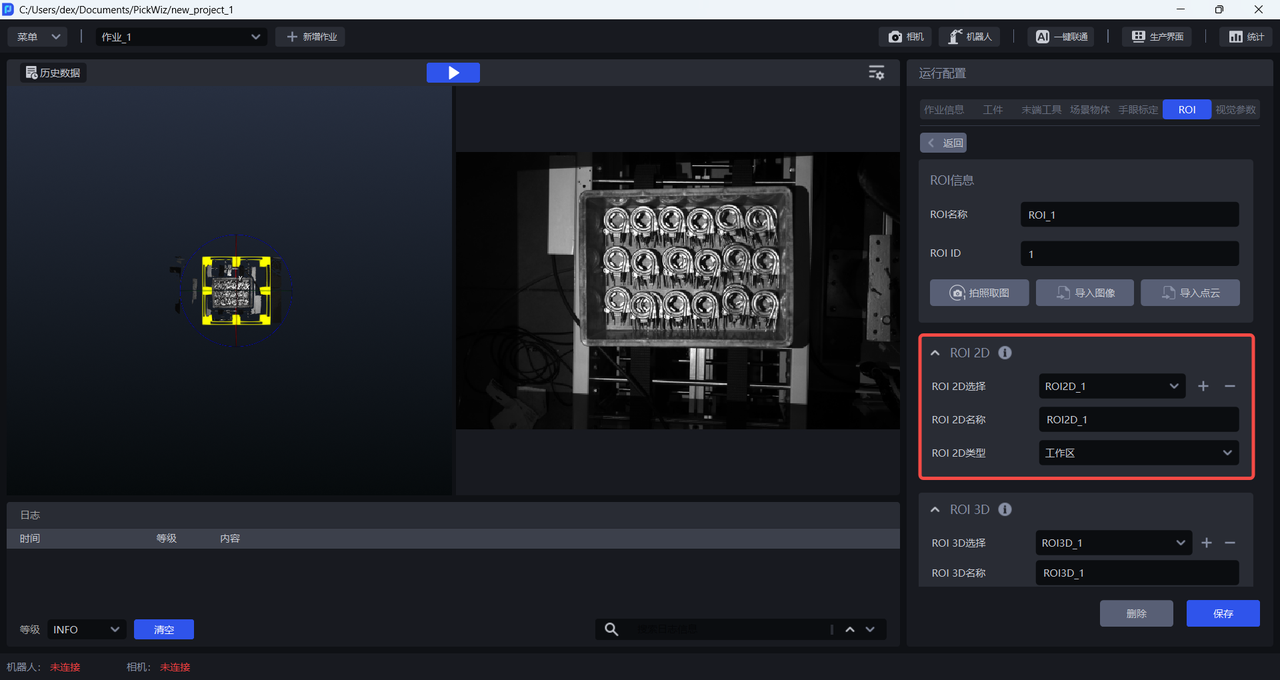
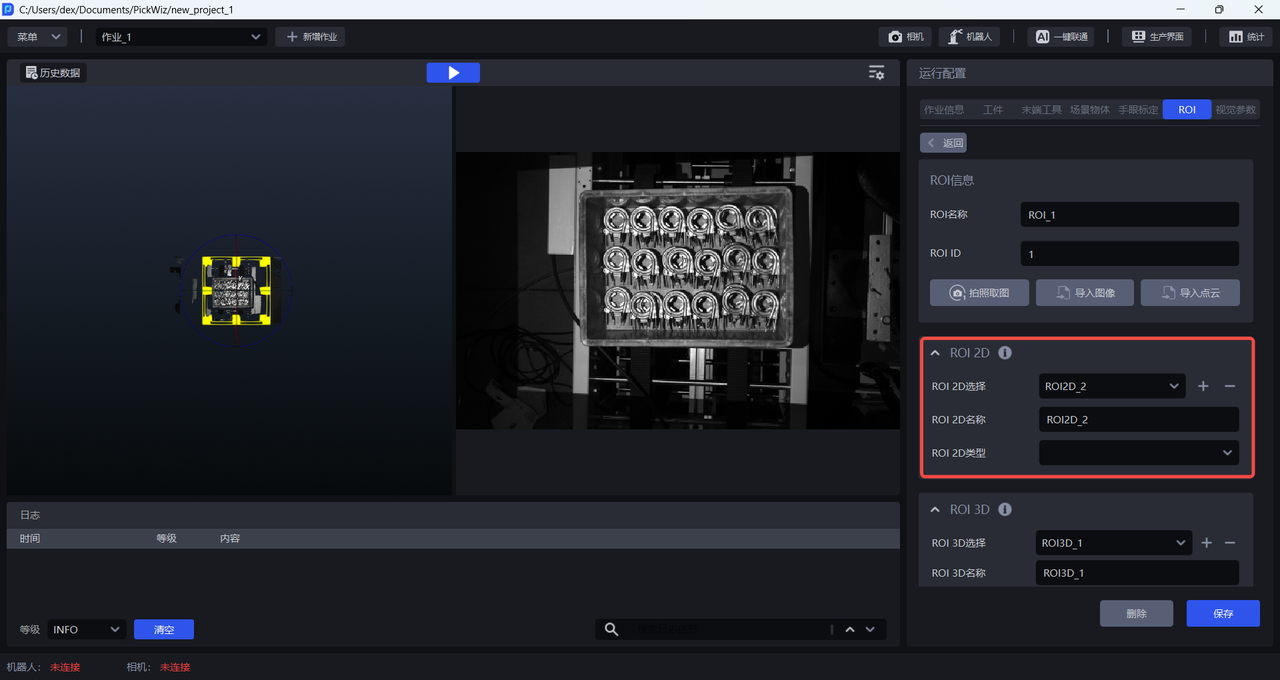
(1)ROI 2D Selection is used to select a specific ROI 2D for editing;
ROI 2D Name can be changed and supports Chinese and uppercase/lowercase English letters;
ROI 2D Type is divided into work area, bin/pallet/base tray, and observation area. Each ROI 2D needs to have the corresponding ROI 2D type selected, and PickWiz performs specific processing and analysis for each type area.
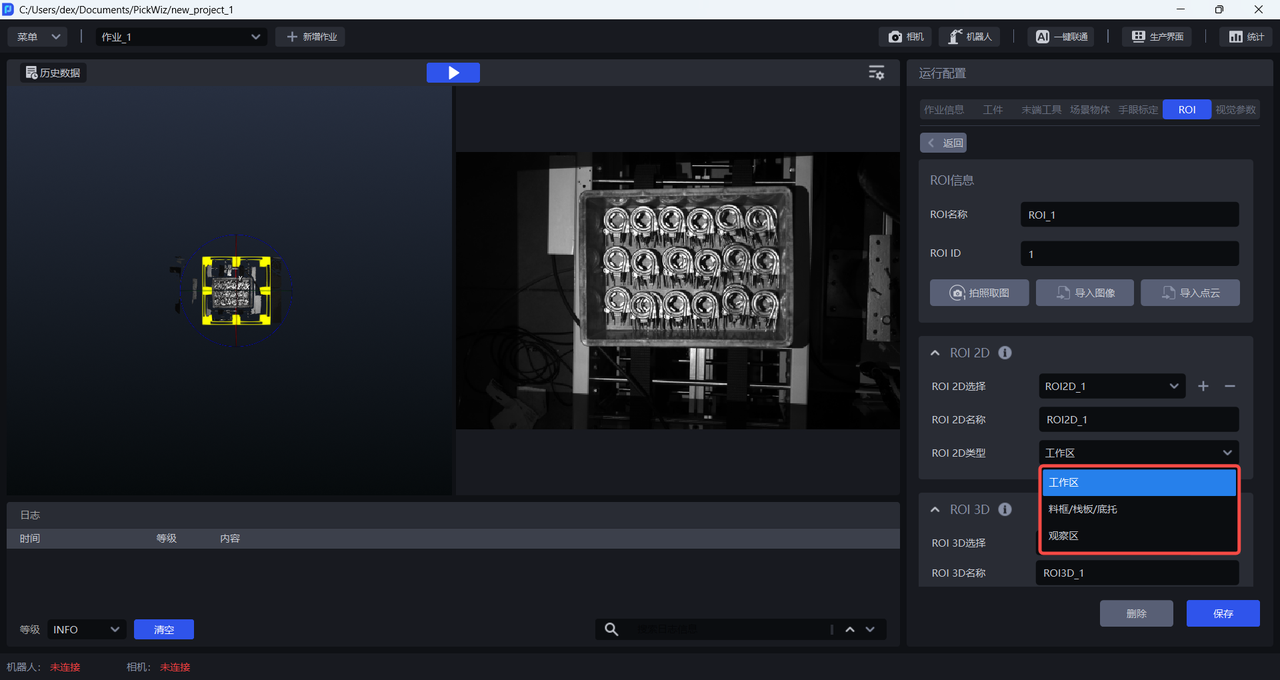
- Work area: Mainly covers the reachable working area of the Robot and vision system and is also the most commonly used type area.
Note
During the process of adding ROI 2D, the system adds a work area by default, and each ROI 2D must have one work area set.
Bin/pallet/base tray: Mainly covers objects such as bins/pallets/base trays at the bottom of the materials, helping subsequent recognition or distinction of bins/pallets/base trays.
Observation area: Mainly used in binocular scenarios. For details, see KINGFISHER Series Camera User Manual
(2)In the 2D image window, click the left mouse button and manually drag out a quadrilateral ROI 2D box. Make sure the ROI 2D box contains the target area, which is the selected ROI 2D type.
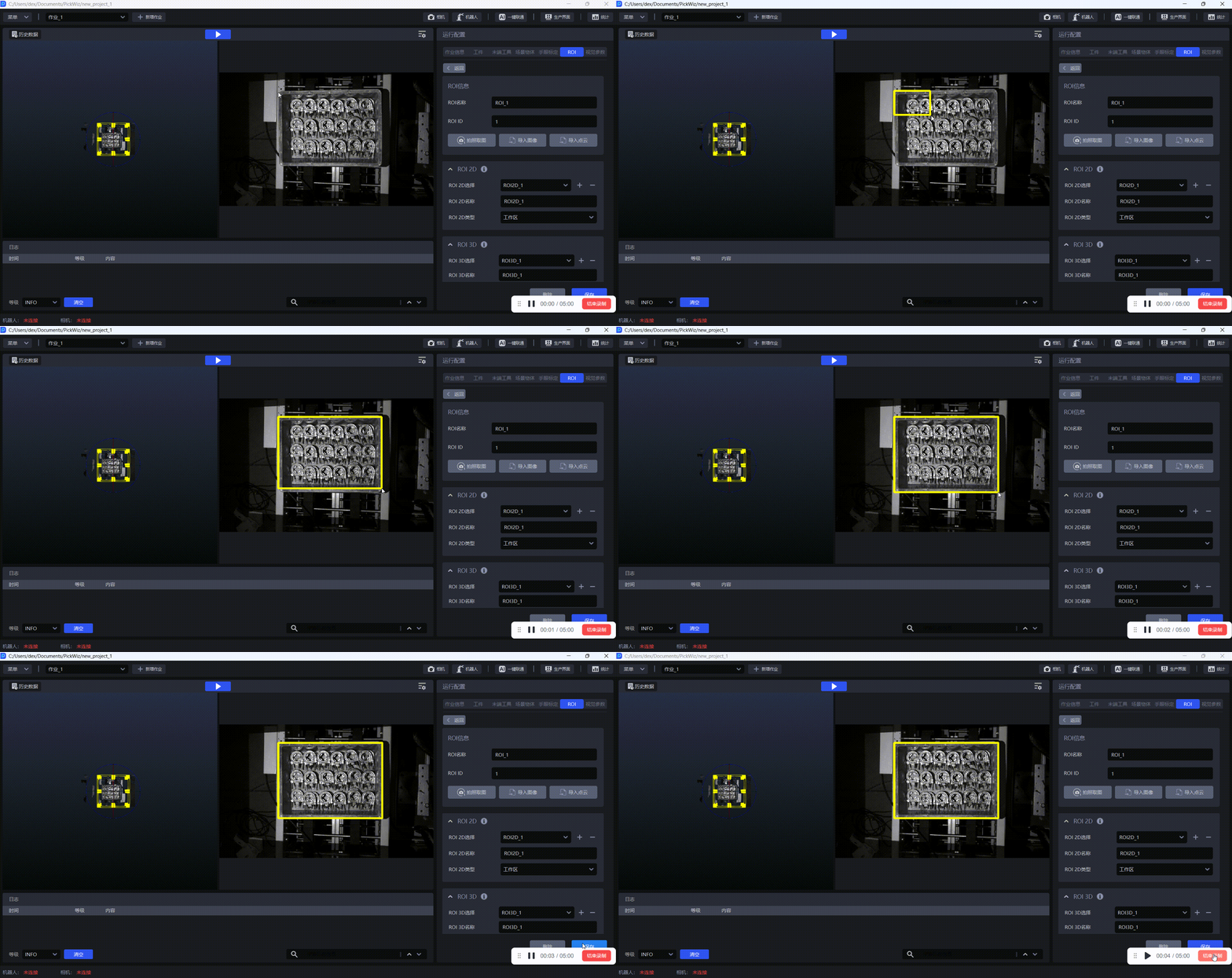
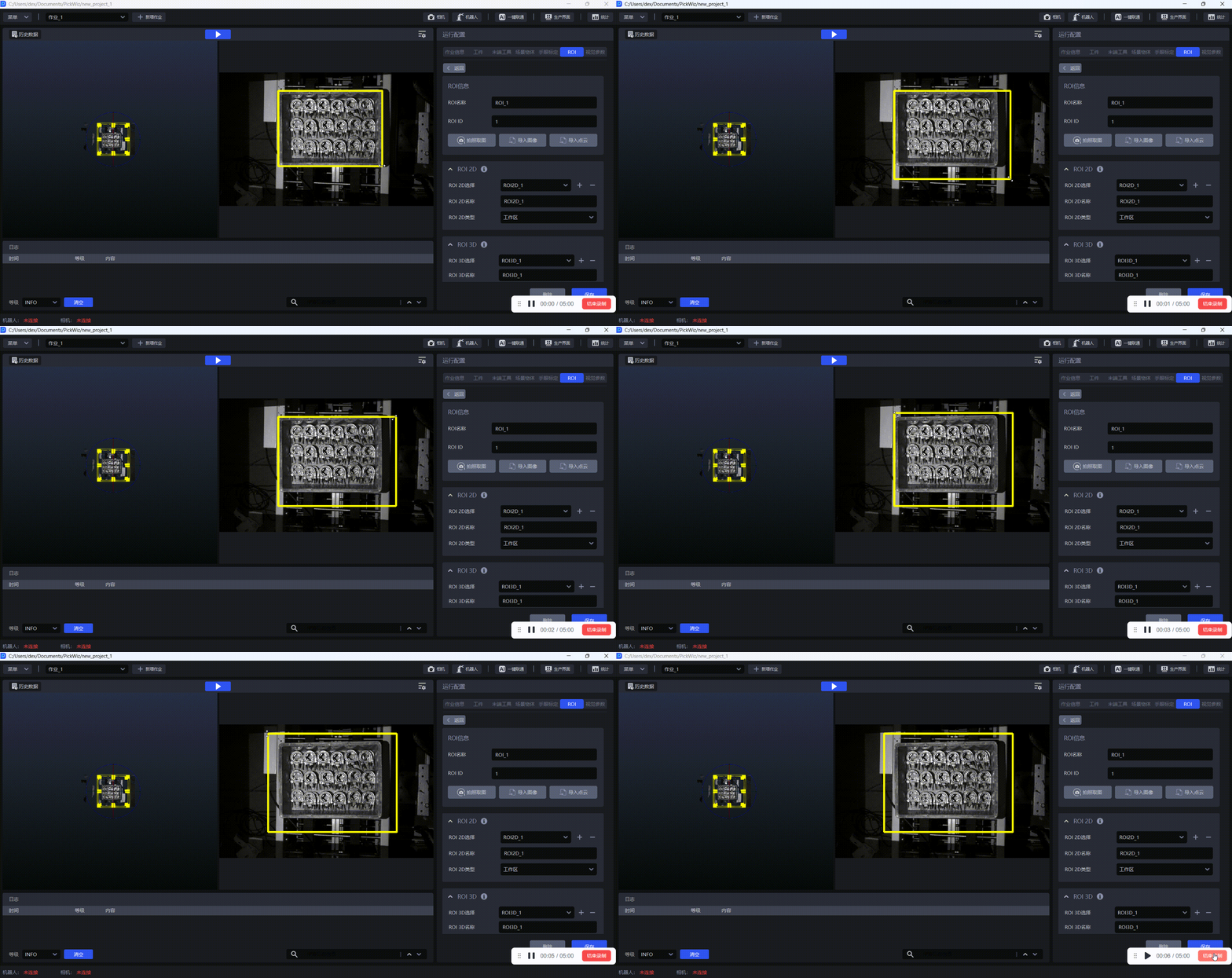
(3)If you need to adjust the size of the ROI 2D box, press and hold the left mouse button and drag any of the four sides or four corners of the quadrilateral box;
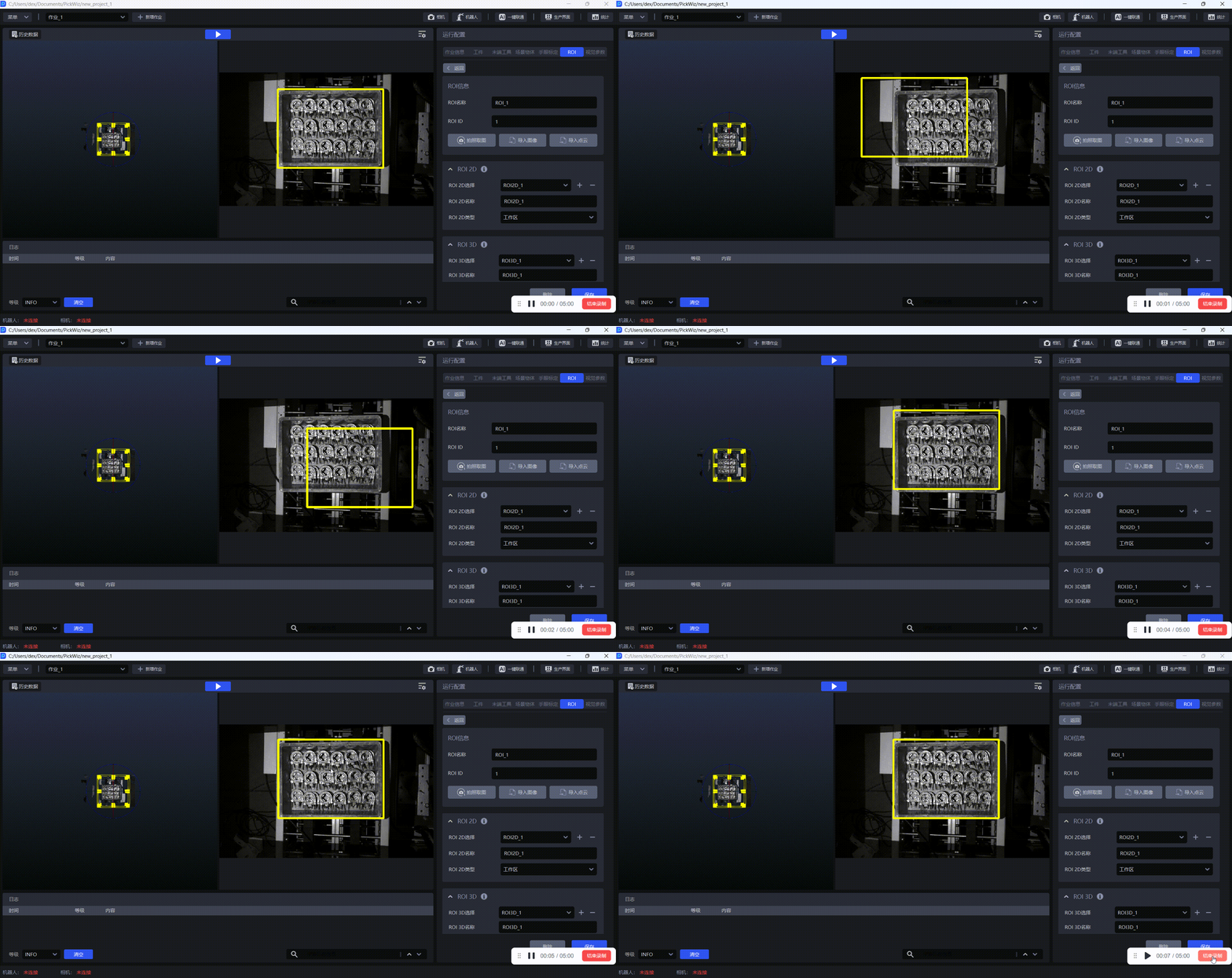
If you need to move the position of the ROI 2D box, select any area inside the ROI 2D box, then press and hold the left mouse button and drag.
(4)If you need to delete the ROI 2D box, select any area in the 2D image window with the left mouse button, then press the Backspace key on the keyboard to delete it.
(5)Click Save to save the current ROI 2D configuration.
(6)If you need to set multiple ROI 2D types of areas, click + to add a new ROI 2D configuration; otherwise, click - to delete the current ROI 2D configuration.
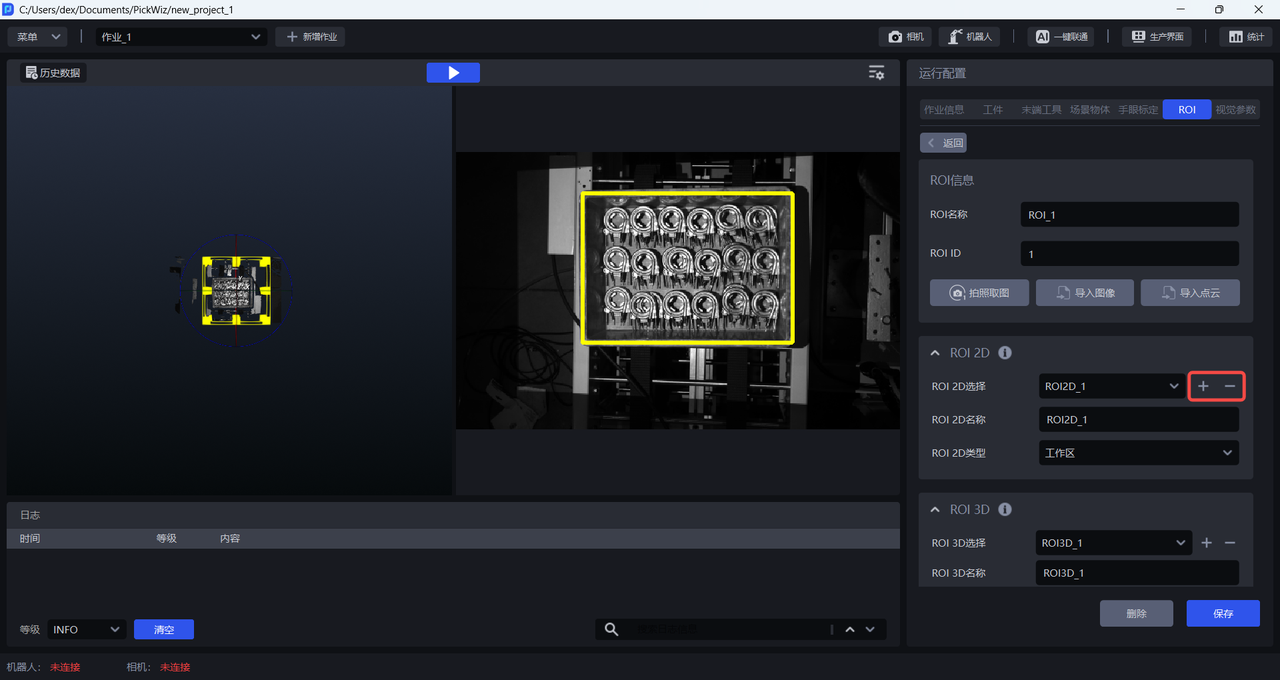
Each time a new ROI 2D configuration is added, the system names the ROI 2D by default according to the order in which it was added. Custom editing of the ROI 2D name is also supported. Then just follow the above steps to set the ROI 2D.
Note
Under the same ROI configuration, when setting multiple ROI 2D items, the ROI 2D types cannot be duplicated. For example, ROI2D_1 and ROI2D_2 cannot both be set as work areas.
2.3 Set ROI 3D
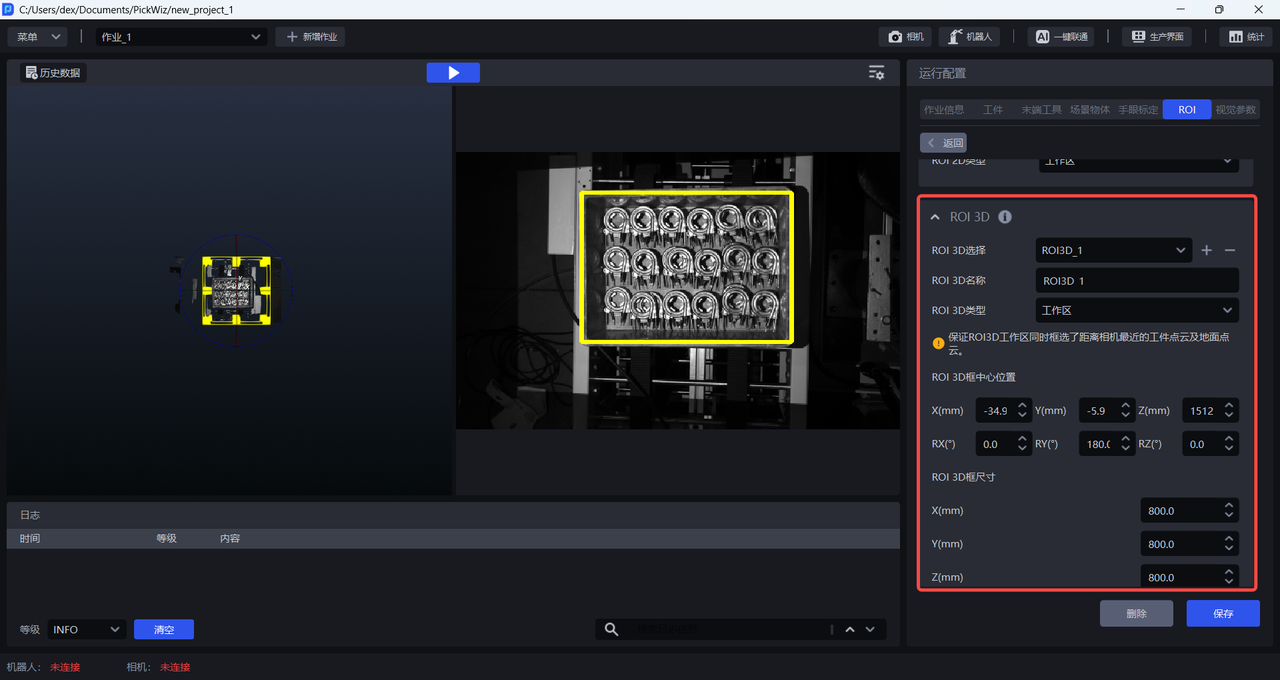
(1)ROI 3D Selection is used to select a specific ROI 3D for editing;
Work area: Mainly covers the reachable working area of the Robot and vision system and is also the most commonly used type area.
Note
During the process of adding ROI 3D, the system adds a work area by default, and each ROI 3D must have one work area set.
Bin/pallet/base tray: Mainly covers objects such as bins/pallets/base trays at the bottom of the materials, helping subsequent recognition or distinction of bins/pallets/base trays.
Picking area: Mainly covers the area where the Pick Point of Target Object recognized by the vision system is located. Generally, the picking area is smaller than the work area. The purpose of setting the picking area is to solve certain pose issues in depalletizing scenarios or ordered loading/unloading scenarios and avoid collisions caused by recognition errors.
Observation area: Mainly covers areas that are frequently observed and monitored.
(2)After the Point Cloud is imported, PickWiz automatically generates an ROI 3D box on the target Point Cloud. The center of the ROI 3D box is near the center of the target Point Cloud and can be fine-tuned in two ways:
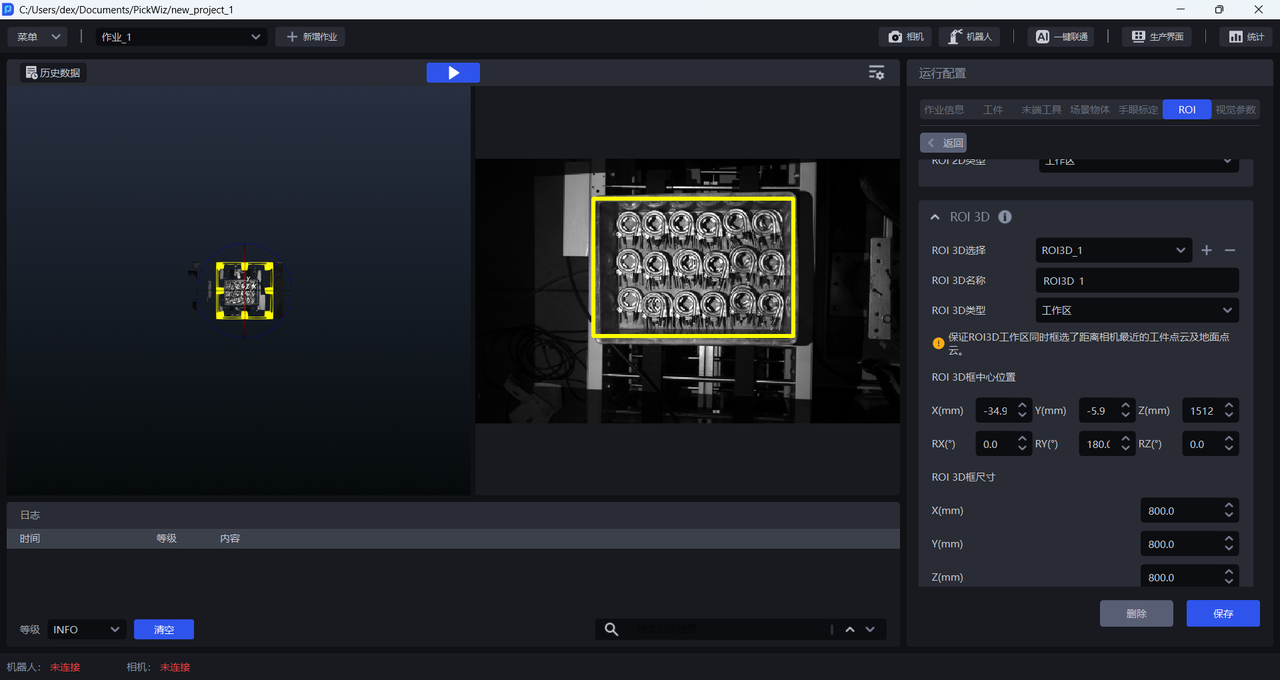
- Manual dragging in the 3D Point Cloud window
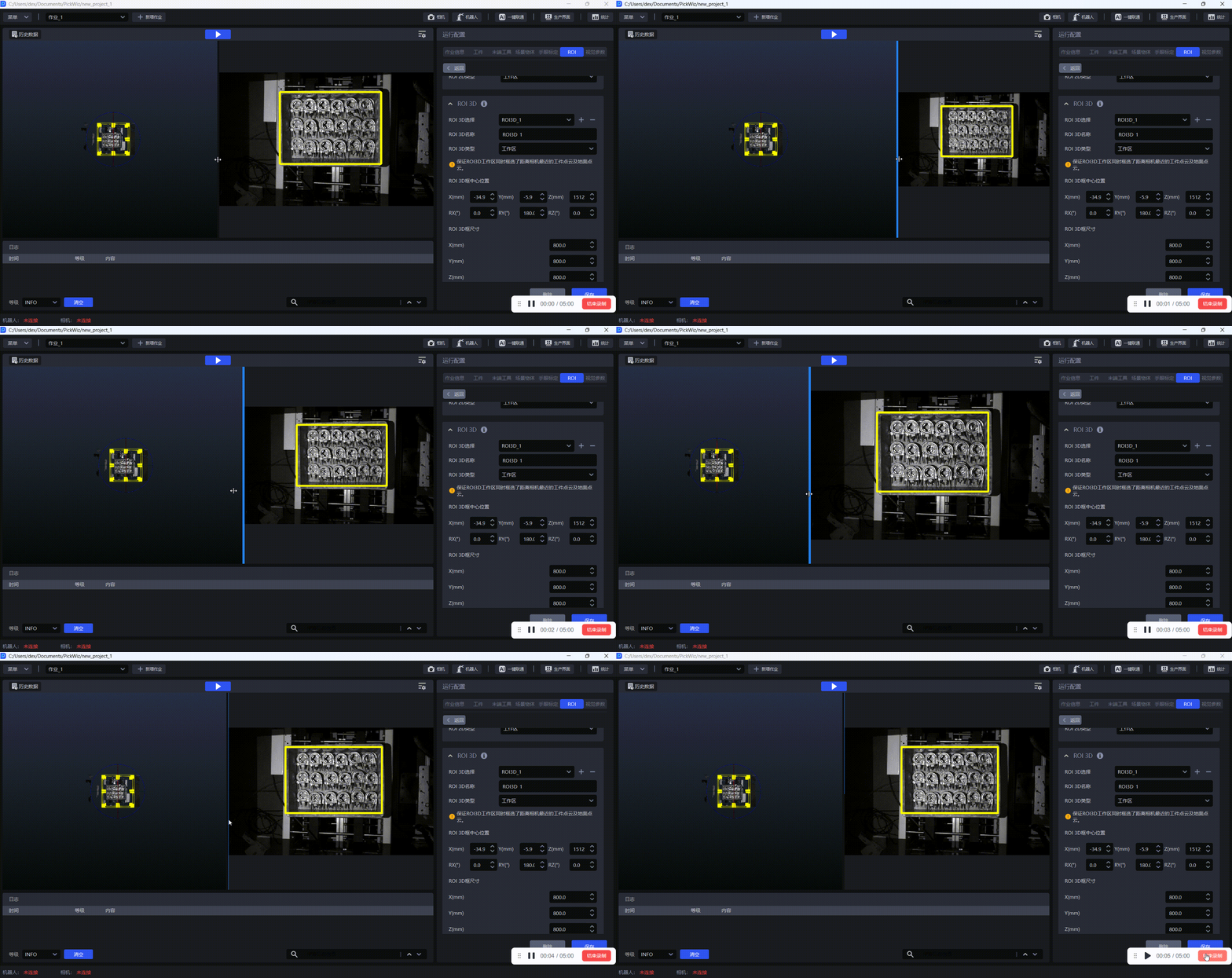
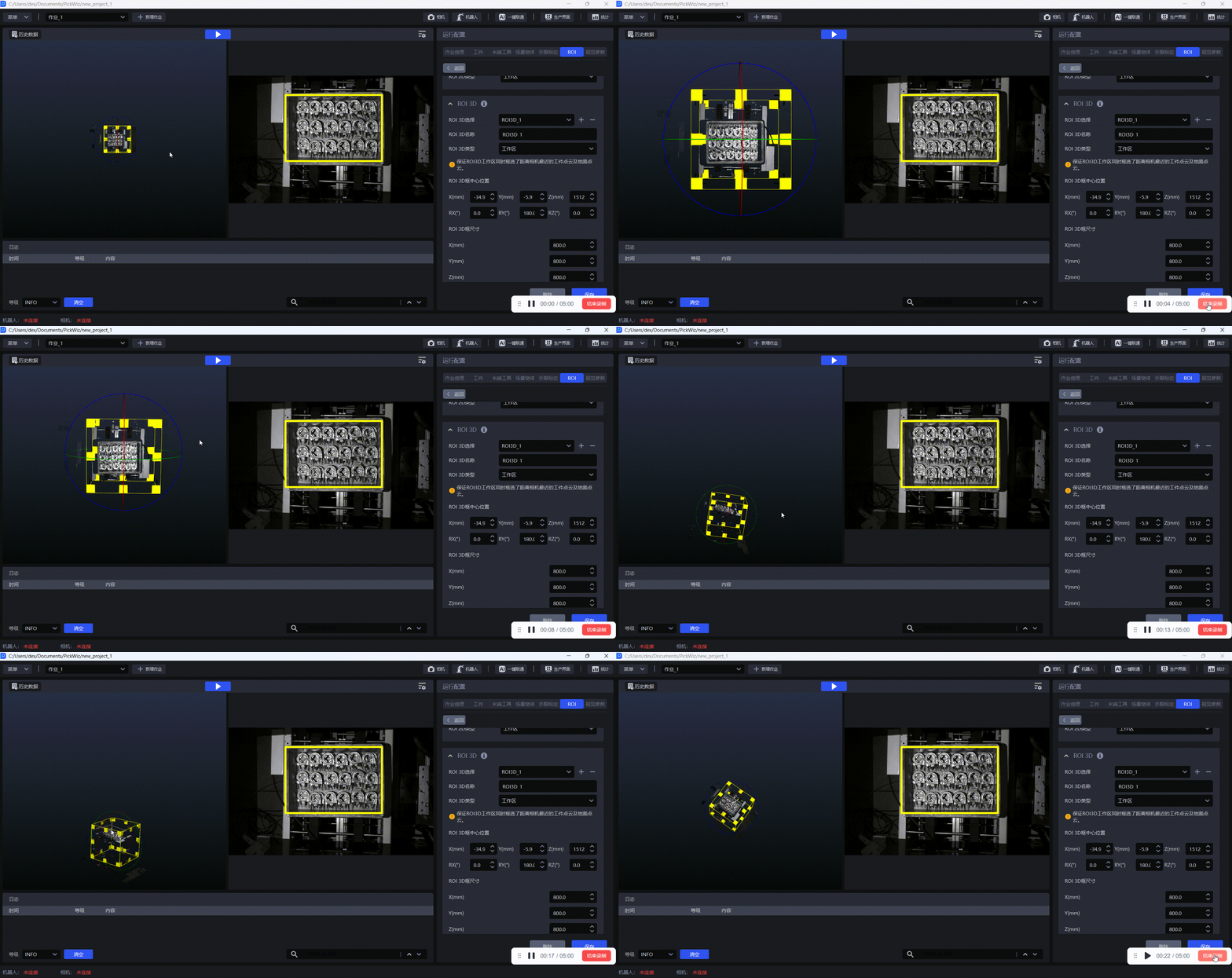
Place the cursor in the 3D Point Cloud window and scroll the mouse wheel up or down to adjust the display size of the ROI 3D box, as shown below.
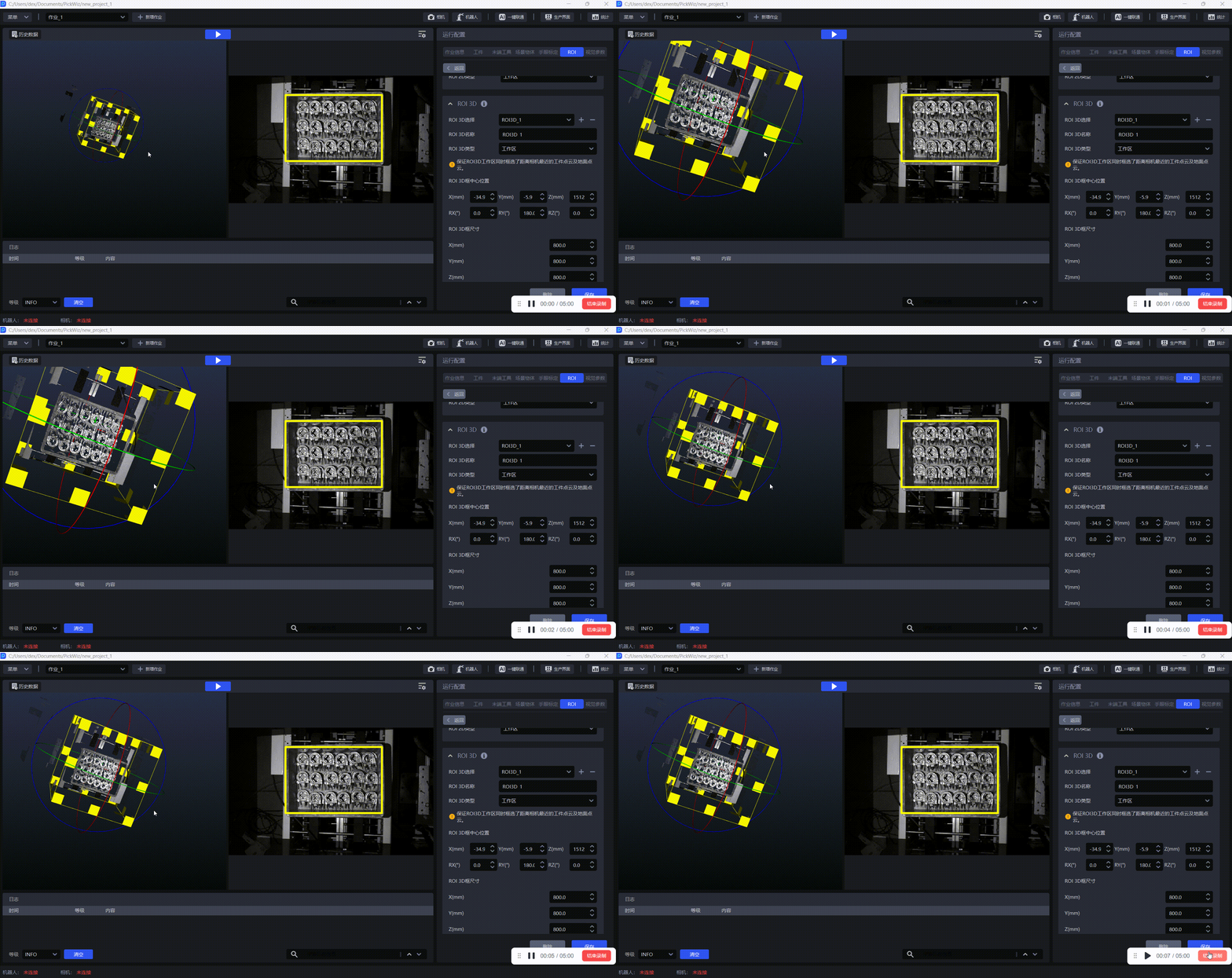
Place the cursor in the 3D Point Cloud window, then press and hold the left mouse button and move the cursor to adjust the viewing angle of the ROI 3D box, as shown below.
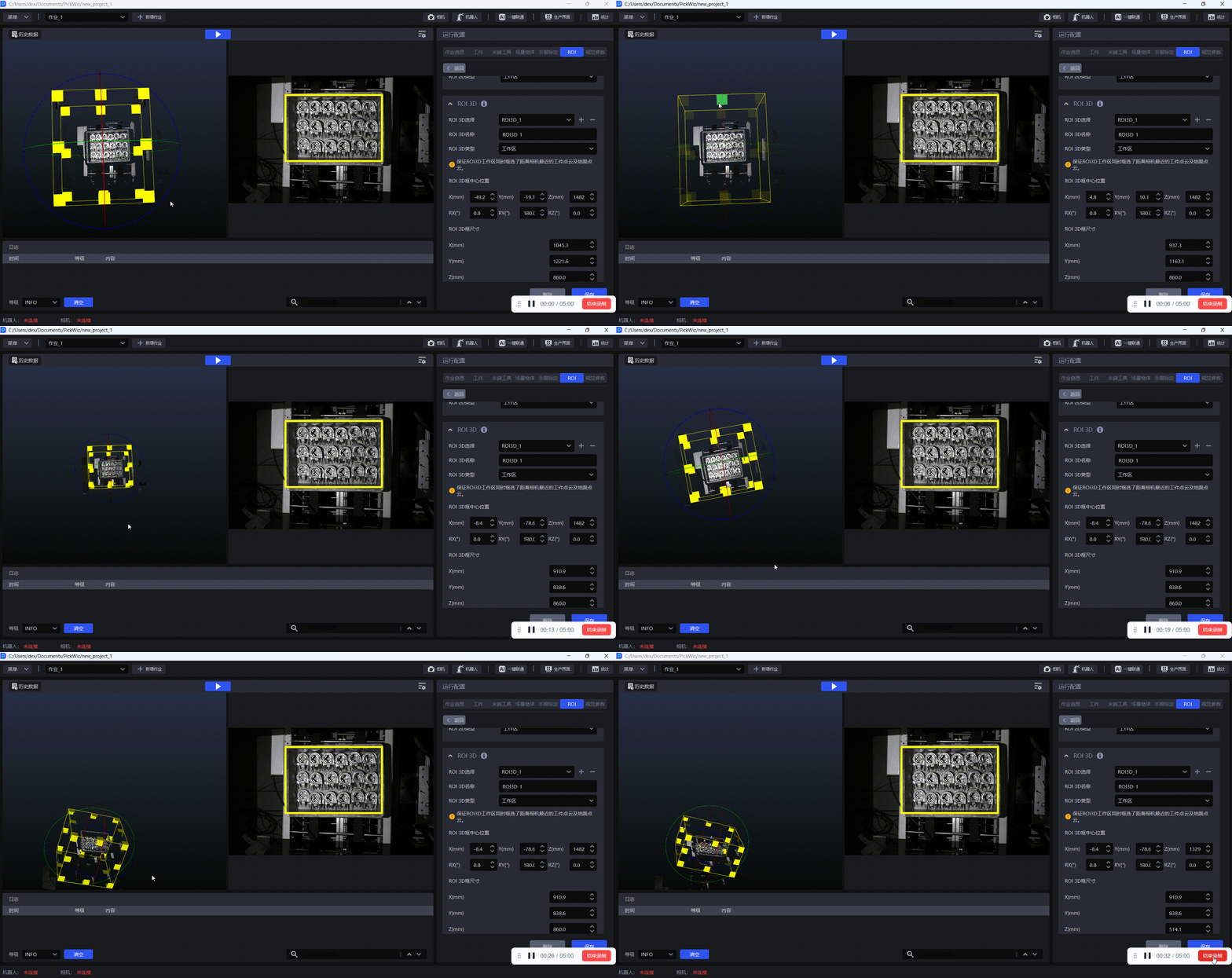
Place the cursor in the 3D Point Cloud window, press and hold the right mouse button, and drag the yellow marker to adjust the size of the ROI 3D box. The ROI 3D box should fully enclose the Target Object and only needs to be slightly larger than the Target Object, as shown below.
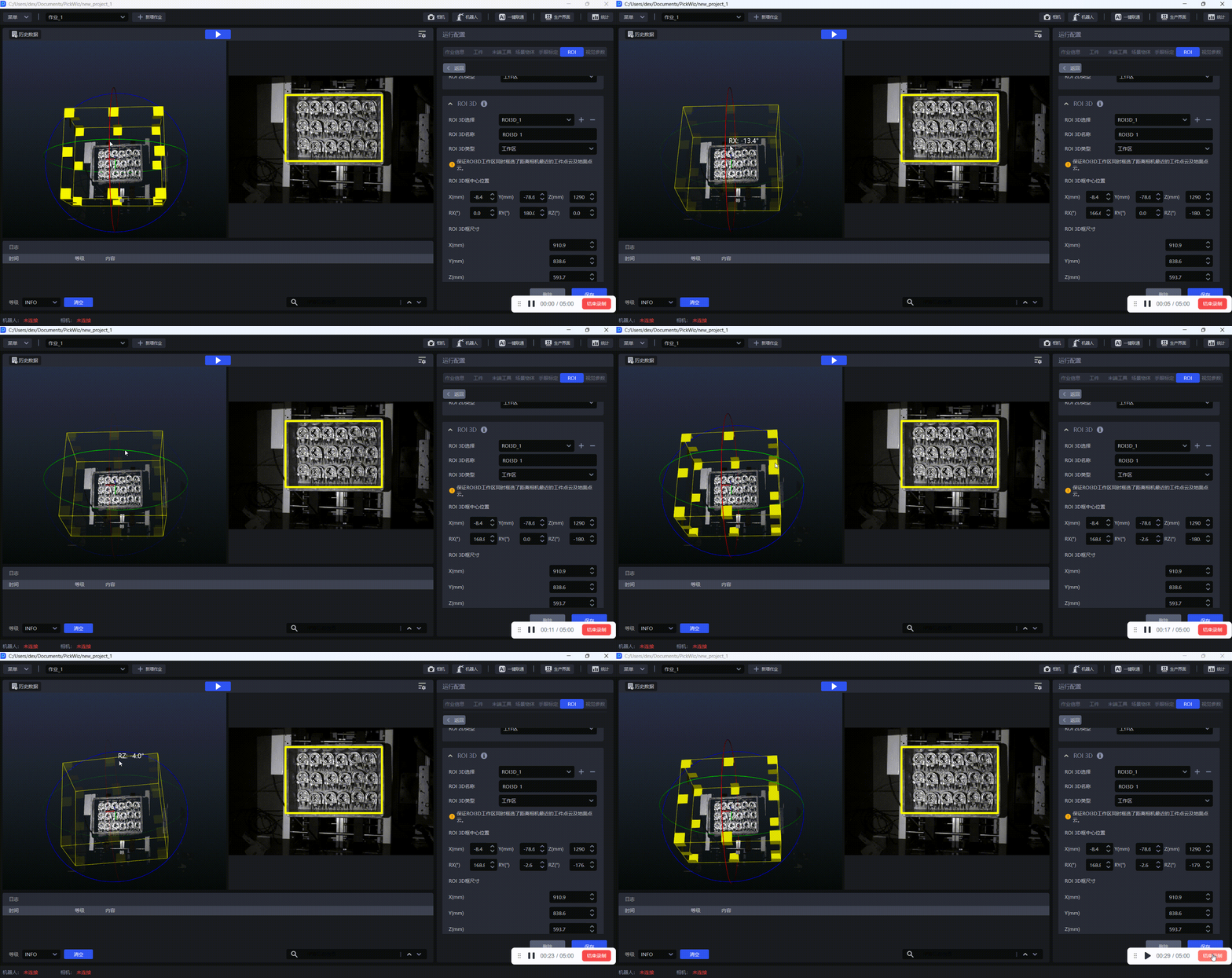
Press and hold the right mouse button and drag the red/green/blue arcs to rotate the ROI 3D box. Red represents the X-axis, green represents the Y-axis, and blue represents the Z-axis. When you drag the arcs to rotate the ROI 3D box, the rotation angle value is displayed in real time.
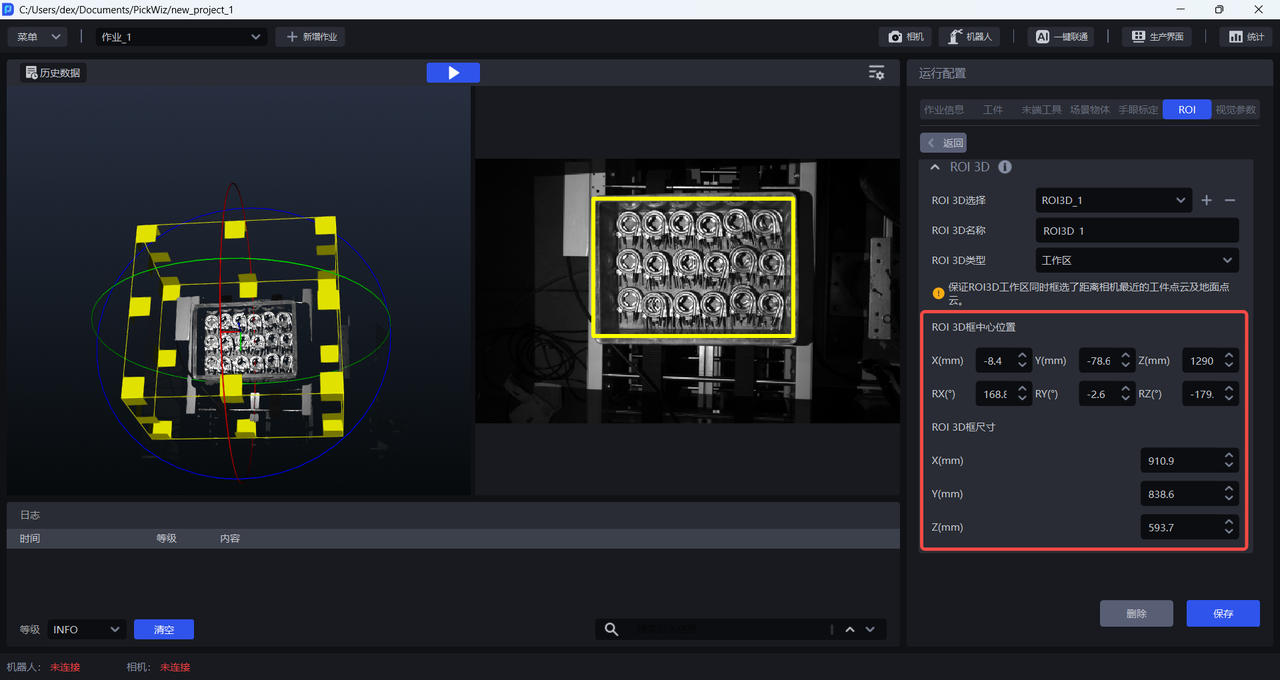
- Enter numeric values
Set the pose of the center position of the ROI 3D box and the size of the ROI 3D box to adjust its size and position.
(4)Click Save to save the current ROI 3D configuration.
(5)If you need to set multiple ROI 3D types of areas, click + to add a new ROI 3D configuration; otherwise, click - to delete the current ROI 3D configuration.
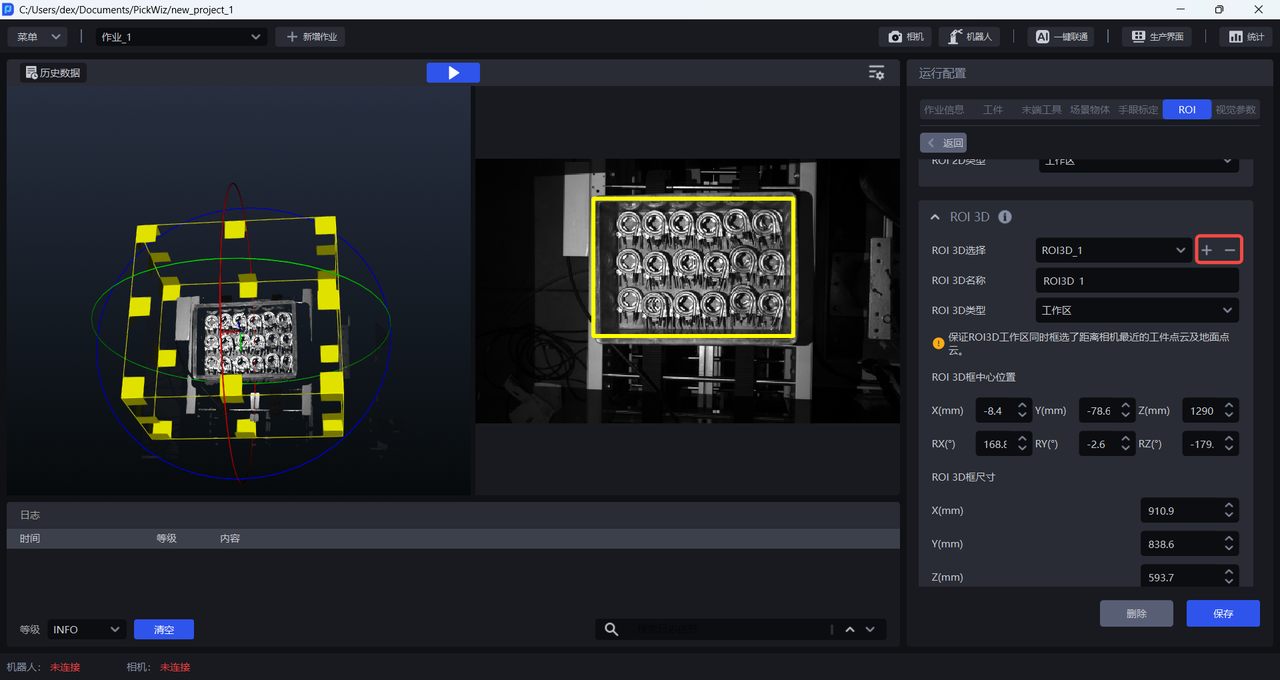
Each time a new ROI 3D configuration is added, the system names it by default according to the order in which it was added, while custom ROI 3D names are also supported. The size and position of the 3D box will inherit the current ROI 3D box configuration. Then just follow the above steps to set the ROI 3D.
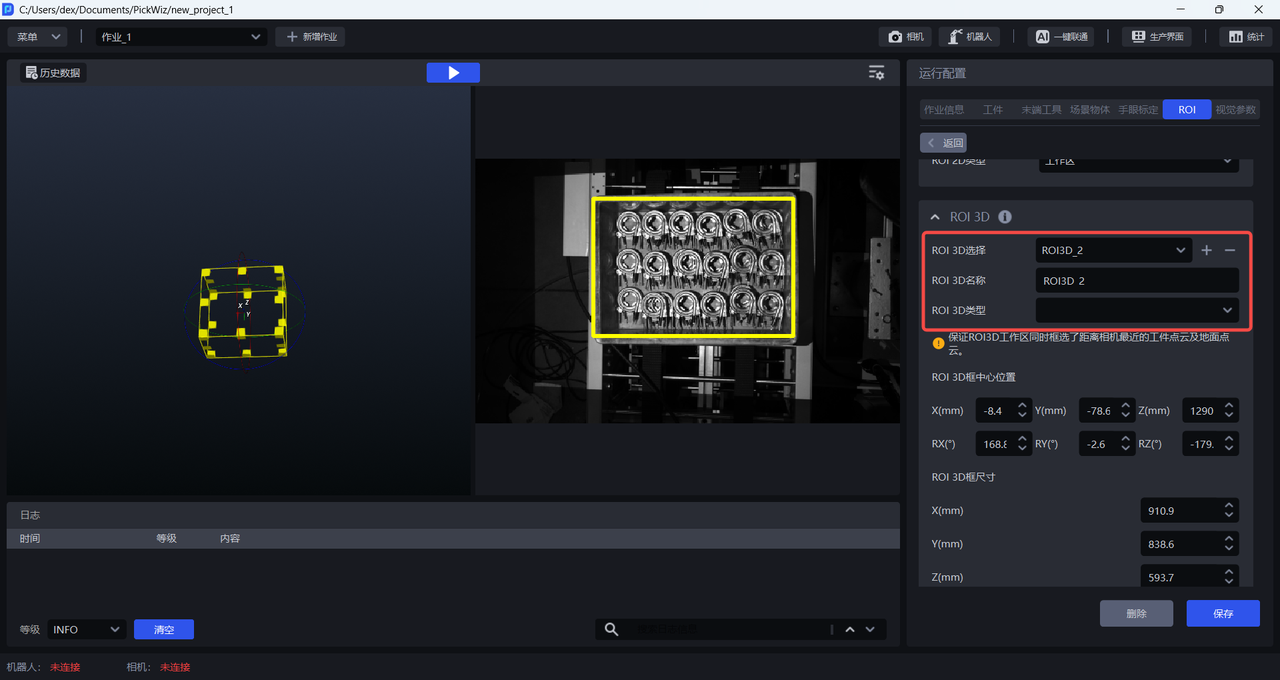
Note
Under the same ROI configuration, when setting multiple ROI 3D items, the ROI 3D types cannot be duplicated. For example, ROI3D_1 and ROI3D_2 cannot both be set as work areas.
2.4 Delete ROI
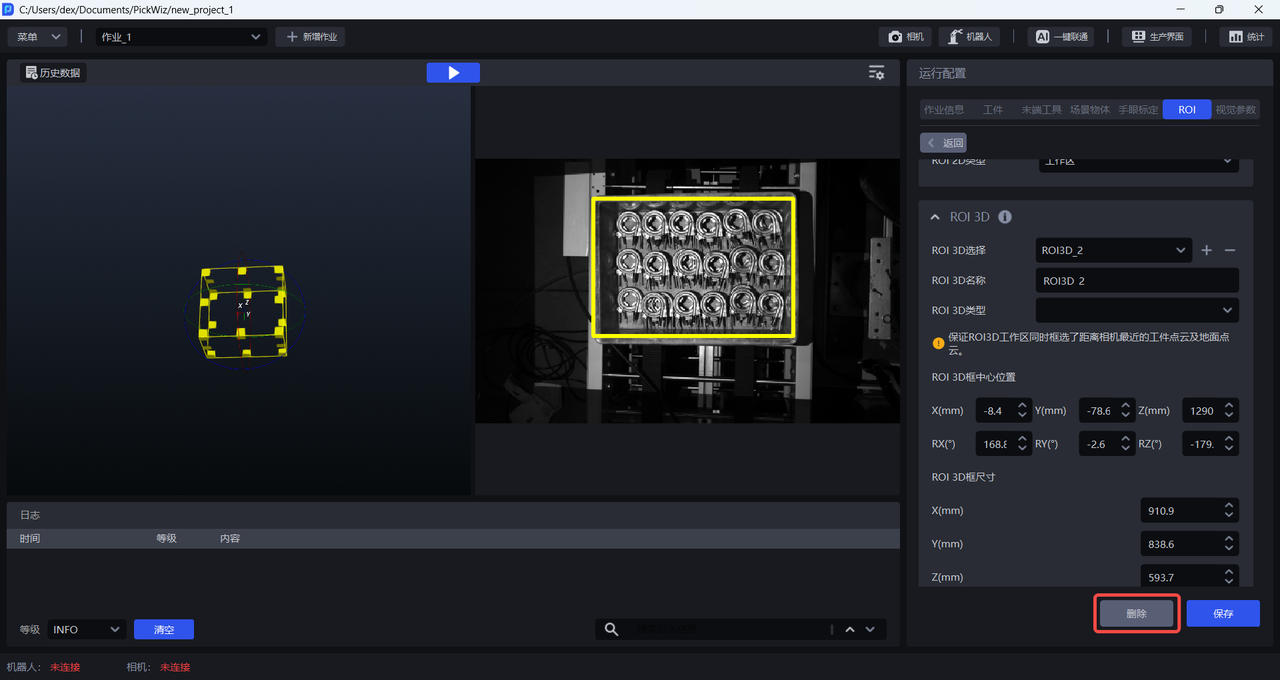
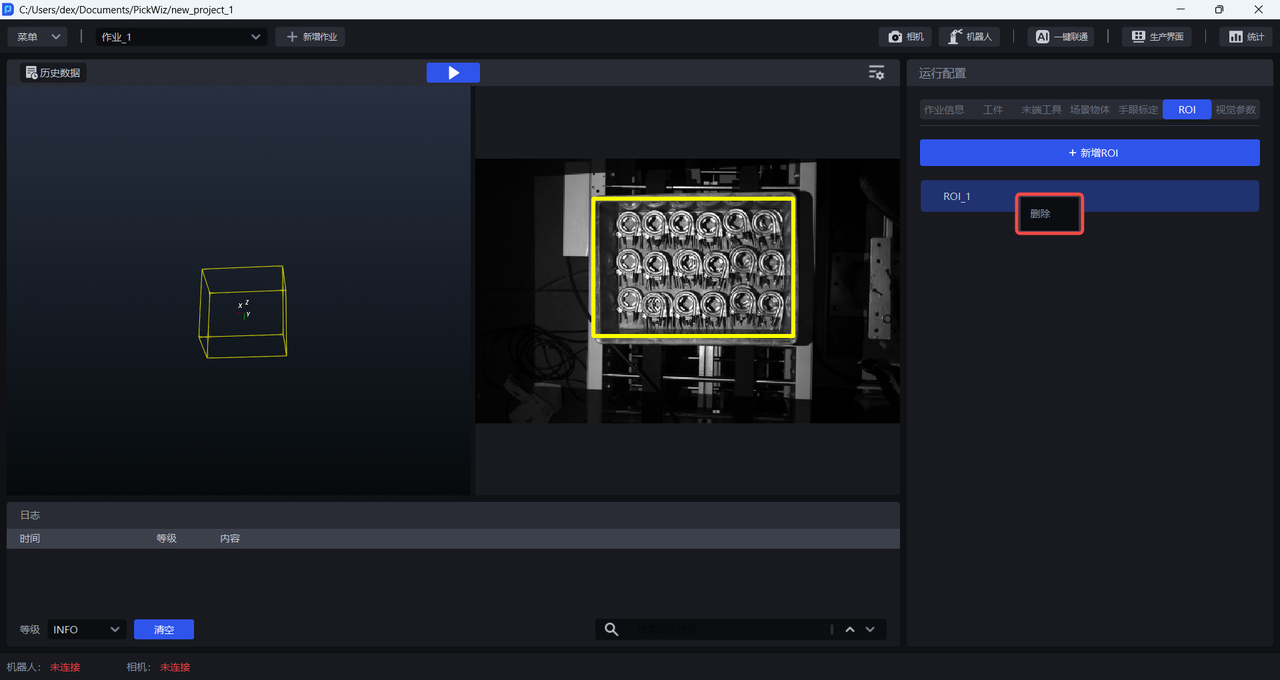
If you need to delete the current ROI configuration, you can click Delete on the ROI configuration interface, or right-click the ROI configuration to be deleted in the ROI list and click Delete.
3. Select ROI
When configuring task information, you need to select the required ROI configuration. One task can select only one ROI configuration, while multiple tasks can use the same ROI configuration.