Guide to Creating Point Cloud Templates
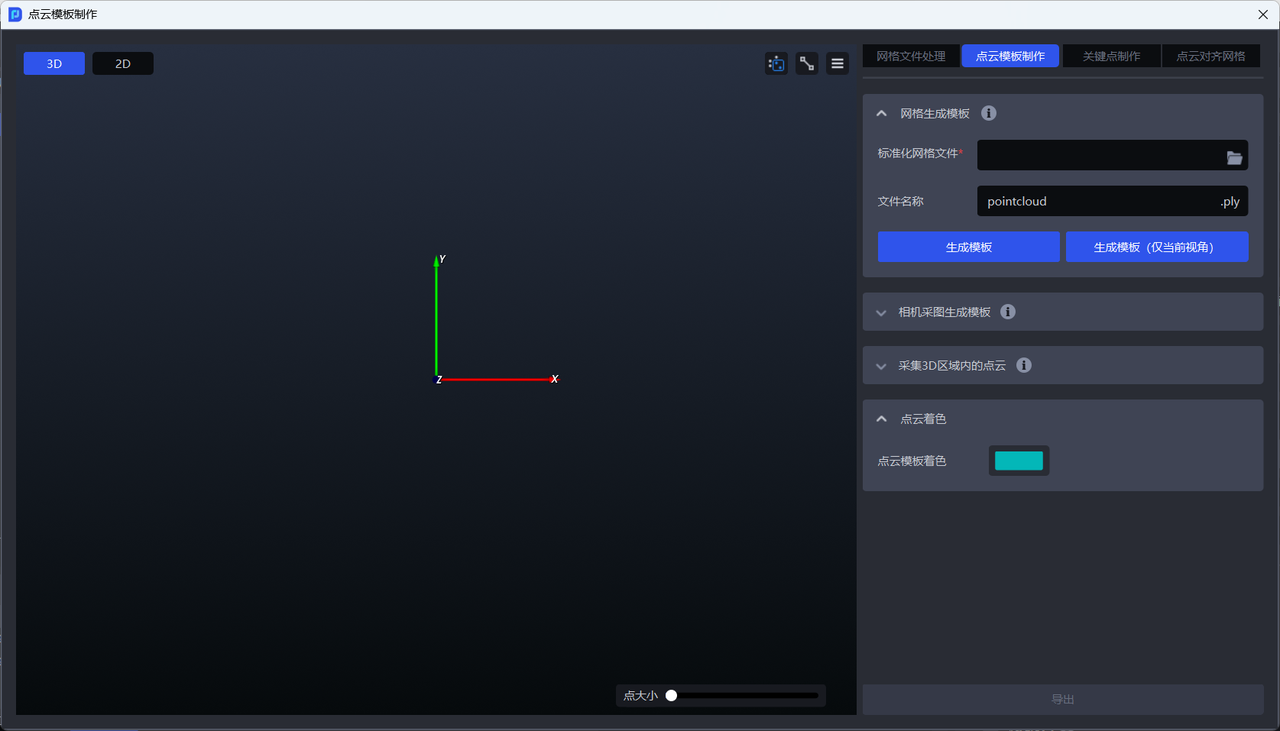
Mesh files, keypoints, and Point Cloud templates are all used for 3D Matching. General workpieces must upload mesh files, Point Cloud templates, and keypoint files. Surface workpieces must upload mesh files and Point Cloud templates. Circular-surface workpieces, cylindrical workpieces, and quadrilateral workpieces may need to upload Point Cloud templates.
The Point Cloud template creation function in PickWiz includes four parts: mesh file processing, Point Cloud template creation, keypoint creation, and Point Cloud-to-mesh alignment. The operating method is as follows.
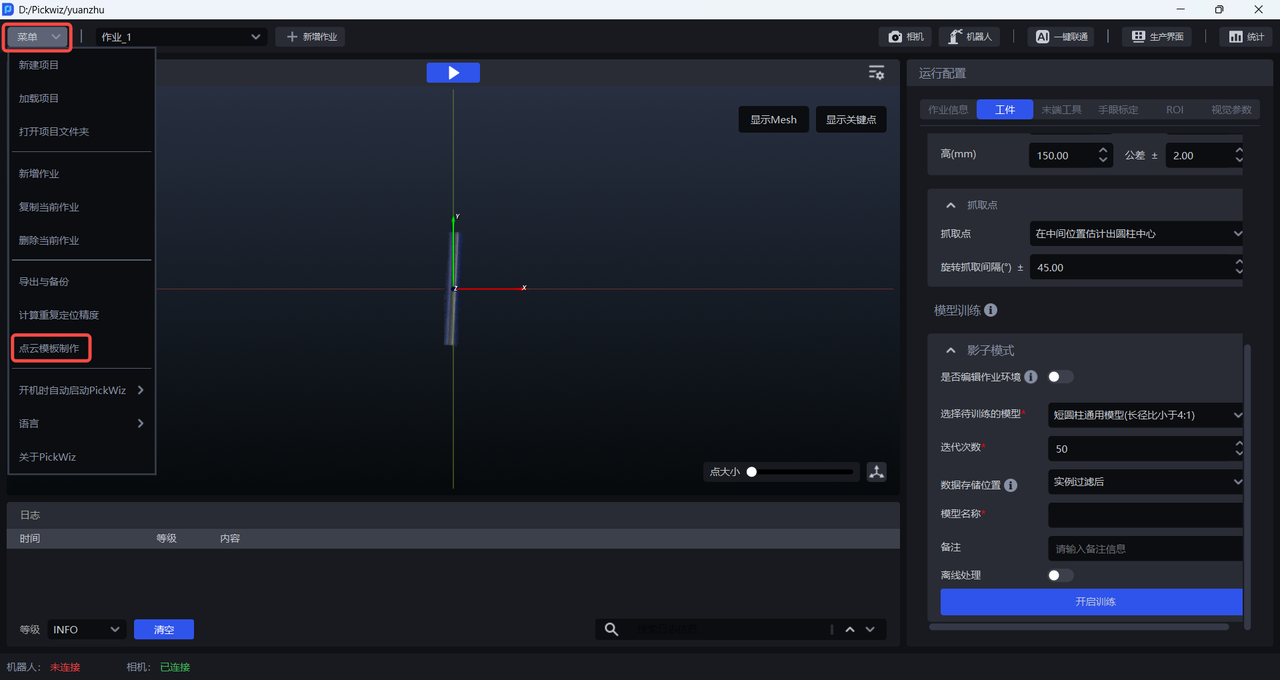
On the main interface, click Menu>Point Cloud Template Creation to open the Point Cloud Template Creation window, as shown below.
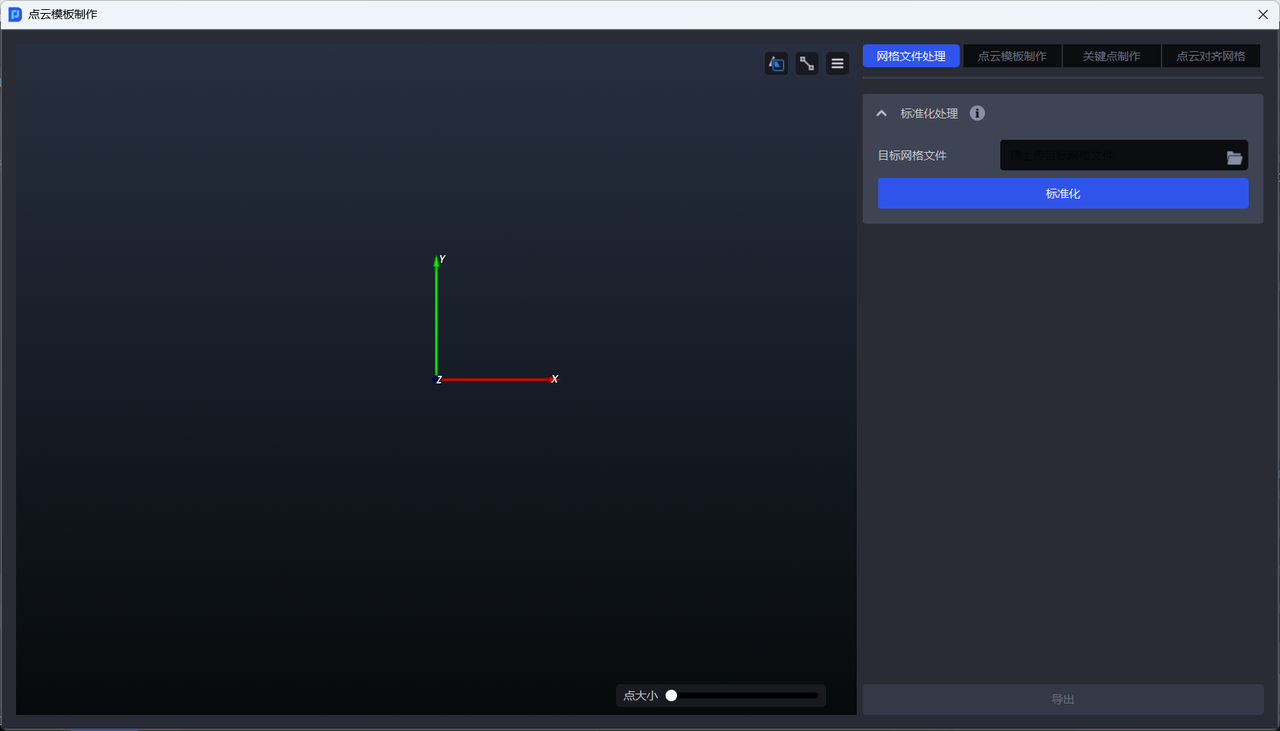
1. Mesh File Processing
A mesh file is a file that stores 3D model data, generally the CAD model of a workpiece, and is used for One-Click Connection training of vision models. CAD models mainly come from user-provided files or are scanned internally by the company.
If a general-purpose vision model cannot recognize the workpiece and One-Click Connection training is required, the mesh file must be standardized to ensure the final training effect of the vision model.
Standardized Mesh File
Function Description
One-click standardized processing of mesh files, including aligning the coordinate axes to the center of the mesh model, increasing or reducing the number of mesh faces, and unifying the unit to m.
Applicable Scenarios
Performing One-Click Connection training: the mesh file must be standardized before it can be used normally for One-Click Connection model training.
Generating a Point Cloud template from a mesh file: the mesh file must be standardized before a Point Cloud template can be generated normally.
Aligning a Point Cloud to a mesh: the mesh file must be standardized before alignment can be performed normally.
Note
For the same mesh file, standardization only needs to be performed once. Repeated standardization will produce “side effects.”
- Upload the CAD model of the workpiece, as shown below.
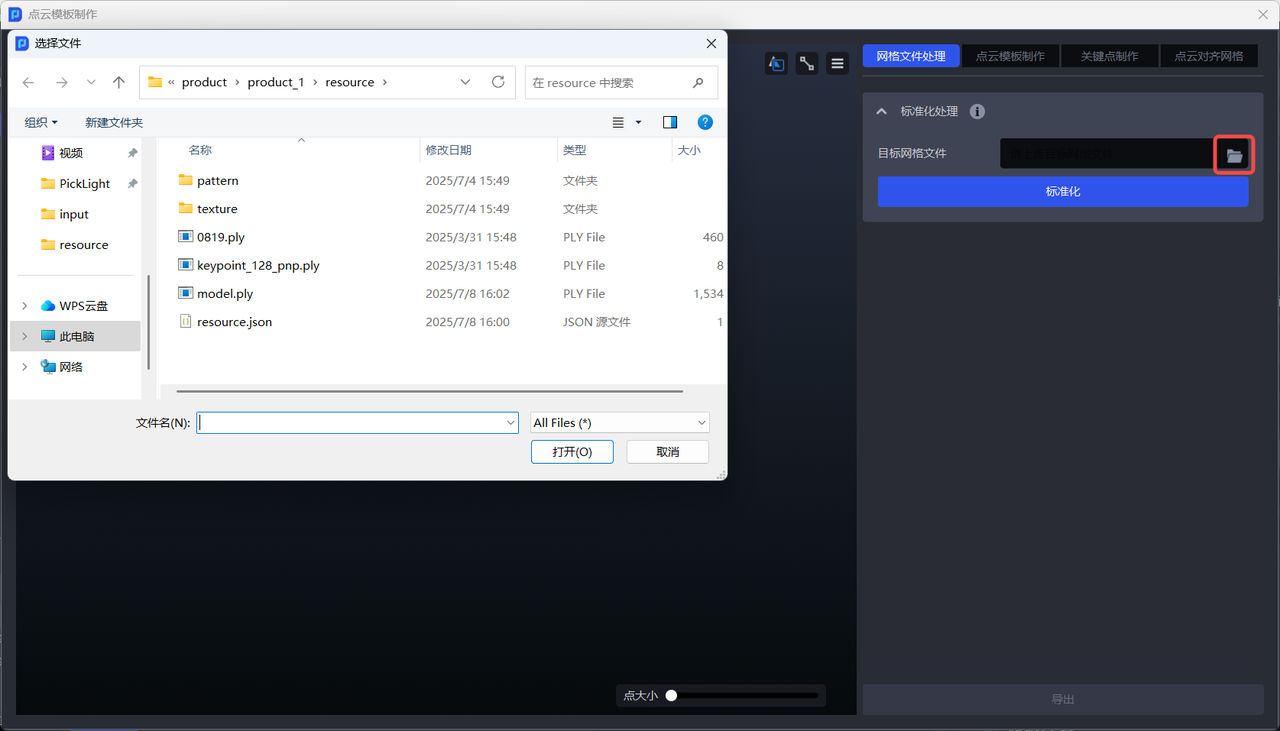
- After clicking
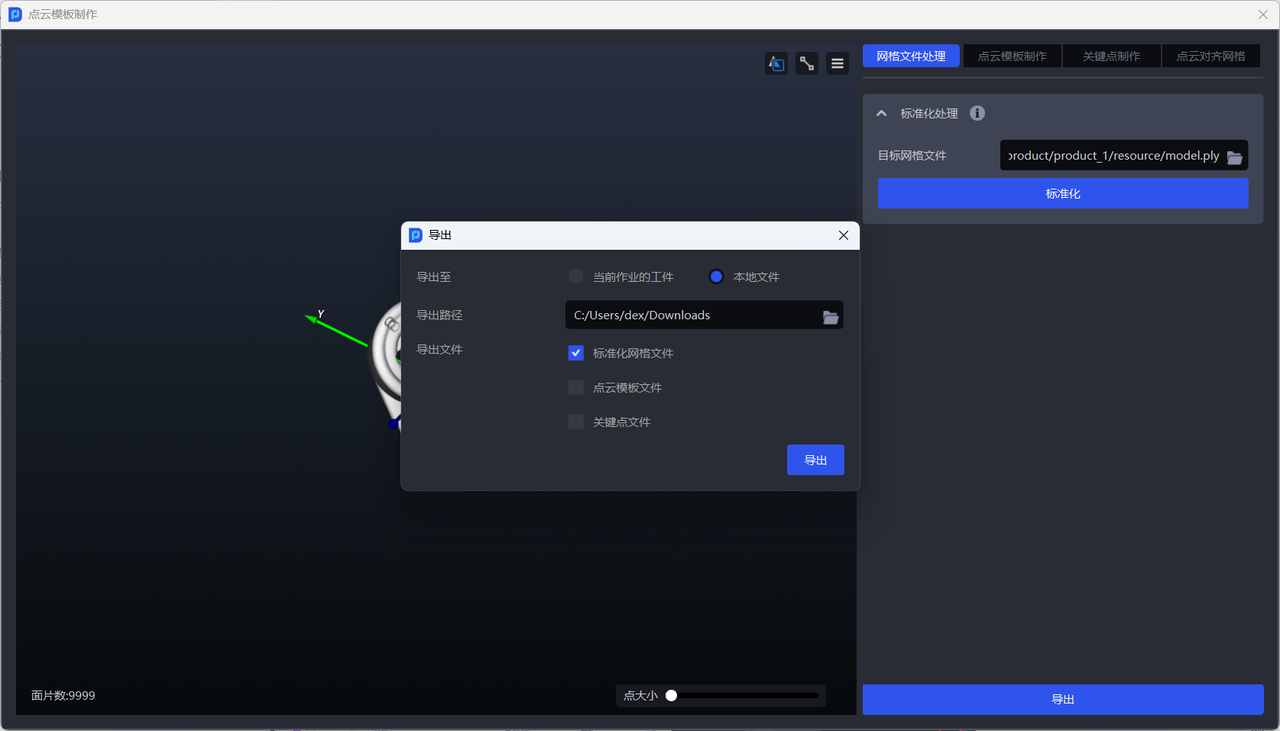
Standardize, theExportbutton becomes clickable, as shown below.
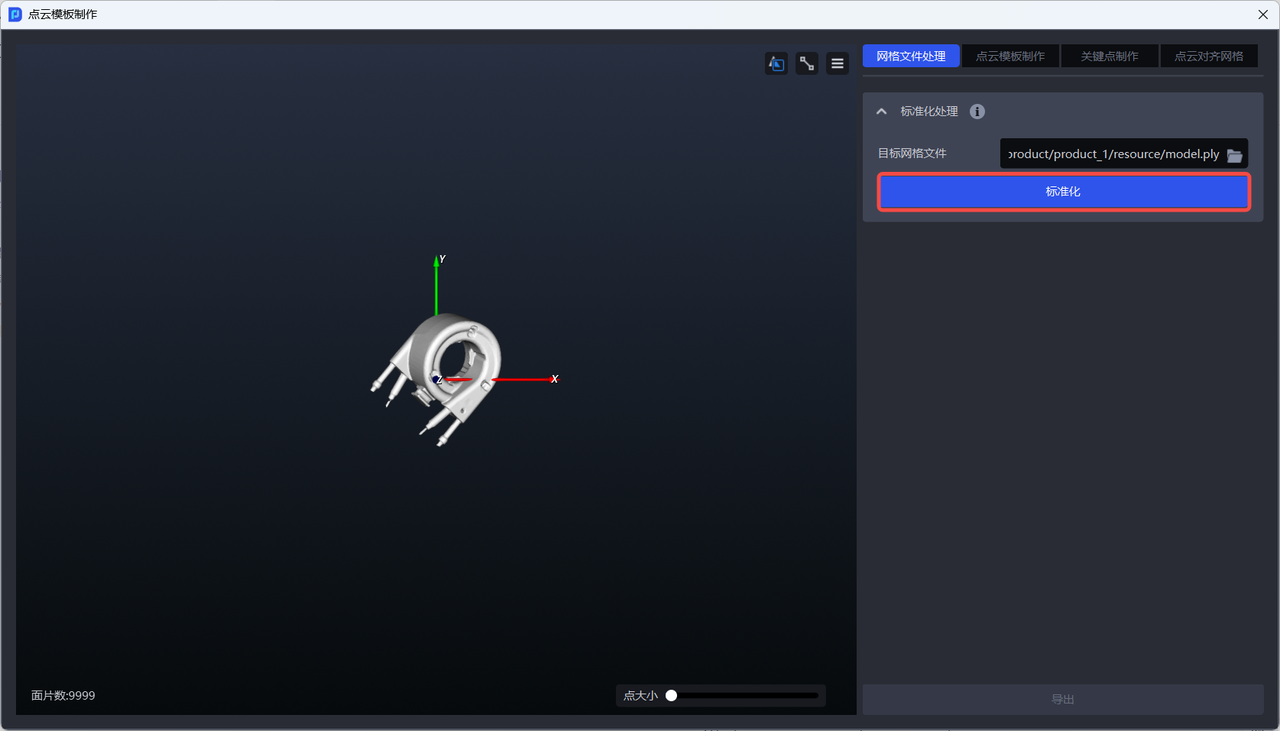
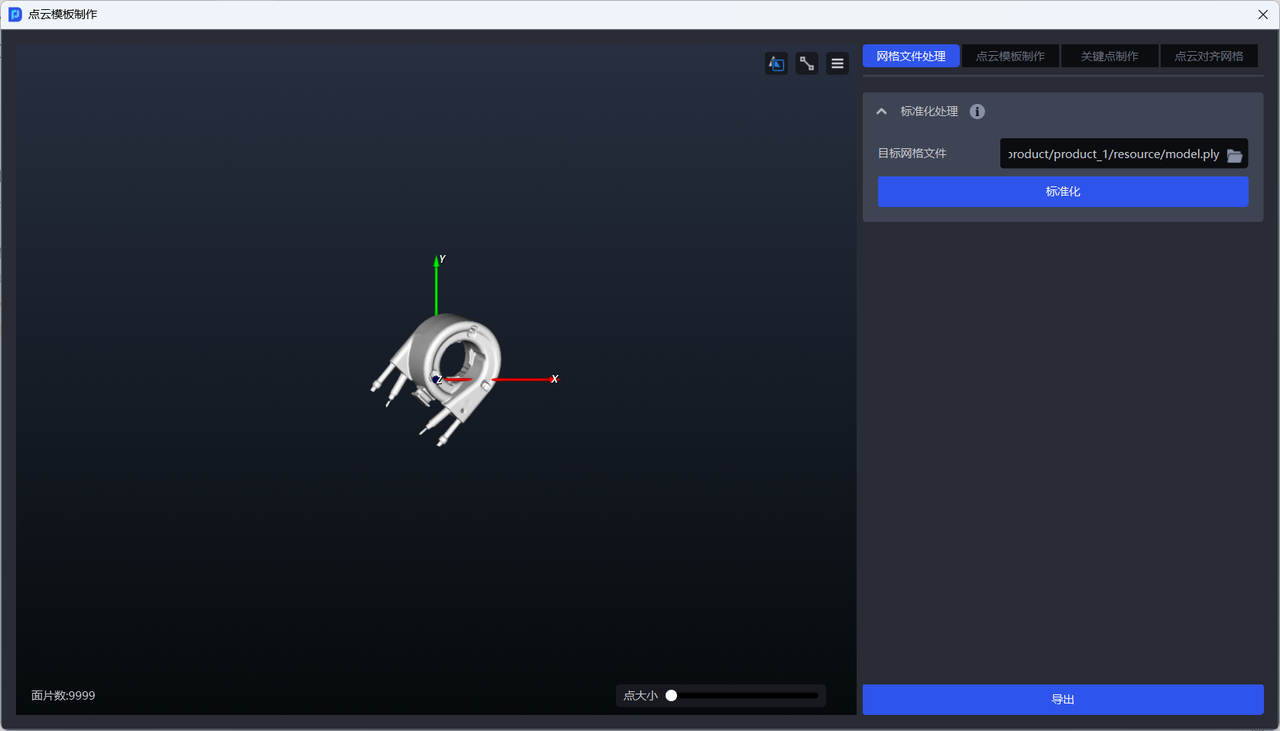
For the same mesh file, standardization only needs to be performed once
- Select
Current Job's Target Objectand clickSync to Target Objectto automatically upload the standardized mesh file to the workpiece, as shown below.
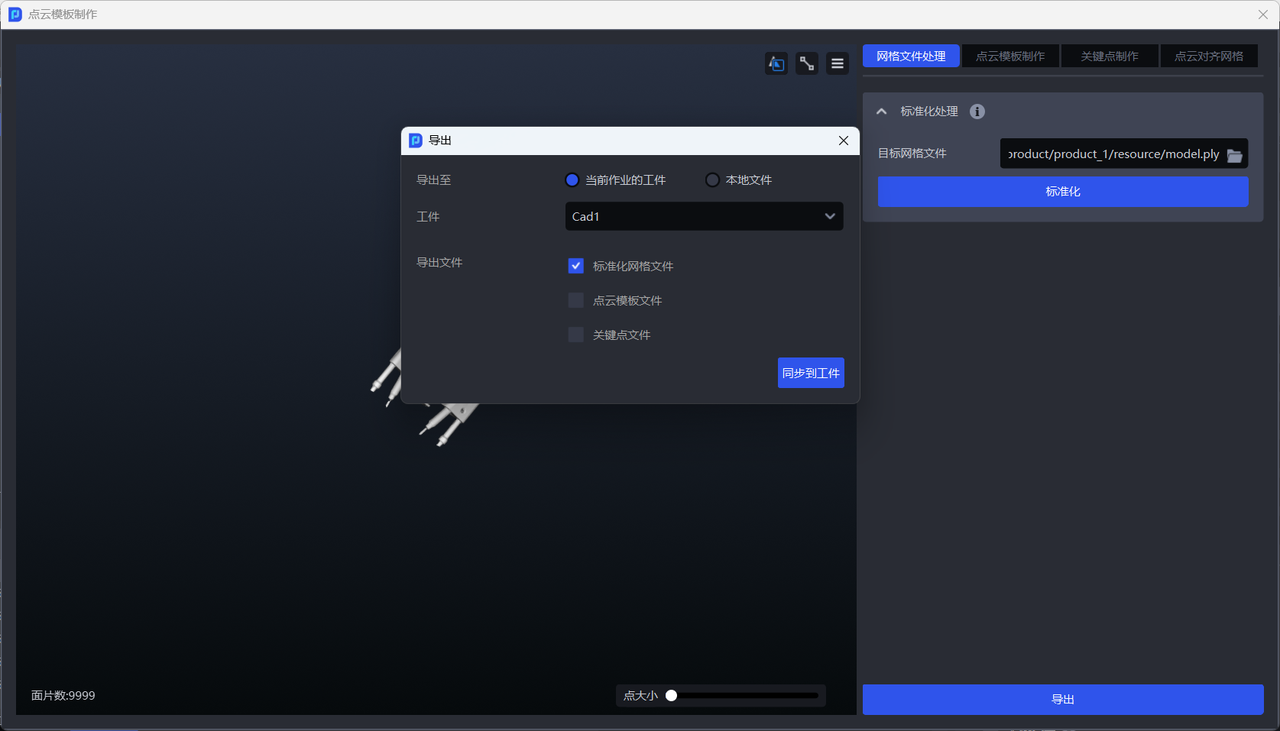
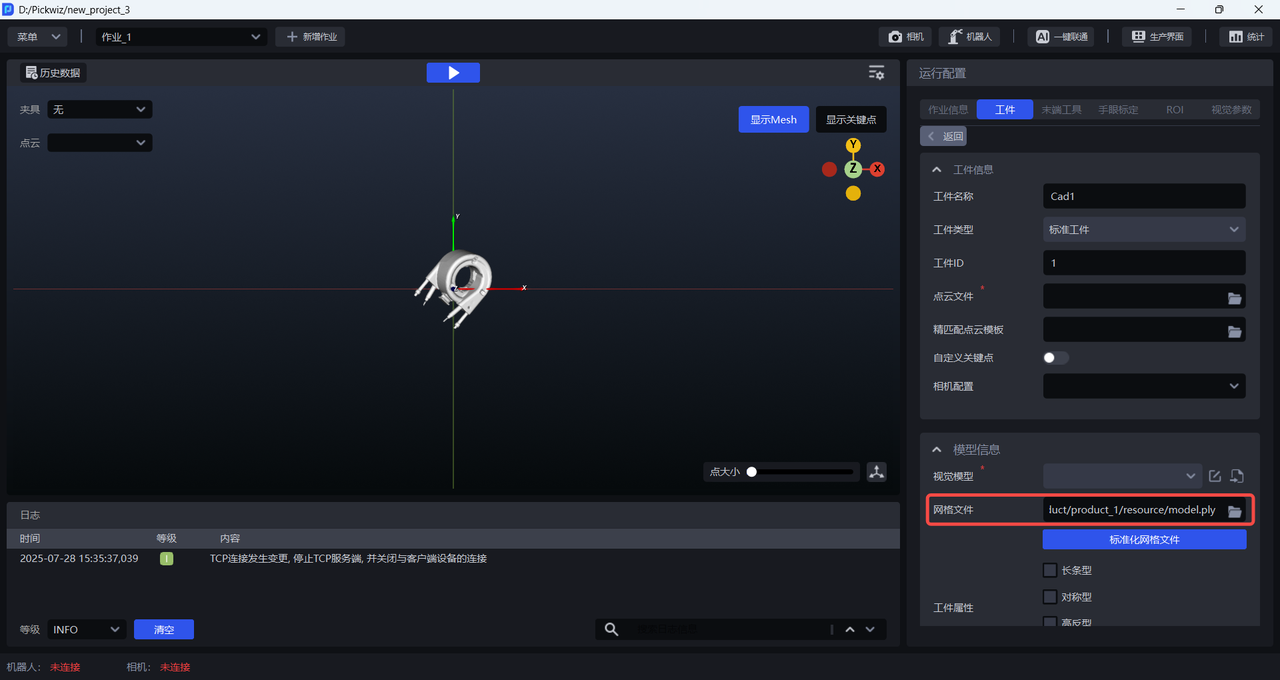
- If you need to create a Point Cloud template or align a Point Cloud template to the mesh, export the standardized mesh file to the local machine.
2. Point Cloud Template
A Point Cloud template refers to Point Cloud data that can accurately describe the shape, structure, and key features of a workpiece under ideal conditions. After it is configured for the workpiece in advance, it is used for 3D Matching with the workpiece Point Cloud captured by the camera in real time to find the best transformation relationship between the two, thereby obtaining the optimized workpiece pose.
A Point Cloud template can describe either the entire workpiece or only part of it. To make the Point Cloud template work better during matching, it should have the following characteristics:
The Point Cloud in the template should be evenly distributed and of a reasonable quantity to avoid affecting matching speed.
The Point Cloud template should include the typical features of the workpiece so that the workpiece can be recognized accurately during matching.
The Point Cloud template should avoid interference factors such as irrelevant Point Cloud data to ensure matching stability and accuracy.
2.1 Point Cloud Template Creation Methods
| Point Cloud Template Creation Method | Description | Applicable Scenario |
|---|---|---|
| Generate Template from Mesh | Downsample the imported standardized mesh file and generate a Point Cloud template with one click. | Scenarios where the workpiece Point Cloud captured by the camera is highly consistent with the workpiece Point Cloud template generated from the standardized mesh. |
| Generate Template from Camera Images | Capture images twice with the camera (one with the workpiece and one without), then compute the difference between the two images to obtain the workpiece Point Cloud template. | Scenarios where the workpiece Point Cloud captured by the camera has poor consistency with the workpiece Point Cloud template generated from the standardized mesh. |
| Capture Point Cloud in a 3D Region | In the Point Cloud image containing the workpiece captured by the camera, use a 3D bounding box to select the workpiece Point Cloud, then click `Generate Template` to obtain the Point Cloud template file. | / |
| Generate Template from Historical Data | In the historical data folder, select a folder containing a scene Point Cloud image with the workpiece (.ply), the original color image (.png), the depth image (.tiff), and the camera intrinsic parameter json file (.json). Use a 3D bounding box to select the workpiece Point Cloud, then click `Generate Template` to obtain the Point Cloud template file. | The project type is “Ordered Loading/Unloading for Surface Workpieces (Image Matching)” or “Surface Workpiece Positioning and Assembly (Image Matching Only)” |
2.1.1 Generate Template from Mesh
Function Description
Downsample the imported standardized mesh file and generate a Point Cloud template with one click. There are two generation methods:
Generate Template:
Based on the standardized mesh file, downsample the entire model to generate a Point Cloud template;
Suitable for most scenarios.
Generate Template (Current View Only)
Based on the standardized mesh file, generate a Point Cloud template using only the mesh file from the current viewpoint;
Suitable for ordered scenes where the workpiece placement pose is single and fixed. It is necessary to ensure that the viewpoint of the mesh file in the window is consistent with the workpiece viewpoint under the camera in the actual working condition.
Applicable Scenarios
Scenarios where the workpiece Point Cloud captured by the camera is highly consistent with the workpiece Point Cloud template generated from the standardized mesh.
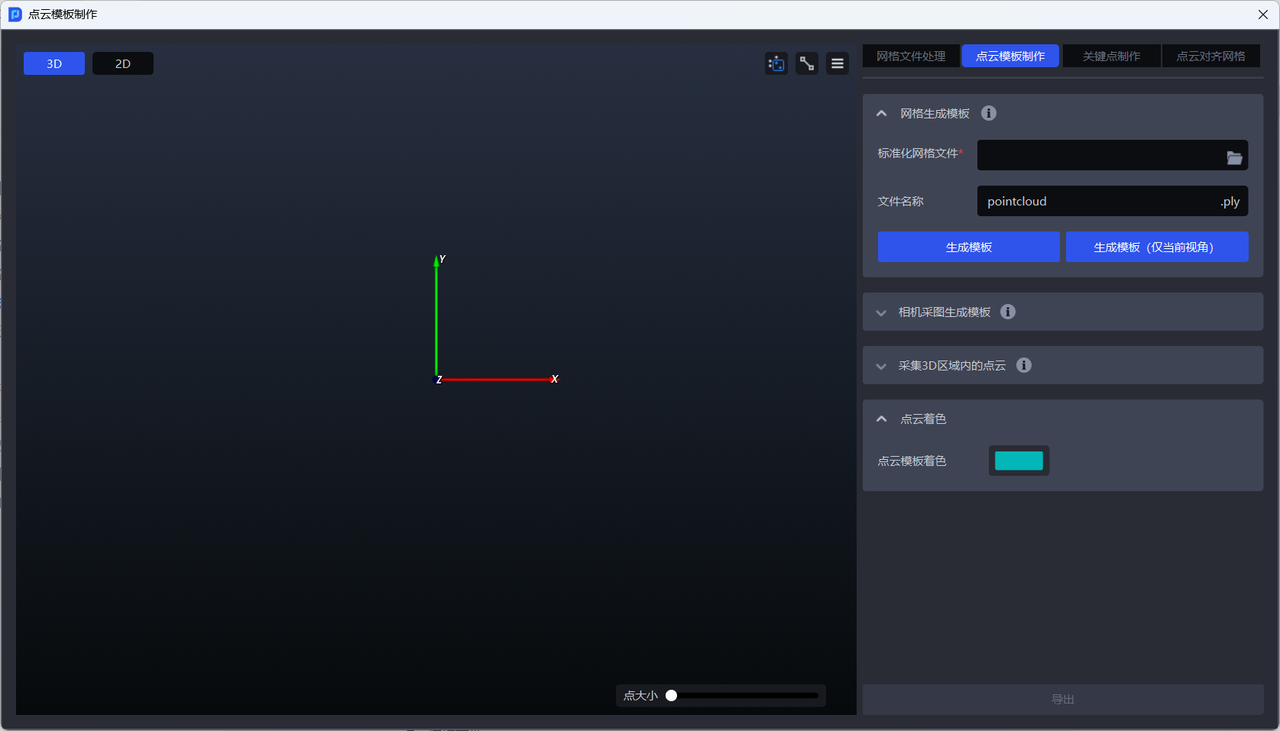
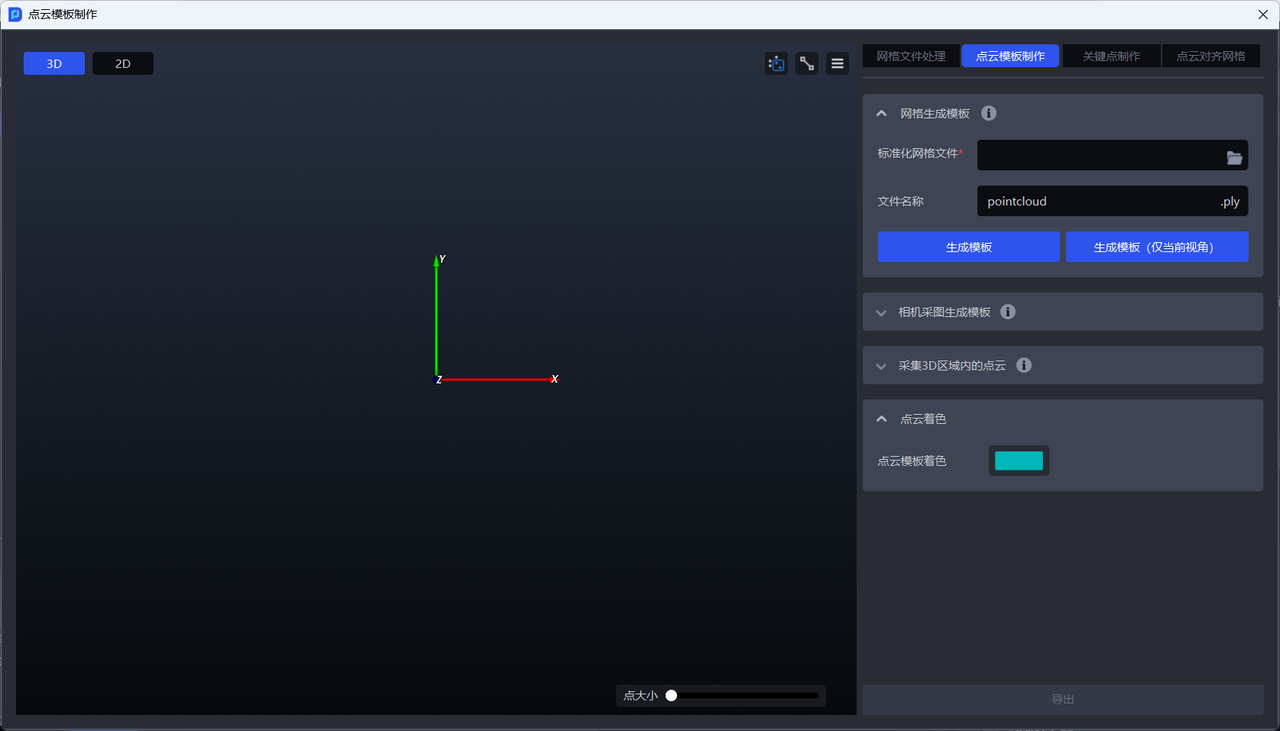
- Switch to the
Point Cloud Template Creationwindow
- Upload the standardized mesh file exported locally in
1. Mesh File Processing
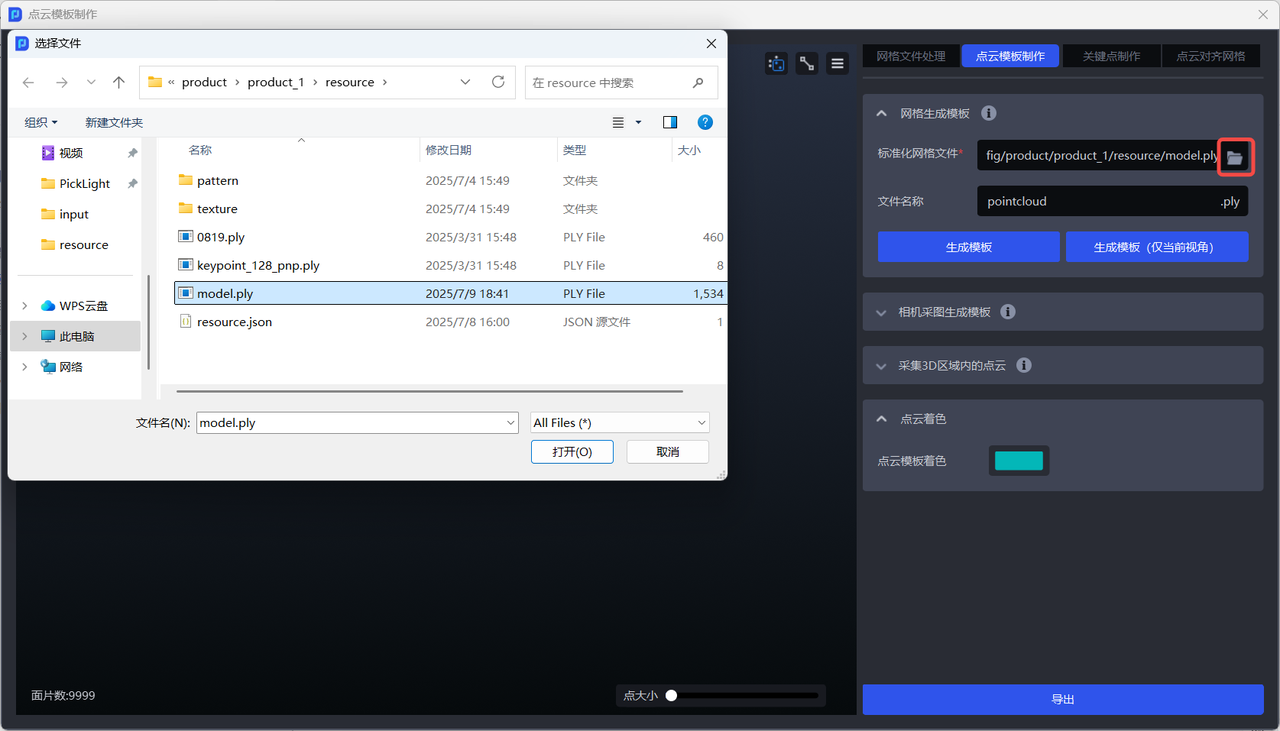
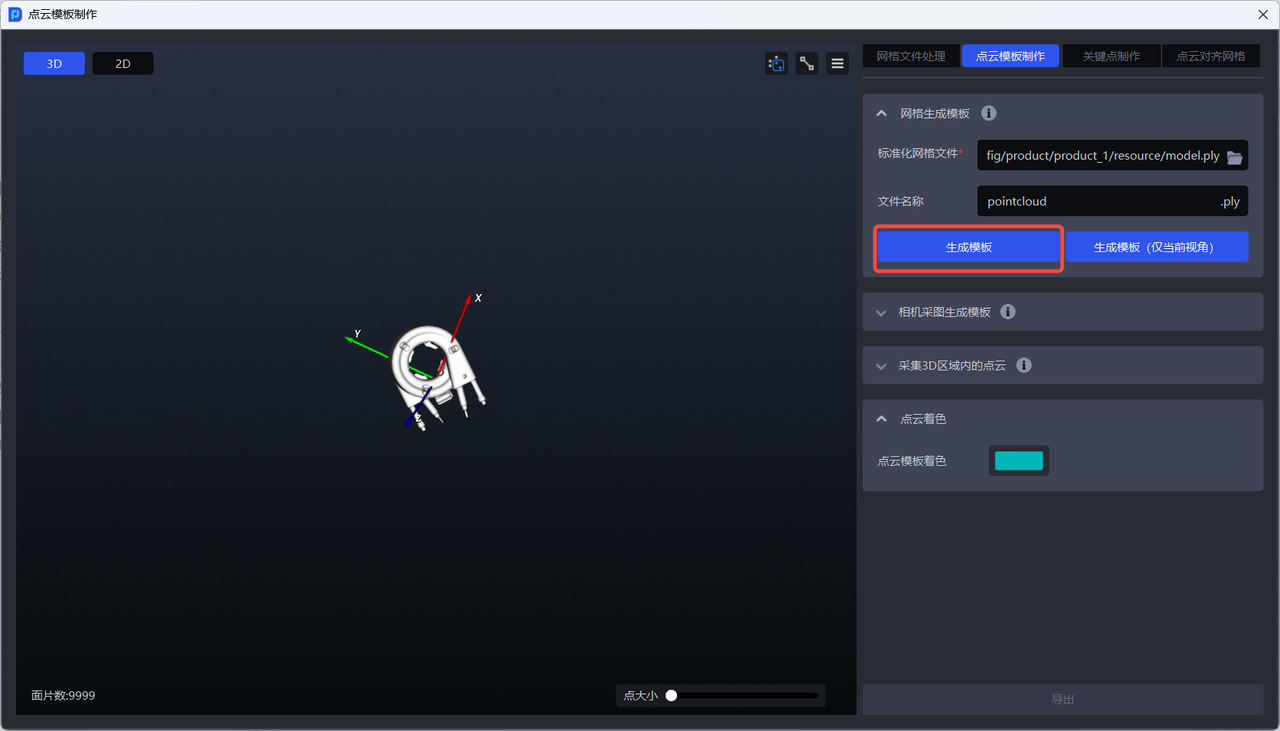
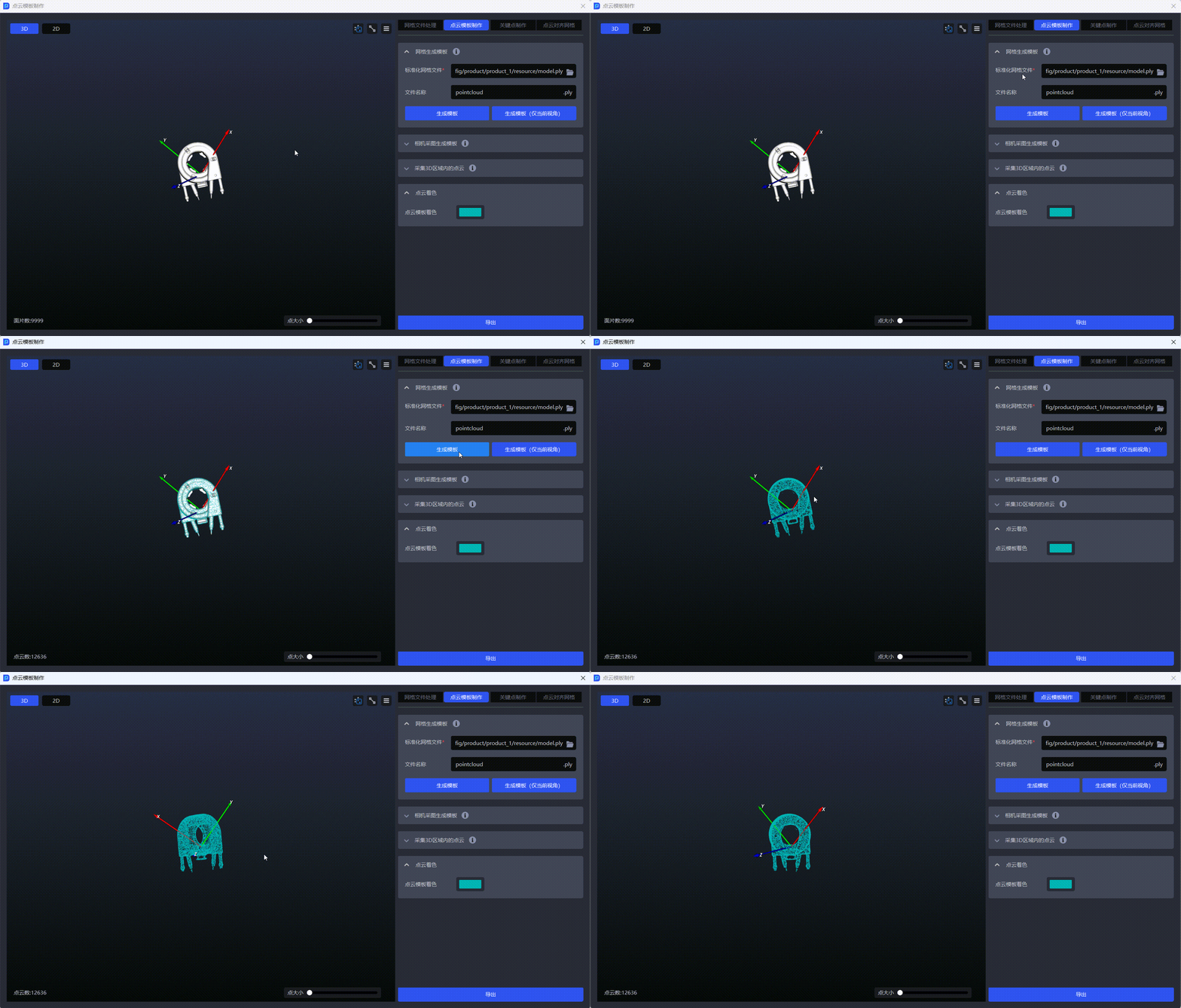
- If you need to generate the full Point Cloud of the workpiece, click
Generate Template. The generated full Point Cloud template is shown below.
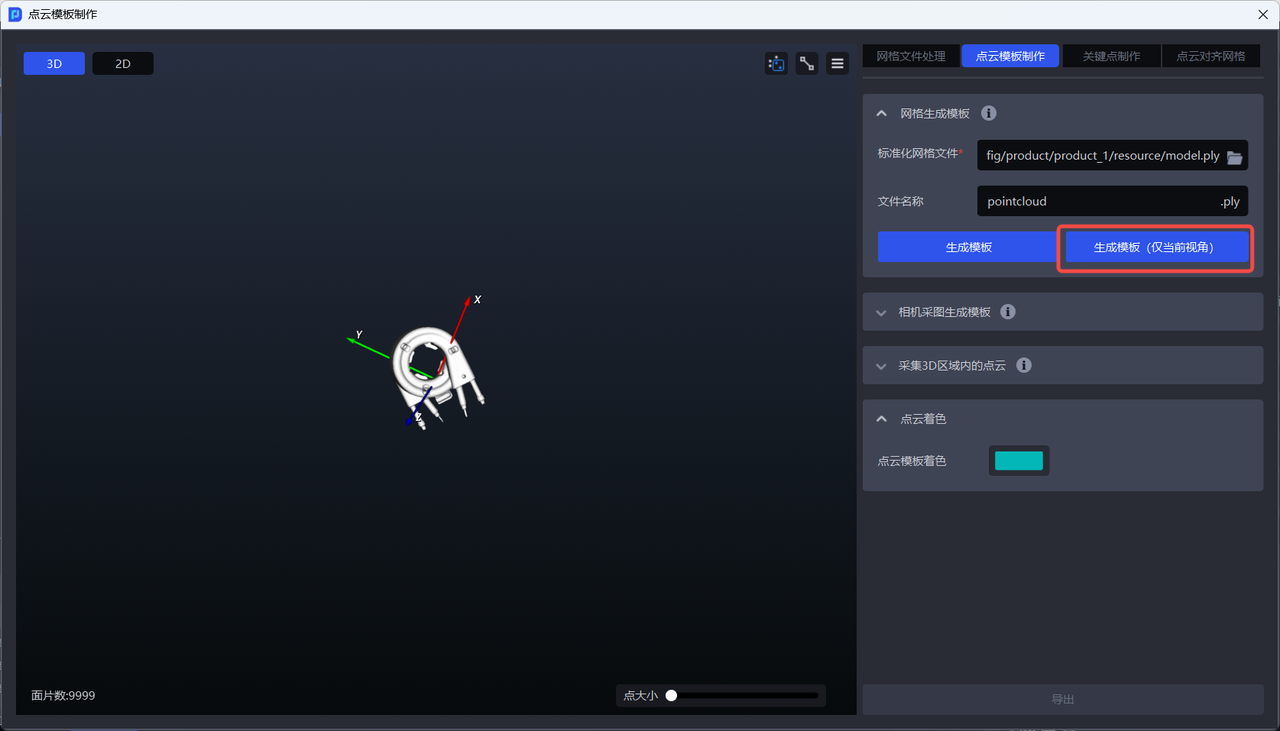
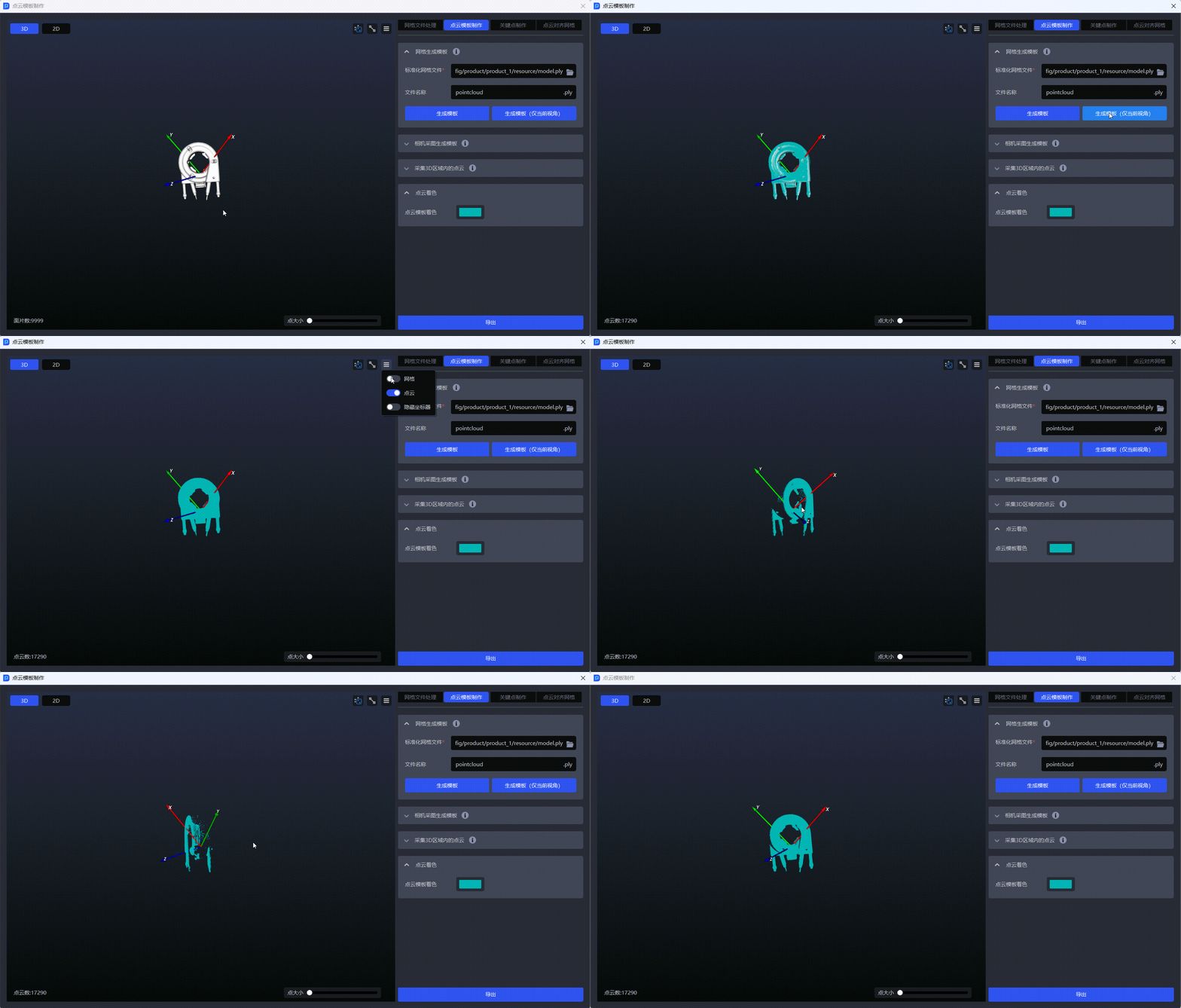
- If you only need to generate the workpiece Point Cloud for the current viewpoint, click
Generate Template (Current View Only). The generated current-view Point Cloud template is shown below.
2.1.2 Generate Template from Camera Images
Function Description
Capture images twice with the camera (one with the workpiece and one without), then compute the difference between the two images to obtain the workpiece Point Cloud template. It is necessary to ensure that the camera capture viewpoint is the same and that no objects other than the workpiece change between the two captures.
Applicable Scenarios
Scenarios where the workpiece Point Cloud captured by the camera has poor consistency with the workpiece Point Cloud template generated from the standardized mesh.
⚠️Known Issue
When using camera-captured images to create a Point Cloud template for relatively flat workpieces, there may be issues where the Point Cloud cannot be captured or too few Point Cloud points are captured. The solution is to elevate the flat workpiece before capturing the image.
- Switch to the
Point Cloud Template Creationwindow
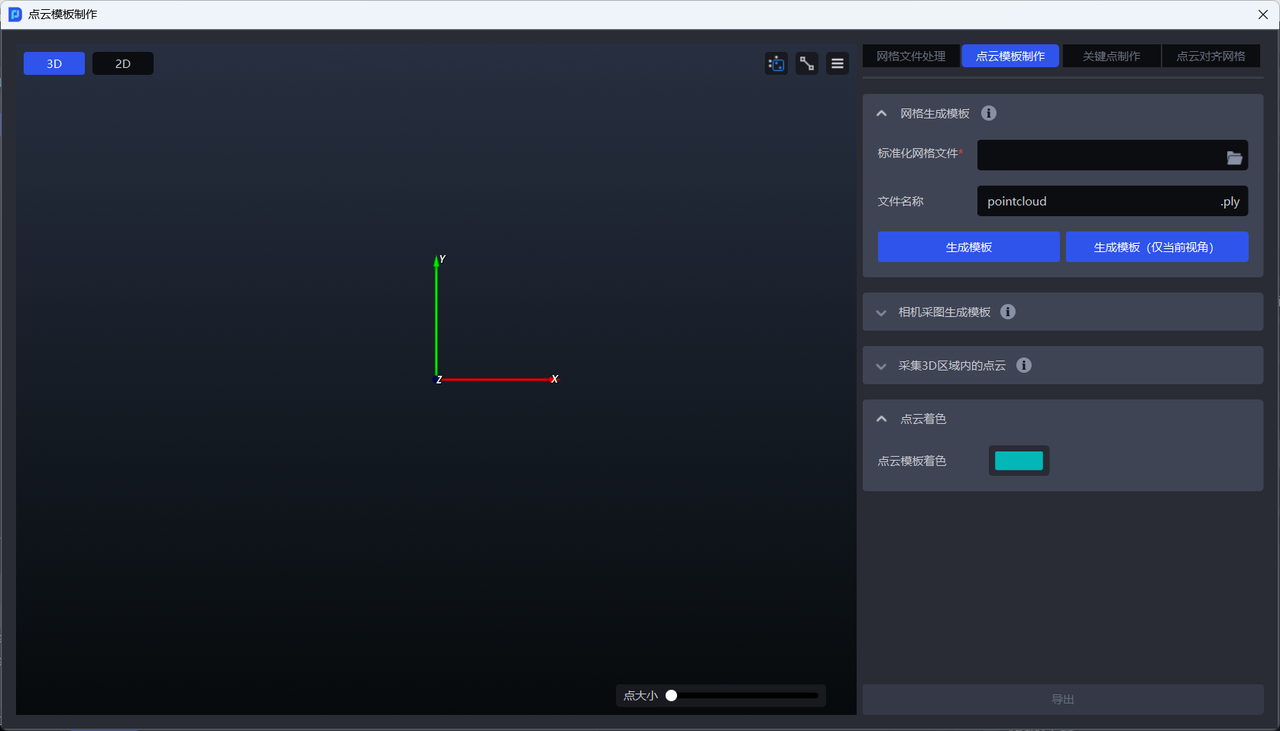
- Click
Generate Template from Camera Images
Before using camera images to generate a template, the camera must be connected and configured in task information. For details, please refer to Camera Connection and Parameter Adjustment Guide
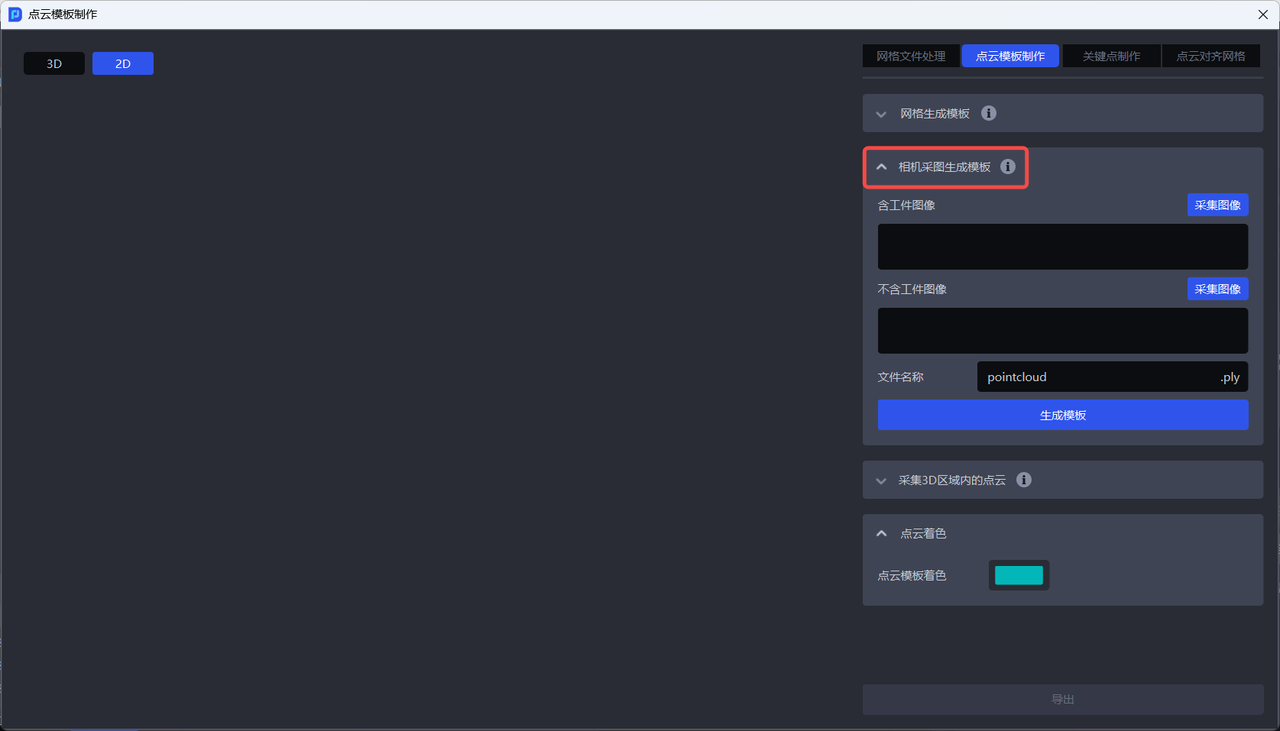
- Click
Capture Imagein theImage with Workpiecefield to capture an image containing the workpiece, as shown below
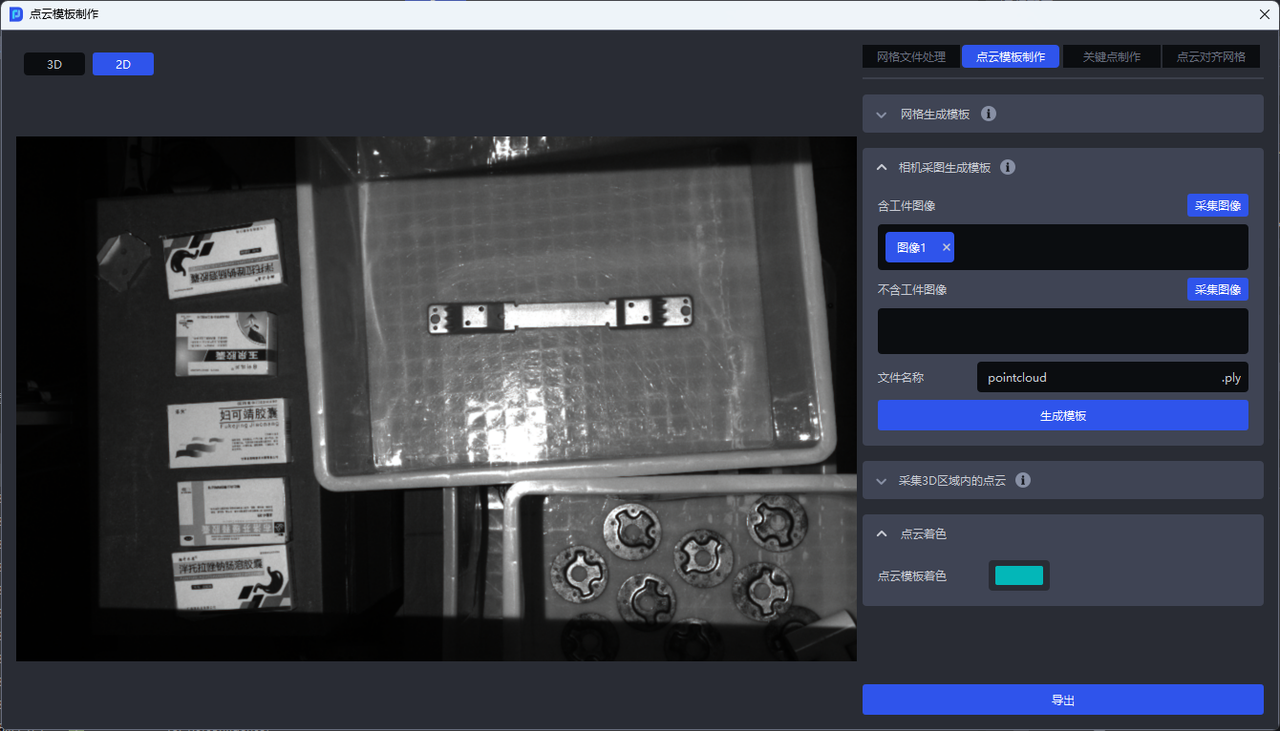
- Draw a 2D box around the workpiece on the captured image, as shown below.
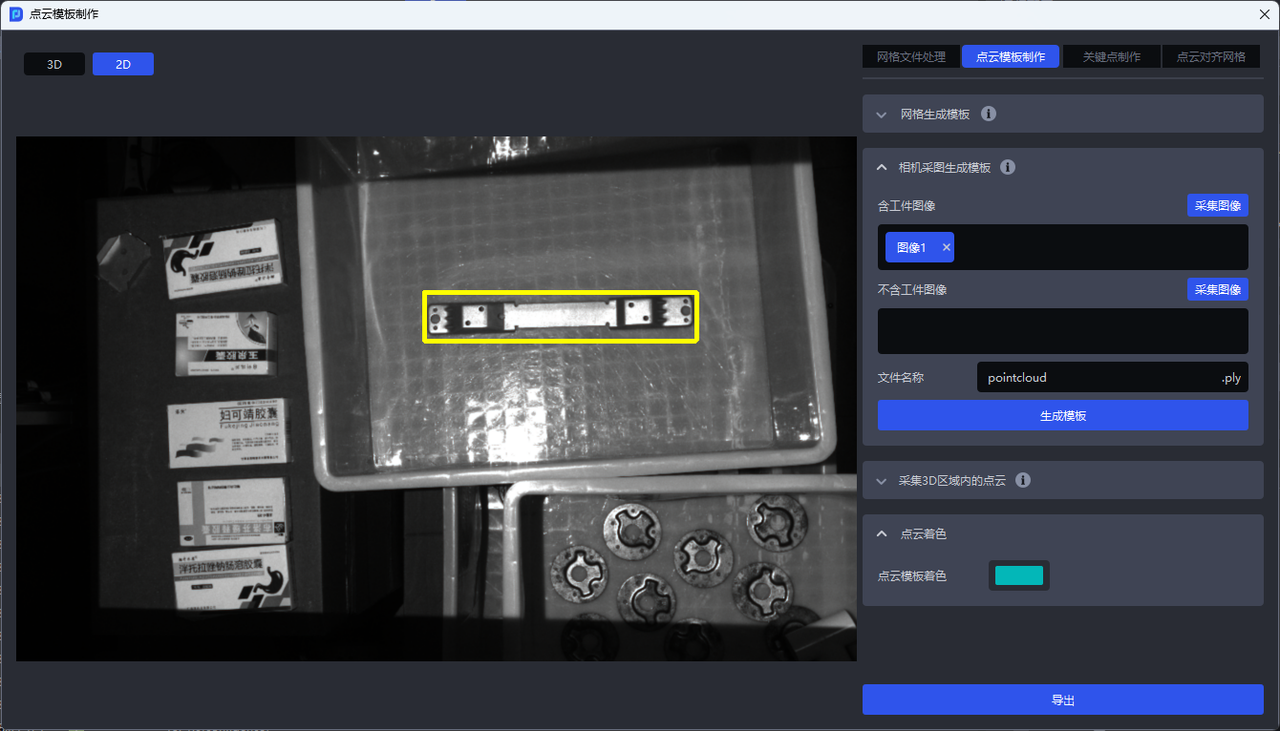
- Click
Capture Imagein theImage without Workpiecefield to capture a background image without the workpiece, as shown below
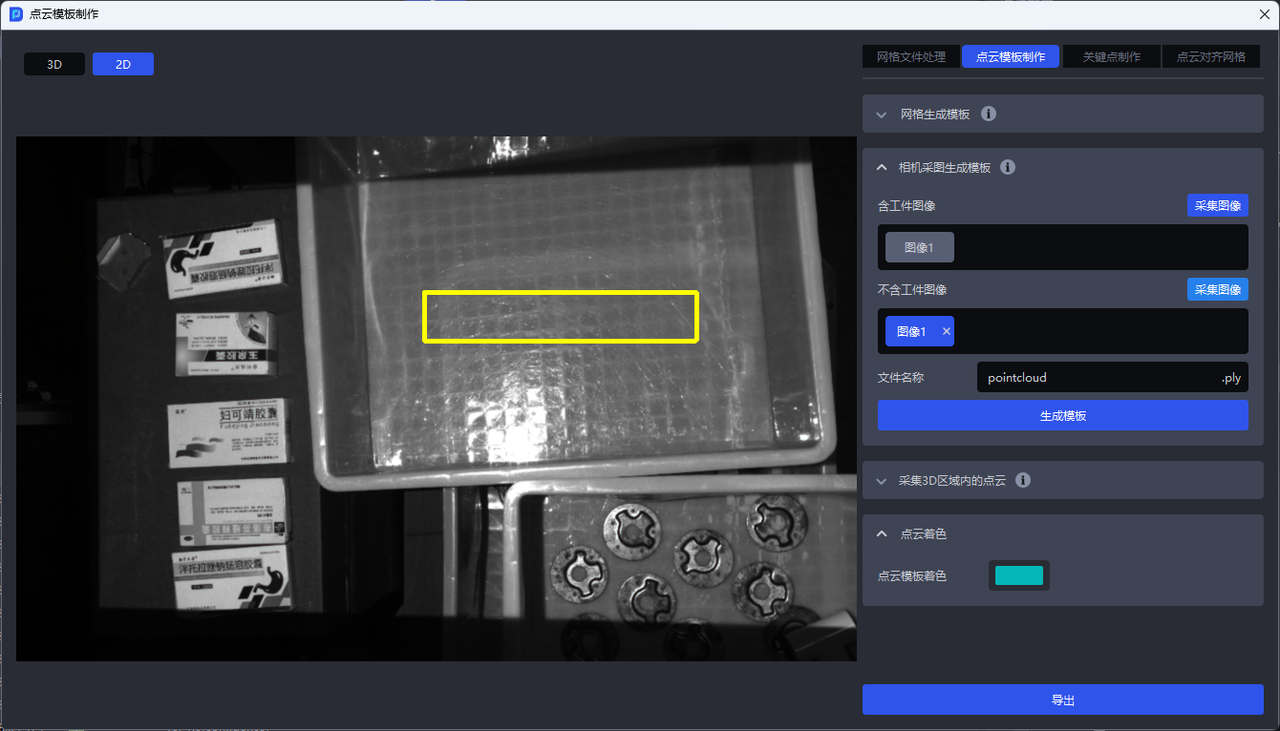
- Click
Generate Templateto generate the Point Cloud template of the workpiece. The Point Cloud template is automatically aligned to the coordinate origin.
2.1.3 Capture Point Cloud in a 3D Region
In the Point Cloud image containing the workpiece captured by the camera, use a 3D bounding box to select the workpiece Point Cloud, then click Generate Template to obtain the Point Cloud template file, as shown below.
- Switch to the
Point Cloud Template Creationwindow
- Click
Capture Point Cloud in 3D Region
Before capturing Point Cloud in a 3D region, the camera must be connected and configured in task information. For details, please refer to Camera Connection and Parameter Adjustment Guide
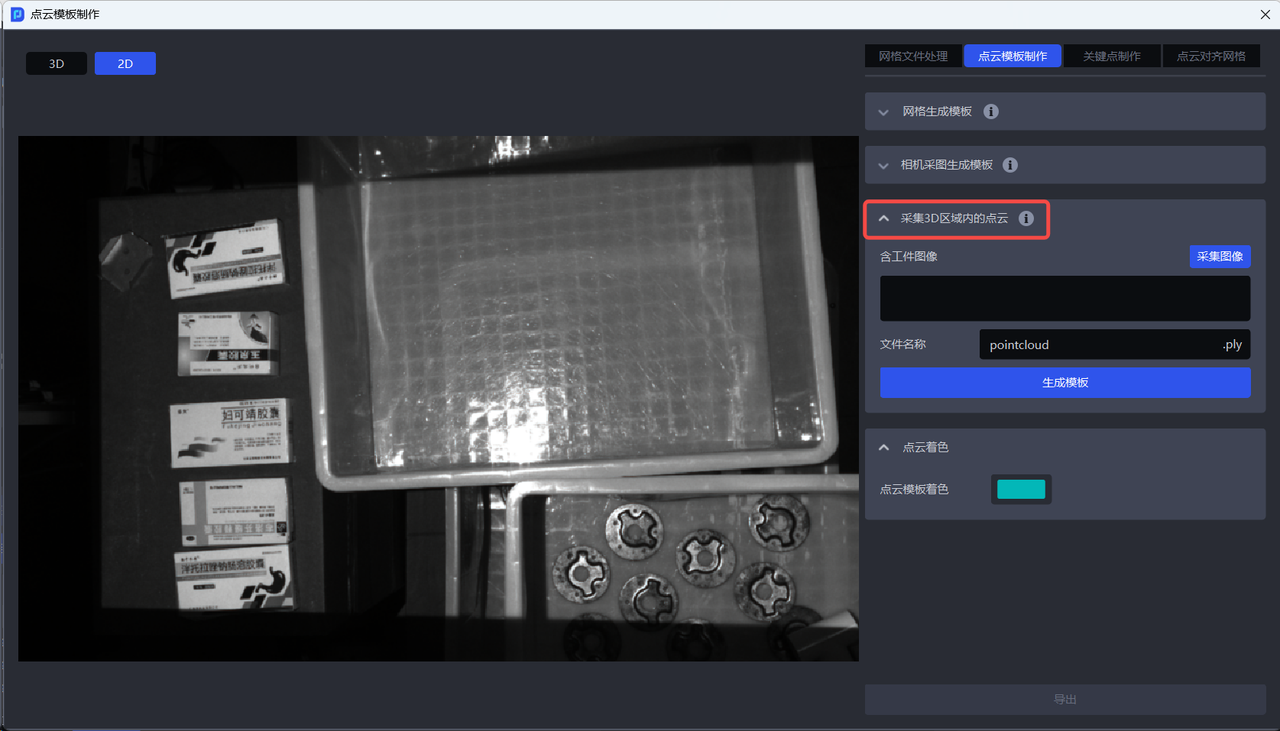
- Click
Capture Imagein theImage with Workpiecefield to capture an image containing the workpiece, as shown below
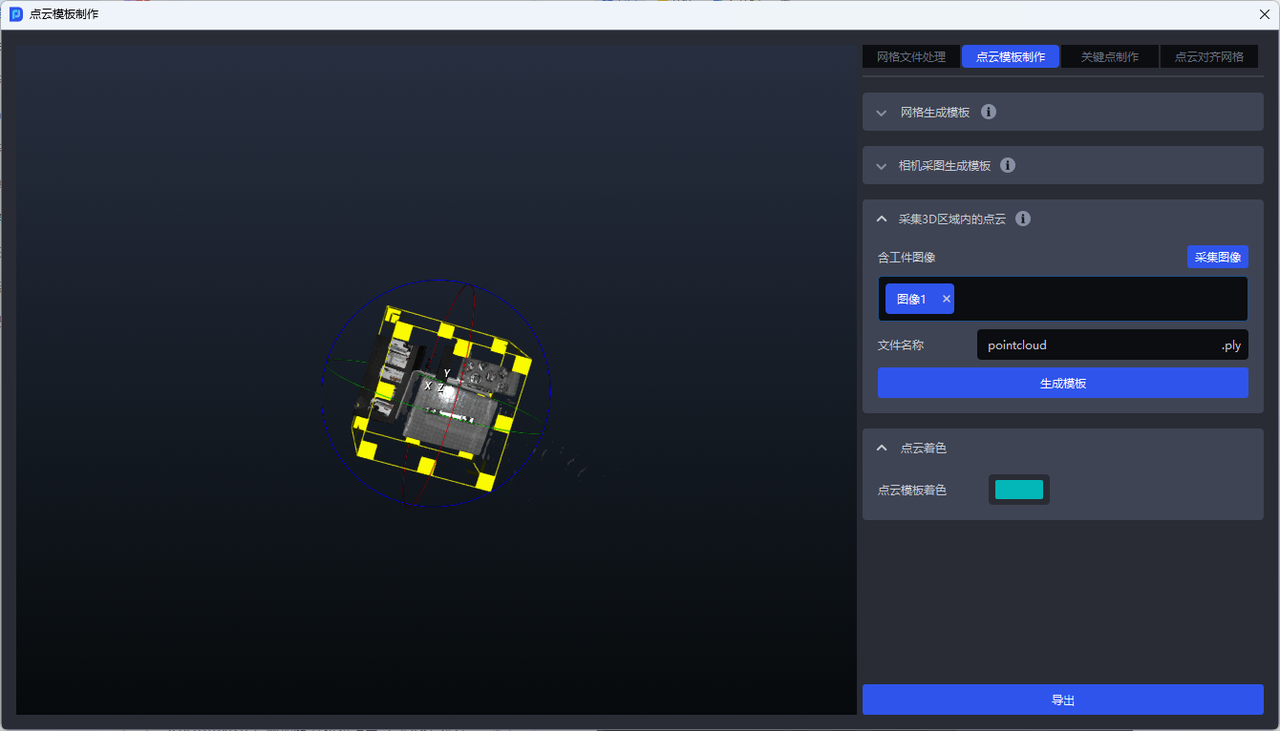
- Draw a box around the workpiece in the captured image
The left mouse button can change the viewpoint and zoom in or out, as shown below.
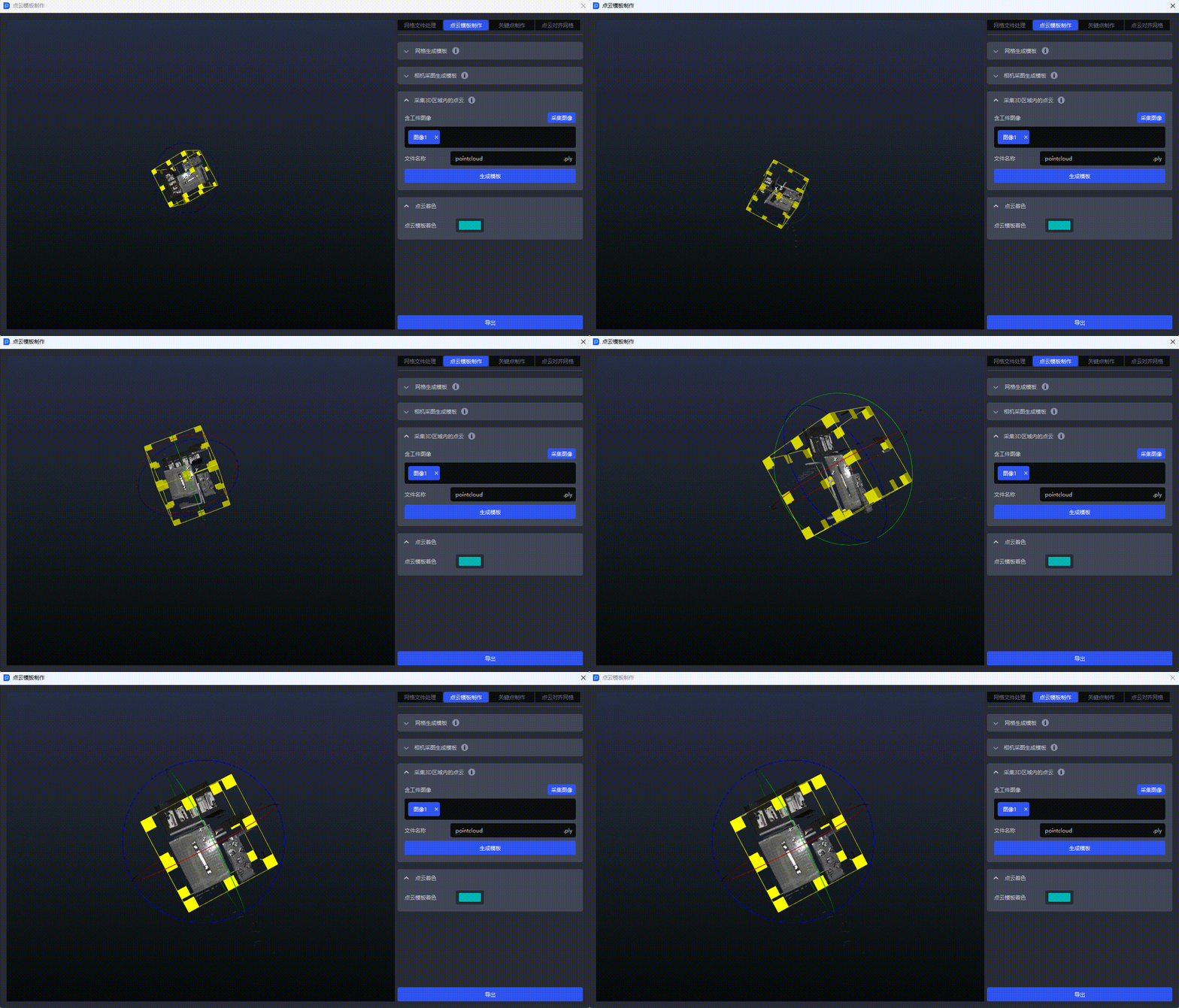
The right mouse button can adjust the size and angle of the 3D box, as shown below.
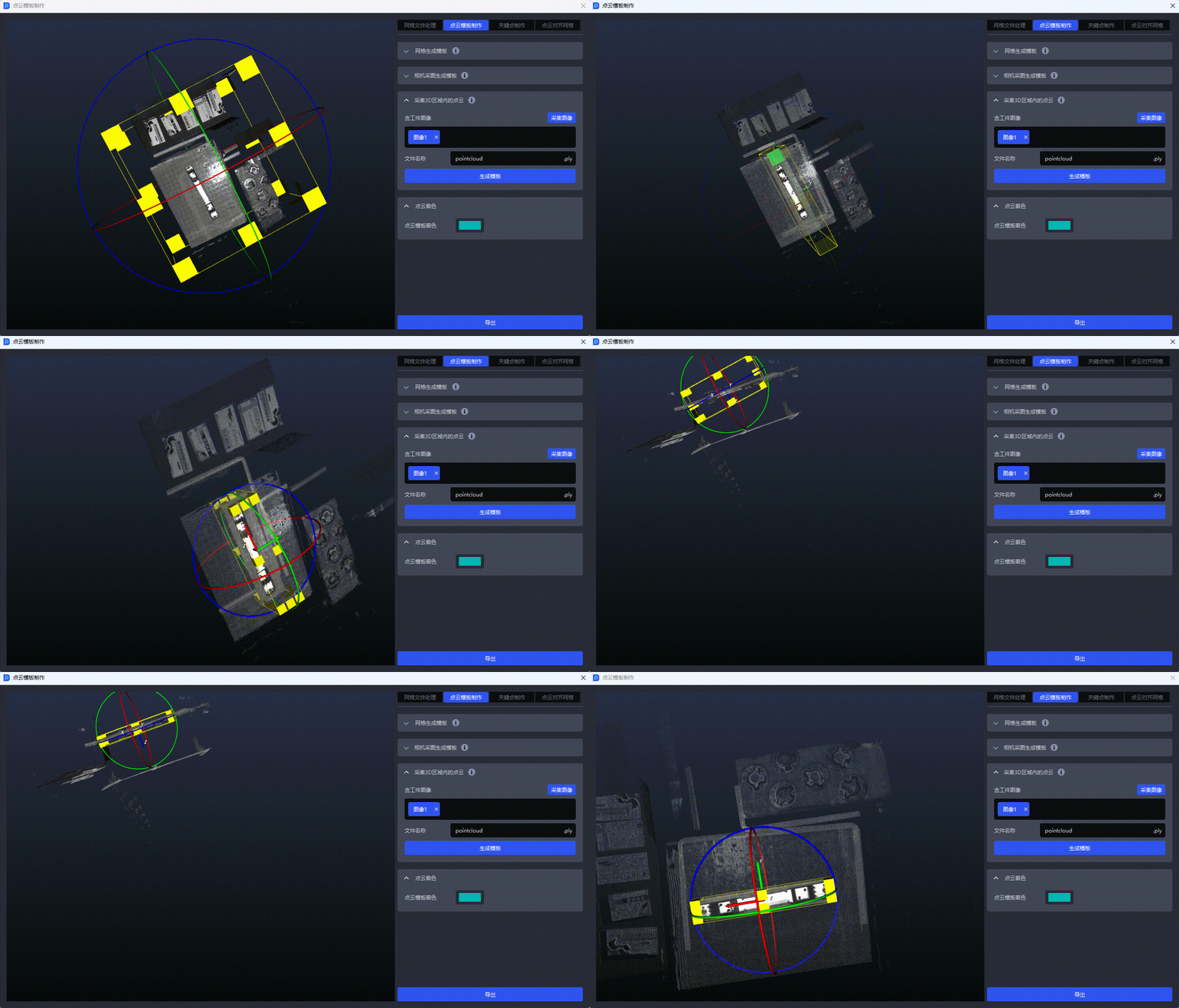
- After boxing the workpiece Point Cloud, click
Generate Templateto generate the Point Cloud template of the workpiece, and the Point Cloud template is automatically aligned to the coordinate origin
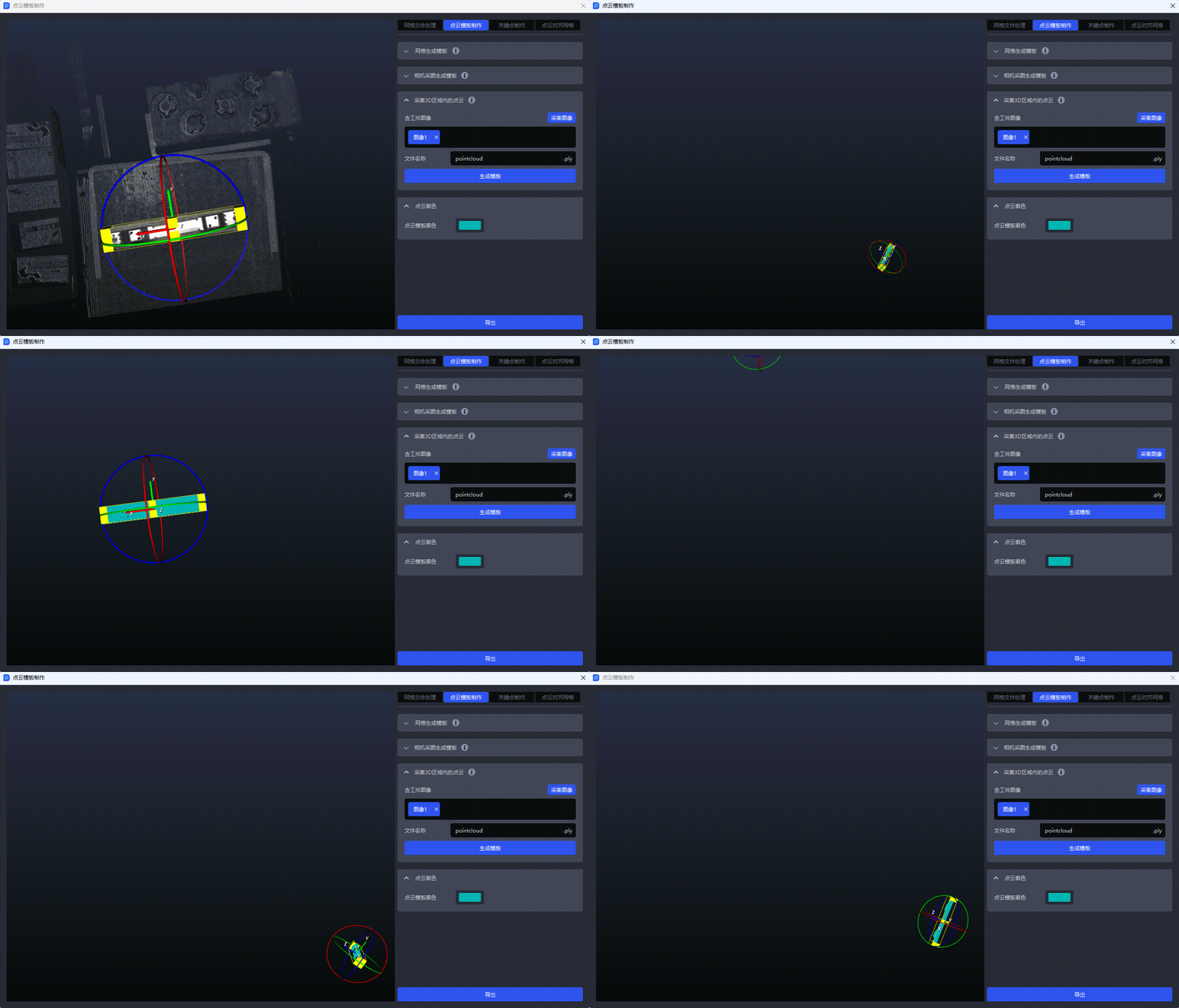
2.1.4 Generate Template from Historical Data
When the project type is “Ordered Loading/Unloading for Surface Workpieces (Image Matching)” or “Surface Workpiece Positioning and Assembly (Image Matching Only),” the Point Cloud template must be created with Generate Template from Historical Data in the Menu—Point Cloud Template Creation function.
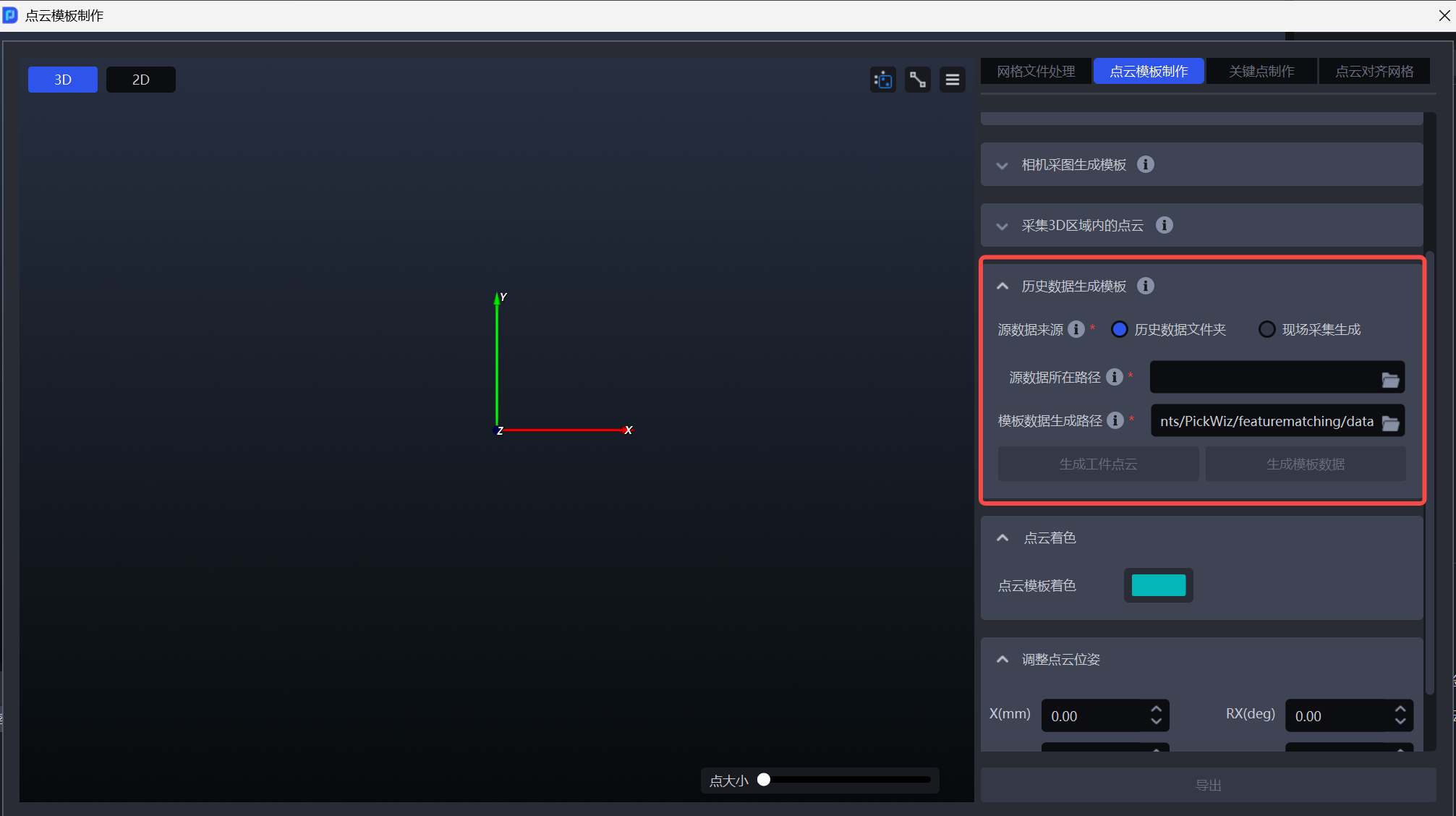
- Source Data: Historical data folder
Source data path: Select a complete historical data folder, usually located in 项目文件夹\data\PickLight\历史数据\Builder\foreground\input
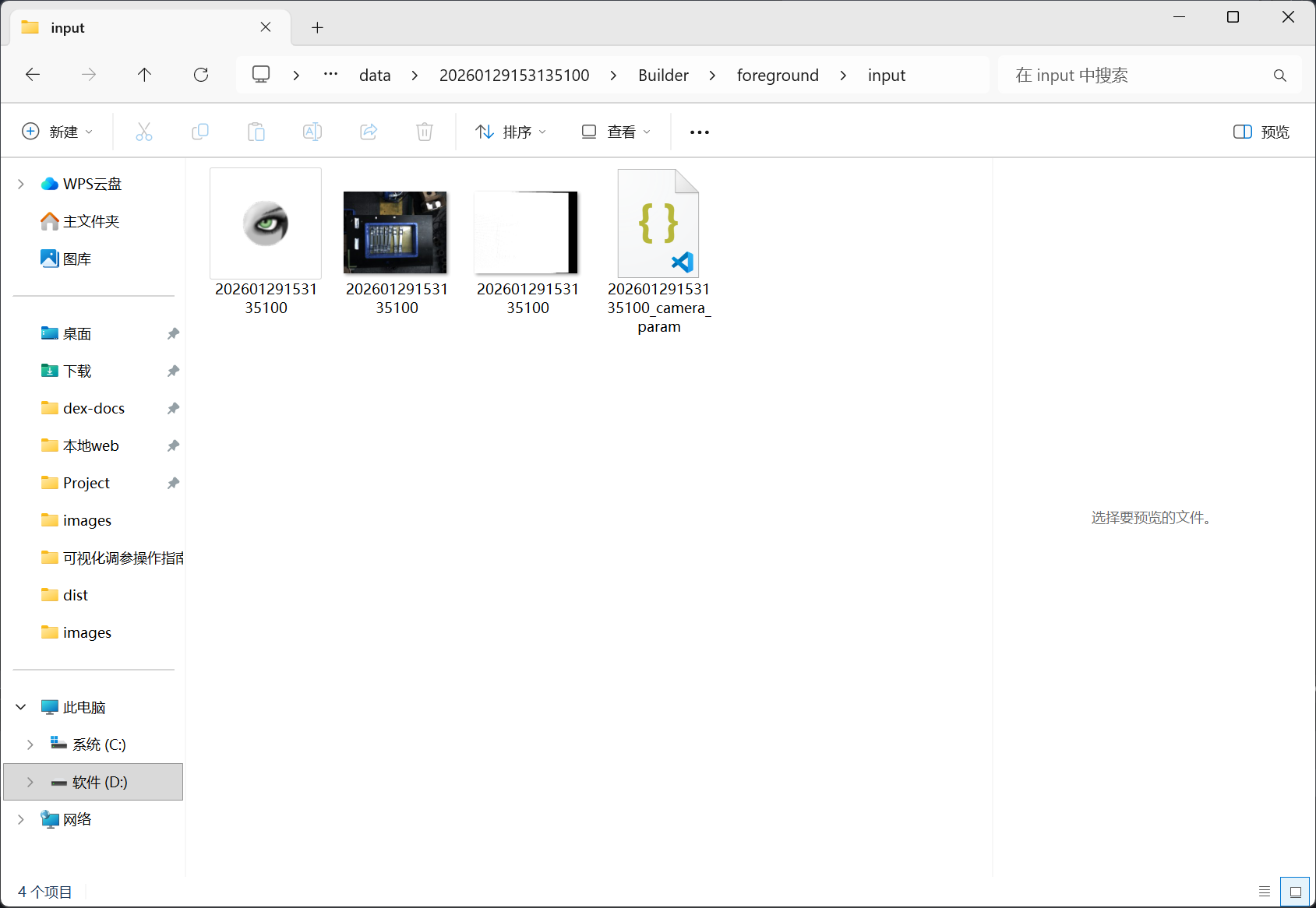
Template data generation path: By default, it is generated in the data folder of the current Project, but it can be changed to another local folder.
In the left viewport, select the ROI region of the required workpiece, click Generate Workpiece Point Cloud, and the Point Cloud will appear in the left window. Use the Point Cloud editing tools in the upper-right corner to edit the required workpiece Point Cloud.
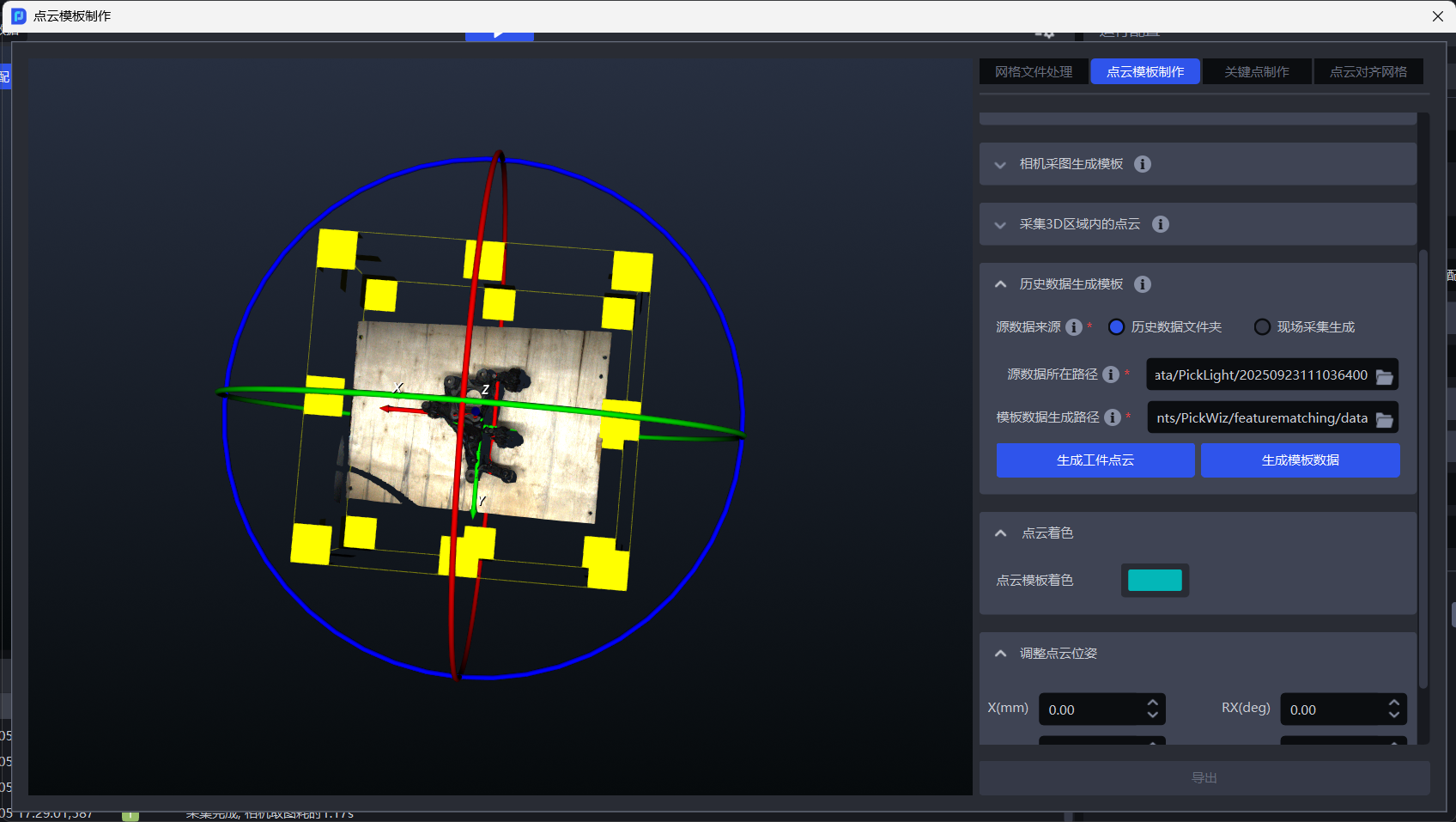
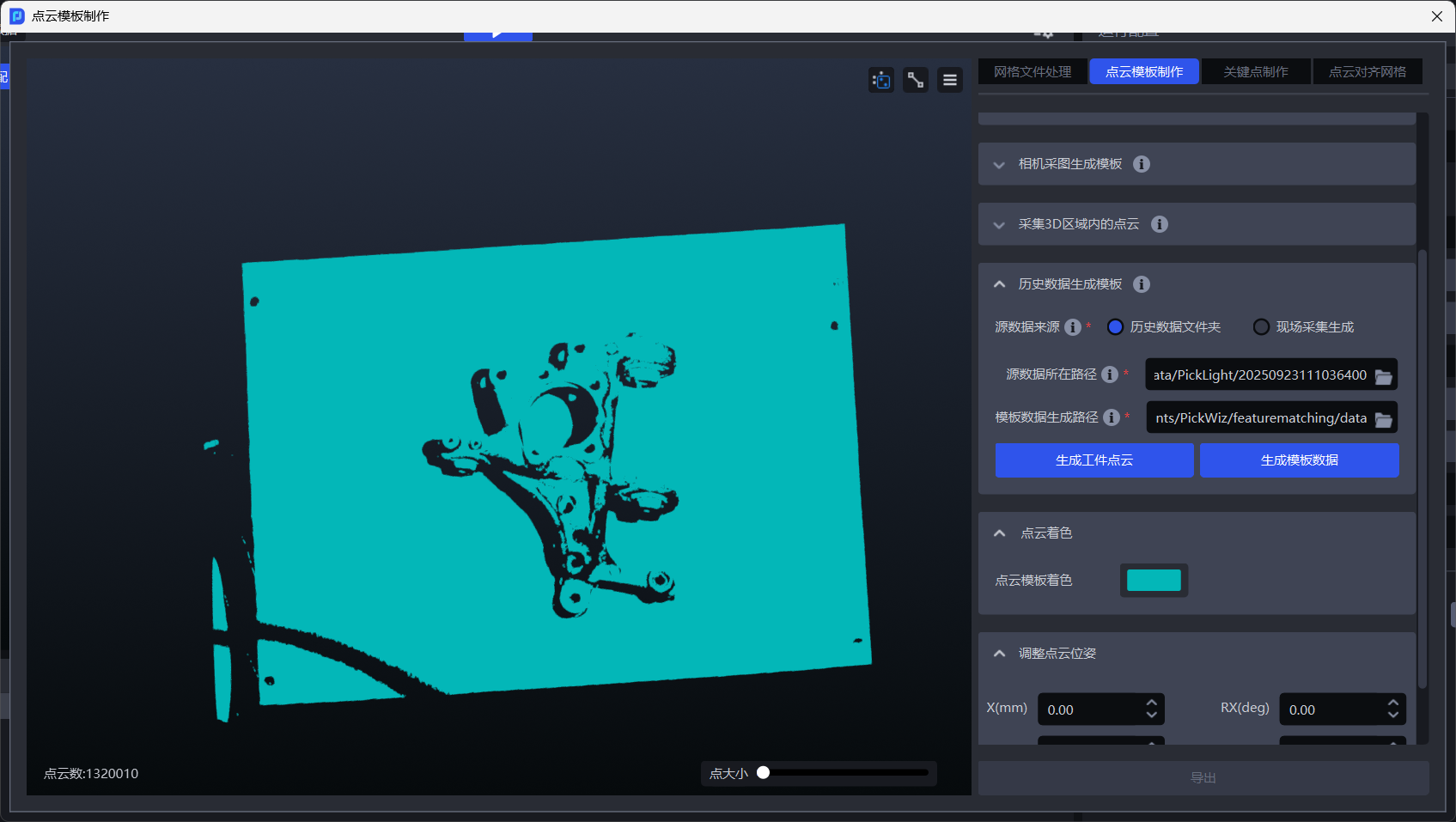
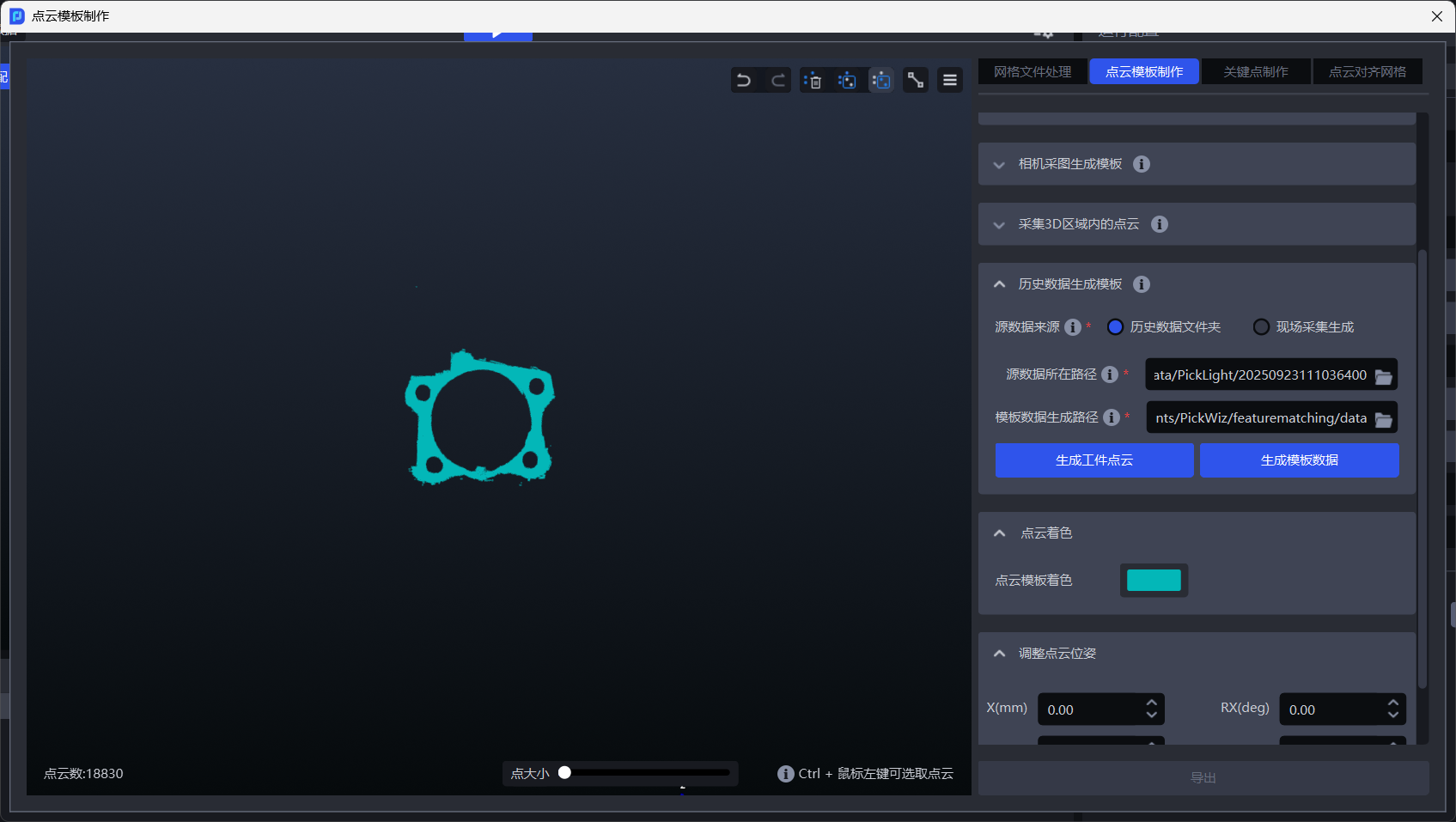
After the workpiece Point Cloud is completed, click Generate Template Data to finish template generation.
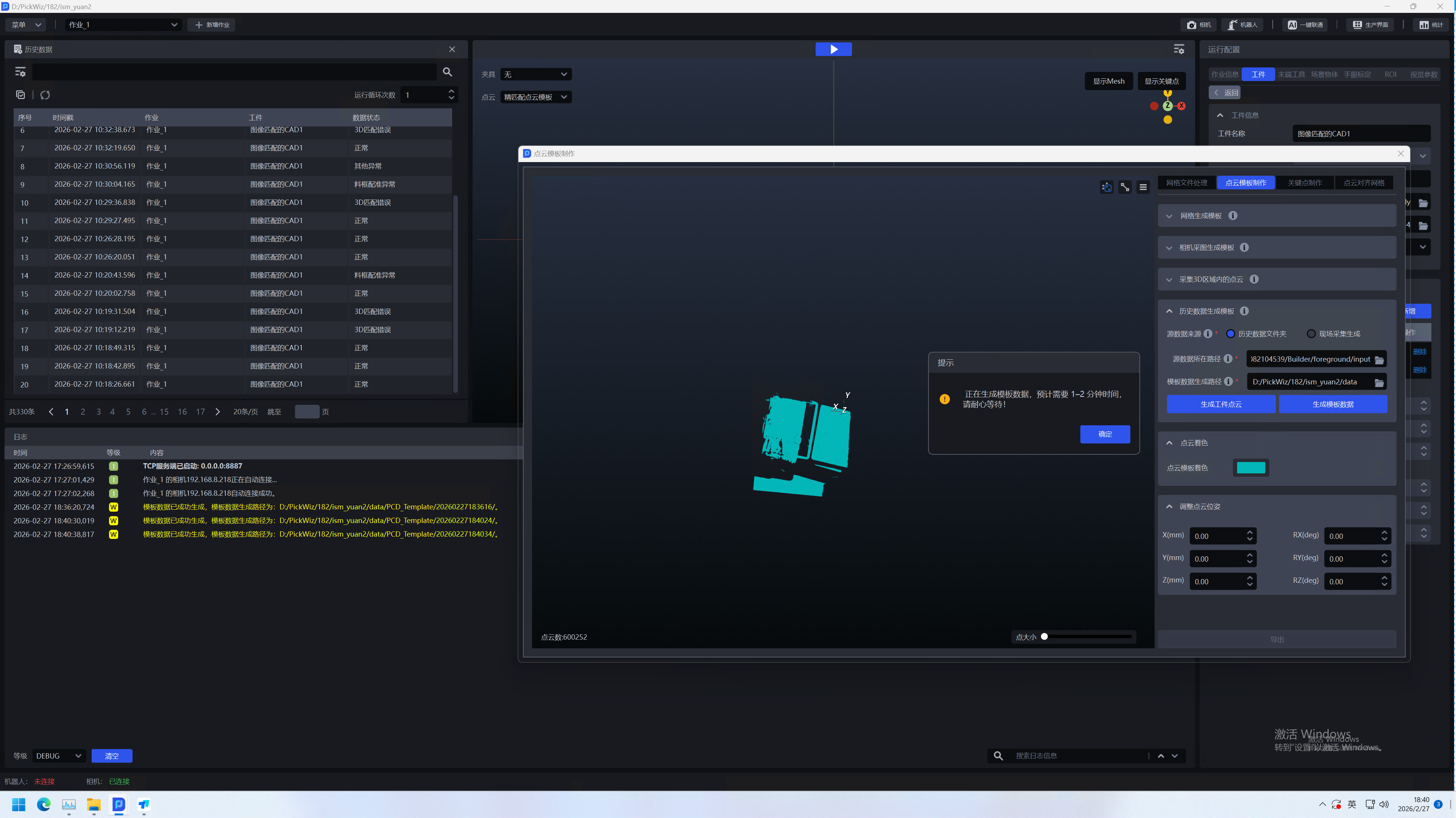
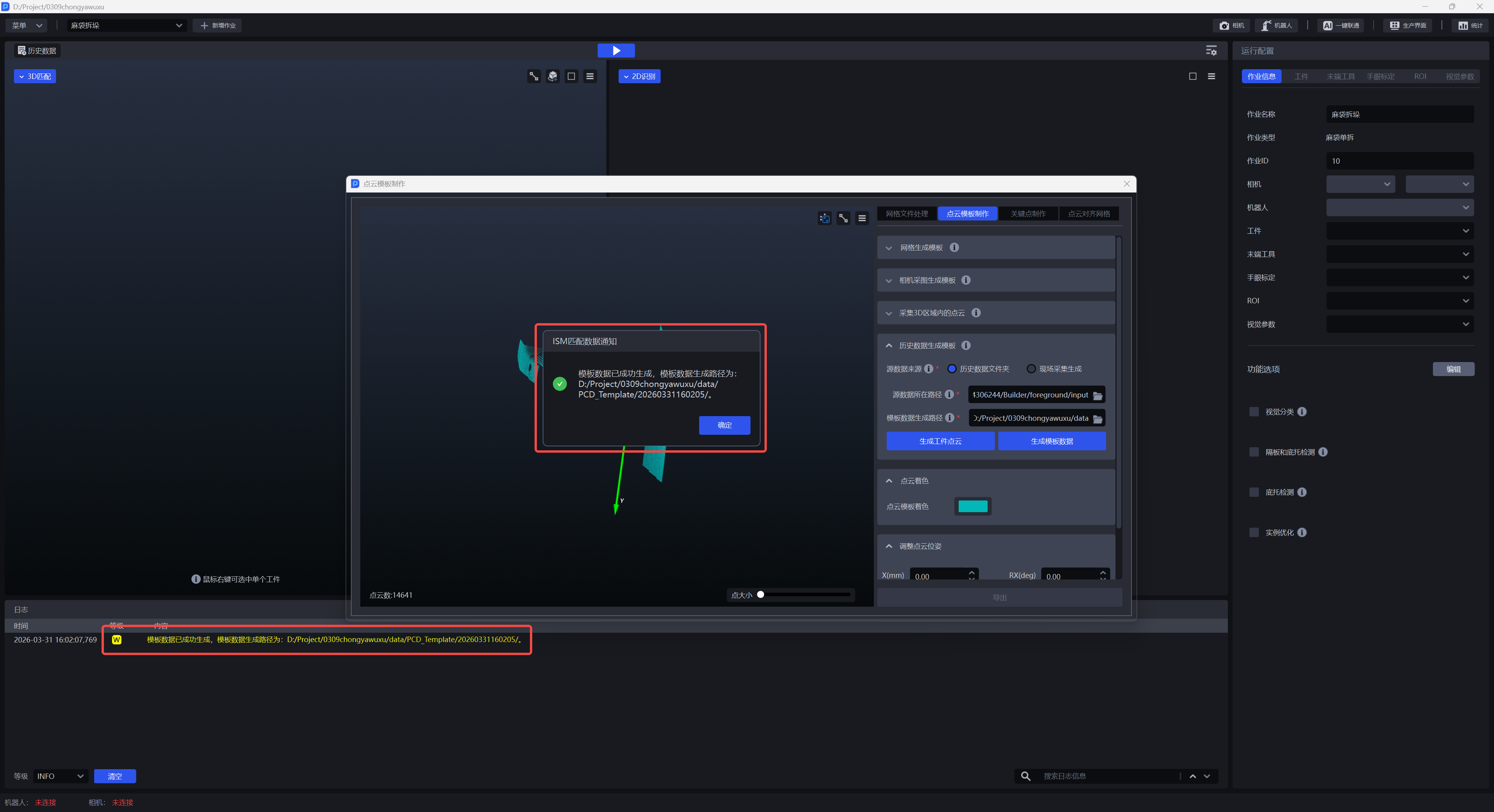
- Source Data: Generated by on-site capture
Confirm that the camera is connected and configured in task information, click Capture Image to generate a Point Cloud image, select the ROI of the workpiece position, and click Generate Workpiece Point Cloud. The Point Cloud will appear in the left window. Use the Point Cloud editing tools in the upper-right corner to edit the required workpiece Point Cloud.
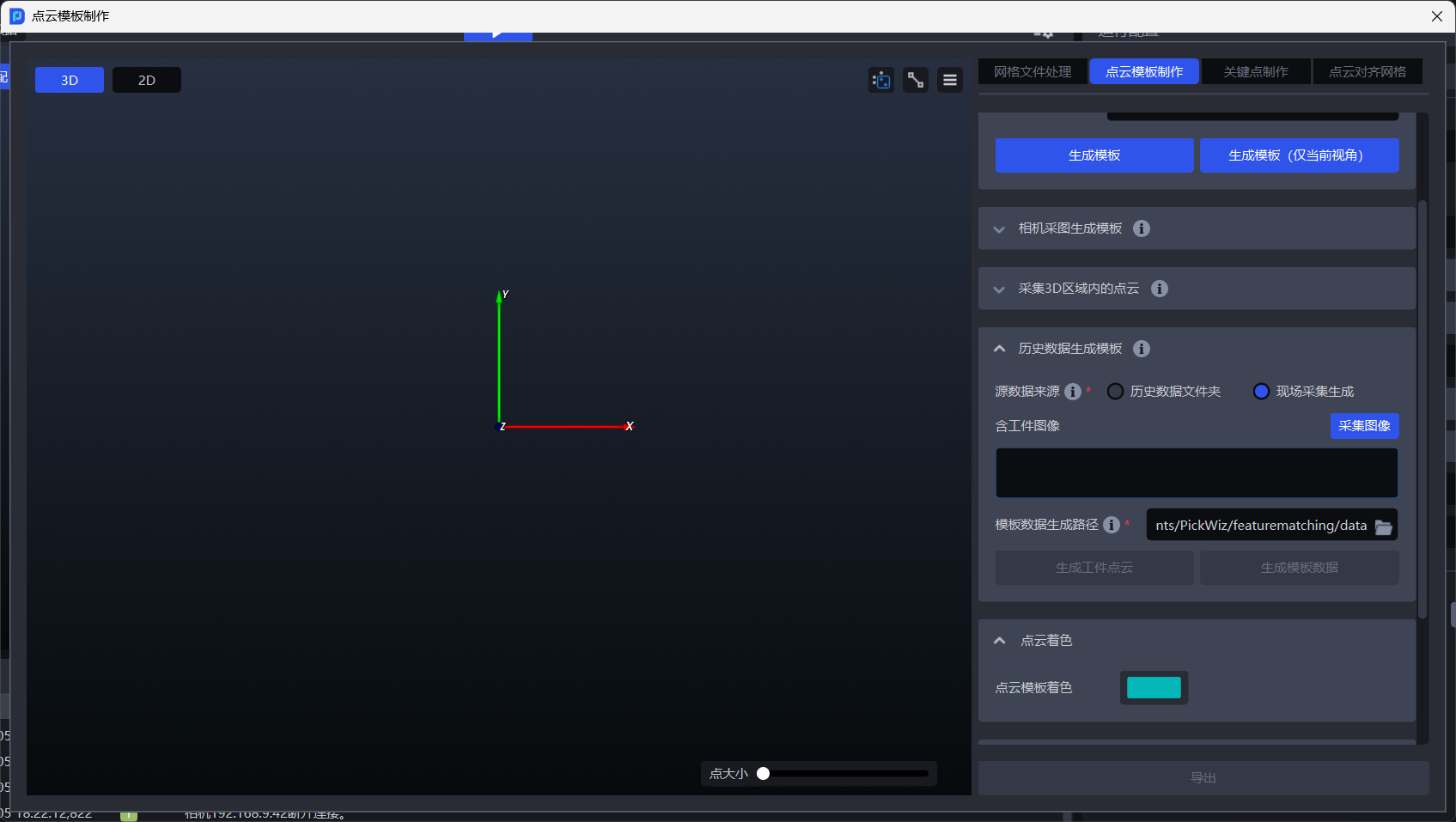
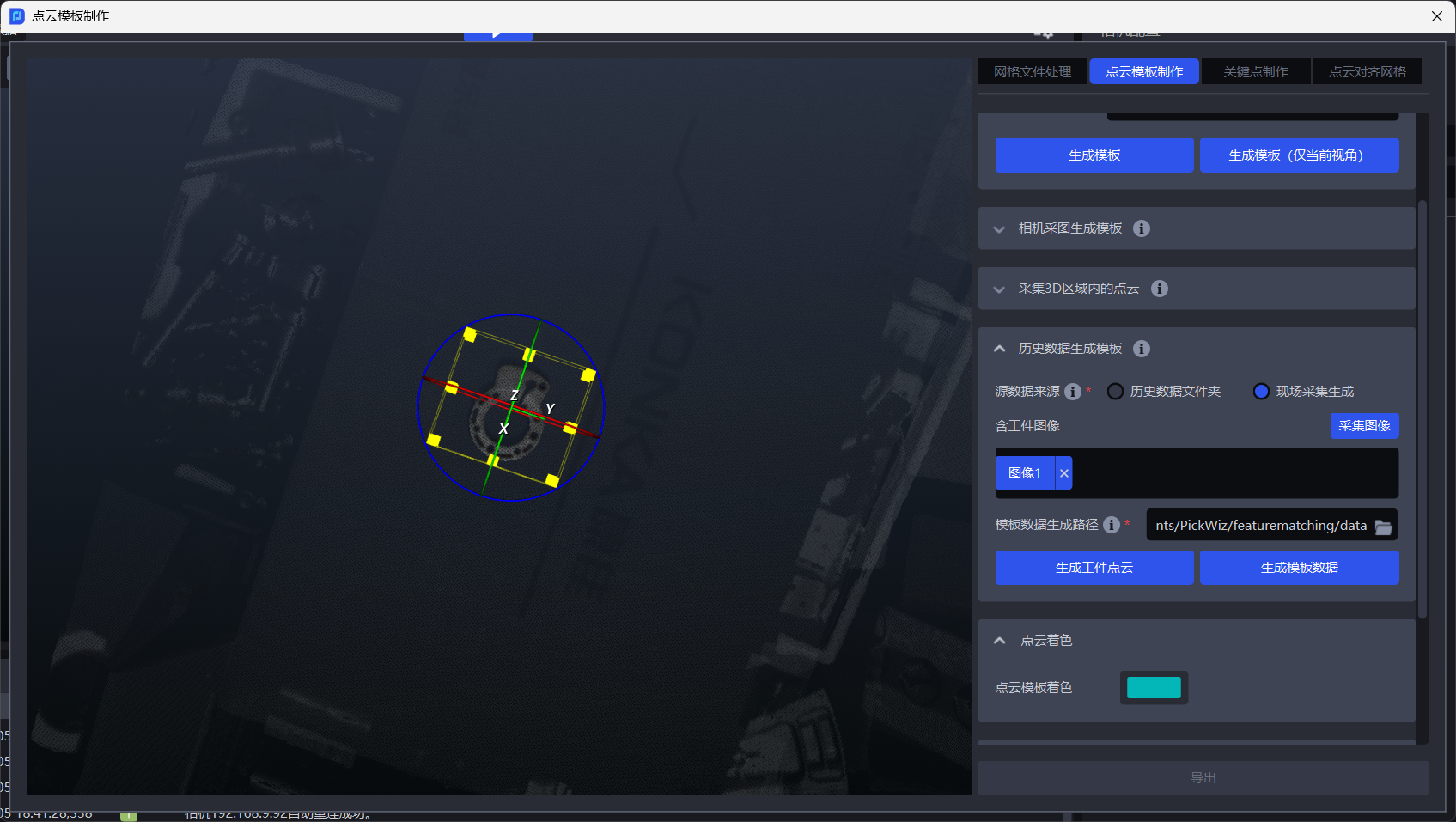
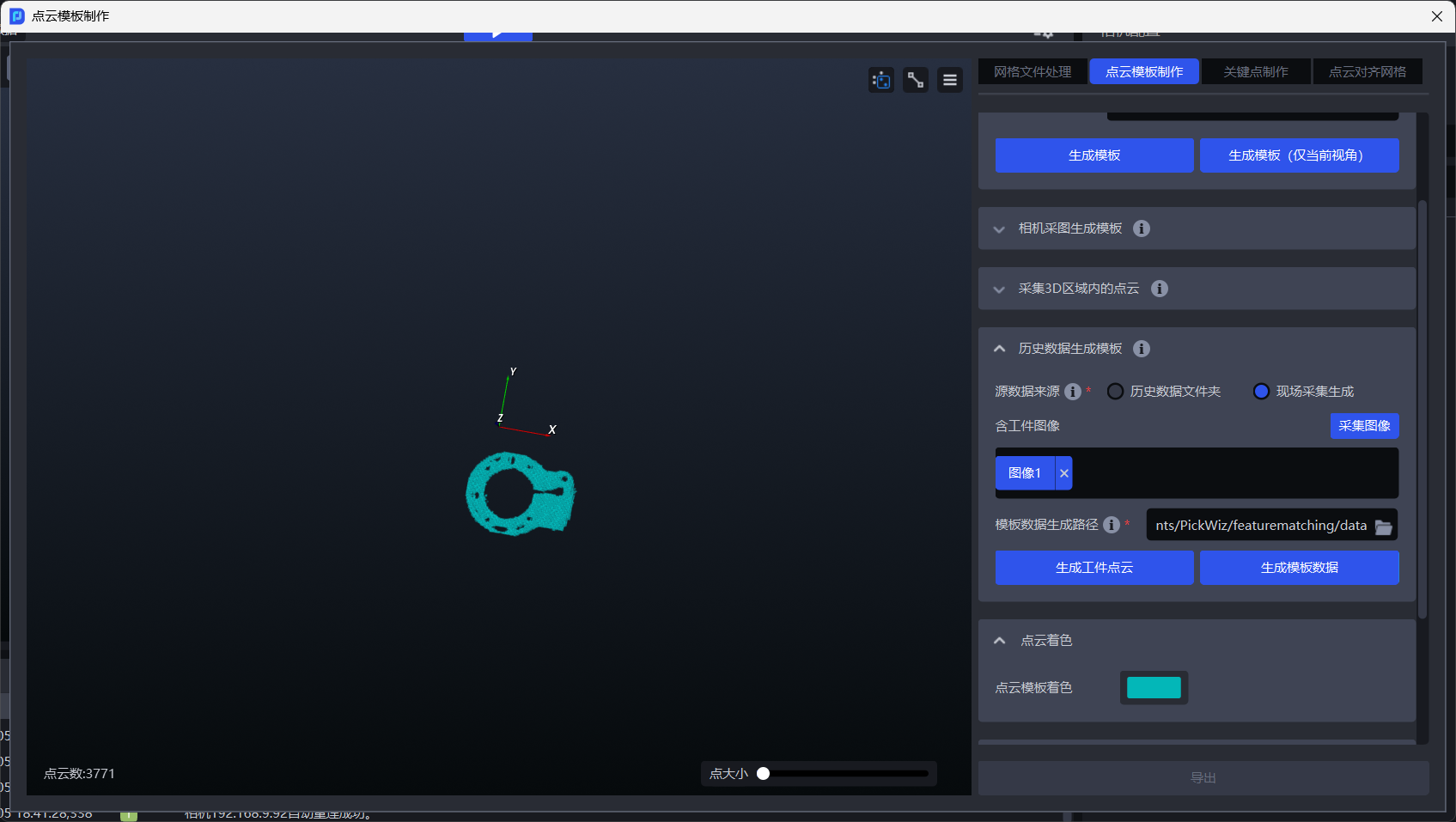
After the workpiece Point Cloud is completed, click Generate Template Data to finish template creation.
2.2 Selecting Features to Create a Point Cloud Template
When creating a Point Cloud template, non-key Point Cloud data that may interfere with matching must be removed from the original Point Cloud, and the most representative Point Cloud should then be selected as the Point Cloud template to optimize the subsequent matching process and improve matching efficiency and accuracy.
Please refer to Elements, Principles, and Cases for Creating Point Cloud Templates to select features and create a Point Cloud template according to the task and workpiece in the actual scene.
3. Keypoint Creation
Keypoints are feature points in a 3D model that have clear semantic or geometric meaning. They are used to describe the local structure or global pose of a workpiece. In pose estimation based on keypoints, the overall position and pose of the workpiece are inferred by detecting the positions of these points.
3.1 Generate Keypoints by Downsampling
Function Description
Use the imported standardized mesh file to generate uniformly distributed keypoints over the entire workpiece with one click.
Applicable Scenarios
Suitable for most general workpiece scenarios.
- Switch to the
Keypoint Creationwindow
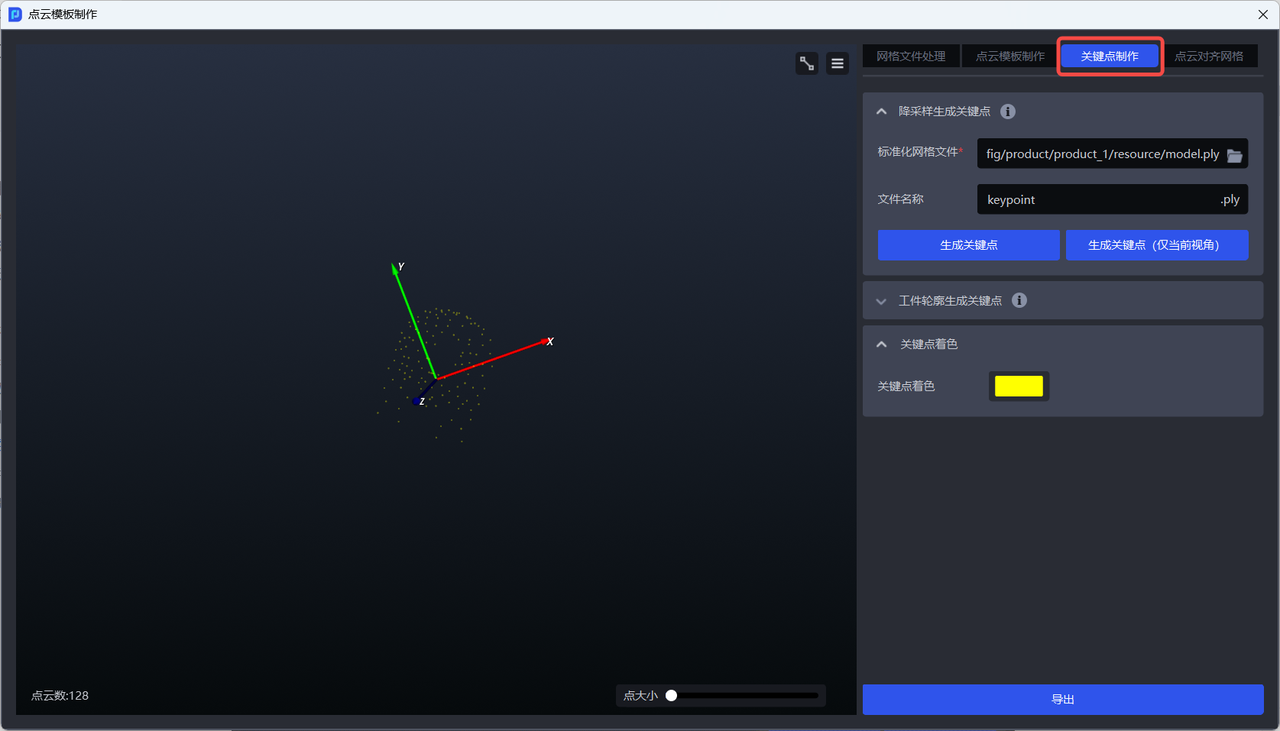
- Upload the standardized mesh file
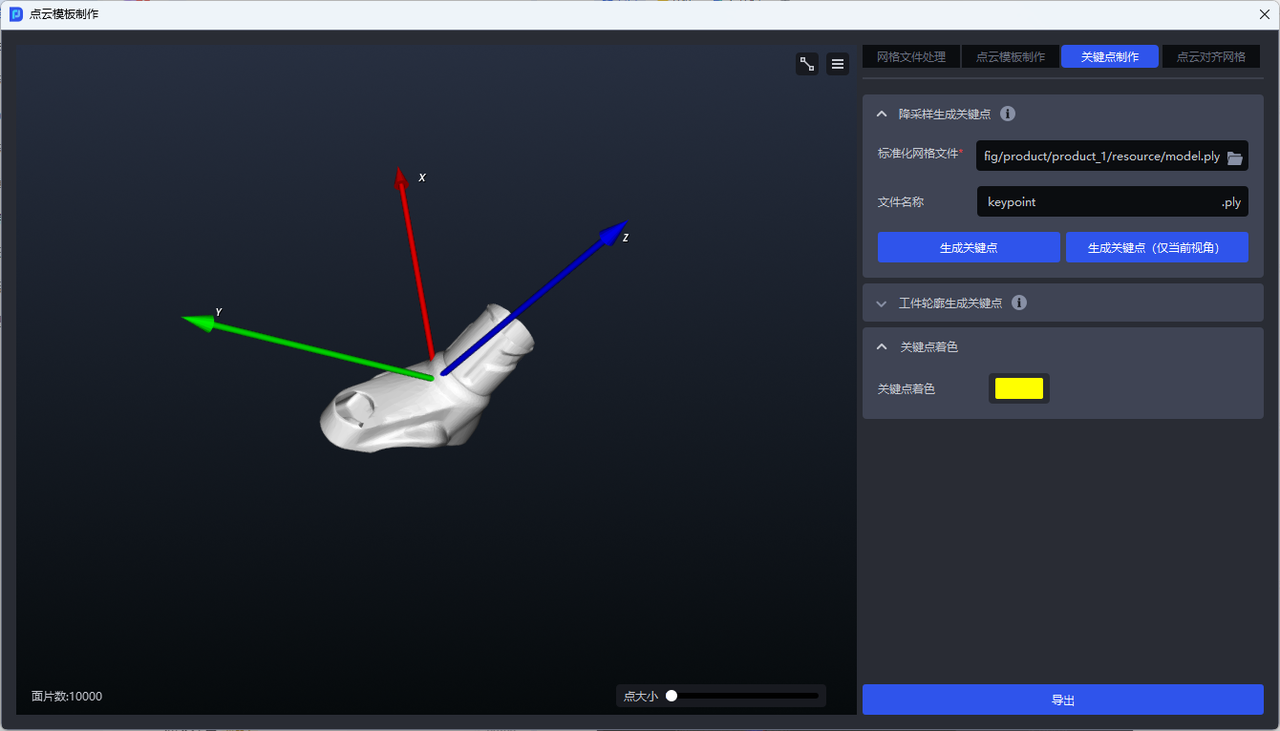
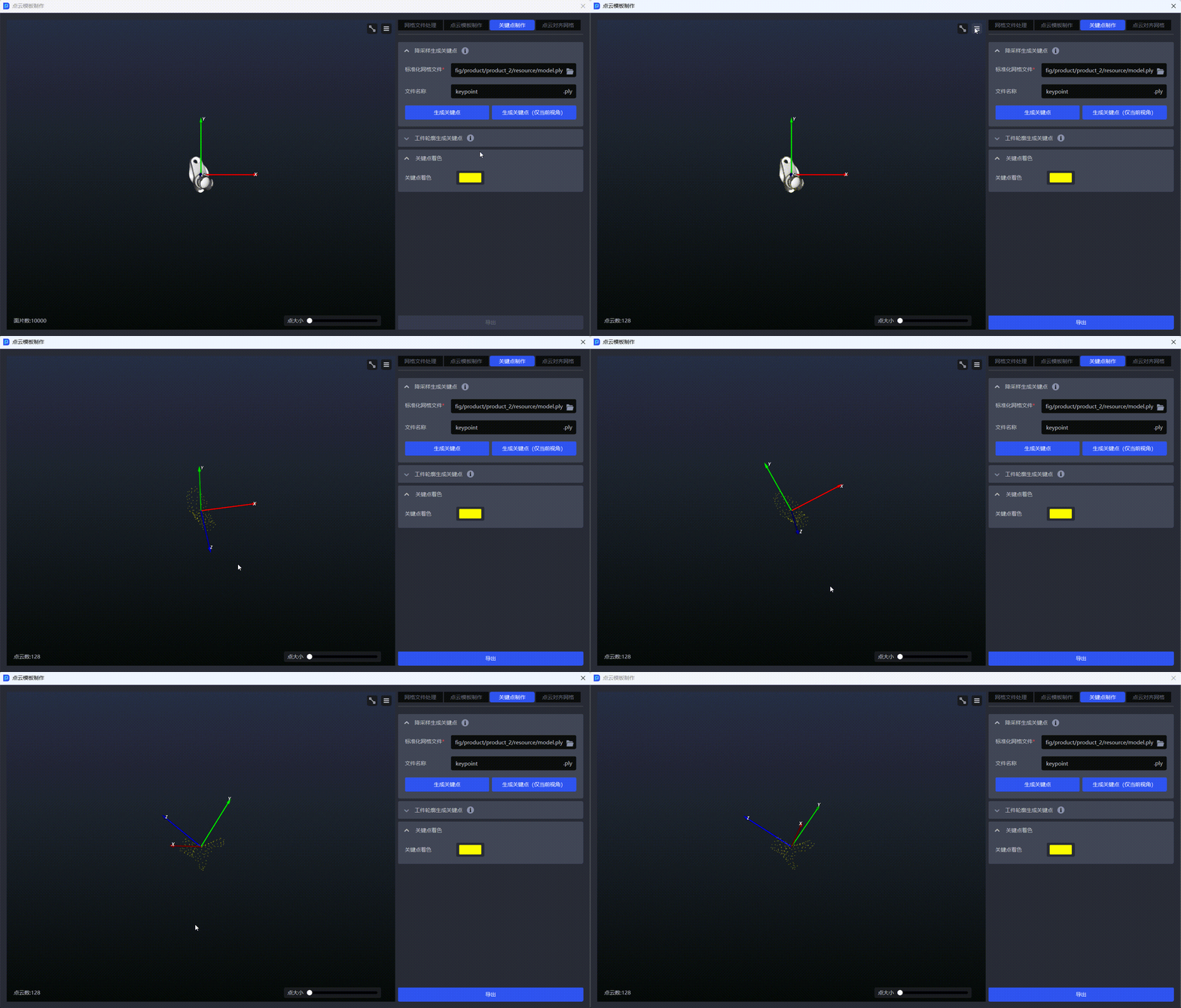
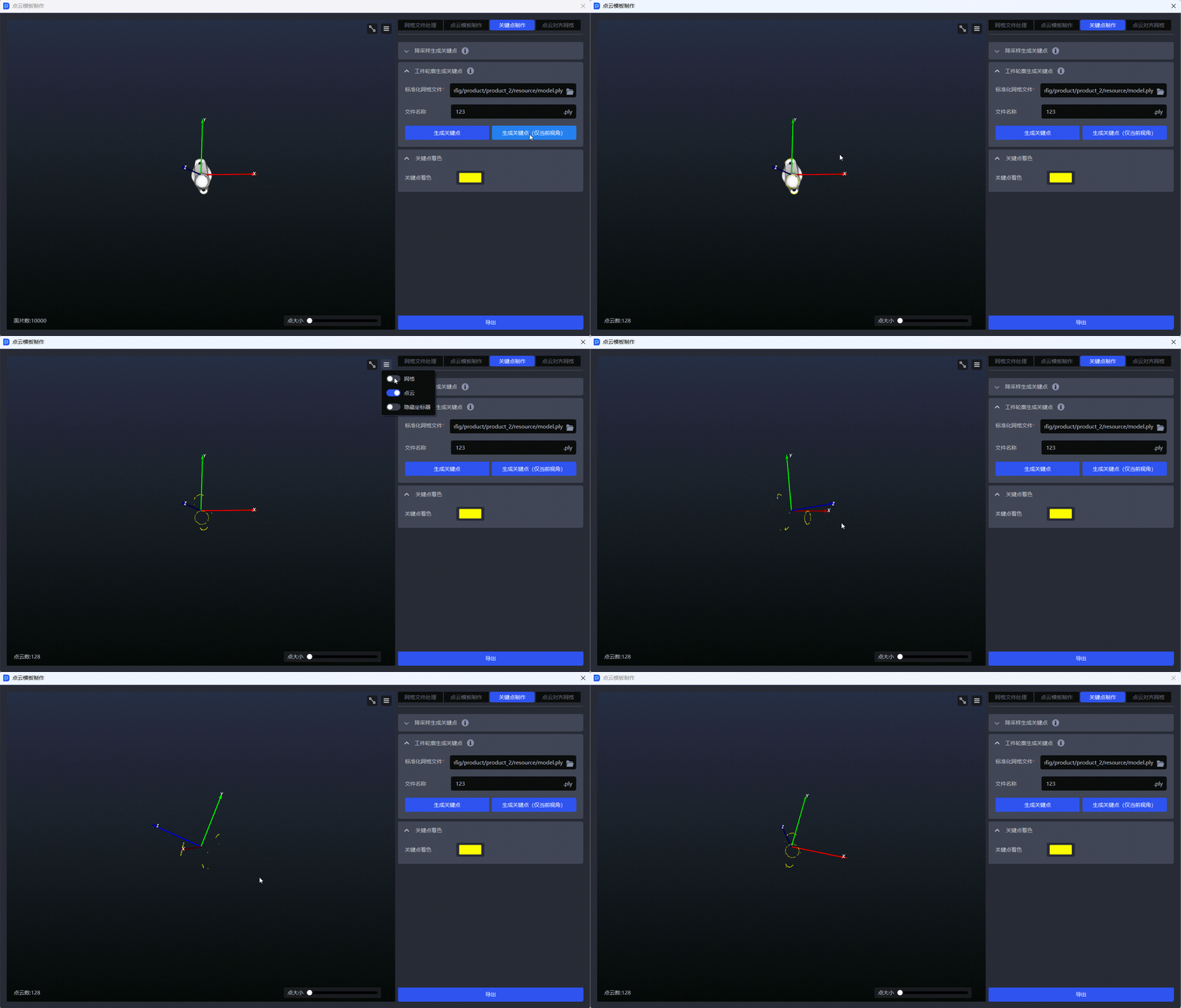
- If you need to generate the full keypoints of the workpiece, click
Generate Keypoints. The generated full keypoints are shown below.
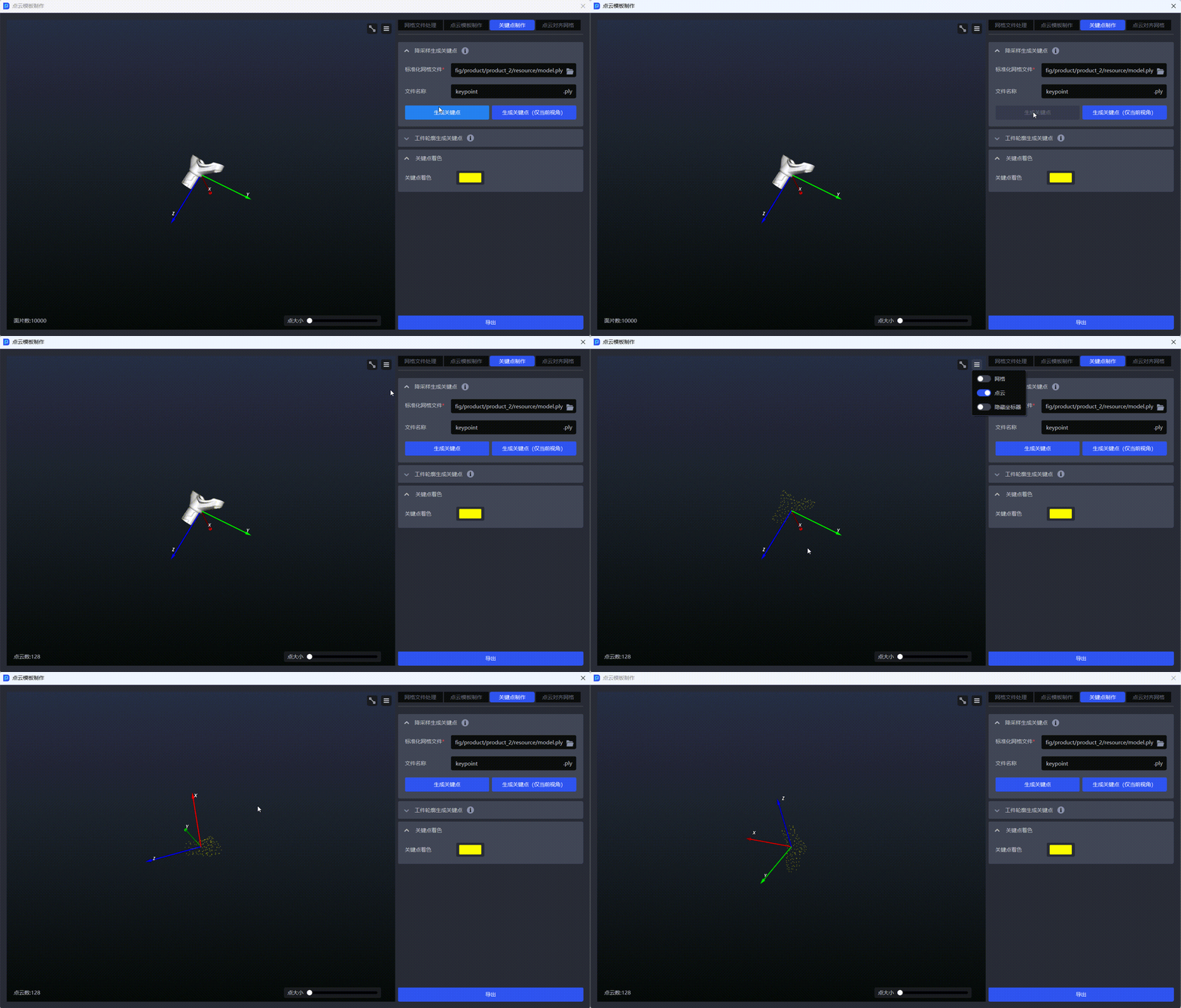
- If you only need to generate keypoints for the current viewpoint, click
Generate Keypoints (Current View Only). The generated current-view keypoints are shown below.
3.2 Generate Keypoints from Workpiece Contours
Function Description
Use the imported standardized mesh file to generate keypoints distributed along the workpiece contour with one click.
Applicable Scenarios
Suitable for general workpiece scenarios when uniformly distributed keypoints cannot correctly identify workpiece features, especially when the workpiece has characteristics such as symmetry or front/back differences. Keypoints generated from workpiece contours can achieve more precise matching.
- Switch to the
Keypoint Creationwindow
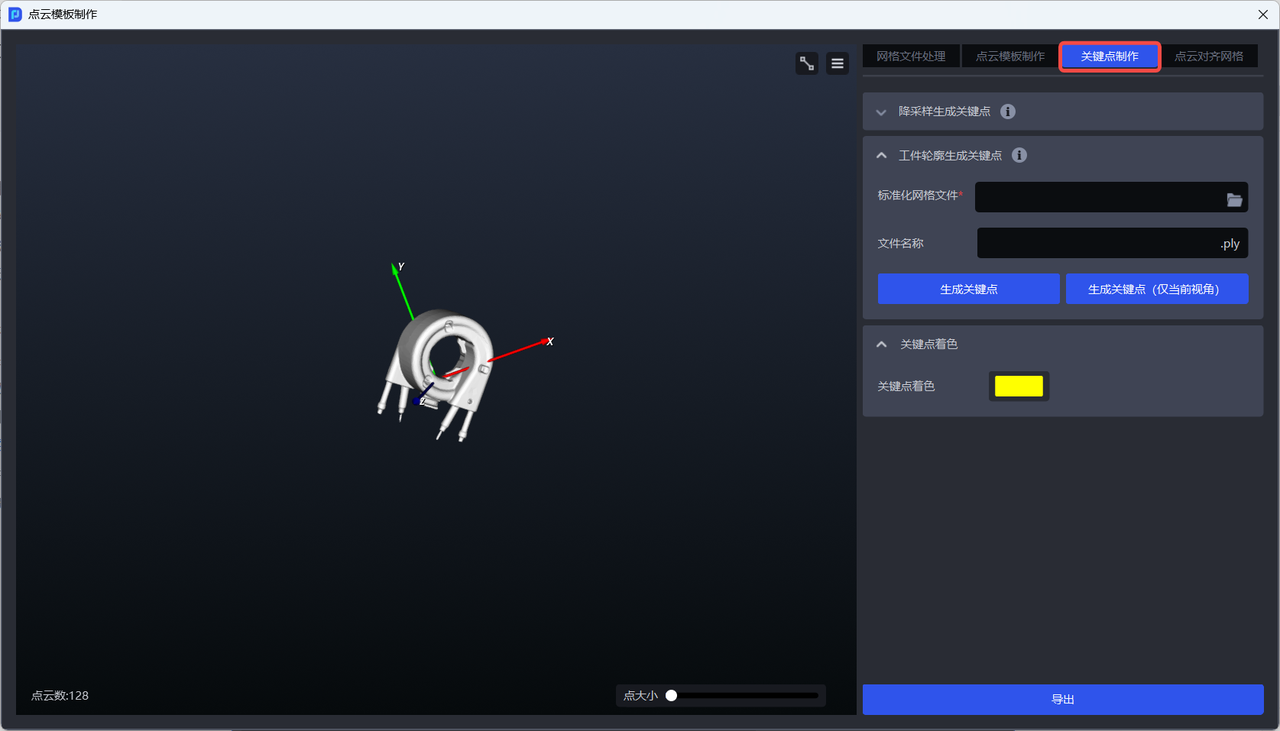
- Click
Generate Keypoints from Workpiece Contour, then upload the standardized mesh file
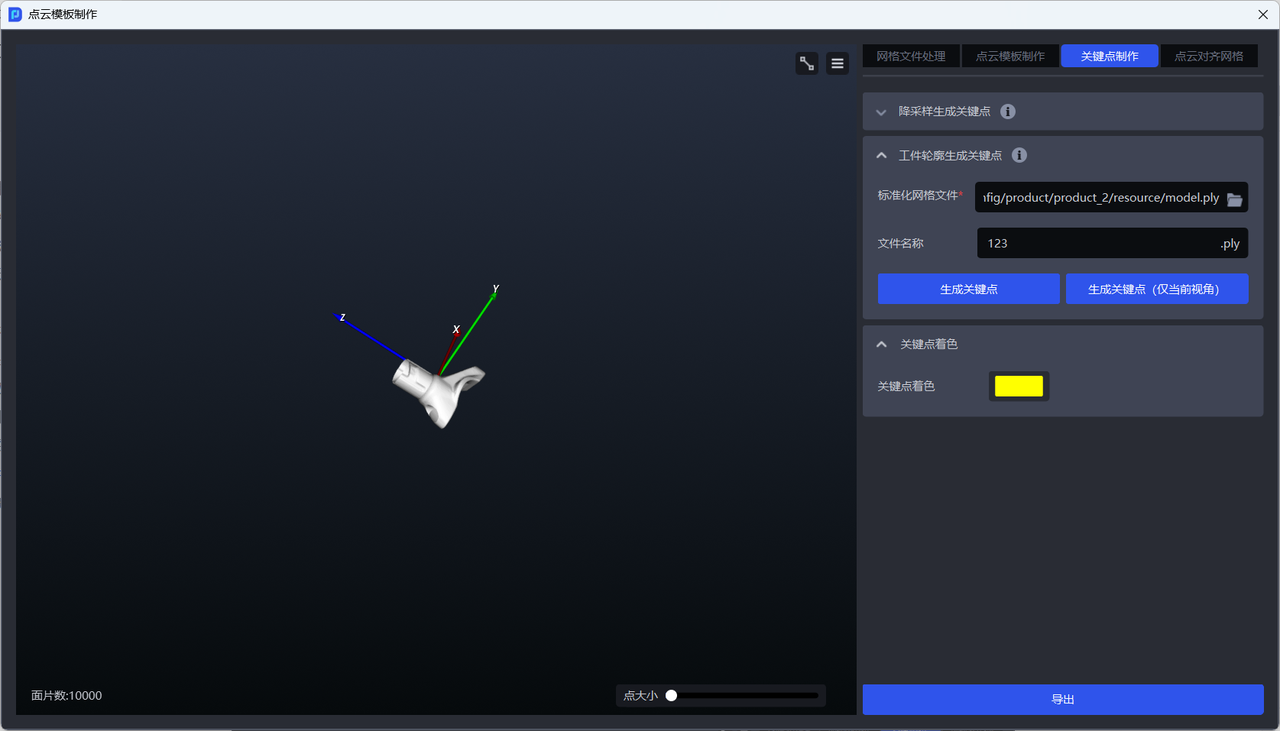
- If you need to generate the full keypoints of the workpiece, click
Generate Keypoints. The generated full keypoints are shown below.
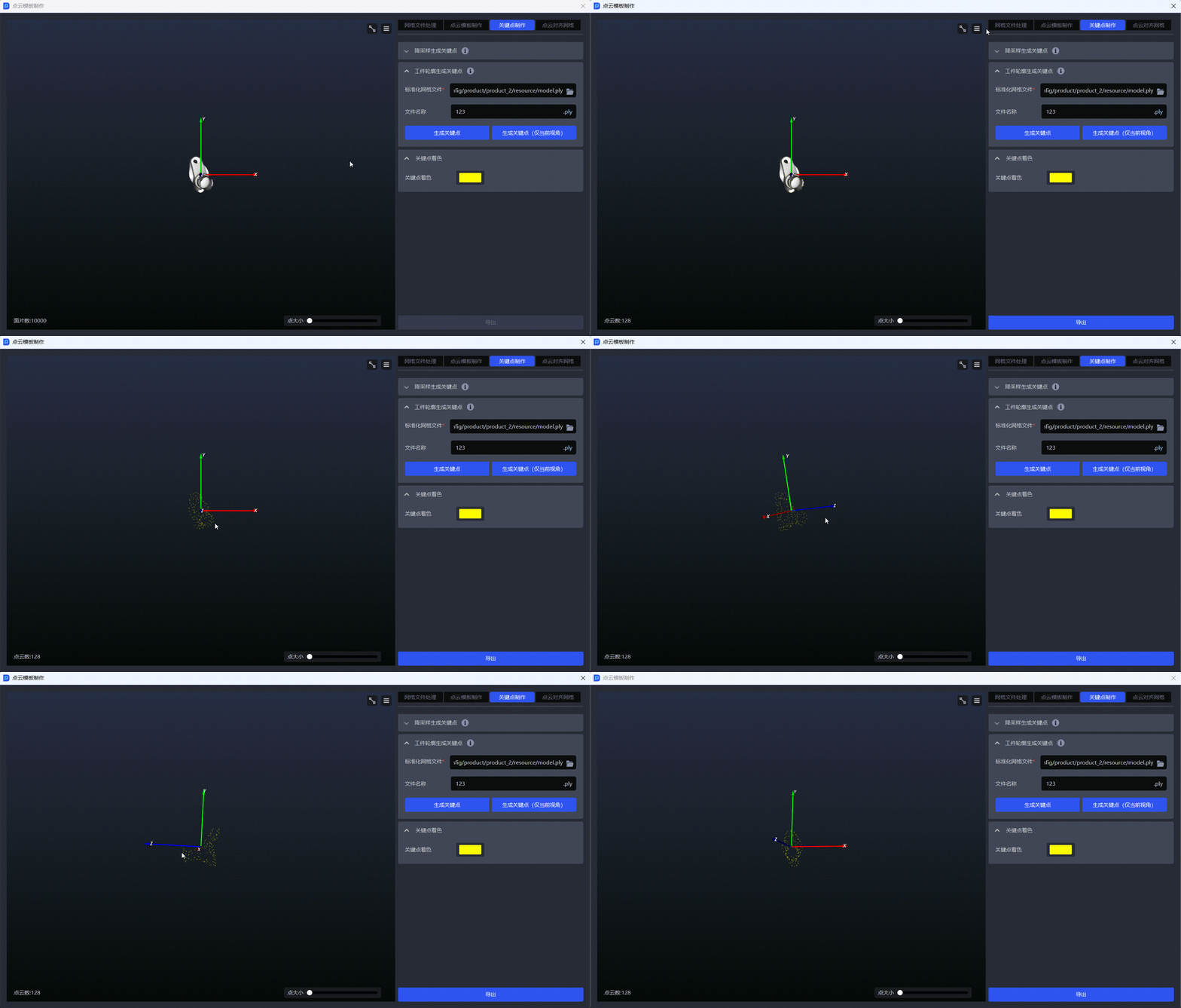
- If you only need to generate keypoints for the current viewpoint, click
Generate Keypoints (Current View Only). The generated current-view keypoints are shown below.
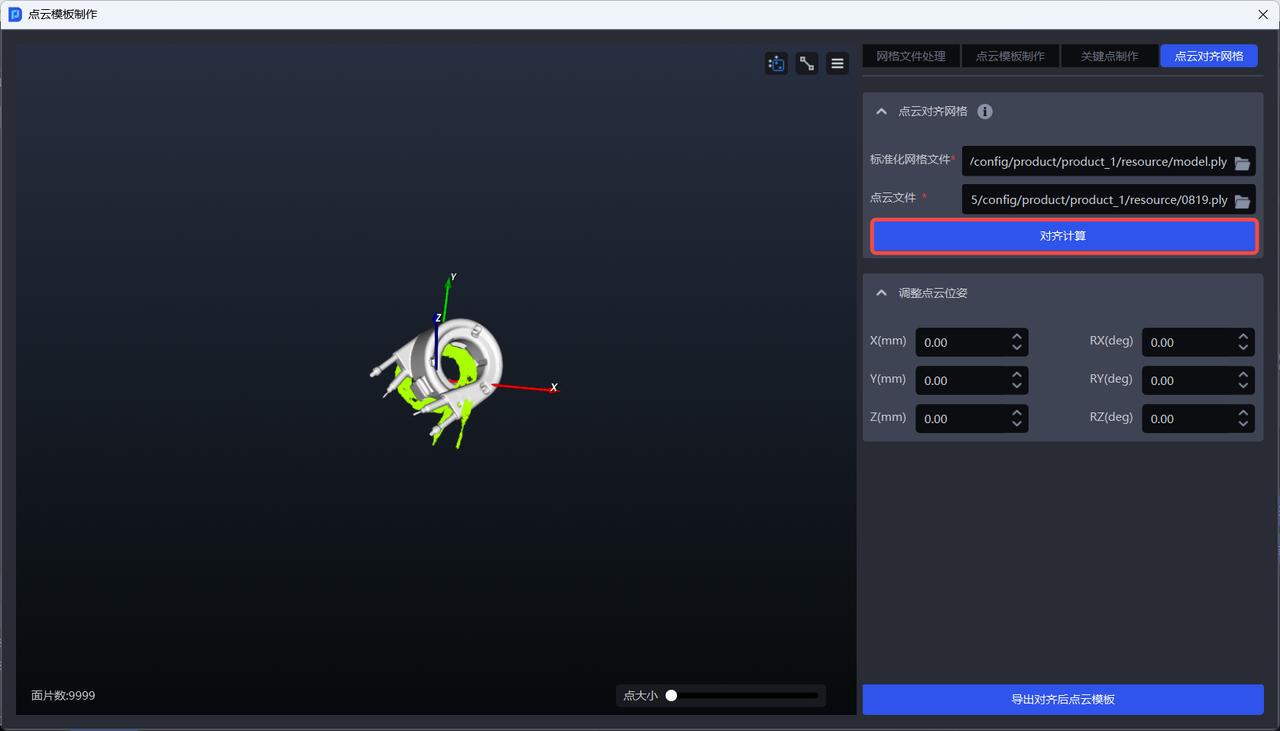
4. Align Point Cloud to Mesh
Function Description
Align the coordinate system of the Point Cloud file with that of the standardized mesh file.
Applicable Scenarios
Suitable for general workpiece scenarios when the coordinate system of the standardized mesh file is inconsistent with that of the workpiece Point Cloud template (for example, a Point Cloud template generated from camera images). The reason alignment is needed is that a Point Cloud template generated from camera images uses the camera coordinate system origin by default, so it must be aligned with the coordinate system of the standardized mesh file. This ensures that the coordinate relationship among the mesh file, the keypoints (generated from the mesh file and therefore consistent with the mesh file coordinate system), and the workpiece Point Cloud template is consistent, so that general workpieces can proceed normally with subsequent recognition and matching.
A camera must be connected before using
Align Point Cloud to Mesh
- Switch to the
Align Point Cloud to Meshwindow
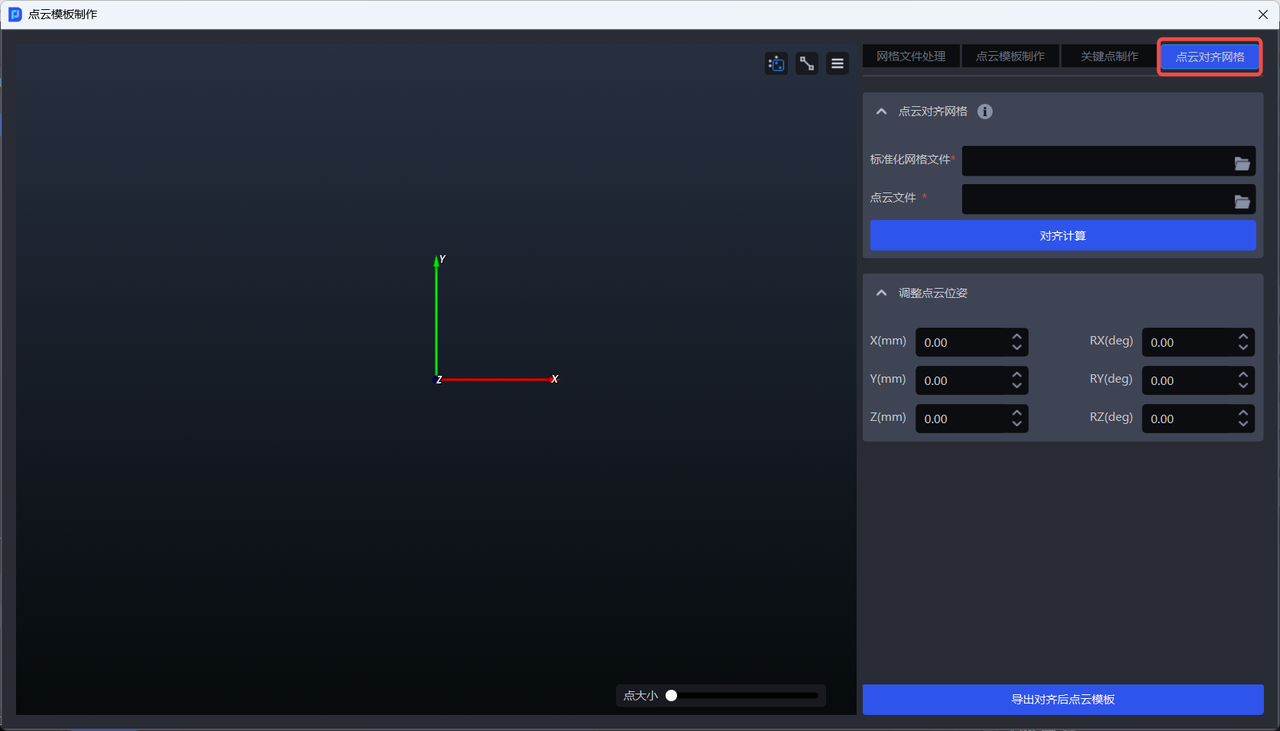
- Upload the standardized mesh file and the Point Cloud template
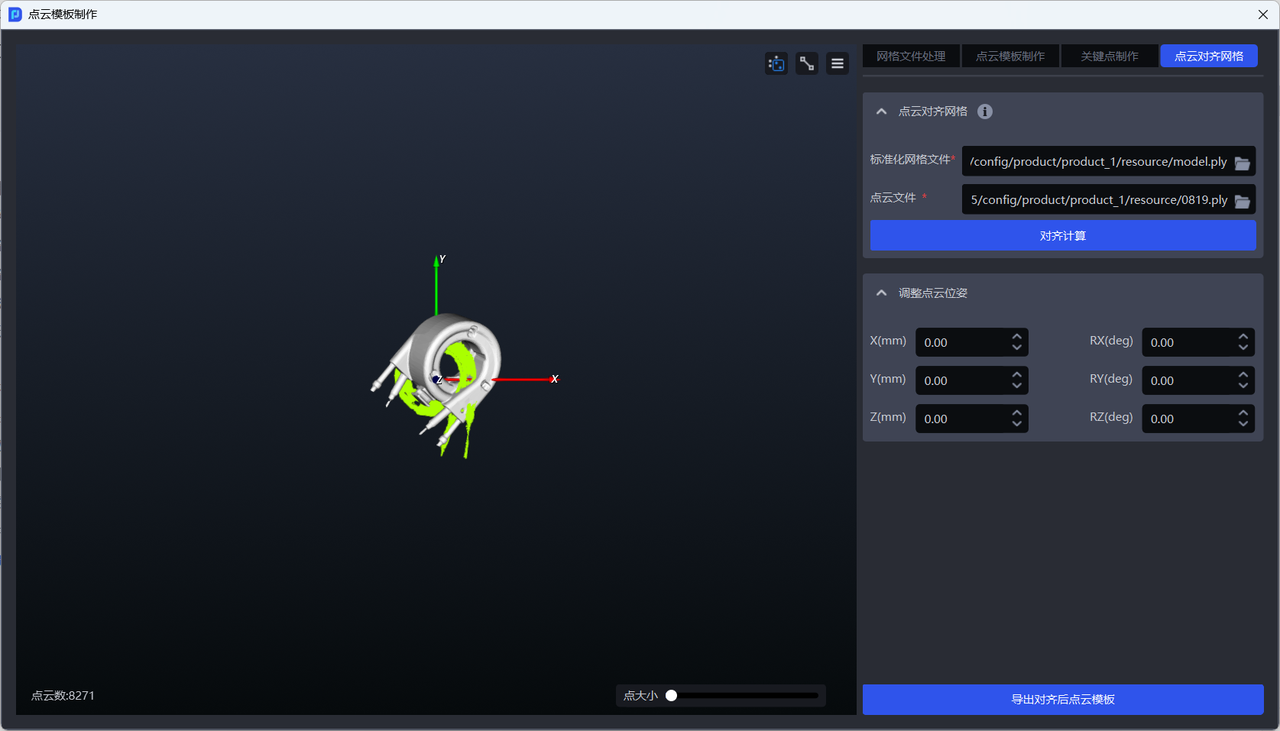
- Click
Align Calculation