Disable Calibration Sample Similarity Check
If the samples collected during PickWiz eye-hand calibration are highly similar and the error “Same as the original sample” is reported, you can disable the calibration sample similarity check through the frozen_config configuration file.
Note:
After disabling the calibration sample similarity check and completing the calibration calculation, you need to pay attention to and verify the calibration accuracy at different positions across the entire field of view/work area to avoid areas that are not covered or have low accuracy.
1. Close PickWiz
2. Disable the Calibration Sample Similarity Check
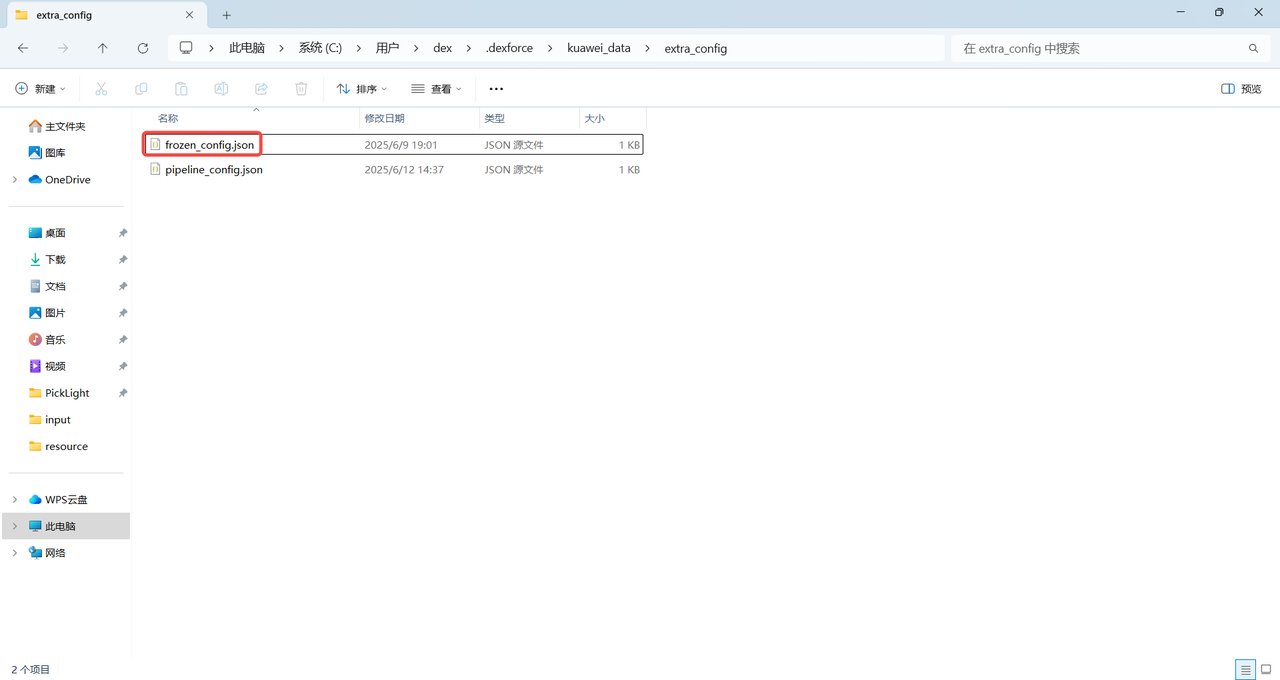
Open the frozen_config.json configuration file according to the path {user}/.dexforce/kuawei_data/extra_config, as shown in the figure below.
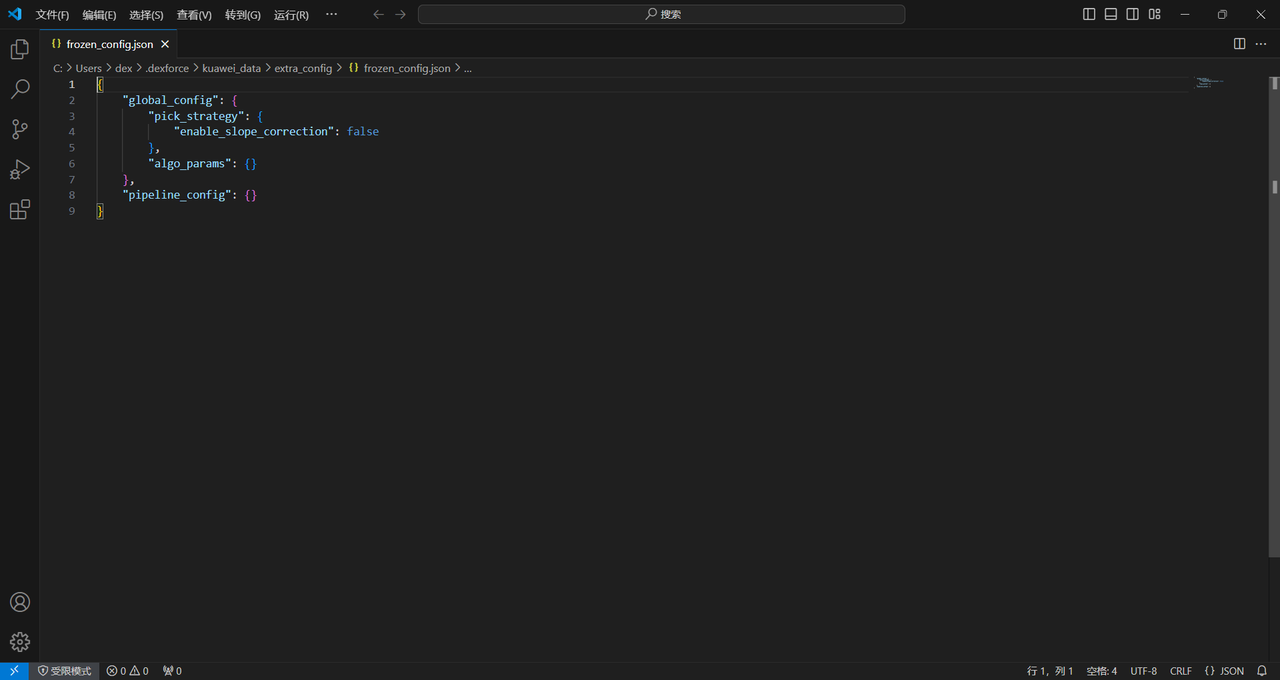
Add "calibration-check_sample": {"min_angle_diff":0.0} under algo_params, as shown in the figure below.
{
    "global_config": {//global configuration
        "algo_params": {//global algorithm parameter configuration
        "calibration-check_sample": {"min_angle_diff":0.0}//calibration sample similarity check value is 0
        }
    }
}
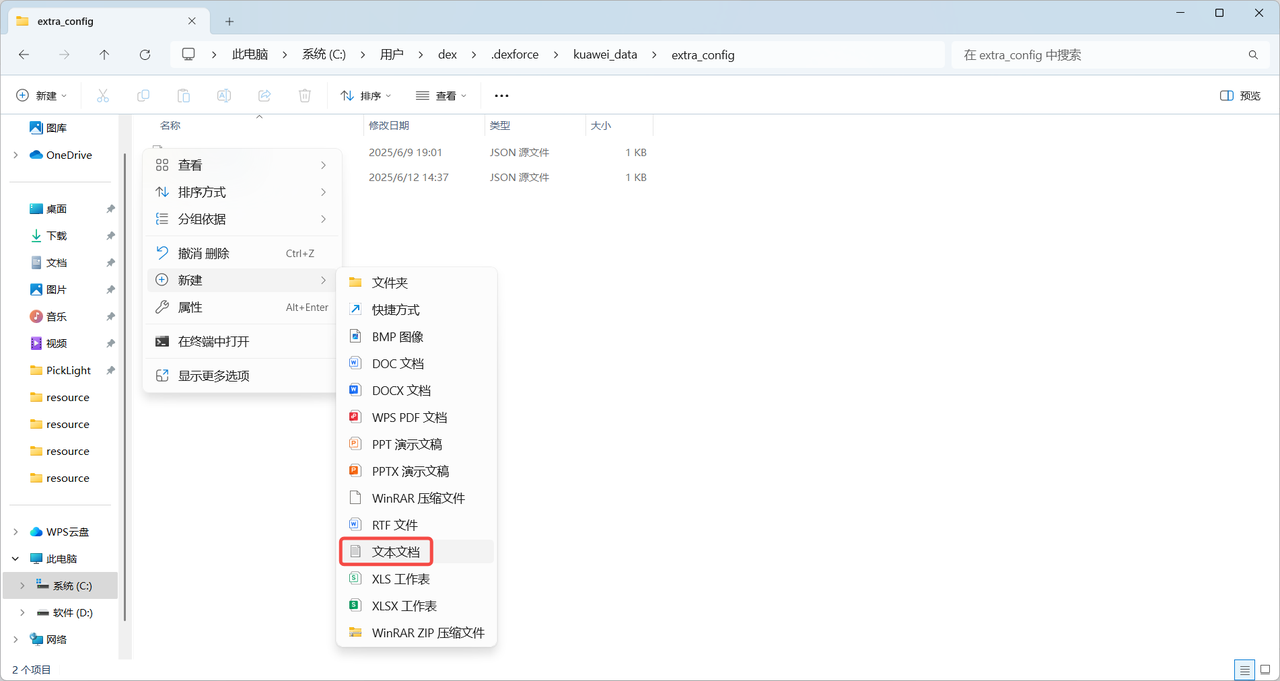
The frozen_config configuration file was introduced in PickWiz 1.7.3. If you cannot find this configuration file in PickWiz 1.7.3 or later, you should manually create one under the {user}/.dexforce/kuawei_data/extra_config path, as shown in the figure below.
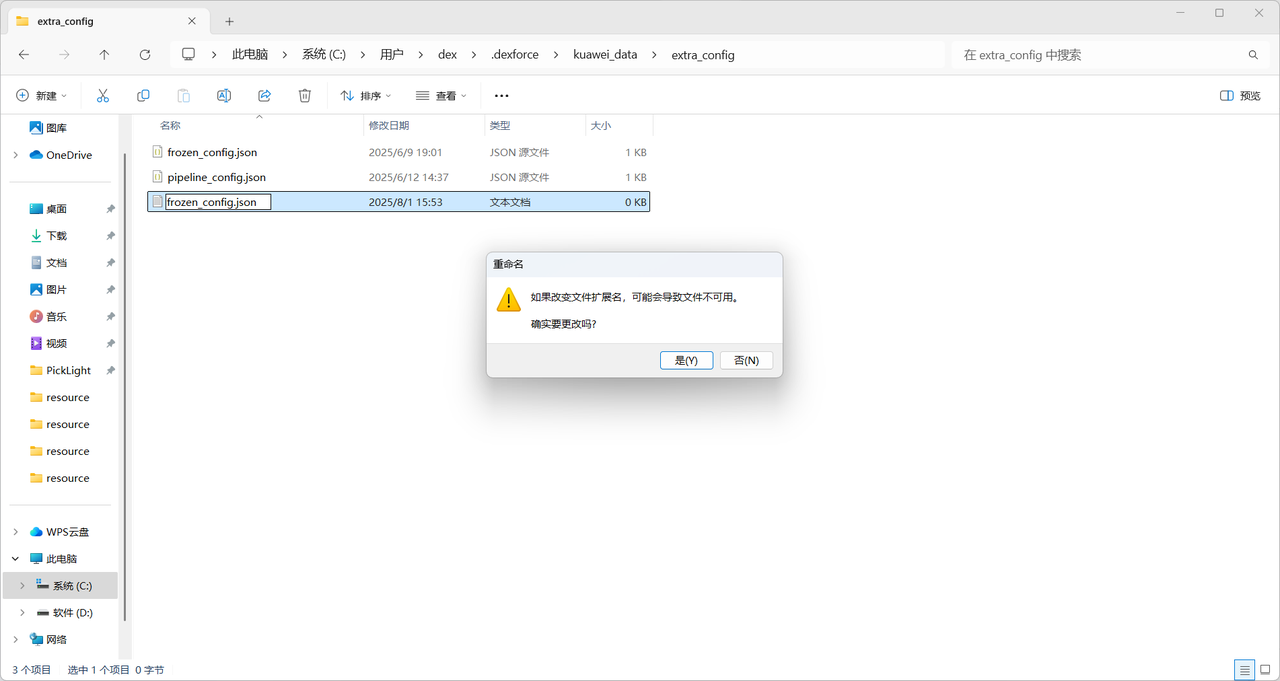
After creating the frozen_config configuration file, copy the following code into the file.
{
    "global_config": {//global configuration
        "algo_params": {//global algorithm parameter configuration
        "calibration-check_sample": {"min_angle_diff":0.0}//calibration sample similarity check value is 0
        }
    }
}
3. Restart PickWiz
After restarting PickWiz, disabling the calibration sample similarity check will take effect