TCP Client Communication Configuration
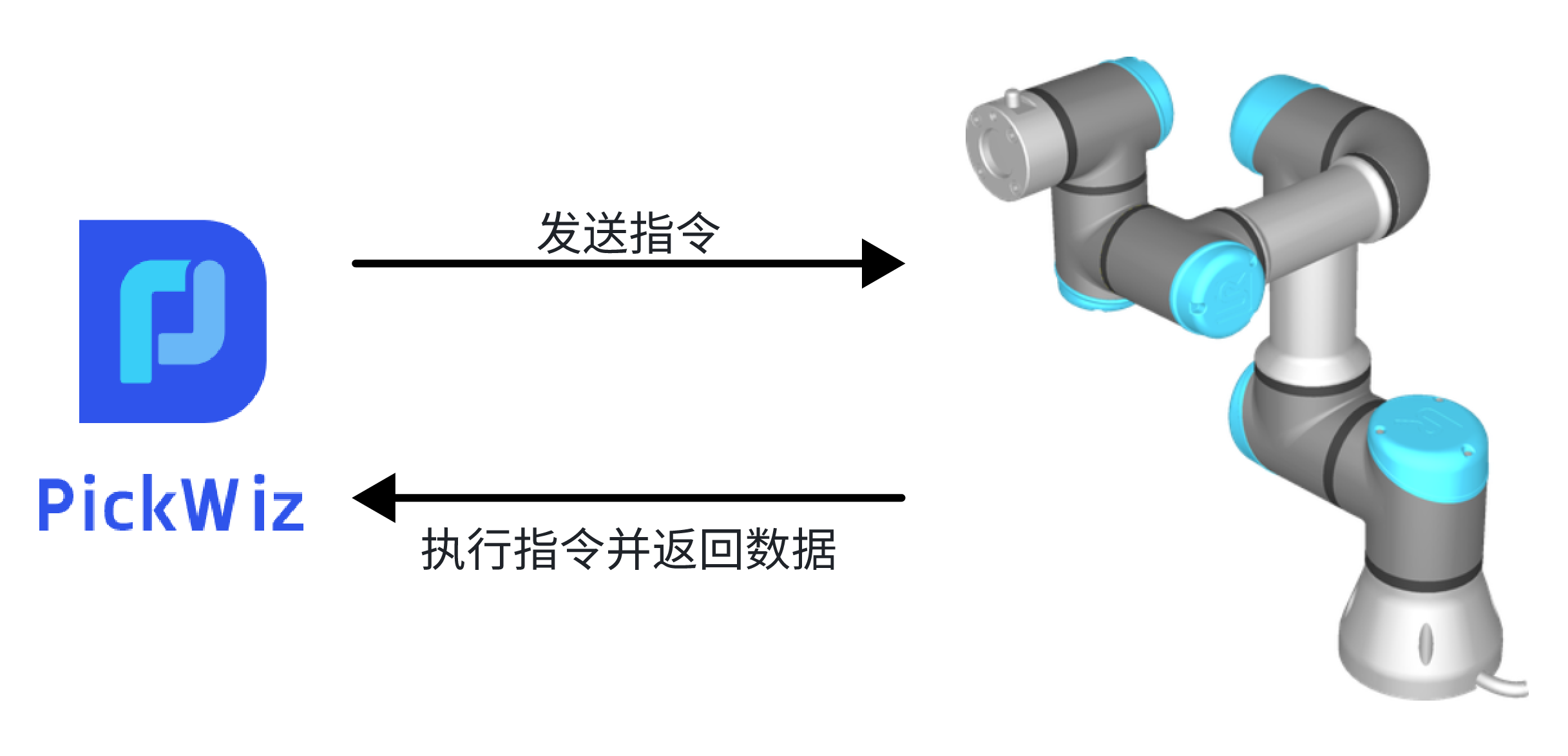
TCP Client is a communication method in which PickWiz acts as the client and the Robot acts as the server. When PickWiz communicates with the Robot, it actively controls the Robot, sends commands to the Robot, and the Robot executes the commands and returns data after receiving them.
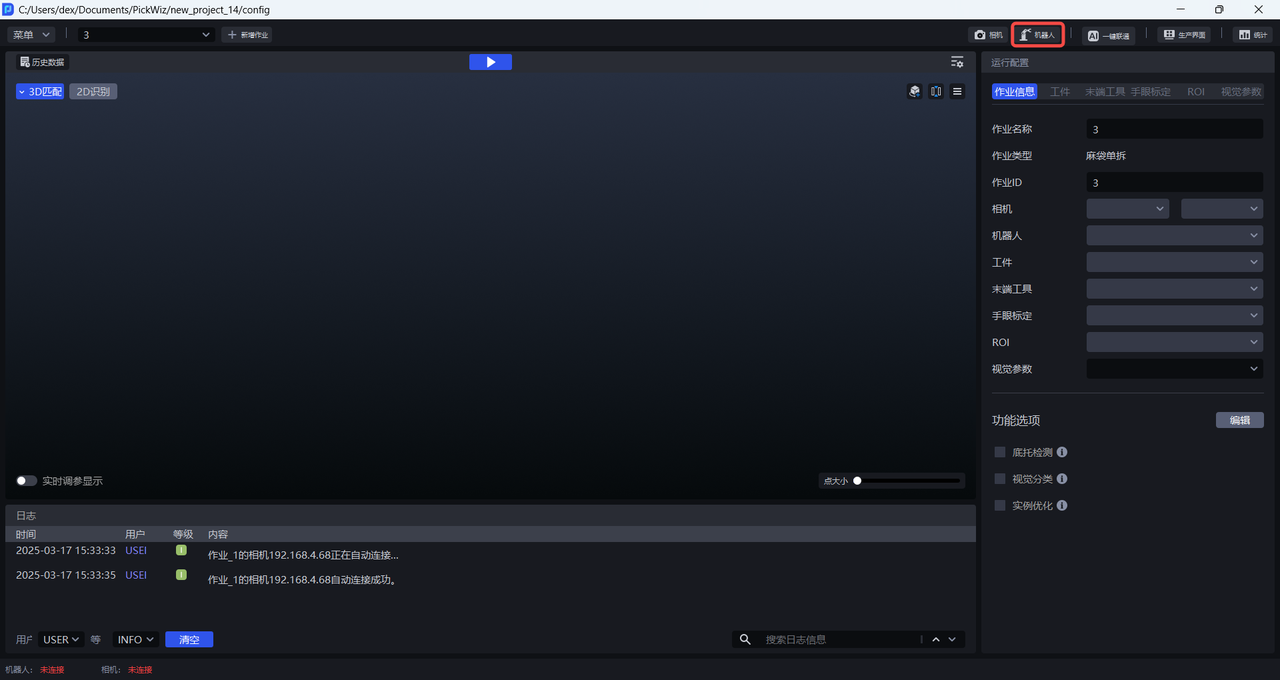
Before configuring Robot communication, please first refer to Project Operation Guide to create a new Project, then click Robot Configuration Panel on the main interface to enter the Add a Robot interface.
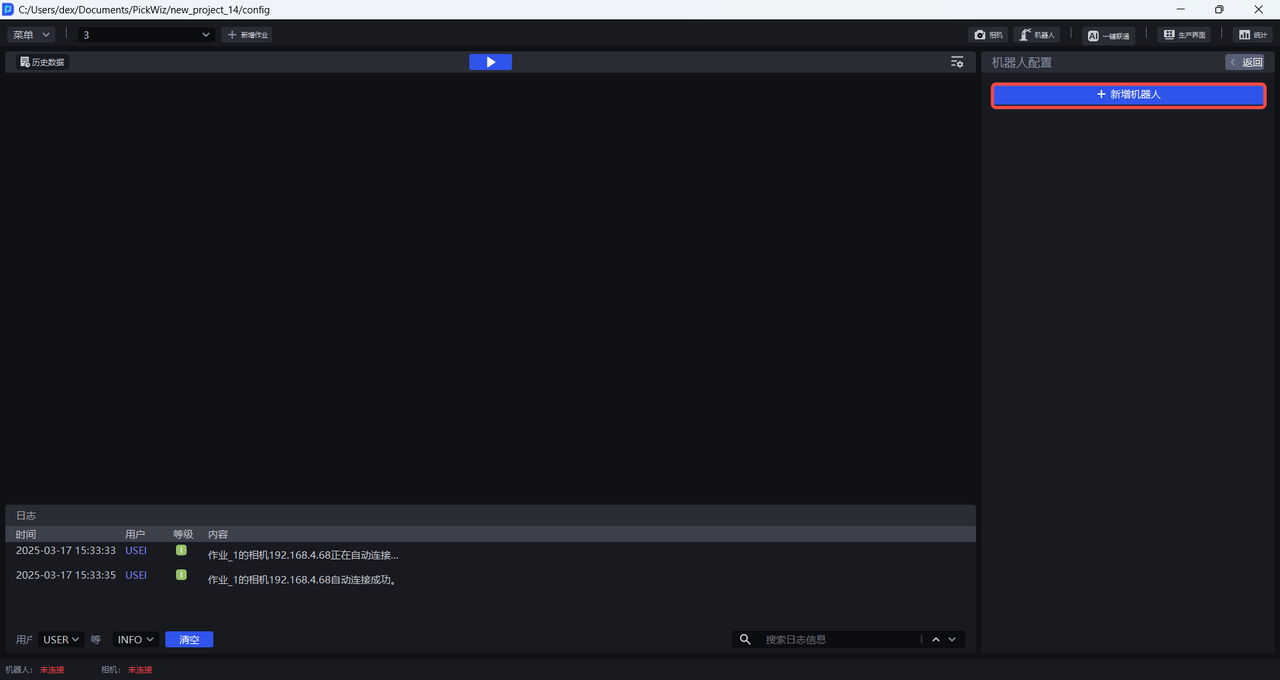
1. Add Robot
(1)Enter the Add a Robot interface and click +Add Robot
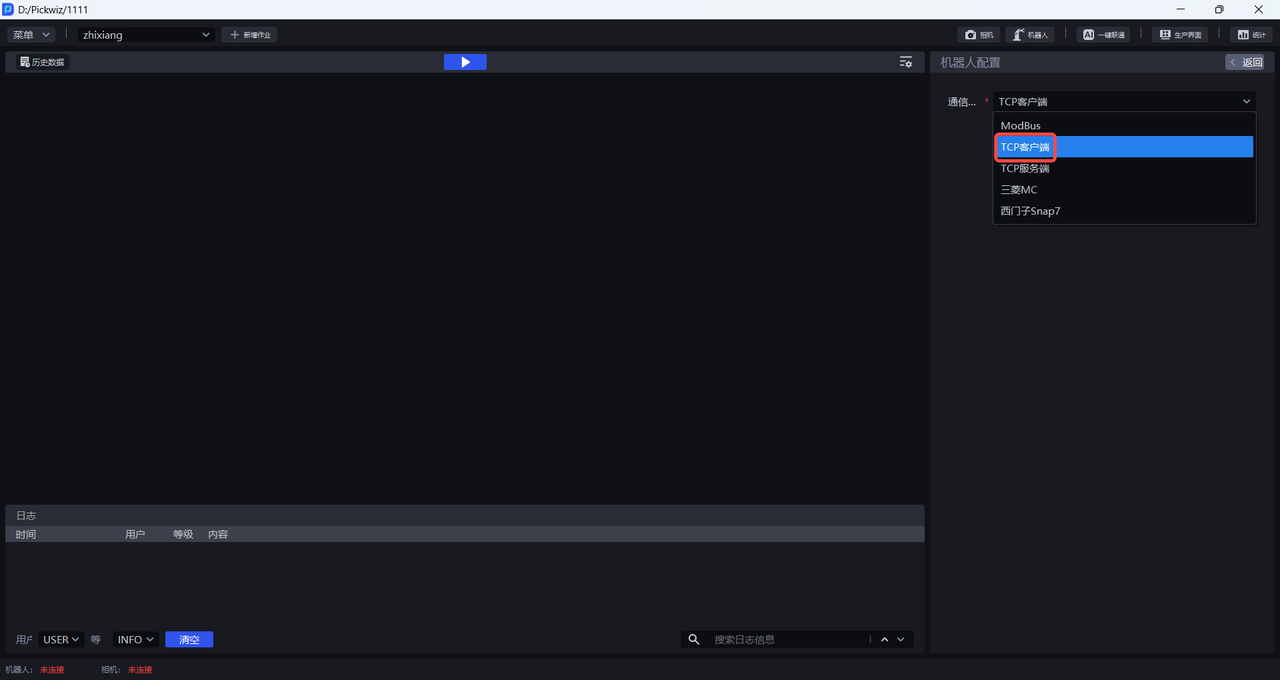
(2)Select TCP Client for the communication method, click Next, and enter the Robot Configuration interface
2. Configure the Robot
On the Robot Configuration interface, you can configure Robot information, basic communication settings, and custom communication messages.
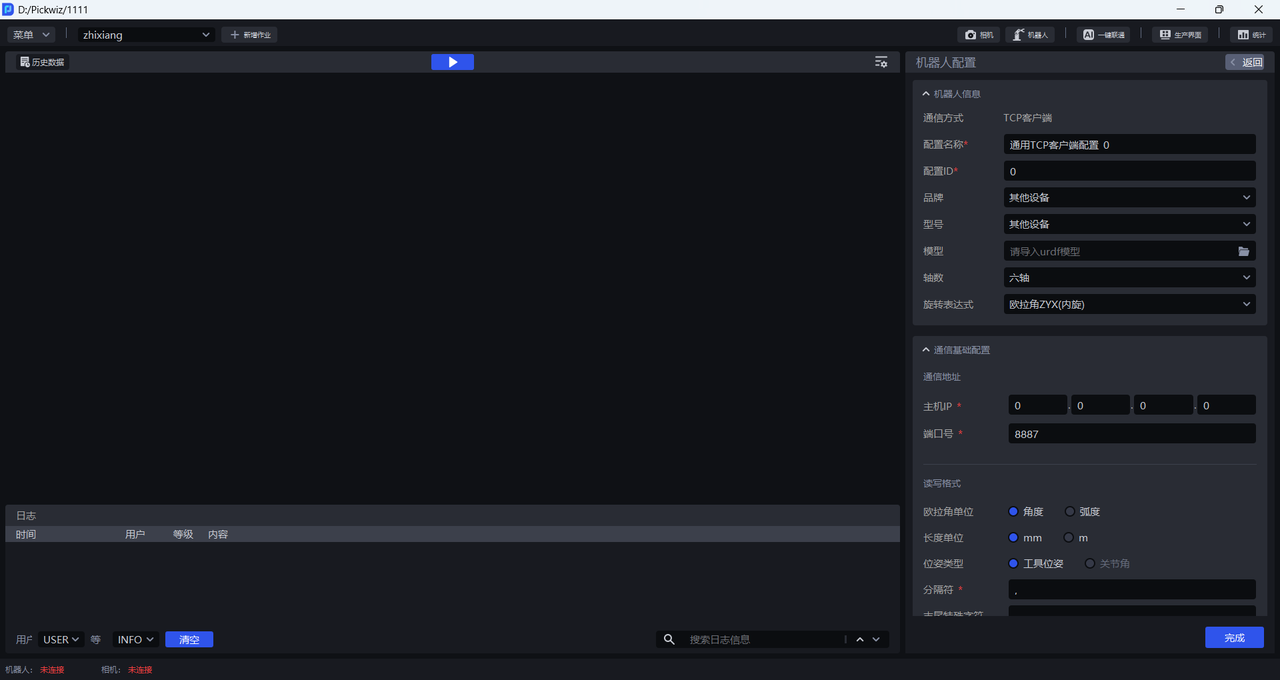
2.1 Robot Information
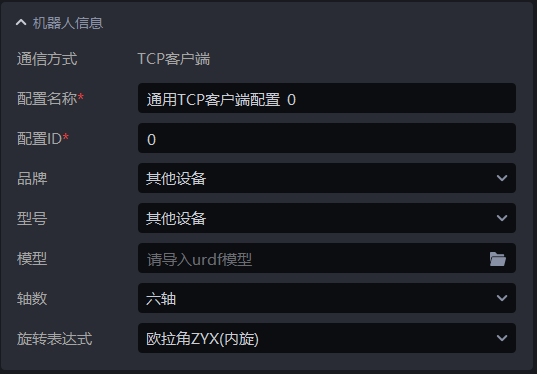
| Configuration Item | Description |
|---|---|
| Communication Method | The communication protocol established between PickWiz and the Robot. This cannot be modified. |
| Configuration Name | The name of the Robot configuration. Chinese, English, numbers, and symbols are supported. |
| Configuration ID | The unique identifier ID of the Robot configuration. It can be modified and supports numbers only. |
| Brand | The Robot brand. If the Robot side is connected to a PLC, select Other Device for the brand. |
| Model | The Robot model. If the Robot side is connected to a PLC, select Other Device for the model. |
| Visualization Model | When Other Device is selected for both brand and model, you need to upload the device model. The model file format is urdf. |
| Axis Count | The number of Robot arm axes. Three-axis, four-axis, and six-axis are supported. |
| Rotation Expression | Describes the Robot pose in 3D space. Currently Euler Angles and rotation vector are supported, and the Euler angle order can be modified. |
2.2 Basic Communication Configuration
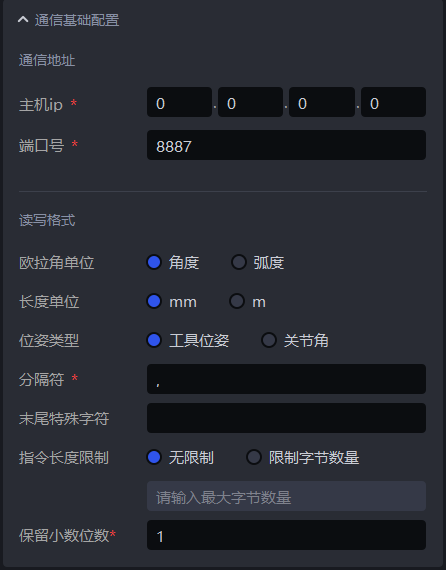
| Configuration Item | Description | |
|---|---|---|
| Communication Address | Host IP | The host IP address. Under TCP communication, the default is 0.0.0.0. |
| Port Number | The specified port used by the Robot to connect to the host. The default port is 8887 and usually does not need to be modified. | |
| Read/Write Format | Euler Angle Unit | The unit of Euler Angles. Degree and radian are supported, and the default is degree. |
| Length Unit | The length unit used by the Robot, including Robot Pose and Object Dimensions. The default is mm. | |
| Pose Type | The representation method of the Robot Pose. The default is Tool Pose. Tool Pose refers to the pose of the Robot end Tool; joint angles refer to the poses of each Robot joint, and the combination of all joint poses can determine the pose of the Robot arm or end Tool. When Other Device is selected for the Robot brand and model, only Tool Pose can be selected by default. | |
| Delimiter | The delimiter is used to separate data. For example, a pose has 6 data values, namely xyzabc. The delimiter is used to distinguish these 6 data values, such as x,y,z,a,b,c (no delimiter is added at the end of the data). Any character except escape characters such as \n, \r, and \t can be used as the delimiter. | |
| Ending Special Characters | Some Robot arms may require special characters at the end of each sent or received message, such as \n\r. You can enter these special characters here. The software appends them to the end of each sent message and tries to remove them from the end of each received message from the Robot arm (if any). | |
| Command Length Limit | Some Robot arms can send or receive only a specified number of bytes in one message, so you can set the byte count of a single message here. | |
| Reserved Decimal Places | How many decimal places to keep for floating-point data in Robot commands. Numbers only. The default is 1. | |
2.3 Custom Communication Messages
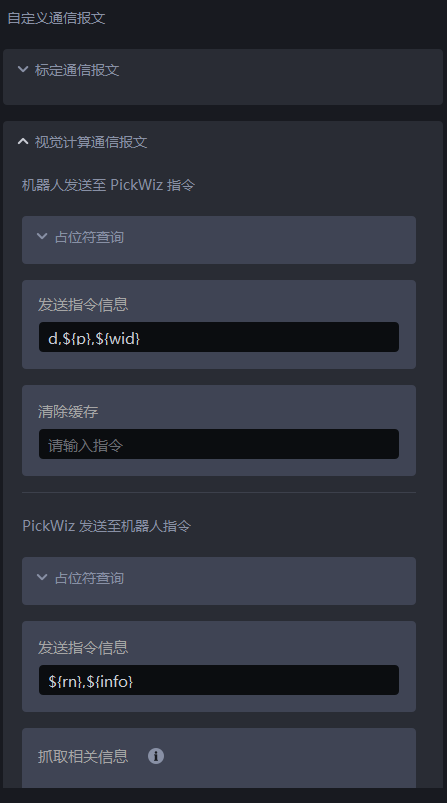
General Command Rules
- The encoding format of a message sent to the Robot arm is utf-8;
- A command represents the communication protocol between the software and the Robot arm. Different operations need their own defined commands. A command consists of command placeholders and custom characters;
- Command placeholders are provided in the form of shell variables:
${placeholder}. A placeholder identifies a slot to be replaced with specific data when sending a message. For example, the placeholder${p}is replaced with0,0,0,0,0,0(the delimiter in the middle can be customized); - Custom characters can be any characters except escape characters such as
\n,\r, and\t, and they can appear anywhere in a command; - A command may contain no placeholders and consist entirely of custom characters, or it may contain only a single placeholder, but each operation must be distinguishable (that is, the communication protocol must be unique). Otherwise, neither the software nor the Robot arm can determine what function should be executed after receiving a message.
- How the software determines the meaning of a message: when a message is received, the software replaces the placeholders in all user-configured commands so that each entire command becomes a regular expression, and then matches the message against all regular expressions generated from the commands. A successful match means the software knows what operation the message represents. If all matches fail, either the command is configured incorrectly or the Robot arm has sent incorrect data.
3. TCP Command Description
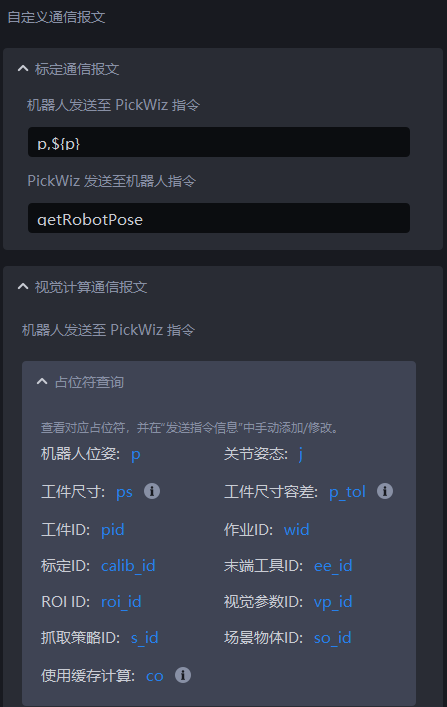
3.1 Calibration Communication Messages
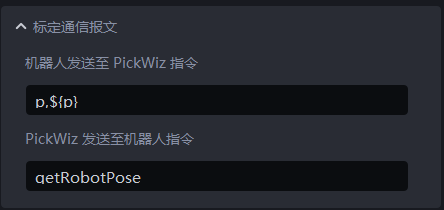
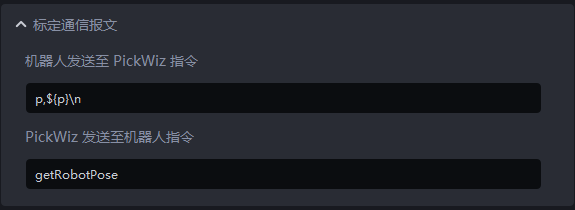
PickWiz sends the request
getRobotPoseto the Robot to obtain the Robot coordinatesThe Robot returns the Robot coordinates to PickWiz
p: The pose information of the Robot end Tool
$(p): Outputs the pose information of the Robot end Tool, with 6 values
Example 1
PickWiz sends the request getRobotPose to the Robot, and the Robot returns the Robot coordinates p,${p} to PickWiz.
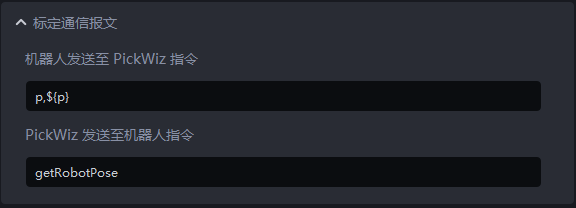

Example 2
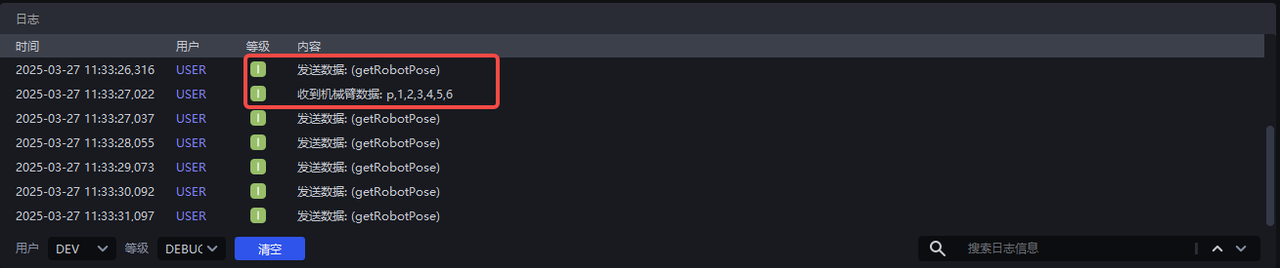
PickWiz sends the request (getRobotPose) to the Robot, and the Robot returns the Robot coordinates p,${p} to PickWiz.
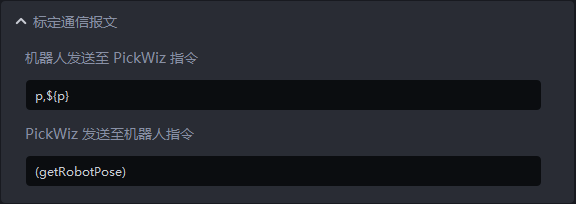
Example 3
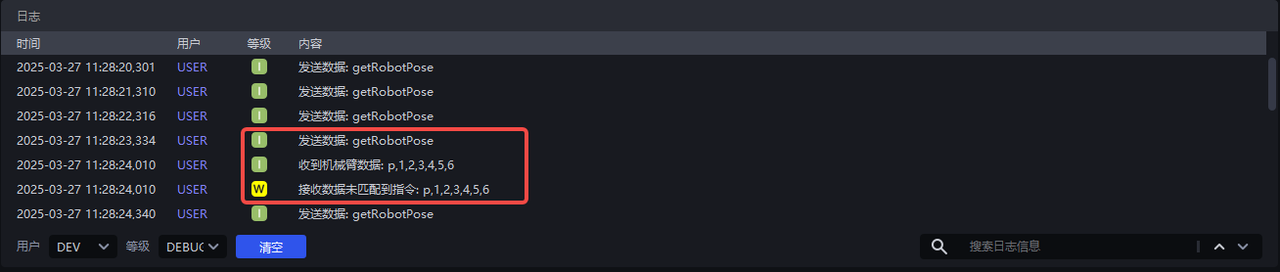
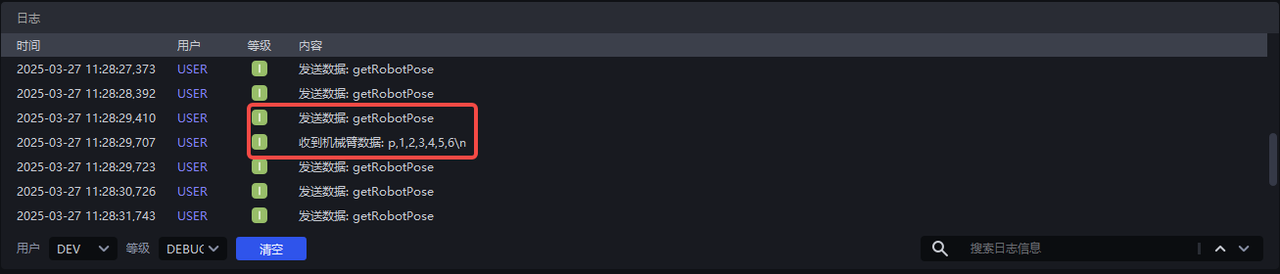
PickWiz sends the request getRobotPose to the Robot, and the Robot returns the Robot coordinates p,${p}\n to PickWiz, where \n is a custom character.
When the Robot does not include the custom character in the returned Robot coordinates, the software cannot match the command. Only when the Robot includes the custom character in the returned Robot coordinates can the software match the command.
3.2 Vision Computation Communication Messages
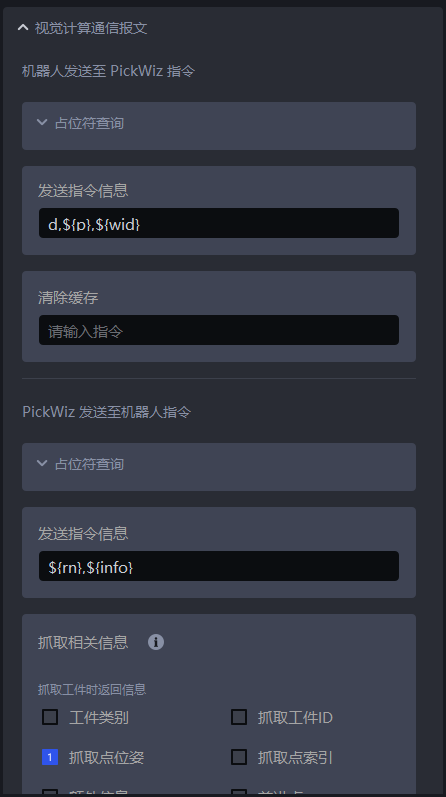
(1)Commands Sent from the Robot to PickWiz
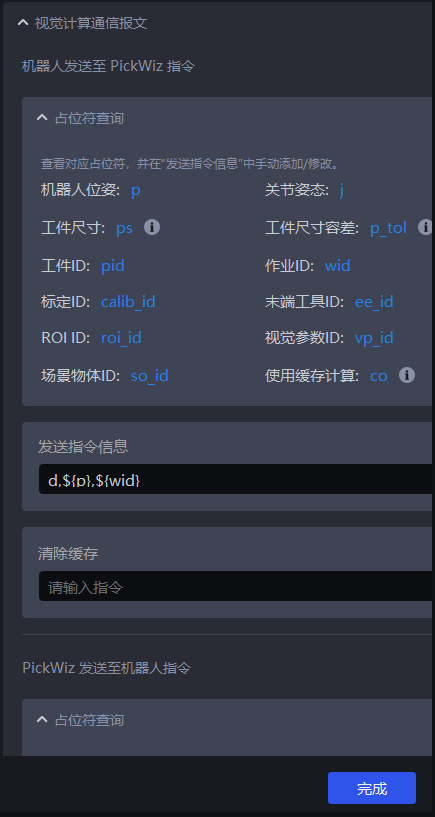
- Placeholders
A placeholder is a symbol or marker used in programming. During actual communication, the placeholder is replaced with specific content.
| Placeholder | Description |
|---|---|
| p | Robot Tool Pose. When the Pose Type is Tool Pose, the Robot returns the current pose of the Robot end Tool to PickWiz. The data length is 6. |
| j | Robot reference joint pose. When the Pose Type is Joint Angles, the Robot needs to send the Reference Joint Pose, which is used to calculate the joint pose of the Pick Point closest to that reference joint pose. |
| ps | Object Dimensions. When incoming materials include Target Objects of different sizes, the Robot needs to automatically adjust the grasping strategy according to different sizes. In different scenarios, the number of values passed for Object Dimensions and the corresponding object information are different. In circular-surface scenarios, 1 value is passed, representing the radius; in cylinder scenarios, 2 values are passed, representing radius\height; in carton scenarios, 3 values are passed, representing length\width\height; in quadrilateral scenarios, 2 values are passed, representing width\length. |
| p_tol | Object dimension tolerance. When incoming materials include Target Objects of different sizes, the Robot needs to automatically adjust the grasping strategy according to different sizes. In different scenarios, the number of values passed for dimension tolerance and the corresponding object information are different. In circular-surface scenarios, 1 value is passed, representing the radius tolerance; in cylinder scenarios, 2 values are passed, representing radius\height tolerance; in quadrilateral scenarios, 2 values are passed, representing width\length tolerance. |
| pid | Target Object ID, used by the Robot to automatically switch the Target Object to pick |
| wid | task ID, used by the Robot to automatically switch tasks |
| calib_id | Calibration ID, used by the Robot to automatically switch eye-hand calibration configuration files |
| ee_id | Tool ID, used by the Robot to automatically switch the end Tool when executing tasks |
| roi_id | ROI ID, used by the Robot to automatically switch ROI |
| vp_id | Vision Parameter ID, used by the Robot to automatically switch vision parameters |
| so_id | Scene Object ID, used by the Robot to automatically switch Scene Object |
| co | Vision computing rule 0: retake images and perform vision computing; 1: use the last image data for computing; 2: only take photos 3: take photos for Automatic random pose sampling4: real-time vision drift correction 5: use historical data for vision computing 6: IPC shutdown |
- Send Command Information(command sent from the Robot to PickWiz)
Configure the content of the command sent from the Robot to PickWiz.
d: Command identifier
$(p): The pose information of the Robot end Tool, with 6 values
$(wid): task ID, 1 value, used by the Robot to switch tasks
Example 1
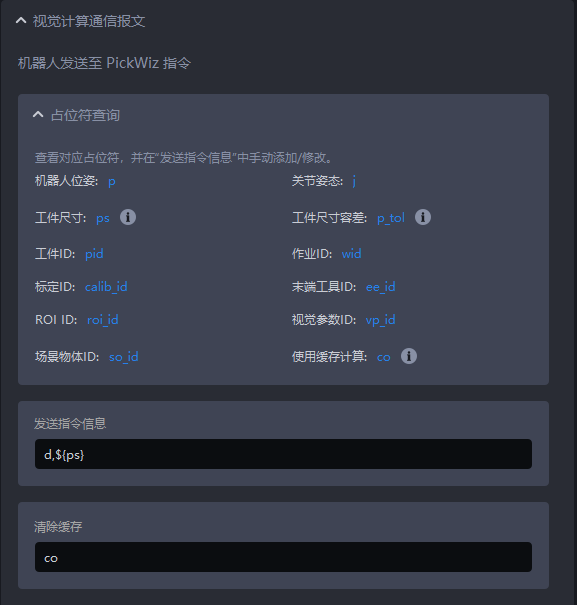
Set the send command information to d,${ps}. The Robot sends only pose information to PickWiz to trigger the process.
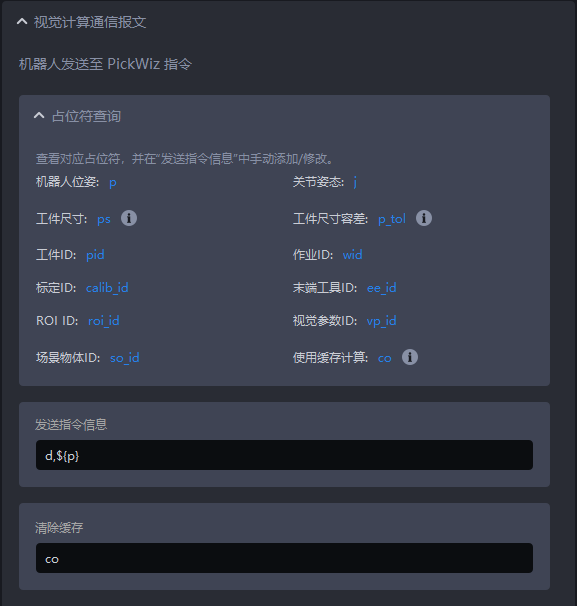
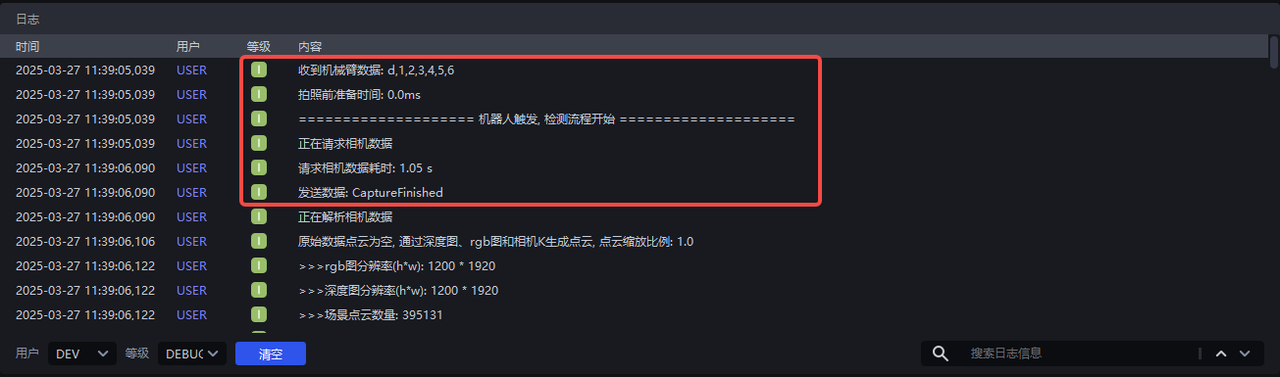
Example 2
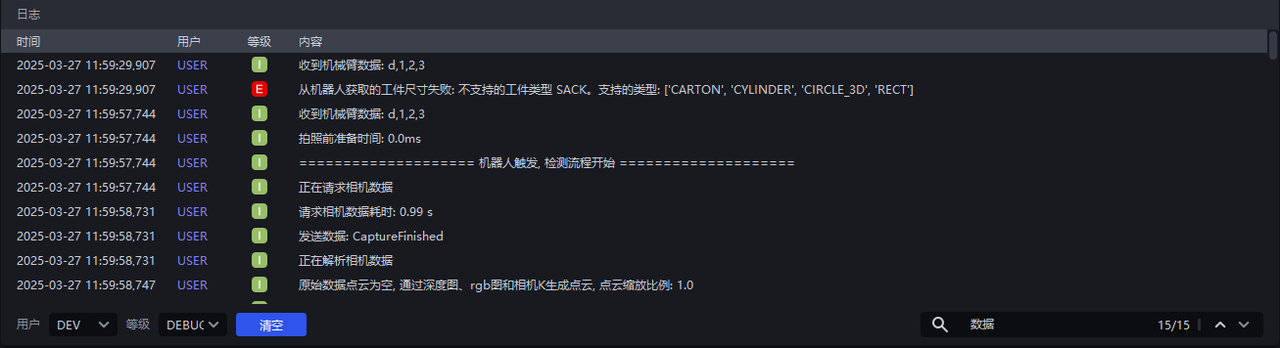
Set the send command information to d,${ps}. In a single-sack depalletizing scenario, if the Robot sends Object Dimensions to PickWiz, an error is reported indicating that it is applicable only to cartons, circles, cylinders, and quadrilaterals. In a single-carton depalletizing scenario, the Robot sends the length, width, and height of the carton to PickWiz to trigger the detection process.
Example 3
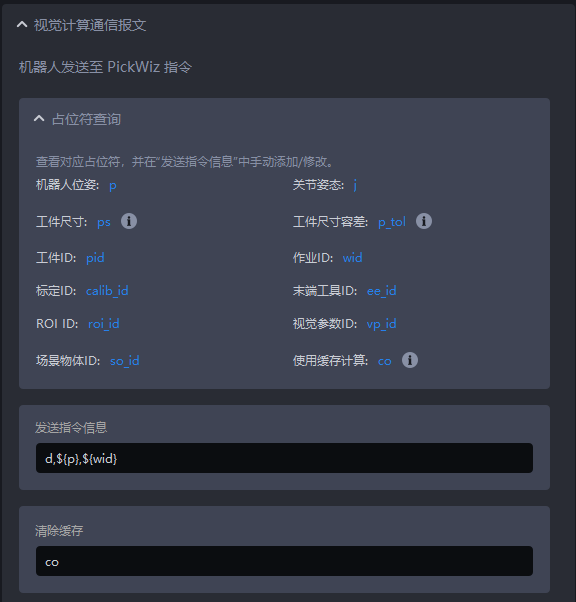
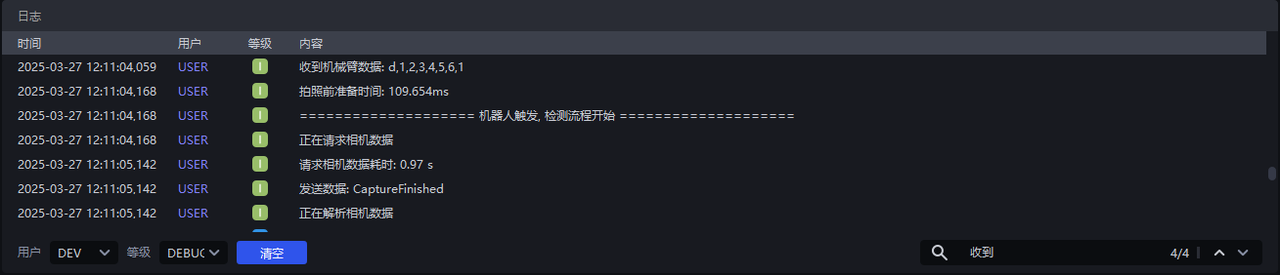
Set the send command information to d,${p},${wid}. The Robot sends pose information and the task ID to PickWiz, automatically switching to the detection workflows of tasks 1, 2, 4, and 5.
- Clear Cache
Clear Cache: In the one shot, multiple picks case, this clears the current remaining instance cache and photos will be taken again the next time the detection process is triggered.
Pick Logic:
- One Shot, One Pick: The vision system takes photos once and computes once, sends the results to the Robot after computation, discards any extra results, the Robot executes the related picking action, and then repeats;
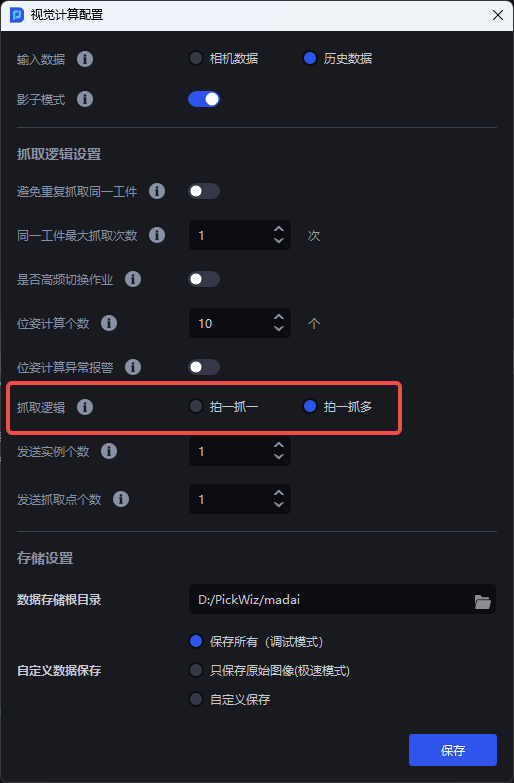
- One Shot, Multiple Picks: The vision system takes photos once and computes once, sends the computed results to the Robot, saves the extra Vision Results, the Robot executes the related picking action, and the next time the Robot sends a photo-taking calculation command, the system first checks whether the saved Vision Results meet the requirements. If they do, it does not execute photo-taking + computation and directly returns the results to the Robot, then repeats;
Example
When One Shot, Multiple Picks is not selected, PickWiz performs photo-taking and computation every time the Robot triggers the detection process.
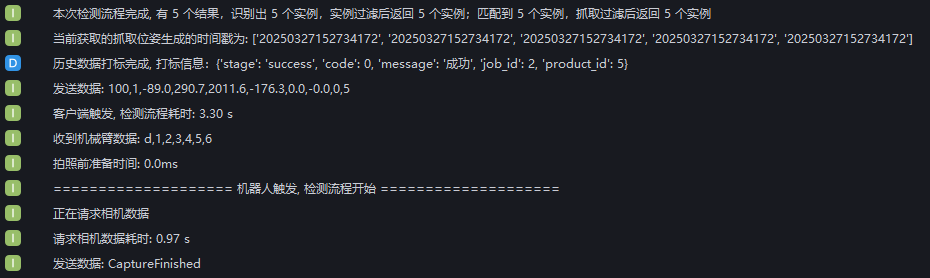
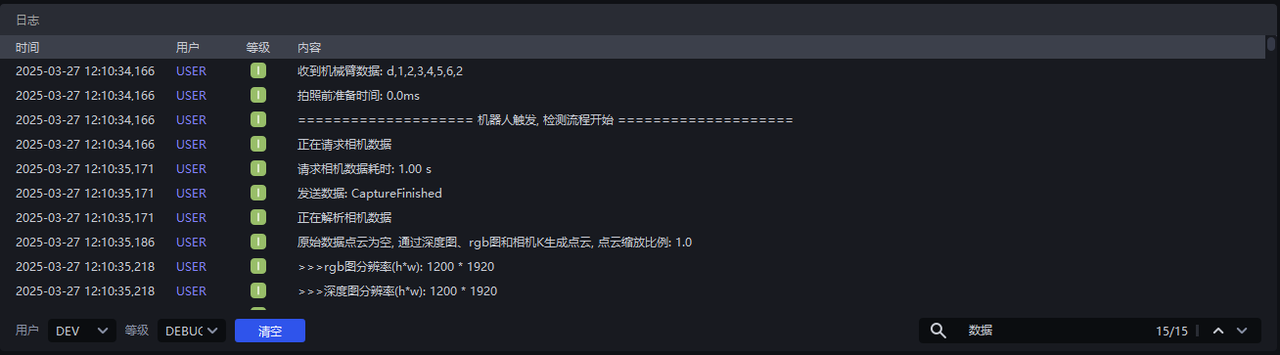
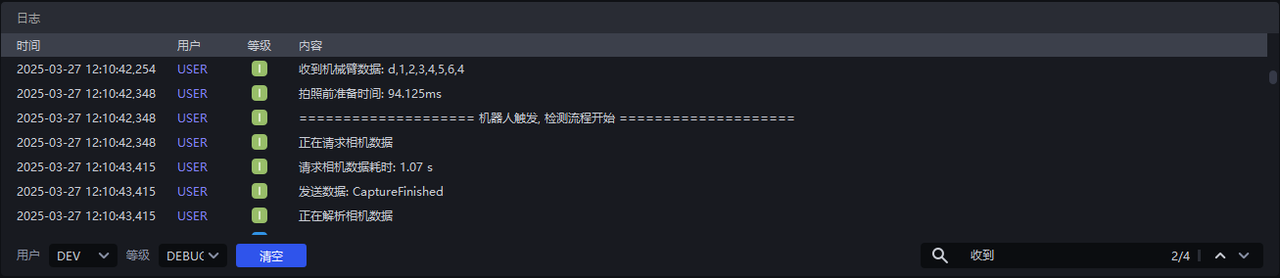
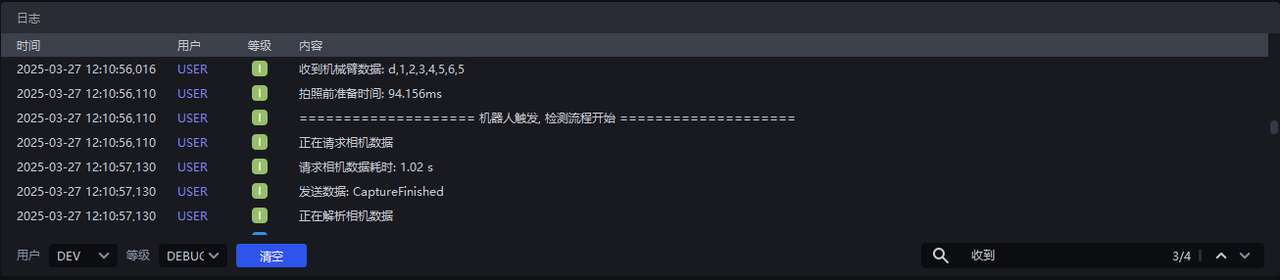
When One Shot, Multiple Picks is selected in Vision Computing Configuration, PickWiz can realize one photo-taking computation for multiple picks. As shown below, 5 instances are recognized. The first pick is triggered by PickWiz, and the next 4 picks are triggered by the Robot. During those 4 picks, the Robot sends pose information to PickWiz to trigger the detection process, and PickWiz does not perform photo-taking or computation, but directly returns the Picking Pose.
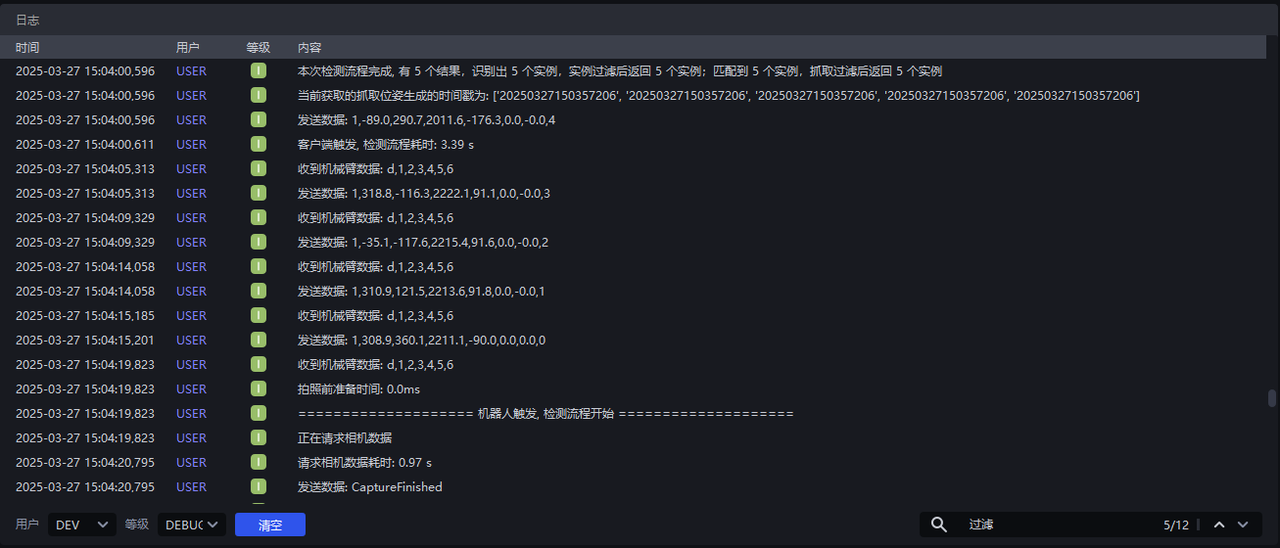
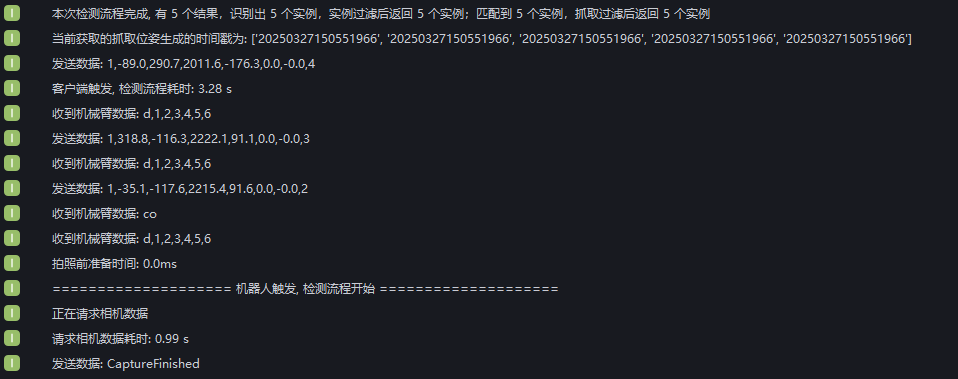
The first pick is triggered by the client, and the second and third picks are triggered by the Robot. The Robot sends pose information to PickWiz to trigger the detection process, and PickWiz does not perform photo-taking or computation, but directly returns the Picking Pose. Then enter the co command to clear the cache, and PickWiz starts photo-taking and computation again for the fourth pick.
(2)Commands Sent from PickWiz to the Robot
- Placeholders
A placeholder is a symbol or marker used in programming. During actual communication, the placeholder is replaced with specific content.
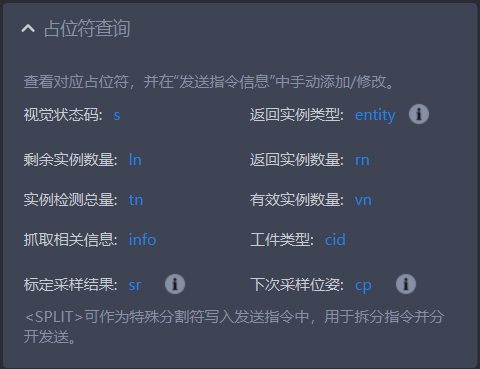
| Placeholder | Meaning |
|---|---|
| s | Detection result signal, vision detection signal, 1 value. The default success value is 100, and other exceptions are 0 by default. This can be customized. |
| entity | Returned instance type, 1 value. 1 means pallet and 0 means Target Object. |
| ln | Remaining instance count, 1 value. Under the one shot, multiple picks picking logic, this returns the current number of remaining cached instances. |
| rn | Returned instance count, 1 value. This returns the number of instances recognized by instance segmentation 2D. This value is less than or equal to Number of Instances to Send. If there are multiple instances, the Length of Picking-related Information increases as the returned instance count increases. |
| tn | Total detected instances, 1 value. The number of detected instances before instance filtering. |
| vn | Valid instance count, 1 value. The number of detected instances after instance filtering. |
| info | Picking-related information |
| cid | Target Object type |
| sr | Calibration sampling result. This is an automatic sampling calibration command, and different calibration sampling results correspond to different signal values. 0: the minimum number of samples is reached 1: a new sample is added successfully 11: failed to add a new sample 12: automatic sampling ends and the sample list is fully executed 13: failed to generate a sampling pose 14: calibration sampling page not entered 15: system error |
| cp | Next sampling pose. This is an automatic sampling calibration command and indicates the Robot movement position for collecting the next calibration sample. |
| <SPLIT> | Special delimiter. When using it, do not add ${}. Directly add this identifier into the command, and the data will be forcibly split at that position. This function is mutually exclusive with the function that splits data by character count, and this function has higher priority. |
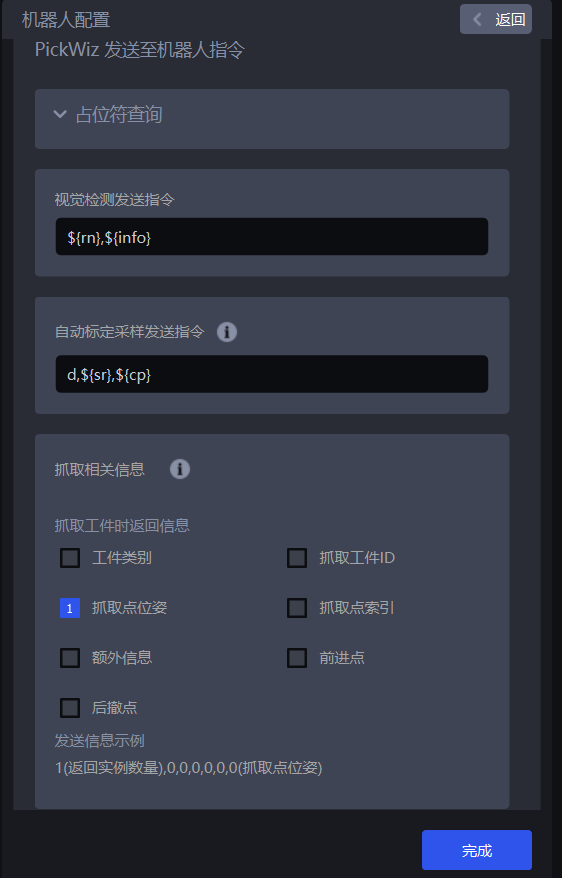
- Vision Result Send Command(command sent from PickWiz to the Robot)
Configure the content of the command sent from PickWiz to the Robot.
- Automatic Calibration Sampling Send Command
When the eye-hand calibration method is
Automatic random pose sampling, you need to set this command. Otherwise, the Robot cannot communicate with PickWiz.
- Picking-related Information
The following length values for picking-related information represent the length for a single Pick Point. If there are multiple Pick Points, the total length is the number of values x the number of Pick Points.
Information Common to All Scenarios
| Field | Description |
|---|---|
| Picked Target Object ID | 1 value; indicates the current Target Object index |
| Pick Point Pose | 6 values; indicates the pose data of the Pick Point |
| Pick Point Index | 1 value; indicates the current Pick Point index |
| Additional Information | 1 value; indicates the custom additional information of the current Target Object |
| Approach Point | Applicable only when the pose type is Joint Angles. The length is 1 + the number of Waypoints; format: (number of Waypoints, joint Waypoint poses from the pre-pick point to the Pick Point) |
| Retreat Point | Applicable only when the pose type is Joint Angles. The length is 1 + the number of Waypoints; format: (number of Waypoints, joint Waypoint poses from the Pick Point to the retreat Pick Point) |
- Vision Status Code
Vision status codes are used for troubleshooting. The recommended status codes are shown in the following table.
You need to configure
¥{s}in Vision Result Send Command
- If the vision status code is not customized, the default value is
100for success and0for all other exceptions.
| Error Content | Default Value | Related Node |
|---|---|---|
| Success | 100 | |
| Bottom plate detected | 301 | Foreground Processing (Foreground Builder) |
| No bin detected | 4000 | Bin Detection (Container Builder) |
| No instance detected | 5000 | Instance Segmentation (Instance Builder) |
| No pose detected | 6000 | Pose Estimation (Pose Builder) |
| No Pick Point detected | 7000 | Pick Point Generation (Grasp Builder) |
| No Path detected | 8000 | Robot Trajectory Generator (Trajectory Builder) |
| No instance size detected | 9000 | Object Size Generator (Size Builder) |
| Empty ROI | 1101 | Valid Point Filter (ValidPoints Criteria) |
| No valid instance | 12000 | Instance Filtering (Instance Criteria) |
| No valid Object Pose | 13000 | Pose Filtering (Pose Criteria) |
| No valid Pick Point | 14000 | Pick Point Filtering (Grasp Criteria) |
| All detection results collide and cannot be picked | 15000 | Collision Detection Filtering (Collision Criteria) |
| No instance with valid size | 17000 | Object Size Filtering (Size Criteria) |
| Exception | 20000 | Common exception error. Please check the logs to confirm. |
| Insufficient video memory | 20001 | Common exception error. Please check the logs to confirm. |
| Invalid input (please check algorithm parameters) | 20002 | Common exception error. Please check the logs to confirm. |
| Full inspection | 20003 | Related to point cloud processing operator (full_detect_judgment) |
| Foreign matter detection exception | 20004 | Related to instance filtering operator (foreign_matter_judgement) |
- Photo Capture Completed
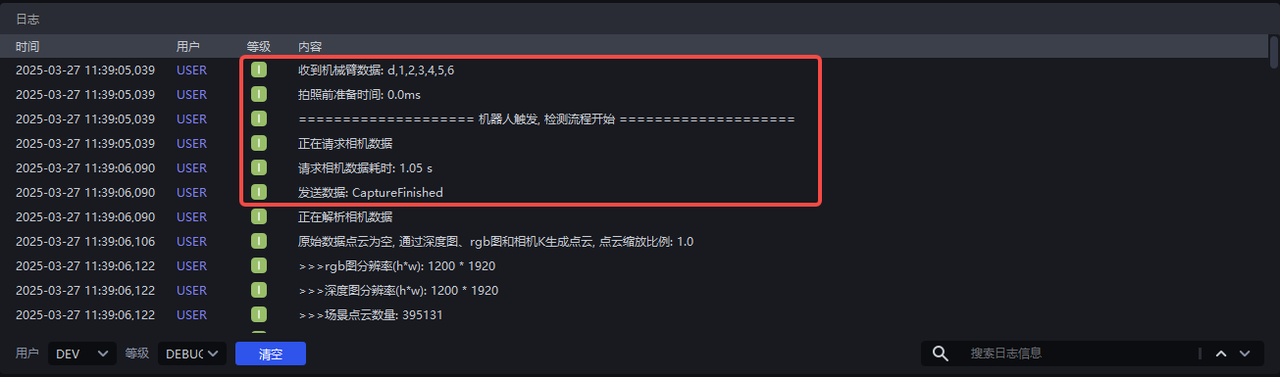
Configure the command CaptureFinished in Photo Capture Completed. After the Camera finishes photo capture, PickWiz sends the CaptureFinished command to the Robot.

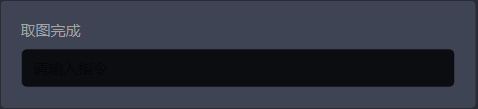
When using a KINGFISHER camera, the Photo Capture Completed signal has been changed to Imaging Completed. Imaging Completed means the Camera has completed image acquisition and processed the image data.
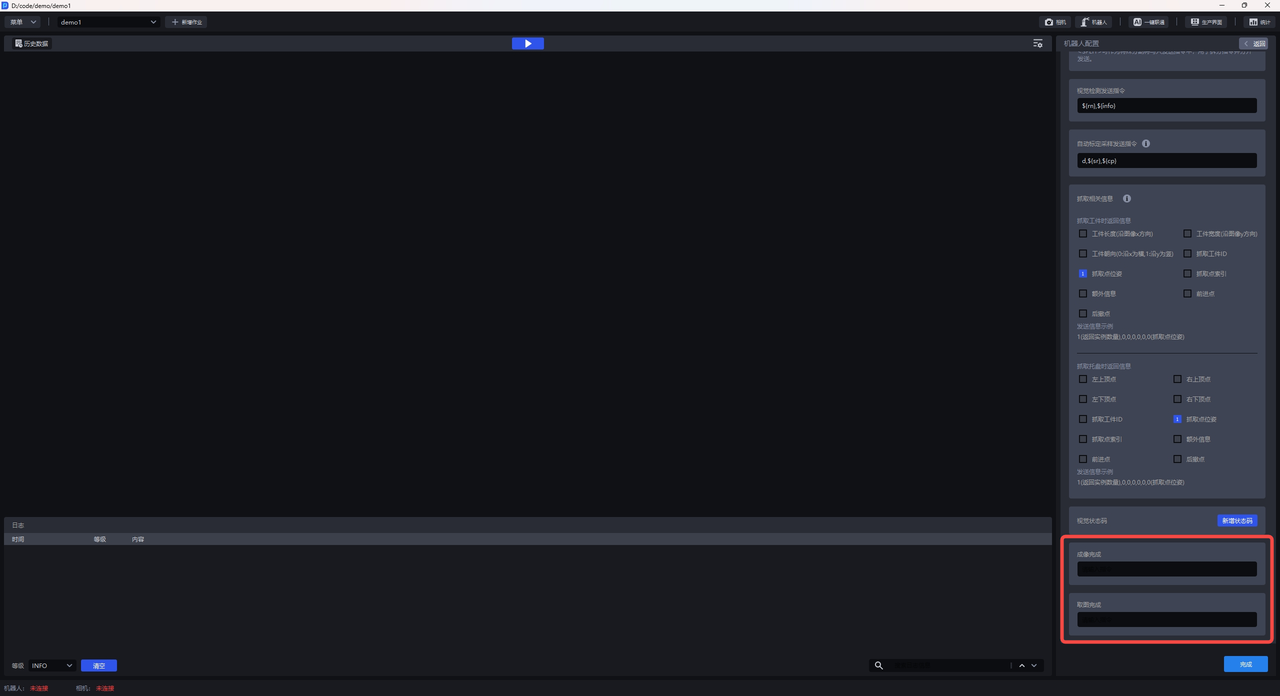
- When using a KINGFISHER camera, the Robot can configure the
Image Acquisition Completedsignal
Image Acquisition Completed means that the Camera has obtained image data after taking a photo, but has not generated a Point Cloud or performed image processing. It is often used when a Robot sends a signal before imaging is completed to trigger the system/script to execute the next step. There is no need to wait for imaging to finish (because imaging completion takes longer than image acquisition completion), which can reduce the overall process time to some extent.
4. Edit, Copy, and Delete the Robot
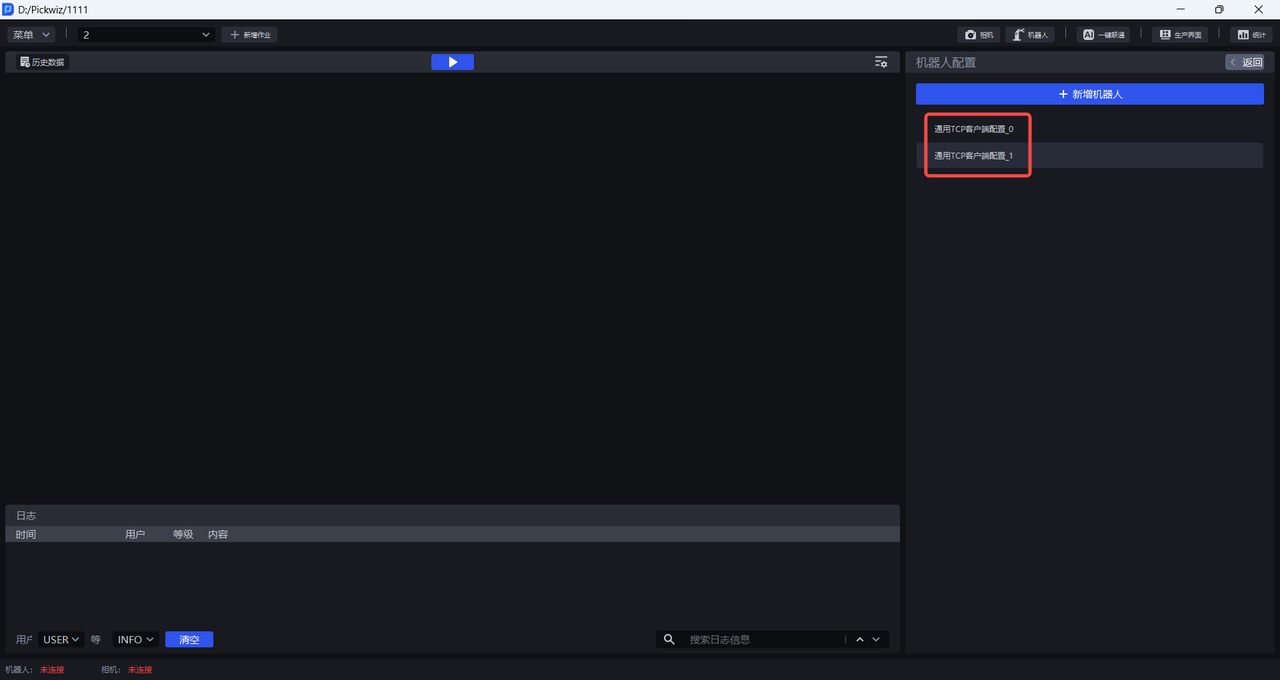
(1)Edit the Robot configuration
On the Add a Robot interface, left-click a Robot configuration to edit the selected Robot configuration.
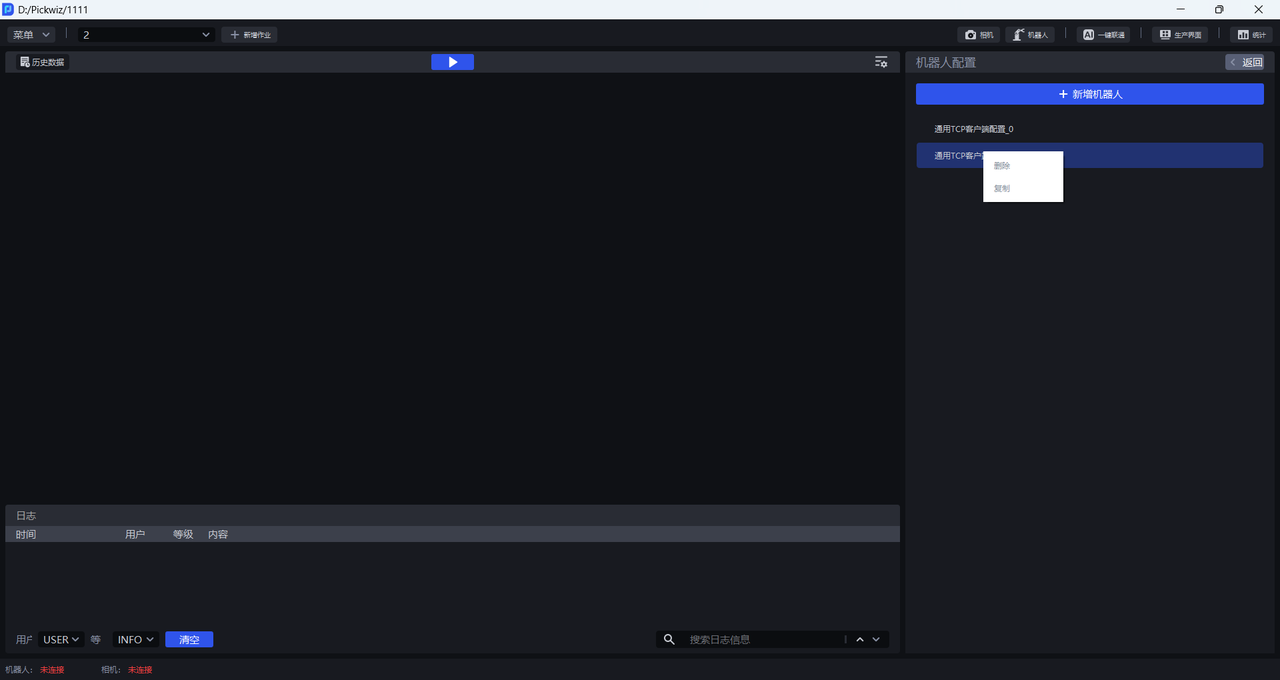
(2)Copy the Robot configuration
On the Add a Robot interface, right-click a Robot configuration to copy the selected Robot configuration.
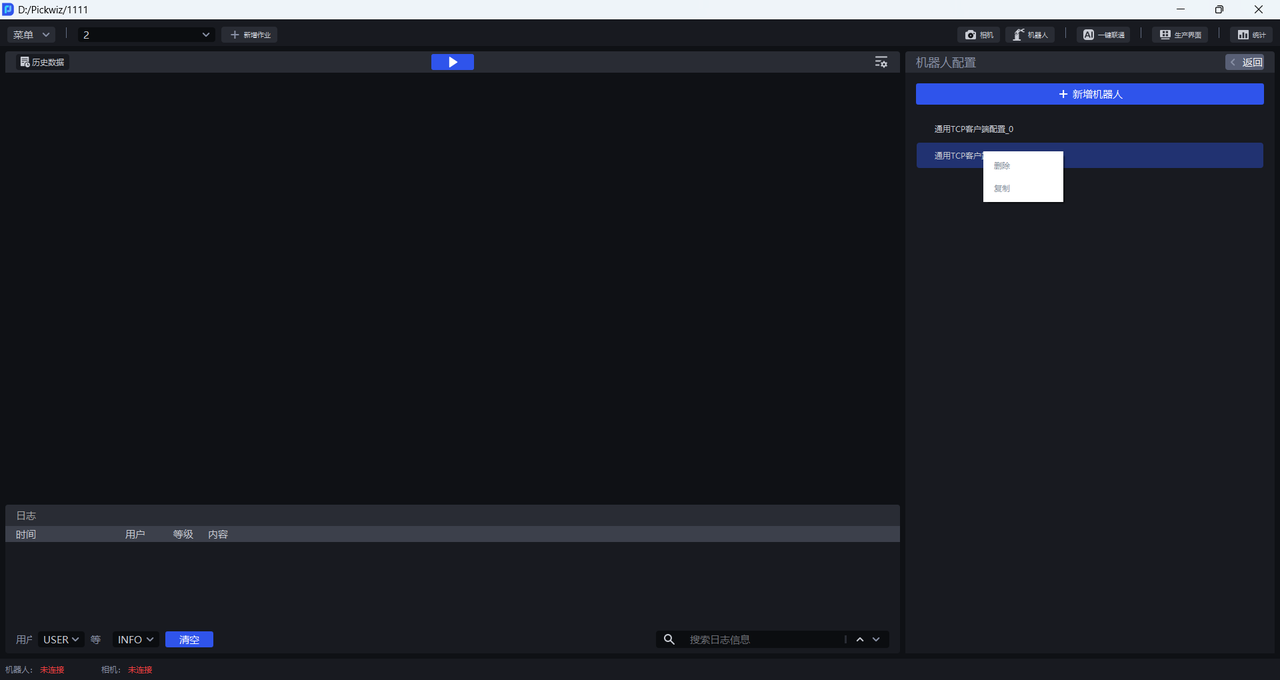
(3)Delete the Robot configuration
On the Add a Robot interface, right-click a Robot configuration to delete the selected Robot configuration.
5. Select a Robot Configuration
After the TCP communication configuration is completed, you can select the Robot configuration for the current task Scene on the task main interface. Select the corresponding Robot configuration in the Robot configuration selection bar, and PickWiz will try to establish communication with the Robot through the TCP communication protocol.
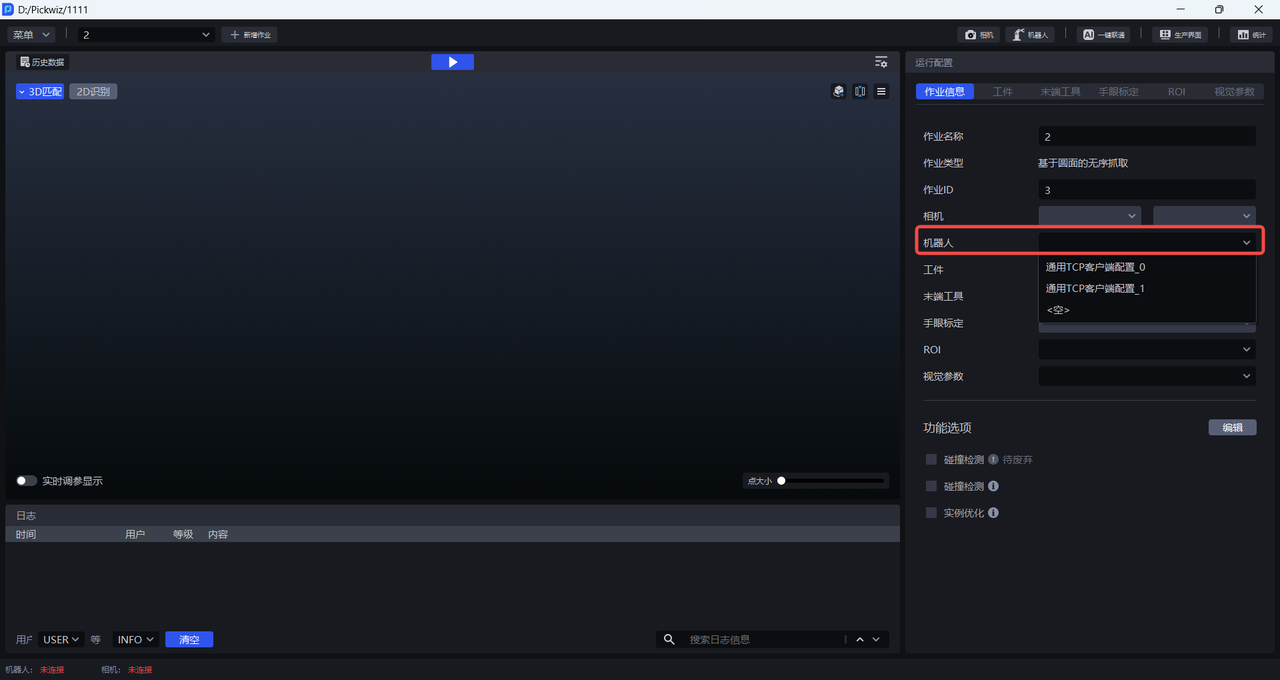
If the communication connection is successful, the Robot communication connection status in the lower-left corner of the main interface will display "Connected".

If the communication connection fails, the Robot communication connection status will display "Disconnected". Please check whether the network cable between the Robot and the Vision system industrial PC (Industrial Personal Computer) is firmly connected and whether the program loaded and running on the Robot system is correct, then configure the Robot again.
