Log Guide
1. Log Storage Locations
(1)Log storage locations for versions before PickWiz V1.6.0
~/kuawei_data/log/middleware/middleware.log Some backend system logs other than the detection process ~/kuawei_data/log/backend/backend.log Backend detection process logs ~/kuawei_data/log/PickLightMicroServer/PickLight_deepmodel.log Model Inference service logs ~/kuawei_data/log/glia/glia.log glia logs ~/kuawei_data/log/rlia/rlia.log rlia logs ~/.dexforce/log/pickwiz/app.*.log PickWiz frontend logs
(2)Log storage locations for versions after PickWiz V1.6.0
~/.dexforce/log/picklight/backend_sys/backend_sys.log Original middleware.log ~/.dexforce/log/picklight/backend_pipe/backend_pipe.log Original backend.log ~/.dexforce/log/picklight/backend_deepmodel/backend_deepmodel.log Original PickLight_deepmodel.log ~/.dexforce/log/glia/glia.log glia logs ~/.dexforce/log/rlia/rlia.lAog rlia logs ~/.dexforce/log/pickwiz/app.*.log PickWiz frontend logs
(3)Log storage locations for versions after PickWiz 1.7.1
~/.dexforce/log/pickwiz/PickWiz_INFO_YYYYMMDD-HHMMSS.ProcessID PickWiz frontend logs
2. Log Feature Introduction
| Field | Description |
|---|---|
| Time | The time when the log was generated. PickWiz supports viewing logs in real time. |
| Level | The level of the log content. DEBUG indicates all log information, including detailed debugging information, and is used for troubleshooting; INFO indicates logs for normal system operation, including runtime information, alarm information, and error information; WARNING indicates alarm information, including alarm information and error information; ERROR indicates error information. You can filter log content by Level at the bottom. |
| Content | The specific content of the log |
| Clear | Clears all logs currently displayed on the interface. The log storage files will not be cleared. If you need to view the cleared logs, refer to 1. Log Storage Locations to open the corresponding log storage file. |
| Copy | Use Ctrl+C/Ctrl+V on the keyboard or right-click the mouse to copy log information, as shown in the figure below. |
| Search | Enter information in the log search box and click the 搜索🔍 icon to search for the corresponding information in the log, and quickly display results one by one upward and downward. |
3. Log Content
3.1 Data Source
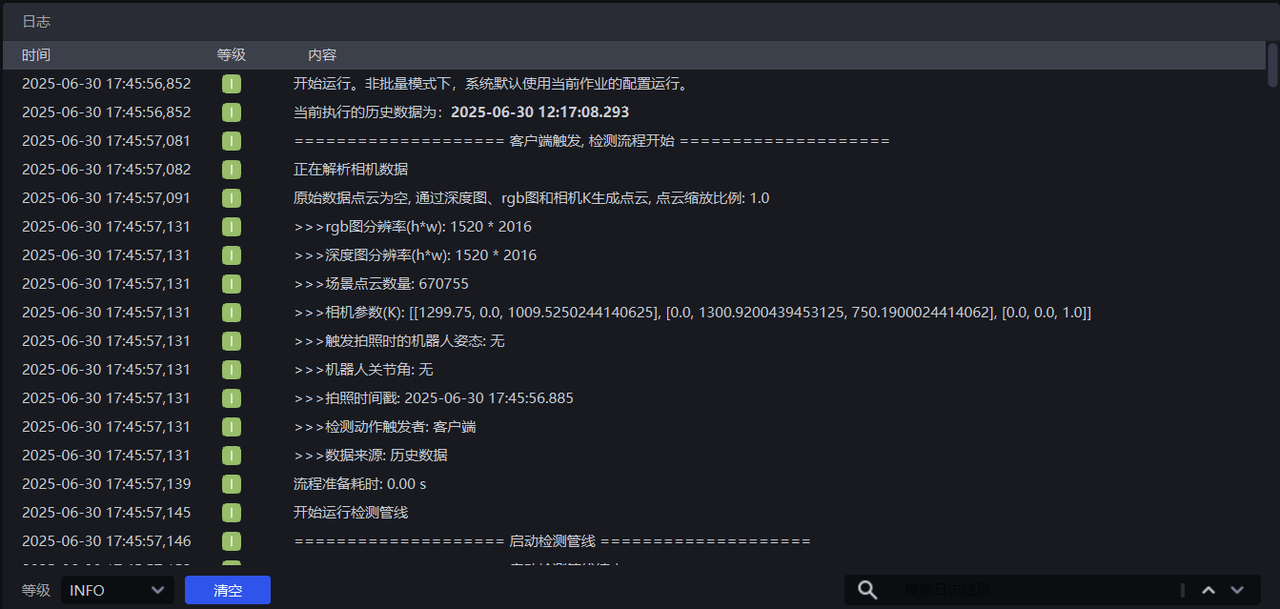
The beginning of the log specifies the data source input to the Workflow.
If camera data is selected in Vision Computation Configuration - Data Source, the Camera needs to be connected, and PickWiz will send a photo capture command to the Camera. The Camera will collect 2D images and depth images in real time and generate Point Cloud images.
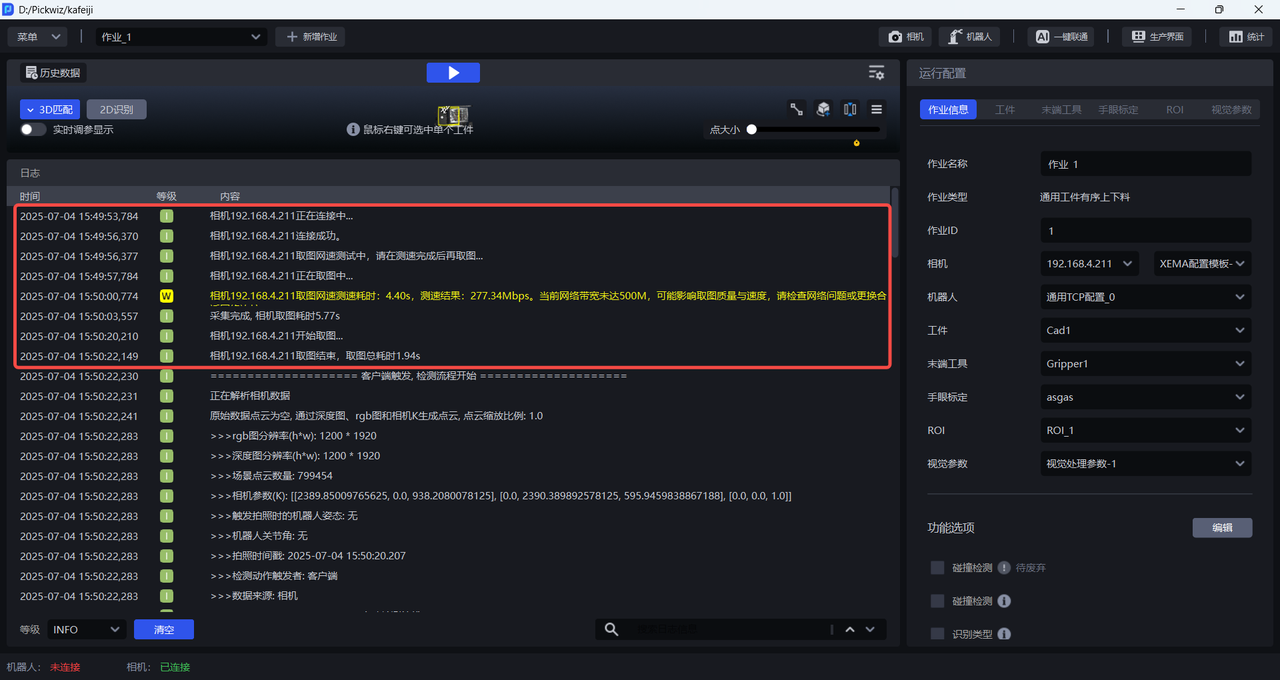
As shown in the figure below, after the Camera is successfully connected for the first time, network speed will be tested first, and then the actual photo capture will be performed. The actual photo capture took 1.94 s. After photo capture is completed, the real-time collected Camera data is parsed, including the following parameters.
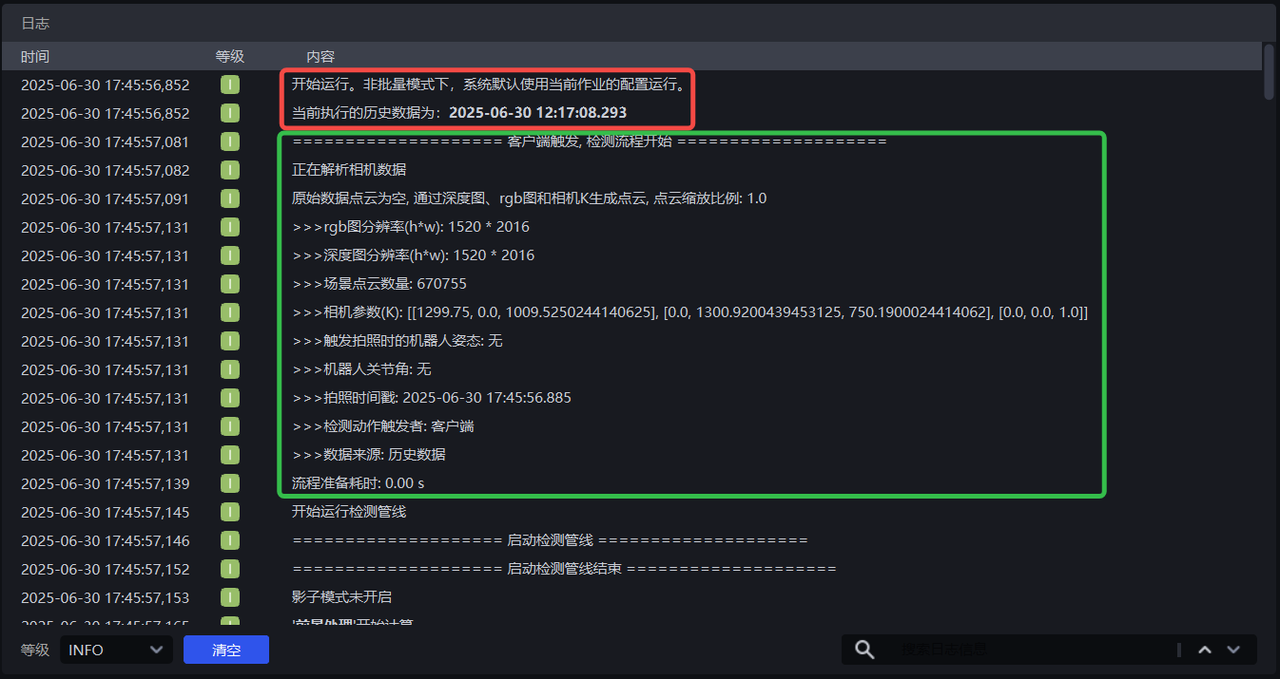
RGB image resolution: the size of the 2D image, calculated as h(height)* w(width), in pixels;
Depth image resolution: the resolution of the depth image, calculated as h(height)* w(width), in pixels;
Number of scene Point Cloud points: according to the 2D image, depth image, and Camera Intrinsic Parameter, a scene Point Cloud is generated and input to the Workflow;
Camera parameters: that is, the Camera Intrinsic Parameter;
Robot Pose when photo capture is triggered: the pose of the Robot Tool;
Robot joint angles: the representation method of the Robot Pose, generally represented by Euler Angles and selected in Robot Configuration;
There is also the photo capture timestamp: the time when photo capture begins;
Detection trigger initiator: if the detection process is triggered by PickWiz, it is the client; if the detection process is triggered by the Robot, it is the Robot;
Data source: Camera data or historical data. For an explanation of the data source, please refer to Vision Computation Configuration Operation Guide
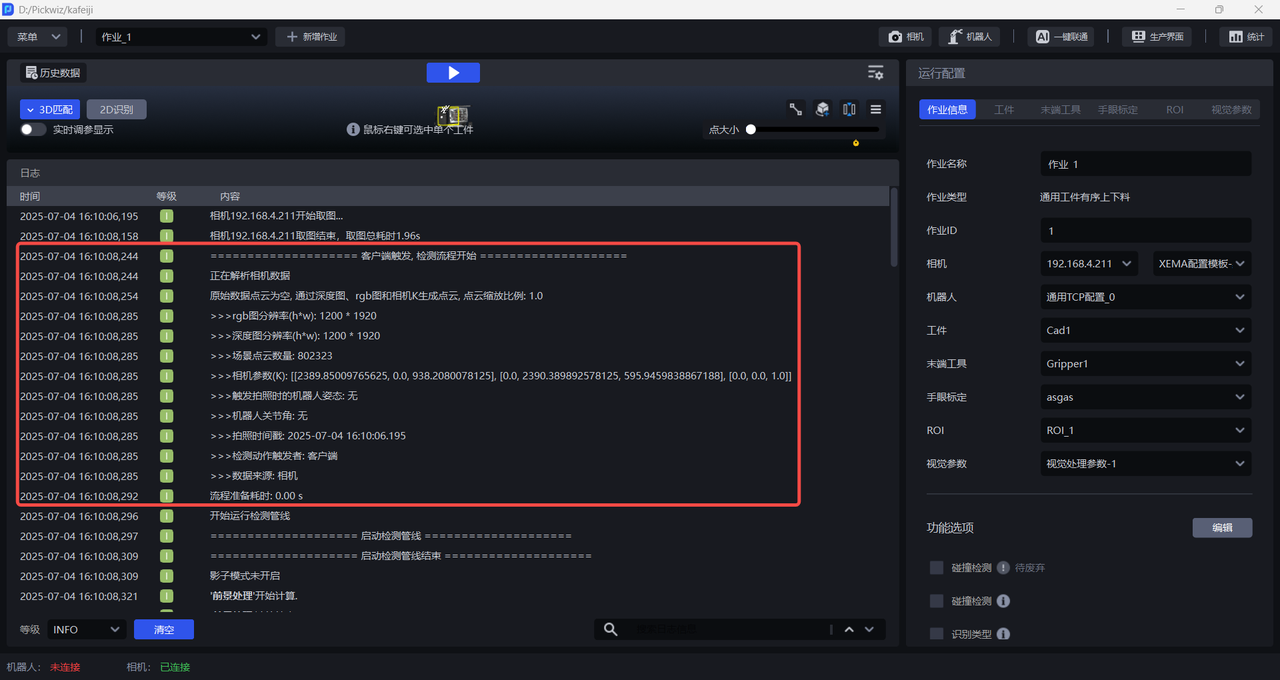
If historical data is selected in Vision Computation Configuration - Data Source, the Camera does not need to be connected. The Camera data saved in the historical data can be parsed directly. This process takes 0 time, as shown in the figure below.
3.2 Start Detection
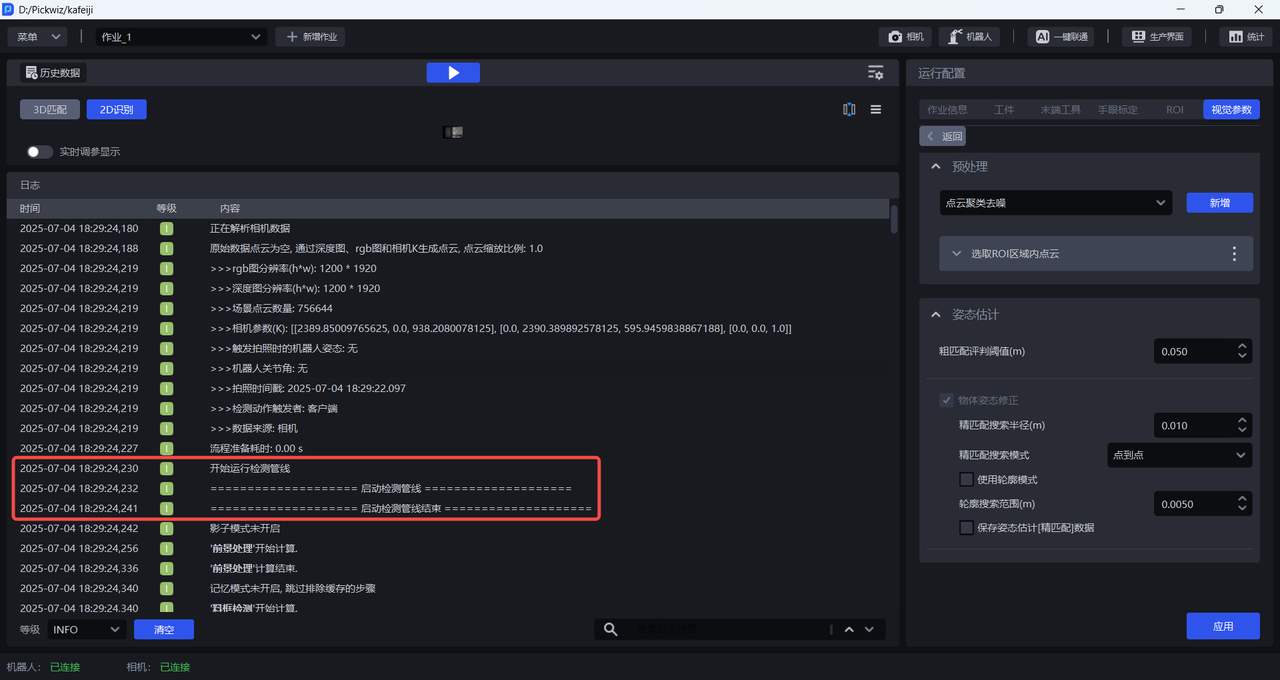
After data parsing is completed, the detection pipeline starts
3.3 Foreground Processing
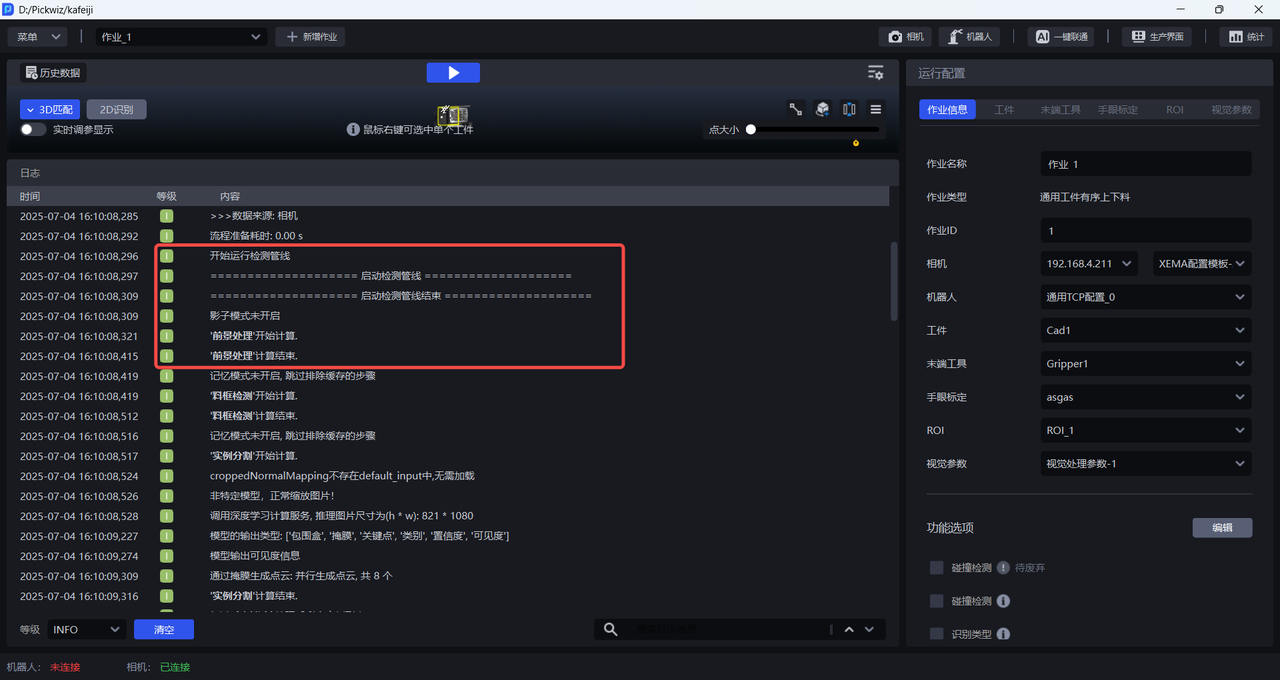
Foreground Processing preprocesses the Camera data input to the Workflow. If a function is added under Vision Parameters - 2D Preprocessing, the 2D preprocessing function processes the 2D image, depth image, and scene Point Cloud at this node.
3.4 Container Detection
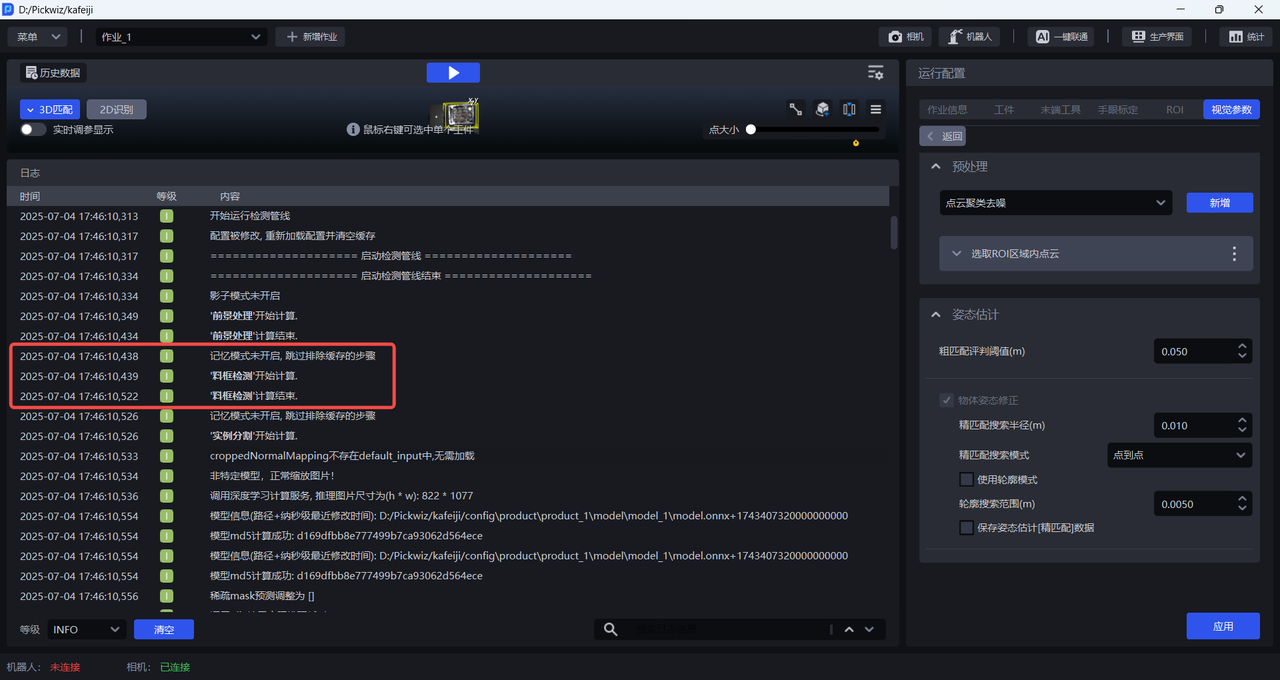
If there are Scene Objects such as containers in the scene, this node will detect the container.
3.5 Instance Segmentation
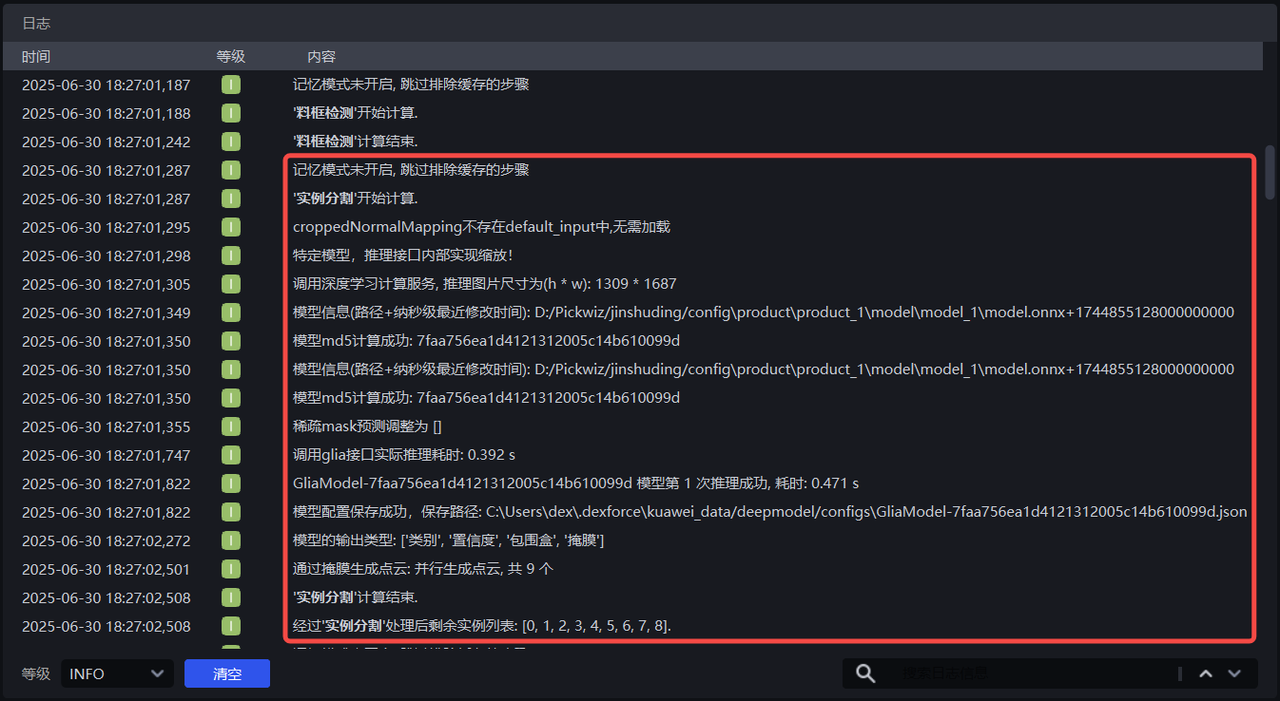
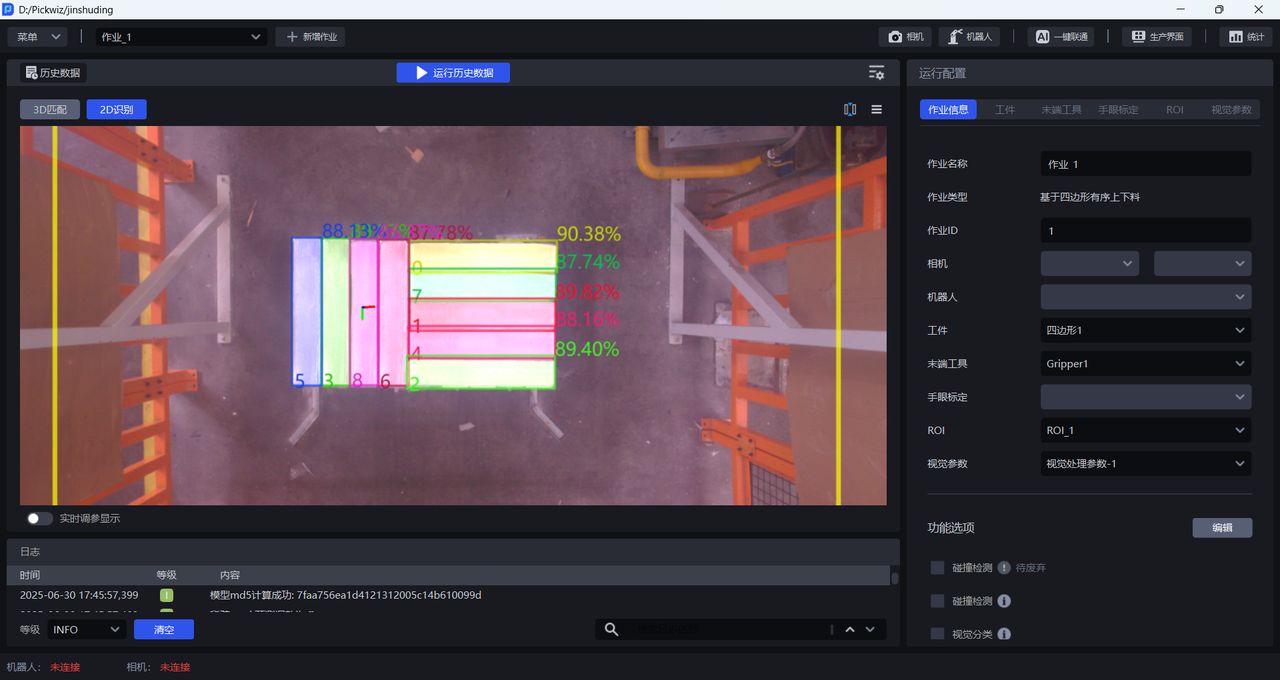
Instance Segmentation refers to segmenting instances from the scene, corresponding to Vision Parameters - 2D Recognition - Instance Segmentation.
As shown in the figure below, 9 instances are segmented from the scene, and 9 instance Point Clouds are generated according to the Mask.
3.6 Instance Filtering
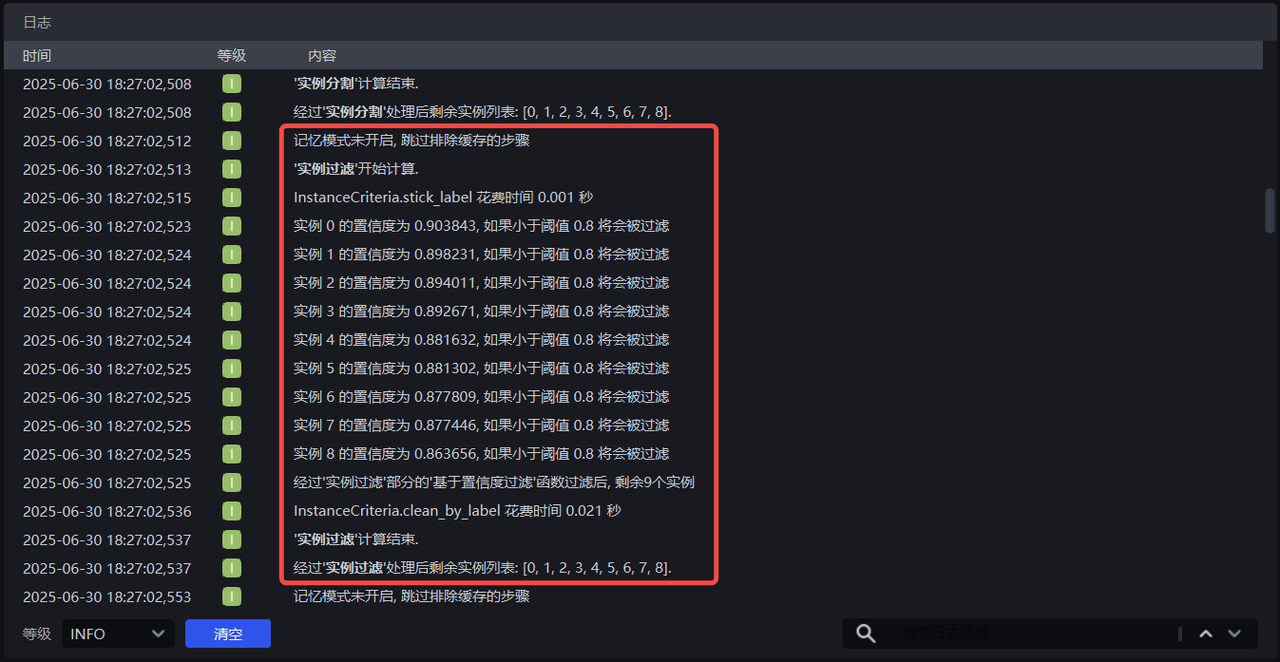
Instance Filtering refers to filtering the segmented instances, corresponding to Vision Parameters - 2D Recognition - Instance Filtering.
As shown in the figure below, instances with Confidence lower than 0.8 will be filtered out. The Confidence of all 9 instances is greater than 0.8, so no instance is filtered out.
3.7 Instance Sorting
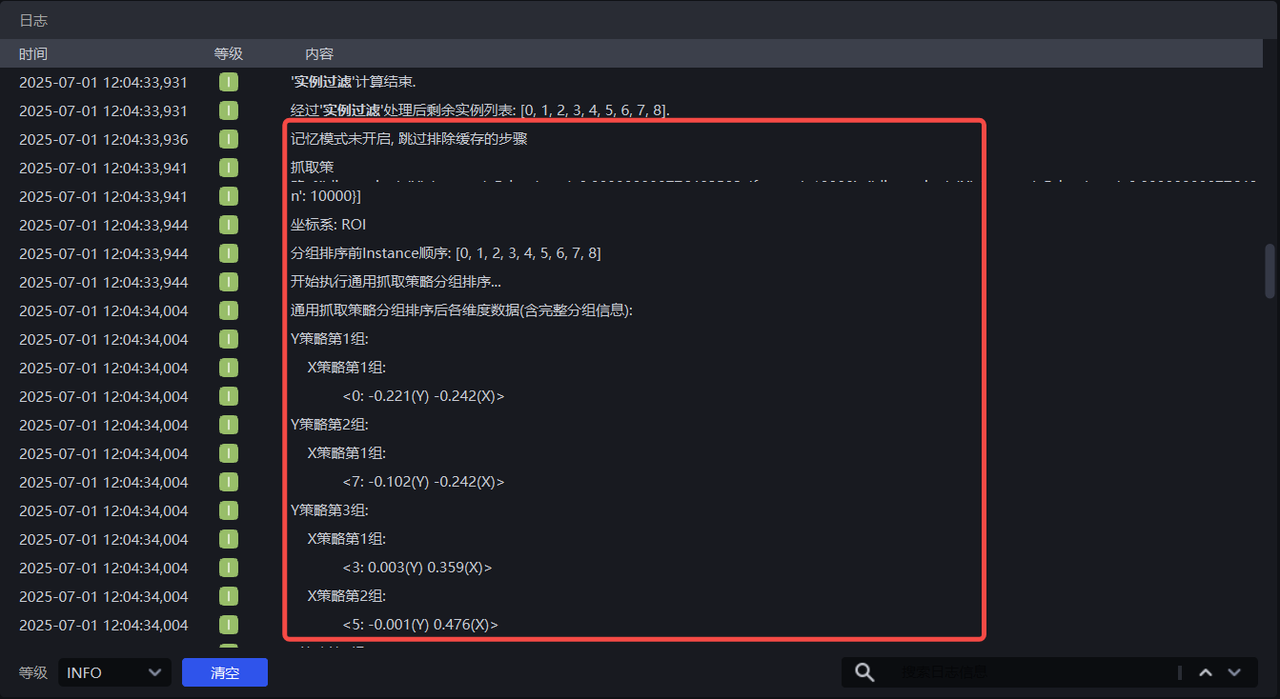
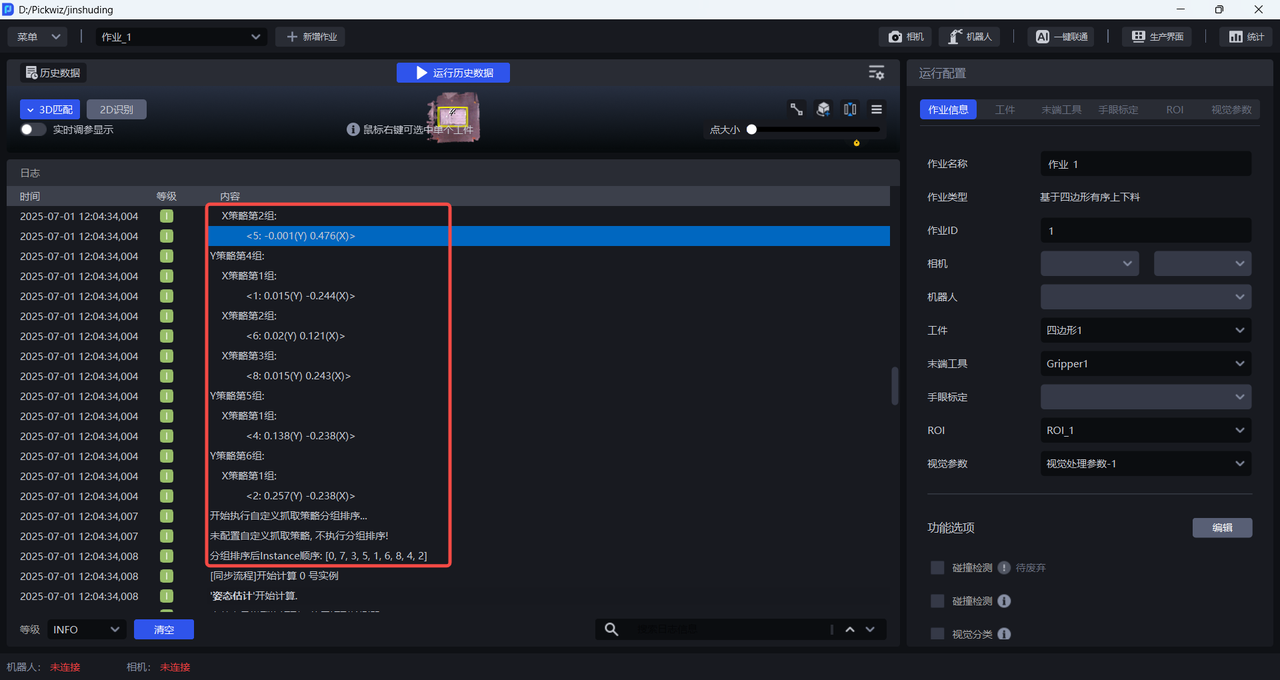
Instance Sorting refers to grouping and sorting the filtered instances. The grouping and sorting method corresponds to Vision Parameters - 2D Recognition - Instance Sorting.
3.8 Pose Estimation
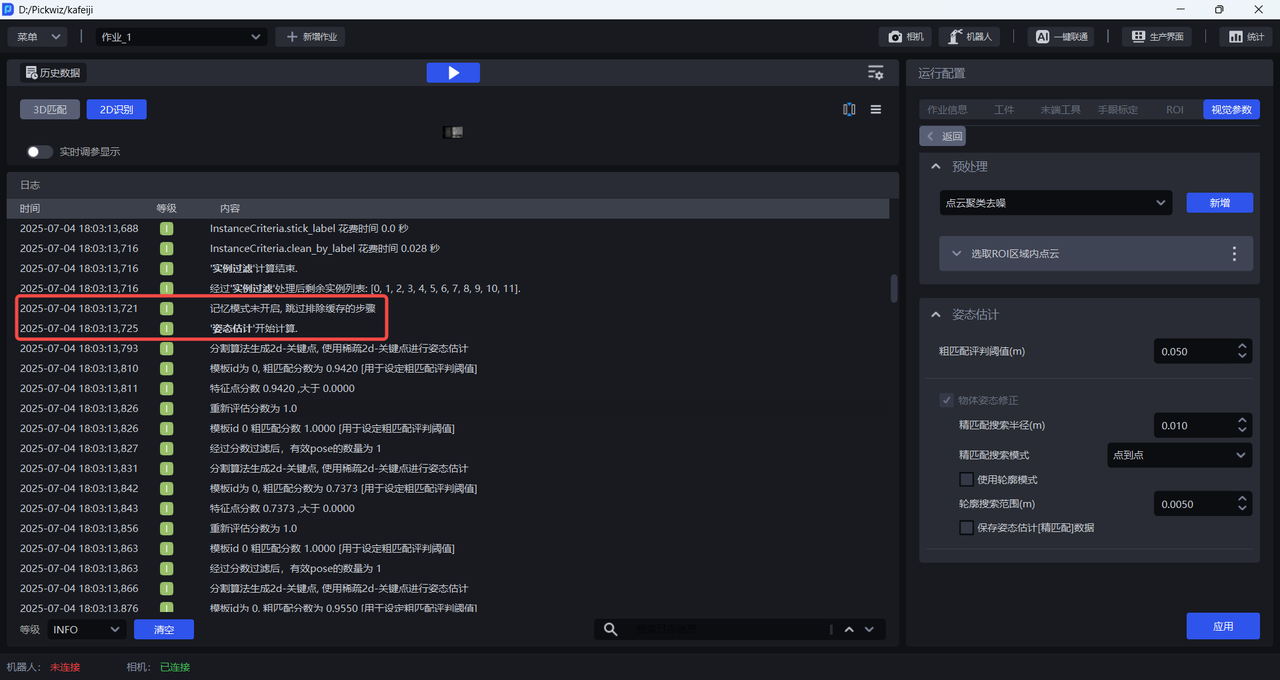
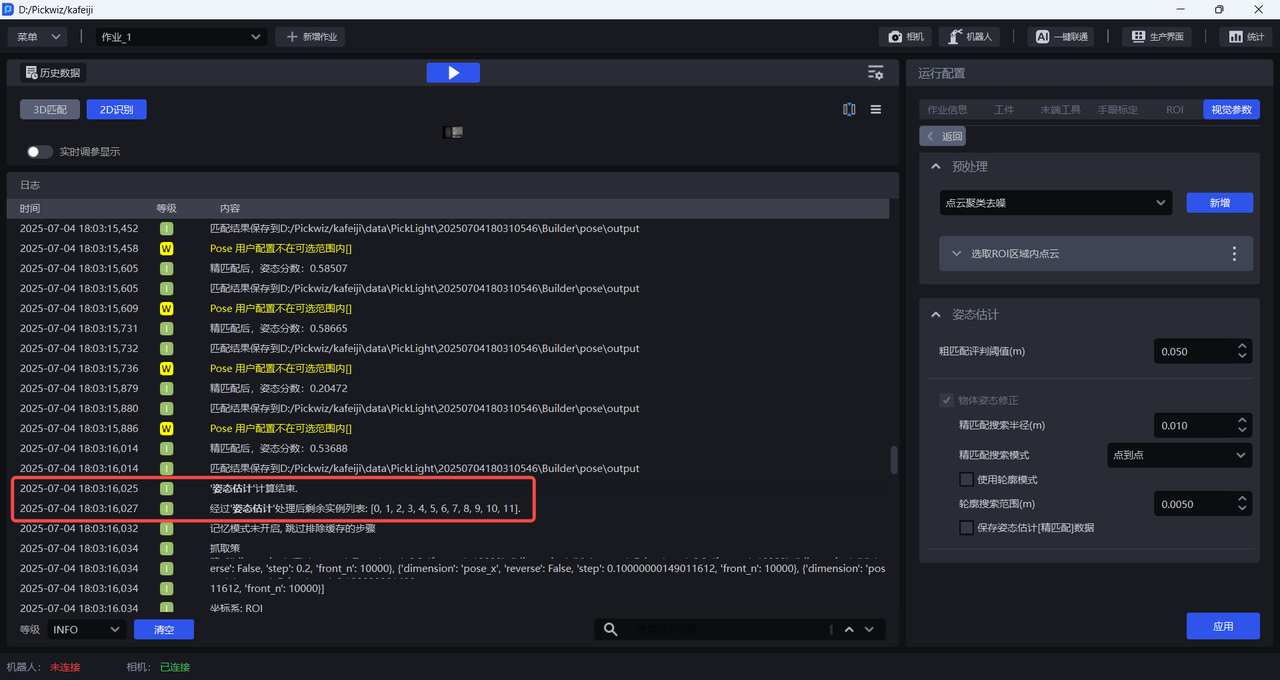
This node specifies the method for calculating the pose of the Target Object, corresponding to Vision Parameters - 3D Computation - Pose Estimation.
As shown in the figure below, 3D registration performs coarse matching and fine matching between the scene Point Cloud and the Point Cloud Template.
3.9 Pick Point Generation
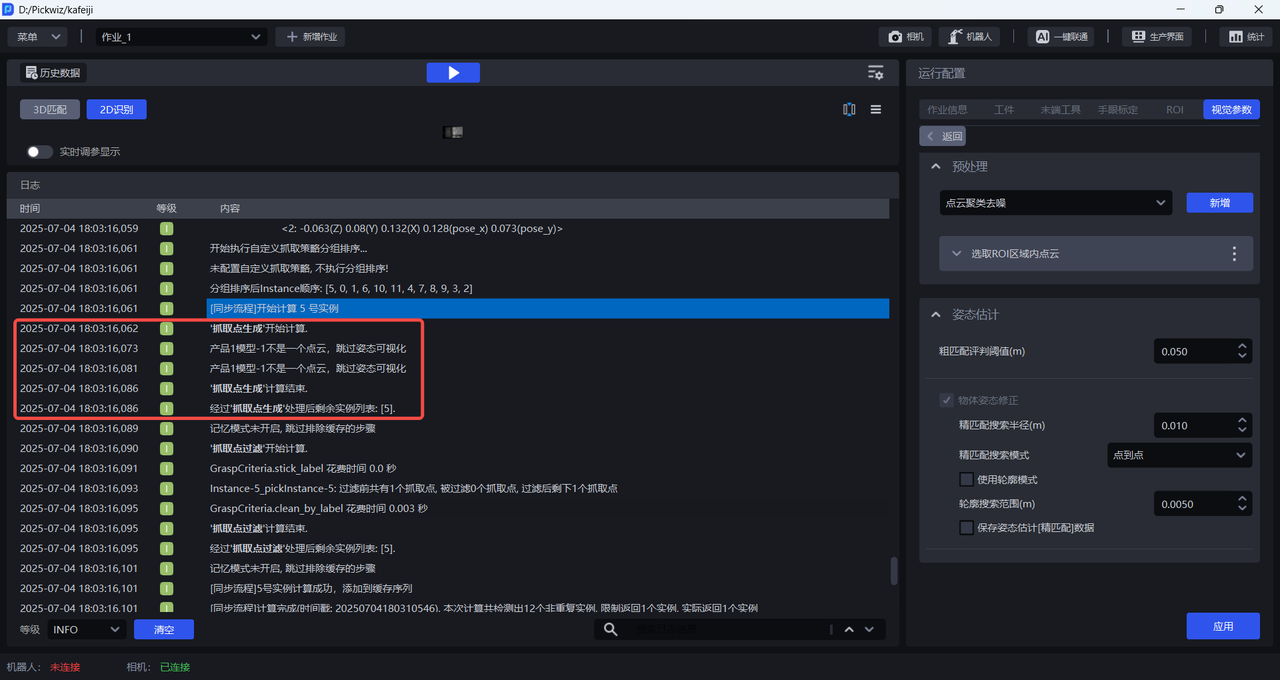
This node specifies the Pick Point generation method. It inputs the pose estimation result and outputs the Pick Points generated on each instance.
3.10 Pick Point Filtering
This node specifies the method for filtering Pick Points. It inputs all generated Pick Points and outputs the filtered Pick Points, corresponding to Vision Parameters - Pick Point Processing - Pick Point Filtering.
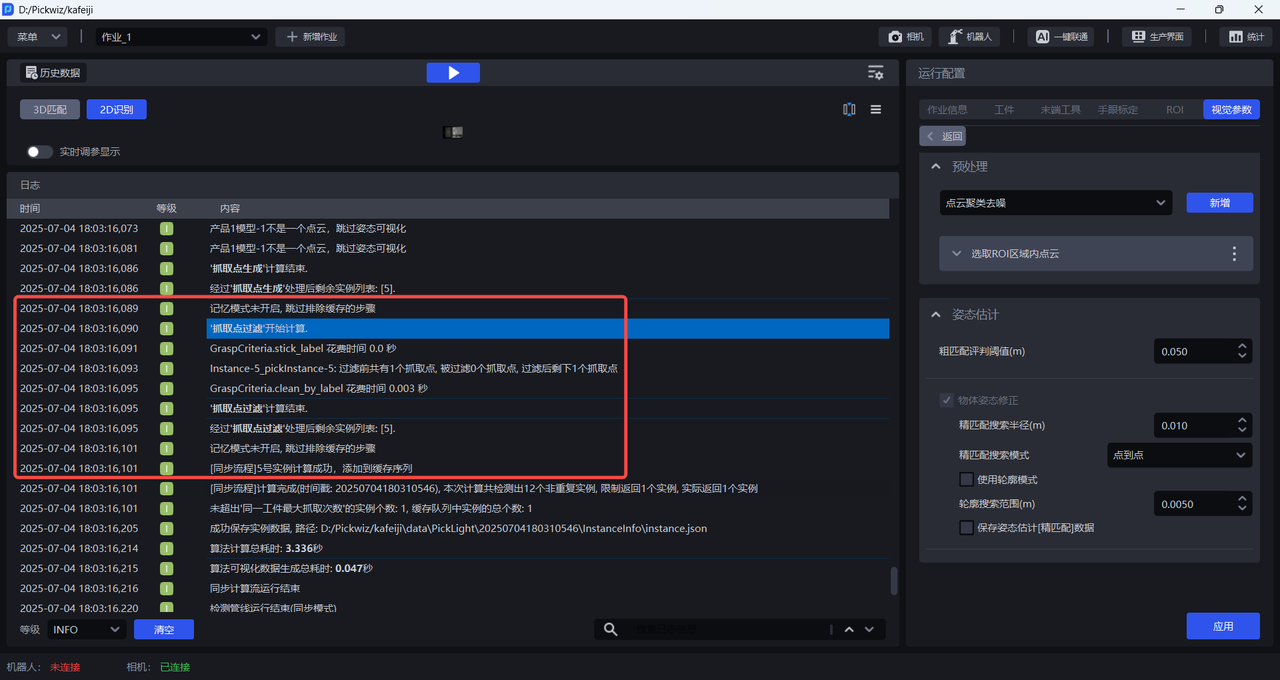
3.11 Pick Point Sorting
This node specifies the Pick Point sorting strategy. It inputs the Pick Points generated after pose estimation and outputs grouped and sorted Pick Points. Picking will be performed in this order, corresponding to Vision Parameters - Pick Point Processing - Pick Point Sorting.
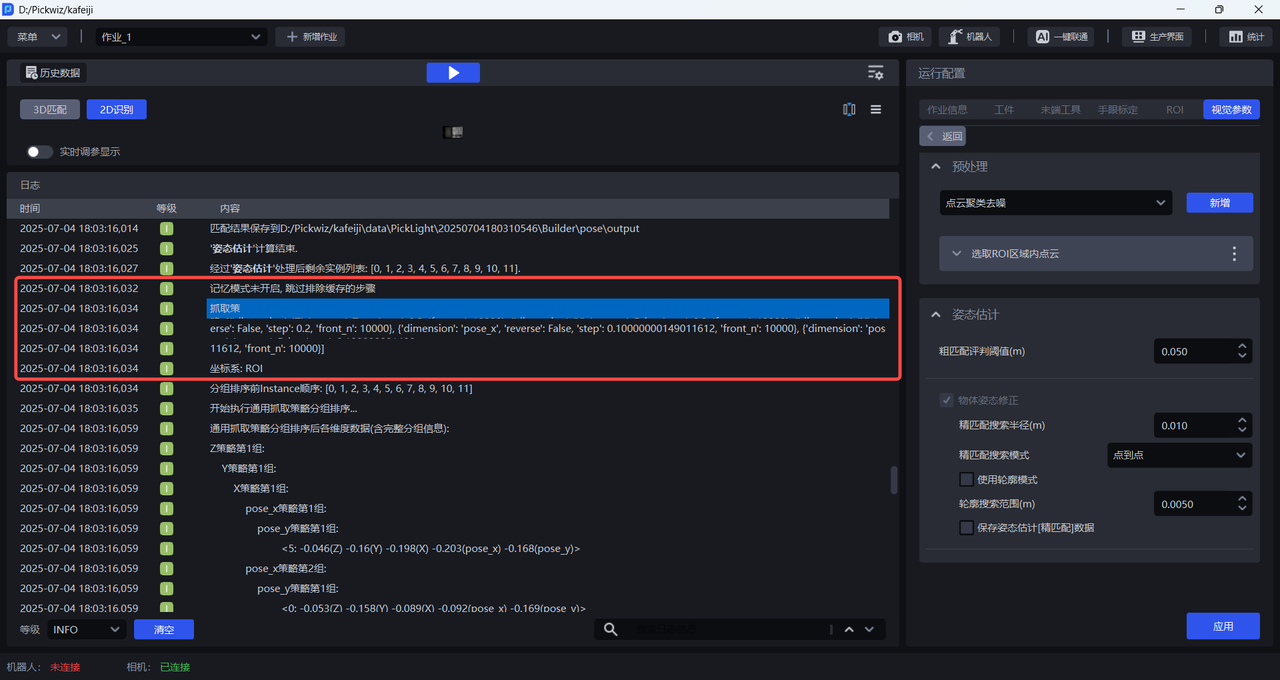
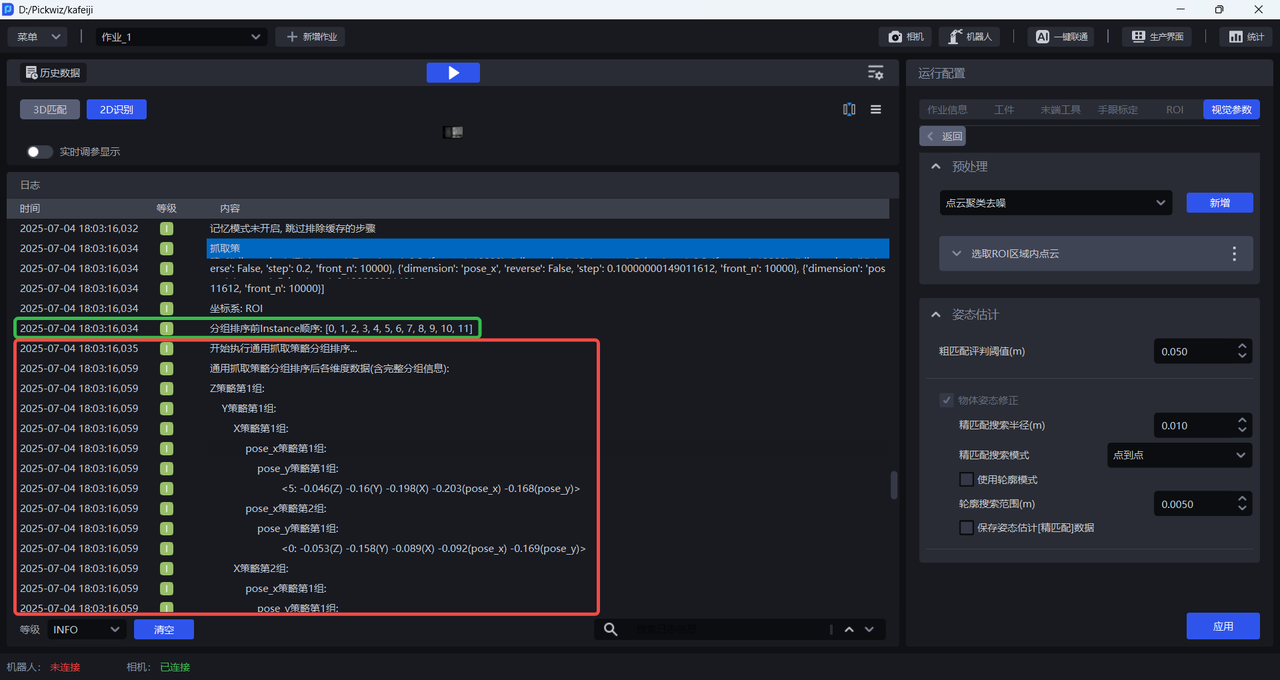
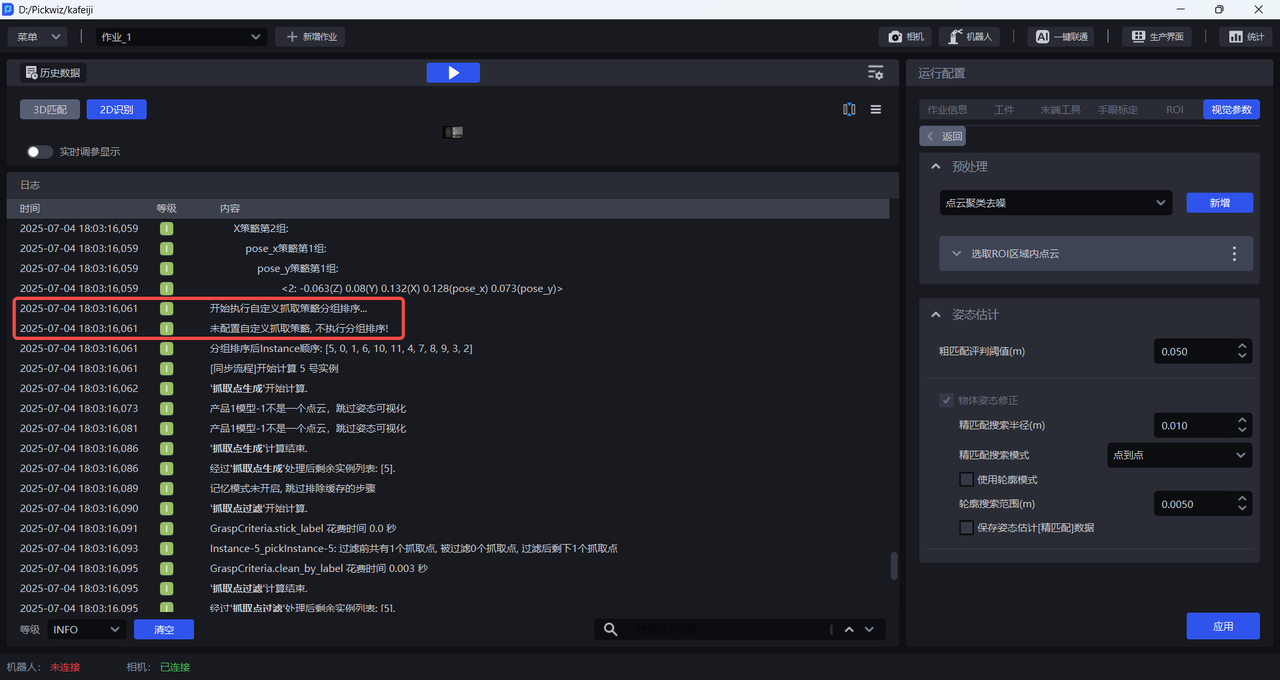
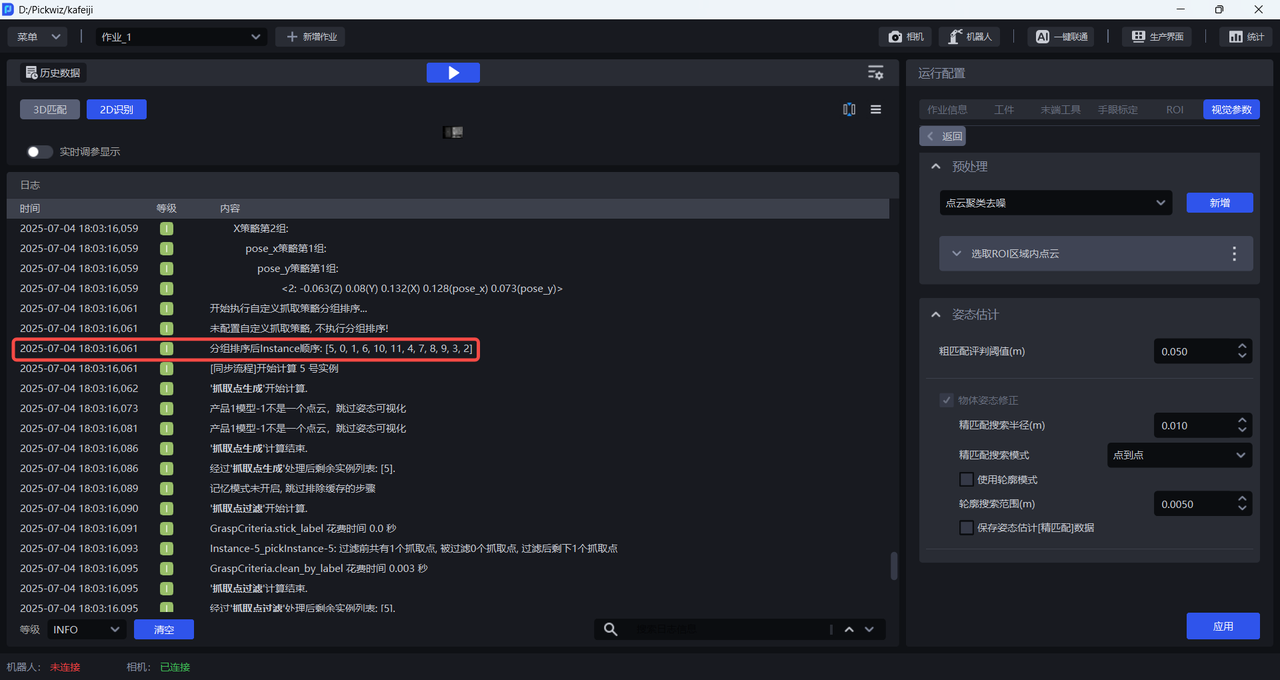
3.12 Detection End
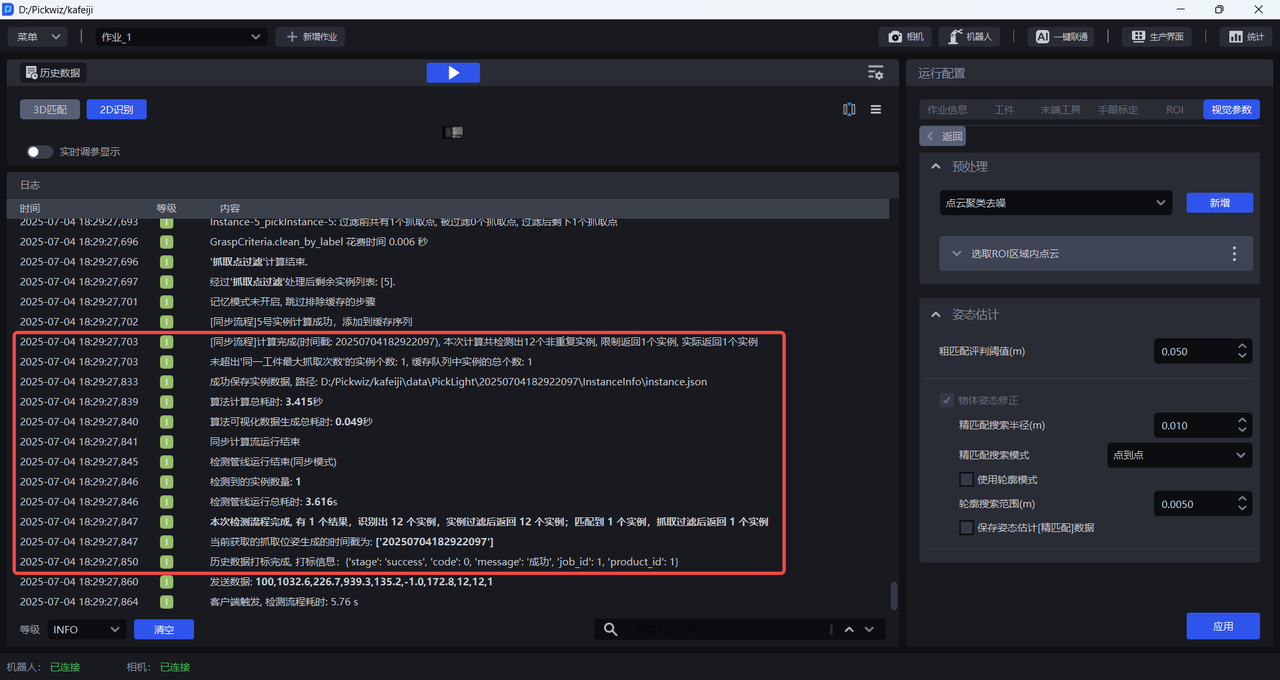
After detection ends, this node specifies the number of segmented instances, the number of instances returned after instance filtering, the number of instances matched in pose estimation, the number of instances returned after Pick Point filtering, and the time consumed.
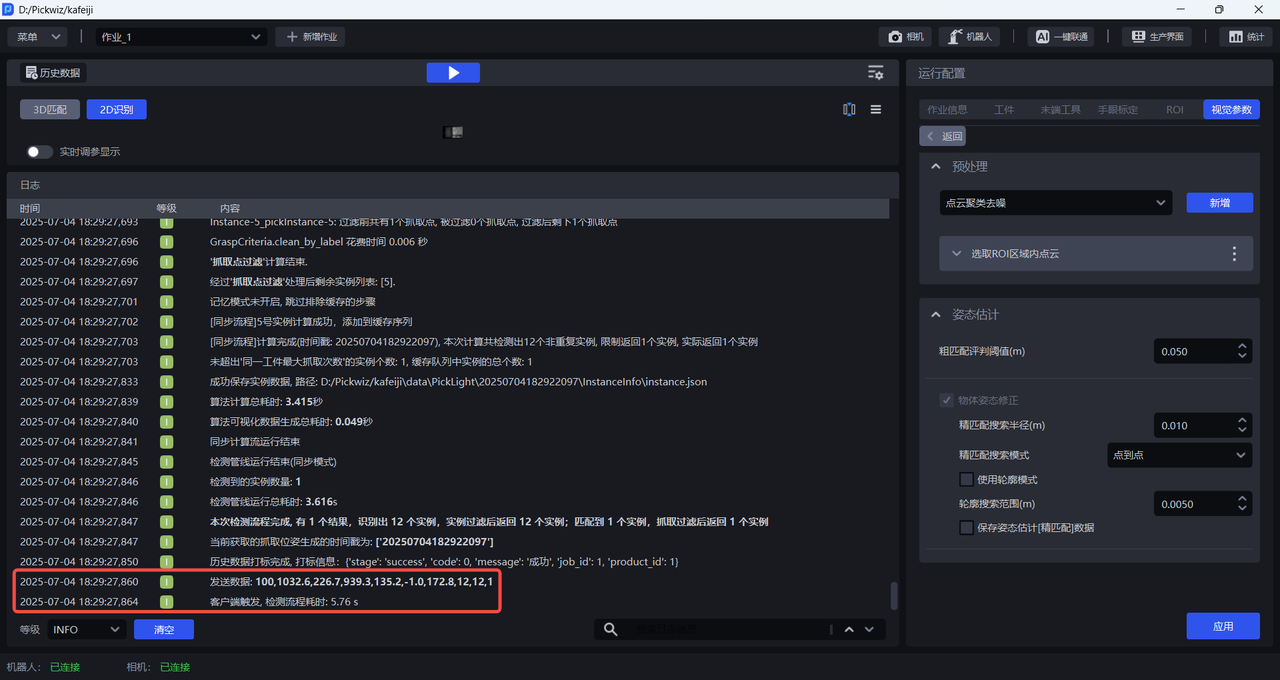
3.13 Send to the Robot
PickWiz sends Pick Points to the Robot. If Vision Computation Configuration - Number of Sent Instances is set to greater than 1, the Pick Points of multiple instances are sent to the Robot each time; if Vision Computation Configuration - Number of Sent Pick Points is set to greater than 1, multiple Pick Points of one instance are sent to the Robot each time.