Historical Data Usage Guide
Historical data is the operation record of Pickwiz over a past period of time. It stores the input data and output results of each process in 2D Recognition, 3D Computation, and Pick Point Processing, and is used to trace abnormal issues.
1. View Historical Data
Prerequisite Knowledge
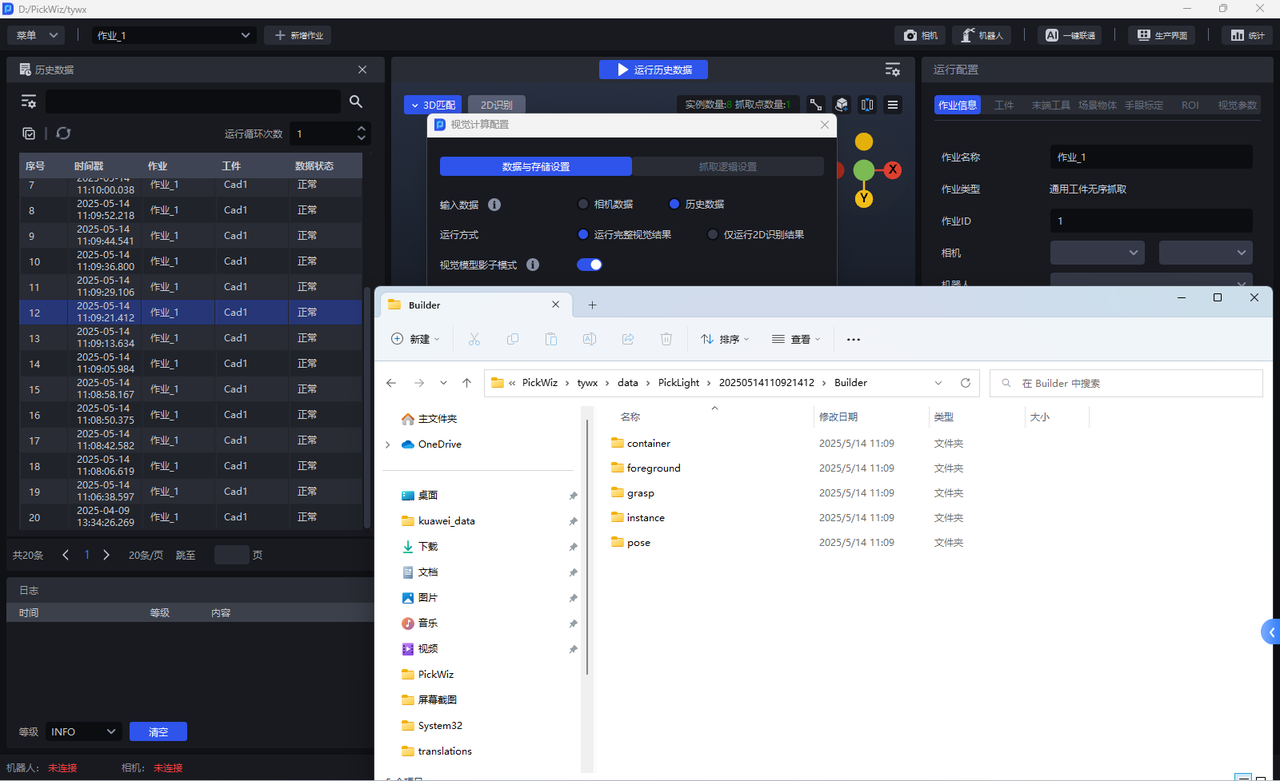
Historical data folder names correspond to node names:
Builder - generation-related nodes
Criteria - filtering-related nodes
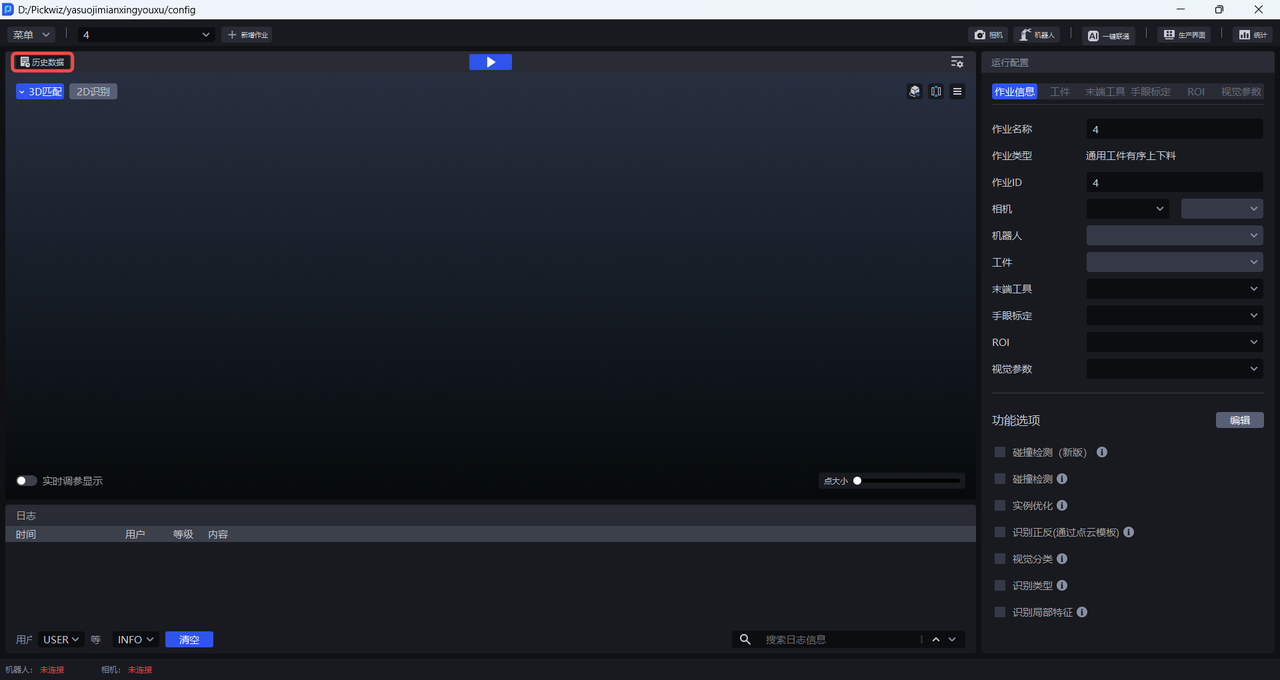
Click Historical Data on the main interface to open the historical data panel and view the historical data list
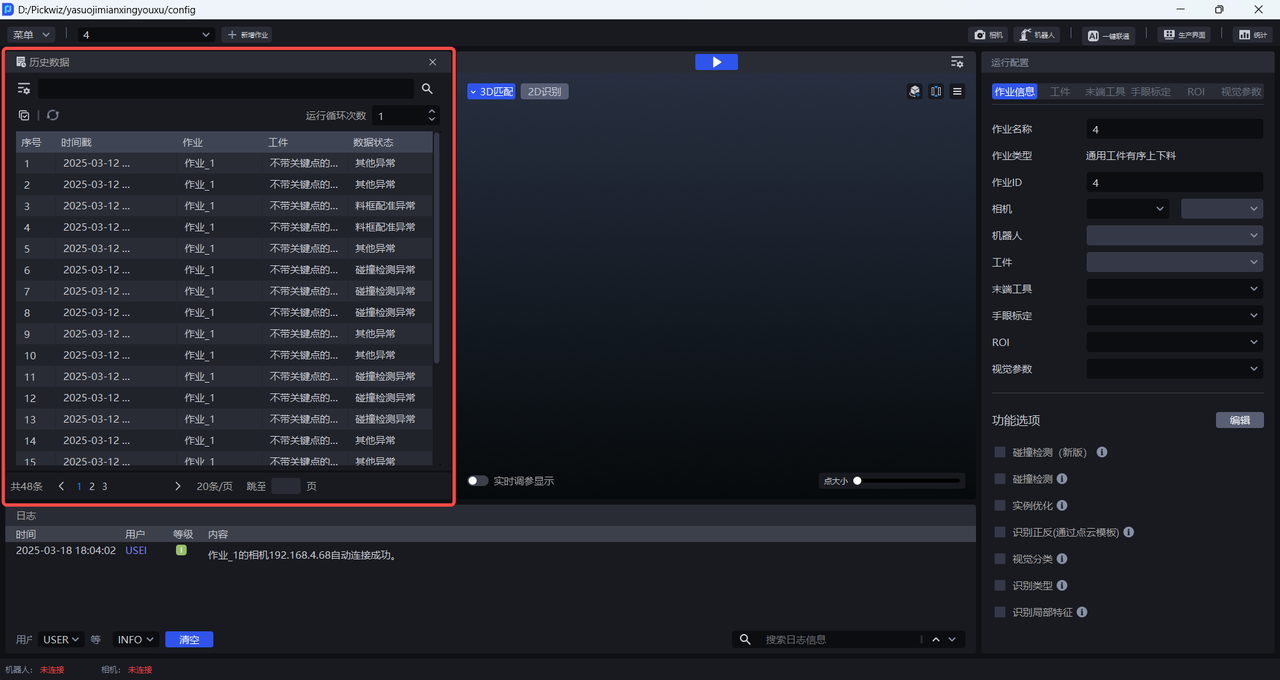
Each historical data entry displays its timestamp, task, workpiece, and data status. The timestamp is the running time of that historical data entry, the task is the task name of that historical data entry, the workpiece is the workpiece name of that historical data entry, and the data status is the running result of that historical data entry.
Move the mouse cursor over the timestamp, task, workpiece, and data status of each historical data entry to view the corresponding full name.
Click "<"">" or enter "Go to page" to turn pages and view the historical data on the next page of the list.
Click a specific historical data entry to view its 3D Matching result and 2D recognition result in the visualized window on the right.
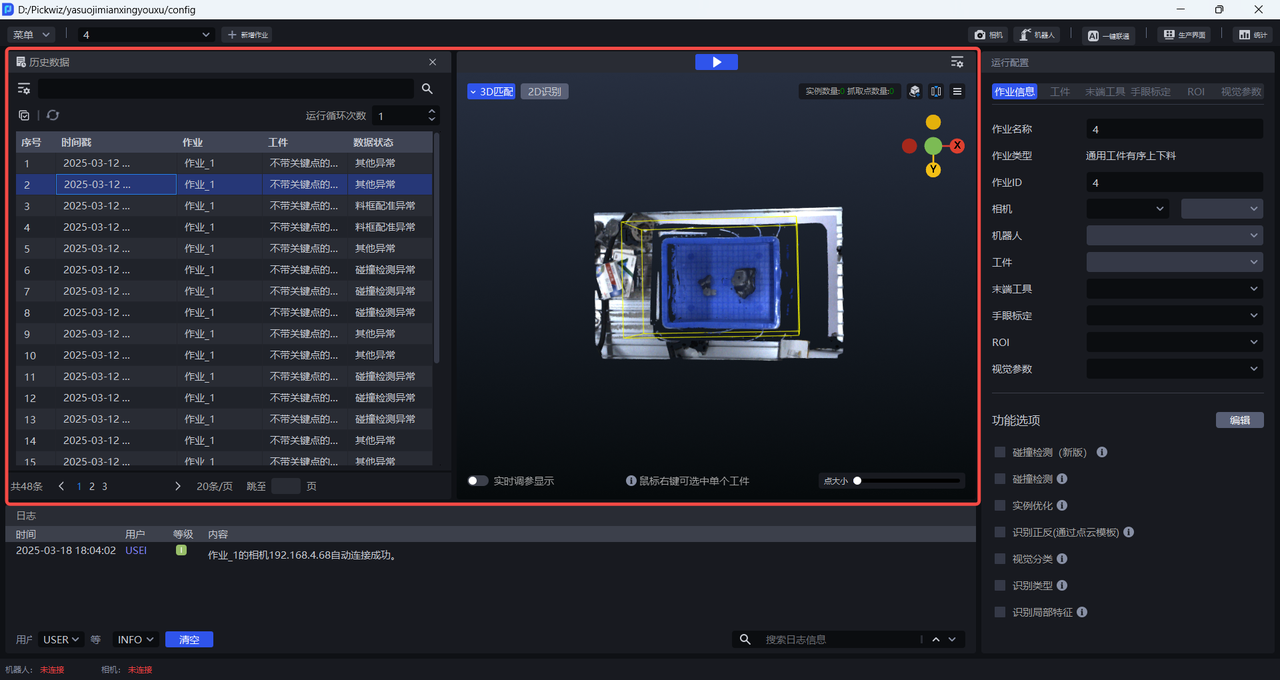
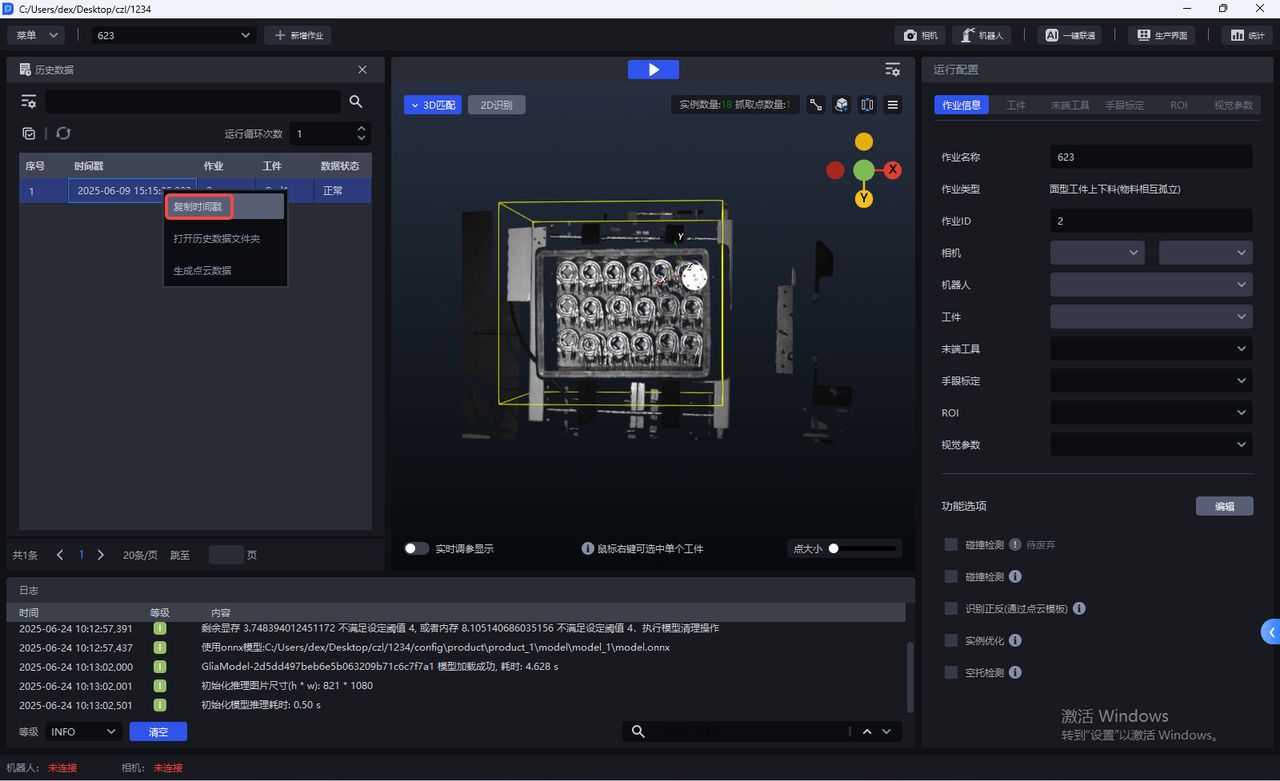
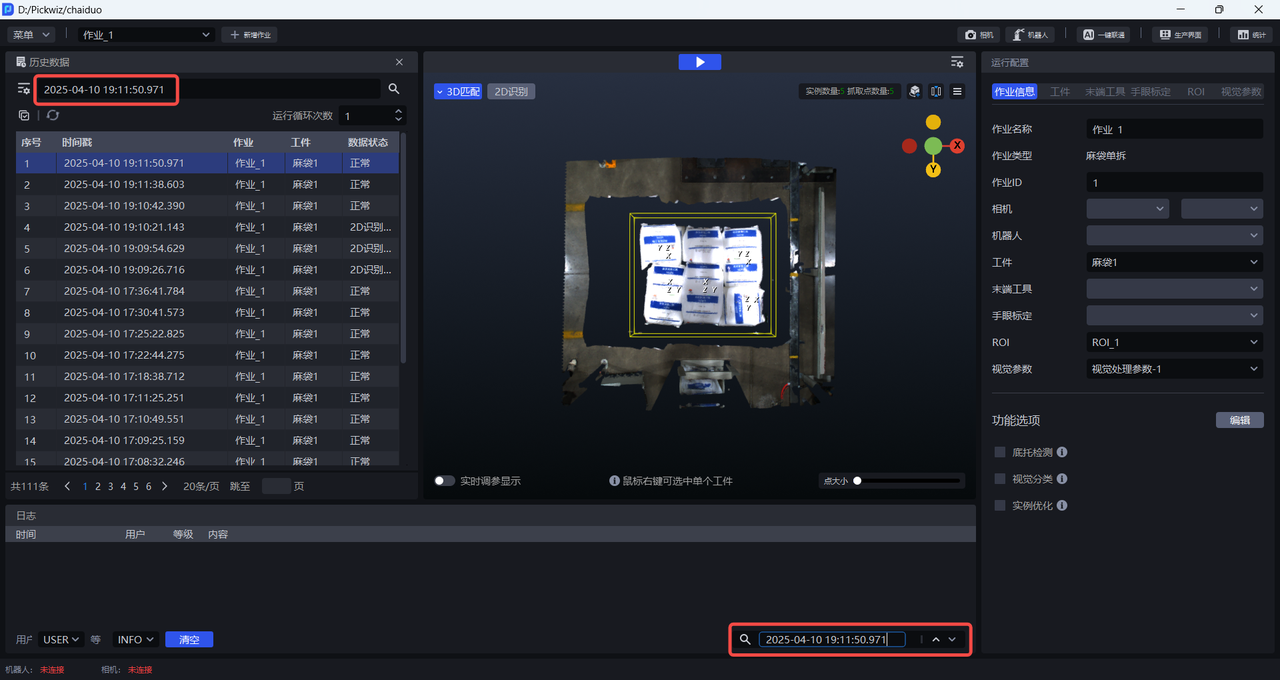
- Right-click the timestamp of a historical data entry to copy the timestamp, then paste it into the search box of the historical data panel or the search box of the log area to search for the corresponding historical data or log.
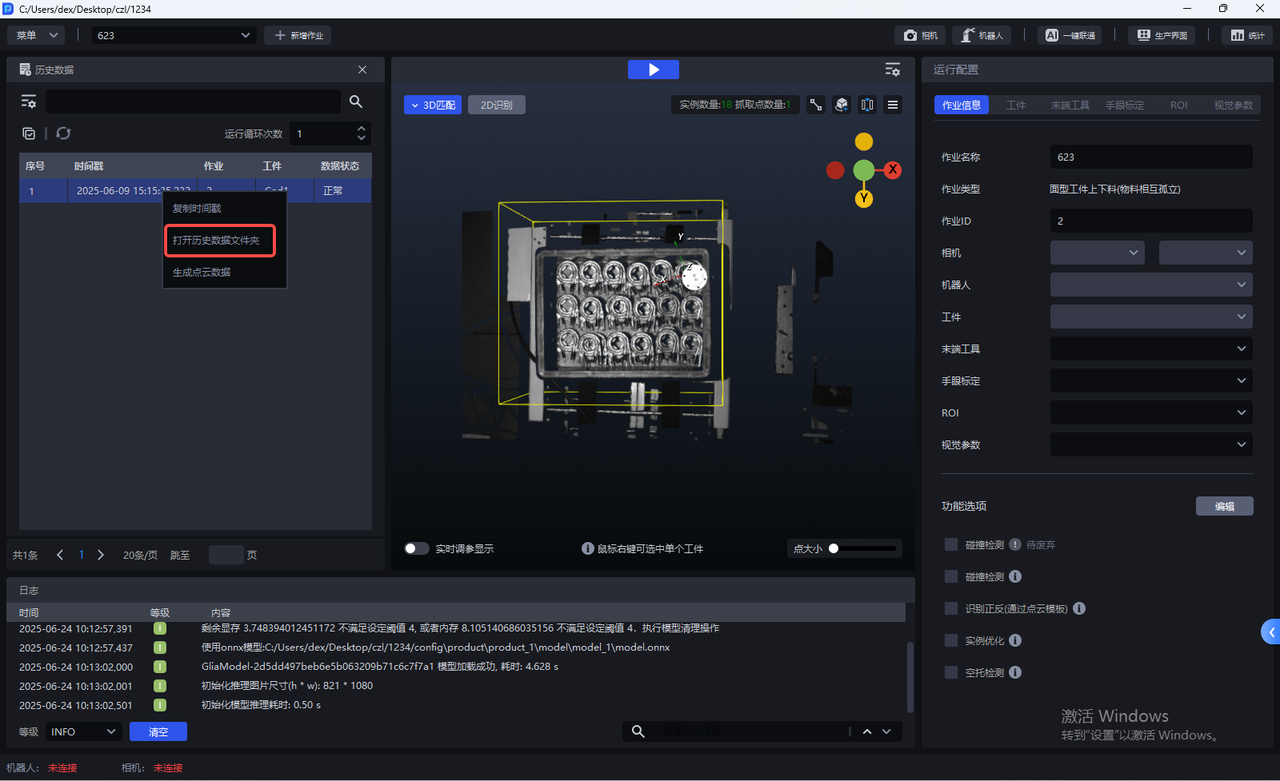
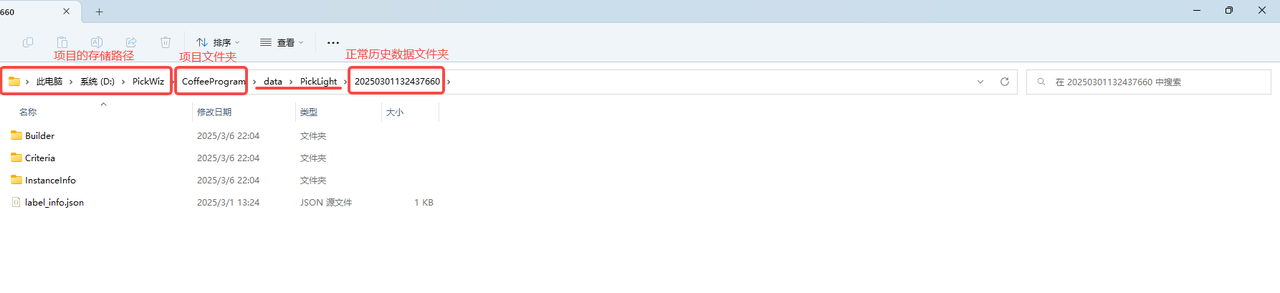
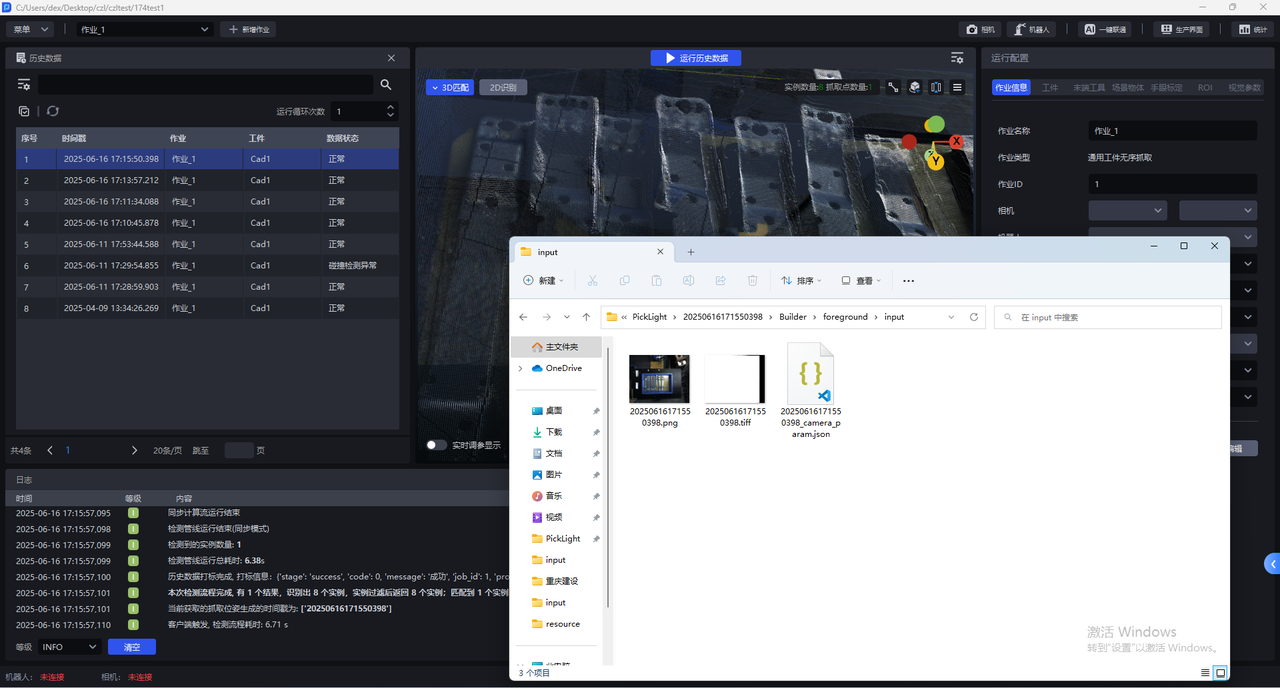
- Right-click the timestamp of a historical data entry to open the folder of that historical data entry.
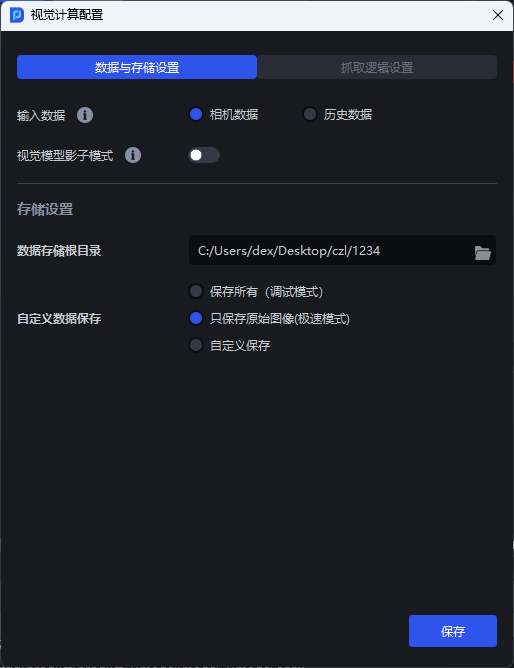
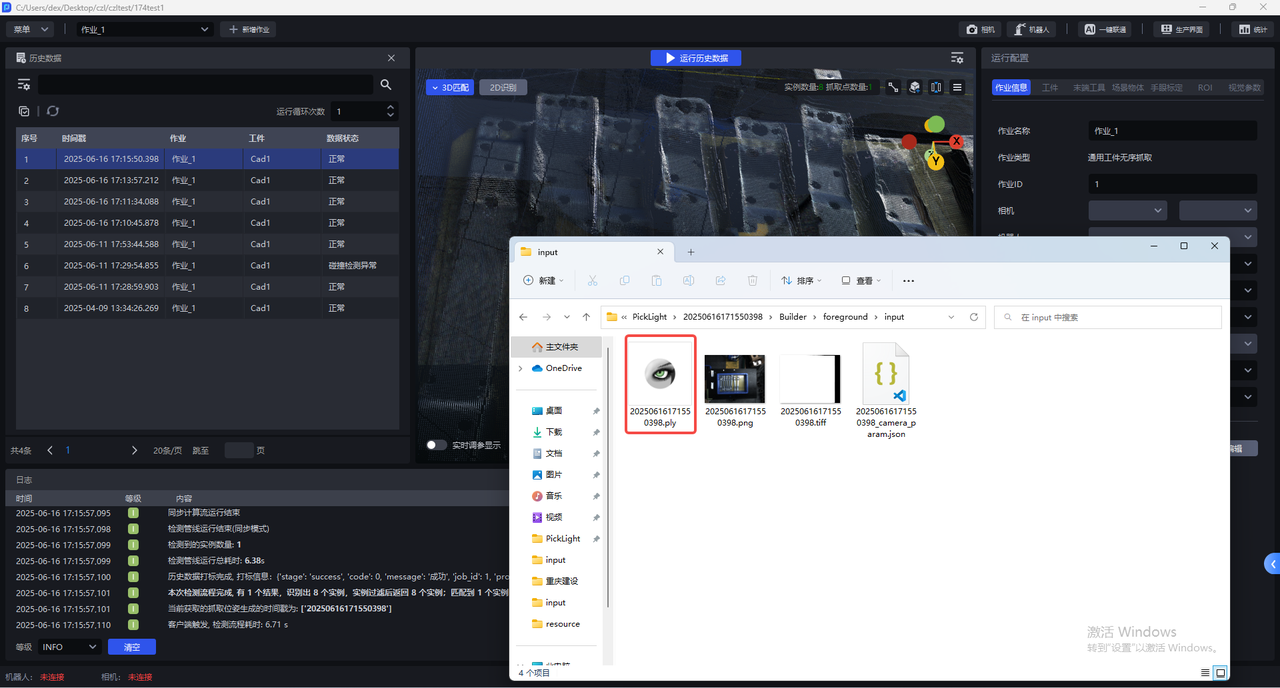
If Vision Calculation Configuration is set to Save Original Images Only (Speed Mode) for custom data saving, historical data will not save Point Cloud data, which means both the ROI area and the Point Cloud template cannot be adjusted, as shown below. (For ROI-related instructions, please refer to ROI Operation Guide. For Point Cloud template-related instructions, please refer to Point Cloud Template Creation Guide)
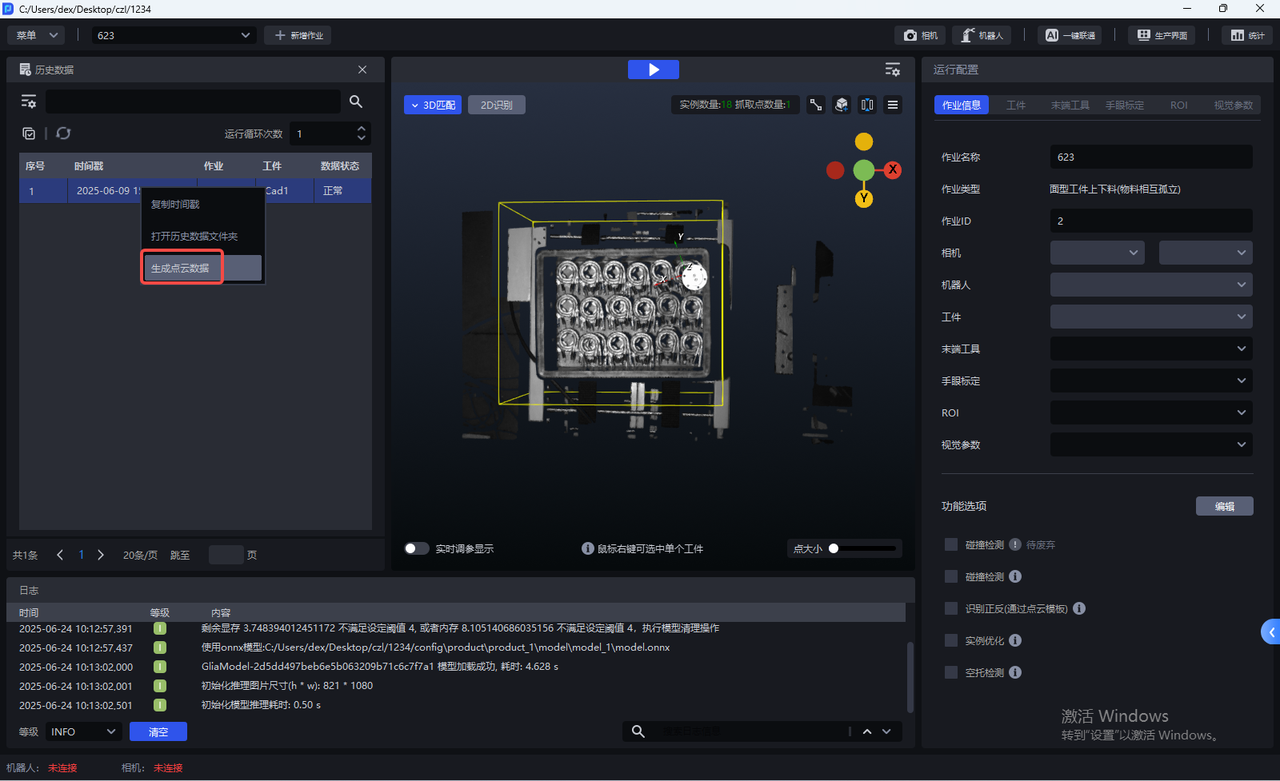
When the Camera is occupied and Camera data cannot be obtained, and Point Cloud can only be generated using historical data, you can right-click the timestamp of the historical data and then left-click Generate Point Cloud Data. The system will generate Point Cloud based on the original images and save it in the corresponding historical data directory, as shown below.
2. Search Historical Data
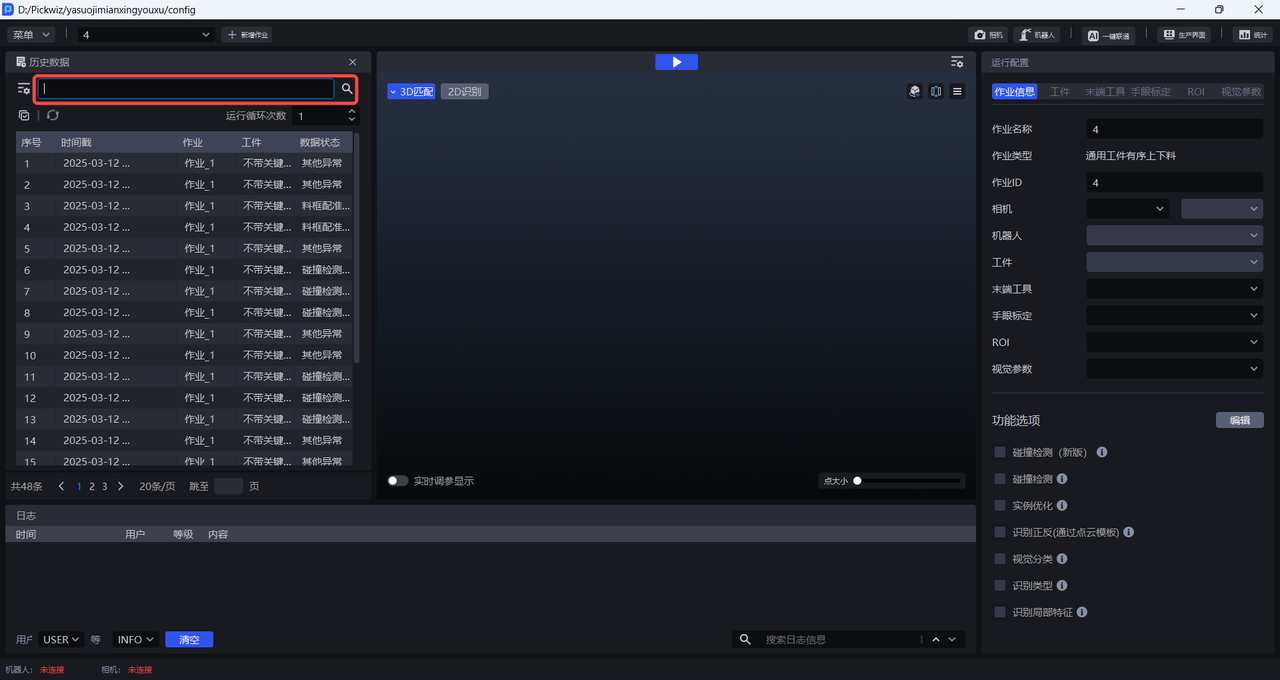
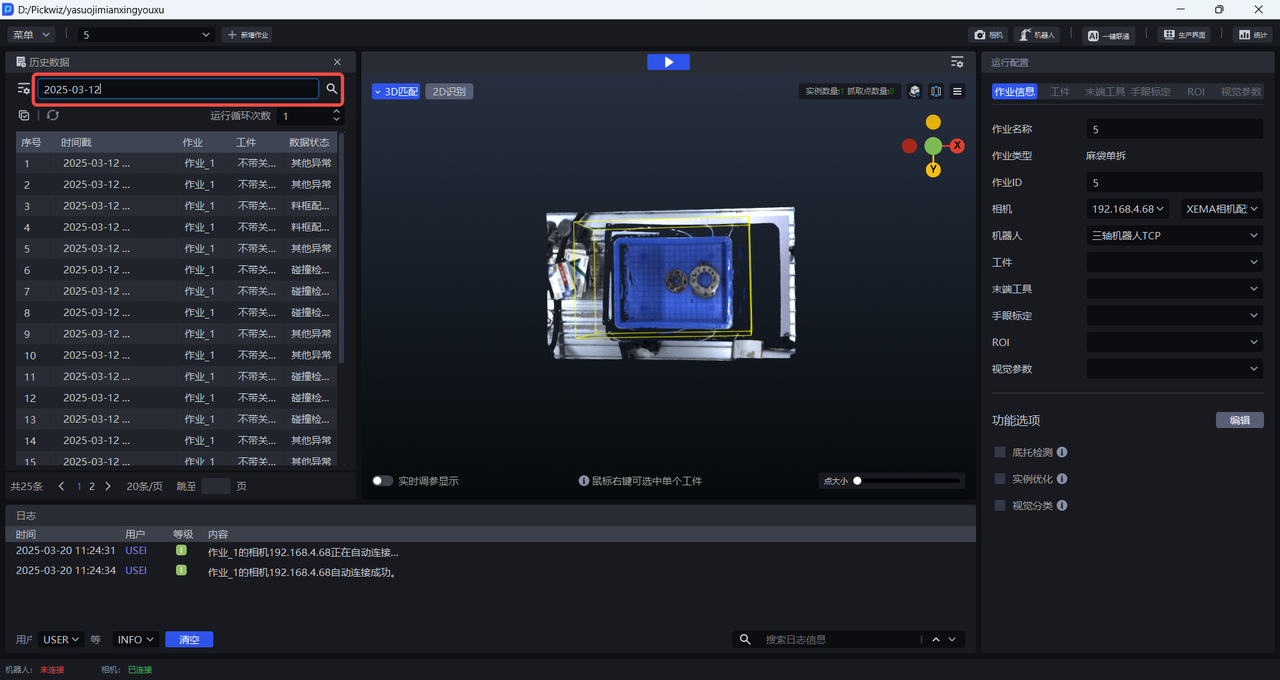
Enter the timestamp, task, workpiece, or data status in the search box of the historical data panel to search for the corresponding historical data.
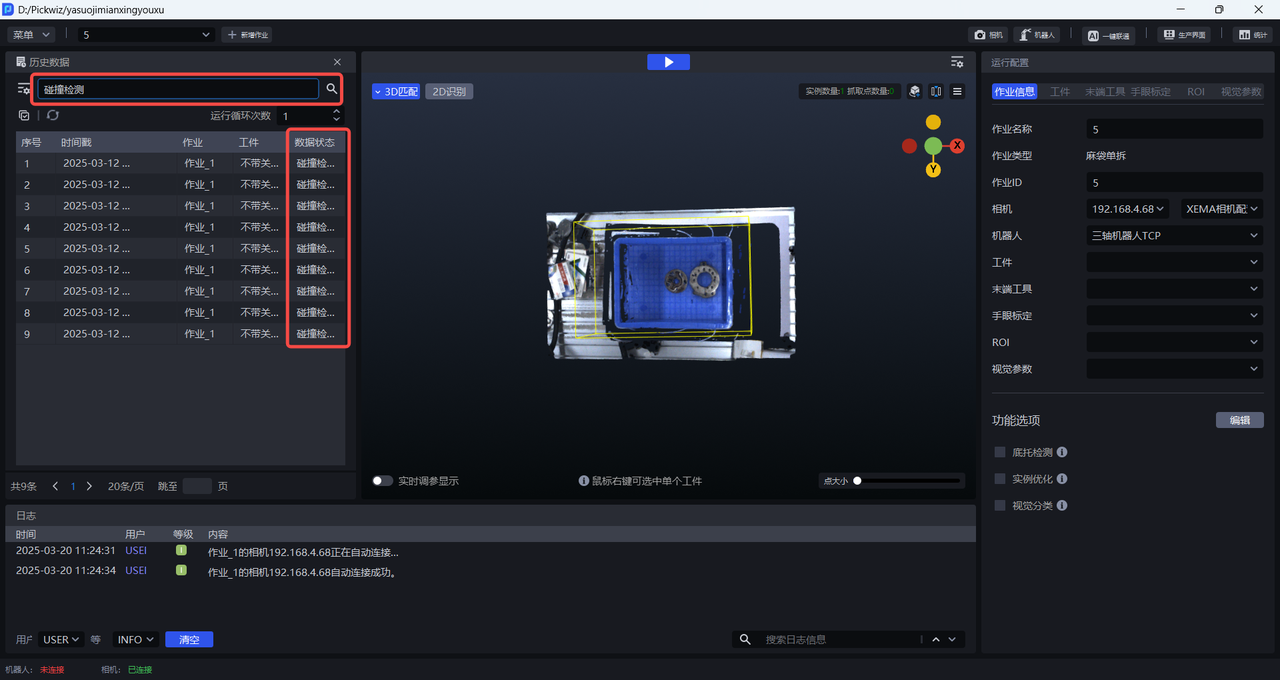
Enter an abnormal data status, such as container detection abnormality or 2D recognition error, to filter out abnormal cases in the historical data.
3. Refresh Historical Data
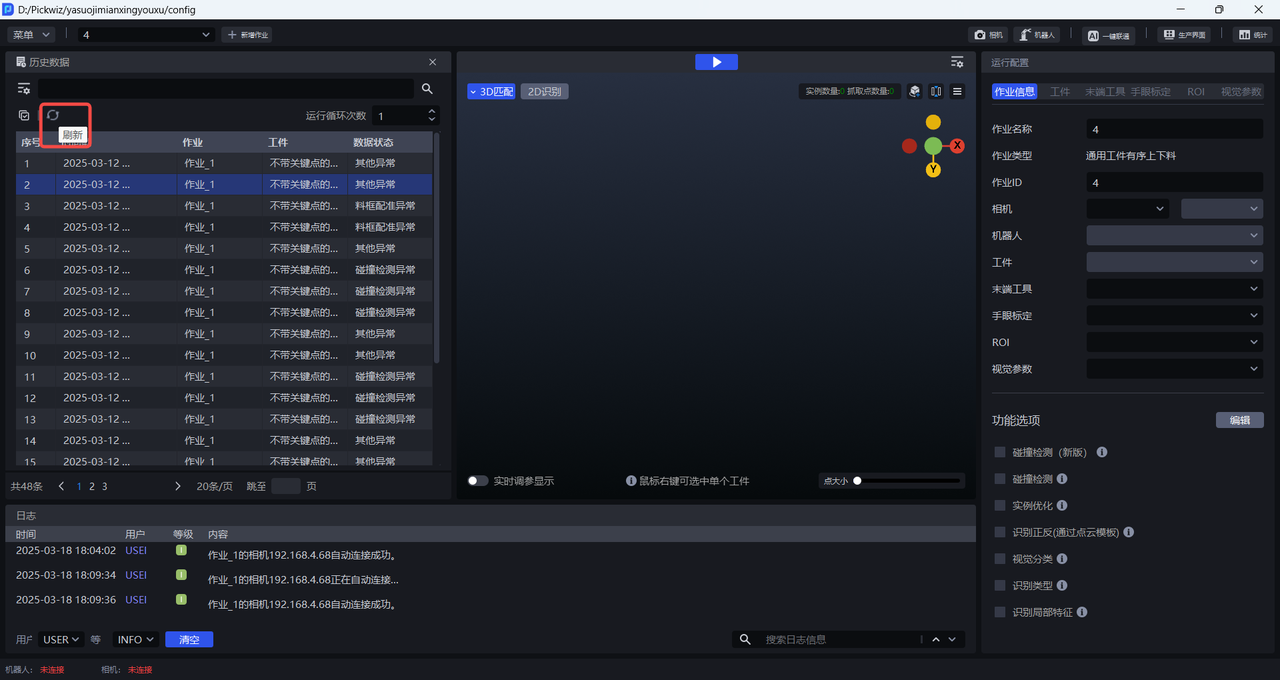
Click the Refresh Button to refresh the latest historical data.
4. Run Historical Data
(1)Run historical data on the PickWiz side
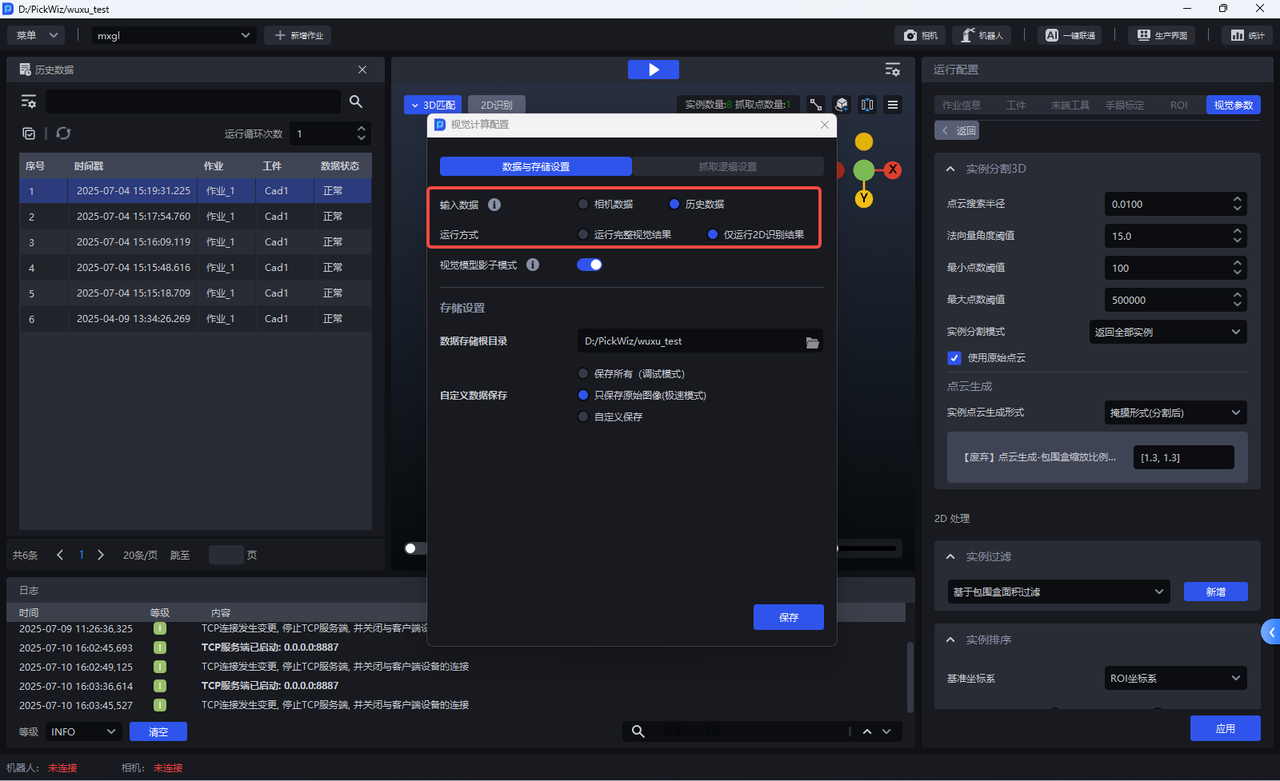
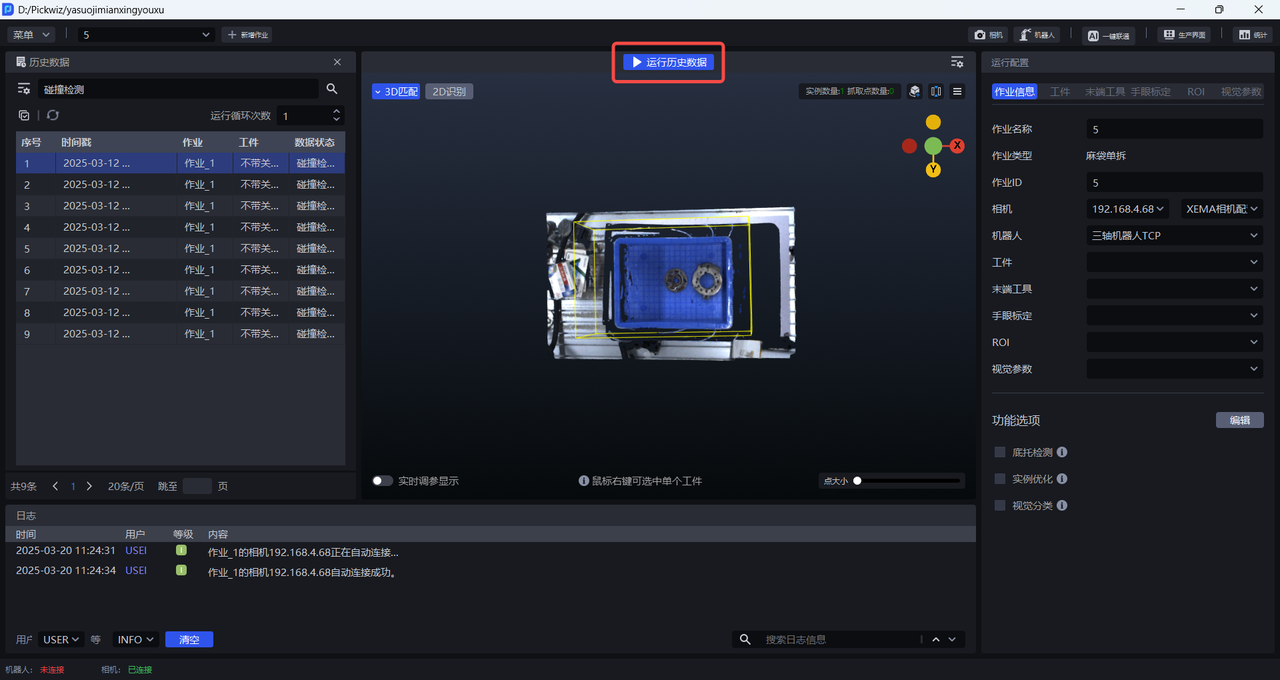
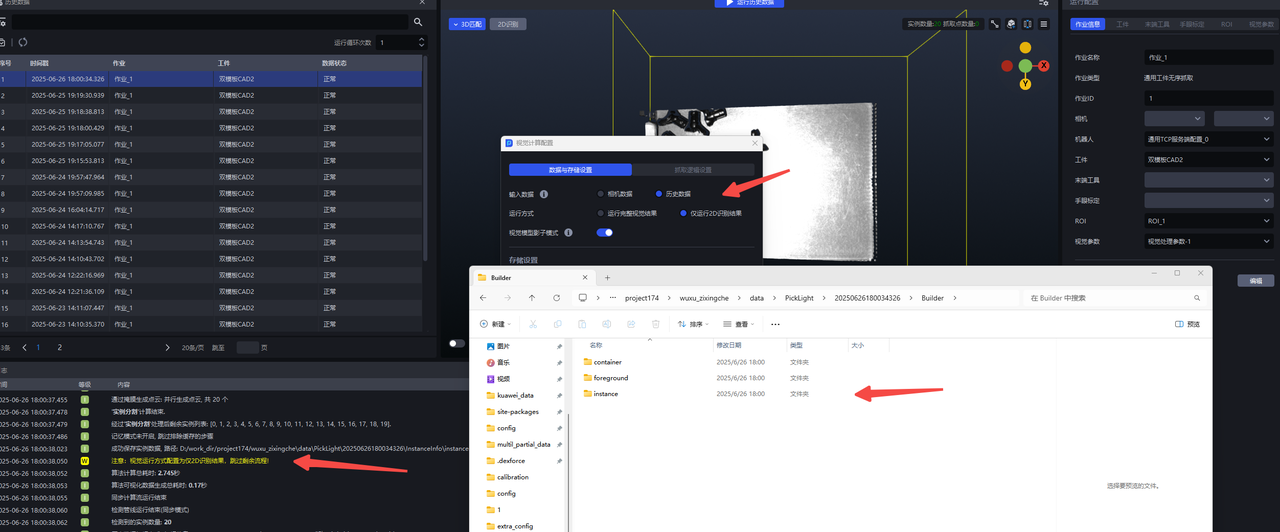
- To rerun selected historical data, enter the **Vision Calculation Configuration **panel, adjust Input Data to "Historical Data", and then click the "Run Historical Data" Button to rerun that historical data entry.
- If you need to view the 2D recognition results and Pick Points of that historical data entry, click Run Complete Vision Result. This running method will save the complete record of rerunning that historical data entry again, as shown below.
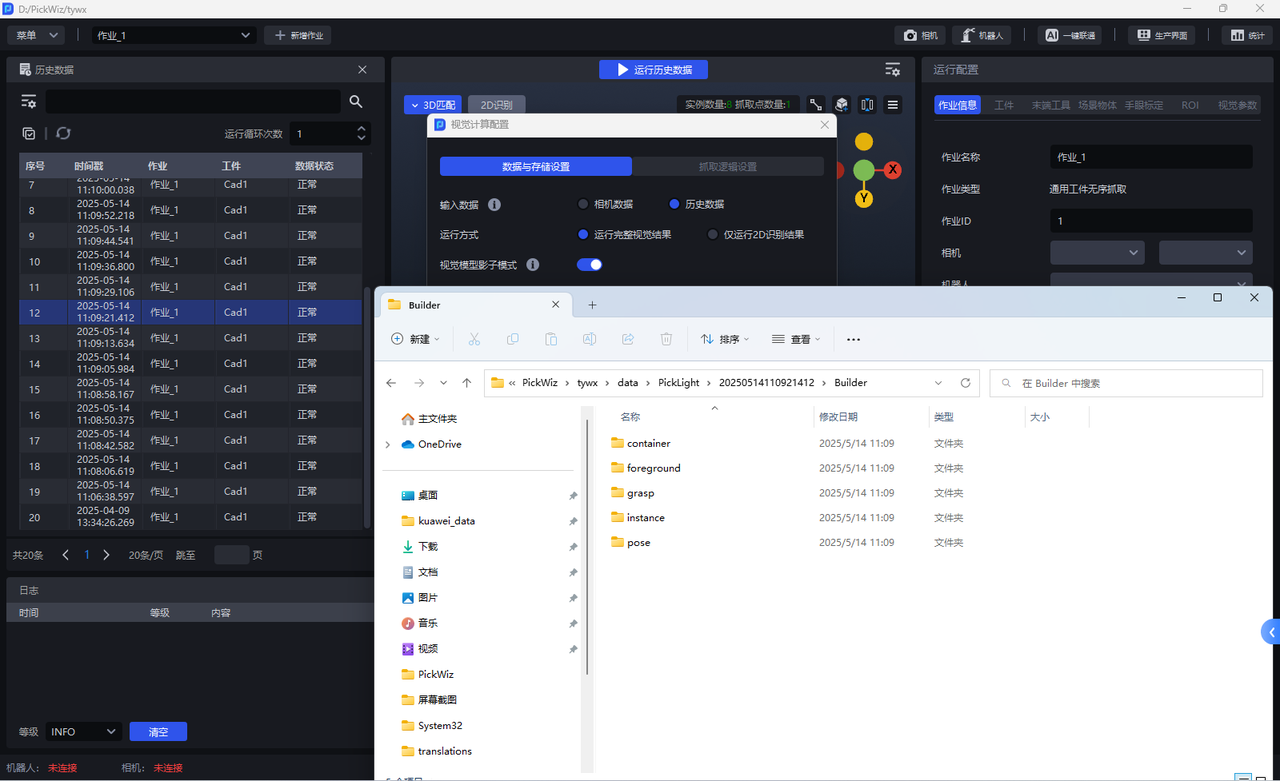
- If you only need to view the 2D recognition results of that historical data entry and do not need to view its Pick Points, click Run 2D Results Only. This running method only saves the rerun 2D recognition results of that historical data entry (the Builder folder saves only the foreground node foreground, container detection container, and instance detection instance, but does not save the pose estimation node pose or the Pick Point generation node grasp), as shown below.
(2)Run historical data on the Robot side
Select one historical data entry. When the Robot sends a command with co value 5, running the Vision Result using historical data will be triggered, as shown below.
The Robot
cocommand trigger supports only running historical data once and does not support batch running historical data.
5. Batch Operations
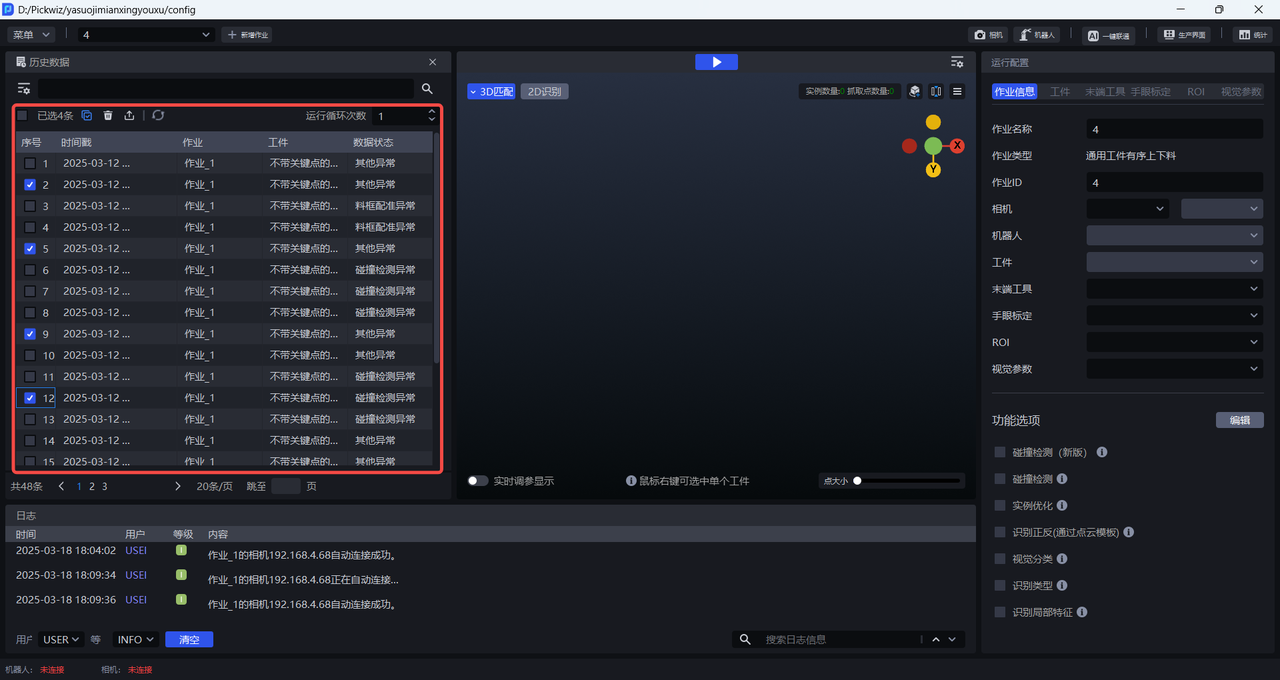
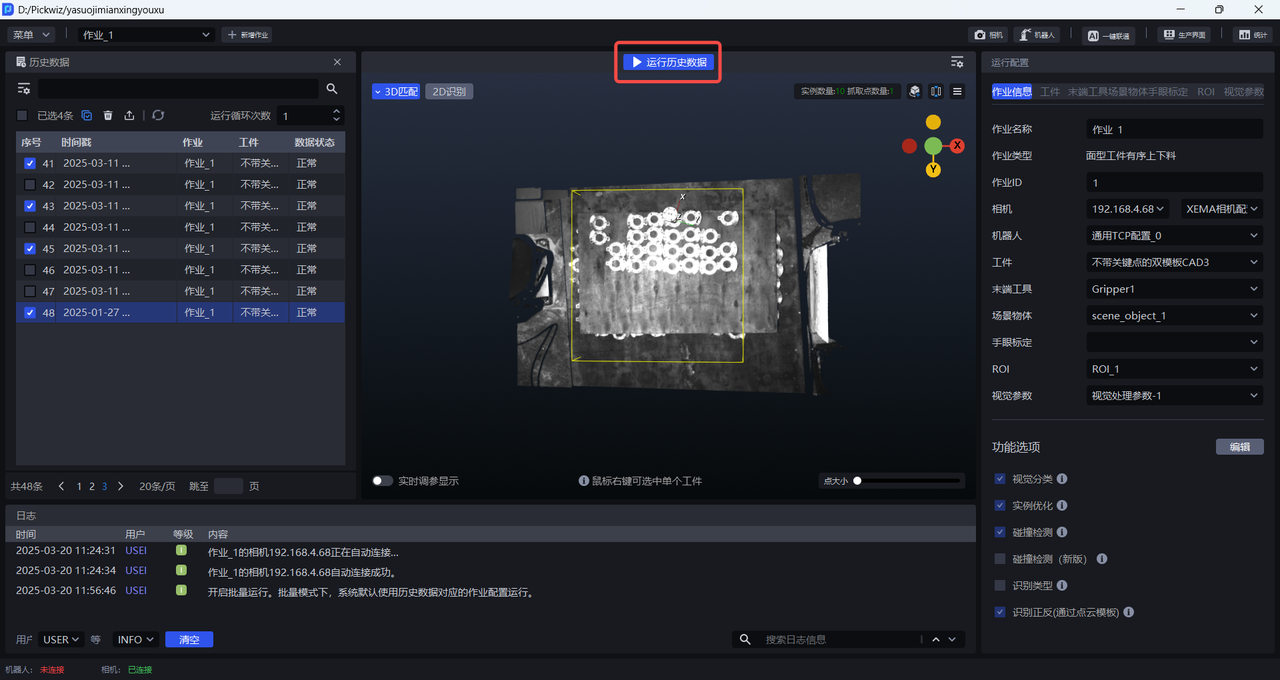
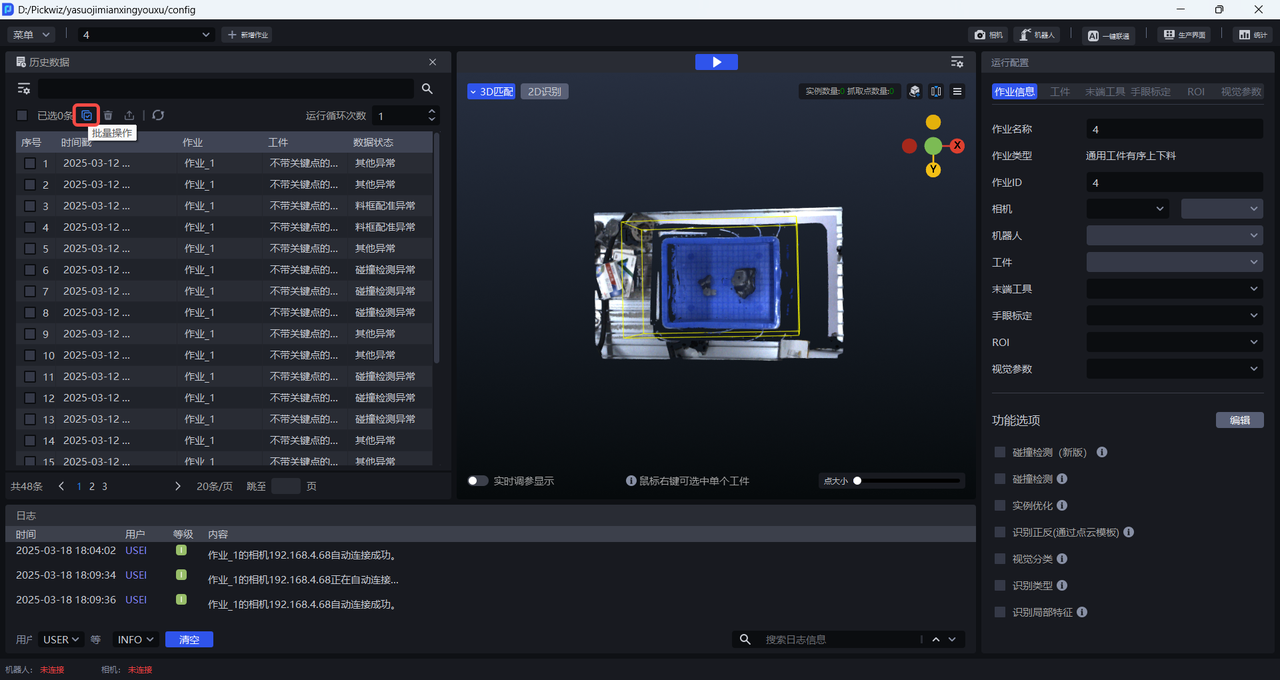
Click the Batch Operations Button to select multiple historical data entries for batch deletion, export, or running
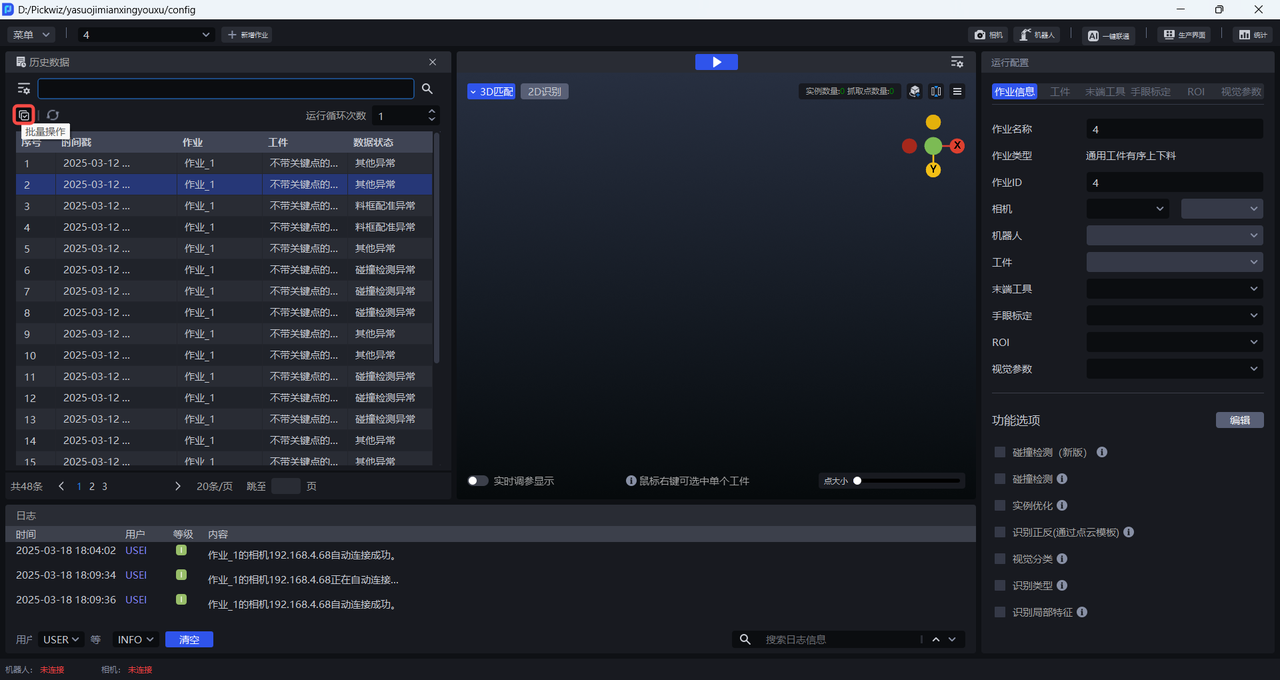
- Click the
🗑Button to batch delete multiple historical data entries
- Click Export Button to batch export multiple historical data entries
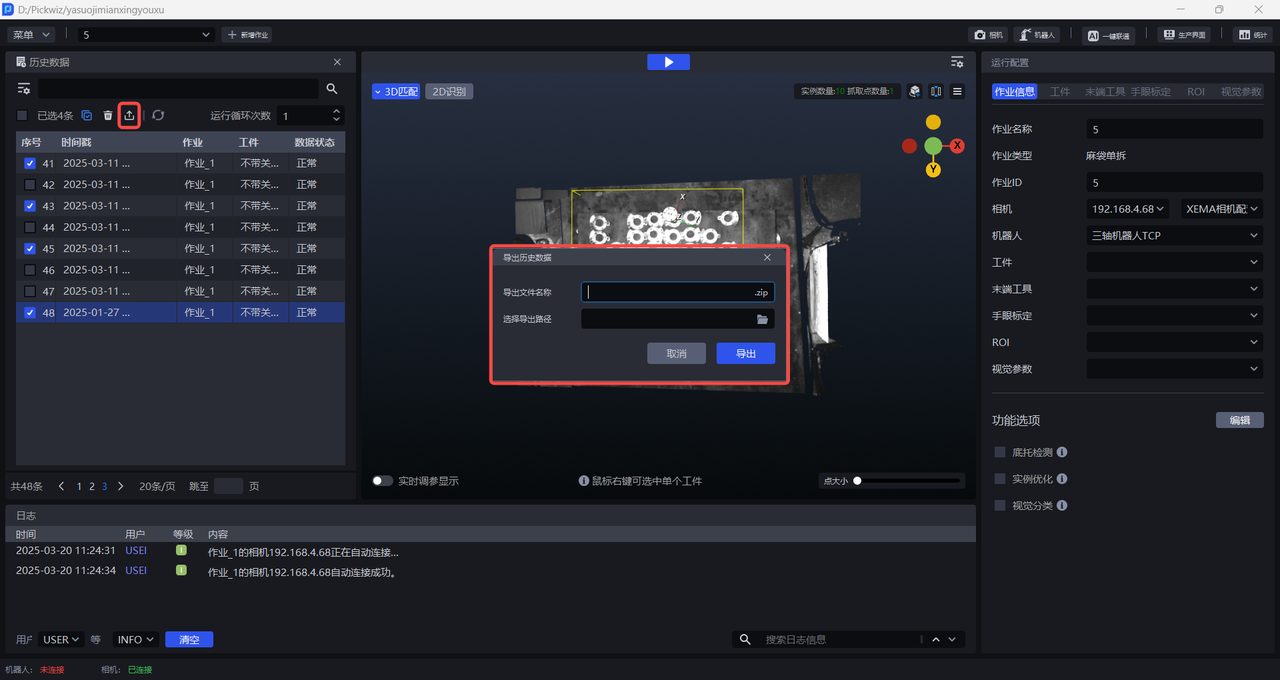
- Click the Run Historical Data Button to batch run multiple historical data entries one by one
- Click the Batch Operations Button again to cancel the batch operation function
6. Run Loop Count
The run loop count means running the selected historical data n times. If multiple historical data entries are selected and the run loop count is greater than 1, multiple historical data entries will run one by one, and after one round is completed, the next round will begin.
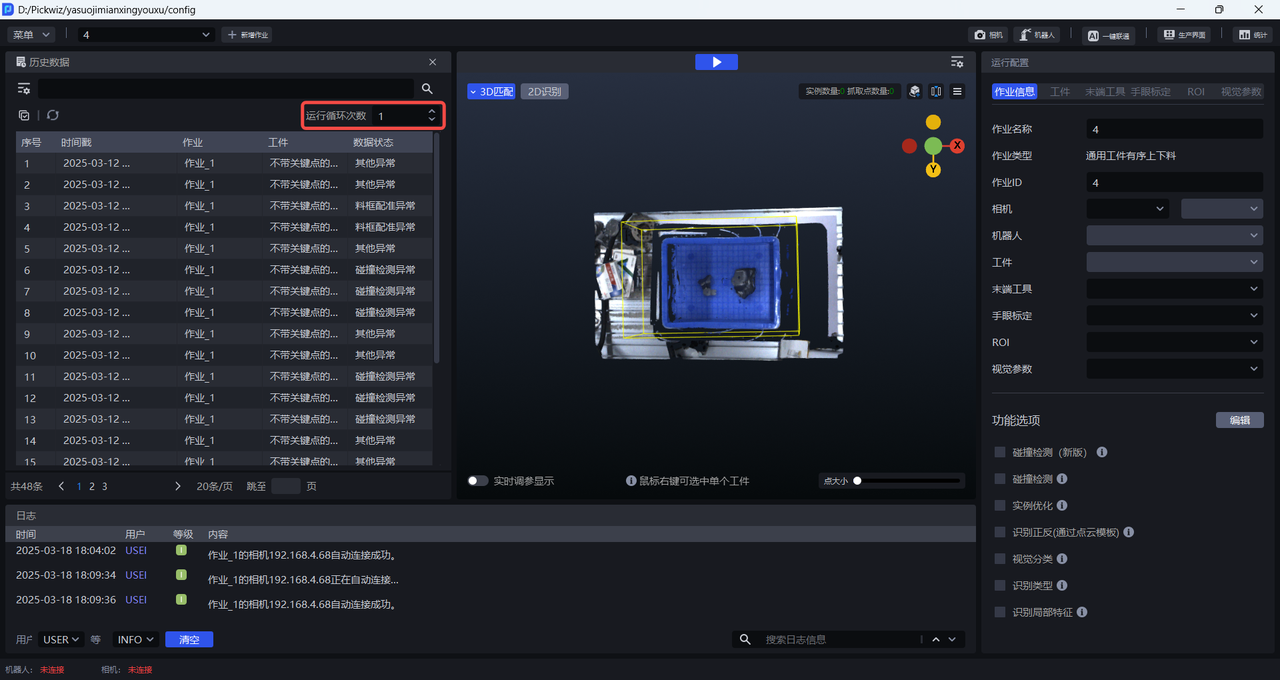
When the run loop count is greater than 1, you can view the current historical data running progress at the lower right corner of the main interface

Click Stop Historical Data to stop loop running

7. Historical Data Storage Management
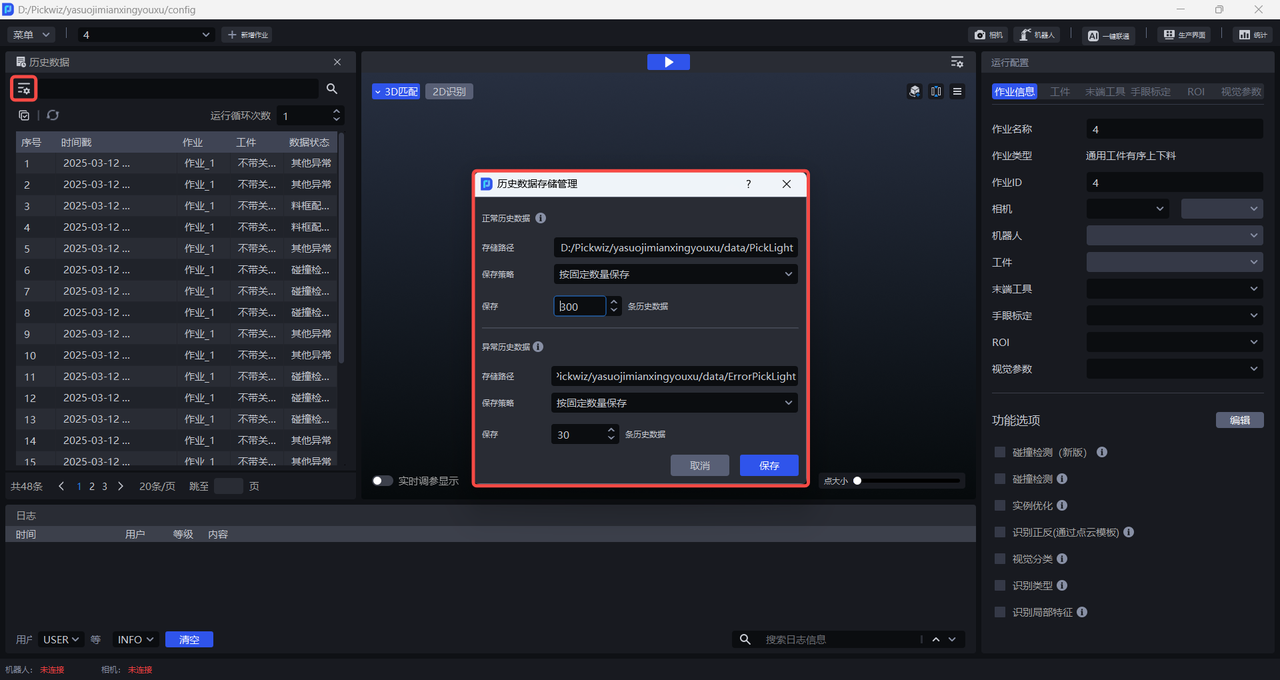
Click to open the historical data storage management panel, view the path where historical data is stored, and set the retention policy for historical data
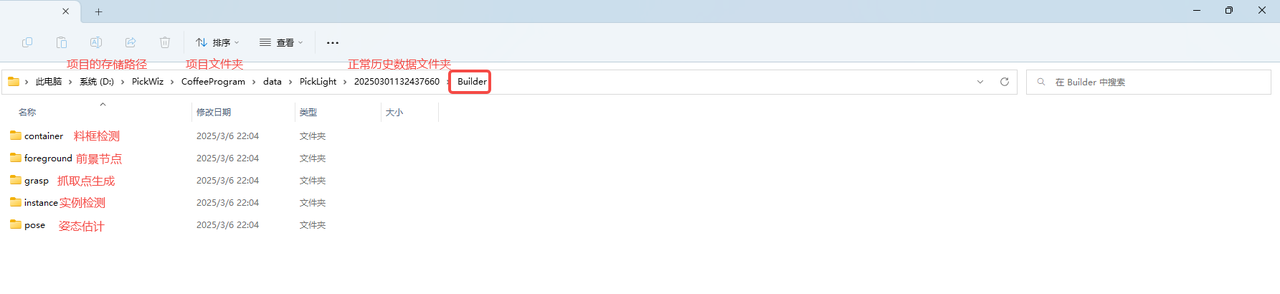
- Normal historical data
The storage path for normal historical data is: 项目所在文件夹/项目文件夹/data/PickLight
There are two retention policies: save by fixed quantity and save by fixed time. Saving by fixed quantity saves n normal historical data entries, with a default of 300 entries; saving by fixed time saves normal historical data within n hours, with a default of 24 hours.

- Abnormal historical data
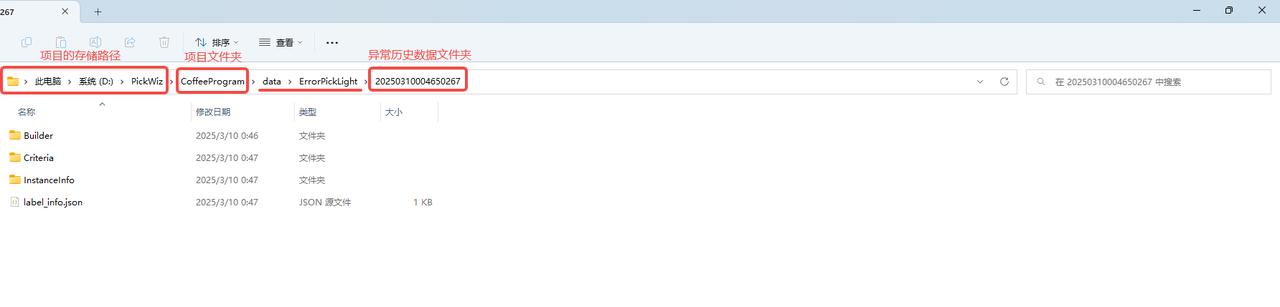
The storage path for abnormal historical data is: 项目所在文件夹/项目文件夹/data/ErrorPickLight
There are two retention policies: save by fixed quantity and save by fixed time. Saving by fixed quantity saves n abnormal historical data entries, with a default of 30 entries; saving by fixed time saves abnormal historical data within n hours, with a default of 24 hours.
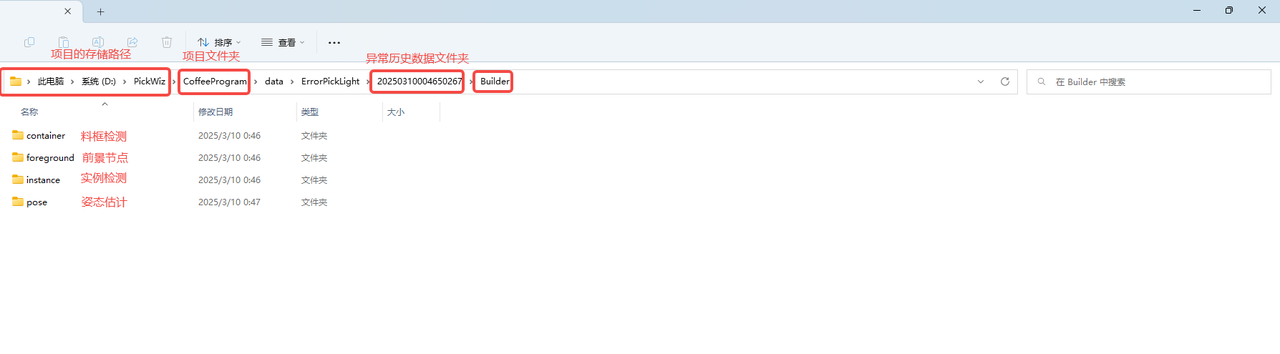

Abnormal nodes can be identified from abnormal historical data. For example, in the abnormal historical data shown above, the Pick Point generation folder (Builder/Pose) is missing, indicating that an error occurred in Pick Point generation.